
Dark Chat UI Anime Conversion Screenshot
Creates a dark-mode chat screenshot mockup showing three portrait inputs and an anime-style generated group preview with Japanese conversation bubbles.
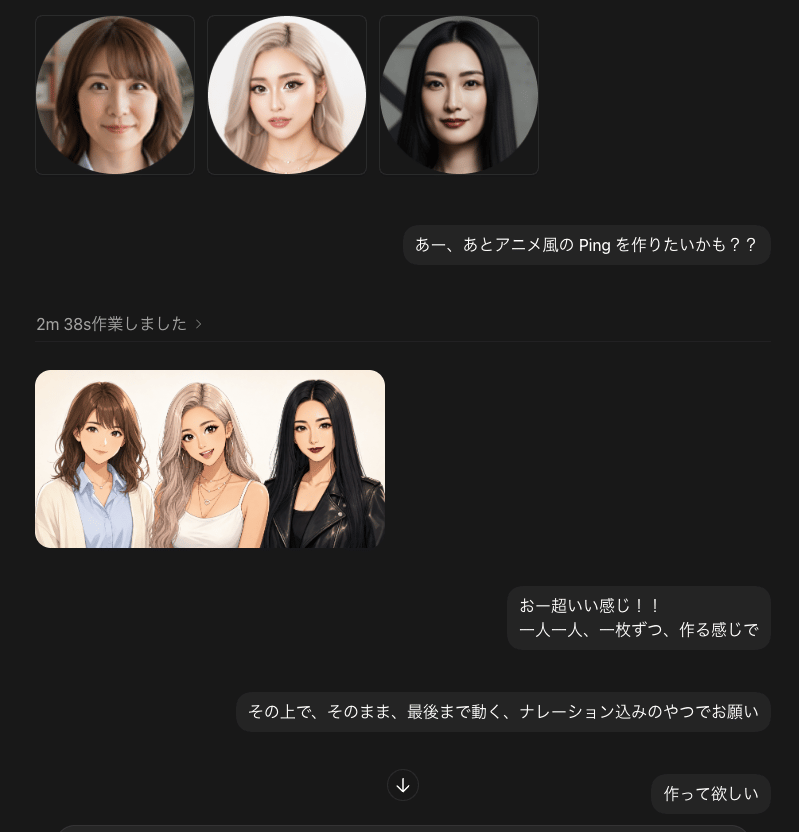
- Prompt included
- Model and format preset
- Free template
The prompt behind this image
Copy the exact prompt behind Dark Chat UI Anime Conversion Screenshot, or open it in the studio and make it yours.
Goal: Create a dark-mode chat interface screenshot showing an AI image-generation conversation about making anime-style animated characters from photos. Canvas: Square 768×768 image, dark charcoal background, cropped like a desktop chat app. Use subtle rounded rectangles, soft shadows, and muted gray dividers. Layout: At the top left, display exactly 3 square thumbnail cards in a row, each with a circular portrait inside: 1) a brunette woman with shoulder-length wavy hair, 2) a blonde woman with long light hair, 3) a black-haired woman with straight long hair. Each face should be intentionally blurred or covered with a soft rectangular privacy blur. To the right beneath the thumbnails, place a rounded dark chat bubble containing the Japanese message {argument name="first message" default="あー、あとアニメ風の Ping を作りたいかも??"}. Below, show a small gray status line on the left reading {argument name="status text" default="2m 38s作業しました ›"}, followed by a thin horizontal divider. Generated image preview: Under the divider on the left, place exactly 1 rounded rectangular preview image showing the same 3 women transformed into polished anime/semi-realistic character art, standing shoulder-to-shoulder on a warm off-white background. Count the characters exactly: 3 women — brunette in a cream cardigan over a light blue shirt, blonde in a white top with layered necklaces, and black-haired woman in a black leather jacket. Keep all faces privacy-blurred with soft rectangular blur blocks. Chat bubbles: Include exactly 4 visible outgoing message bubbles total: 1 top prompt bubble, 2 mid-lower bubbles, and 1 bottom-right bubble. The mid-lower first bubble should read {argument name="reaction message" default="おー超いい感じ!!\n一人一人、一枚ずつ、作る感じで"}. The mid-lower second, wider bubble should read {argument name="instruction message" default="その上で、そのまま、最後まで動く、ナレーション込みのやつでお願い"}. The bottom-right bubble should read {argument name="final message" default="作って欲しい"}. Add a small circular down-arrow button centered near the lower middle between the bubbles. Visual style: Realistic UI screenshot, Japanese chat app aesthetic, minimal and modern, dark theme, rounded corners, graphite message bubbles, light gray text, clean spacing. The character art preview should look like high-quality anime-photo conversion rather than flat cartoon. Constraints: Use exactly 3 top portrait thumbnails, exactly 1 generated preview image, exactly 3 anime-style women inside the preview, exactly 4 chat bubbles, and exactly 1 down-arrow button. Do not add app logos, watermarks, extra buttons, extra text, or extra people.
How to use Dark Chat UI Anime Conversion Screenshot in 3 steps
- 1Upload ImagePNG, JPG or paste
Add your photo
Upload the photo the template builds on. The prompt, model and format are already set.
- 2…a portrait of your subject in softgolden-hour light, 85mm…
Personalize
Edit the subject and creative details for your destination.
- 3Generate
Generate
Press Generate — your image is created in PicX Studio, so you can compare it with the original and refine one variable at a time.
More like this
Templates with the same subject, style or setup. Open one to see its prompt.
Dark LINE AI Assistant Chat Screenshot
Anime Live2D Turnaround Chat Screenshot
ChatGPT Mobile Photo Carousel Screenshot

ChatGPT Bonus Banner Screenshot
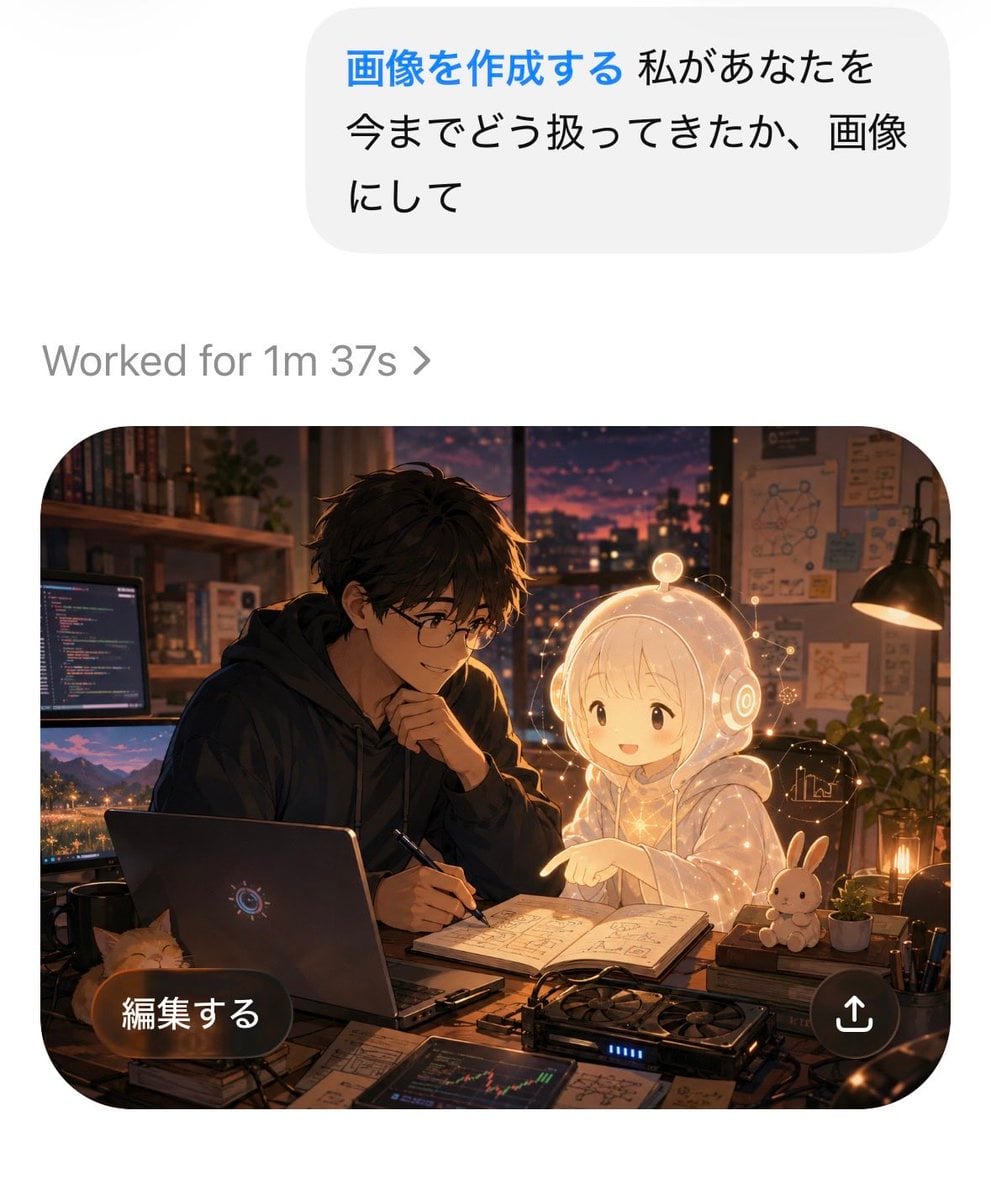
AI Chat Image Generation Screenshot
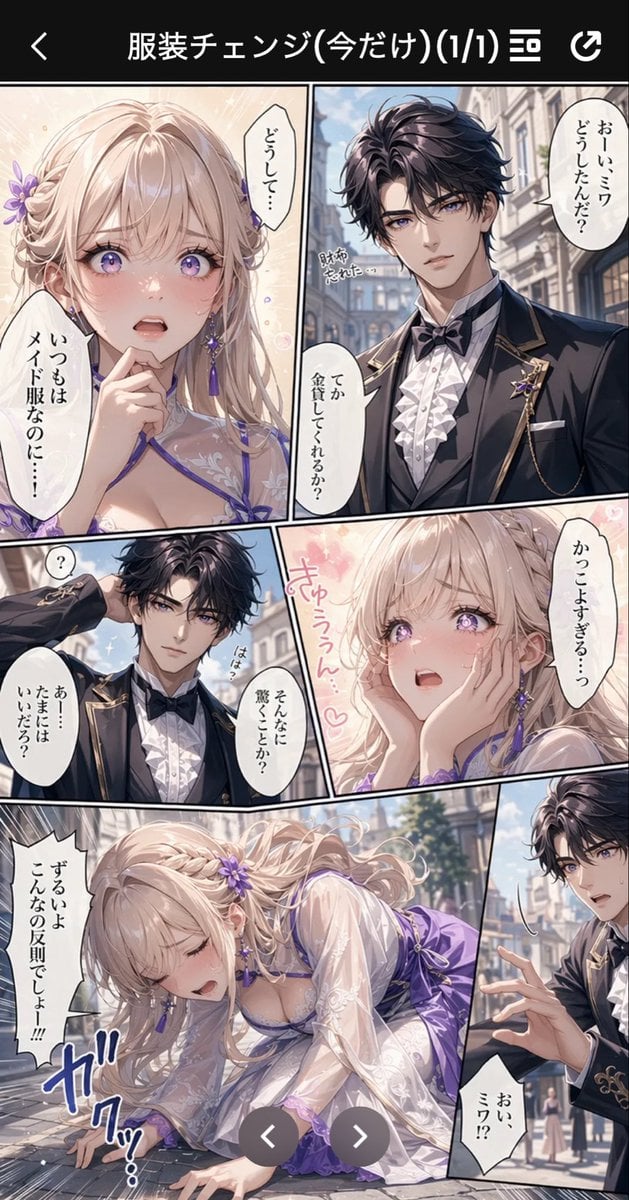
Anime Butler Date Manga Screenshot
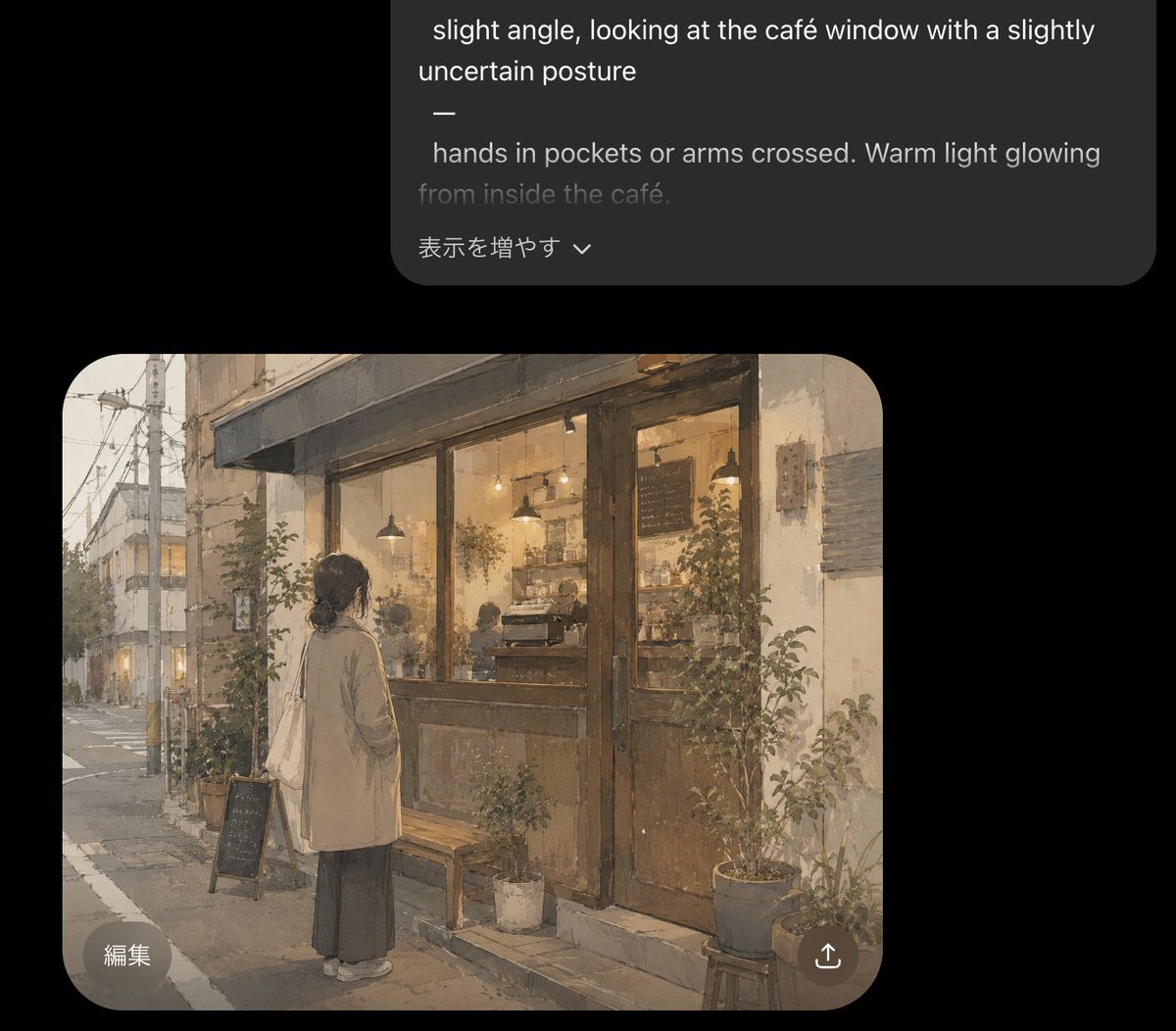
Cozy Café Chat Screenshot
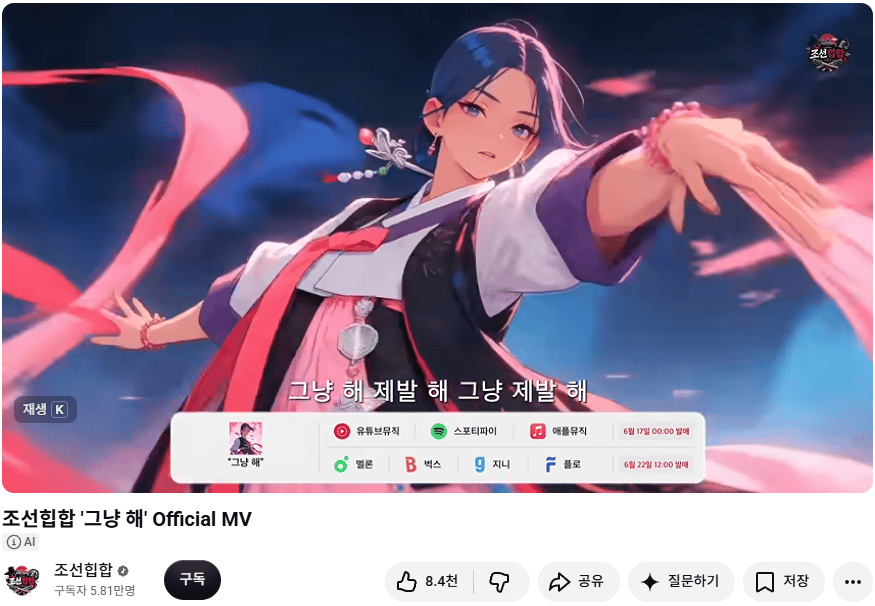
Korean Hip-Hop Anime MV Screenshot
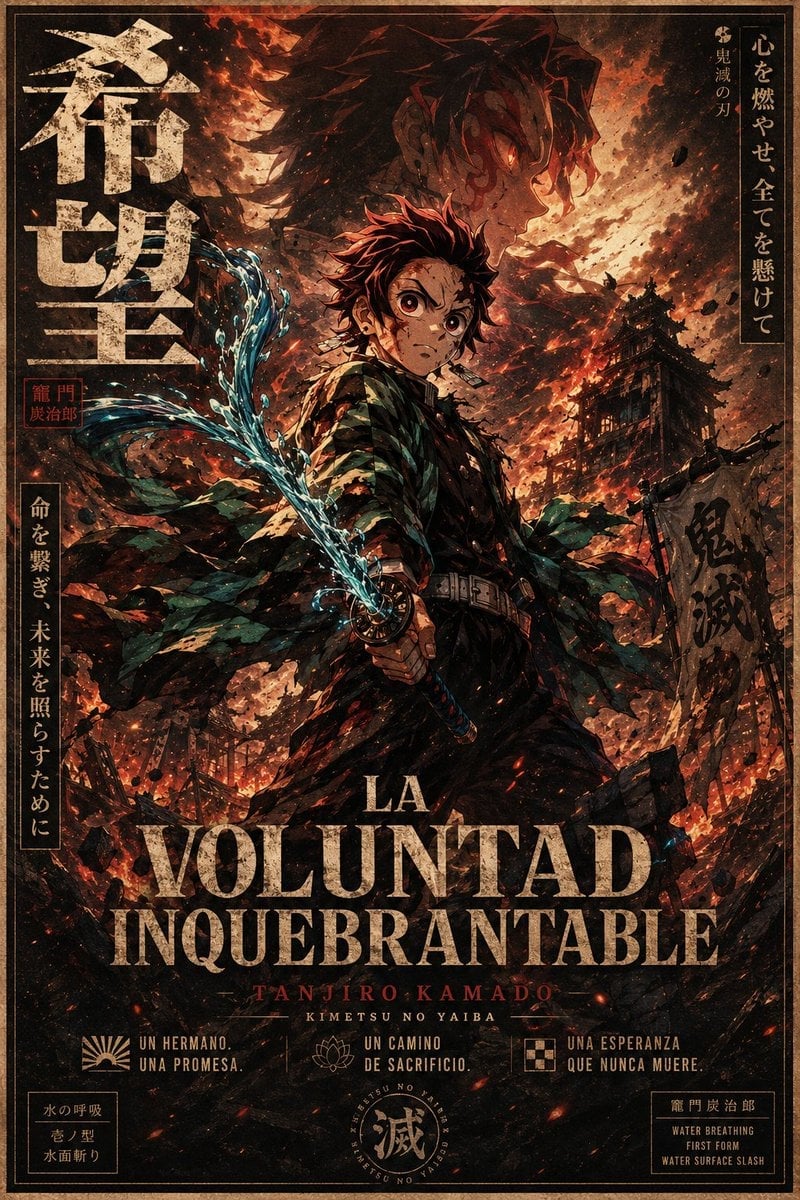
Dark Anime Demon Slayer Poster
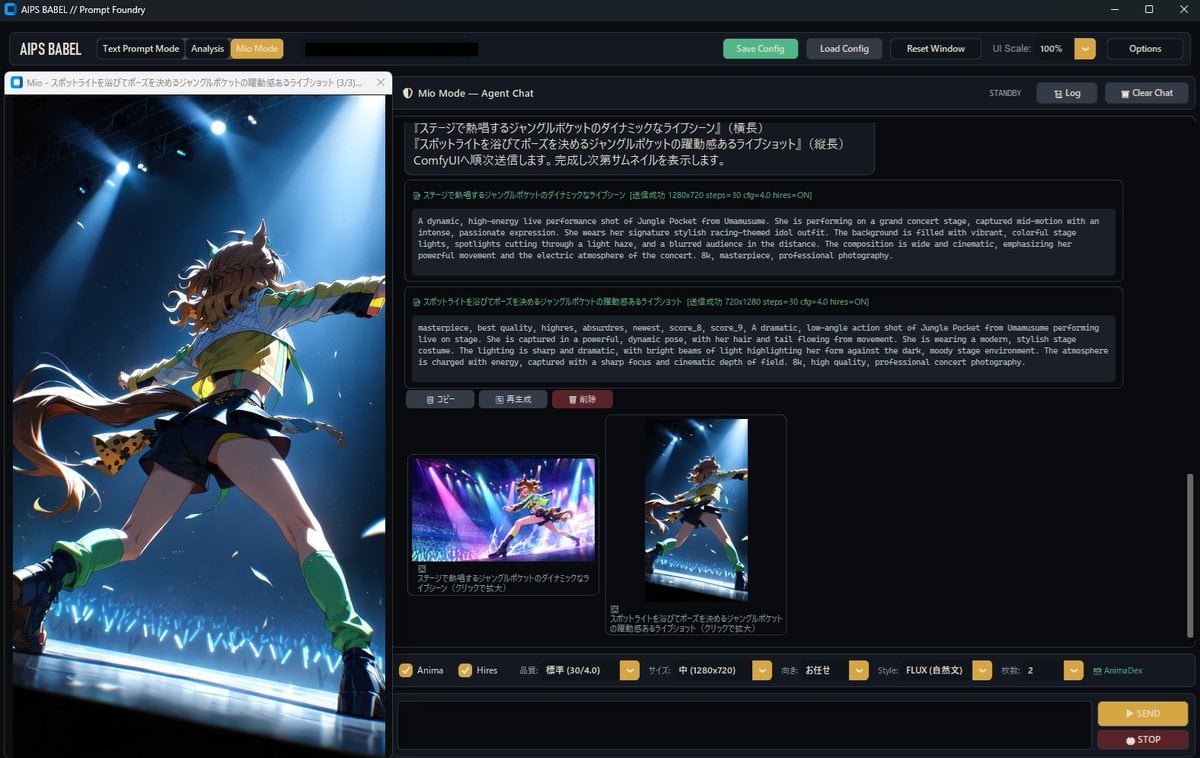
Dark Anime Prompt Foundry UI
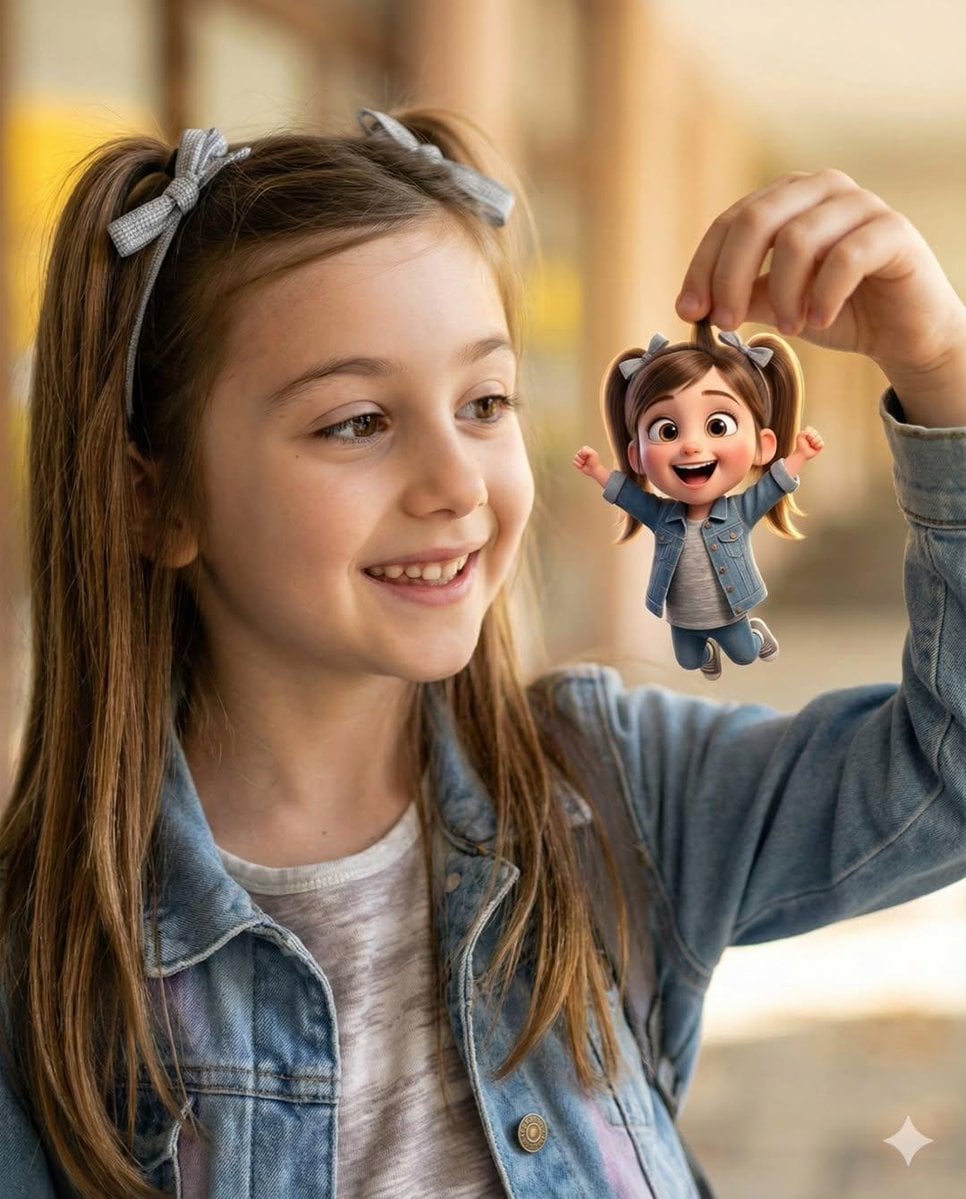
Cel 2D Finale Fireworks
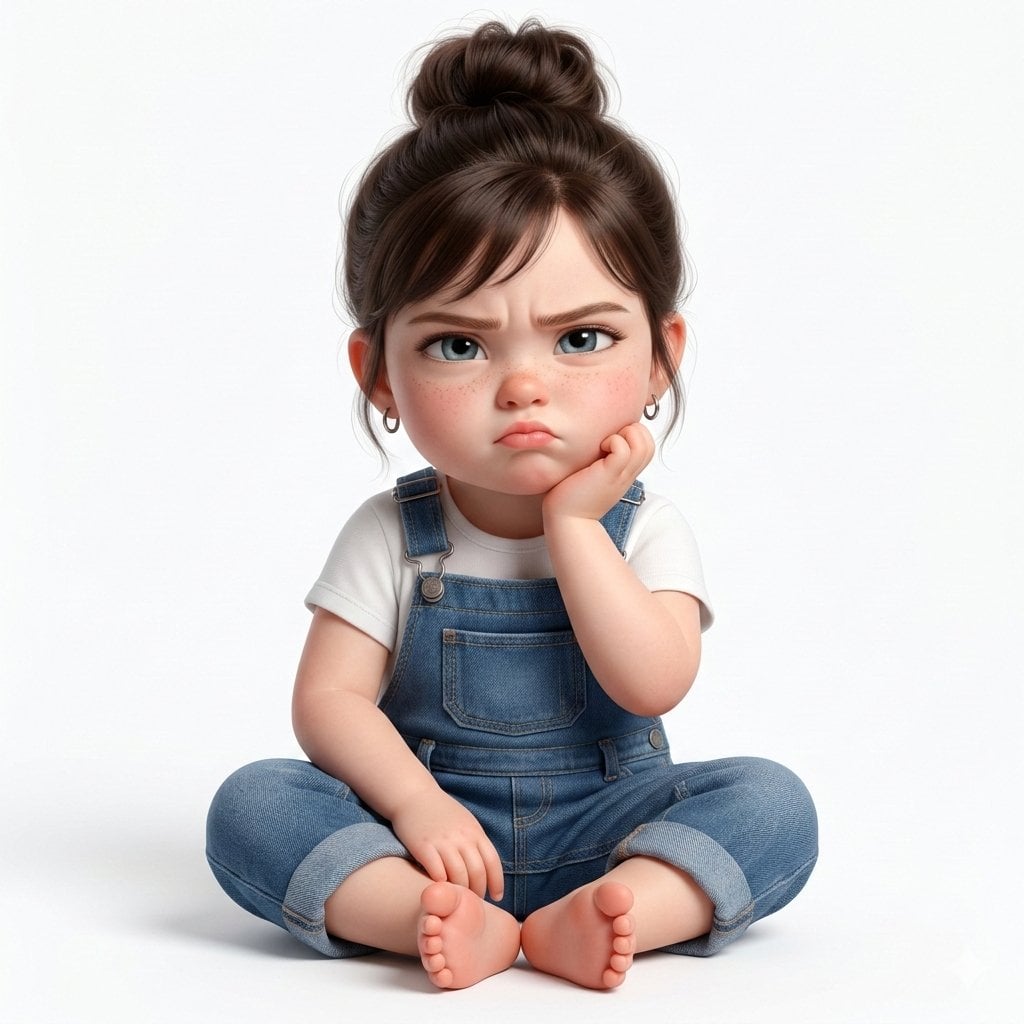
Cel 2D Garden Maze
Make it yours
Dark Chat UI Anime Conversion Screenshot works as-is. These are the safest ways to change it without losing the look.
Change one field
Copy a single group, rewrite it, and generate again so you can see what that field is doing.
Keep the frame, change the subject
Hold the composition and light of Dark Chat UI Anime Conversion Screenshot, then swap wardrobe, props or the person for a new take.
| If the result… | Why | Fix |
|---|---|---|
| The result drifts from the preview | Too many fields changed at once. | Reuse Dark Chat UI Anime Conversion Screenshot as-is first, then change one group — subject, light, or setting. |
| The model over-stylizes the scene | The prose prompt leaves finish and camera underspecified. | Add one camera or lighting sentence and stay on GPT Image 2. |
More GPT Image 2 templates
Other prompts made for GPT Image 2.

Six VTuber Japanese Logo Sheet

Realistic Portrait of Woman and Deer

The Vista Modular Condo Poster

AI Model Routing Comparison Infographic

2.5D Anime Art Board

Isometric Productivity Desk Scene

New York Double Exposure Poster

Four-Panel AI Landscape Comparison

Japanese Tatami Lifestyle Magazine Cover

NESCAFÉ Coffee Map Poster
More image prompts
Fresh picks from across the catalog.
Storyboard Grid Generation Prompt (3x3)
Stylish Woman on Submerged Vintage Car
Ethereal Cinematic Fine Art Portrait Prompt
Gpt2 Comic Storyboard Urban Fantasy Coexistence Crossing
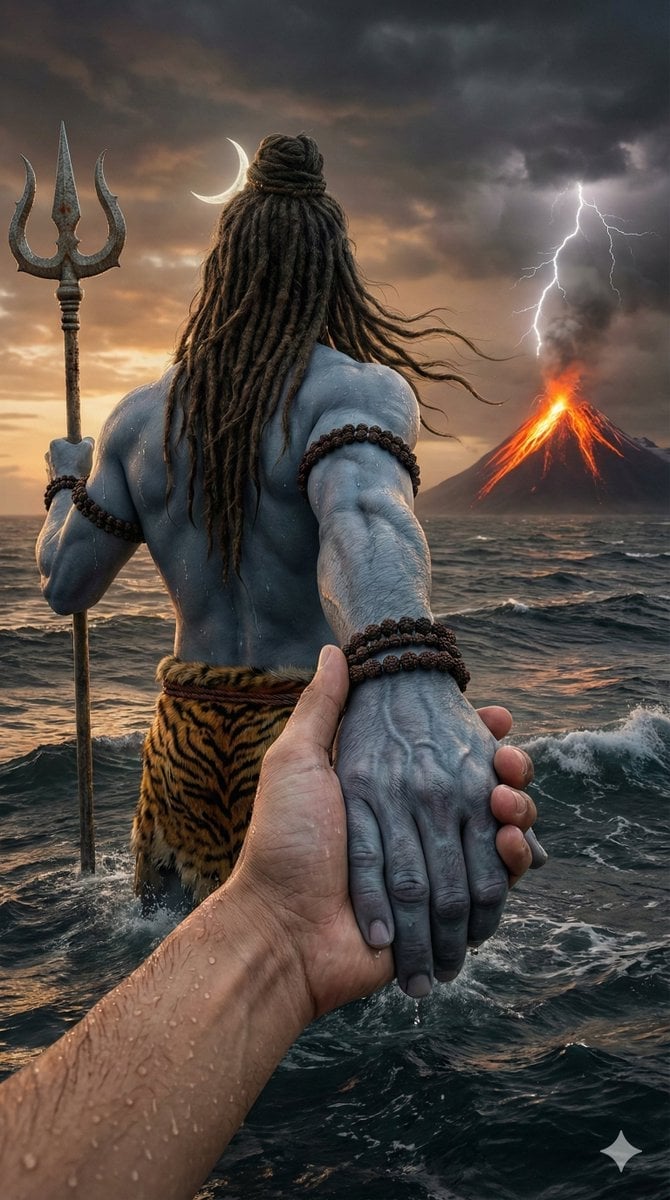
Lord Shiva Hand-Holding Cinematic Scene Prompt
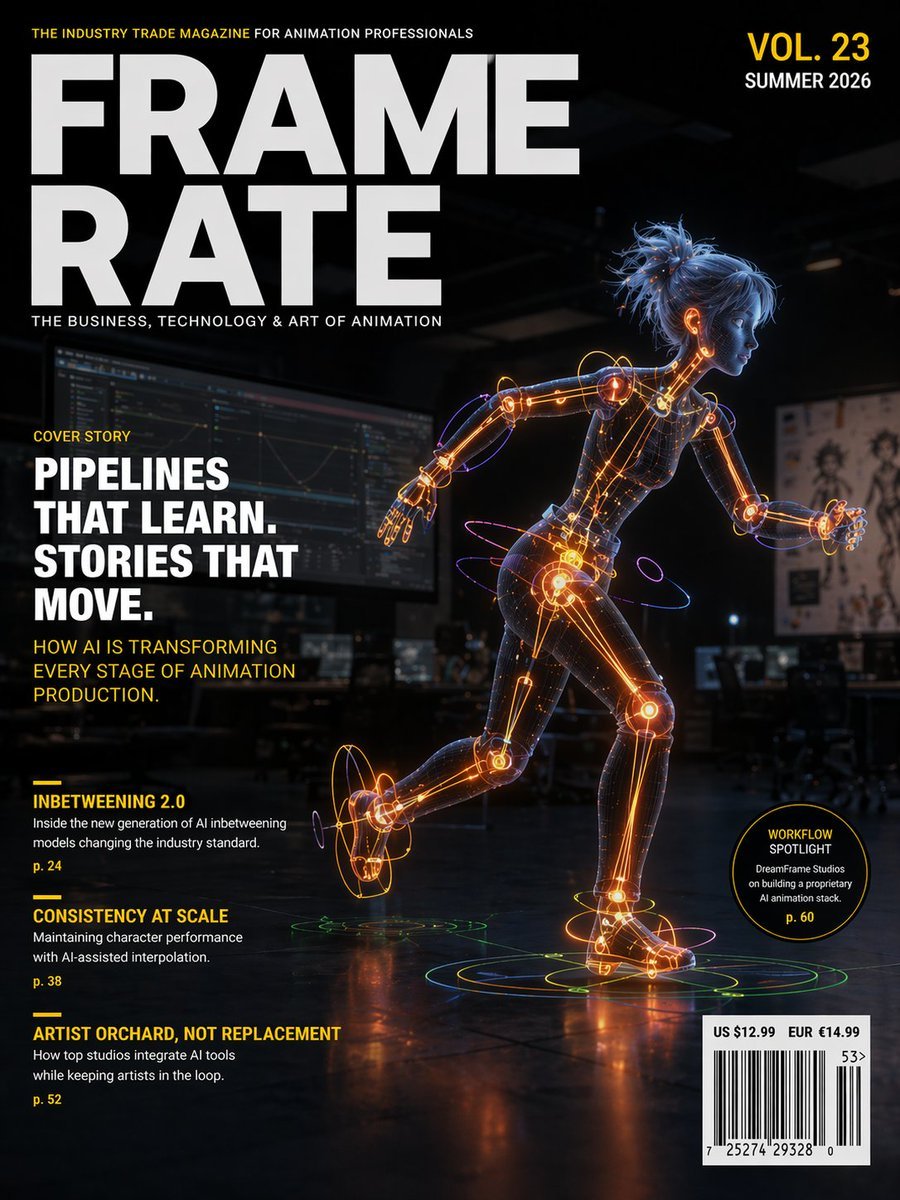
Futuristic Animation Trade Magazine Cover
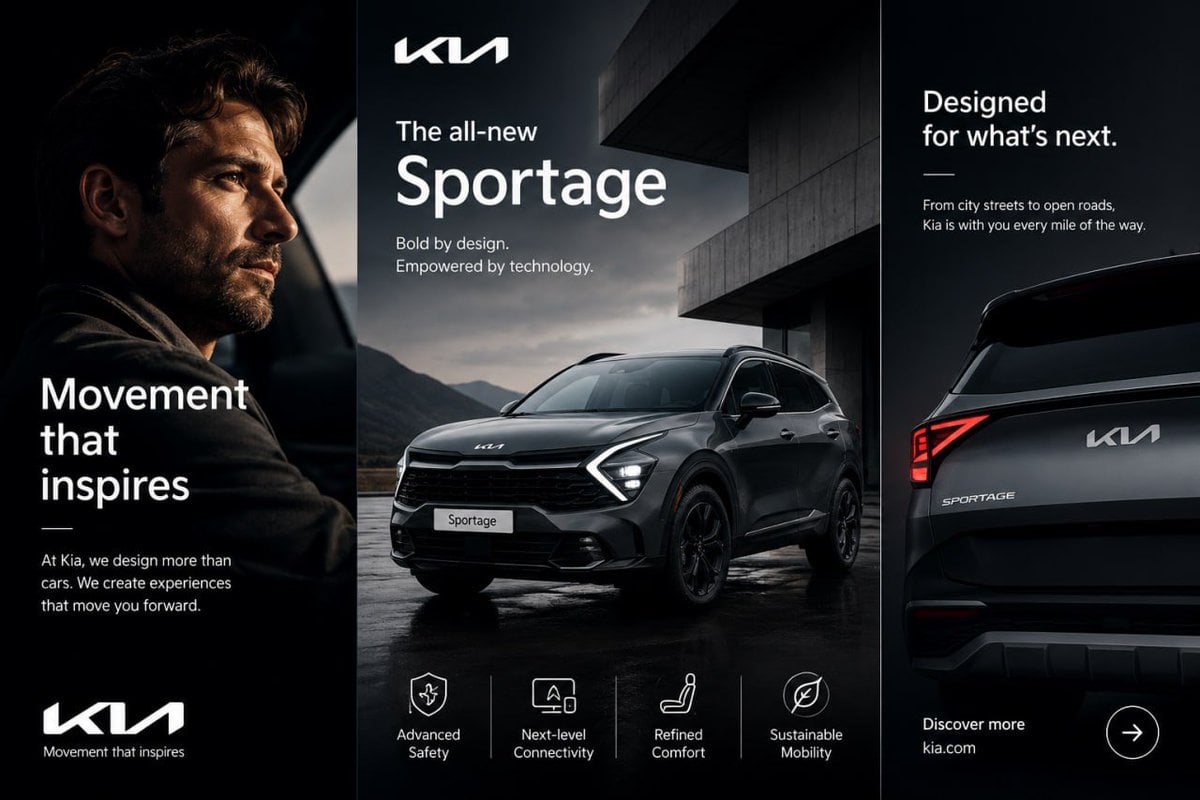
Kia Sportage Triptych Ad
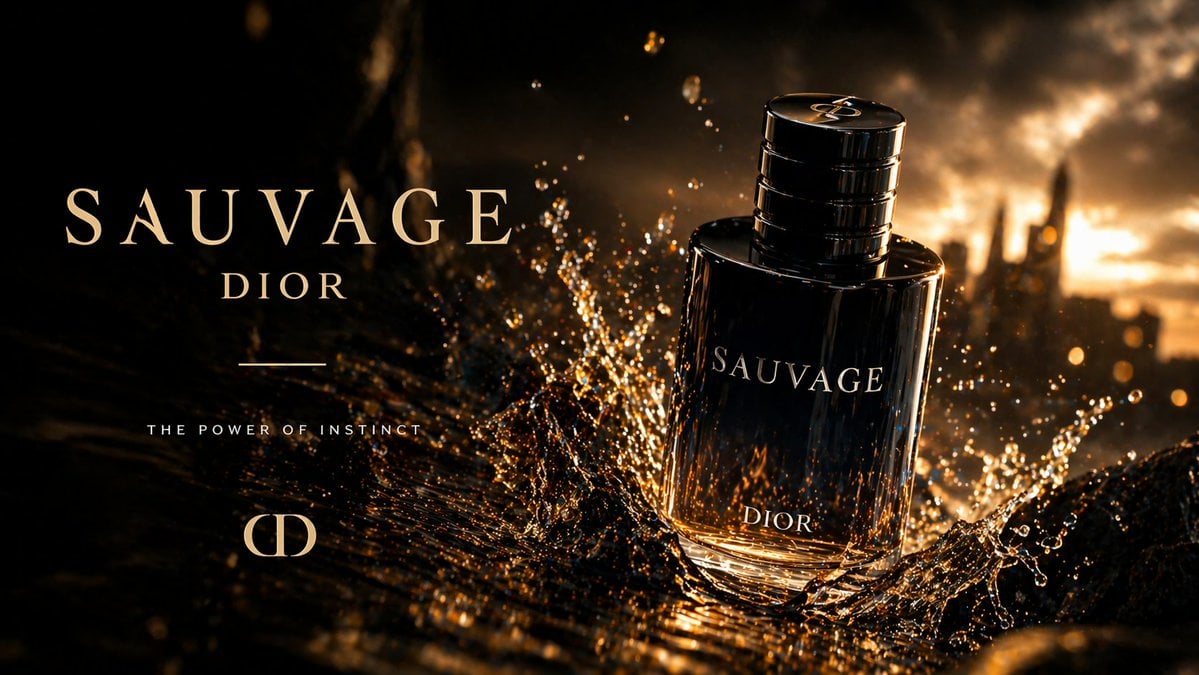
Luxury Perfume Splash Ad
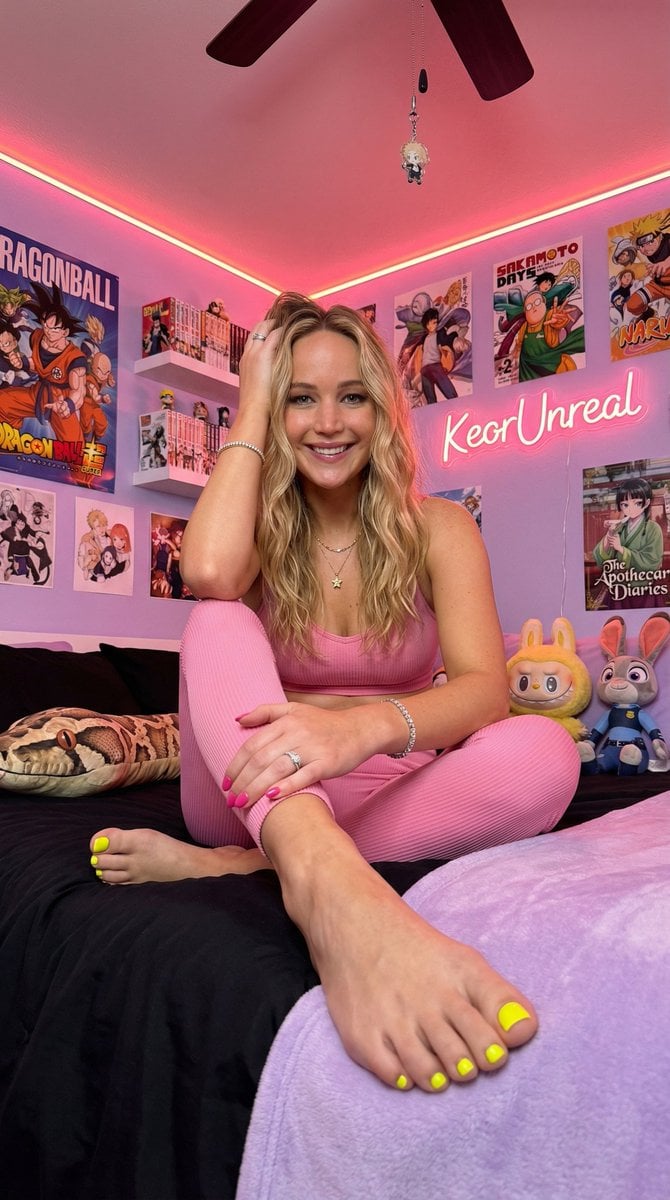
Cinematic Low-Angle Otaku Bedroom Portrait
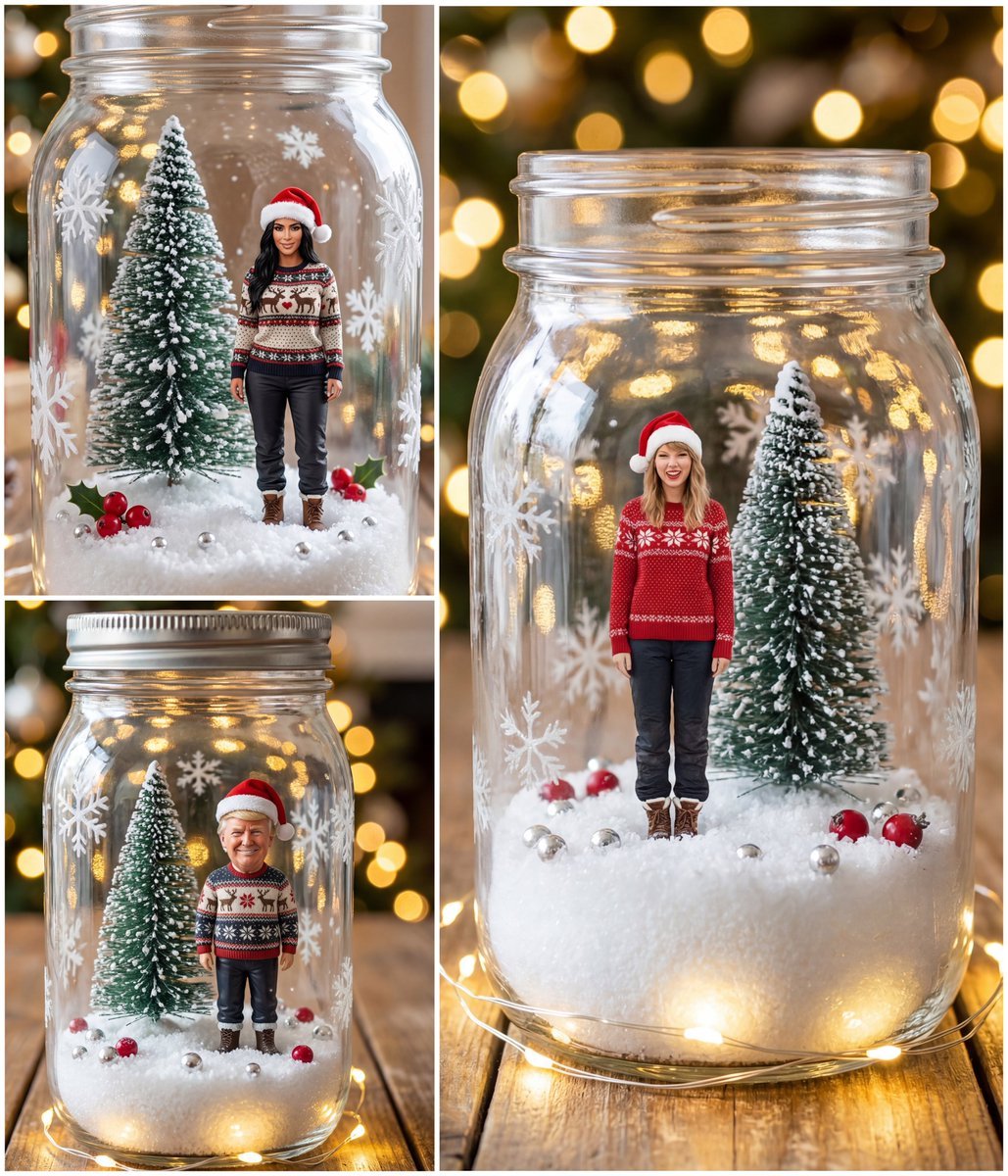
Tiny Christmas Character Trapped in a Mason Jar Snow Globe
Browse template categories
Dark Chat UI Anime Conversion Screenshot questions
How do I use the Dark Chat UI Anime Conversion Screenshot template?
Add your photo if the template asks for one, edit the prompt if you like — the template's model and format are already selected — and press Generate. Your version opens in PicX Studio.
Can I customize the Dark Chat UI Anime Conversion Screenshot template?
Yes. You can change the subject, setting, lighting, mood, format, and available model controls before creating your image.
Is the Dark Chat UI Anime Conversion Screenshot template free?
Opening and editing this template is free. Generating uses credits, shown on the Generate button when you are signed in.
Which AI model should I use?
Start with GPT Image 2, which is the model associated with this template. You can compare another compatible model for a different finish.
Looking for something else? Browse all templates.

Your photo, any look
Thousands of ready templates for every top image and video model, from one credit balance.