
Korean Hip-Hop Anime MV Screenshot
Creates a YouTube-style official music video screenshot with a cinematic anime hanbok performer and Korean platform-release overlays.
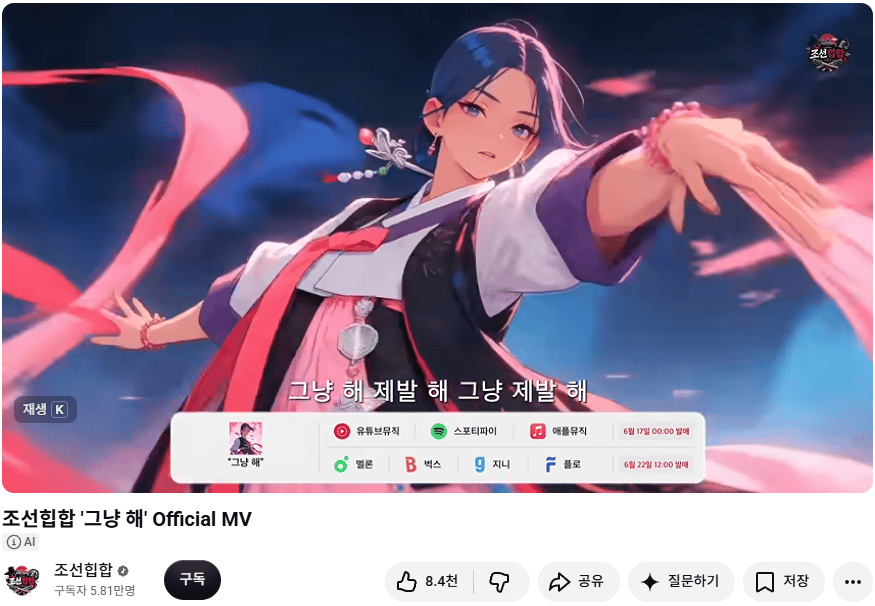
- Prompt included
- Model and format preset
- Premium template
The prompt behind this image
Copy the exact prompt behind Korean Hip-Hop Anime MV Screenshot, or open it in the studio and make it yours.
Goal: Create a realistic YouTube watch-page screenshot mockup for an official Korean hip-hop music video, showing a dramatic anime-style music video frame at the top and the YouTube interface below. Canvas: 875×638 horizontal screenshot with rounded video corners, clean white YouTube page background, cropped as if captured from a desktop browser. Video frame: A high-quality cinematic anime scene of a beautiful young Korean woman in motion, centered slightly right, wearing a modernized hanbok-inspired performance outfit with white sleeves, black vest, purple cuffs, red ribbon tie, and pink skirt accents. She has dark blue-black hair swept to one side, a long ornamental hairpin with beads, earrings, and a confident intense expression. Her right arm reaches toward the camera in strong foreshortening while pink silk ribbons swirl across the foreground and background. The lighting is glossy and dramatic, with neon pink highlights, deep blue night background, motion blur, and a polished music-video look. Add a small circular Korean hip-hop logo watermark in the top-right of the video frame. On-video text and overlays: Add Korean subtitle text centered near the bottom of the video frame: “그냥 해 제발 해 그냥 제발 해”. At the lower-left inside the video, show a small dark translucent keyboard hint reading “재생 K”. Place a white rounded music-distribution banner overlay across the lower center of the video. This banner contains exactly 10 visible items: 1 small album cover at far left labeled “그냥 해”; 2 YouTube Music icon and label “유튜브뮤직”; 3 Spotify icon and label “스포티파이”; 4 Apple Music icon and label “애플뮤직”; 5 red release date text “6월 17일 00:00 발매”; 6 Melon icon and label “멜론”; 7 Bugs icon and label “벅스”; 8 Genie icon and label “지니”; 9 Flo icon and label “플로”; 10 red release date text “6월 22일 12:00 발매”. Keep the platform banner legible but secondary. YouTube interface below: Under the video, show the bold title “{argument name="video title" default="조선힙합 '그냥 해' Official MV"}”. Under the title at left, include a small gray “AI” badge. Show the channel row with a circular channel avatar using the same Korean hip-hop logo, channel name “{argument name="channel name" default="조선힙합"}” with a verification check, subscriber count “구독자 5.81만명”, and a black rounded subscribe button labeled “구독”. To the right, show exactly 7 action controls: 1 like button with thumbs-up and “8.4천”; 2 dislike button with thumbs-down; 3 share button labeled “공유”; 4 ask button labeled “질문하기” with sparkle icon; 5 save button labeled “저장”; 6 overflow menu with three dots; 7 the subscribe button is separate in the channel row, not counted among the right-side controls. Visual style: Combine a crisp browser screenshot aesthetic with a vivid anime MV still. Use Korean UI typography, soft shadows, rounded pills, accurate spacing, and realistic YouTube proportions. The screenshot should feel like a real official music video page for the motivational song “{argument name="song title" default="그냥 해"}” by “{argument name="artist name" default="조선힙합"}”. Constraints: Keep all visible text in Korean exactly where specified. Do not add extra UI panels, comments, recommendations, or browser chrome. Maintain the same composition: anime video frame occupying the upper 77% of the image and YouTube metadata/actions occupying the lower area.
How to use Korean Hip-Hop Anime MV Screenshot in 3 steps
- 1Upload ImagePNG, JPG or paste
Add your photo
Upload the photo the template builds on. The prompt, model and format are already set.
- 2…a portrait of your subject in softgolden-hour light, 85mm…
Personalize
Edit the subject and creative details for your destination.
- 3Generate
Generate
Press Generate — your image is created in PicX Studio, so you can compare it with the original and refine one variable at a time.
More like this
Templates with the same subject, style or setup. Open one to see its prompt.
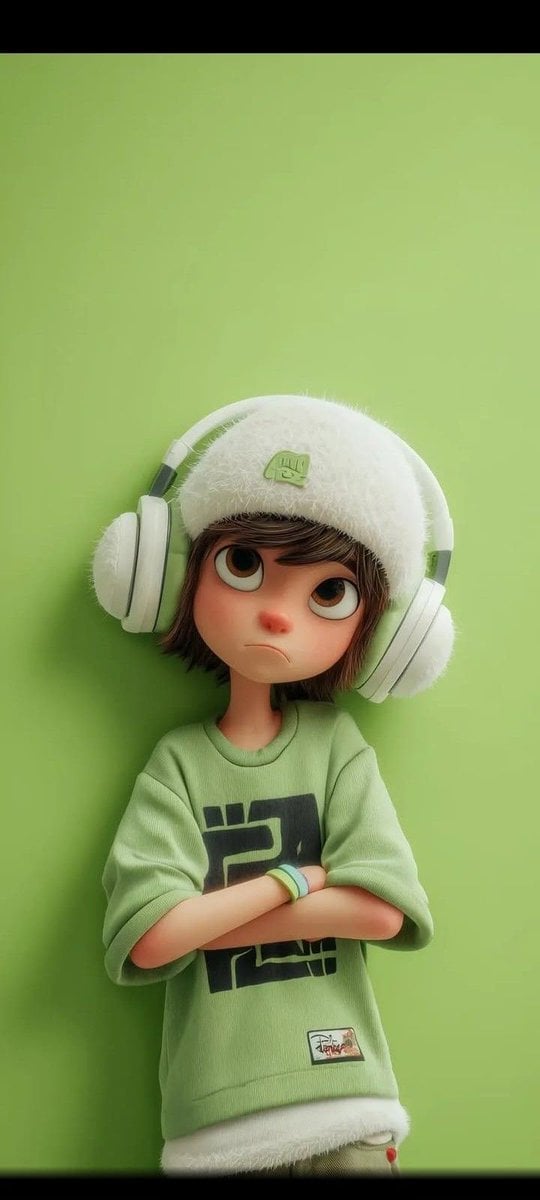
Cel 2D Robot Workshop
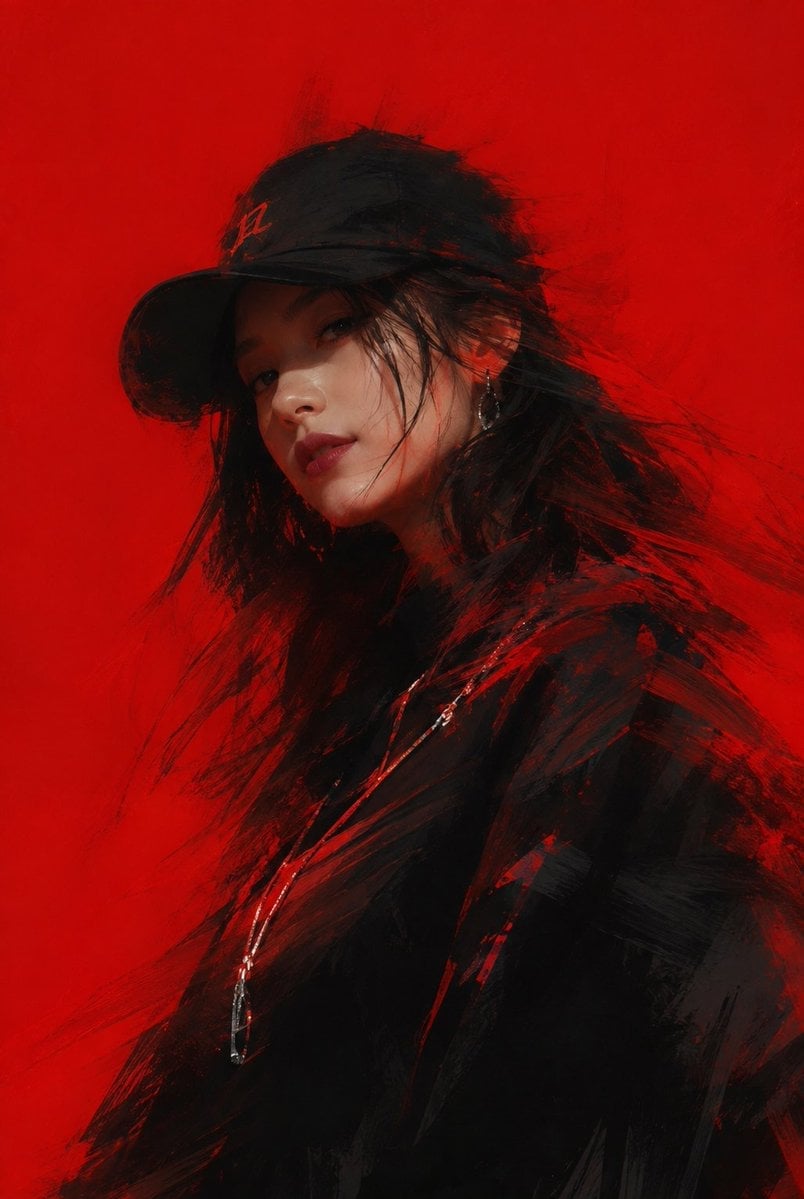
Minimalist Hip-Hop Woman Illustration
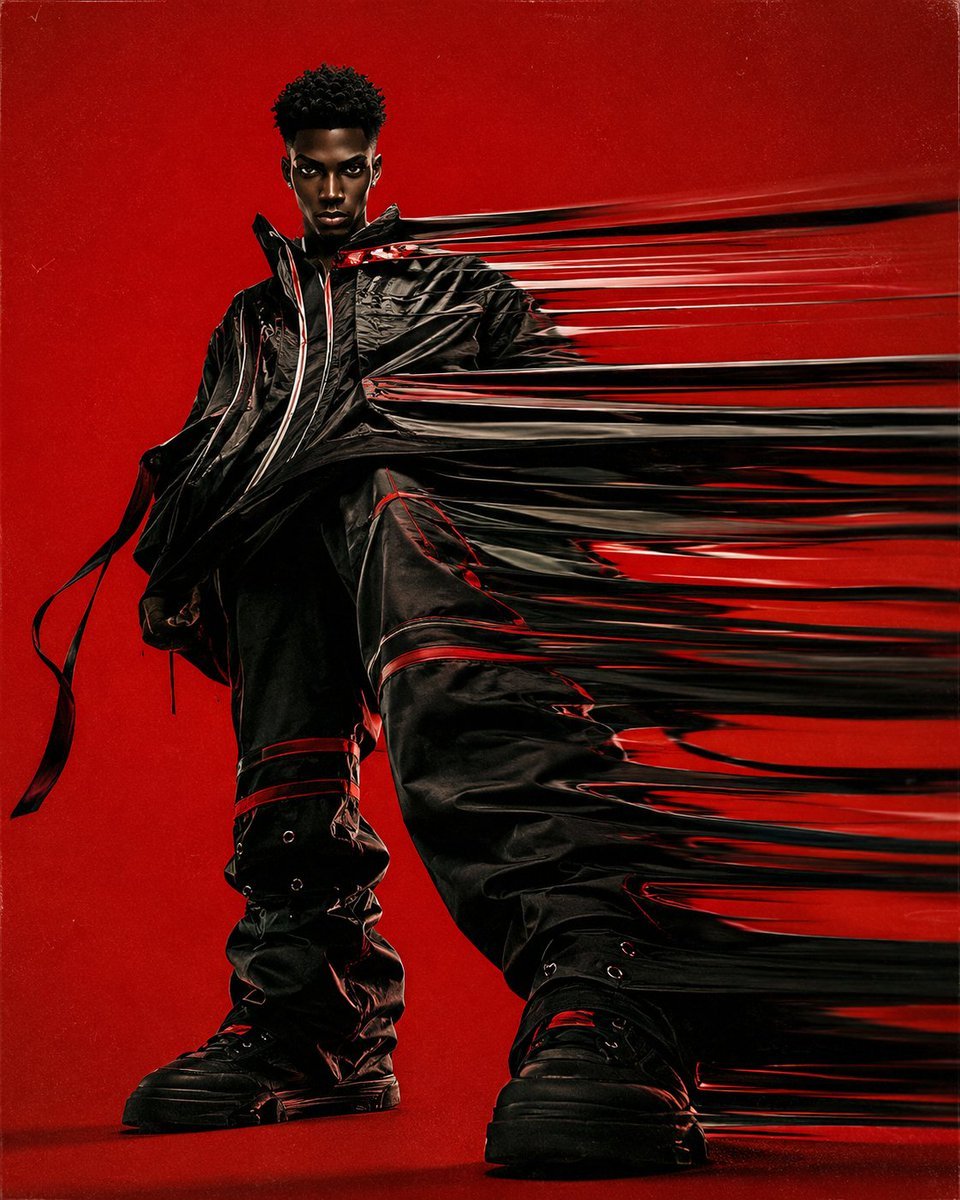
Surreal Hip-Hop Motion Fashion
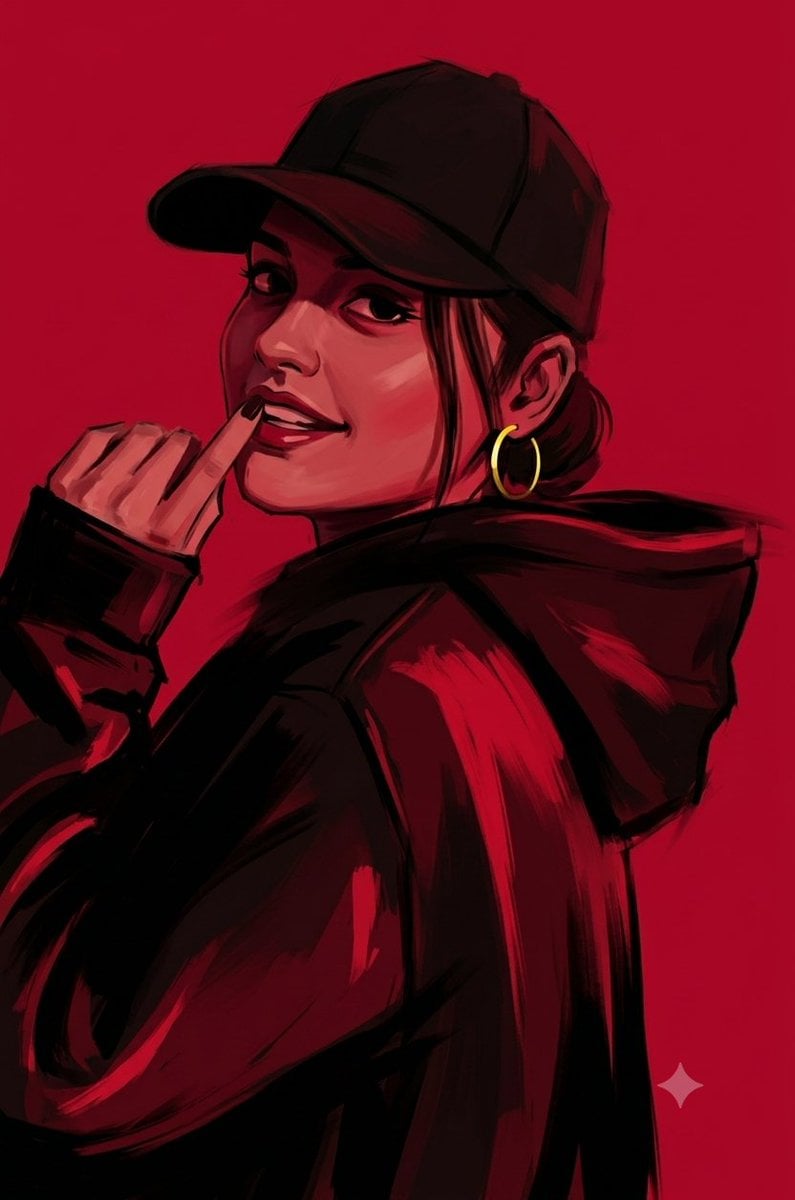
Ruby Red Hip-Hop Illustration
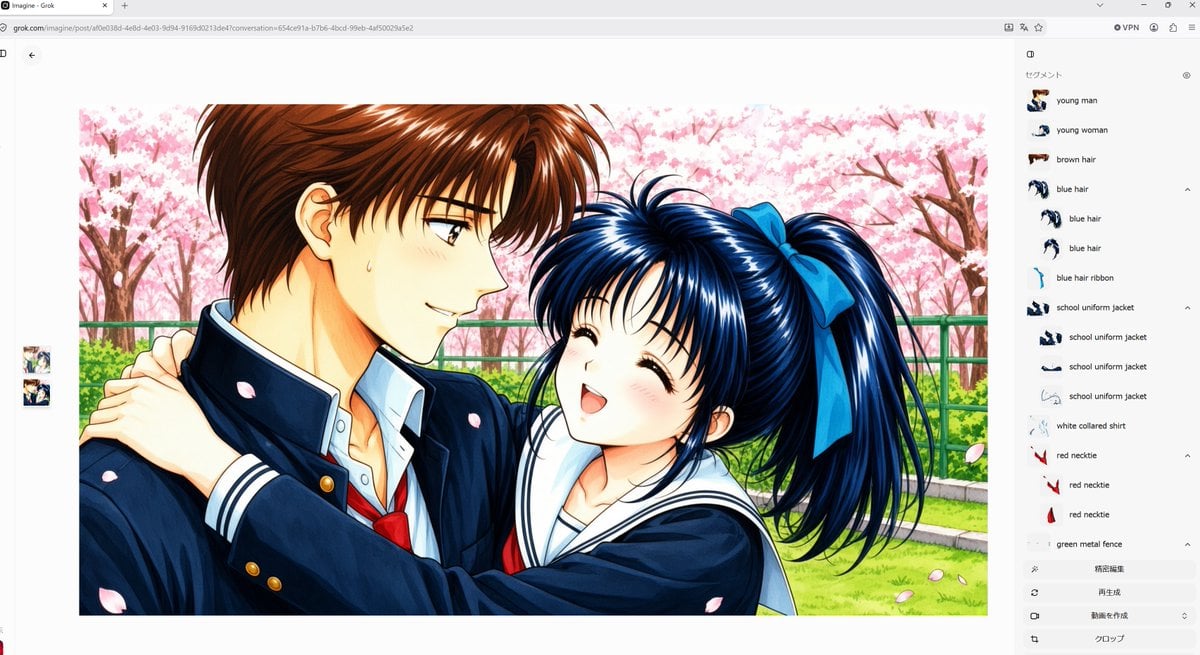
Anime Couple Segmentation UI Screenshot
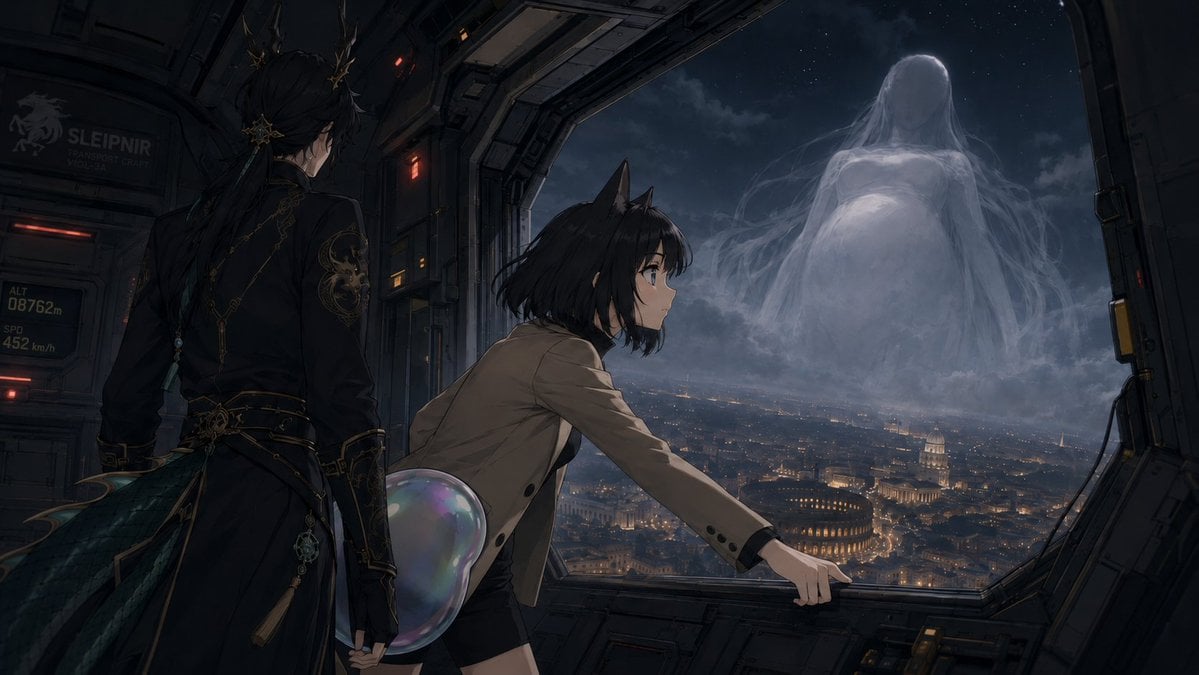
Anime Airship and Ghostly Holy Mother
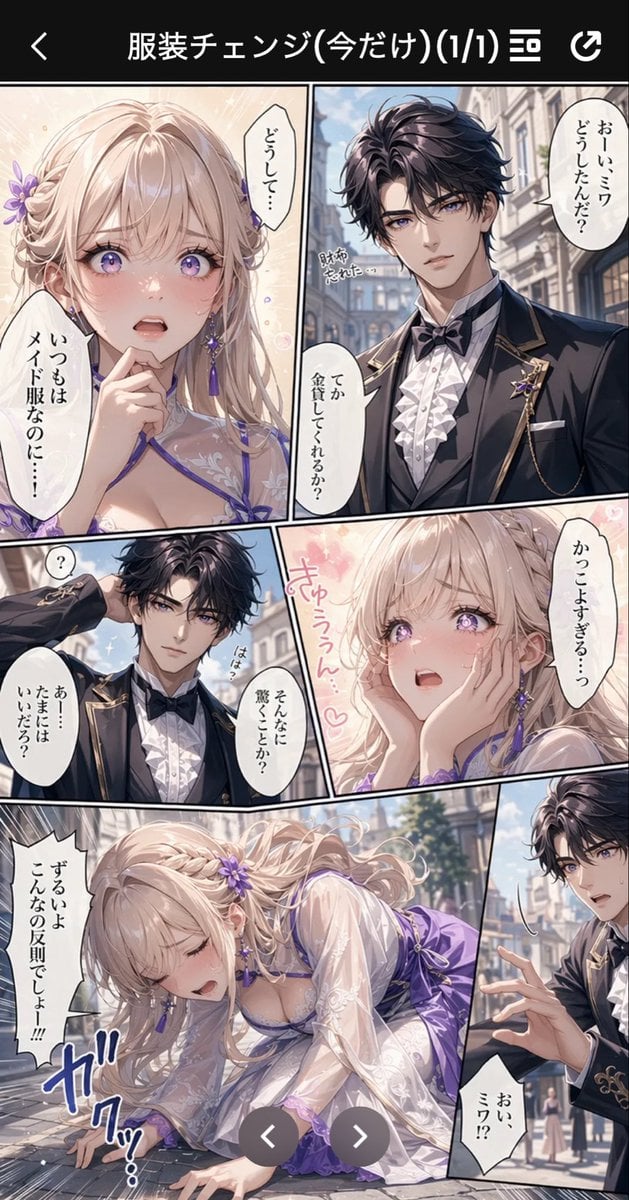
Anime Butler Date Manga Screenshot
Cel 2D Finale Fireworks
Cel 2D Garden Maze
Cel 2D Rooftop Concert
Cel 2D Bicycle Coast
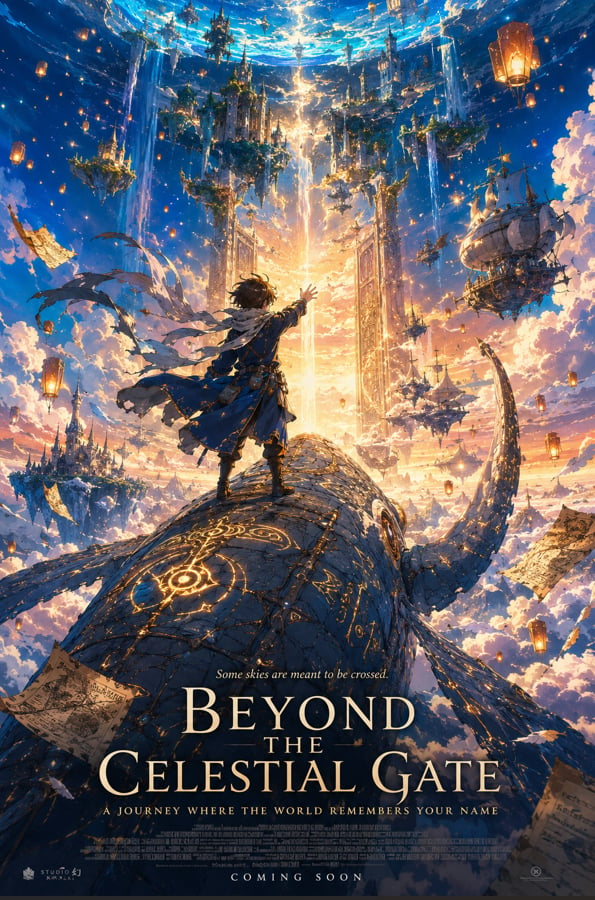
Cel 2D Castle Gate
Make it yours
Korean Hip-Hop Anime MV Screenshot works as-is. These are the safest ways to change it without losing the look.
Change one field
Copy a single group, rewrite it, and generate again so you can see what that field is doing.
Keep the frame, change the subject
Hold the composition and light of Korean Hip-Hop Anime MV Screenshot, then swap wardrobe, props or the person for a new take.
| If the result… | Why | Fix |
|---|---|---|
| The result drifts from the preview | Too many fields changed at once. | Reuse Korean Hip-Hop Anime MV Screenshot as-is first, then change one group — subject, light, or setting. |
| The model over-stylizes the scene | The prose prompt leaves finish and camera underspecified. | Add one camera or lighting sentence and stay on GPT Image 2. |
More GPT Image 2 templates
Other prompts made for GPT Image 2.

Six VTuber Japanese Logo Sheet

Realistic Portrait of Woman and Deer

The Vista Modular Condo Poster

AI Model Routing Comparison Infographic

2.5D Anime Art Board

Isometric Productivity Desk Scene

New York Double Exposure Poster

Four-Panel AI Landscape Comparison

Japanese Tatami Lifestyle Magazine Cover

NESCAFÉ Coffee Map Poster
More image prompts
Fresh picks from across the catalog.
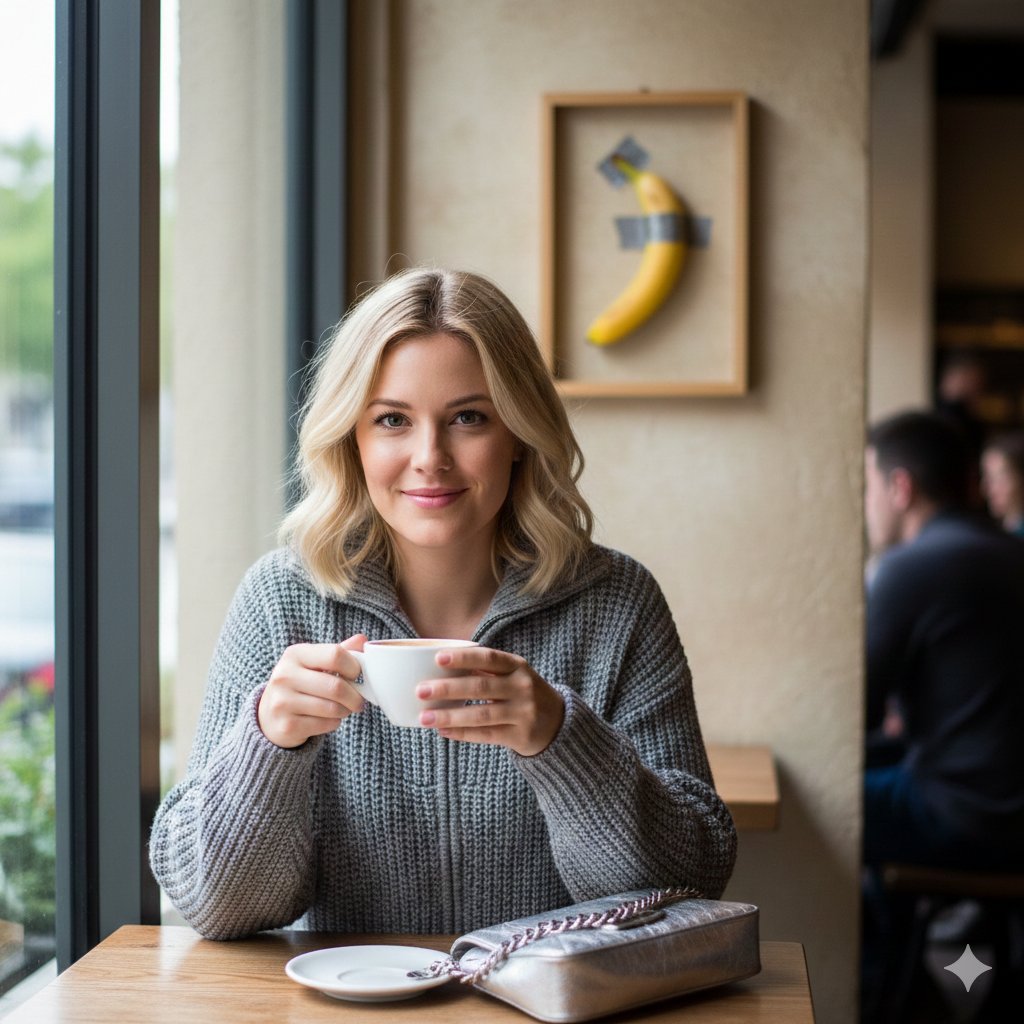
Lifestyle Photo with a Duct-Taped Banana
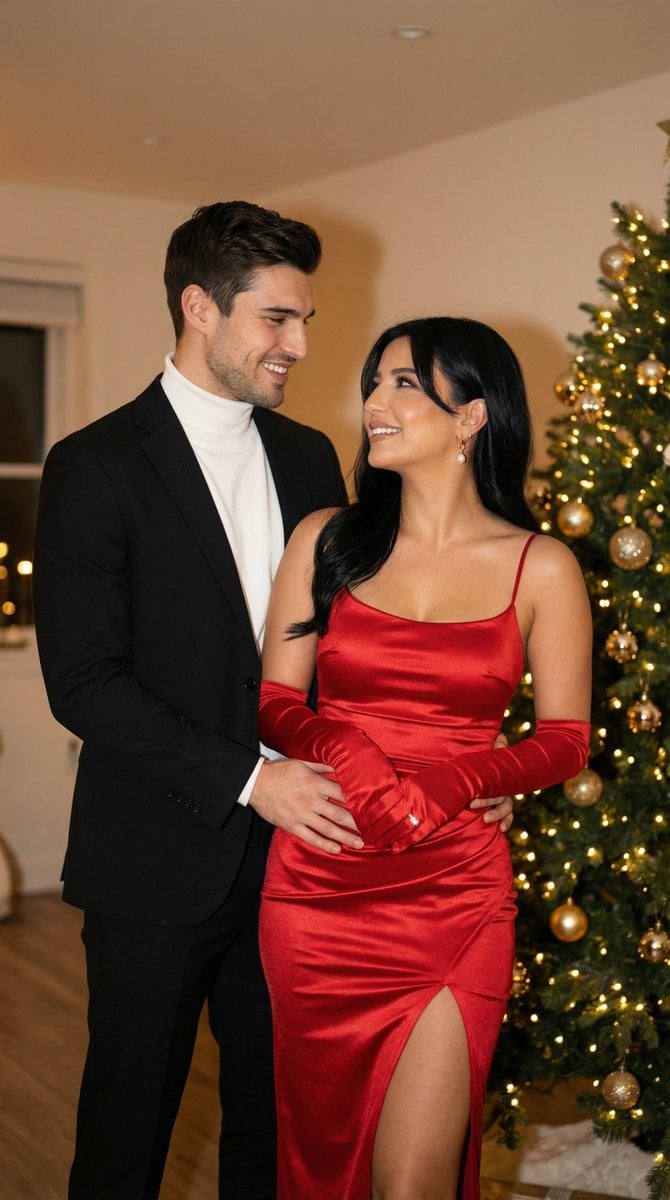
Photoreal Holiday Couple Portrait with Identity Lock
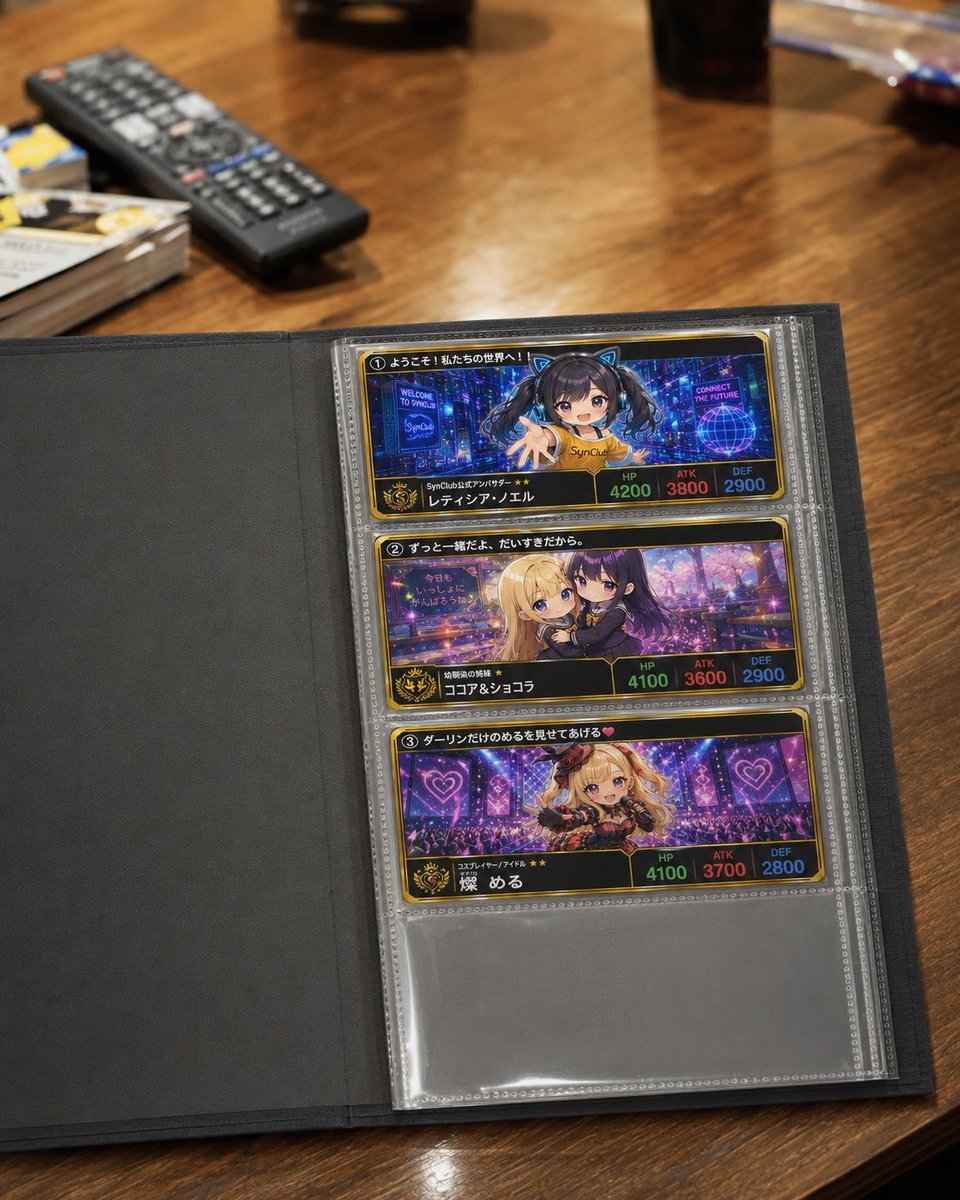
Anime Trading Card Album Photo
2D Digital Painting Prompt for Intimate Cafe Scene
Minimal Astronaut Album Cover
Couture Fashion Editorial Woman and Drag
Action Figure Product Advertisement Image

Vintage Photo Restoration to DSLR Quality Prompt (Truncated)
Cinematic Street Fashion Editorial Portrait
Watercolor Fashion Sketch with Bicycle
Browse template categories
Korean Hip-Hop Anime MV Screenshot questions
How do I use the Korean Hip-Hop Anime MV Screenshot template?
Add your photo if the template asks for one, edit the prompt if you like — the template's model and format are already selected — and press Generate. Your version opens in PicX Studio.
Can I customize the Korean Hip-Hop Anime MV Screenshot template?
Yes. You can change the subject, setting, lighting, mood, format, and available model controls before creating your image.
Is the Korean Hip-Hop Anime MV Screenshot template free?
Opening and editing this template is free. Generating uses credits, shown on the Generate button when you are signed in.
Which AI model should I use?
Start with GPT Image 2, which is the model associated with this template. You can compare another compatible model for a different finish.
Looking for something else? Browse all templates.

Your photo, any look
Thousands of ready templates for every top image and video model, from one credit balance.