
Anime Couple Segmentation UI Screenshot
Creates a browser-style AI segmentation interface screenshot featuring a romantic school anime couple illustration under cherry blossoms.
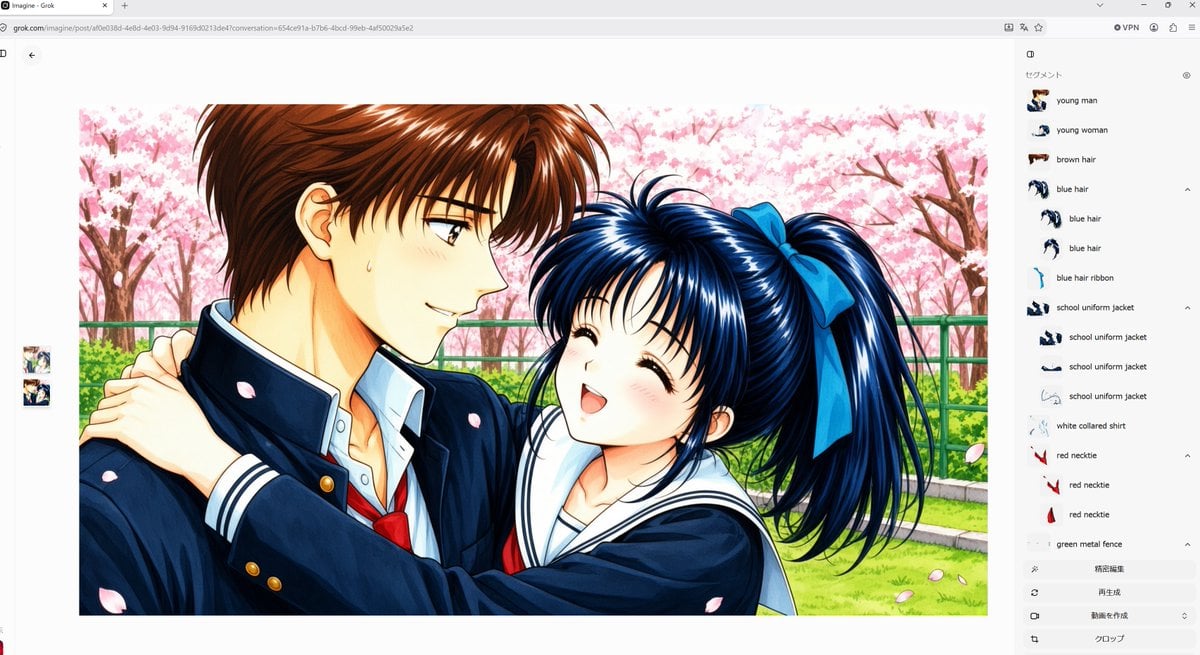
- Prompt included
- Model and format preset
- Free template
The prompt behind this image
Copy the exact prompt behind Anime Couple Segmentation UI Screenshot, or open it in the studio and make it yours.
Goal: Create a widescreen desktop browser screenshot of an AI image-generation/segmentation interface showing a large generated anime illustration in the center and a right sidebar listing detected parts. Canvas: 16:9 landscape screenshot, light gray browser chrome at the top with an address bar and small toolbar icons. The web app background is mostly white. Include a small back arrow near the upper left of the content area and two small stacked thumbnail previews along the far left side. Main image: Center-left, display a polished 1990s shoujo anime-style illustration with glossy cel shading and detailed highlights. The scene shows exactly 2 characters: a tall young man with short brown hair in a dark navy Japanese school uniform jacket, white collared shirt, and red necktie; and a cheerful young woman with long dark blue hair in a high ponytail tied with a large blue ribbon, wearing a navy sailor-style school uniform with a white collar. The girl hugs the boy from the side with both arms around his shoulders, smiling with closed happy eyes and an open mouth; the boy smiles gently while looking at her, with a small sweat drop on his cheek. Set them outdoors in spring under pink cherry blossom trees, with a green metal fence, green grass, branches, and scattered falling sakura petals. The anime artwork itself should be a bright rectangular image with a thin margin, occupying most of the left and center of the screen. Right sidebar: Add a pale gray vertical panel labeled in Japanese at the top as 「セグメント」, with a small eye icon. Show a segmentation list with exactly 17 visible detected items, each with a tiny cropped thumbnail and English label: 1 young man, 2 young woman, 3 brown hair, 4 blue hair, 5 blue hair, 6 blue hair, 7 blue hair ribbon, 8 school uniform jacket, 9 school uniform jacket, 10 school uniform jacket, 11 school uniform jacket, 12 white collared shirt, 13 red necktie, 14 red necktie, 15 red necktie, 16 green metal fence, 17 cherry blossoms. Use small expand/collapse chevrons next to some grouped items. Bottom of sidebar: Add four subtle gray action rows with simple icons and Japanese labels: 「確定編集」, 「再生成」, 「動画を作成」, and 「クロップ」. Visual style: Make the screenshot look like it was captured from a real browser window, including faint tabs, URL bar text, top-right extension icons, and a clean minimal interface. The anime image should be vivid and high-resolution, while the surrounding UI is flat, crisp, and unobtrusive. Customizable details: Use {argument name="image subject" default="a romantic school anime couple under cherry blossoms"}, {argument name="interface title" default="Imagine - Grok"}, {argument name="male uniform color" default="dark navy"}, {argument name="female hair color" default="dark blue"}, and {argument name="seasonal background" default="pink cherry blossom park"}. Constraints: English UI labels in the segment list must remain legible; preserve the Japanese sidebar heading and action labels; do not add extra characters, extra thumbnails, watermarks, captions, or speech bubbles.
How to use Anime Couple Segmentation UI Screenshot in 3 steps
- 1Upload ImagePNG, JPG or paste
Add your photo
Upload the photo the template builds on. The prompt, model and format are already set.
- 2…a portrait of your subject in softgolden-hour light, 85mm…
Personalize
Edit the subject and creative details for your destination.
- 3Generate
Generate
Press Generate — your image is created in PicX Studio, so you can compare it with the original and refine one variable at a time.
More like this
Templates with the same subject, style or setup. Open one to see its prompt.


Make it yours
Anime Couple Segmentation UI Screenshot works as-is. These are the safest ways to change it without losing the look.
Change one field
Copy a single group, rewrite it, and generate again so you can see what that field is doing.
Keep the frame, change the subject
Hold the composition and light of Anime Couple Segmentation UI Screenshot, then swap wardrobe, props or the person for a new take.
| If the result… | Why | Fix |
|---|---|---|
| The result drifts from the preview | Too many fields changed at once. | Reuse Anime Couple Segmentation UI Screenshot as-is first, then change one group — subject, light, or setting. |
| The model over-stylizes the scene | The prose prompt leaves finish and camera underspecified. | Add one camera or lighting sentence and stay on GPT Image 2. |
More GPT Image 2 templates
Other prompts made for GPT Image 2.

Six VTuber Japanese Logo Sheet

Realistic Portrait of Woman and Deer

The Vista Modular Condo Poster

AI Model Routing Comparison Infographic

2.5D Anime Art Board

Isometric Productivity Desk Scene

New York Double Exposure Poster

Four-Panel AI Landscape Comparison

Japanese Tatami Lifestyle Magazine Cover

NESCAFÉ Coffee Map Poster
More image prompts
Fresh picks from across the catalog.
Panel Episode Continuation Prompt
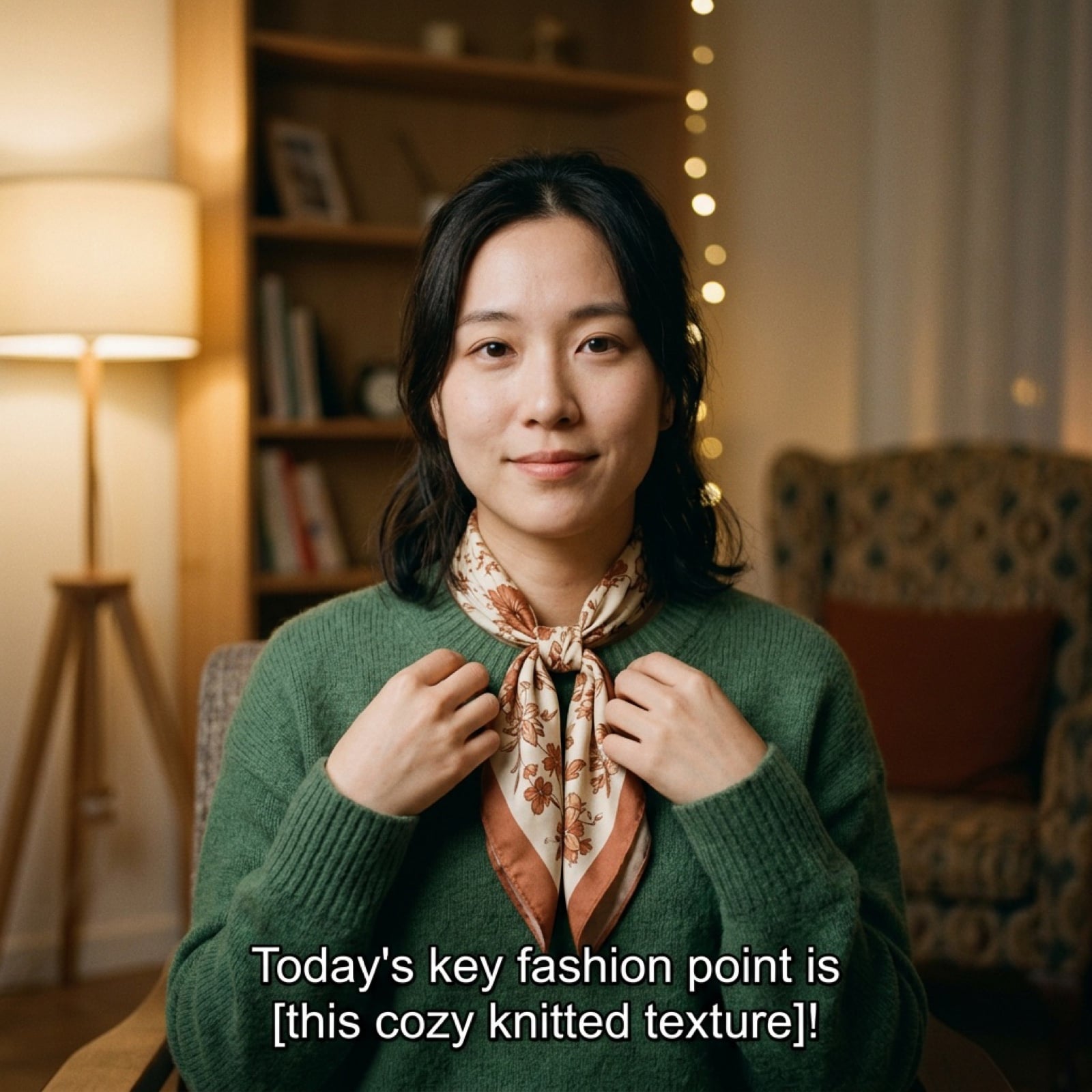
Vlog Style Video Prompt (Fashion Focus)
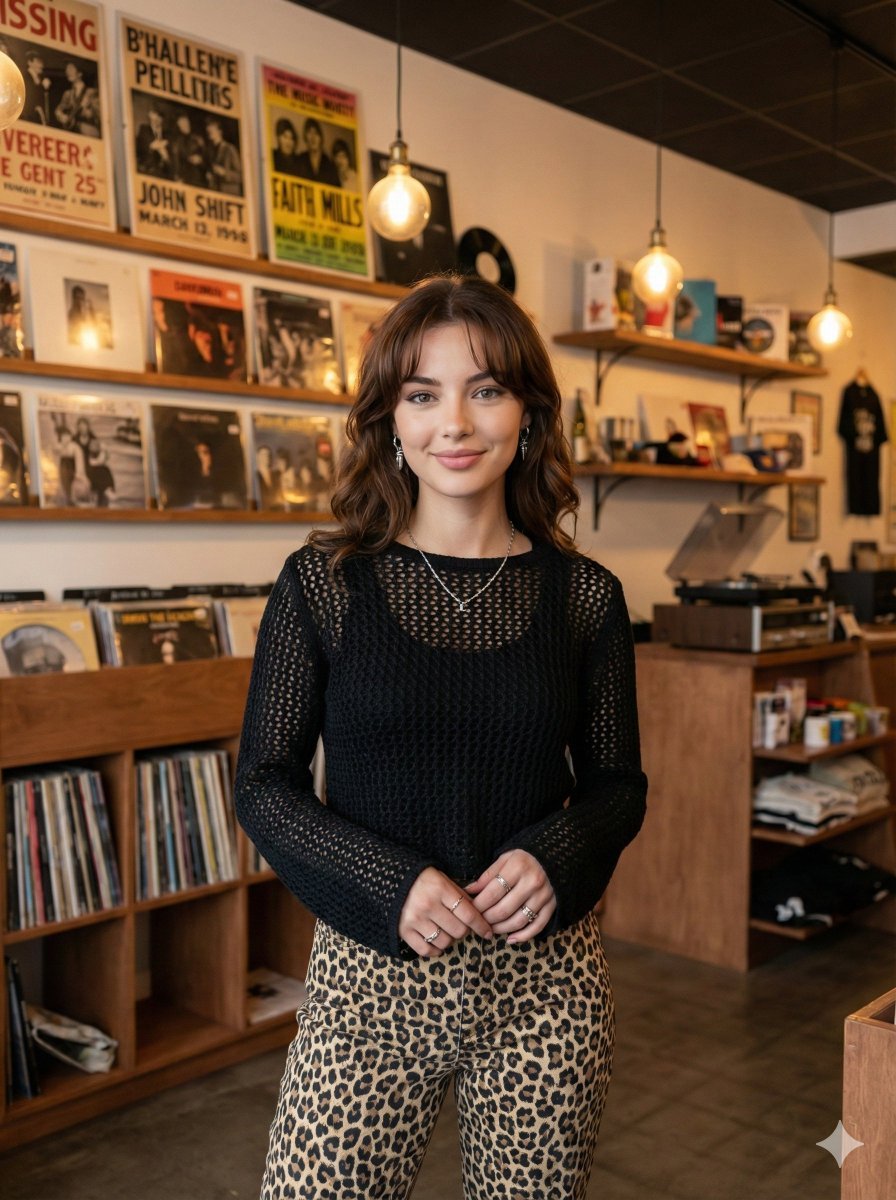
Modern Candid Portrait in a Record Store
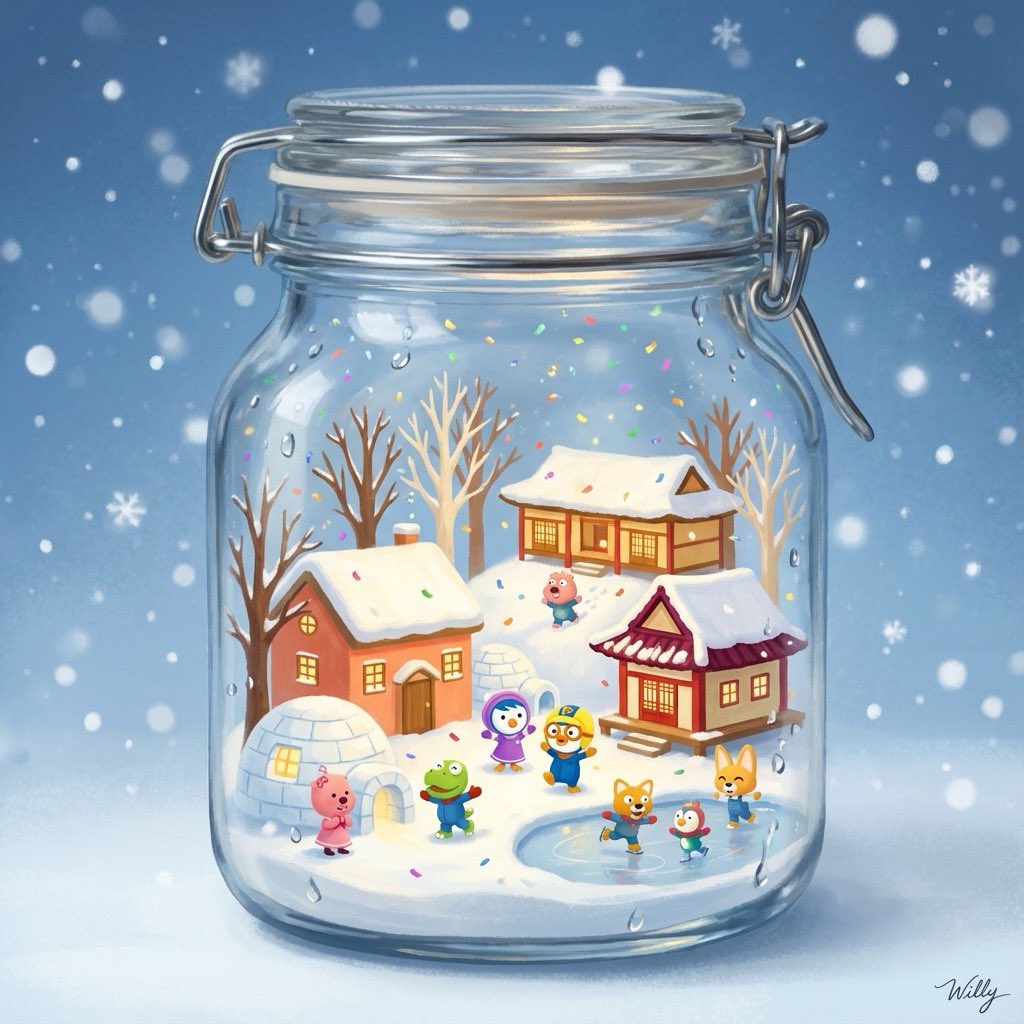
3D Miniature Snow Globe of Pororo
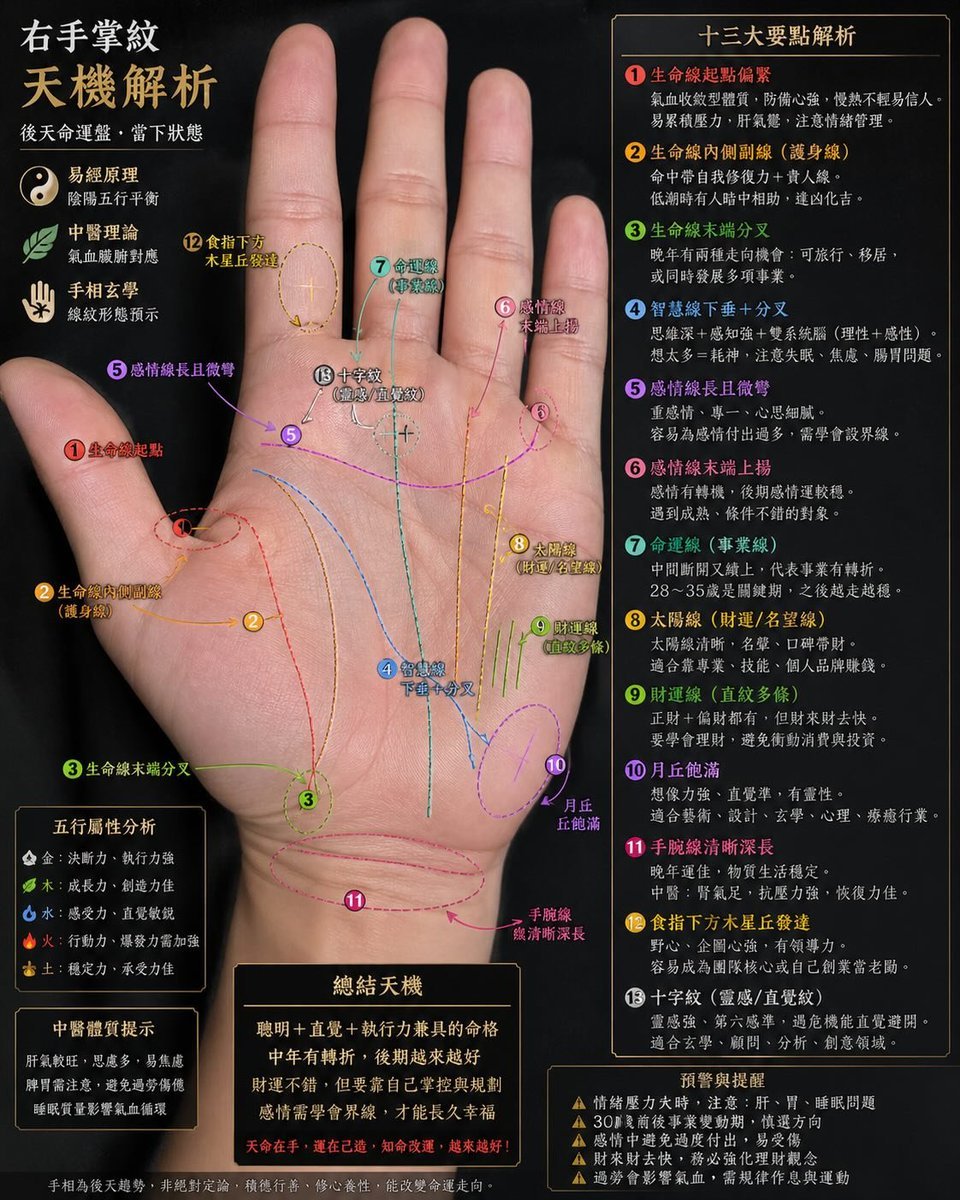
Palmistry Analysis Card Generator
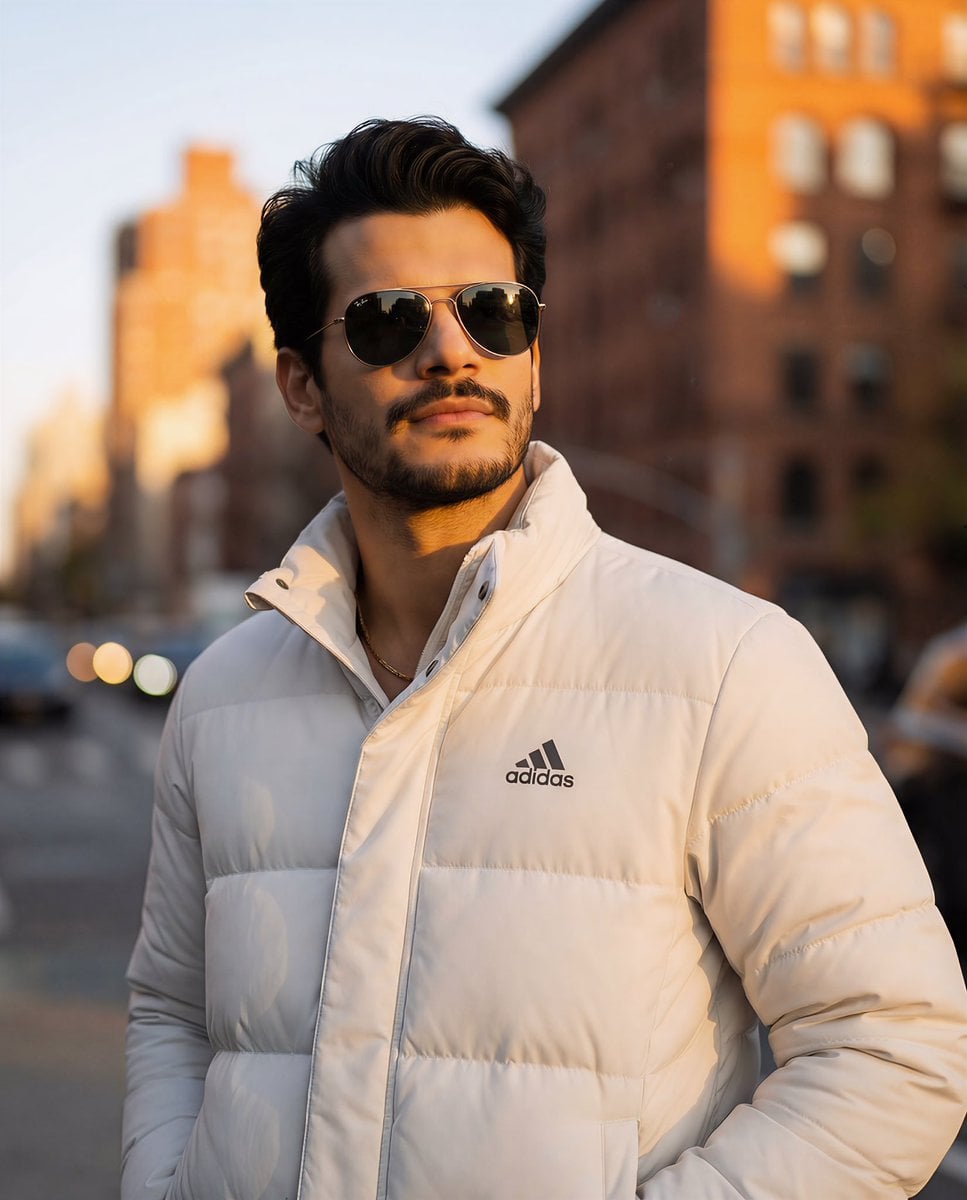
Golden Hour Cinematic Portrait with Identity Lock
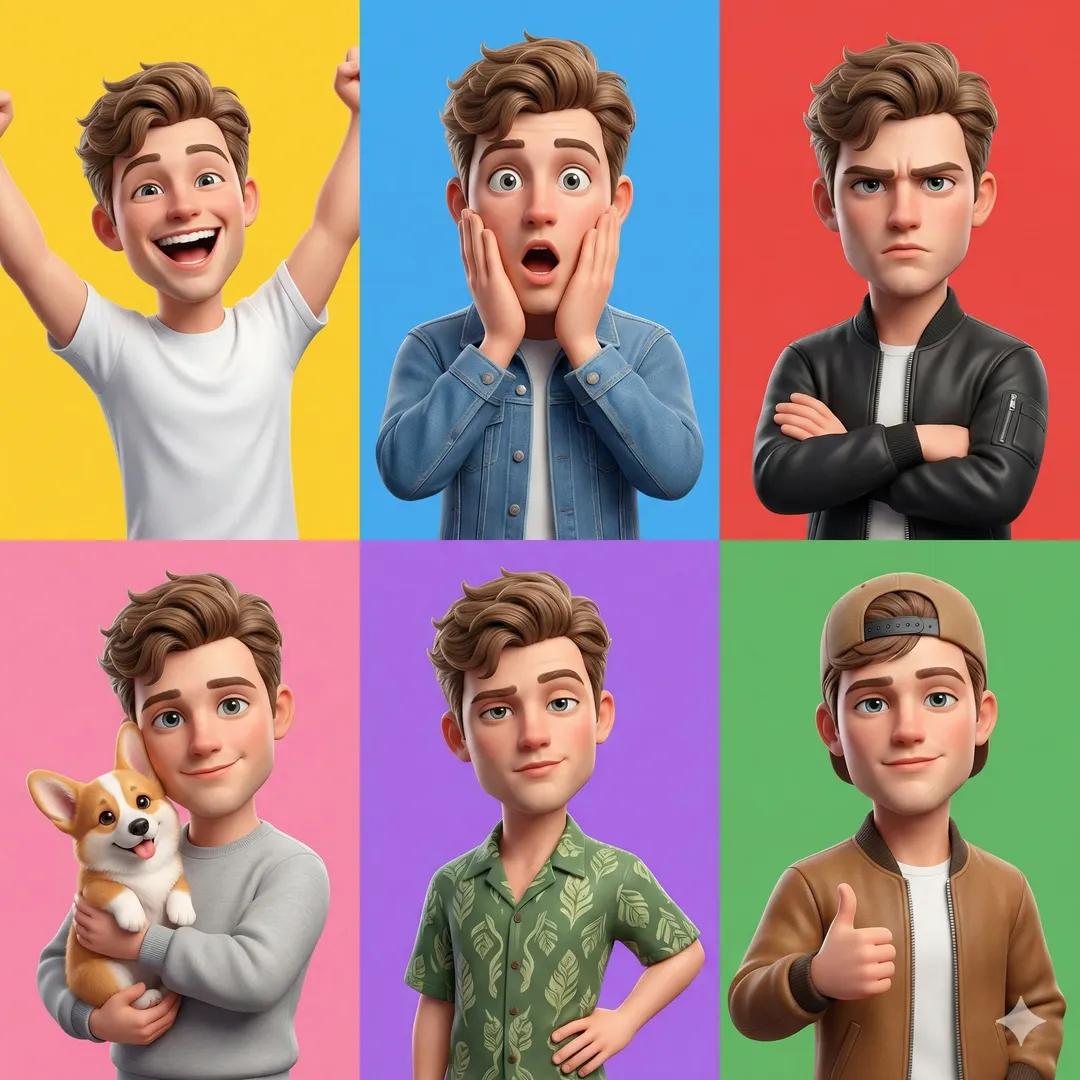
3D Pixar-Style Character Grid
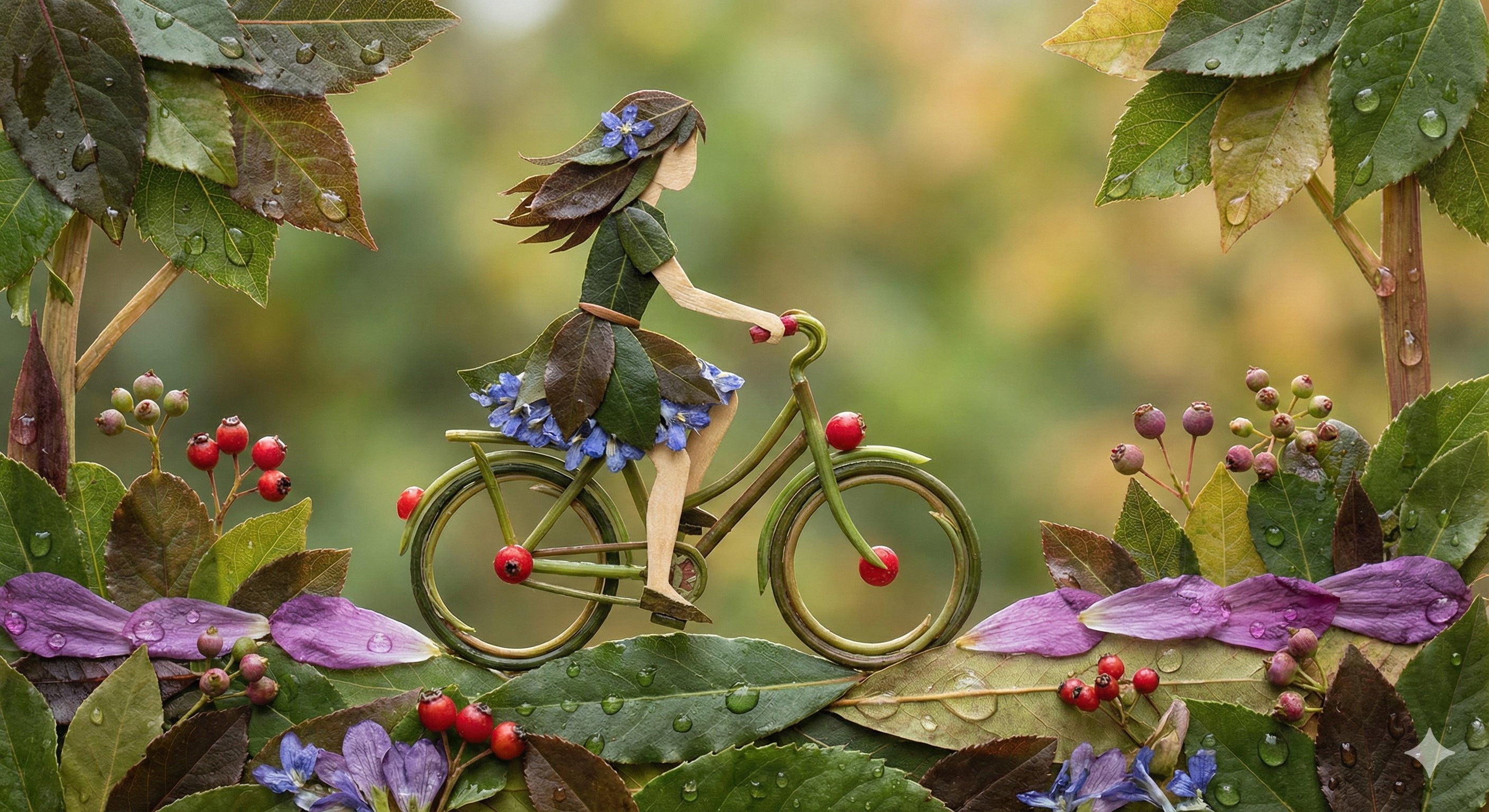
untitled
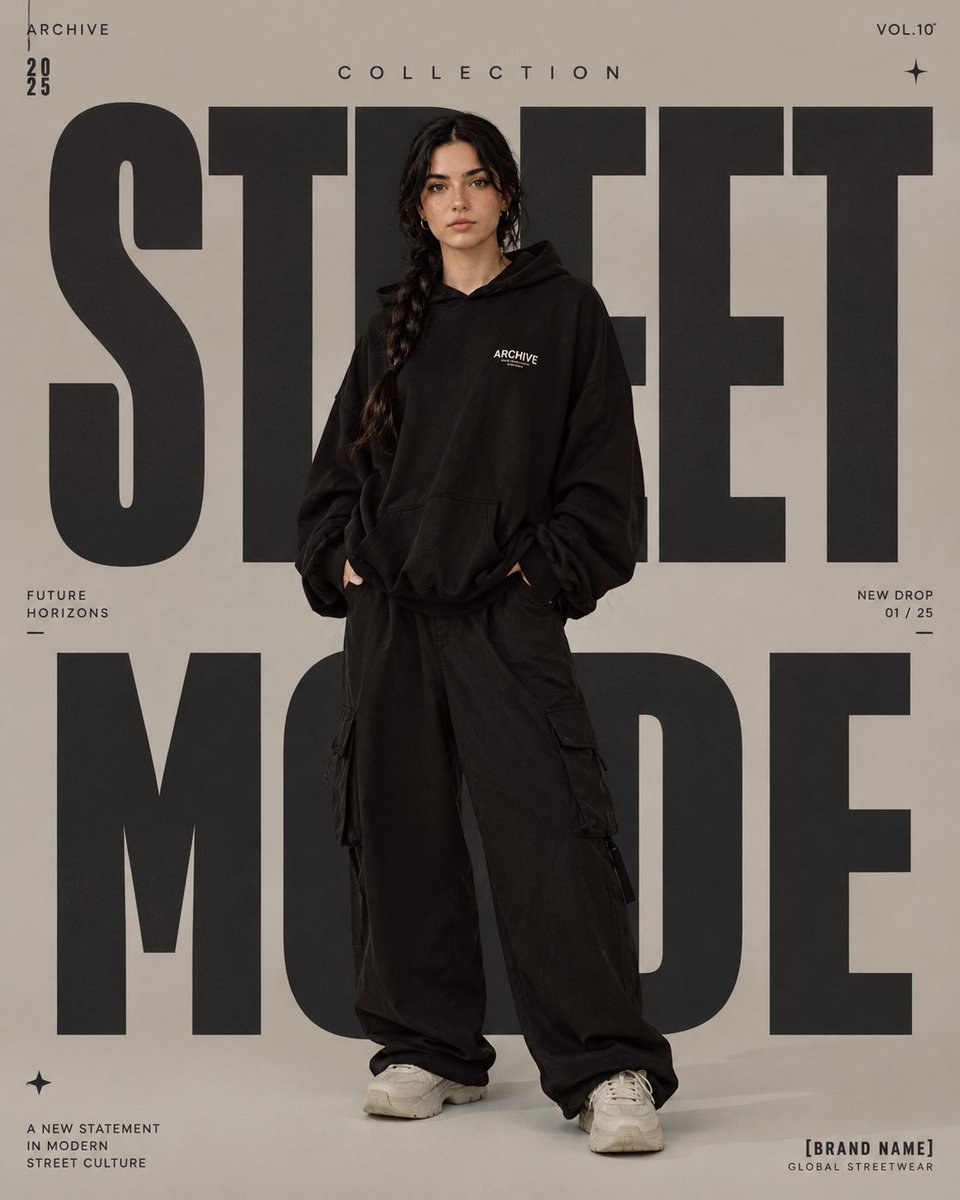
High-Fashion Editorial Magazine Poster
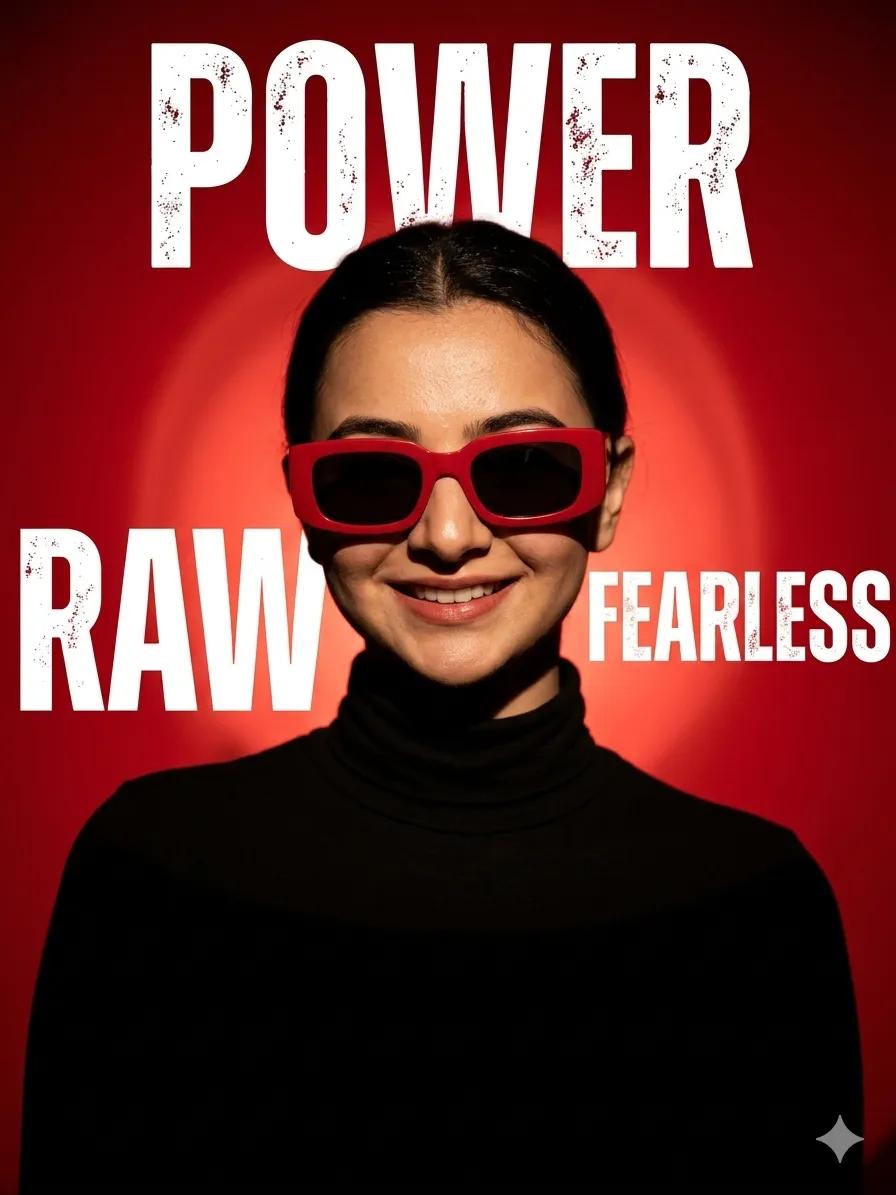
Ultra-Realistic Fashion Portrait with Bold Typography
Browse template categories
Anime Couple Segmentation UI Screenshot questions
How do I use the Anime Couple Segmentation UI Screenshot template?
Add your photo if the template asks for one, edit the prompt if you like — the template's model and format are already selected — and press Generate. Your version opens in PicX Studio.
Can I customize the Anime Couple Segmentation UI Screenshot template?
Yes. You can change the subject, setting, lighting, mood, format, and available model controls before creating your image.
Is the Anime Couple Segmentation UI Screenshot template free?
Opening and editing this template is free. Generating uses credits, shown on the Generate button when you are signed in.
Which AI model should I use?
Start with GPT Image 2, which is the model associated with this template. You can compare another compatible model for a different finish.
Looking for something else? Browse all templates.

Your photo, any look
Thousands of ready templates for every top image and video model, from one credit balance.