
LinkedIn Professional Headshot
LinkedIn Professional Headshot is a ready photo look.
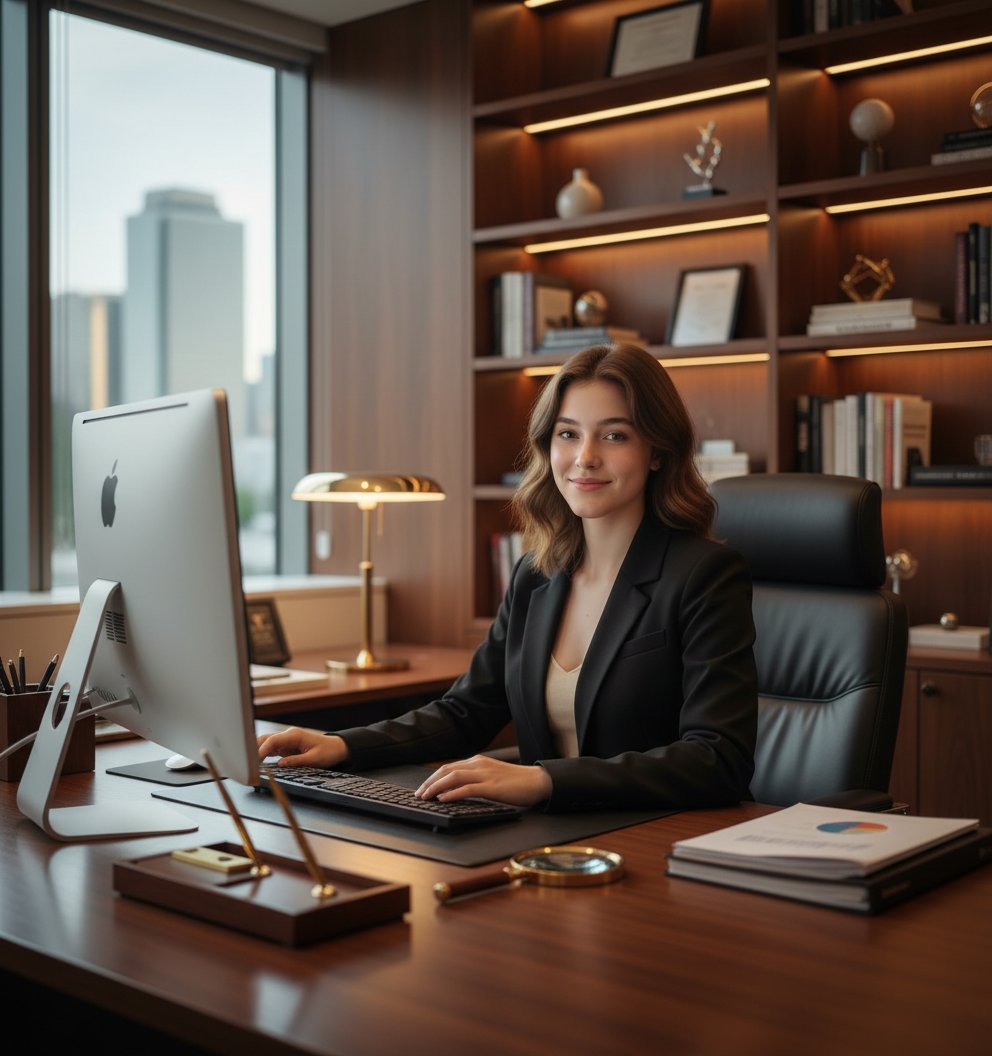
- Prompt included
- Model and format preset
- Premium template
The prompt behind this image
Copy the exact prompt behind LinkedIn Professional Headshot, or open it in the studio and make it yours.
A highly detailed professional portrait of the uploaded image sitting at a modern office desk. The uploaded image is dressed in a black blazer and light top, appearing confident and approachable. The scene includes a large desktop computer, bookshelves in the background, soft ambient lighting, and elegant office decor such as a vintage magnifying glass and gold-toned items. The atmosphere should feel warm, sophisticated, and successful — like a high-end corporate workspace. The uploaded image is smiling naturally, appearing focused yet friendly. Capture a realistic, high-resolution style with soft depth of field, balanced warm tones, sharp facial features, and natural-looking skin texture. The overall style should look like a professional business headshot taken in a premium executive office
How to use LinkedIn Professional Headshot in 3 steps
- 1Upload ImagePNG, JPG or paste
Add your photo
Upload the photo the template builds on. The prompt, model and format are already set.
- 2…a portrait of your subject in softgolden-hour light, 85mm…
Personalize
Edit the subject and creative details for your destination.
- 3Generate
Generate
Press Generate — your image is created in PicX Studio, so you can compare it with the original and refine one variable at a time.
More like this
Templates with the same subject, style or setup. Open one to see its prompt.
Dress
Selfie to Professional LinkedIn Headshot Conversion

A k.pop idol on the stage with mic
American Style LinkedIn Business Headshot
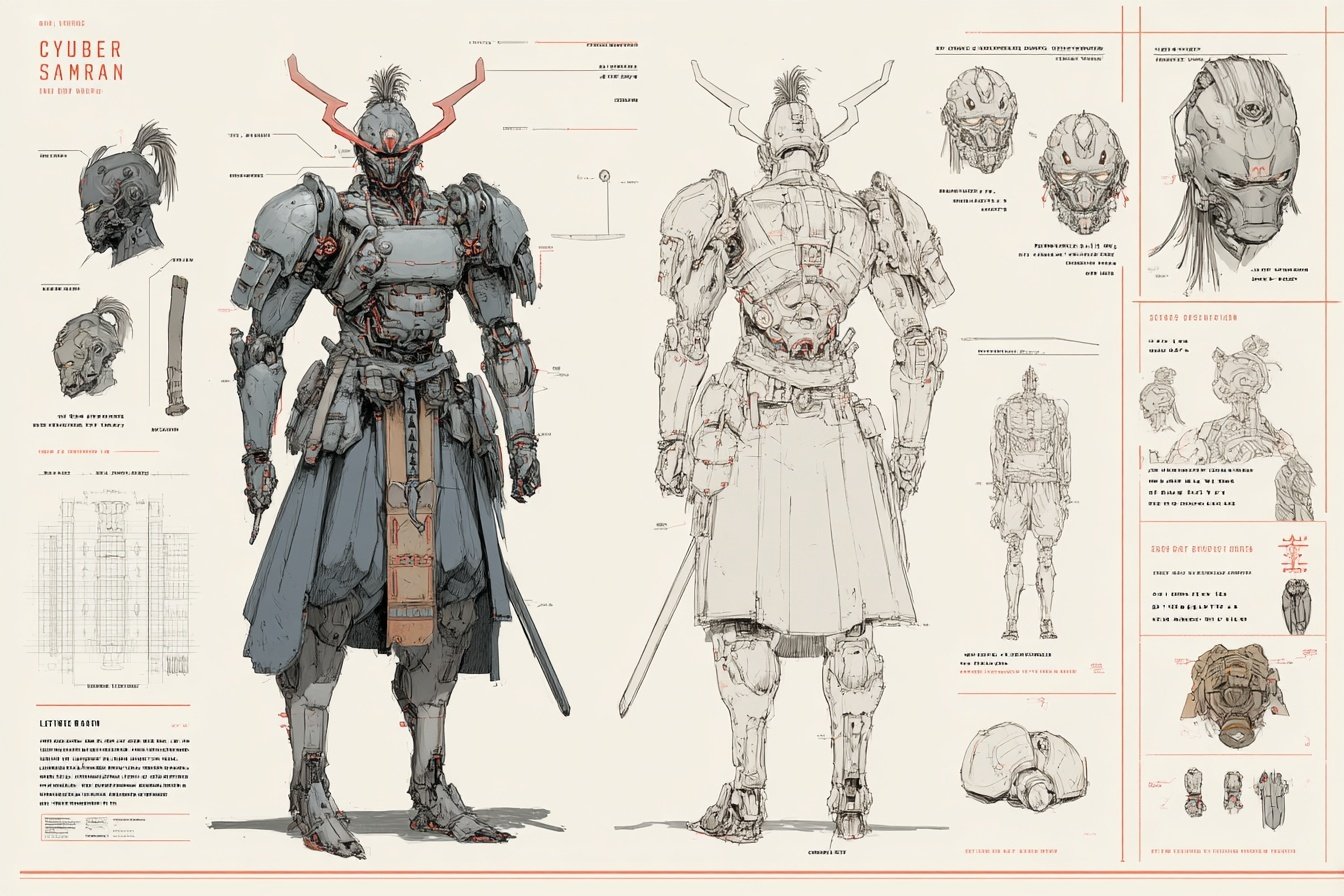
Character Archive — Blueprint Concept Sheet
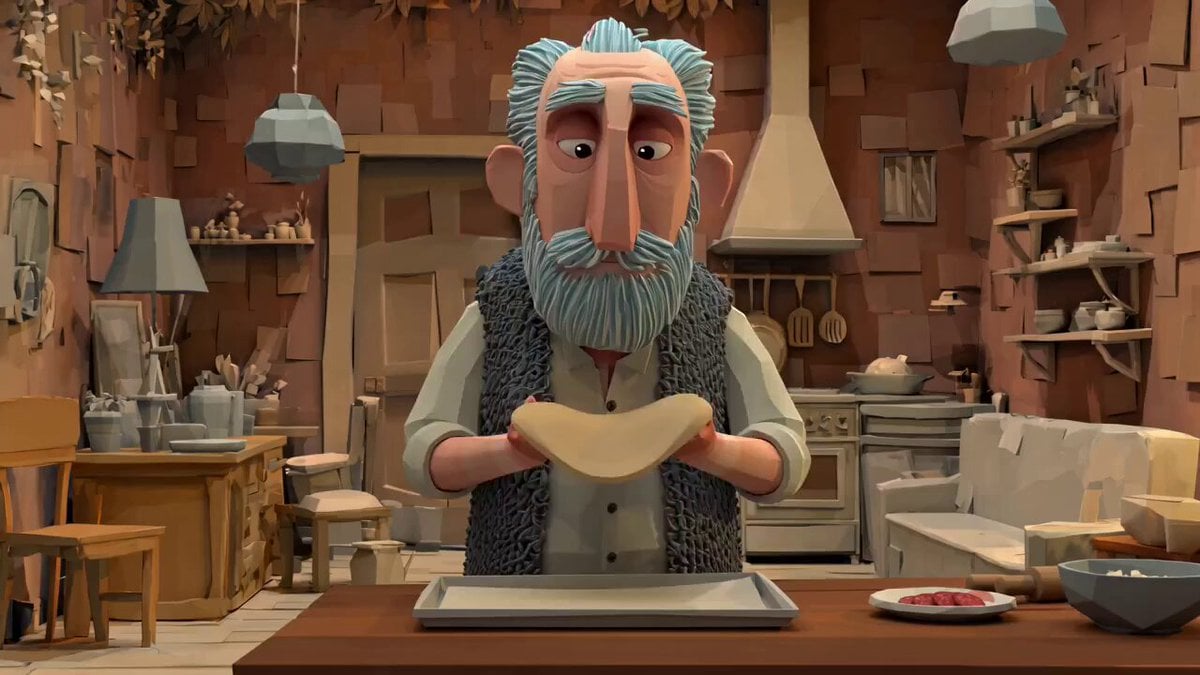
Animation Style - Framer Motion
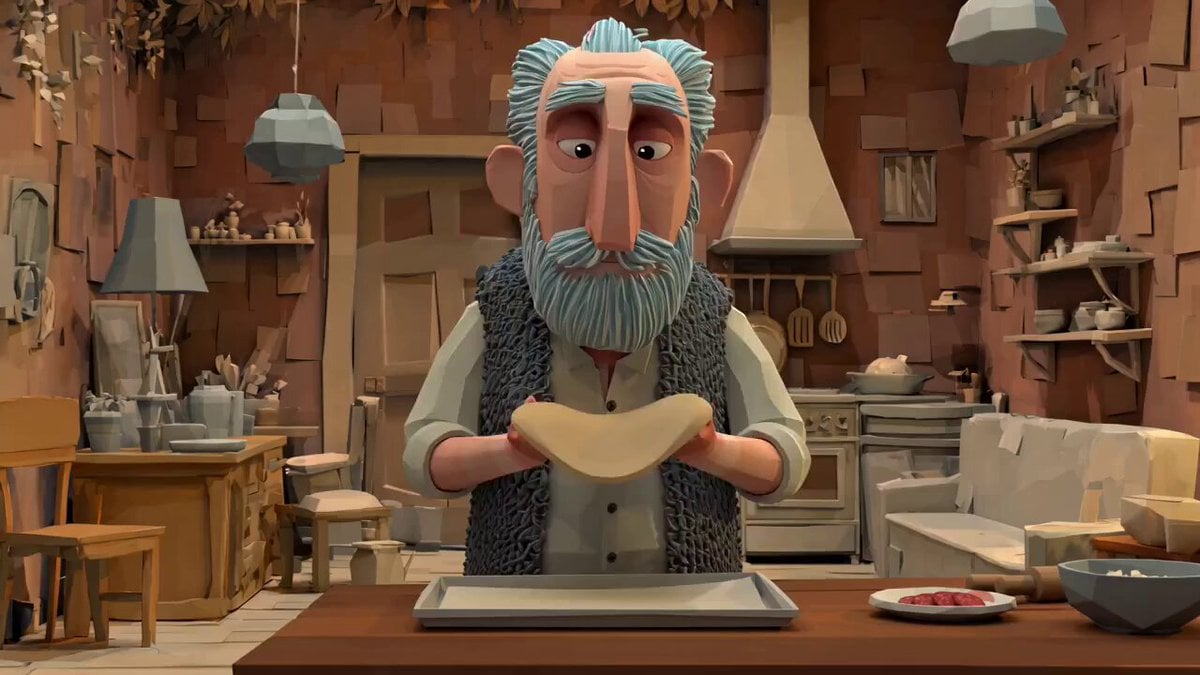
Animation Style - Framer Motion v2
Animation Style - Framer Motion
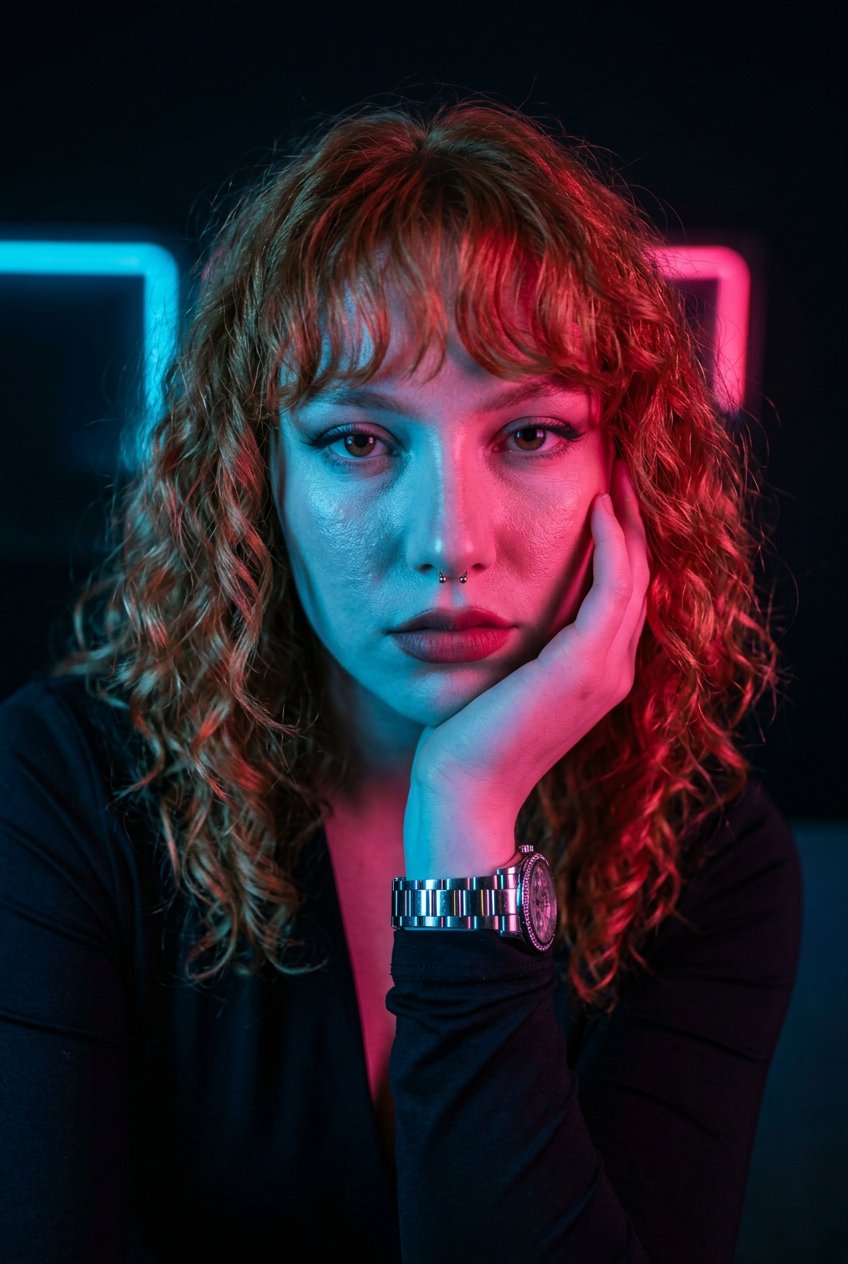
Neon Noir Dual Tone Portrait
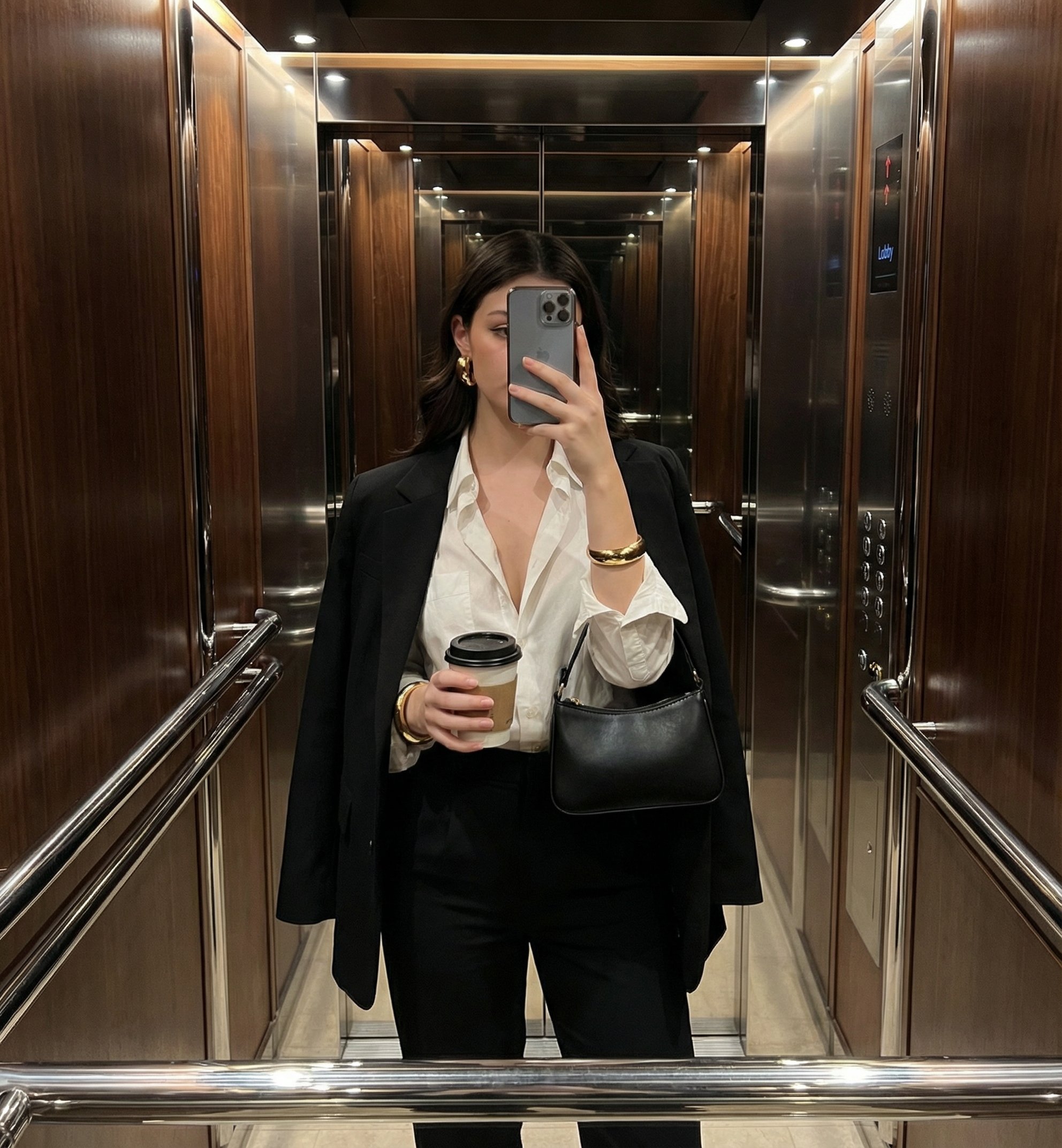
Mirror Selfie
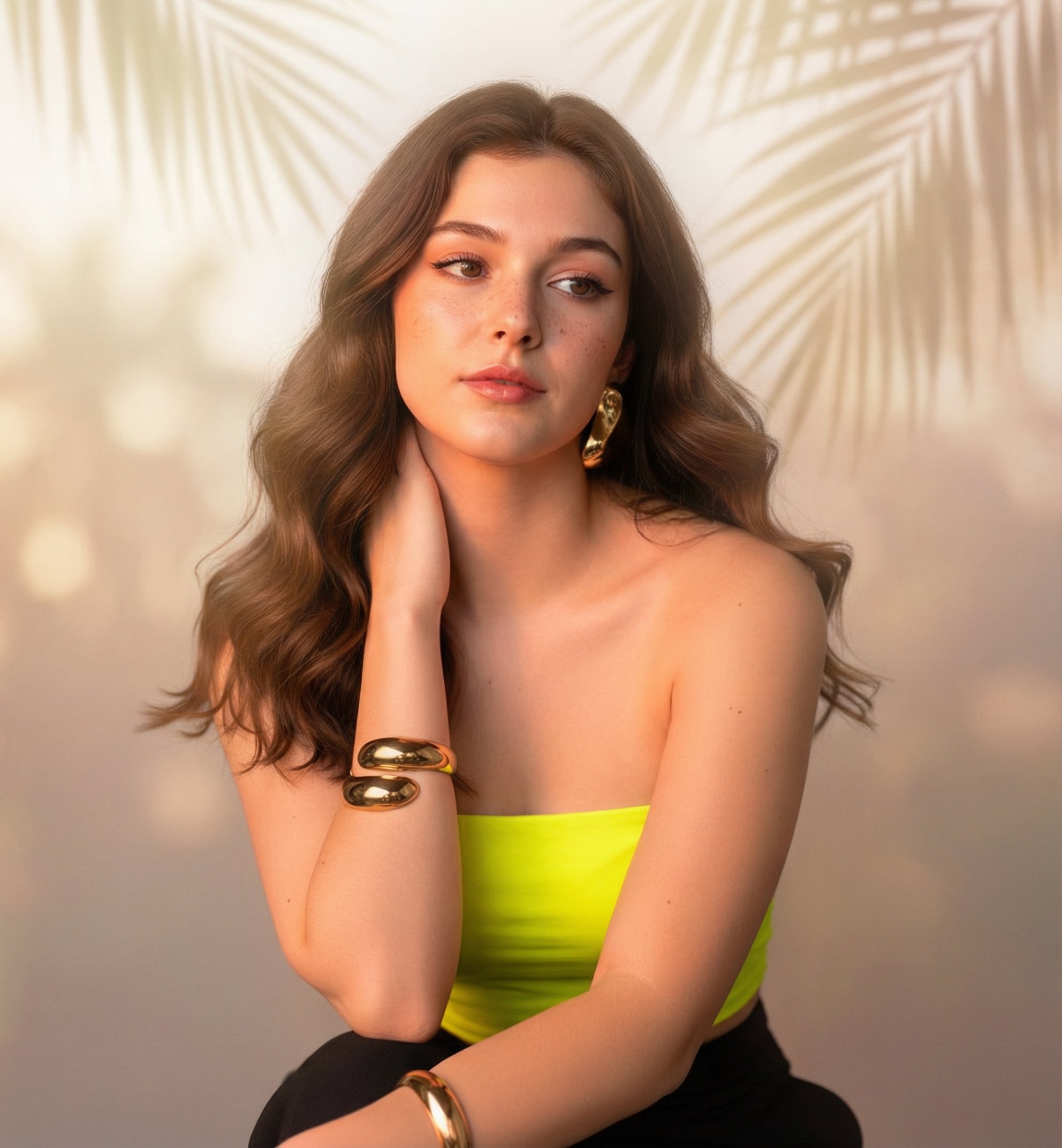
Sunny Day
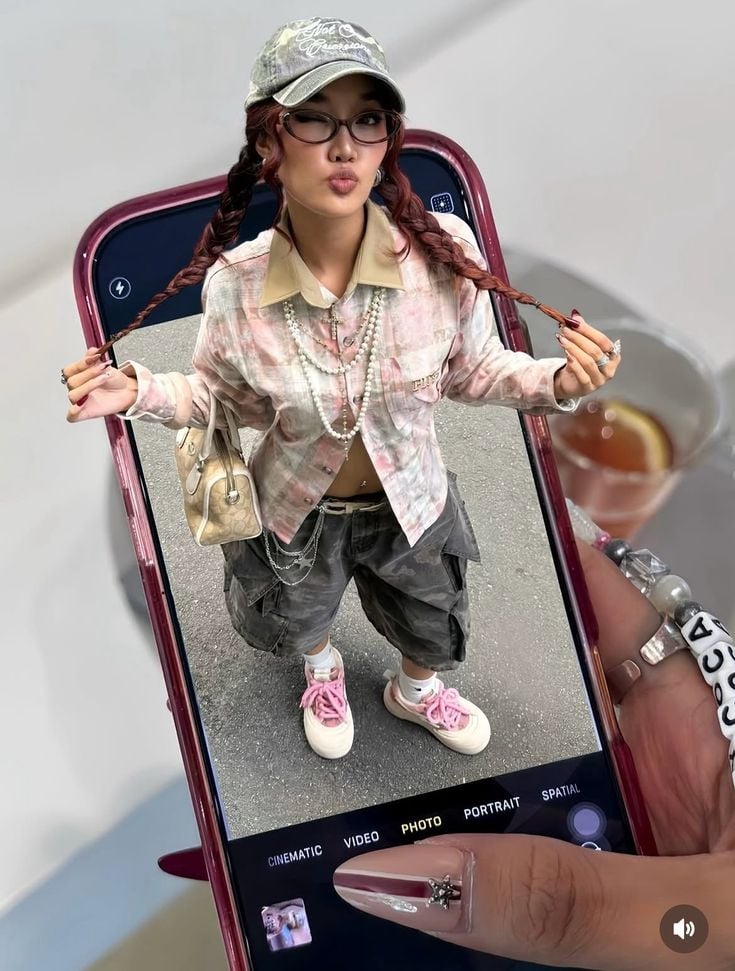
Phone Within a Phone
Make it yours
LinkedIn Professional Headshot works as-is. These are the safest ways to change it without losing the look.
Change one field
Copy a single group, rewrite it, and generate again so you can see what that field is doing.
Keep the frame, change the subject
Hold the composition and light of LinkedIn Professional Headshot, then swap wardrobe, props or the person for a new take.
| If the result… | Why | Fix |
|---|---|---|
| The result drifts from the preview | Too many fields changed at once. | Reuse LinkedIn Professional Headshot as-is first, then change one group — subject, light, or setting. |
| The model over-stylizes the scene | The prose prompt leaves finish and camera underspecified. | Add one camera or lighting sentence and stay on PicX Studio. |
More image prompts
Fresh picks from across the catalog.
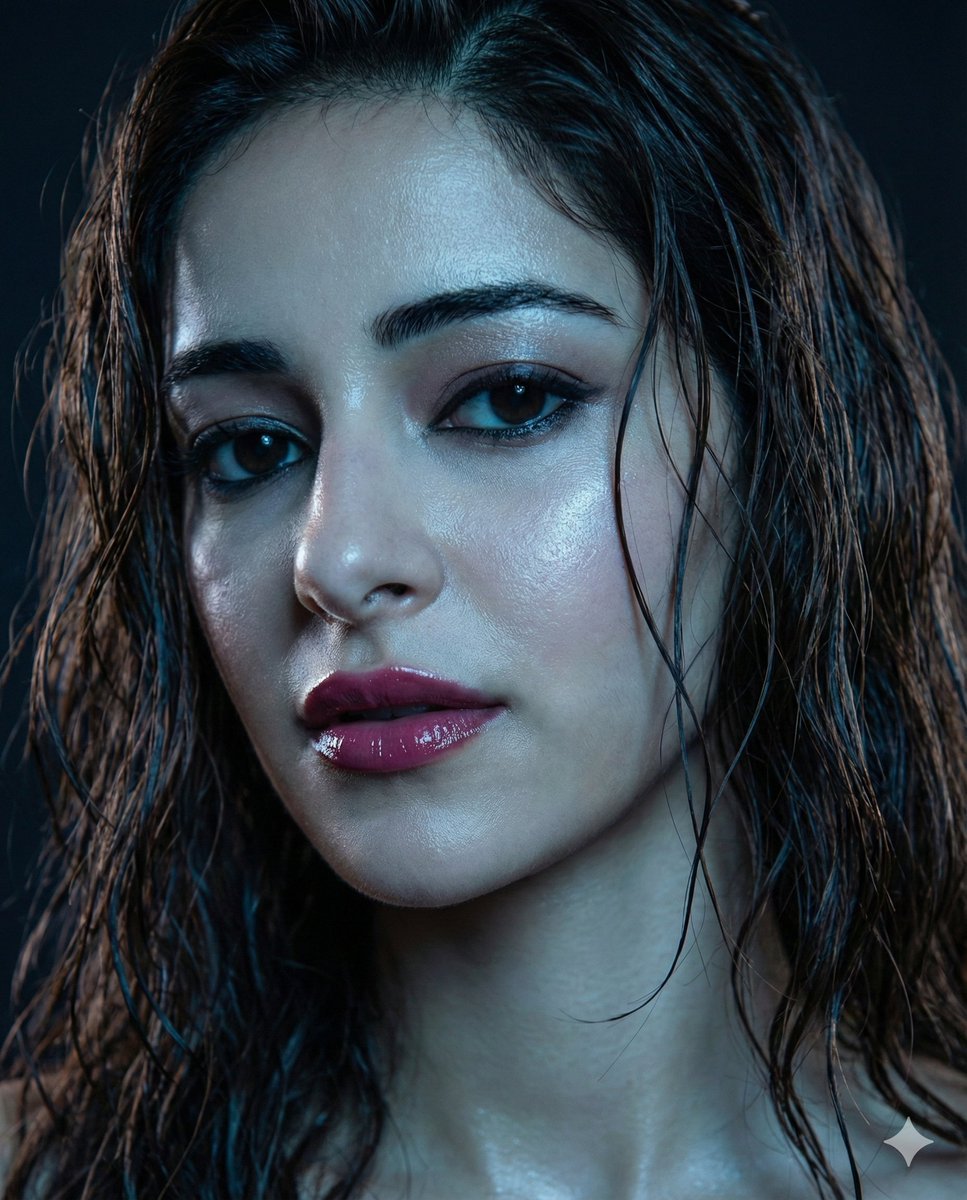
Moody Close-up Portrait with Wet Hair and Cool Lighting
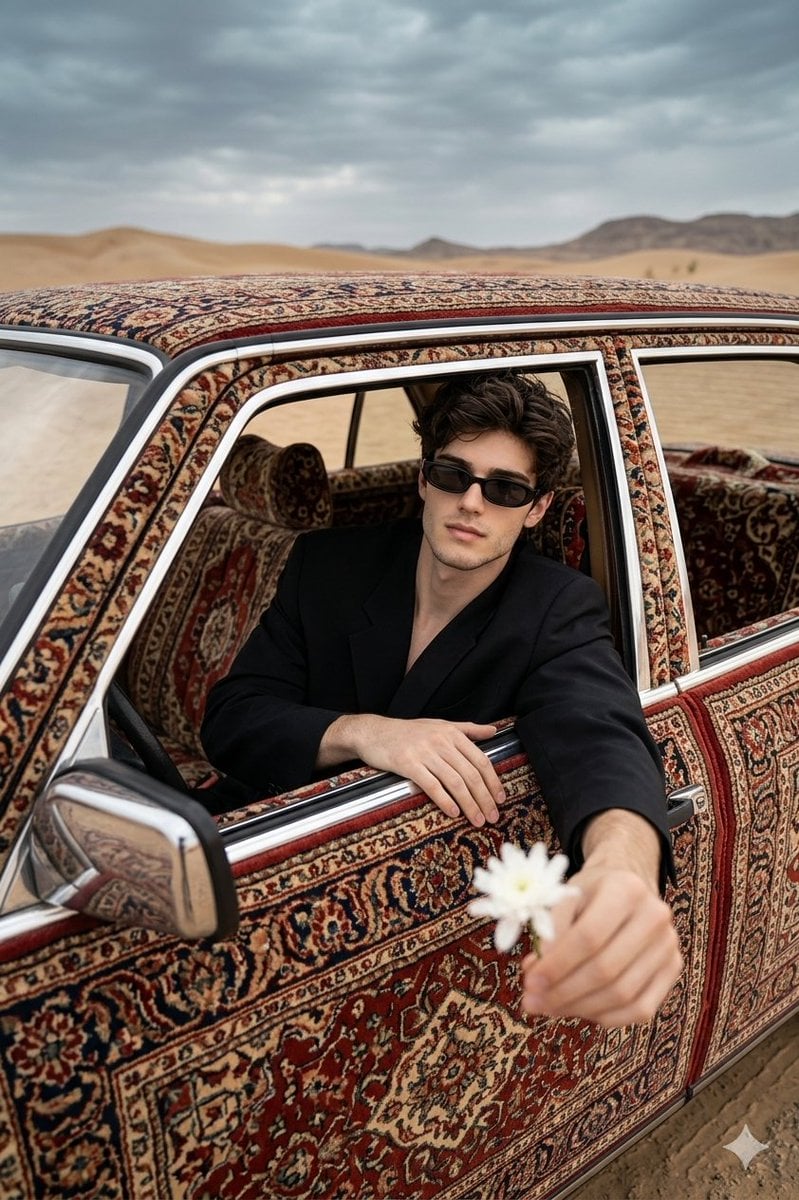
Carpet-Covered Vintage Car Fashion Shoot
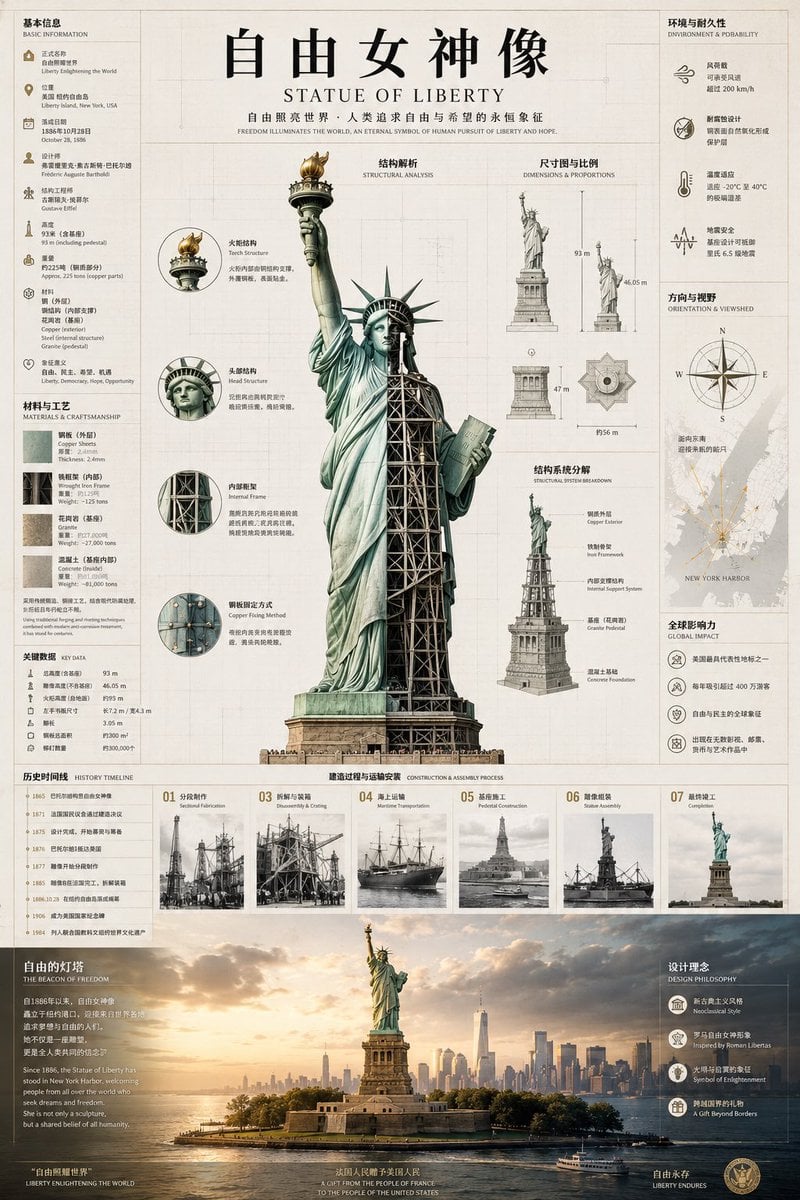
Statue of Liberty Technical Infographic
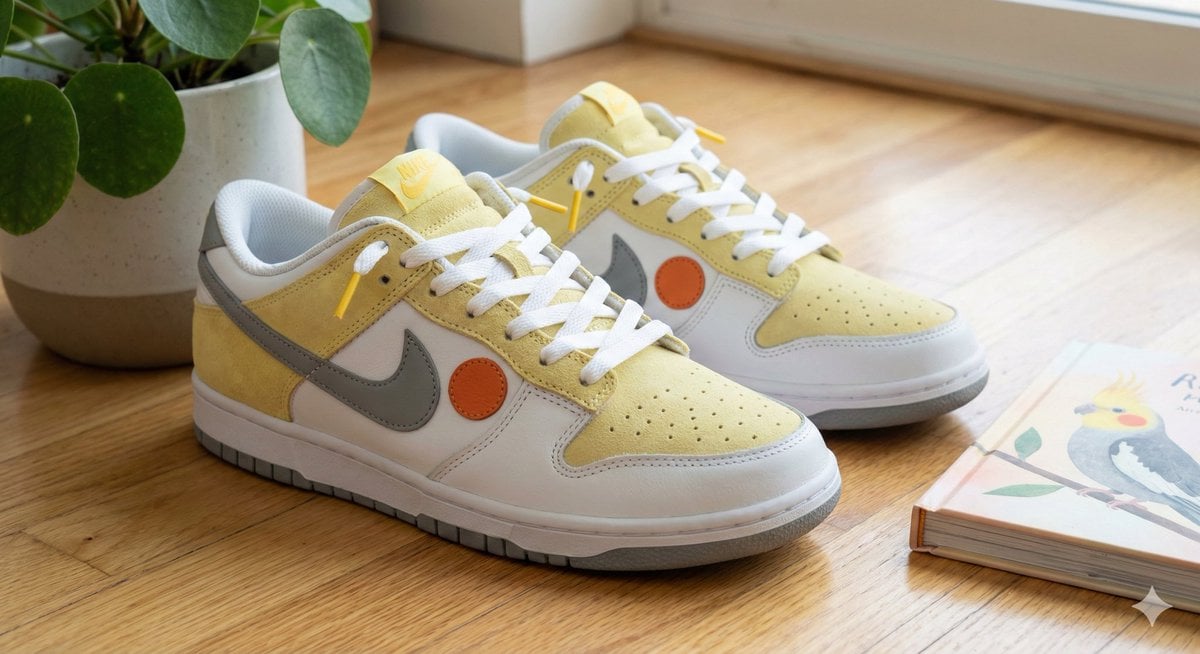
Cockatiel Model Sneakers Generated by Nano Banana Pro
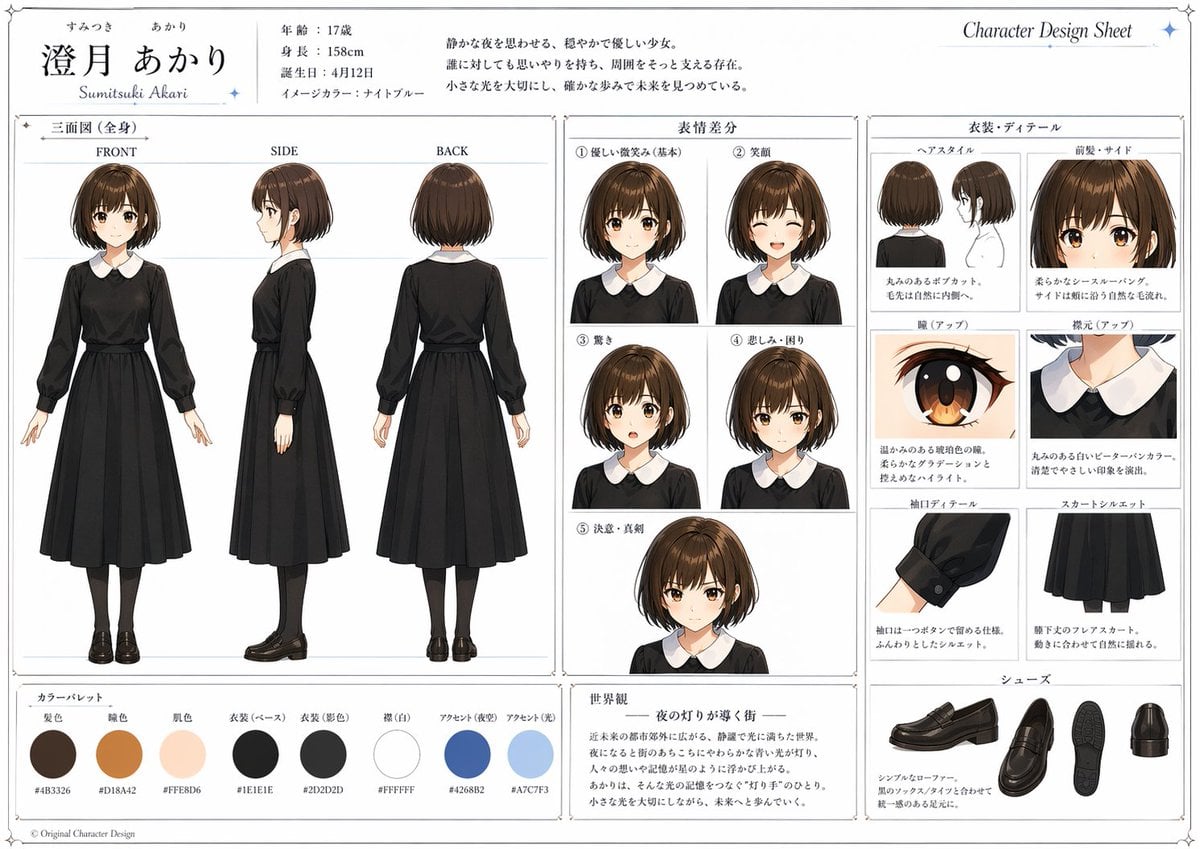
Anime Character Design Sheet
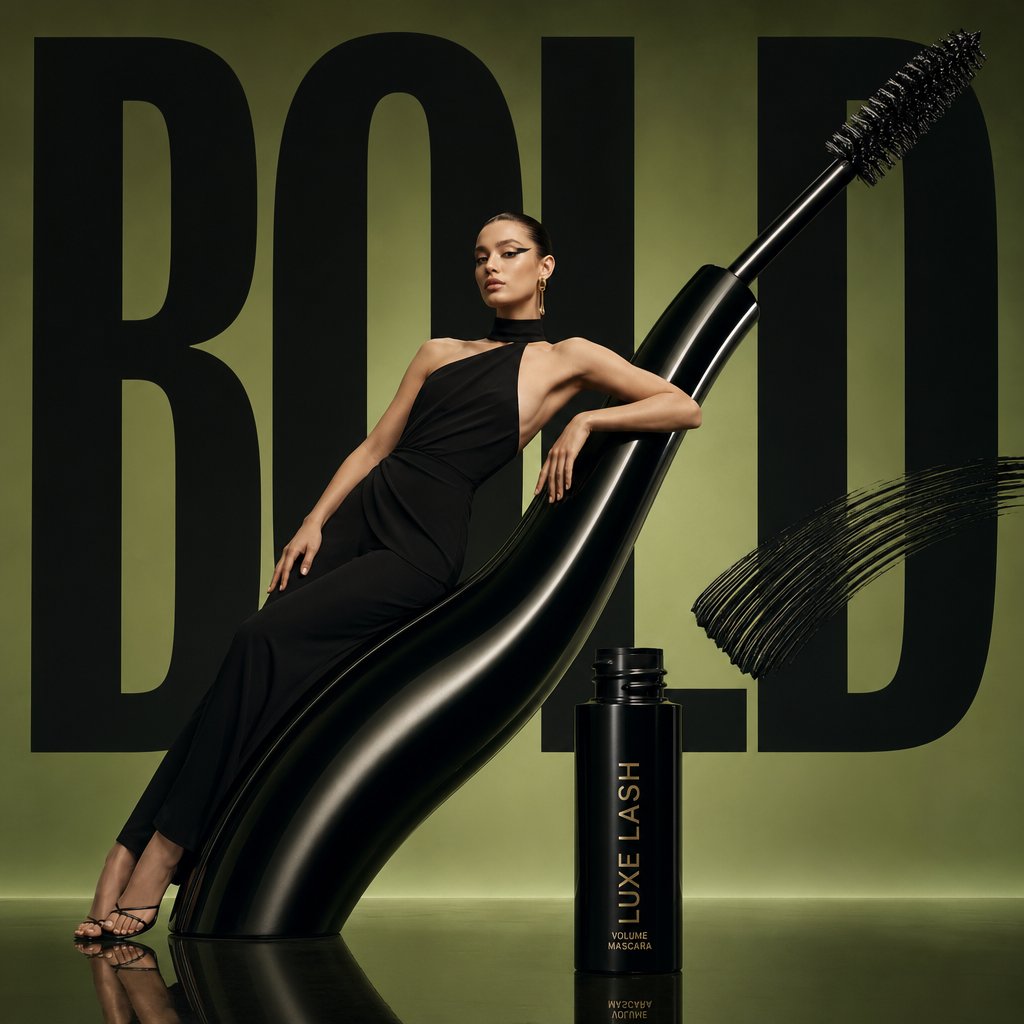
Avant-Garde Beauty Ad
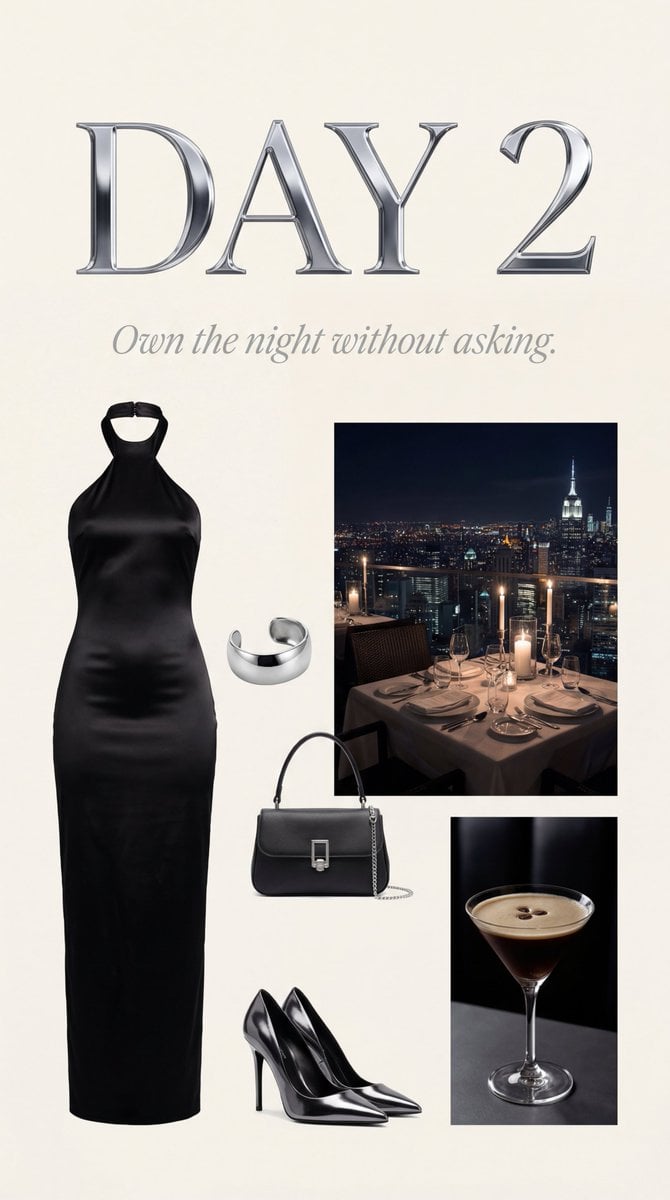
Luxury Night Fashion Moodboard (Day 2)

Rebellious High School Student Portrait
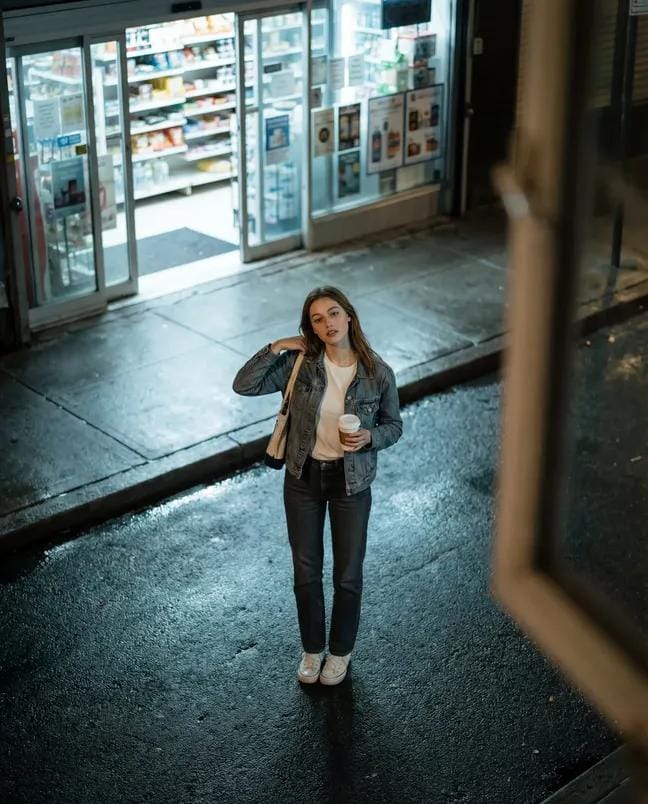
High-Angle Night Street Fashion Photograph
Genspark Product Photography Prompt Template
Browse template categories
LinkedIn Professional Headshot questions
How do I use the LinkedIn Professional Headshot template?
Add your photo if the template asks for one, edit the prompt if you like — the template's model and format are already selected — and press Generate. Your version opens in PicX Studio.
Can I customize the LinkedIn Professional Headshot template?
Yes. You can change the subject, setting, lighting, mood, format, and available model controls before creating your image.
Is the LinkedIn Professional Headshot template free?
Opening and editing this template is free. Generating uses credits, shown on the Generate button when you are signed in.
Which AI model should I use?
Choose a compatible model in PicX Studio based on the style, speed, and output controls your project needs.
Looking for something else? Browse all templates.

Your photo, any look
Thousands of ready templates for every top image and video model, from one credit balance.