
Yellow Chick Mascot on Japanese Train
A photorealistic surreal commuter-train scene featuring a giant fluffy yellow chick mascot among anonymized passengers.
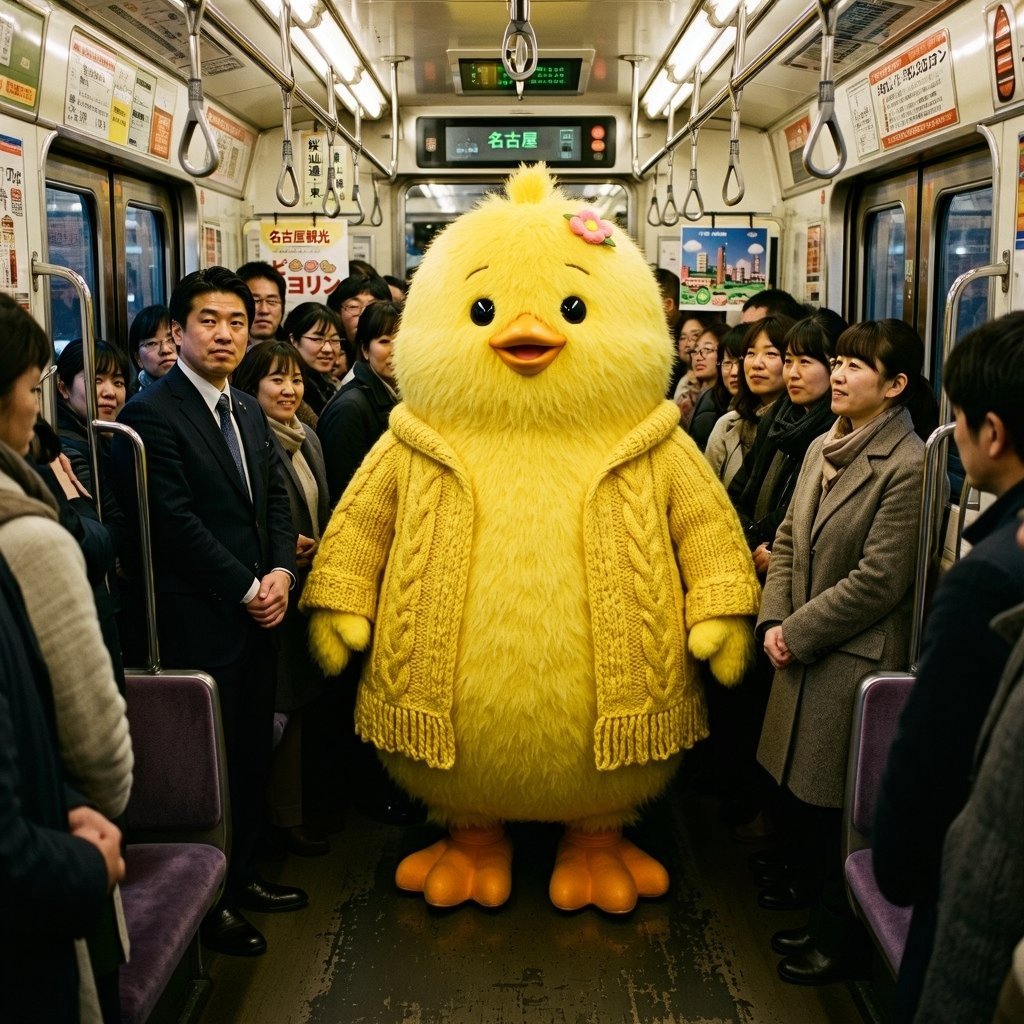
- Prompt included
- Model and format preset
- Free template
The prompt behind this image
Copy the exact prompt behind Yellow Chick Mascot on Japanese Train, or open it in the studio and make it yours.
Create a photorealistic, slightly whimsical scene inside a crowded Japanese commuter train in {argument name="city" default="Nagoya"}. In the exact center aisle stands a large life-size mascot character: a round fluffy {argument name="animal" default="yellow chick"} with soft shaggy fur, black glossy eyes, a small orange beak, orange webbed feet, tiny wings, and a small pink flower hair clip near the top of its head. Dress the mascot in a chunky knitted {argument name="clothing item" default="mustard-yellow cable-knit cardigan"} with visible braided patterns and fringe at the hem, matching the body color. Surround it with standing adult commuters in winter business attire and coats, lined along both sides of the aisle; their faces should appear intentionally blurred or anonymized. The train interior should be realistic and dense: silver handrails, hanging strap handles, fluorescent ceiling lights, purple seats at the sides, worn dark floor, windows and sliding doors, and Japanese advertisement posters throughout. Include overhead digital route signs, one prominently showing {argument name="destination text" default="名古屋"} in green Japanese text. Use a wide-angle eye-level composition, symmetrical perspective down the train car, warm indoor lighting, high detail, documentary street-photography realism mixed with surreal mascot humor. No extra characters in the aisle, no watermark, no captions, no cartoon rendering.
How to use Yellow Chick Mascot on Japanese Train in 3 steps
- 1Upload ImagePNG, JPG or paste
Add your photo
Upload the photo the template builds on. The prompt, model and format are already set.
- 2…a portrait of your subject in softgolden-hour light, 85mm…
Personalize
Edit the subject and creative details for your destination.
- 3Generate
Generate
Press Generate — your image is created in PicX Studio, so you can compare it with the original and refine one variable at a time.
More like this
Templates with the same subject, style or setup. Open one to see its prompt.

Minecraft Japanese Research Lab Exploration
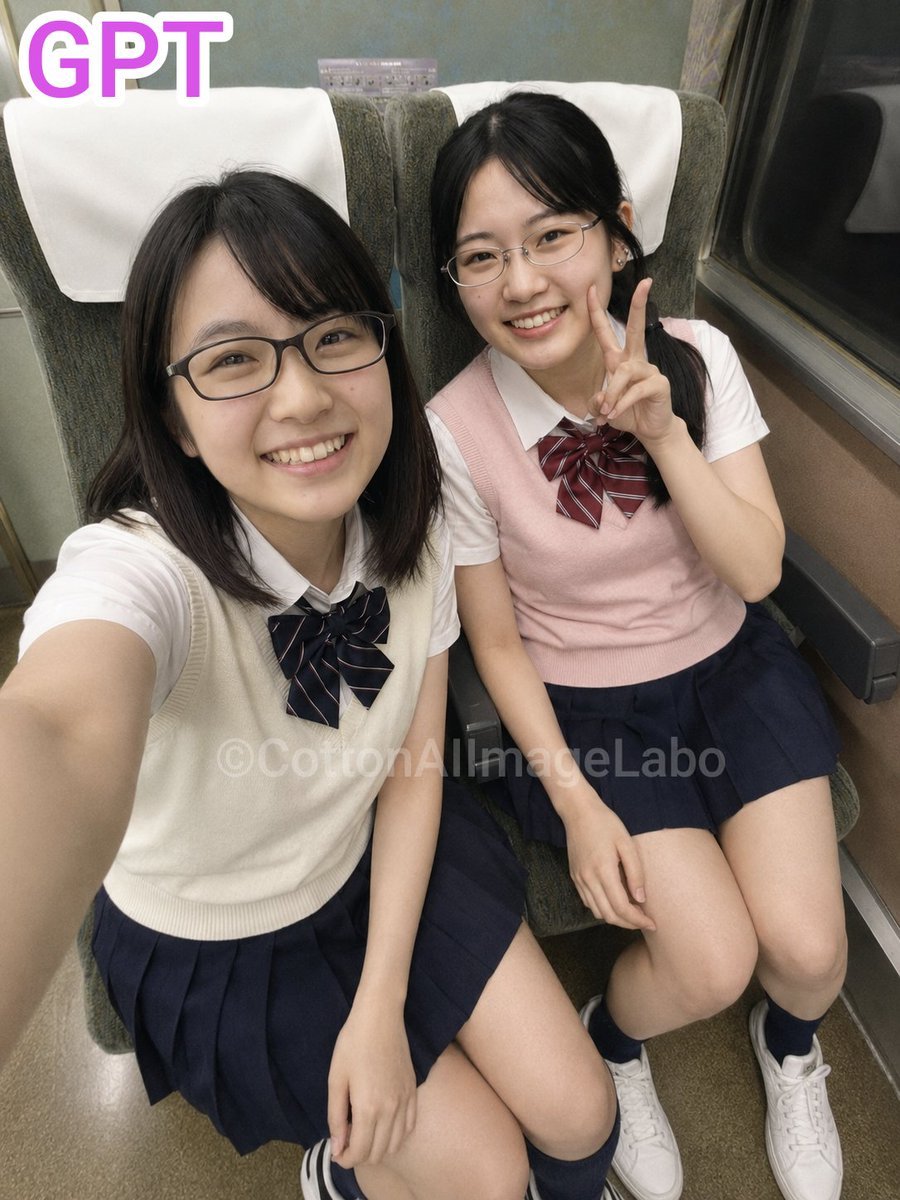
Japanese Train Selfie Girls
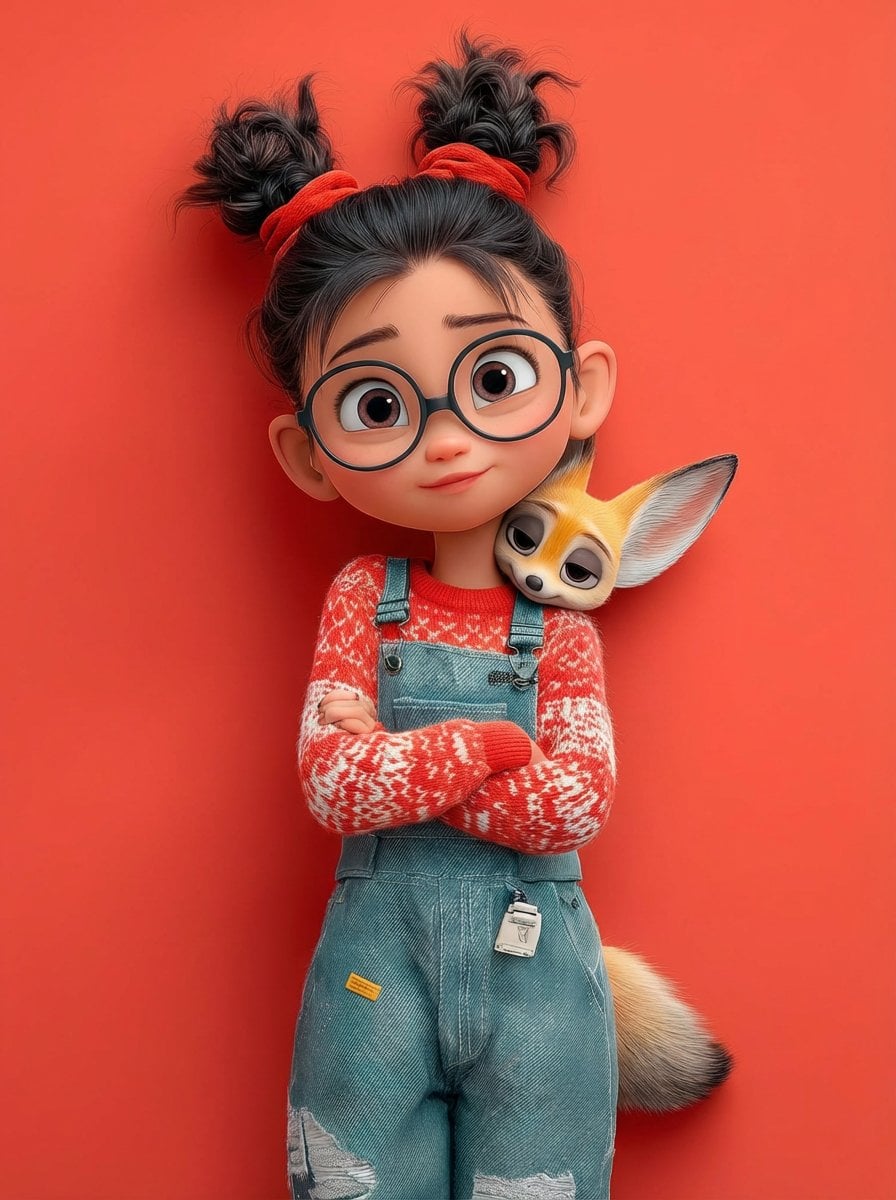
Anime Rain Poncho Parade
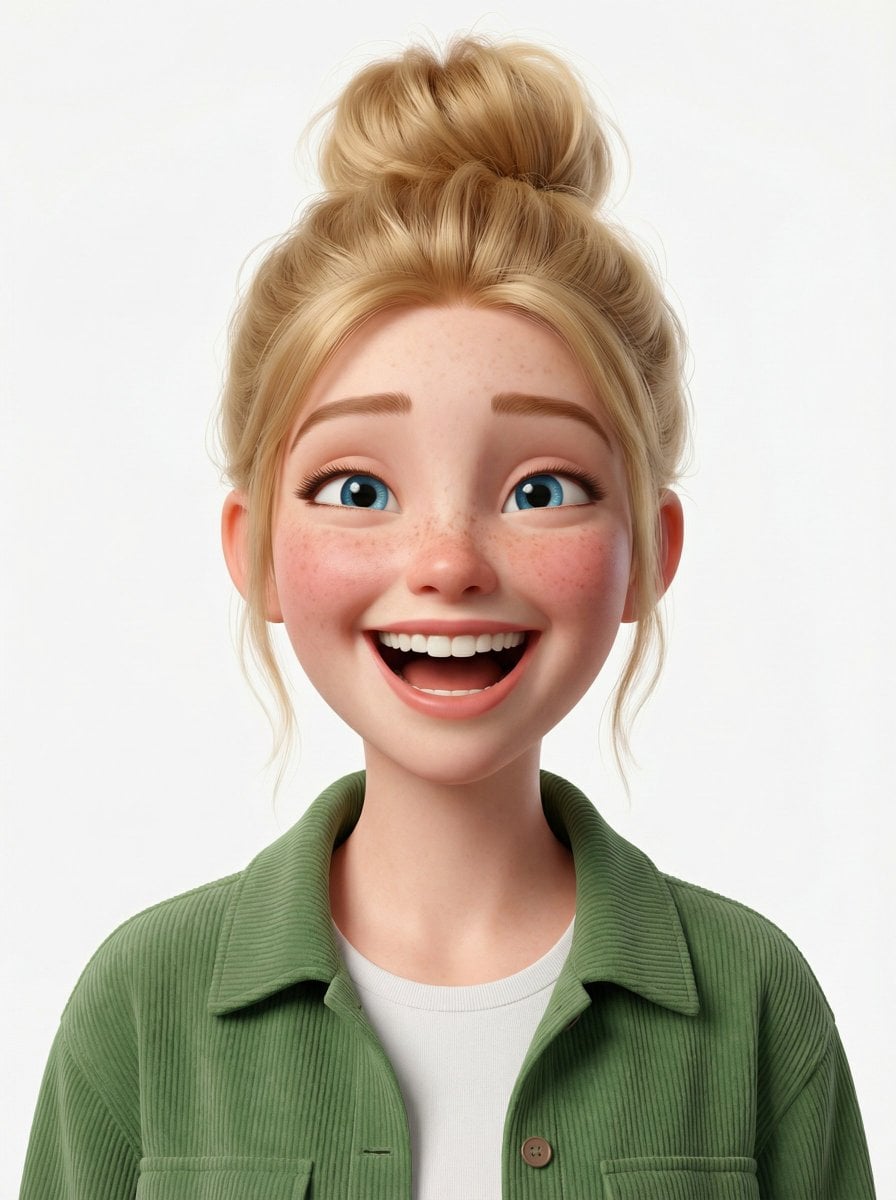
Anime Street Performer Magic

Anime Ferry Boat Arrival

Anime Hidden Mickey Hunt
Anime Popcorn Cart Hero
Anime Nighttime Projection
Anime Character Meet Tent
Anime Splash Mountain Drop
Anime Balloon Seller Lane
Anime Pirate Ship Stage
Make it yours
Yellow Chick Mascot on Japanese Train works as-is. These are the safest ways to change it without losing the look.
Change one field
Copy a single group, rewrite it, and generate again so you can see what that field is doing.
Keep the frame, change the subject
Hold the composition and light of Yellow Chick Mascot on Japanese Train, then swap wardrobe, props or the person for a new take.
| If the result… | Why | Fix |
|---|---|---|
| The result drifts from the preview | Too many fields changed at once. | Reuse Yellow Chick Mascot on Japanese Train as-is first, then change one group — subject, light, or setting. |
| The model over-stylizes the scene | The prose prompt leaves finish and camera underspecified. | Add one camera or lighting sentence and stay on GPT Image 2. |
More GPT Image 2 templates
Other prompts made for GPT Image 2.

Six VTuber Japanese Logo Sheet

Realistic Portrait of Woman and Deer

The Vista Modular Condo Poster

AI Model Routing Comparison Infographic

2.5D Anime Art Board

Isometric Productivity Desk Scene

New York Double Exposure Poster

Four-Panel AI Landscape Comparison

Japanese Tatami Lifestyle Magazine Cover

NESCAFÉ Coffee Map Poster
More image prompts
Fresh picks from across the catalog.

Joyful Confetti Celebration Portrait
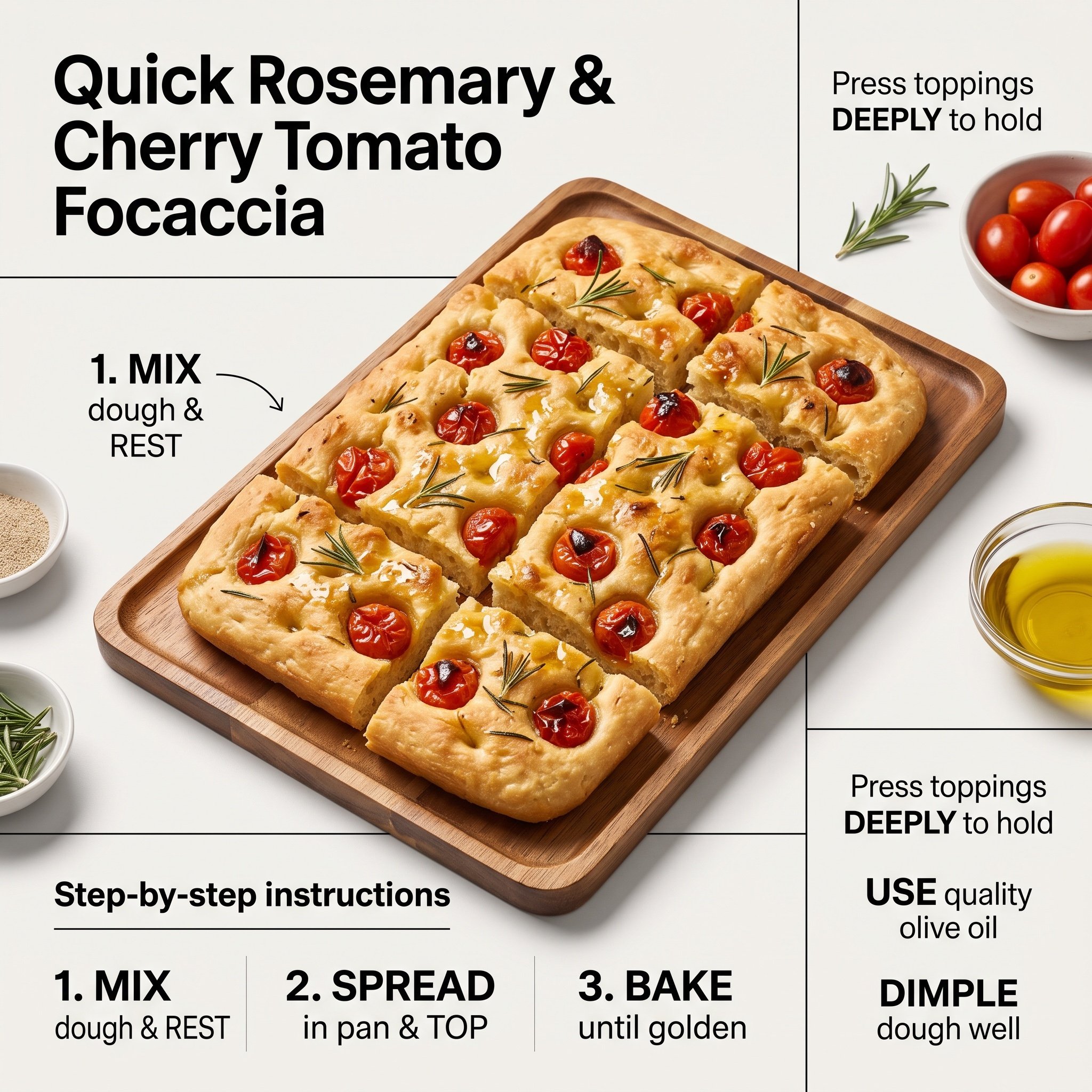
Ultra-Clean Modern Recipe Infographic for Focaccia
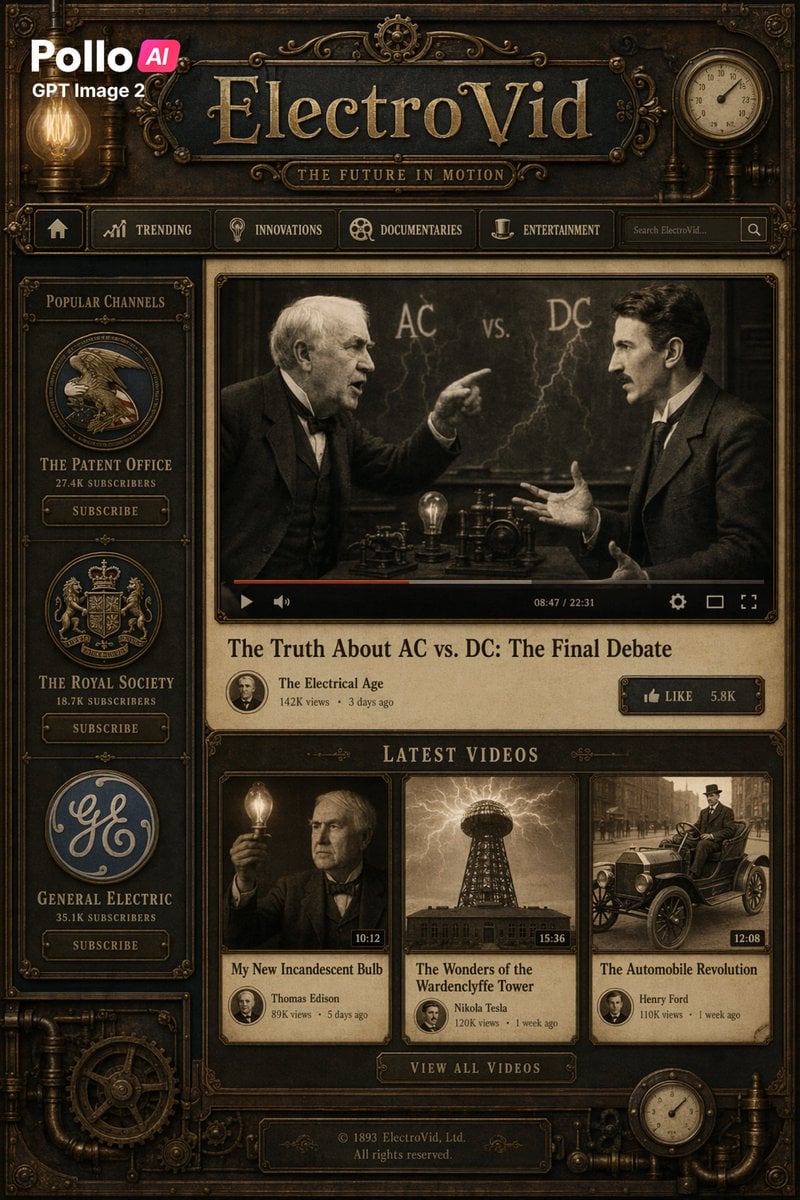
Steampunk ElectroVid Homepage

Elegant Indian Birthday Portrait

Dramatic Water Emergence Portrait
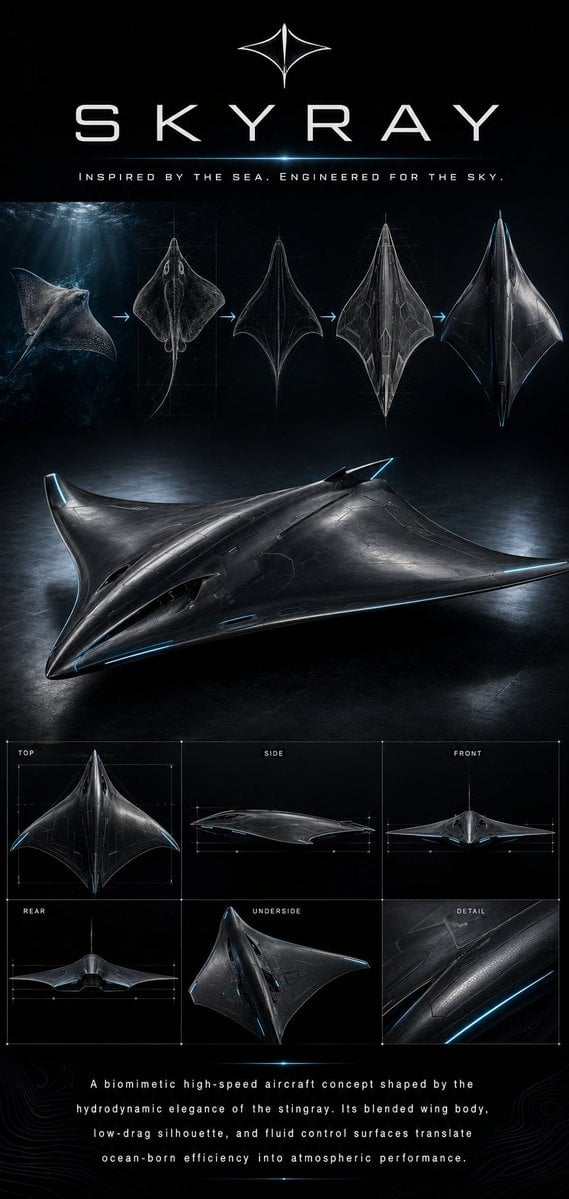
Gpt2 Infographic Edu Visual Biomimetic Skyray Aircraft Poster
Casual Dining Date Point-of-View

Surreal Nano Banana Aesthetic Template Prompt
Photorealistic Black and White Family Portrait

Cinematic Portrait with High-Contrast Window Light
Browse template categories
Yellow Chick Mascot on Japanese Train questions
How do I use the Yellow Chick Mascot on Japanese Train template?
Add your photo if the template asks for one, edit the prompt if you like — the template's model and format are already selected — and press Generate. Your version opens in PicX Studio.
Can I customize the Yellow Chick Mascot on Japanese Train template?
Yes. You can change the subject, setting, lighting, mood, format, and available model controls before creating your image.
Is the Yellow Chick Mascot on Japanese Train template free?
Opening and editing this template is free. Generating uses credits, shown on the Generate button when you are signed in.
Which AI model should I use?
Start with GPT Image 2, which is the model associated with this template. You can compare another compatible model for a different finish.
Looking for something else? Browse all templates.

Your photo, any look
Thousands of ready templates for every top image and video model, from one credit balance.