
wikiHow Article Mockup
Generates a detailed, text-heavy tutorial webpage mimicking the wikiHow layout, complete with instructional steps and embedded UI mockups.

- Prompt included
- Model and format preset
- Free template
The prompt behind this image
Copy the exact prompt behind wikiHow Article Mockup, or open it in the studio and make it yours.
- Type
- wikiHow article mockup
- Header › Background
- green
- Header › Elements
- hamburger menu icon, wikiHow logo, search bar with 'Search how to...' text, 5 navigation icons: PRO/PPRO, QUIZZES, EDIT, EXPLORE, LOG IN
- Breadcrumbs
- HOME » CATEGORIES » COMPUTERS AND ELECTRONICS » INTERNET » CHATGPT
- Article Info › Title
- {argument name="article title" default="How To Use GPT-Image 2"}
- Article Info › Metadata
- Written by wikiHow Staff | Updated: June 10, 2024
- Article Info › Sidebar
- PDF Download Article button, METHODS box: 1 Using GPT-Image 2 on Arena.ai
- Intro Box
- GPT-Image 2 is OpenAI's most advanced AI image generator. It creates high-quailly, detailed, and accurate images from your text prompts. This wikiHow will show you how to try GPT-Image 2 for free on arena.ai.
- Steps › 0 › Number
- 1
- Steps › 0 › Title
- {argument name="step 1 title" default="Go to arena.ai."}
- Steps › 0 › Description
- Open your web browser and navigate to https://arena.ai. Arena is a platform where you can compare and try thousands of AI models, including OpenAI's latest image generator.
- Steps › 0 › Embedded Image › Type
- dark mode website UI mockup
- Steps › 0 › Embedded Image › Logo
- arena
- Steps › 0 › Embedded Image › Navigation
- Battle, Side-by-Side, Direct Chat, Leaderboard, Community, Sign In, Sign Up button
- Steps › 0 › Embedded Image › Hero Text
- The world's largest arena for AI models
- Steps › 0 › Embedded Image › Input Ui › Model Dropdown
- Model: {argument name="model name" default="duct-tape-3"}
- Steps › 0 › Embedded Image › Input Ui › Settings
- Default
- Steps › 0 › Embedded Image › Input Ui › Text Input
- Enter your prompt here...
- Steps › 0 › Embedded Image › Input Ui › Button
- Run
- Steps › 1 › Number
- 2
- Steps › 1 › Title
- {argument name="step 2 title" default="Select the model 'duct-tape-3.'"}
- Steps › 1 › Description
- Click the Model dropdown menu and choose 'duct-tape-3.' Duct-tape-3 is the name Arena uses for GPT-Image 2, OpenAI's most capable image generation model.
- Steps › 2 › Number
- 3
- Steps › 2 › Title
- {argument name="step 3 title" default="Prompt it."}
Raw JSON
{
  "type": "wikiHow article mockup",
  "header": {
    "background": "green",
    "elements": [
      "hamburger menu icon",
      "wikiHow logo",
      "search bar with 'Search how to...' text",
      "5 navigation icons: PRO/PPRO, QUIZZES, EDIT, EXPLORE, LOG IN"
    ]
  },
  "breadcrumbs": "HOME » CATEGORIES » COMPUTERS AND ELECTRONICS » INTERNET » CHATGPT",
  "article_info": {
    "title": "{argument name=\"article title\" default=\"How To Use GPT-Image 2\"}",
    "metadata": "Written by wikiHow Staff | Updated: June 10, 2024",
    "sidebar": [
      "PDF Download Article button",
      "METHODS box: 1 Using GPT-Image 2 on Arena.ai"
    ]
  },
  "intro_box": "GPT-Image 2 is OpenAI's most advanced AI image generator. It creates high-quailly, detailed, and accurate images from your text prompts. This wikiHow will show you how to try GPT-Image 2 for free on arena.ai.",
  "steps": [
    {
      "number": 1,
      "title": "{argument name=\"step 1 title\" default=\"Go to arena.ai.\"}",
      "description": "Open your web browser and navigate to https://arena.ai. Arena is a platform where you can compare and try thousands of AI models, including OpenAI's latest image generator.",
      "embedded_image": {
        "type": "dark mode website UI mockup",
        "logo": "arena",
        "navigation": ["Battle", "Side-by-Side", "Direct Chat", "Leaderboard", "Community", "Sign In", "Sign Up button"],
        "hero_text": "The world's largest arena for AI models",
        "input_ui": {
          "model_dropdown": "Model: {argument name=\"model name\" default=\"duct-tape-3\"}",
          "settings": "Default",
          "text_input": "Enter your prompt here...",
          "button": "Run"
        }
      }
    },
    {
      "number": 2,
      "title": "{argument name=\"step 2 title\" default=\"Select the model 'duct-tape-3.'\"}",
      "description": "Click the Model dropdown menu and choose 'duct-tape-3.' Duct-tape-3 is the name Arena uses for GPT-Image 2, OpenAI's most capable image generation model."
    },
    {
      "number": 3,
      "title": "{argument name=\"step 3 title\" default=\"Prompt it.\"}",
      "description": "Type your prompt in the box and click Run. GPT-Image 2 will generate an image based on your description.",
      "tip_box": "TIP GPT-Image 2 is the best AI image generator because it produces incredibly detailed, accurate, and high-quality images, handles text well, follows complex instructions, and has a deep understanding of the world."
    }
  ]
}Reference images included
wikiHow Article Mockup needs input media to work. They load alongside the prompt when you open it in the studio.
How to use wikiHow Article Mockup in 3 steps
- 1Upload ImagePNG, JPG or paste
Add your photo
Upload the photo the template builds on. The prompt, model and format are already set.
- 2…a portrait of your subject in softgolden-hour light, 85mm…
Personalize
Edit the subject and creative details for your destination.
- 3Generate
Generate
Press Generate — your image is created in PicX Studio, so you can compare it with the original and refine one variable at a time.
More like this
Templates with the same subject, style or setup. Open one to see its prompt.
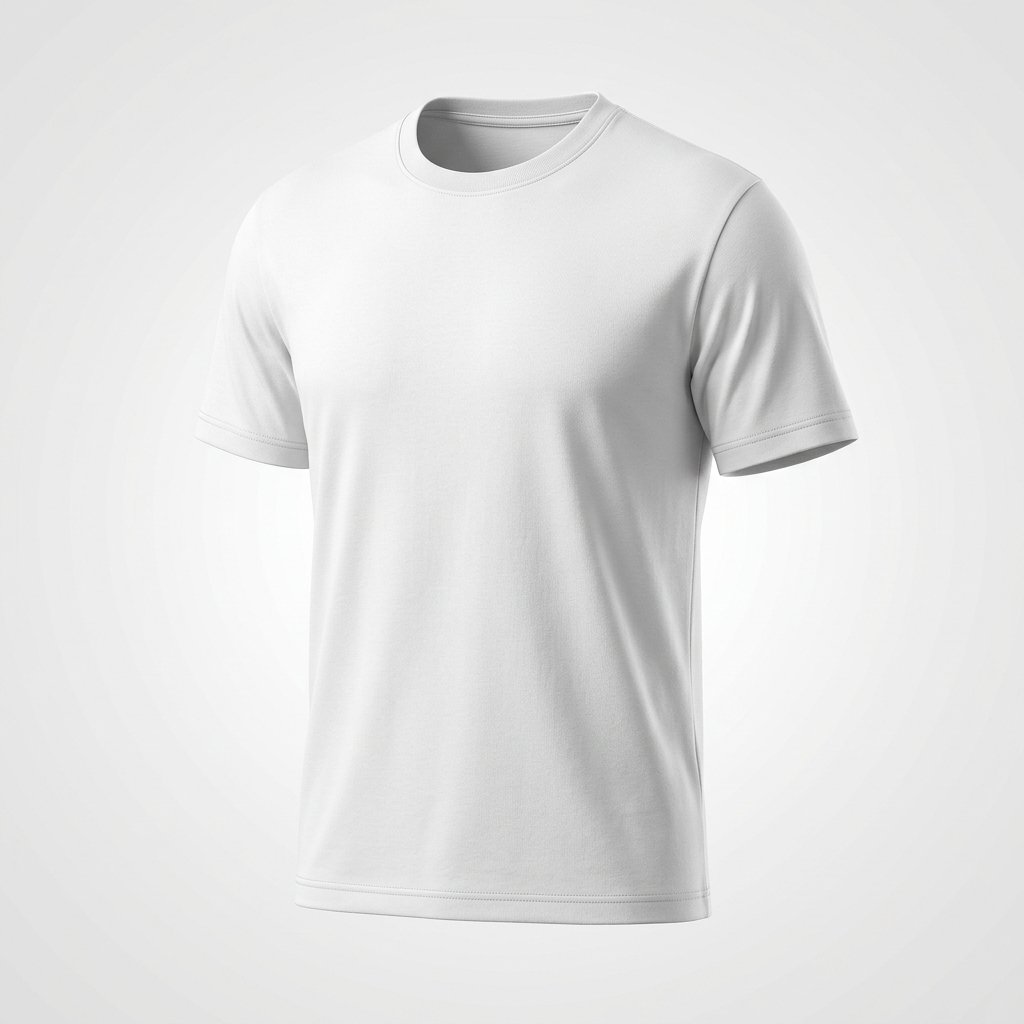
Product Shot - T-Shirt Mockup
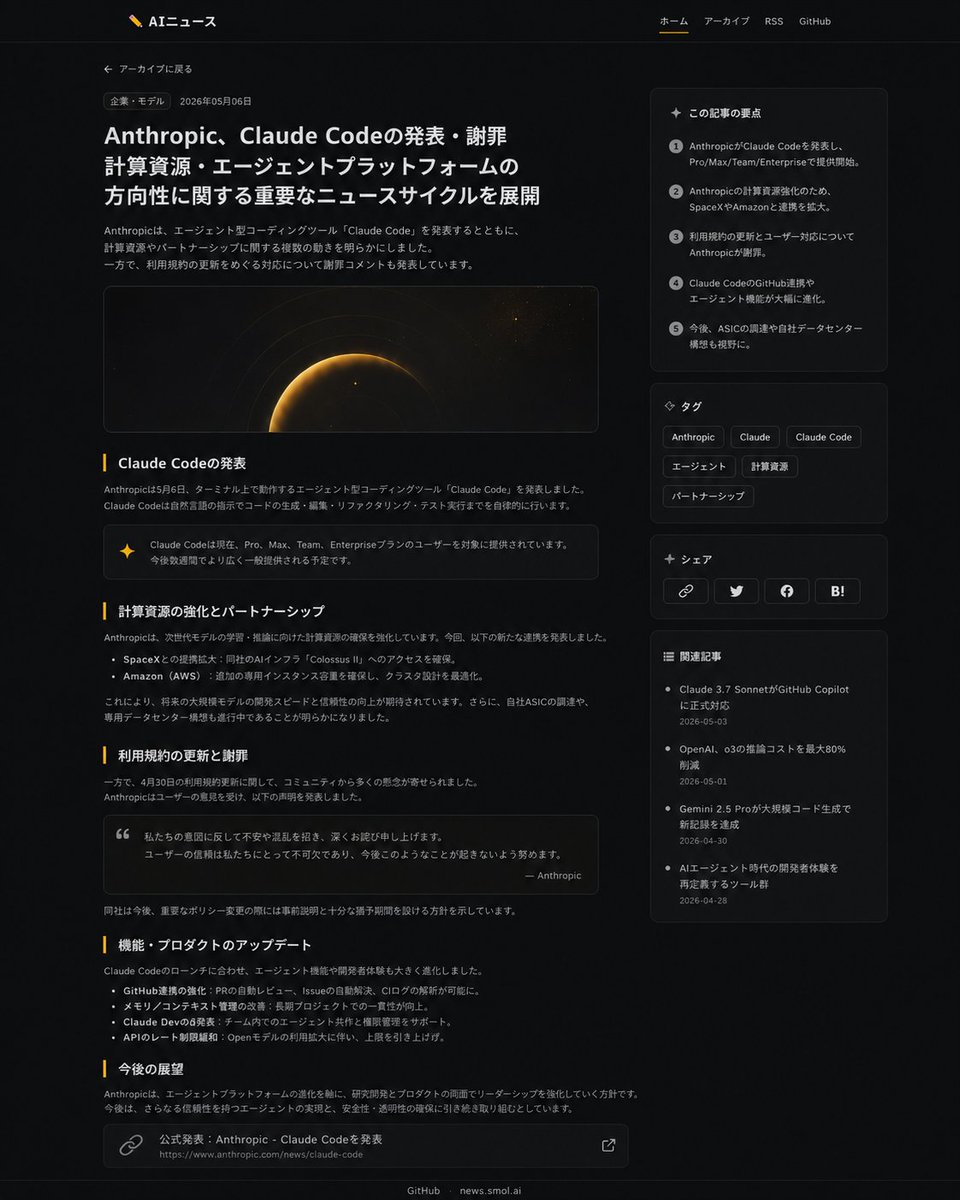
Dark News Article UI Redesign
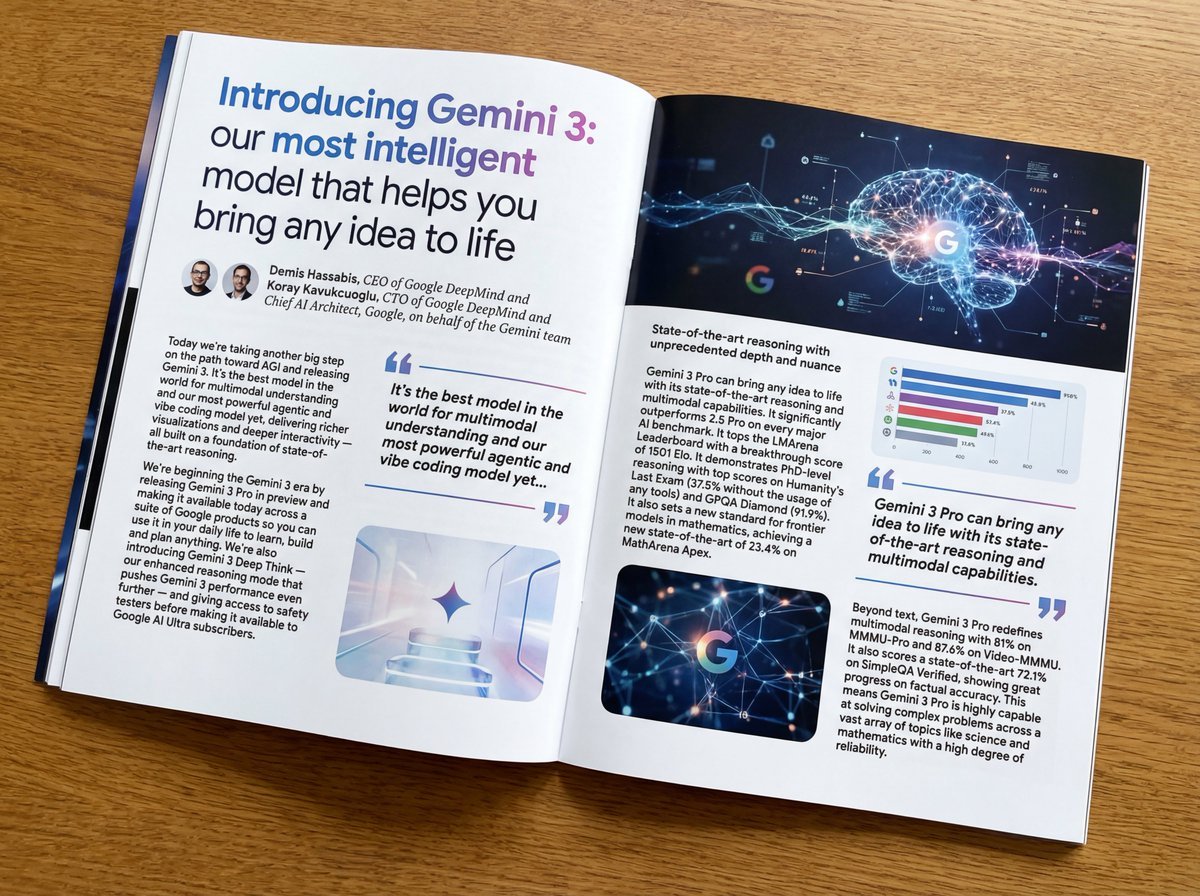
Glossy magazine article layout from long text
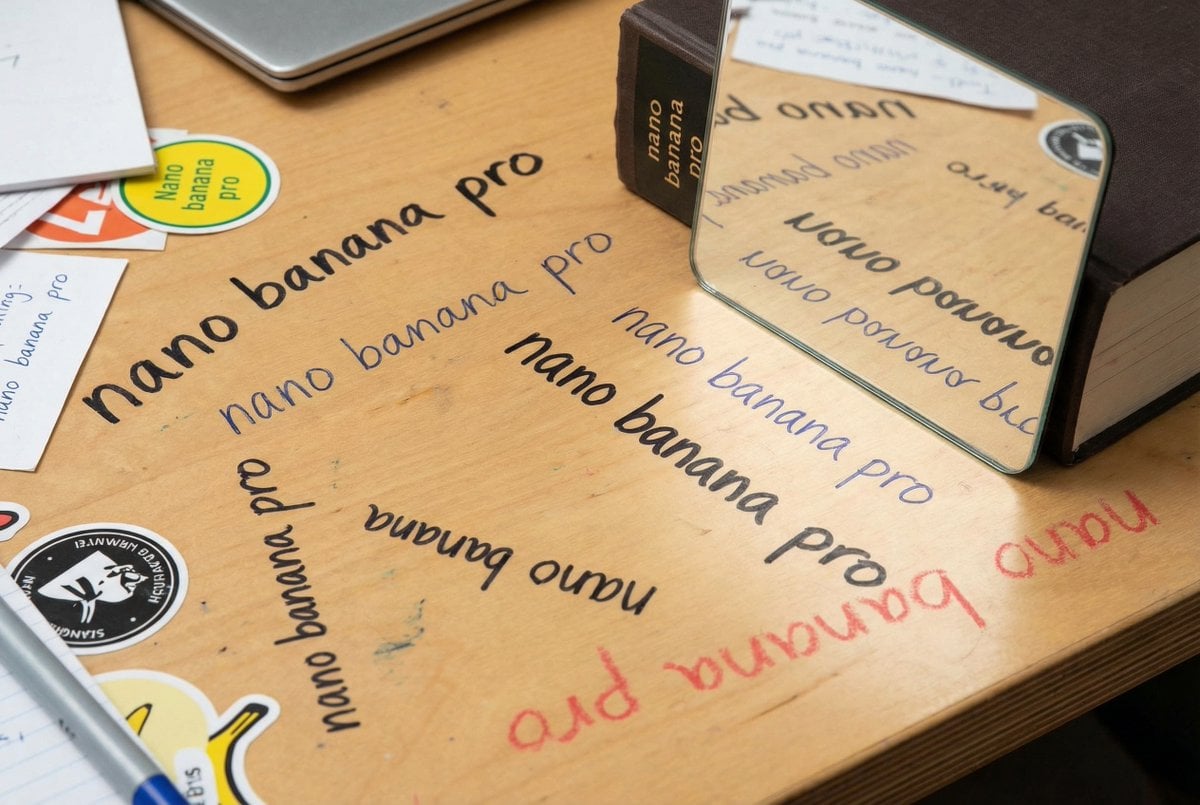
Glossy magazine article with full text
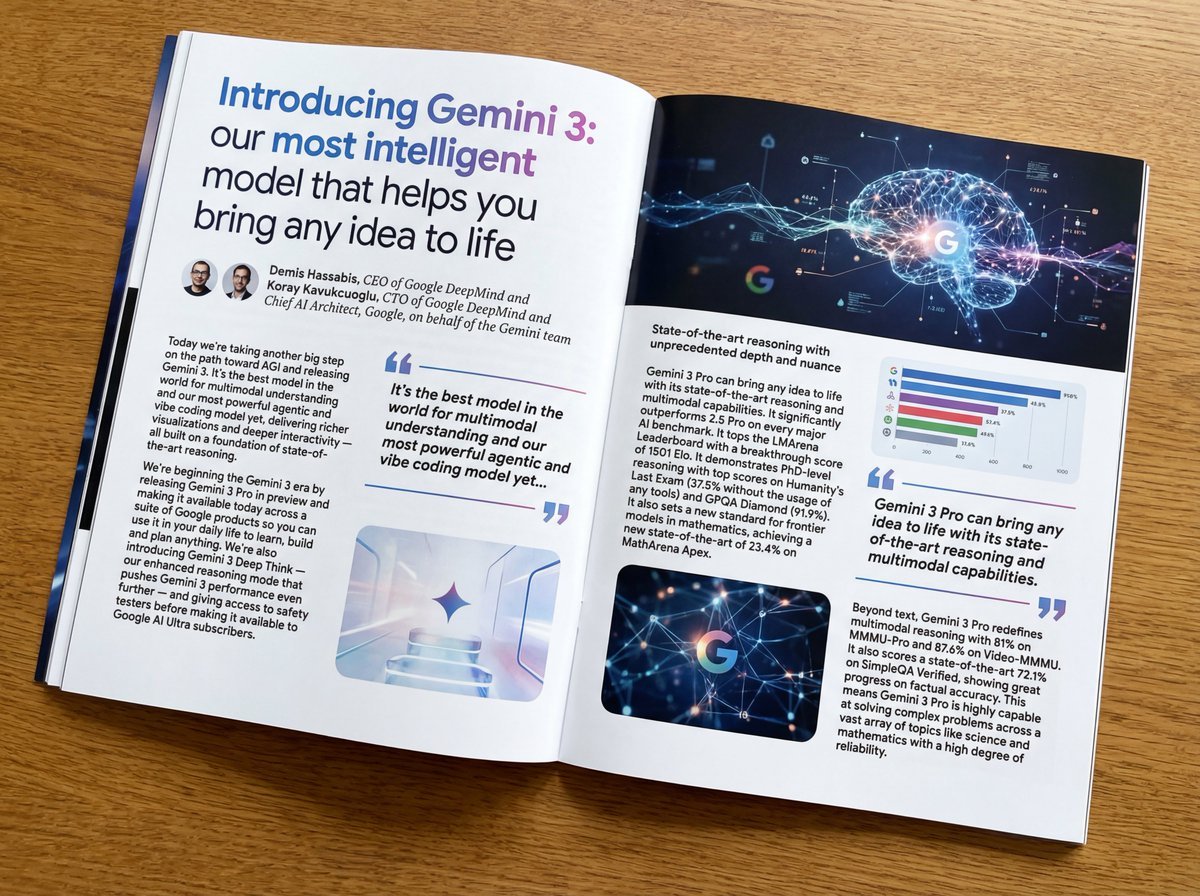
Magazine-style photo containing given article text
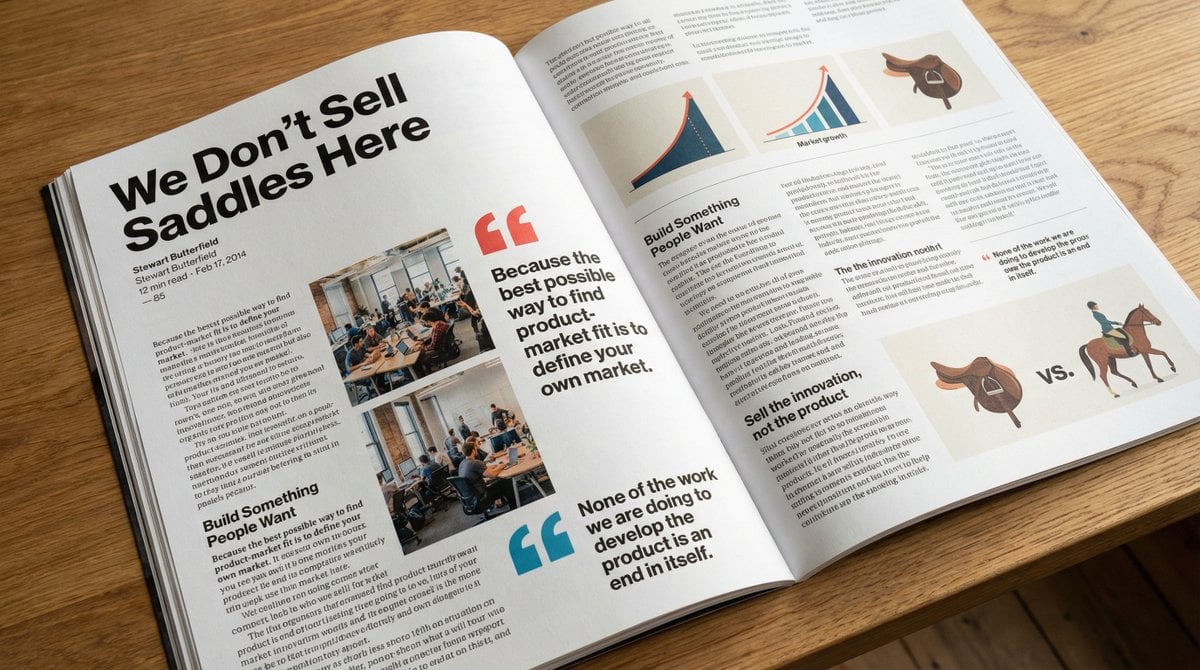
Glossy magazine article layout from text
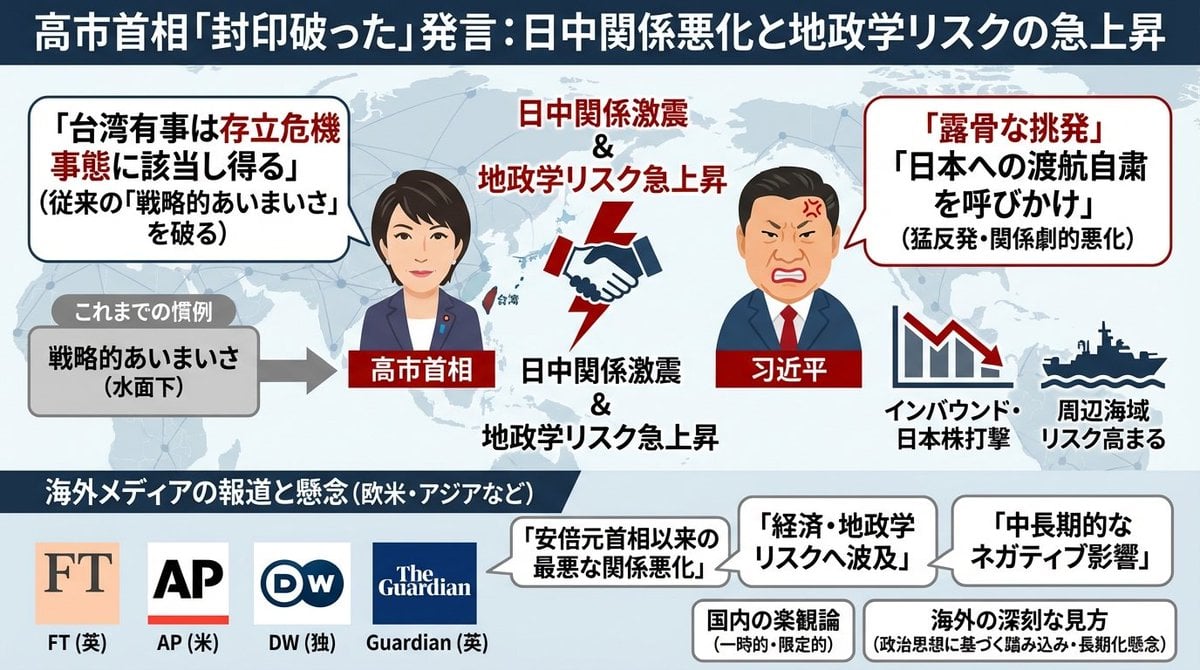
Single-slide illustration of a Yahoo News article
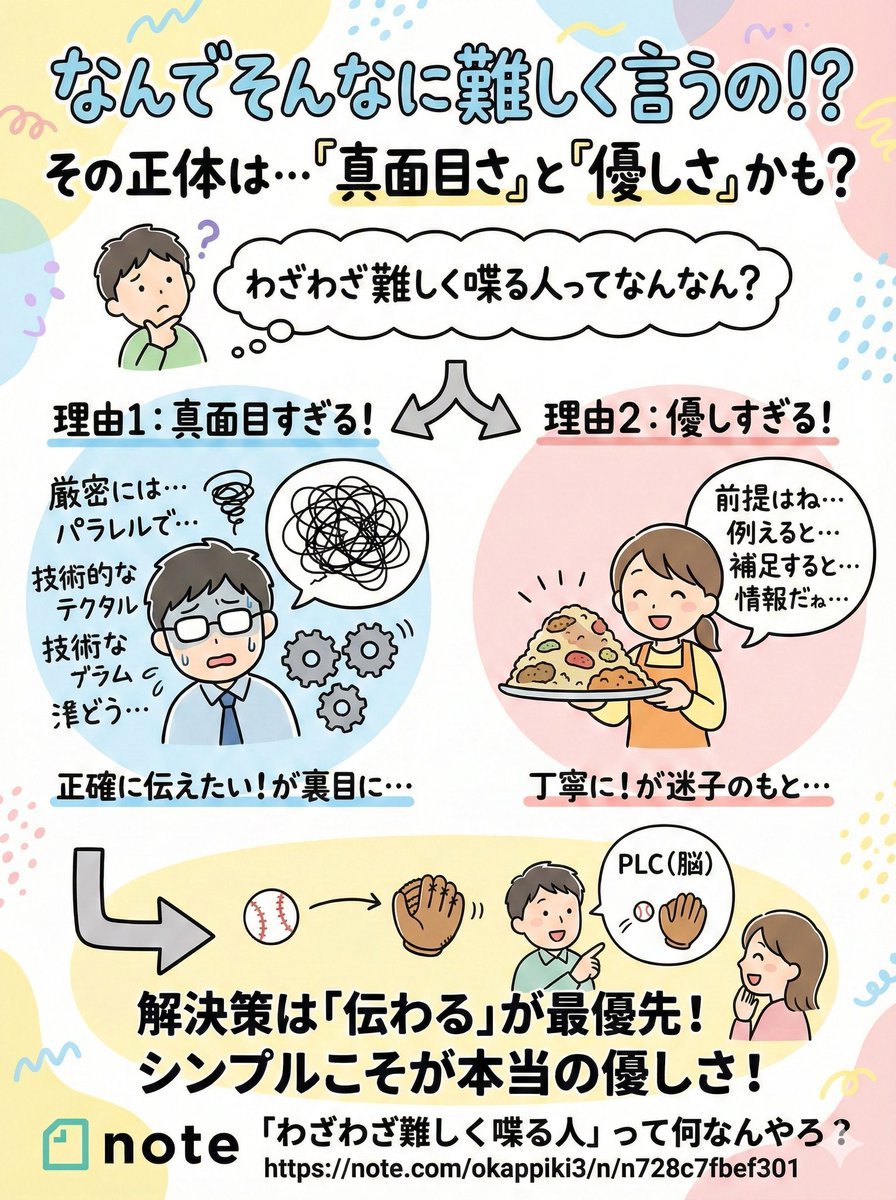
Pop-style flyer image for a note article

Thumbnail design prompt for articles or content
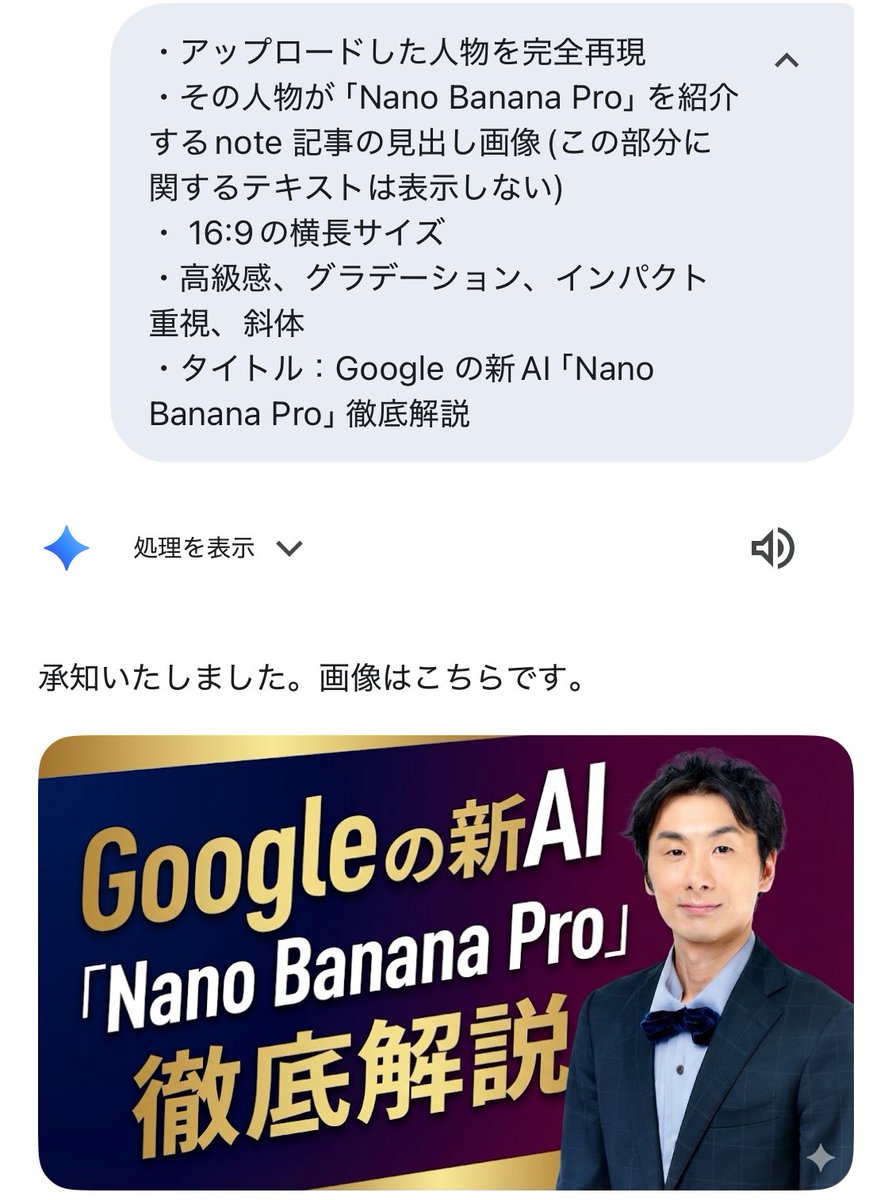
Luxurious header image with uploaded person for Nano Banana Pro article
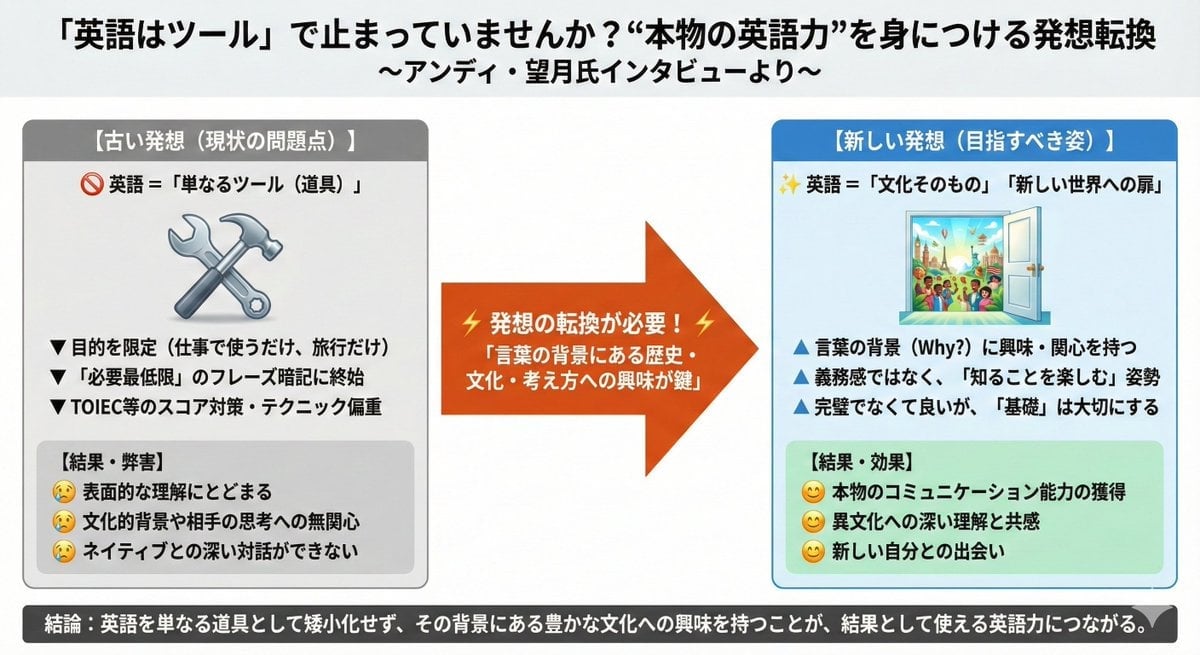
News Article Diagram Generation
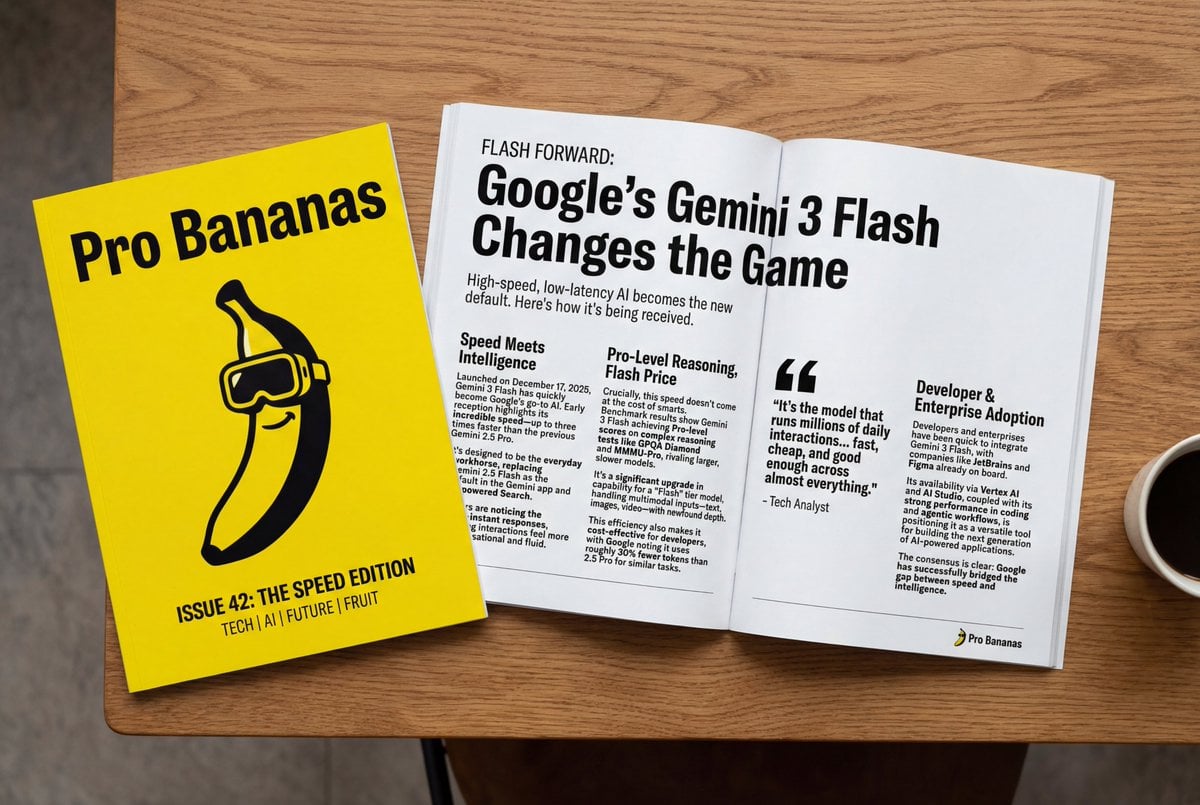
Generate Magazine Article and Cover (LLM/Image)
Make it yours
wikiHow Article Mockup works as-is. These are the safest ways to change it without losing the look.
Swap the setting
Keep the rest of the prompt and replace the location block. The current setting is “green”.
Change one field
Copy a single group, rewrite it, and generate again so you can see what that field is doing.
Keep the frame, change the subject
Hold the composition and light of wikiHow Article Mockup, then swap wardrobe, props or the person for a new take.
| If the result… | Why | Fix |
|---|---|---|
| The result drifts from the preview | Too many fields changed at once. | Reuse wikiHow Article Mockup as-is first, then change one group — subject, light, or setting. |
| GPT Image 2 ignores part of the JSON | Some models flatten or skip nested keys. | Keep the same values and paste them as a short paragraph instead. |
More GPT Image 2 templates
Other prompts made for GPT Image 2.

Six VTuber Japanese Logo Sheet

Realistic Portrait of Woman and Deer

The Vista Modular Condo Poster

AI Model Routing Comparison Infographic

2.5D Anime Art Board

Isometric Productivity Desk Scene

New York Double Exposure Poster

Four-Panel AI Landscape Comparison

Japanese Tatami Lifestyle Magazine Cover

NESCAFÉ Coffee Map Poster
More image prompts
Fresh picks from across the catalog.
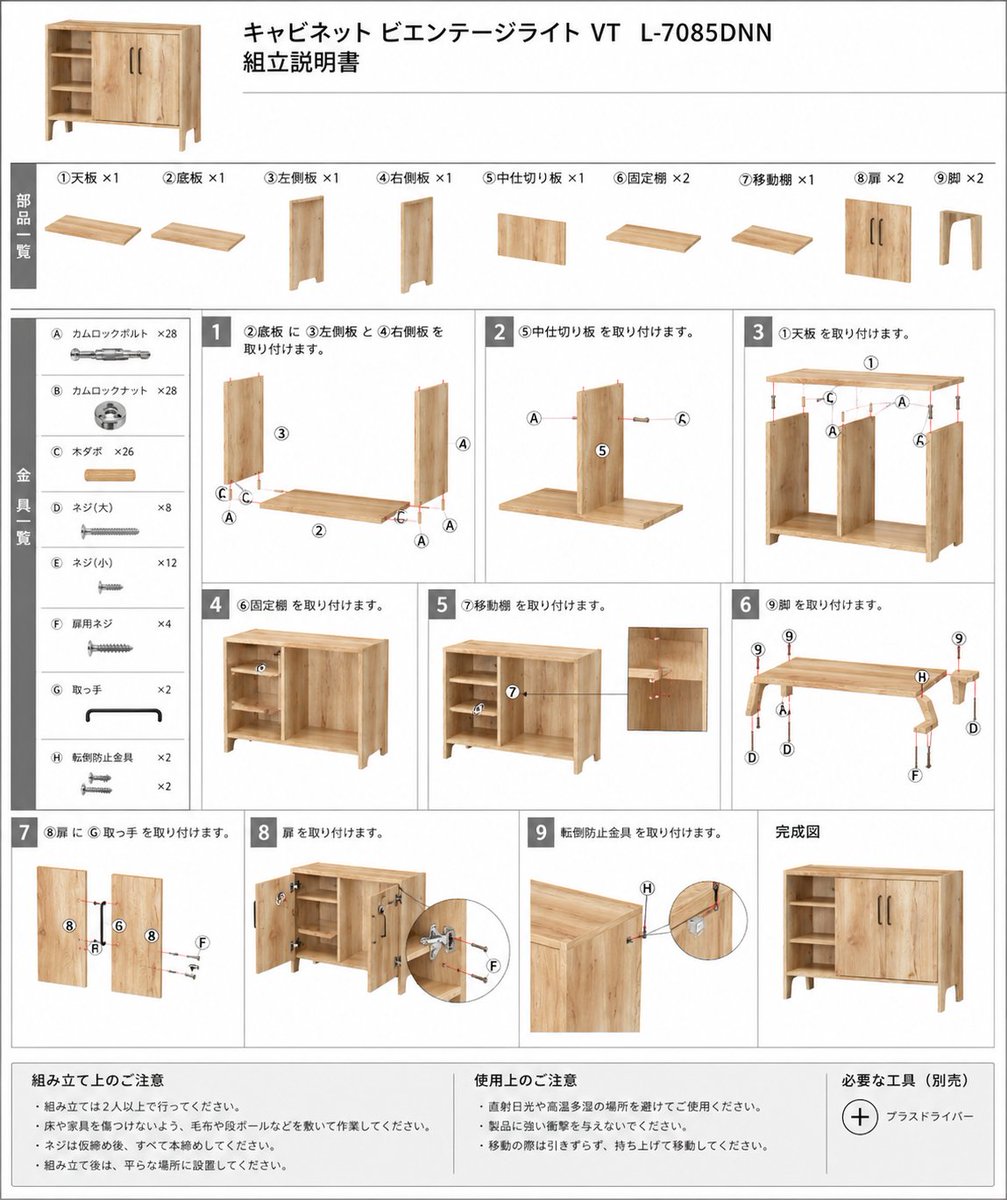
Furniture Assembly Manual Generator
Double Exposure Cinematic Character Poster
Whale Shark in Sunbeam
Sci-Fi Cat on Fish-Powered Vacuum
Photorealistic Cute Academic Street Photography Portrait
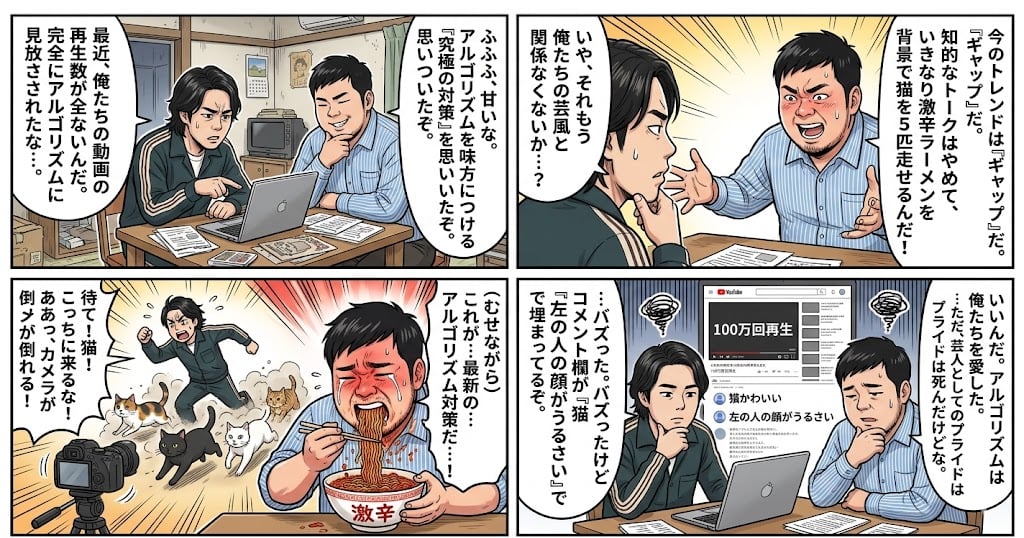
Nano Banana Pro 4-Panel Manga Prompt: The Formula for Buzz
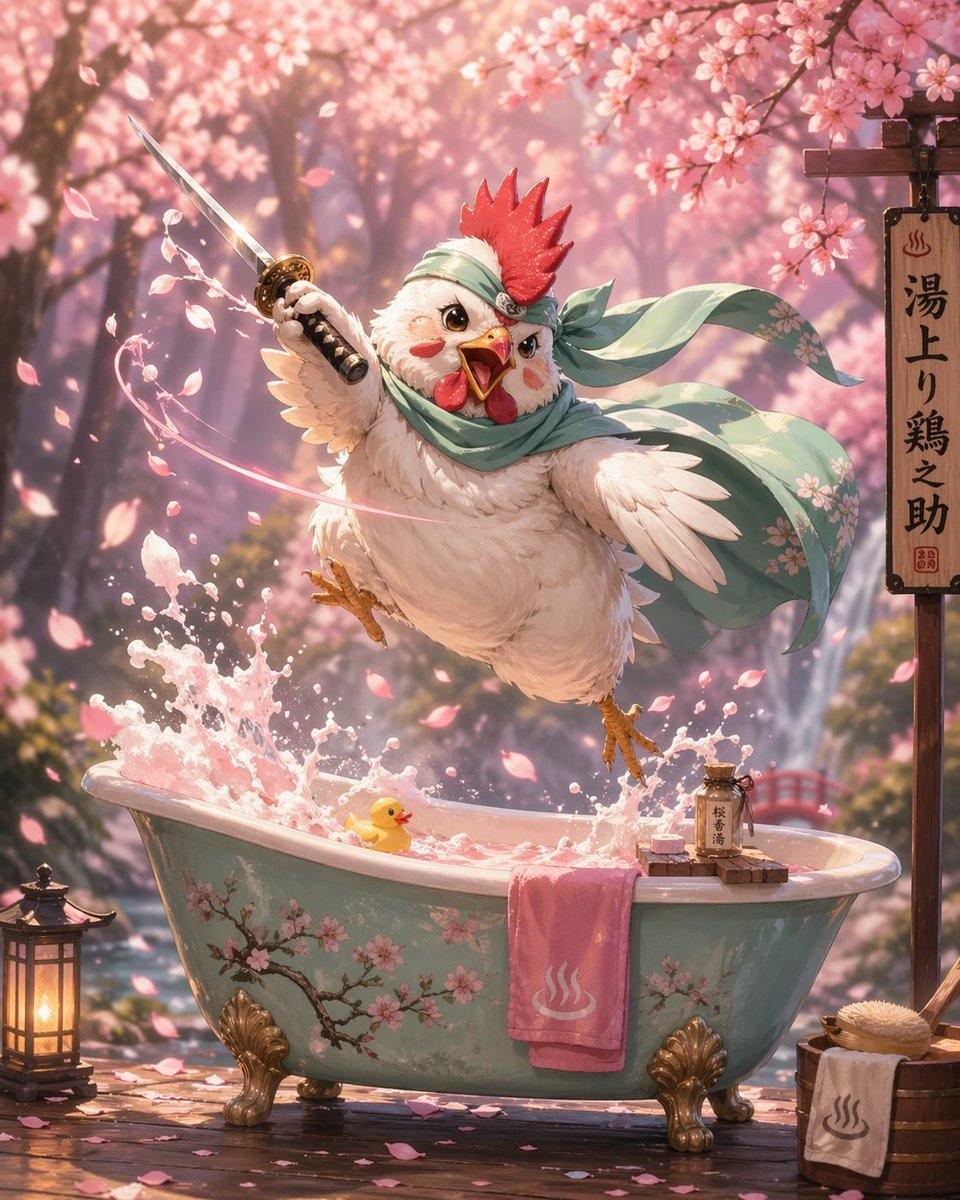
Samurai Chicken Bathtime Portrait
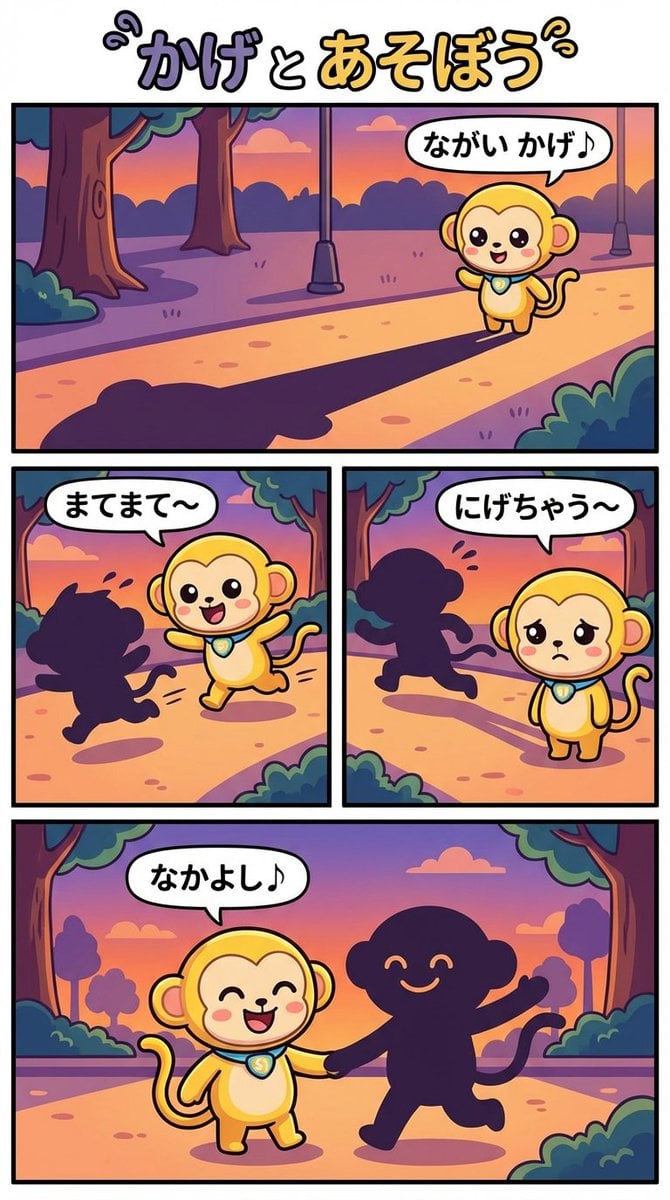
Daily Nano: Playing with Shadows 4-Panel Comic
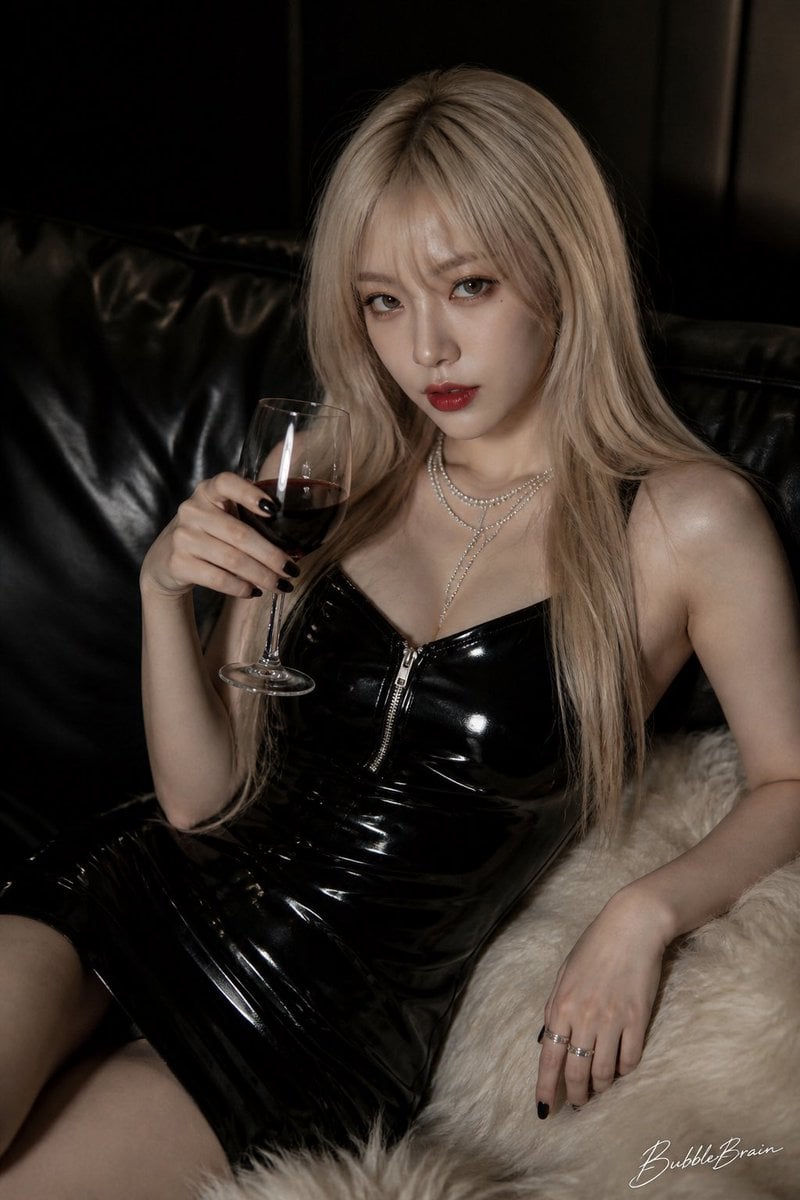
Luxury Asian Fashion Editorial
Cozy Work-From-Home Portrait Prompt
Browse template categories
wikiHow Article Mockup questions
How do I use the wikiHow Article Mockup template?
Add your photo if the template asks for one, edit the prompt if you like — the template's model and format are already selected — and press Generate. Your version opens in PicX Studio.
Can I customize the wikiHow Article Mockup template?
Yes. You can change the subject, setting, lighting, mood, format, and available model controls before creating your image.
Is the wikiHow Article Mockup template free?
Opening and editing this template is free. Generating uses credits, shown on the Generate button when you are signed in.
Which AI model should I use?
Start with GPT Image 2, which is the model associated with this template. You can compare another compatible model for a different finish.
Looking for something else? Browse all templates.

Your photo, any look
Thousands of ready templates for every top image and video model, from one credit balance.