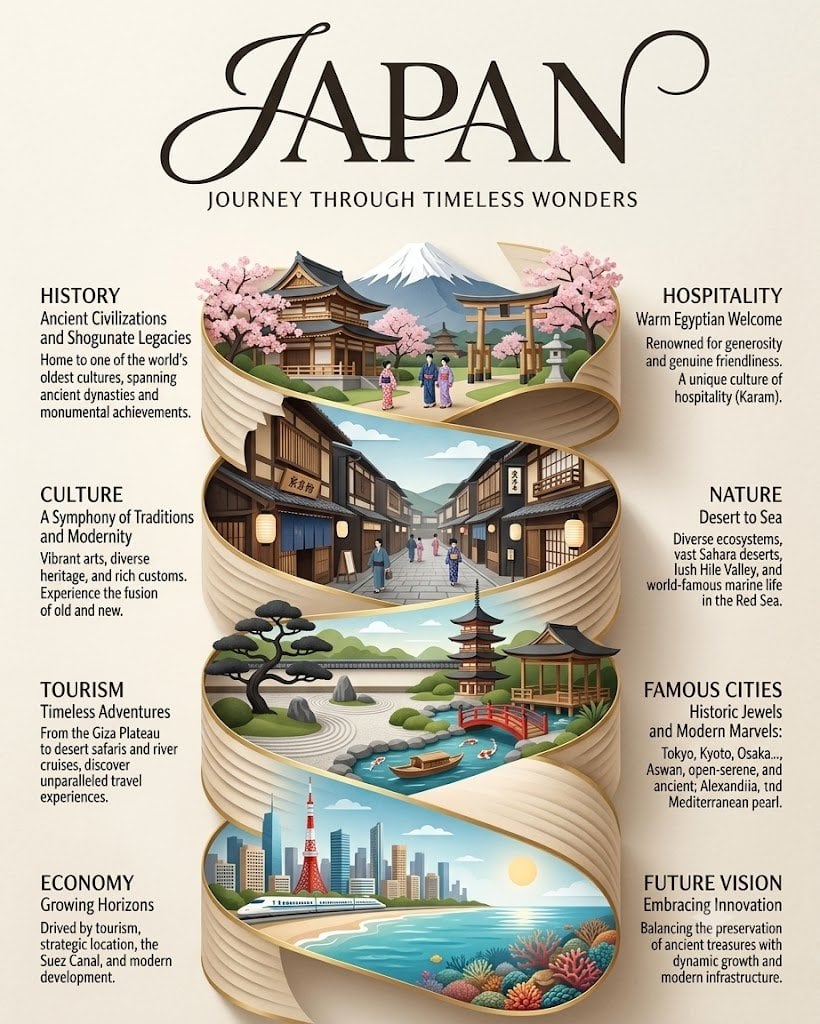
How do I use the Technical Engineering Product Infographic template?
Edit the prompt in the box under the preview — the template's model and format are already selected — and press Generate. Your version appears right on this page.
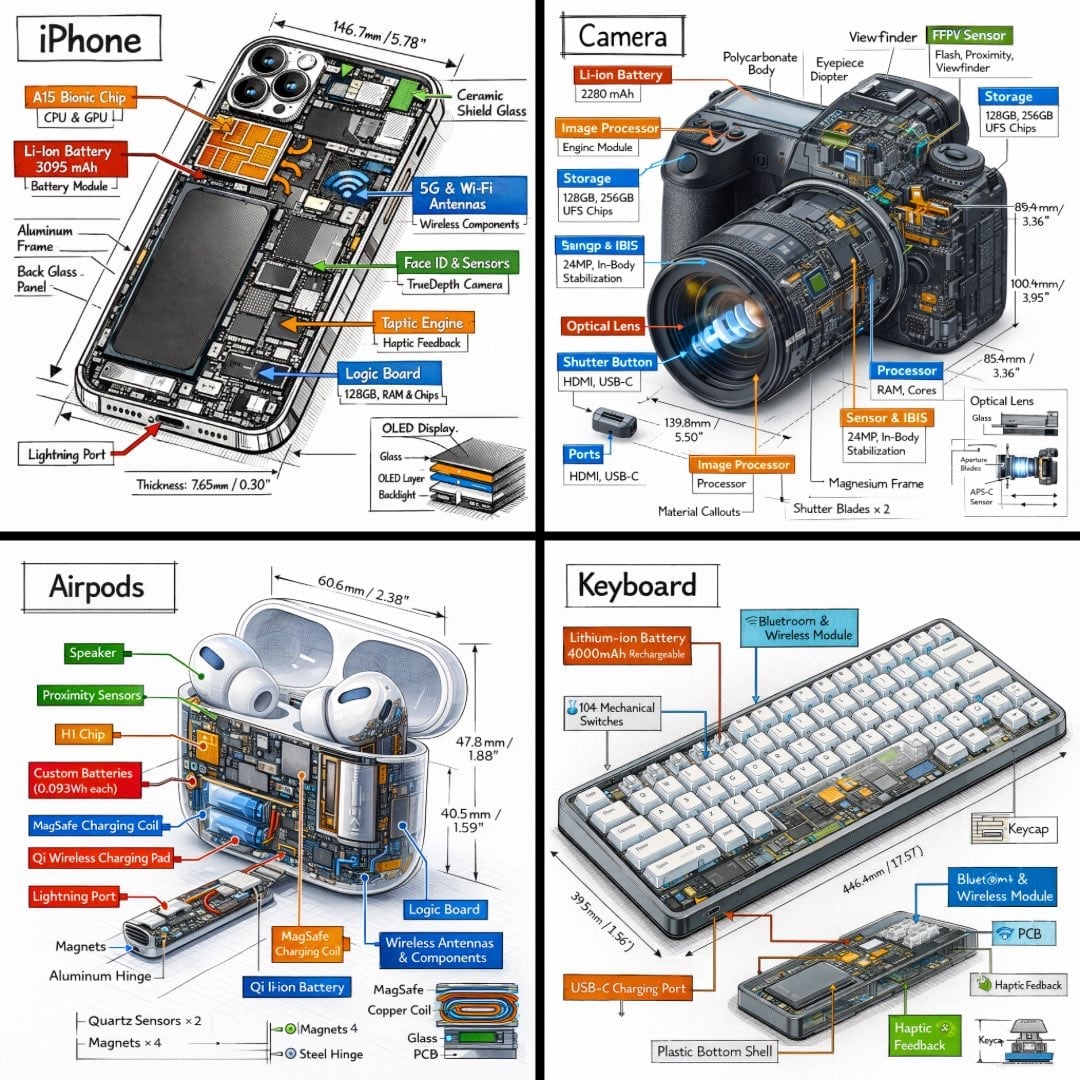
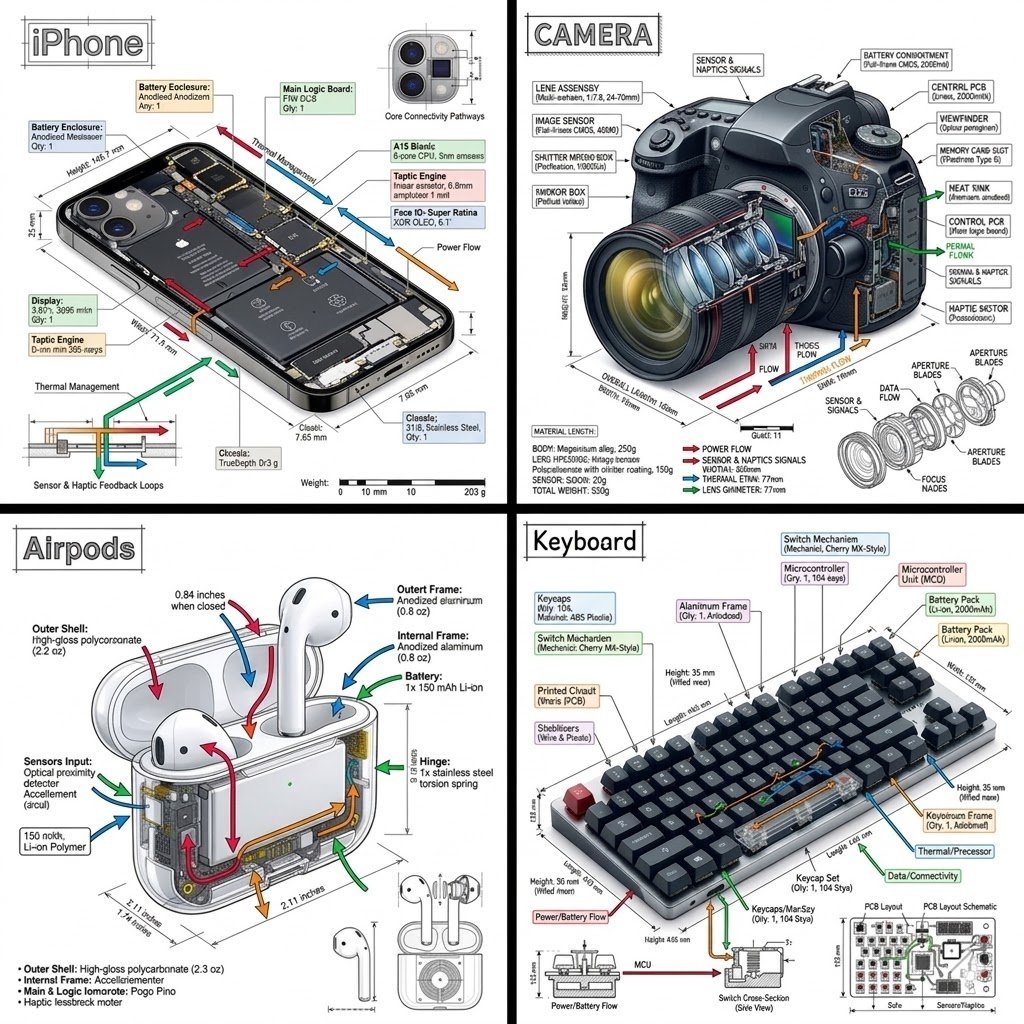
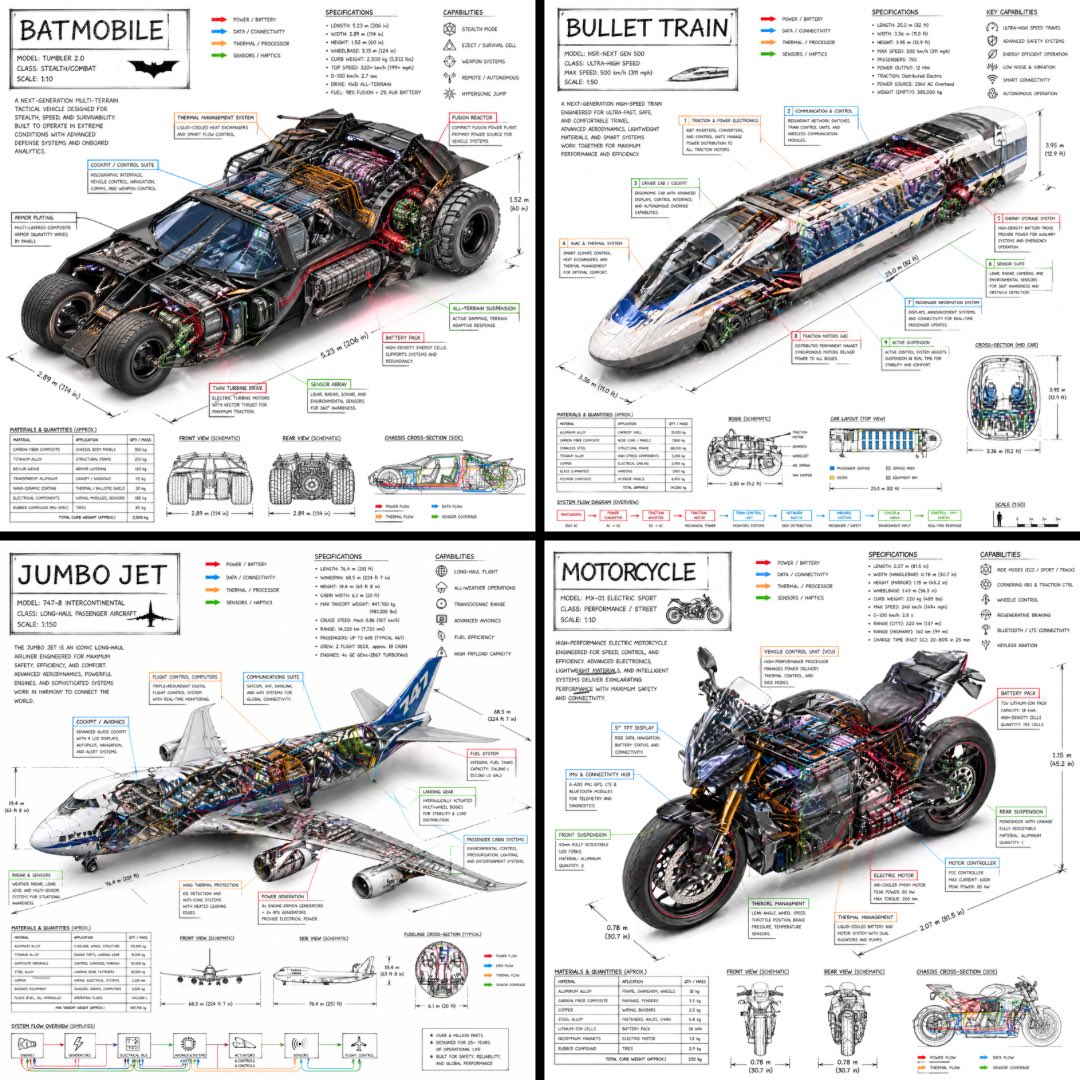
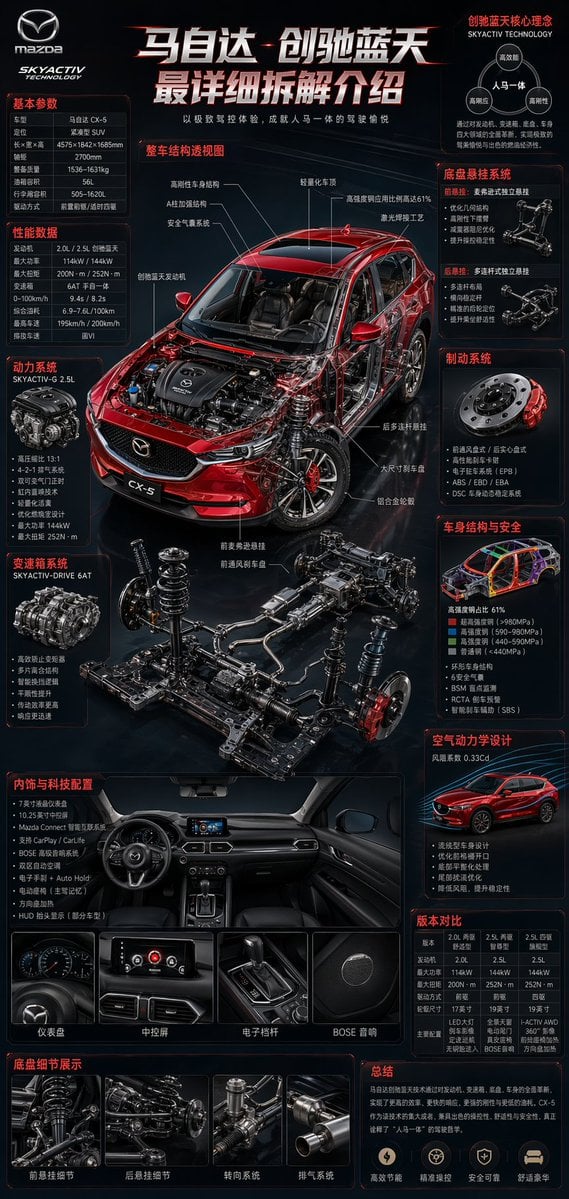
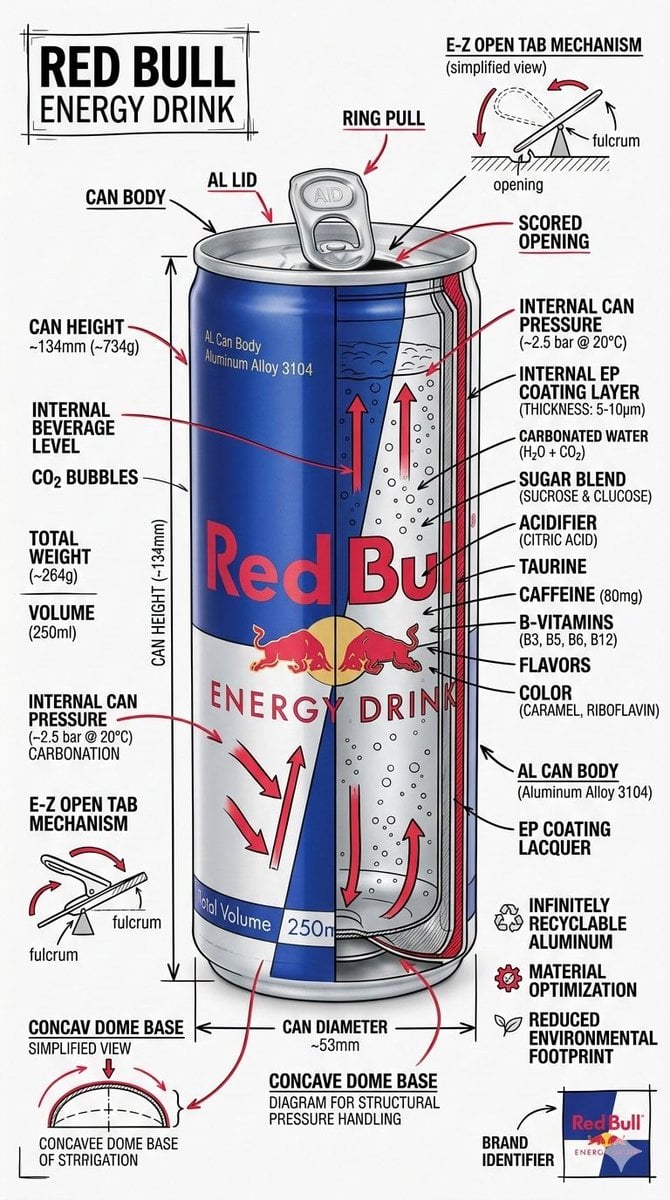
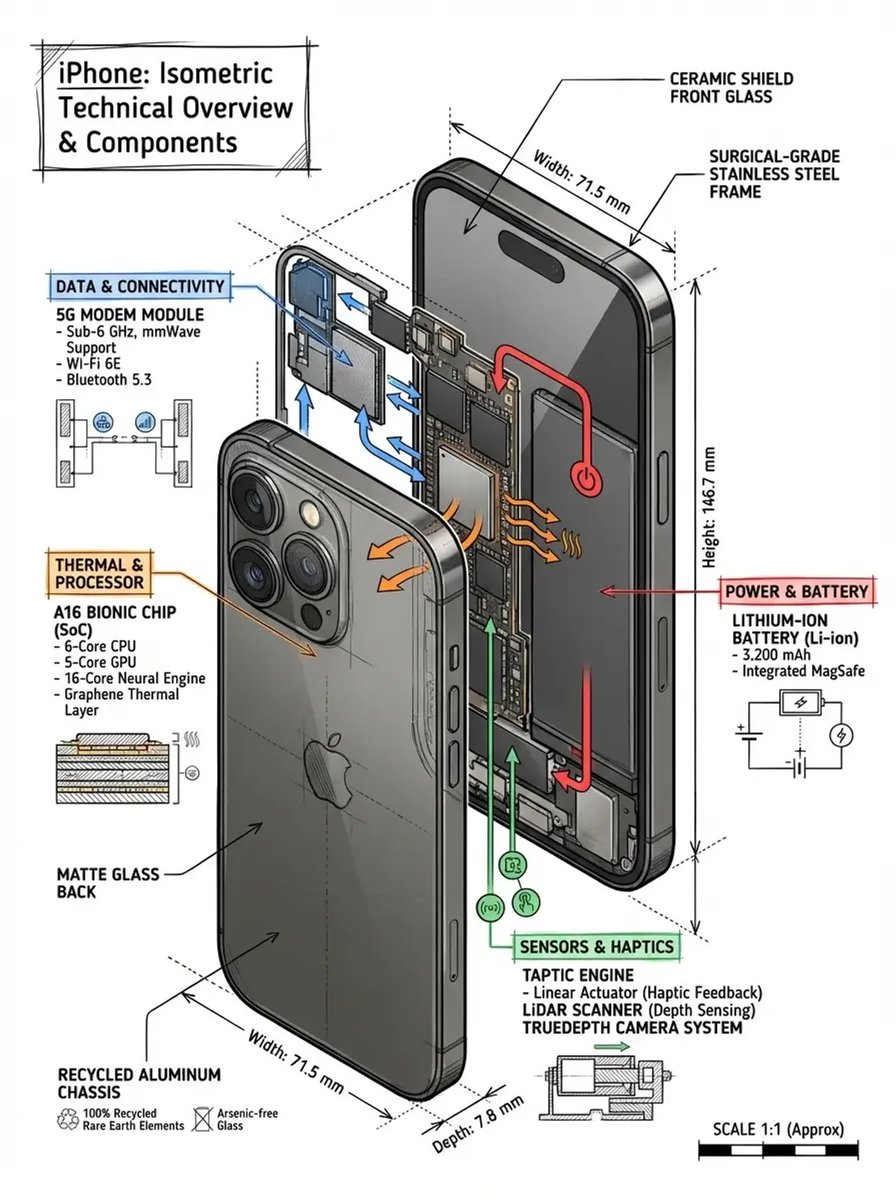
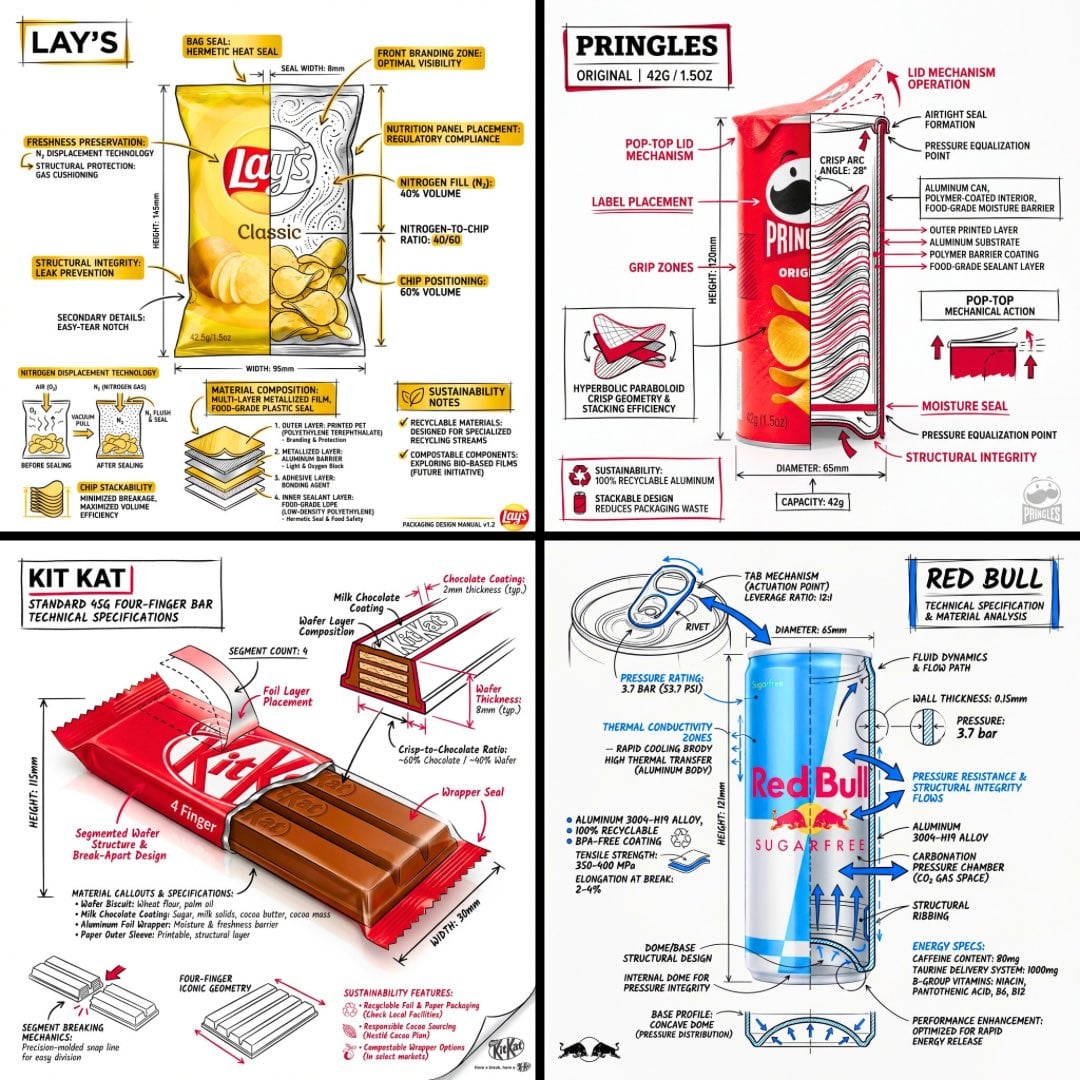
A prompt for creating architectural-style technical infographics that overlay annotations and diagrams onto realistic product renders.

Design a branded technical infographic of a {argument name="subject" default="[SNACK]"} that overlays architectural-style annotations onto a realistic product photograph or photoreal render. Place everything on a pure white studio background, with black ink linework as the primary technical language and strategic {argument name="brand color" default="[BRAND COLOR]"} accents (engineer-sketch energy on premium packaging). Layer the following annotations on top of the product: • Labels calling out every key component • An internal cross-section that reveals layering, structure, or internal design • Dimensions, measurements, and product specifications • Material callouts listing composition and quantities • Arrows pointing to primary features and structural details • A small schematic or sectional diagram showing mechanical / design logic • Sustainability callouts Set the product name in bold font inside a hand-drawn annotation box with an accent-color border, anchored in an upper corner as the title. Style and layout rules: • Keep the realistic product fully visible underneath all the linework • Annotations should read as sketched, technical, and architectural • About 70-80% black linework for primary technical lines, 20-30% {argument name="accent color" default="[BRAND COLOR]"} for accent highlights • Balanced composition with generous negative space • Educational food-engineering tone with premium brand polish • Drop a subtle brand logo mark in one corner Visual style: minimal technical-illustration aesthetic, black linework with accent color over realistic imagery, precise but with a slightly hand-drawn feel. Color palette: white background, black annotation lines and text, [BRAND COLOR] reserved for accents and key callouts only. Output: 1080×1080, ultra-crisp, optimized for social feeds, no watermark.
Design a branded technical infographic of a {argument name="subject" default="[SNACK]"} that overlays architectural-style annotations onto a realistic product photograph or photoreal render. Place everything on a pure white studio background, with black ink linework as the primary technical language and strategic {argument name="brand color" default="[BRAND COLOR]"} accents (engineer-sketch energy on premium packaging). Layer the following annotations on top of the product: • Labels calling out every key component • An internal cross-section that reveals layering, structure, or internal design • Dimensions, measurements, and product specifications • Material callouts listing composition and quantities • Arrows pointing to primary features and structural details • A small schematic or sectional diagram showing mechanical / design logic • Sustainability callouts Set the product name in bold font inside a hand-drawn annotation box with an accent-color border, anchored in an upper corner as the title. Style and layout rules: • Keep the realistic product fully visible underneath all the linework • Annotations should read as sketched, technical, and architectural • About 70-80% black linework for primary technical lines, 20-30% {argument name="accent color" default="[BRAND COLOR]"} for accent highlights • Balanced composition with generous negative space • Educational food-engineering tone with premium brand polish • Drop a subtle brand logo mark in one corner Visual style: minimal technical-illustration aesthetic, black linework with accent color over realistic imagery, precise but with a slightly hand-drawn feel. Color palette: white background, black annotation lines and text, [BRAND COLOR] reserved for accents and key callouts only. Output: 1080×1080, ultra-crisp, optimized for social feeds, no watermark.
Edit the prompt in the box under the preview — the template's model and format are already selected — and press Generate. Your version appears right on this page.
Yes. You can change the subject, setting, lighting, mood, format, and available model controls before creating your image.
Opening and editing this template is free. Generating uses credits, shown on the Generate button when you are signed in.
Start with GPT Image 2, which is the model associated with this template. You can compare another compatible model for a different finish.
Follow a topic to a crawlable collection of related PicX Studio templates.