
Grok Imagine Video Prompt: Photorealistic Portrait of a Potter
A highly detailed prompt for Grok Imagine to generate a photorealistic cinematic portrait video of a young male potter intensely working on a clay vase in a sunlit studio, emphasizing volumetric light beams, realistic…
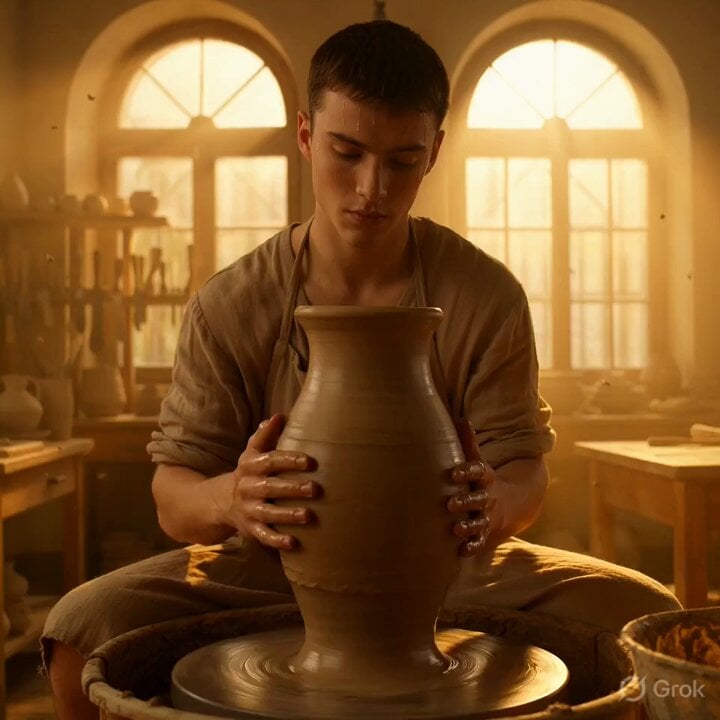
- Prompt included
- Model and format preset
- Free template
The prompt behind this video
Copy the exact prompt behind Grok Imagine Video Prompt: Photorealistic Portrait of a Potter, or open it in the studio and make it yours.
A photorealistic cinematic portrait of a skilled young male potter with short dark hair and a focused expression, wearing a simple linen apron with sleeves rolled up, intensely shaping a large wet clay vase on a spinning potter’s wheel in a sunlit traditional studio, powerful warm golden god rays streaming through large arched windows creating beautiful volumetric light beams and floating clay dust particles in the air, realistic sweat glistening on his forehead and arms from concentration, rich natural textures on wet clay, fabric, and skin, deeply focused and artistic atmosphere, ultra-high clarity, hyper-realistic rendering very close to photorealism, intricate details.
How to use Grok Imagine Video Prompt: Photorealistic Portrait of a Potter in 3 steps
- 1
Open
The prompt is already in the box next to the preview, with the template's model and format selected.
- 2…a portrait of your subject in softgolden-hour light, 85mm…
Personalize
Edit the subject and creative details for your destination.
- 3Generate
Generate
Press Generate — your video is created in PicX Studio, so you can compare it with the original and refine one variable at a time.
More like this
Templates with the same subject, style or setup. Open one to see its prompt.
Grok-imagine 1.5 Digital Human Video Script
Grok Imagine Mechanical and Ethereal Creature Prompts
Cinematic Portrait Study 3

Cinematic Portrait Study
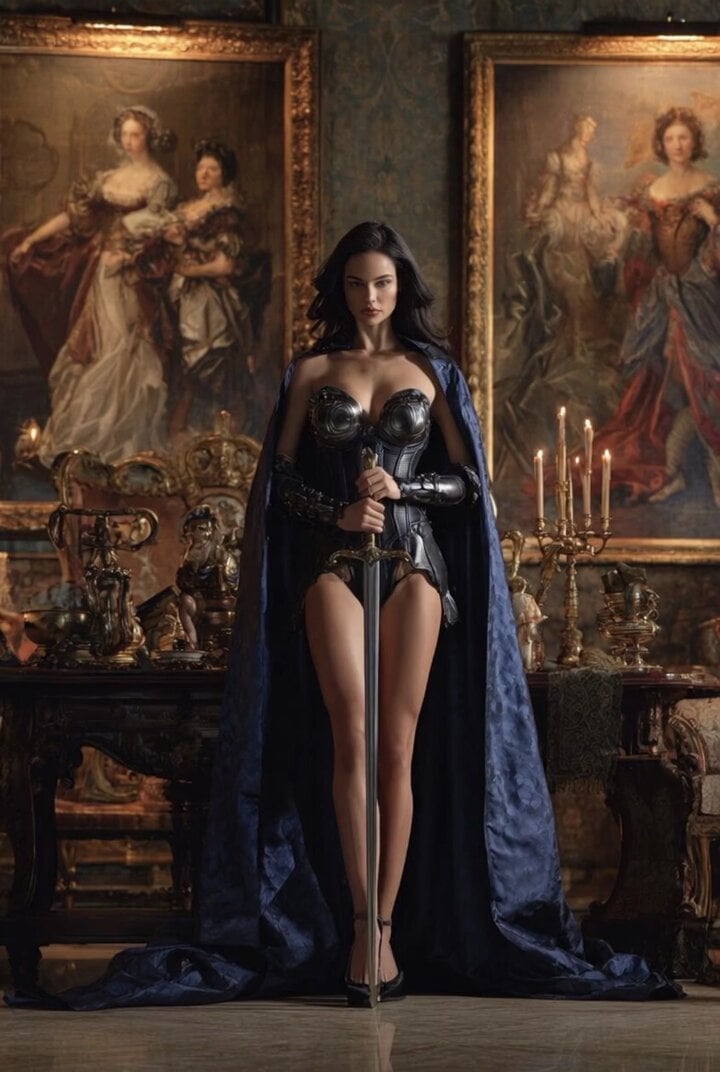
Grok Imagine Video of a Graceful Warrior
Grok Imagine prompt with negative constraints and scenario

Grok Imagine prompt for cinematic VFX scene (Scene 2 - Landing)

Grok Imagine video prompt part 1: Morning routine
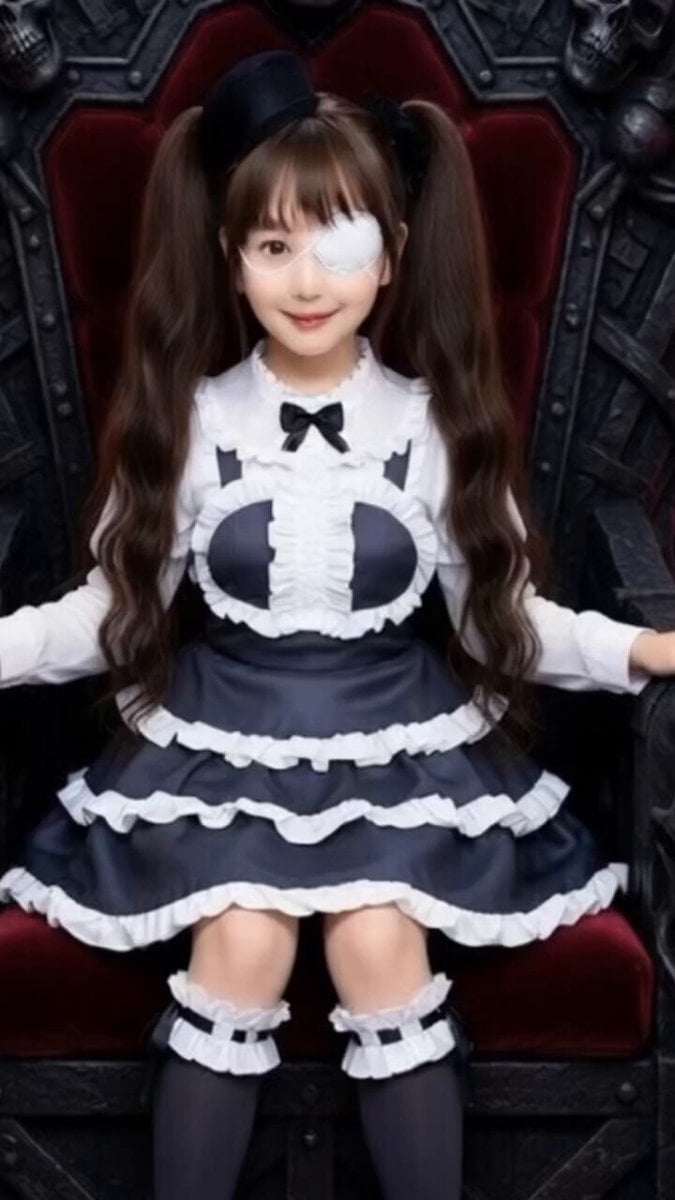
Grok Imagine Prompt: Yurine Kingdom Apocalypse Day
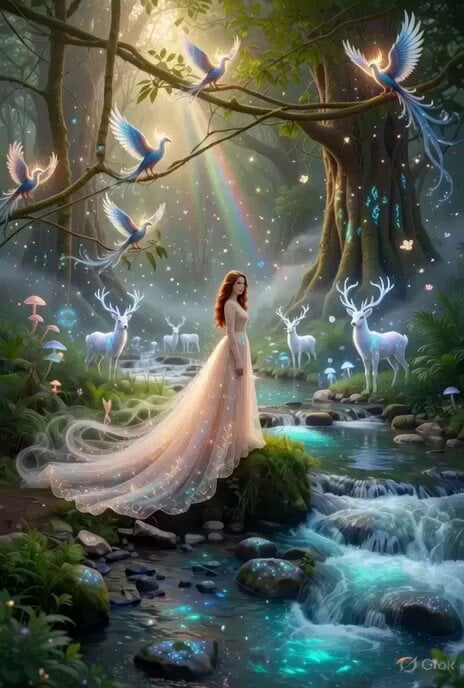
Enchanting Forest Grok Imagine Video Prompt
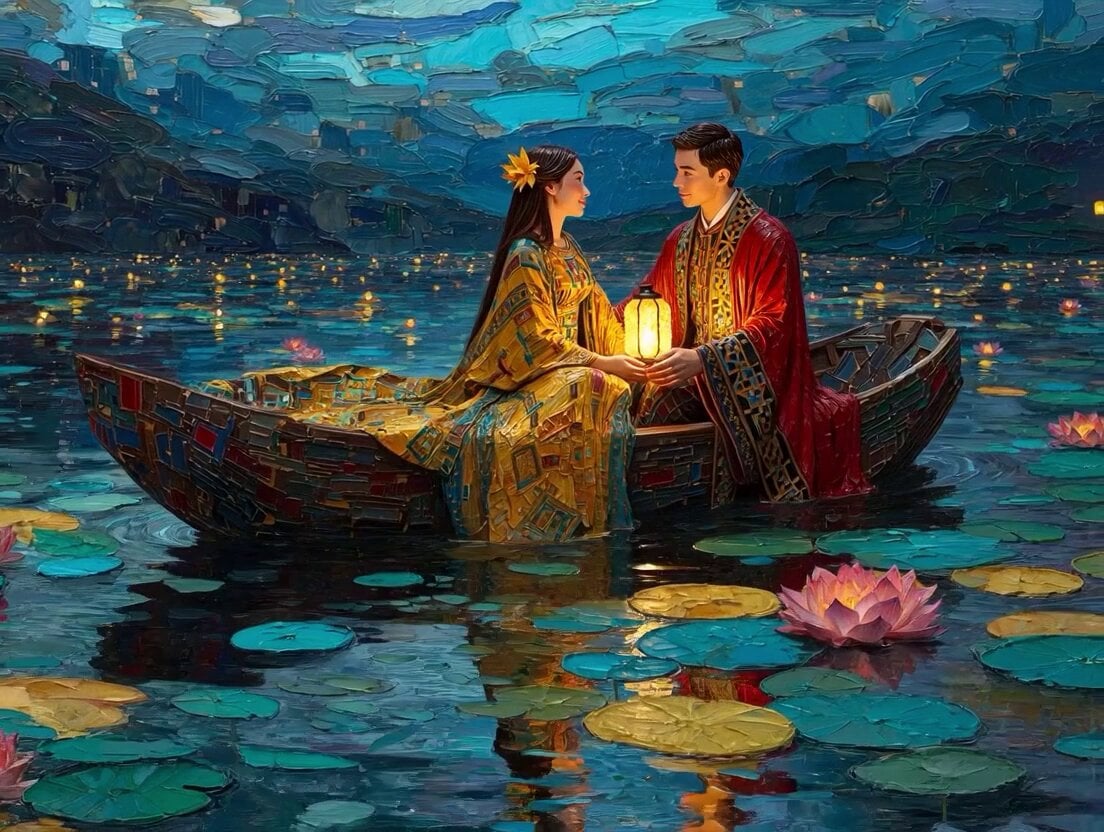
Klimt-Inspired Impasto Painting of Lovers (Midjourney/Grok Imagine)
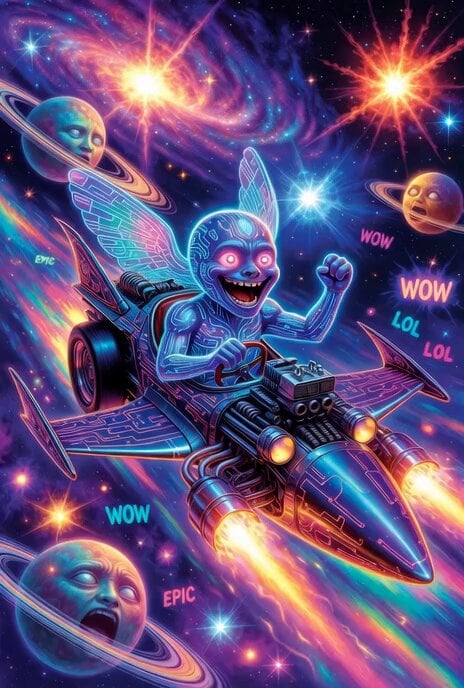
Grok Imagine prompt: Grok driving a cosmic hot rod spaceship
Make it yours
Grok Imagine Video Prompt: Photorealistic Portrait of a Potter works as-is. These are the safest ways to change it without losing the look.
Change one field
Copy a single group, rewrite it, and generate again so you can see what that field is doing.
Keep the frame, change the subject
Hold the composition and light of Grok Imagine Video Prompt: Photorealistic Portrait of a Potter, then swap wardrobe, props or the person for a new take.
| If the result… | Why | Fix |
|---|---|---|
| The result drifts from the preview | Too many fields changed at once. | Reuse Grok Imagine Video Prompt: Photorealistic Portrait of a Potter as-is first, then change one group — subject, light, or setting. |
| The model over-stylizes the scene | The prose prompt leaves finish and camera underspecified. | Add one camera or lighting sentence and stay on Grok Imagine. |
More Grok Imagine templates
Other prompts made for Grok Imagine.
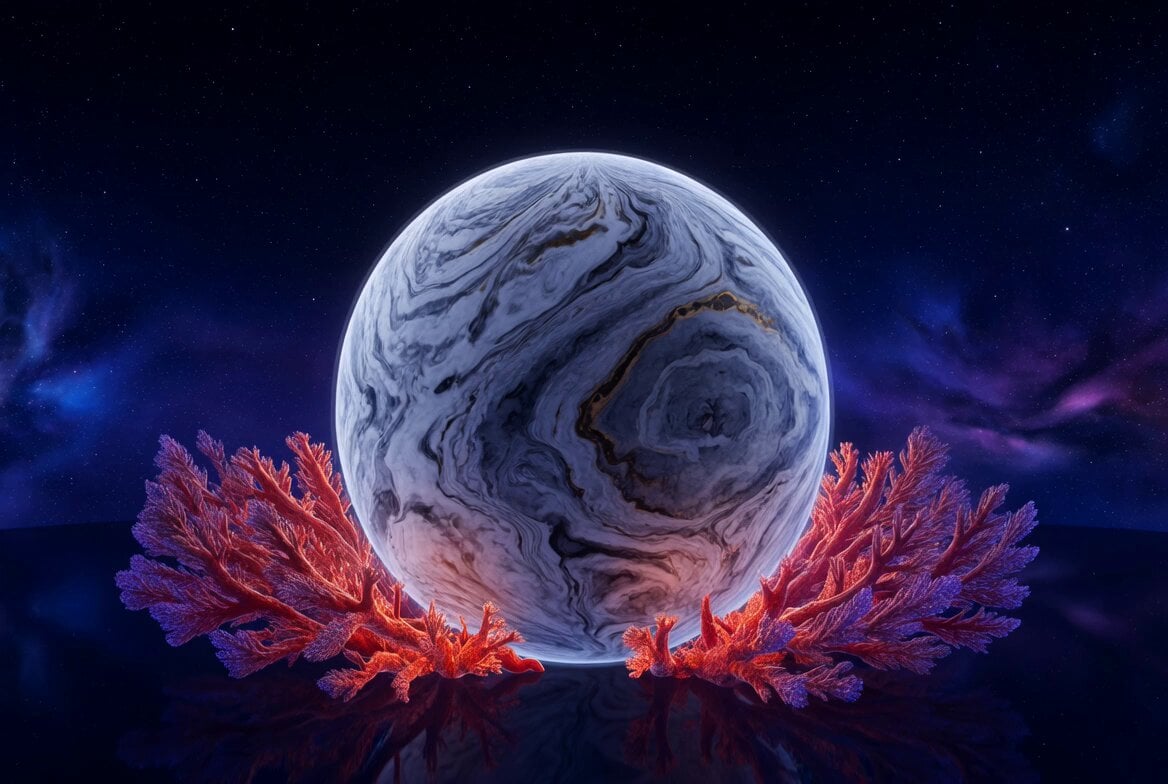
Kaleidoscopic Cosmic Dolphin Video
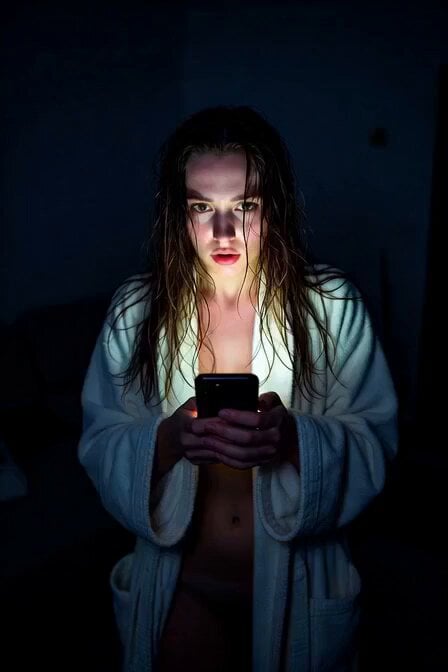
Horror Daffy Duck Video Transition

America 250th Anniversary Celebration
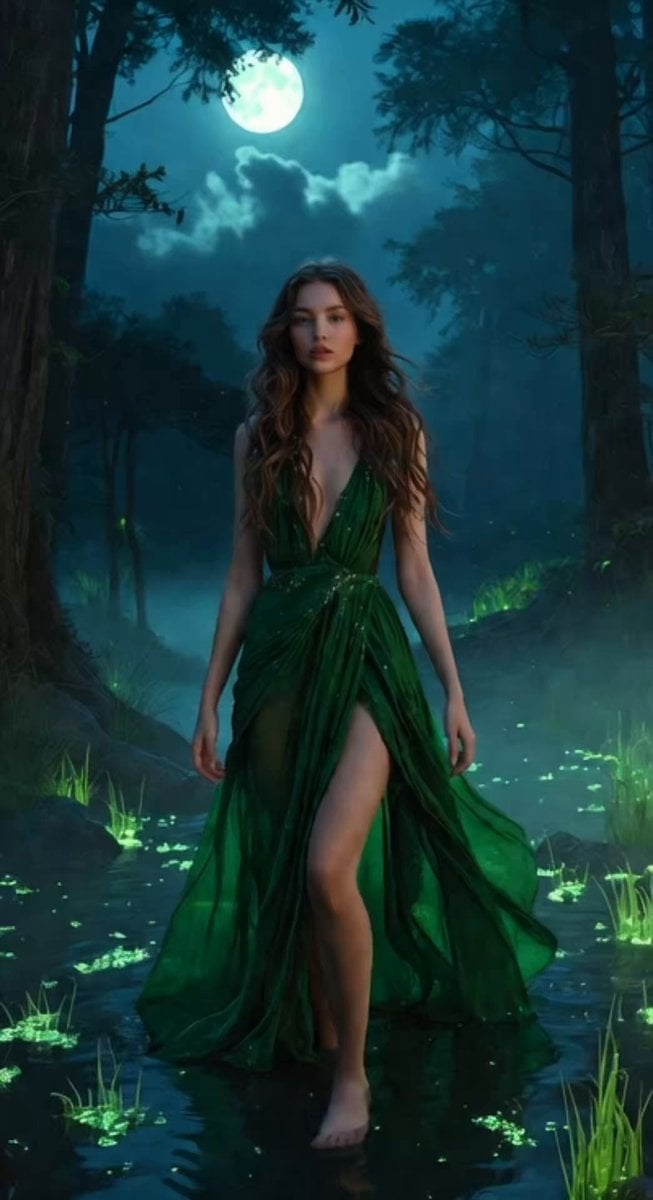
Glowing Water Forest Night Prompt
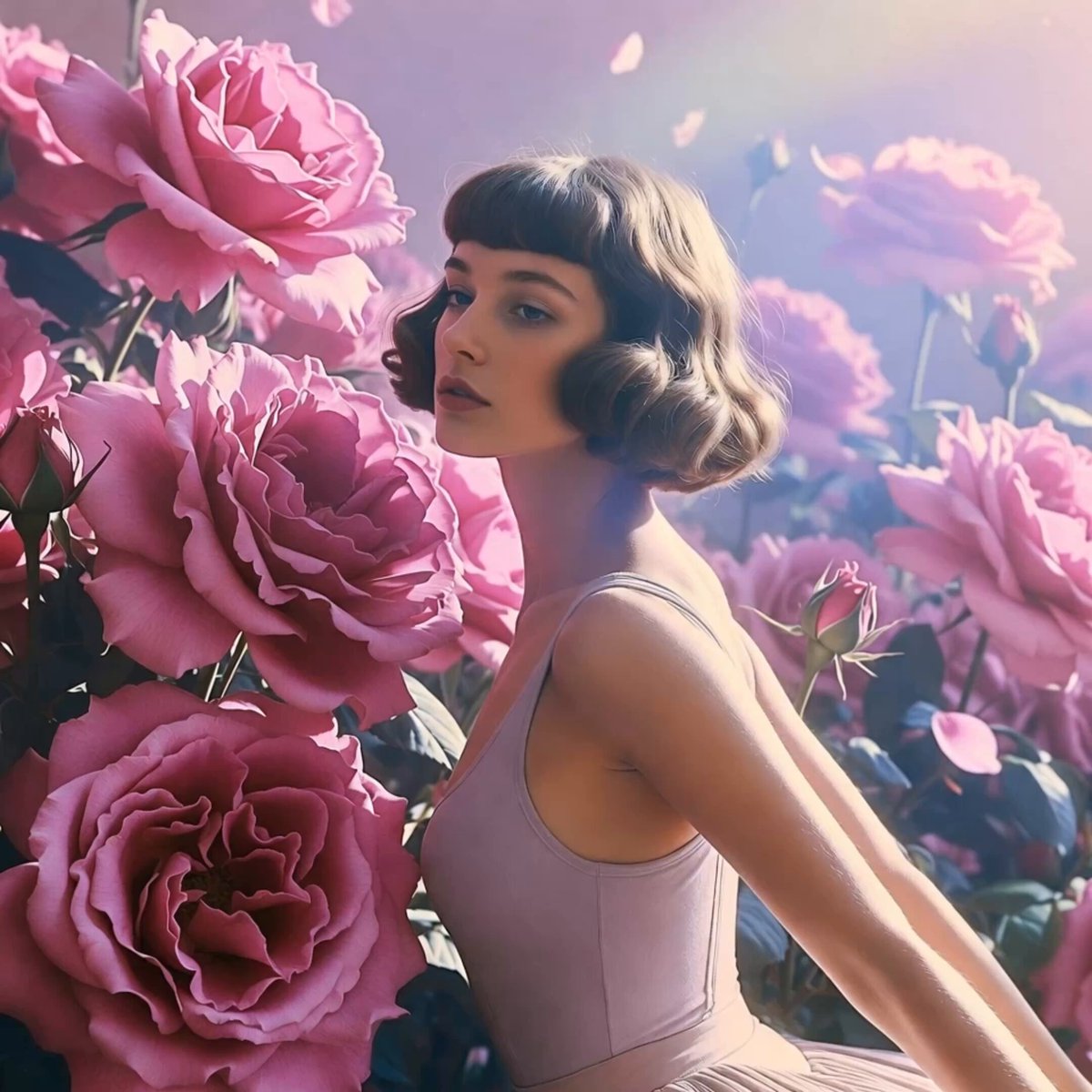
Soft Pink Roses Dreamer Prompt
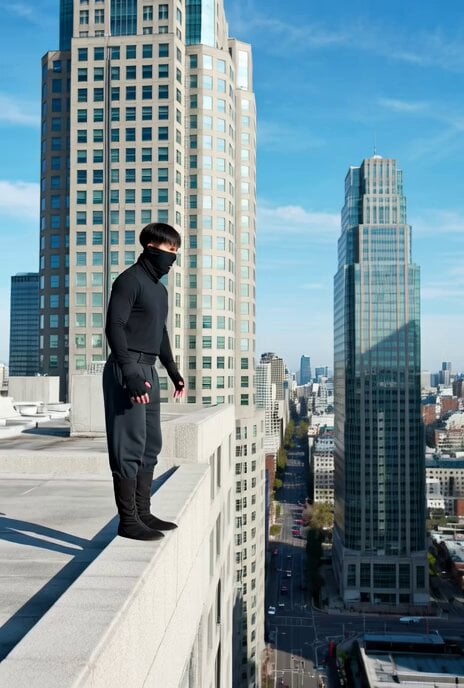
Ninja Wizard Levitation Jump
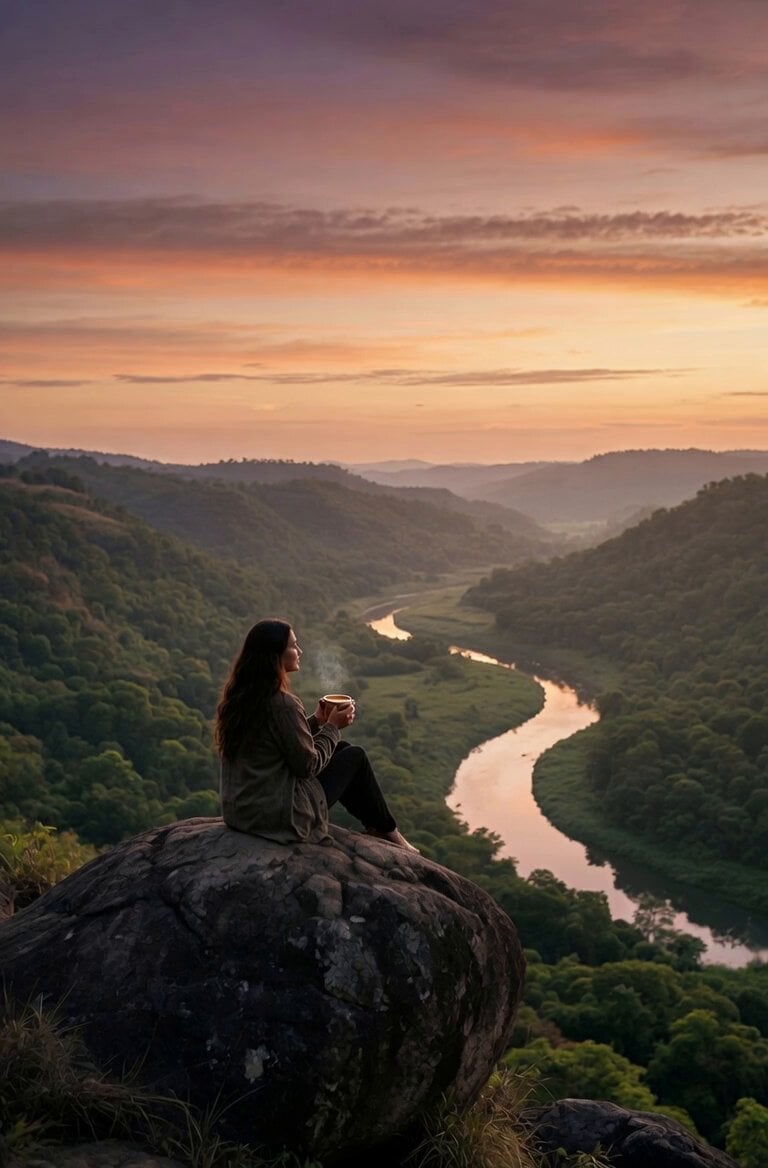
Coffee Cup Interaction Motion
Voice Controlled Water Animation
Pterodactyl Transformation Journey
Candle Mandala Mirror Video
More video prompts
Fresh picks from across the catalog.
Vintage Camcorder Runner Vlog
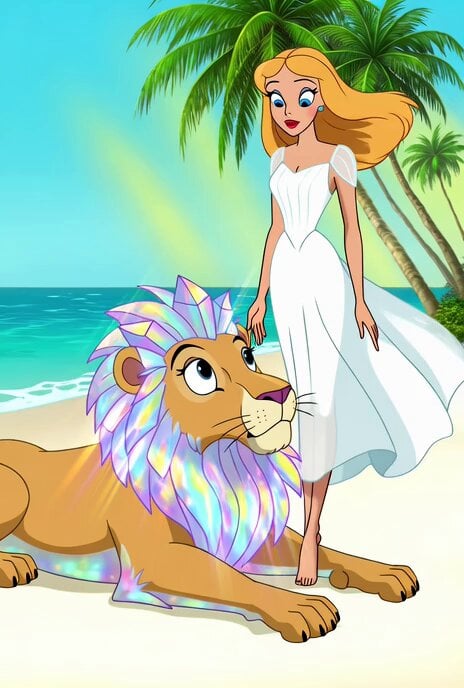
Merrie Melodies Crystal Lion
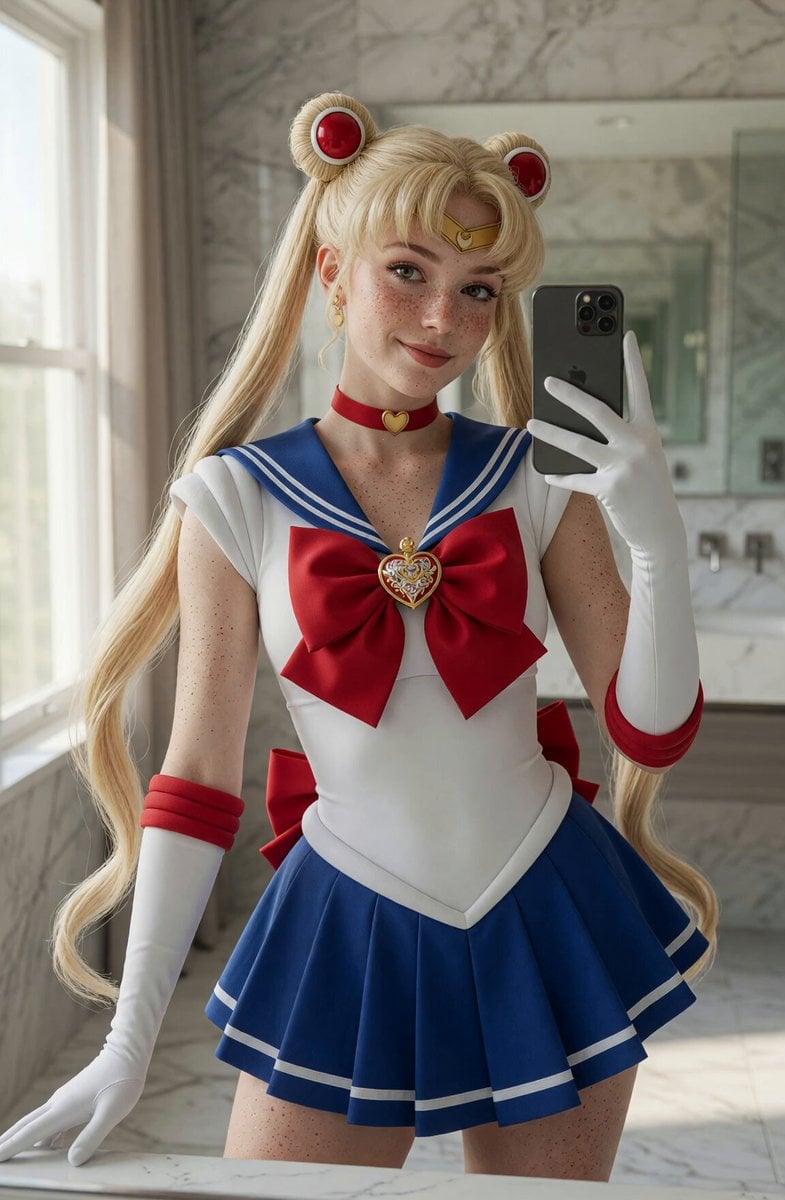
Sailor Moon Mirror Selfie Video
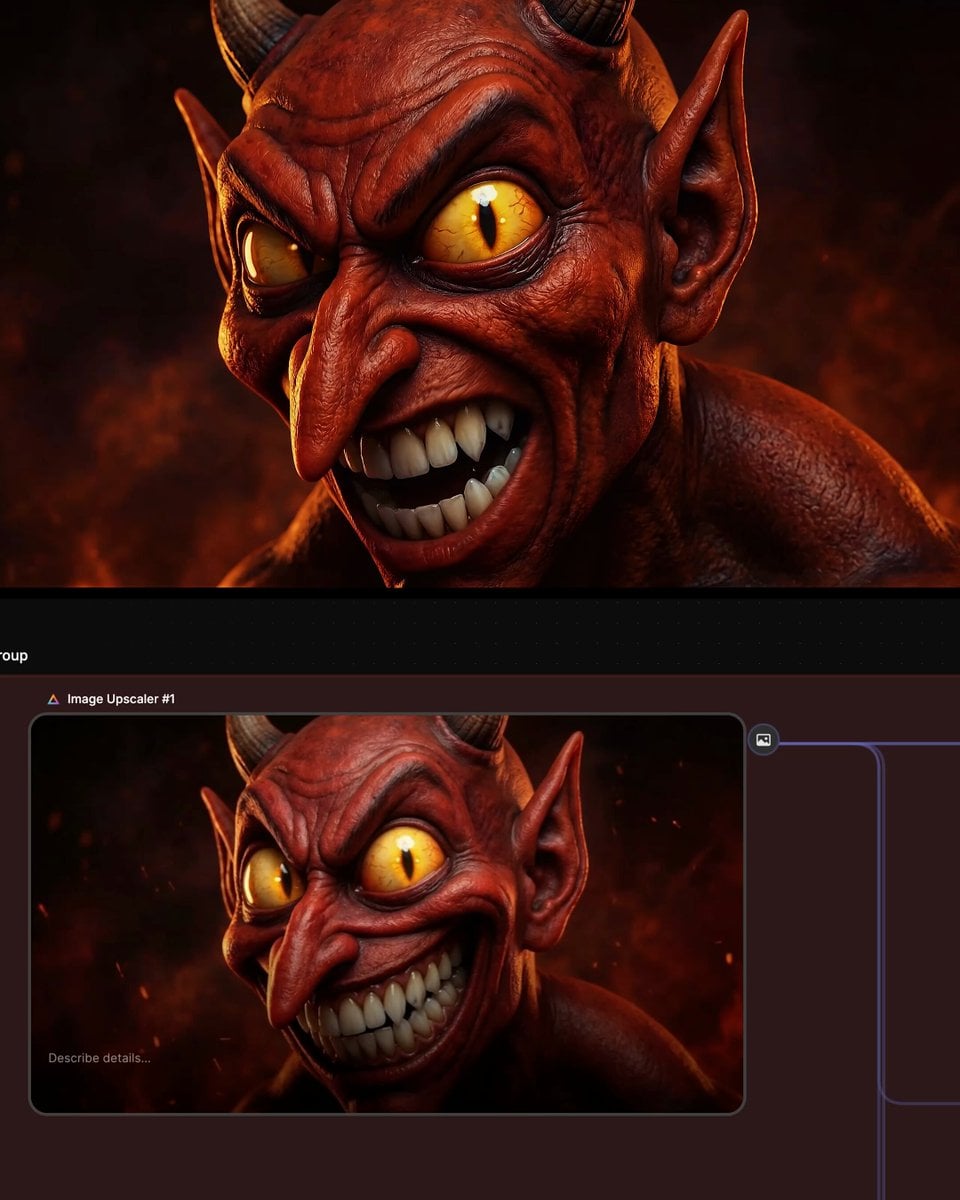
Multi-shot prompt for a devil character using Kling 3.0
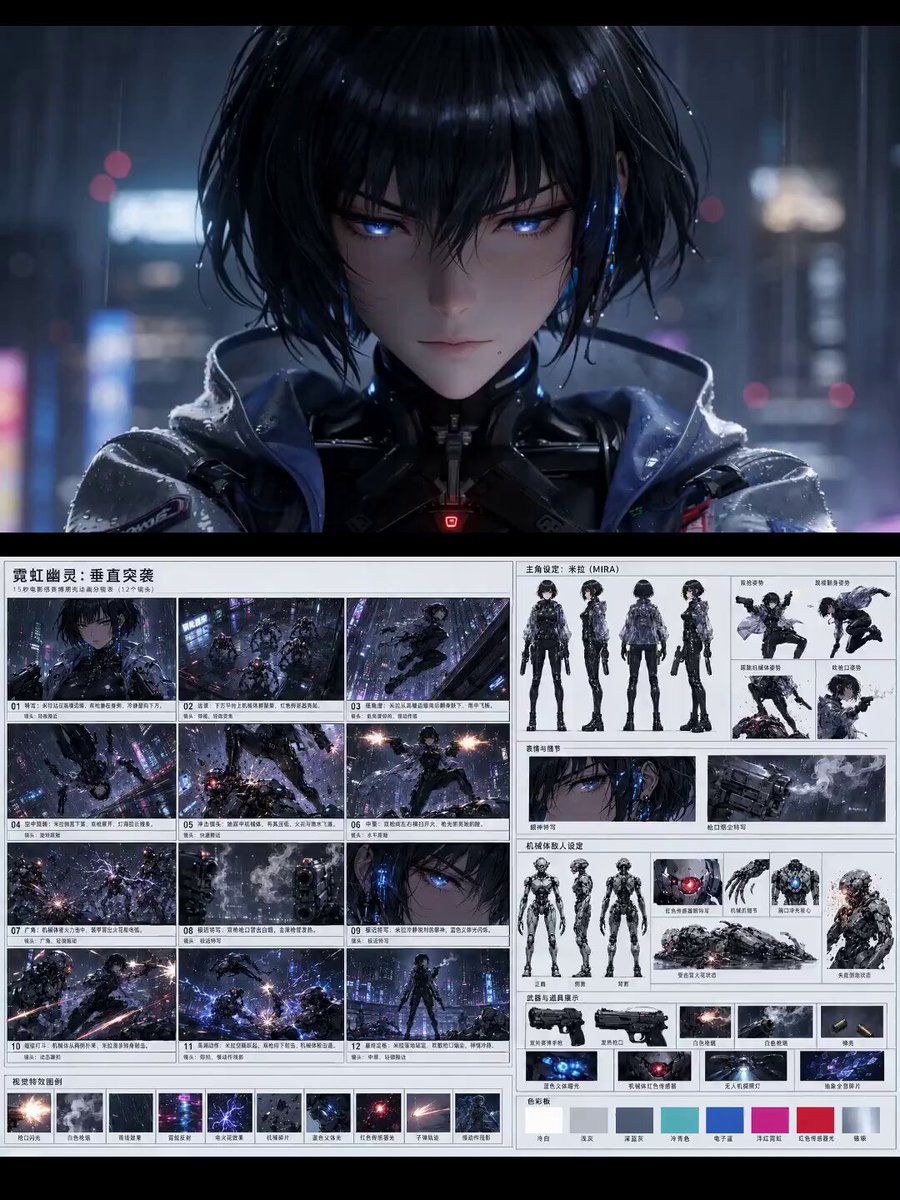
Cyberpunk Storyboard Animation Reference
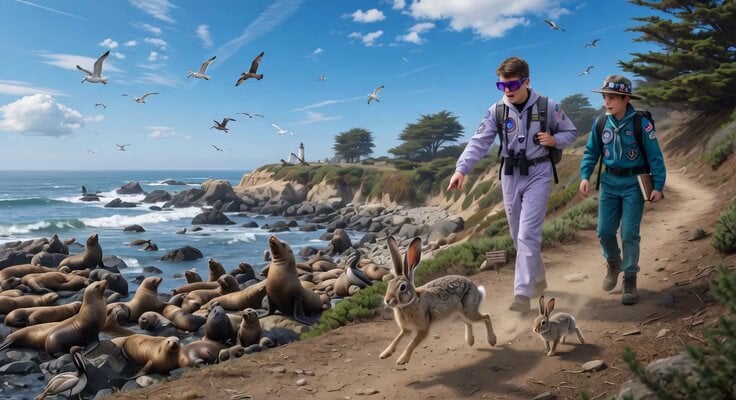
Space Scouts and Sea Lions Video
Seedance 2.5 - @AIwithSynthia - 662980
Iris Transition into Memory World

Stormy Rope Bridge Forced Cooperation Video
European Street Dance Sequence
Browse template categories
Grok Imagine Video Prompt: Photorealistic Portrait of a Potter questions
How do I use the Grok Imagine Video Prompt: Photorealistic Portrait of a Potter template?
Add your photo if the template asks for one, edit the prompt if you like — the template's model and format are already selected — and press Generate. Your version opens in PicX Studio.
Can I customize the Grok Imagine Video Prompt: Photorealistic Portrait of a Potter template?
Yes. You can change the subject, setting, lighting, mood, format, and available model controls before creating your video.
Is the Grok Imagine Video Prompt: Photorealistic Portrait of a Potter template free?
Opening and editing this template is free. Generating uses credits, shown on the Generate button when you are signed in.
Which AI model should I use?
Start with Grok Imagine, which is the model associated with this template. You can compare another compatible model for a different finish.
Looking for something else? Browse all templates.

Your photo, any look
Thousands of ready templates for every top image and video model, from one credit balance.