
Multi-Panel Shutter MV Anime
A highly detailed structured prompt for Seedance 2.0 Mini to create a multi-panel anime music video with shutter transitions and specific color grading.
- Prompt included
- Model and format preset
- Free template
The prompt behind this video
Copy the exact prompt behind Multi-Panel Shutter MV Anime, or open it in the studio and make it yours.
A Japanese full-color anime with no captions, no background music, rapid-fire editing, a high frame count, and 24 FPS. Use 「アット」imageA as the start frame and master layout reference. Use 「アット」imageA only for the opening composition, the four-panel vertical split layout, and the final poster-like arrangement. Use 「アット」imageB as the first panel content reference. Use 「アット」imageC as the second panel content reference. Use 「アット」imageD as the third panel content reference. Use 「アット」imageE as the fourth panel content reference. Preserve the original face structure, eye shape, hair silhouette, line quality, manga texture, collage texture, and graphic sliced-panel feeling of each image. Goal: Create a 10-second 480p anime-style motion graphic video in 16:9. The video begins from 「アット」imageA as the opening frame. The screen layout is a four-column vertical panel composition. After starting from 「アット」imageA, the panels are reintroduced one by one from left to right with a crisp shutter-card insertion effect. The panel content order must be strictly: left panel = 「アット」imageB with orange color grading second panel = 「アット」imageC with yellow color grading third panel = 「アット」imageD with blue color grading right panel = 「アット」imageE with green color grading 0-0.8s: Start directly from 「アット」imageA full screen. The first frame should clearly resemble 「アット」imageA. Show the four tall vertical panel layout already arranged in 16:9. Add a subtle push-in, faint glow, light grain, and slight scanline texture. No text, no subtitles, no logos. 0.8-1.3s: A sharp shutter blink passes across the frame. The panel contents reset into dark or neutral placeholder slots while the four-column layout remains visible. Keep the overall split-screen structure from 「アット」imageA intact. 1.3-3.0s: The far-left panel activates first. 「アット」imageB slides in from the left edge and locks into the far-left column. Apply strong orange color grading. The motion should feel like a graphic card being inserted into place, not a fade. Use a subtle push-in toward the eyes. 3.0-4.7s: The second panel activates. 「アット」imageC slides in from the left and locks into the second column. Apply vivid yellow color grading. Keep the fragmented face-panel feeling. Add a slight layered parallax effect and a tiny downward drift. 4.7-6.5s: The third panel activates. 「アット」imageD slides in from the left and locks into the third column. Apply deep blue color grading. Preserve the monochrome manga texture and paper grain. Use a slow dolly-in and keep the abstract collage feeling. 6.5-8.2s: The fourth panel activates. 「アット」imageE slides in from the left and locks into the far-right column. Apply rich green color grading. Preserve the pose, peace sign, bob haircut, soft expression, rough ink texture, and geometric collage background.
How to use Multi-Panel Shutter MV Anime in 3 steps
- 1
Open
The prompt is already in the box next to the preview, with the template's model and format selected.
- 2…a portrait of your subject in softgolden-hour light, 85mm…
Personalize
Edit the subject and creative details for your destination.
- 3Generate
Generate
Press Generate — your video is created in PicX Studio, so you can compare it with the original and refine one variable at a time.
More like this
Templates with the same subject, style or setup. Open one to see its prompt.
MiniMax H3 Character Introduction
Multi Panel Storyboard Sheet
Japanese Pure Love Short Film
Studio Ghibli Dumpling Kitchen Cooking Scene
Mecha Transformation vs Kaiju — 4-Scene Epic

Extended Multi-Shot Xianxia Battle Sequence
Multi-Character Parkour Action Sequence
Multidimensional Glitch Morphing Animation
Multi-Shot Heist Sequence — Kling 3.0 O3 Pro
Cinematic Anime Cyborg Running Scene
Pastel Beach Anime MV
The Piece of Bread: Anime Short Film
Make it yours
Multi-Panel Shutter MV Anime works as-is. These are the safest ways to change it without losing the look.
Change one field
Copy a single group, rewrite it, and generate again so you can see what that field is doing.
Keep the frame, change the subject
Hold the composition and light of Multi-Panel Shutter MV Anime, then swap wardrobe, props or the person for a new take.
| If the result… | Why | Fix |
|---|---|---|
| The result drifts from the preview | Too many fields changed at once. | Reuse Multi-Panel Shutter MV Anime as-is first, then change one group — subject, light, or setting. |
| The model over-stylizes the scene | The prose prompt leaves finish and camera underspecified. | Add one camera or lighting sentence and stay on Seedance 2.0. |
More Seedance 2.0 templates
Other prompts made for Seedance 2.0.
Comical Martial Arts Punch Scene
Maglev Train Action Sequence
Martial Arts Fight Sequence
Wuxia Protection and Trust Script
Vintage Korean Arcade MiniDV Vlog
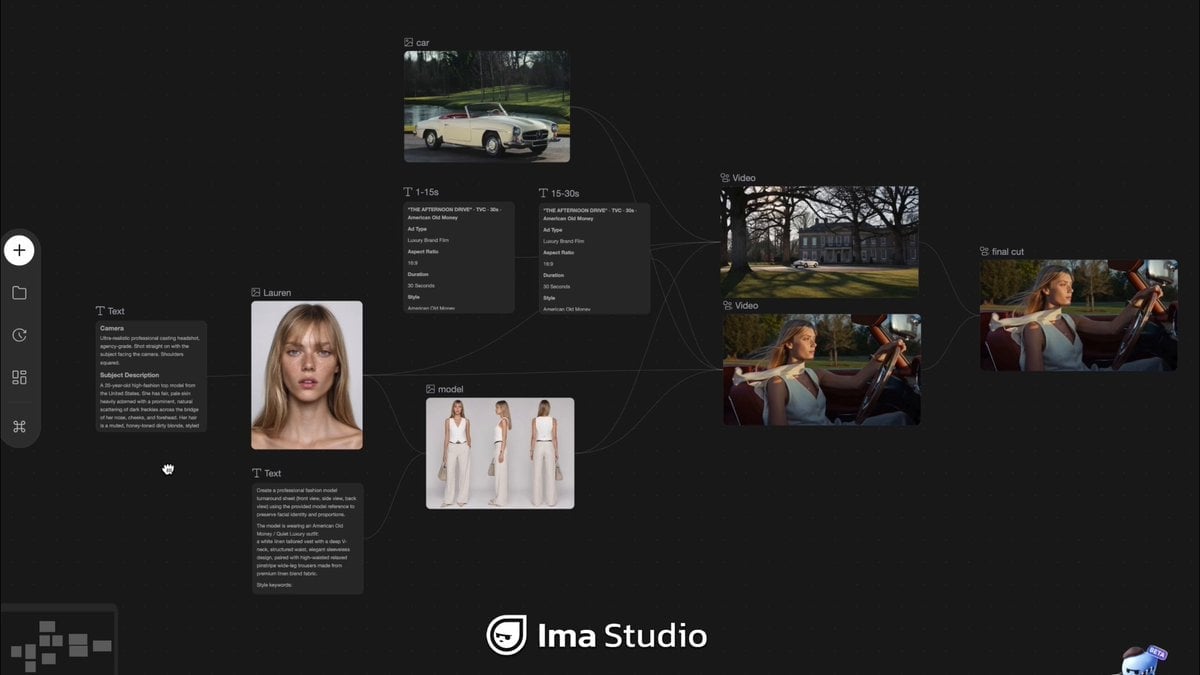
Mercedes 190 SL Luxury Ad
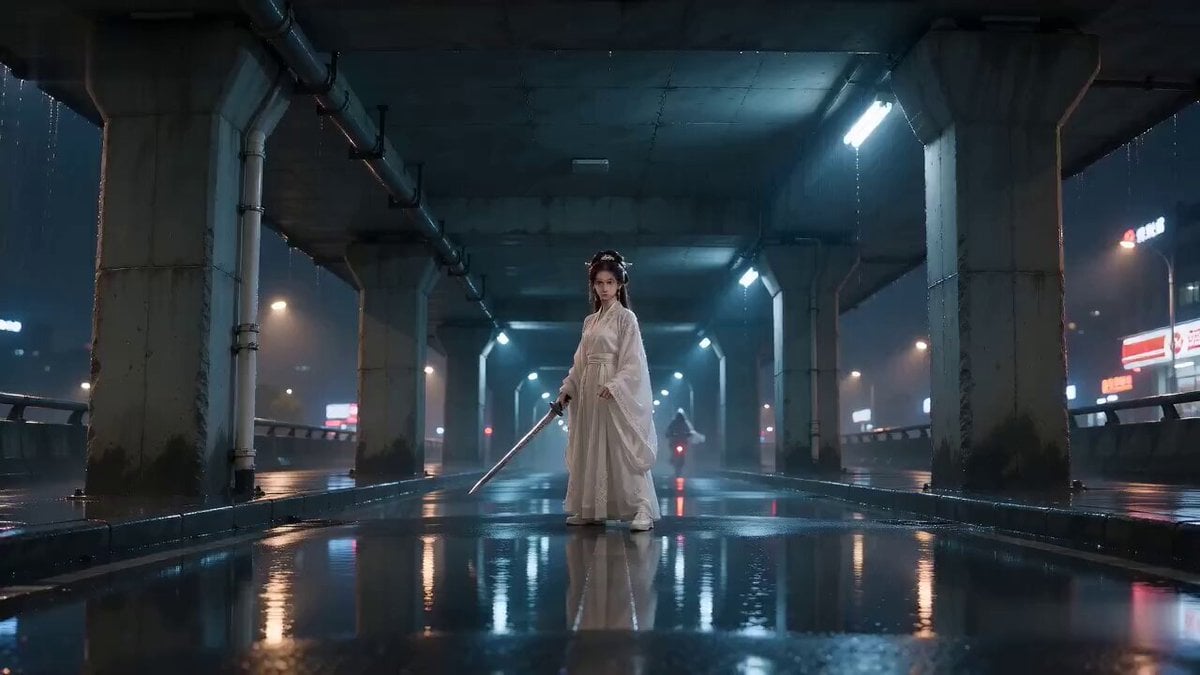
Rainy Night Supernatural Reverse Comedy Video Script

Amazon Civilization Discovery
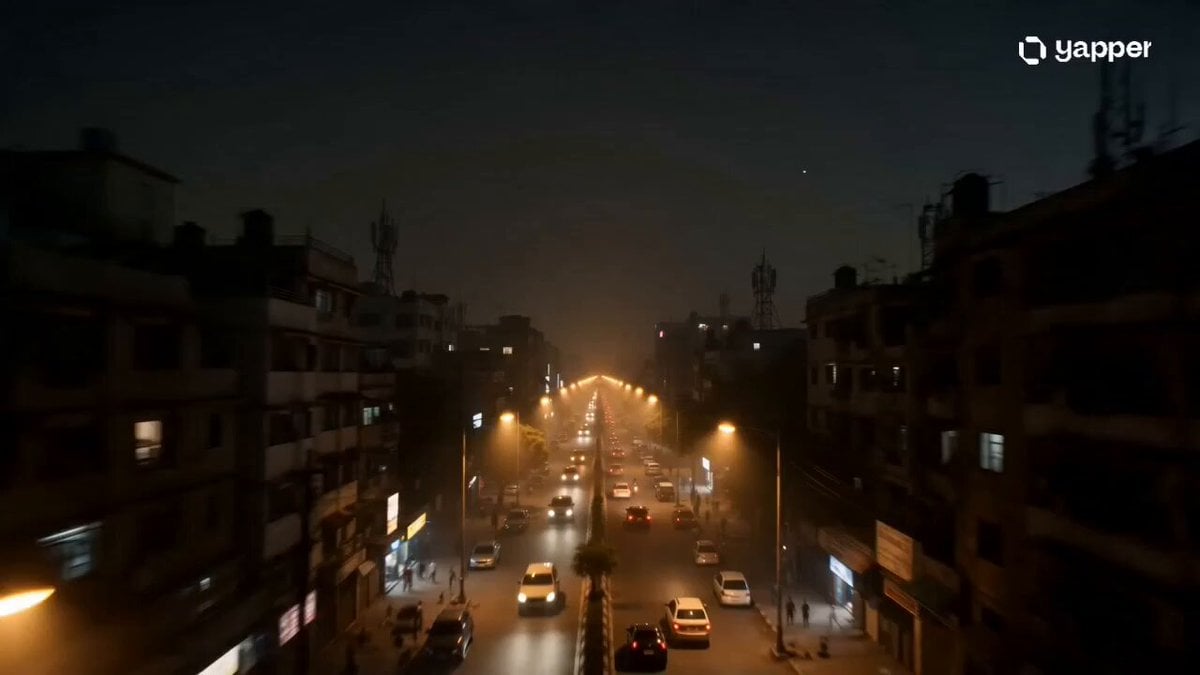
Futuristic South Asian City Transformation
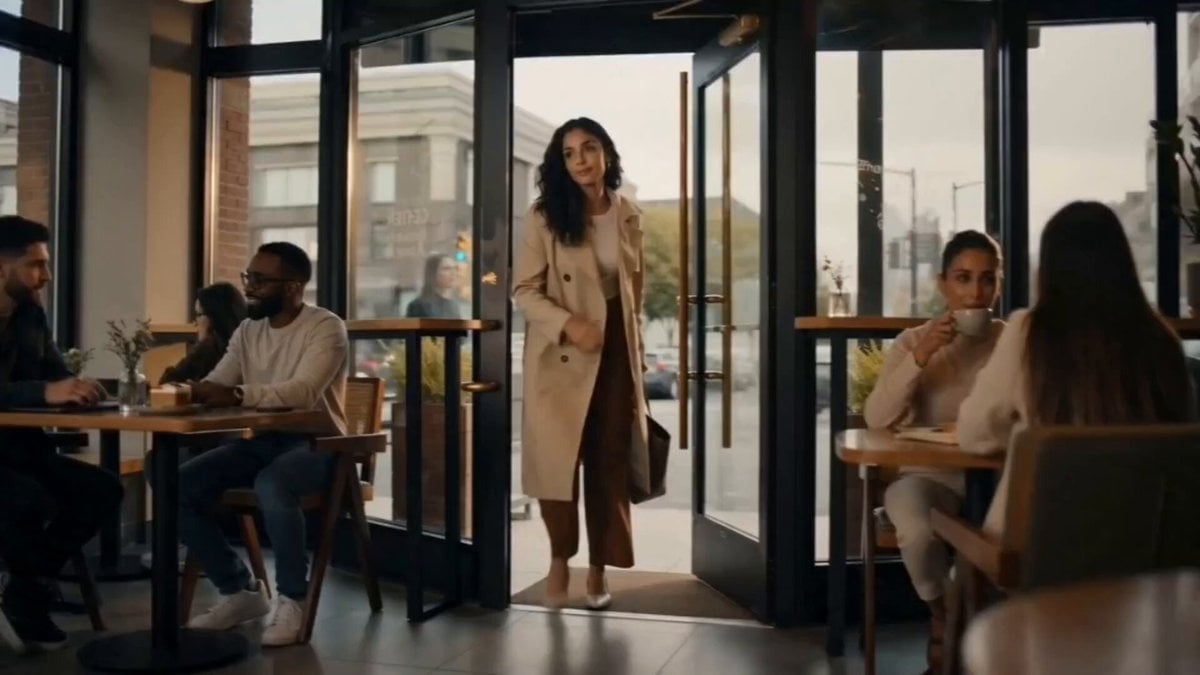
Cozy Luxury Cafe Commercial
More video prompts
Fresh picks from across the catalog.
Cyberpunk Magical Girl Anime Video Prompt

YAML Parkour Cinematic Sequence
Grok Imagine video prompt part 1: Morning routine

Seedance 2.0 Transformation Video Prompt: 12 Flower Gods
GoPro-Style MTB Action to Flight
Irish Dance in a Glistening Field
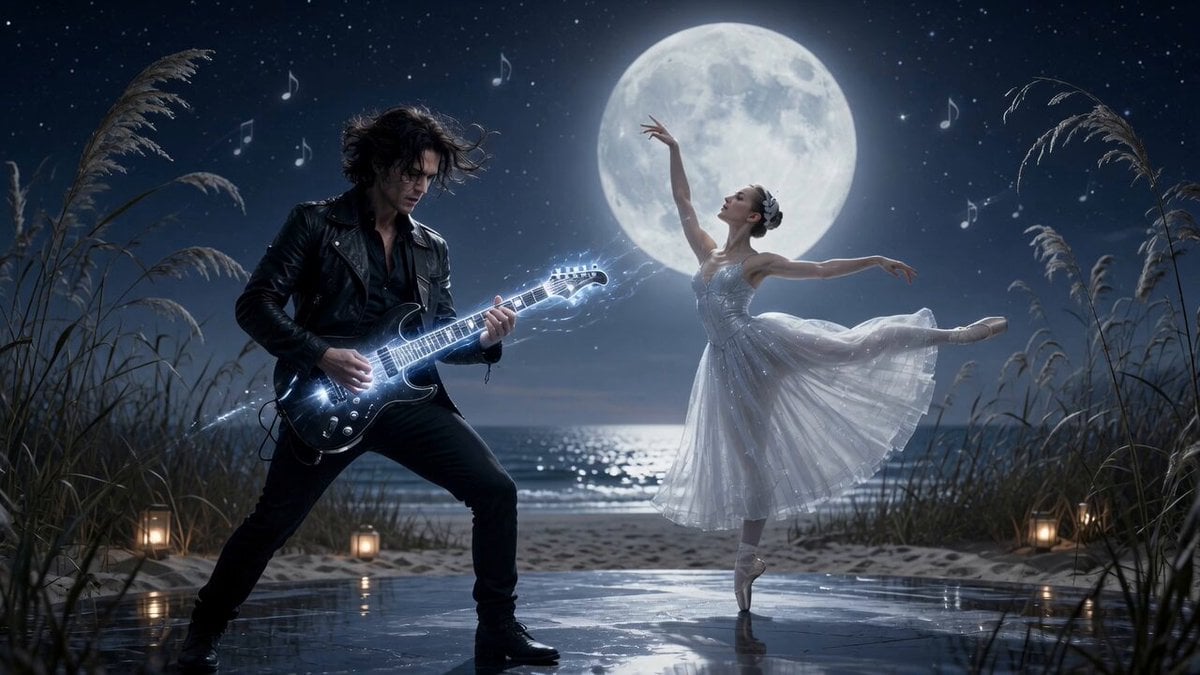
Moonlit Shoreline Rock Concert Performance
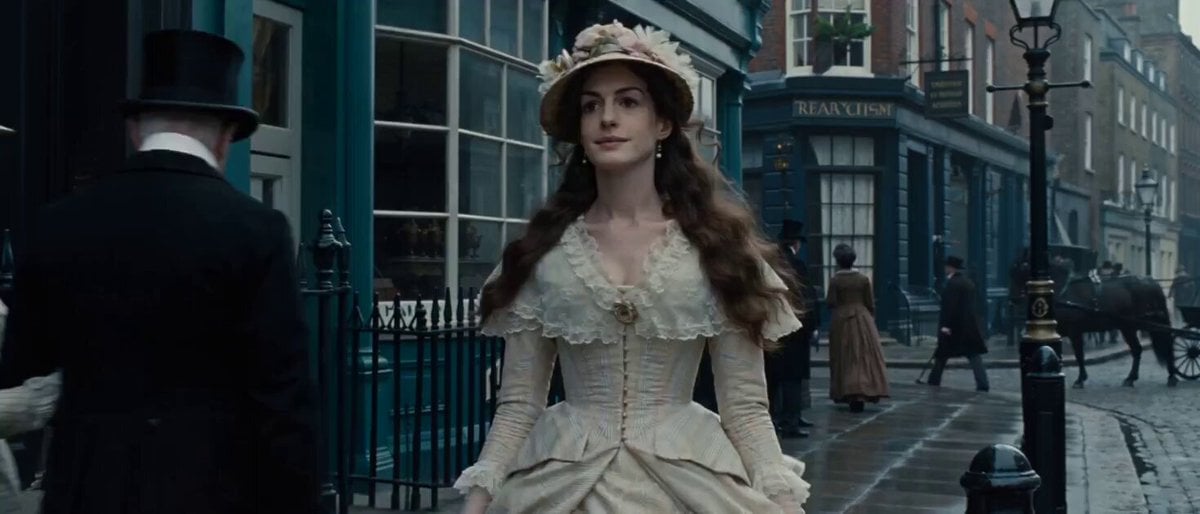
Video Prompt: 19th Century London Street Scene
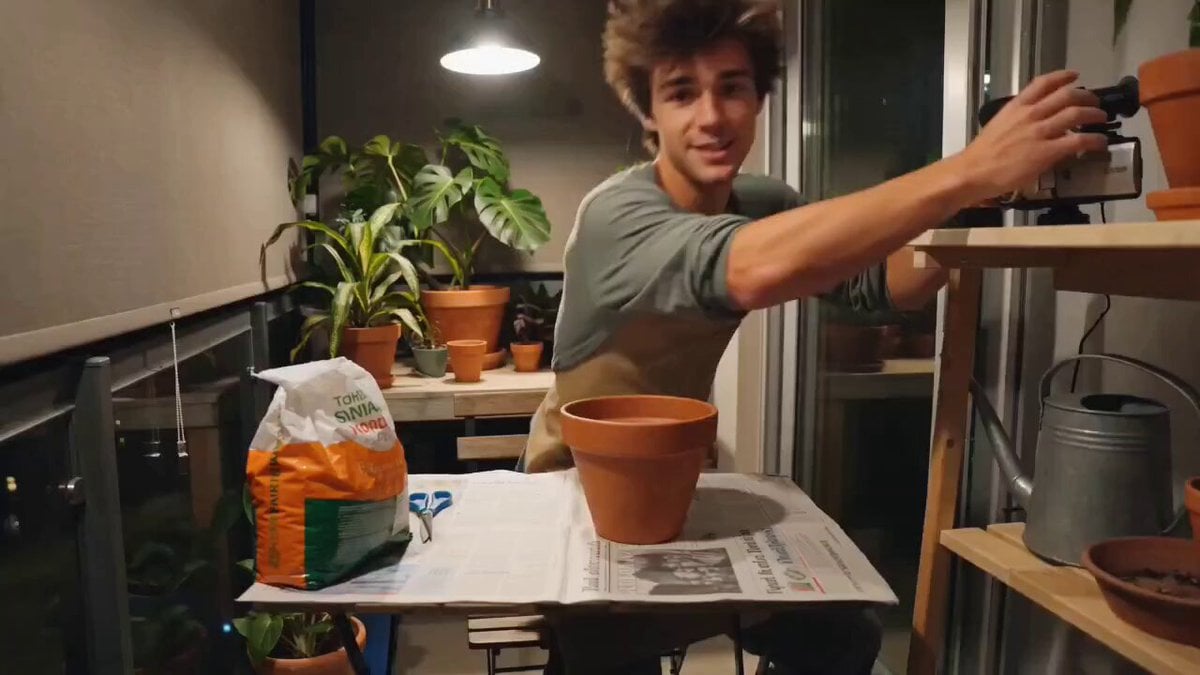
Cozy Evening Plant Repotting Vlog Storyboard
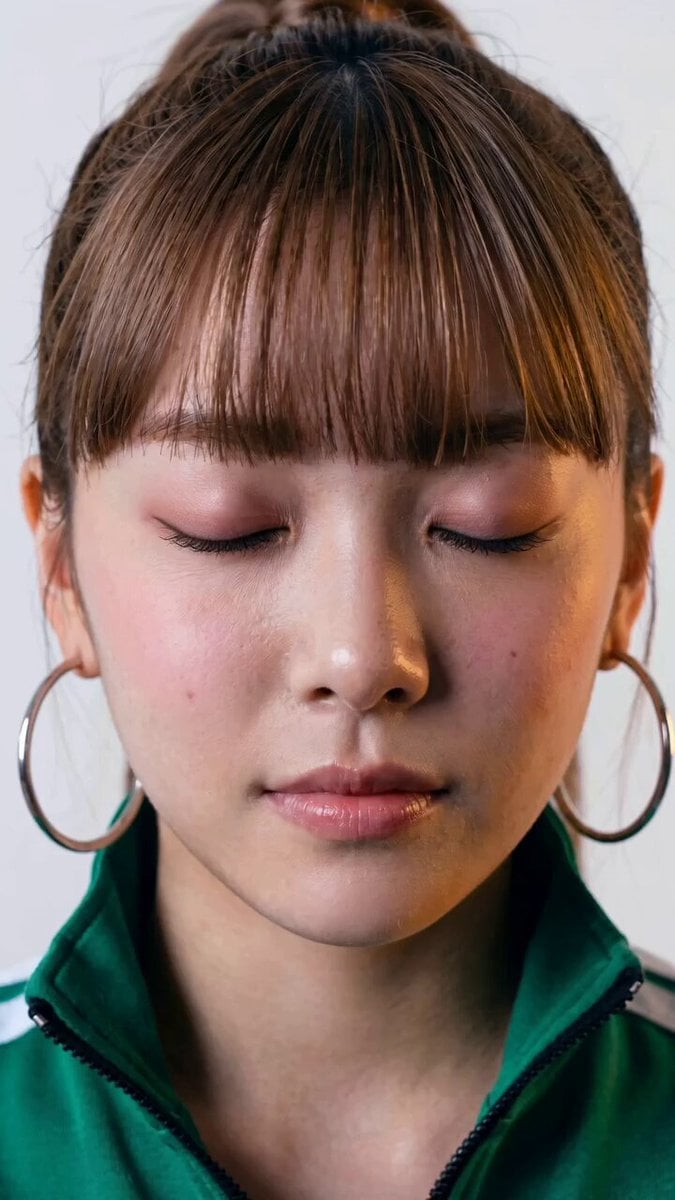
Seedance 2.0 Facial Expression Control
Browse template categories
Multi-Panel Shutter MV Anime questions
How do I use the Multi-Panel Shutter MV Anime template?
Add your photo if the template asks for one, edit the prompt if you like — the template's model and format are already selected — and press Generate. Your version opens in PicX Studio.
Can I customize the Multi-Panel Shutter MV Anime template?
Yes. You can change the subject, setting, lighting, mood, format, and available model controls before creating your video.
Is the Multi-Panel Shutter MV Anime template free?
Opening and editing this template is free. Generating uses credits, shown on the Generate button when you are signed in.
Which AI model should I use?
Start with Seedance 2.0, which is the model associated with this template. You can compare another compatible model for a different finish.
Looking for something else? Browse all templates.

Your photo, any look
Thousands of ready templates for every top image and video model, from one credit balance.