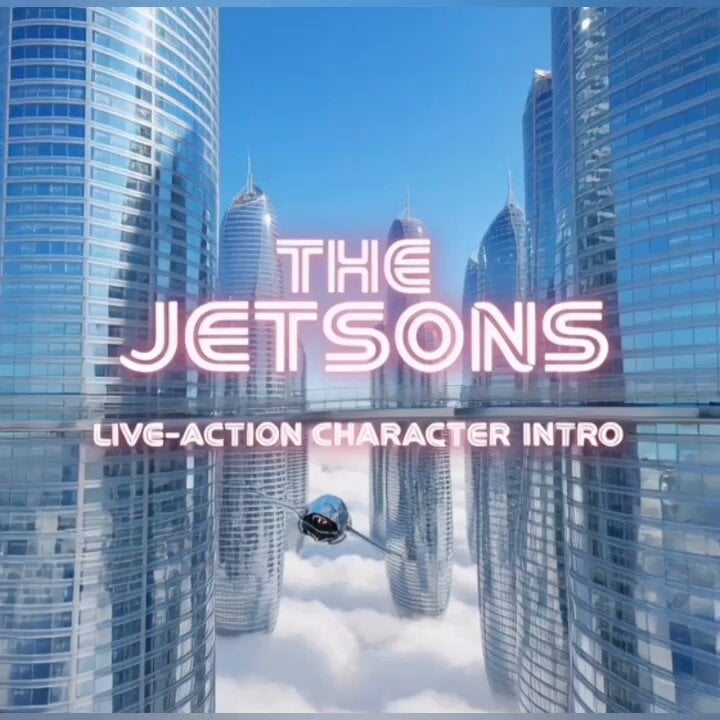
How do I use the MiniMax H3 Character Introduction template?
Edit the prompt in the box under the preview — the template's model and format are already selected — and press Generate. Your version appears right on this page.
MiniMax H3 video prompt (Kōda) - Character Introduction workflow.

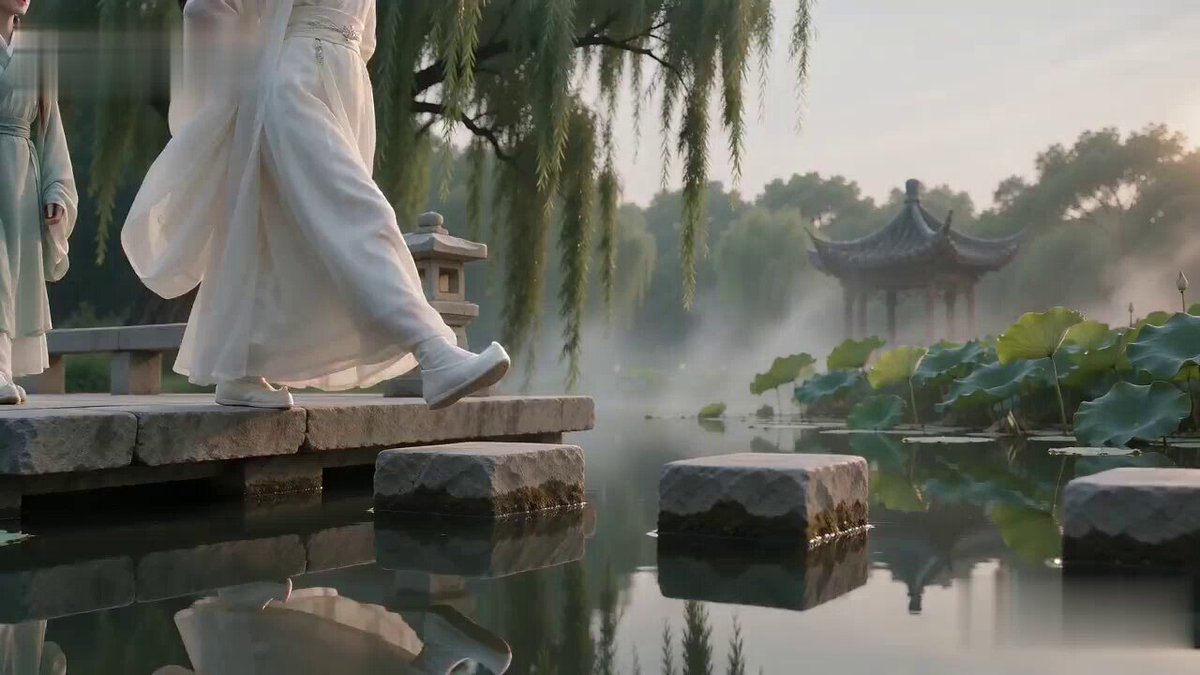
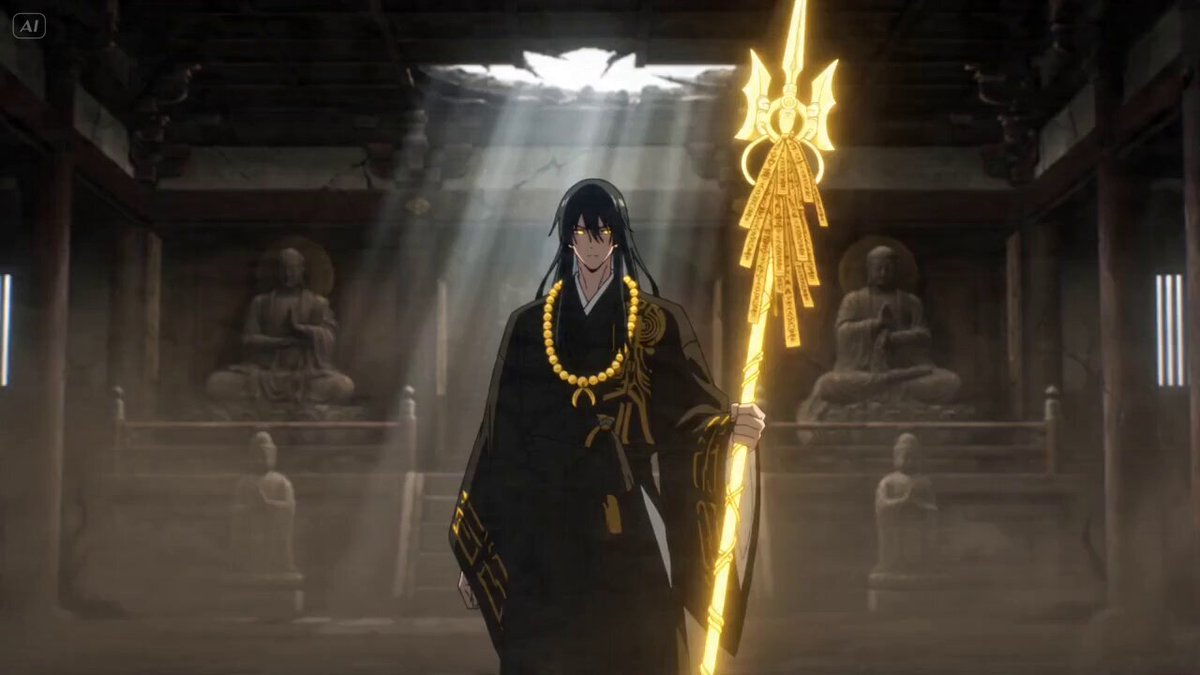
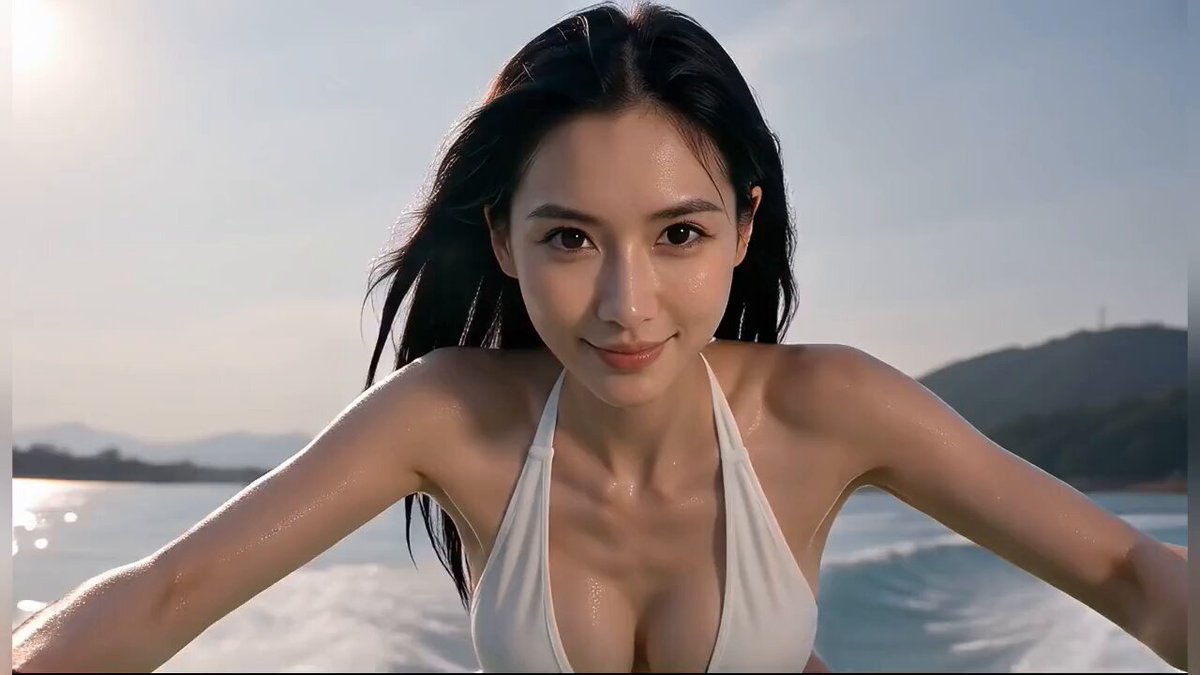
MiniMax H3 Character Introduction Prompt: Use @[char ref] as the sole character reference. Preserve the exact identity, face, body proportions, hairstyle, outfit, colors, materials and overall silhouette of the character throughout the entire video. Do not redesign, simplify or replace any defining visual features. Create a cinematic character introduction focused on presence, silhouette, attitude and controlled motion. 0–4s Begin with a close shot of a defining lower-body or detail element such as boots, shoes, feet, hands, clothing hem or an important accessory. The character enters frame or settles into position. The camera slowly tracks upward while hair, clothing and secondary elements move naturally in the wind or environment. 4–8s Reveal more of the body with a medium or medium-wide shot from the back, side or three-quarter angle. The character stands in a calm, composed way inside the environment. The camera makes a smooth orbit, arc or lateral move to gradually reveal the character's face and silhouette. 8–12s Move into a tight cinematic portrait or upper-body shot. The character performs one subtle signature action that fits their personality, such as lifting the chin, turning the head, adjusting clothing, brushing hair aside, opening a hand, looking toward camera, or shifting posture. Keep the motion minimal and intentional. The expression should match the character's vibe. 12–15s End with a strong full-body hero shot that clearly presents the entire design and silhouette. Use a low-angle, eye-level or slightly dramatic framing depending on the character's personality. The character settles into a natural final pose and holds it confidently for a clean final reveal. VISUAL DIRECTION Premium cinematic presentation. Match the visual medium and rendering style of @[char ref]. Emphasize clean silhouette, elegant staging, subtle secondary motion, believable hair and cloth movement, strong composition, atmospheric depth and polished lighting. The scene should feel like a high-end anime, game or film character introduction. CAMERA Use a clear progression from detail reveal to partial reveal to face reveal to full-body hero reveal. Camera movement should be smooth, controlled and intentional. Avoid chaotic motion. ENVIRONMENT Place the character in a fitting environment that supports their identity and mood. The background should enhance the character without distracting from them.
MiniMax H3 Character Introduction Prompt: Use @[char ref] as the sole character reference. Preserve the exact identity, face, body proportions, hairstyle, outfit, colors, materials and overall silhouette of the character throughout the entire video. Do not redesign, simplify or replace any defining visual features. Create a cinematic character introduction focused on presence, silhouette, attitude and controlled motion. 0–4s Begin with a close shot of a defining lower-body or detail element such as boots, shoes, feet, hands, clothing hem or an important accessory. The character enters frame or settles into position. The camera slowly tracks upward while hair, clothing and secondary elements move naturally in the wind or environment. 4–8s Reveal more of the body with a medium or medium-wide shot from the back, side or three-quarter angle. The character stands in a calm, composed way inside the environment. The camera makes a smooth orbit, arc or lateral move to gradually reveal the character's face and silhouette. 8–12s Move into a tight cinematic portrait or upper-body shot. The character performs one subtle signature action that fits their personality, such as lifting the chin, turning the head, adjusting clothing, brushing hair aside, opening a hand, looking toward camera, or shifting posture. Keep the motion minimal and intentional. The expression should match the character's vibe. 12–15s End with a strong full-body hero shot that clearly presents the entire design and silhouette. Use a low-angle, eye-level or slightly dramatic framing depending on the character's personality. The character settles into a natural final pose and holds it confidently for a clean final reveal. VISUAL DIRECTION Premium cinematic presentation. Match the visual medium and rendering style of @[char ref]. Emphasize clean silhouette, elegant staging, subtle secondary motion, believable hair and cloth movement, strong composition, atmospheric depth and polished lighting. The scene should feel like a high-end anime, game or film character introduction. CAMERA Use a clear progression from detail reveal to partial reveal to face reveal to full-body hero reveal. Camera movement should be smooth, controlled and intentional. Avoid chaotic motion. ENVIRONMENT Place the character in a fitting environment that supports their identity and mood. The background should enhance the character without distracting from them.
Edit the prompt in the box under the preview — the template's model and format are already selected — and press Generate. Your version appears right on this page.
Yes. You can change the subject, setting, lighting, mood, format, and available model controls before creating your video.
Opening and editing this template is free. Generating uses credits, shown on the Generate button when you are signed in.
Choose a compatible model in PicX Studio based on the style, speed, and output controls your project needs.
Follow a topic to a crawlable collection of related PicX Studio templates.