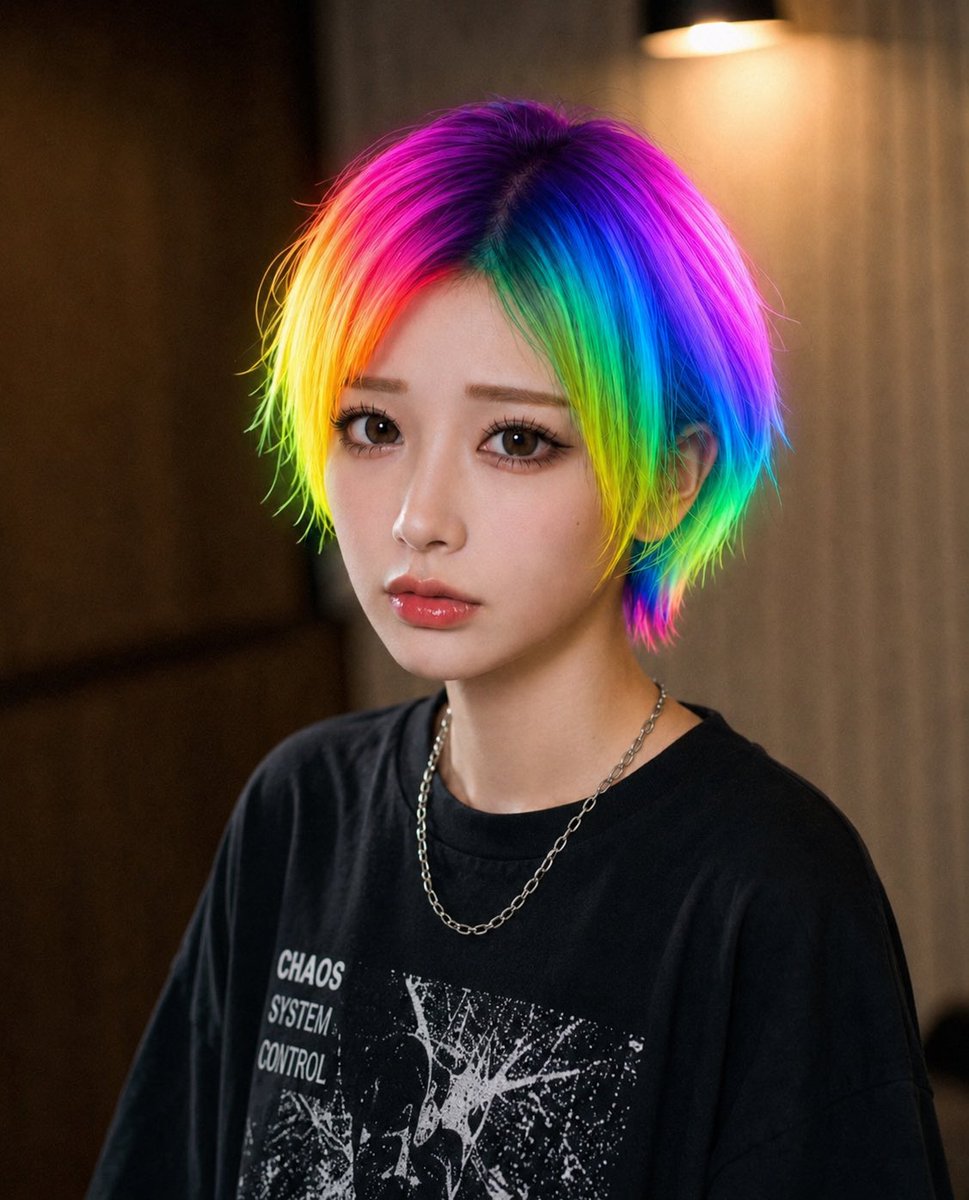
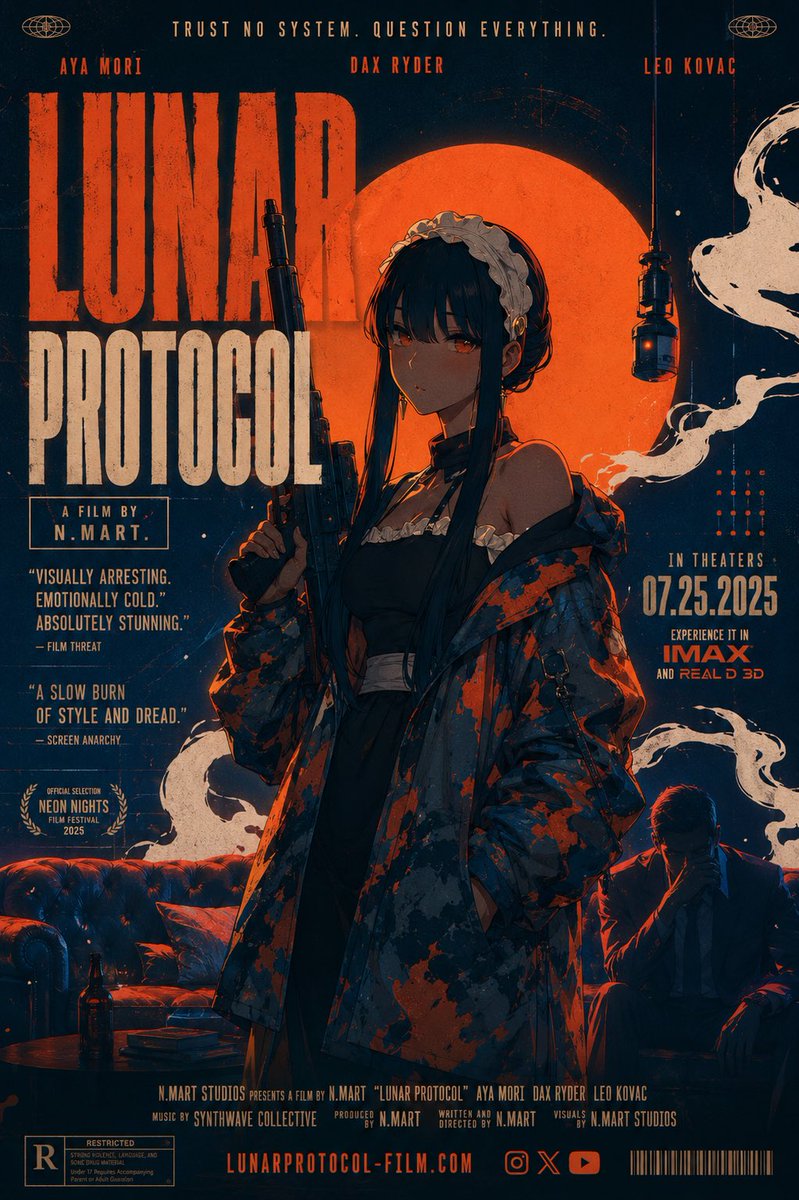
How do I use the Drawing to Realistic Photo Transformation template?
Choose the primary action to open PicX Studio with the available template settings. Review the model and format, personalize the creative direction, and generate when ready.
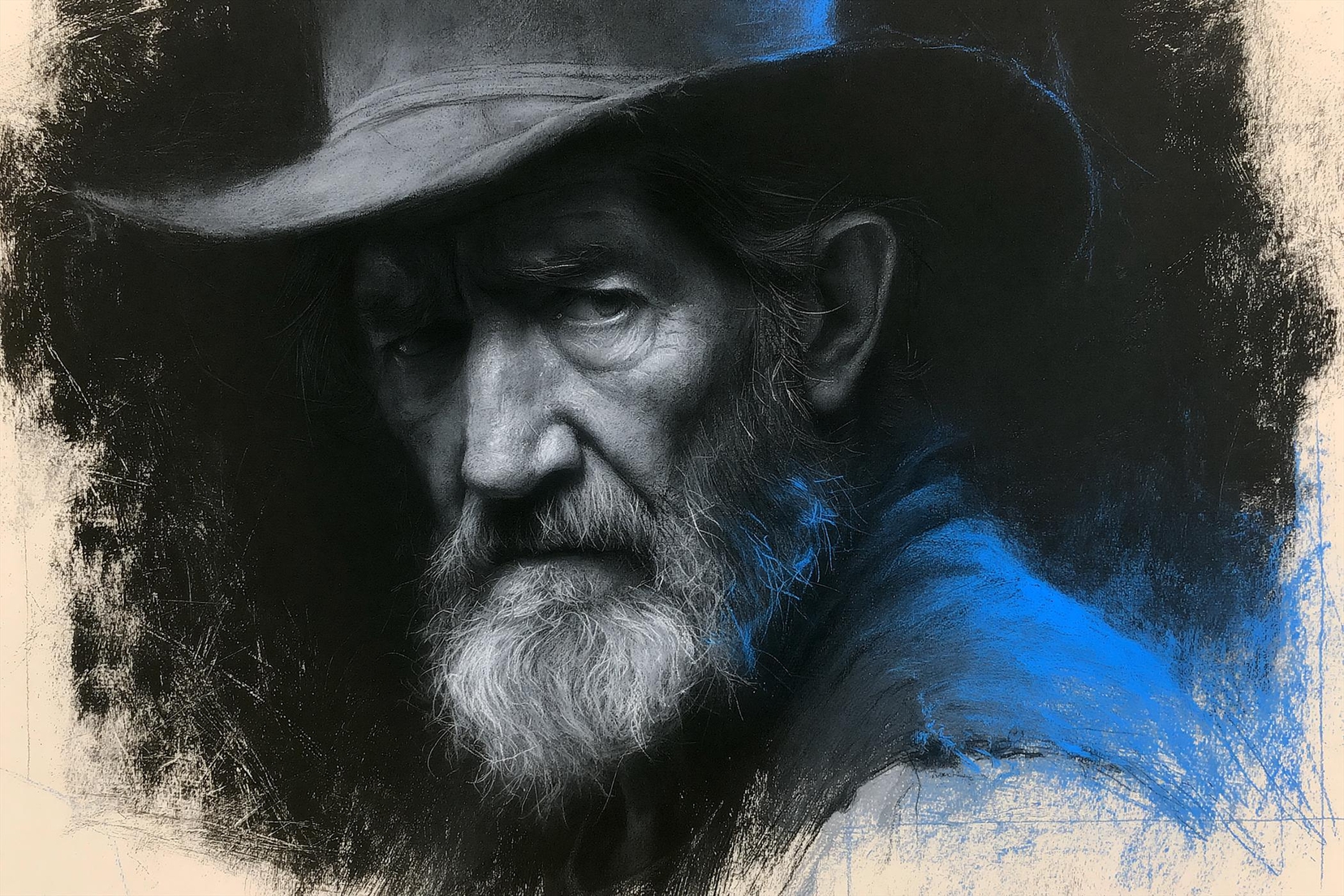
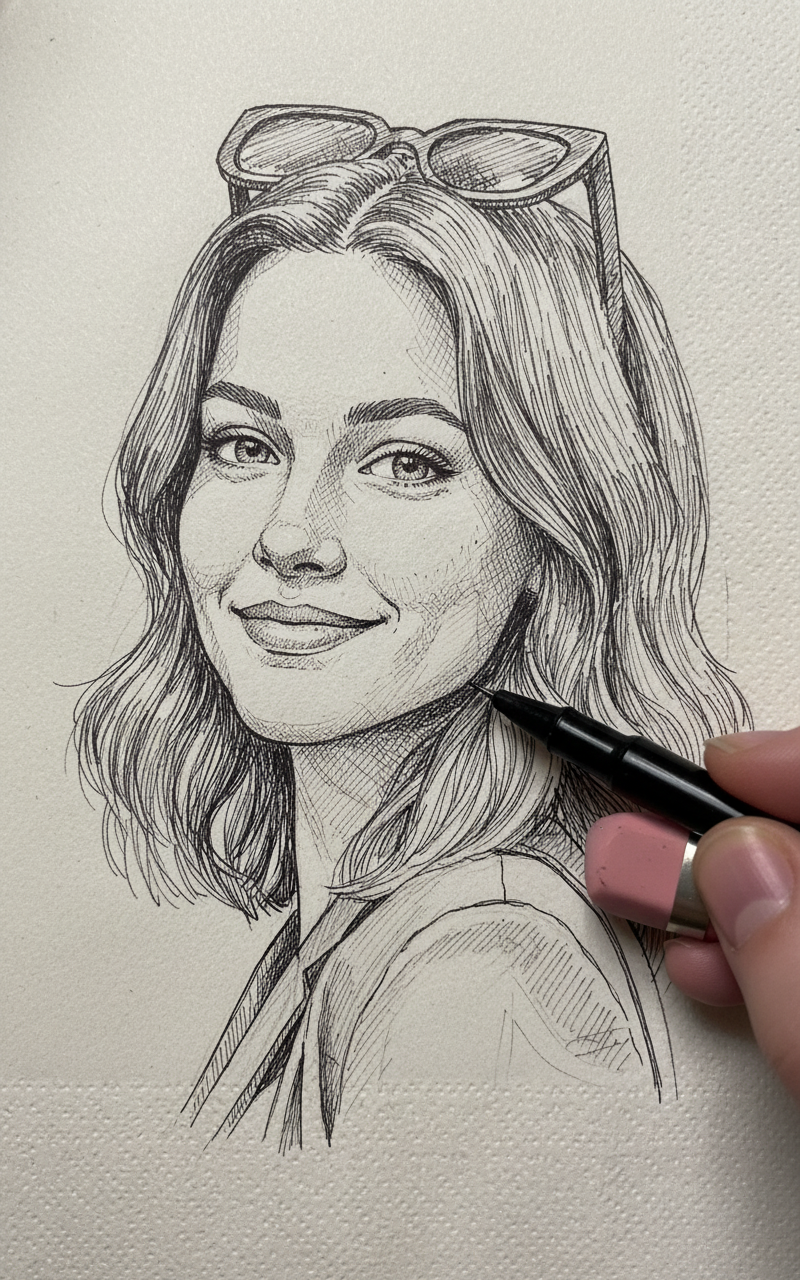
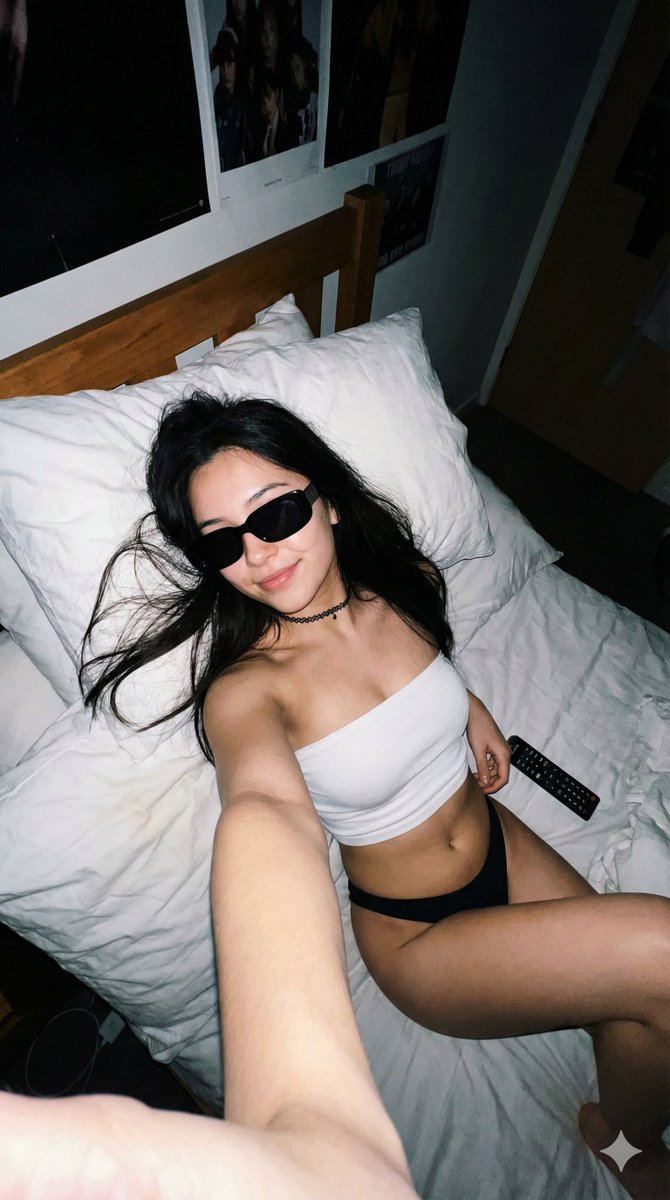
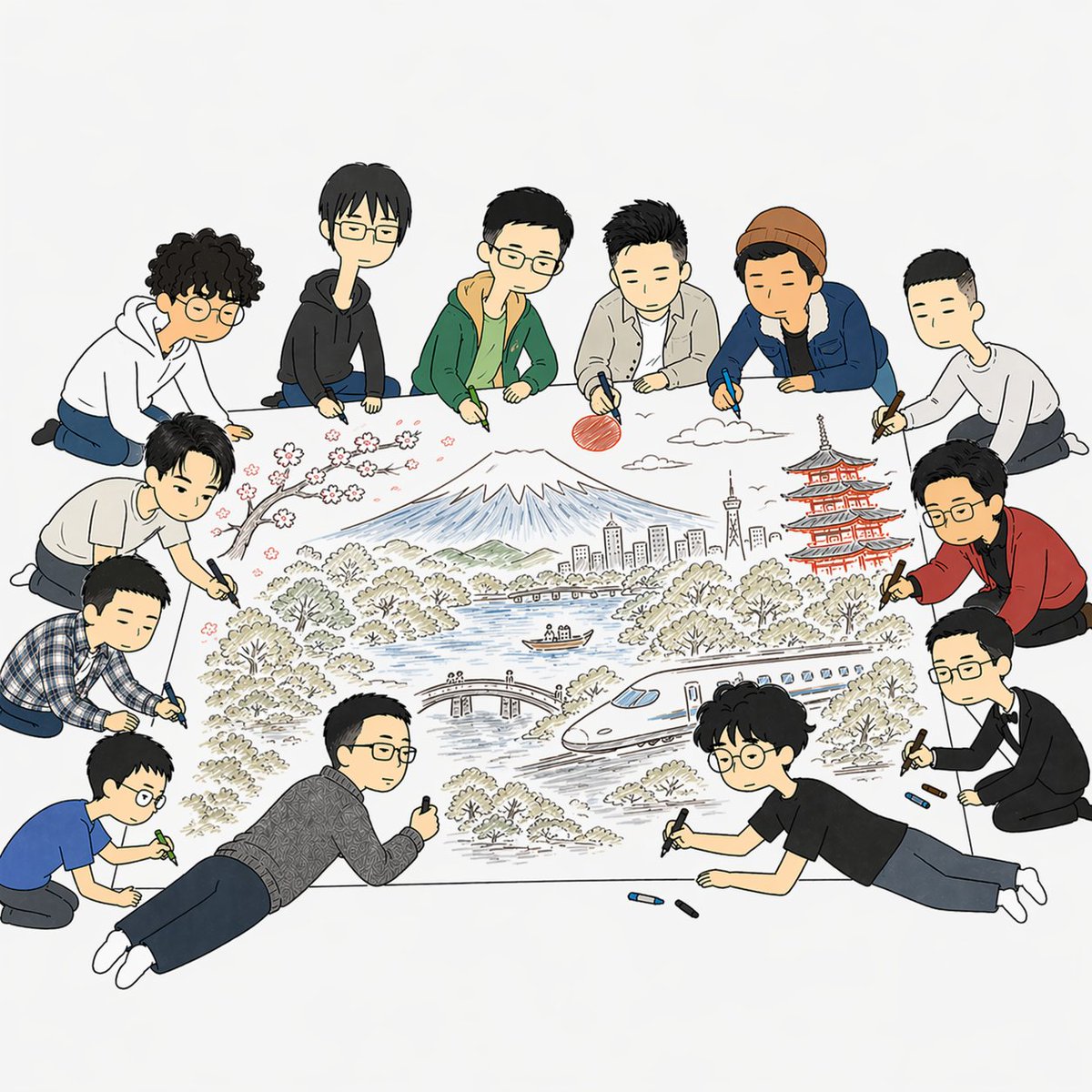
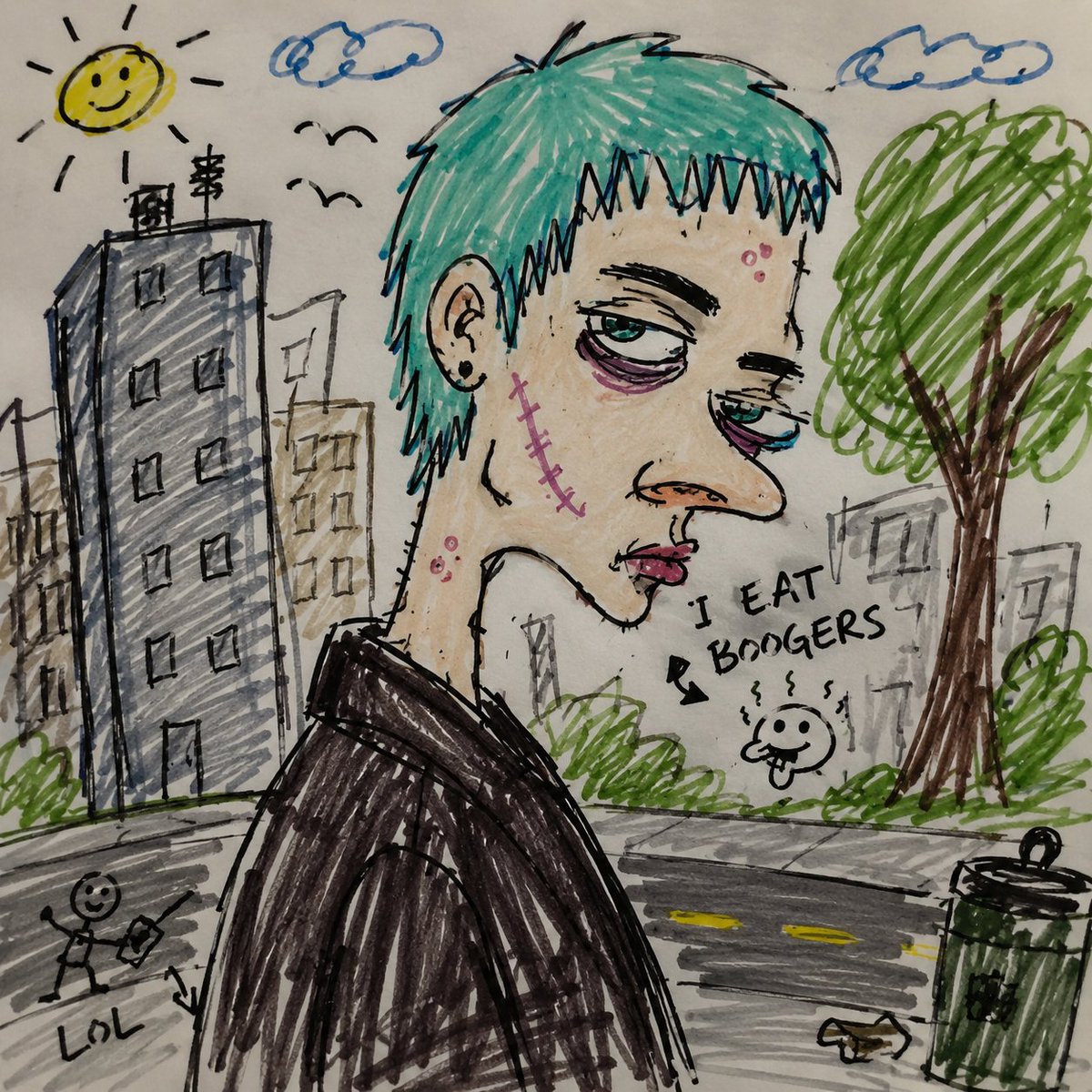
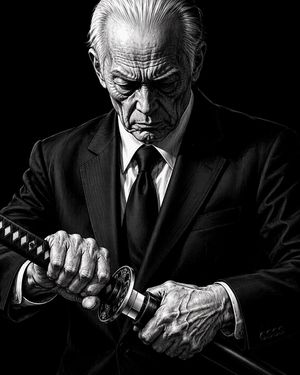
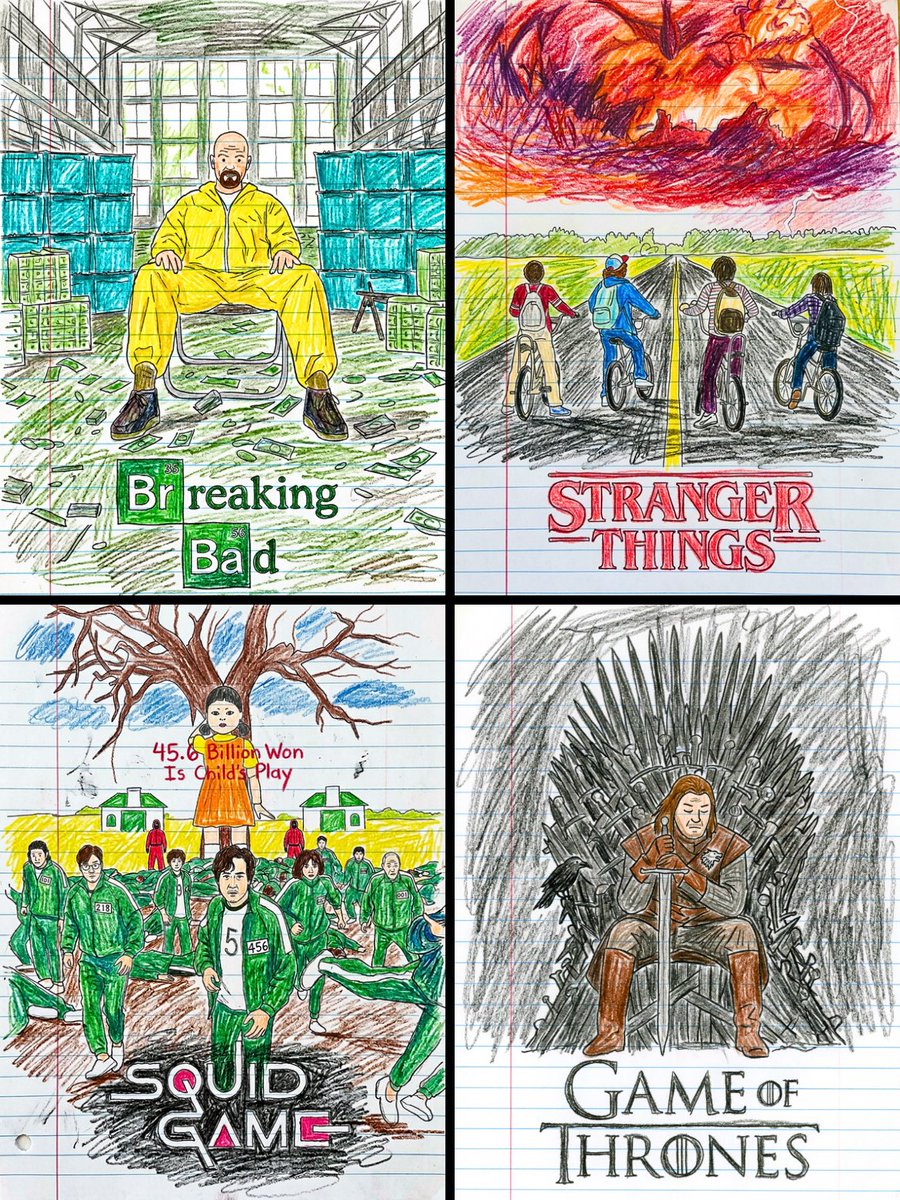
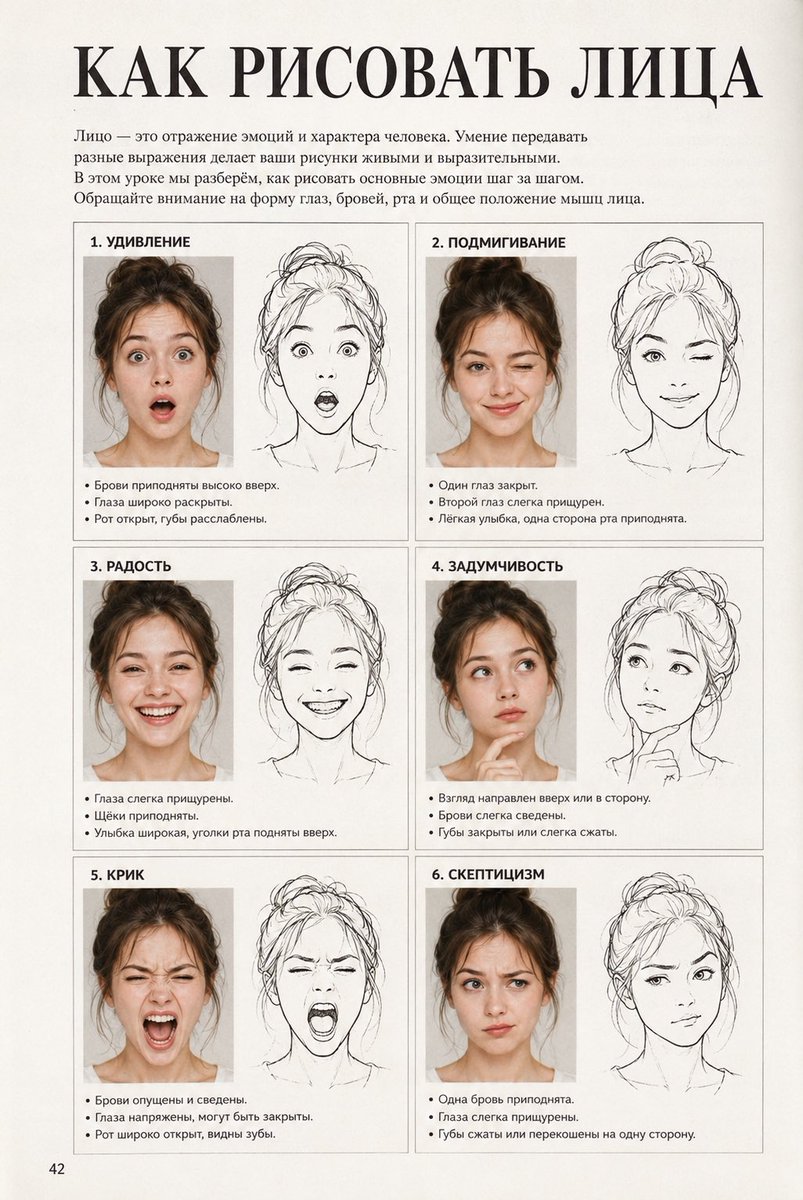
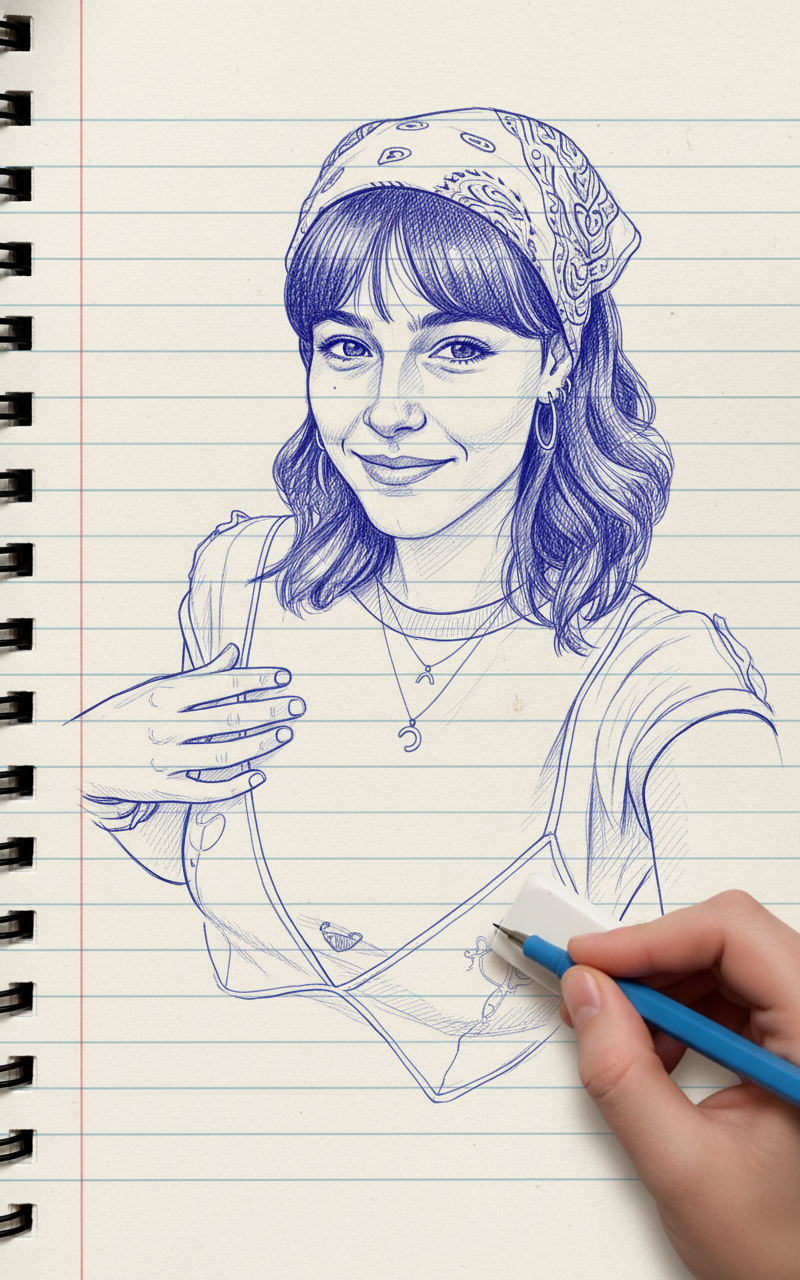
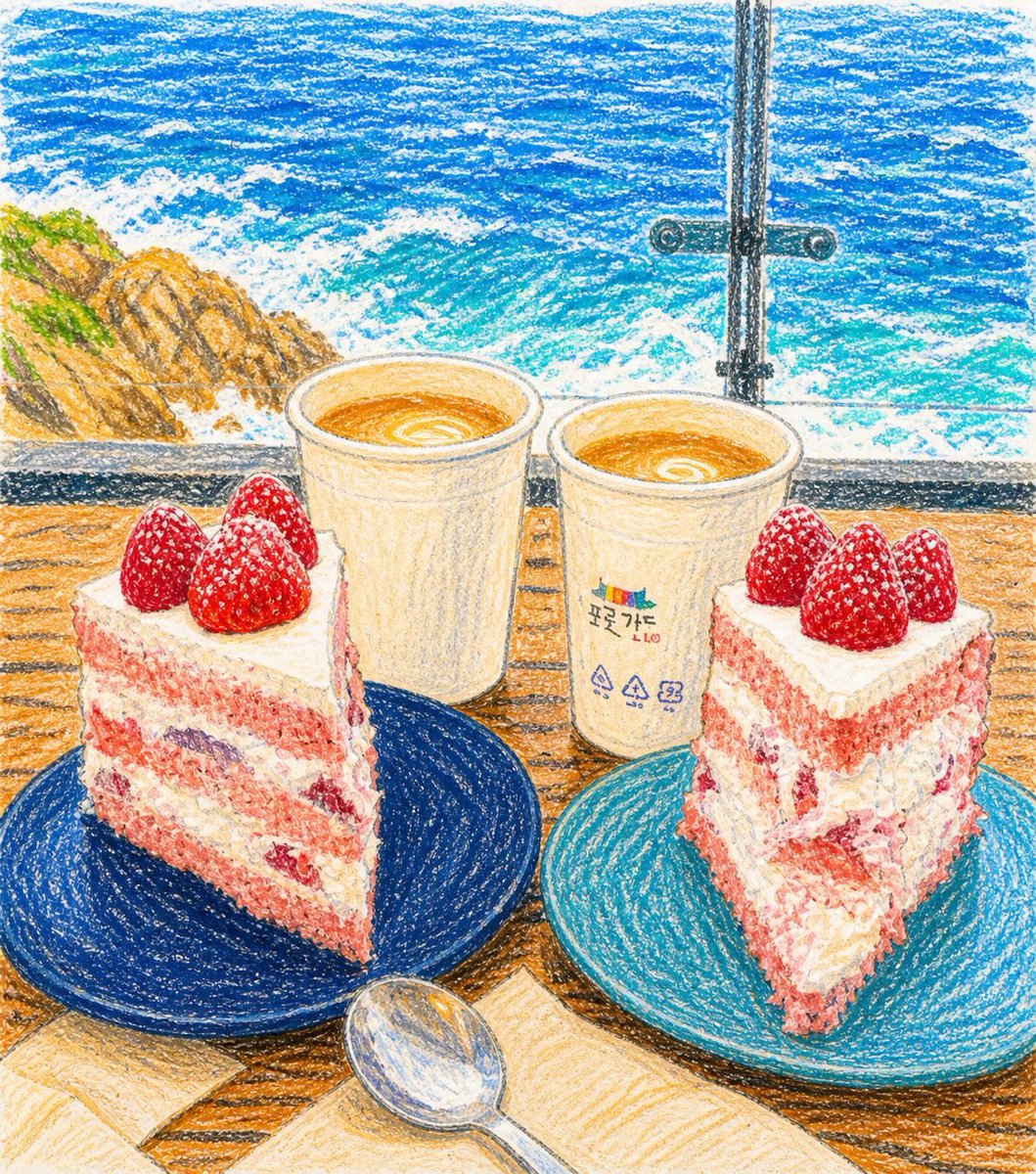
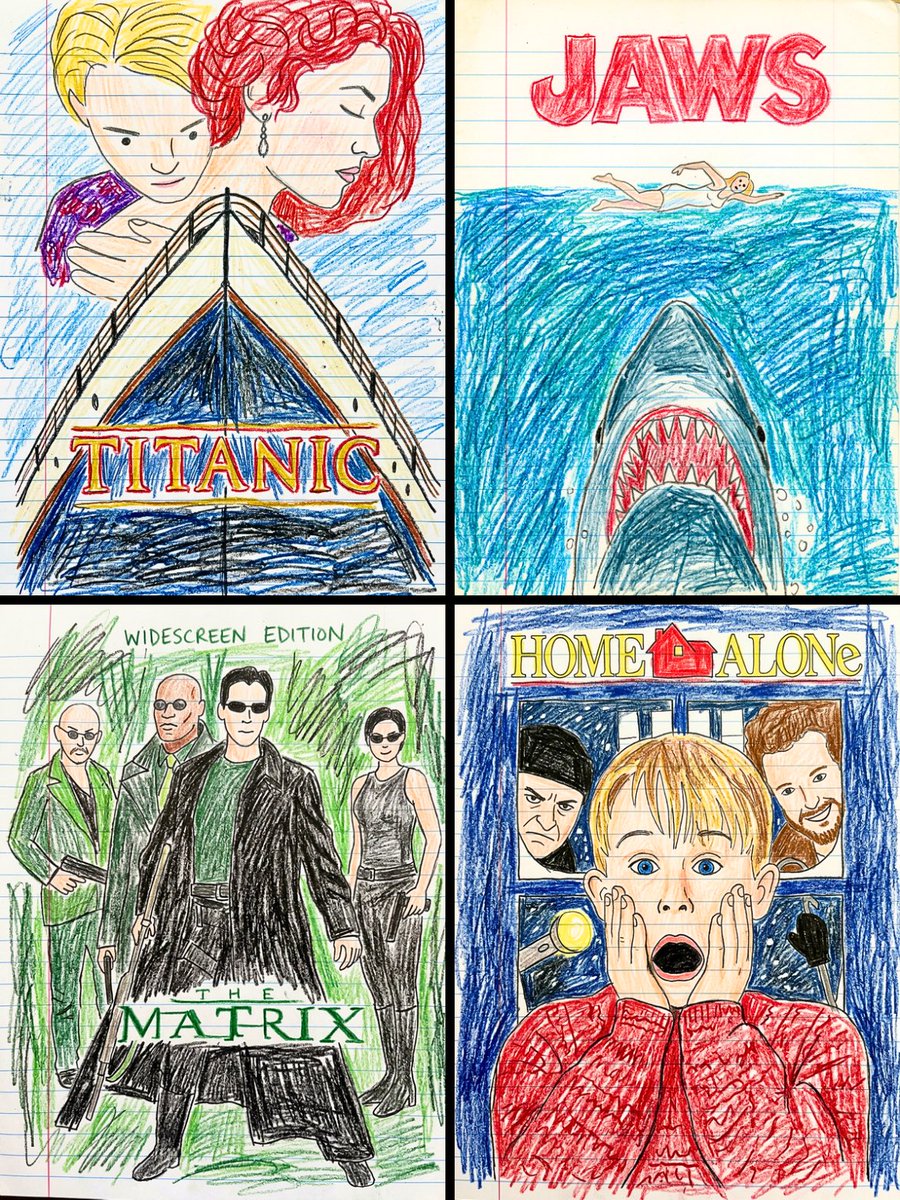
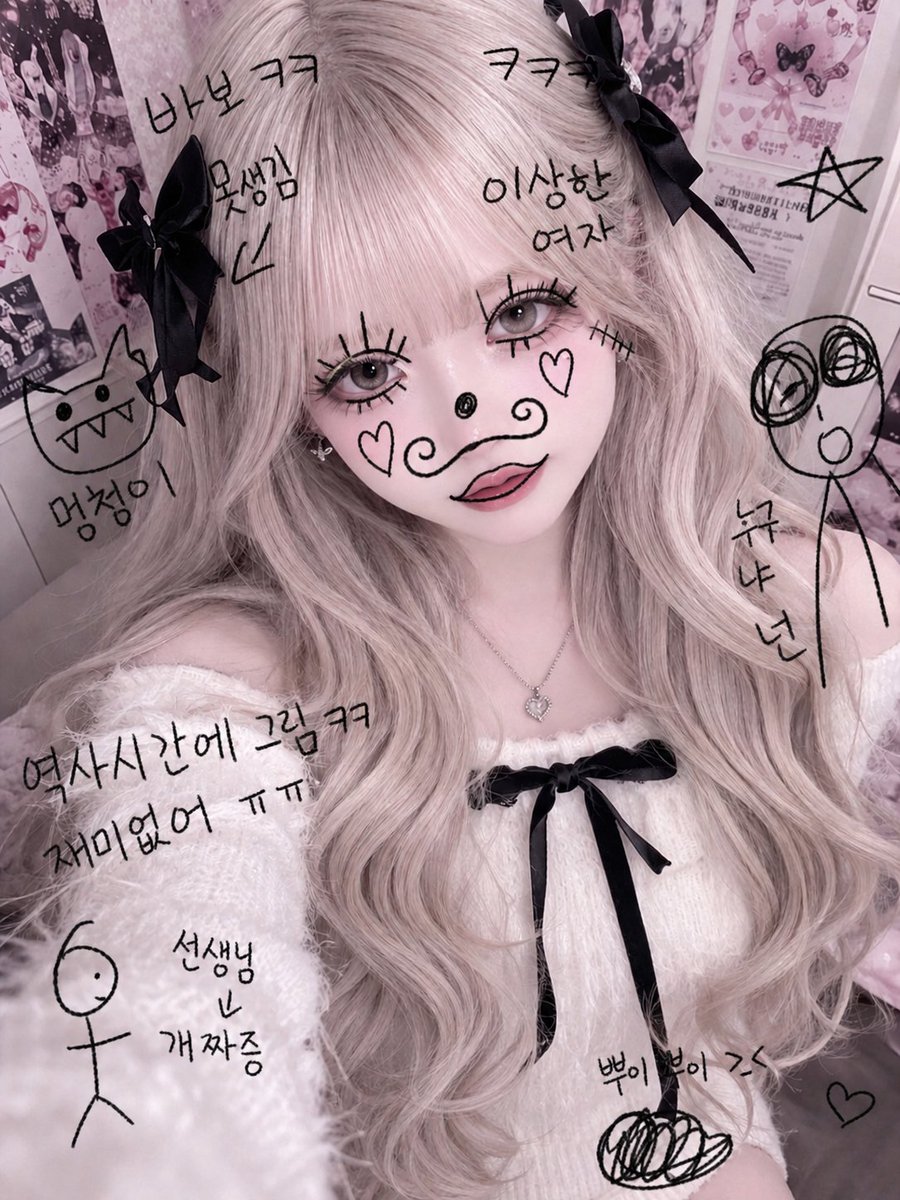
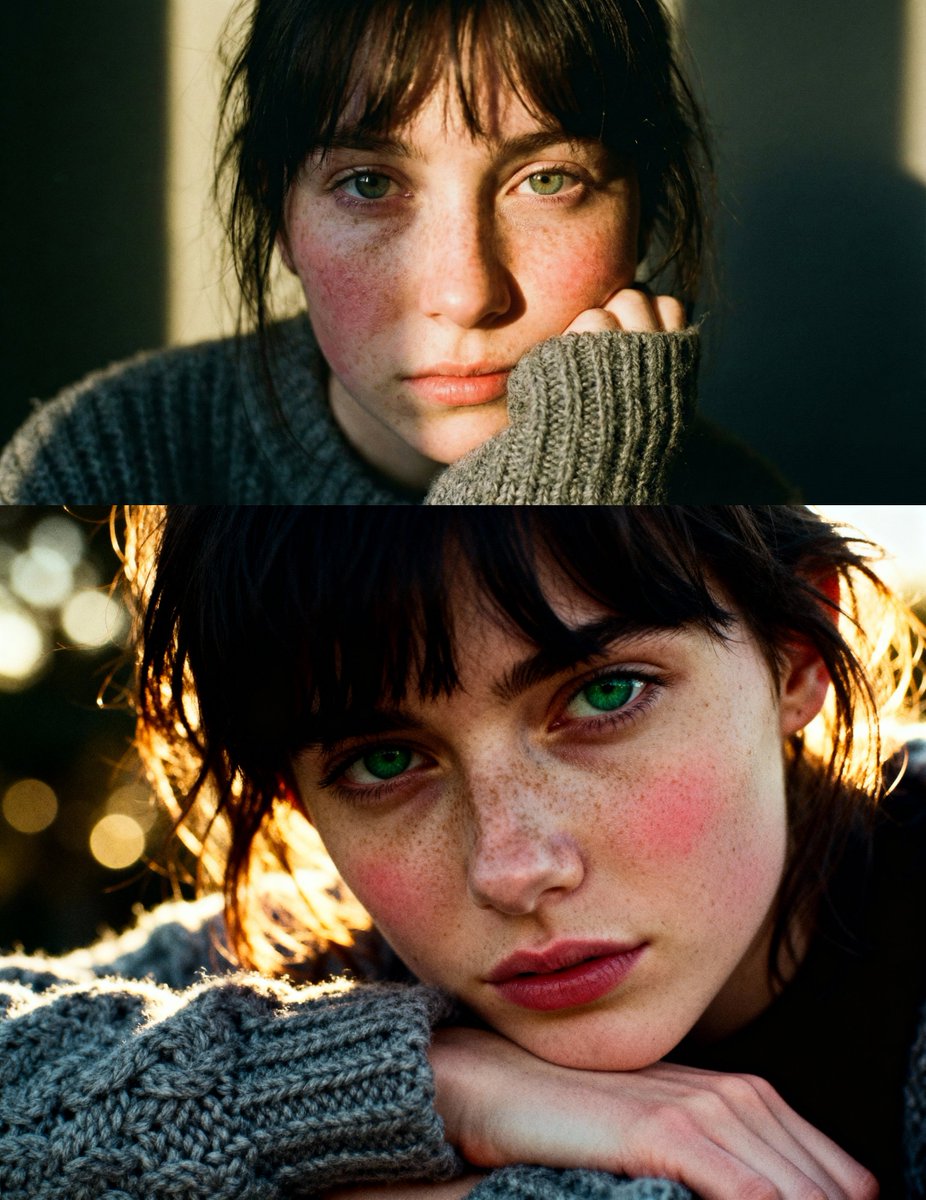
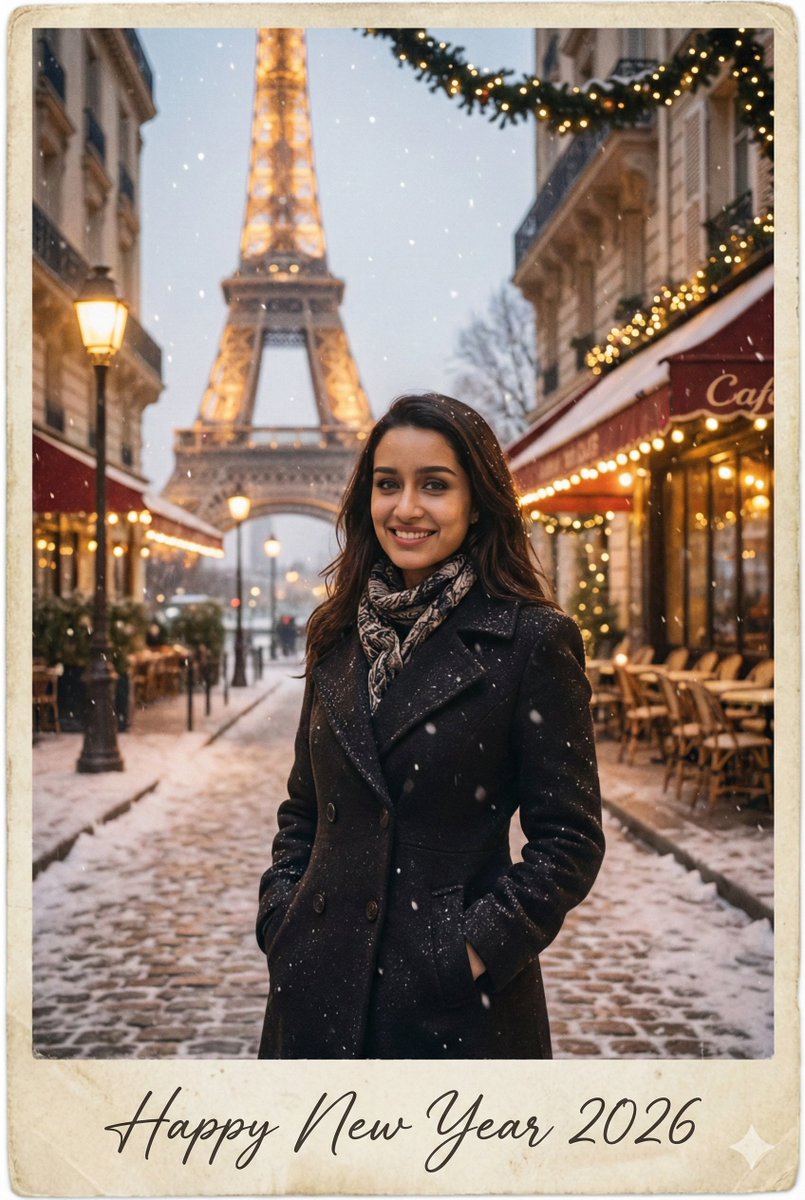
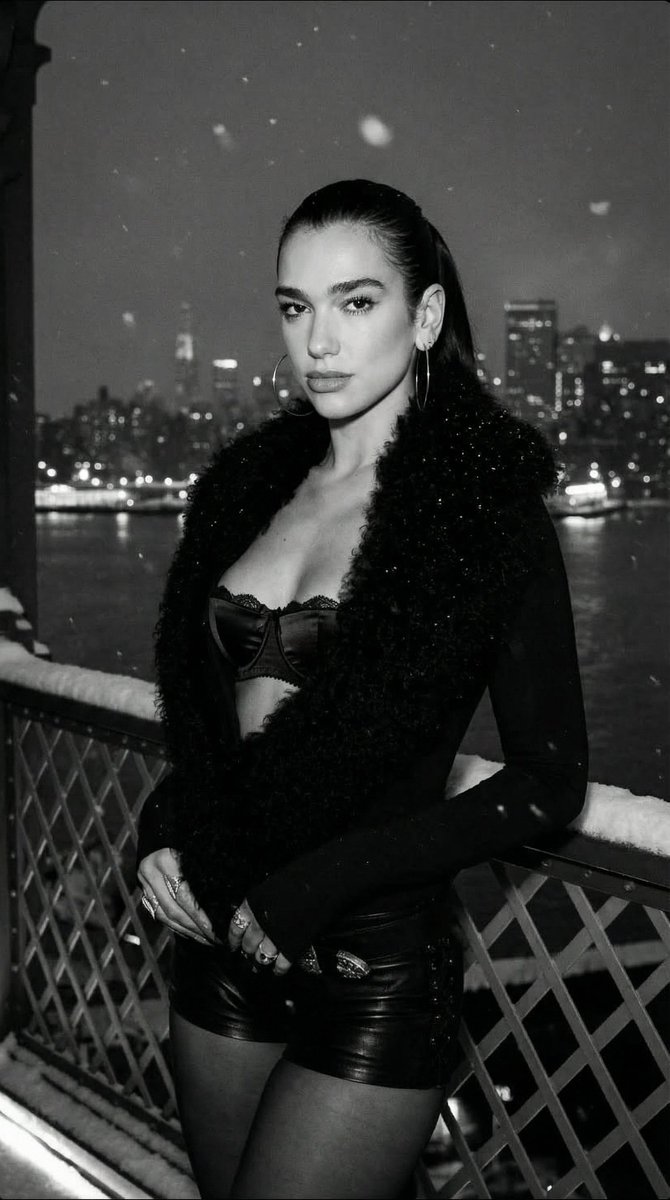
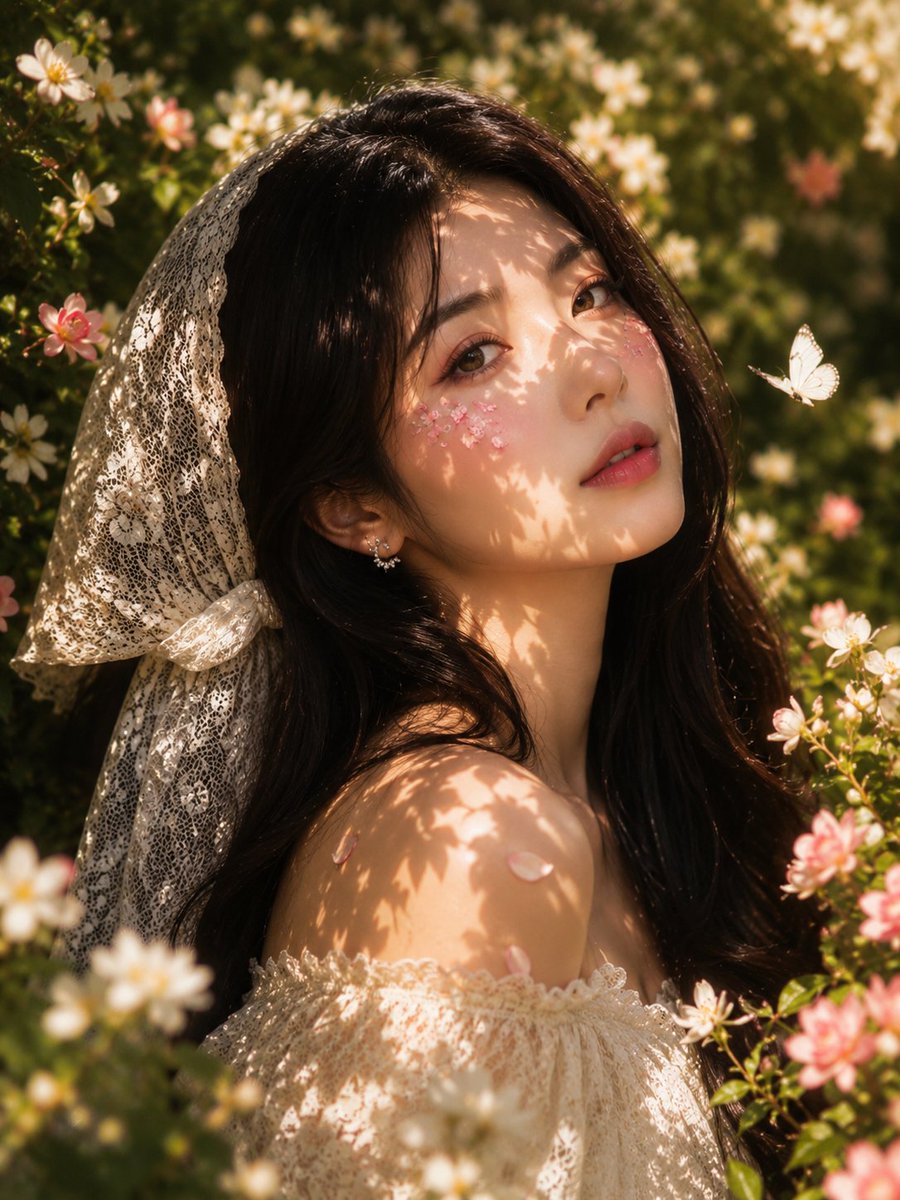
A creative instruction to transform an existing artistic drawing into a realistic, color human photograph.
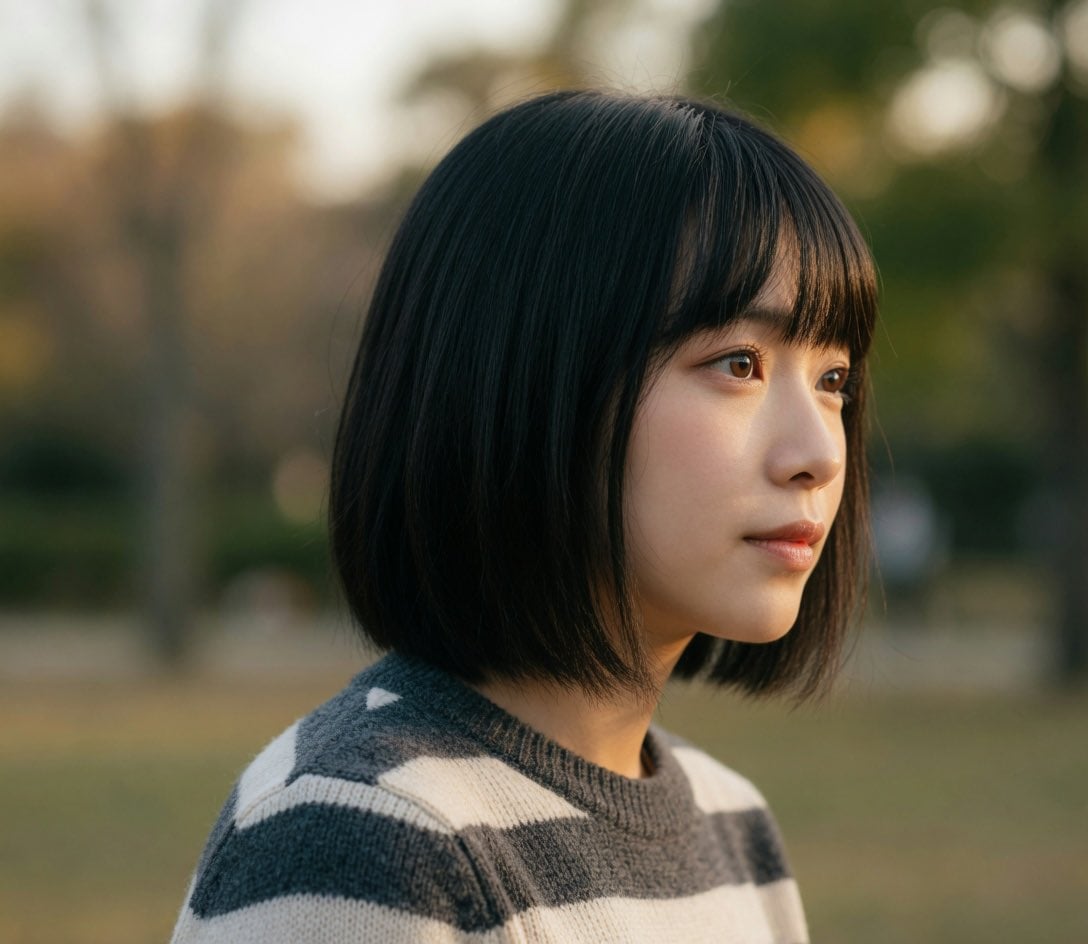
この絵を、{argument name="スタイル" default="リアルな人間の写真"}に変えて。{argument name="色彩" default="カラー"}で。
Choose the primary action to open PicX Studio with the available template settings. Review the model and format, personalize the creative direction, and generate when ready.
Yes. You can change the subject, setting, lighting, mood, format, and available model controls before creating your image.
This template is free to open and customize. Generation usage is shown in PicX Studio before you create.
Start with Nano Banana 2, which is the model associated with this template. You can compare another compatible model for a different finish.
Follow a topic to a crawlable collection of related PicX Studio templates.