
CNC Router Wood Sculpture Simulation
A creative prompt simulating a 5-axis CNC router carving a city map onto a wooden Mobius-strip geometry.

- Prompt included
- Model and format preset
- Free template
The prompt behind this image
Copy the exact prompt behind CNC Router Wood Sculpture Simulation, or open it in the studio and make it yours.
cmd>> initiate 5-axis cnc router simulation target_material: high-density mdf and pale balsa wood blocks, glued in visible horizontal strata (layers). milling_subject: [variable_location] [variable_location]: "{argument name="location" default="city mecca"}" toolpath_instructions: 1. roughing_pass: carve the master block into an impossible, continuous mobius-strip geometry. 2. finishing_pass: micro-carve the surface to perfectly replicate the urban layout of [variable_location]. 3. ai_detailing: the router must intricately carve the buildings, monuments, houses and other elements of the [variable_location[, seamlessly bending them along the twisted wooden loop. surface_finish: do not paint. leave the laser-burn marks in the deep crevices. leave the wood dust in the tiny carved streets. insert microscopic silver metal pins to represent cars on the looping avenues. render_output: a photorealistic close-up of this finished physical sculpture resting on a craftsman's workbench. overhead shop lighting.
How to use CNC Router Wood Sculpture Simulation in 3 steps
- 1
Open
The prompt is already in the box next to the preview, with the template's model and format selected.
- 2…a portrait of your subject in softgolden-hour light, 85mm…
Personalize
Edit the subject and creative details for your destination.
- 3Generate
Generate
Press Generate — your image is created in PicX Studio, so you can compare it with the original and refine one variable at a time.
More like this
Templates with the same subject, style or setup. Open one to see its prompt.
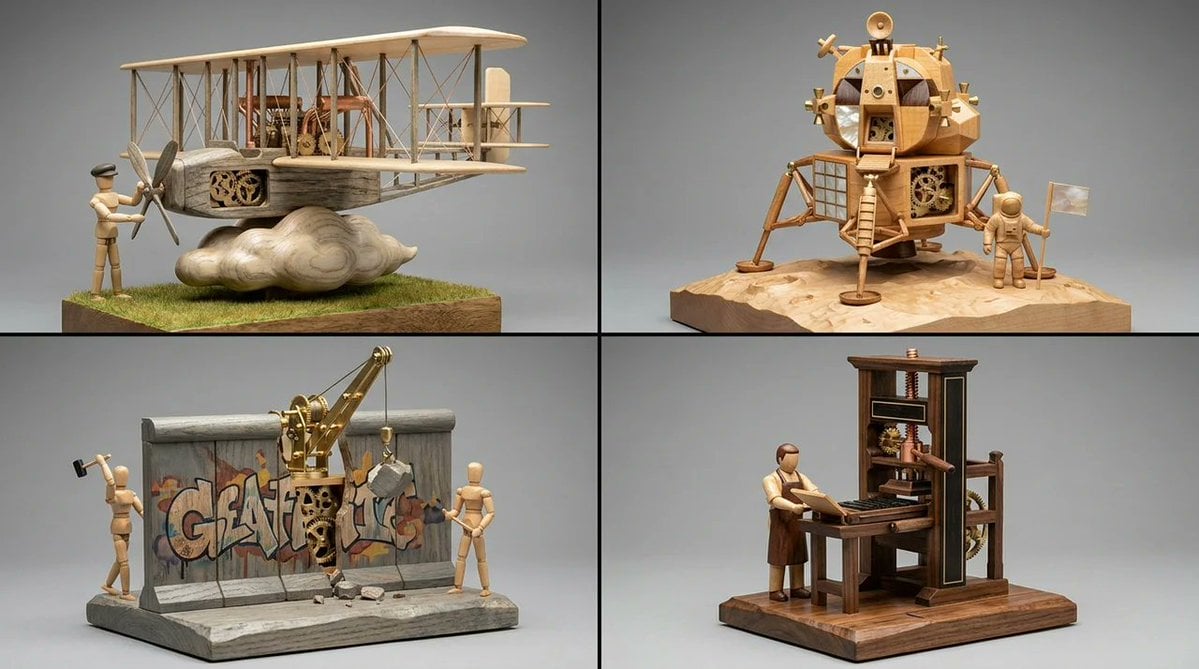
Woodpunk Kinetic Sculpture Automaton
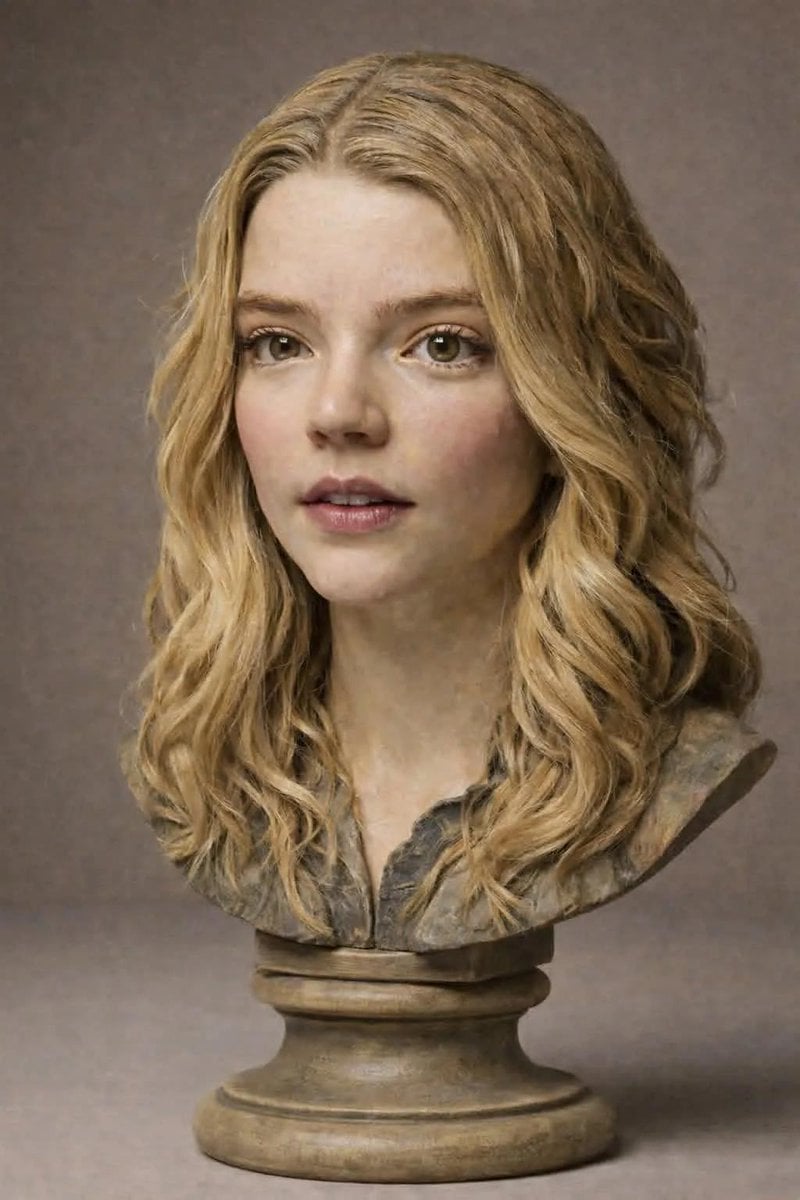
Polychrome Carved Wooden Sculpture Portrait
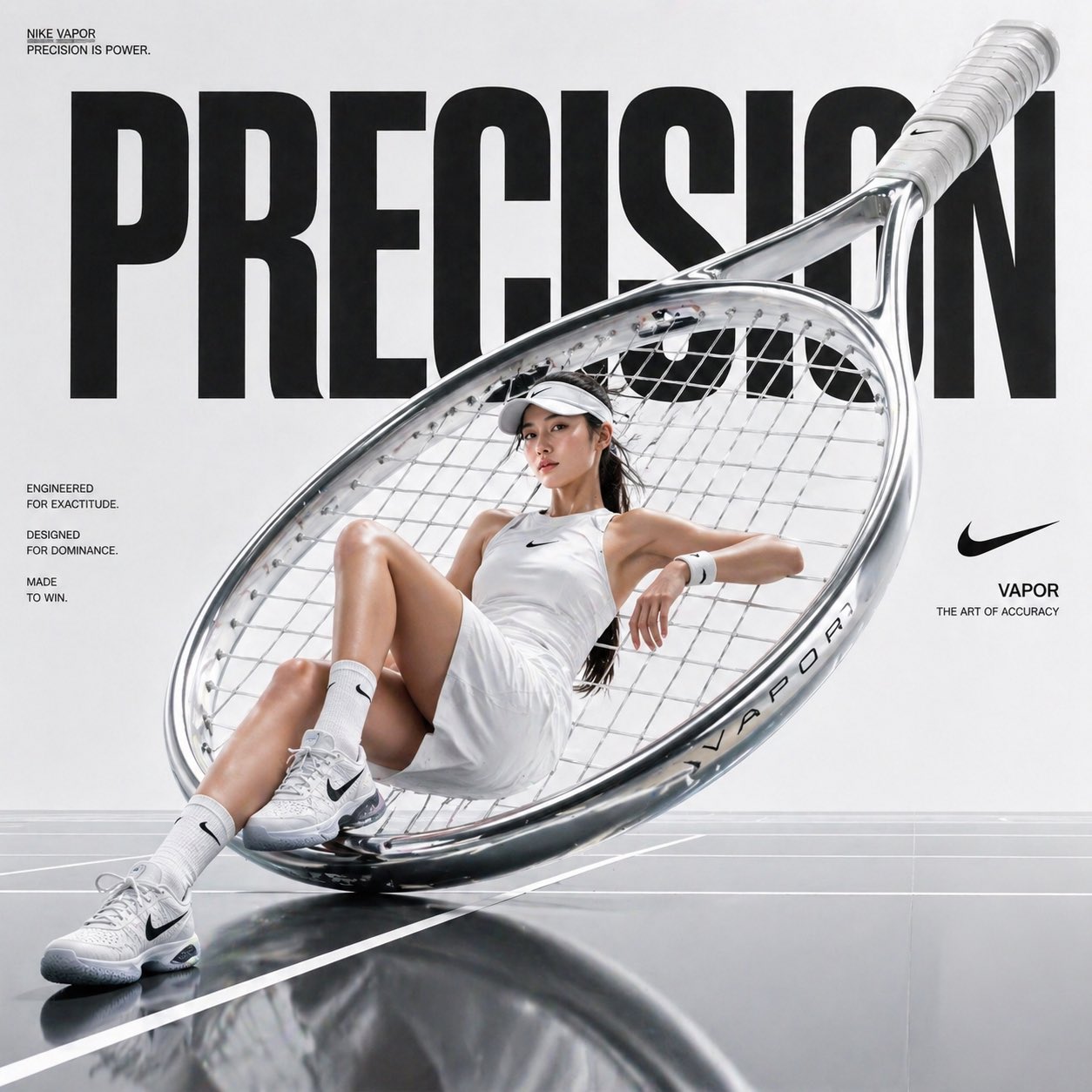
Gpt2 Avant Garde Tennis Fashion

Realistic Woman Portrait with Wood Background

A hand-carved wooden miniature figure shaped with visible knife marks
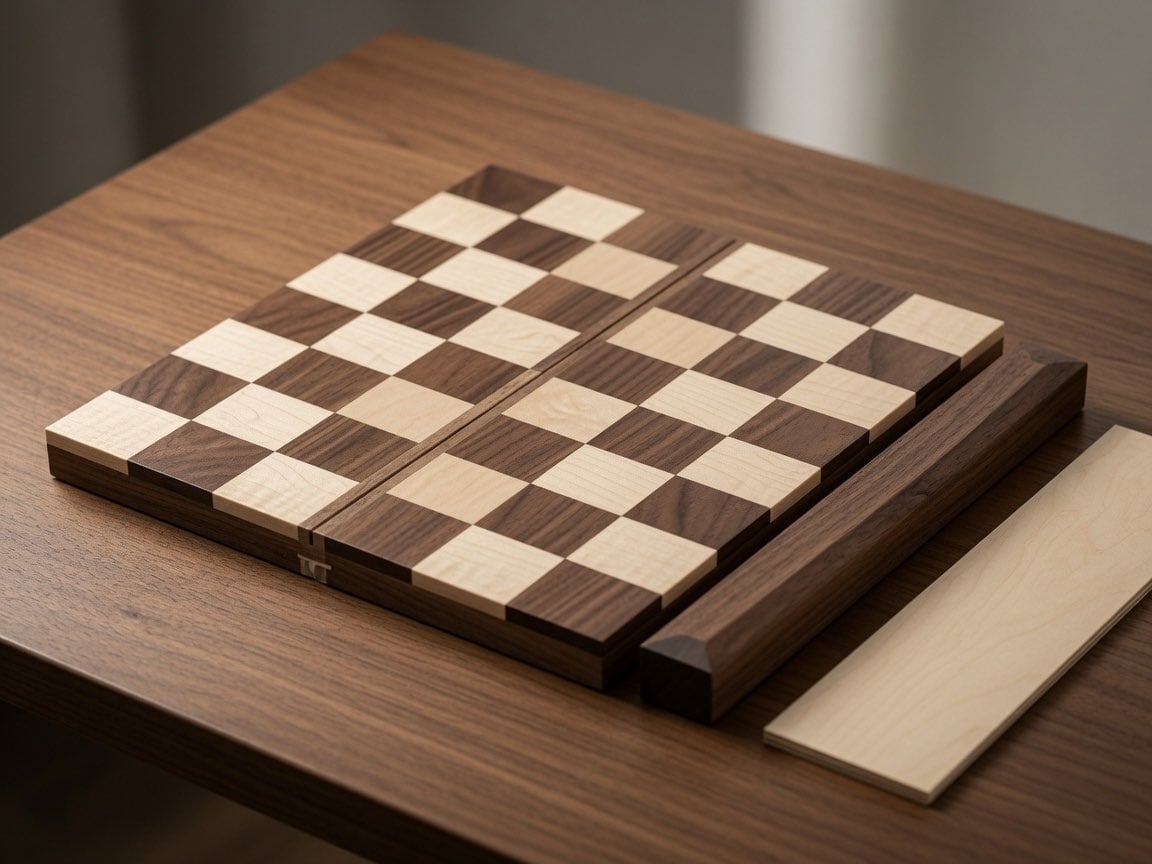
Wooden Travel Chessboard

Surreal beach giant boot sculpture
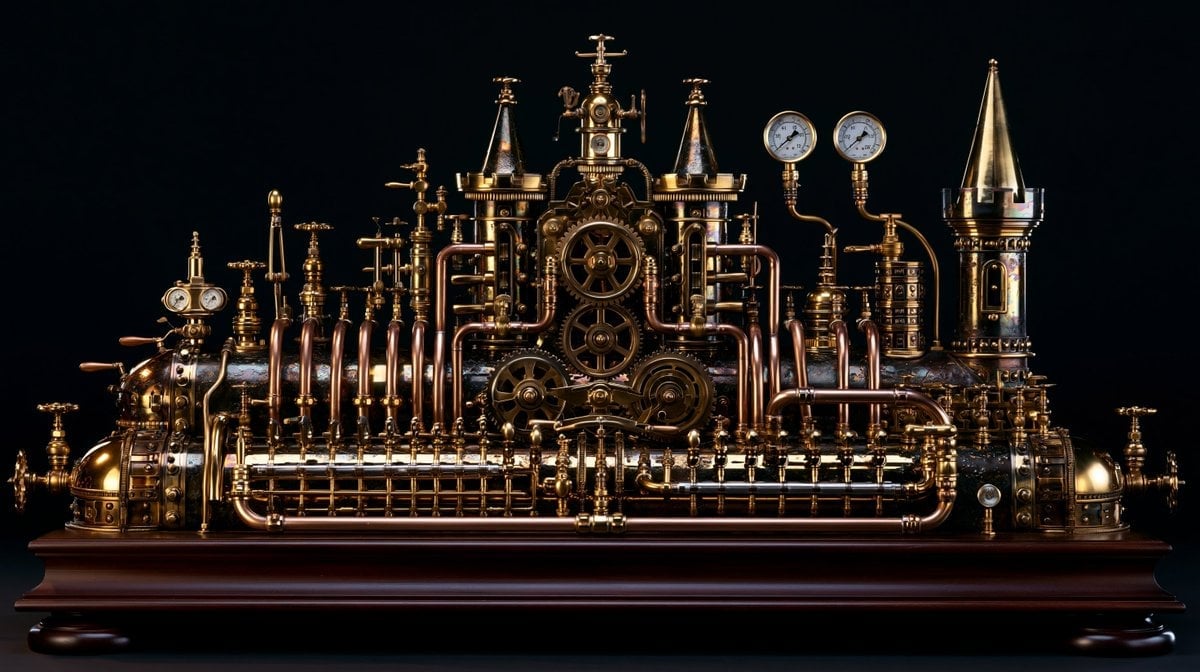
Intricate Steampunk Mechanical Sculpture
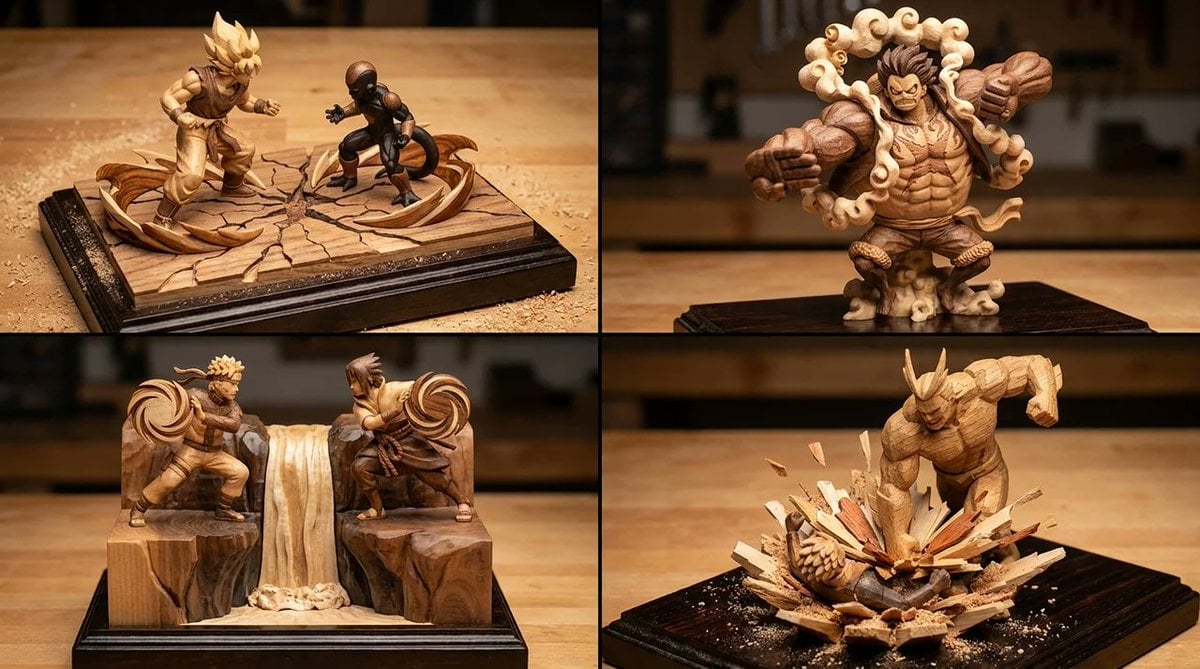
Manga Scene Woodcraft Diorama

Vintage Hollywood Monochrome Portrait
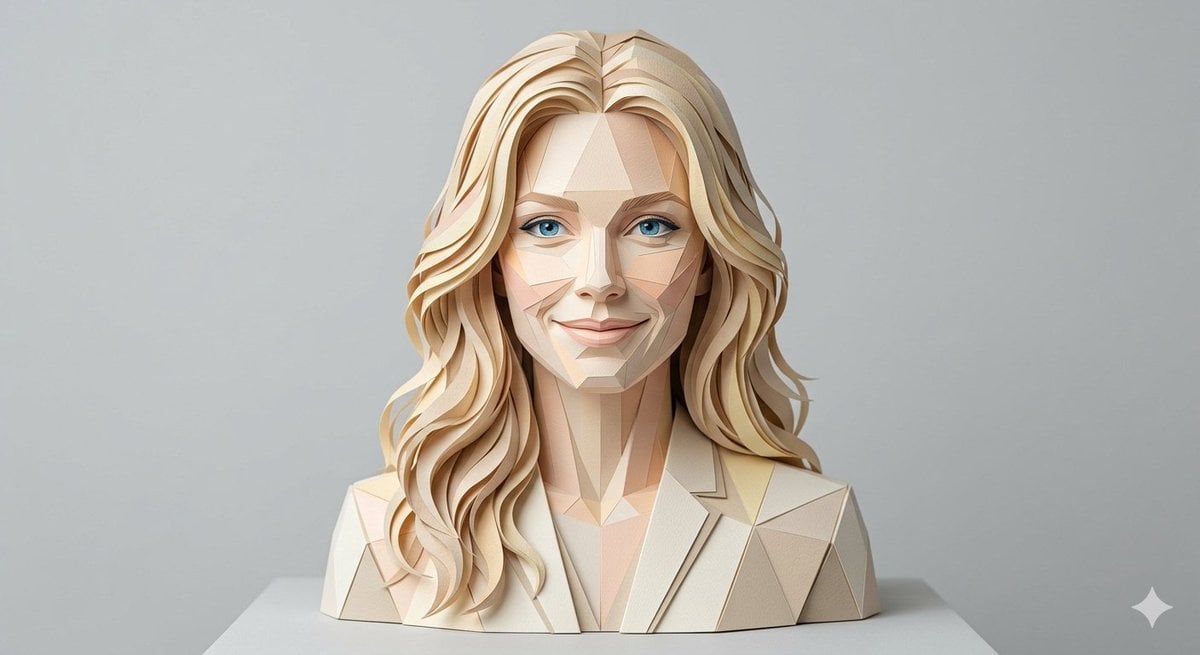
Realistic Paper Sculpture Portrait
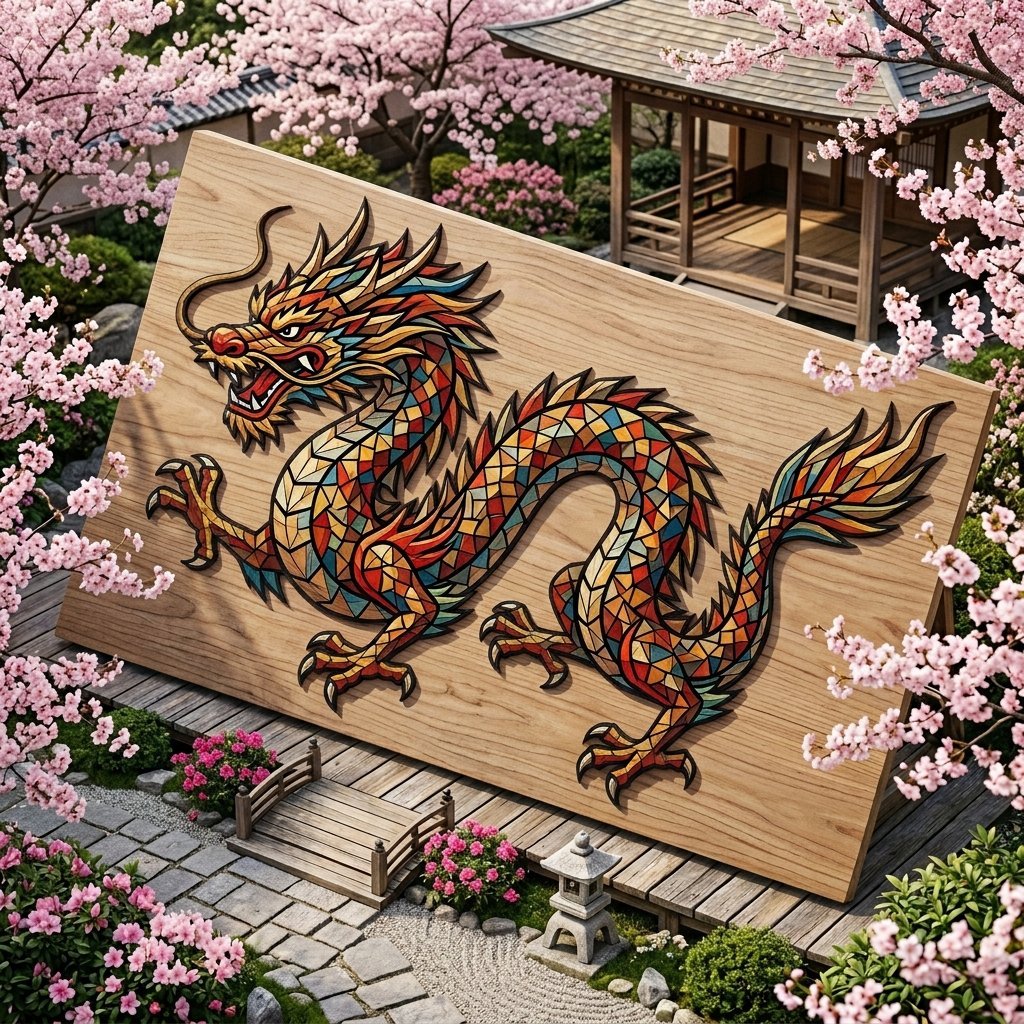
Chinese Dragon Wood Mosaic
Make it yours
CNC Router Wood Sculpture Simulation works as-is. These are the safest ways to change it without losing the look.
Change one field
Copy a single group, rewrite it, and generate again so you can see what that field is doing.
Keep the frame, change the subject
Hold the composition and light of CNC Router Wood Sculpture Simulation, then swap wardrobe, props or the person for a new take.
| If the result… | Why | Fix |
|---|---|---|
| The result drifts from the preview | Too many fields changed at once. | Reuse CNC Router Wood Sculpture Simulation as-is first, then change one group — subject, light, or setting. |
| The model over-stylizes the scene | The prose prompt leaves finish and camera underspecified. | Add one camera or lighting sentence and stay on Nano Banana 2. |
More Nano Banana 2 templates
Other prompts made for Nano Banana 2.

Photorealistic Leaf Shaped Like a Dragon

K-Pop Idol Portrait Grid for Rapid Selection

Poetic Rain Forest Portrait During Golden Hour

Urban Street Portrait with Cartoon Inner Self Duo

Candid Nighttime Photo with Cat Prompt

High-Concept 3D Diorama Generation Prompt

Cinematic Futuristic Studio Portrait Template

Skincare Editorial Photography Collage Prompt

Hyper-Realistic Commercial Product Photography (Splash Effect)

Hyper-Realistic Nightclub Portrait Prompt
More image prompts
Fresh picks from across the catalog.
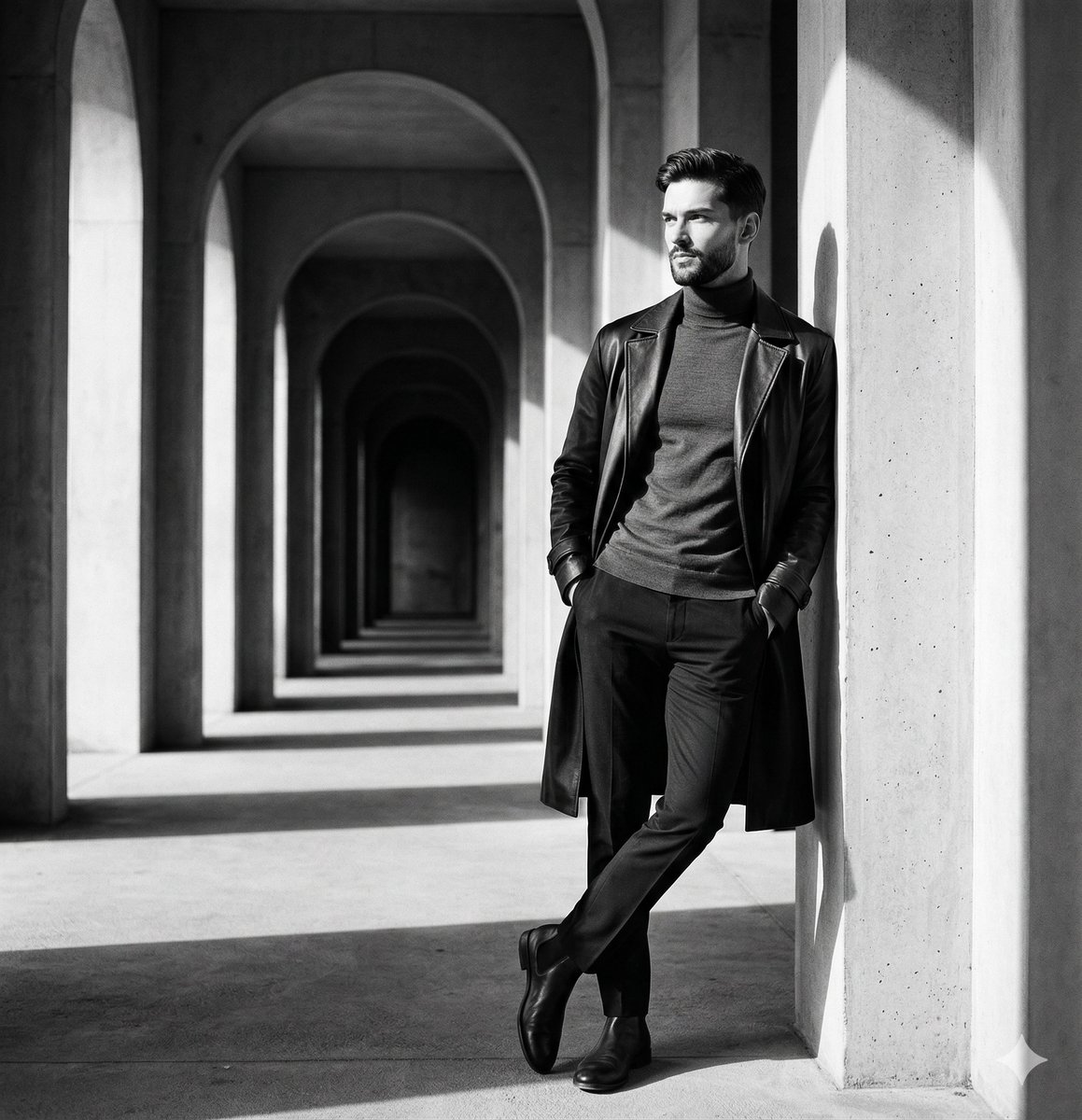
Monochromatic Editorial Portrait Prompt for Gemini Nano Banana 2
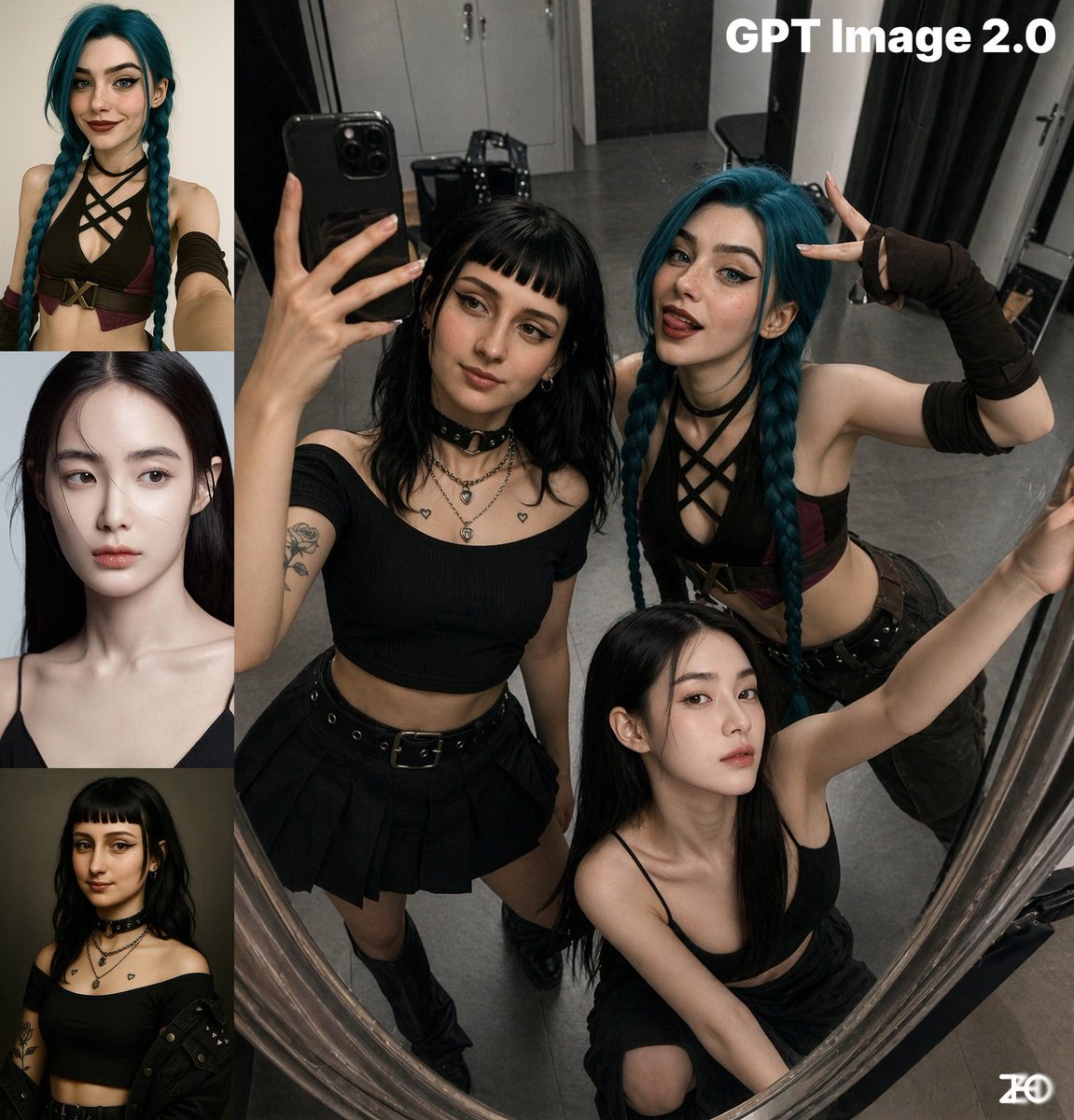
Top-View Mirror Selfie

Ultra-Realistic Corporate Lifestyle Portrait

Low-angle man with hood scarf and cat on head
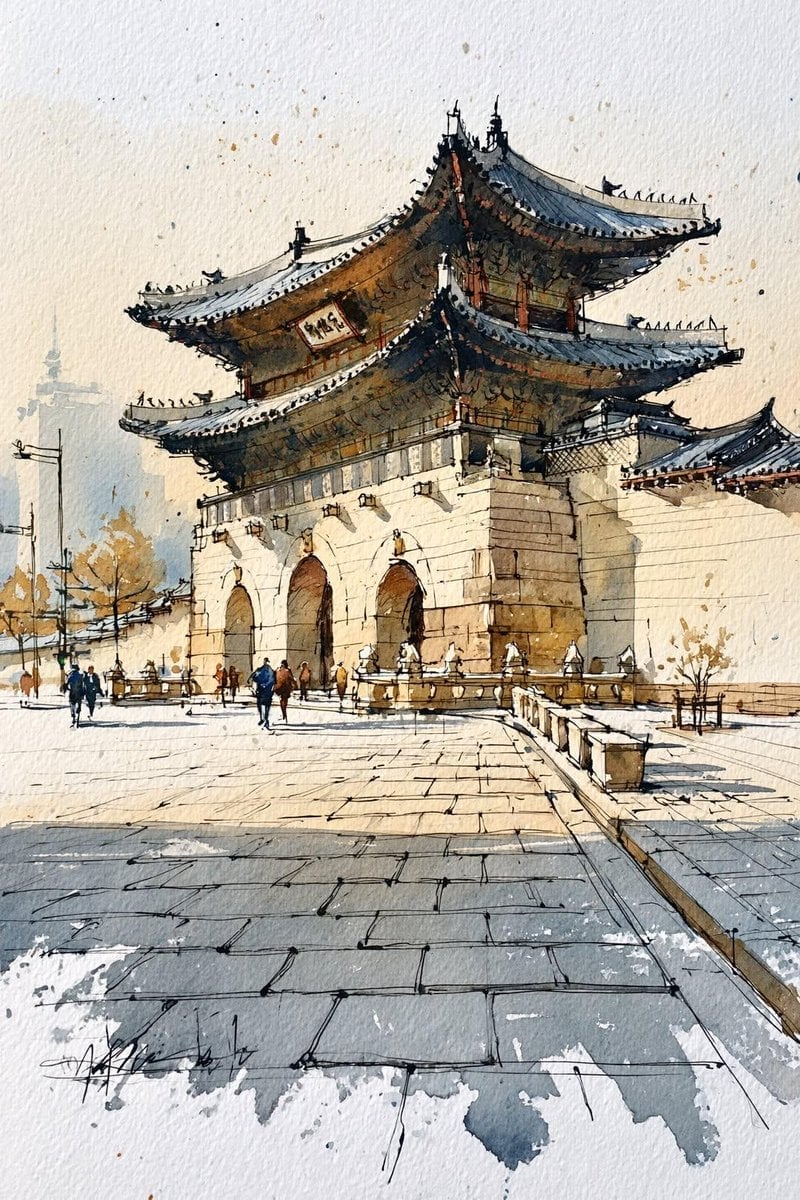
Korean Hanok Watercolor Sketch
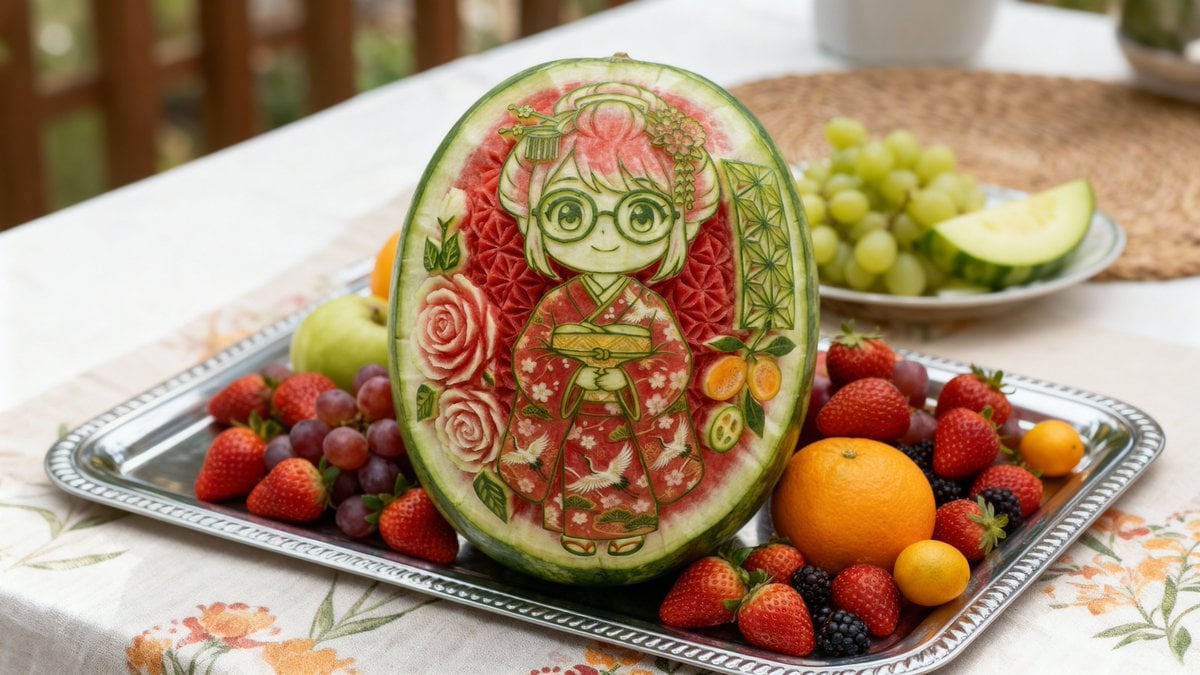
Photorealistic Watermelon Carving of an Original Character (OC)
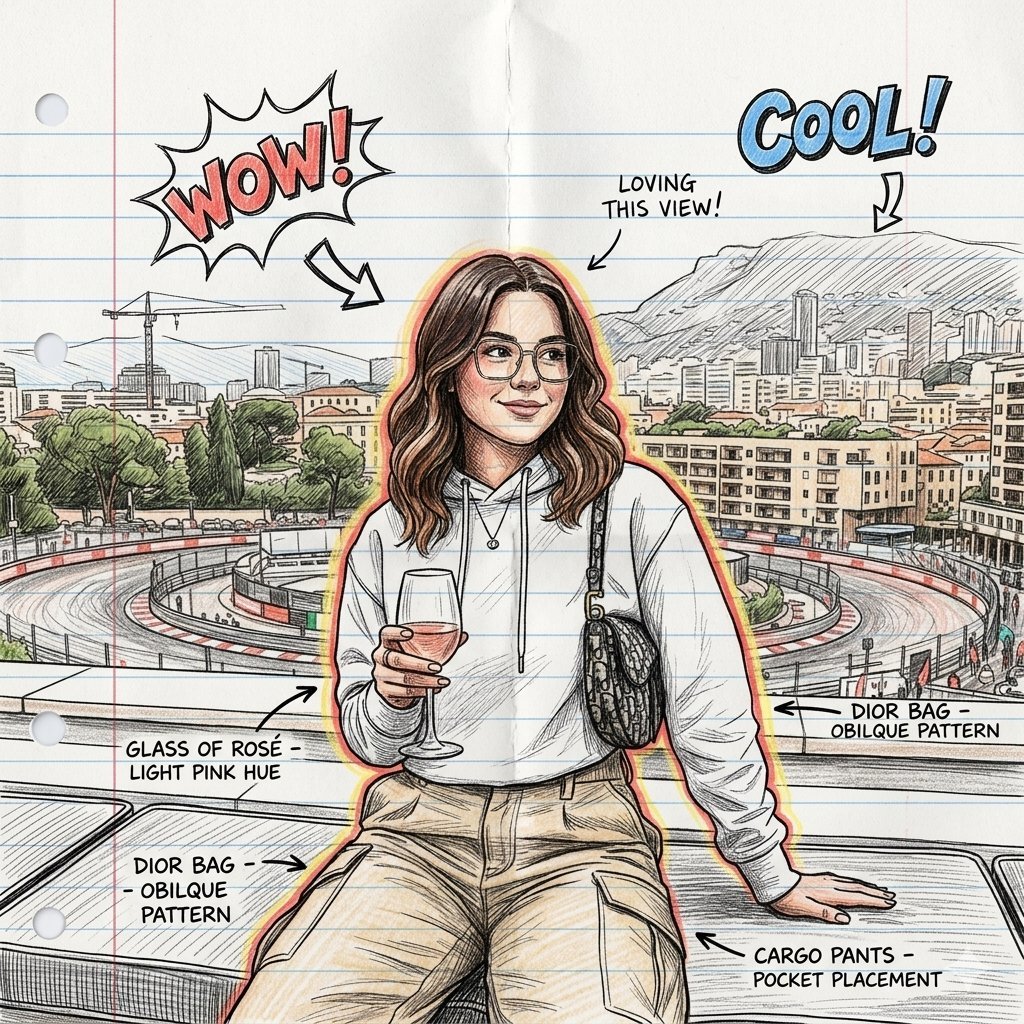
Gemini Nano Banana 2
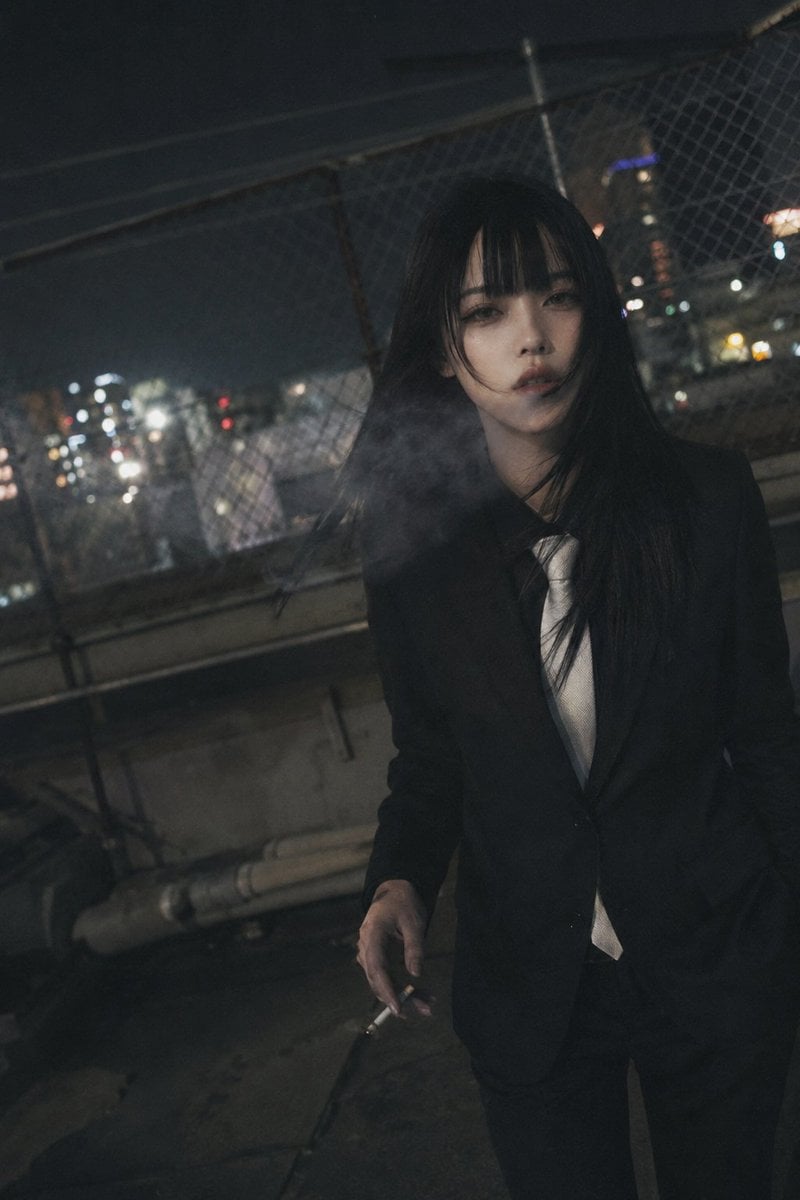
Candid Night Rooftop Portrait
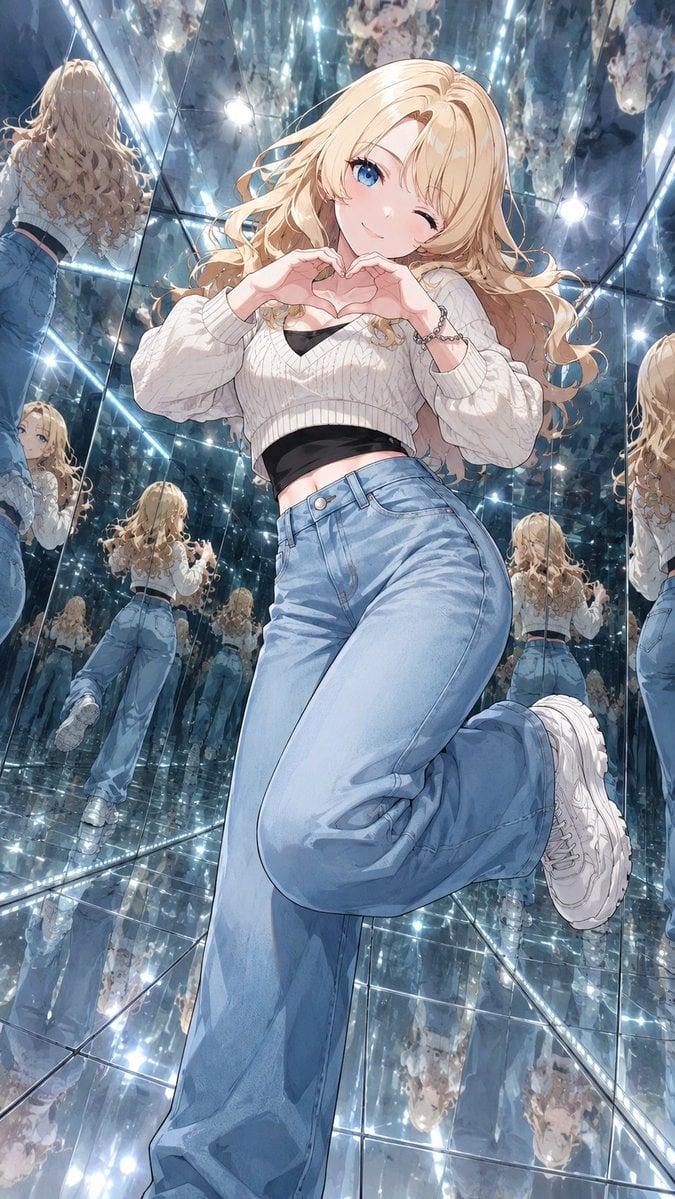
Anime Girl in Mirror Room
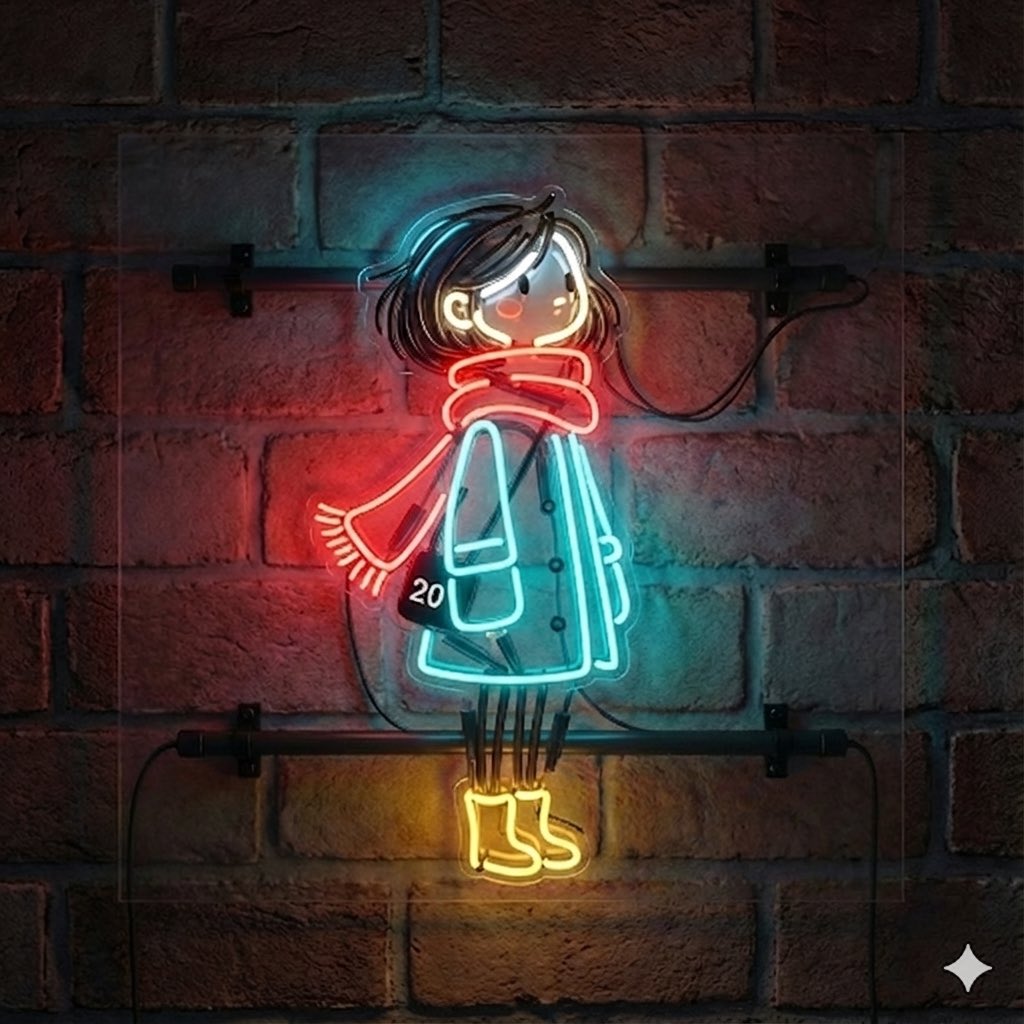
Image-to-Neon Light Transformation
Browse template categories
CNC Router Wood Sculpture Simulation questions
How do I use the CNC Router Wood Sculpture Simulation template?
Add your photo if the template asks for one, edit the prompt if you like — the template's model and format are already selected — and press Generate. Your version opens in PicX Studio.
Can I customize the CNC Router Wood Sculpture Simulation template?
Yes. You can change the subject, setting, lighting, mood, format, and available model controls before creating your image.
Is the CNC Router Wood Sculpture Simulation template free?
Opening and editing this template is free. Generating uses credits, shown on the Generate button when you are signed in.
Which AI model should I use?
Start with Nano Banana 2, which is the model associated with this template. You can compare another compatible model for a different finish.
Looking for something else? Browse all templates.

Your photo, any look
Thousands of ready templates for every top image and video model, from one credit balance.