
Pixel Monster Music Sequencer UI
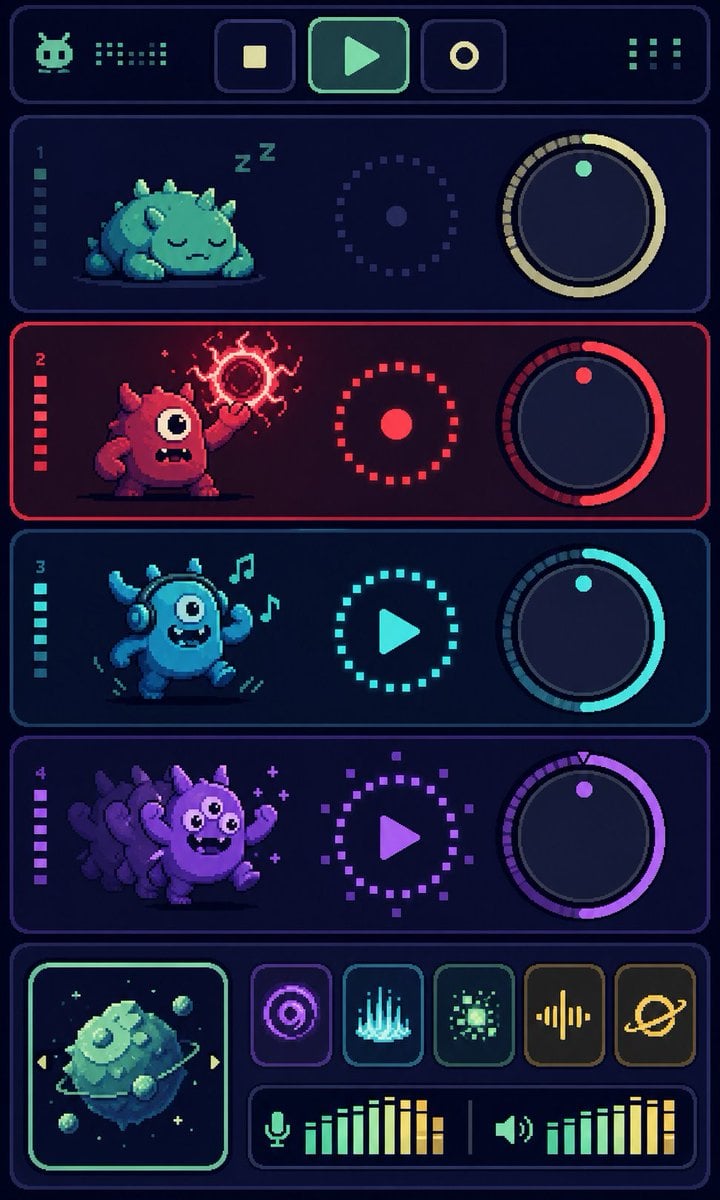
Generates a vertical retro pixel-art synth dashboard with four monster tracks, knobs, transport controls, effects, and audio meters.
- Prompt included
- Model and format preset
- Premium template
The prompt behind this image
Copy the exact prompt behind Pixel Monster Music Sequencer UI, or open it in the studio and make it yours.
Goal: Create a vertical pixel-art sci-fi music sequencer interface showing four cute monster audio tracks, like a retro game synth dashboard. Canvas: Tall portrait mobile screen, 720×1200 style, dark navy background with glowing rounded rectangular panels and crisp pixel-art edges. Use a limited neon palette with cyan, mint, red, purple, and yellow accents. Everything should look like high-resolution pixel art, with subtle scanline/dither texture and no photorealism. Layout: At the very top, create one wide rounded header bar. Inside it place exactly 6 discrete control/readout elements: 1 small alien/robot face icon on the left, 1 dotted equalizer readout beside it, 3 square transport buttons in the center showing stop, play, and record icons, and 1 dotted menu/grid indicator on the right. Main track area: Stack exactly 4 horizontal rounded track panels, each with a left track number and a vertical level meter, a monster character on the left, a circular dotted status control in the middle, and a large rotary knob on the right. Track 1: Label number “1”. Mint/teal theme. The creature is a sleepy squat round monster with small horns/spikes, closed eyes, lying down, with “Z Z” sleep marks above it. The middle control is a dotted circular ring with a small center dot. The right knob has a pale yellow arc and one mint indicator dot near the top. Track 2: Label number “2”. Red theme. The creature is a red one-eyed monster standing aggressively, mouth open with teeth, one arm raised and casting a crackling magical red orb above its hand. The middle control is a red dotted ring with a solid red center dot. The right knob has a red arc and one red indicator dot. Track 3: Label number “3”. Cyan theme. The creature is a blue dancing one-eyed monster wearing headphones, smiling with a toothy mouth, arms raised, with exactly 2 floating music notes near its head. The middle control is a cyan dotted circle containing a play triangle. The right knob has a cyan arc and one cyan indicator dot. Track 4: Label number “4”. Purple theme. The creature is a purple energetic monster with multiple ghosted afterimage duplicates behind it, big eyes, waving arms, small sparkle marks around it. The middle control is a purple dotted circle containing a play triangle. The right knob has a purple arc and one purple indicator dot plus a tiny triangular tick at the top. Bottom mixer section: Create one wide rounded bottom panel. On the left, include exactly 1 square album-art tile with a glowing mint border, showing a floating mossy cube planet or asteroid with small orbiting rocks and tiny stars. To the right of the album art, arrange exactly 5 square effect buttons in one row: 1 purple concentric-circle/radar icon, 1 cyan vertical waveform/spectrum icon, 1 green pixel burst icon, 1 yellow audio waveform icon, and 1 yellow ringed planet icon. Beneath those buttons, add exactly 2 horizontal audio meters: the left meter has a microphone icon followed by green-to-yellow vertical bars, and the right meter has a speaker icon followed by green-to-yellow vertical bars, separated by a thin vertical divider. Text content: Only include the visible track numbers “1”, “2”, “3”, and “4”; do not add readable labels or words besides the two “Z” sleep marks. Use abstract pixel icons rather than detailed typography. Style constraints: Retro 16-bit pixel-art UI, dark futuristic synth console, glowing outlines, rounded panels, clean symmetry, high contrast, playful monster characters, no watermark, no realistic 3D rendering. Make the main accent color palette customizable: {argument name="primary neon color" default="mint cyan"}, {argument name="danger track color" default="hot red"}, {argument name="party track color" default="purple"}, {argument name="background color" default="deep navy"}, {argument name="interface theme" default="retro monster music sequencer"}.
How to use Pixel Monster Music Sequencer UI in 3 steps
- 1Upload ImagePNG, JPG or paste
Add your photo
Upload the photo the template builds on. The prompt, model and format are already set.
- 2…a portrait of your subject in softgolden-hour light, 85mm…
Personalize
Edit the subject and creative details for your destination.
- 3Generate
Generate
Press Generate — your image is created in PicX Studio, so you can compare it with the original and refine one variable at a time.
More like this
Templates with the same subject, style or setup. Open one to see its prompt.
Our Song was on a Cassette
Pixel Limited Finale Fireworks
Pixel Limited Garden Maze
Pixel Limited Rooftop Concert
Pixel Limited Bicycle Coast
Pixel Limited Castle Gate

Pixel Limited Kitchen Chaos
Pixel Limited Carnival Ride
Pixel Limited Rainy Bus Stop

Pixel Limited Space Dock
Pixel Limited Cafe Morning
Pixel Limited Mountain Summit
Make it yours
Pixel Monster Music Sequencer UI works as-is. These are the safest ways to change it without losing the look.
Change one field
Copy a single group, rewrite it, and generate again so you can see what that field is doing.
Keep the frame, change the subject
Hold the composition and light of Pixel Monster Music Sequencer UI, then swap wardrobe, props or the person for a new take.
| If the result… | Why | Fix |
|---|---|---|
| The result drifts from the preview | Too many fields changed at once. | Reuse Pixel Monster Music Sequencer UI as-is first, then change one group — subject, light, or setting. |
| The model over-stylizes the scene | The prose prompt leaves finish and camera underspecified. | Add one camera or lighting sentence and stay on GPT Image 2. |
More GPT Image 2 templates
Other prompts made for GPT Image 2.

Six VTuber Japanese Logo Sheet

Realistic Portrait of Woman and Deer

The Vista Modular Condo Poster

AI Model Routing Comparison Infographic

2.5D Anime Art Board

Isometric Productivity Desk Scene

New York Double Exposure Poster

Four-Panel AI Landscape Comparison

Japanese Tatami Lifestyle Magazine Cover

NESCAFÉ Coffee Map Poster
More image prompts
Fresh picks from across the catalog.
Blue Hair Repetition
Candid Flash Photo of Woman in Avant-Garde Silk Gown

Macro Beauty Ad for Teeth Whitening Strips with Peeling Effect
Cozy Split-Level Studio Apartment with Rainy Garden View
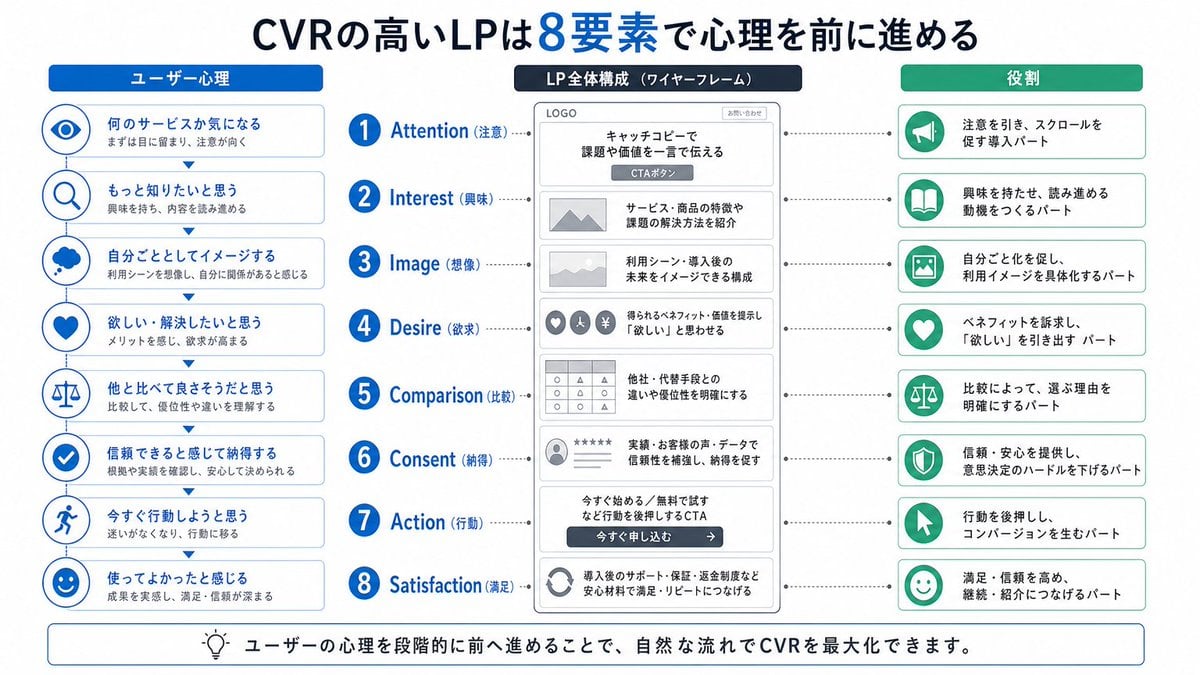
Japanese LP Psychology 8-Step Infographic
Coastal Cycling Break with Fuji
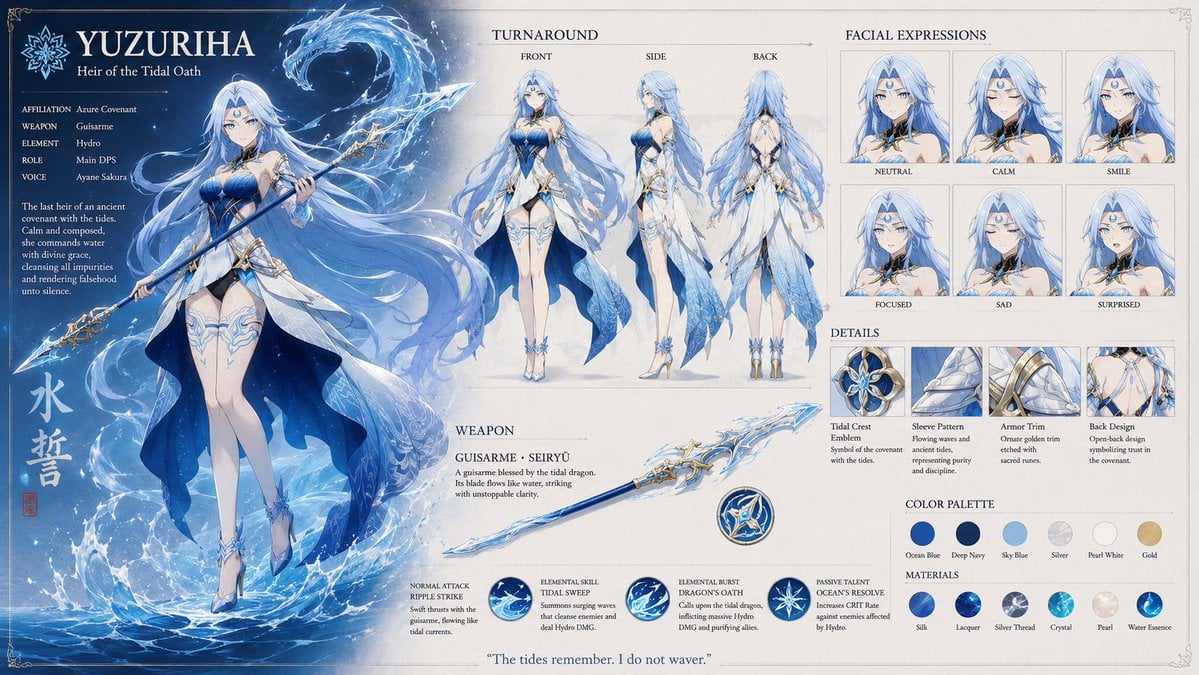
Anime RPG Character Reference Sheet
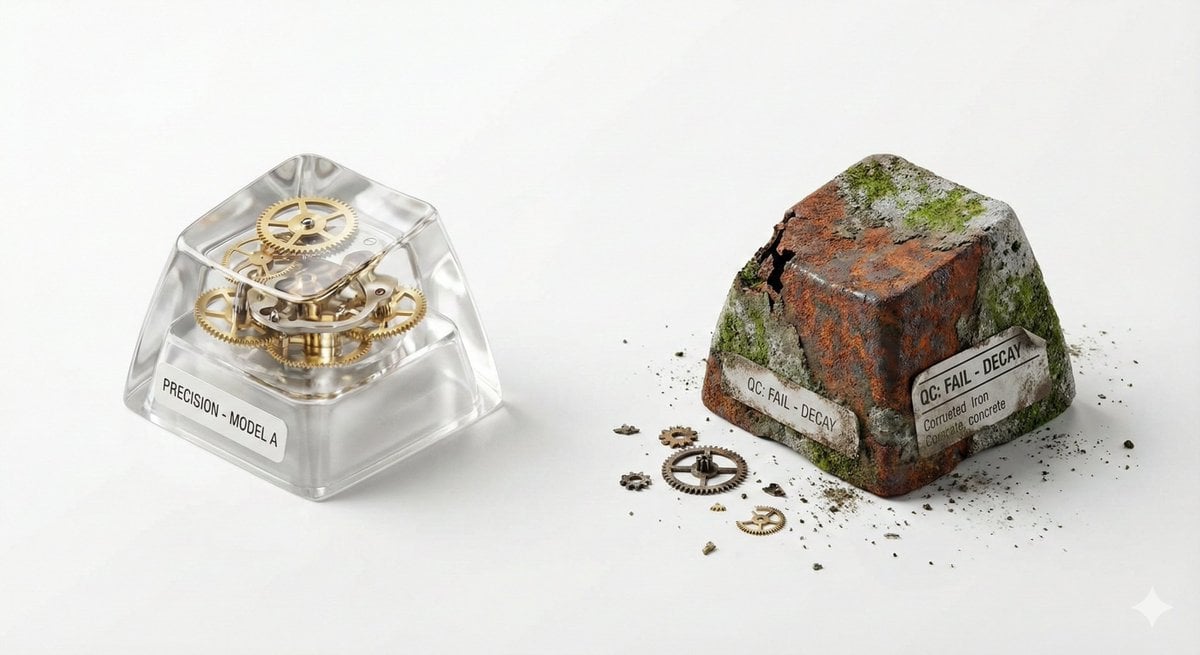
Visual Creator Mode Prompt for Product Photography (Precision vs. Decay)
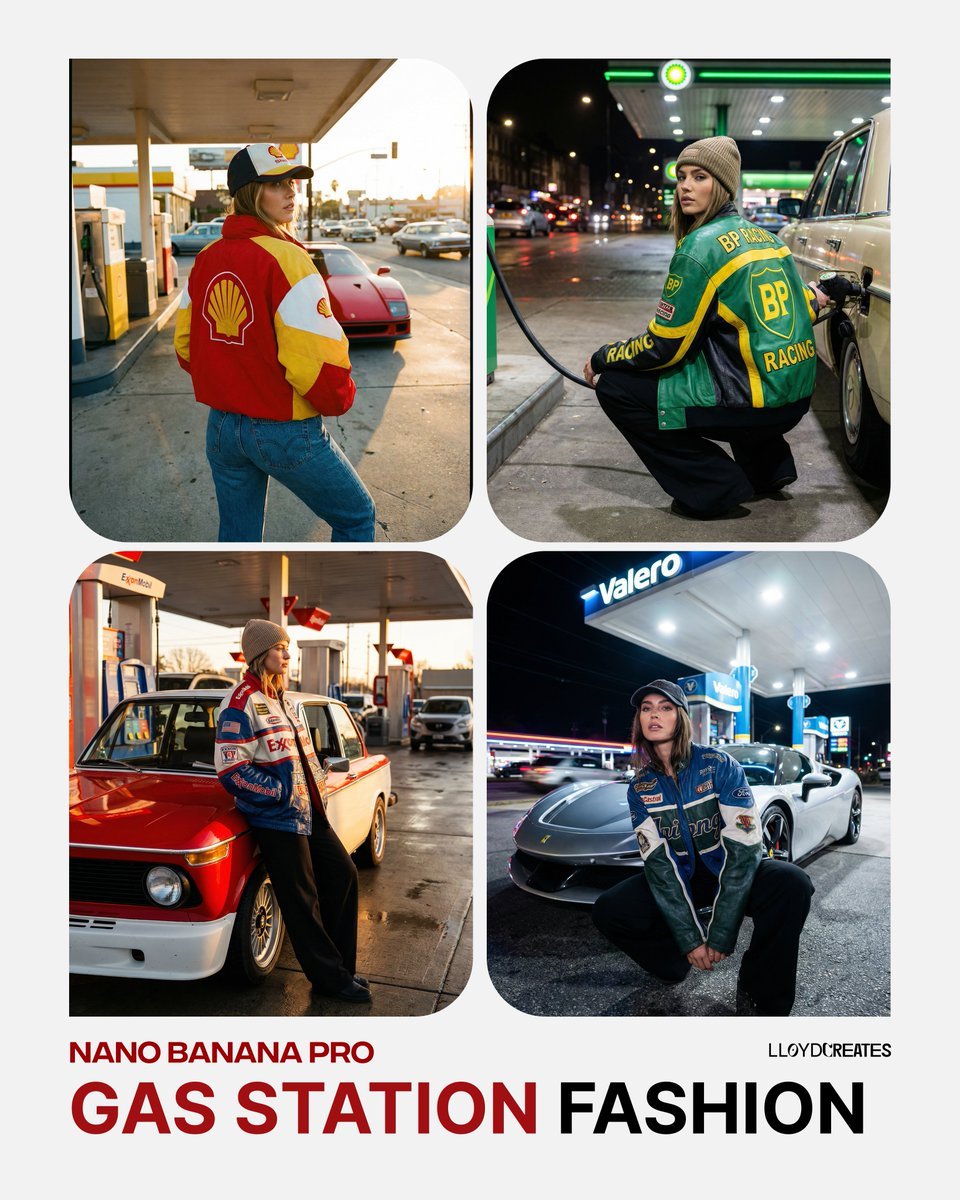
Gas Station Streetwear Fashion Photoshoot Template
Colored Pencil Illustration Style Prompt
Browse template categories
Pixel Monster Music Sequencer UI questions
How do I use the Pixel Monster Music Sequencer UI template?
Add your photo if the template asks for one, edit the prompt if you like — the template's model and format are already selected — and press Generate. Your version opens in PicX Studio.
Can I customize the Pixel Monster Music Sequencer UI template?
Yes. You can change the subject, setting, lighting, mood, format, and available model controls before creating your image.
Is the Pixel Monster Music Sequencer UI template free?
Opening and editing this template is free. Generating uses credits, shown on the Generate button when you are signed in.
Which AI model should I use?
Start with GPT Image 2, which is the model associated with this template. You can compare another compatible model for a different finish.
Looking for something else? Browse all templates.

Your photo, any look
Thousands of ready templates for every top image and video model, from one credit balance.