
Sunny Day
Sunny Day is a ready photo look.
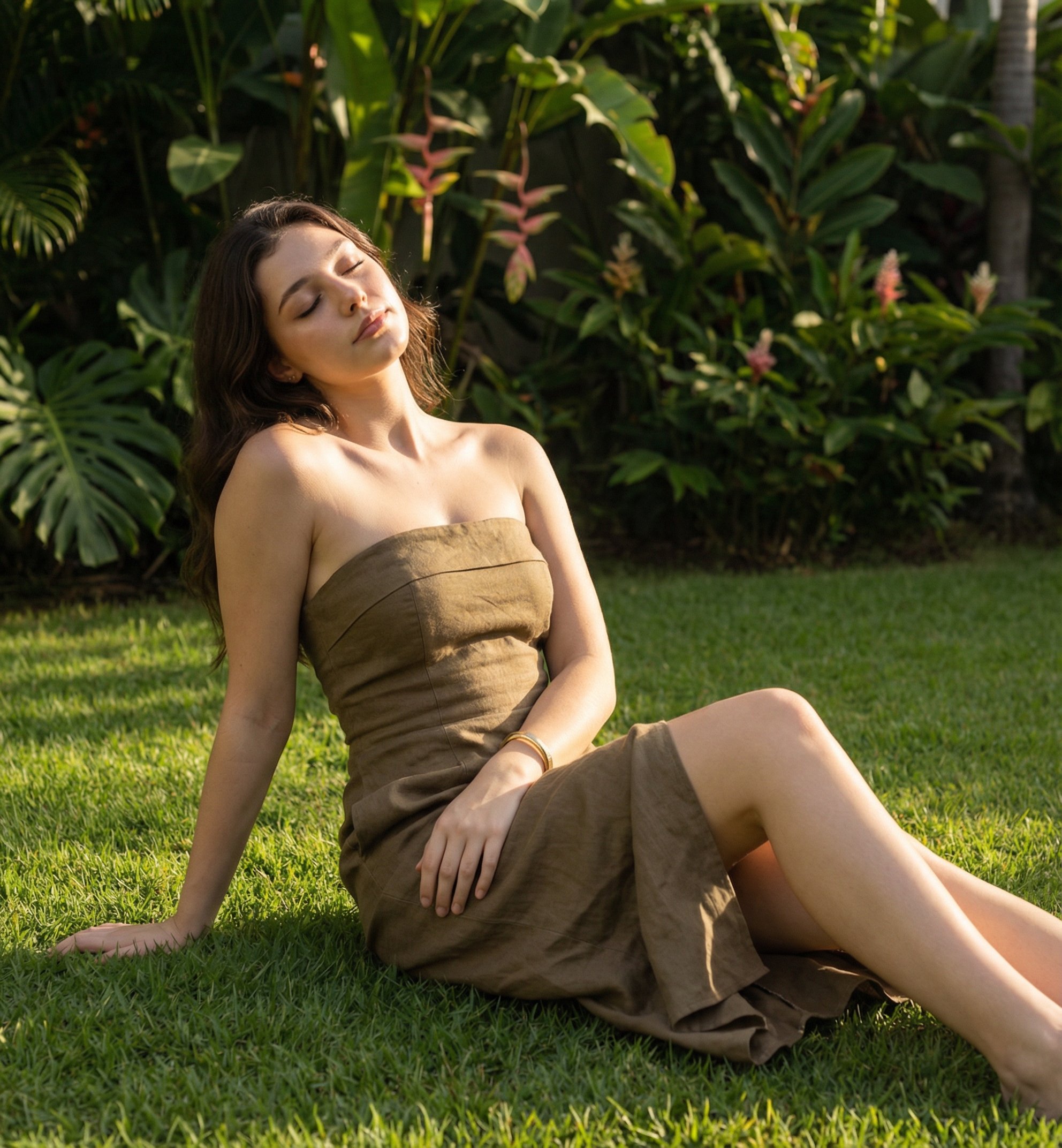
- Prompt included
- Model and format preset
- Premium template
The prompt behind this image
Copy the exact prompt behind Sunny Day, or open it in the studio and make it yours.
strictly preserve the exact facial features, proportions, warm medium skin tone, and natural undertones visible in the reference. Maintain the same long dark brown hair, worn loose and flowing naturally, with soft highlights catching the sunlight. Create a photorealistic outdoor portrait of the same person seated on a lush green lawn, leaning slightly back on one arm, legs relaxed to the side. The subject’s eyes are gently closed, face tilted toward the sun, capturing a calm, serene, sun-soaked moment. Outfit: a strapless olive-brown fitted dress with subtle texture and natural fabric folds, realistic drape and stitching. Minimal accessories only, nothing exaggerated. Lighting: natural late-afternoon / golden sunlight, soft shadows, real sun direction, no artificial glow Skin: real human skin texture, visible pores, natural sunlit sheen, zero retouching Background: dense tropical greenery with large natural leaves, realistic depth, no fake blur Camera: real DSLR travel/lifestyle photo, 35–50mm lens look, handheld realism Color: true-to-life greens and warm skin tones, no filters, no HDR Style: candid lifestyle portrait, effortless, natural, authentic ultra-realistic, RAW photo look, unfiltered, no beauty AI, no stylization 🚫 NEGATIVE PROMPT (IMPORTANT) AI-generated look, plastic or waxy skin, over-smooth face, beauty filter, cinematic color grading, fake sunlight rays, exaggerated bokeh, altered facial features, symmetry correction, artificial posing
How to use Sunny Day in 3 steps
- 1
Open
The prompt is already in the box next to the preview, with the template's model and format selected.
- 2…a portrait of your subject in softgolden-hour light, 85mm…
Personalize
Edit the subject and creative details for your destination.
- 3Generate
Generate
Press Generate — your image is created in PicX Studio, so you can compare it with the original and refine one variable at a time.
More like this
Templates with the same subject, style or setup. Open one to see its prompt.
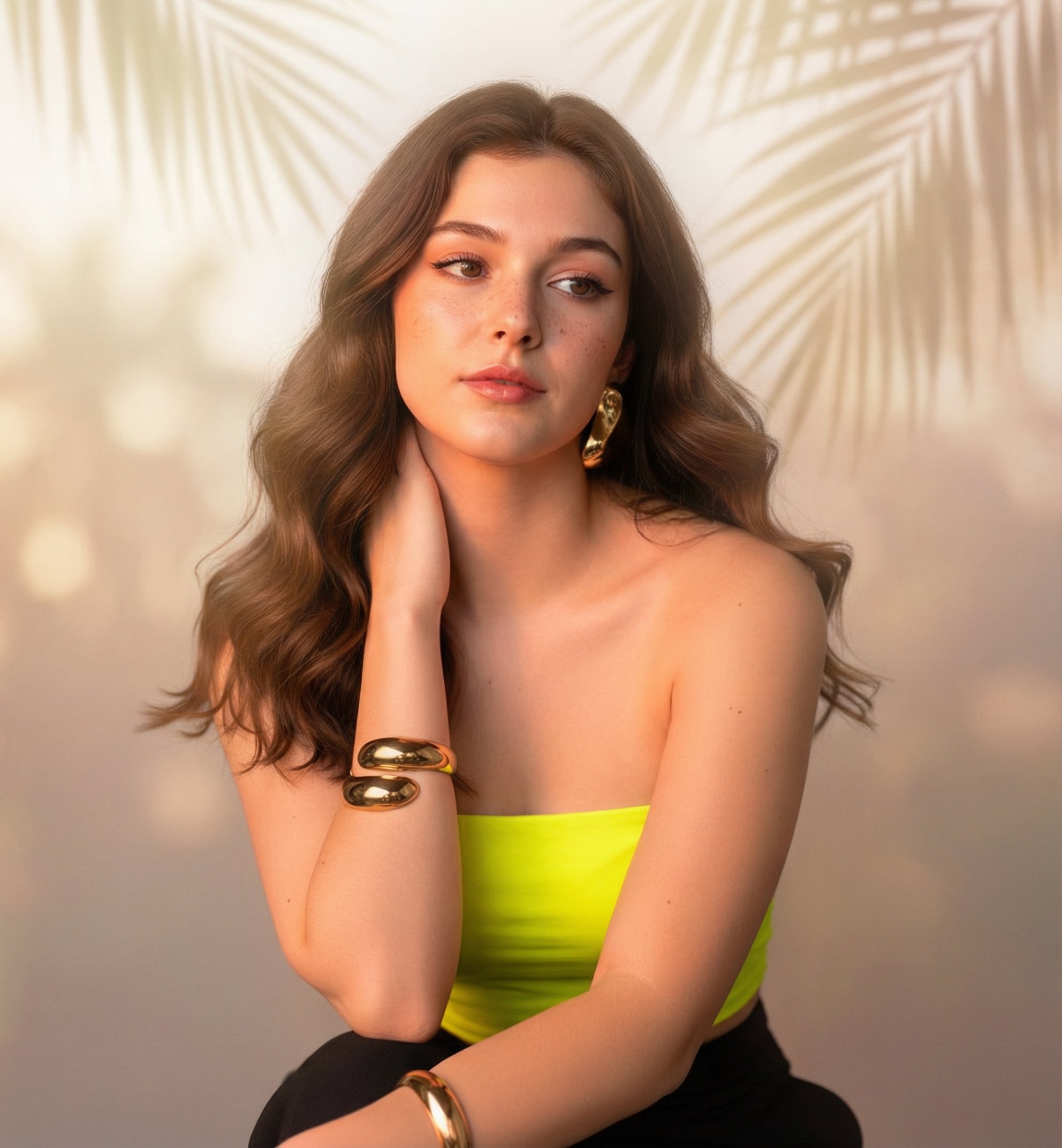
Sunny Day
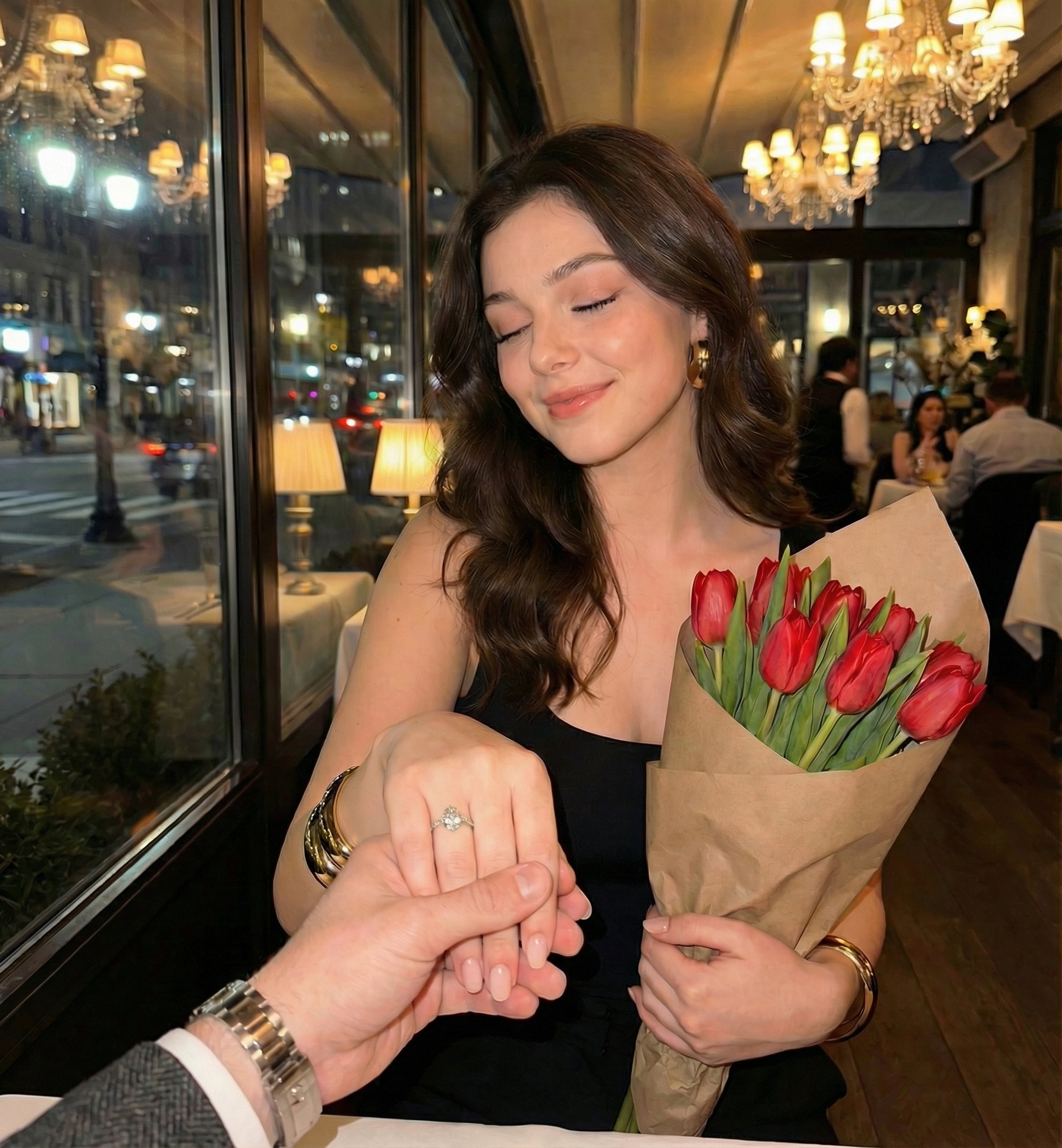
Propose Day Romantic Dinner Date Template
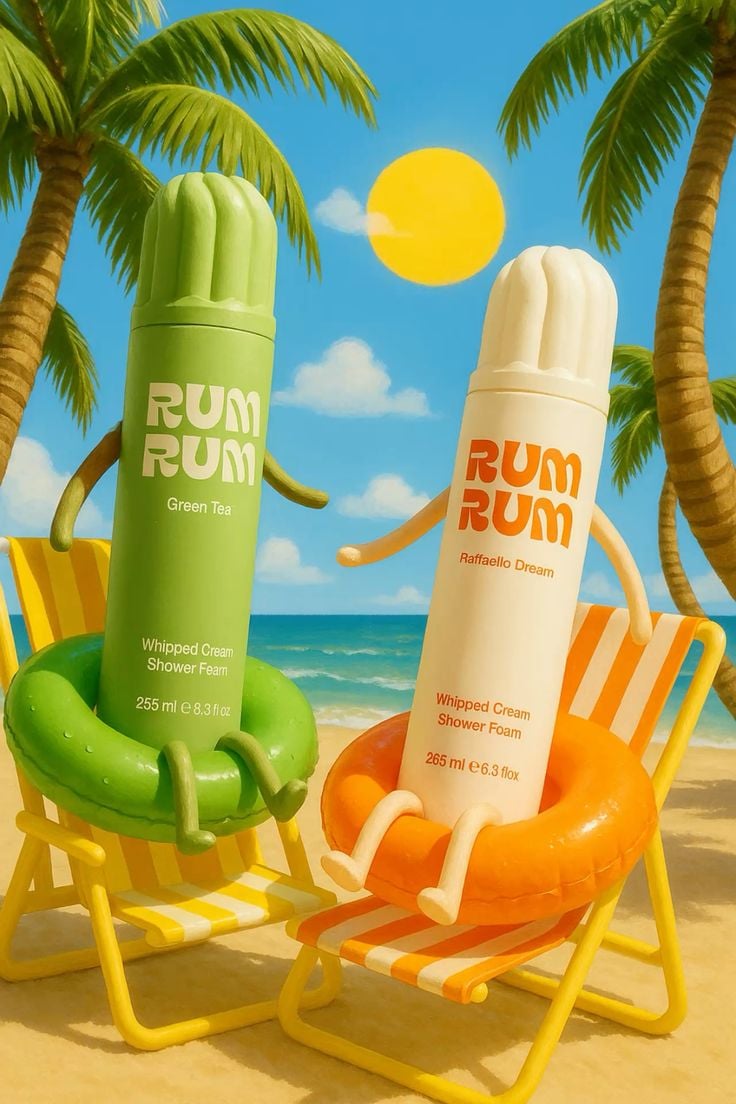
Tropical Skincare Beach Day
Mirror Selfie Chibi Characters Pixar Style

A k.pop idol on the stage with mic
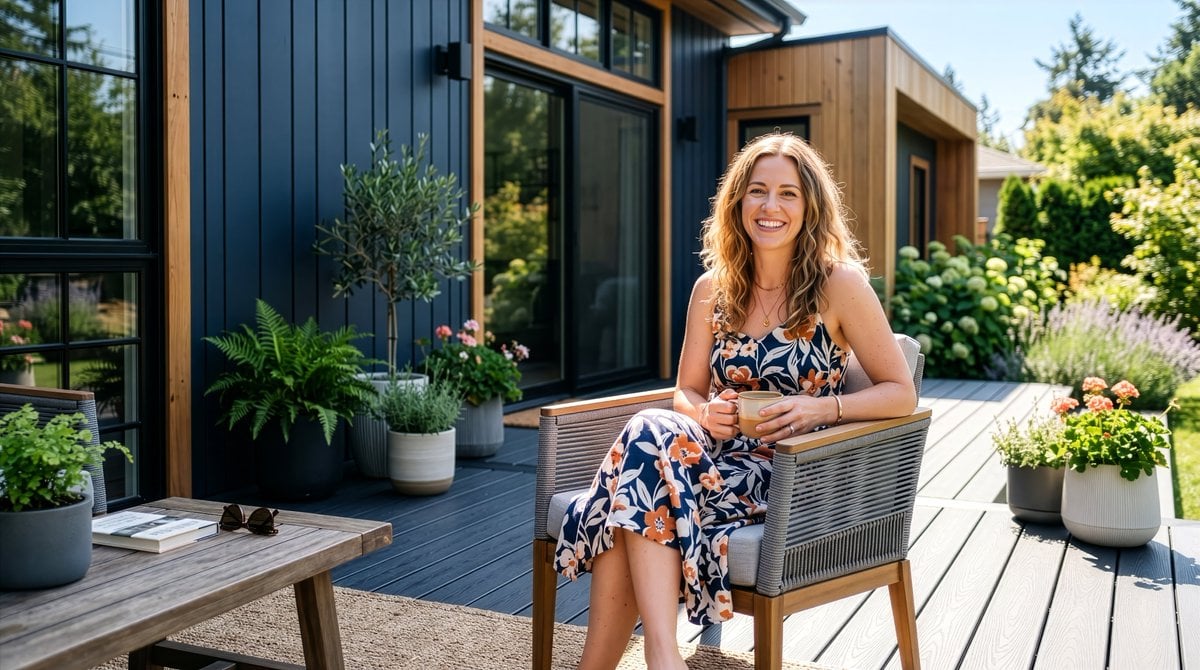
Sunny Outdoor Patio Lifestyle Portrait
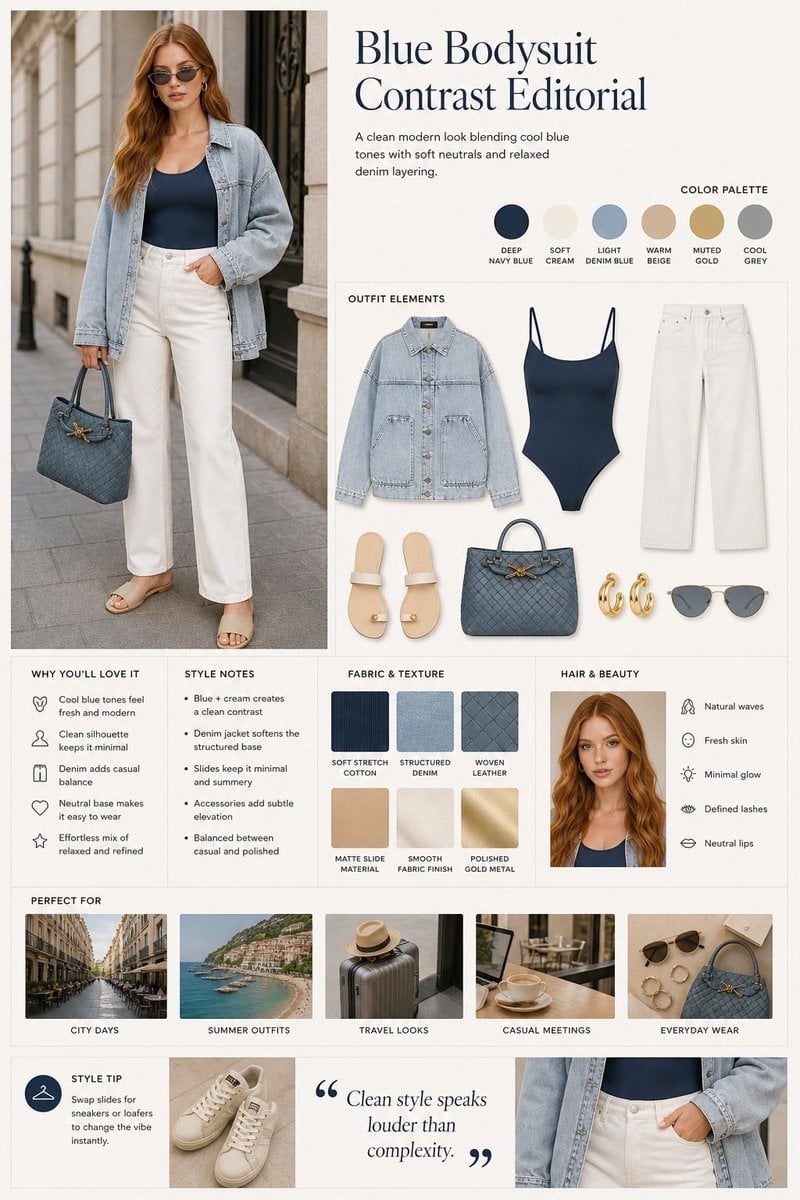
Minimalist Fashion Editorial Split Layout

Warm Window Side Café Studio Portrait

Cozy Café Ice Cream Hands Close-Up
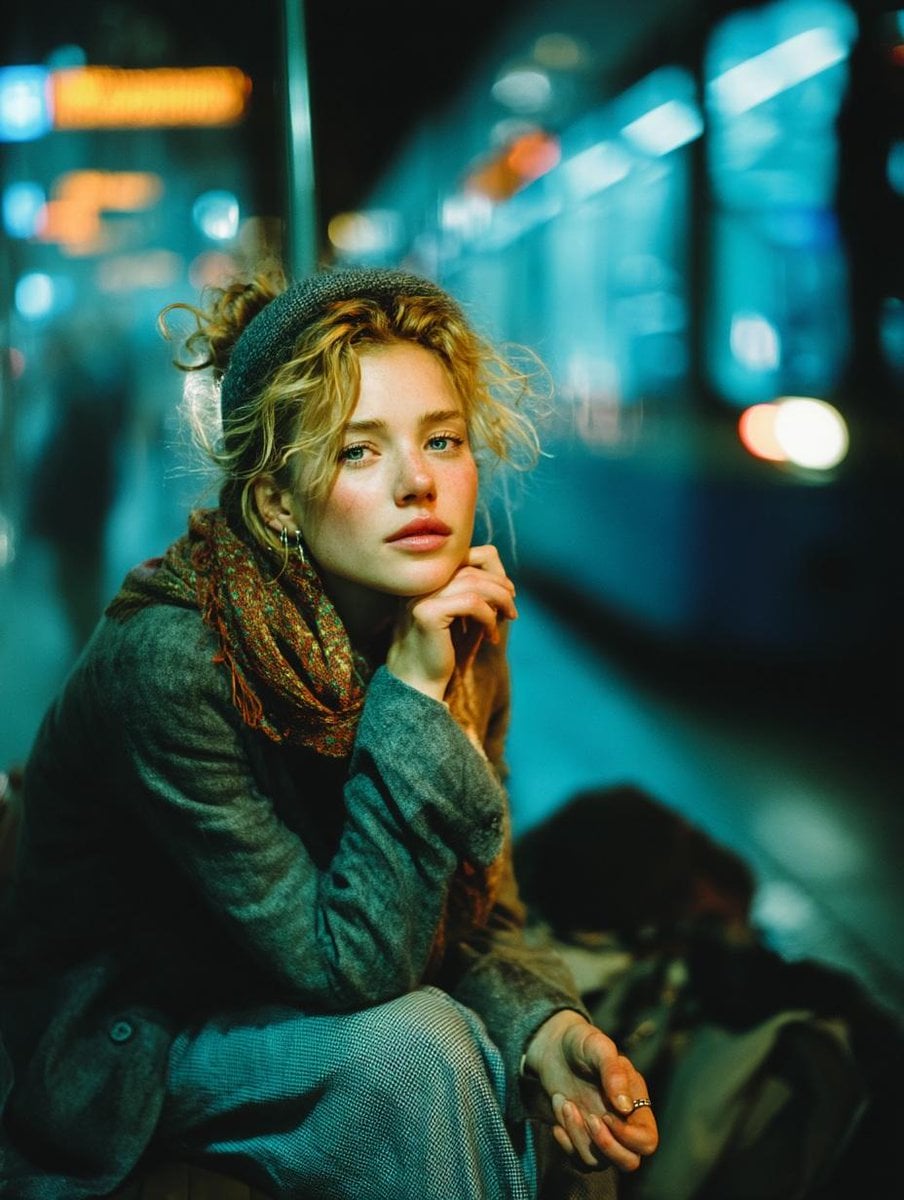
Subway Platform Quiet Introspective Portrait
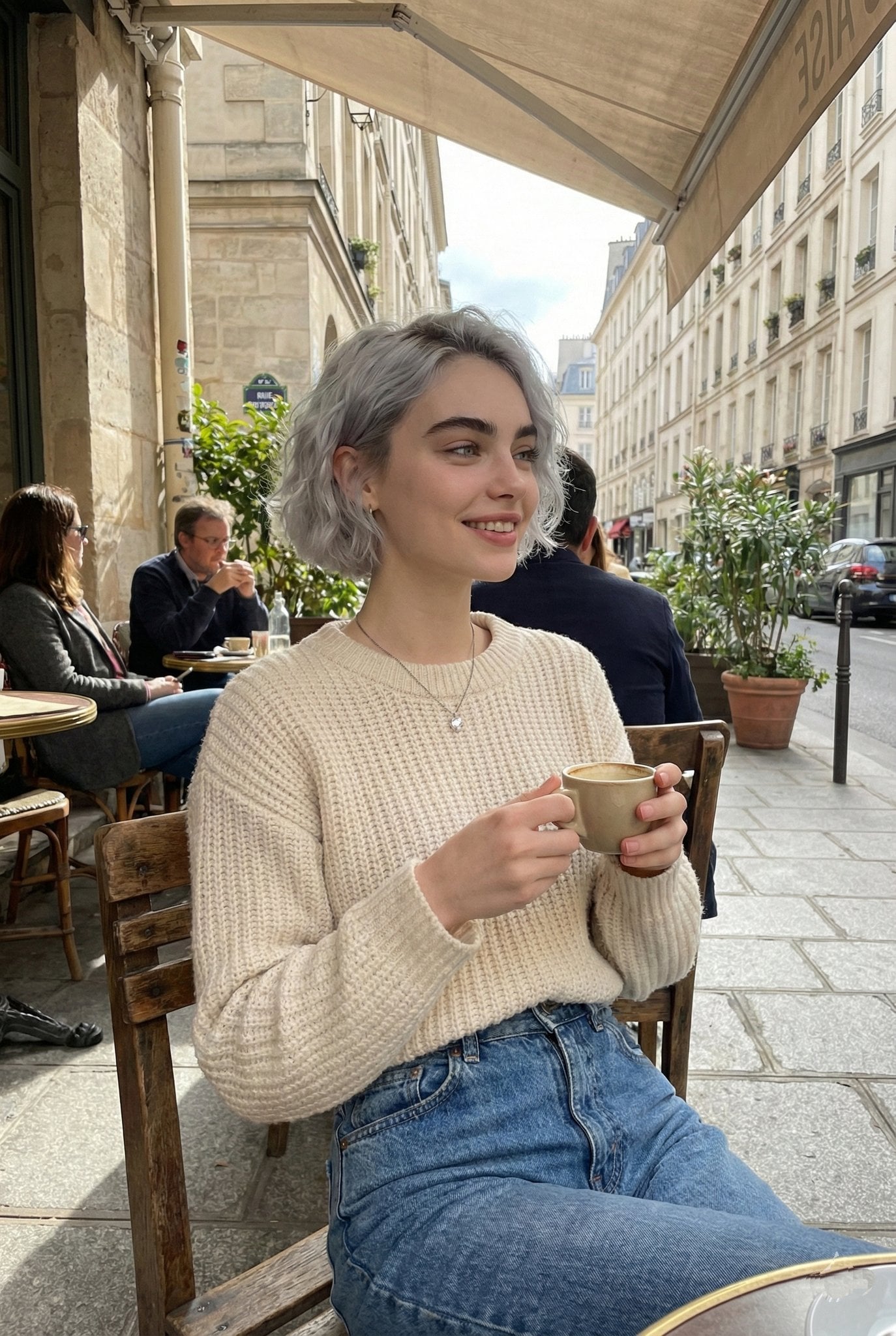
Parisian Outdoor Café Silver-Hair Portrait
Warm Window Side Café Studio Portrait
Make it yours
Sunny Day works as-is. These are the safest ways to change it without losing the look.
Change one field
Copy a single group, rewrite it, and generate again so you can see what that field is doing.
Keep the frame, change the subject
Hold the composition and light of Sunny Day, then swap wardrobe, props or the person for a new take.
| If the result… | Why | Fix |
|---|---|---|
| The result drifts from the preview | Too many fields changed at once. | Reuse Sunny Day as-is first, then change one group — subject, light, or setting. |
| The model over-stylizes the scene | The prose prompt leaves finish and camera underspecified. | Add one camera or lighting sentence and stay on PicX Studio. |
More image prompts
Fresh picks from across the catalog.
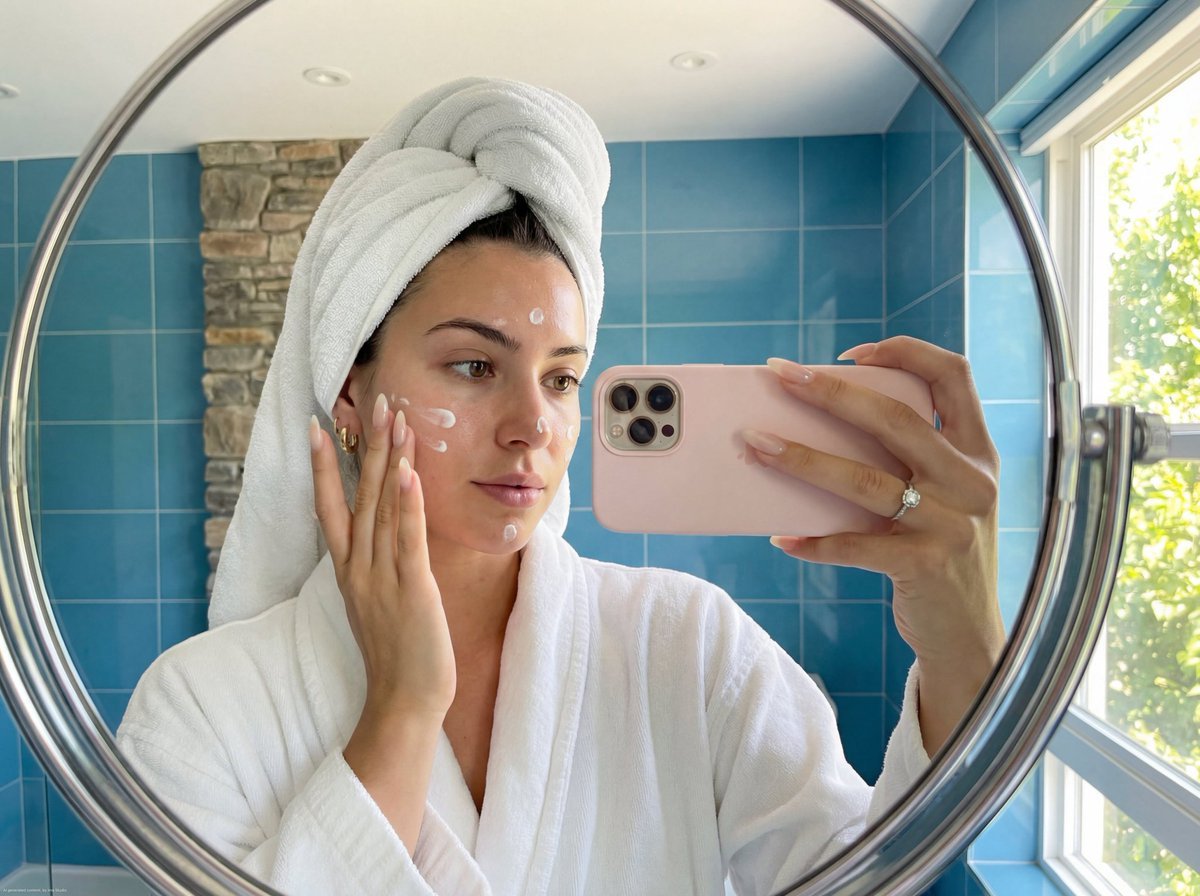
Skincare Mirror Selfie in a Modern Bathroom
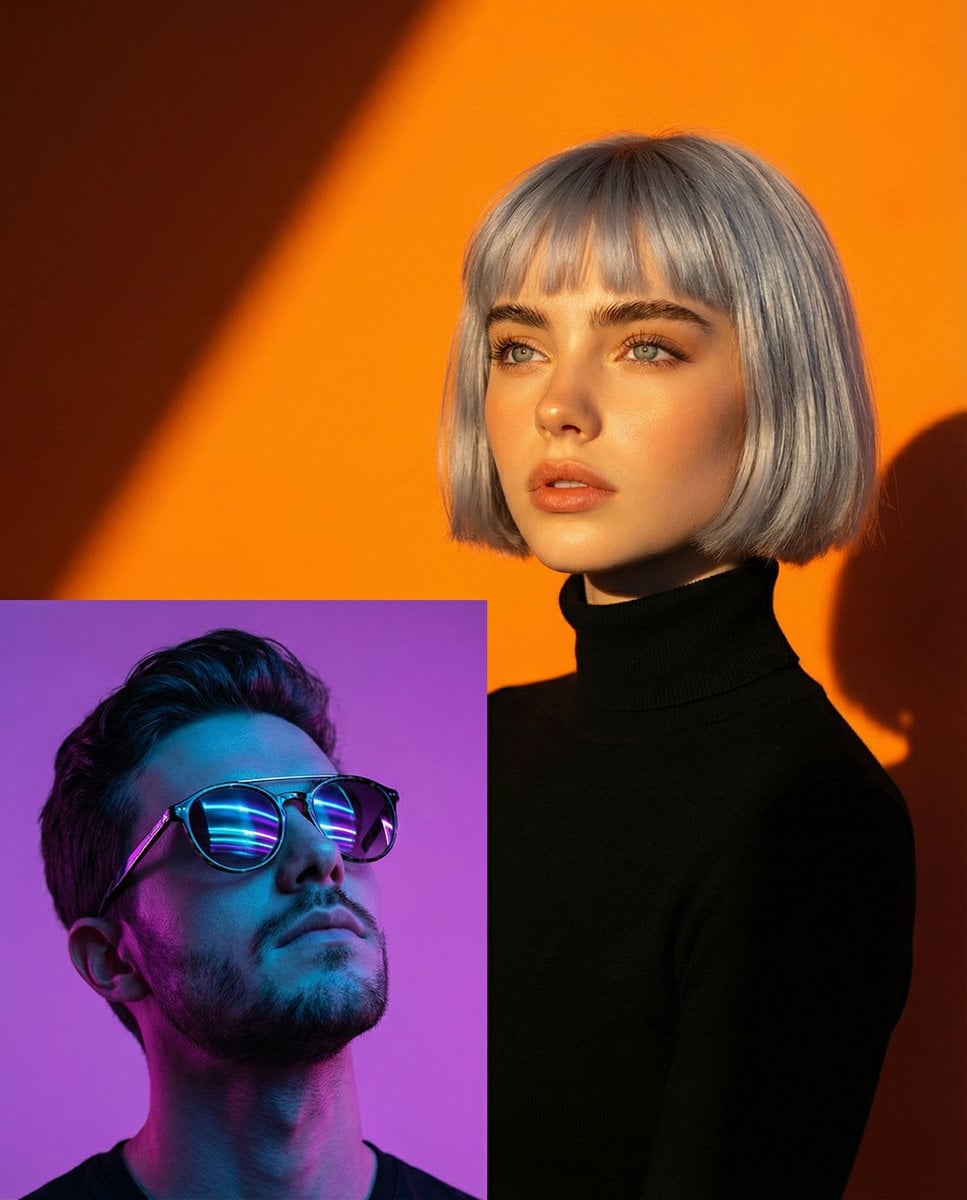
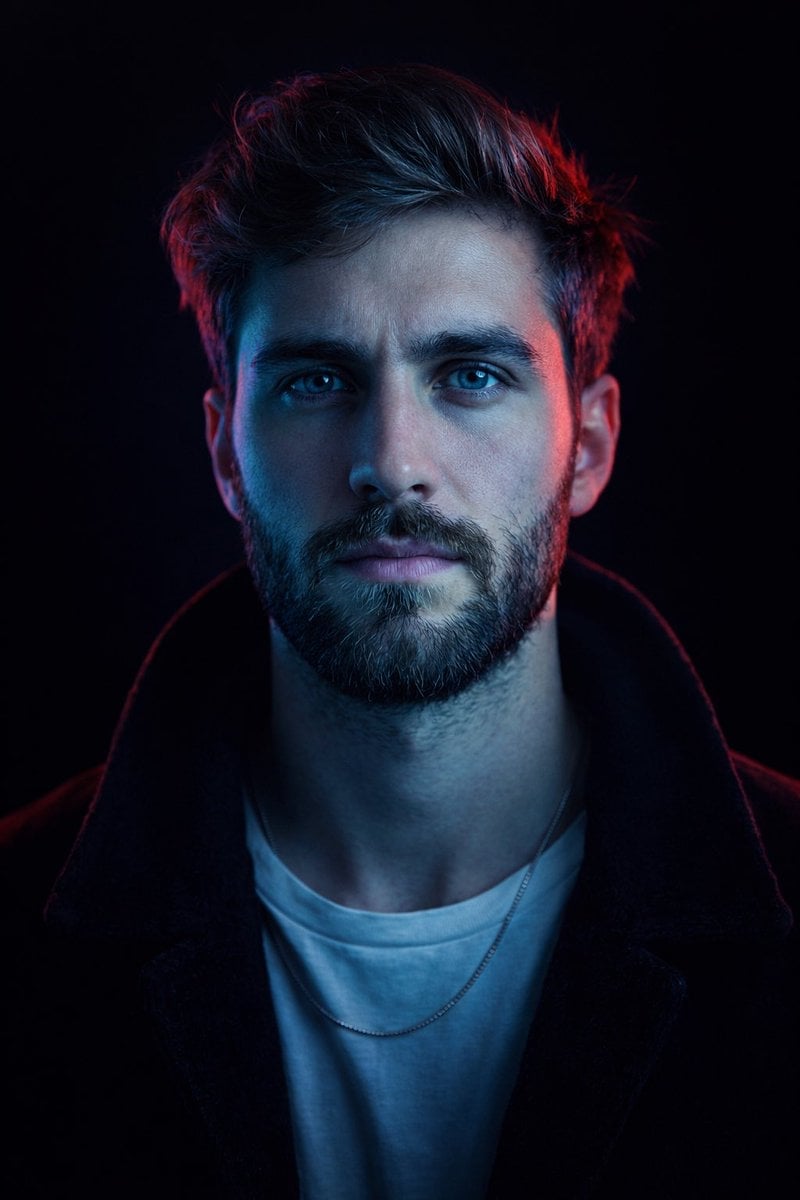
Two Dramatic Portraits: Neon Man and Golden Hour Woman

Dinosaur Park Gift Shop Merchandise Display
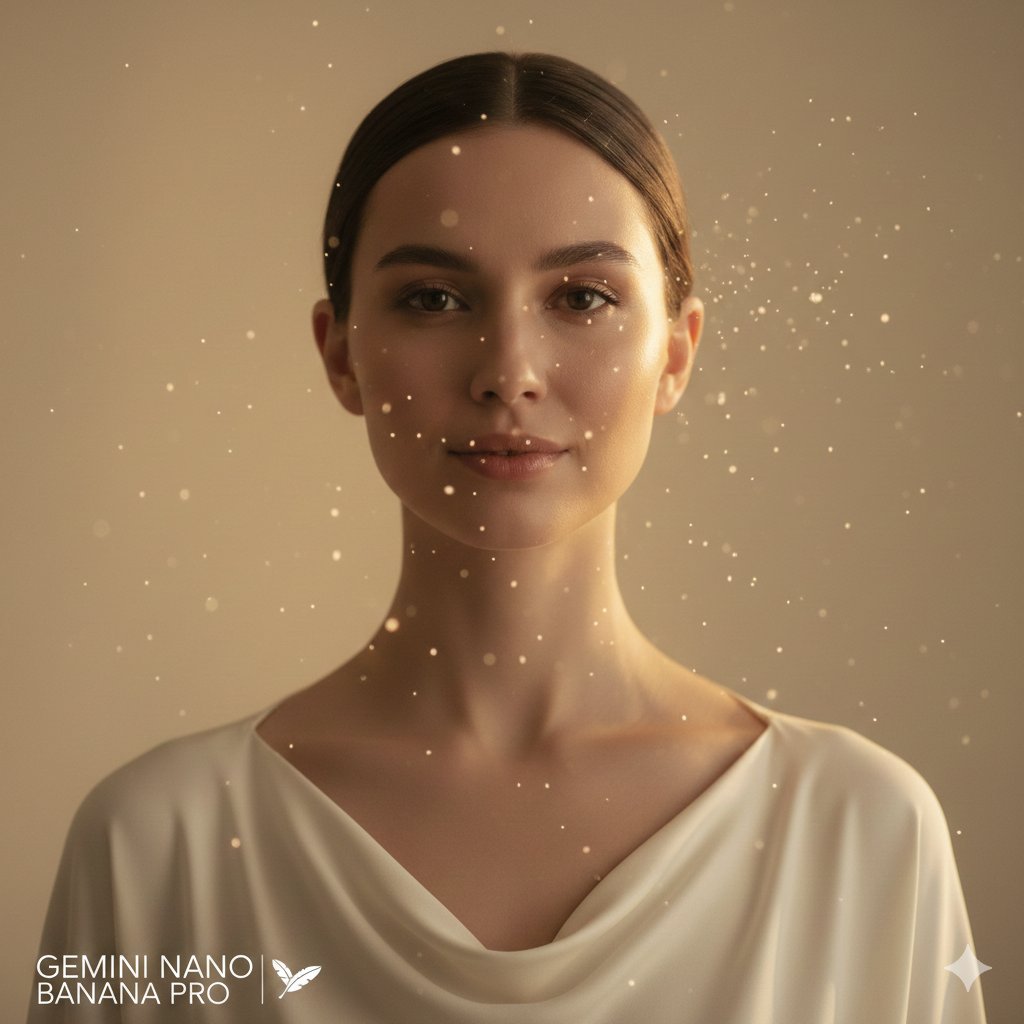
High-fashion close-up portrait of a woman with simple elegance
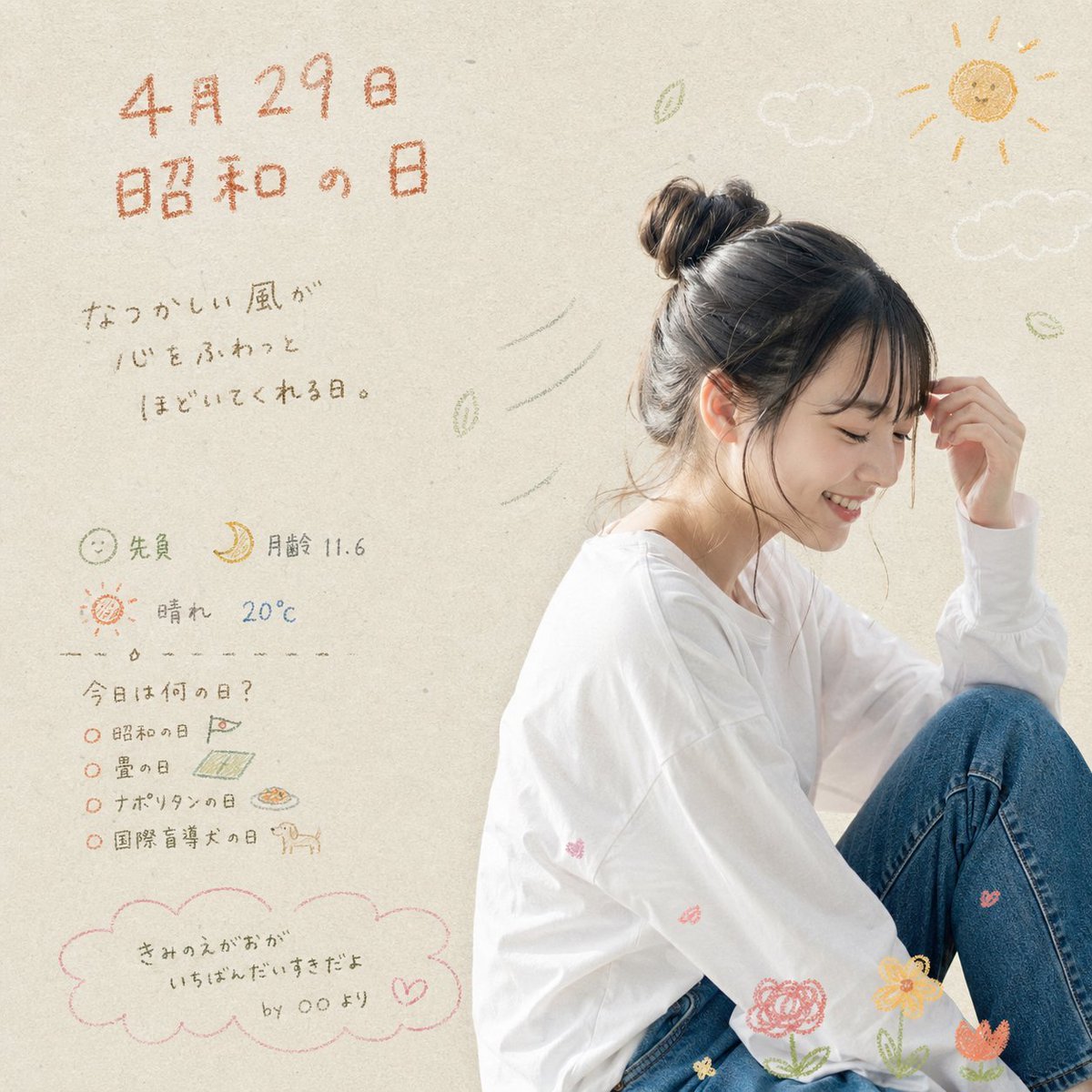
Showa Day Scrapbook Portrait

Blurry Retro Pixel Parrot Jungle
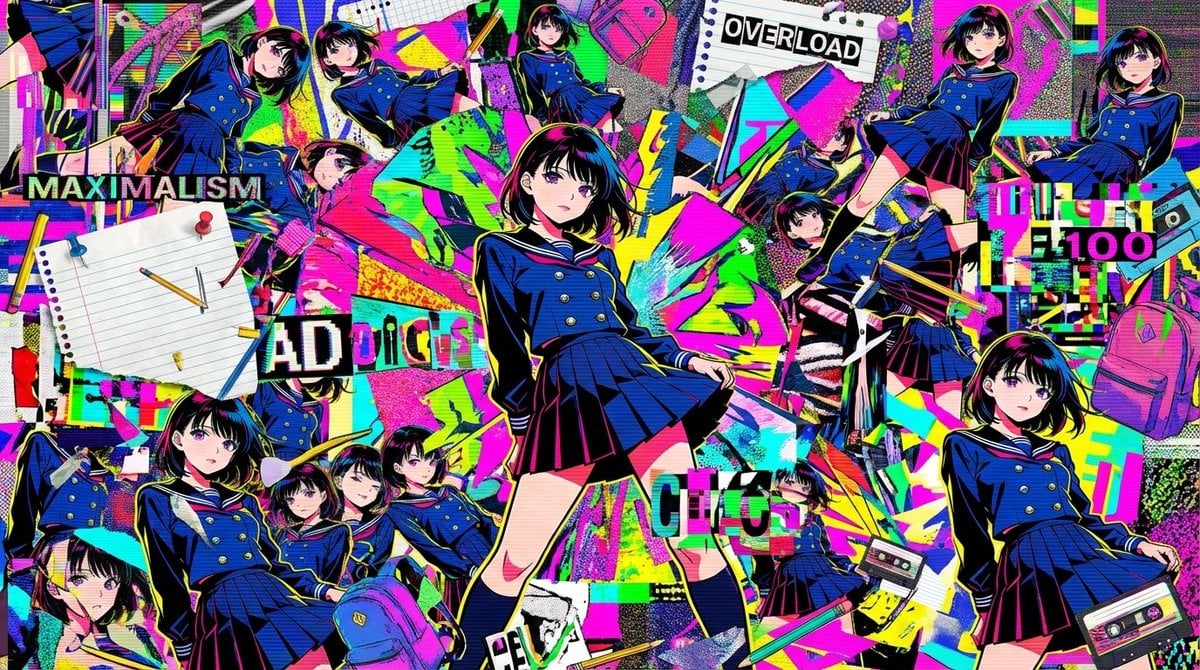
Chaotic Maximalist Anime Poster Prompt (100 Girls)
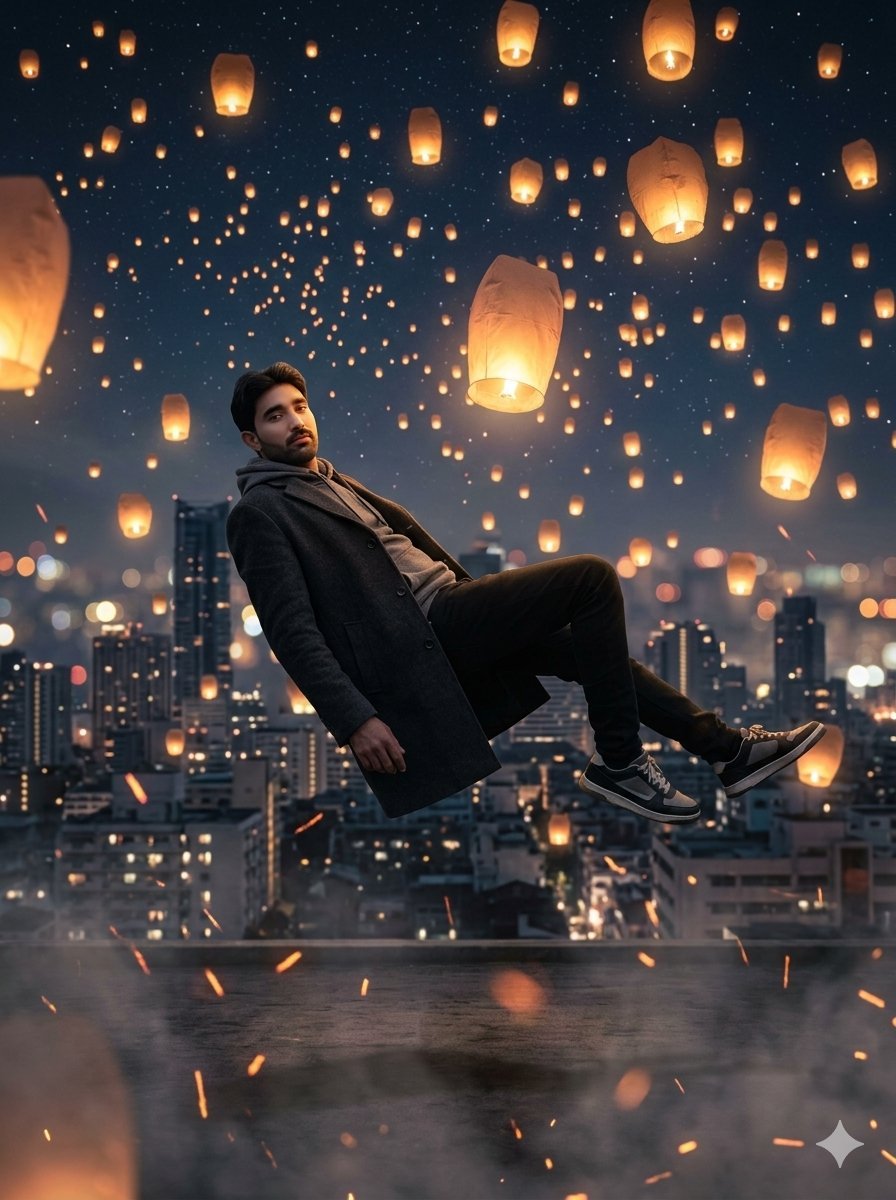
Floating Man Above Lantern City
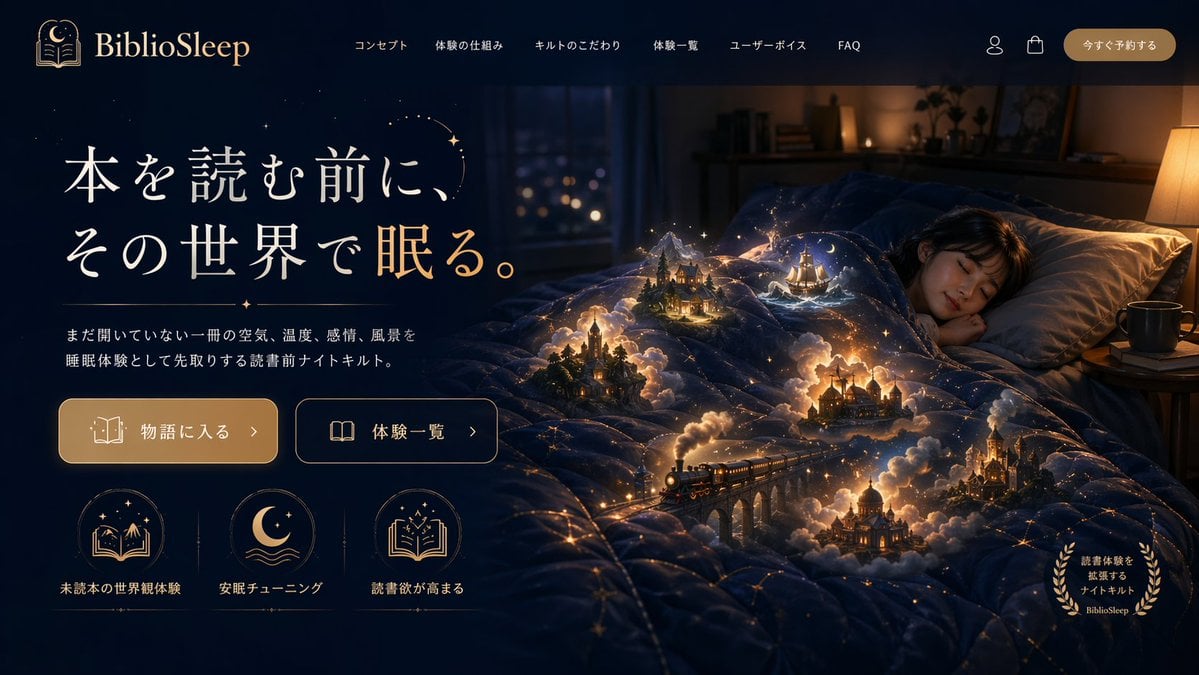
Magical Sleep Website Mockup
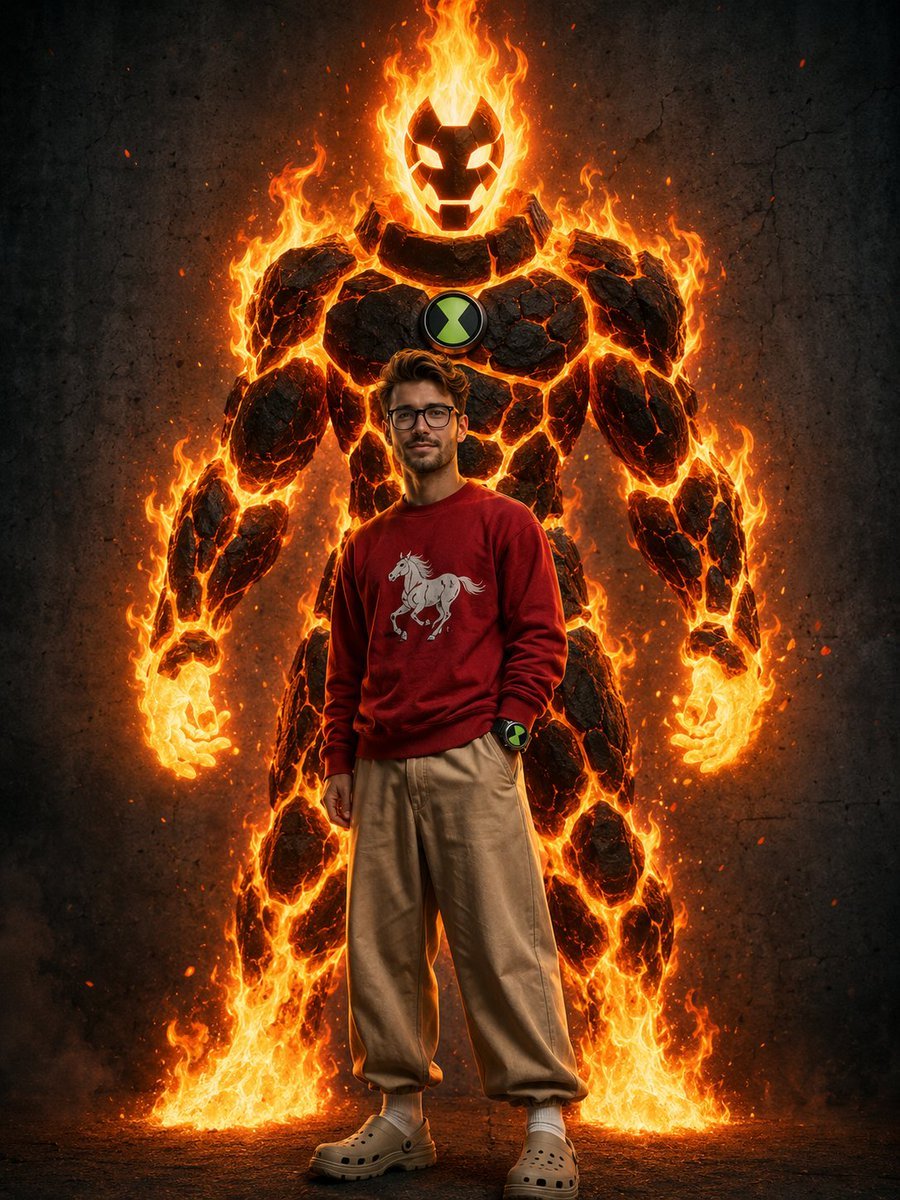
Heatblast Ben 10 Streetwear Portrait
Browse template categories
Sunny Day questions
How do I use the Sunny Day template?
Add your photo if the template asks for one, edit the prompt if you like — the template's model and format are already selected — and press Generate. Your version opens in PicX Studio.
Can I customize the Sunny Day template?
Yes. You can change the subject, setting, lighting, mood, format, and available model controls before creating your image.
Is the Sunny Day template free?
Opening and editing this template is free. Generating uses credits, shown on the Generate button when you are signed in.
Which AI model should I use?
Choose a compatible model in PicX Studio based on the style, speed, and output controls your project needs.
Looking for something else? Browse all templates.

Your photo, any look
Thousands of ready templates for every top image and video model, from one credit balance.