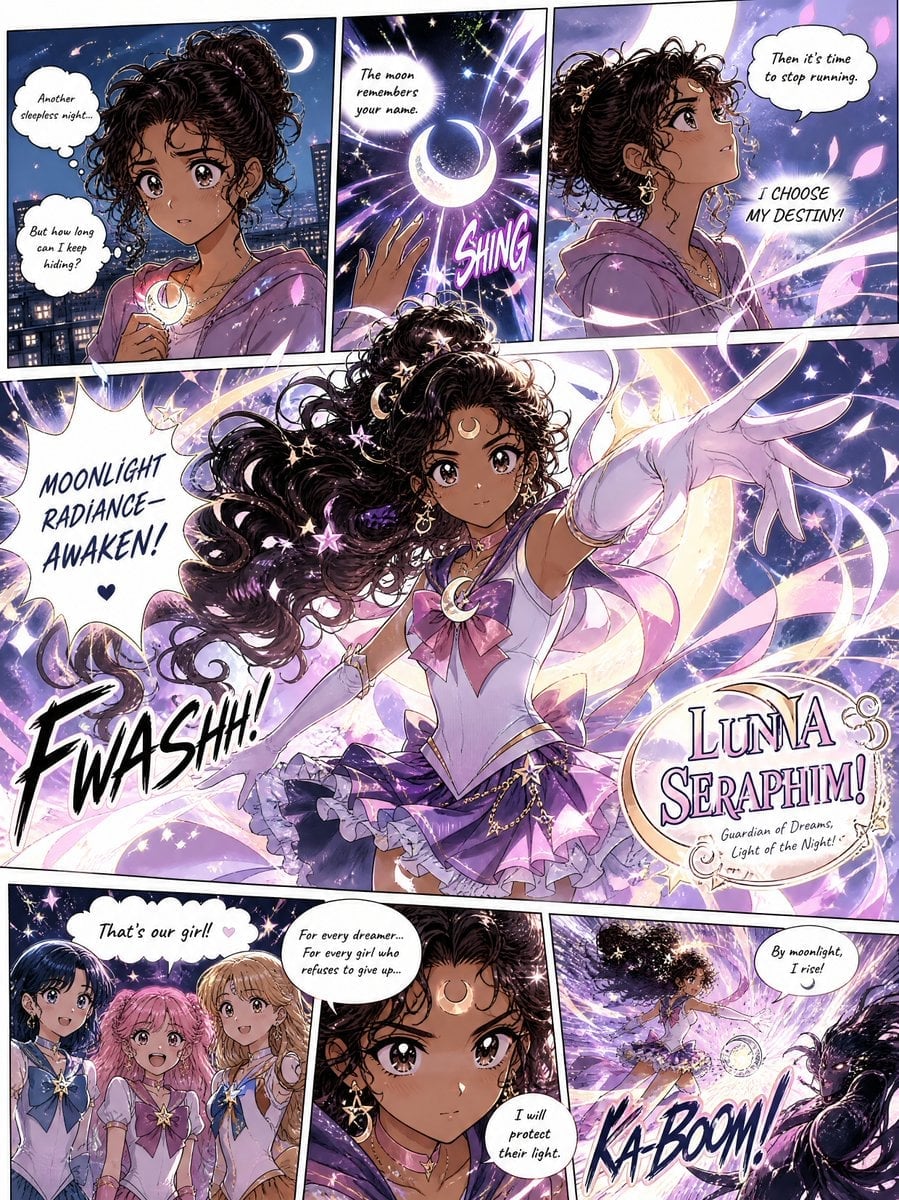
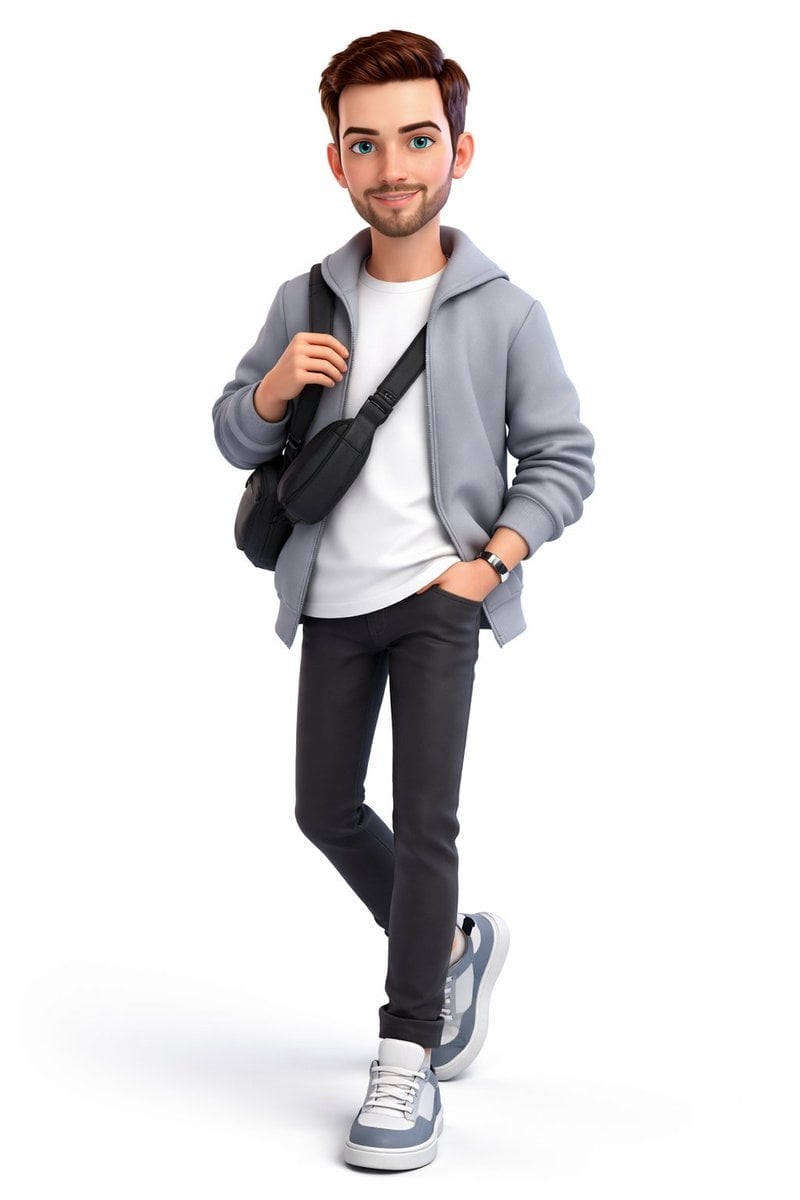
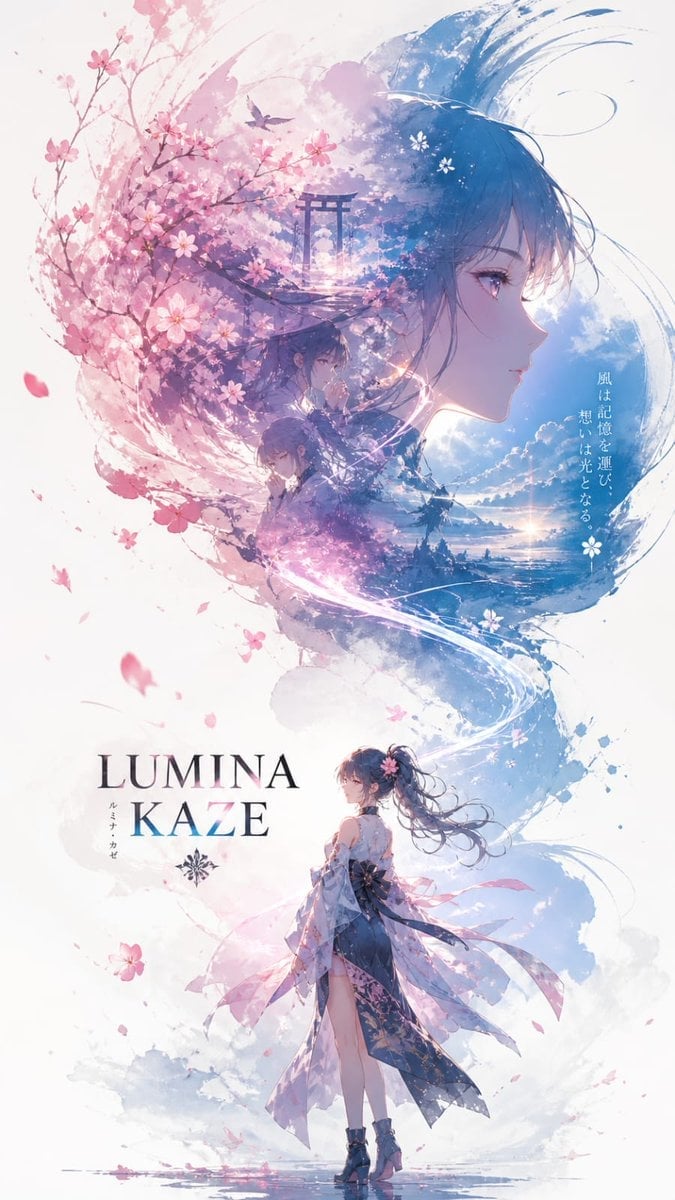
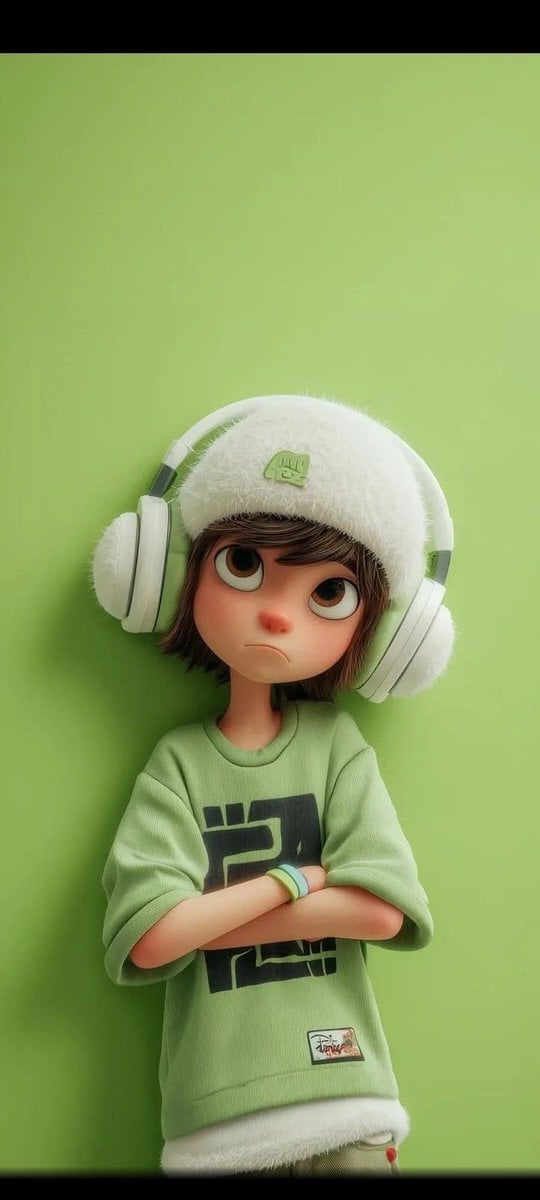
How do I use the 2D Anime to 3D Toy Avatar template?
Choose the primary action to open PicX Studio with the available template settings. Review the model and format, personalize the creative direction, and generate when ready.
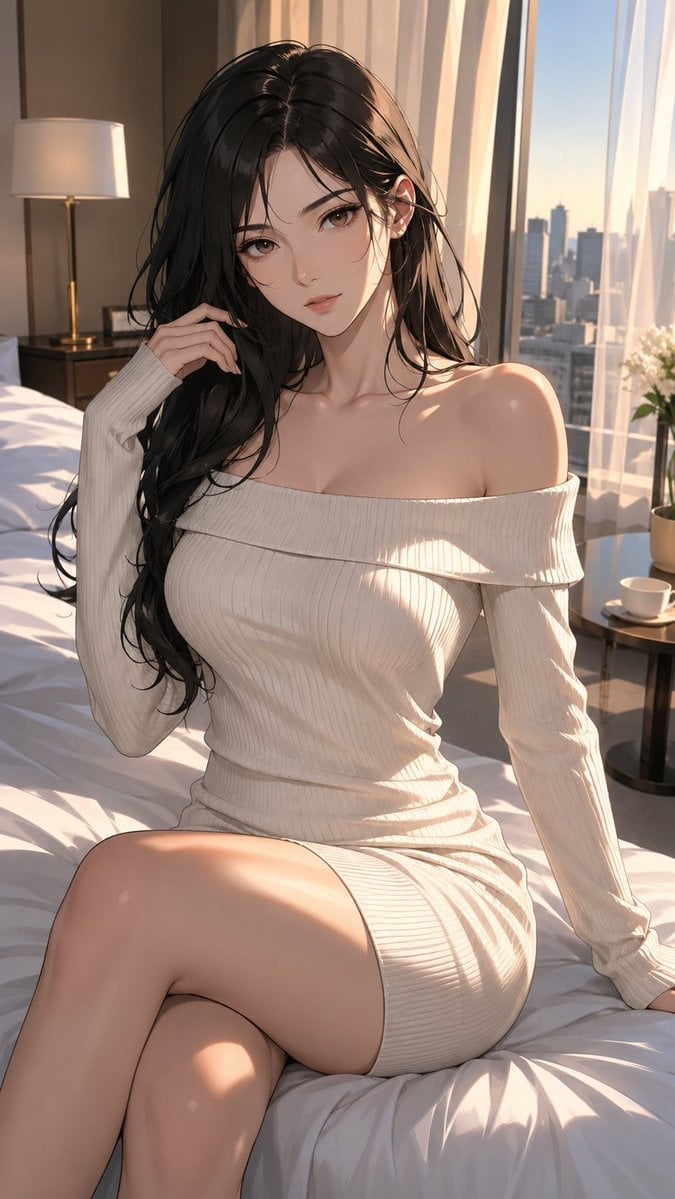
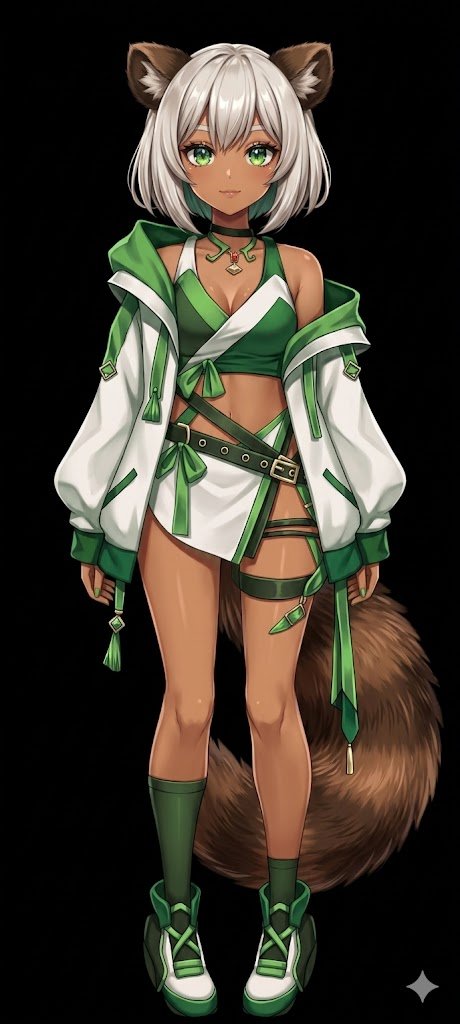
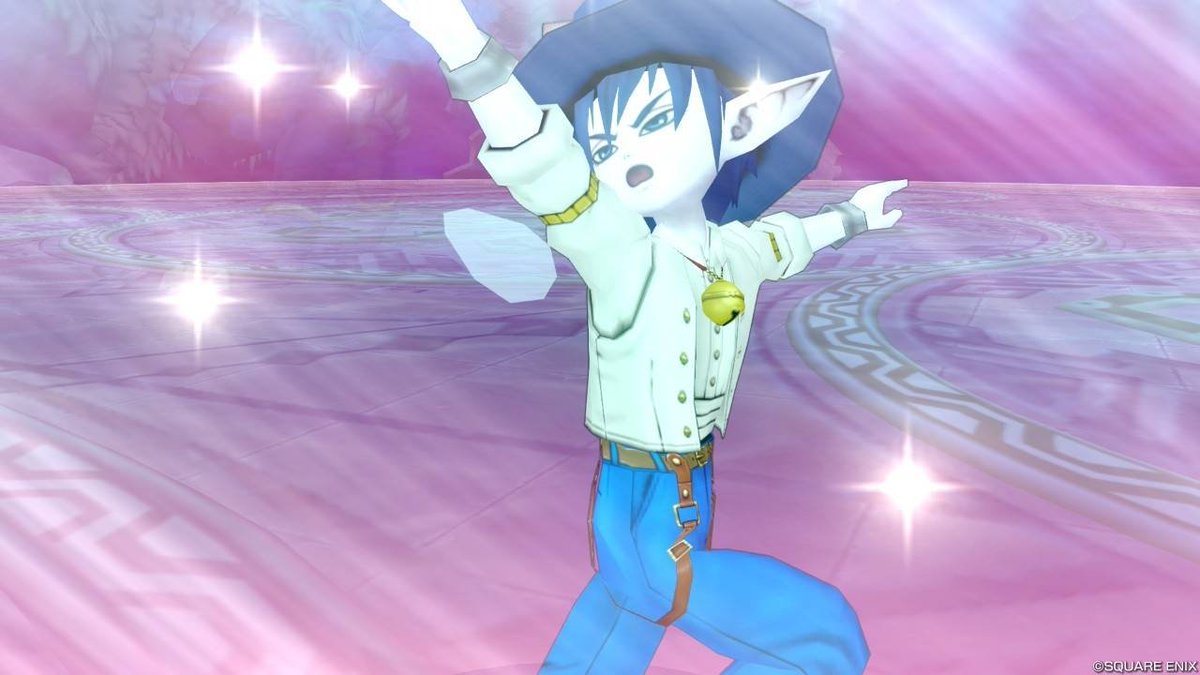
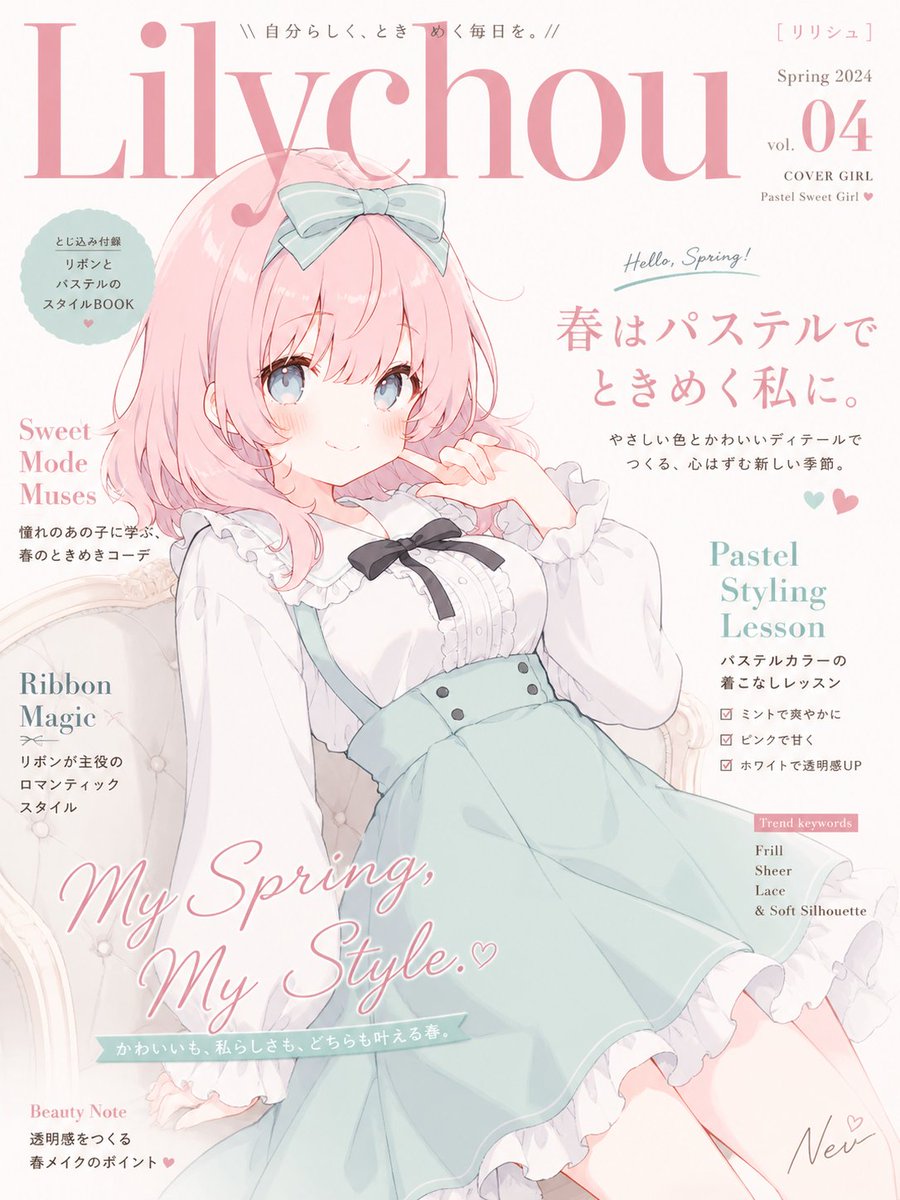
Transforms a reference anime character into a simplified glossy 3D toy-style avatar suitable for character model previews.
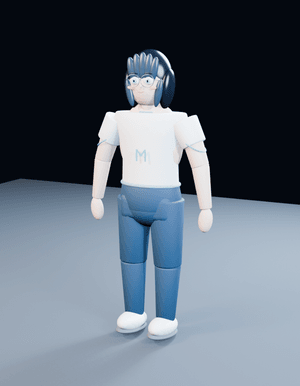
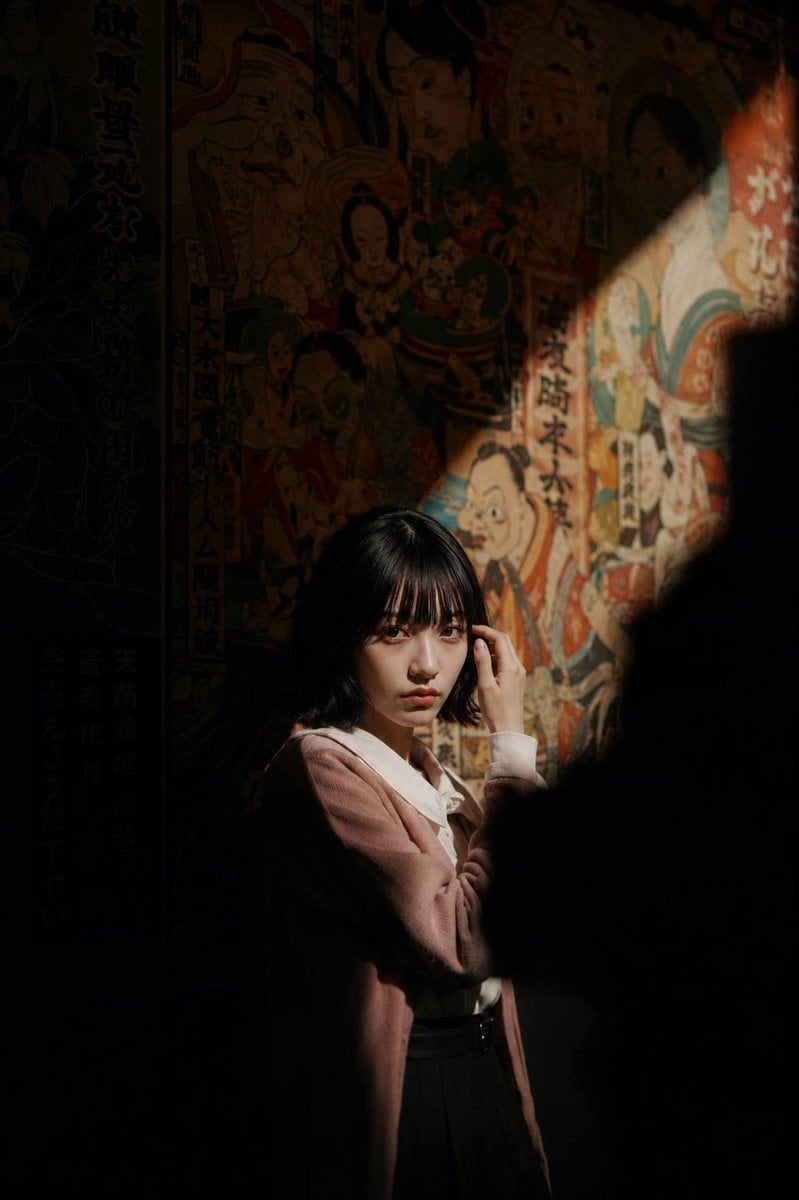
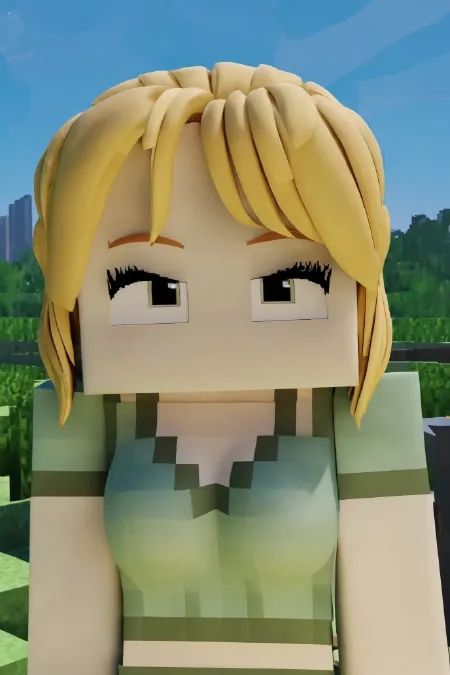
Using REFERENCE_0 as the character base, transform the anime character into a simple stylized 3D toy/avatar model while preserving the recognizable face cues, round glasses, short dark bob haircut, and gentle expression. Change the result from a 2D illustration lineup into a single full-body 3D render in a neutral standing pose, viewed slightly from above and slightly three-quarter front. Style: soft, glossy plastic / clay-like 3D character with simplified anatomy, rounded forms, segmented doll-like limbs, and minimal facial detail. Make the hair into chunky sculpted pieces rather than painted strands. New outfit and body design: replace the original exposed/censored body with a modest toy outfit made of exactly 5 visible components: 1 oversized white T-shirt, 1 pale blue letter “M” on the shirt front, 1 blue shorts/hip piece, 2 blue leg pieces, and 2 rounded white shoes. Use simple cylindrical arms with mitten-like hands and blocky shoulder pieces. Scene: place the character alone on a pale blue-gray studio floor plane against a dark nearly black background, with soft overhead lighting, gentle shadows, and a clean 3D preview/render look. Constraints: do not include the original multi-view lineup, censor mosaic, or reference sheet layout. Do not add text other than the single shirt letter {argument name="shirt letter" default="M"}. Keep the model cute, non-realistic, and clearly toy-like. Use {argument name="character style" default="soft glossy plastic 3D avatar"} and {argument name="background" default="dark studio backdrop with pale blue-gray floor"}.
2D Anime to 3D Toy Avatar needs input media to work. Open it in the studio and these load alongside the prompt — pick whichever ones your chosen model can take.
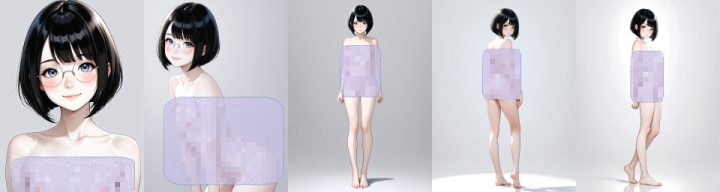
Choose the primary action to open PicX Studio with the available template settings. Review the model and format, personalize the creative direction, and generate when ready.
Yes. You can change the subject, setting, lighting, mood, format, and available model controls before creating your image.
This template is free to open and customize. Generation usage is shown in PicX Studio before you create.
Start with GPT Image 2, which is the model associated with this template. You can compare another compatible model for a different finish.
Follow a topic to a crawlable collection of related PicX Studio templates.