
Nano Banana Pro: Artist and Neon Styles
This tweet describes two distinct styles generated using Nano Banana Pro: an 'Artist Style' self-portrait in an oil painting atelier and an 'Electric Neon Style' integrated into a night city.
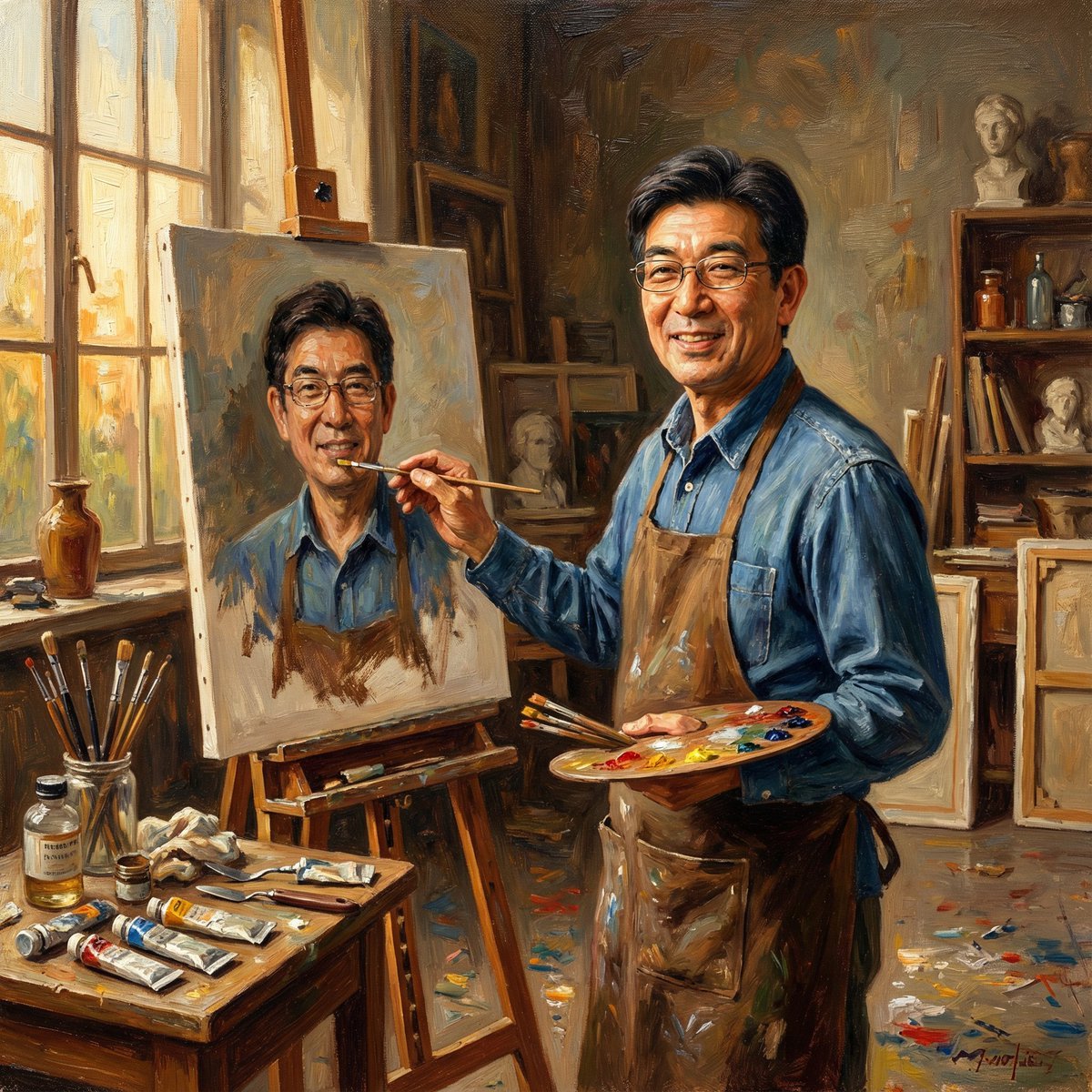
- Prompt included
- Model and format preset
- Free template
The prompt behind this image
Copy the exact prompt behind Nano Banana Pro: Artist and Neon Styles, or open it in the studio and make it yours.
油絵アトリエで自画像を描く「芸術家スタイル」と、夜の街に溶け込む「電飾ネオンスタイル」。対極すぎるハサミおじさんを2パターンずつ錬成。
How to use Nano Banana Pro: Artist and Neon Styles in 3 steps
- 1
Open
The prompt is already in the box next to the preview, with the template's model and format selected.
- 2…a portrait of your subject in softgolden-hour light, 85mm…
Personalize
Edit the subject and creative details for your destination.
- 3Generate
Generate
Press Generate — your image is created in PicX Studio, so you can compare it with the original and refine one variable at a time.
More like this
Templates with the same subject, style or setup. Open one to see its prompt.
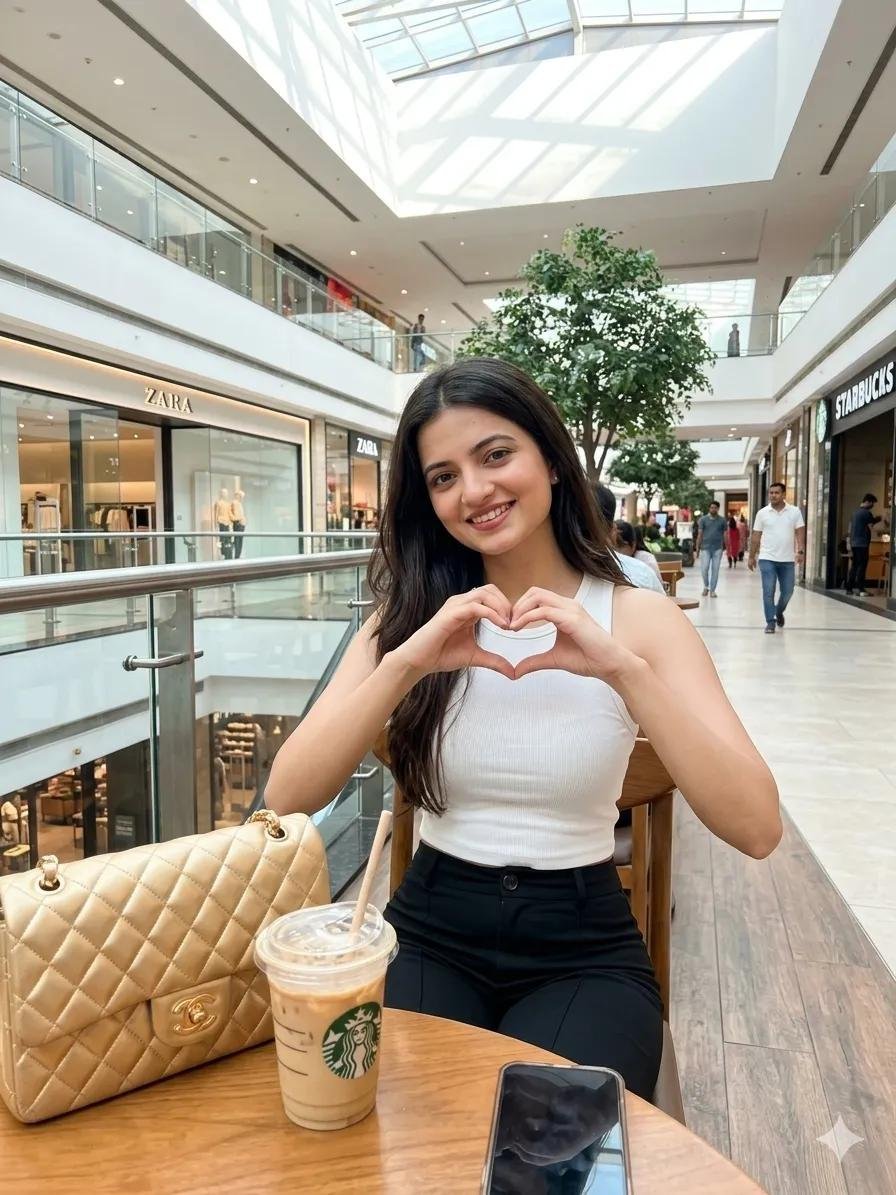
Woman in Mall with Chanel Bag - Heart Gesture
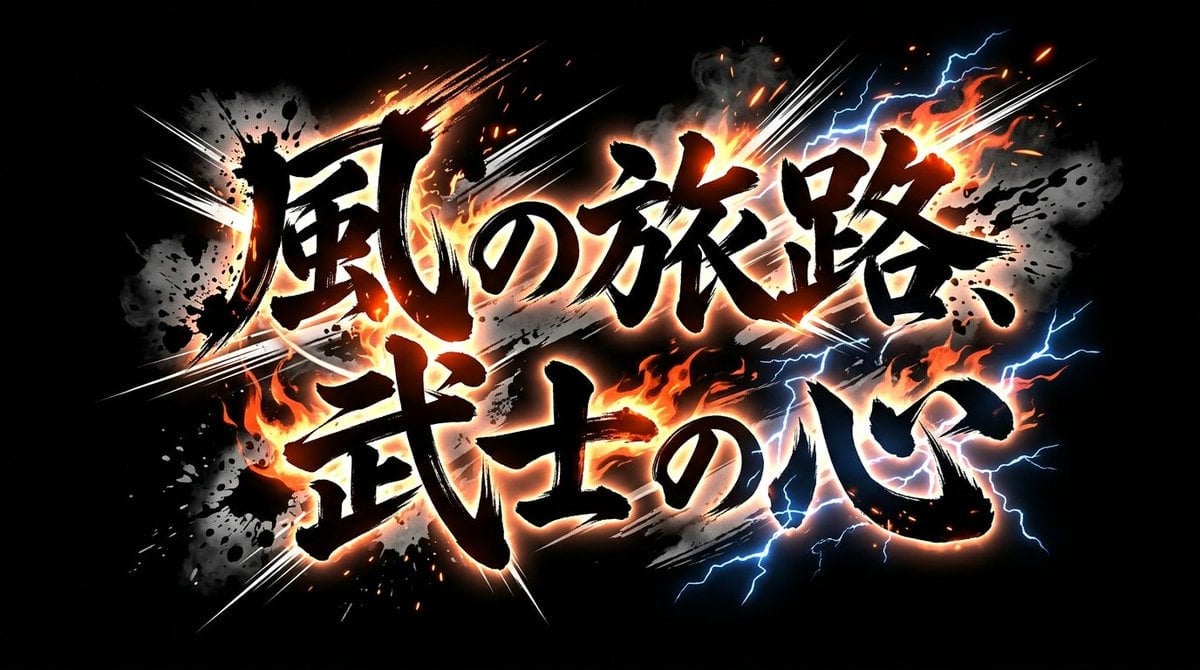
Nano Banana 2 Brushstroke Title Logo Prompts (4 Styles)
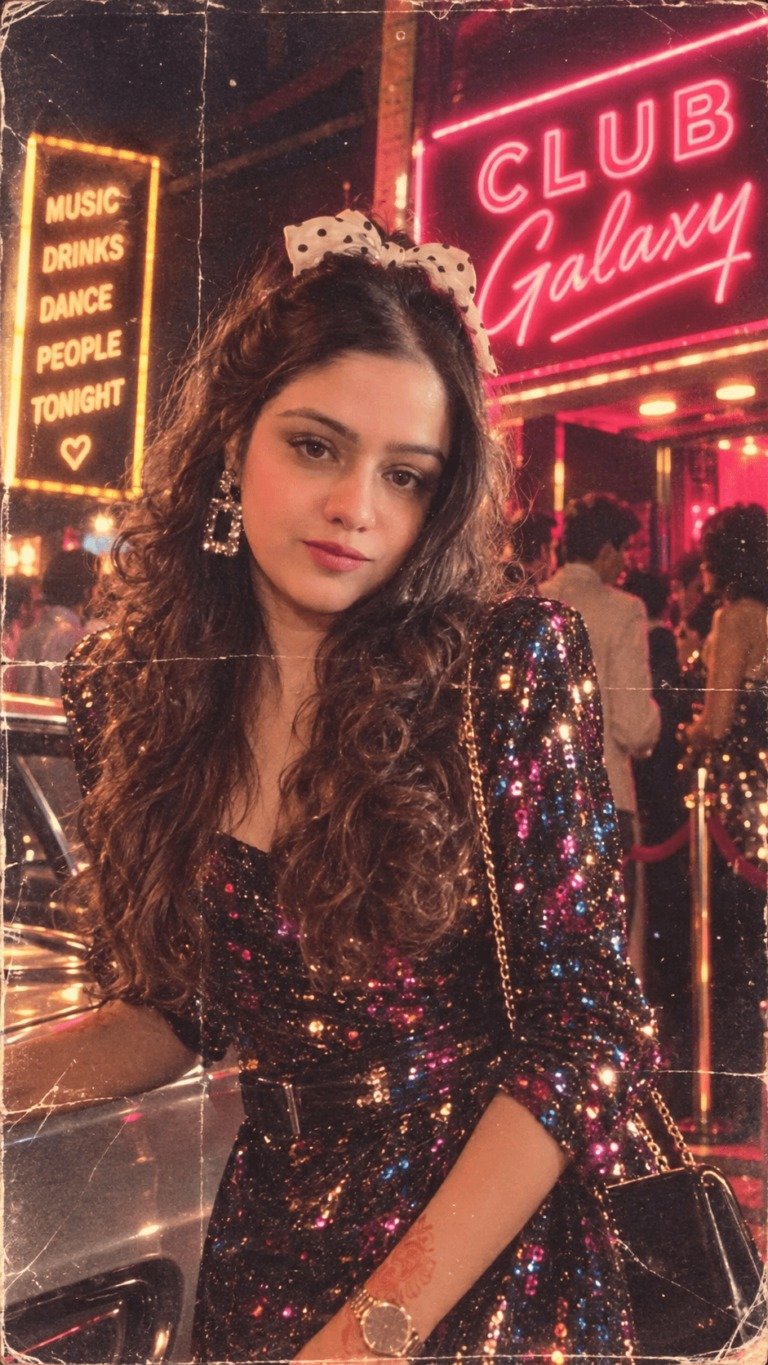
80s Neon Disco Night
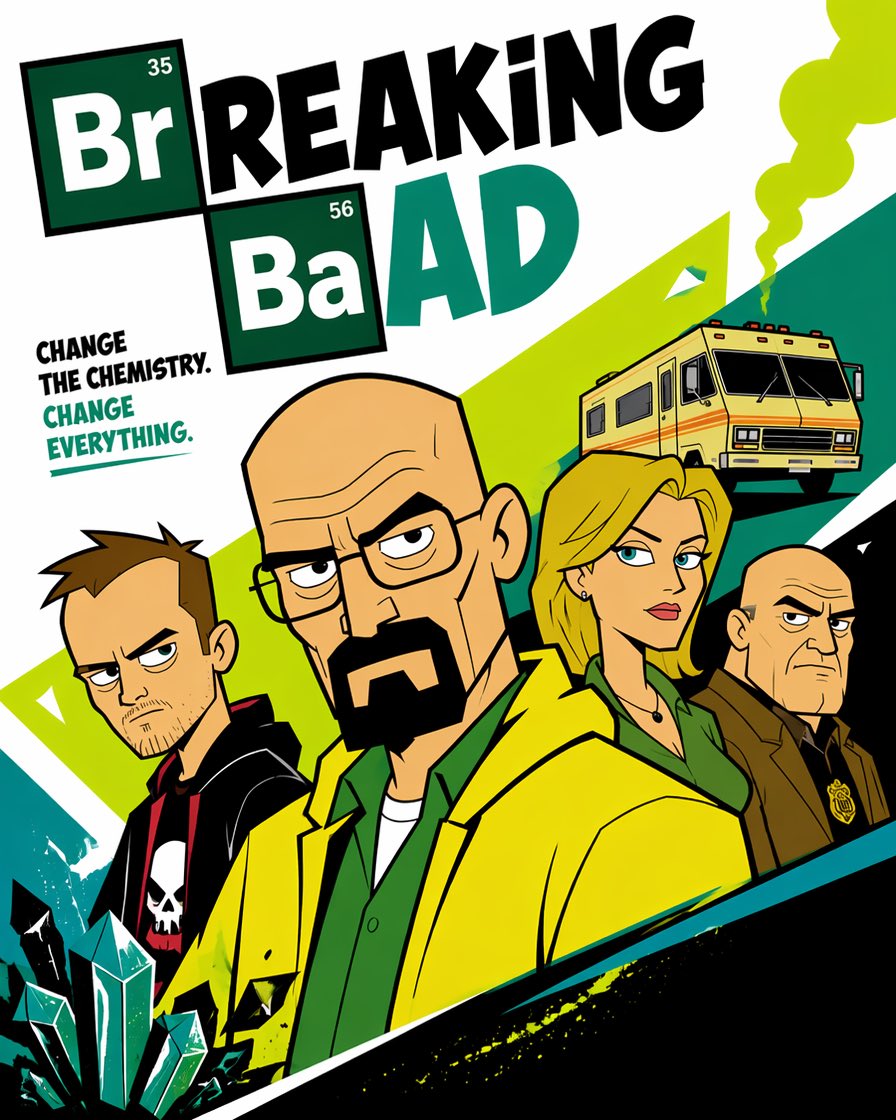
Cartoon TV Show Poster Pack
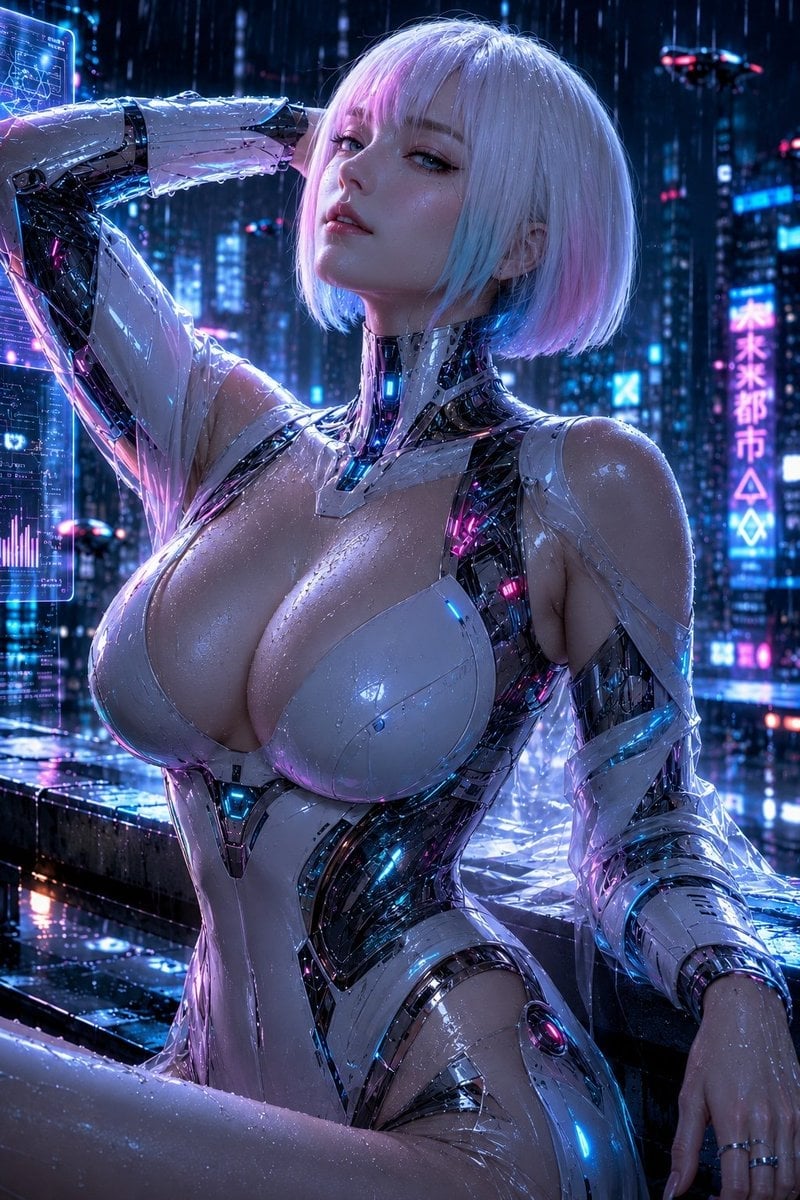
Rainy Night Android Cyberpunk Portrait
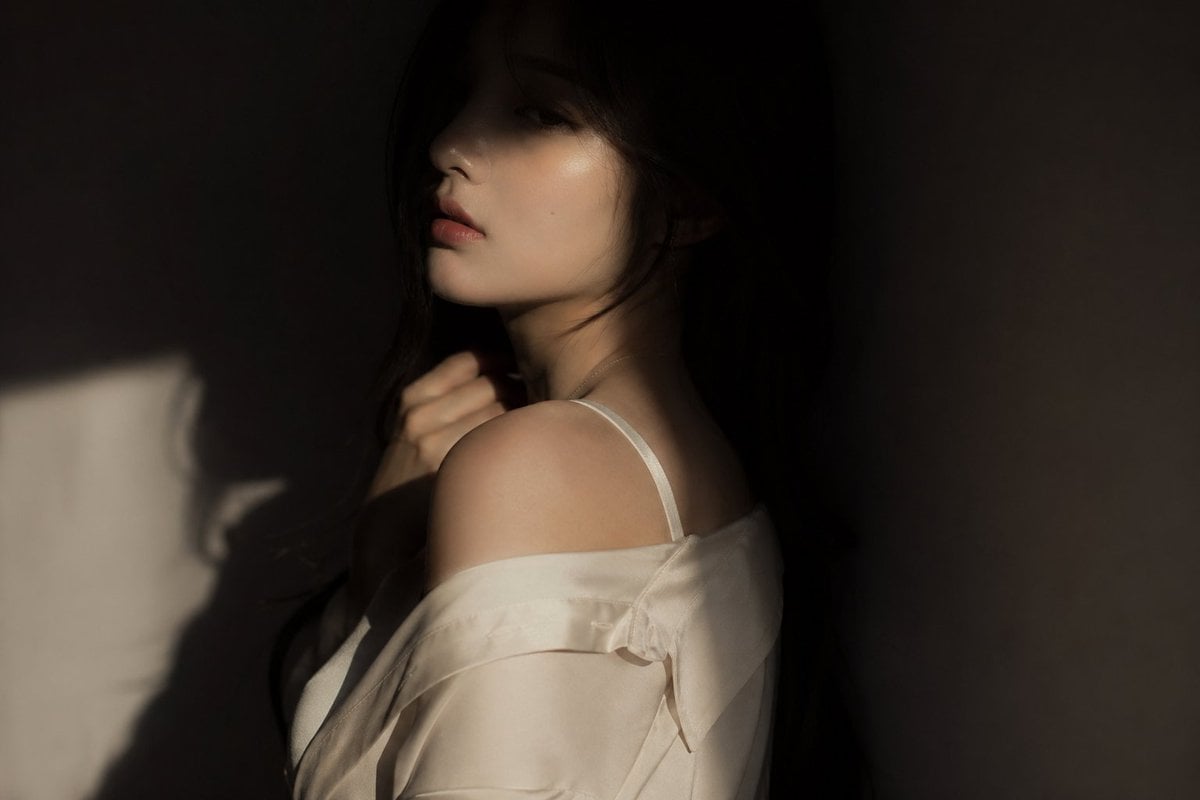
Korean Idol Partial Shadow Editorial Portrait
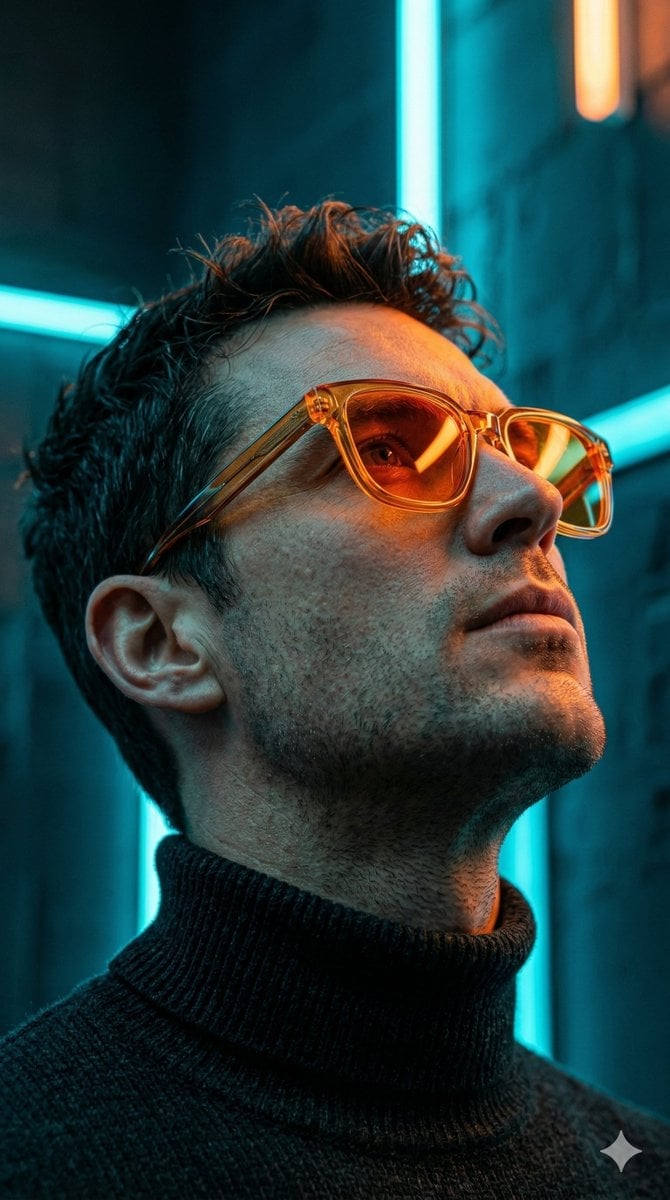
Cyberpunk Neon Profile Fashion Portrait
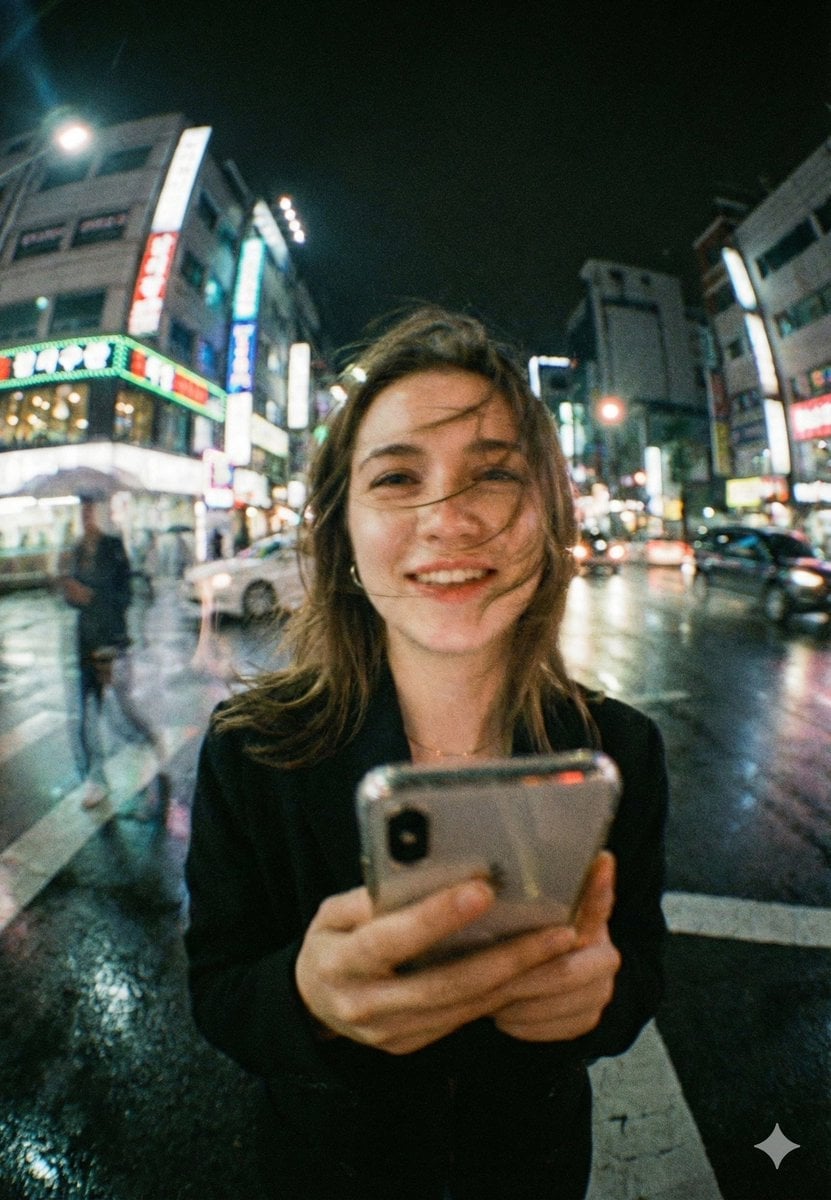
Neon Night Crosswalk Candid Portrait
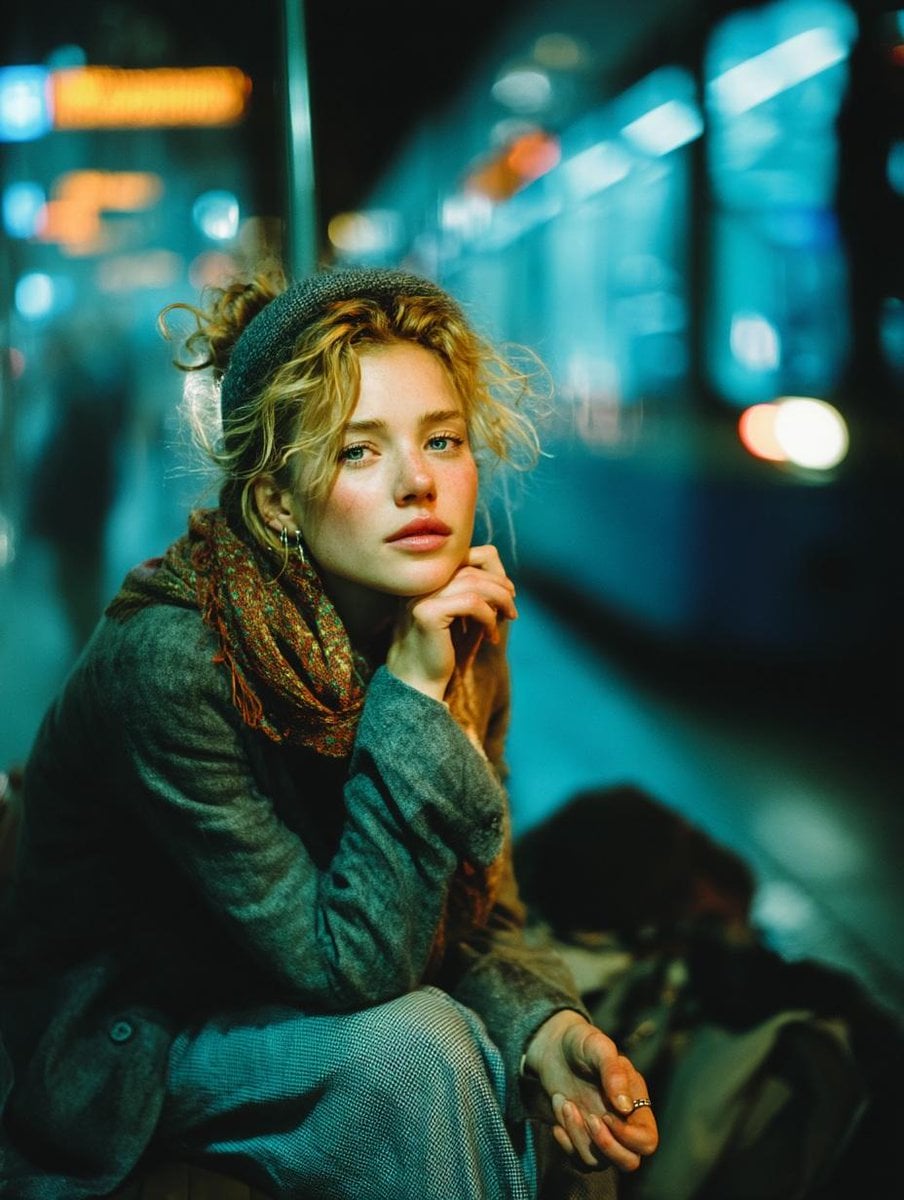
Subway Platform Quiet Introspective Portrait
Rainy Night Android Cyberpunk Portrait
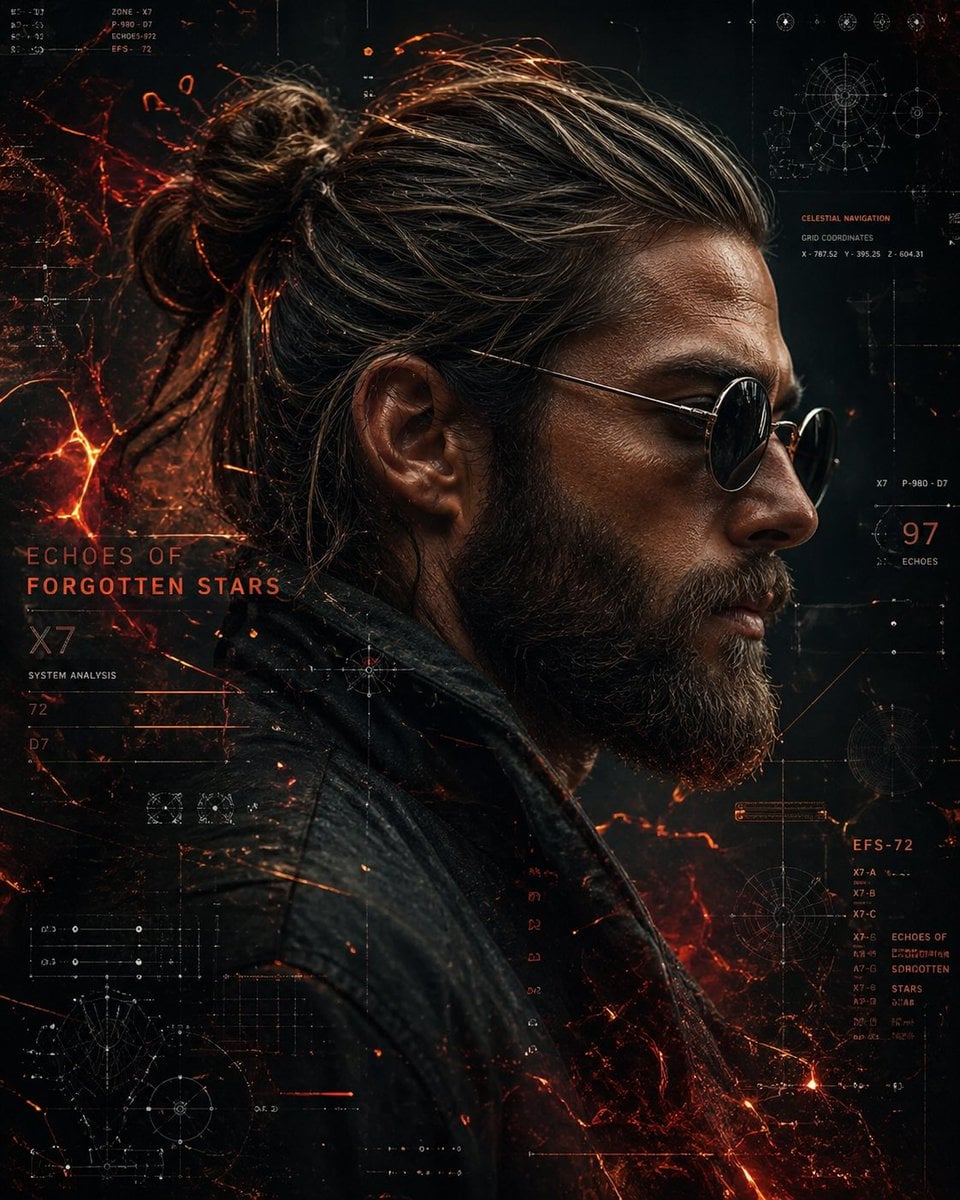
Cinematic Sci-Fi Commander Side Profile Portrait
Low-Angle Cyberpunk Neon Profile Portrait
Make it yours
Nano Banana Pro: Artist and Neon Styles works as-is. These are the safest ways to change it without losing the look.
Change one field
Copy a single group, rewrite it, and generate again so you can see what that field is doing.
Keep the frame, change the subject
Hold the composition and light of Nano Banana Pro: Artist and Neon Styles, then swap wardrobe, props or the person for a new take.
| If the result… | Why | Fix |
|---|---|---|
| The result drifts from the preview | Too many fields changed at once. | Reuse Nano Banana Pro: Artist and Neon Styles as-is first, then change one group — subject, light, or setting. |
| The model over-stylizes the scene | The prose prompt leaves finish and camera underspecified. | Add one camera or lighting sentence and stay on Nano Banana 2. |
More Nano Banana 2 templates
Other prompts made for Nano Banana 2.

Photorealistic Leaf Shaped Like a Dragon

K-Pop Idol Portrait Grid for Rapid Selection

Poetic Rain Forest Portrait During Golden Hour

Urban Street Portrait with Cartoon Inner Self Duo

Candid Nighttime Photo with Cat Prompt

High-Concept 3D Diorama Generation Prompt

Cinematic Futuristic Studio Portrait Template

Skincare Editorial Photography Collage Prompt

Hyper-Realistic Commercial Product Photography (Splash Effect)

Hyper-Realistic Nightclub Portrait Prompt
More image prompts
Fresh picks from across the catalog.
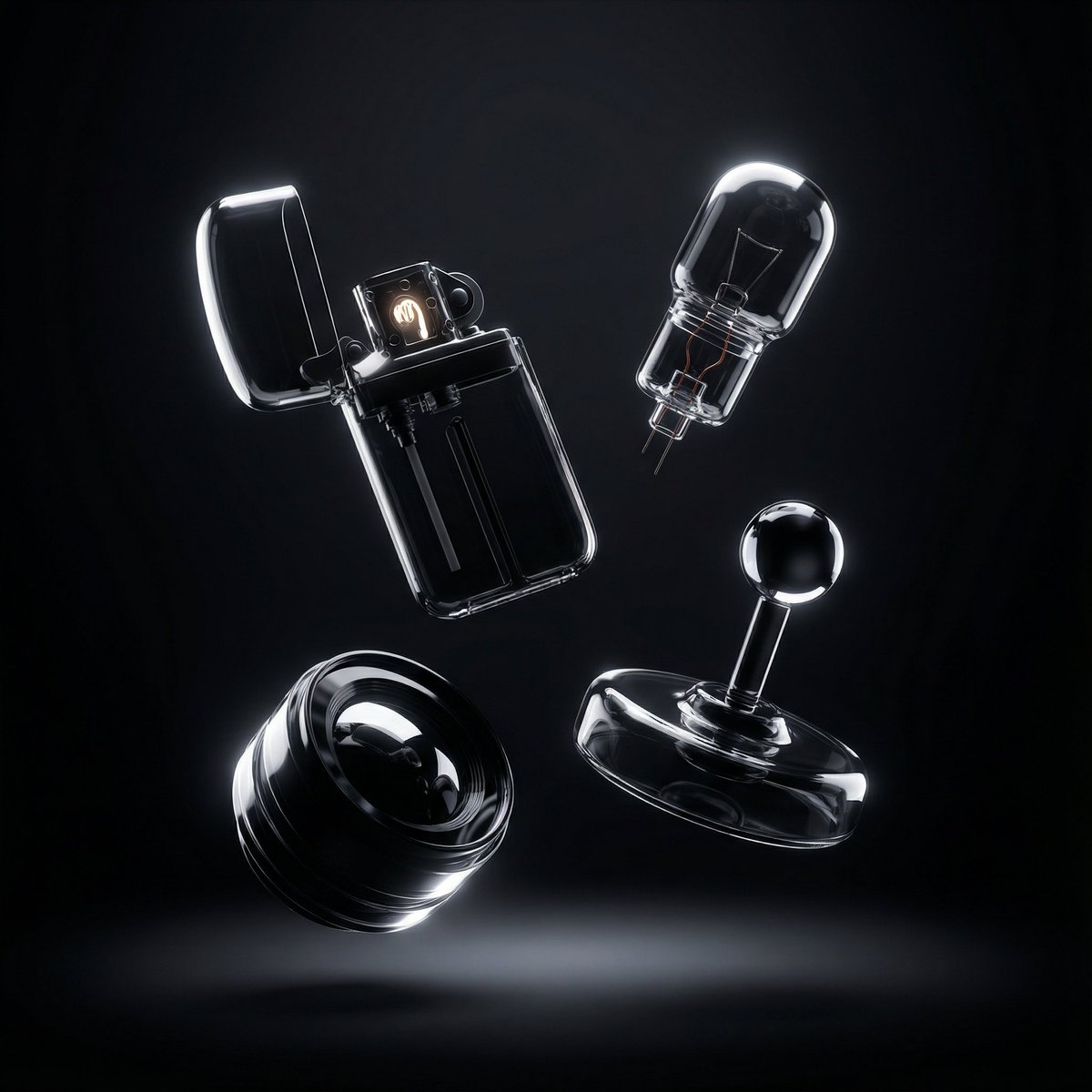
Ultra-Modern Transparent Black Hyperrealism
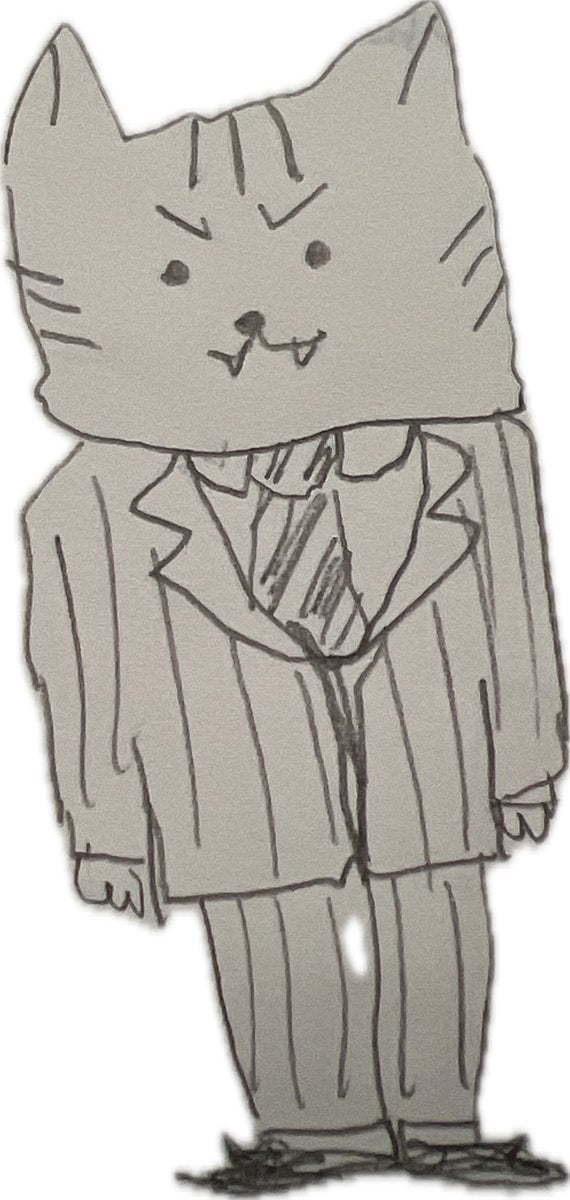
Nano Banana Pro Pencil Sketch Generation
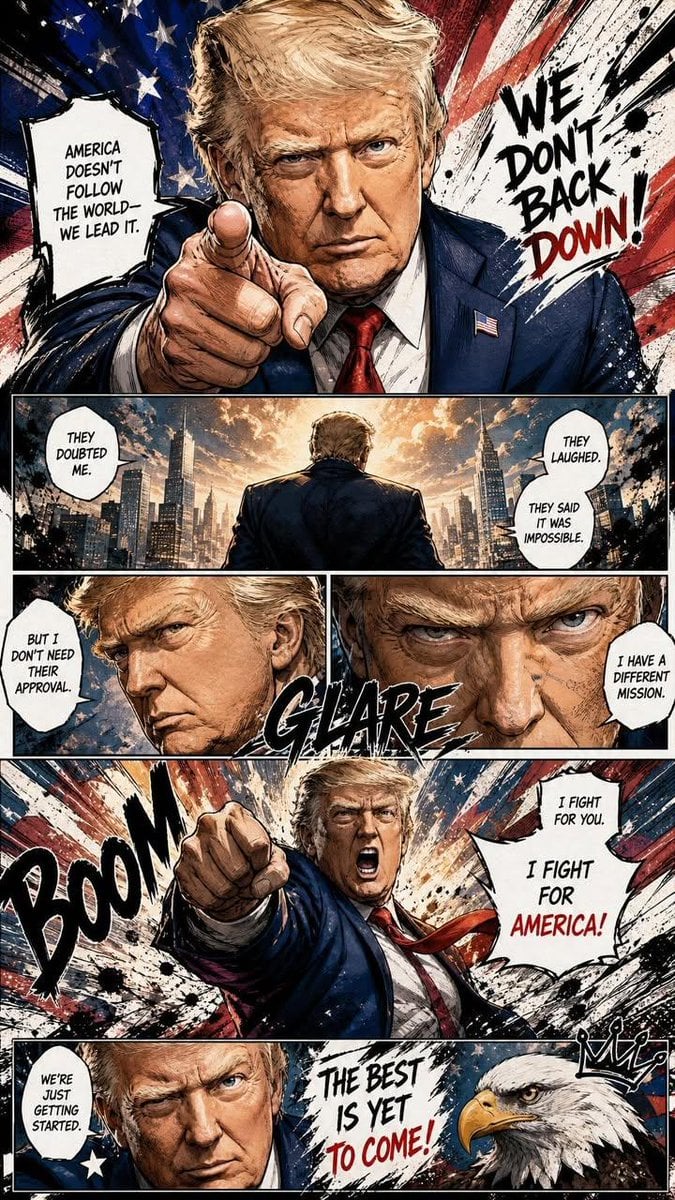
Dynamic Manga Page Illustration
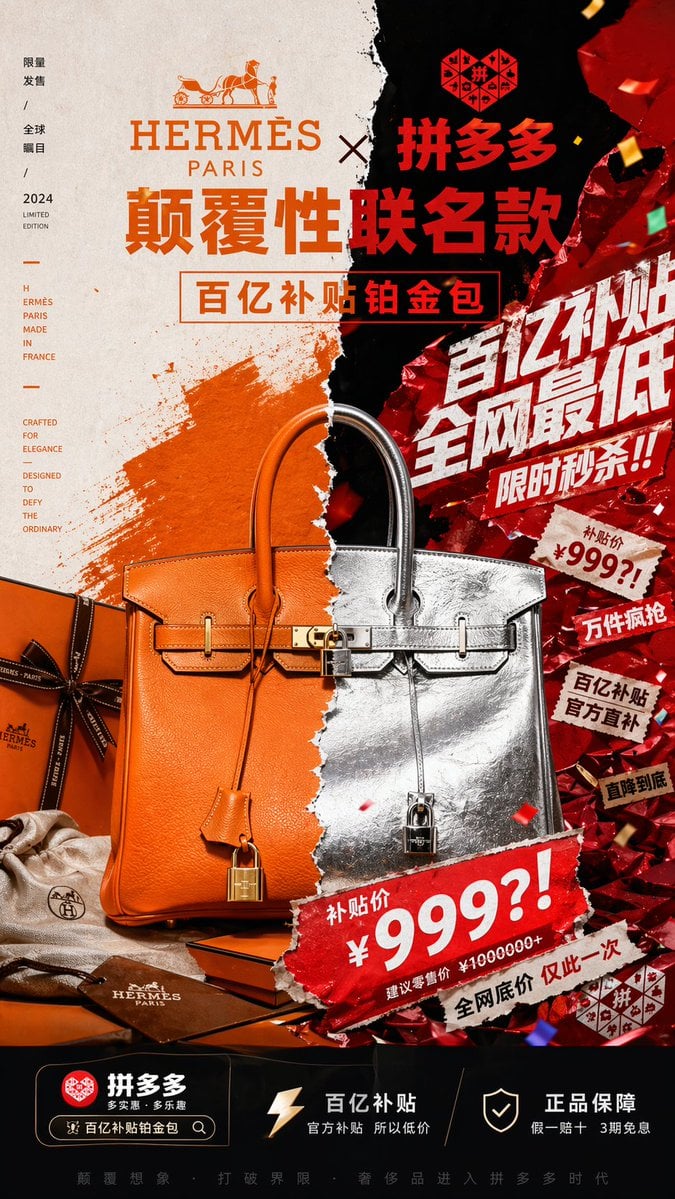
Luxury x E-commerce Split Poster
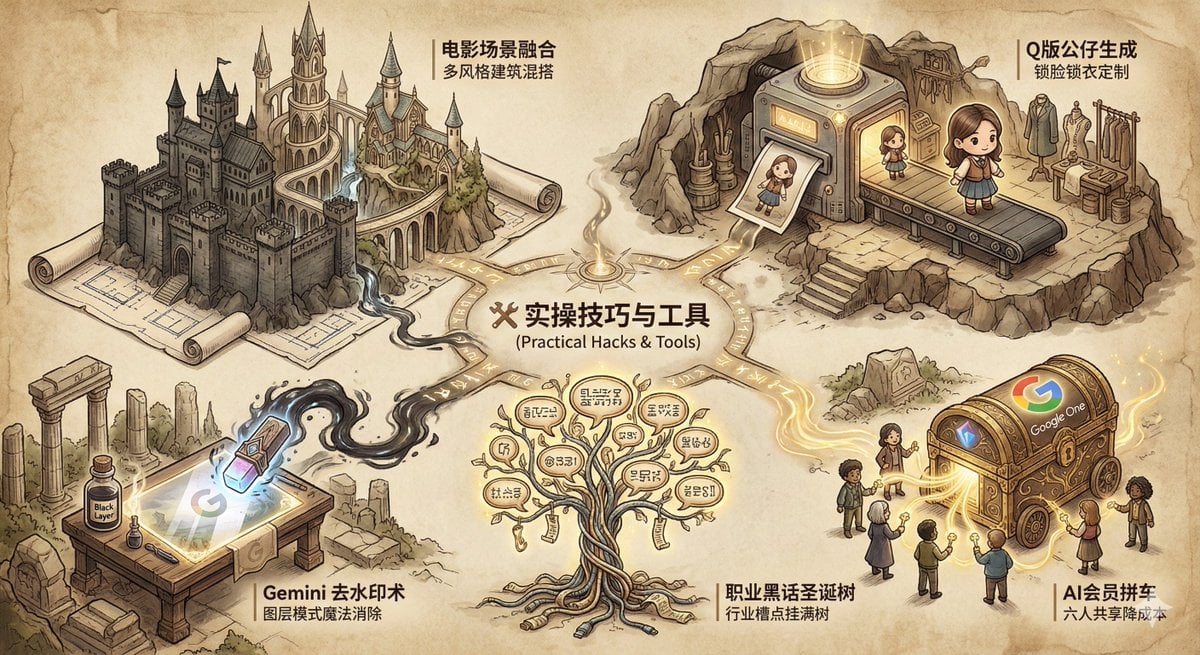
Industry Jargon Christmas Tree Prompt
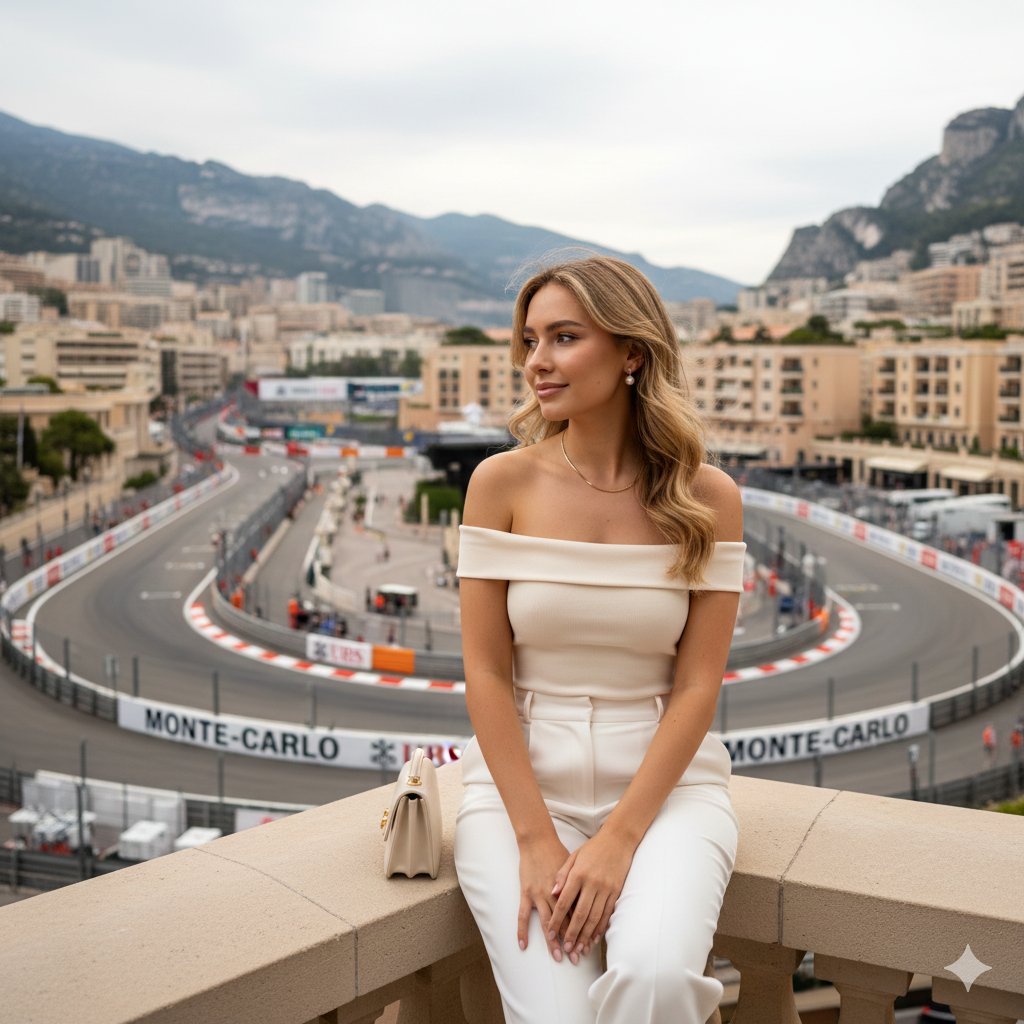
Luxury Travel Lifestyle Portrait in Monaco
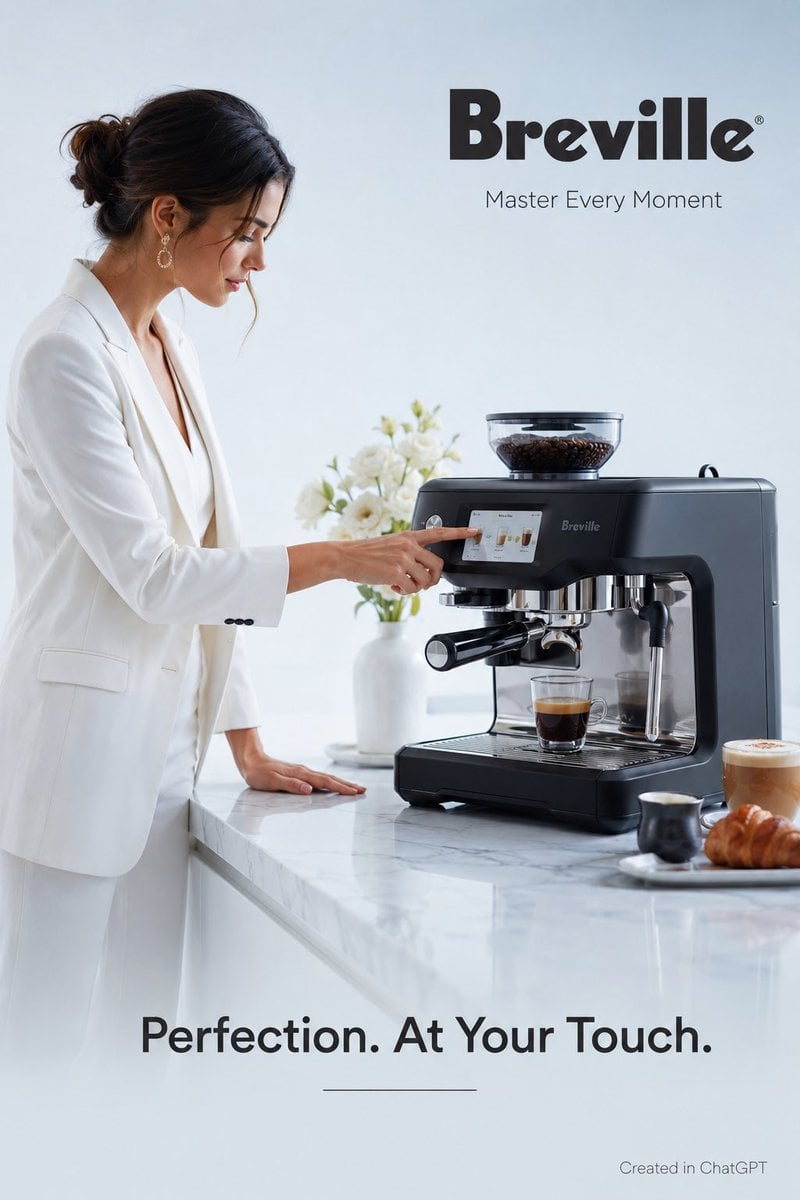
Luxury Espresso Machine Ad
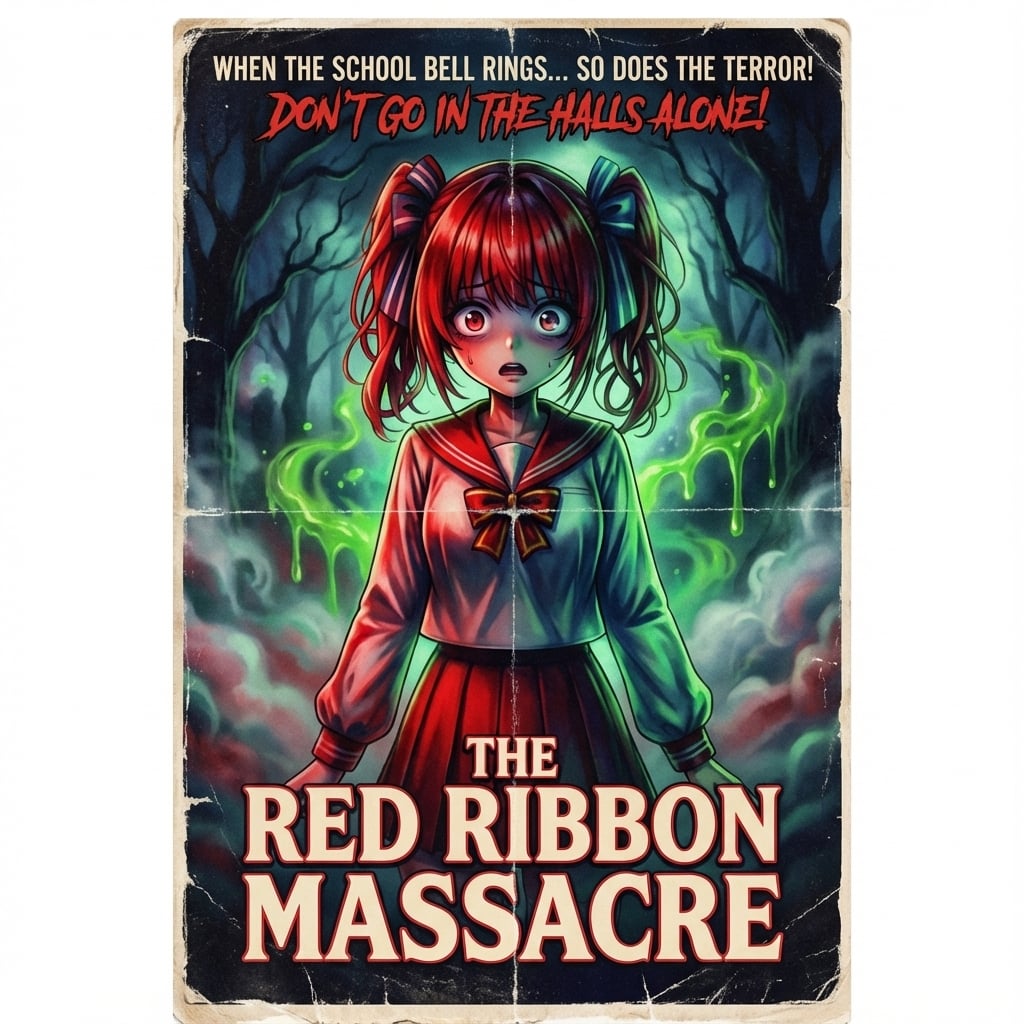
80s B-Movie Horror Poster Transformation Prompt
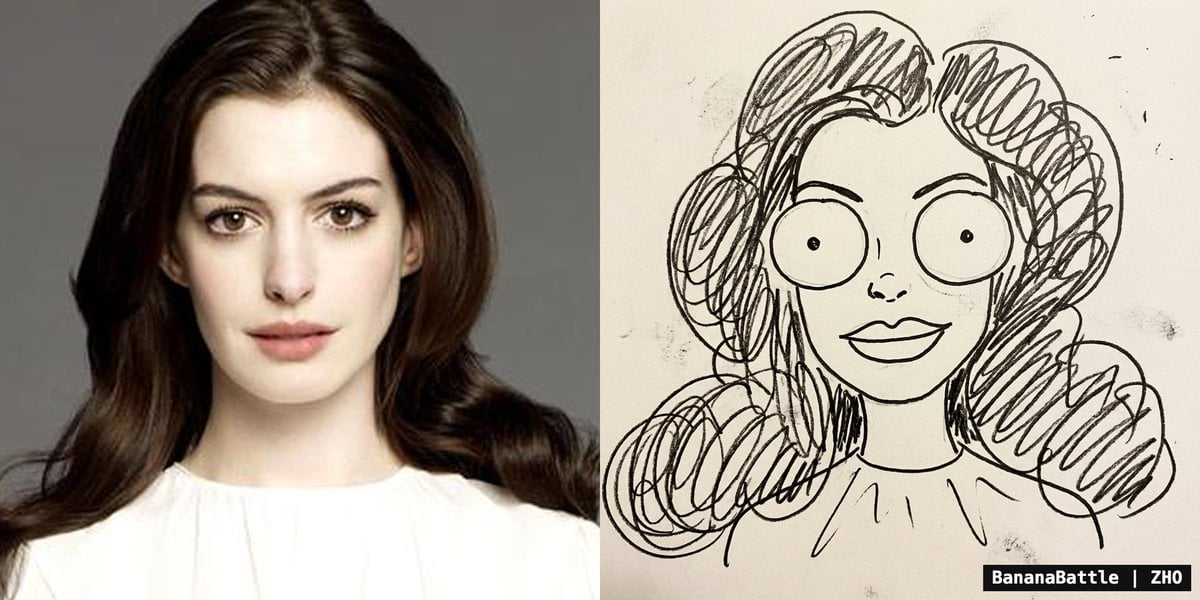
Naive doodle-style subject illustration
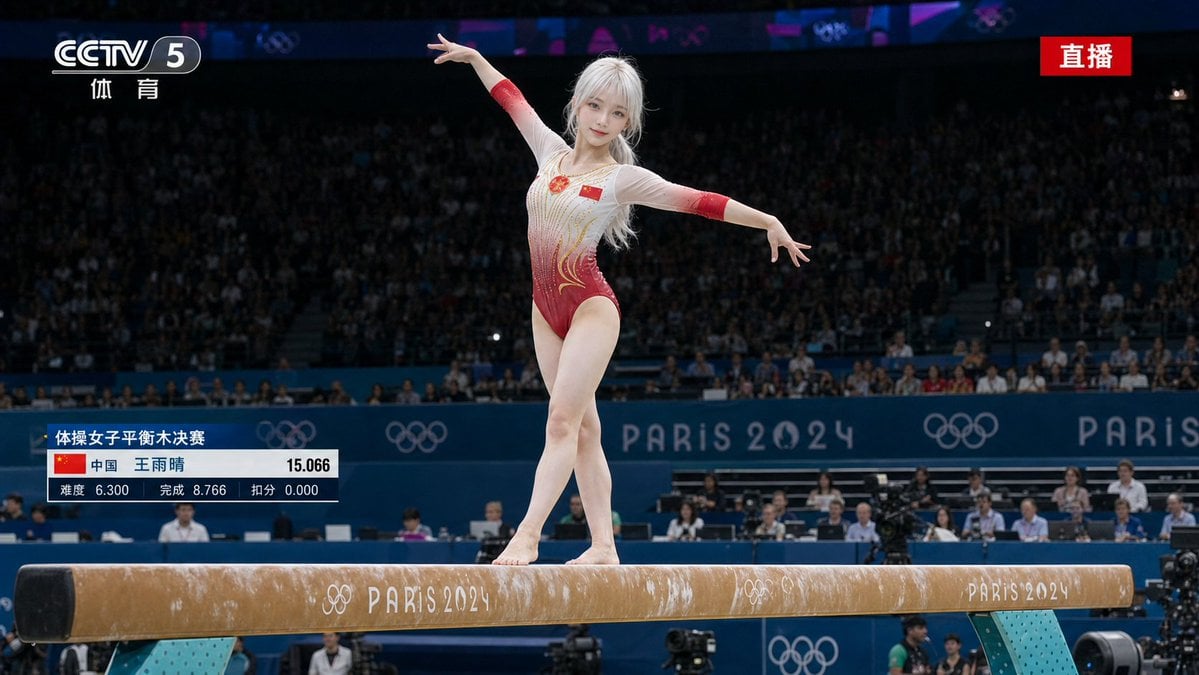
Olympic Gymnast Broadcast
Browse template categories
Nano Banana Pro: Artist and Neon Styles questions
How do I use the Nano Banana Pro: Artist and Neon Styles template?
Add your photo if the template asks for one, edit the prompt if you like — the template's model and format are already selected — and press Generate. Your version opens in PicX Studio.
Can I customize the Nano Banana Pro: Artist and Neon Styles template?
Yes. You can change the subject, setting, lighting, mood, format, and available model controls before creating your image.
Is the Nano Banana Pro: Artist and Neon Styles template free?
Opening and editing this template is free. Generating uses credits, shown on the Generate button when you are signed in.
Which AI model should I use?
Start with Nano Banana 2, which is the model associated with this template. You can compare another compatible model for a different finish.
Looking for something else? Browse all templates.

Your photo, any look
Thousands of ready templates for every top image and video model, from one credit balance.