
Studio Portrait with Space Buns and Glitter Overlay
A detailed JSON prompt for generating a high-fidelity, elegant, and mysterious studio portrait.
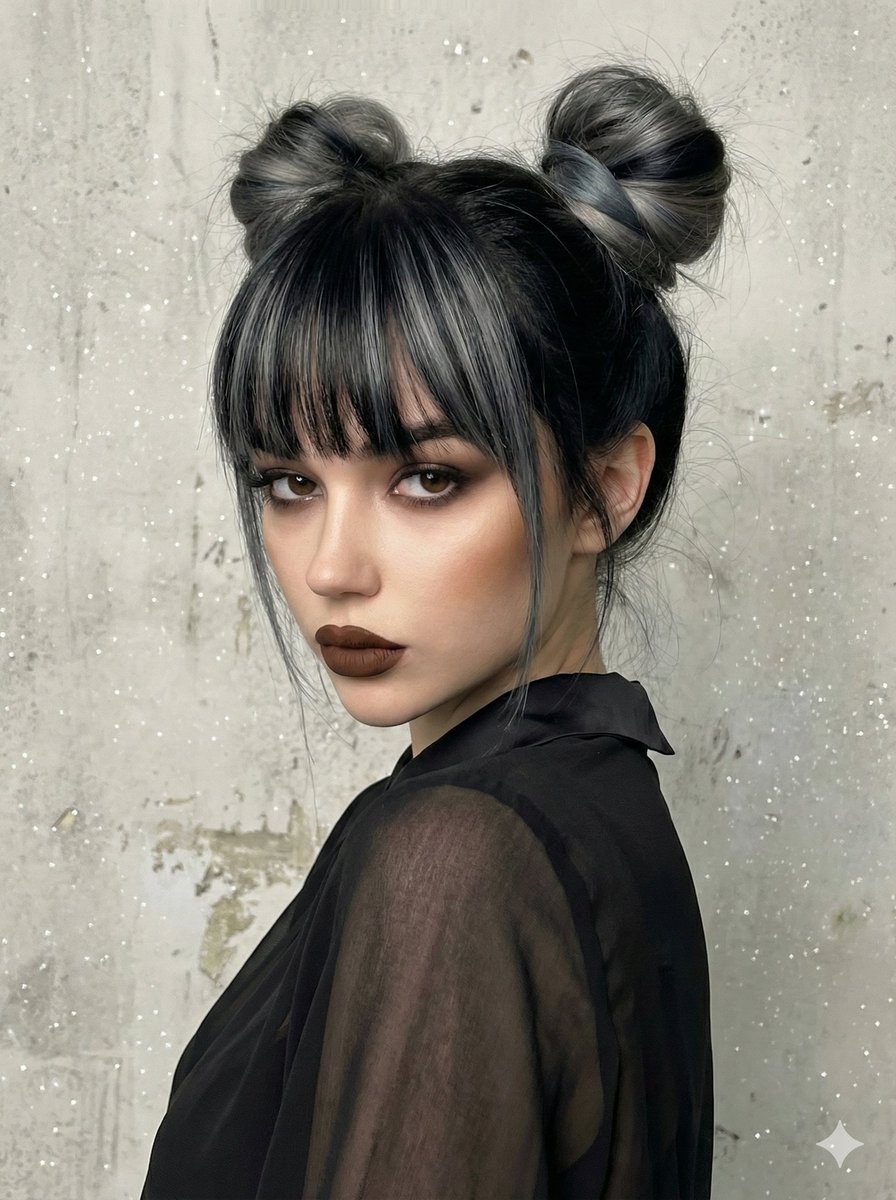
- Prompt included
- Model and format preset
- Free template
The prompt behind this image
Copy the exact prompt behind Studio Portrait with Space Buns and Glitter Overlay, or open it in the studio and make it yours.
- Type
- image_generation_prompt
- Style
- studio_portrait_creative
- Subject › Gender
- female
- Subject › Identity Preservation › Use Reference Image
- true
- Subject › Identity Preservation › Alter Face
- false
- Subject › Identity Preservation › Notes
- Maintain facial features exactly as in the reference image, but modify hair and makeup as specified.
- Subject › Hair › Style
- two high voluminous buns (space buns)
- Subject › Hair › Color
- black with grey or blue-grey streaks
- Subject › Hair › Bangs
- straight and dense bangs with grey streaks
- Subject › Hair › Notes
- Add bangs even if not present in reference
- Subject › Makeup › Style
- sculptural and dramatic
- Subject › Makeup › Eyes
- smokey eye in gray/black tones with sharp eyeliner
- Subject › Makeup › Lips
- dark brown (chocolate) matte lipstick
- Subject › Makeup › Skin
- perfectly smooth, strong facial contouring
- Subject › Expression
- serious and mysterious
- Subject › Pose › Type
- close-up portrait (head and shoulders)
- Subject › Pose › Angle
- 3/4 angle, looking over the shoulder
- Subject › Pose › Orientation
- body turned sideways, face rotated towards camera
- Wardrobe › Top
- black chiffon blouse
- Wardrobe › Fabric Details
- transparent and draped fabric with a smooth collar
- Wardrobe › Accessories
- no glasses
- Scene › Background
- light gray textured wall
- Scene › Texture
- worn cement or stucco effect
- Scene › Atmosphere
- studio interior
Raw JSON
{
  "type": "image_generation_prompt",
  "style": "studio_portrait_creative",
  "subject": {
    "gender": "female",
    "identity_preservation": {
      "use_reference_image": true,
      "alter_face": false,
      "notes": "Maintain facial features exactly as in the reference image, but modify hair and makeup as specified."
    },
    "hair": {
      "style": "two high voluminous buns (space buns)",
      "color": "black with grey or blue-grey streaks",
      "bangs": "straight and dense bangs with grey streaks",
      "notes": "Add bangs even if not present in reference"
    },
    "makeup": {
      "style": "sculptural and dramatic",
      "eyes": "smokey eye in gray/black tones with sharp eyeliner",
      "lips": "dark brown (chocolate) matte lipstick",
      "skin": "perfectly smooth, strong facial contouring"
    },
    "expression": "serious and mysterious",
    "pose": {
      "type": "close-up portrait (head and shoulders)",
      "angle": "3/4 angle, looking over the shoulder",
      "orientation": "body turned sideways, face rotated towards camera"
    }
  },
  "wardrobe": {
    "top": "black chiffon blouse",
    "fabric_details": "transparent and draped fabric with a smooth collar",
    "accessories": "no glasses"
  },
  "scene": {
    "background": "light gray textured wall",
    "texture": "worn cement or stucco effect",
    "atmosphere": "studio interior"
  },
  "lighting": {
    "type": "soft, slightly lateral and diffused",
    "effects": "digitally added glitter/star sparkles",
    "shadows": "contour-defining shadows"
  },
  "artistic_direction": {
    "color_palette": "cold and elegant tones (grays, blacks, blue-grey)",
    "contrast": "brown lipstick providing the only warm touch",
    "vibe": "elegant, mysterious, creative"
  },
  "output_goal": "Create a high-fidelity portrait of the subject with space buns and bangs, wearing black chiffon against a textured gray wall, featuring a cold color palette with a magical glitter overlay."
}How to use Studio Portrait with Space Buns and Glitter Overlay in 3 steps
- 1Upload ImagePNG, JPG or paste
Add your photo
Upload the photo the template builds on. The prompt, model and format are already set.
- 2…a portrait of your subject in softgolden-hour light, 85mm…
Personalize
Edit the subject and creative details for your destination.
- 3Generate
Generate
Press Generate — your image is created in PicX Studio, so you can compare it with the original and refine one variable at a time.
More like this
Templates with the same subject, style or setup. Open one to see its prompt.

80s Couple Studio Portrait
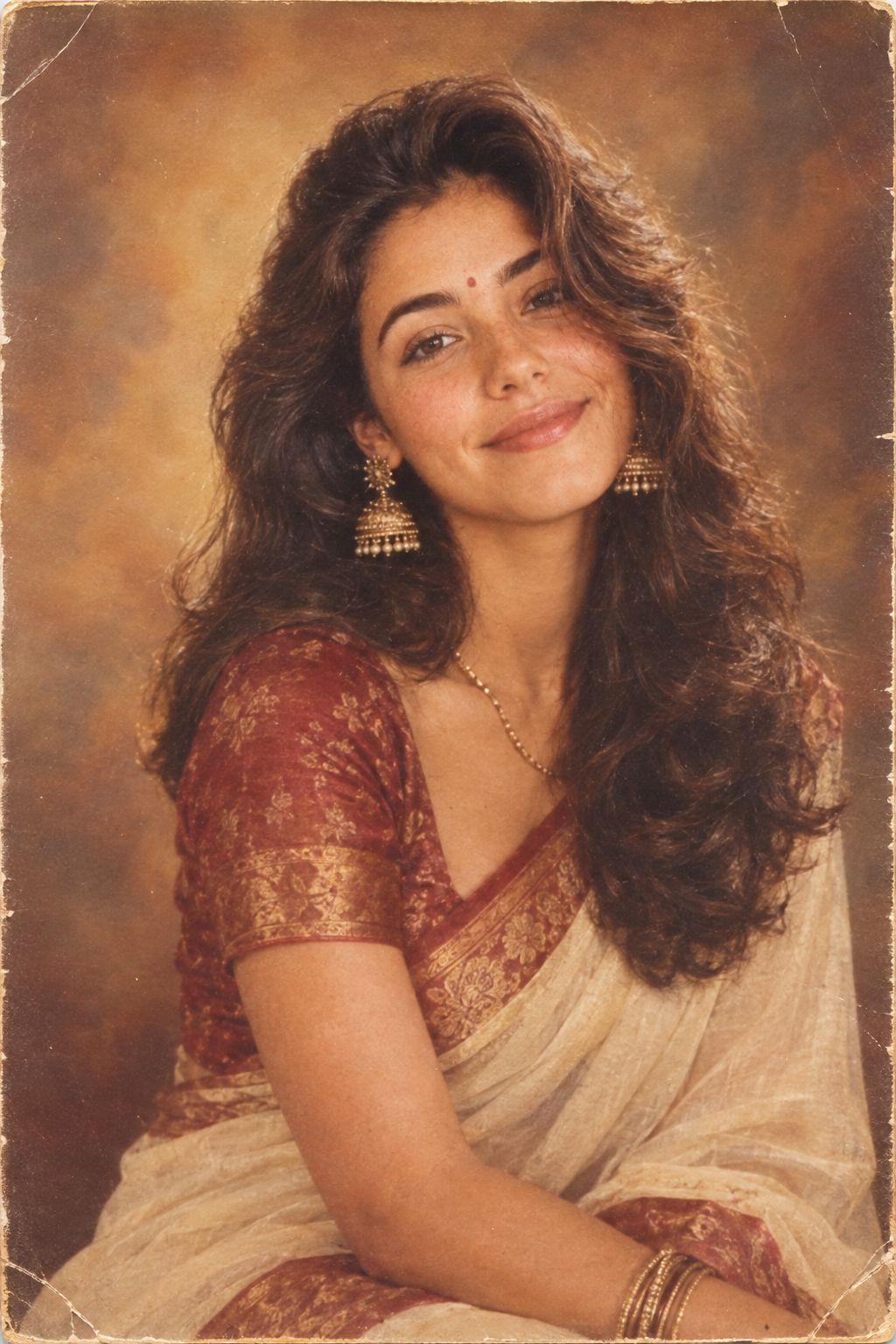
1985 Studio Portrait
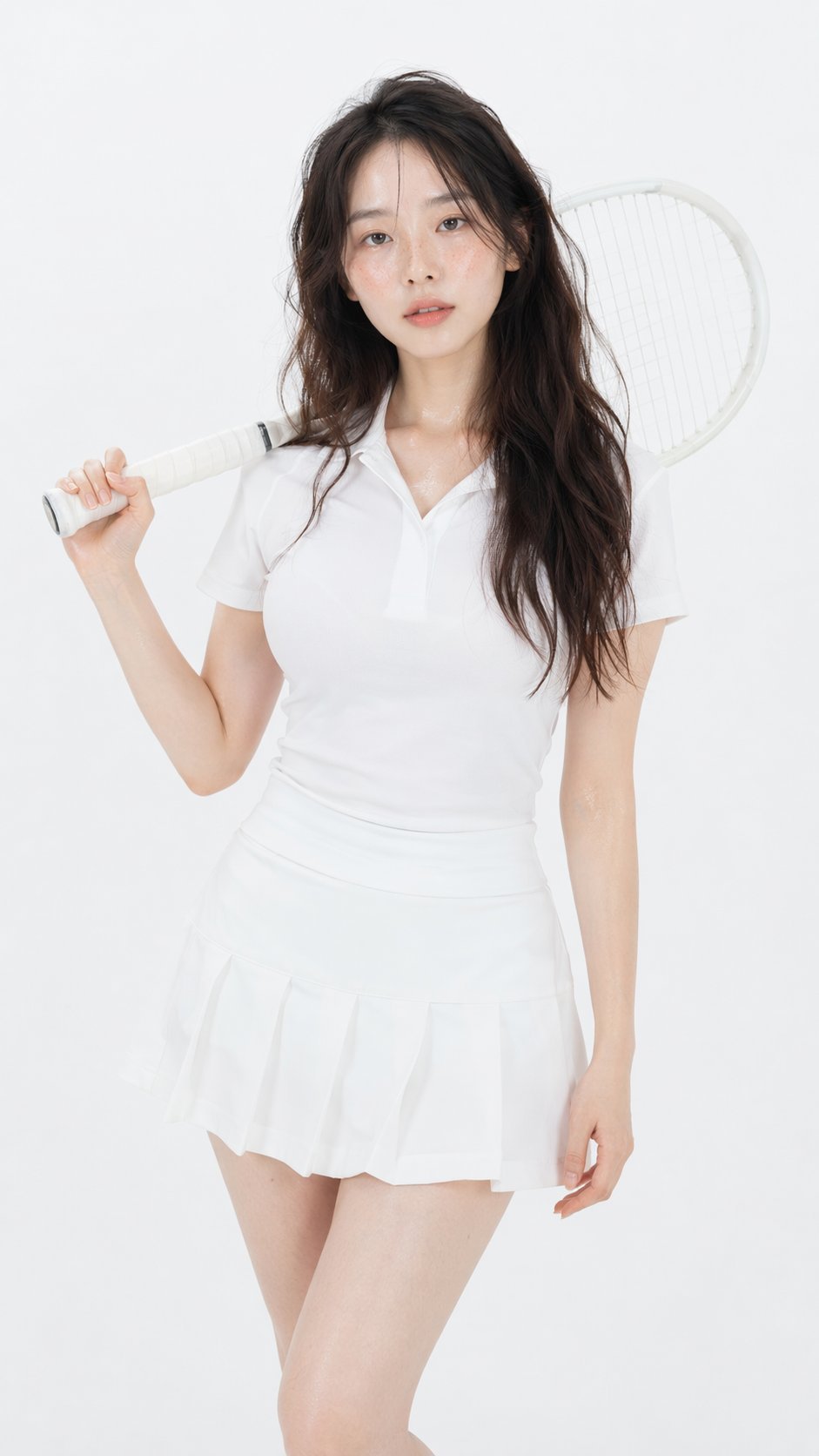
Gpt Image 2 Fashion Portrait
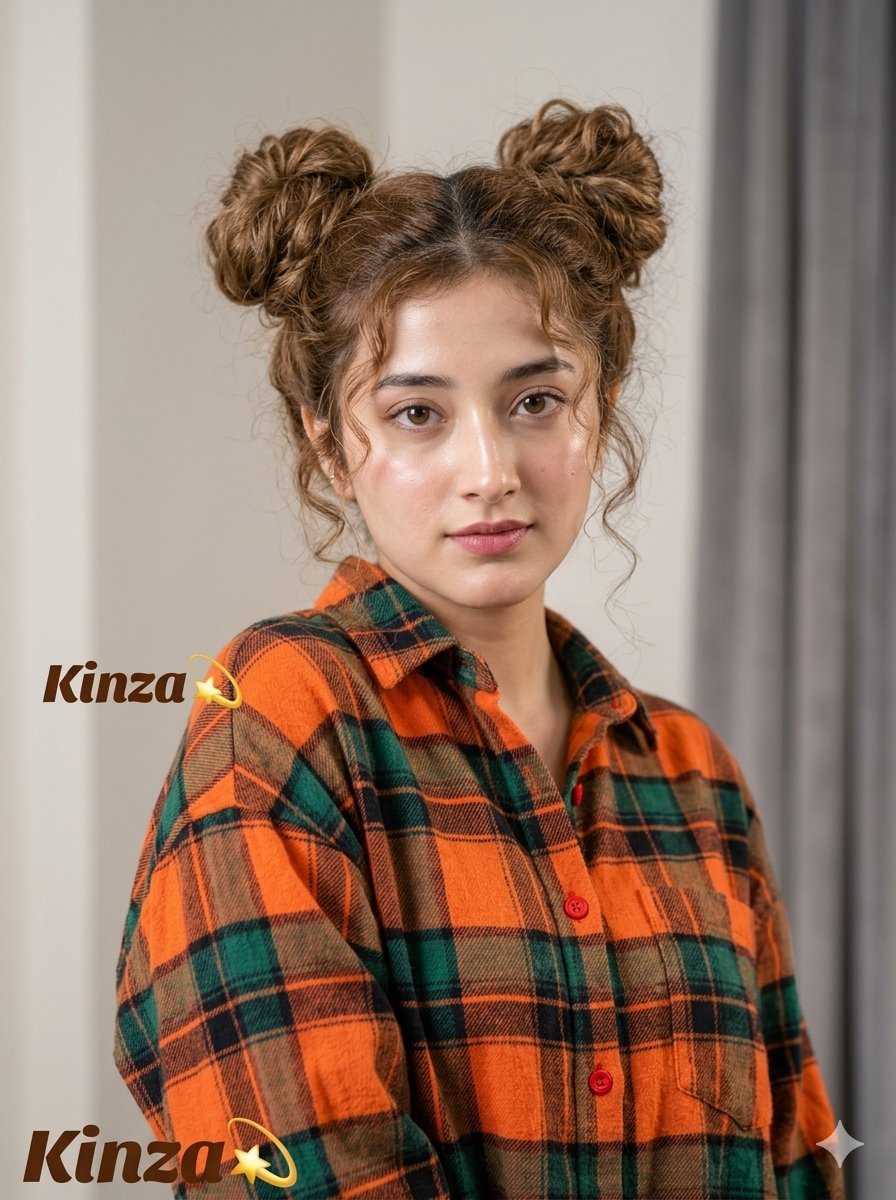
Playful Space Buns Portrait
Mixed Media Studio Portrait with Vector Graphics Overlay

Found Photograph: Us, 1970
80s Bollywood Star
80s Golden Hour Cinema
Me in 1985

Hyper-Realistic Minecraft POV Portrait
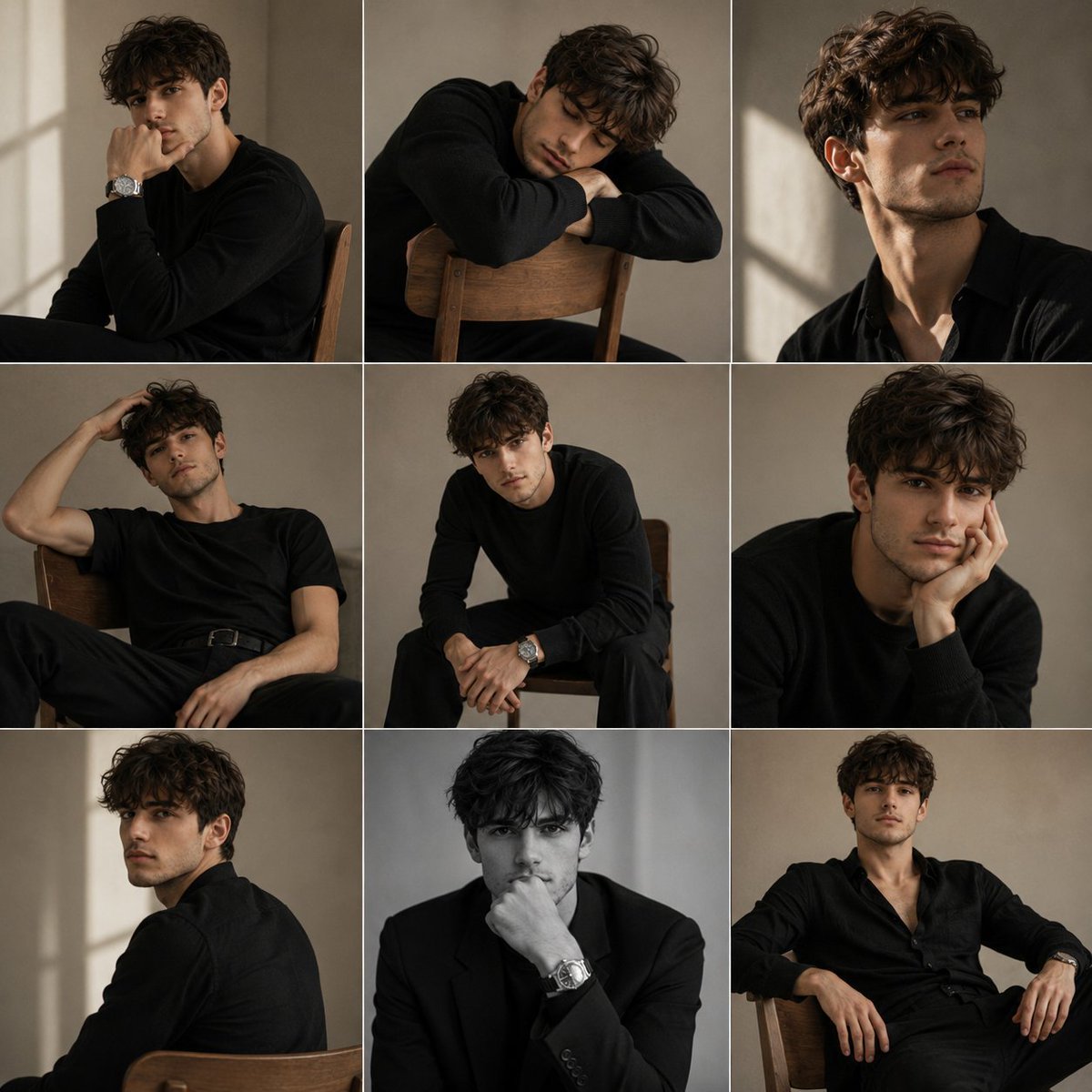
Minimalist Studio Fashion Portrait Grid
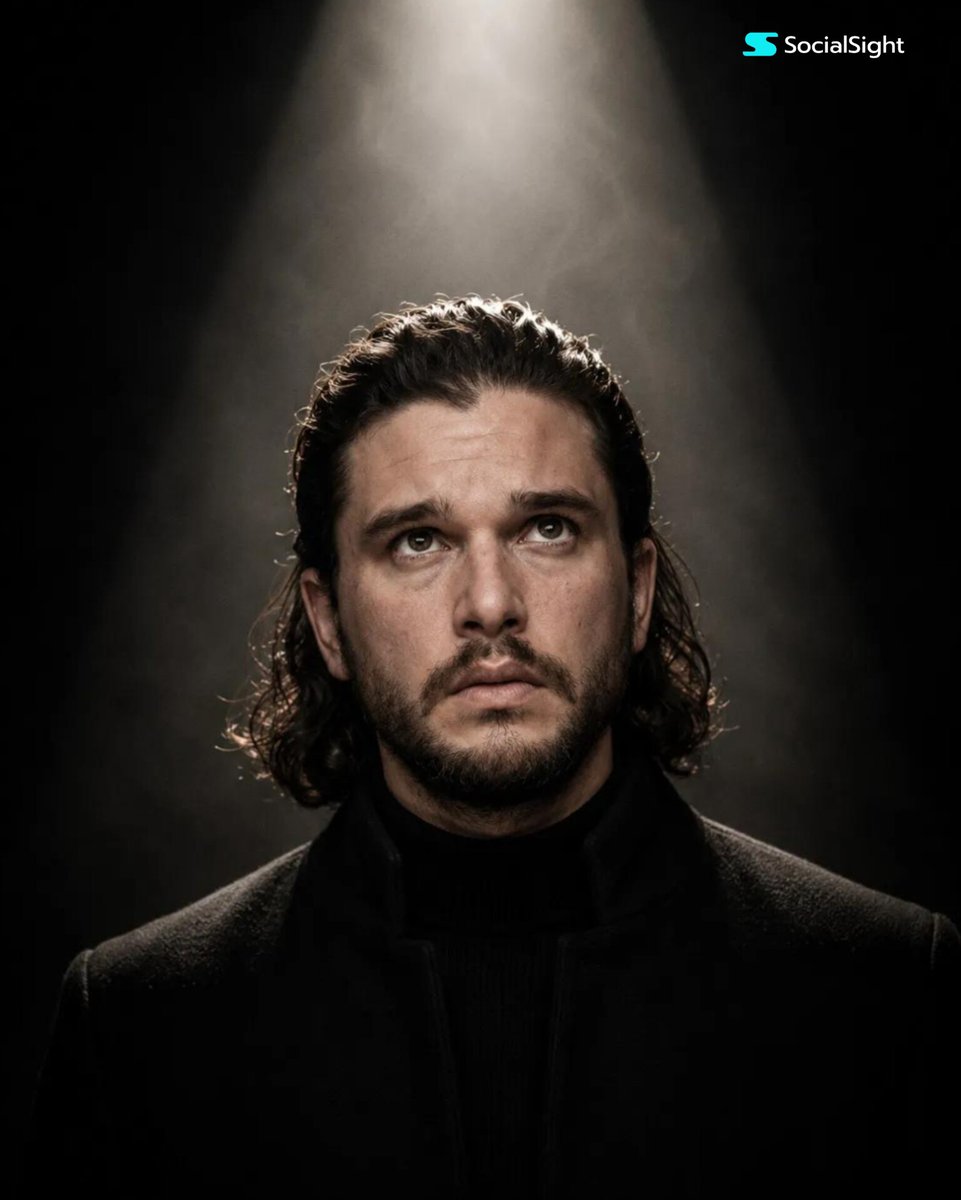
Cinematic Spotlight Studio Portrait
Make it yours
Studio Portrait with Space Buns and Glitter Overlay works as-is. These are the safest ways to change it without losing the look.
Swap the setting
Keep the rest of the prompt and replace the location block. The current setting is “light gray textured wall”.
Swap the light
One lighting change is enough to compare takes. Current light: “soft, slightly lateral and diffused”.
Change one field
Copy a single group, rewrite it, and generate again so you can see what that field is doing.
| If the result… | Why | Fix |
|---|---|---|
| The result drifts from the preview | Too many fields changed at once. | Reuse Studio Portrait with Space Buns and Glitter Overlay as-is first, then change one group — subject, light, or setting. |
| Nano Banana 2 ignores part of the JSON | Some models flatten or skip nested keys. | Keep the same values and paste them as a short paragraph instead. |
More Nano Banana 2 templates
Other prompts made for Nano Banana 2.

Photorealistic Leaf Shaped Like a Dragon

K-Pop Idol Portrait Grid for Rapid Selection

Poetic Rain Forest Portrait During Golden Hour

Urban Street Portrait with Cartoon Inner Self Duo

Candid Nighttime Photo with Cat Prompt

High-Concept 3D Diorama Generation Prompt

Cinematic Futuristic Studio Portrait Template

Skincare Editorial Photography Collage Prompt

Hyper-Realistic Commercial Product Photography (Splash Effect)

Hyper-Realistic Nightclub Portrait Prompt
More image prompts
Fresh picks from across the catalog.
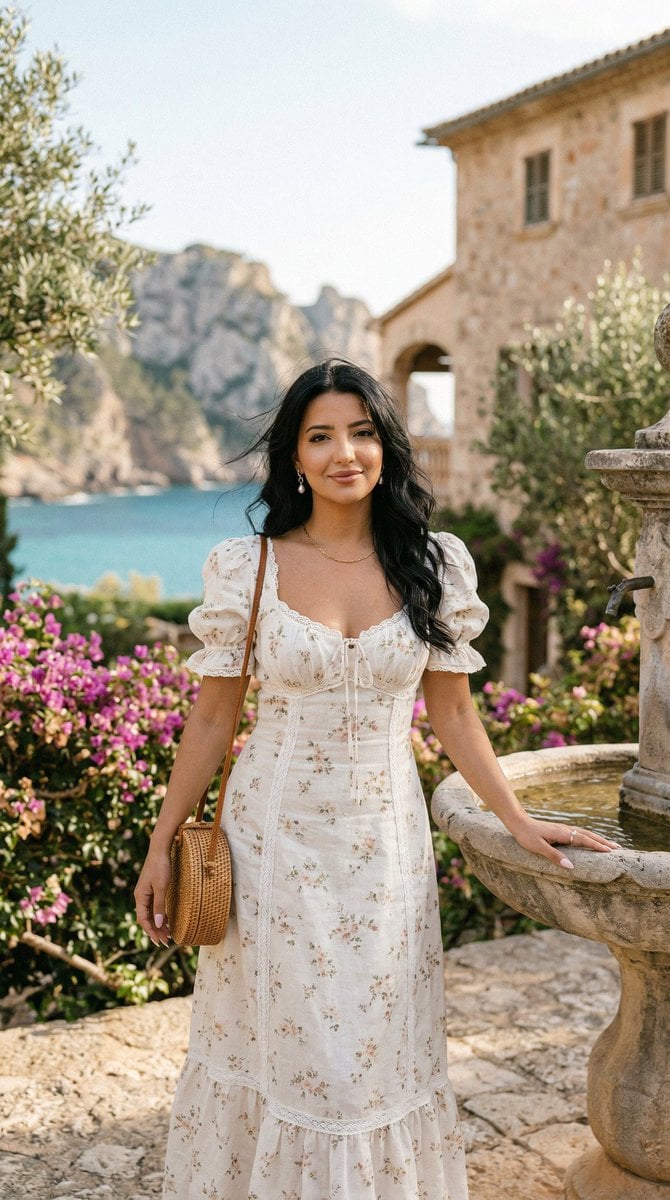
Romantic Mediterranean Coastal Editorial
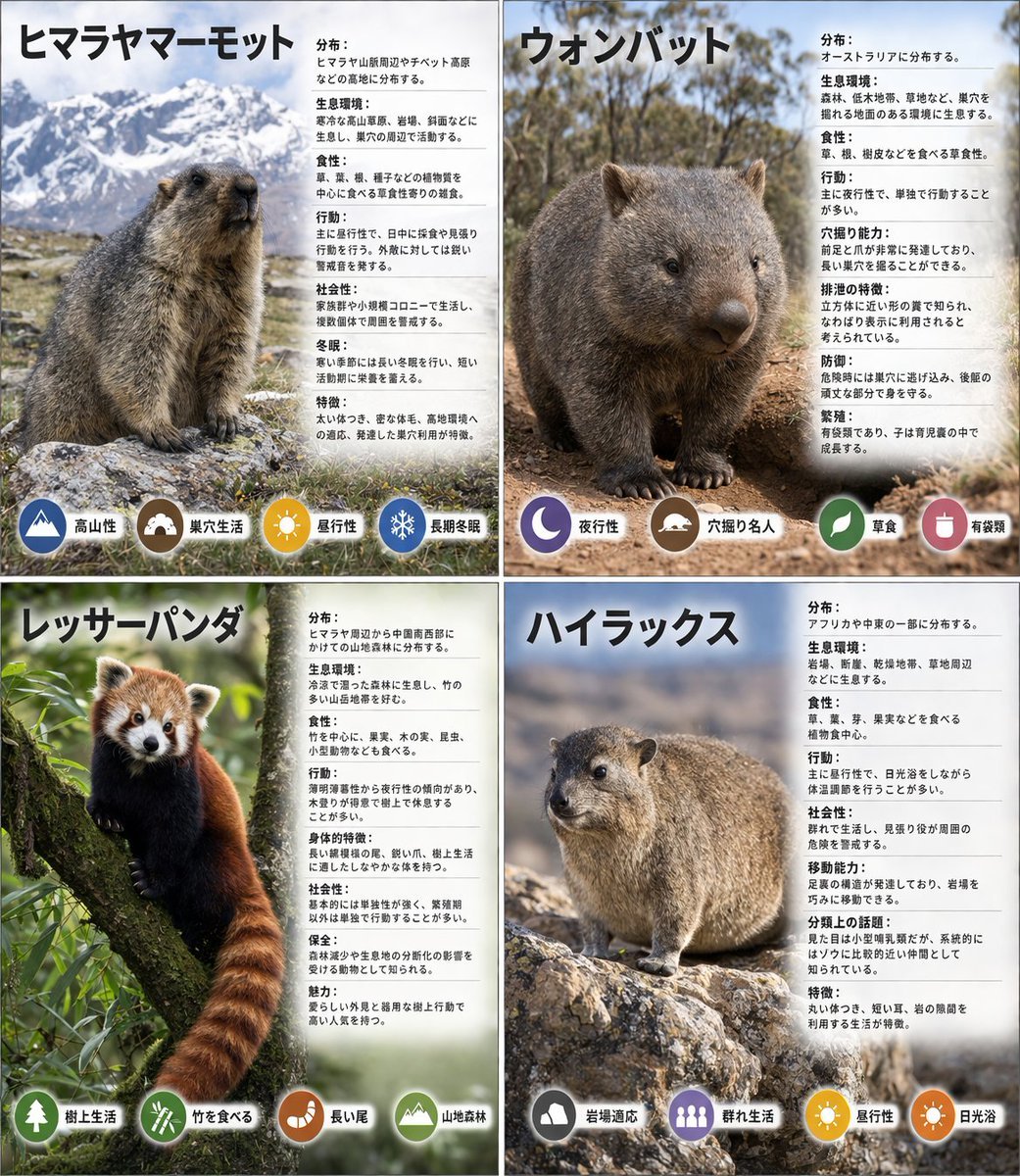
Panel Animal Infographic Grid
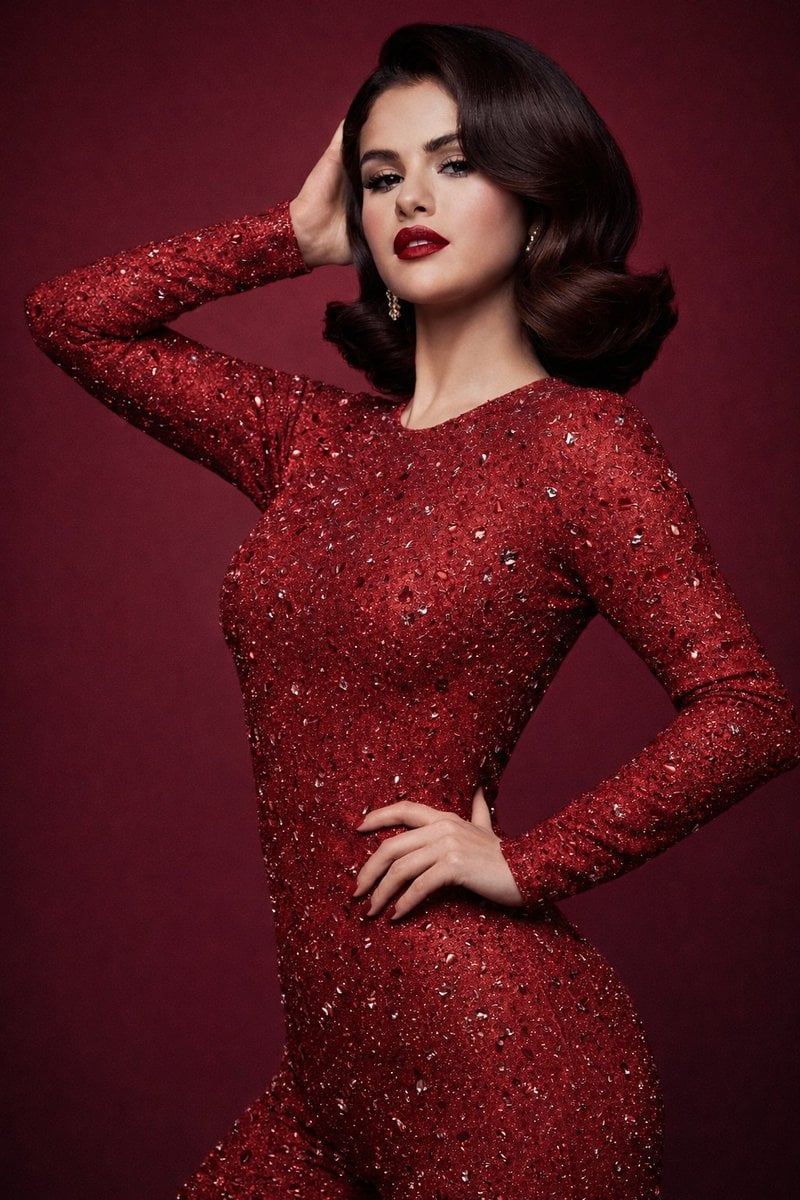
8K Studio Fashion Portrait in Red Jumpsuit

Lego Racer on Exploding Volcano Slope
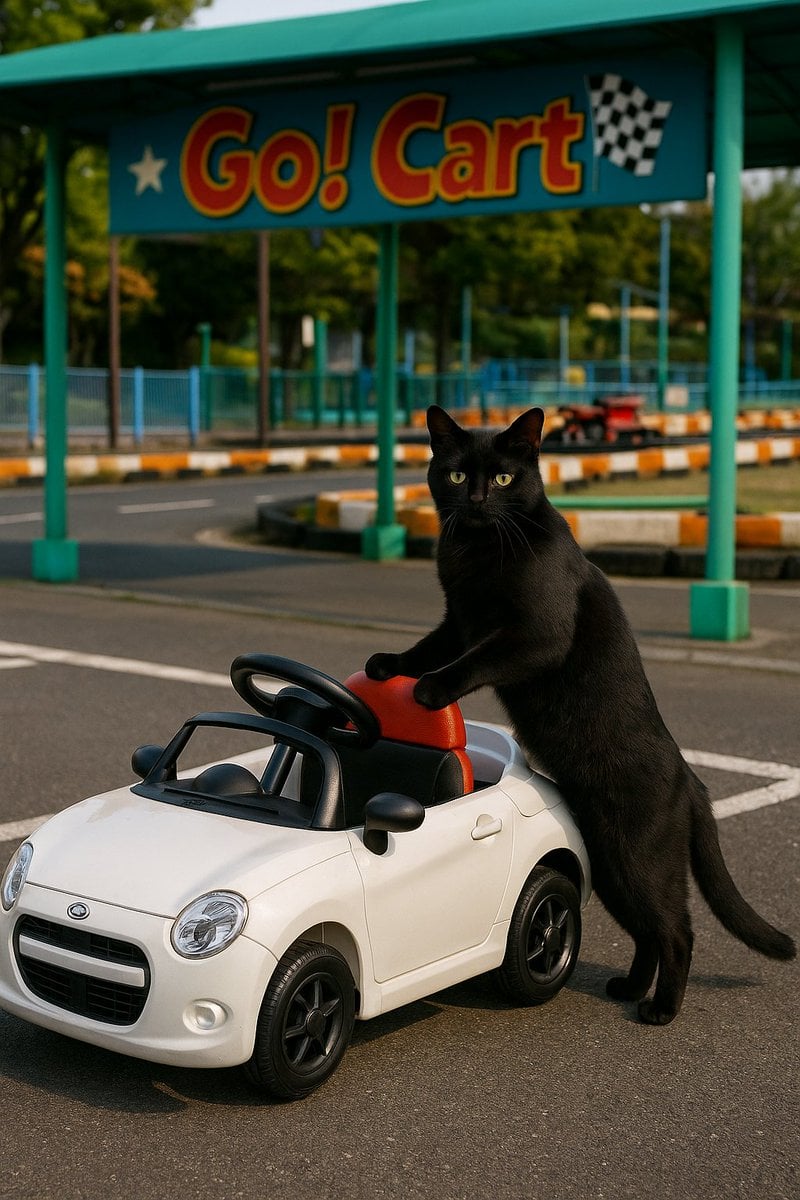
Cat with Toy Car at Go-Kart Track
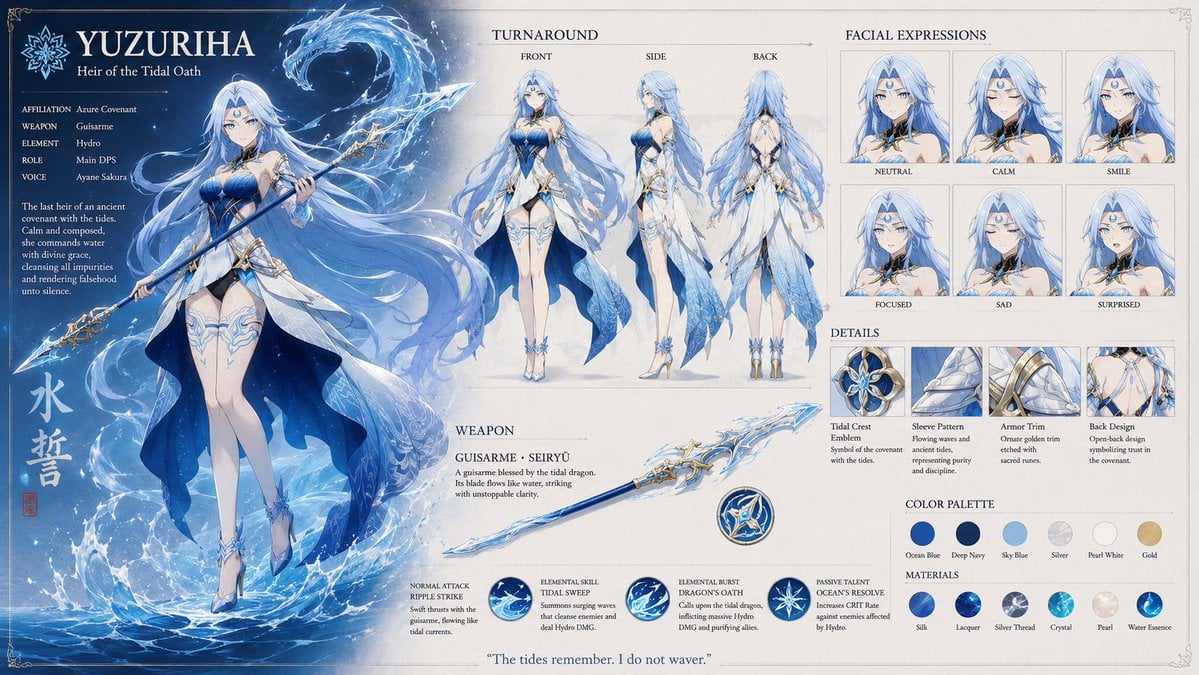
Anime RPG Character Reference Sheet
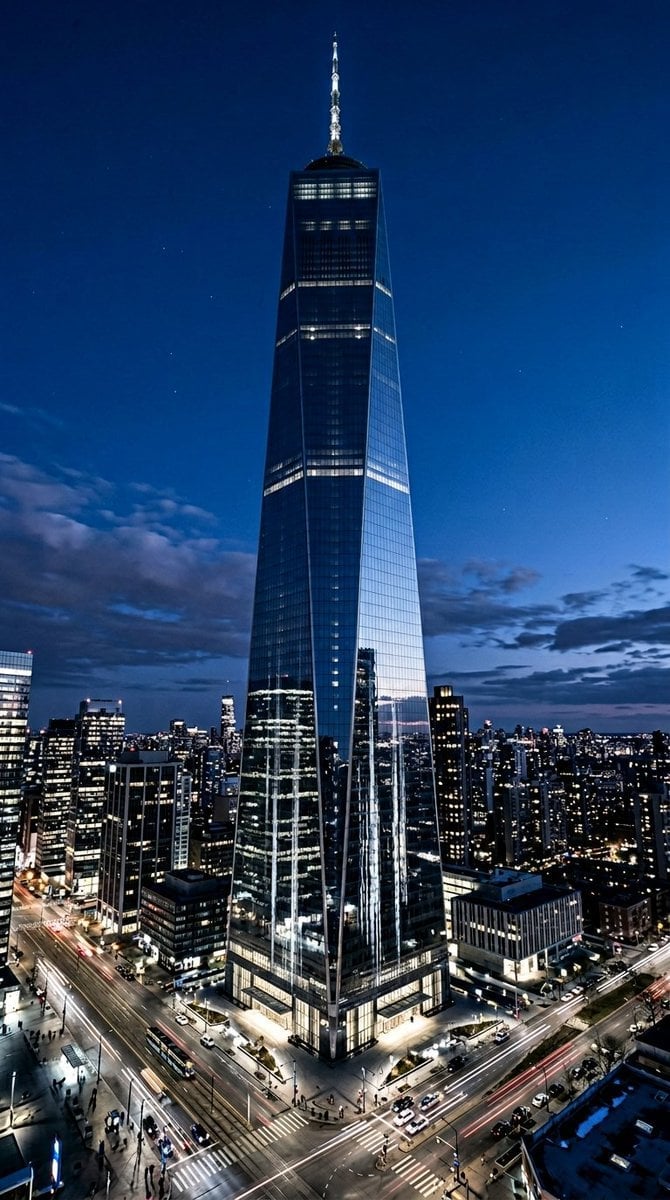
Futuristic Skyscraper Image Prompt (Nano Banana 2)
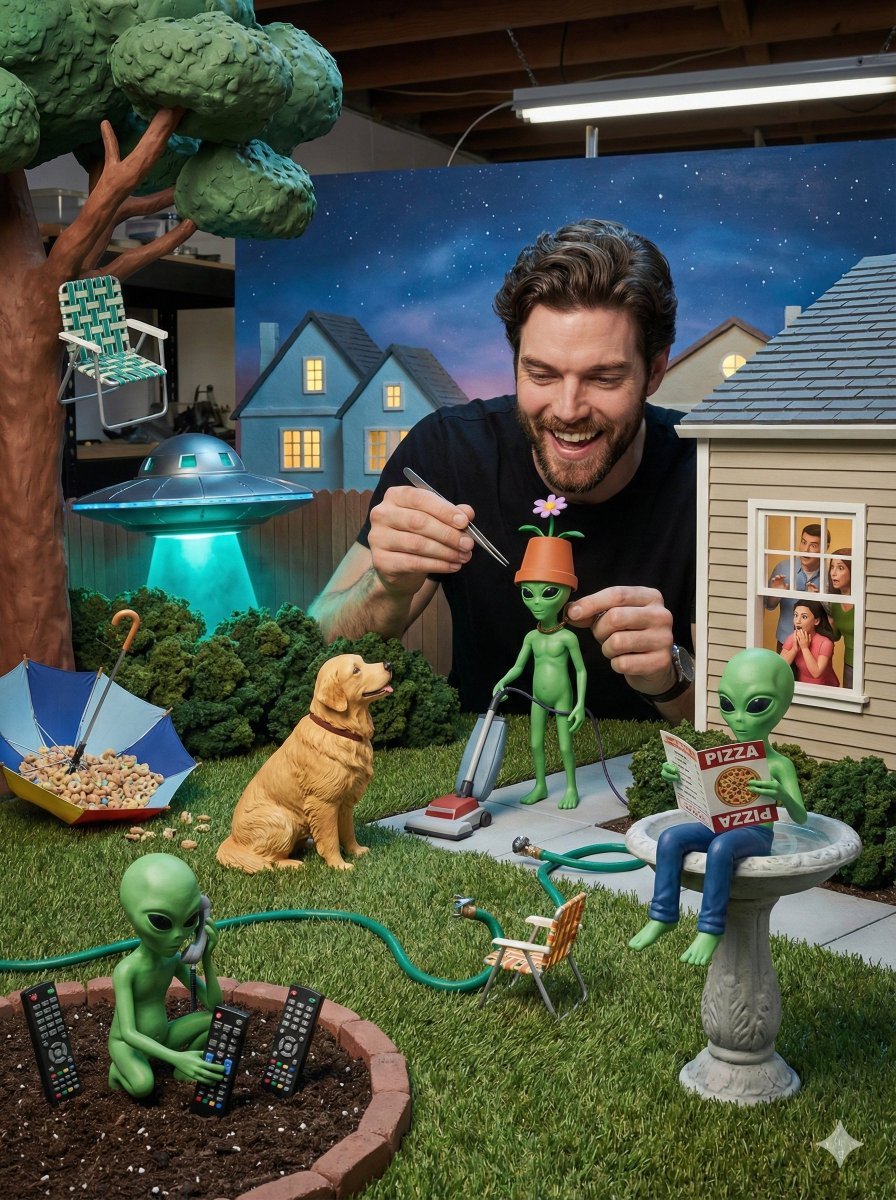
Miniature Diorama of Confused Alien in a Suburban Backyard
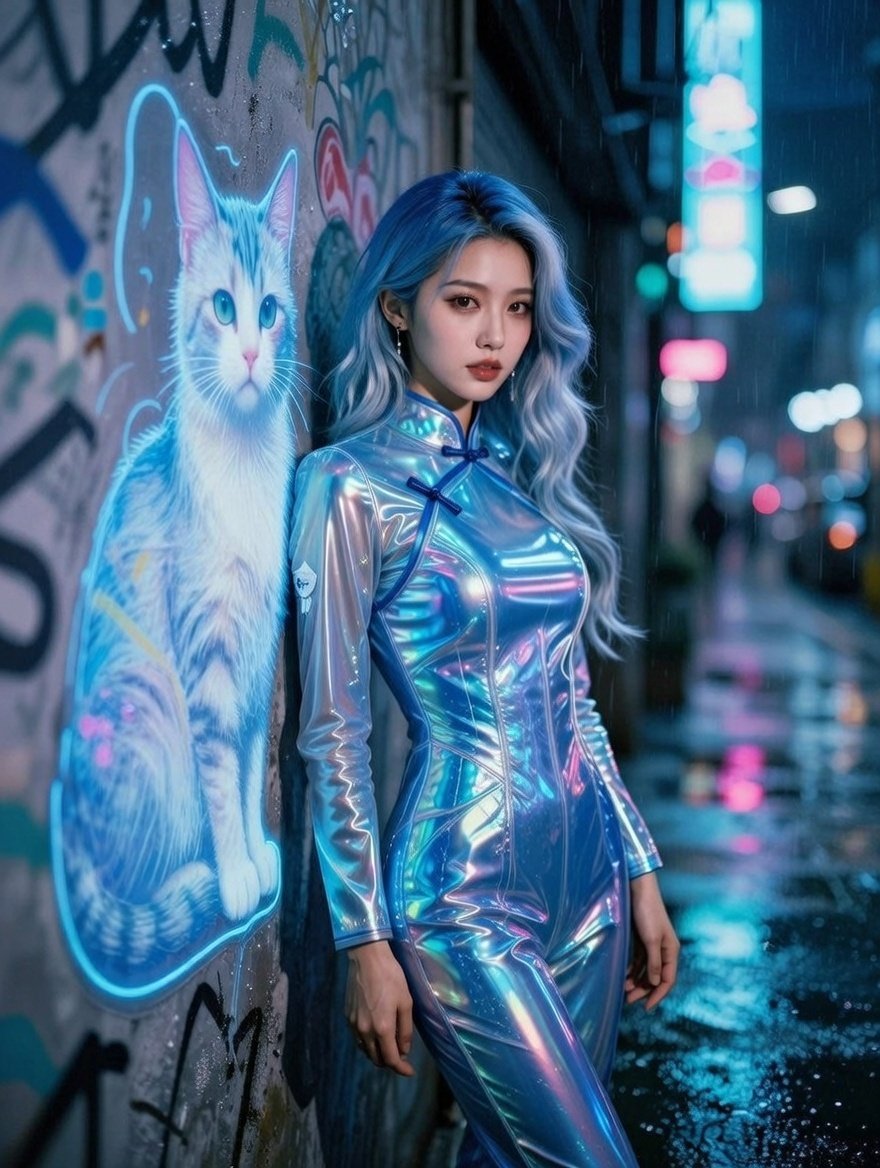
Cyberpunk Neon Alley Fashion Portrait Prompt
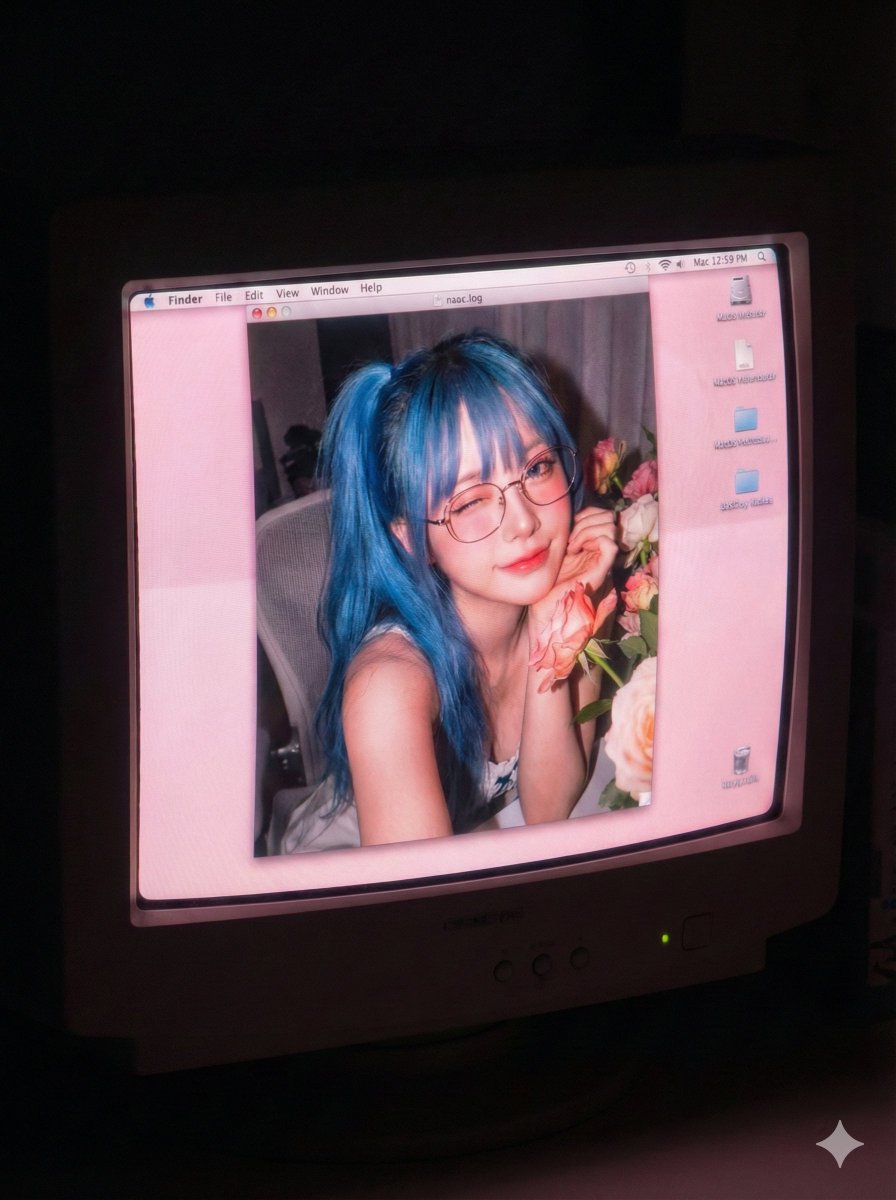
Old Computer Effect Portrait Prompt
Browse template categories
Studio Portrait with Space Buns and Glitter Overlay questions
How do I use the Studio Portrait with Space Buns and Glitter Overlay template?
Add your photo if the template asks for one, edit the prompt if you like — the template's model and format are already selected — and press Generate. Your version opens in PicX Studio.
Can I customize the Studio Portrait with Space Buns and Glitter Overlay template?
Yes. You can change the subject, setting, lighting, mood, format, and available model controls before creating your image.
Is the Studio Portrait with Space Buns and Glitter Overlay template free?
Opening and editing this template is free. Generating uses credits, shown on the Generate button when you are signed in.
Which AI model should I use?
Start with Nano Banana 2, which is the model associated with this template. You can compare another compatible model for a different finish.
Looking for something else? Browse all templates.

Your photo, any look
Thousands of ready templates for every top image and video model, from one credit balance.