
LINE sticker set from an attached illustration
A prompt that turns an attached illustration into a character-based LINE sticker set with 16 variations of expressions, poses, and phrases.
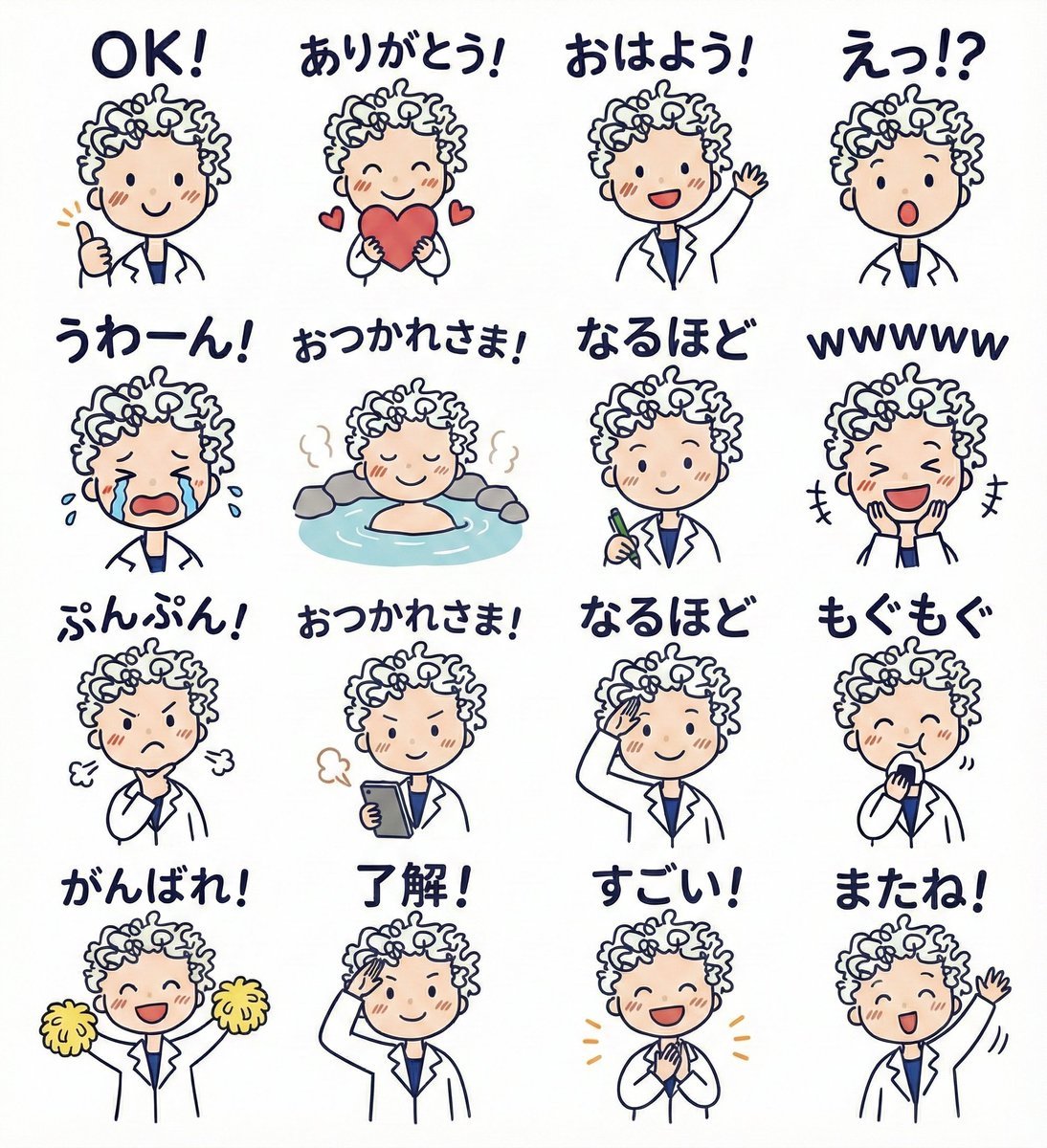
- Prompt included
- Model and format preset
- Free template
The prompt behind this image
Copy the exact prompt behind LINE sticker set from an attached illustration, or open it in the studio and make it yours.
添付画像のイラストをキャラにして。LINEスタンプを作成。表情・ポーズ別・セリフ入で{argument name="スタンプ数" default="16"}種類。
How to use LINE sticker set from an attached illustration in 3 steps
- 1
Open
The prompt is already in the box next to the preview, with the template's model and format selected.
- 2…a portrait of your subject in softgolden-hour light, 85mm…
Personalize
Edit the subject and creative details for your destination.
- 3Generate
Generate
Press Generate — your image is created in PicX Studio, so you can compare it with the original and refine one variable at a time.
More like this
Templates with the same subject, style or setup. Open one to see its prompt.
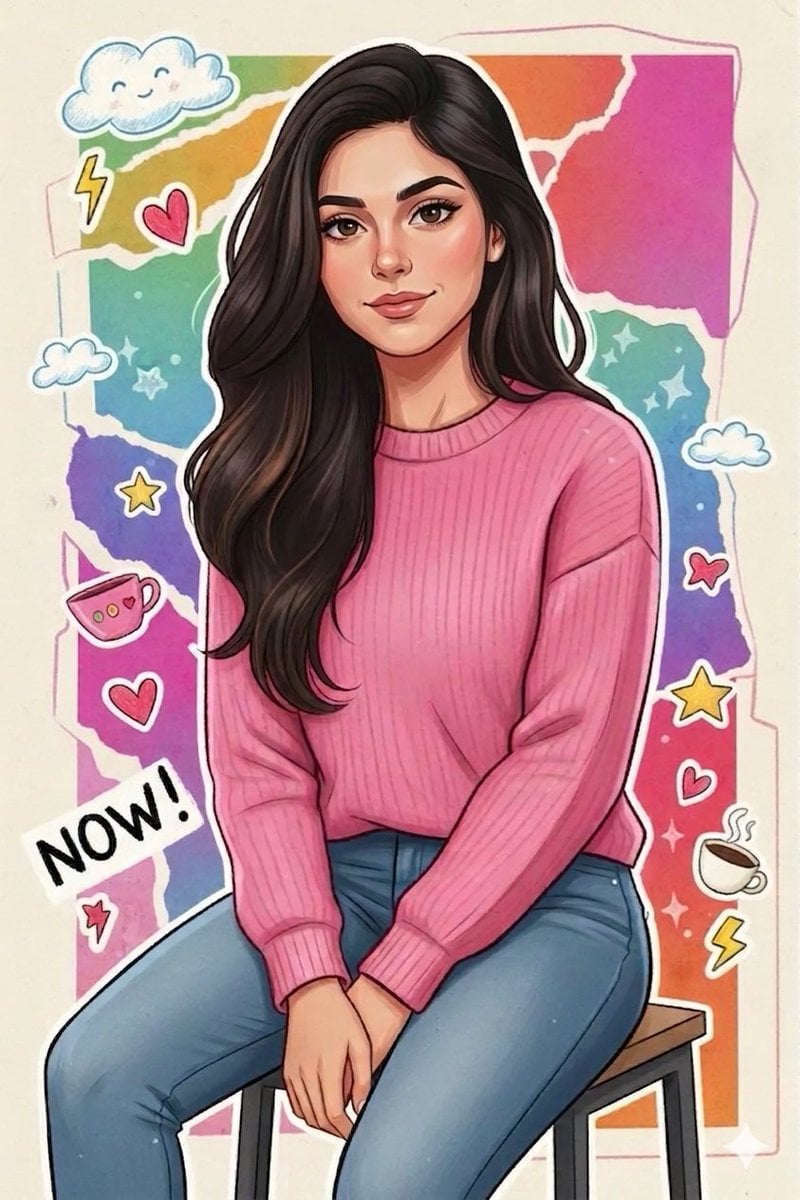
Sticker Art Style - Rainbow Girl
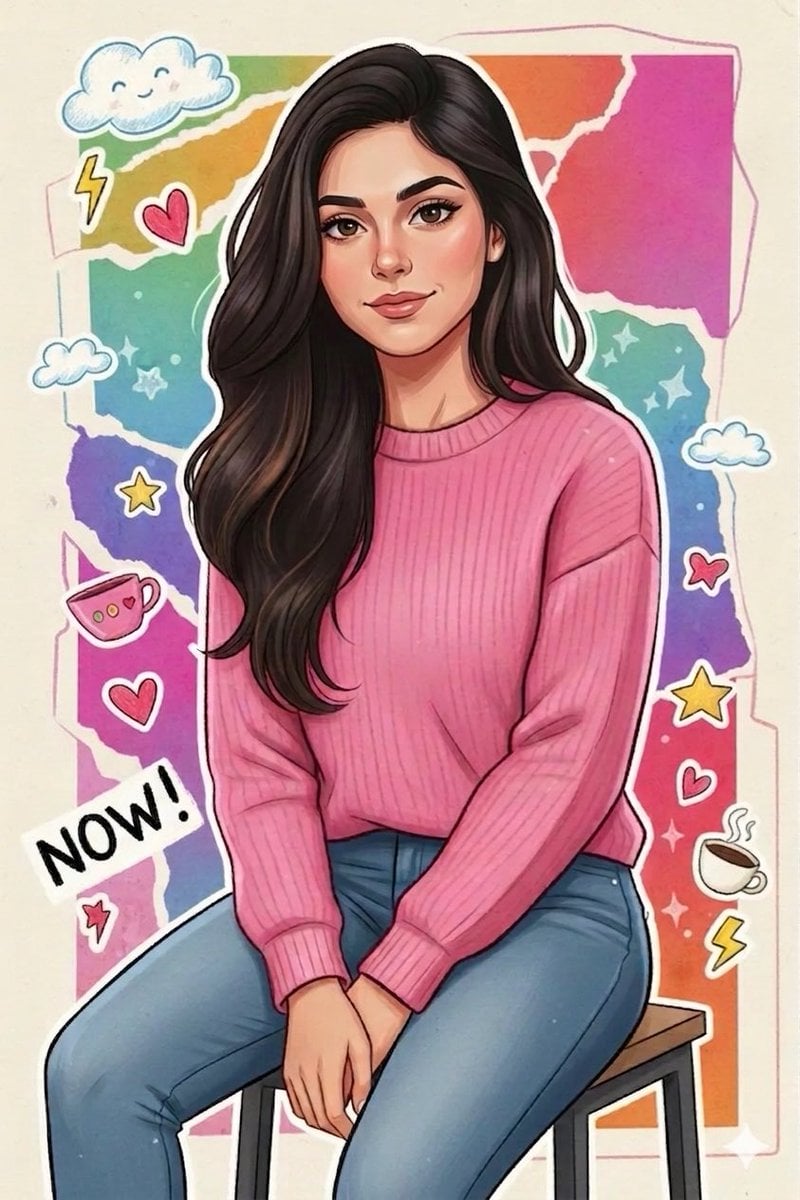
Sticker Art Style - Rainbow Girl v2
Sticker Art Style - Rainbow Girl
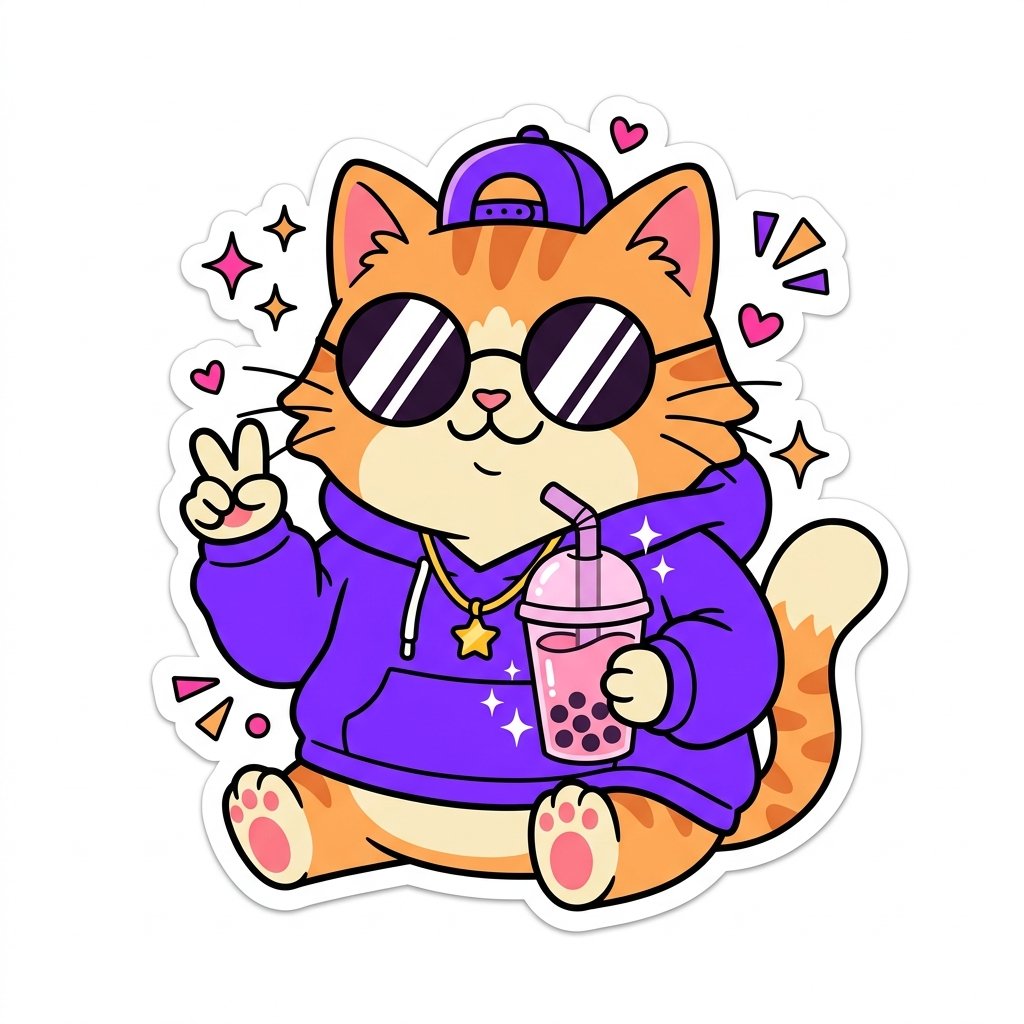
Sticker Art Style
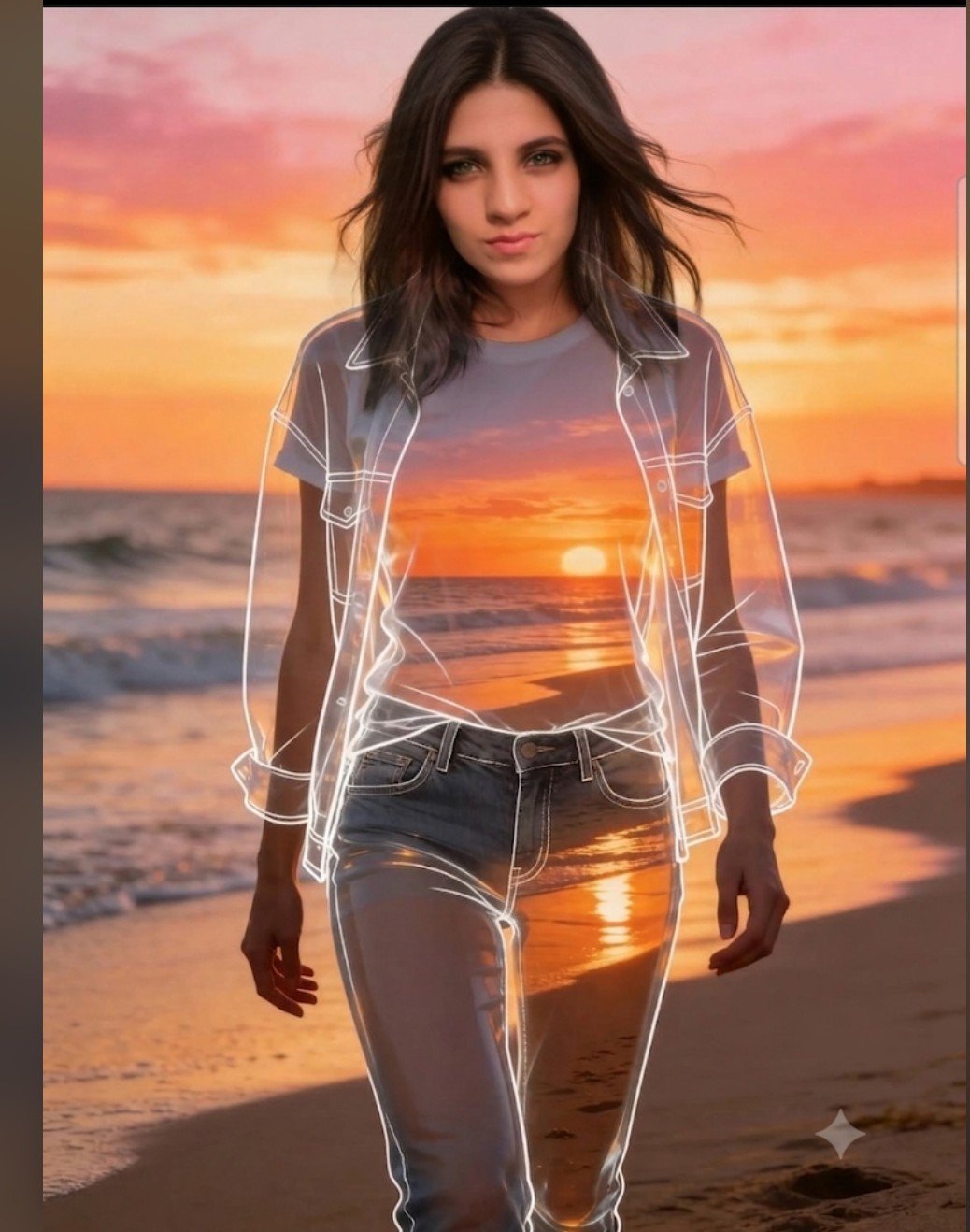
Beach Sunset Double Exposure Wireframe Portrait
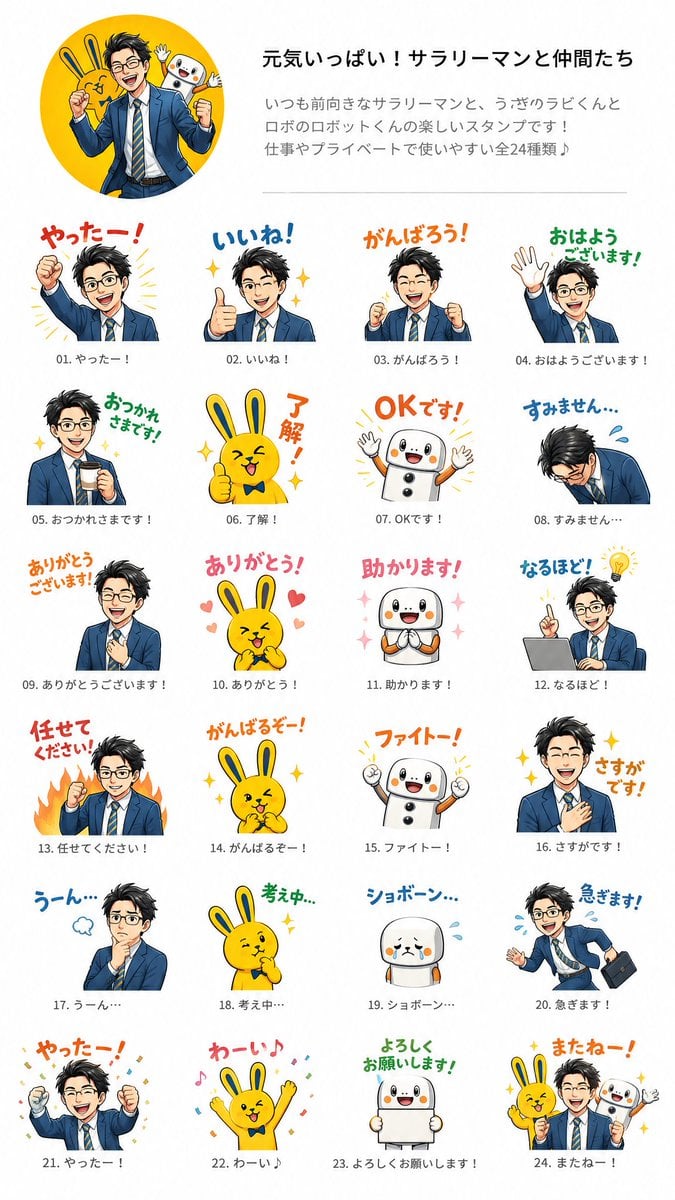
Salaryman LINE Sticker Set
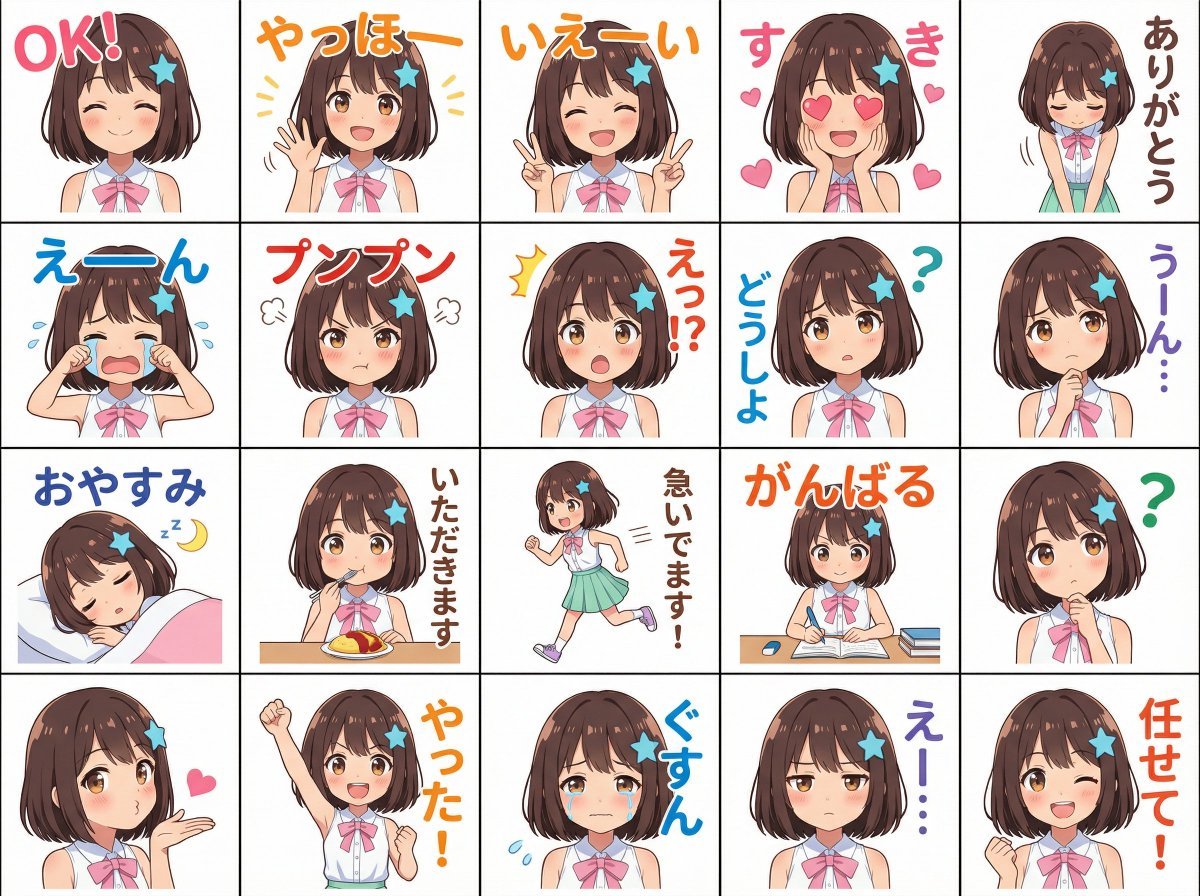
Messenger sticker set from attached person
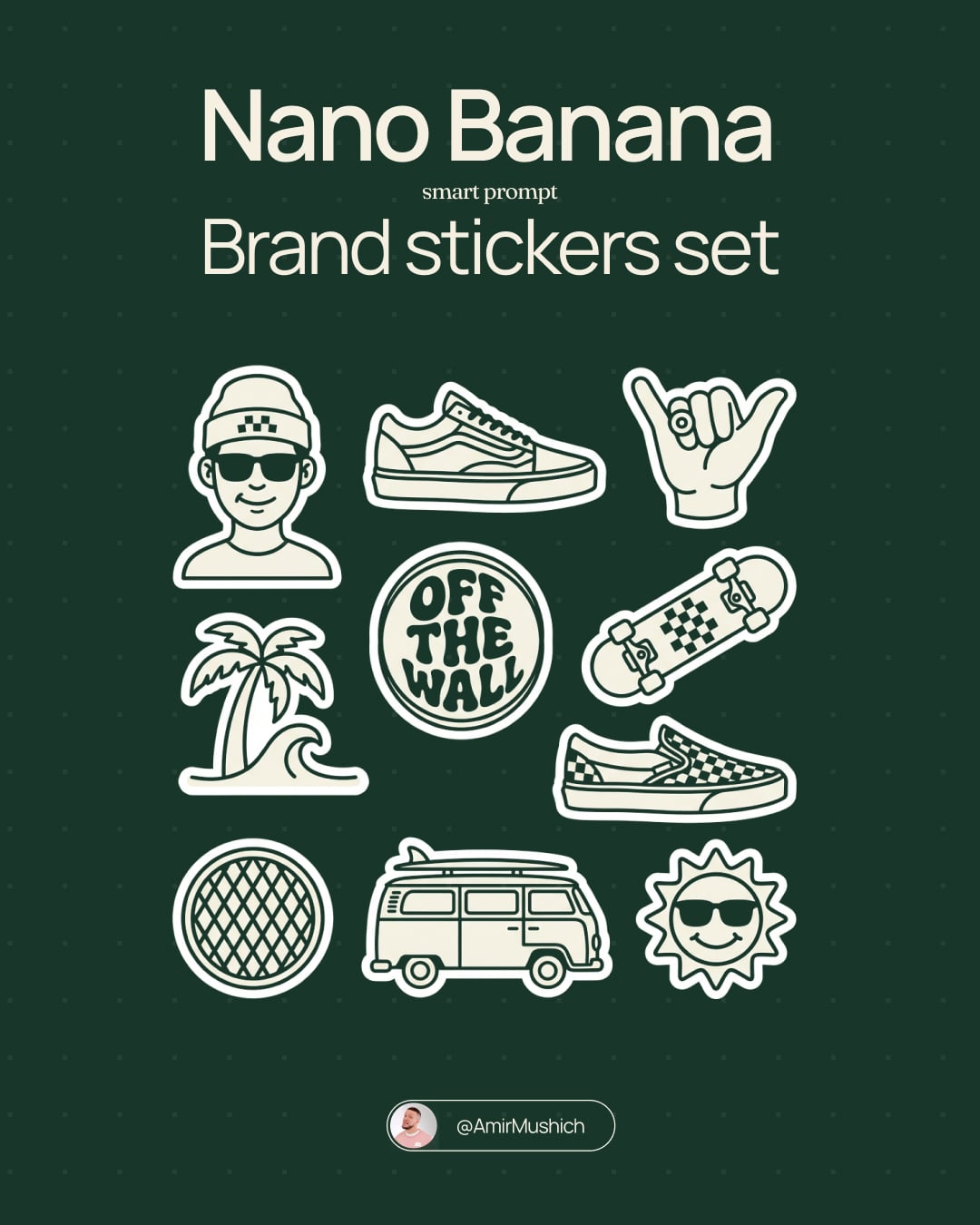
Brand Sticker Sheet Monoline Vector
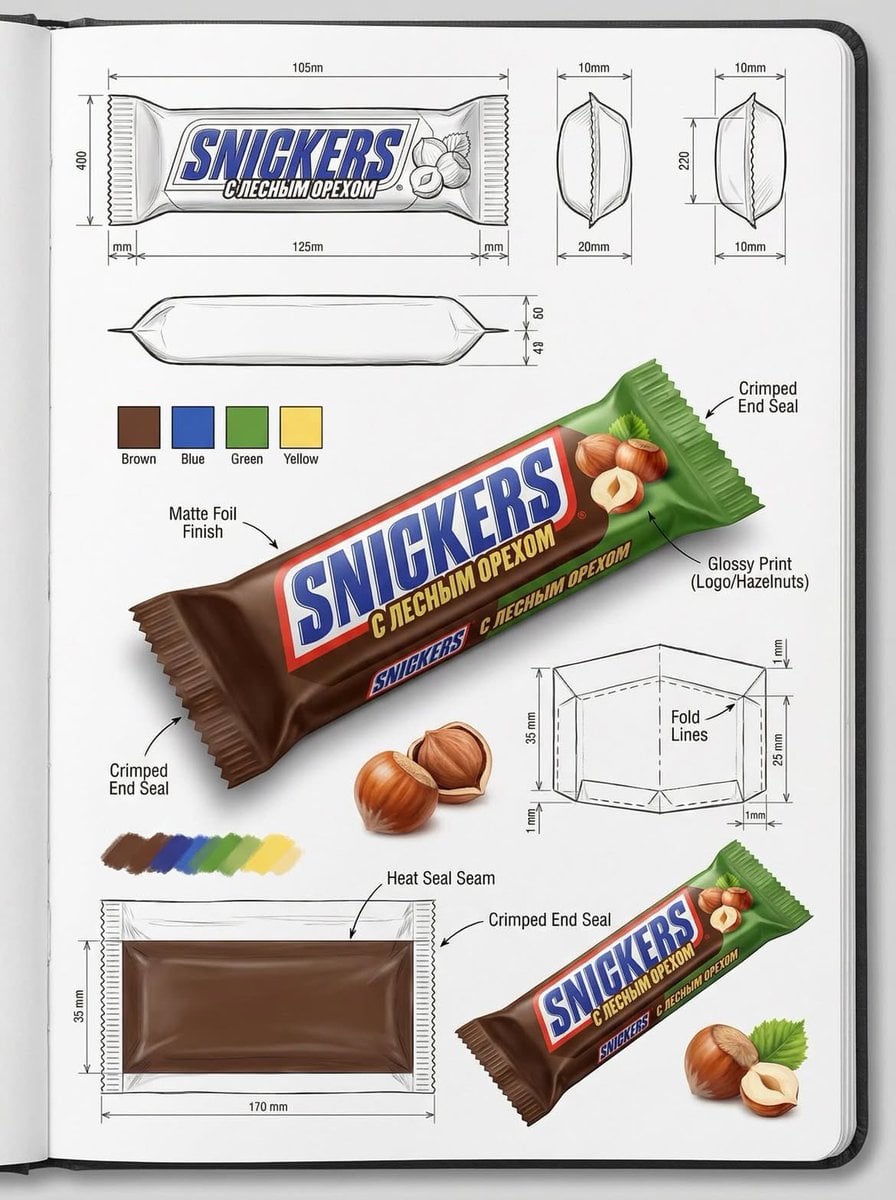
Using the attached image, create an illustration sheet of professional
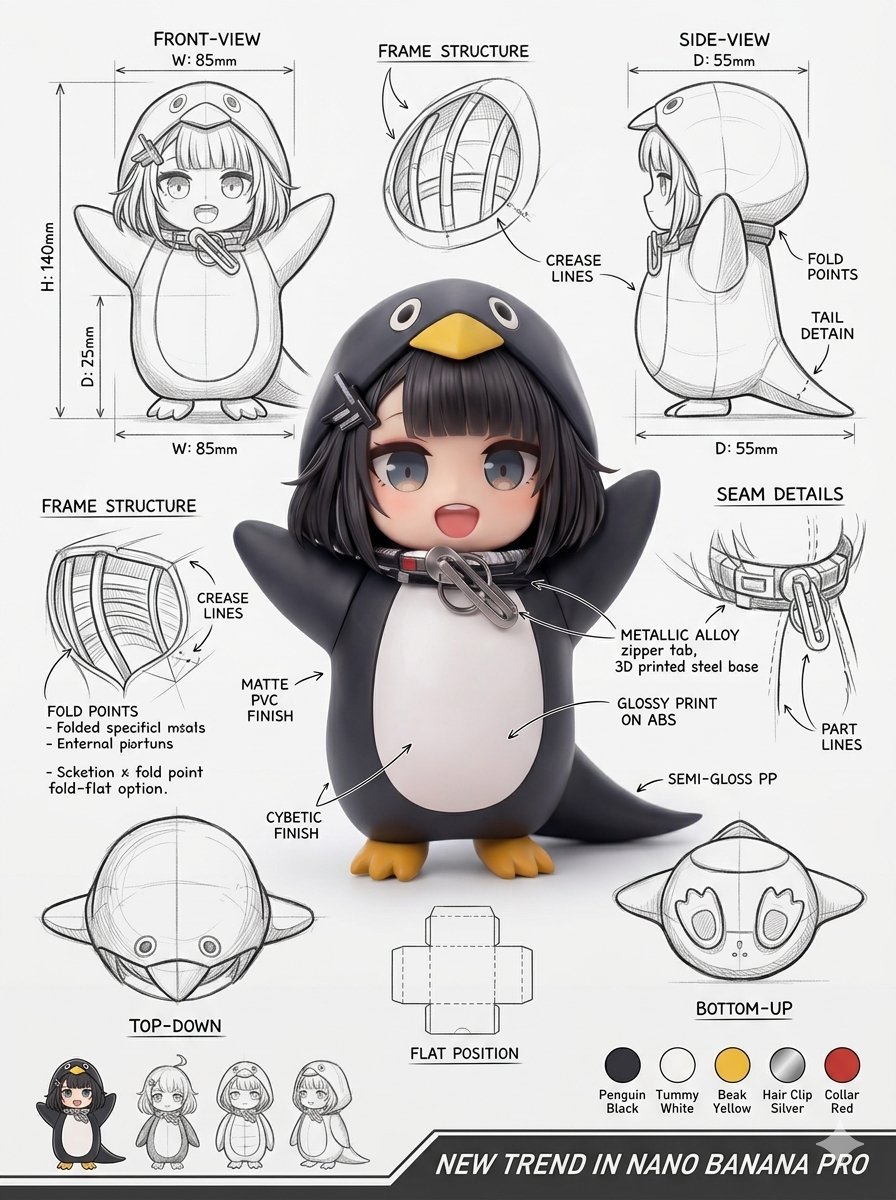
Using the attached image, create an illustration sheet of professional
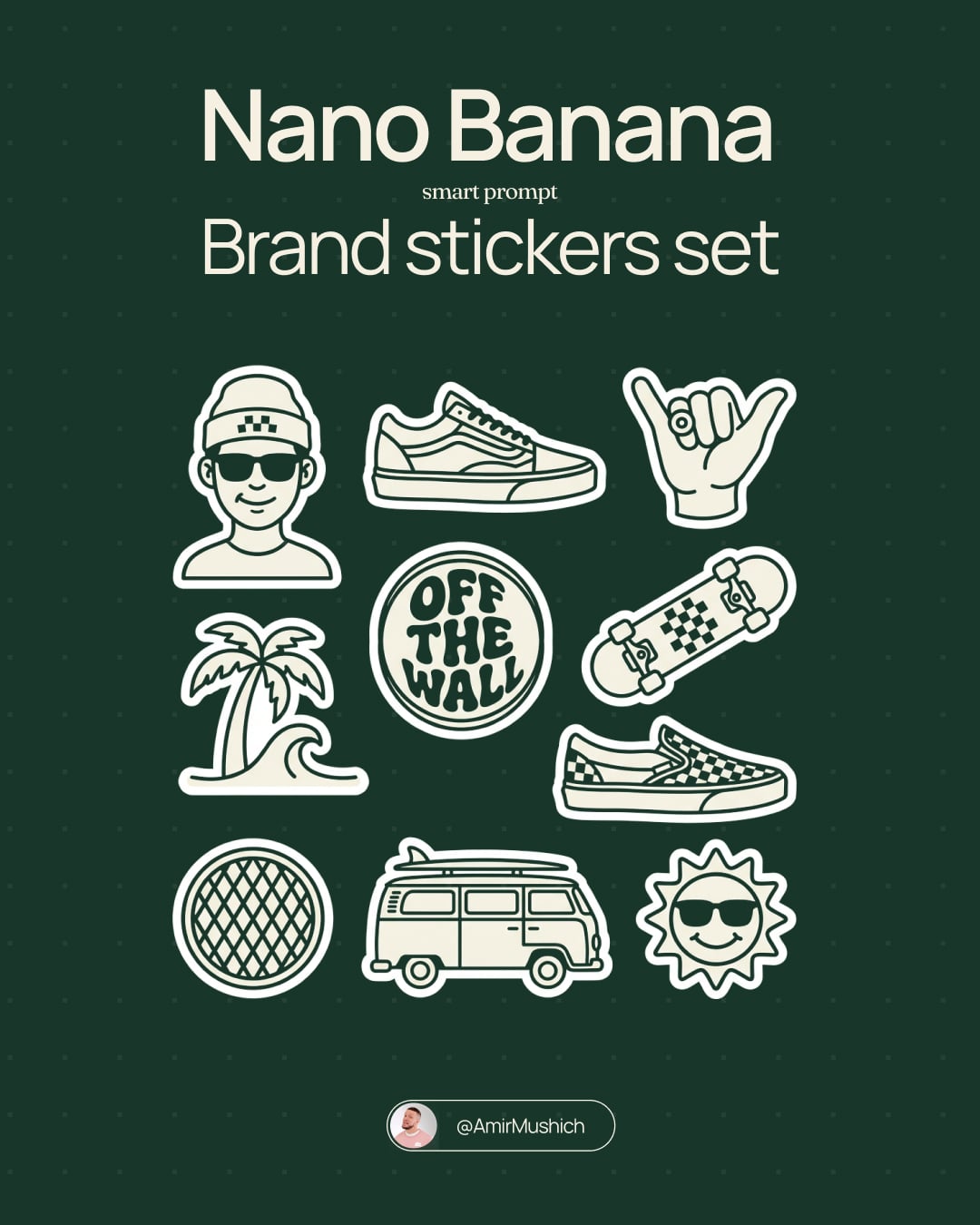
A trendy, high-end Sticker Sheet set

Lined Paper Illustration of Woman with Daisies
Make it yours
LINE sticker set from an attached illustration works as-is. These are the safest ways to change it without losing the look.
Change one field
Copy a single group, rewrite it, and generate again so you can see what that field is doing.
Keep the frame, change the subject
Hold the composition and light of LINE sticker set from an attached illustration, then swap wardrobe, props or the person for a new take.
| If the result… | Why | Fix |
|---|---|---|
| The result drifts from the preview | Too many fields changed at once. | Reuse LINE sticker set from an attached illustration as-is first, then change one group — subject, light, or setting. |
| The model over-stylizes the scene | The prose prompt leaves finish and camera underspecified. | Add one camera or lighting sentence and stay on Nano Banana 2. |
More Nano Banana 2 templates
Other prompts made for Nano Banana 2.

Photorealistic Leaf Shaped Like a Dragon

K-Pop Idol Portrait Grid for Rapid Selection

Poetic Rain Forest Portrait During Golden Hour

Urban Street Portrait with Cartoon Inner Self Duo

Candid Nighttime Photo with Cat Prompt

High-Concept 3D Diorama Generation Prompt

Cinematic Futuristic Studio Portrait Template

Skincare Editorial Photography Collage Prompt

Hyper-Realistic Commercial Product Photography (Splash Effect)

Hyper-Realistic Nightclub Portrait Prompt
More image prompts
Fresh picks from across the catalog.
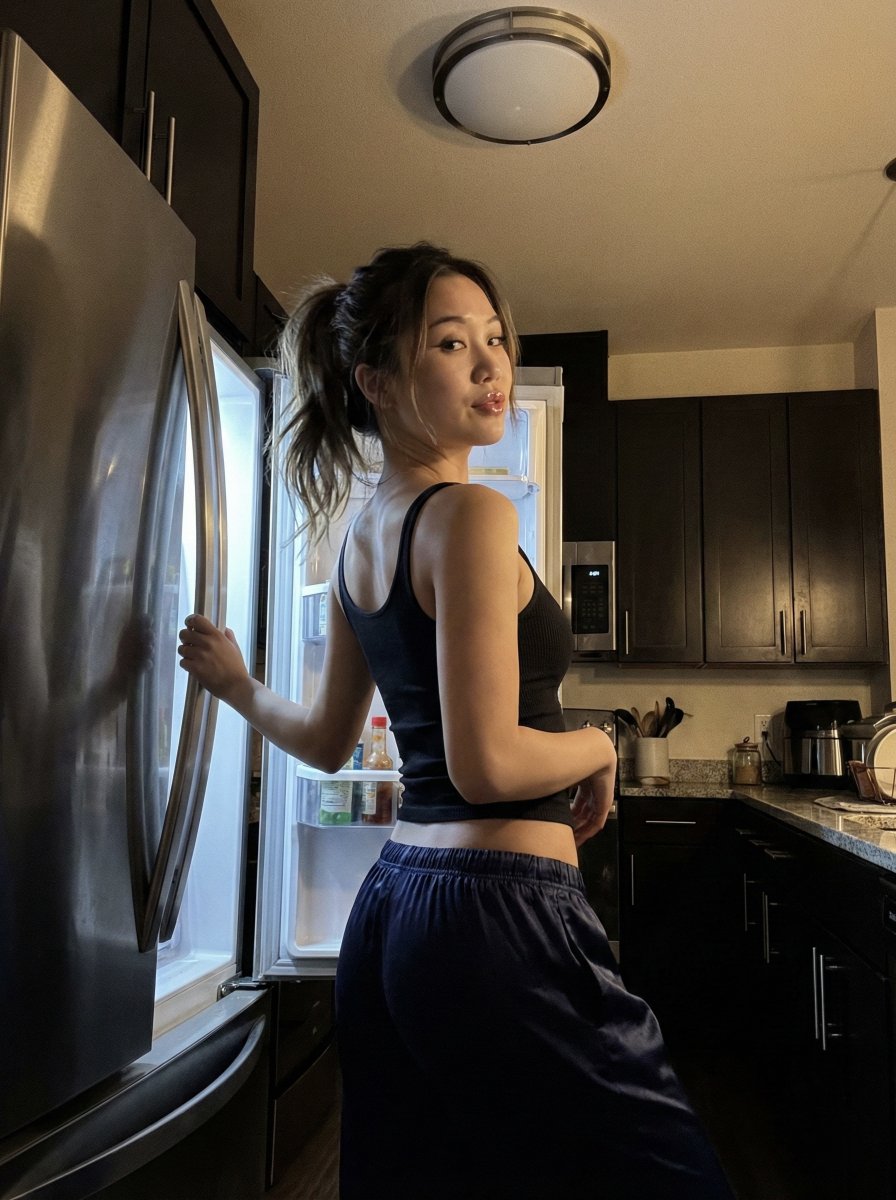
Late Night iPhone Candid in Kitchen
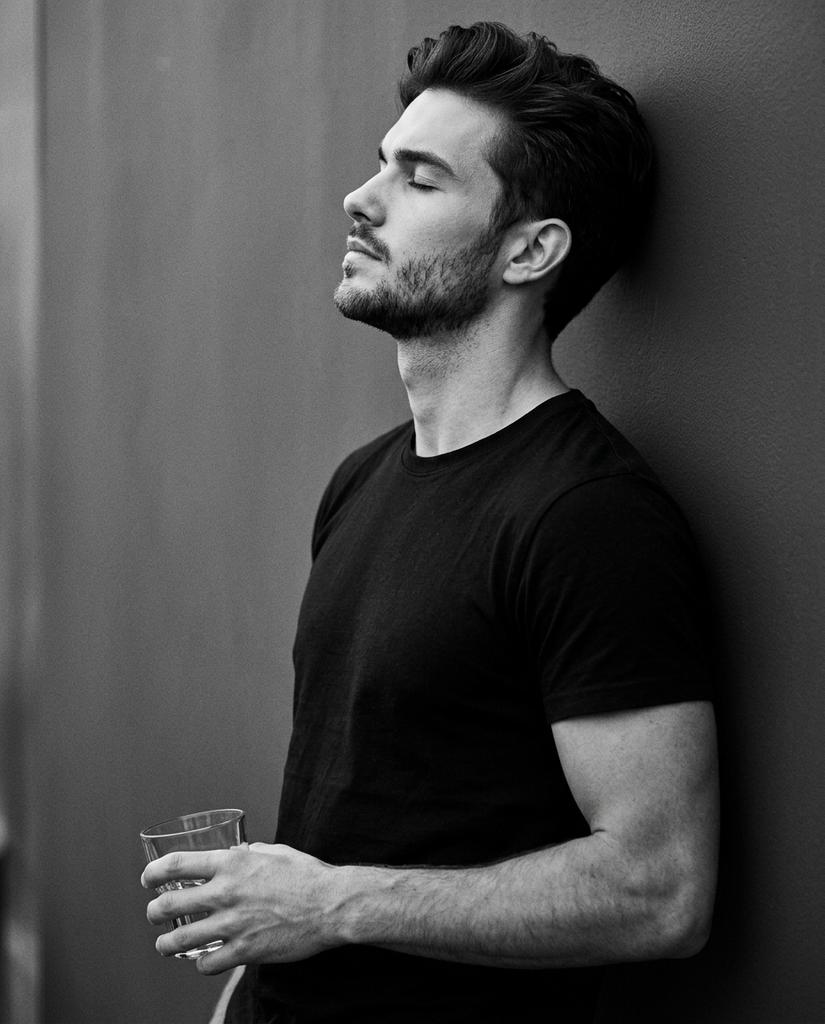
Cinematic Monochrome Portrait with Face Intact
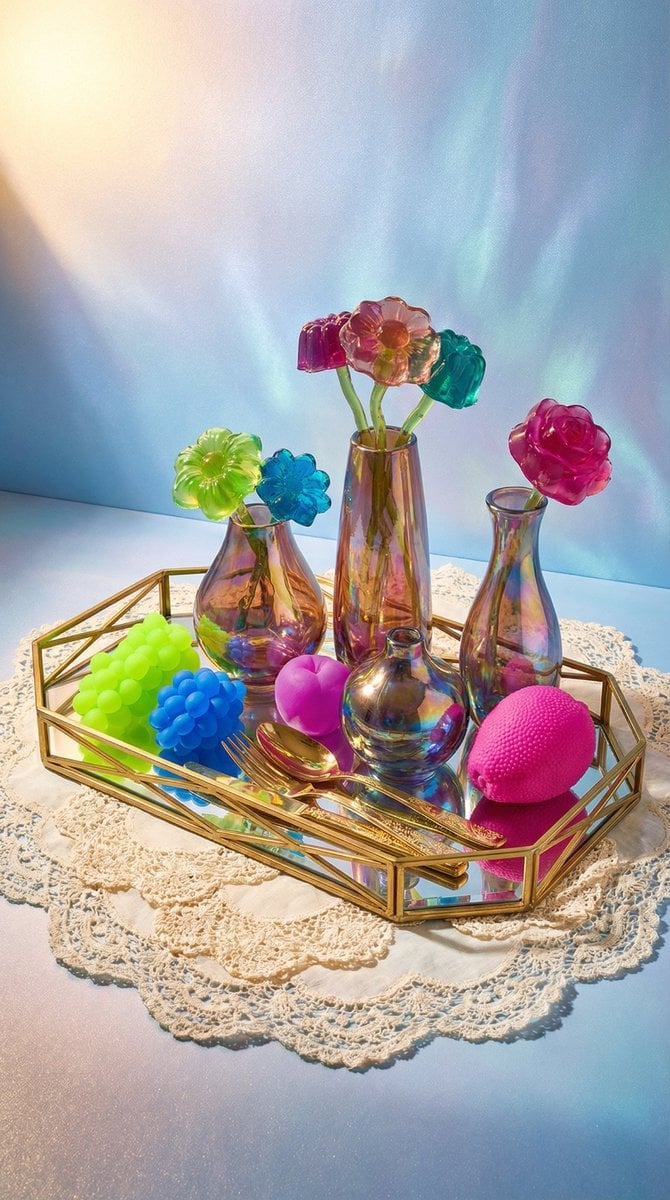
Maximalist Tabletop Arrangement Product Photography
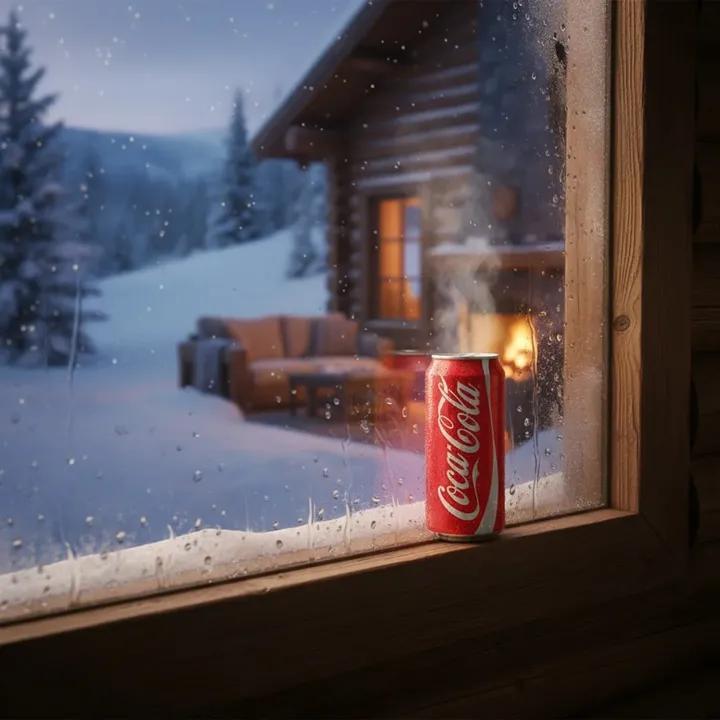
Winter Cabin Scene with Frosted Window and Coca-Cola Can
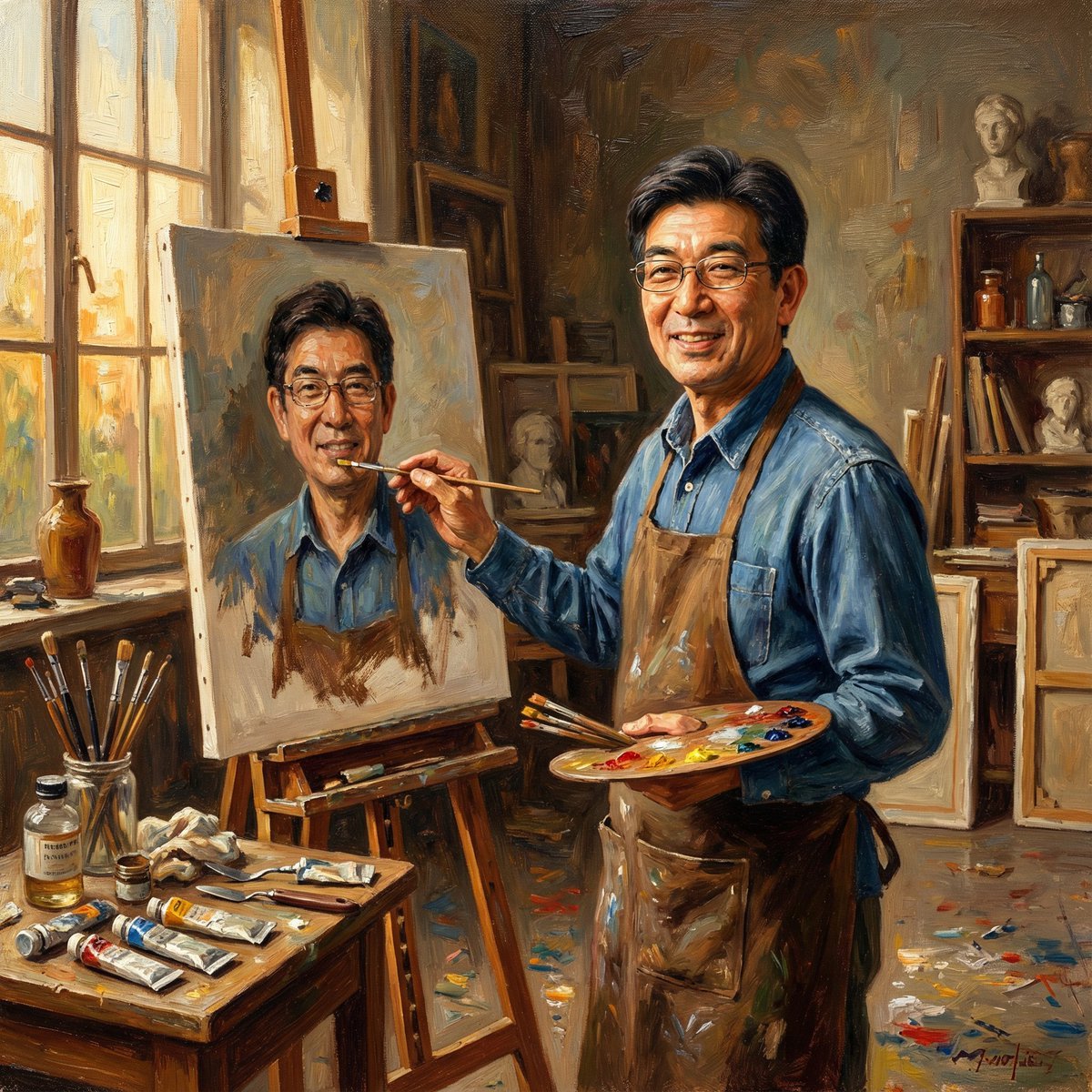
Nano Banana Pro: Artist and Neon Styles
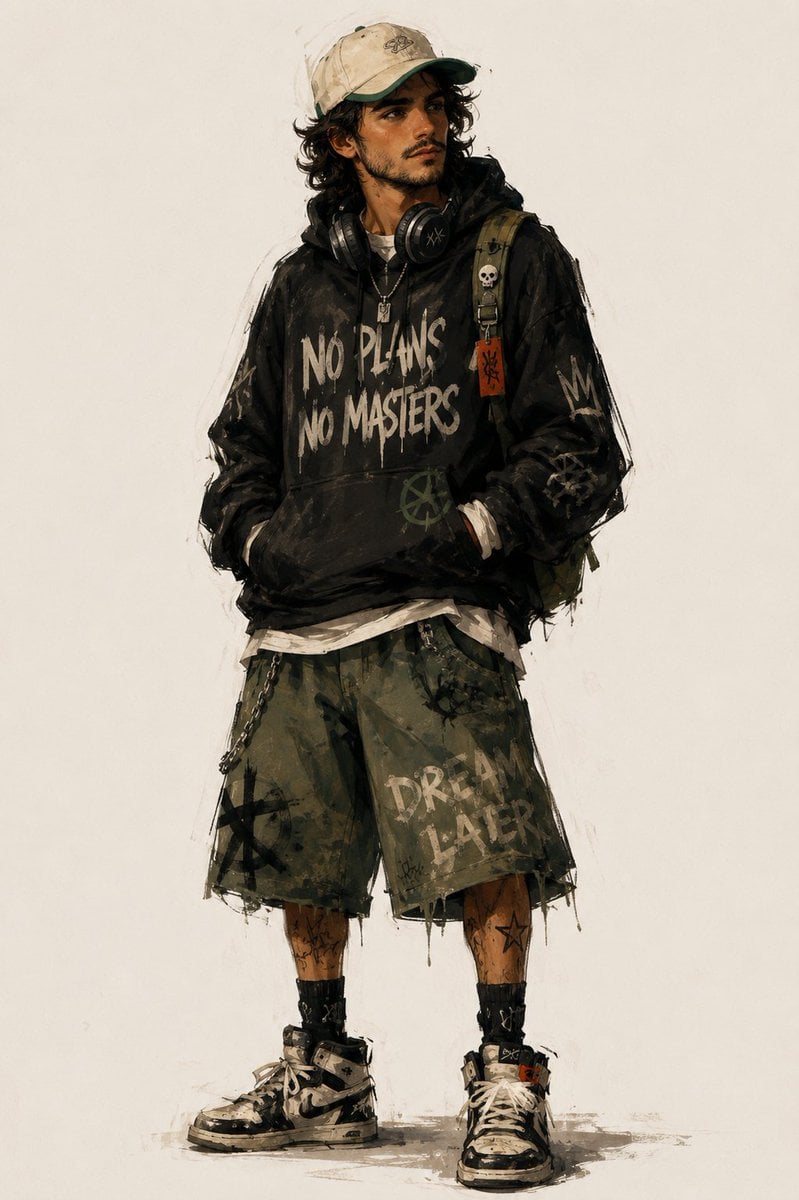
Urban Fashion Character Concept Art
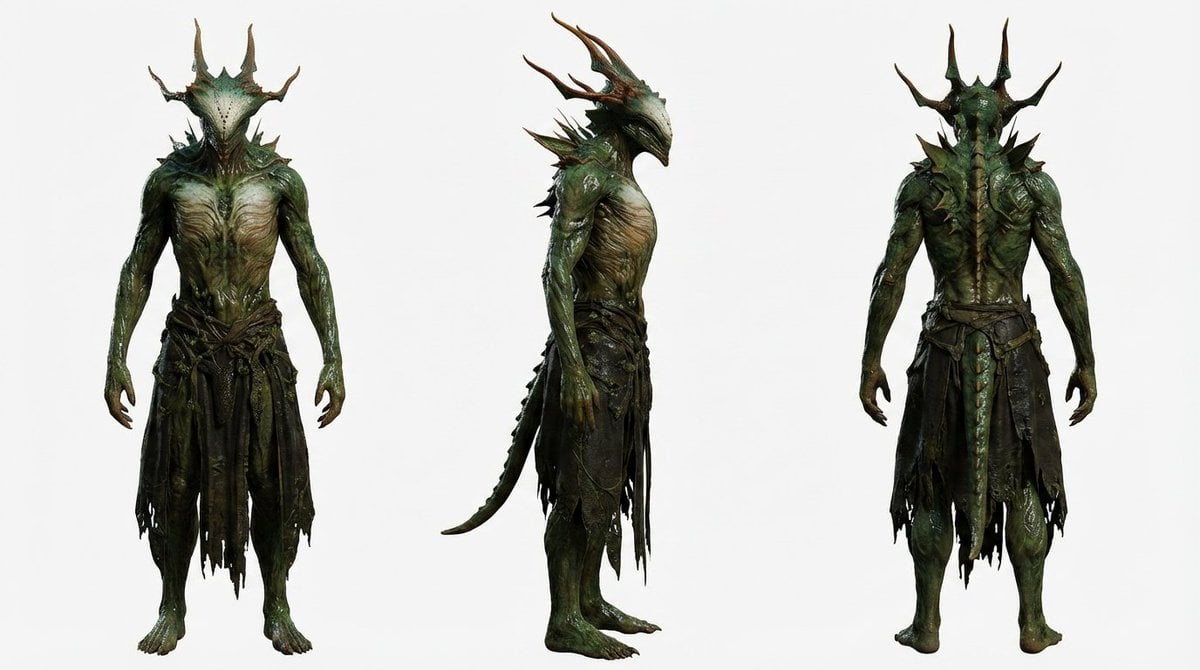
Basic Character Sheet Template
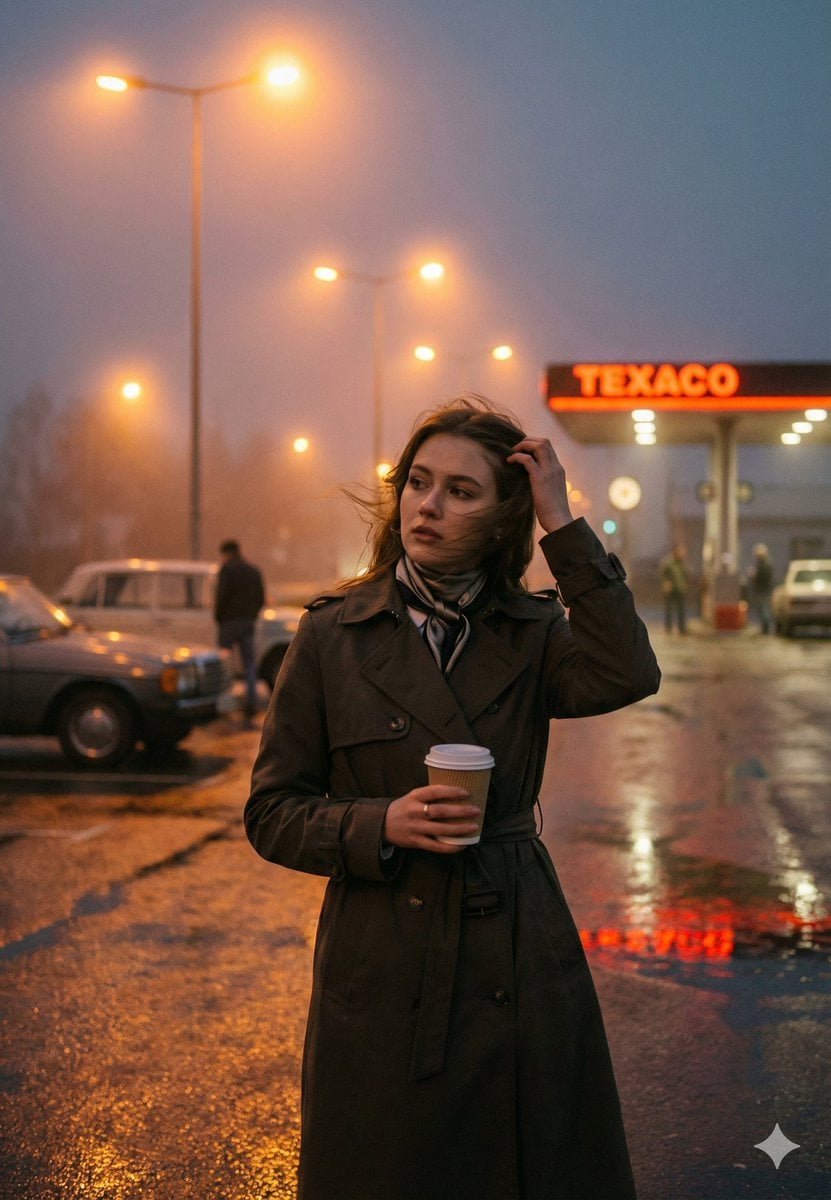
Cinematic Roadside Realism at a Gas Station
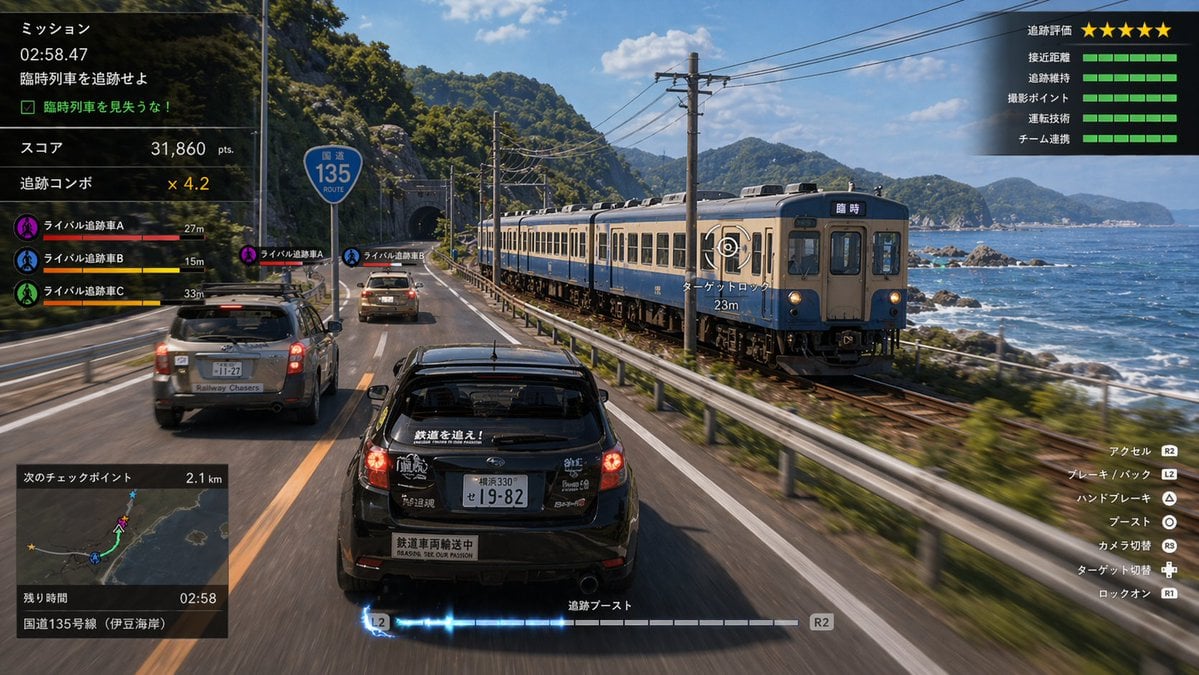
Train Photography Game Simulation
Minimal Abstract Vector Illustration Style
Browse template categories
LINE sticker set from an attached illustration questions
How do I use the LINE sticker set from an attached illustration template?
Add your photo if the template asks for one, edit the prompt if you like — the template's model and format are already selected — and press Generate. Your version opens in PicX Studio.
Can I customize the LINE sticker set from an attached illustration template?
Yes. You can change the subject, setting, lighting, mood, format, and available model controls before creating your image.
Is the LINE sticker set from an attached illustration template free?
Opening and editing this template is free. Generating uses credits, shown on the Generate button when you are signed in.
Which AI model should I use?
Start with Nano Banana 2, which is the model associated with this template. You can compare another compatible model for a different finish.
Looking for something else? Browse all templates.

Your photo, any look
Thousands of ready templates for every top image and video model, from one credit balance.