
Professional Anime Cinematic Storyboard
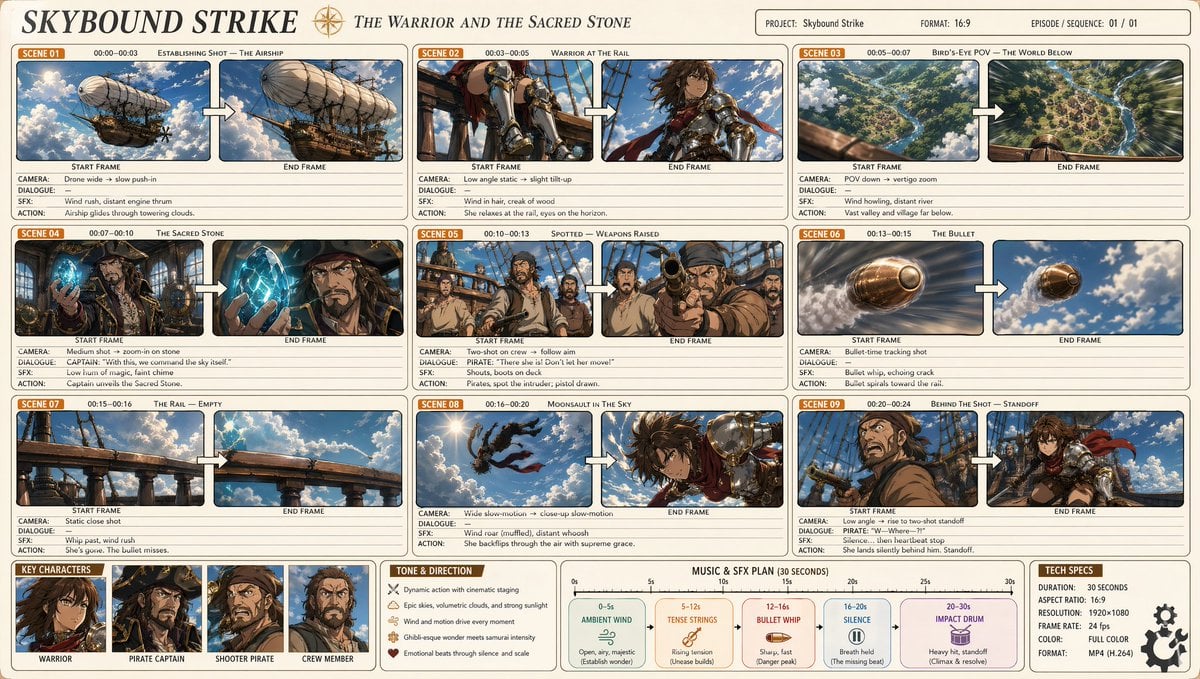
A highly detailed prompt for generating a professional 9-panel anime storyboard, featuring complex character actions, camera directions, and a Makoto Shinkai-inspired aesthetic.
- Prompt included
- Model and format preset
- Free template
The prompt behind this image
Copy the exact prompt behind Professional Anime Cinematic Storyboard, or open it in the studio and make it yours.
A professional anime feature-film storyboard (16:9), titled "{argument name="title" default="天空之击"}", with the subtitle "{argument name="subtitle" default="战士与圣石"}". Clean pale-beige background, rounded rectangular panels arranged in a three-column grid, 9 scenes in total. Each scene panel shows: an orange "Scene XX" label, a timecode, and a scene title, followed by two side-by-side frames labeled "Start Frame" → "End Frame", connected by a white arrow, with annotations below (camera/dialogue/effects/action). Art style: clean cartoon rendering, {argument name="art style" default="Makoto Shinkai × Studio Trigger, × Attack on Titan"} — soft anime-style lighting, three-dimensional clouds, warm golden sunlight, cinematic wide-angle shots, dynamic action poses, rich sky-blue and emerald-green tones, accented with brass and copper. Scenes to depict: 1. Wide shot — a majestic steampunk airship with brass propellers and billowing sails, piercing through a sea of cumulus clouds high in the sky (slow drone push-in) 2. Low-angle close-up of a female warrior's boots and crossed legs hanging over the airship's wooden railing, hair blowing in the wind (static → slight upward tilt) 3. Bird's-eye view looking down past the railing: a vast emerald valley, a winding river, and a small medieval thatched-roof village in the distance (vertigo zoom) 4. Inside the airship's bridge — the pirate captain, wearing a tricorn hat and a long coat, holds up a holy stone slightly larger than an egg that glows blue, his face lit with a dazzling cyan light (medium shot → push in on the stone) 5. A crew member on deck spots the intruder — a stubble-faced pirate raises a brass medieval-style revolver and points it at her, while the others turn around in shock (two shots → follow the aim) 6. Extreme close-up of the bullet in flight, spinning through the air with motion blur and a trail of smoke, heading toward the railing (bullet-time tracking shot) 7. The railing — empty. There's nothing where she was standing; the bullet passes through the air (quick cut, static noise) 8. The female warrior gracefully does a moonsault in midair, against a bright sky, her hair and cloak trailing with the motion (slow motion, wide → close) 9. Landing shot — she lands silently behind the shooter, crouched low, hand on her sword hilt, while the pirate turns around and freezes in shock mid-motion (low angle → standoff). The bottom section includes: a "Key Characters" row with 4 character portraits (the female warrior, the pirate captain, the shooter pirate, and a crew member); a "Tone & Direction" box (dynamic action, wind and cloud particles, Ghibli-style wonder combined with a samurai's intense emotion); a "Music & SFX Plan" timeline (ambient wind → tense strings → gunshot → → silence); and a "Technical Specs" box (30 seconds, 16:9 1920×1080, 24fps, full color, mp4 H.264). Layout: a clean infographic, thin borders, pastel-colored grid, highly detailed anime key visuals within each frame, professional production-document aesthetic.
How to use Professional Anime Cinematic Storyboard in 3 steps
- 1
Open
The prompt is already in the box next to the preview, with the template's model and format selected.
- 2…a portrait of your subject in softgolden-hour light, 85mm…
Personalize
Edit the subject and creative details for your destination.
- 3Generate
Generate
Press Generate — your image is created in PicX Studio, so you can compare it with the original and refine one variable at a time.
More like this
Templates with the same subject, style or setup. Open one to see its prompt.
Make it yours
Professional Anime Cinematic Storyboard works as-is. These are the safest ways to change it without losing the look.
Change one field
Copy a single group, rewrite it, and generate again so you can see what that field is doing.
Keep the frame, change the subject
Hold the composition and light of Professional Anime Cinematic Storyboard, then swap wardrobe, props or the person for a new take.
| If the result… | Why | Fix |
|---|---|---|
| The result drifts from the preview | Too many fields changed at once. | Reuse Professional Anime Cinematic Storyboard as-is first, then change one group — subject, light, or setting. |
| The model over-stylizes the scene | The prose prompt leaves finish and camera underspecified. | Add one camera or lighting sentence and stay on GPT Image 2. |
More GPT Image 2 templates
Other prompts made for GPT Image 2.

Six VTuber Japanese Logo Sheet

Realistic Portrait of Woman and Deer

The Vista Modular Condo Poster

AI Model Routing Comparison Infographic

2.5D Anime Art Board

Isometric Productivity Desk Scene

New York Double Exposure Poster

Four-Panel AI Landscape Comparison

Japanese Tatami Lifestyle Magazine Cover

NESCAFÉ Coffee Map Poster
More image prompts
Fresh picks from across the catalog.
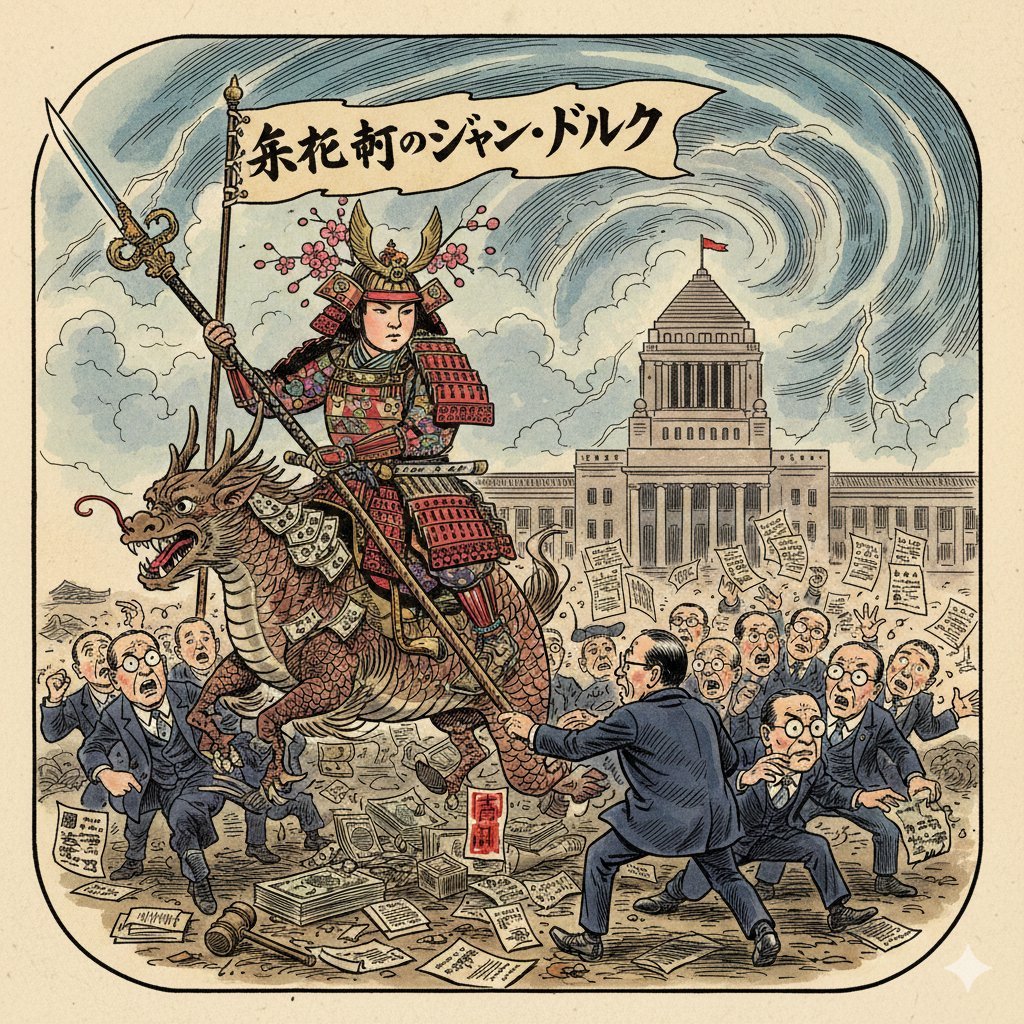
Image generation prompt for Nano Banana Pro: Caricature of Joan of Arc in Nagatacho
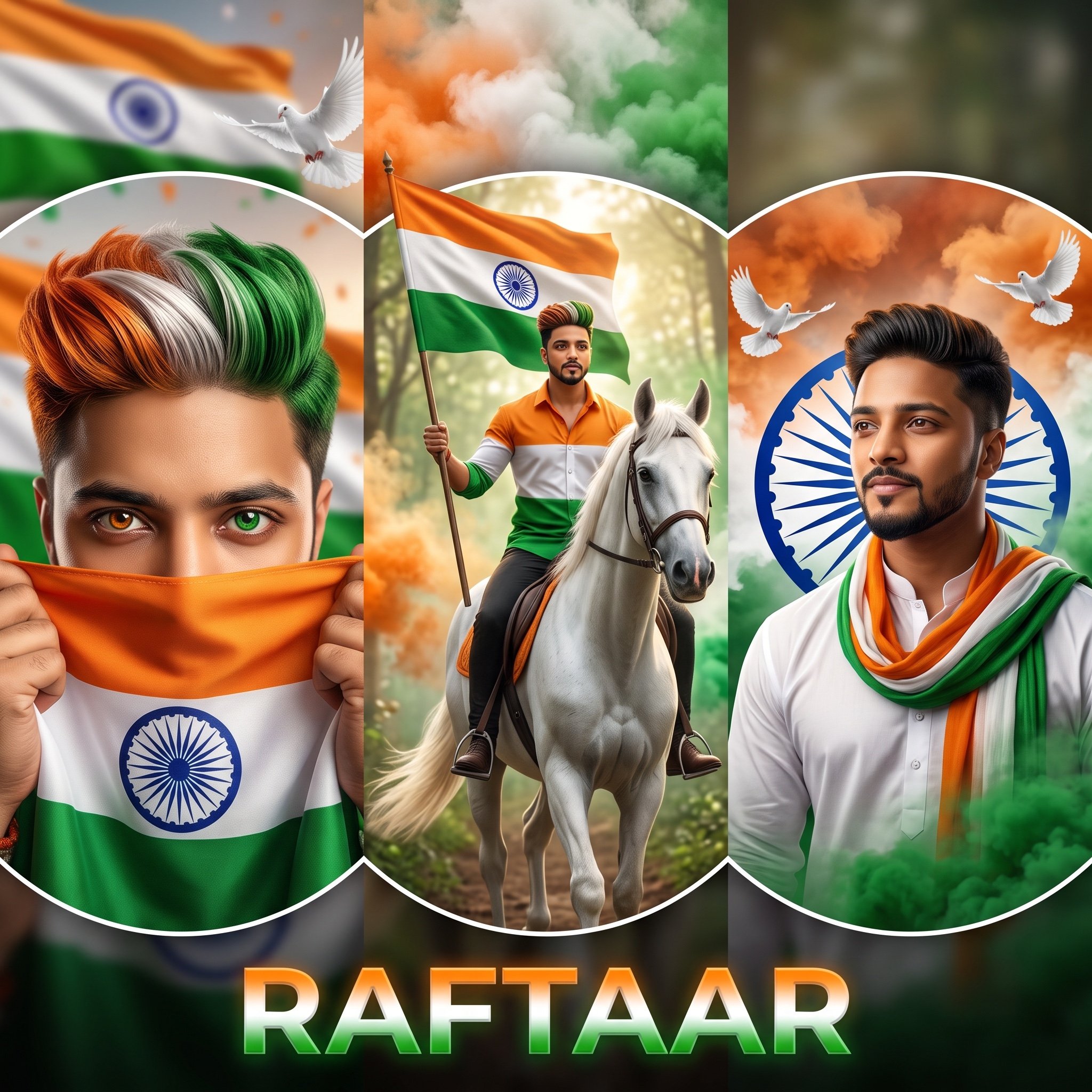
Indian Republic Day Patriotic Portrait Prompts (3 Variations)
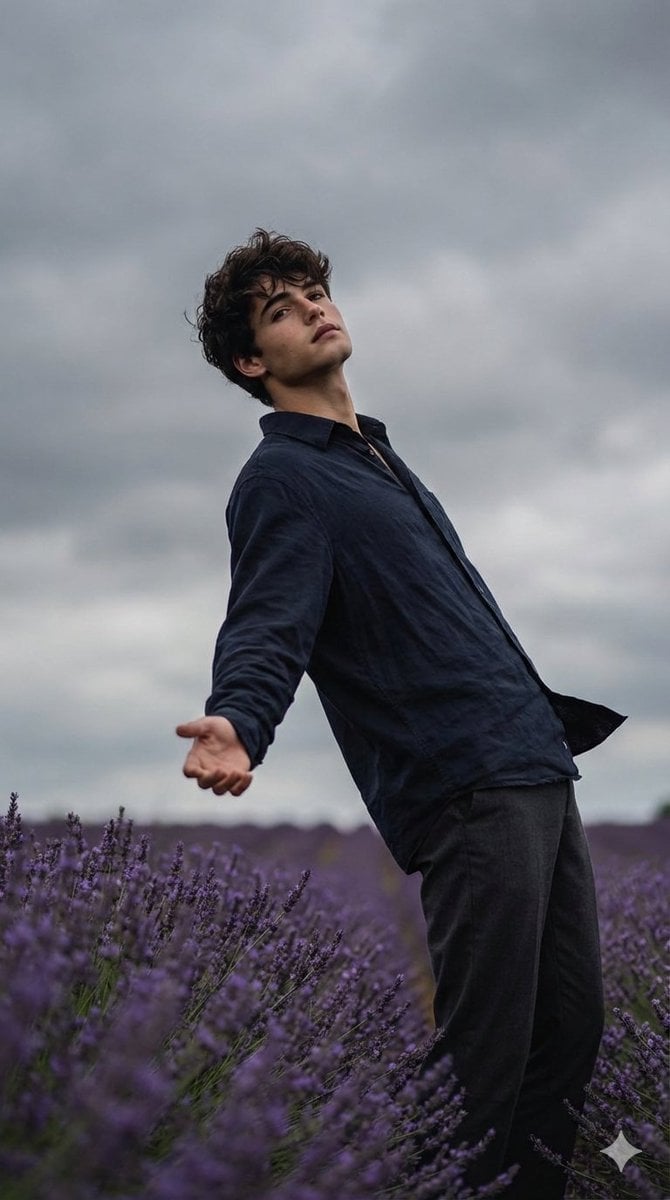
Cinematic Moody Photograph of Man in Flower Field
Black-and-White Surreal Editorial Portrait
Sienna Brooks at the Museum Fashion Editorial
3x3 Motorsport Glamour Photo Collage

Mecha Girl figure concept generated by Nano Banana Pro
World Cup Trophy Reveal Perspective
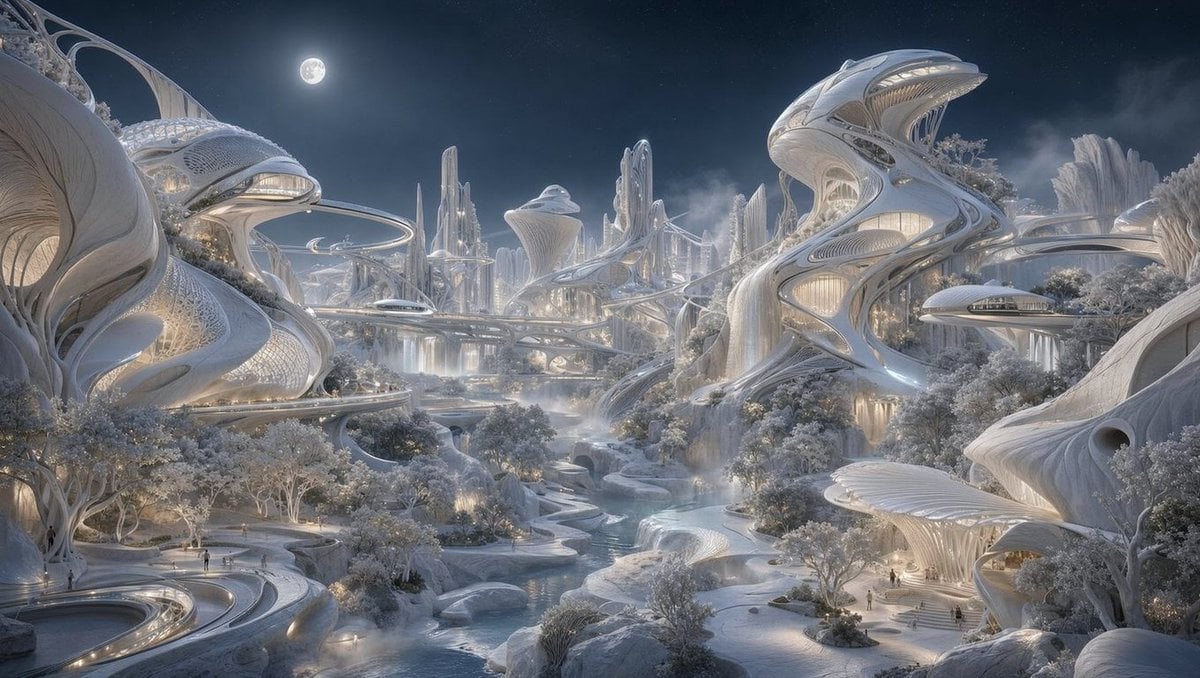
Moonlit Biomorphic Future City
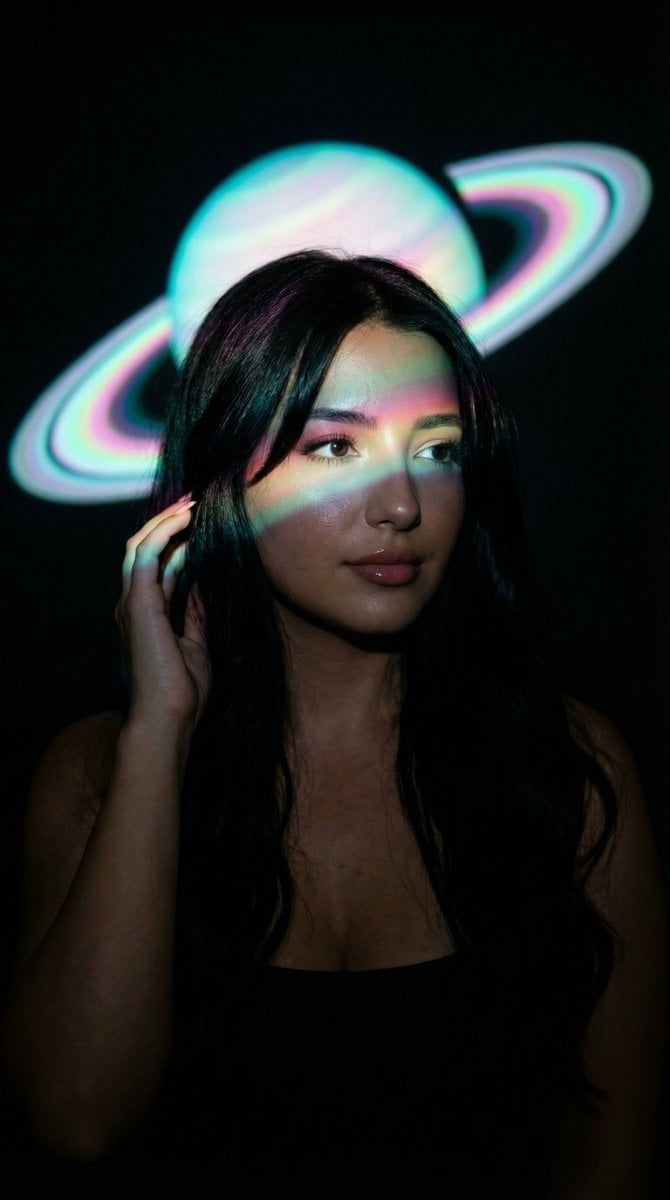
Low-Key Saturn Projection Portrait
Browse template categories
Professional Anime Cinematic Storyboard questions
How do I use the Professional Anime Cinematic Storyboard template?
Add your photo if the template asks for one, edit the prompt if you like — the template's model and format are already selected — and press Generate. Your version opens in PicX Studio.
Can I customize the Professional Anime Cinematic Storyboard template?
Yes. You can change the subject, setting, lighting, mood, format, and available model controls before creating your image.
Is the Professional Anime Cinematic Storyboard template free?
Opening and editing this template is free. Generating uses credits, shown on the Generate button when you are signed in.
Which AI model should I use?
Start with GPT Image 2, which is the model associated with this template. You can compare another compatible model for a different finish.
Looking for something else? Browse all templates.

Your photo, any look
Thousands of ready templates for every top image and video model, from one credit balance.