
Squash and Stretch Jump Sheet
Generates a seven-stage animation movement sheet from a character reference for studying jump timing, squash, stretch, and recovery poses.
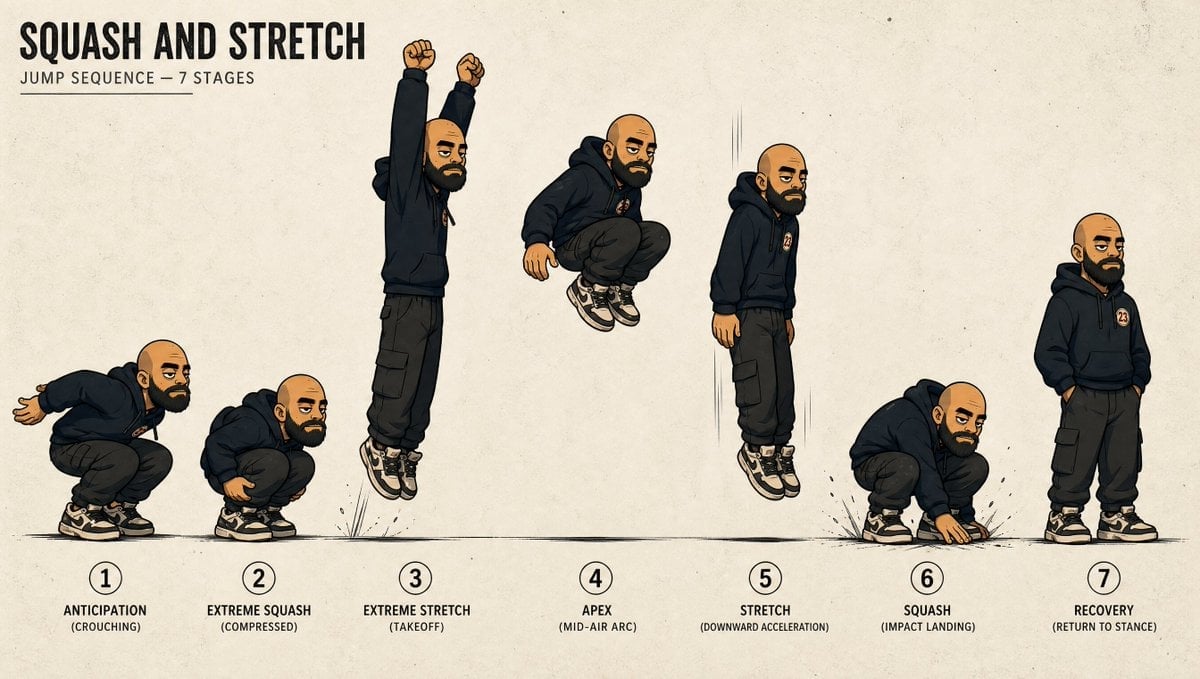
- Prompt included
- Model and format preset
- Free template
The prompt behind this image
Copy the exact prompt behind Squash and Stretch Jump Sheet, or open it in the studio and make it yours.
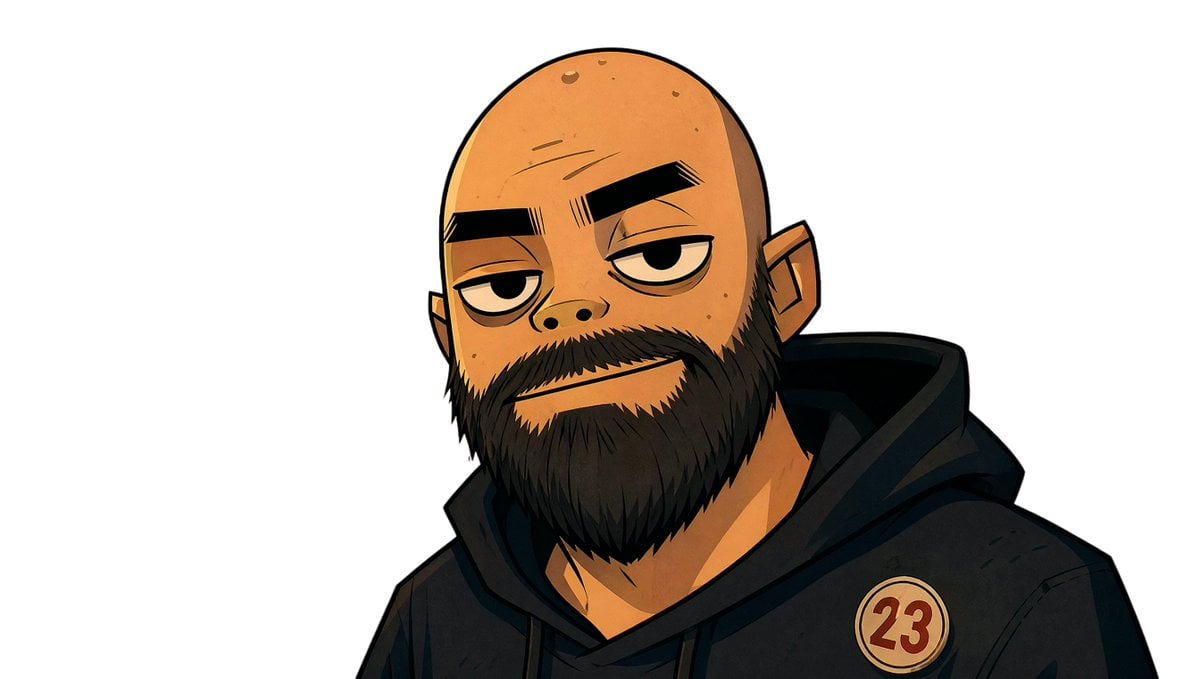
Using REFERENCE_0 as the character base, create a clean animation movement sheet that turns the character into a full-body jump sequence study while preserving the same outfit, badge, bald head, shoes, stylized ink-and-color illustration look, and the censored/blurred face treatment. Expand the view from the cropped portrait into a wide beige paper-textured layout with a ground line, subtle motion lines, small impact marks, and instructional typography. Add the title text {argument name="title text" default="SQUASH AND STRETCH"} at the upper left with the subtitle {argument name="subtitle text" default="JUMP SEQUENCE — 7 STAGES"}. Show exactly 7 numbered poses arranged left to right across the page: 1 “ANTICIPATION (CROUCHING)” with the character crouched and arms back; 2 “EXTREME SQUASH (COMPRESSED)” with a deeper compact crouch; 3 “EXTREME STRETCH (TAKEOFF)” with the character elongated upward, arms raised, feet leaving the ground; 4 “APEX (MID-AIR ARC)” with the character tucked in midair; 5 “STRETCH (DOWNWARD ACCELERATION)” with the character stretched vertically while descending; 6 “SQUASH (IMPACT LANDING)” with the character compressed on landing, one hand touching the ground; 7 “RECOVERY (RETURN TO STANCE)” with the character standing relaxed with hands in pockets. Use bold black uppercase labels under each numbered stage, keep consistent character proportions across poses except for the intentional squash-and-stretch deformation, and make the sheet read like a professional 2D animation reference chart.
Reference images included
Squash and Stretch Jump Sheet needs input media to work. They load alongside the prompt when you open it in the studio.
How to use Squash and Stretch Jump Sheet in 3 steps
- 1Upload ImagePNG, JPG or paste
Add your photo
Upload the photo the template builds on. The prompt, model and format are already set.
- 2…a portrait of your subject in softgolden-hour light, 85mm…
Personalize
Edit the subject and creative details for your destination.
- 3Generate
Generate
Press Generate — your image is created in PicX Studio, so you can compare it with the original and refine one variable at a time.
More like this
Templates with the same subject, style or setup. Open one to see its prompt.
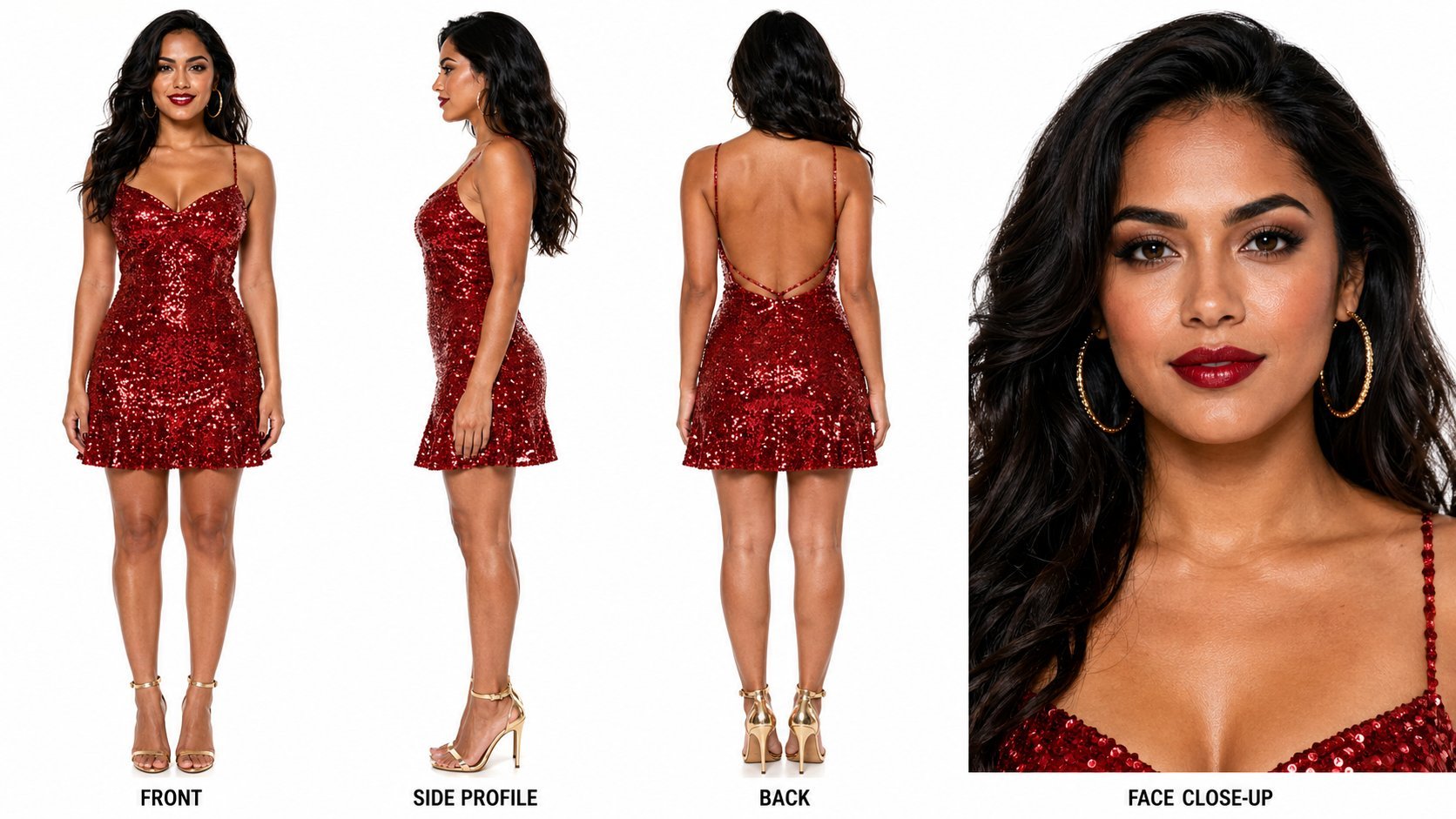
Dancer Character - Four View Reference Sheet
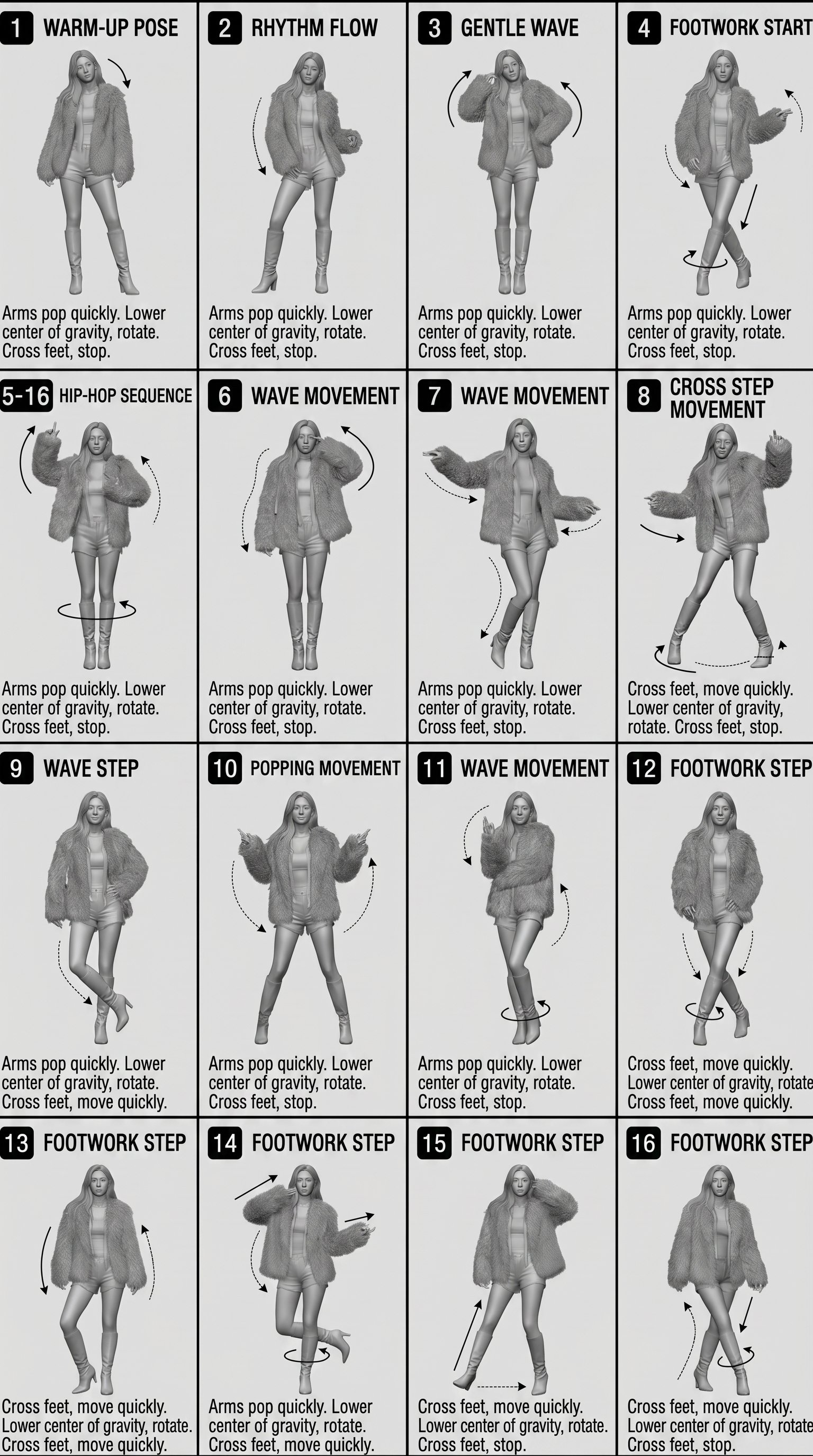
Movement Sheet - Dance Reference (Seedance 2.0)
Conceptual Time-Stretch Fashion Photography
Action Jumping Shot in Black Skirt
Woman Stretching in Sports Wear Under Blue Sky
Outdoor Park Yoga Stretch
Ethereal Underwater Pool Jump
Cozy Morning Stretching Portrait

Relaxed seated pose with legs folded or stretched comfortably
Morning Bedroom Stretch Portrait

Premium Pixel Stretch Art Transformation
Half Photo Half Manga Jump Portrait
Make it yours
Squash and Stretch Jump Sheet works as-is. These are the safest ways to change it without losing the look.
Change one field
Copy a single group, rewrite it, and generate again so you can see what that field is doing.
Keep the frame, change the subject
Hold the composition and light of Squash and Stretch Jump Sheet, then swap wardrobe, props or the person for a new take.
| If the result… | Why | Fix |
|---|---|---|
| The result drifts from the preview | Too many fields changed at once. | Reuse Squash and Stretch Jump Sheet as-is first, then change one group — subject, light, or setting. |
| The model over-stylizes the scene | The prose prompt leaves finish and camera underspecified. | Add one camera or lighting sentence and stay on GPT Image 2. |
More GPT Image 2 templates
Other prompts made for GPT Image 2.

Six VTuber Japanese Logo Sheet

Realistic Portrait of Woman and Deer

The Vista Modular Condo Poster

AI Model Routing Comparison Infographic

2.5D Anime Art Board

Isometric Productivity Desk Scene

New York Double Exposure Poster

Four-Panel AI Landscape Comparison

Japanese Tatami Lifestyle Magazine Cover

NESCAFÉ Coffee Map Poster
More image prompts
Fresh picks from across the catalog.
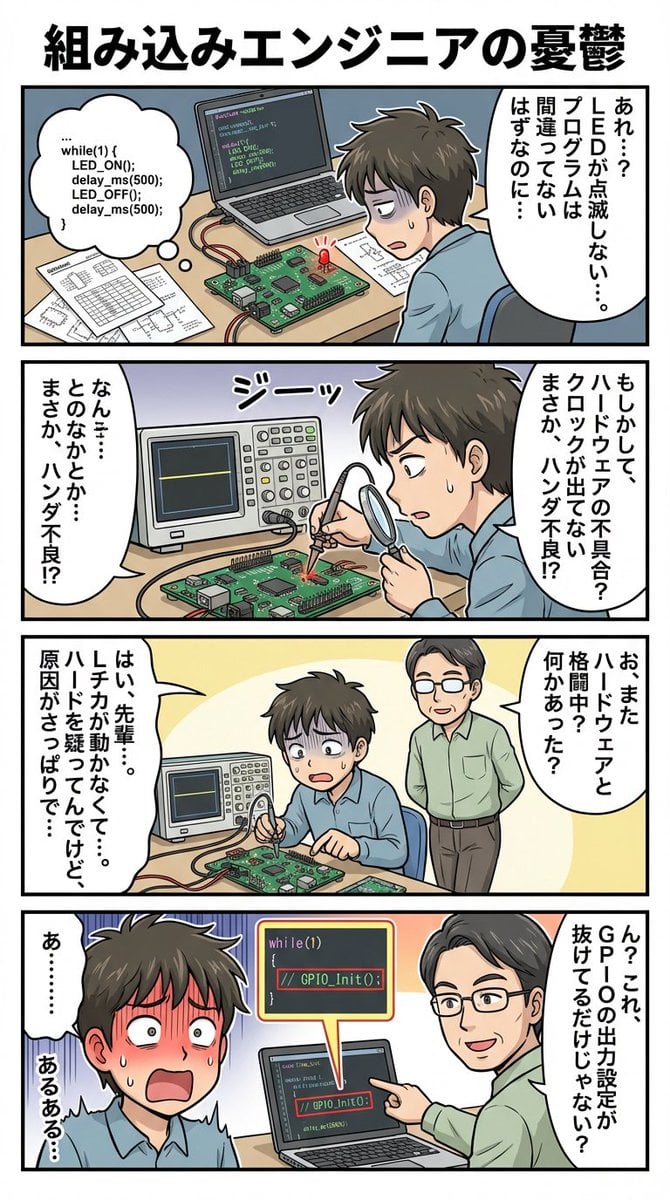
panel comic about embedded engineer struggles
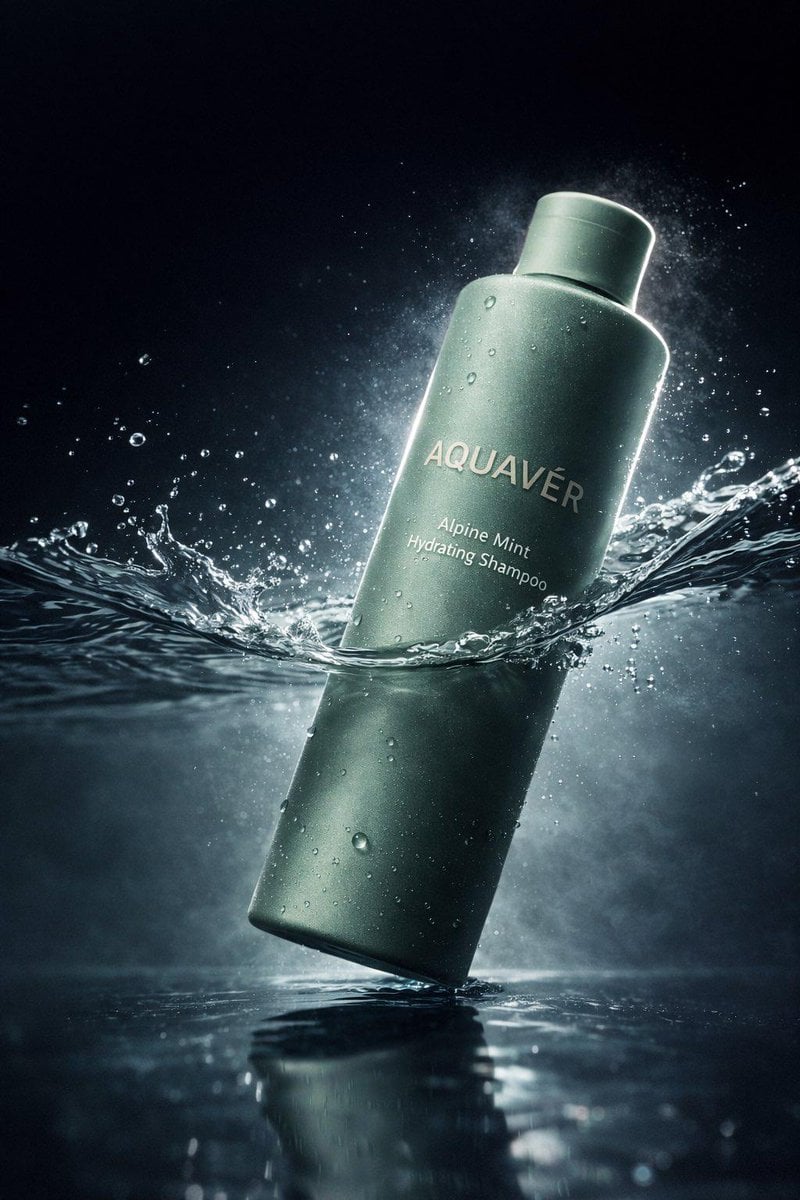
Luxury Shampoo Bottle Splash Commercial
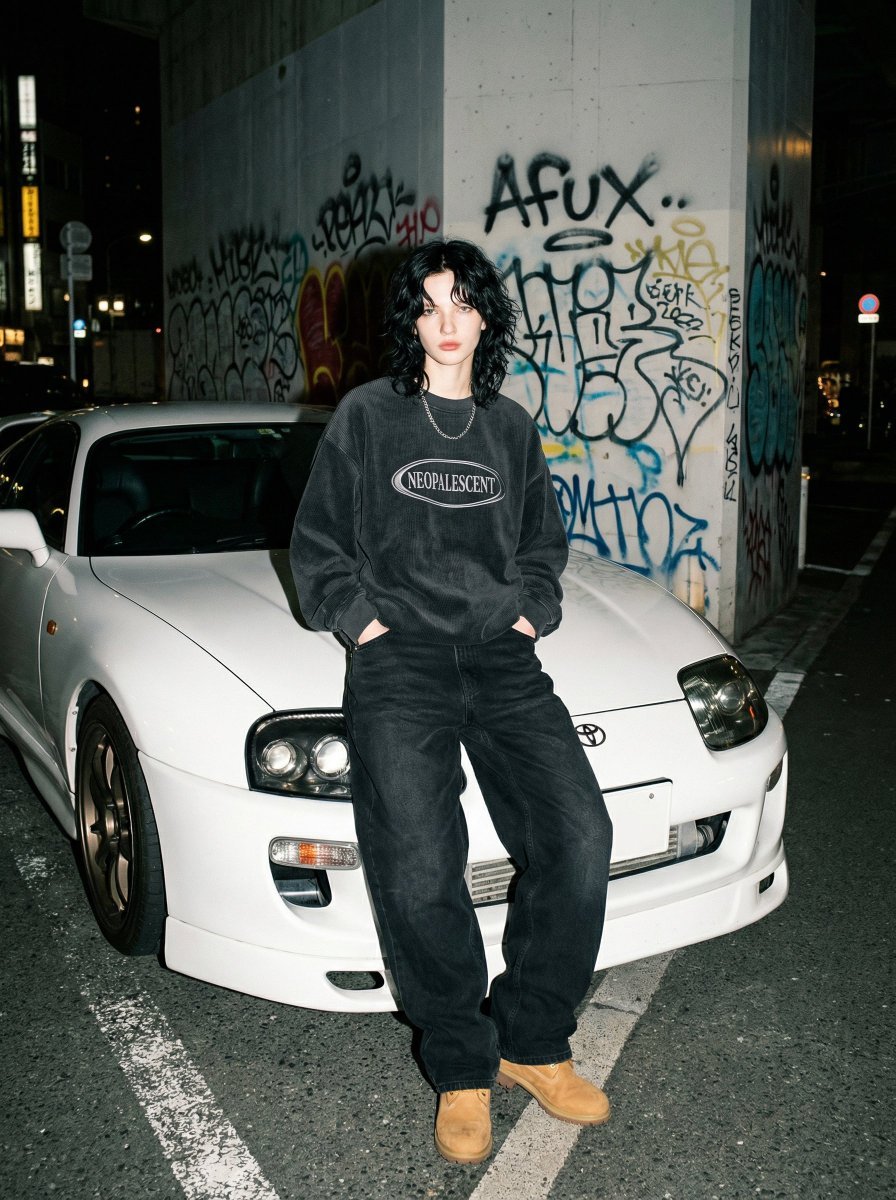
90s Streetwear Portrait with Toyota Supra MK4
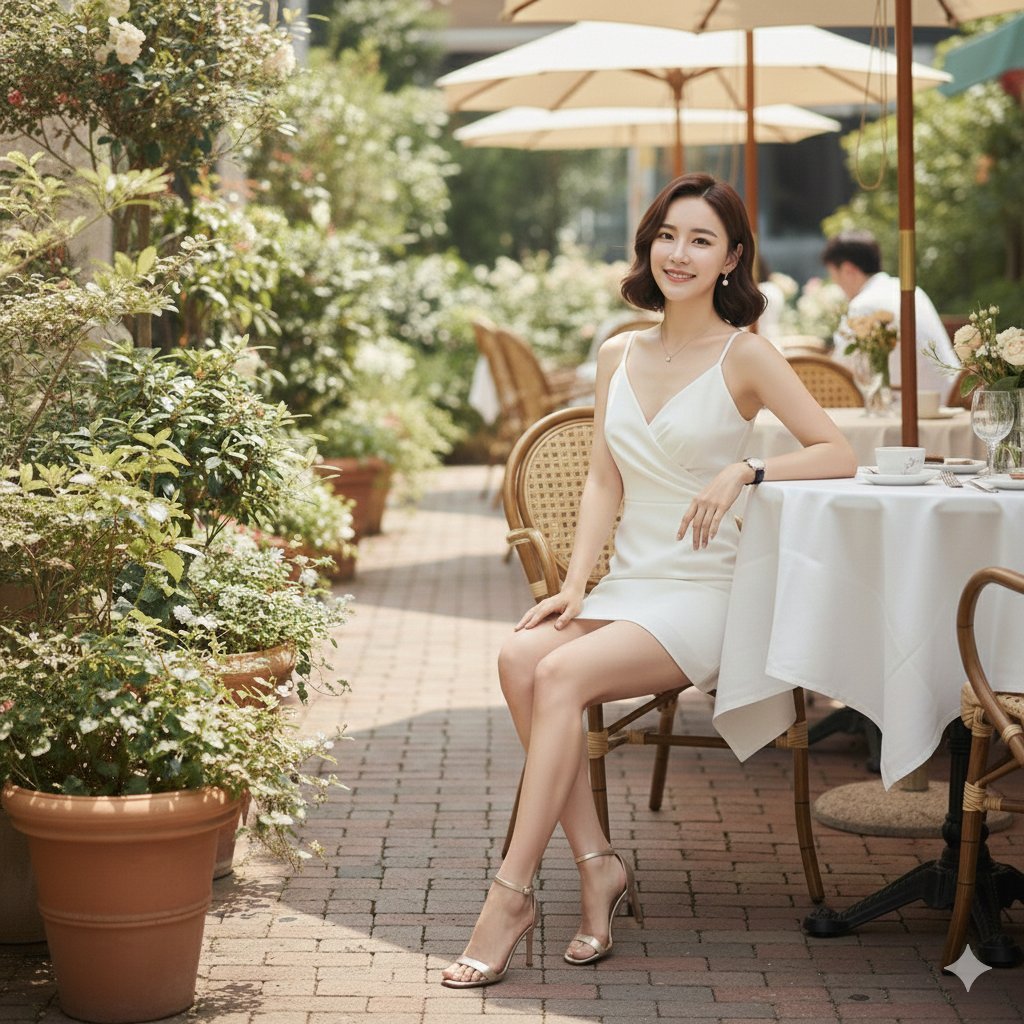
Hyper-Realistic High-Fashion Seated Portrait Prompt
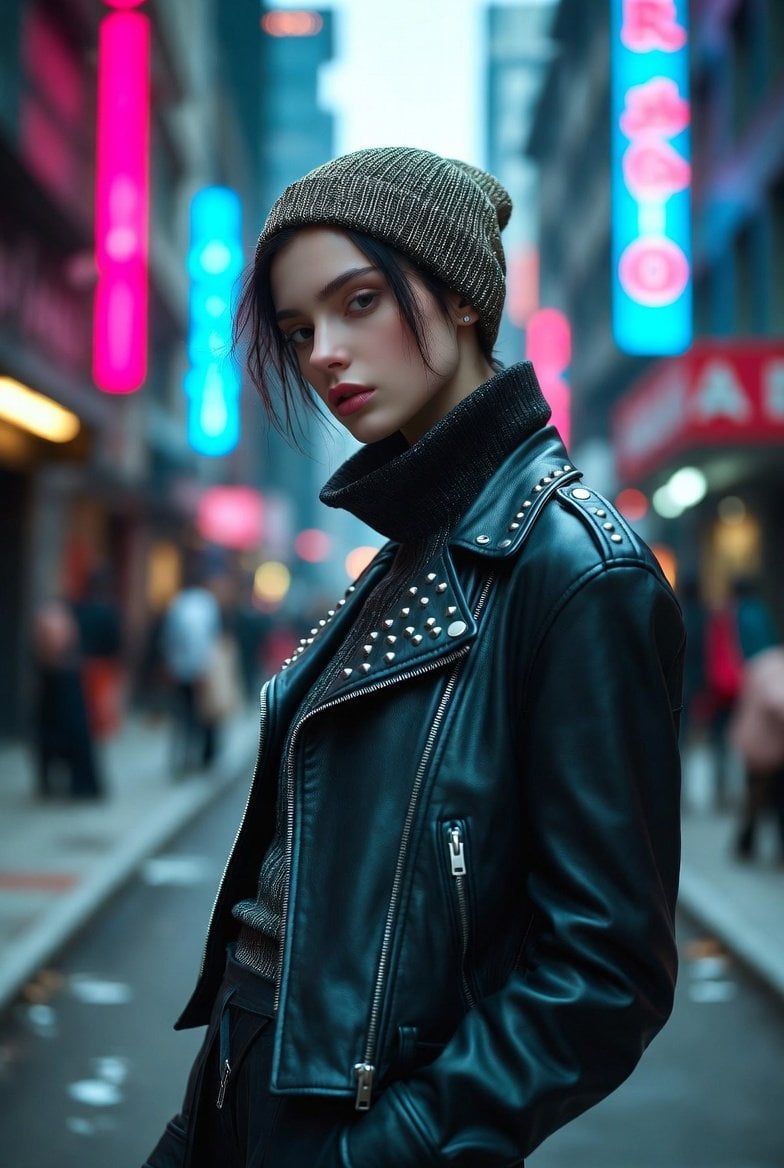
Hyper-realistic portrait of a young woman in street style at night

Ultra-Sharp 4K Selfie Portrait Prompt
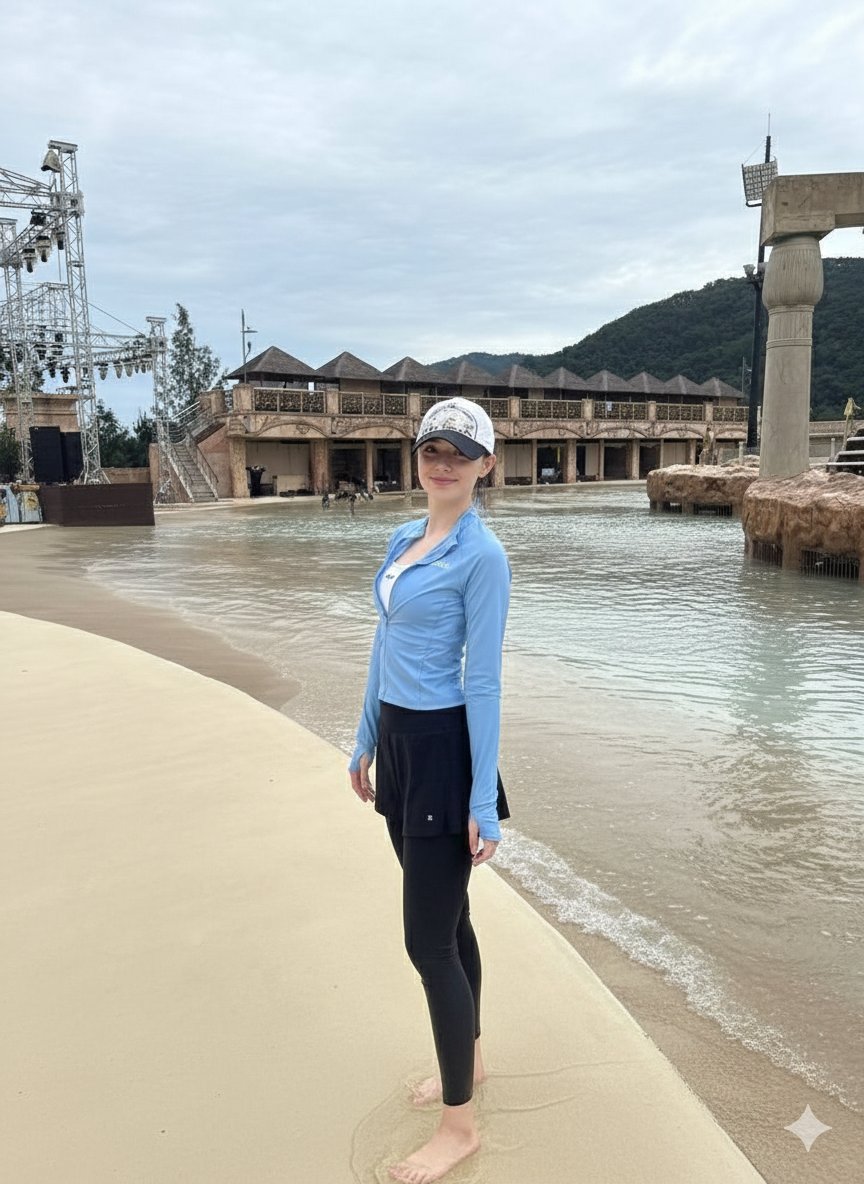
Tropical Water Park Portrait with Thai Architecture
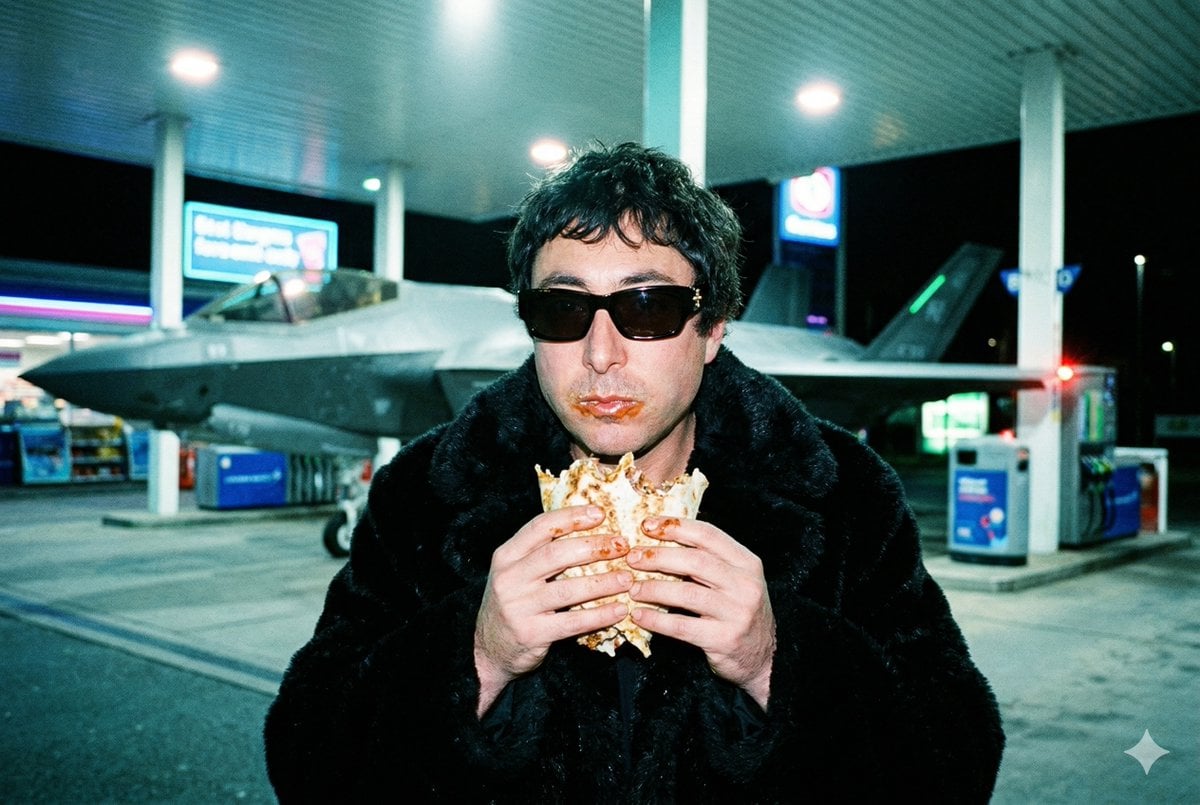
Grainy Paparazzi Snapshot of Man Eating Kebab at Gas Station with F-35 Jet

Ibaraki Travel Guide Cover
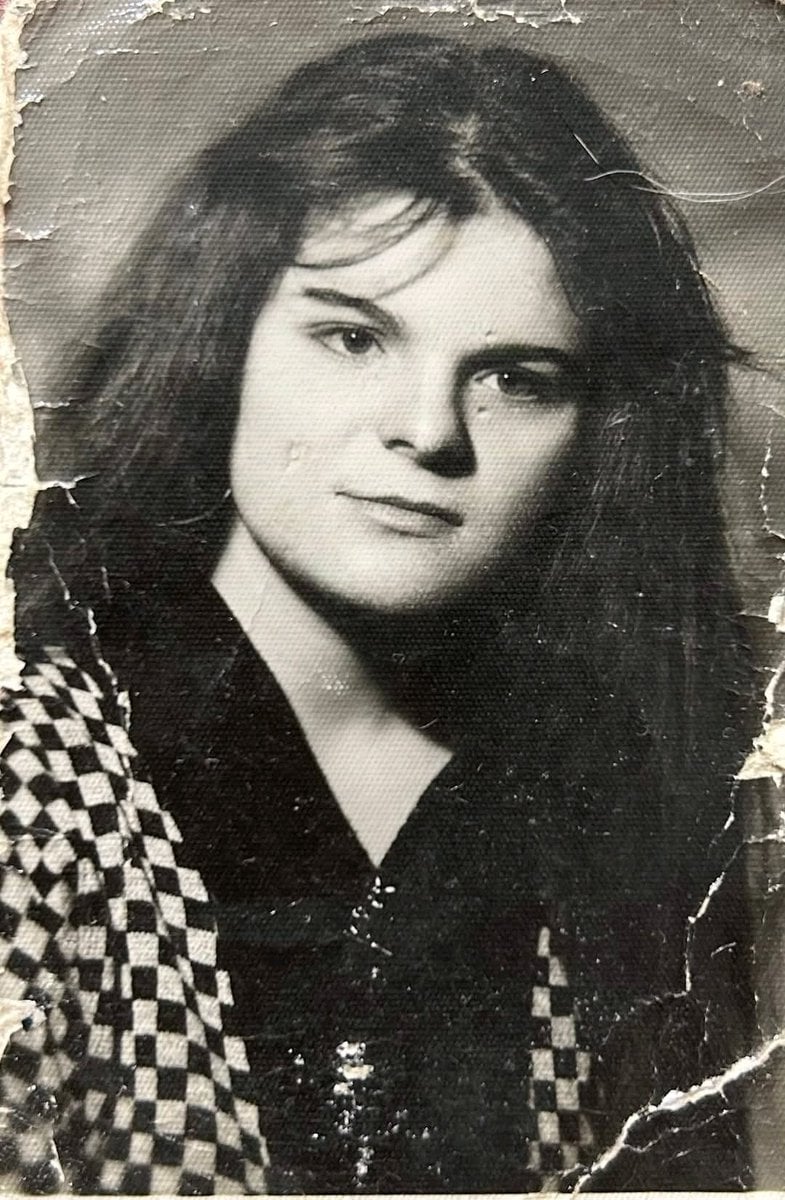
Photo Restoration and Upscaling Prompt
Browse template categories
Squash and Stretch Jump Sheet questions
How do I use the Squash and Stretch Jump Sheet template?
Add your photo if the template asks for one, edit the prompt if you like — the template's model and format are already selected — and press Generate. Your version opens in PicX Studio.
Can I customize the Squash and Stretch Jump Sheet template?
Yes. You can change the subject, setting, lighting, mood, format, and available model controls before creating your image.
Is the Squash and Stretch Jump Sheet template free?
Opening and editing this template is free. Generating uses credits, shown on the Generate button when you are signed in.
Which AI model should I use?
Start with GPT Image 2, which is the model associated with this template. You can compare another compatible model for a different finish.
Looking for something else? Browse all templates.

Your photo, any look
Thousands of ready templates for every top image and video model, from one credit balance.