
LinkedIn Office Headshot
LinkedIn Office Headshot is a ready photo look.

- Prompt included
- Model and format preset
- Premium template
The prompt behind this image
Copy the exact prompt behind LinkedIn Office Headshot, or open it in the studio and make it yours.
Ultra-realistic office portrait of the uploaded image, keeping the exact same facial features, skin tone, hairstyle, beard shape, and overall appearance. He is seated at a modern desk in front of an open laptop, posed naturally with hands resting lightly on the keyboard. Outfit: soft cream-colored blazer and a light blue button-down shirt, clean, crisp, and neatly pressed. Lighting: bright, diffused professional indoor lighting with soft natural shadows. Background: minimal modern office setting with a softly blurred green plant and a framed picture on the wall. Expression: calm, focused, confident, and natural. Image style: premium corporate editorial quality with sharp, realistic skin texture and clean, neutral color tones.
How to use LinkedIn Office Headshot in 3 steps
- 1Upload ImagePNG, JPG or paste
Add your photo
Upload the photo the template builds on. The prompt, model and format are already set.
- 2…a portrait of your subject in softgolden-hour light, 85mm…
Personalize
Edit the subject and creative details for your destination.
- 3Generate
Generate
Press Generate — your image is created in PicX Studio, so you can compare it with the original and refine one variable at a time.
More like this
Templates with the same subject, style or setup. Open one to see its prompt.
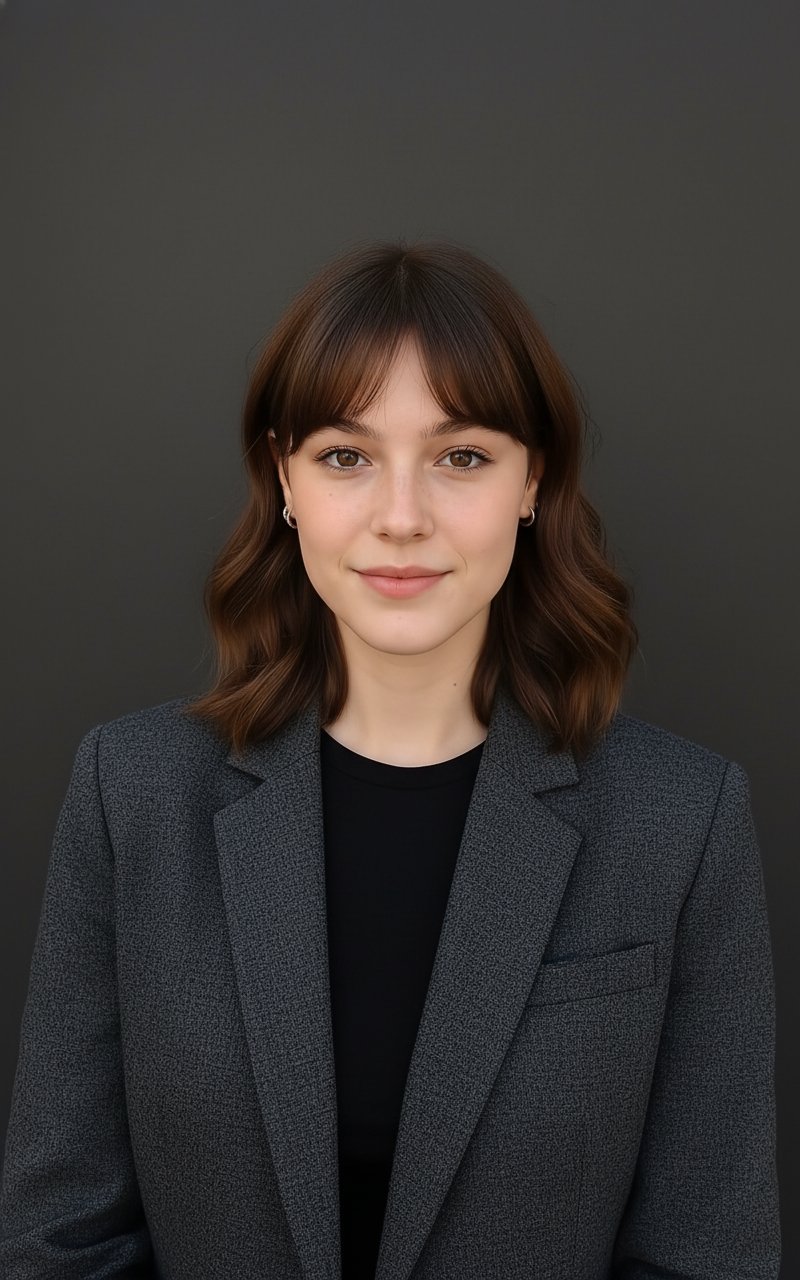
Professional Headshot

A k.pop idol on the stage with mic
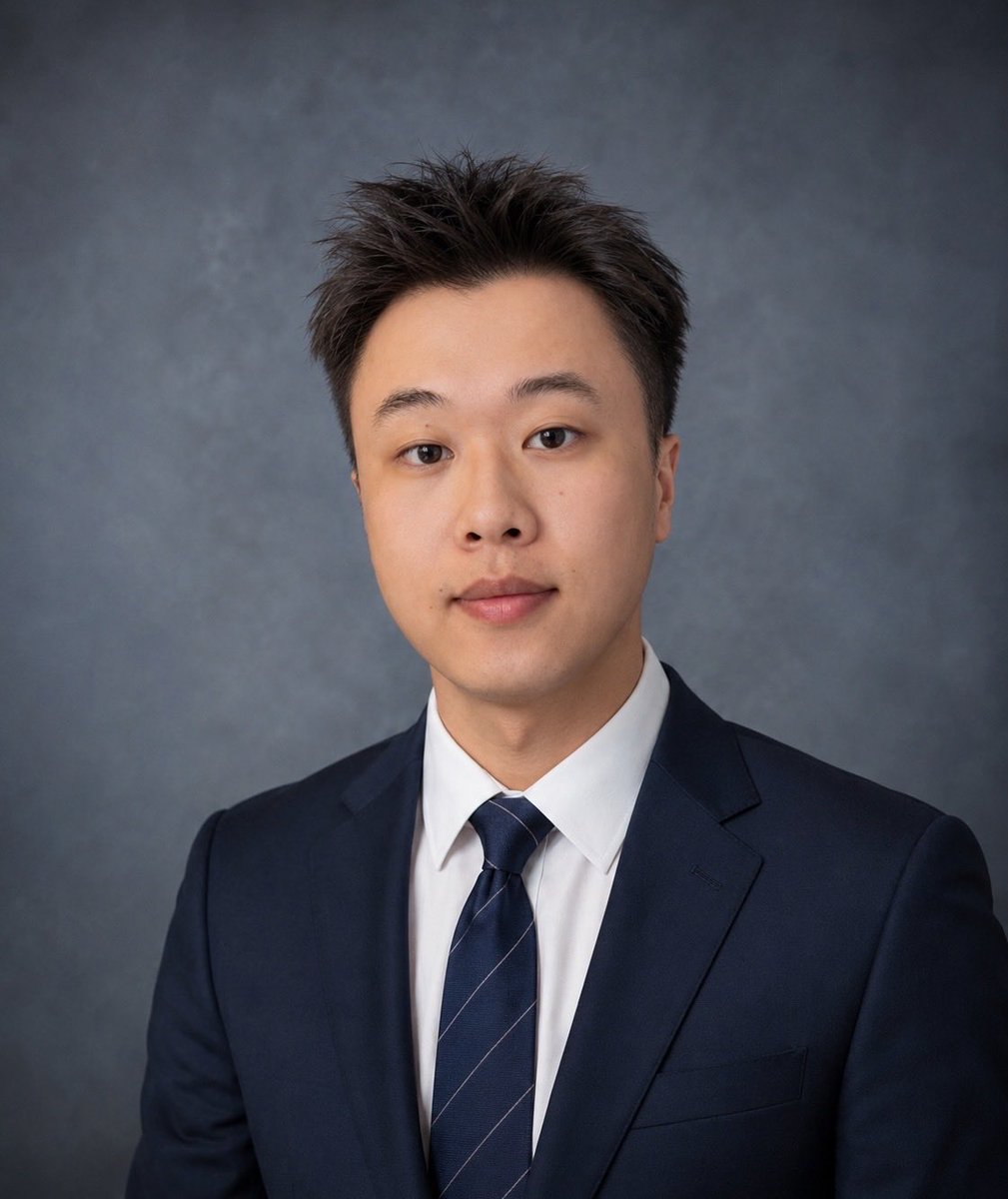
American Style LinkedIn Business Headshot
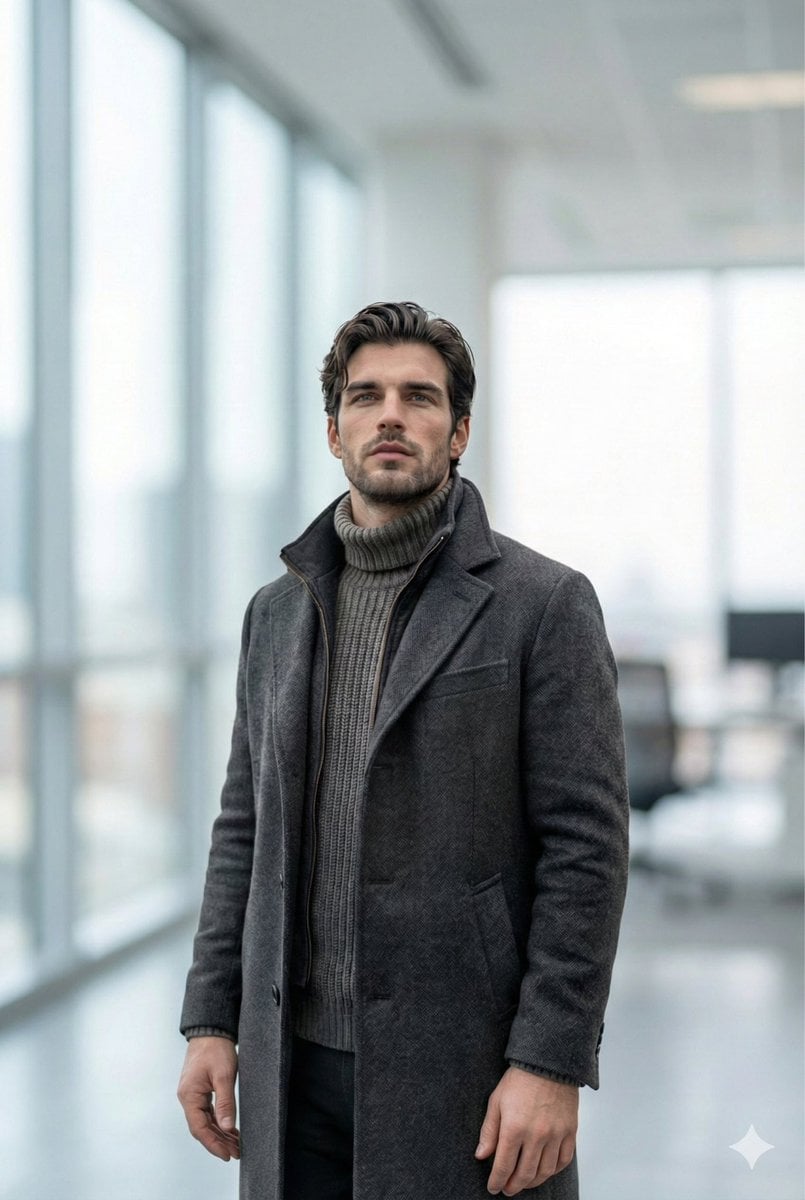
Selfie to Professional LinkedIn Headshot Conversion
Dress
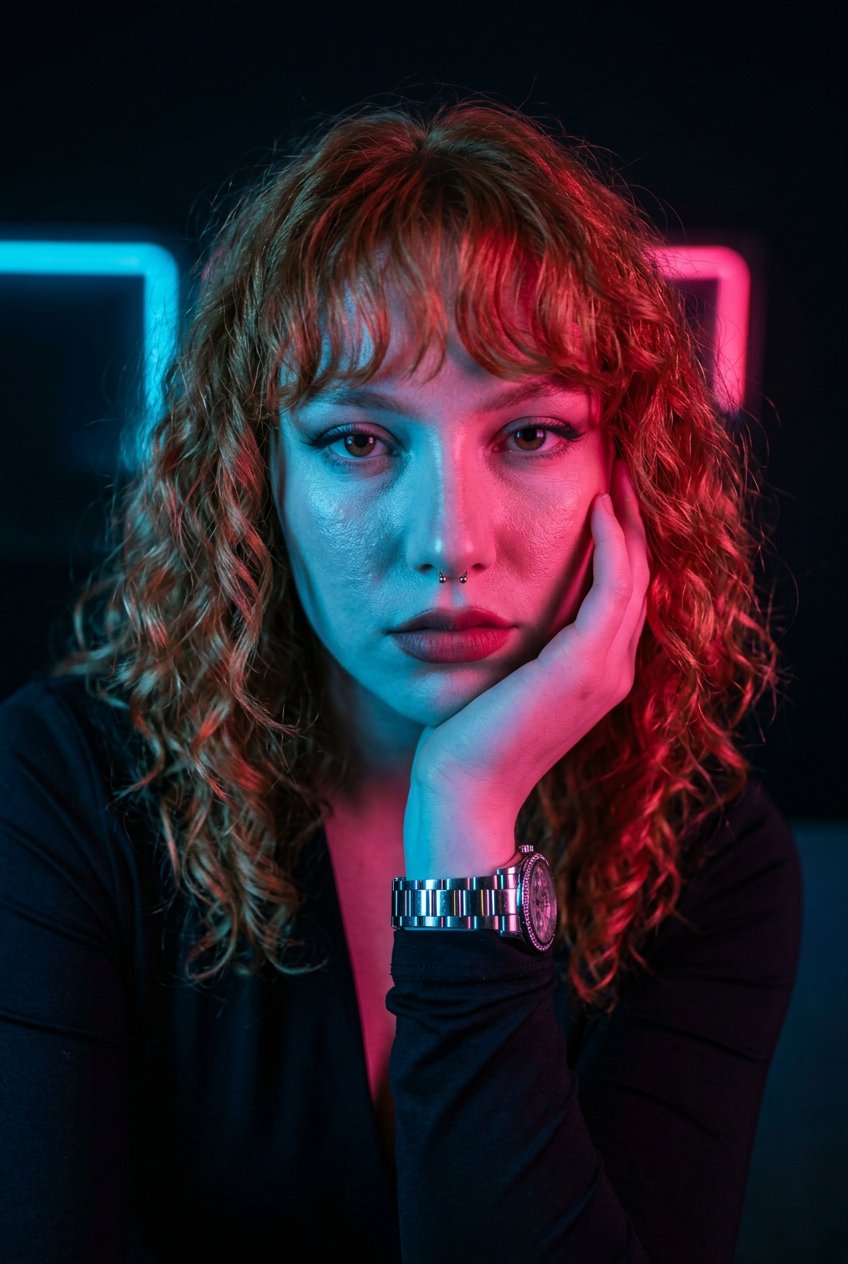
Neon Noir Dual Tone Portrait
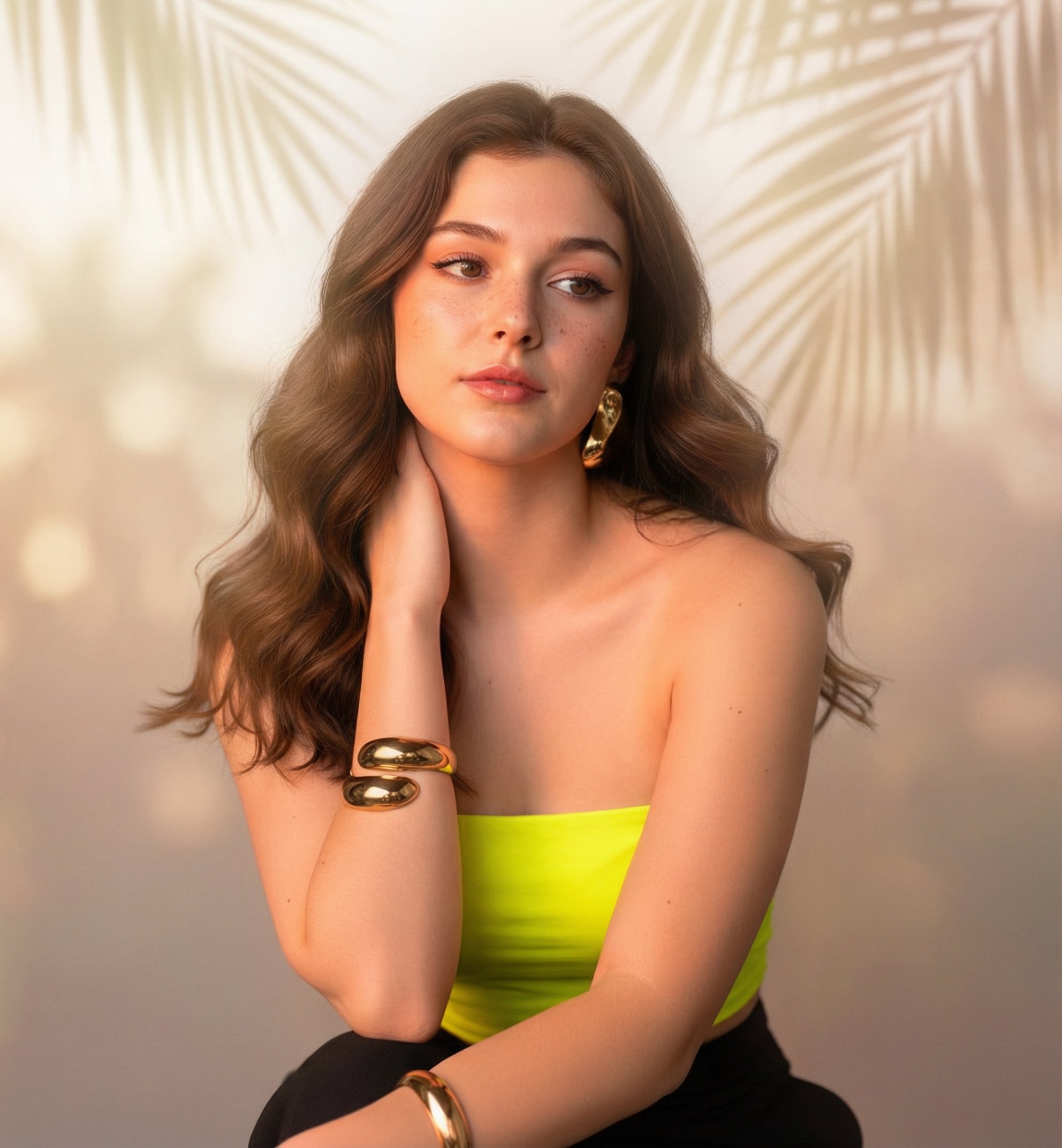
Sunny Day
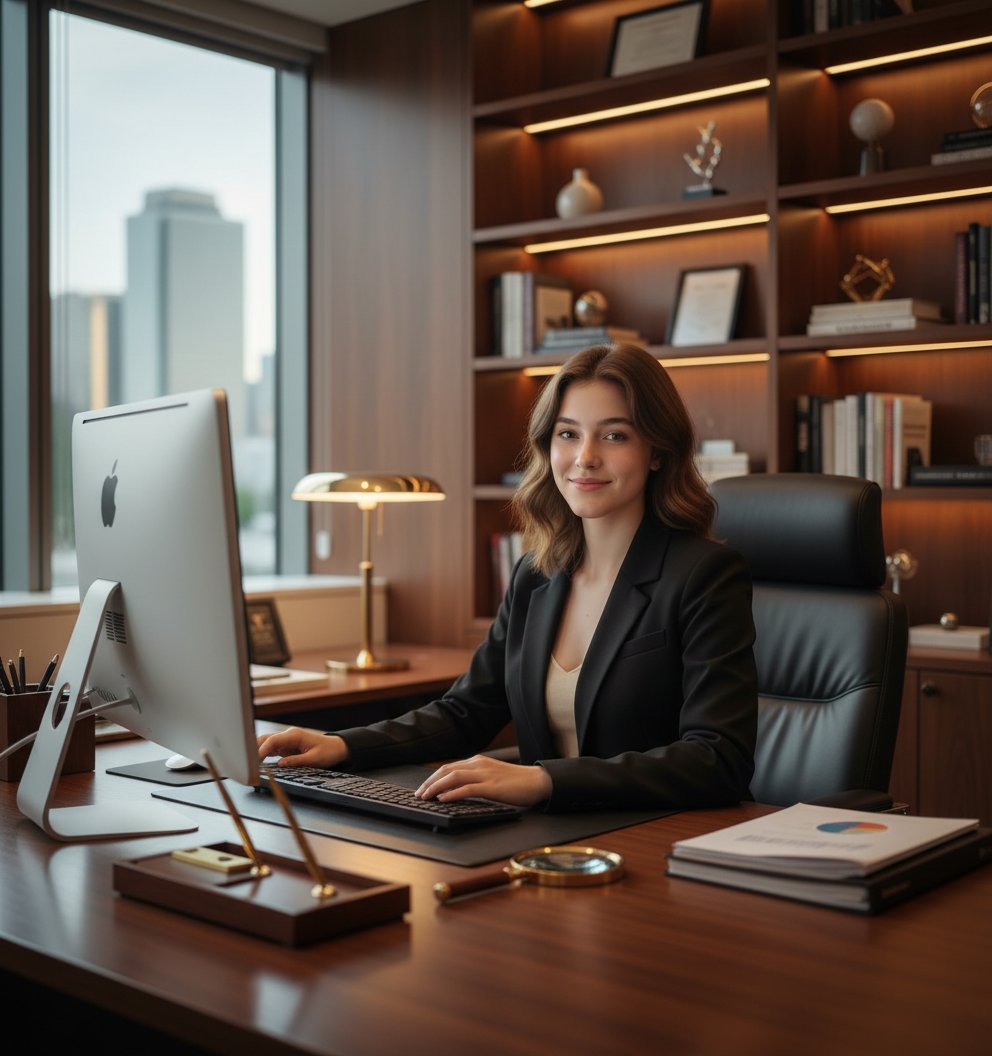
LinkedIn Professional Headshot
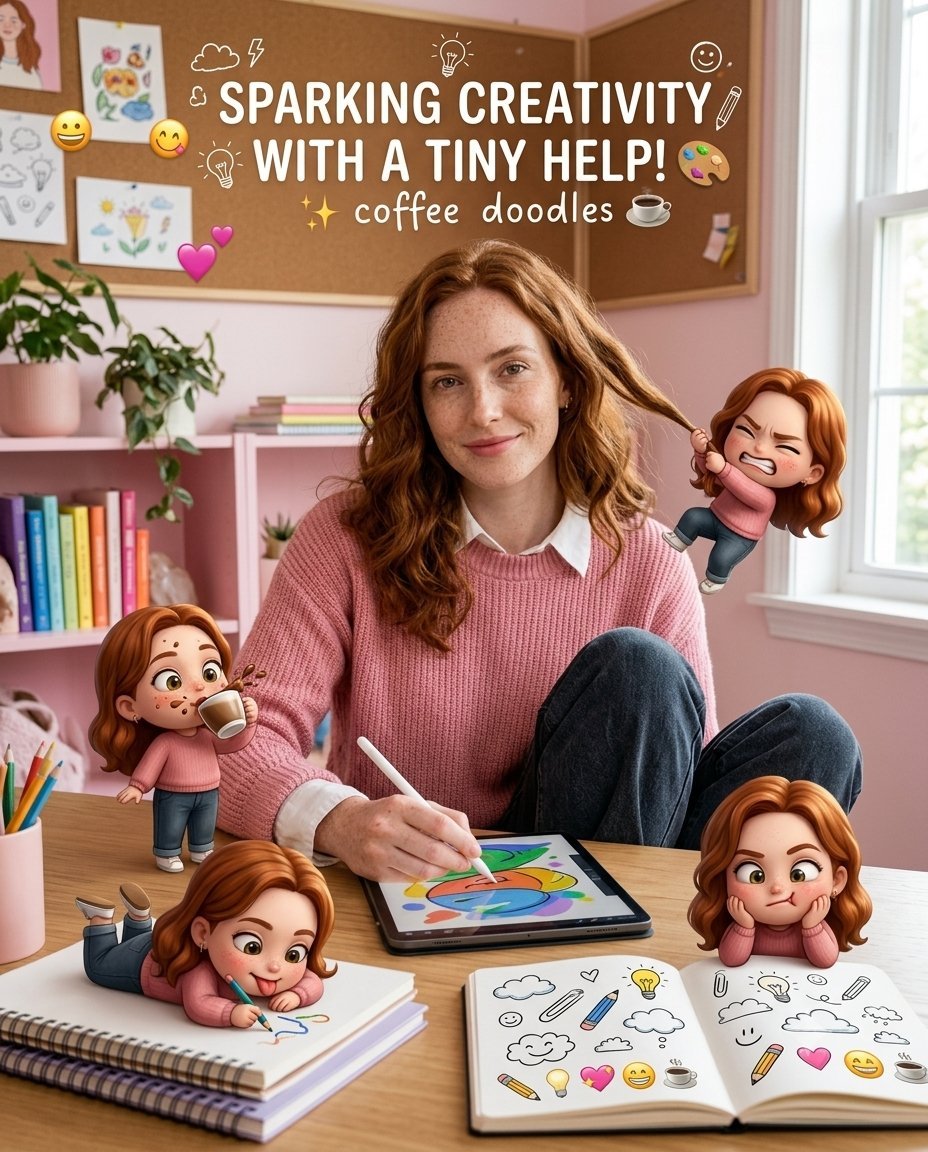
Creative Character in Pink Office
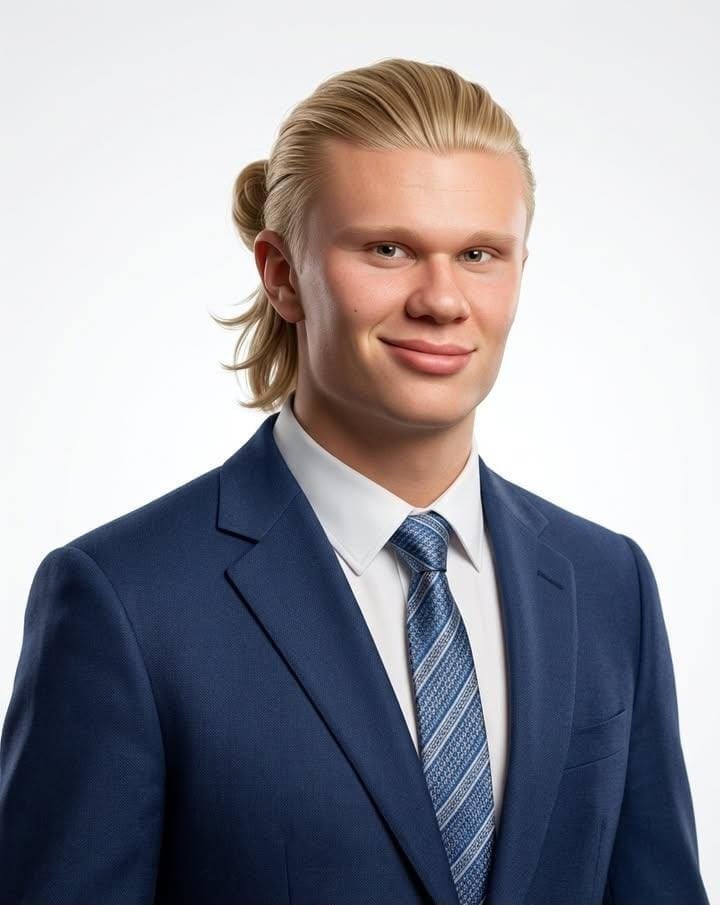
Professional Corporate Studio Headshot
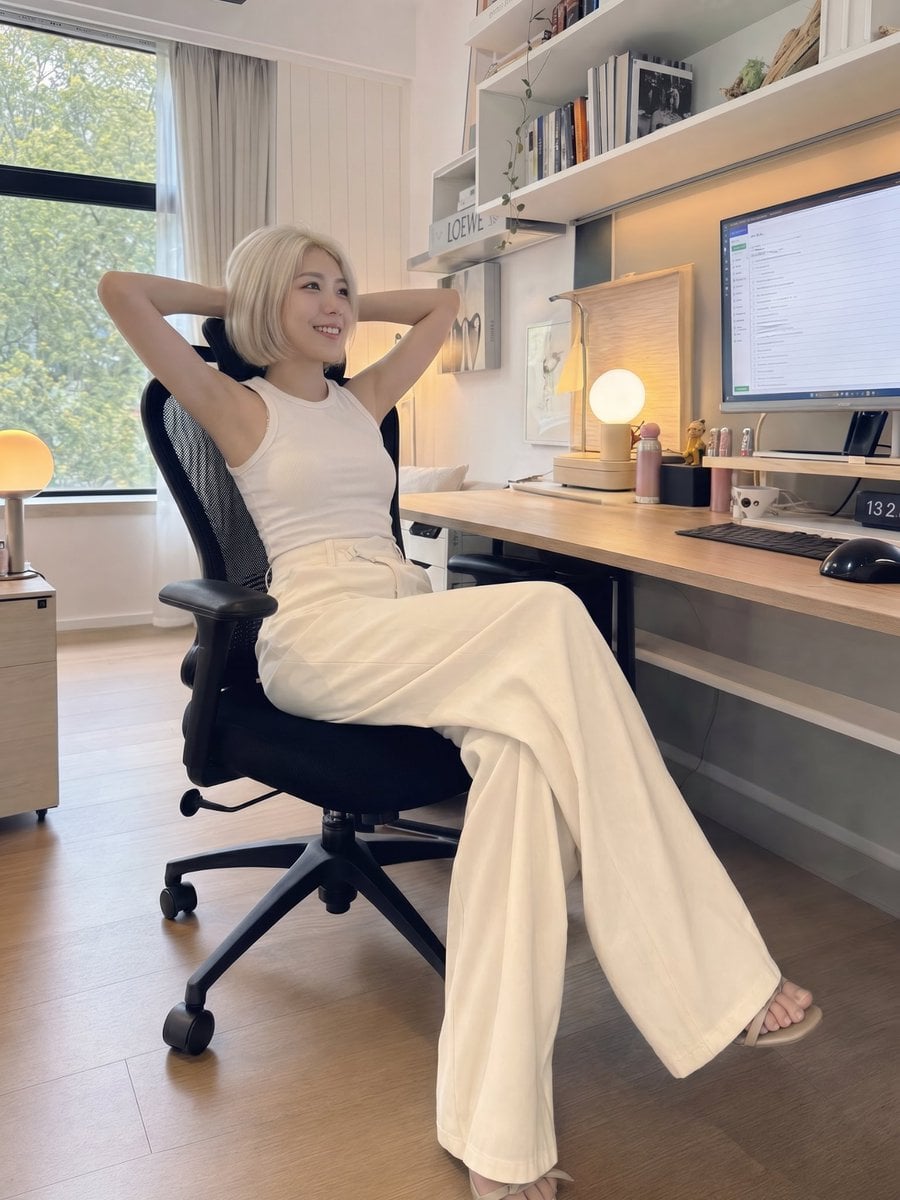
iPhone Style Minimalist Office Portrait
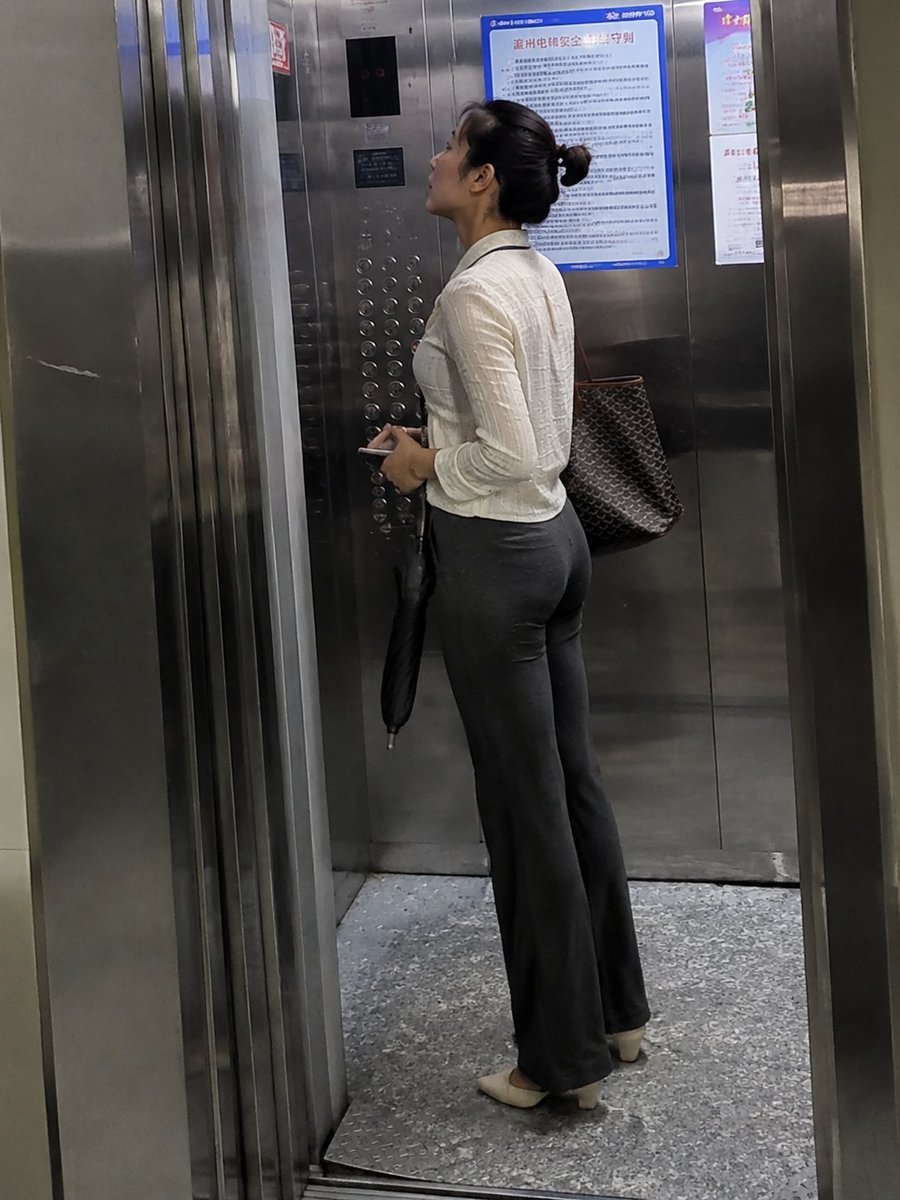
Realistic Office Elevator Candid
Make it yours
LinkedIn Office Headshot works as-is. These are the safest ways to change it without losing the look.
Change one field
Copy a single group, rewrite it, and generate again so you can see what that field is doing.
Keep the frame, change the subject
Hold the composition and light of LinkedIn Office Headshot, then swap wardrobe, props or the person for a new take.
| If the result… | Why | Fix |
|---|---|---|
| The result drifts from the preview | Too many fields changed at once. | Reuse LinkedIn Office Headshot as-is first, then change one group — subject, light, or setting. |
| The model over-stylizes the scene | The prose prompt leaves finish and camera underspecified. | Add one camera or lighting sentence and stay on PicX Studio. |
More image prompts
Fresh picks from across the catalog.
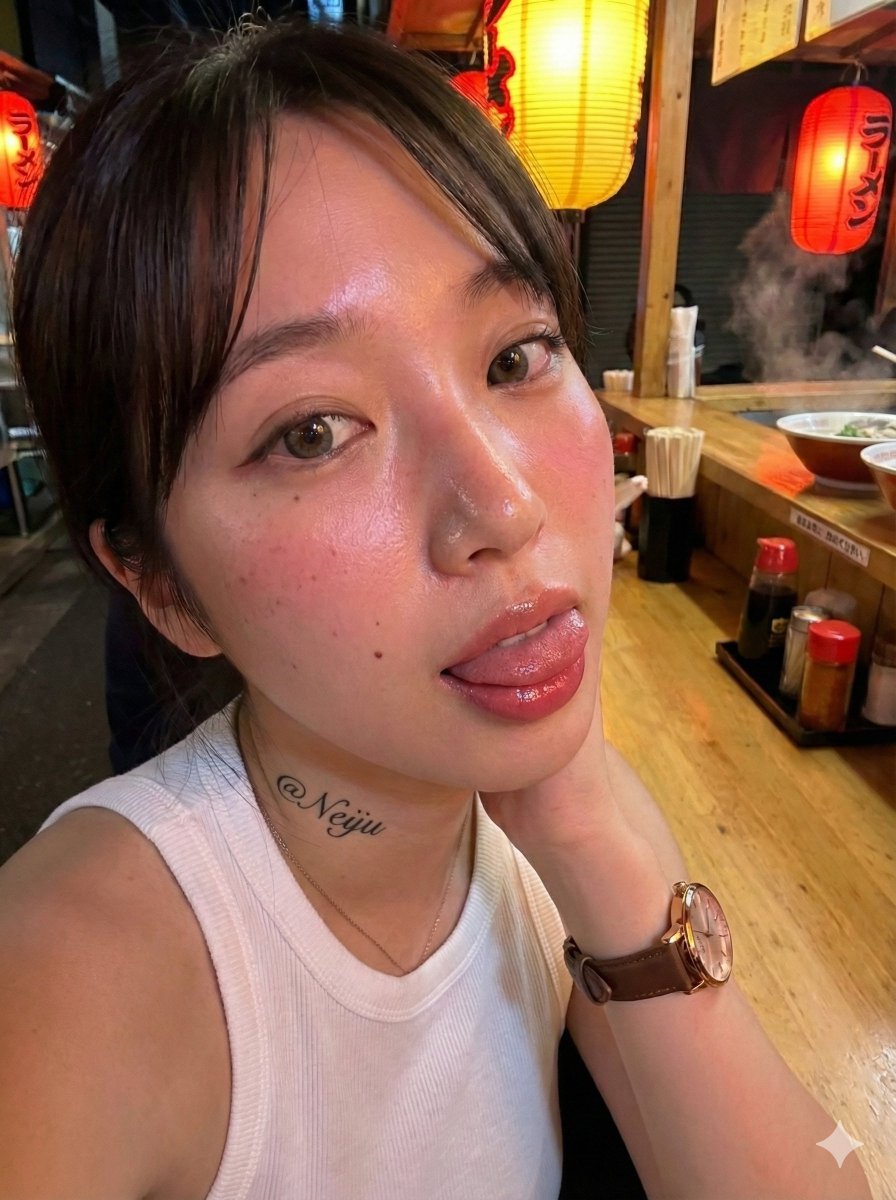
Realistic Izakaya Selfie with Intentional Imperfection
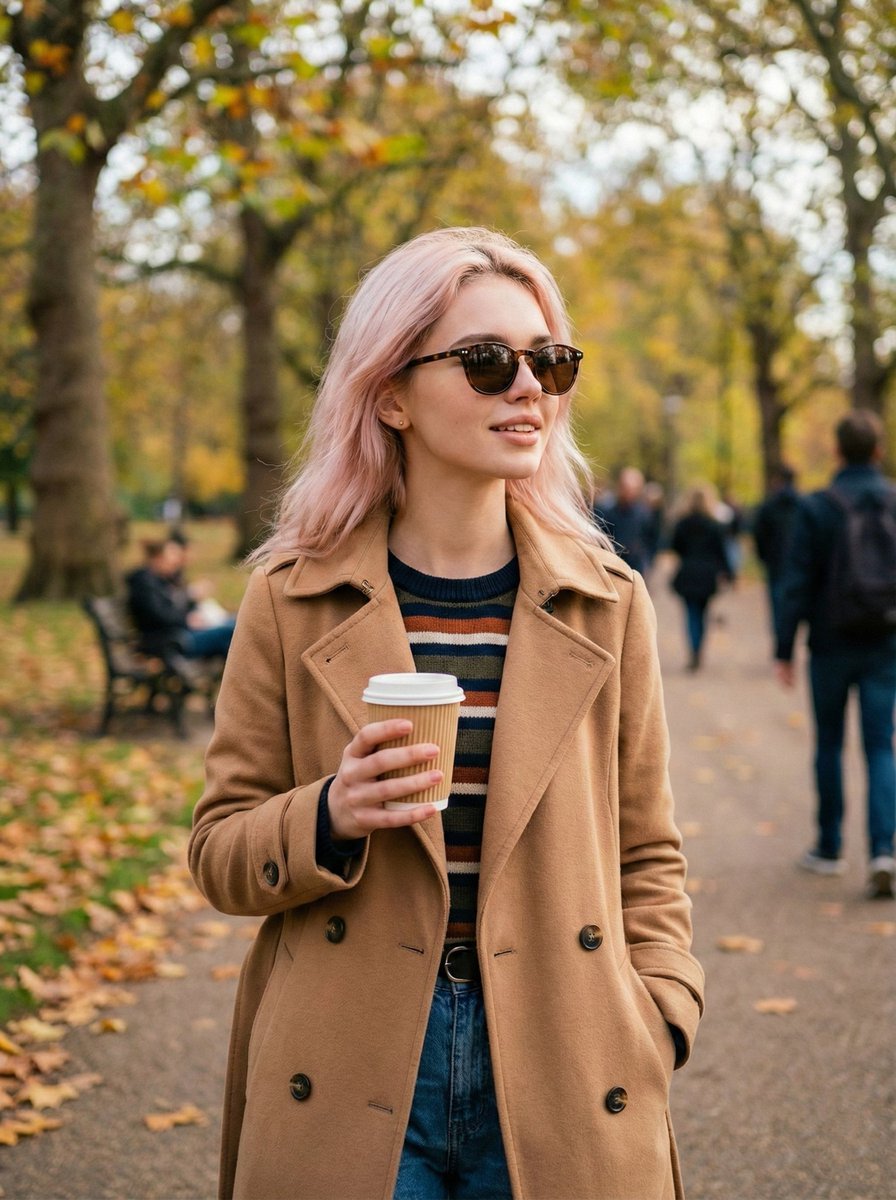
Cinematic Portrait on a Bustling City Street at Twilight
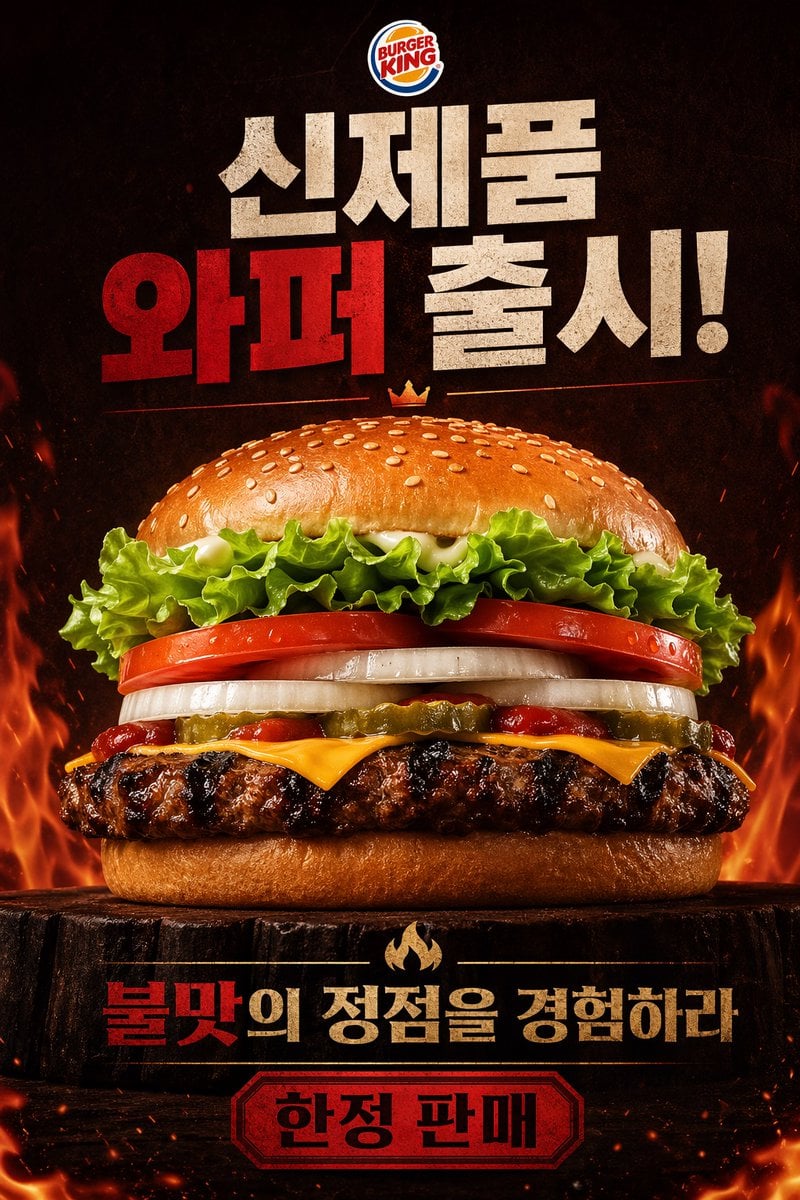
Fiery Burger King Whopper Poster
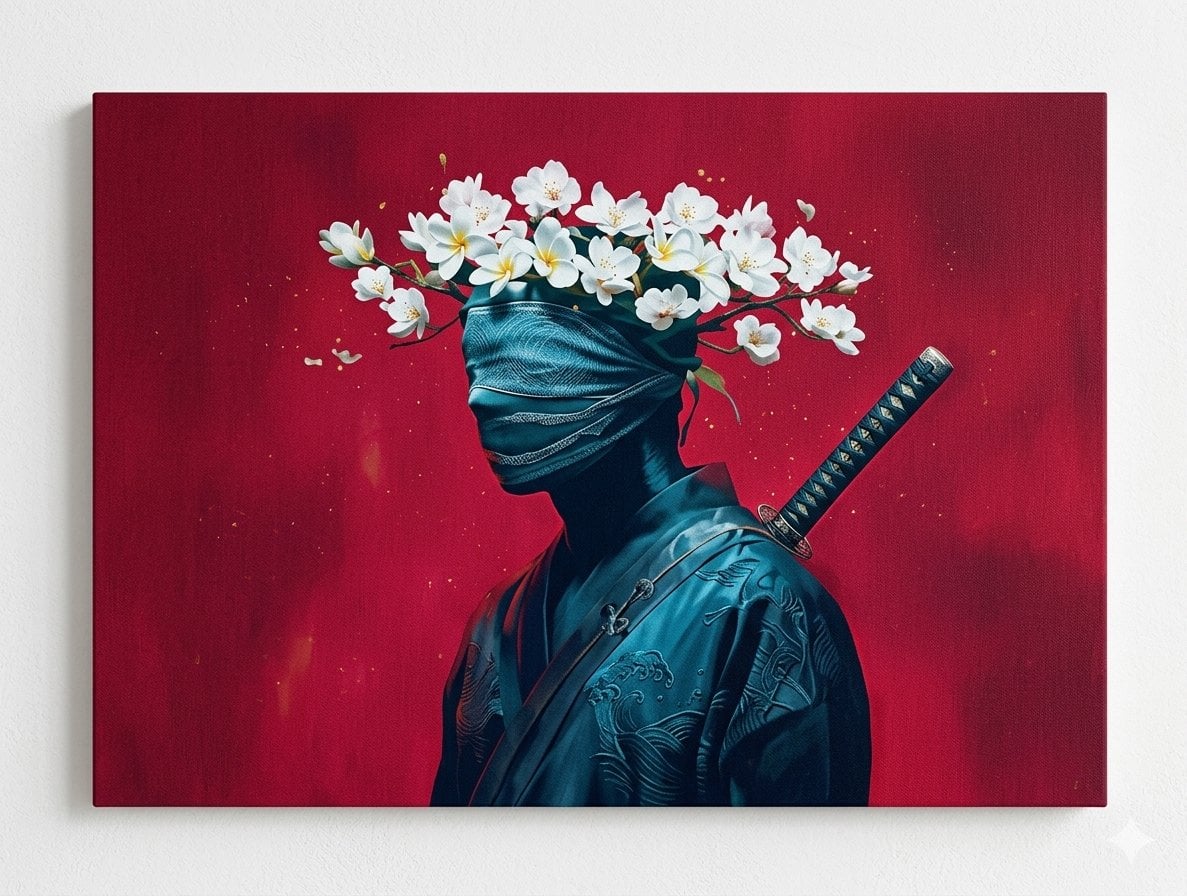
Surreal Canvas Art Edition Prompts
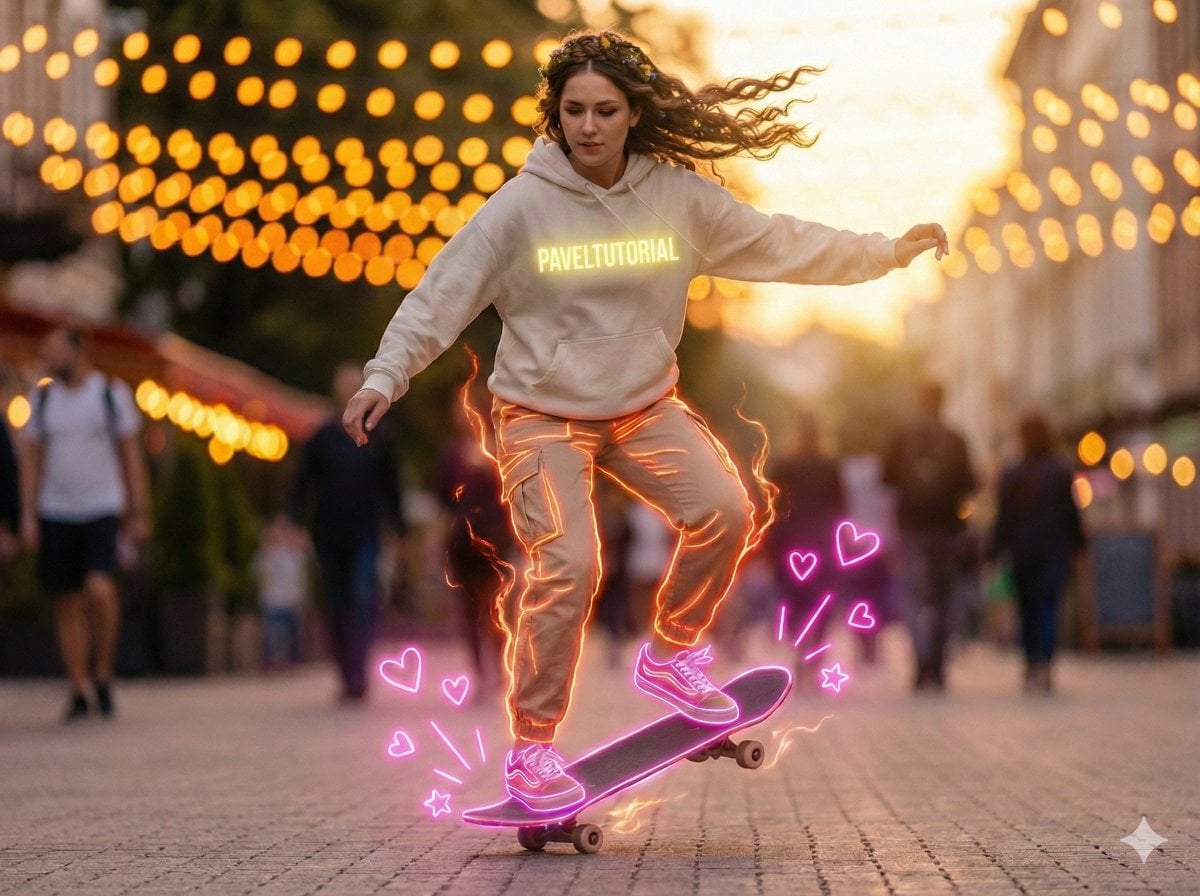
Neon-Outlined Skateboarder Action Shot
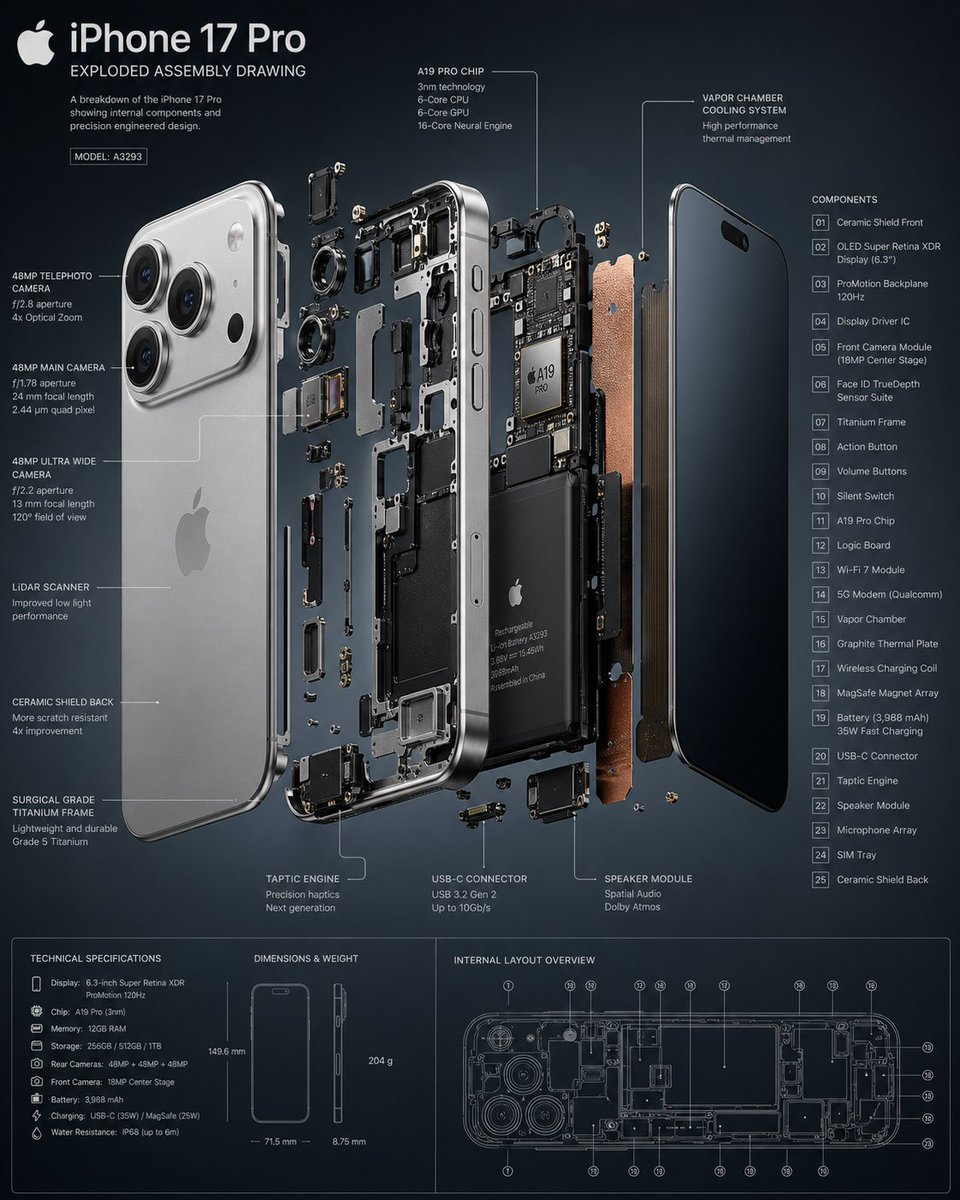
3D Exploded Assembly Drawing
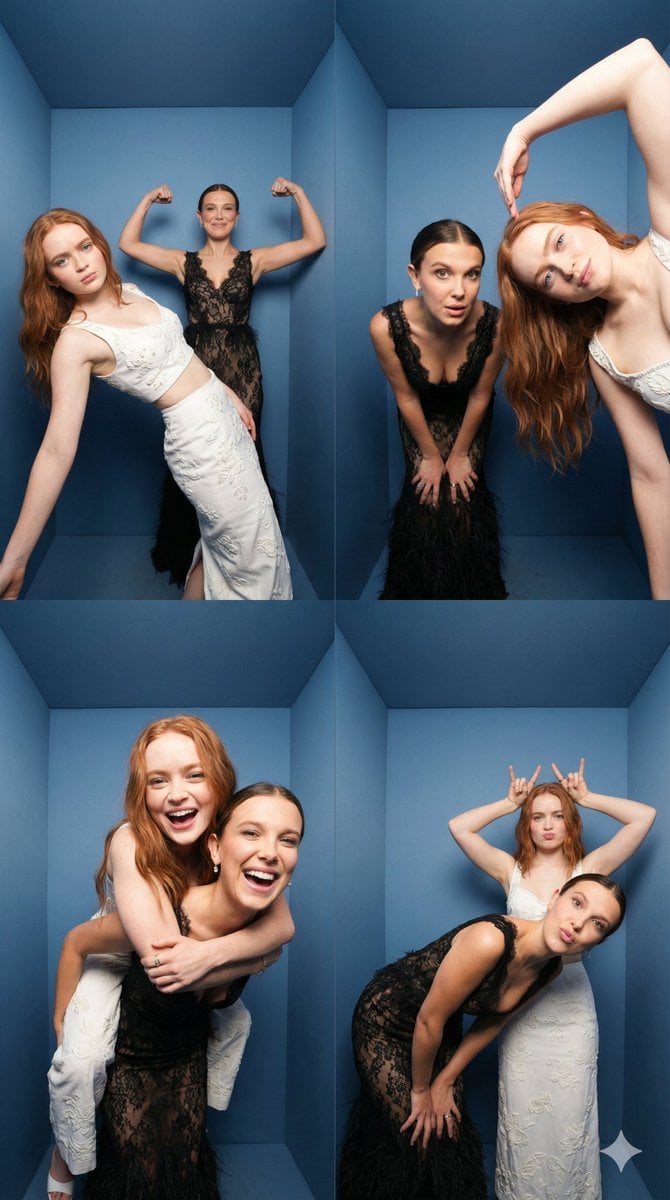
iPhone Photobooth Collage of Two Subjects
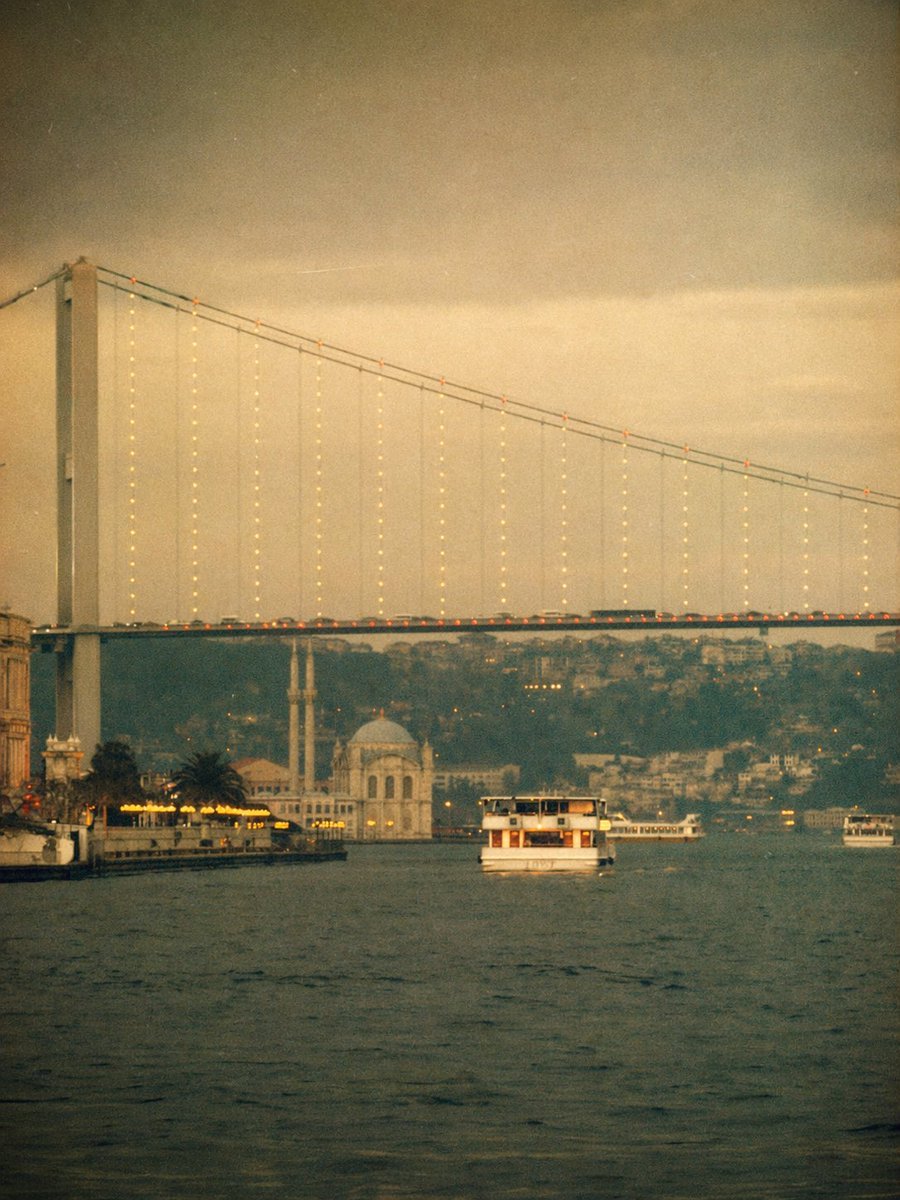
Vintage Bosphorus Bridge Ferry Scene
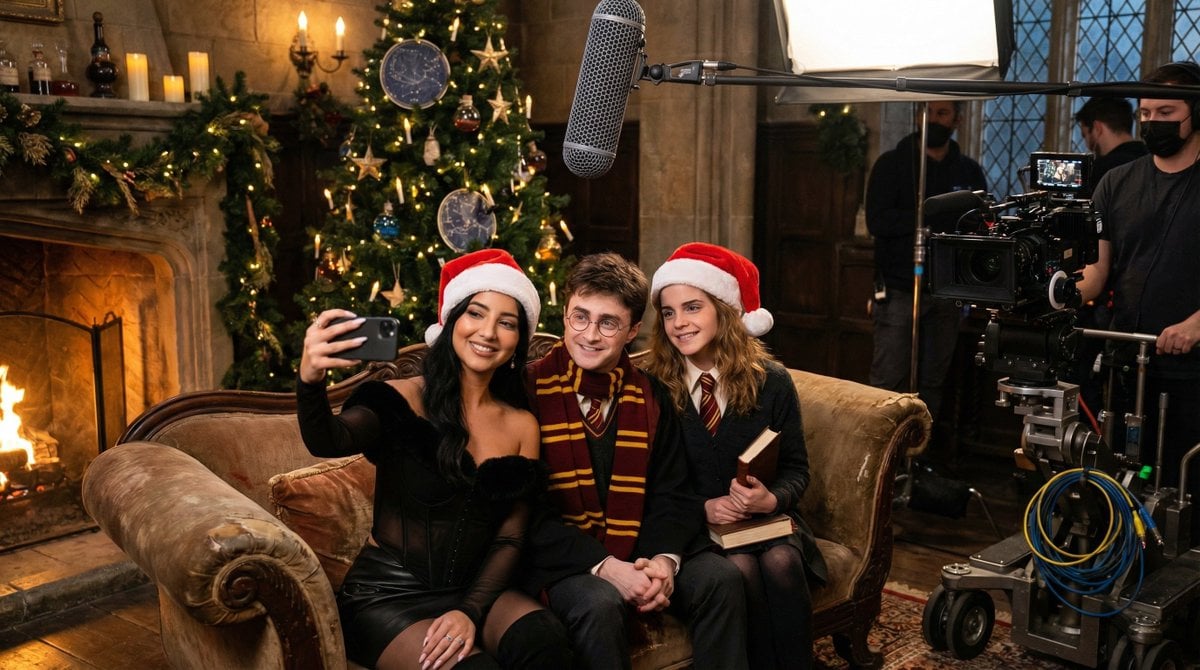
Ultra-Photorealistic BTS Selfie with Harry Potter Characters and Identity Lock

Futuristic Life System Hologram Portrait
Browse template categories
LinkedIn Office Headshot questions
How do I use the LinkedIn Office Headshot template?
Add your photo if the template asks for one, edit the prompt if you like — the template's model and format are already selected — and press Generate. Your version opens in PicX Studio.
Can I customize the LinkedIn Office Headshot template?
Yes. You can change the subject, setting, lighting, mood, format, and available model controls before creating your image.
Is the LinkedIn Office Headshot template free?
Opening and editing this template is free. Generating uses credits, shown on the Generate button when you are signed in.
Which AI model should I use?
Choose a compatible model in PicX Studio based on the style, speed, and output controls your project needs.
Looking for something else? Browse all templates.

Your photo, any look
Thousands of ready templates for every top image and video model, from one credit balance.