
Twin Kimono Sakura Watercolor
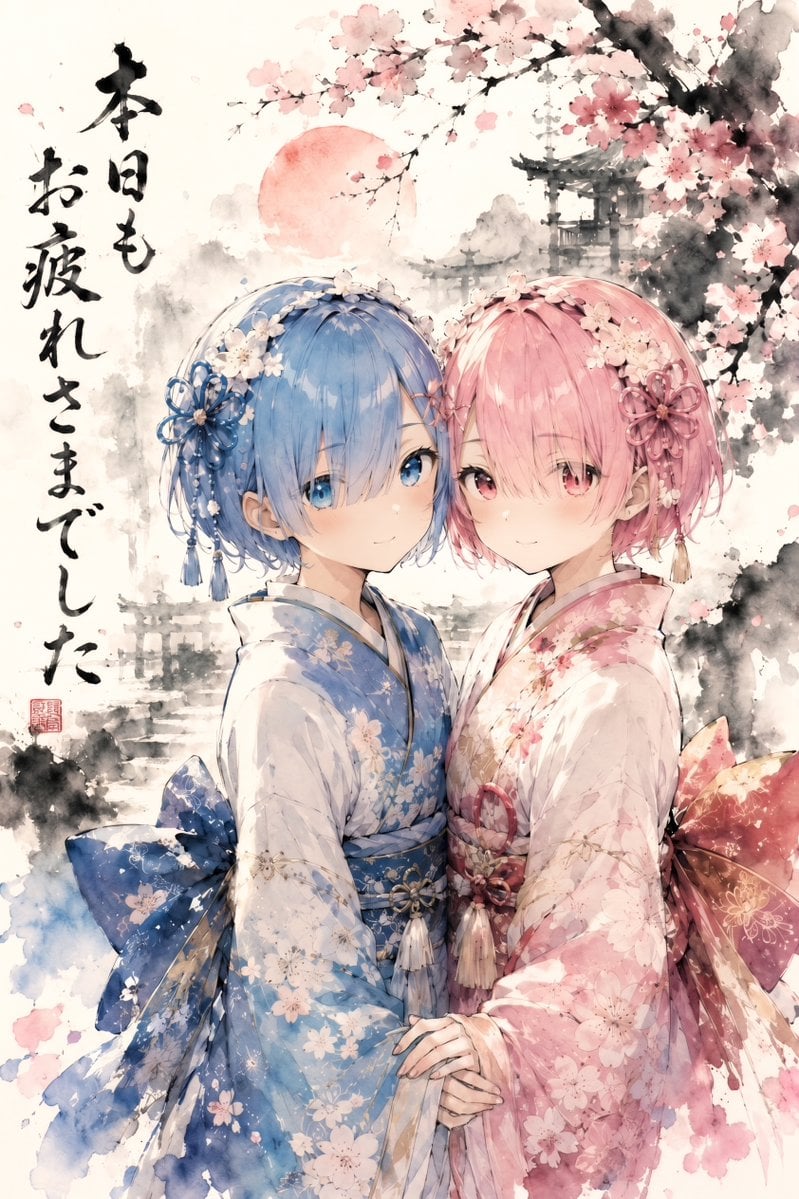
Generates a serene vertical anime watercolor of two kimono-clad girls beneath cherry blossoms with Japanese calligraphy, ideal for seasonal greeting art.
- Prompt included
- Model and format preset
- Free template
The prompt behind this image
Copy the exact prompt behind Twin Kimono Sakura Watercolor, or open it in the studio and make it yours.
Create a delicate anime-style Japanese ink wash and watercolor illustration on warm off-white textured paper. The scene features exactly 2 young twin-like girls standing close together in the foreground, gently holding hands and leaning their heads together with soft, tired but content smiles. The left girl has {argument name="left hair color" default="short powder-blue hair"}, blue eyes, and a blue floral kimono with a large blue obi bow, white sakura patterns, tassel ornaments, and small cherry blossoms pinned in her hair. The right girl has {argument name="right hair color" default="short pastel-pink hair"}, pink eyes, and a pale pink floral kimono with a large rose-pink obi bow, gold accents, tassel ornaments, and cherry blossom hair accessories. Use refined linework, translucent watercolor washes, splattered ink textures, and soft luminous shading. Behind them, paint a misty monochrome sumi-e landscape with exactly 3 main background elements: a pale red sun or moon near the upper left-center, a faint mountain range in gray ink, and a distant Japanese temple gate or shrine structure on the upper right. Add cherry blossom branches across the top and right side, with many soft pink blossoms and dark expressive ink strokes. On the left side, include one vertical column of bold black Japanese brush calligraphy reading {argument name="calligraphy text" default="本日もお疲れさまでした"}, plus a small red seal stamp near the lower left. Composition should be vertical portrait format, romantic and serene, blending traditional Japanese sumi-e, watercolor, and polished modern anime character art, with an elegant spring-night farewell atmosphere.
How to use Twin Kimono Sakura Watercolor in 3 steps
- 1Upload ImagePNG, JPG or paste
Add your photo
Upload the photo the template builds on. The prompt, model and format are already set.
- 2…a portrait of your subject in softgolden-hour light, 85mm…
Personalize
Edit the subject and creative details for your destination.
- 3Generate
Generate
Press Generate — your image is created in PicX Studio, so you can compare it with the original and refine one variable at a time.
More like this
Templates with the same subject, style or setup. Open one to see its prompt.

Celestial Sakura Kimono Maiden
Watercolor Anim Finale Fireworks
Watercolor Anim Garden Maze
Watercolor Anim Rooftop Concert
Watercolor Anim Bicycle Coast

Watercolor Anim Castle Gate
Watercolor Anim Kitchen Chaos
Watercolor Anim Carnival Ride
Watercolor Anim Rainy Bus Stop
Watercolor Anim Space Dock

Watercolor Anim Cafe Morning
Watercolor Anim Mountain Summit
Make it yours
Twin Kimono Sakura Watercolor works as-is. These are the safest ways to change it without losing the look.
Change one field
Copy a single group, rewrite it, and generate again so you can see what that field is doing.
Keep the frame, change the subject
Hold the composition and light of Twin Kimono Sakura Watercolor, then swap wardrobe, props or the person for a new take.
| If the result… | Why | Fix |
|---|---|---|
| The result drifts from the preview | Too many fields changed at once. | Reuse Twin Kimono Sakura Watercolor as-is first, then change one group — subject, light, or setting. |
| The model over-stylizes the scene | The prose prompt leaves finish and camera underspecified. | Add one camera or lighting sentence and stay on GPT Image 2. |
More GPT Image 2 templates
Other prompts made for GPT Image 2.

Six VTuber Japanese Logo Sheet

Realistic Portrait of Woman and Deer

The Vista Modular Condo Poster

AI Model Routing Comparison Infographic

2.5D Anime Art Board

Isometric Productivity Desk Scene

New York Double Exposure Poster

Four-Panel AI Landscape Comparison

Japanese Tatami Lifestyle Magazine Cover

NESCAFÉ Coffee Map Poster
More image prompts
Fresh picks from across the catalog.

Luxury Food Editorial with Heart-Shaped Bagels

Empire In Miniature Diorama
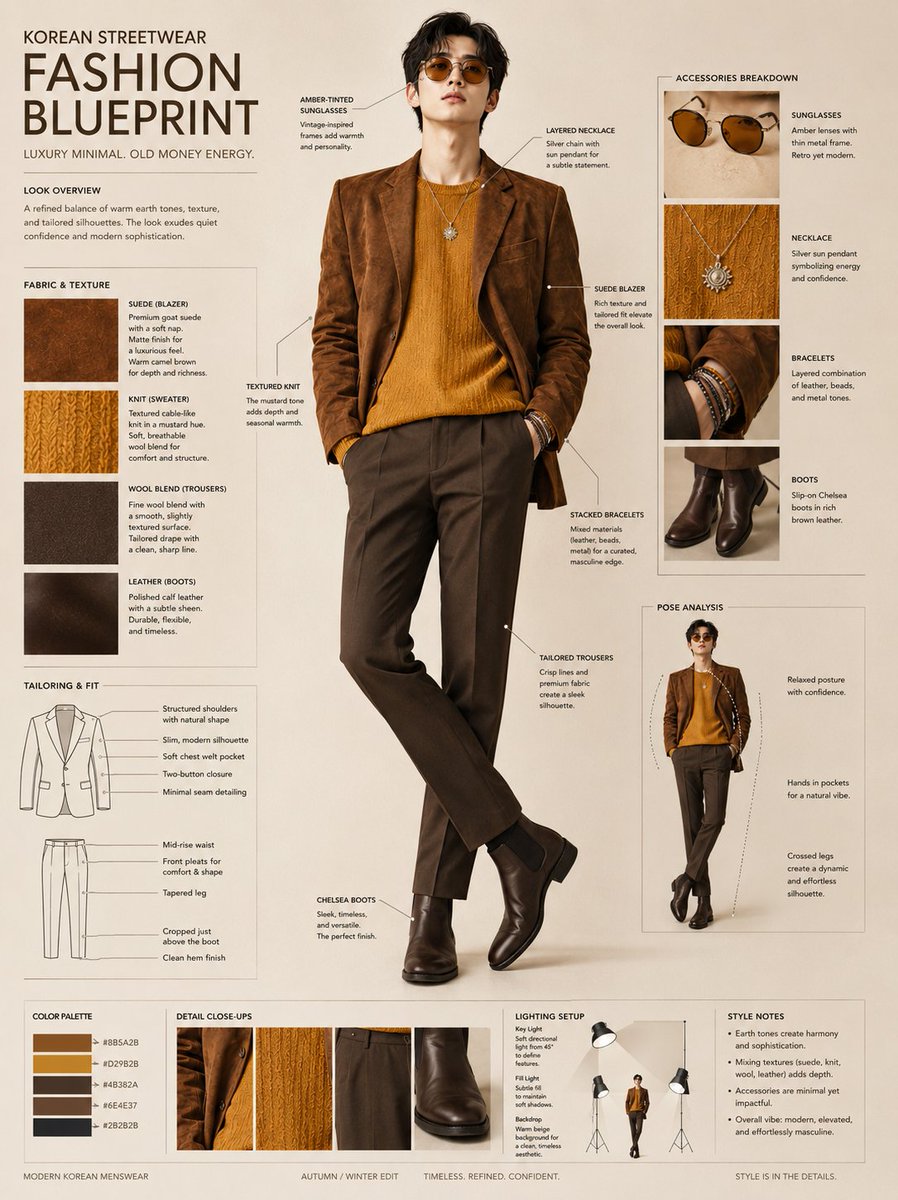
Korean Streetwear Fashion Blueprint
Japanese Hospital Comedy DVD Cover
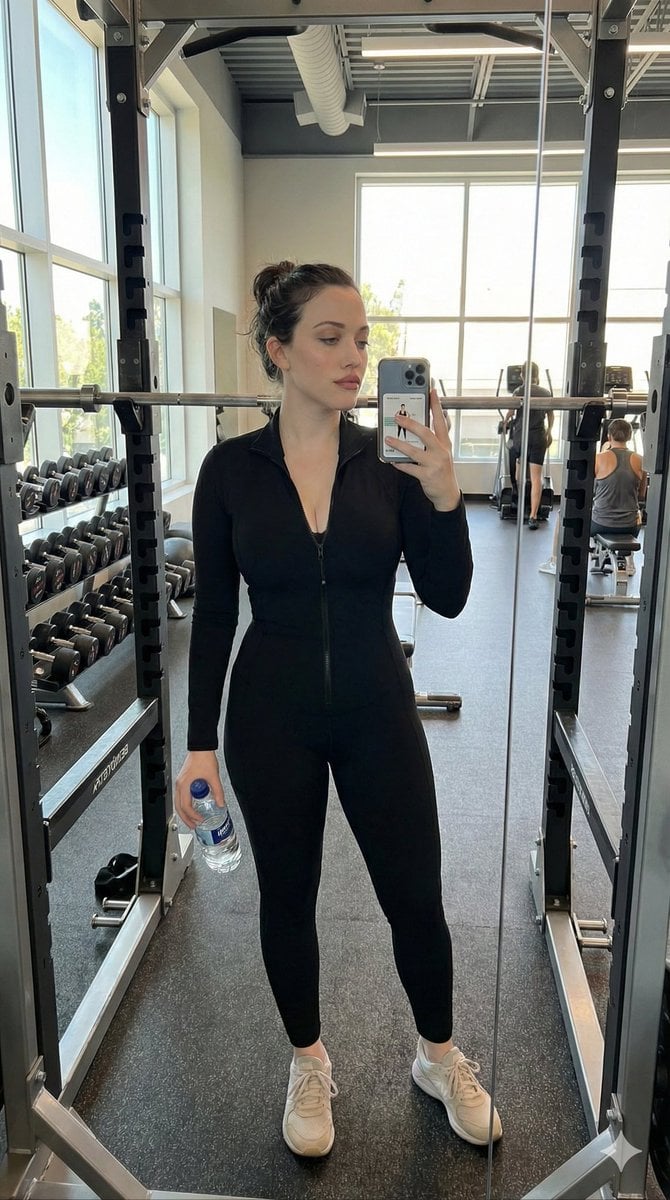
Realistic Gym Selfie Portrait Prompt
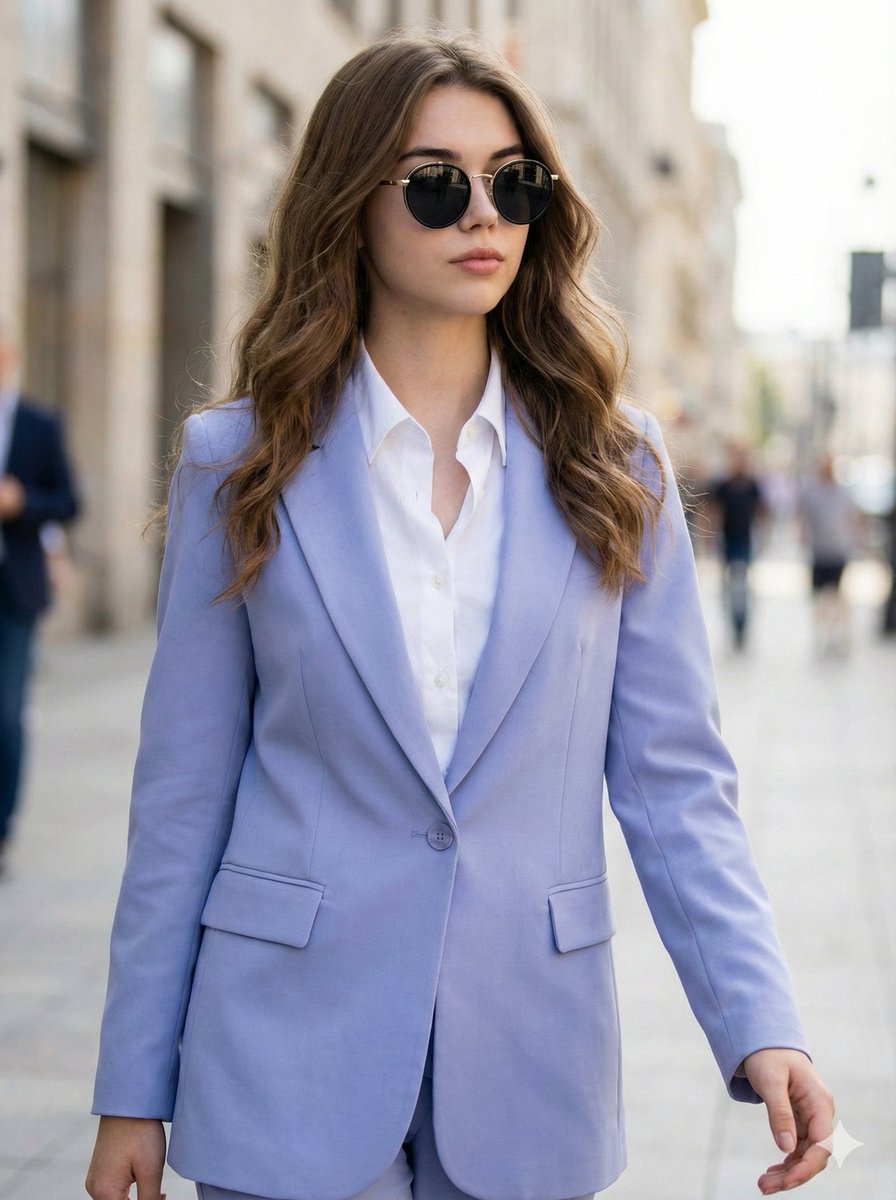
Ultra-Realistic High-Fashion Editorial Prompt
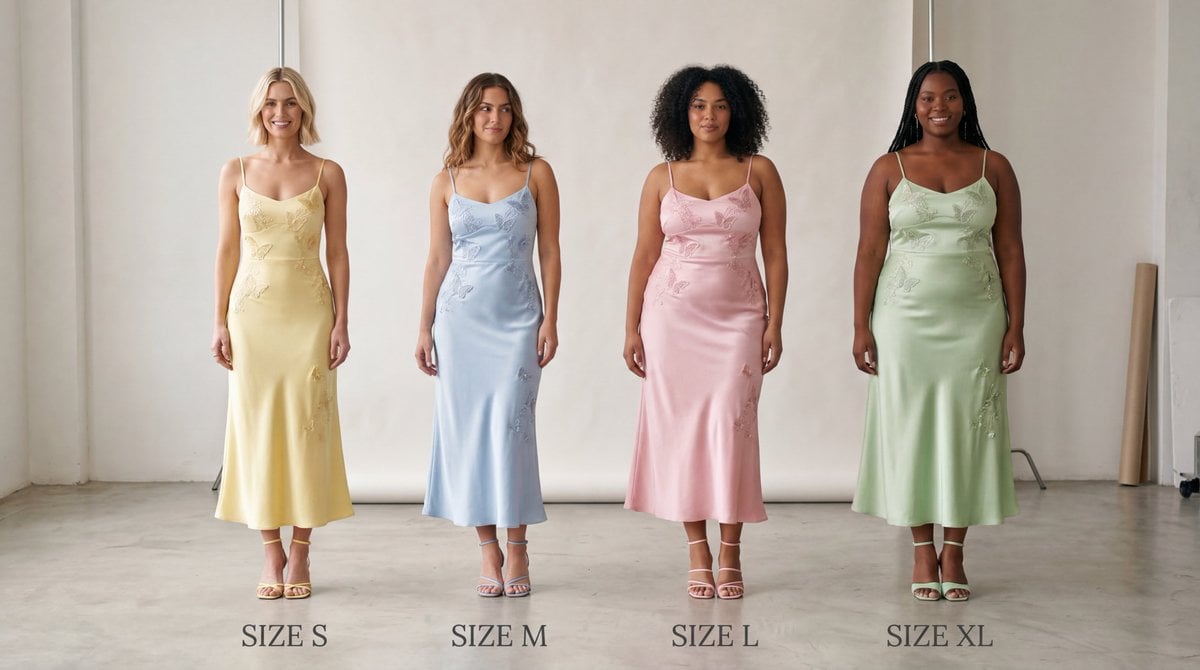
Realistic Size Range Fashion Lineup
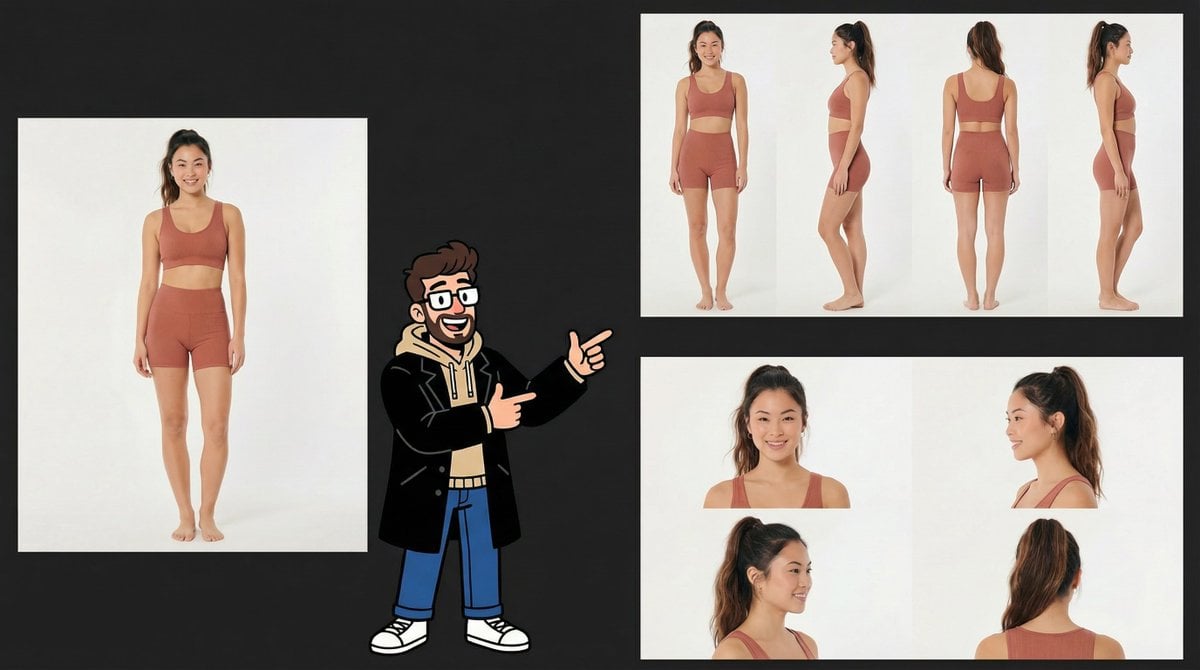
Consistency Prompt for 360 Turnaround Views
Raw iPhone Street Photo of Woman
Japanese PowerPoint Bunny Icon Editor
Browse template categories
Twin Kimono Sakura Watercolor questions
How do I use the Twin Kimono Sakura Watercolor template?
Add your photo if the template asks for one, edit the prompt if you like — the template's model and format are already selected — and press Generate. Your version opens in PicX Studio.
Can I customize the Twin Kimono Sakura Watercolor template?
Yes. You can change the subject, setting, lighting, mood, format, and available model controls before creating your image.
Is the Twin Kimono Sakura Watercolor template free?
Opening and editing this template is free. Generating uses credits, shown on the Generate button when you are signed in.
Which AI model should I use?
Start with GPT Image 2, which is the model associated with this template. You can compare another compatible model for a different finish.
Looking for something else? Browse all templates.

Your photo, any look
Thousands of ready templates for every top image and video model, from one credit balance.