
Japanese PowerPoint Bunny Icon Editor
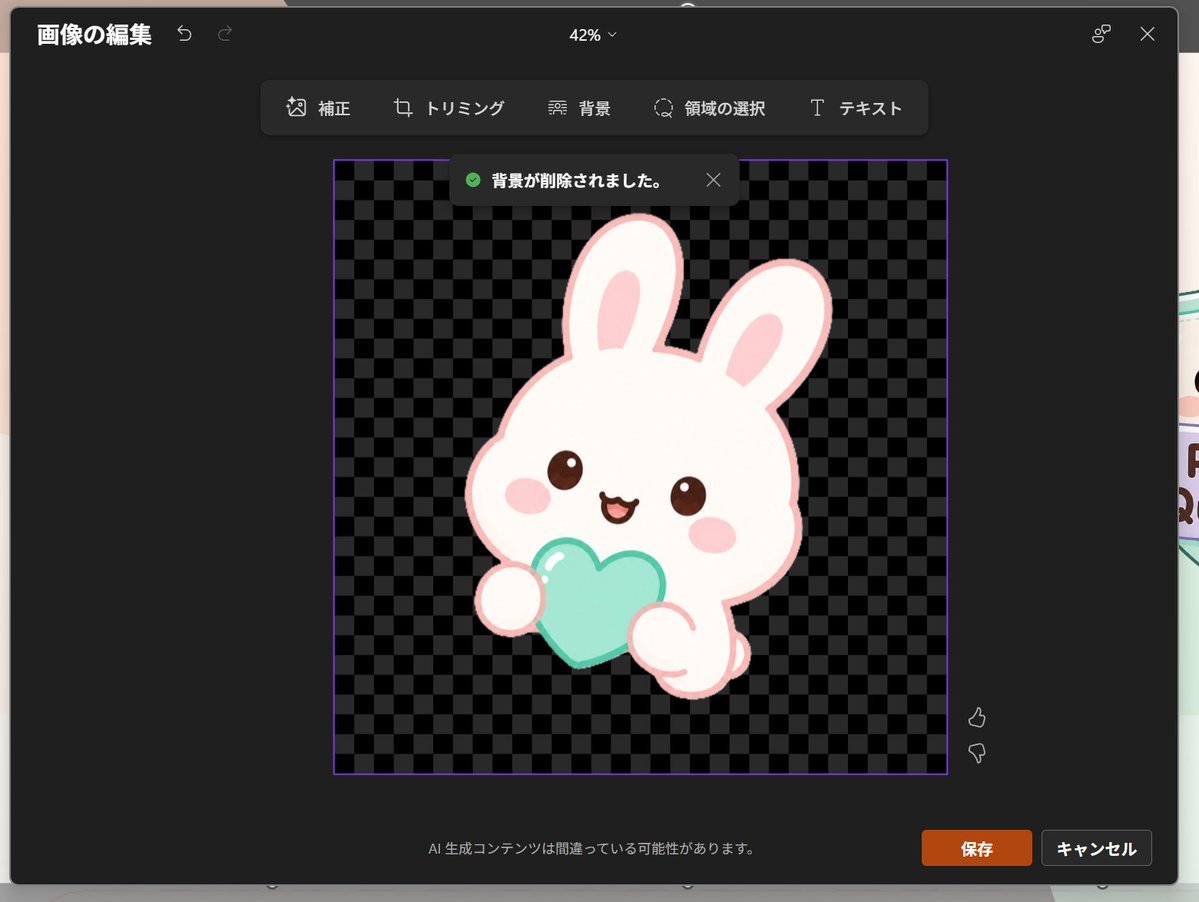
Generates a dark Japanese PowerPoint-style image editing screenshot featuring a transparent-background kawaii rabbit icon, useful for UI mockups and presentation visuals.
- Prompt included
- Model and format preset
- Free template
The prompt behind this image
Copy the exact prompt behind Japanese PowerPoint Bunny Icon Editor, or open it in the studio and make it yours.
Goal: Create a realistic screenshot of a dark-themed PowerPoint-style image editing window in Japanese, showing a cute dreamy kawaii icon after background removal. Canvas: 1024×768 landscape screenshot with a dark charcoal modal editor centered on screen, rounded corners, subtle shadow, and a faint glimpse of the underlying slide behind the modal edges. The interface zoom indicator at the top center reads “42%”. Layout: At the top left, show the Japanese title “画像の編集” with two small undo/redo arrow icons. At the top right, show a small connected-dots icon and an X close icon. Below the top bar, center a floating toolbar with exactly 6 tools labeled: “補正”, “トリミング”, “背景”, “領域の選択”, “テキスト”, plus their small simple line icons, arranged horizontally in dark rounded rectangles. Main editing area: In the center, place a square image area outlined with a thin purple border. Inside it, use a black and dark-gray checkerboard transparency pattern. Near the top of this square, show a dark notification toast with a green check icon and the Japanese text “背景が削除されました。” plus a small X close icon. Subject details: Center the icon inside the checkerboard square: one pastel yume-kawaii white rabbit mascot with a thick pale pink outline, oversized rounded head, two long upright ears with pink inner ears, small brown glossy eyes, pink oval blush cheeks, and a happy open mouth. The bunny holds exactly 1 mint-aqua heart-shaped object in front of its body with two rounded paws visible. Add soft highlights on the heart and a clean sticker-like vector style with no harsh shadows. The character should feel like a cute app icon or sticker. Use {argument name="character" default="a white kawaii rabbit"}, {argument name="held object" default="a mint-aqua heart"}, and {argument name="accent color" default="pale pink"}. Footer and controls: At the bottom center of the modal, show the small Japanese warning text “AI 生成コンテンツは間違っている可能性があります。” At the bottom right, show exactly 2 buttons: an orange “保存” button and a dark gray “キャンセル” button. Near the right side of the image area, include exactly 2 small vertical feedback icons: thumbs up above thumbs down. Visual style: Realistic software screenshot, crisp UI text, dark Microsoft-style interface, clean Japanese typography, transparent-background checkerboard, cute pastel sticker art. Keep the composition faithful to a PowerPoint built-in image editor after background removal, not a standalone illustration.
How to use Japanese PowerPoint Bunny Icon Editor in 3 steps
- 1Upload ImagePNG, JPG or paste
Add your photo
Upload the photo the template builds on. The prompt, model and format are already set.
- 2…a portrait of your subject in softgolden-hour light, 85mm…
Personalize
Edit the subject and creative details for your destination.
- 3Generate
Generate
Press Generate — your image is created in PicX Studio, so you can compare it with the original and refine one variable at a time.
More like this
Templates with the same subject, style or setup. Open one to see its prompt.

Japanese Minimalist Concrete Studio Fashion Editorial

Minecraft Japanese Research Lab Exploration
Japanese Minimalist Editorial Fashion Poster
Japanese PowerPoint Claude Opus 5 Screenshot

Japanese Architectural Concrete Studio Fashion Campaign
High-Fashion Editorial Magazine Cover ICON

Blue Backdrop Luxury Fashion Portrait Campaign
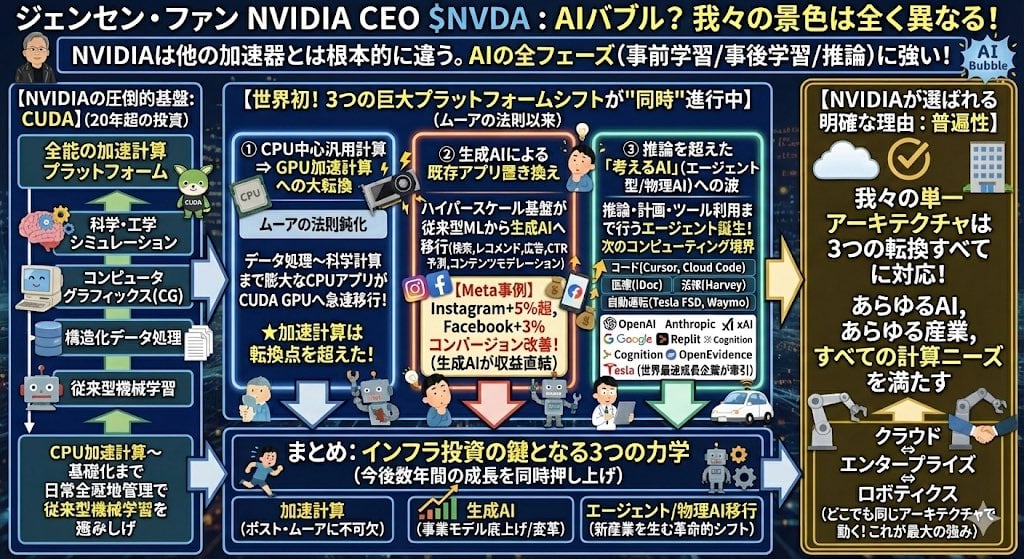
Japanese infographic in Kasumigaura PowerPoint style

Japanese New Year Kirie-Style Icon Set Generation
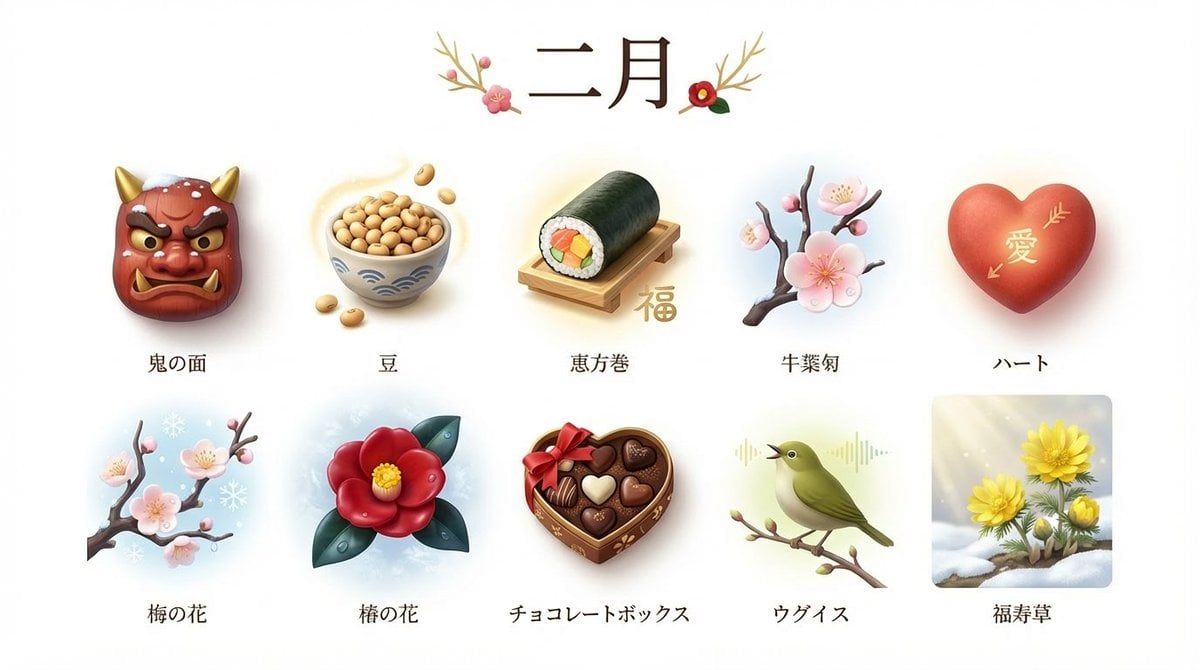
3D Icon Collection Representing Japanese Seasons
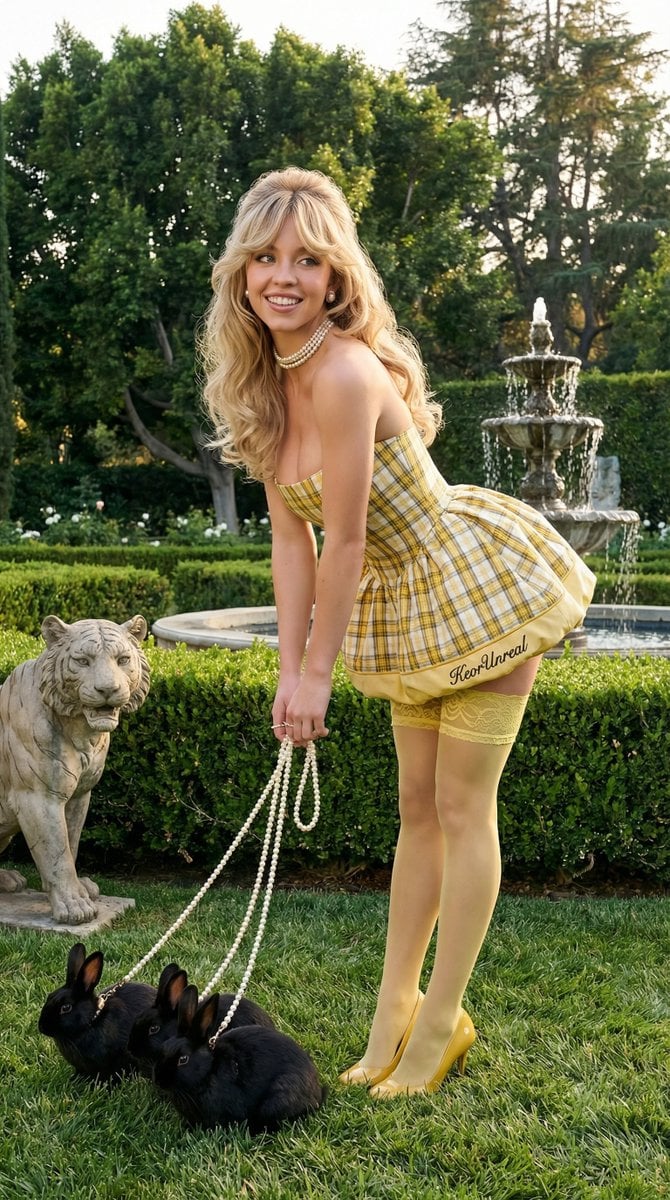
Avant-Garde Coquette Bunny Editorial
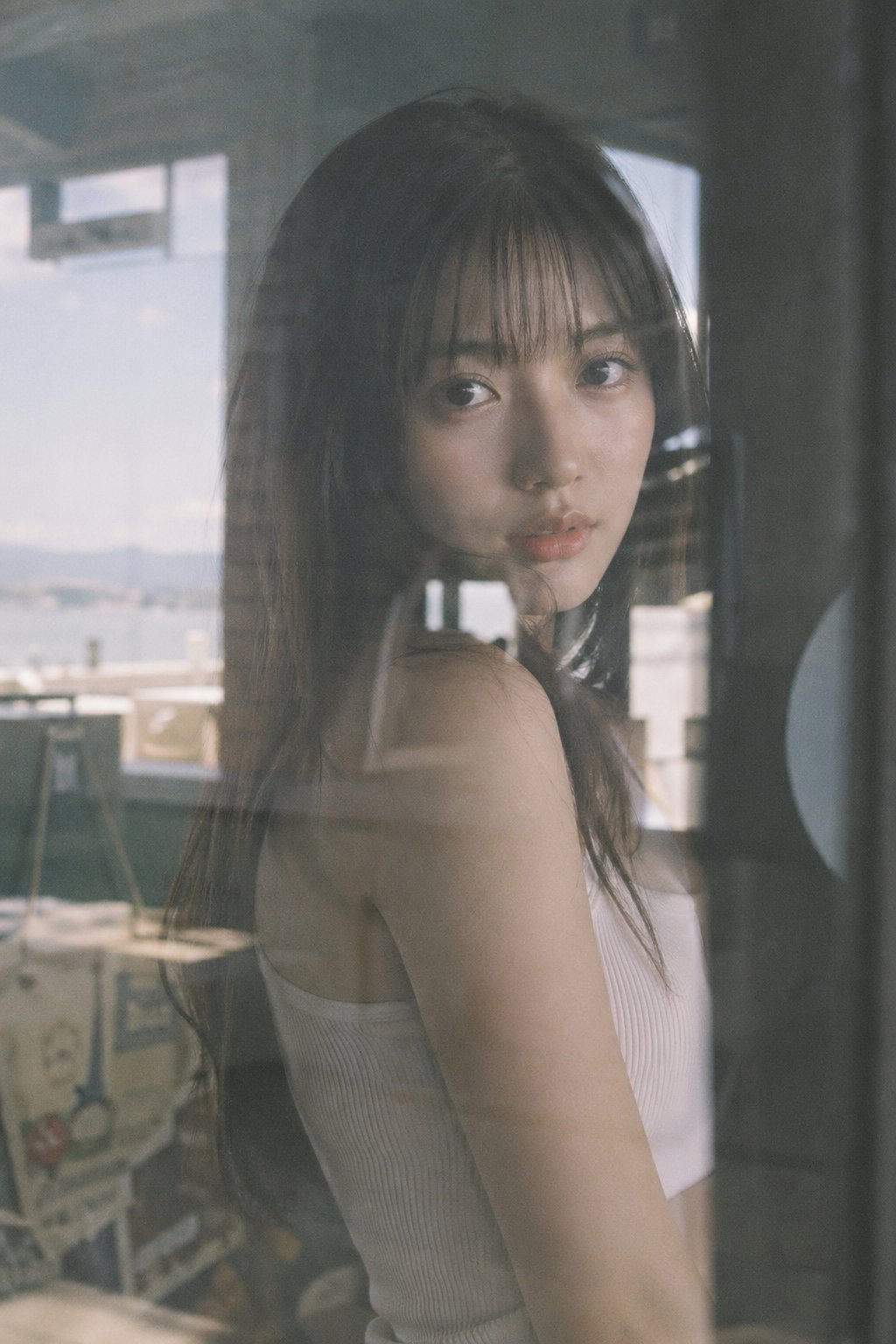
Japanese Film Reflection Idol
Make it yours
Japanese PowerPoint Bunny Icon Editor works as-is. These are the safest ways to change it without losing the look.
Change one field
Copy a single group, rewrite it, and generate again so you can see what that field is doing.
Keep the frame, change the subject
Hold the composition and light of Japanese PowerPoint Bunny Icon Editor, then swap wardrobe, props or the person for a new take.
| If the result… | Why | Fix |
|---|---|---|
| The result drifts from the preview | Too many fields changed at once. | Reuse Japanese PowerPoint Bunny Icon Editor as-is first, then change one group — subject, light, or setting. |
| The model over-stylizes the scene | The prose prompt leaves finish and camera underspecified. | Add one camera or lighting sentence and stay on GPT Image 2. |
More GPT Image 2 templates
Other prompts made for GPT Image 2.

Realistic Portrait of Woman and Deer

The Vista Modular Condo Poster

AI Model Routing Comparison Infographic

2.5D Anime Art Board

Isometric Productivity Desk Scene

New York Double Exposure Poster

Four-Panel AI Landscape Comparison

NESCAFÉ Coffee Map Poster

Brutalist Cogito Chinese Typography Poster

Cinematic Luxury Terrace Portrait
More image prompts
Fresh picks from across the catalog.
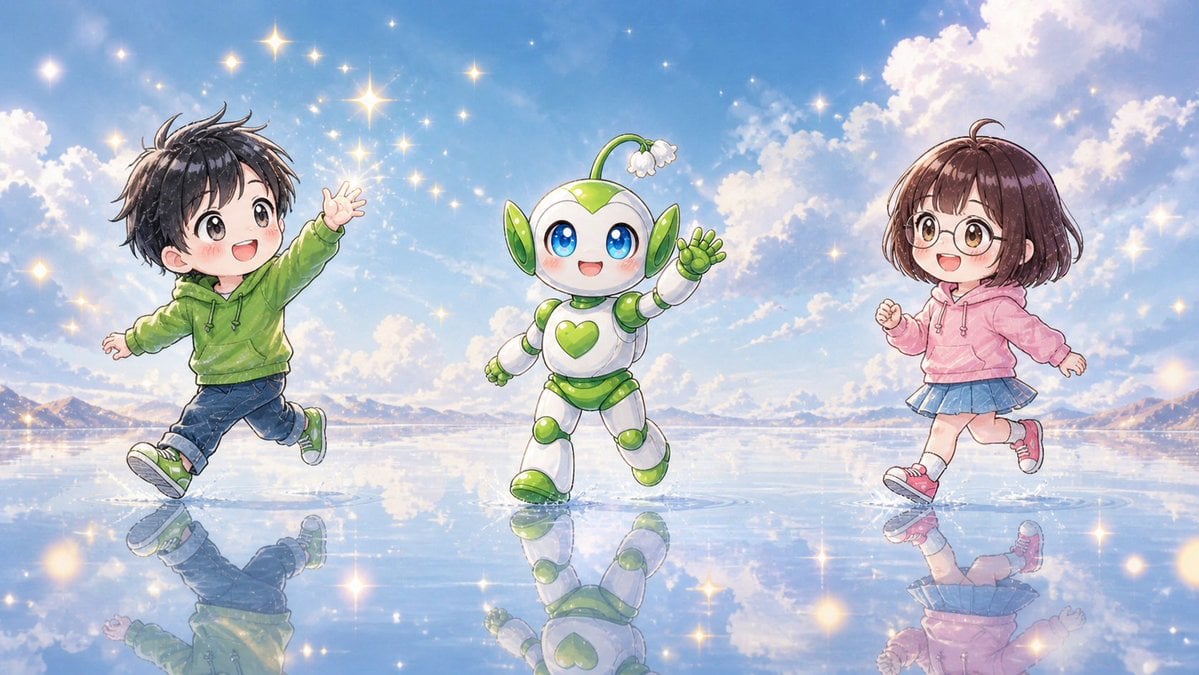
Chibi Friends on Sparkling Water
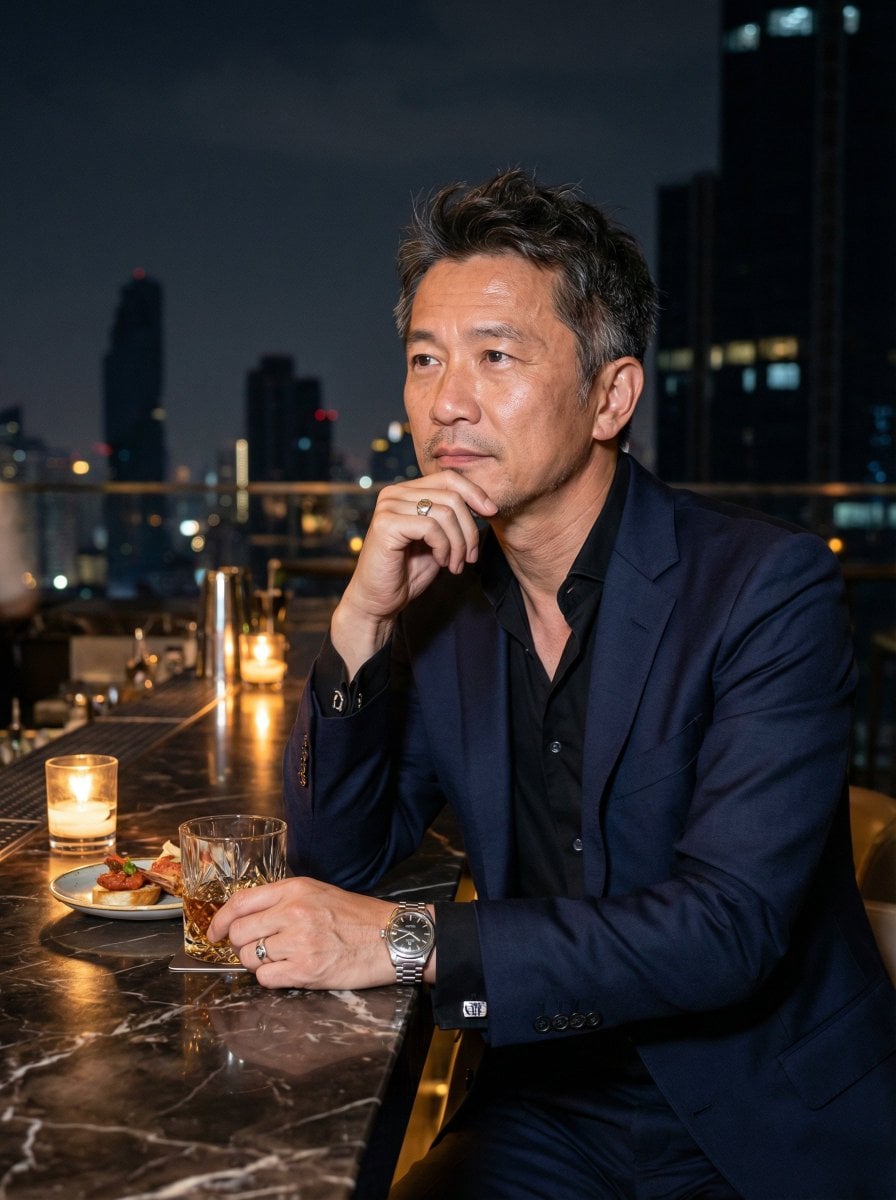
Ultra-Realistic Asian Male Editorial Portrait
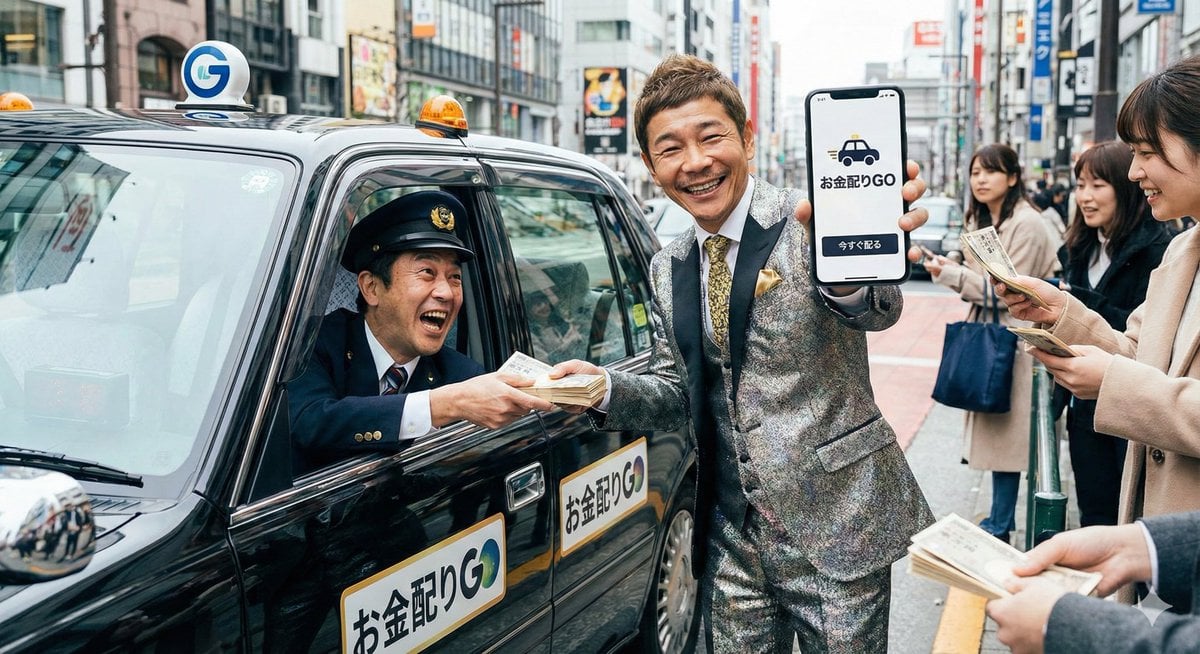
Generate image of a person based on a descriptive phrase

One Piece Straw Hat Crew at Sunset
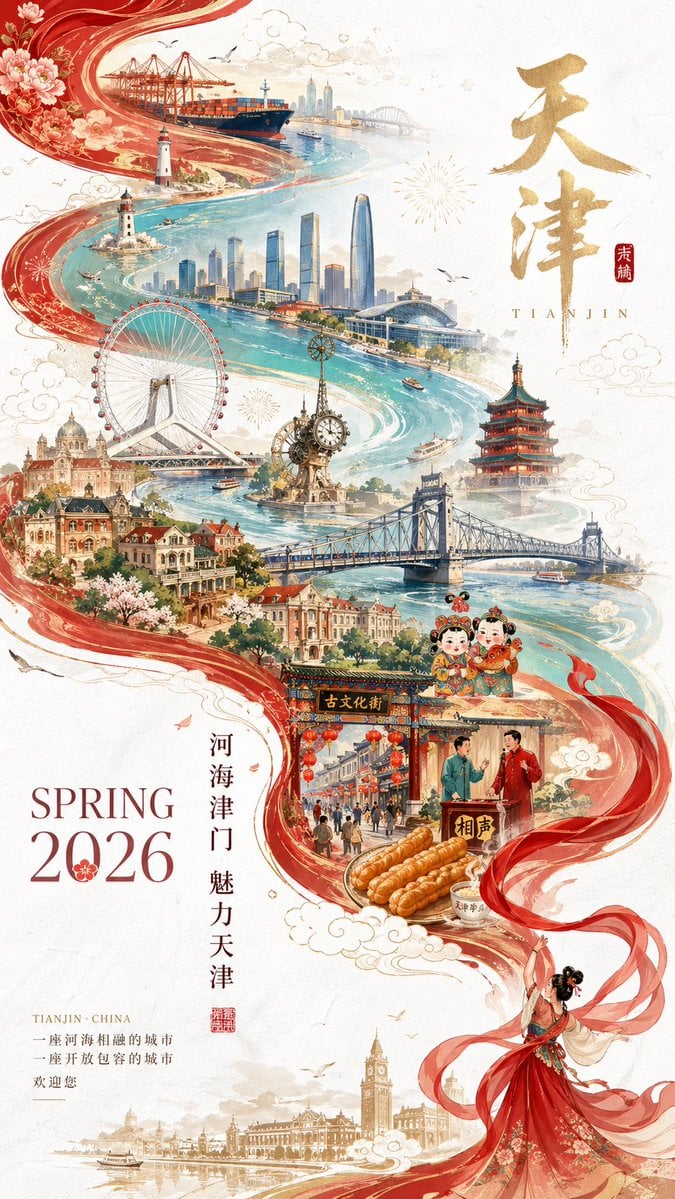
Tianjin City Promotional Poster Prompt

Playful Portrait with Foreground Text and Gradient Background

Cinematic Editorial of a Young Man Leaving a Café
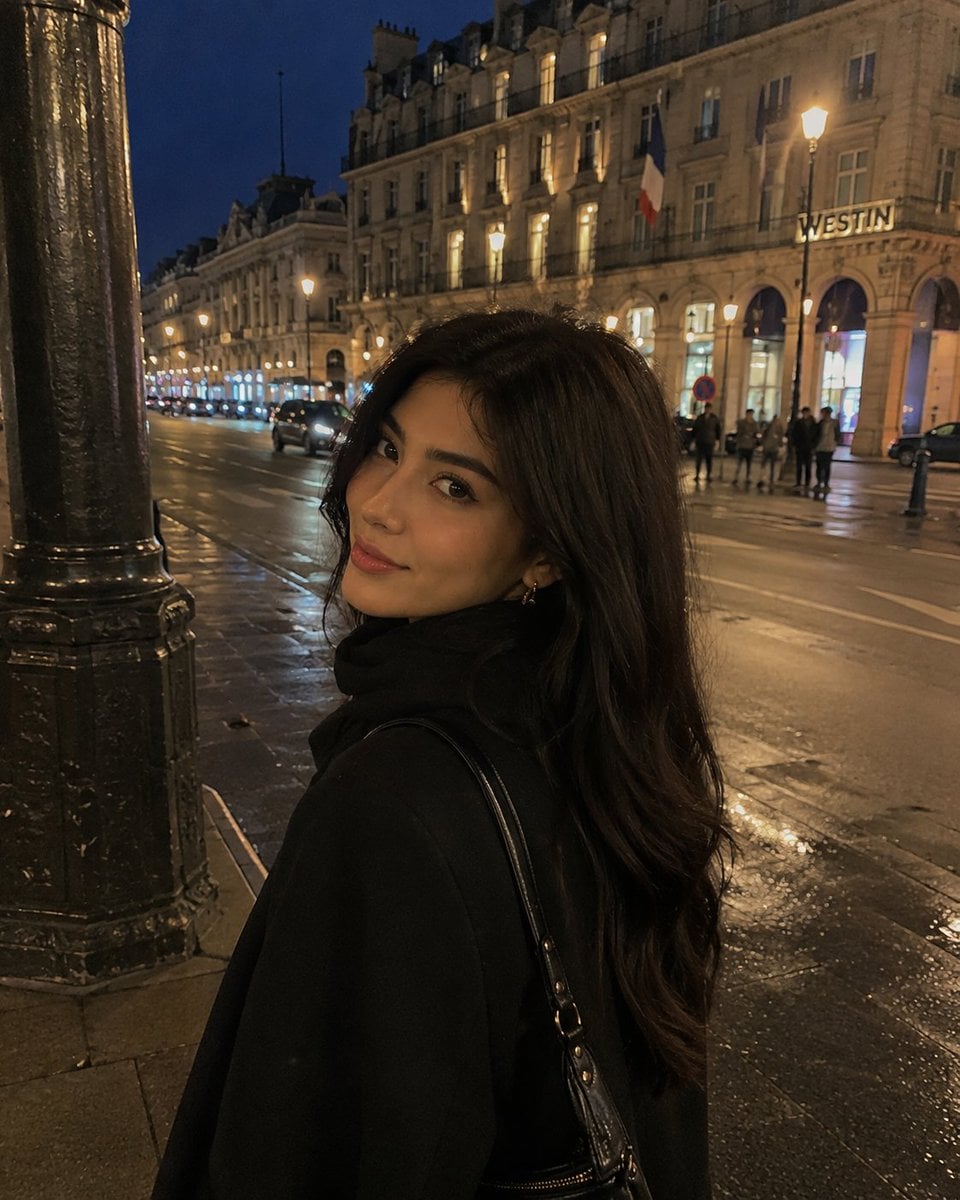
iPhone Night Street Portrait
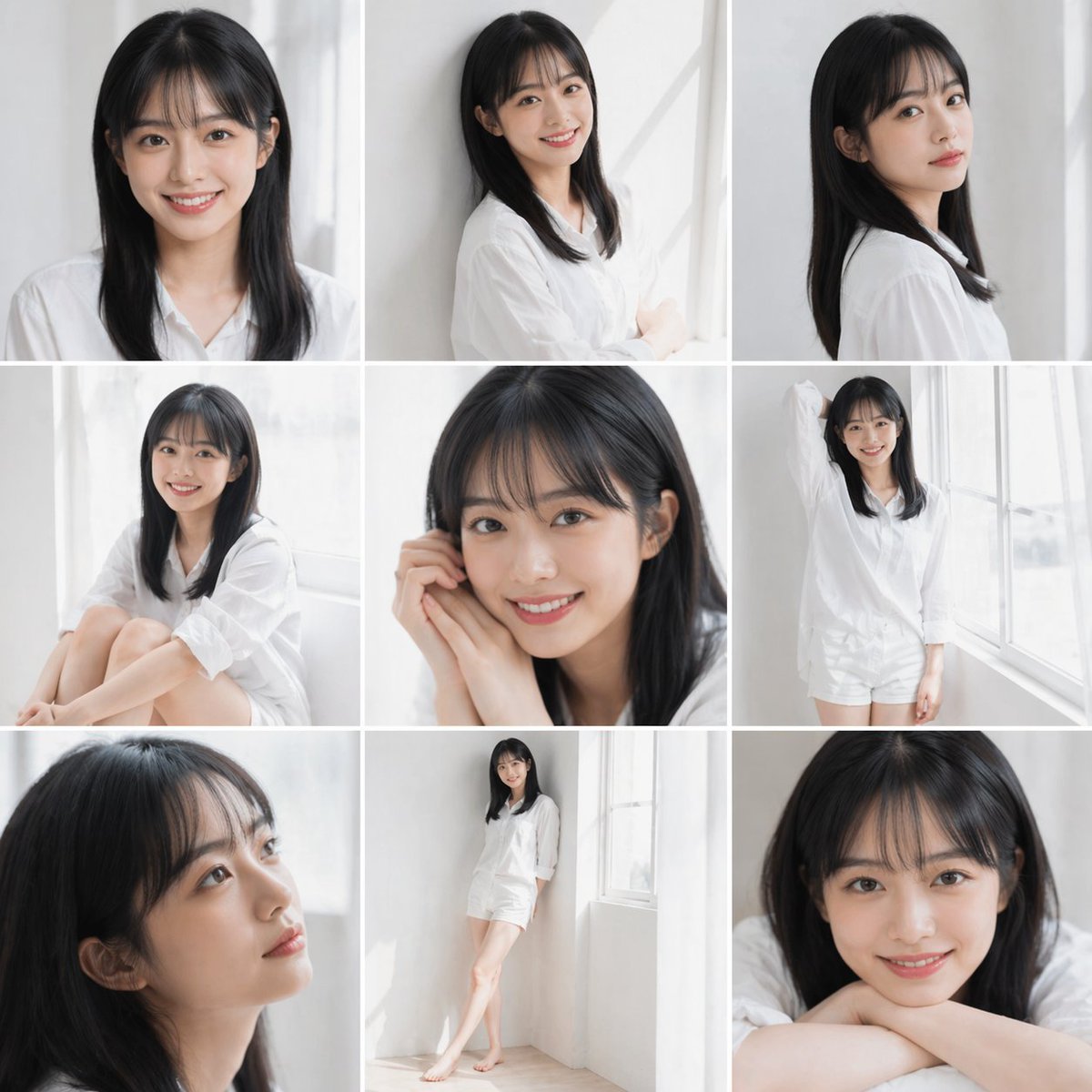
Clean Japanese/Korean Style Photoshoot
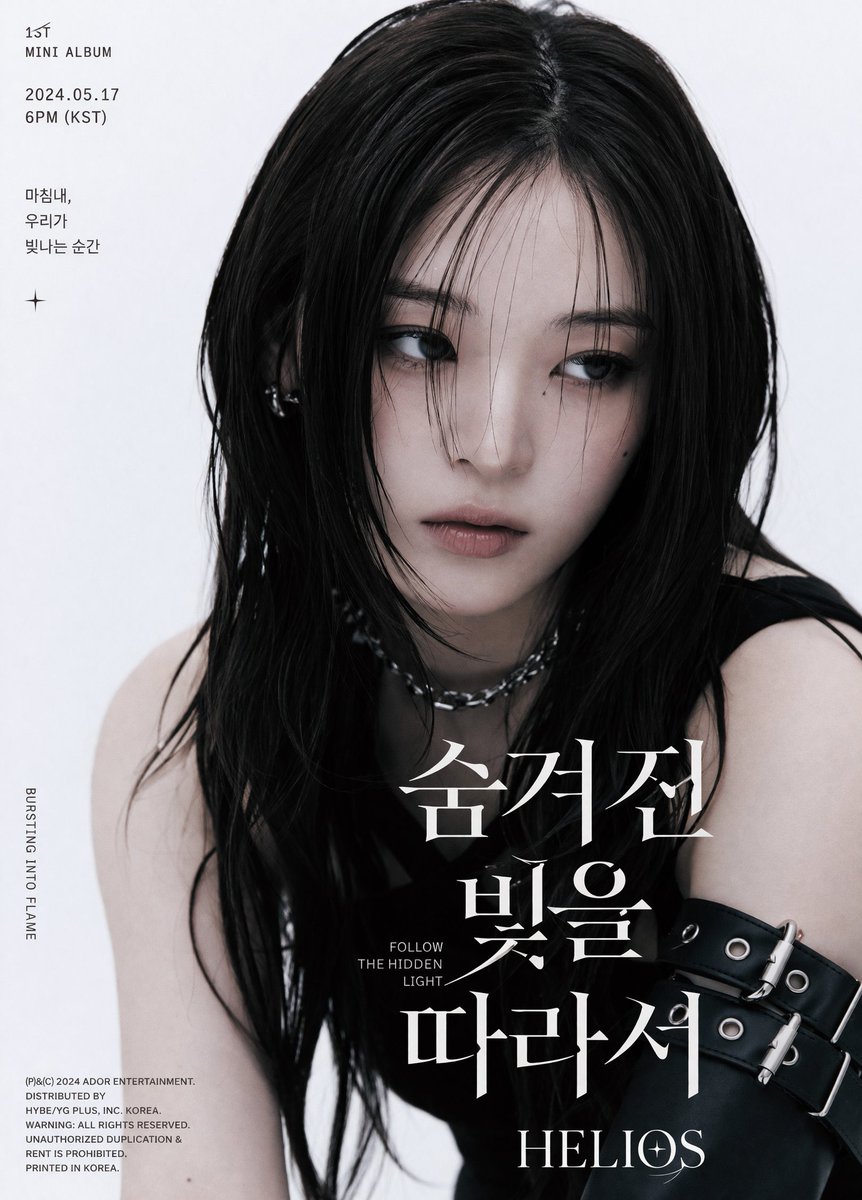
K-Pop Album Teaser Poster
Browse template categories
Japanese PowerPoint Bunny Icon Editor questions
How do I use the Japanese PowerPoint Bunny Icon Editor template?
Add your photo if the template asks for one, edit the prompt if you like — the template's model and format are already selected — and press Generate. Your version opens in PicX Studio.
Can I customize the Japanese PowerPoint Bunny Icon Editor template?
Yes. You can change the subject, setting, lighting, mood, format, and available model controls before creating your image.
Is the Japanese PowerPoint Bunny Icon Editor template free?
Opening and editing this template is free. Generating uses credits, shown on the Generate button when you are signed in.
Which AI model should I use?
Start with GPT Image 2, which is the model associated with this template. You can compare another compatible model for a different finish.
Looking for something else? Browse all templates.

Your photo, any look
Thousands of ready templates for every top image and video model, from one credit balance.