
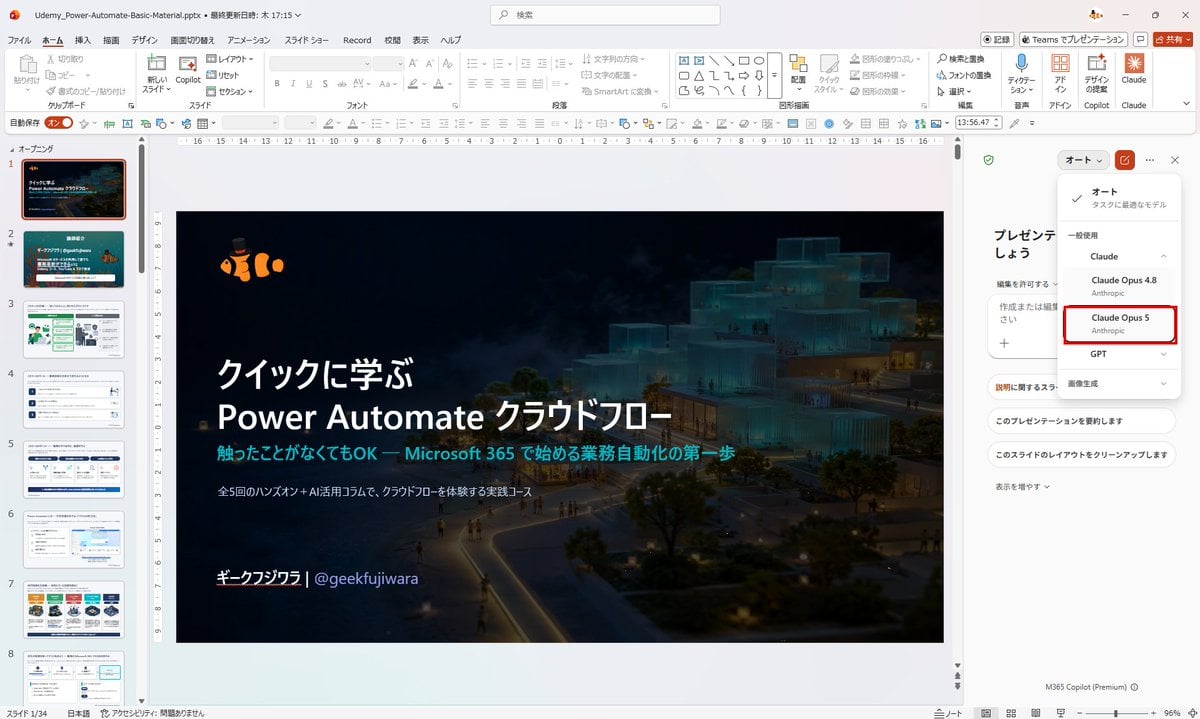
Japanese PowerPoint Claude Opus 5 Screenshot
Generates a realistic Japanese PowerPoint editing screenshot with a dark Power Automate course cover slide and an AI model selector highlighting Claude Opus 5.
- Prompt included
- Model and format preset
- Premium template
The prompt behind this image
Copy the exact prompt behind Japanese PowerPoint Claude Opus 5 Screenshot, or open it in the studio and make it yours.
Goal: Create a realistic 16:9 desktop screenshot of Microsoft PowerPoint in Japanese, showing a course slide deck being edited with a Copilot/Claude model selection panel open on the right. Canvas: Wide landscape screenshot, 1200×675 style, crisp UI capture, light gray PowerPoint chrome, no browser frame. The main focus is a PowerPoint editing workspace with a dark title slide centered. Layout: Show the full PowerPoint window with the ribbon across the top, slide thumbnail strip on the left, main slide canvas in the center, and an AI assistant side panel on the right. Use Japanese UI labels throughout the PowerPoint interface. The file name in the top title area should read {argument name="file name" default="Udemy_Power-Automate-Basic-Material.pptx"}, followed by a Japanese last-updated note and time. The top ribbon should include Japanese tabs such as File, Home, Insert, Draw, Design, Transitions, Animations, Slide Show, Record, Review, View, and Help, plus add-in buttons for Copilot, PowerPoint, Designer, Claude, Teams presentation, and Share. Left thumbnail strip: Show exactly 8 visible slide thumbnails, numbered 1 through 8. Slide 1 is selected with an orange border and is the same dark cover slide as the main canvas. Slide 2 is a teal agenda/overview slide. Slide 3 is a white process/workflow slide with green diagram elements and two illustrated people. Slide 4 is a white slide with three horizontal list rows. Slide 5 is a white slide with a blue interface screenshot and arrows. Slide 6 is a white slide with a software screenshot and callout box. Slide 7 is a white slide with a row of colorful cards and icon illustrations. Slide 8 is a white slide with a flowchart-like screenshot and a turquoise callout. Main slide: Create a dark cinematic cover slide with a black-to-navy overlay over an architectural night scene: glowing modern stacked glass buildings on the right, misty atmosphere, pathways and tiny walking people below, trees in the lower right, and a deep dark empty area on the left for text. In the upper left of the slide place a small orange clownfish mascot wearing a tiny black top hat. The main title text should be large, bold, white Japanese: {argument name="main title text" default="クイックに学ぶ\nPower Automate クラウドフロー"}. Under it, add a cyan subtitle: {argument name="subtitle text" default="触ったことがなくてもOK — Microsoft 365 で始める業務自動化の第一歩"}. Beneath that, add a smaller white description line: {argument name="description line" default="全5回のハンズオン+AI活用コラムで、クラウドフローを体験する実践コース"}. At the bottom left of the slide, add the author line in white: {argument name="author line" default="ギークフジワラ|@geekfujiwara"}. Keep the slide text aligned left with generous spacing. Right AI panel: Show a white assistant panel titled in Japanese as a presentation-related assistant. At the top right of this panel, show an open model dropdown. The dropdown must contain exactly 5 visible choices: Auto with a checkmark and a short Japanese description, Claude, Claude Opus 4.8, Claude Opus 5, and GPT. Emphasize the Claude Opus 5 row with a red rectangular outline. Under Claude Opus 5, show the provider label Anthropic in small gray text. Include additional Japanese panel buttons below such as opening the presentation, explaining the slide, and cleaning up the slide layout. Visual style: Make it look like an authentic Microsoft PowerPoint desktop screenshot, with accurate spacing, rulers, ribbon icons, scrollbars, status bar, zoom control, and tiny UI text. Use soft antialiasing, subtle shadows, and realistic Windows app proportions. The image should read as a social-media screenshot demonstrating PowerPoint Agent Mode and multi-model selection. Constraints: Do not add any extra slide thumbnails beyond the 8 visible thumbnails. Do not obscure the main slide title. Preserve the red highlight around Claude Opus 5. Avoid watermarks, browser tabs, or unrelated windows.
How to use Japanese PowerPoint Claude Opus 5 Screenshot in 3 steps
- 1Upload ImagePNG, JPG or paste
Add your photo
Upload the photo the template builds on. The prompt, model and format are already set.
- 2…a portrait of your subject in softgolden-hour light, 85mm…
Personalize
Edit the subject and creative details for your destination.
- 3Generate
Generate
Press Generate — your image is created in PicX Studio, so you can compare it with the original and refine one variable at a time.
More like this
Templates with the same subject, style or setup. Open one to see its prompt.

Minecraft Next-Gen Voxel World Screenshot

Minecraft Japanese Research Lab Exploration

Japanese Architectural Concrete Studio Fashion Campaign

Japanese Minimalist Concrete Studio Fashion Editorial

Blue Backdrop Luxury Fashion Portrait Campaign

Claude Opus 4.8 Hero Slide

Japanese Claude Future Infographic

Claude Code Japanese Hero Ad

Claude Code Japanese SaaS Poster
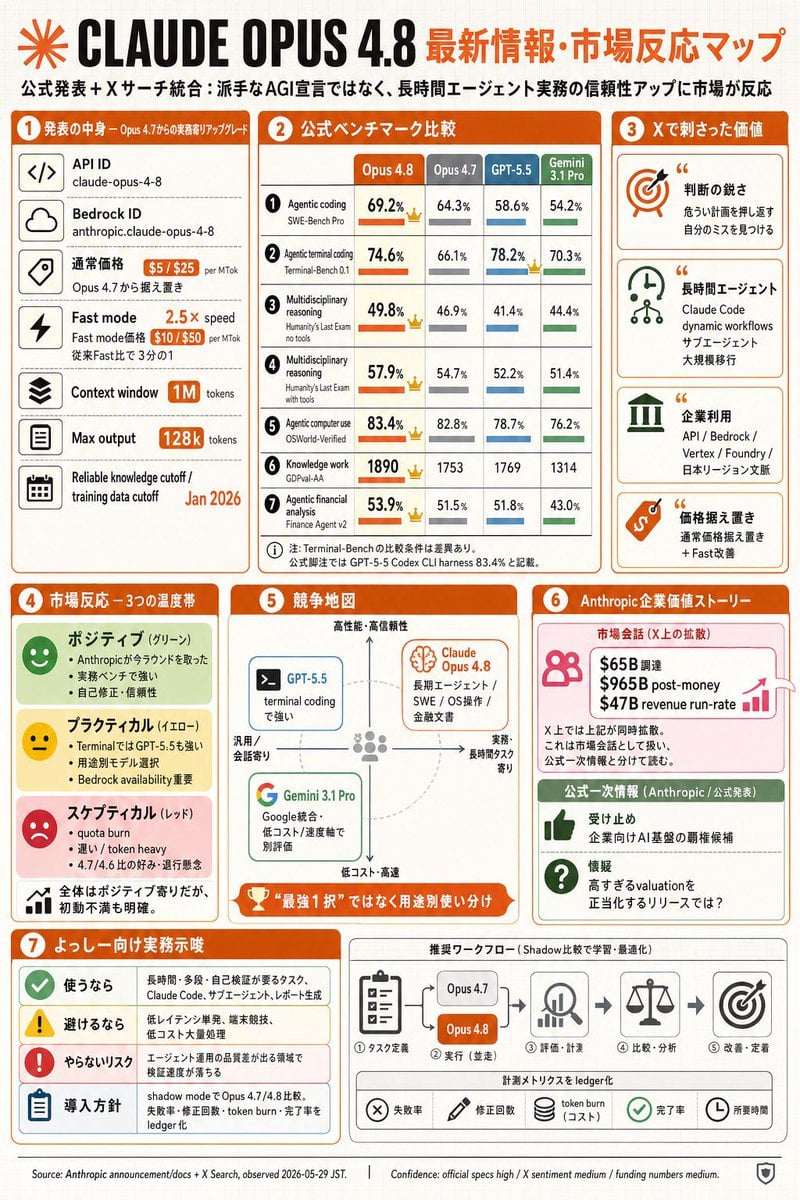
Claude Opus 4.8 Market Infographic
Japanese PowerPoint Bunny Icon Editor

Japanese infographic in Kasumigaura PowerPoint style
Make it yours
Japanese PowerPoint Claude Opus 5 Screenshot works as-is. These are the safest ways to change it without losing the look.
Change one field
Copy a single group, rewrite it, and generate again so you can see what that field is doing.
Keep the frame, change the subject
Hold the composition and light of Japanese PowerPoint Claude Opus 5 Screenshot, then swap wardrobe, props or the person for a new take.
| If the result… | Why | Fix |
|---|---|---|
| The result drifts from the preview | Too many fields changed at once. | Reuse Japanese PowerPoint Claude Opus 5 Screenshot as-is first, then change one group — subject, light, or setting. |
| The model over-stylizes the scene | The prose prompt leaves finish and camera underspecified. | Add one camera or lighting sentence and stay on GPT Image 2. |
More GPT Image 2 templates
Other prompts made for GPT Image 2.

Realistic Portrait of Woman and Deer

The Vista Modular Condo Poster

AI Model Routing Comparison Infographic

2.5D Anime Art Board

Isometric Productivity Desk Scene

New York Double Exposure Poster

Four-Panel AI Landscape Comparison

NESCAFÉ Coffee Map Poster

Brutalist Cogito Chinese Typography Poster

Cinematic Luxury Terrace Portrait
More image prompts
Fresh picks from across the catalog.

Lisbon Vintage Tram Travel Poster

Cinematic multi-panel sequence for IT
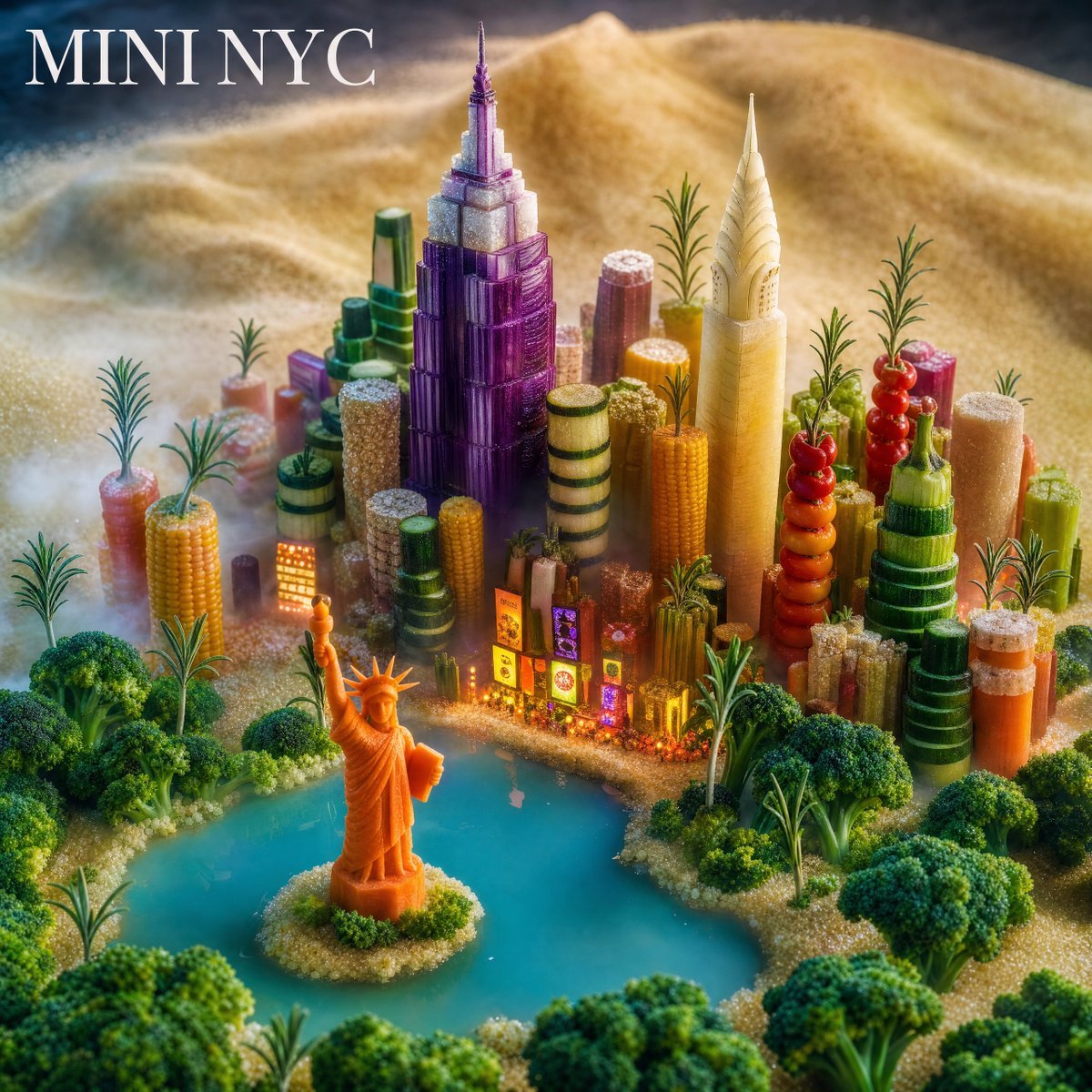
Mini NYC Food Landscape
Vintage Film Photography Prompt with Retro Aesthetic
Japanese-Western Fusion Fashion Model
Mobile Game Gacha Interface Design

Stylized 3D Caricature Portrait

Ultra-Realistic Luxury Fast-Food Ad Shot
Masterpiece Painting Reimagined as a Charcuterie Platter
Champion Monster Adventure Poster
Browse template categories
Japanese PowerPoint Claude Opus 5 Screenshot questions
How do I use the Japanese PowerPoint Claude Opus 5 Screenshot template?
Add your photo if the template asks for one, edit the prompt if you like — the template's model and format are already selected — and press Generate. Your version opens in PicX Studio.
Can I customize the Japanese PowerPoint Claude Opus 5 Screenshot template?
Yes. You can change the subject, setting, lighting, mood, format, and available model controls before creating your image.
Is the Japanese PowerPoint Claude Opus 5 Screenshot template free?
Opening and editing this template is free. Generating uses credits, shown on the Generate button when you are signed in.
Which AI model should I use?
Start with GPT Image 2, which is the model associated with this template. You can compare another compatible model for a different finish.
Looking for something else? Browse all templates.

Your photo, any look
Thousands of ready templates for every top image and video model, from one credit balance.