
Faceless Fire Wizard Anime Scene
A cinematic anime fantasy illustration prompt for a robed elderly wizard summoning a massive swirling fire orb with a censored face.
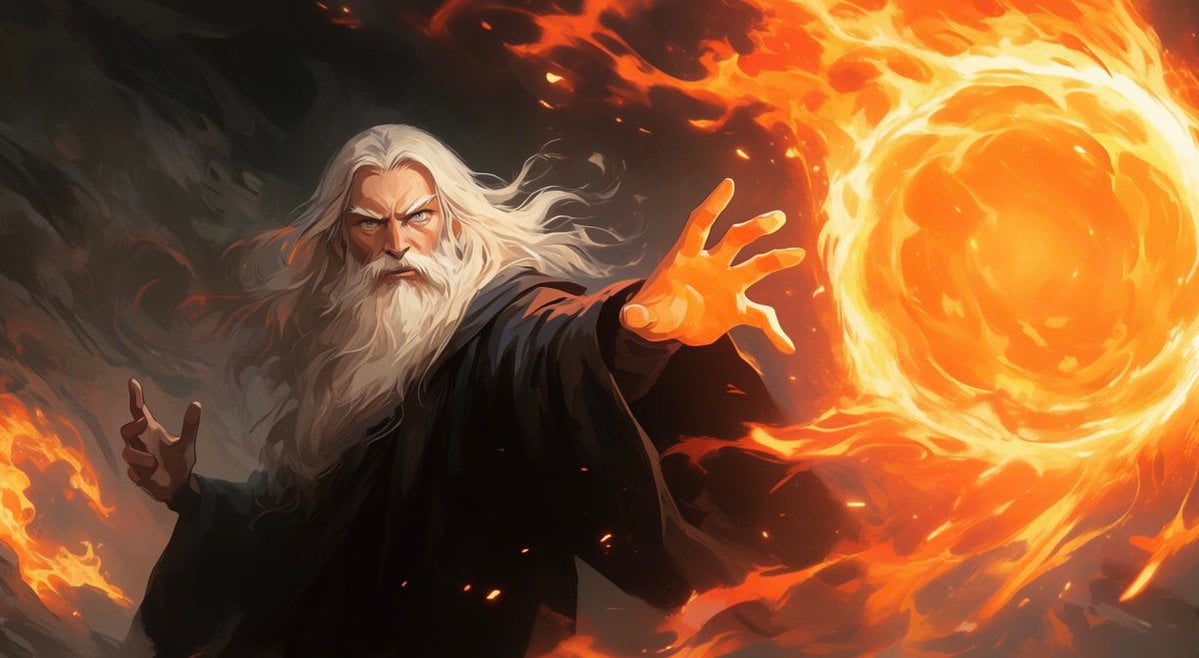
- Prompt included
- Model and format preset
- Free template
The prompt behind this image
Copy the exact prompt behind Faceless Fire Wizard Anime Scene, or open it in the studio and make it yours.
Create a dramatic wide cinematic anime fantasy illustration of an elderly male wizard casting fire magic. The wizard has long flowing {argument name="hair color" default="white silver"} hair and a full beard, wearing a loose dark black robe with broad sleeves. His face is intentionally obscured by a simple centered square censor block in warm brown, covering the facial features while leaving the hair and beard visible. Compose him slightly left of center, torso angled toward the viewer, with one hand extended forward toward the right side and fingers spread as if controlling a massive spell; his other hand is raised lower on the left side in a claw-like gesture. On the right half of the image, show one enormous swirling {argument name="magic element" default="orange fire"} orb or portal, like a miniature sun made of rotating flames, bright yellow core, molten orange rings, and licking flame trails spiraling around it. Add a second smaller visible flame mass near the lower left edge. Use exactly two prominent fire masses: the huge orb on the right and the smaller flame on the lower left. The background is a dark smoky cavern or stormy void with charcoal gray and black brushy textures, illuminated by fiery orange rim light and scattered glowing embers. Style: high-quality painterly anime key visual, dynamic action pose, strong contrast, cinematic lighting, energetic brush strokes, detailed flame motion, dramatic fantasy atmosphere, widescreen 16:9 composition, no text, no watermark.
How to use Faceless Fire Wizard Anime Scene in 3 steps
- 1Upload ImagePNG, JPG or paste
Add your photo
Upload the photo the template builds on. The prompt, model and format are already set.
- 2…a portrait of your subject in softgolden-hour light, 85mm…
Personalize
Edit the subject and creative details for your destination.
- 3Generate
Generate
Press Generate — your image is created in PicX Studio, so you can compare it with the original and refine one variable at a time.
More like this
Templates with the same subject, style or setup. Open one to see its prompt.
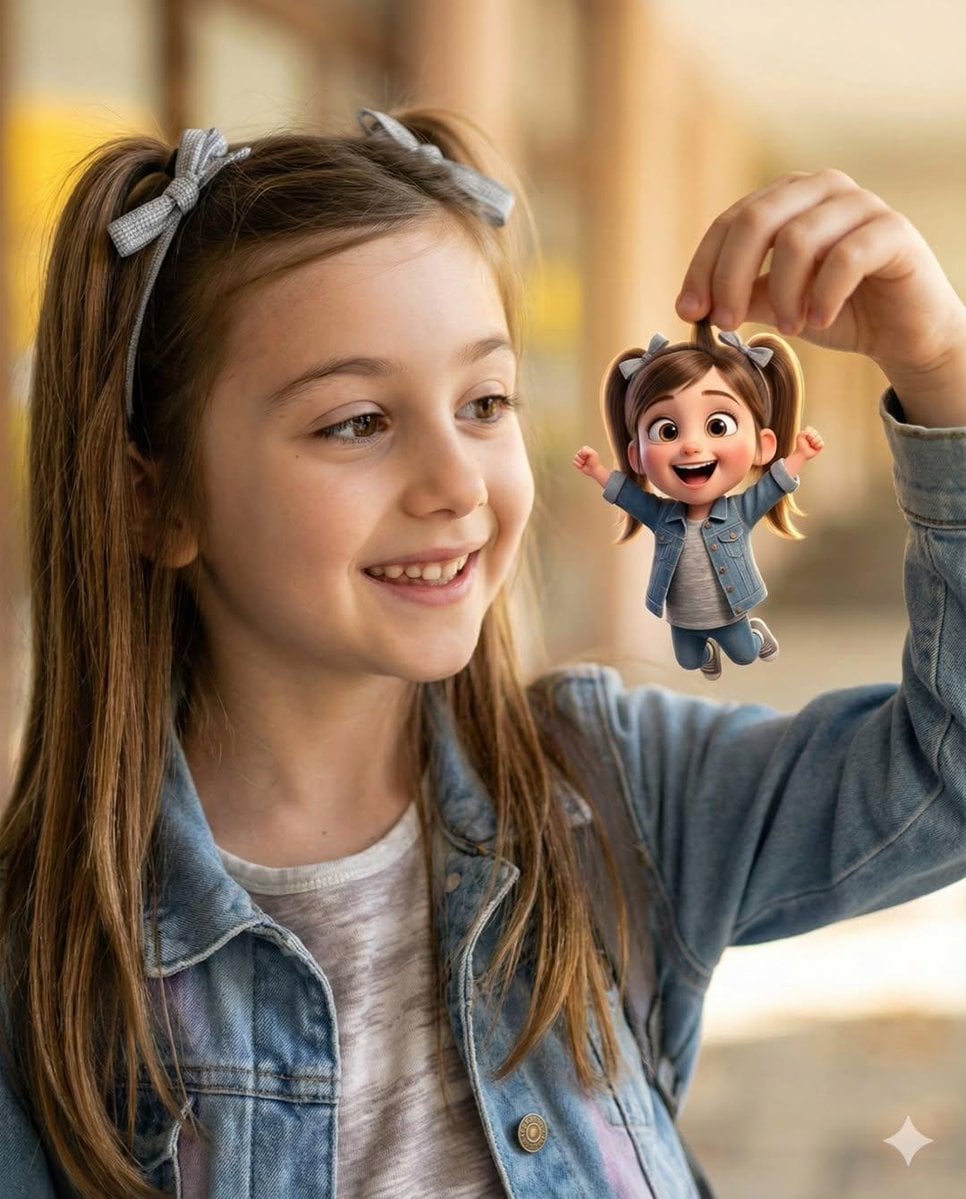

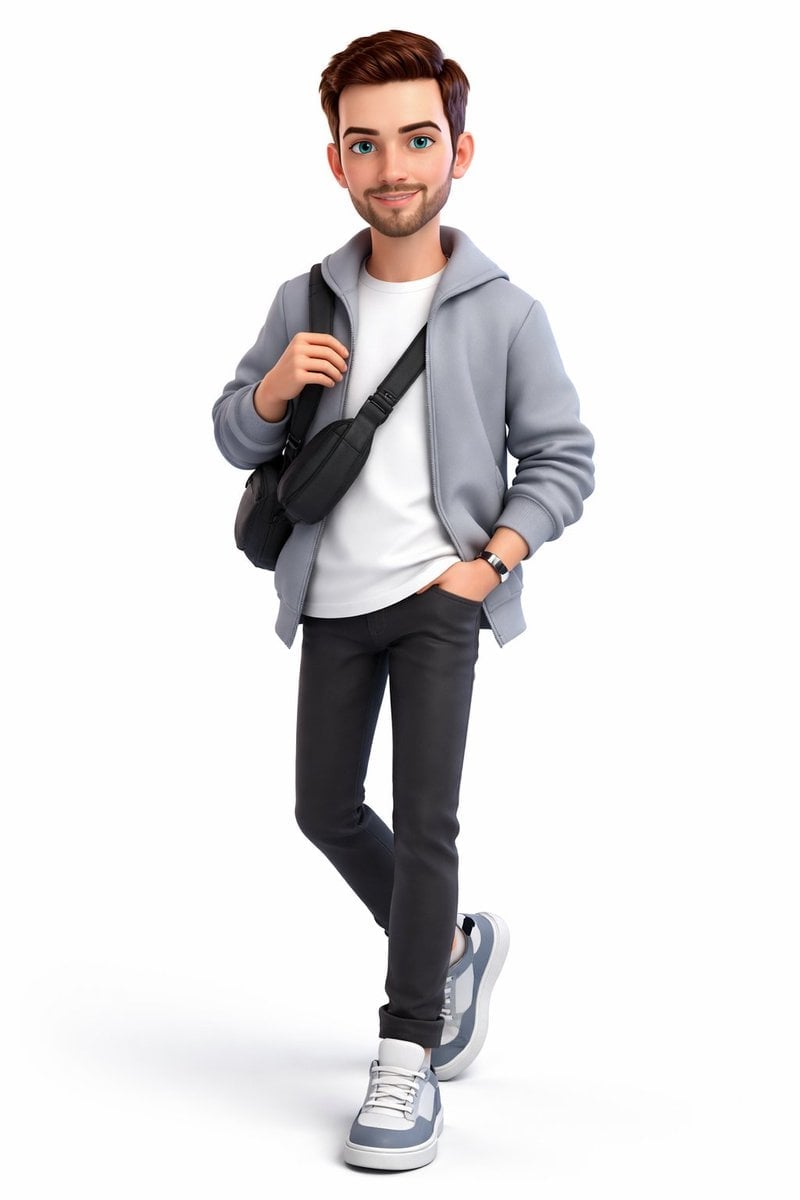
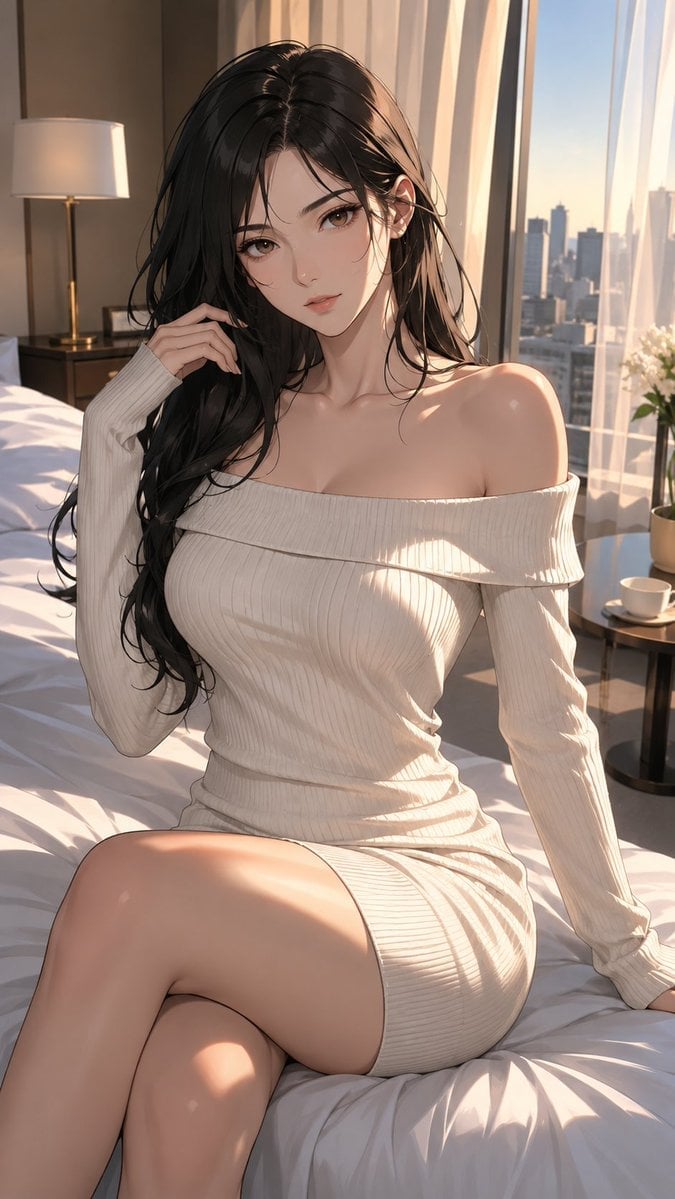
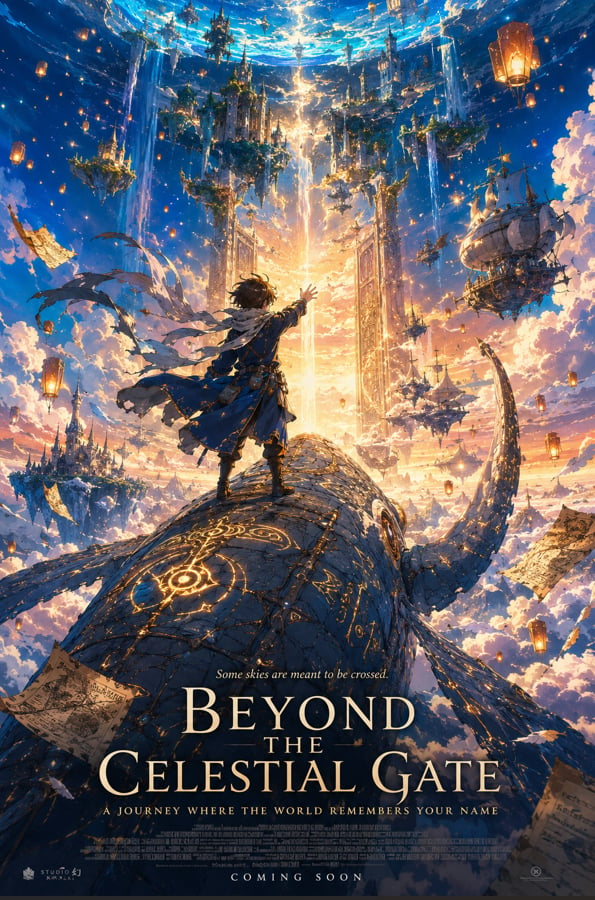
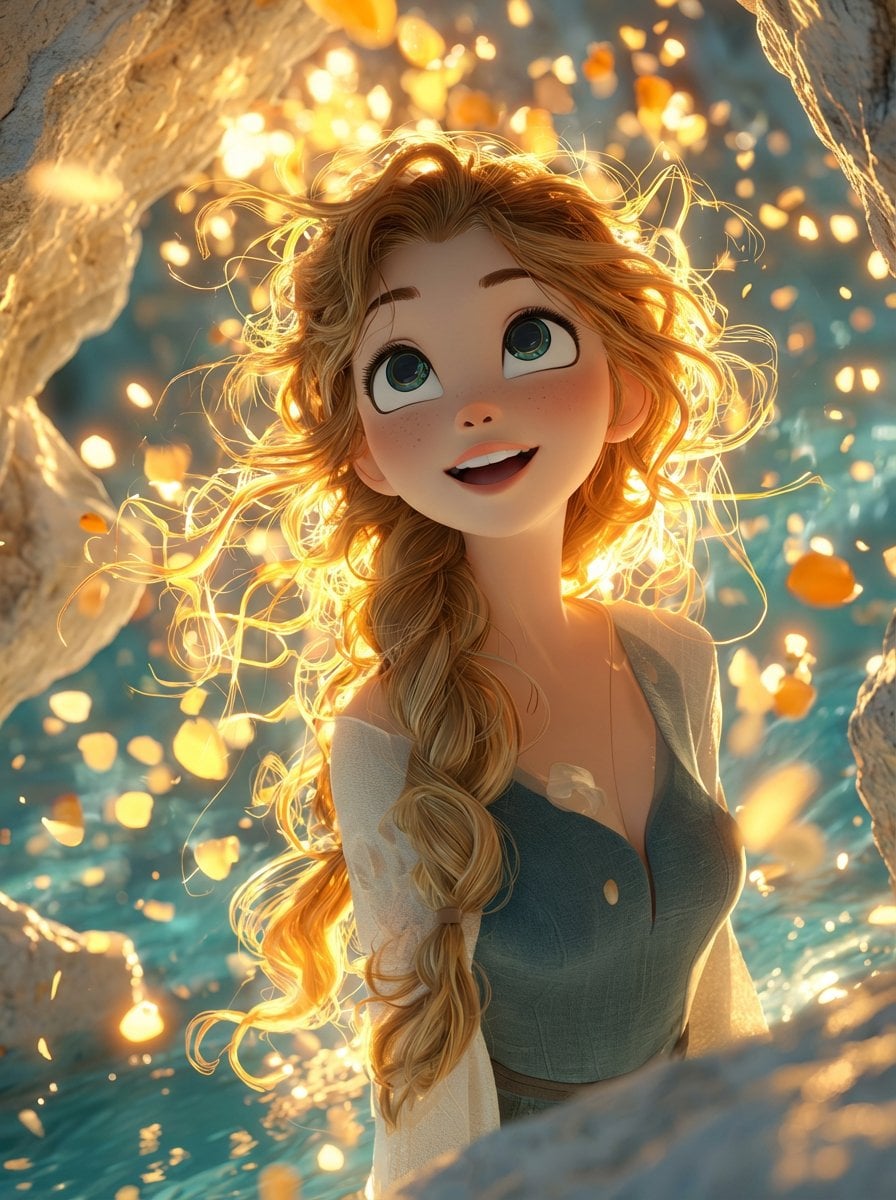
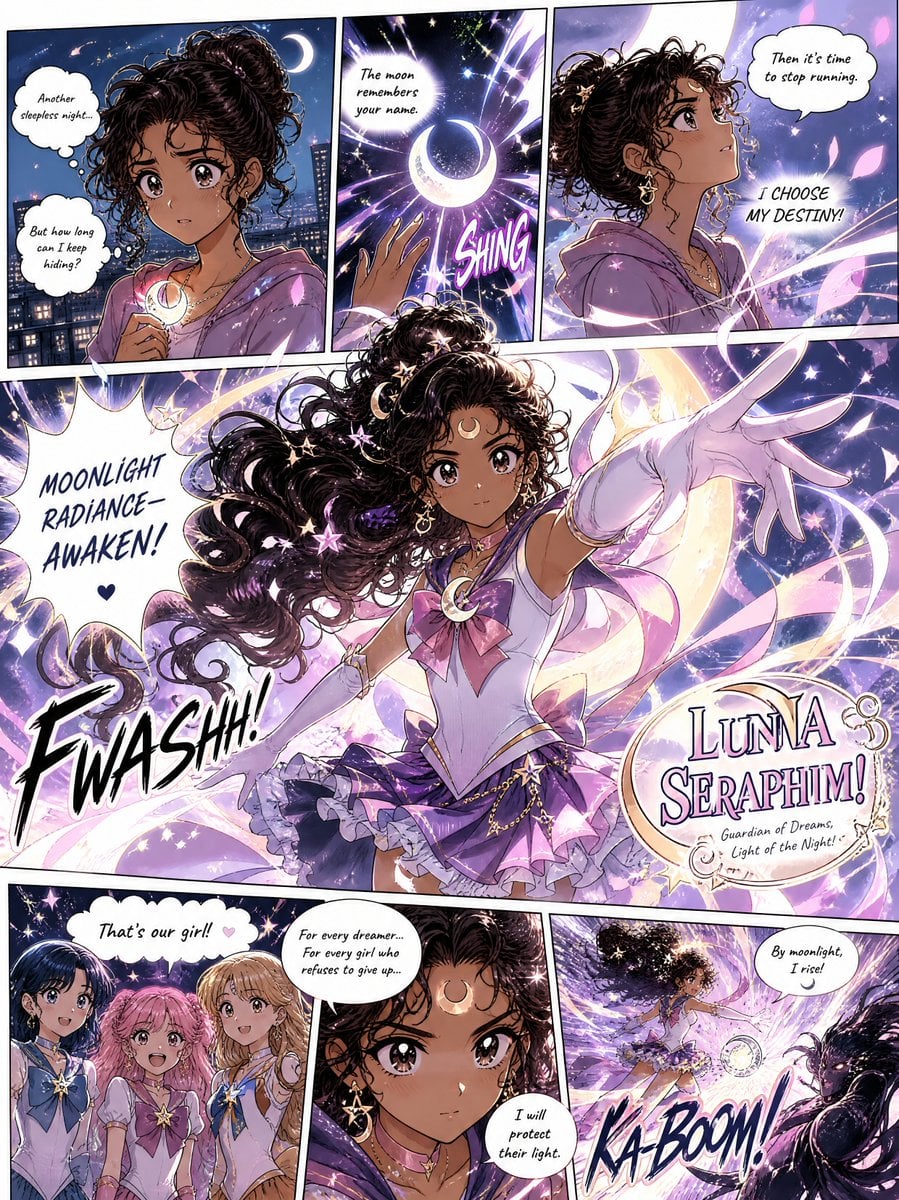
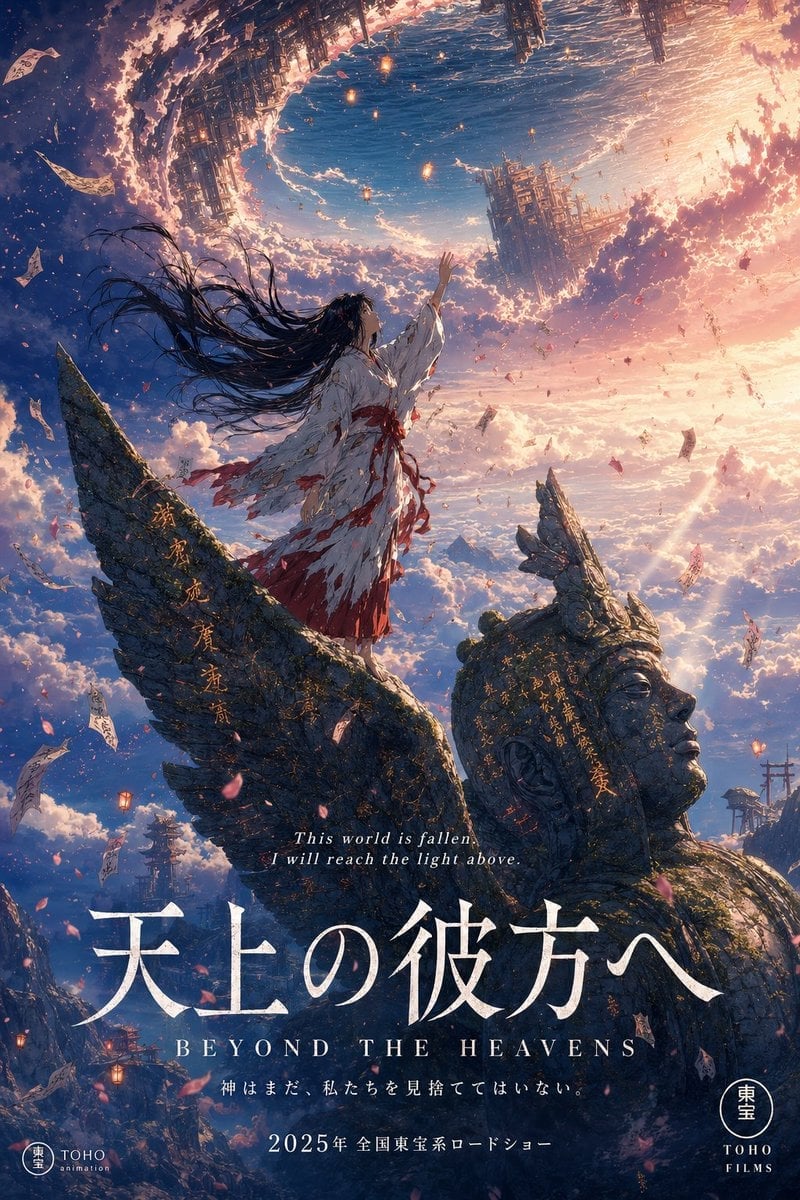
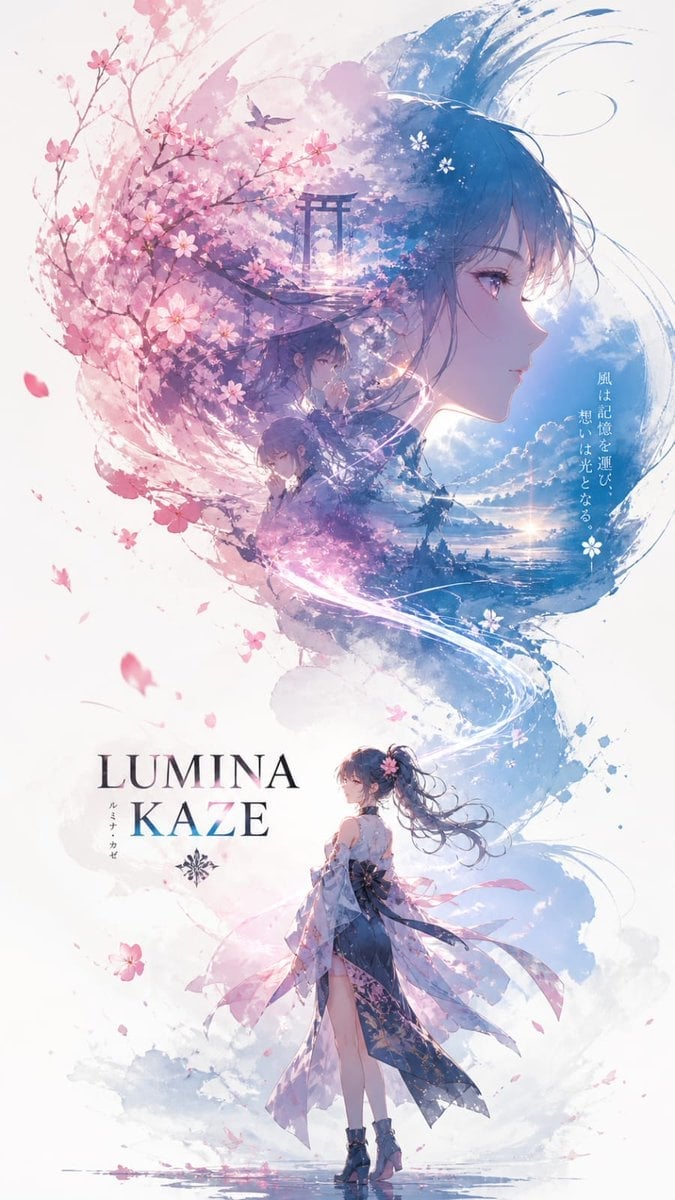
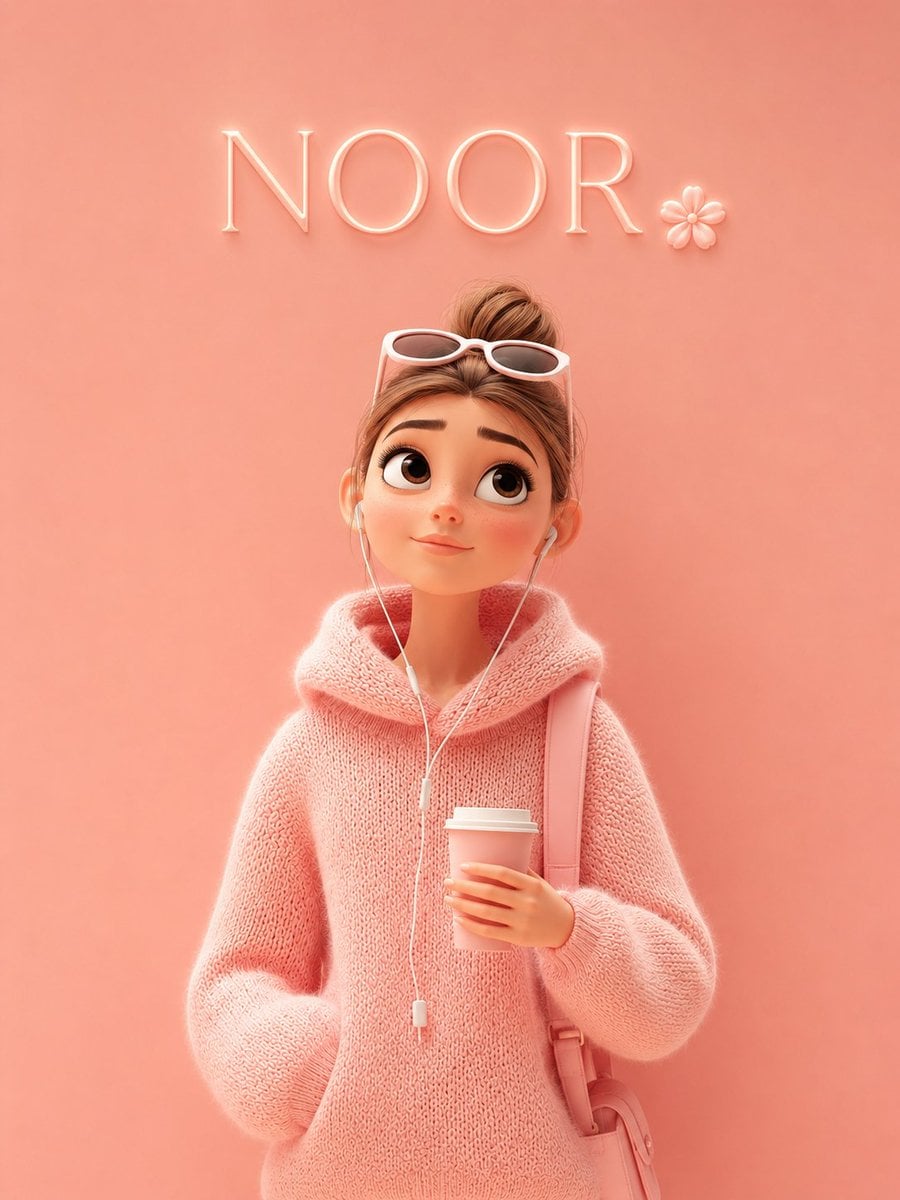
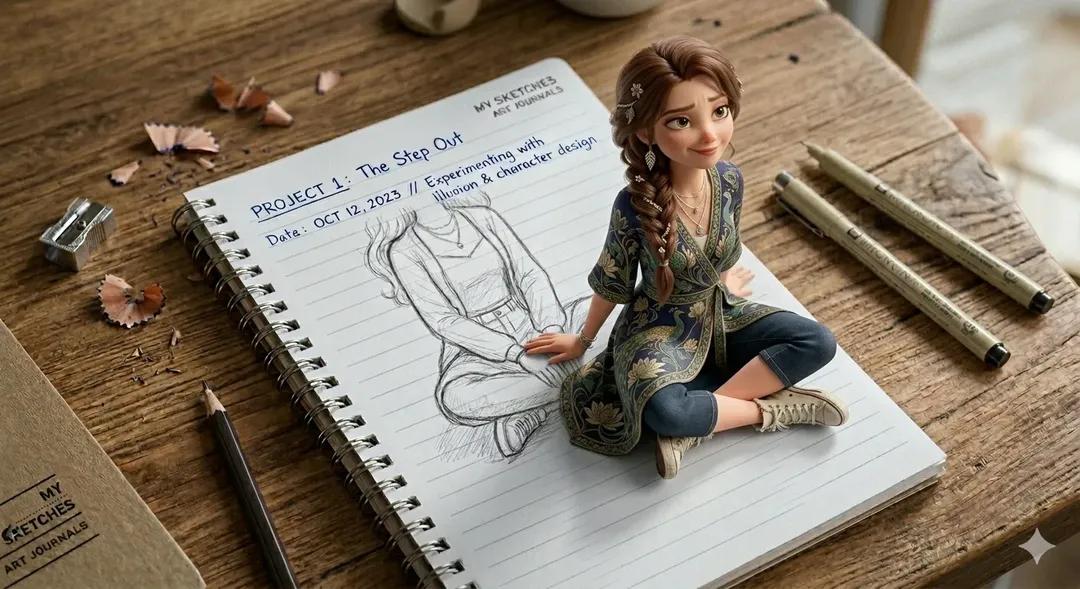
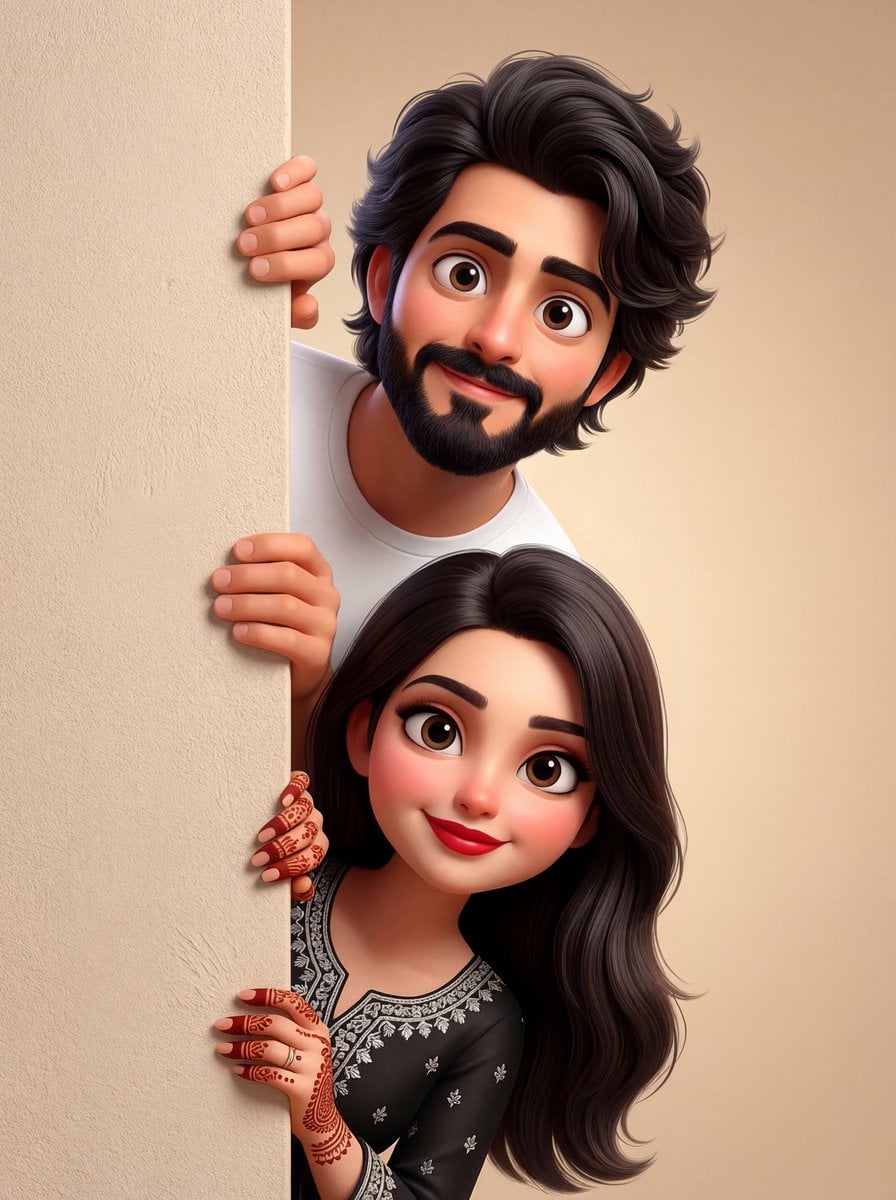
Make it yours
Faceless Fire Wizard Anime Scene works as-is. These are the safest ways to change it without losing the look.
Change one field
Copy a single group, rewrite it, and generate again so you can see what that field is doing.
Keep the frame, change the subject
Hold the composition and light of Faceless Fire Wizard Anime Scene, then swap wardrobe, props or the person for a new take.
| If the result… | Why | Fix |
|---|---|---|
| The result drifts from the preview | Too many fields changed at once. | Reuse Faceless Fire Wizard Anime Scene as-is first, then change one group — subject, light, or setting. |
| The model over-stylizes the scene | The prose prompt leaves finish and camera underspecified. | Add one camera or lighting sentence and stay on GPT Image 2. |
More GPT Image 2 templates
Other prompts made for GPT Image 2.

Six VTuber Japanese Logo Sheet

Realistic Portrait of Woman and Deer

The Vista Modular Condo Poster

AI Model Routing Comparison Infographic

2.5D Anime Art Board

Isometric Productivity Desk Scene

New York Double Exposure Poster

Four-Panel AI Landscape Comparison

Japanese Tatami Lifestyle Magazine Cover

NESCAFÉ Coffee Map Poster
More image prompts
Fresh picks from across the catalog.
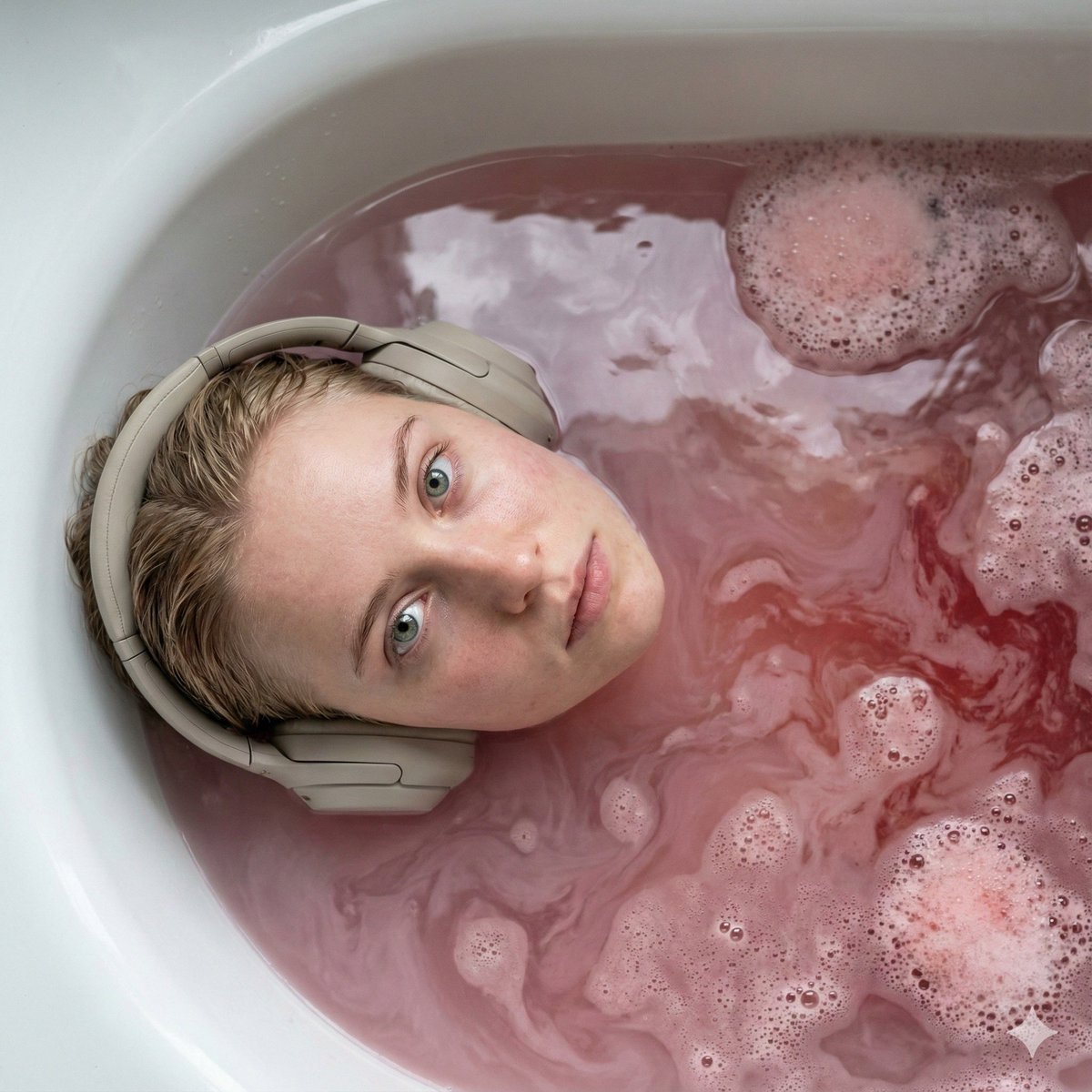
Ultra-Photorealistic Cinematic Portrait in a Bathtub with Noise-Canceling Headphones
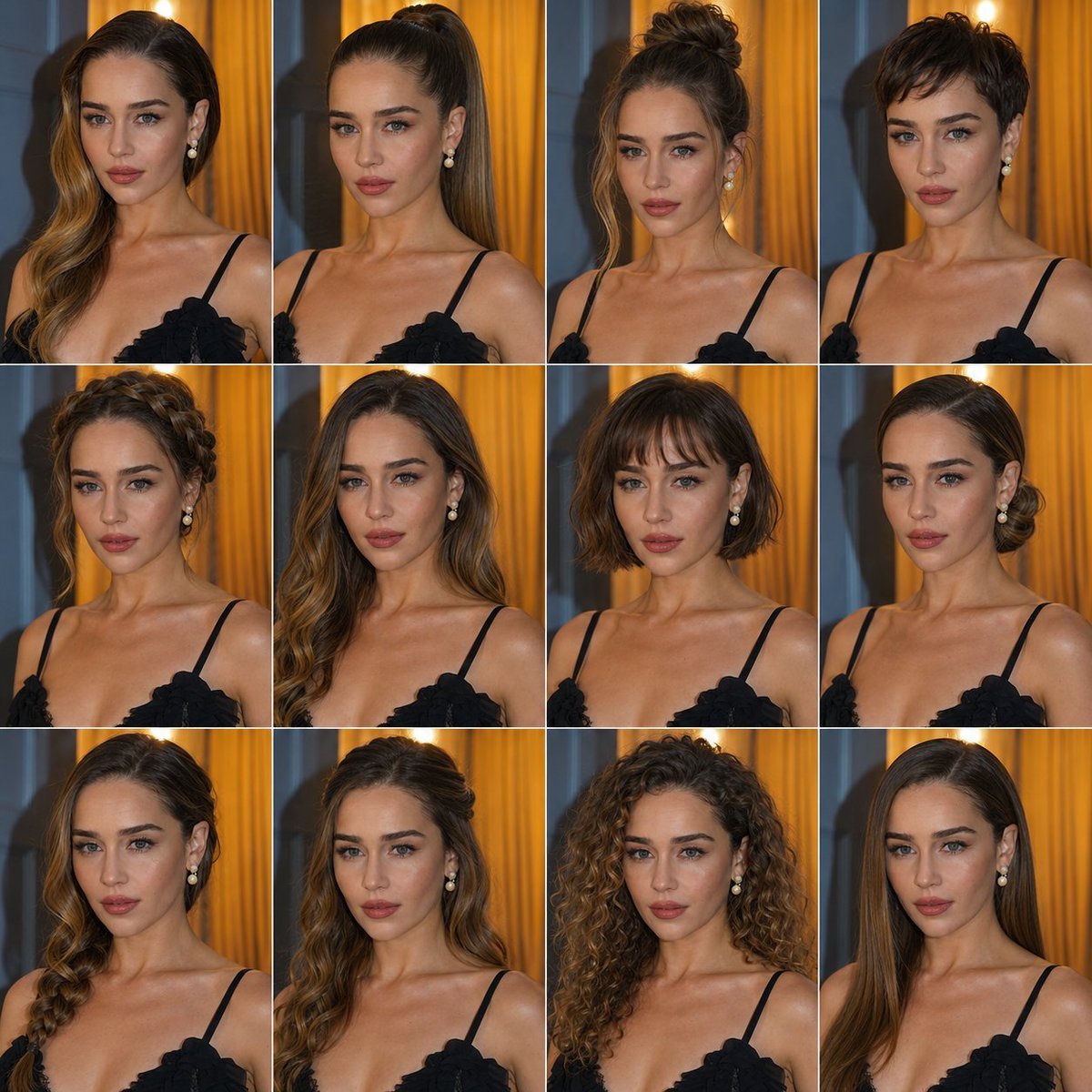
Multi Hairstyle Portrait Collage
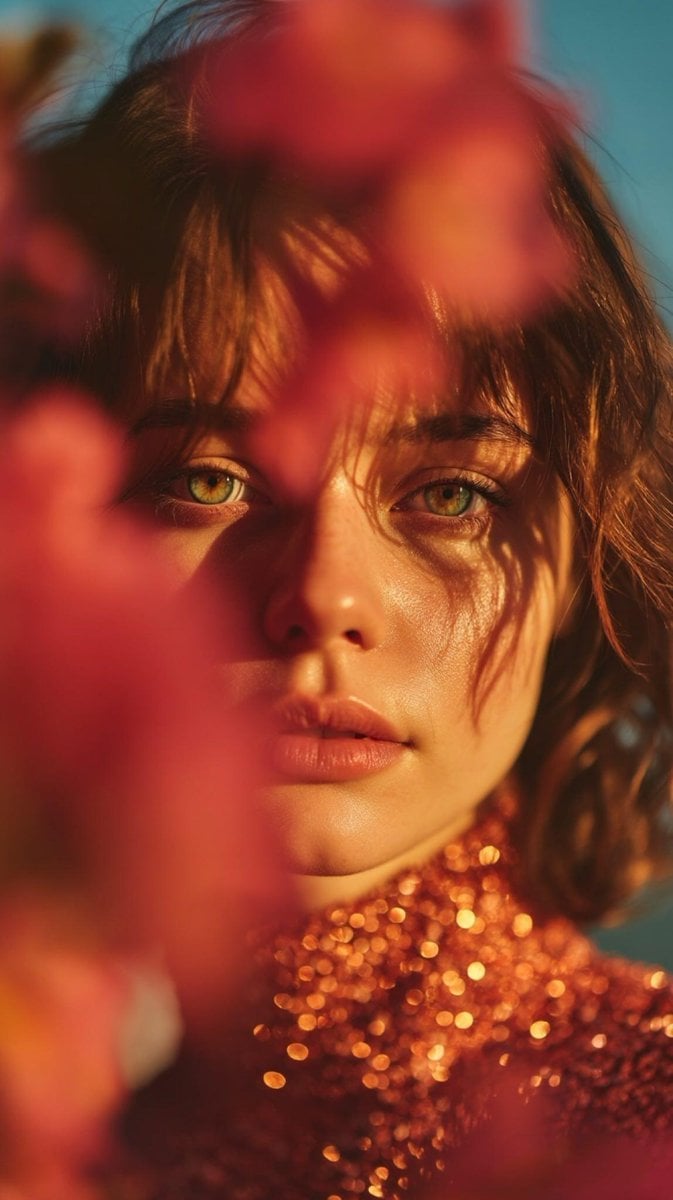
Poetic Cinematic Portrait with Pink Blossoms Prompt
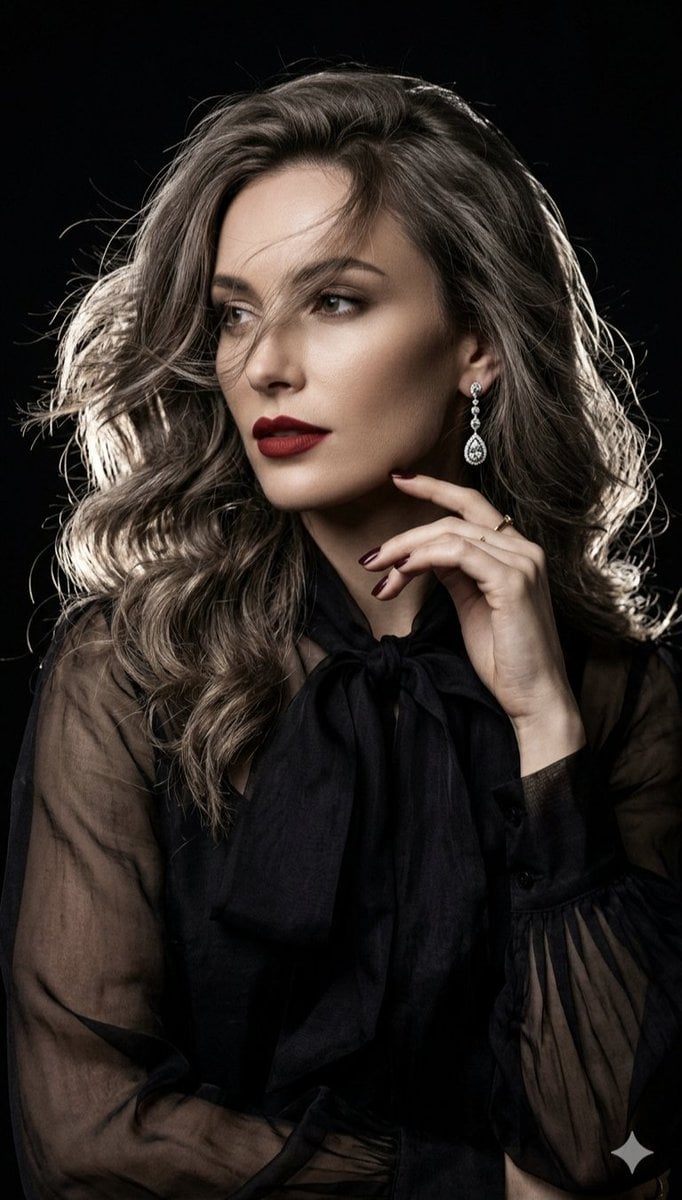
Cinematic high-fashion portrait with Chiaroscuro lighting
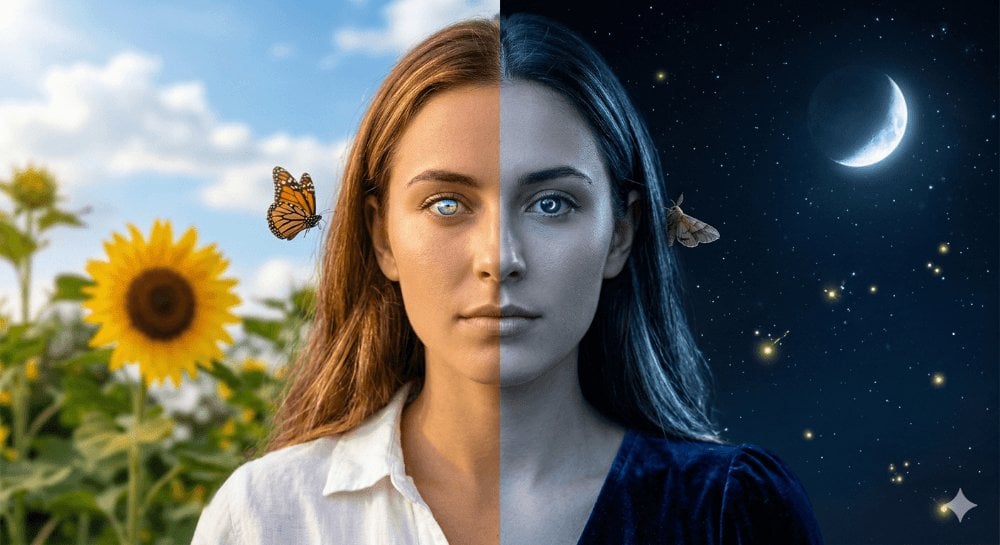
Day and Night Split Portrait Prompt for Nano Banana Pro
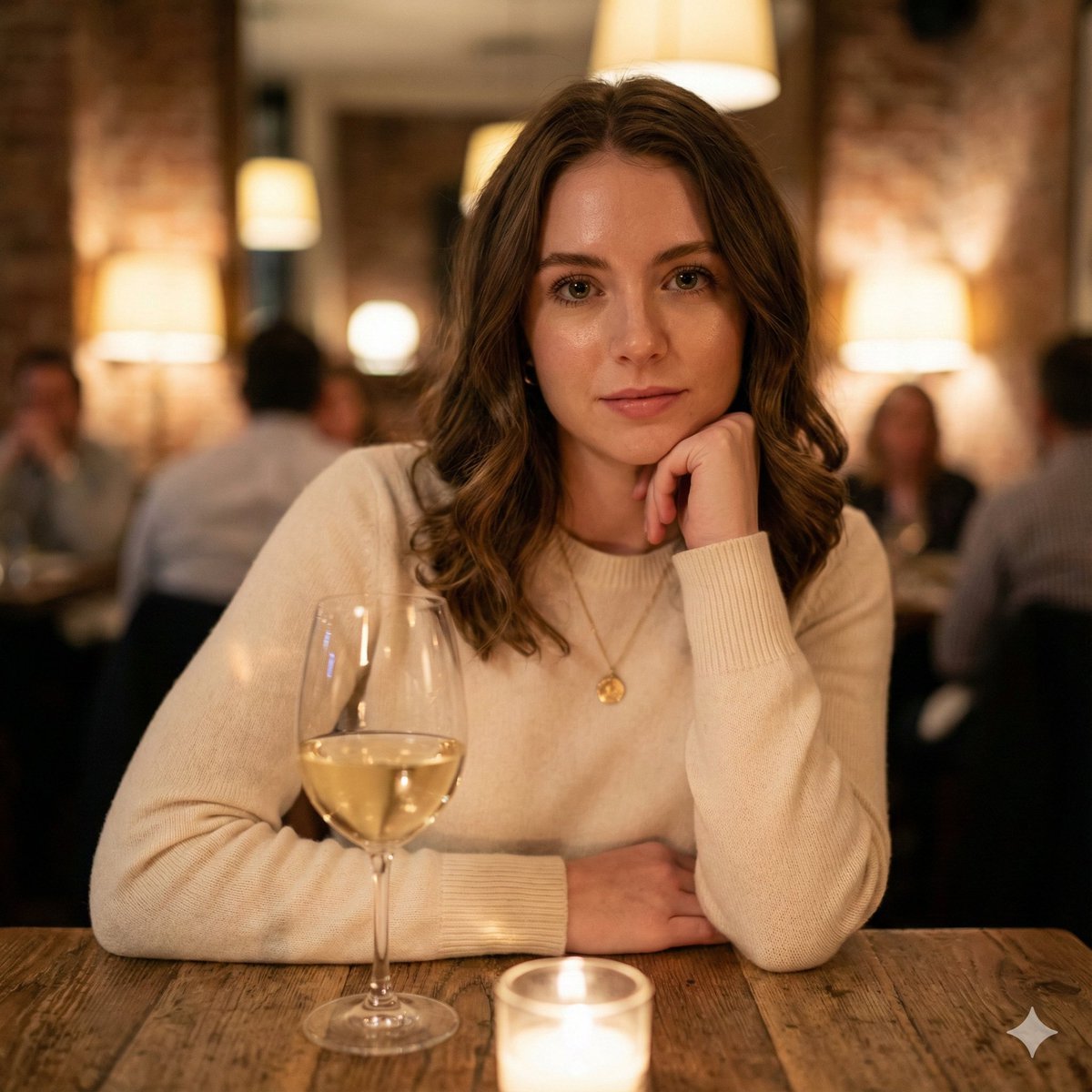
Hyper-Realistic Restaurant Portrait with Rembrandt Lighting
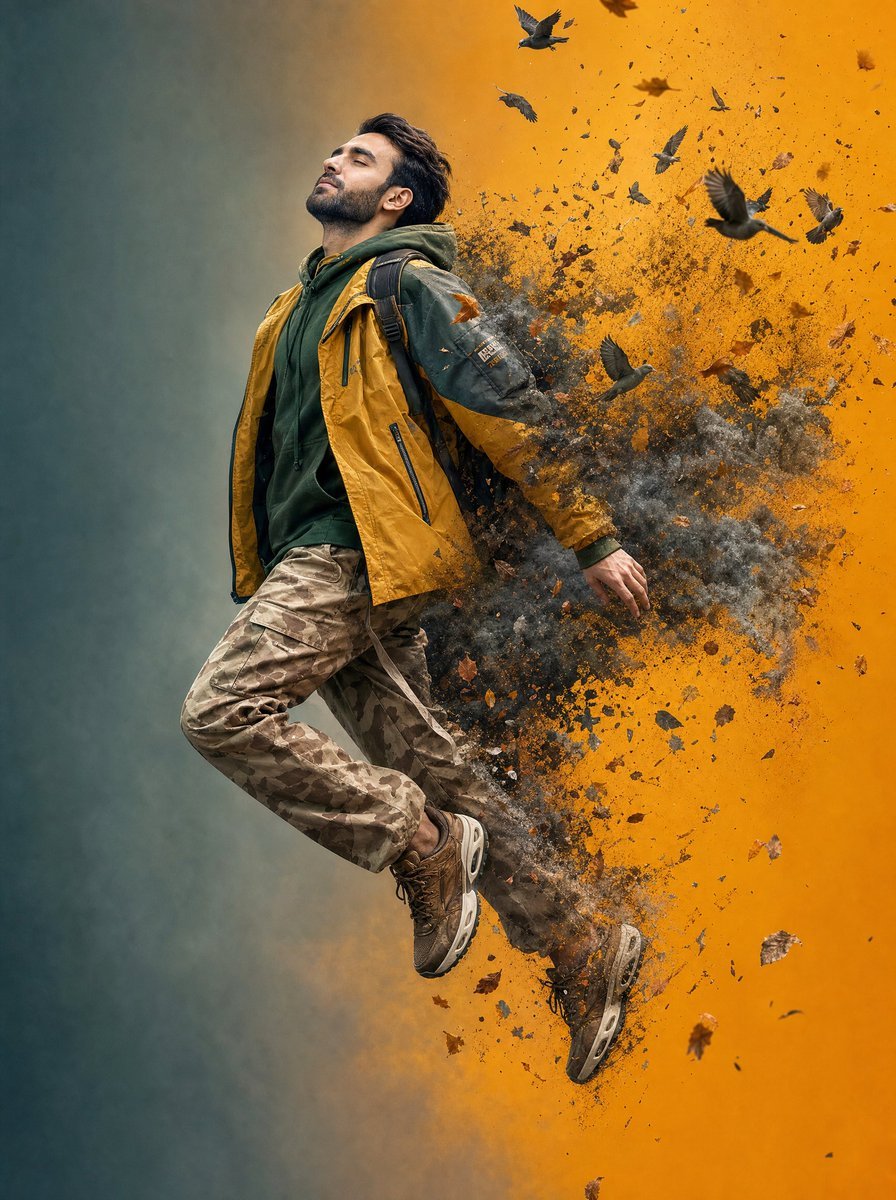
Surreal Floating Man Dissolving Into Ash
High-Angle POV Portrait with Bio-Fidelity and Technical Wear
Pug Running on Alpine Trail
Cyberpunk World War II Signboard
Browse template categories
Faceless Fire Wizard Anime Scene questions
How do I use the Faceless Fire Wizard Anime Scene template?
Add your photo if the template asks for one, edit the prompt if you like — the template's model and format are already selected — and press Generate. Your version opens in PicX Studio.
Can I customize the Faceless Fire Wizard Anime Scene template?
Yes. You can change the subject, setting, lighting, mood, format, and available model controls before creating your image.
Is the Faceless Fire Wizard Anime Scene template free?
Opening and editing this template is free. Generating uses credits, shown on the Generate button when you are signed in.
Which AI model should I use?
Start with GPT Image 2, which is the model associated with this template. You can compare another compatible model for a different finish.
Looking for something else? Browse all templates.

Your photo, any look
Thousands of ready templates for every top image and video model, from one credit balance.