How do I use the Hand-drawn Notebook Art template?
Edit the prompt in the box under the preview — the template's model and format are already selected — and press Generate. Your version appears right on this page.
Hand-drawn Notebook Art is a ready photo look.

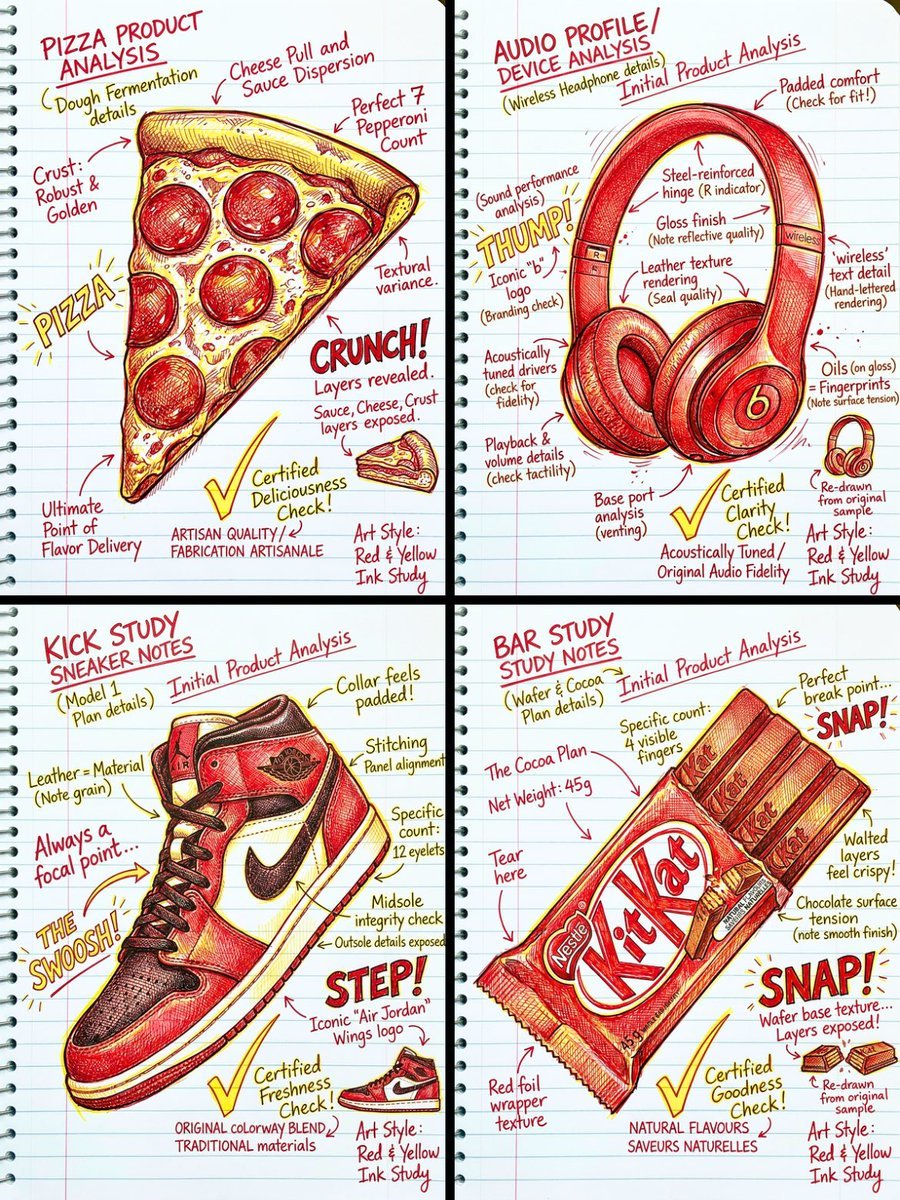
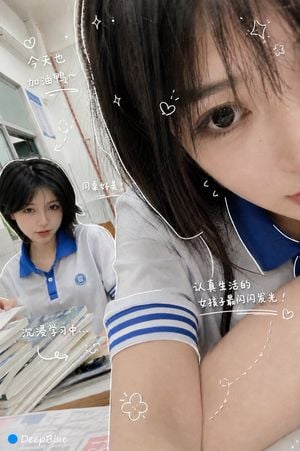
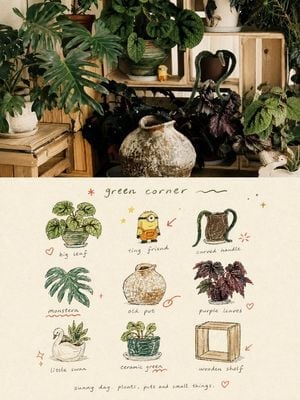
Create an artistic notebook sketch edit using the uploaded image. Keep the subject fully realistic, high-resolution, and centered. Apply thick hand-drawn outline strokes around the subject — first a yellow outline and then a red outline on top, similar to marker strokes. Replace the background with lined notebook paper texture. Add playful doodles and handwritten text around the subject using red and yellow pen-style drawing. Include small scribbles like hearts, stars, checkmarks, arrows, tiny icons, speech bubbles, and encouraging quotes. Make the text look handwritten, casual, and imperfect, like journal notes. Surrounding doodles and text should feel aesthetic, motivational, and Gen-Z inspired. Style should resemble a mix of scrapbook, school notes, Pinterest doodle art, and digital sketch. Keep the overall mood fun, confident, quirky, and positive while making sure the uploaded image subject remains the focus.
Create an artistic notebook sketch edit using the uploaded image. Keep the subject fully realistic, high-resolution, and centered. Apply thick hand-drawn outline strokes around the subject — first a yellow outline and then a red outline on top, similar to marker strokes. Replace the background with lined notebook paper texture. Add playful doodles and handwritten text around the subject using red and yellow pen-style drawing. Include small scribbles like hearts, stars, checkmarks, arrows, tiny icons, speech bubbles, and encouraging quotes. Make the text look handwritten, casual, and imperfect, like journal notes. Surrounding doodles and text should feel aesthetic, motivational, and Gen-Z inspired. Style should resemble a mix of scrapbook, school notes, Pinterest doodle art, and digital sketch. Keep the overall mood fun, confident, quirky, and positive while making sure the uploaded image subject remains the focus.
Edit the prompt in the box under the preview — the template's model and format are already selected — and press Generate. Your version appears right on this page.
Yes. You can change the subject, setting, lighting, mood, format, and available model controls before creating your image.
Opening and editing this template is free. Generating uses credits, shown on the Generate button when you are signed in.
Choose a compatible model in PicX Studio based on the style, speed, and output controls your project needs.
Follow a topic to a crawlable collection of related PicX Studio templates.