How do I use the Flat Color to Rendered Anime Shading template?
Choose the primary action to open PicX Studio with the available template settings. Review the model and format, personalize the creative direction, and generate when ready.
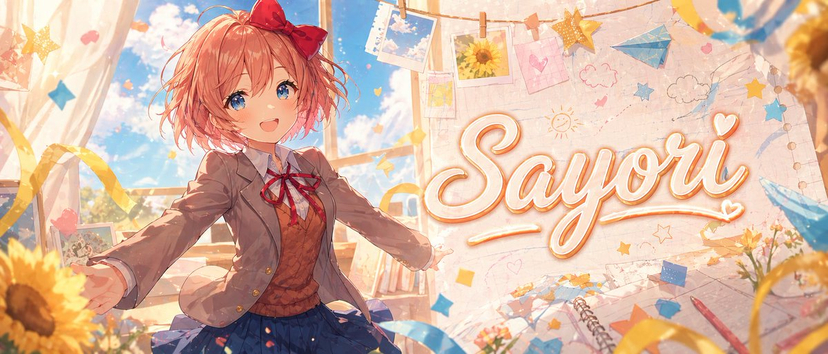
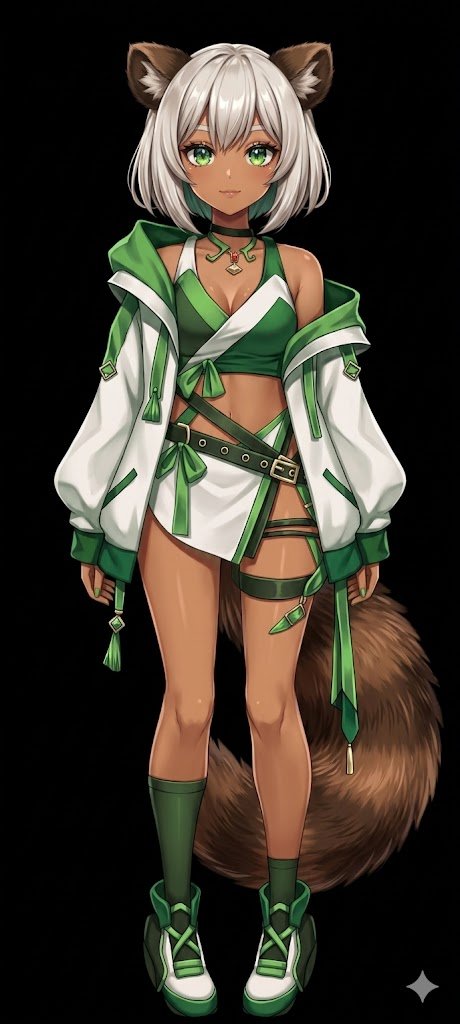
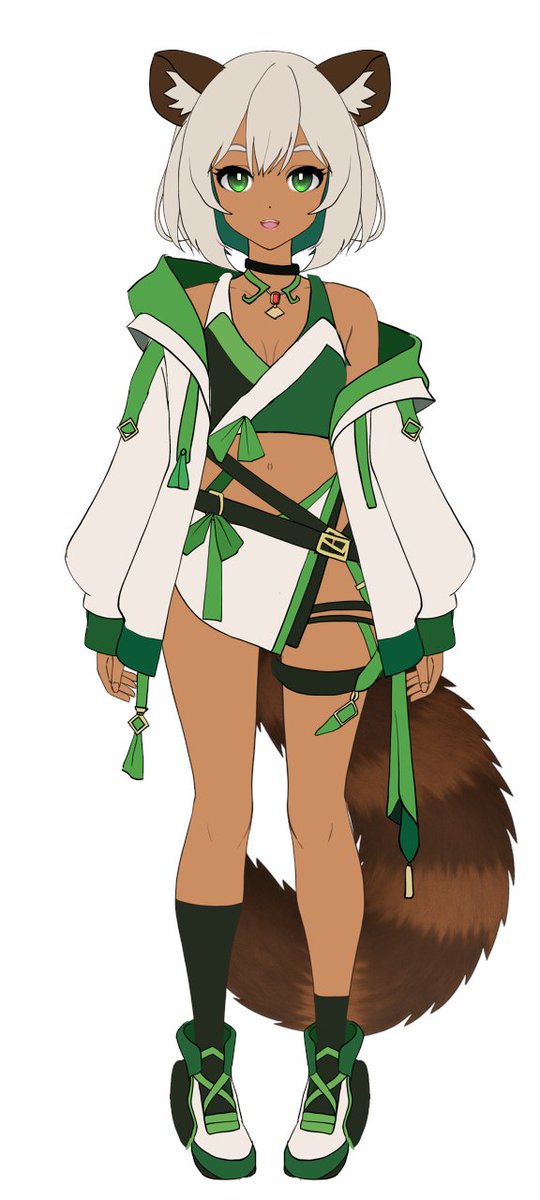
Transforms a flat-colored 2D character reference into a fully shaded and rendered anime illustration with a solid background. Change the subject, setting, or lighting one variable at a time.
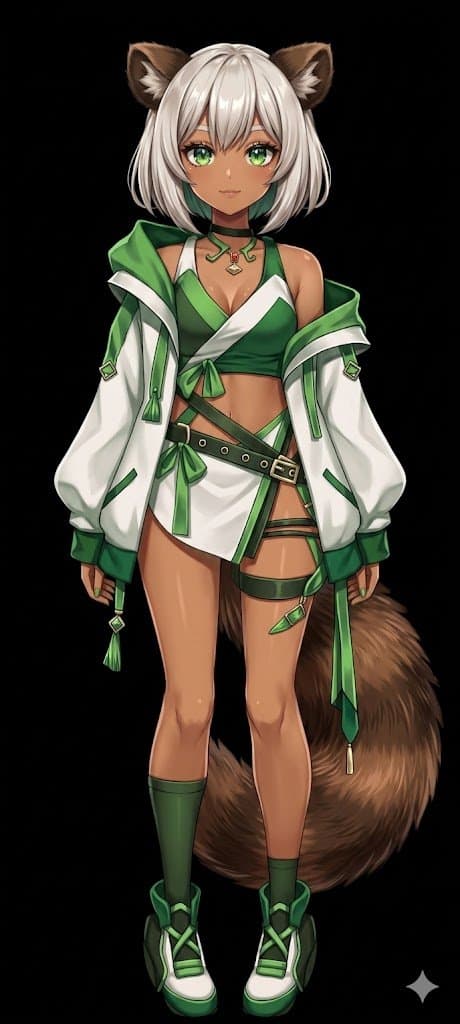
Using REFERENCE_0, transform the flat-colored character into a {argument name="art style" default="fully rendered, high-quality anime illustration"}. Apply detailed {argument name="lighting effect" default="shading, glossy highlights, and depth"} to the skin, hair, eyes, clothing, and tail to give the 2D design a polished, three-dimensional feel. Add a metallic sheen to the buckles and jewelry. Change the background to {argument name="background color" default="solid black"}. Preserve the character's original design, outfit, and neutral pose exactly as they appear in the reference.
Flat Color to Rendered Anime Shading needs input media to work. Open it in the studio and these load alongside the prompt — pick whichever ones your chosen model can take.
Choose the primary action to open PicX Studio with the available template settings. Review the model and format, personalize the creative direction, and generate when ready.
Yes. You can change the subject, setting, lighting, mood, format, and available model controls before creating your image.
This template is free to open and customize. Generation usage is shown in PicX Studio before you create.
Start with GPT Image 2, which is the model associated with this template. You can compare another compatible model for a different finish.
© 2026 PicX Studio. All rights reserved.

Follow a topic to a crawlable collection of related PicX Studio templates.
43,474 public templates available. Verified via the PicX Studio public templates API; refreshed hourly.


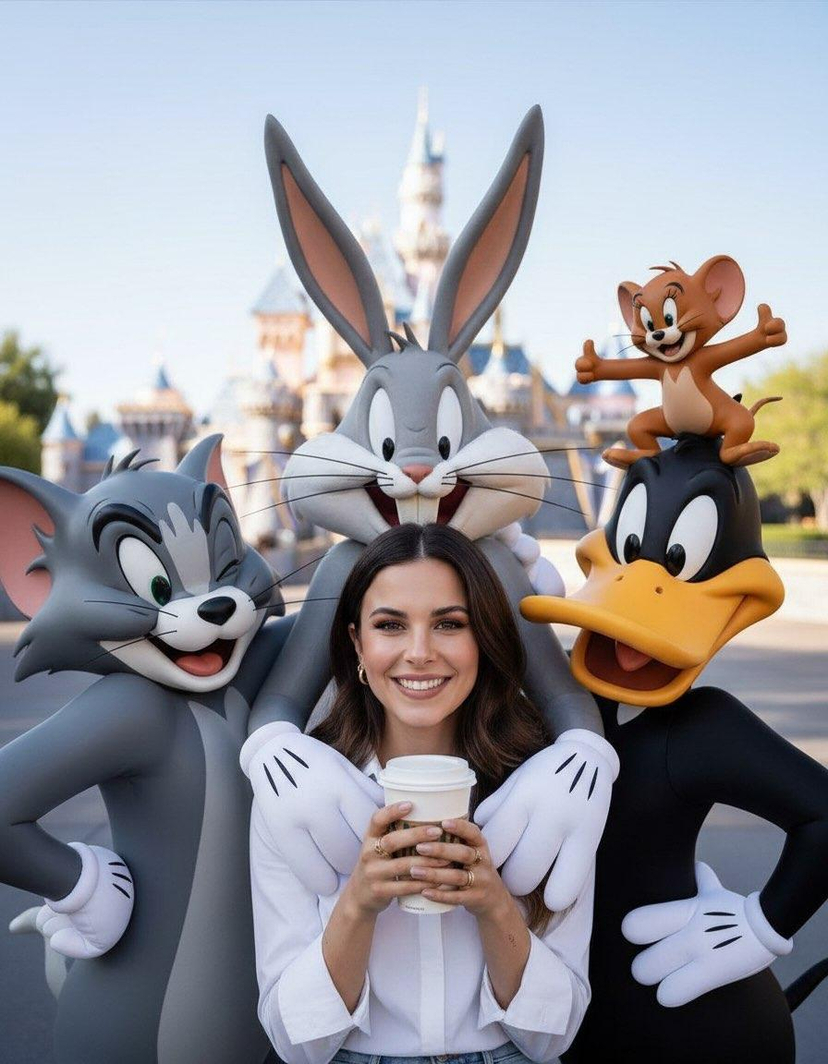

![A minimalist, black-and-white flat vector illustration portrait rendered — A minimalist, black-and-white flat vector illustration portrait of [NAME], rendered i](https://images.meigen.ai/tweets/2035793669911896120/0.jpg)


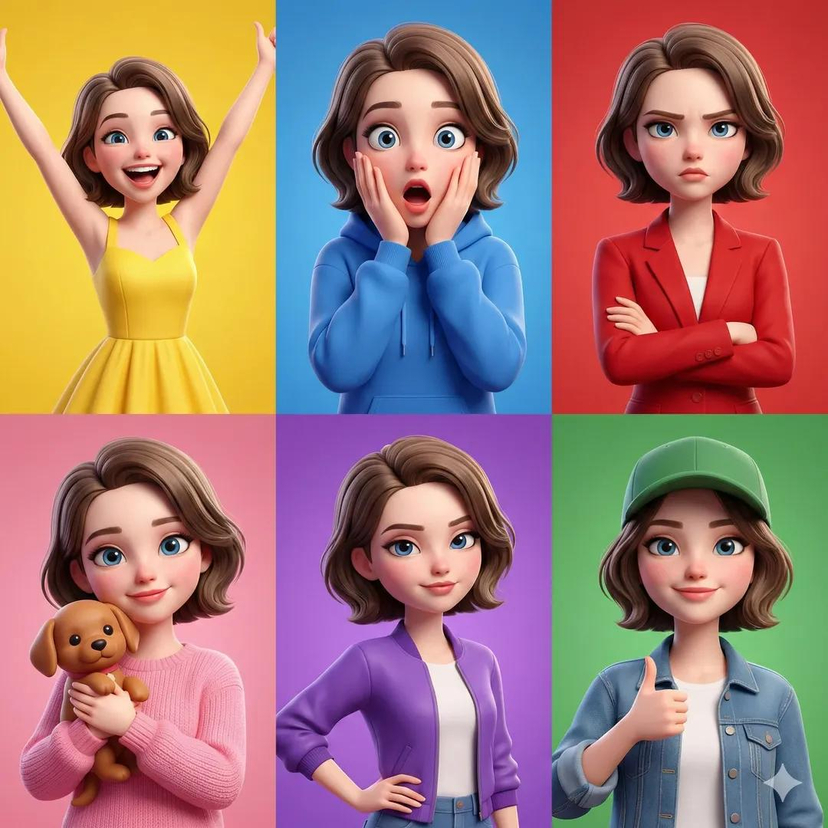





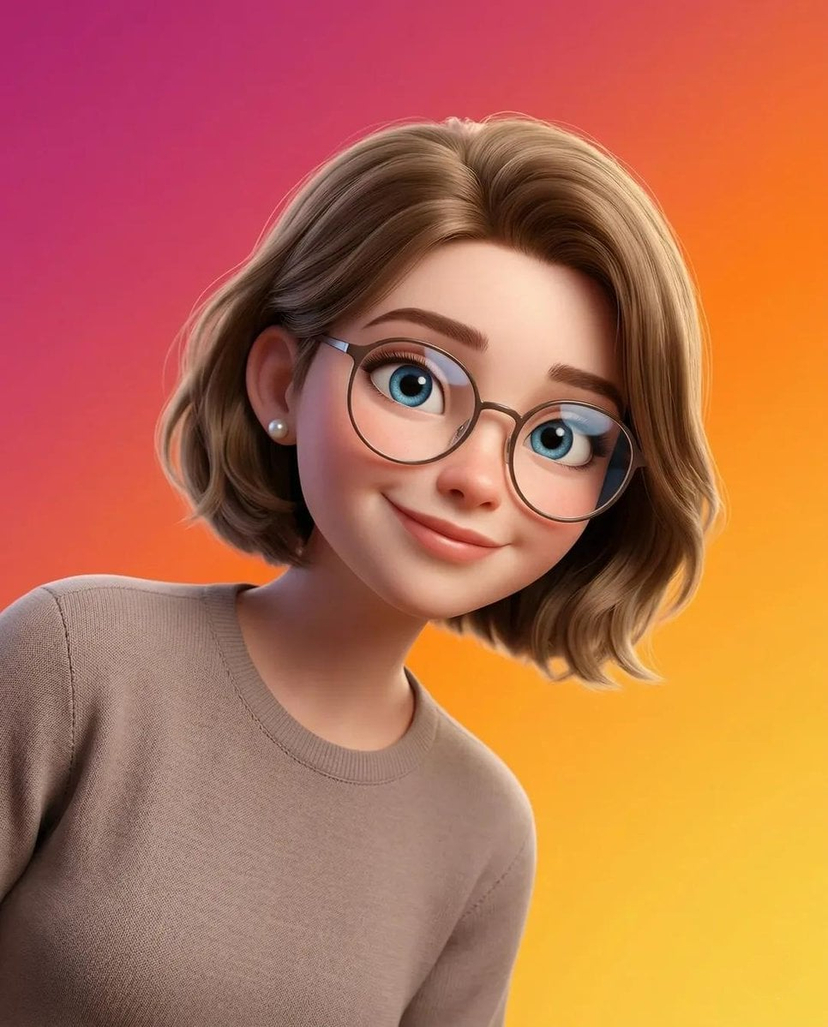


![Minimalist Flat Vector Travel Poster — Premium minimalist flat-vector travel poster for {argument name="city name" default="[CITY_NAME]"}, 3:4 vertical format.](https://cms-assets.youmind.com/media/1787917359711_3ug846_HQX205cbMAA6F6S-300x400.jpg)