
Fictional World Map Attempts Collage
Generates a zoomed-out contact sheet of many failed futuristic fictional world map variations for creative worldbuilding.
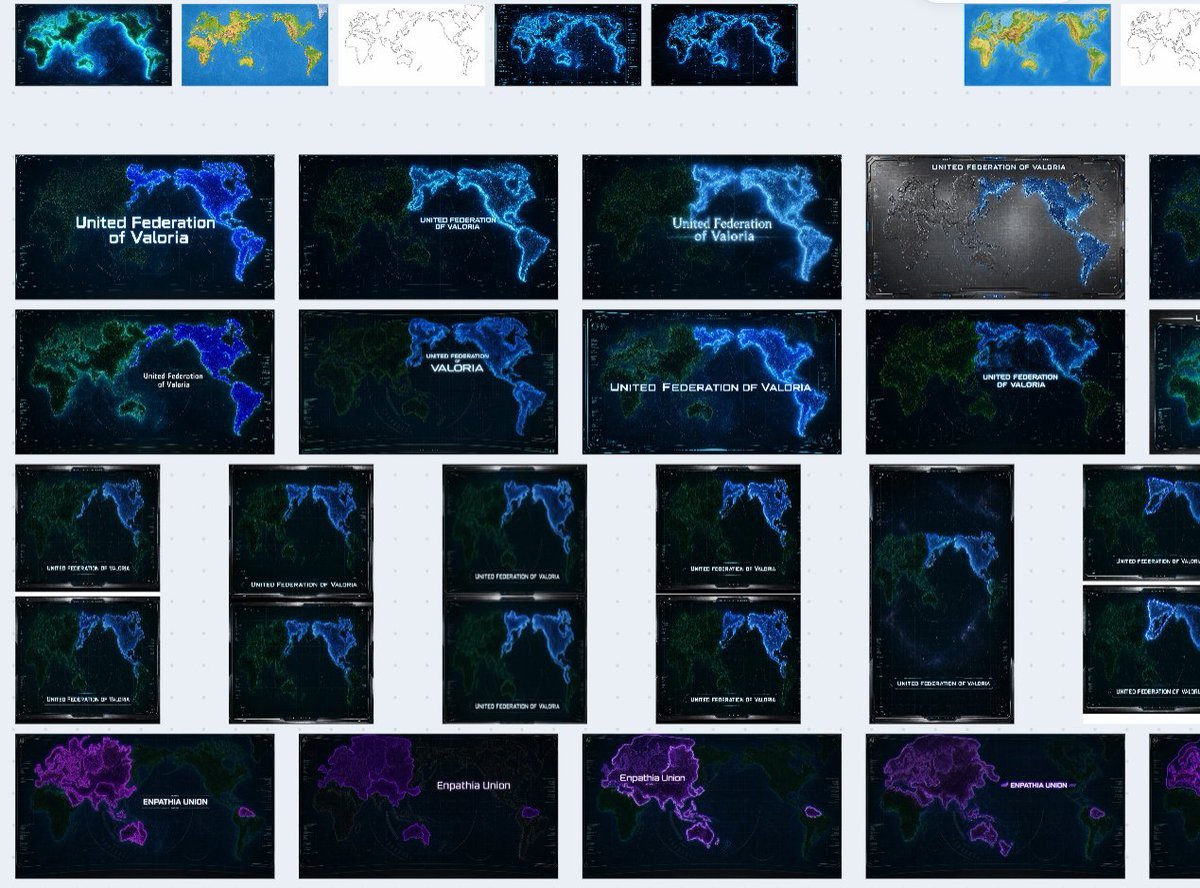
- Prompt included
- Model and format preset
- Free template
The prompt behind this image
Copy the exact prompt behind Fictional World Map Attempts Collage, or open it in the studio and make it yours.
Goal: Create a screenshot-like collage showing a pile of unusable AI-generated fictional world map attempts on a pale gray workspace, as if viewed on an image-generation history board. The subject is not one map, but a messy contact sheet of many map thumbnails for a future fictional nation. Canvas: Wide 16:10 landscape canvas, light gray background with a faint dotted grid pattern. Leave generous gutters between thumbnails. The entire composition should feel like a zoomed-out browser or design-board view, with some thumbnails cut off by the right edge. Layout: Arrange exactly 35 visible map thumbnails in an irregular grid. Count them as: 8 small thumbnails across the top row, 10 large landscape thumbnails in the middle two rows, 12 smaller portrait/landscape thumbnails in the lower middle arranged in paired columns, and 5 large purple-themed thumbnails along the bottom row. Include several partially cropped thumbnails on the far right edge to imply the board continues off-screen. Thumbnail content: Each thumbnail is a different failed variation of a futuristic world map for {argument name="fictional nation name" default="United Federation of Valoria"}. Most maps show altered Earth-like continents but not an accurate real-world map. Use dark navy or black ocean backgrounds, neon blue coastlines, cyan glowing borders, faint green landmasses, satellite-map textures, grid overlays, small HUD-like ticks, and occasional white title text. Some thumbnails should look like color tests: one bright blue-and-yellow terrain map, one simple black-outline map on white, and multiple glowing cyberpunk versions. The bottom row should use a different purple faction label, {argument name="bottom faction name" default="Empathia Union"}, with purple-highlighted landmasses around Eurasia/Australia-like shapes. Visible labels: Repeat the title text on many thumbnails, usually centered or near the lower third, reading {argument name="main map label" default="United Federation of Valoria"}. Vary the typography and size slightly so some labels are tiny, misaligned, or awkwardly placed. Bottom-row thumbnails should instead read {argument name="purple map label" default="Empathia Union"}. A few labels may be partially illegible due to scale, cropping, or glow. Visual style: Make it look like a collection of generated image results, not a polished infographic. Use inconsistent map compositions, inconsistent coastline shapes, different zoom levels, different title placements, and slightly mismatched aspect ratios. The dominant palette is black, deep navy, electric cyan, blue, green, and purple, with occasional white thumbnails and one or two bright terrain-map thumbnails. Constraints: Do not create a single clean world map. Do not make the continents match the real Earth exactly. Do not add people, UI controls, large captions, watermarks, or a polished final design. Preserve the feeling of many discarded attempts scattered on a pale dotted canvas.
How to use Fictional World Map Attempts Collage in 3 steps
- 1Upload ImagePNG, JPG or paste
Add your photo
Upload the photo the template builds on. The prompt, model and format are already set.
- 2…a portrait of your subject in softgolden-hour light, 85mm…
Personalize
Edit the subject and creative details for your destination.
- 3Generate
Generate
Press Generate — your image is created in PicX Studio, so you can compare it with the original and refine one variable at a time.
More like this
Templates with the same subject, style or setup. Open one to see its prompt.


Make it yours
Fictional World Map Attempts Collage works as-is. These are the safest ways to change it without losing the look.
Change one field
Copy a single group, rewrite it, and generate again so you can see what that field is doing.
Keep the frame, change the subject
Hold the composition and light of Fictional World Map Attempts Collage, then swap wardrobe, props or the person for a new take.
| If the result… | Why | Fix |
|---|---|---|
| The result drifts from the preview | Too many fields changed at once. | Reuse Fictional World Map Attempts Collage as-is first, then change one group — subject, light, or setting. |
| The model over-stylizes the scene | The prose prompt leaves finish and camera underspecified. | Add one camera or lighting sentence and stay on GPT Image 2. |
More GPT Image 2 templates
Other prompts made for GPT Image 2.

Six VTuber Japanese Logo Sheet

Realistic Portrait of Woman and Deer

The Vista Modular Condo Poster

AI Model Routing Comparison Infographic

2.5D Anime Art Board

Isometric Productivity Desk Scene

New York Double Exposure Poster

Four-Panel AI Landscape Comparison

Japanese Tatami Lifestyle Magazine Cover

NESCAFÉ Coffee Map Poster
More image prompts
Fresh picks from across the catalog.

Tokyo Tilt-Shift Miniature Diorama
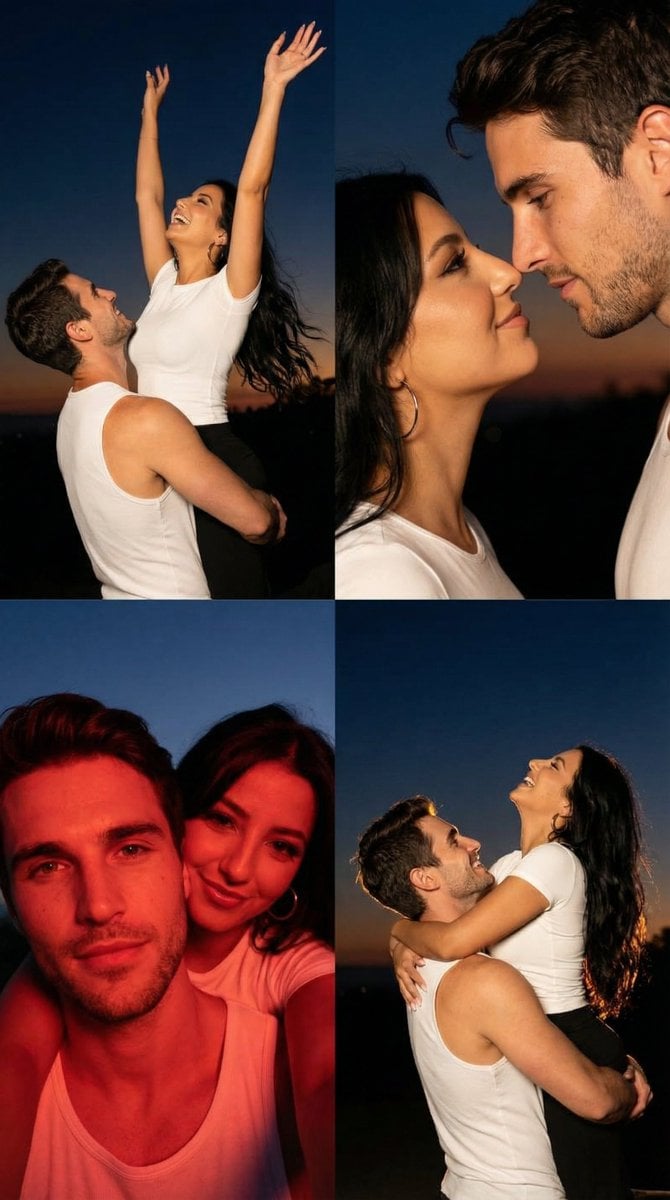
2x2 Grid Cinematic Night Couple Portrait with Identity Lock
Fantasy Couture Dragon Editorial Portrait
Nihonbashi Red Line Travel Poster
Cinematic Black and White Portrait of a Writer
Hyper-Realistic Editorial Portrait Editing Prompt (JSON Format)
Cinematic Portrait of Ancient Turkic Woman and Horse in Snow
Iridescent Squirrel Girl Above Sapporo
Nano Banana Pro prompt for sports stadium visualization
Forced Perspective Fashion Campaign
Browse template categories
Fictional World Map Attempts Collage questions
How do I use the Fictional World Map Attempts Collage template?
Add your photo if the template asks for one, edit the prompt if you like — the template's model and format are already selected — and press Generate. Your version opens in PicX Studio.
Can I customize the Fictional World Map Attempts Collage template?
Yes. You can change the subject, setting, lighting, mood, format, and available model controls before creating your image.
Is the Fictional World Map Attempts Collage template free?
Opening and editing this template is free. Generating uses credits, shown on the Generate button when you are signed in.
Which AI model should I use?
Start with GPT Image 2, which is the model associated with this template. You can compare another compatible model for a different finish.
Looking for something else? Browse all templates.

Your photo, any look
Thousands of ready templates for every top image and video model, from one credit balance.