
Anime Instructor Whiteboard Infographic
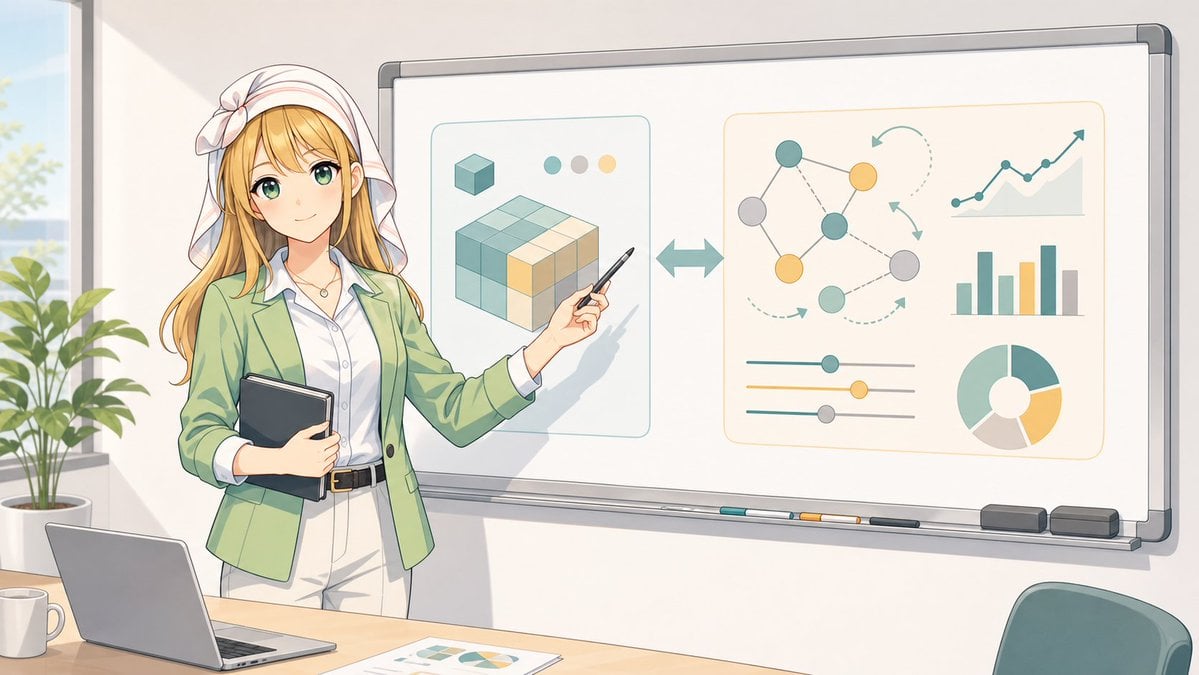
Generates a wide anime-style business training scene with a faceless instructor presenting abstract data and AI workflow diagrams on a whiteboard.
- Prompt included
- Model and format preset
- Free template
The prompt behind this image
Copy the exact prompt behind Anime Instructor Whiteboard Infographic, or open it in the studio and make it yours.
Goal: Create a clean anime-style classroom/office presentation scene featuring {argument name="character name" default="a female business instructor"} standing beside a large whiteboard and explaining an abstract data/AI workflow infographic. Canvas: Wide 16:9 landscape illustration, bright daylight, soft pastel colors, crisp line art, modern Japanese anime visual style, gentle shadows, professional but friendly atmosphere. Layout: The instructor stands on the left third of the image, partly in front of the whiteboard. She holds a dark tablet/notebook against her body with one arm and points at the whiteboard with a pen in her other hand. A desk runs along the bottom foreground with a laptop, a white mug, and printed chart papers. A leafy potted plant and tall window appear in the far left background. A teal office chair is partially visible in the lower right foreground. Character details: The instructor has long {argument name="hair color" default="blonde"} hair, a white headscarf tied with a bow, a light green blazer, white blouse, pale trousers, black belt, and a small necklace. Her face is intentionally obscured by a plain beige rectangular censor block centered over the face, with no facial features visible. Pose is confident and instructional, angled toward the whiteboard. Whiteboard content: Show exactly 2 large rounded-rectangle infographic panels on the whiteboard. The left panel contains a stylized 3D cube/block diagram made of teal, cream, and yellow cube segments, plus 1 small cube icon above it and exactly 3 small color dots near the top. Between the two panels, place 1 large double-headed horizontal arrow. The right panel contains exactly 5 data-visualization elements: 1 node network diagram with colored circles and connecting lines, 1 upward-trending line chart, 1 vertical bar chart, 1 set of three horizontal slider controls, and 1 donut/pie chart. Use teal, muted yellow, gray, and cream as the chart colors. Avoid readable text on the whiteboard. Foreground object count: Include exactly 4 desk items: 1 open laptop, 1 white coffee mug, 1 printed sheet with charts, and 1 visible tabletop edge. On the whiteboard tray include exactly 5 small items: 3 colored markers, 1 dark eraser, and 1 gray eraser. Visual style: Soft watercolor-like anime rendering with clean outlines, warm sunlight from the left, pale cream walls, subtle reflections on the whiteboard frame, and an organized modern workspace. Keep the composition spacious and uncluttered. Constraints: No legible text, no logos, no watermark, no extra characters, no photorealism. Preserve the beige face-obscuring rectangle as a deliberate visual element.
How to use Anime Instructor Whiteboard Infographic in 3 steps
- 1Upload ImagePNG, JPG or paste
Add your photo
Upload the photo the template builds on. The prompt, model and format are already set.
- 2…a portrait of your subject in softgolden-hour light, 85mm…
Personalize
Edit the subject and creative details for your destination.
- 3Generate
Generate
Press Generate — your image is created in PicX Studio, so you can compare it with the original and refine one variable at a time.
More like this
Templates with the same subject, style or setup. Open one to see its prompt.

Make it yours
Anime Instructor Whiteboard Infographic works as-is. These are the safest ways to change it without losing the look.
Change one field
Copy a single group, rewrite it, and generate again so you can see what that field is doing.
Keep the frame, change the subject
Hold the composition and light of Anime Instructor Whiteboard Infographic, then swap wardrobe, props or the person for a new take.
| If the result… | Why | Fix |
|---|---|---|
| The result drifts from the preview | Too many fields changed at once. | Reuse Anime Instructor Whiteboard Infographic as-is first, then change one group — subject, light, or setting. |
| The model over-stylizes the scene | The prose prompt leaves finish and camera underspecified. | Add one camera or lighting sentence and stay on GPT Image 2. |
More GPT Image 2 templates
Other prompts made for GPT Image 2.

Six VTuber Japanese Logo Sheet

Realistic Portrait of Woman and Deer

The Vista Modular Condo Poster

AI Model Routing Comparison Infographic

2.5D Anime Art Board

Isometric Productivity Desk Scene

New York Double Exposure Poster

Four-Panel AI Landscape Comparison

Japanese Tatami Lifestyle Magazine Cover

NESCAFÉ Coffee Map Poster
More image prompts
Fresh picks from across the catalog.
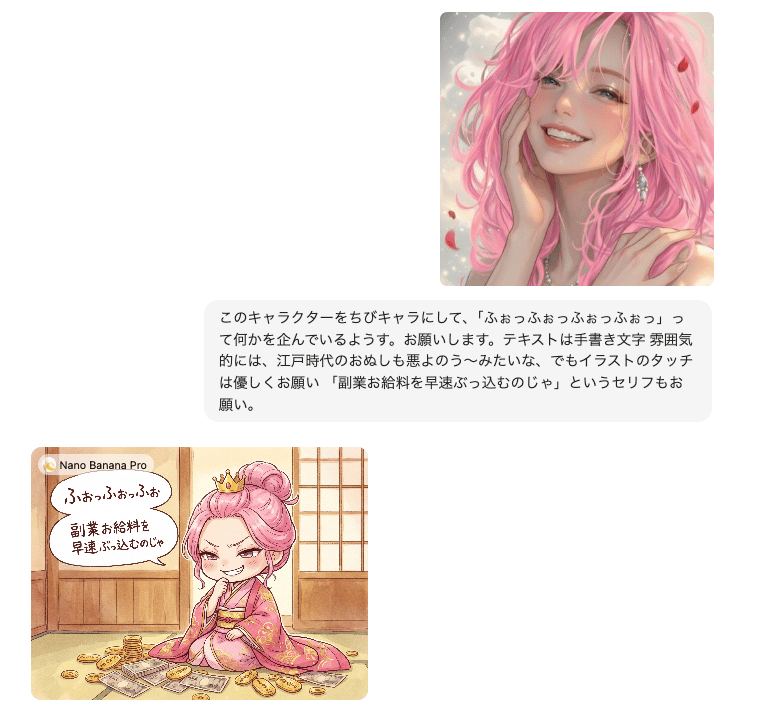
Instruction for Image Generation Based on Uploaded Material
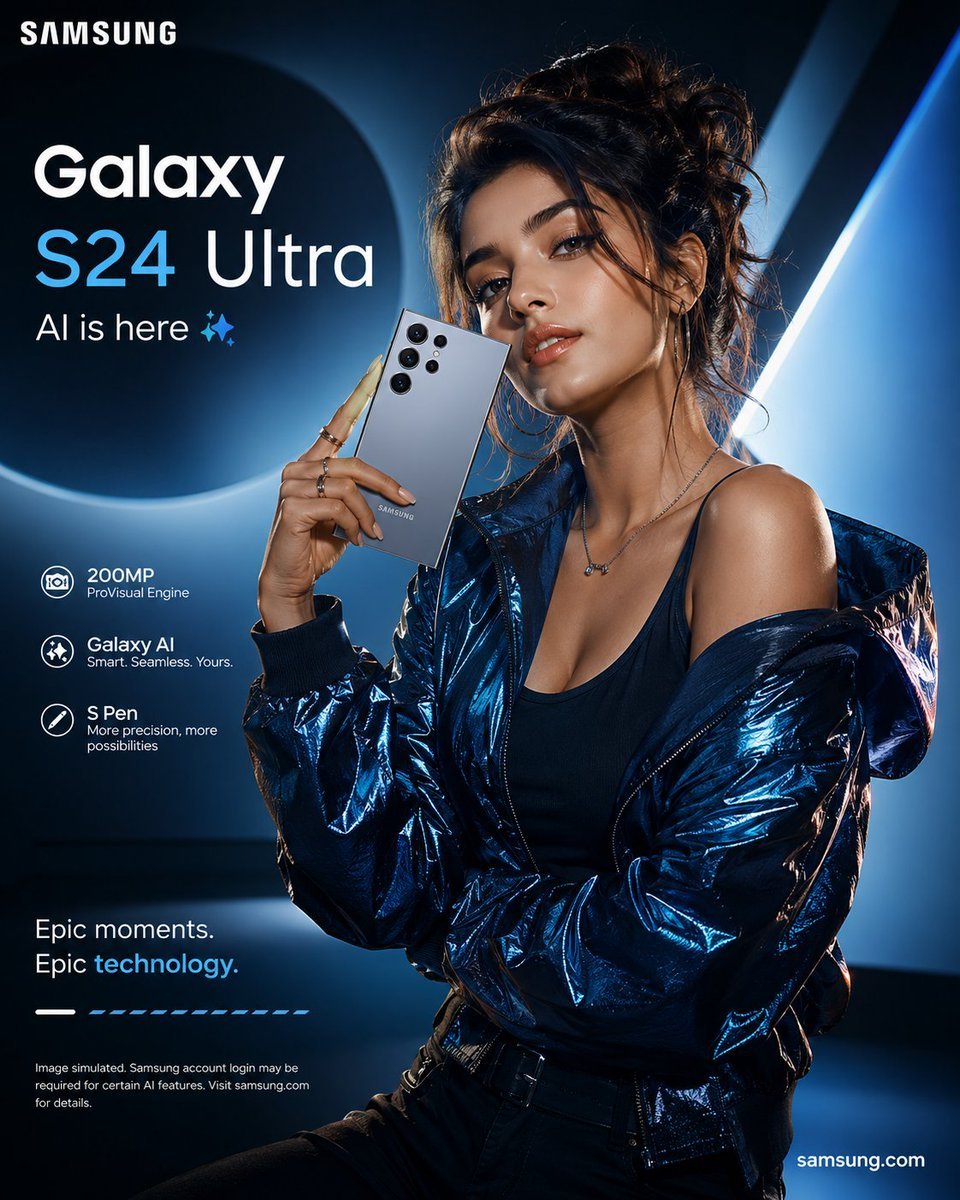
Premium Smartphone Ad Poster
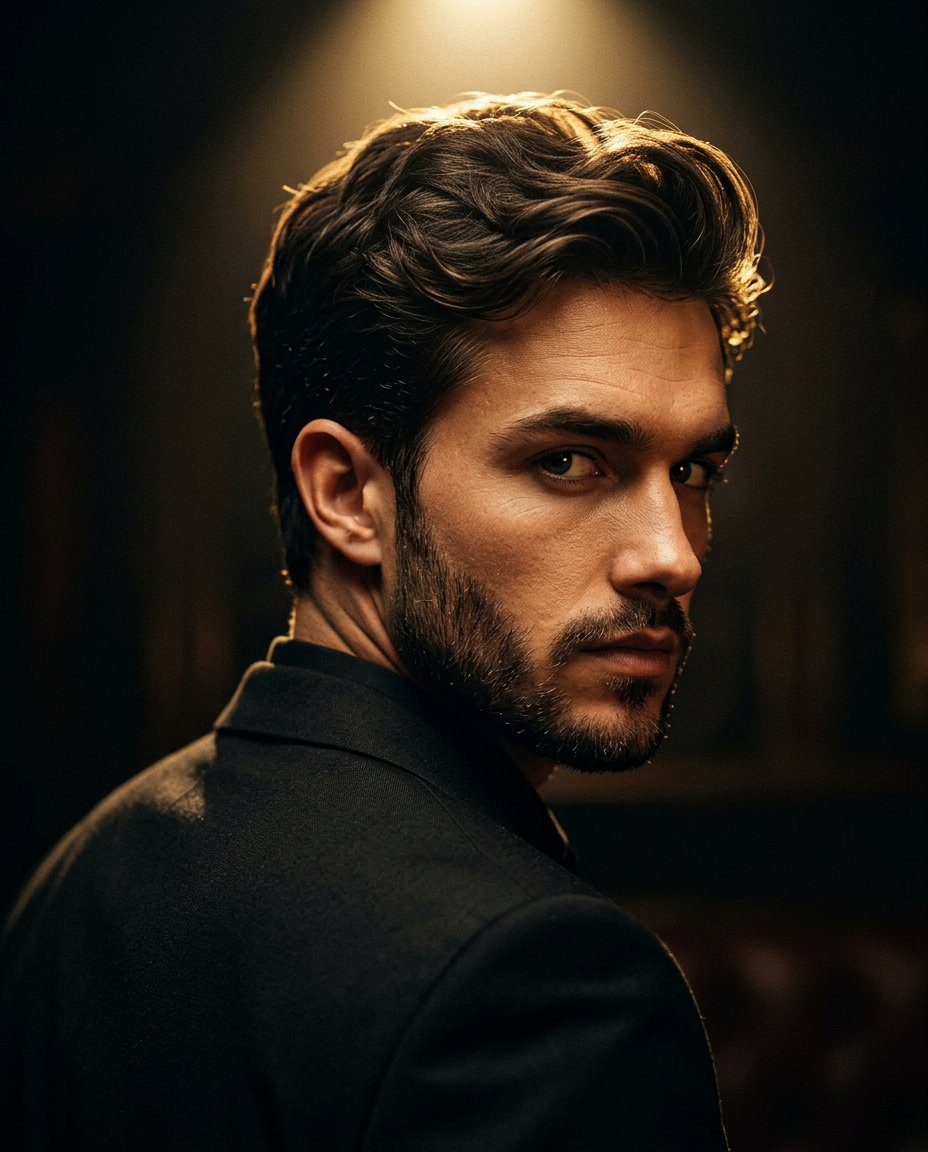
Cinematic Portrait Prompt for Google Nano Banana Pro
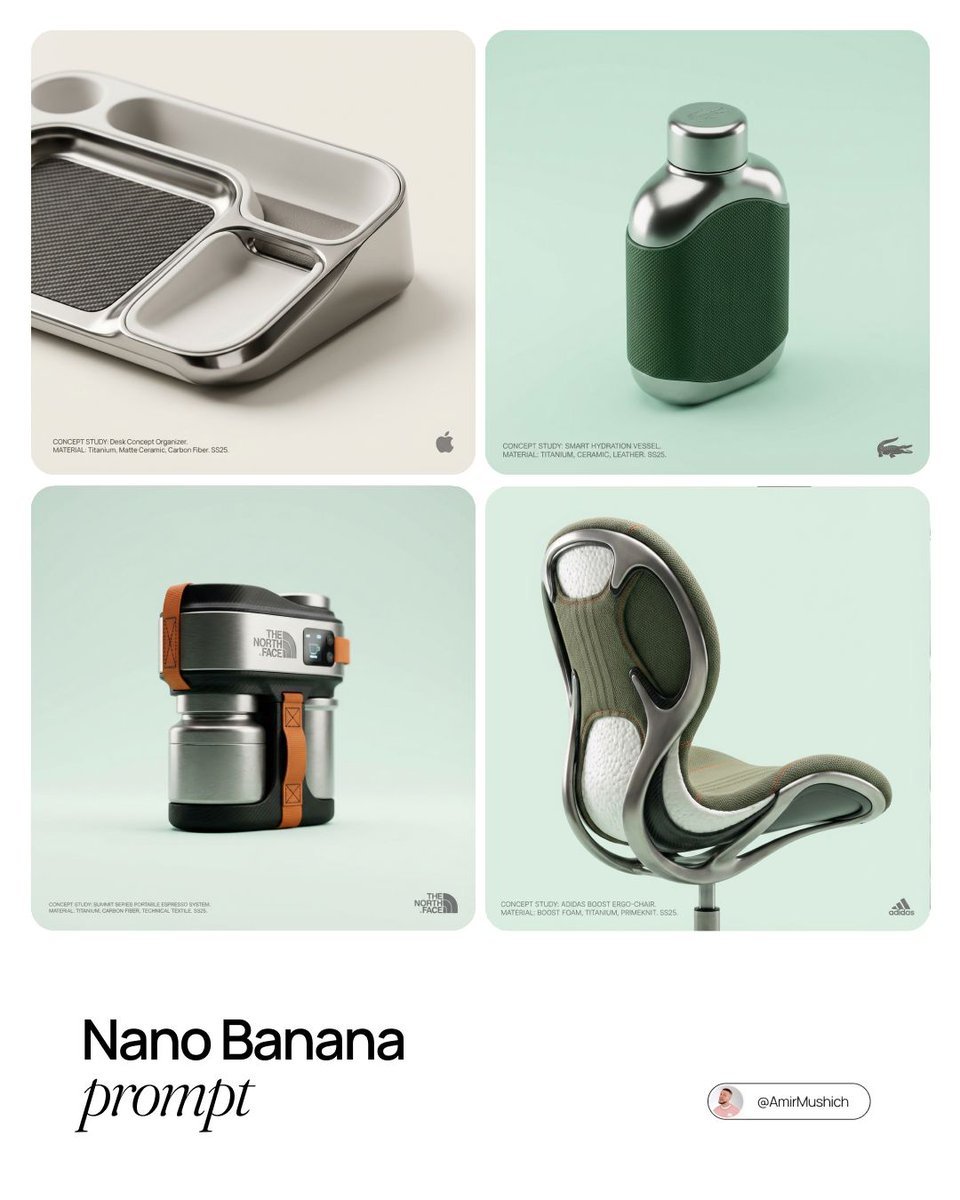
Conceptual High-End Product Design Prompt

Moody Cinematic Portrait with Lighter Flame
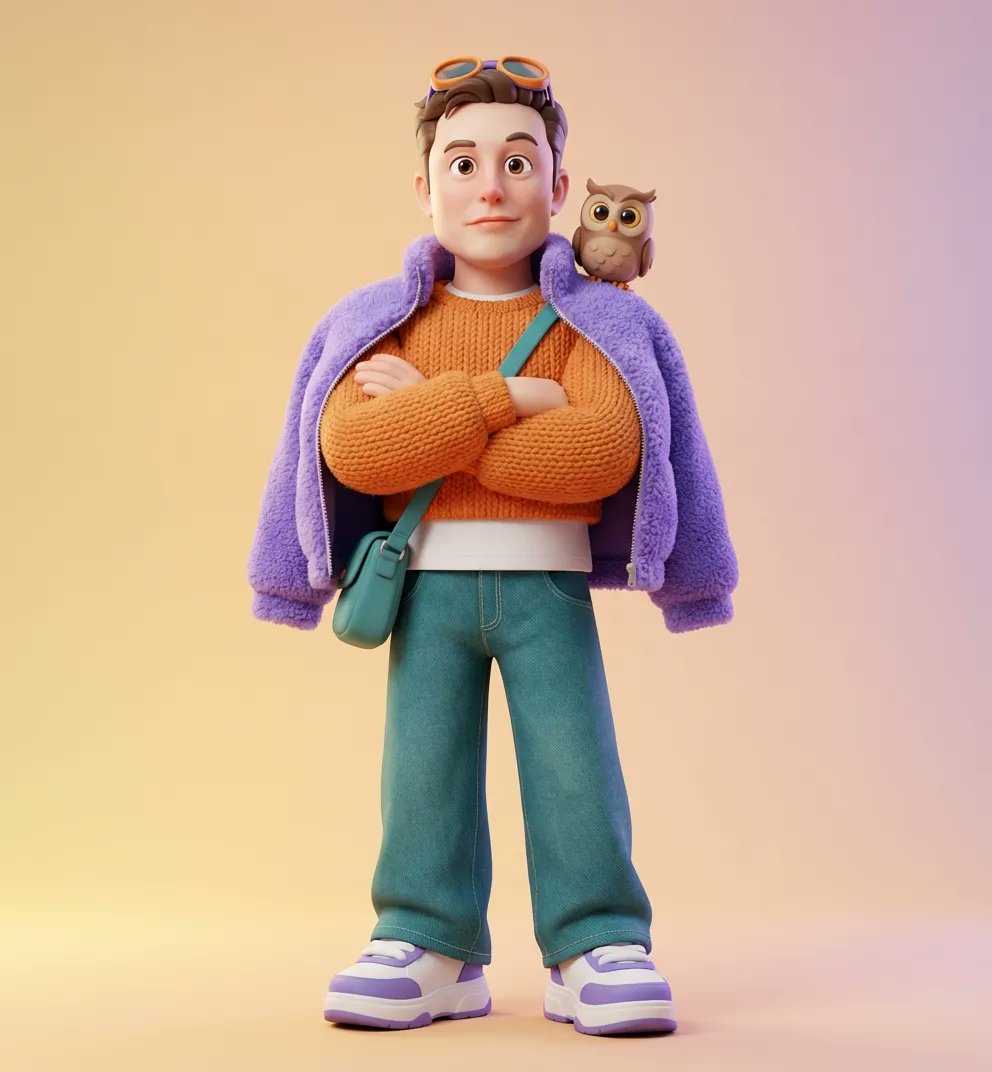
Ultra-Detailed 3D Stylized Character Design Prompt
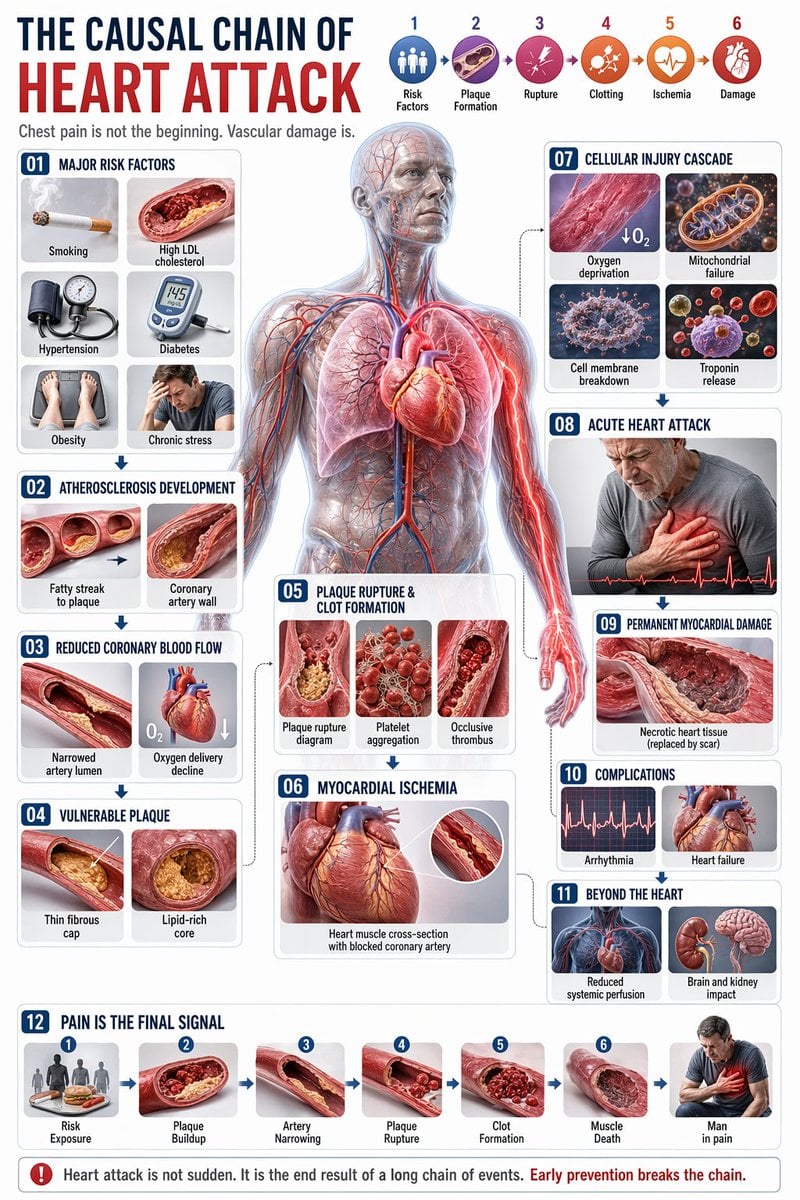
Medical Infographic JSON Prompt
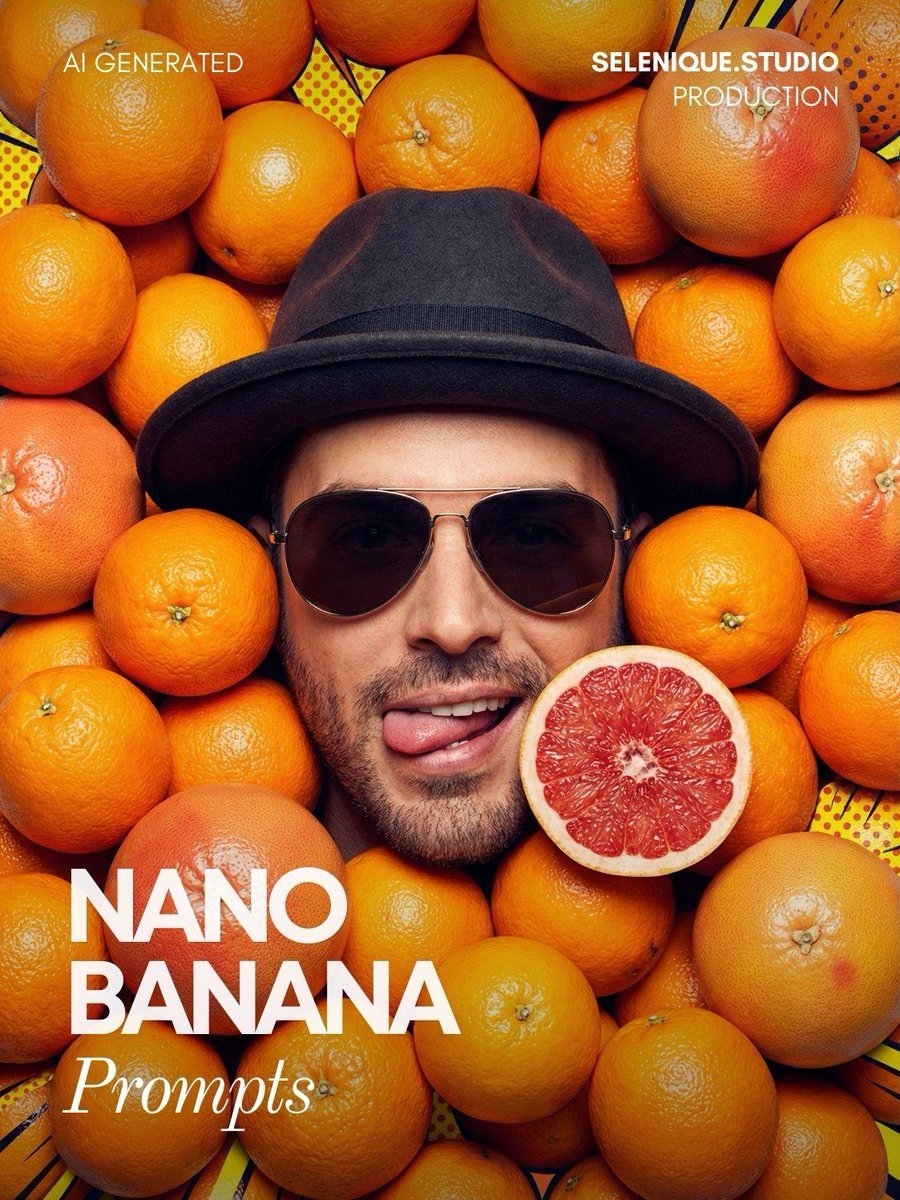
Surreal Pop-Art Citrus Editorial Portrait
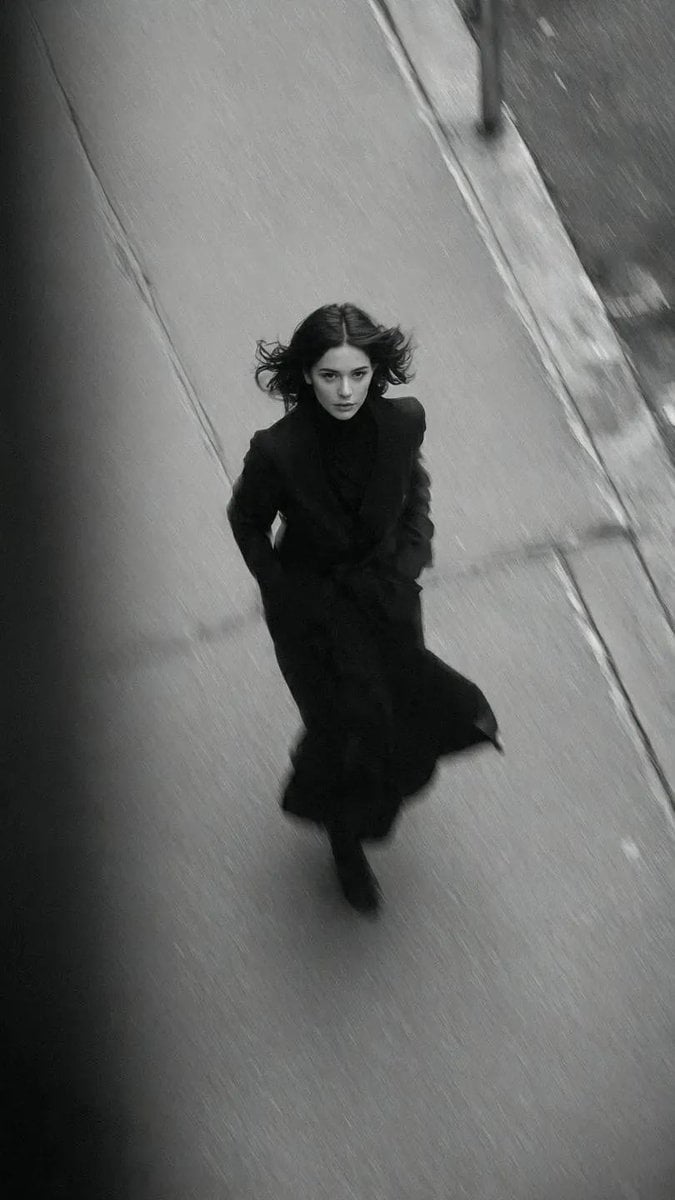
Black and White Vogue Fashion Shoot
Nano Banana Pro-themed hero image (duplicate Chinese prompt)
Browse template categories
Anime Instructor Whiteboard Infographic questions
How do I use the Anime Instructor Whiteboard Infographic template?
Add your photo if the template asks for one, edit the prompt if you like — the template's model and format are already selected — and press Generate. Your version opens in PicX Studio.
Can I customize the Anime Instructor Whiteboard Infographic template?
Yes. You can change the subject, setting, lighting, mood, format, and available model controls before creating your image.
Is the Anime Instructor Whiteboard Infographic template free?
Opening and editing this template is free. Generating uses credits, shown on the Generate button when you are signed in.
Which AI model should I use?
Start with GPT Image 2, which is the model associated with this template. You can compare another compatible model for a different finish.
Looking for something else? Browse all templates.

Your photo, any look
Thousands of ready templates for every top image and video model, from one credit balance.