
Luxury Serum Layer Editing Demo
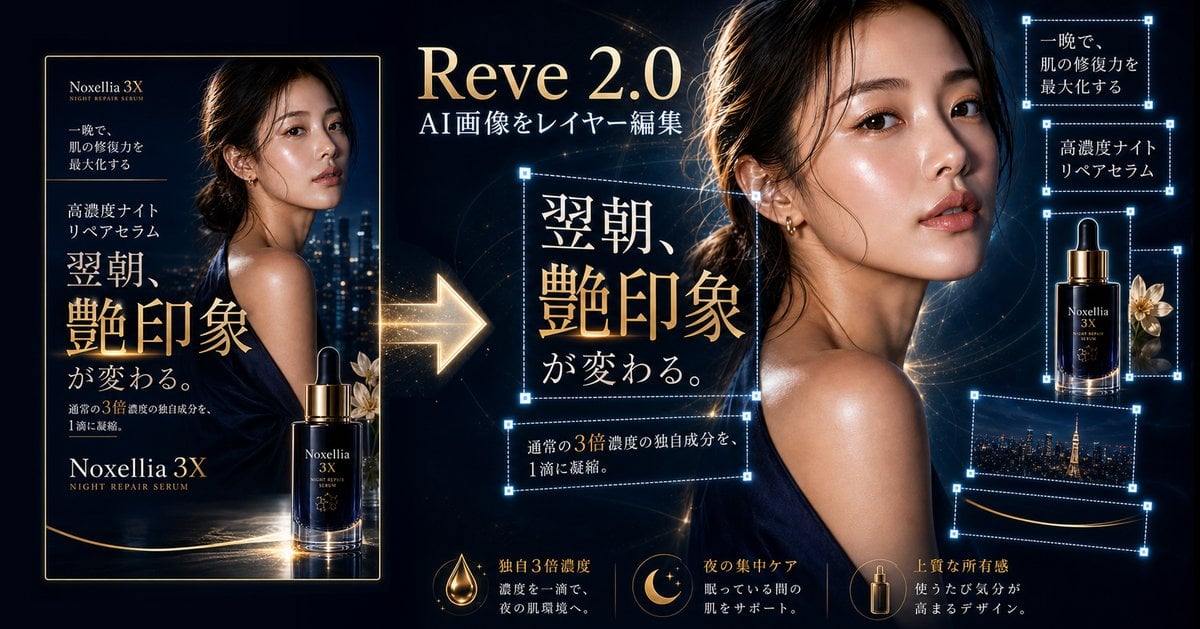
A premium beauty ad mockup showing a skincare poster transformed into editable layers for an AI image editing presentation.
- Prompt included
- Model and format preset
- Free template
The prompt behind this image
Copy the exact prompt behind Luxury Serum Layer Editing Demo, or open it in the studio and make it yours.
Goal: Create a high-end dark luxury advertising demonstration graphic for an AI image editor, showing a cosmetic serum ad being decomposed into editable layers. Canvas: Wide 16:9 banner, deep navy-black background with gold light streaks, cinematic glossy lighting, premium beauty-brand mood, ultra-detailed photorealistic product rendering. Layout: On the left, show one complete vertical finished poster inside a thin gold border. In the center, place a large glowing gold arrow pointing from the finished poster toward the editable composition. Across the top center, add the title “{argument name="software title" default="Reve 2.0"}” in large elegant serif gold-white lettering, with the subtitle “AI画像をレイヤー編集” beneath it in white. On the center-right, show the enlarged source model image: a woman in a dark satin evening dress photographed from behind with a shiny shoulder, hair rim-lit by warm light, city night bokeh behind her, and a large soft rectangular face-obscuring block over her face. On the far right, display separated editable layer elements floating with blue dashed selection boxes and small square resize handles. Left finished poster details: The poster advertises “{argument name="product name" default="Noxellia 3X"}” with the English sublabel “NIGHT REPAIR SERUM.” It contains exactly 1 female model, 1 dark blue serum bottle with gold dropper, 1 pale gold flower accent, 1 nighttime city skyline background, and Japanese ad copy in white and gold. Include the large central Japanese headline “翌朝、艶印象が変わる。” in ornate serif type, small top copy “一晩で、肌の修復力を最大化する,” mid copy “高濃度ナイトリペアセラム,” and bottom supporting text “通常の3倍濃度の独自成分を、1滴に凝縮。” The woman’s face in the poster is also covered by a soft rectangular blur/censor block. Editable layer callouts: Show exactly 7 separate blue dashed selection rectangles with glowing cyan corner handles: 1 around the large central headline “翌朝、艶印象が変わる。”, 1 around the smaller central supporting sentence “通常の3倍濃度の独自成分を、1滴に凝縮。”, 1 around the top-right Japanese phrase “一晩で、肌の修復力を最大化する”, 1 around the right-side phrase “高濃度ナイトリペアセラム”, 1 around the isolated product bottle plus flower, 1 around a cropped city skyline strip, and 1 around a thin gold curved line near the bottom right. Bottom feature row: Add exactly 3 gold icon-and-text feature blocks along the bottom of the central/right area: 1 droplet icon labeled “独自3倍濃度” with small explanatory Japanese copy, 1 crescent moon and stars icon labeled “夜の集中ケア” with small explanatory Japanese copy, and 1 bottle icon labeled “上質な所有感” with small explanatory Japanese copy. Visual style: Luxury skincare advertising, black and midnight blue palette, champagne gold typography, sparkling lens flares, elegant serif Japanese type, glowing cyan UI handles, clean composition, realistic reflections on the serum bottle, glossy skin highlights, dramatic rim light, premium cosmetic campaign aesthetic. Constraints: Keep all Japanese text legible and positioned as described, preserve the dark gold luxury look, use no watermarks or app chrome, make the layer boxes look like non-destructive editing overlays, and include exactly the counted elements and selection boxes.
How to use Luxury Serum Layer Editing Demo in 3 steps
- 1Upload ImagePNG, JPG or paste
Add your photo
Upload the photo the template builds on. The prompt, model and format are already set.
- 2…a portrait of your subject in softgolden-hour light, 85mm…
Personalize
Edit the subject and creative details for your destination.
- 3Generate
Generate
Press Generate — your image is created in PicX Studio, so you can compare it with the original and refine one variable at a time.
More like this
Templates with the same subject, style or setup. Open one to see its prompt.

Make it yours
Luxury Serum Layer Editing Demo works as-is. These are the safest ways to change it without losing the look.
Change one field
Copy a single group, rewrite it, and generate again so you can see what that field is doing.
Keep the frame, change the subject
Hold the composition and light of Luxury Serum Layer Editing Demo, then swap wardrobe, props or the person for a new take.
| If the result… | Why | Fix |
|---|---|---|
| The result drifts from the preview | Too many fields changed at once. | Reuse Luxury Serum Layer Editing Demo as-is first, then change one group — subject, light, or setting. |
| The model over-stylizes the scene | The prose prompt leaves finish and camera underspecified. | Add one camera or lighting sentence and stay on GPT Image 2. |
More GPT Image 2 templates
Other prompts made for GPT Image 2.

Six VTuber Japanese Logo Sheet

Realistic Portrait of Woman and Deer

The Vista Modular Condo Poster

AI Model Routing Comparison Infographic

2.5D Anime Art Board

Isometric Productivity Desk Scene

New York Double Exposure Poster

Four-Panel AI Landscape Comparison

Japanese Tatami Lifestyle Magazine Cover

NESCAFÉ Coffee Map Poster
More image prompts
Fresh picks from across the catalog.
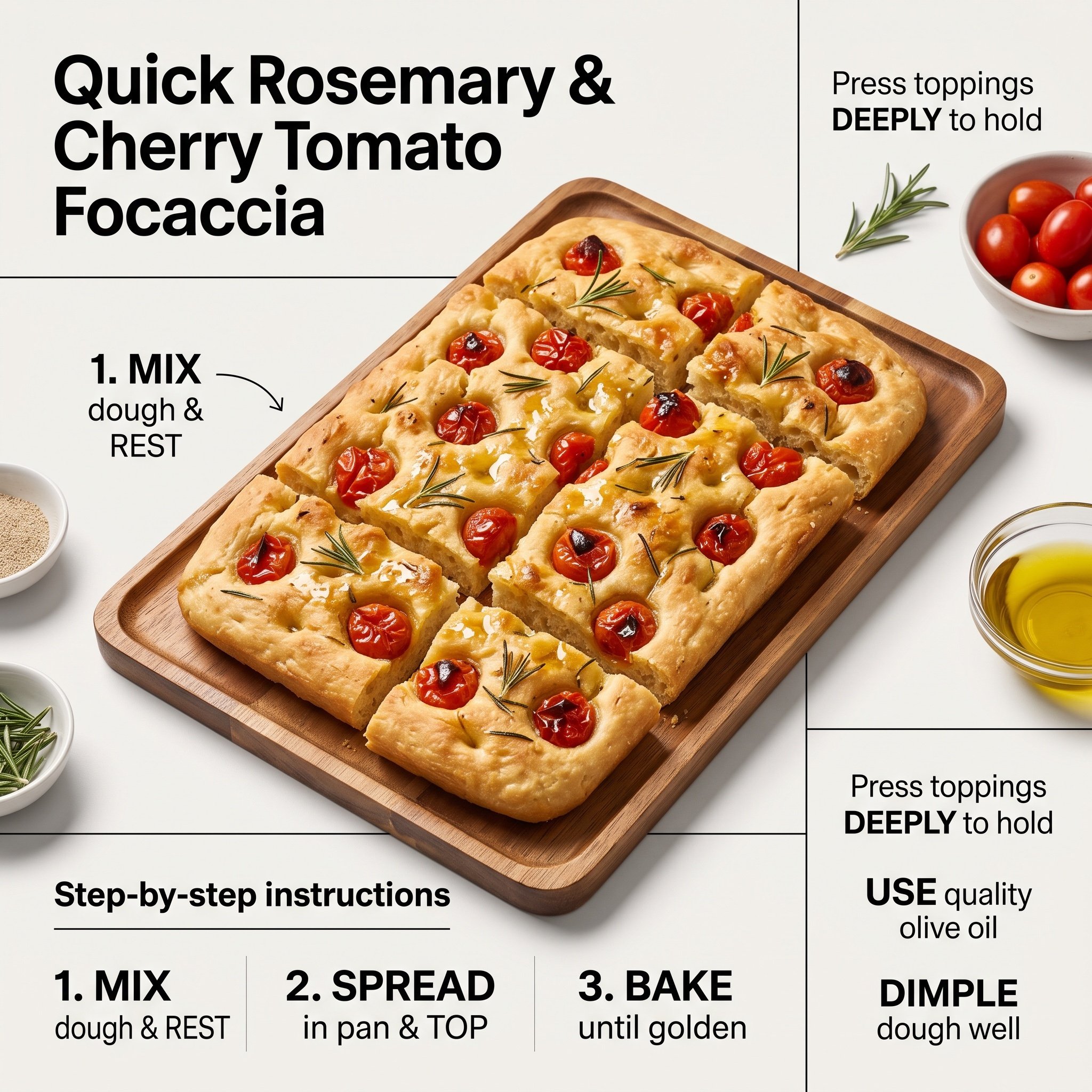
Ultra-Clean Modern Recipe Infographic for Focaccia
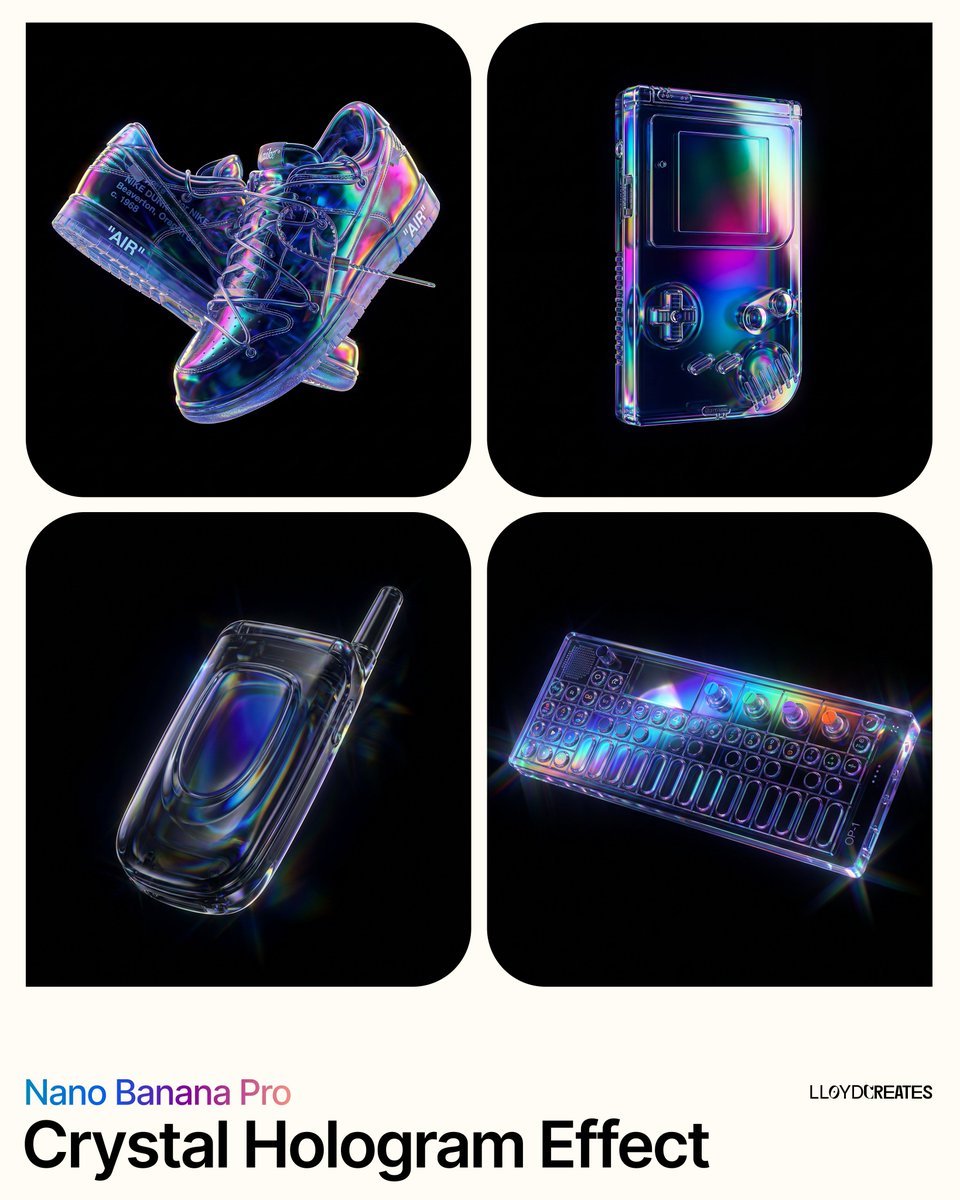
Crystal Hologram Product Photography Prompt
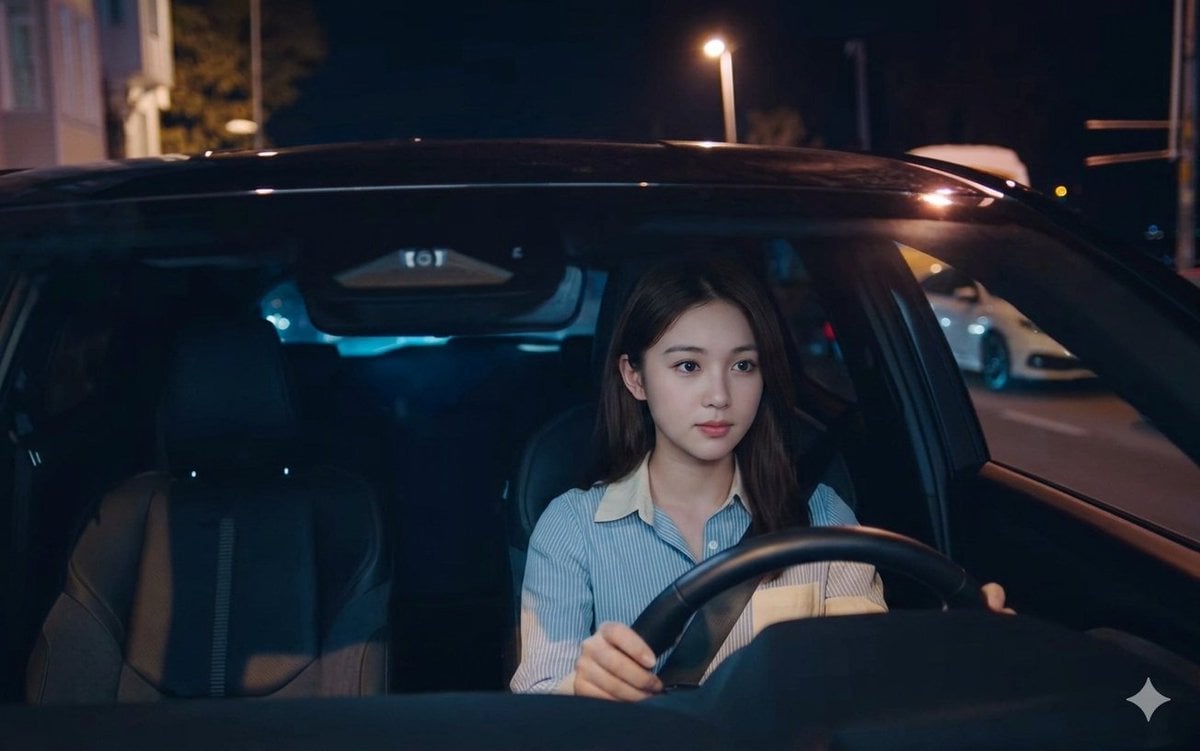
Night Drive Cinematic Portrait
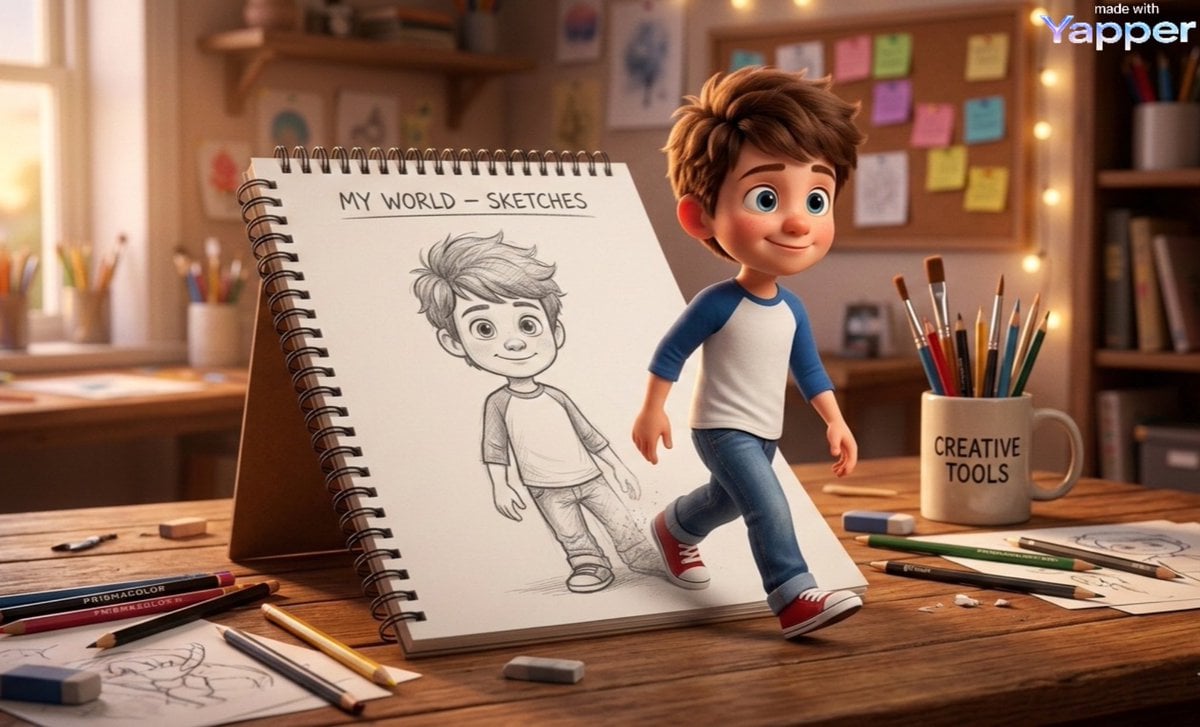
Cinematic 3D Illustration of Imagination Coming to Life
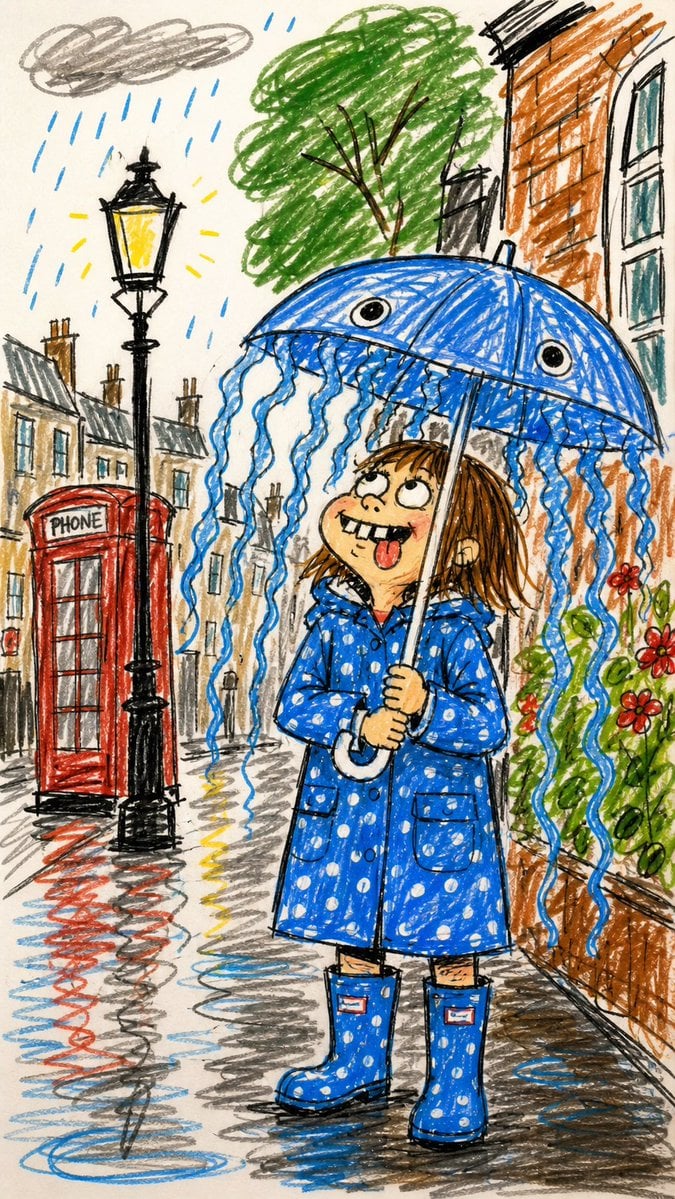
Funny Doodle Photo Transformation
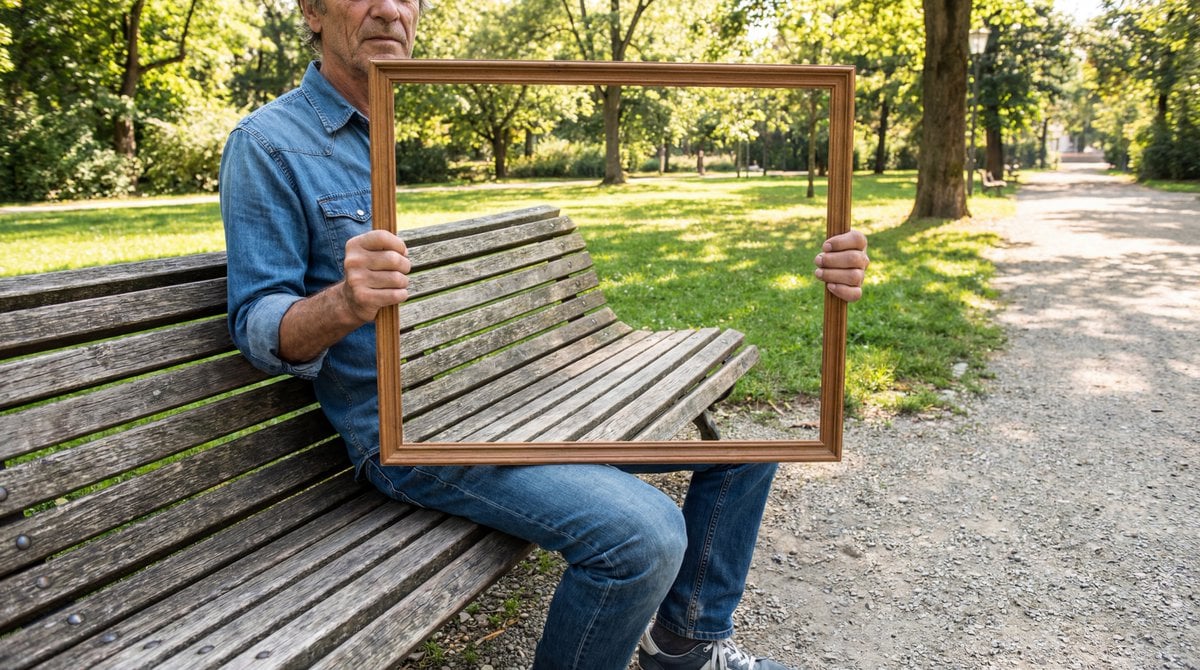
Illusion Image: Invisible Torso Cut-Out
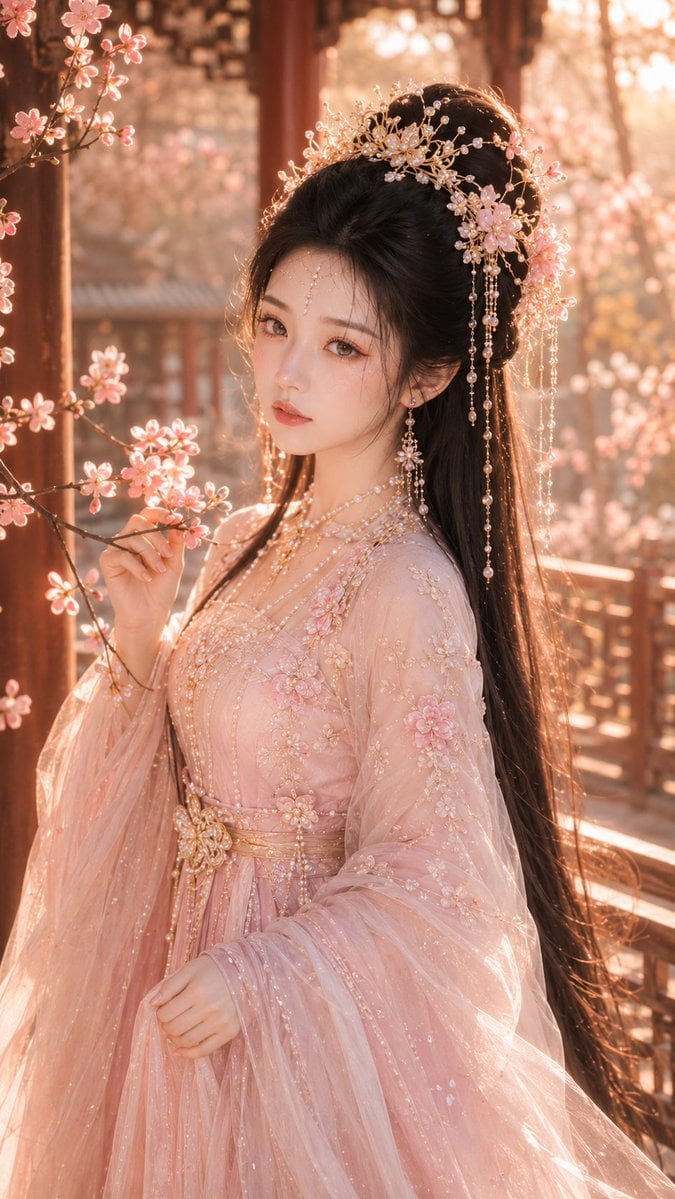
Tang Dynasty Fantasy Female Portrait
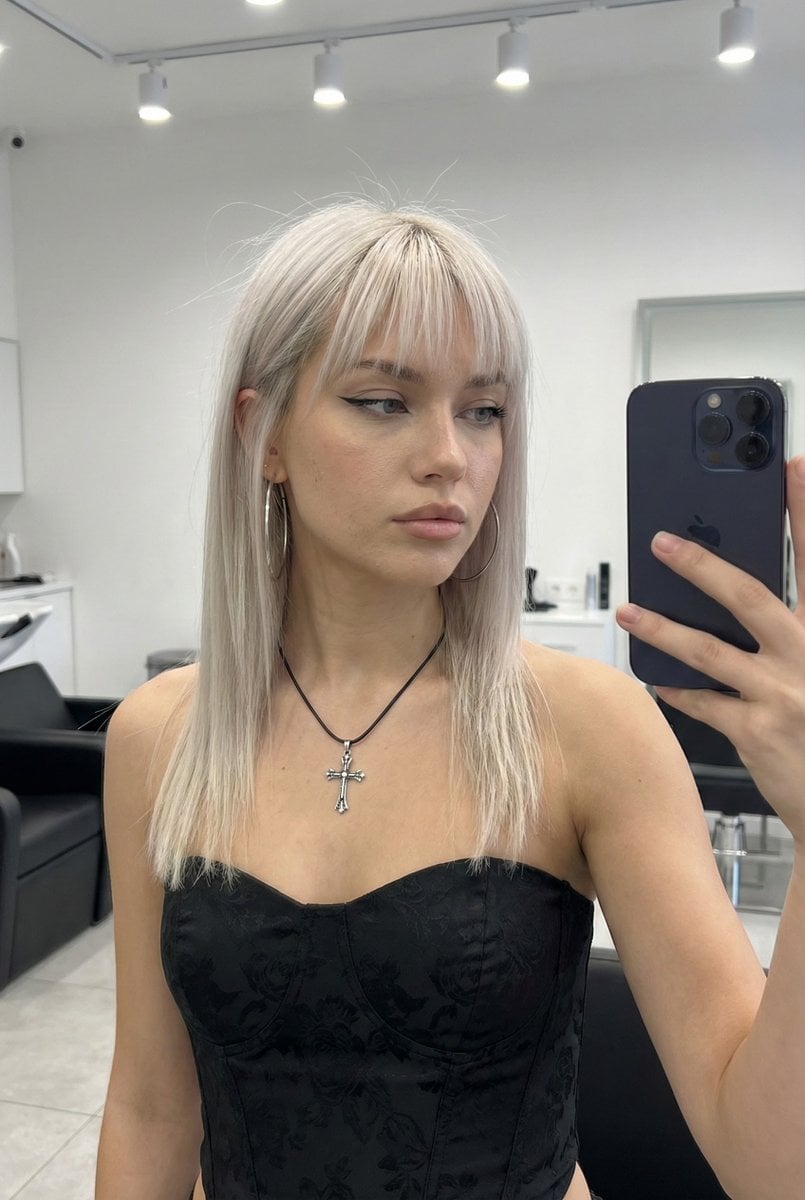
System Prompt for High-Control Photorealistic Image Generation
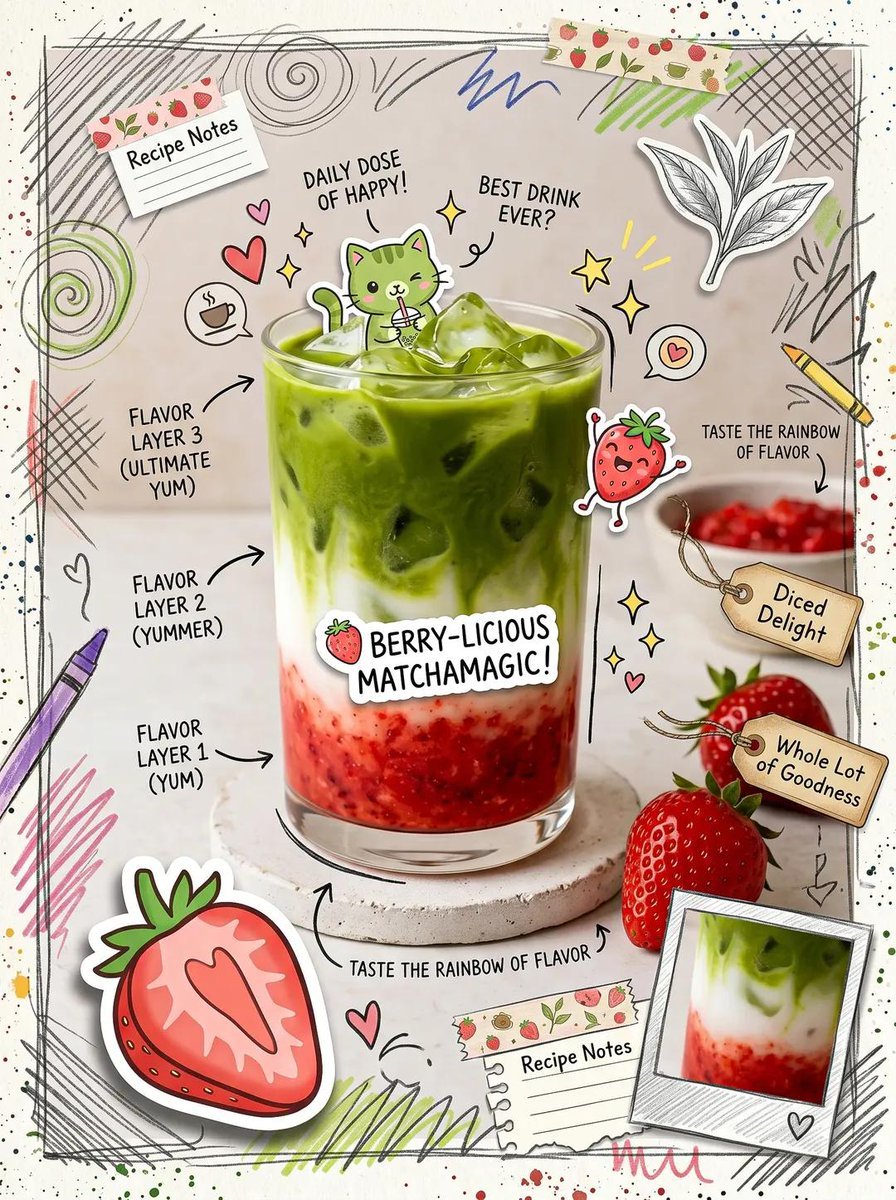
Kawaii Cafe Food Scrapbook Poster
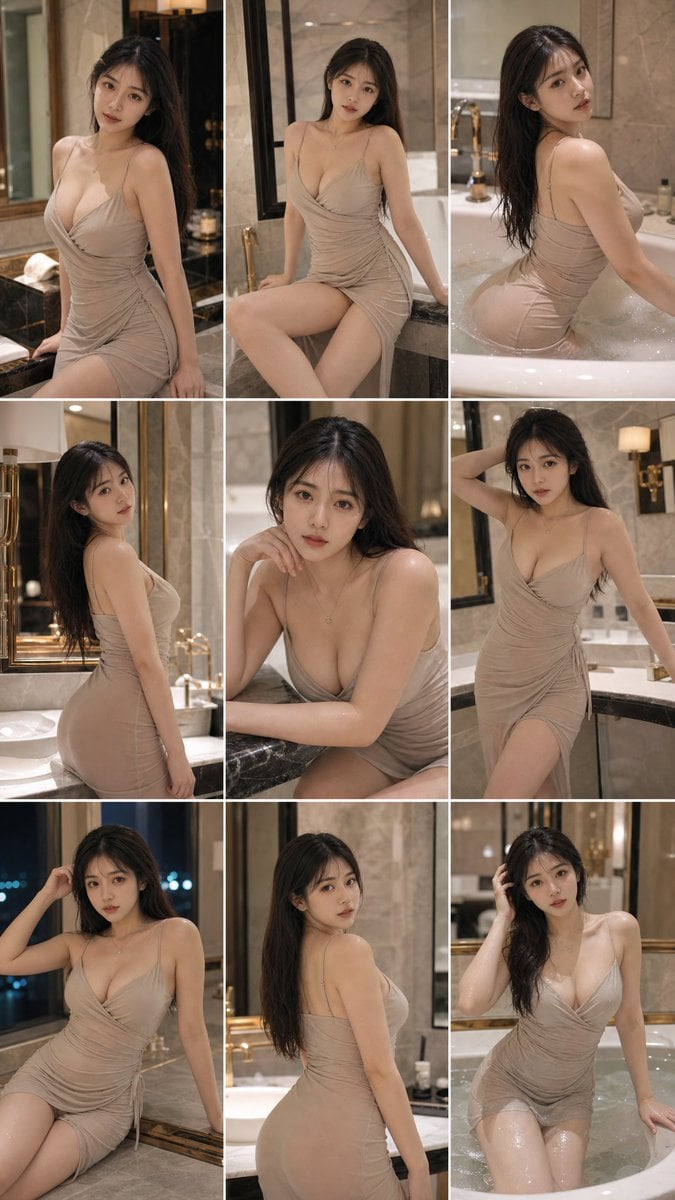
Elegant Bathroom Portrait Grid
Browse template categories
Luxury Serum Layer Editing Demo questions
How do I use the Luxury Serum Layer Editing Demo template?
Add your photo if the template asks for one, edit the prompt if you like — the template's model and format are already selected — and press Generate. Your version opens in PicX Studio.
Can I customize the Luxury Serum Layer Editing Demo template?
Yes. You can change the subject, setting, lighting, mood, format, and available model controls before creating your image.
Is the Luxury Serum Layer Editing Demo template free?
Opening and editing this template is free. Generating uses credits, shown on the Generate button when you are signed in.
Which AI model should I use?
Start with GPT Image 2, which is the model associated with this template. You can compare another compatible model for a different finish.
Looking for something else? Browse all templates.

Your photo, any look
Thousands of ready templates for every top image and video model, from one credit balance.