
Cinematic Early Summer Japanese Portrait
A highly detailed prompt for a cinematic early summer portrait of a Japanese woman with realistic textures and lighting.
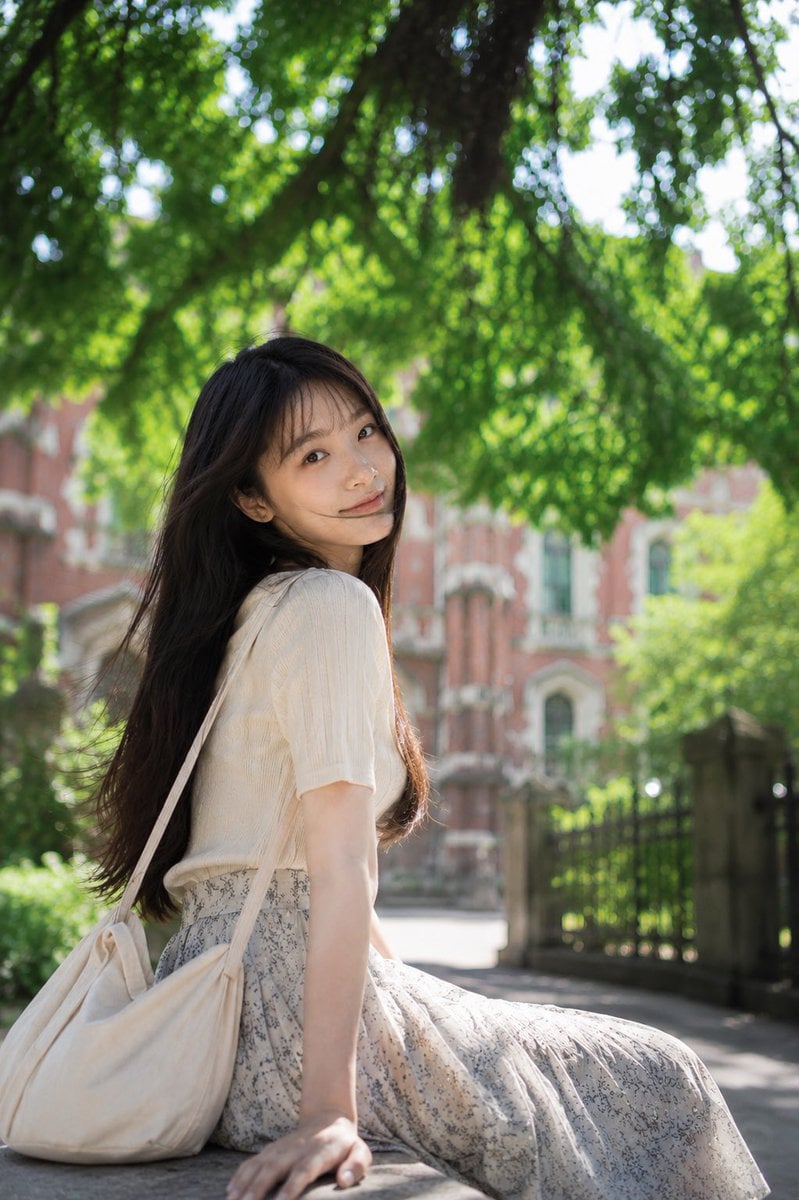
- Prompt included
- Model and format preset
- Free template
The prompt behind this image
Copy the exact prompt behind Cinematic Early Summer Japanese Portrait, or open it in the studio and make it yours.
Subject: {argument name="subject" default="an early-summer portrait wrapped in dappled sunlight"} Person / Expression: {argument name="person" default="a Japanese woman in her early 20s, natural long black hair, light sheer makeup, translucent bare skin, a soft atmosphere, a reserved smile, bangs and hair naturally swaying in the wind, a calm gaze at the camera"} Outfit / Pose: An ivory short-sleeved ribbed knit top, a long skirt with a pale floral pattern, a canvas tote bag, a light, early-summer Japanese-style outfit, a natural pose sitting on a stone bench while turning back slightly, one arm braced behind her to support her body Background / Light: A classic red-brick-style building, deep green trees with large branches and leaves covering the top of the frame, vivid green, strong early-summer dappled sunlight, soft backlight, a translucent atmosphere Composition / Camera: Vertical composition, a slightly low angle, the person placed a little below center in the frame, a cinematic composition with the background heavily blurred, 85mm portrait lens, f1.4, shallow depth of field, shot on a full-frame mirrorless camera, natural bokeh and aerial perspective Texture / Style: High detail, realistic skin texture, delicate hair detail, deep, vivid green colors, film-like tonal gradation, Japanese cinematic photography, a translucent natural-light portrait, Sony α7R V photography style Negative: low quality, unnatural face, unnatural hands, extra fingers, excessive skin smoothing, overly flashy makeup, uniform, text, logos, watermark, artificial lighting
How to use Cinematic Early Summer Japanese Portrait in 3 steps
- 1
Open
The prompt is already in the box next to the preview, with the template's model and format selected.
- 2…a portrait of your subject in softgolden-hour light, 85mm…
Personalize
Edit the subject and creative details for your destination.
- 3Generate
Generate
Press Generate — your image is created in PicX Studio, so you can compare it with the original and refine one variable at a time.
More like this
Templates with the same subject, style or setup. Open one to see its prompt.
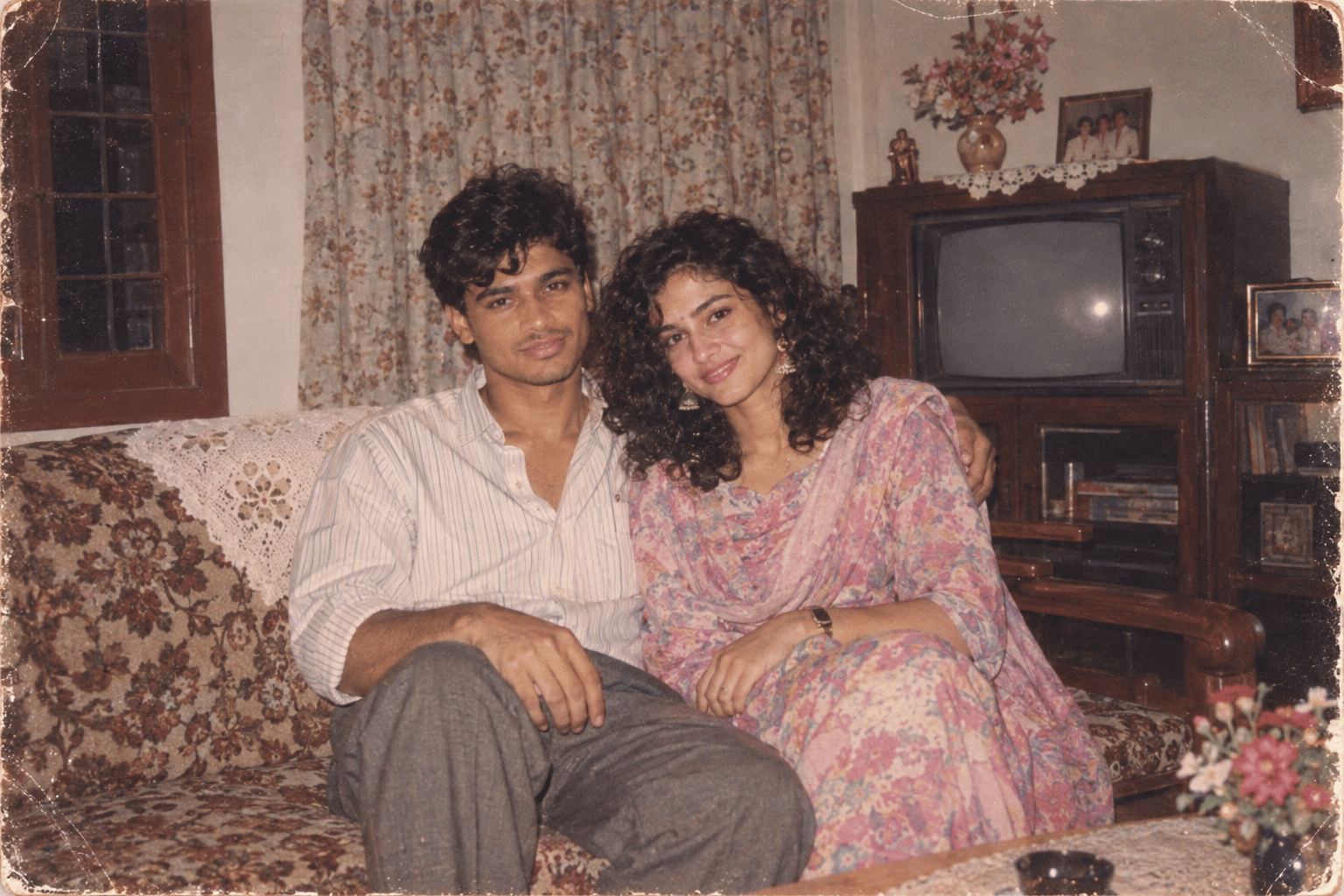
Found Photograph: Us, 1970
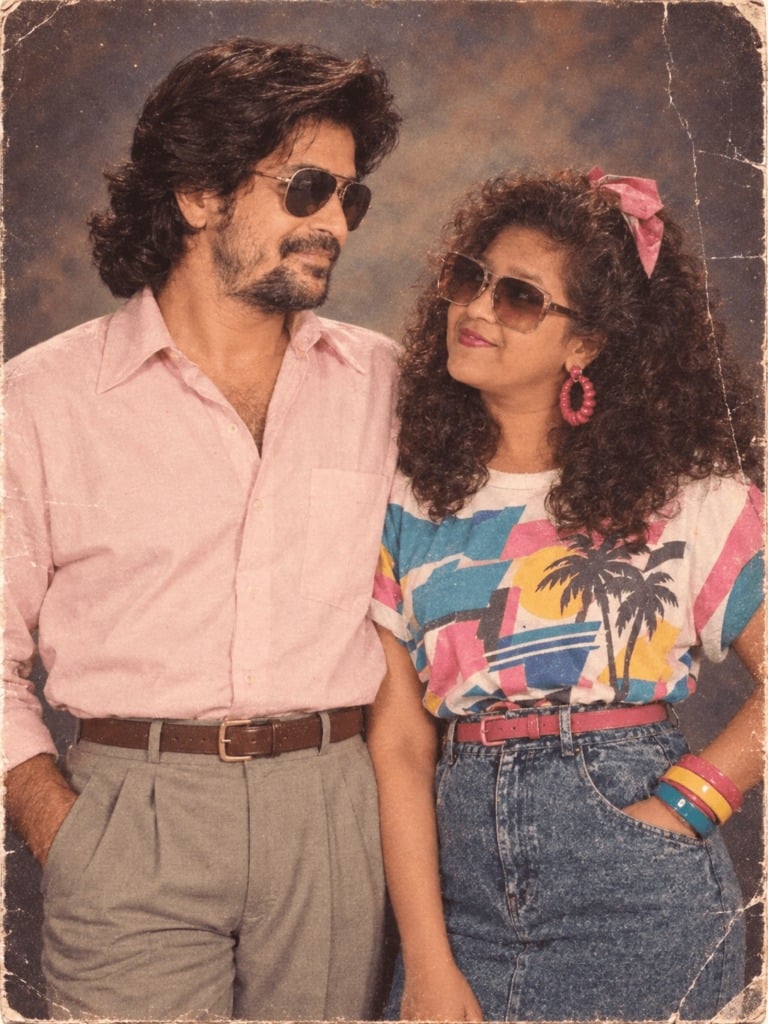
80s Couple Studio Portrait
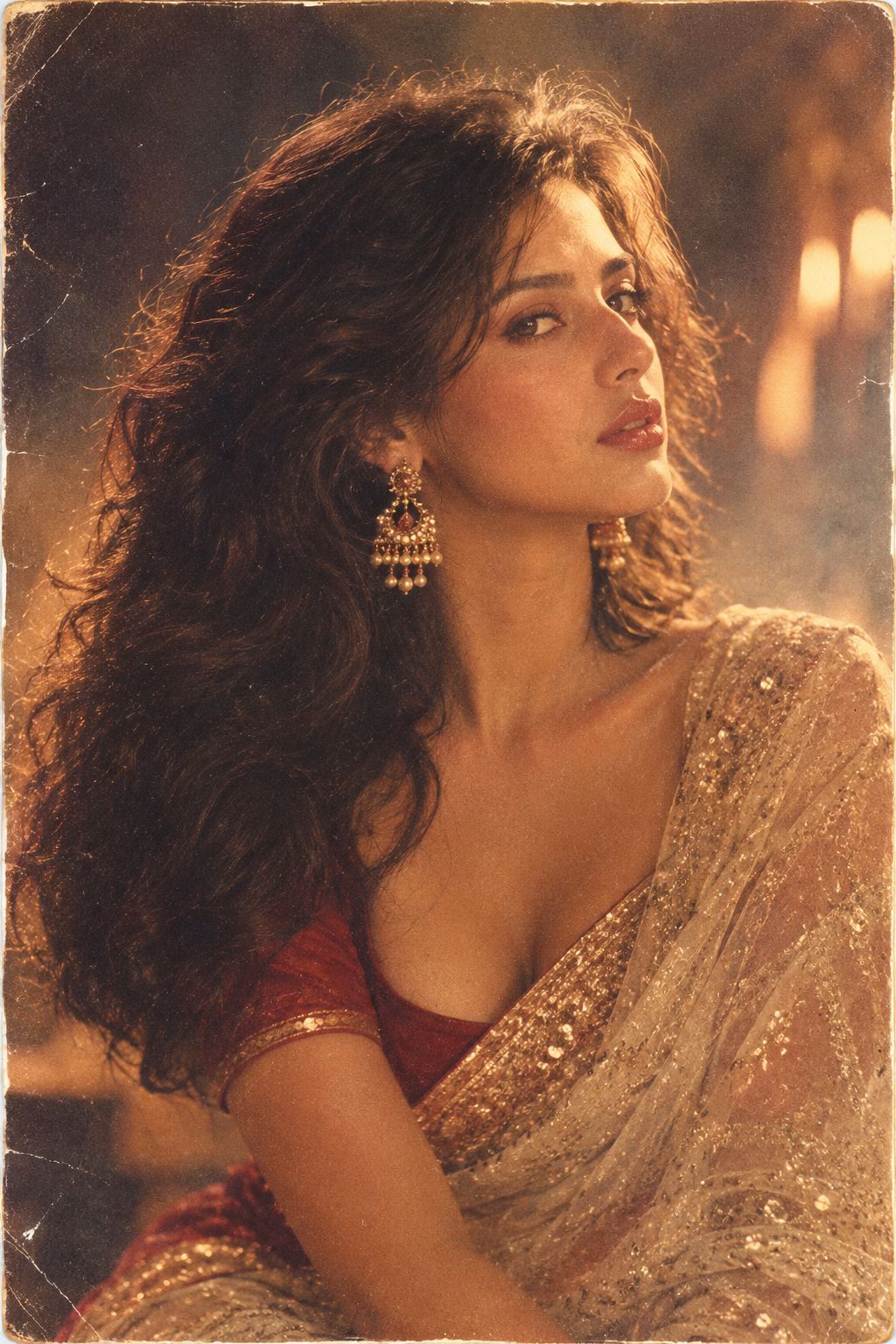
80s Bollywood Star

80s Golden Hour Cinema
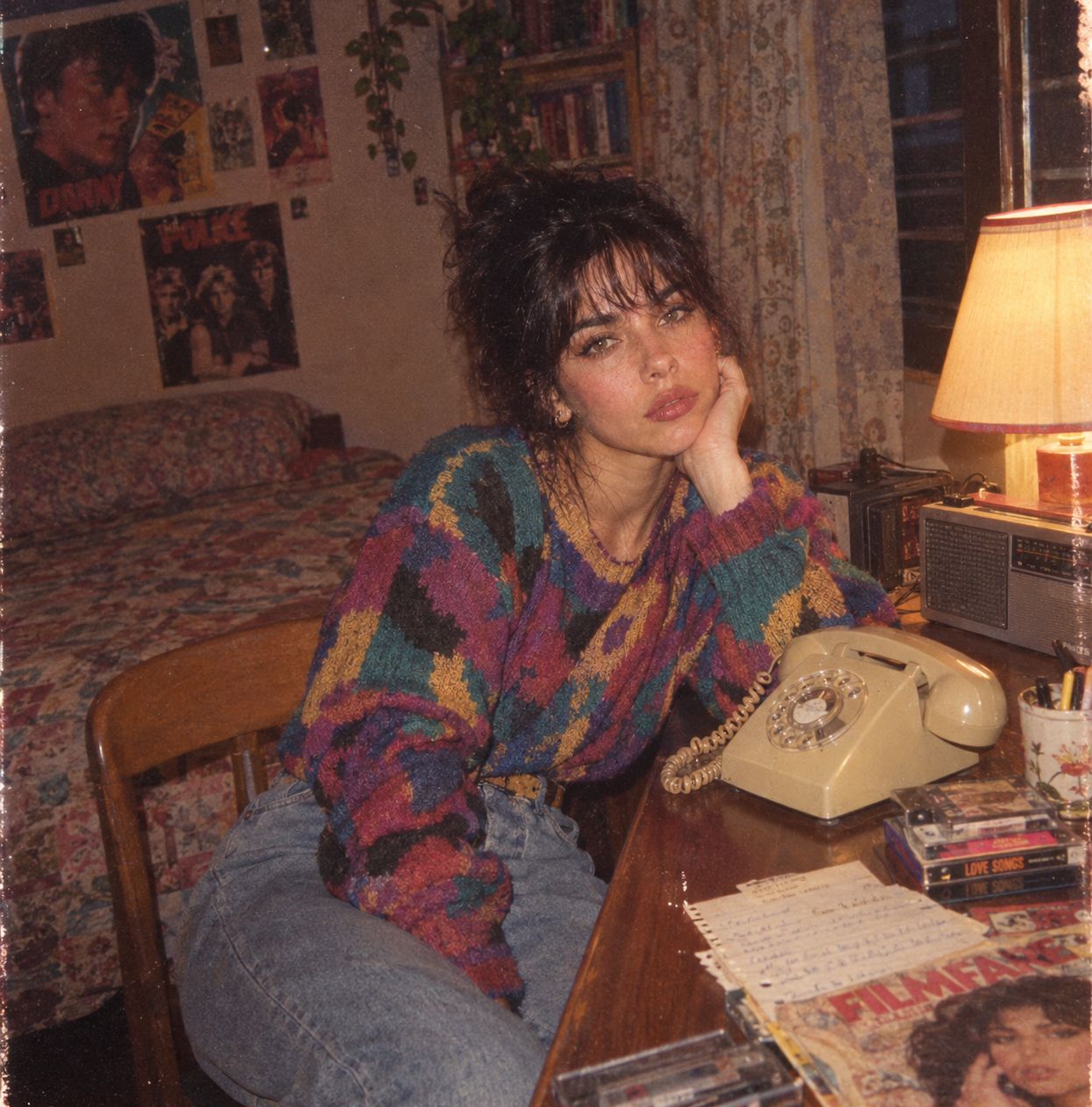
Me in 1985
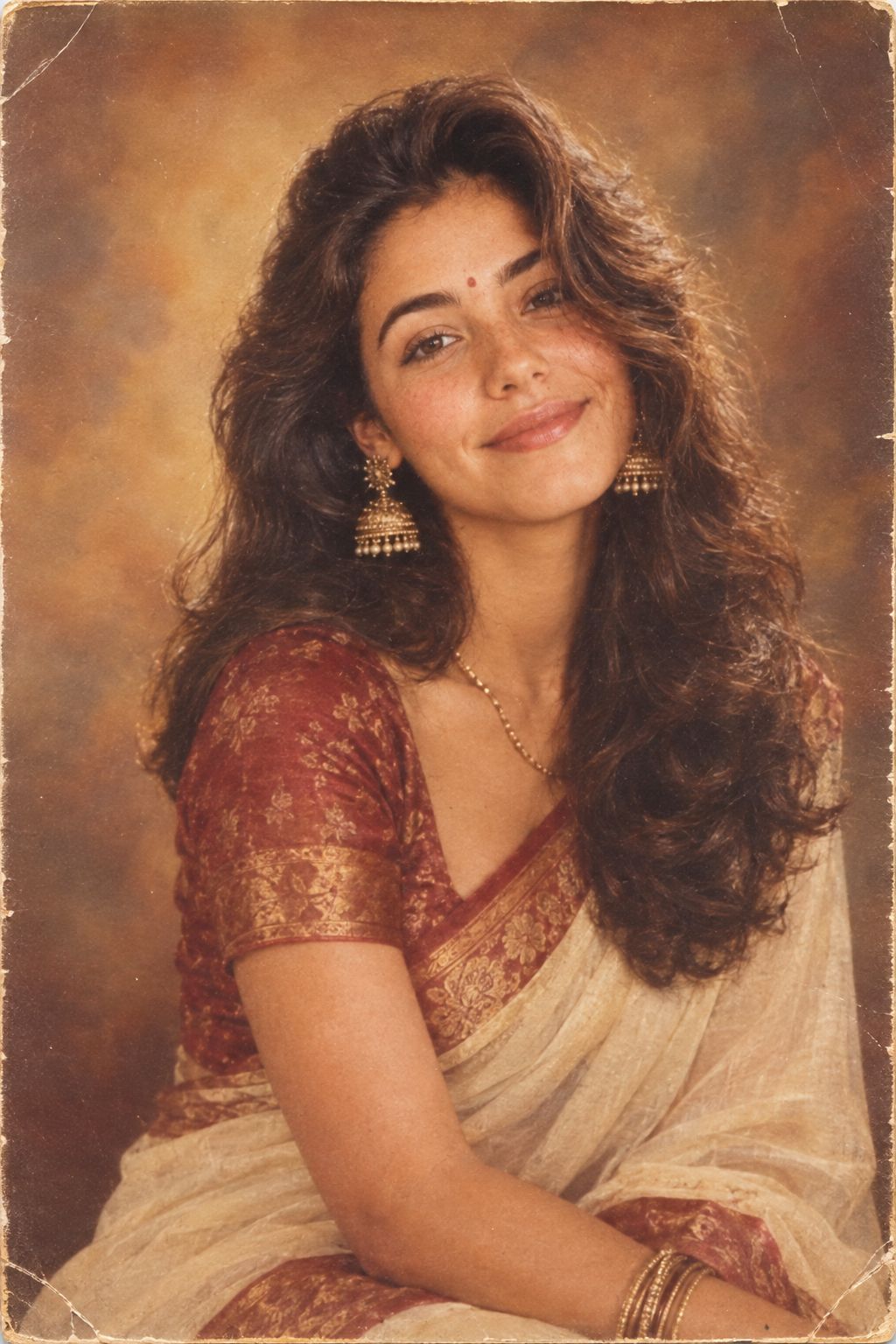
1985 Studio Portrait
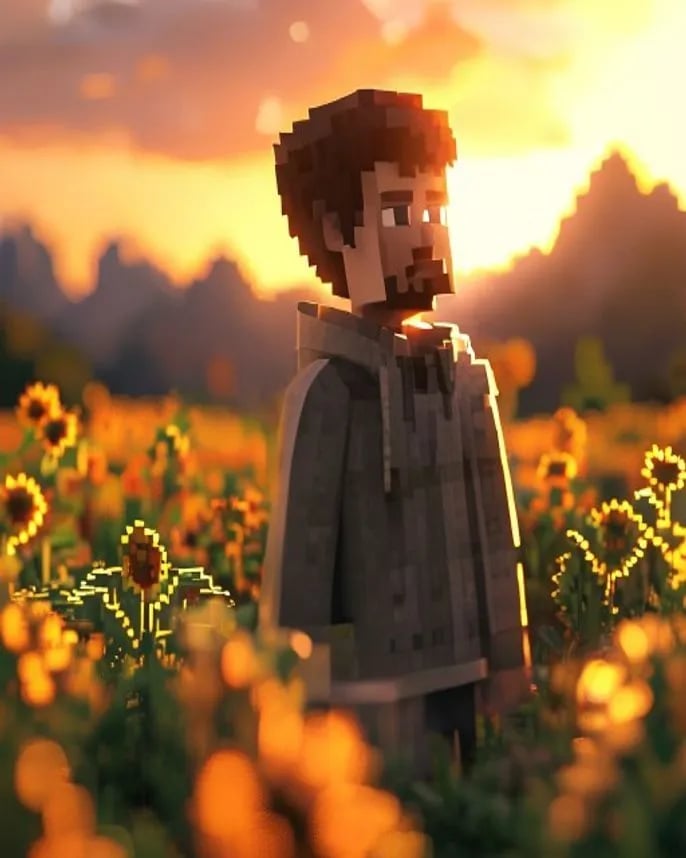
Hyper-Realistic Minecraft POV Portrait
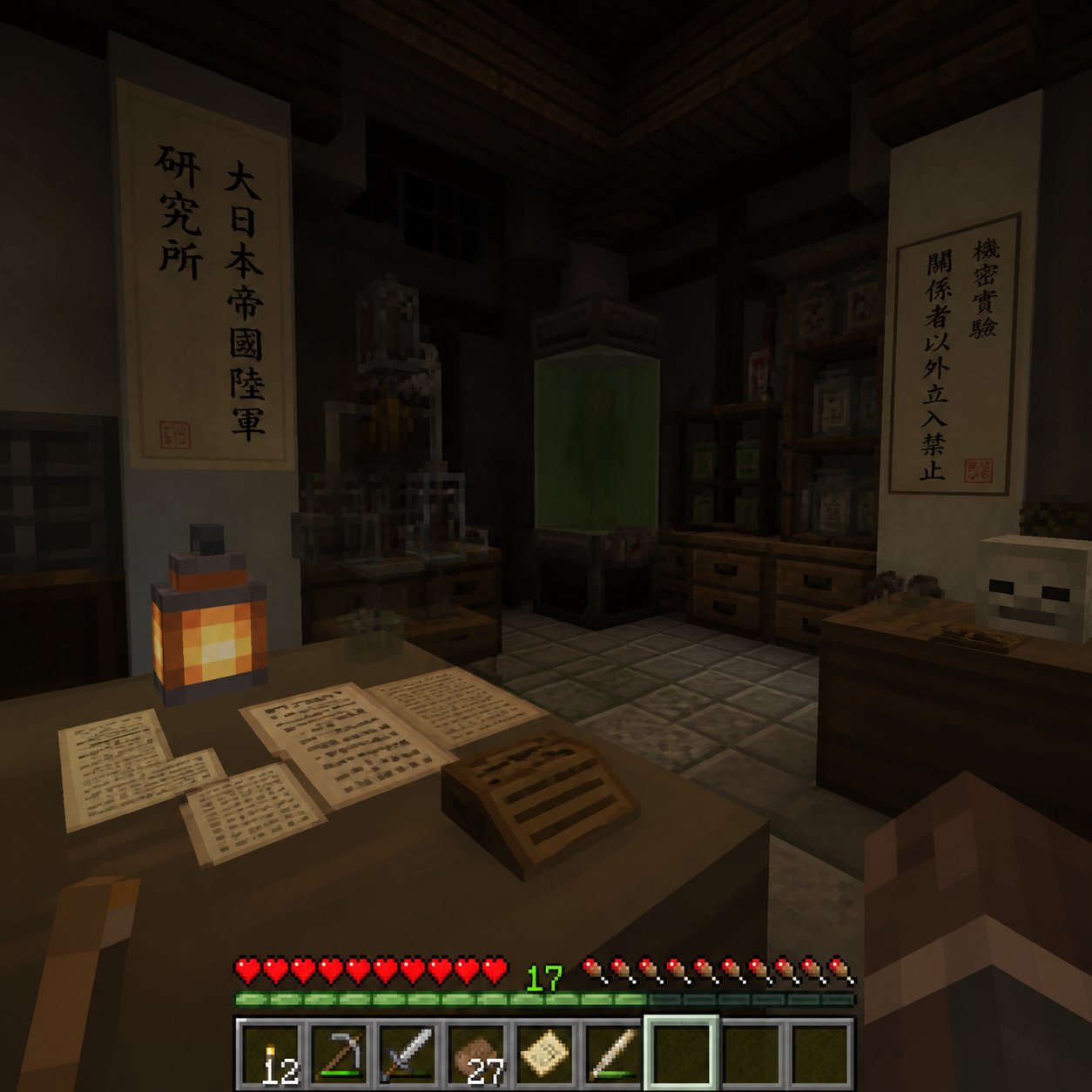
Minecraft Japanese Research Lab Exploration

Portrait of a young woman in her early 20s walking calmly on a beautiful
Summer Japanese Maid Resting
Japanese Summer Beach Fashion Poster
Rooftop Fisheye — Cat-Ear Balaclava at Golden Hour
Make it yours
Cinematic Early Summer Japanese Portrait works as-is. These are the safest ways to change it without losing the look.
Change one field
Copy a single group, rewrite it, and generate again so you can see what that field is doing.
Keep the frame, change the subject
Hold the composition and light of Cinematic Early Summer Japanese Portrait, then swap wardrobe, props or the person for a new take.
| If the result… | Why | Fix |
|---|---|---|
| The result drifts from the preview | Too many fields changed at once. | Reuse Cinematic Early Summer Japanese Portrait as-is first, then change one group — subject, light, or setting. |
| The model over-stylizes the scene | The prose prompt leaves finish and camera underspecified. | Add one camera or lighting sentence and stay on GPT Image 2. |
More GPT Image 2 templates
Other prompts made for GPT Image 2.

Six VTuber Japanese Logo Sheet
Realistic Portrait of Woman and Deer
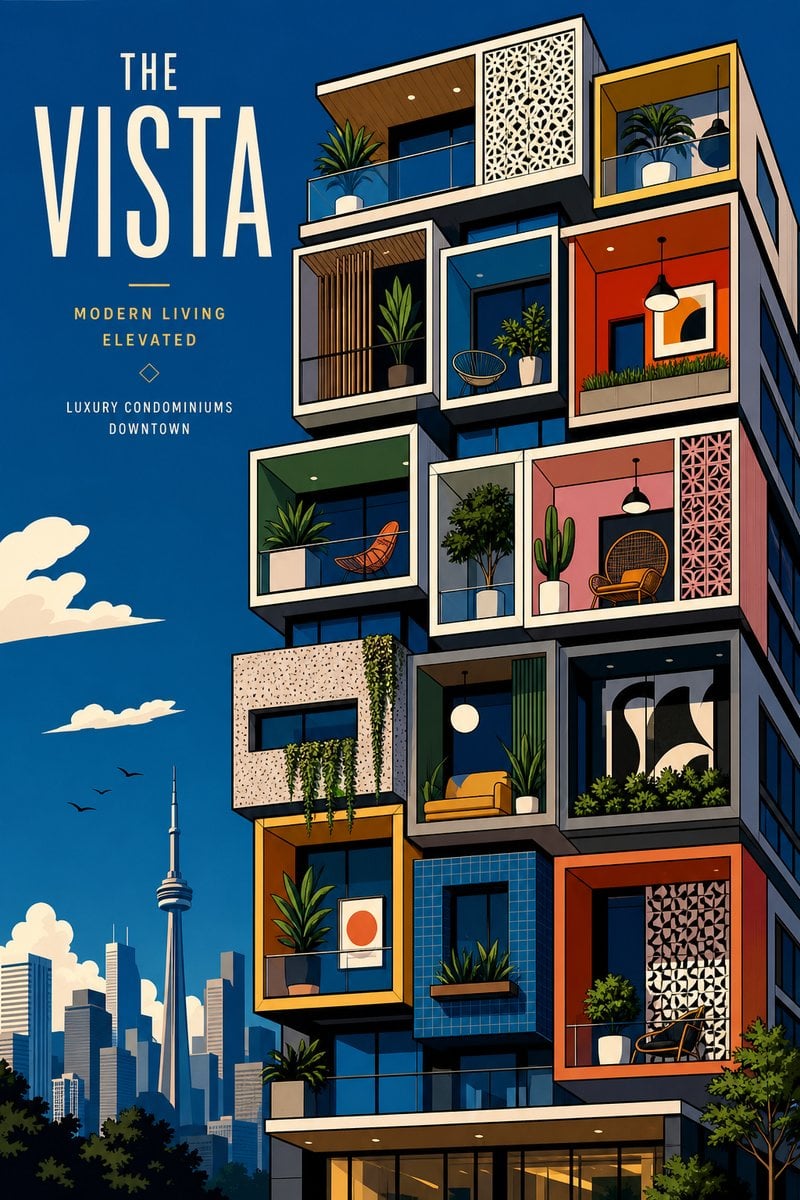
The Vista Modular Condo Poster

AI Model Routing Comparison Infographic
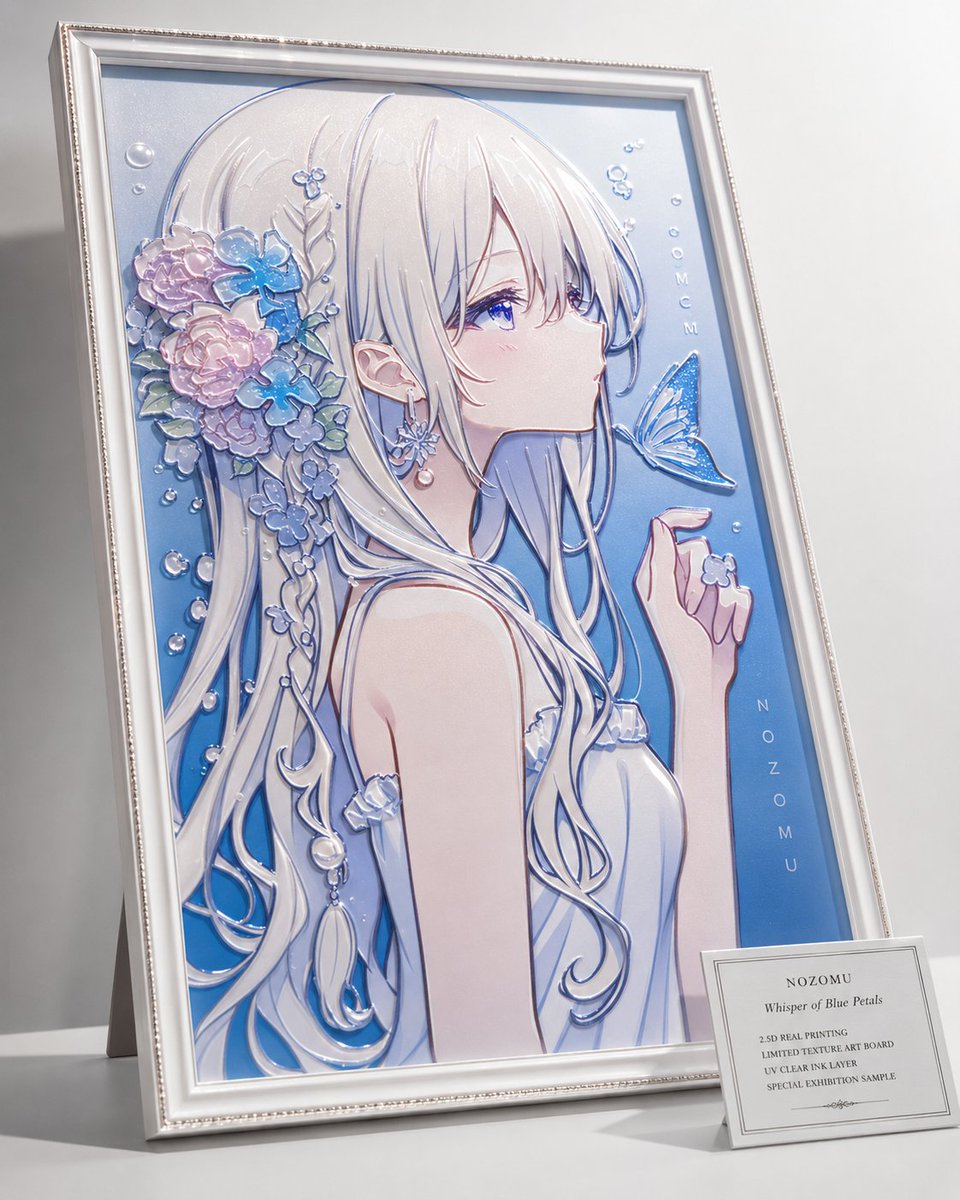
2.5D Anime Art Board

Isometric Productivity Desk Scene

New York Double Exposure Poster
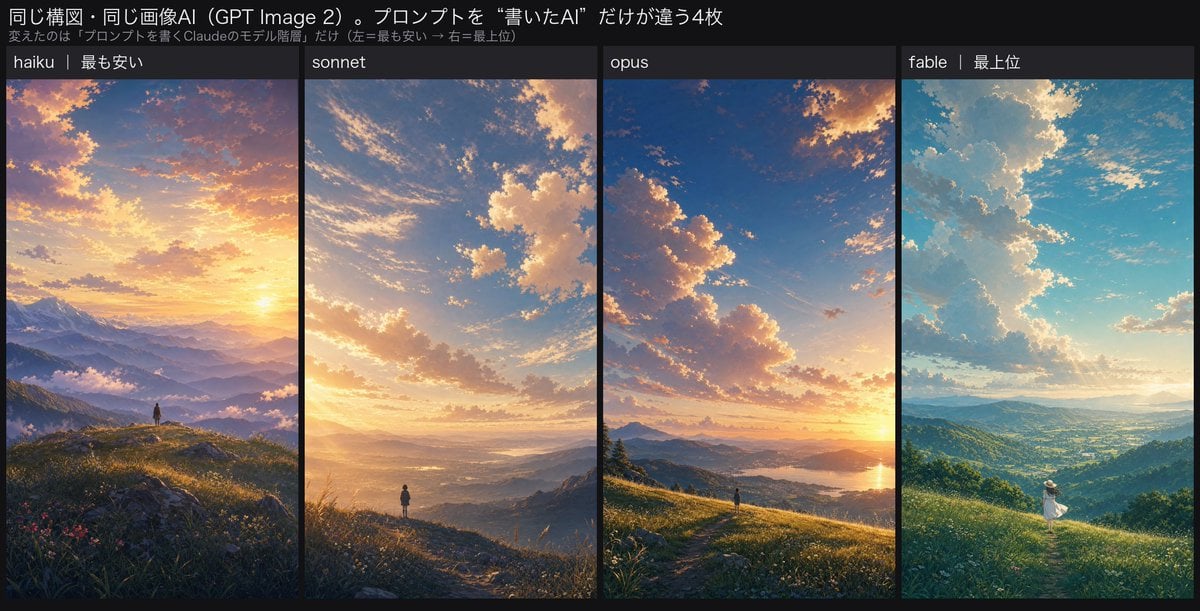
Four-Panel AI Landscape Comparison
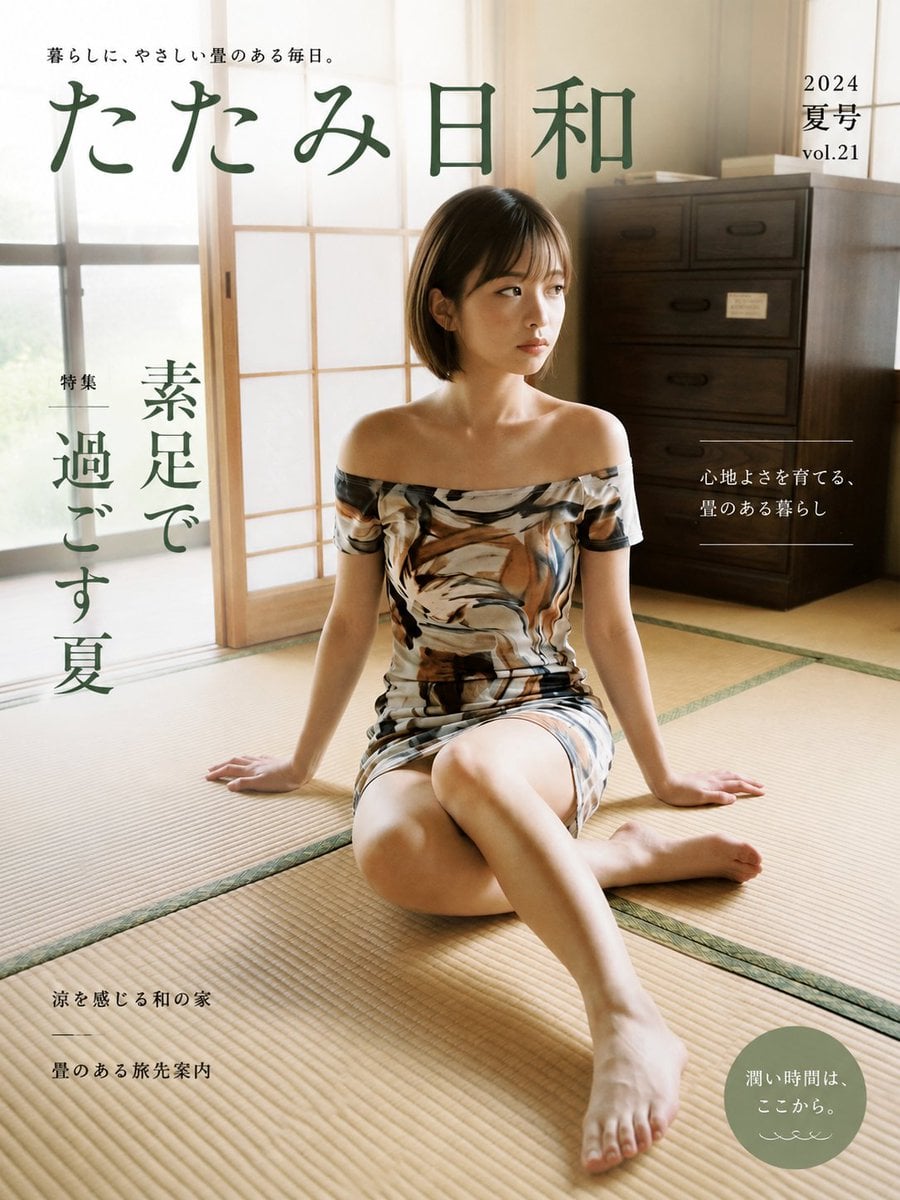
Japanese Tatami Lifestyle Magazine Cover

NESCAFÉ Coffee Map Poster
More image prompts
Fresh picks from across the catalog.

Cybernetic Medical Visualization Prompt
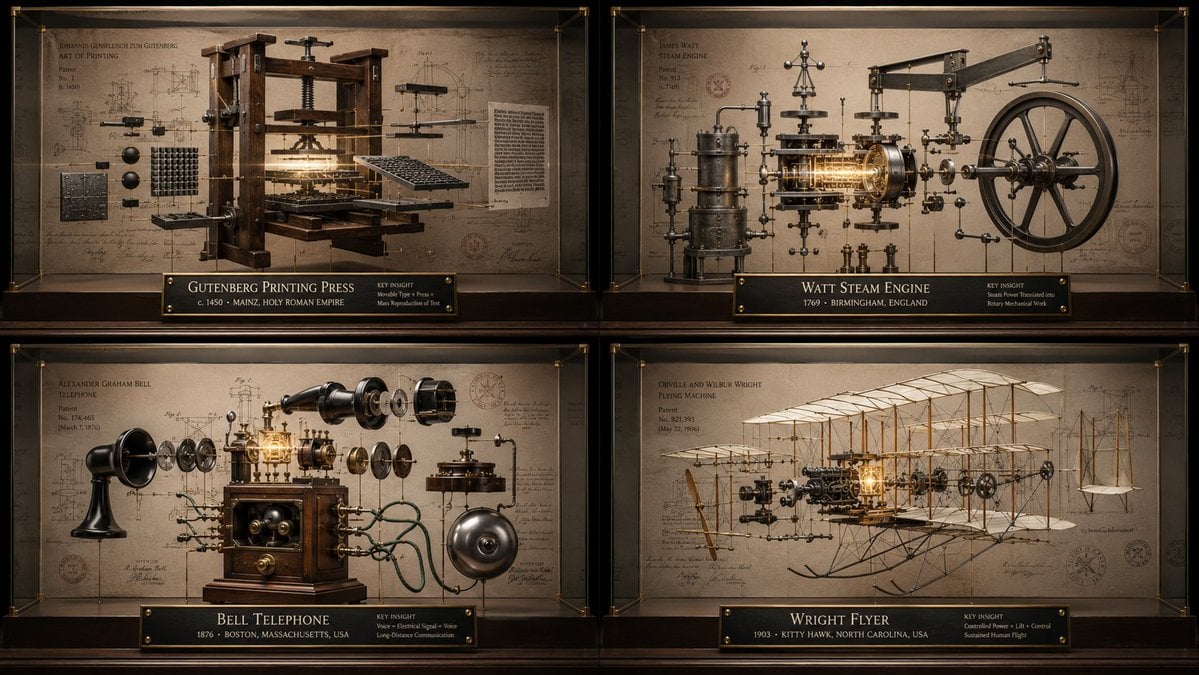
Innovation Reliquary Exploded Diagram
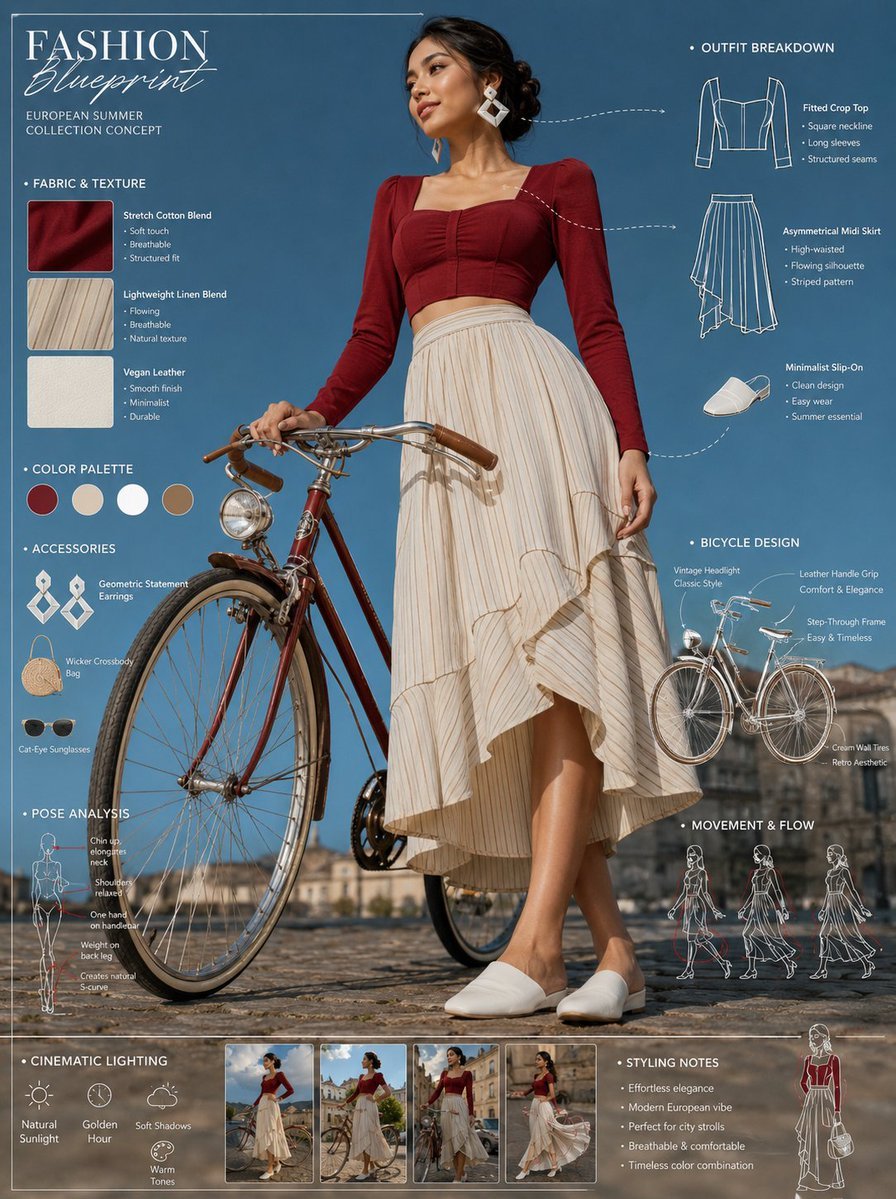
Vintage Bicycle Fashion Blueprint Sheet

Casual Studio Portrait with Identity Preservation Prompt
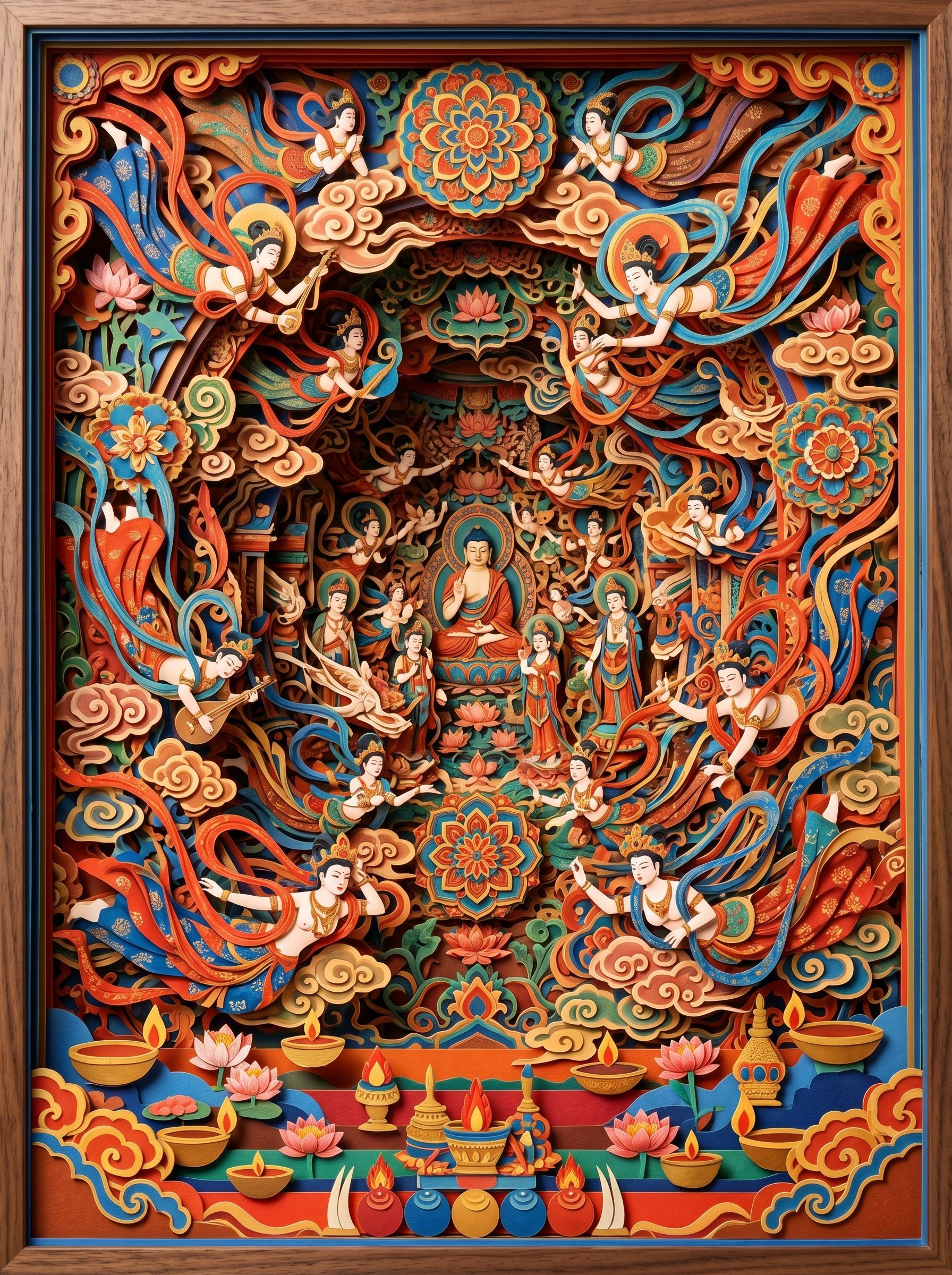
敦煌纸雕飞天 — 3D Layered Paper Cutout
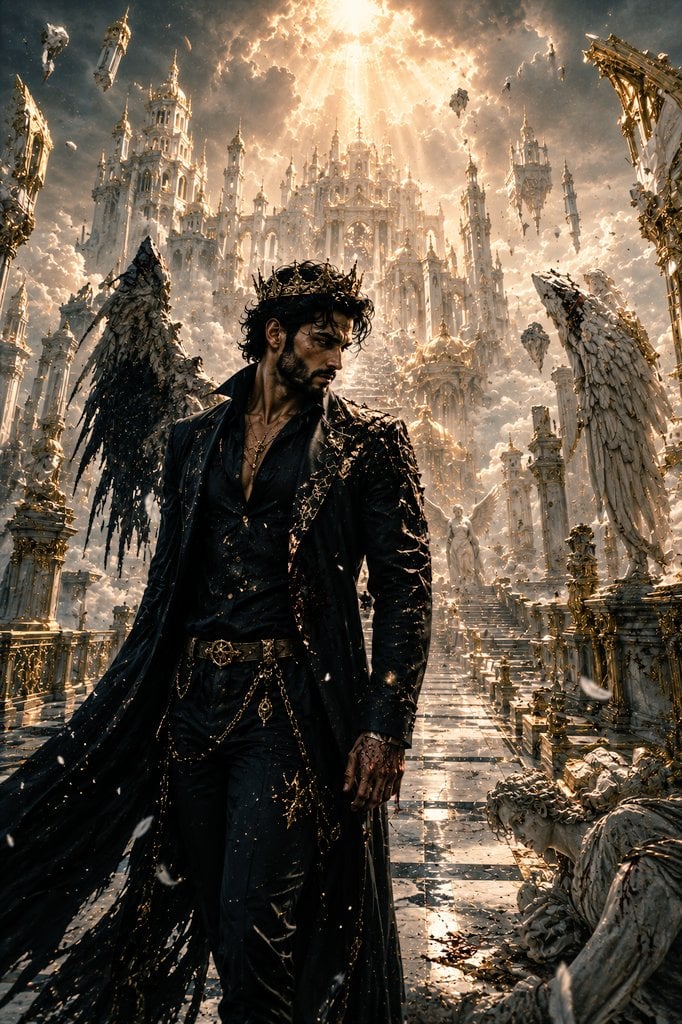
The Last Man in Heaven Fantasy Artwork
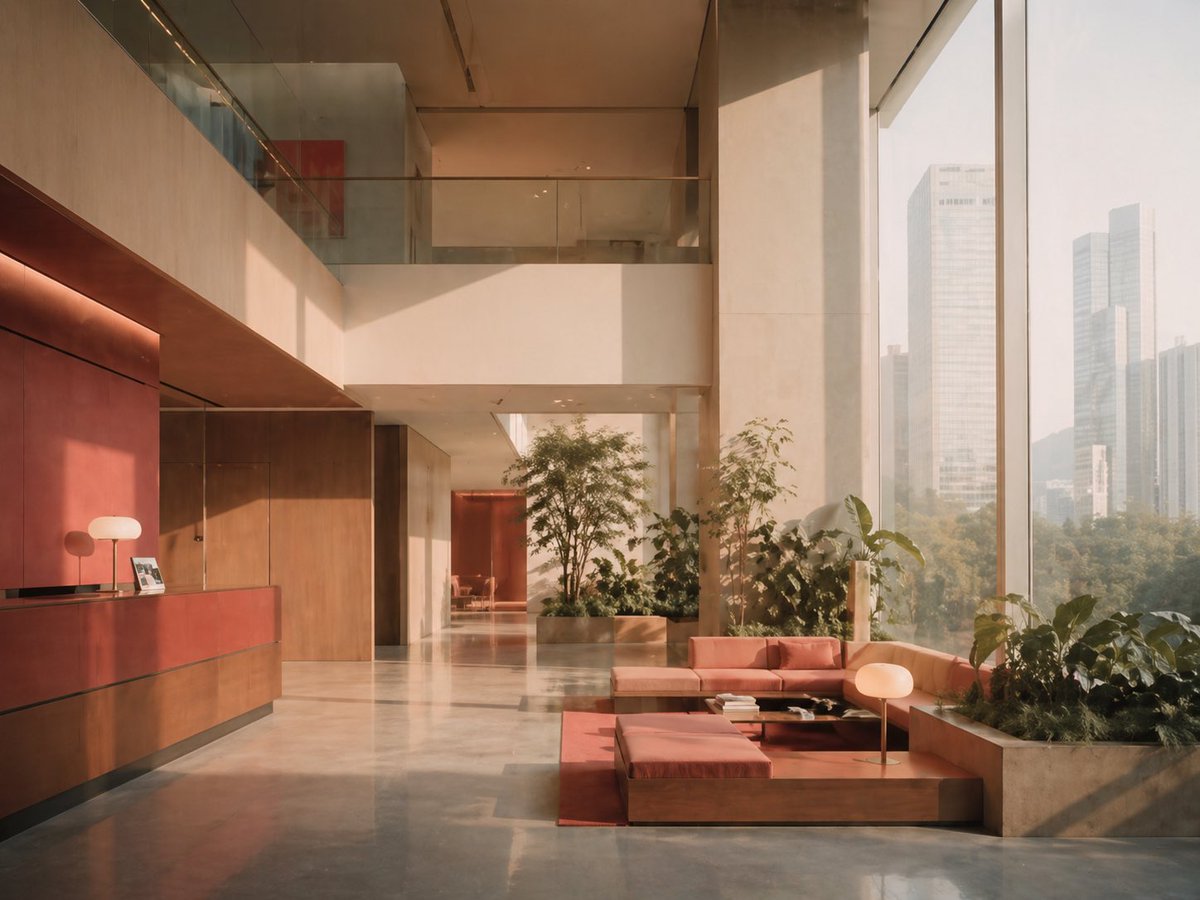
Sunlit Luxury Modern Lobby
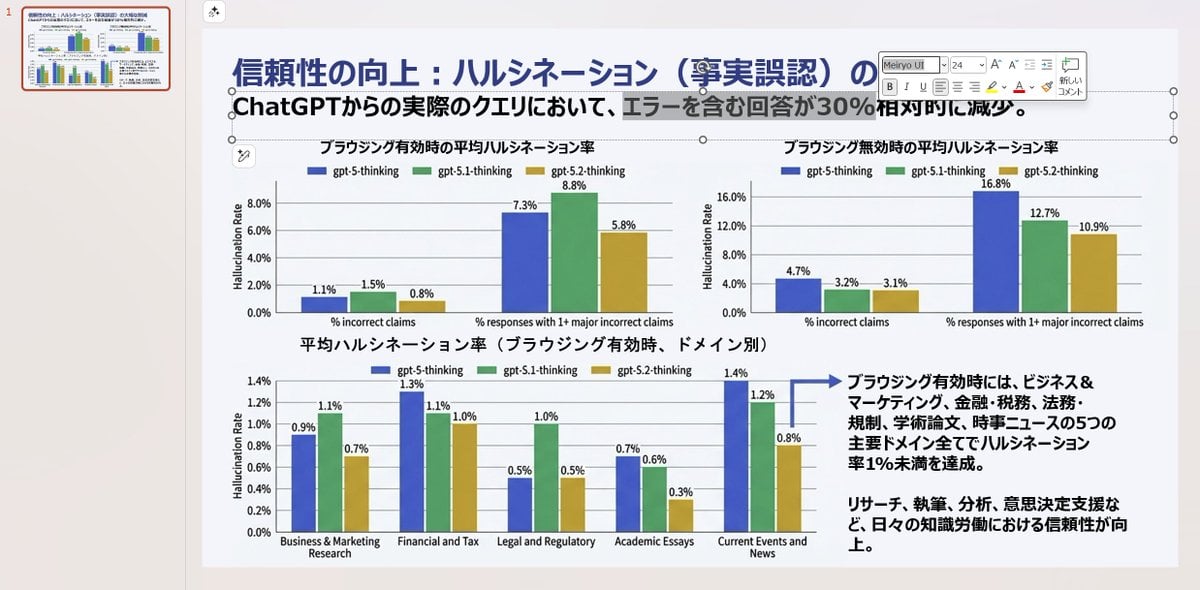
Convert Image to Editable PowerPoint Slide Prompt
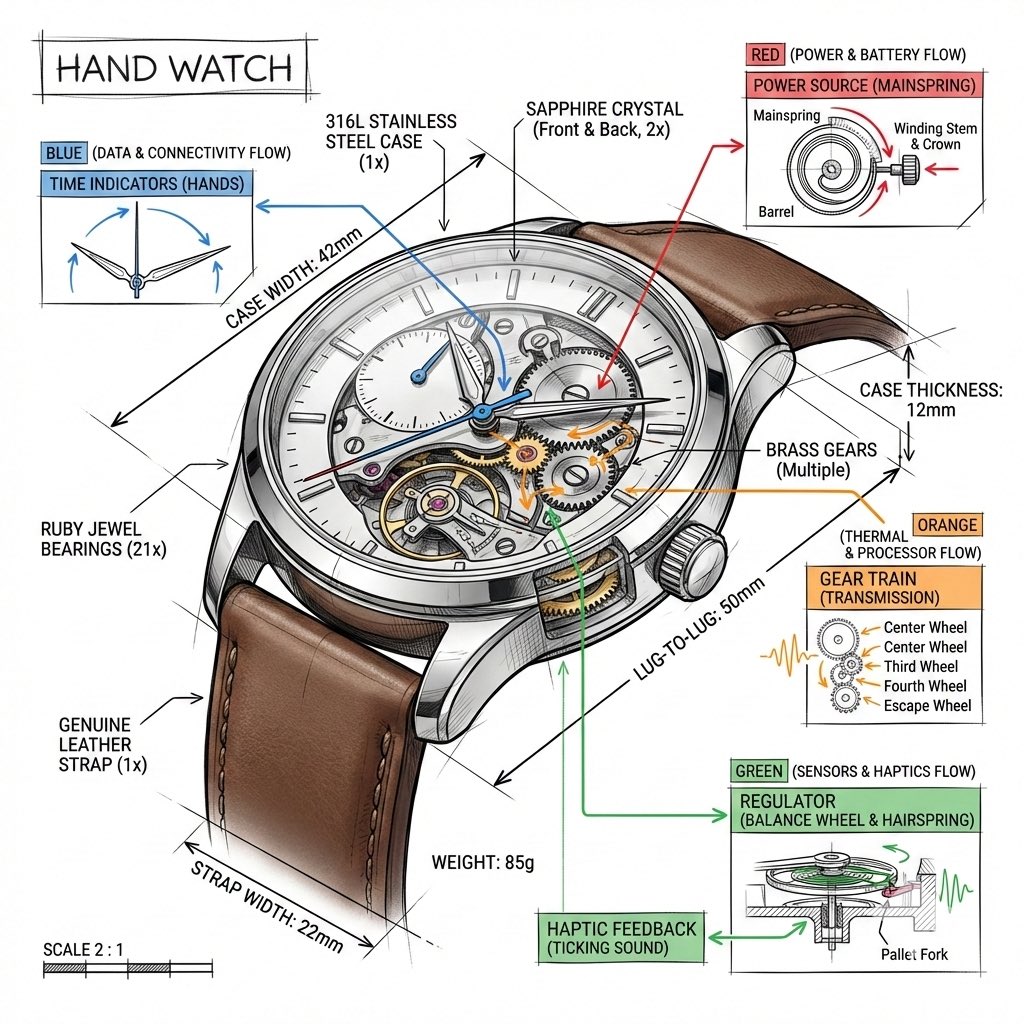
Technical Infographic Template for Objects
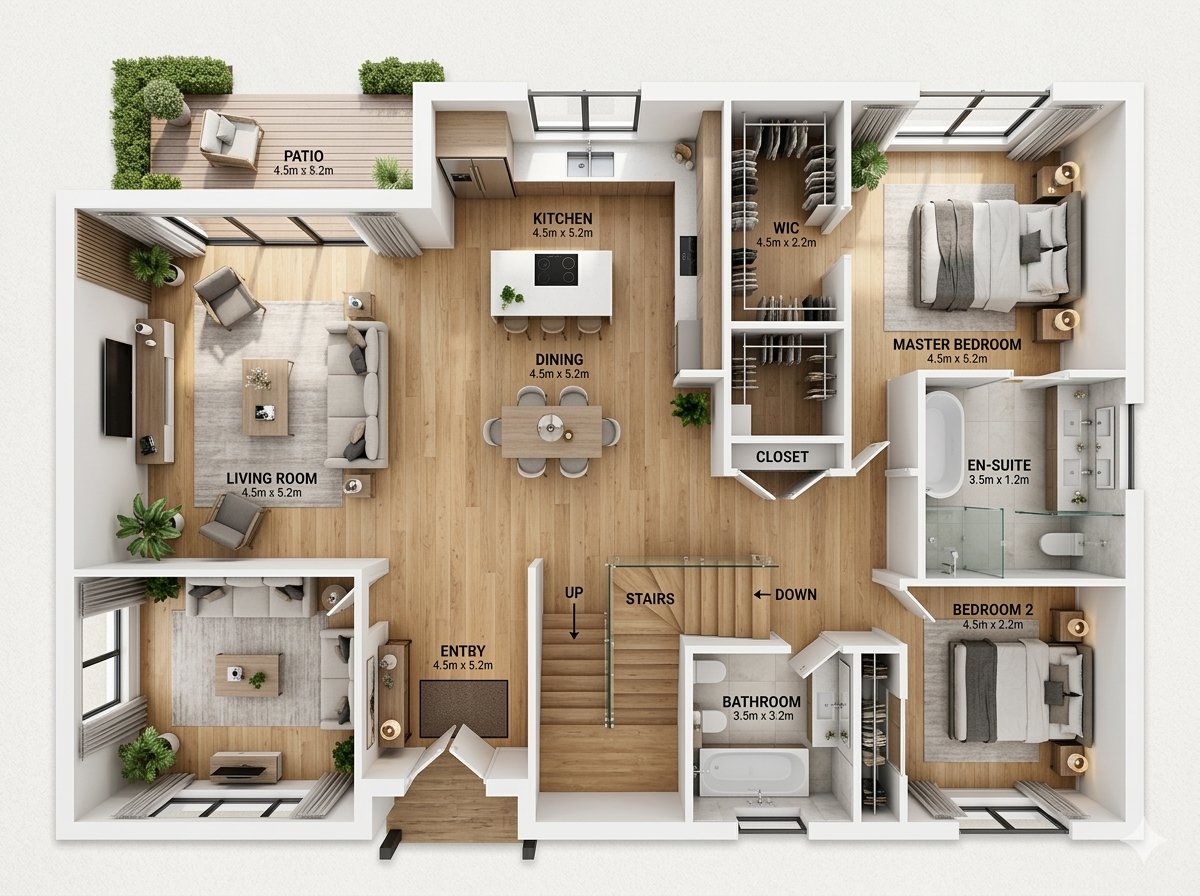
Modern Home Interior Architectural Blueprint Prompt
Browse template categories
Cinematic Early Summer Japanese Portrait questions
How do I use the Cinematic Early Summer Japanese Portrait template?
Add your photo if the template asks for one, edit the prompt if you like — the template's model and format are already selected — and press Generate. Your version opens in PicX Studio.
Can I customize the Cinematic Early Summer Japanese Portrait template?
Yes. You can change the subject, setting, lighting, mood, format, and available model controls before creating your image.
Is the Cinematic Early Summer Japanese Portrait template free?
Opening and editing this template is free. Generating uses credits, shown on the Generate button when you are signed in.
Which AI model should I use?
Start with GPT Image 2, which is the model associated with this template. You can compare another compatible model for a different finish.
Looking for something else? Browse all templates.

Your photo, any look
Thousands of ready templates for every top image and video model, from one credit balance.