
Mecha Rockstar Cinematic
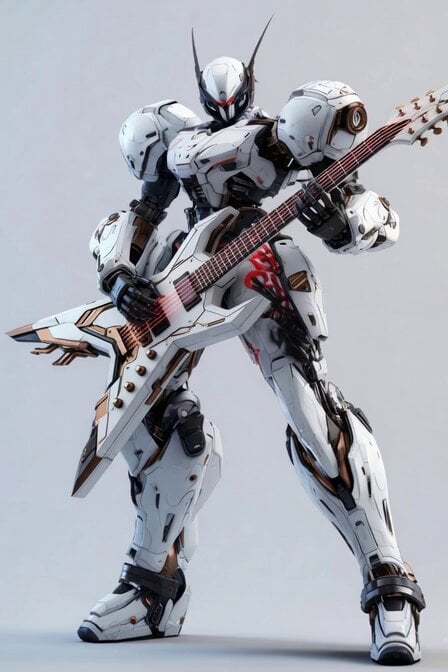
An epic, highly detailed cinematic prompt featuring a futuristic mecha robot performing with an electric guitar, featuring dynamic camera orbits and sci-fi lighting.
- Prompt included
- Model and format preset
- Premium template
The prompt behind this video
Copy the exact prompt behind Mecha Rockstar Cinematic, or open it in the studio and make it yours.
A powerful white-and-black futuristic mecha robot stands in a dramatic heroic pose, powerfully holding a massive futuristic electric guitar with both hands like a rockstar weapon. Cinematic Sci-Fi scene, ultra-realistic 8K detail, dramatic rim lighting with subtle red energy glows pulsing along the robot’s armor and the guitar’s strings. The robot slowly raises the guitar, strums it with mechanical precision — bright blue and red energy sparks and light trails explode from the strings with every chord. The camera starts with a low-angle full shot, then smoothly orbits around the robot in a dynamic 360-degree cinematic arc while slowly pushing in, revealing intricate mechanical details and glowing red graffiti on its thigh. Intense sci-fi atmosphere, volumetric god rays cutting through light dust, subtle lens flares, film grain, anamorphic bokeh. Epic and badass mood, like a music video trailer. Slow-motion on the strumming moments for maximum impact. 6 seconds duration, 24fps, cinematic color grading, hyper-detailed, photorealistic, directed by Denis Villeneuve and Michael Bay.
How to use Mecha Rockstar Cinematic in 3 steps
- 1
Open
The prompt is already in the box next to the preview, with the template's model and format selected.
- 2…a portrait of your subject in softgolden-hour light, 85mm…
Personalize
Edit the subject and creative details for your destination.
- 3Generate
Generate
Press Generate — your video is created in PicX Studio, so you can compare it with the original and refine one variable at a time.
More like this
Templates with the same subject, style or setup. Open one to see its prompt.
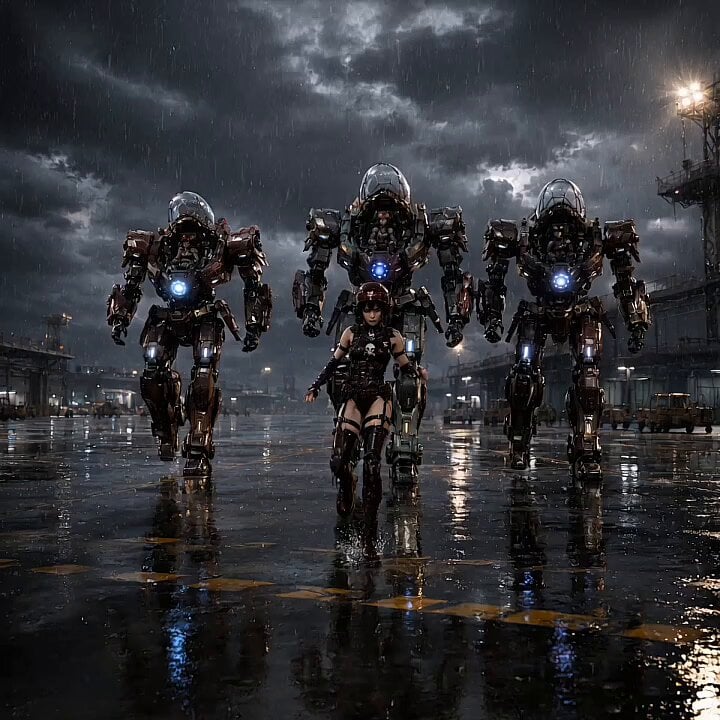
Mecha Runway Tap Dance Video Prompt
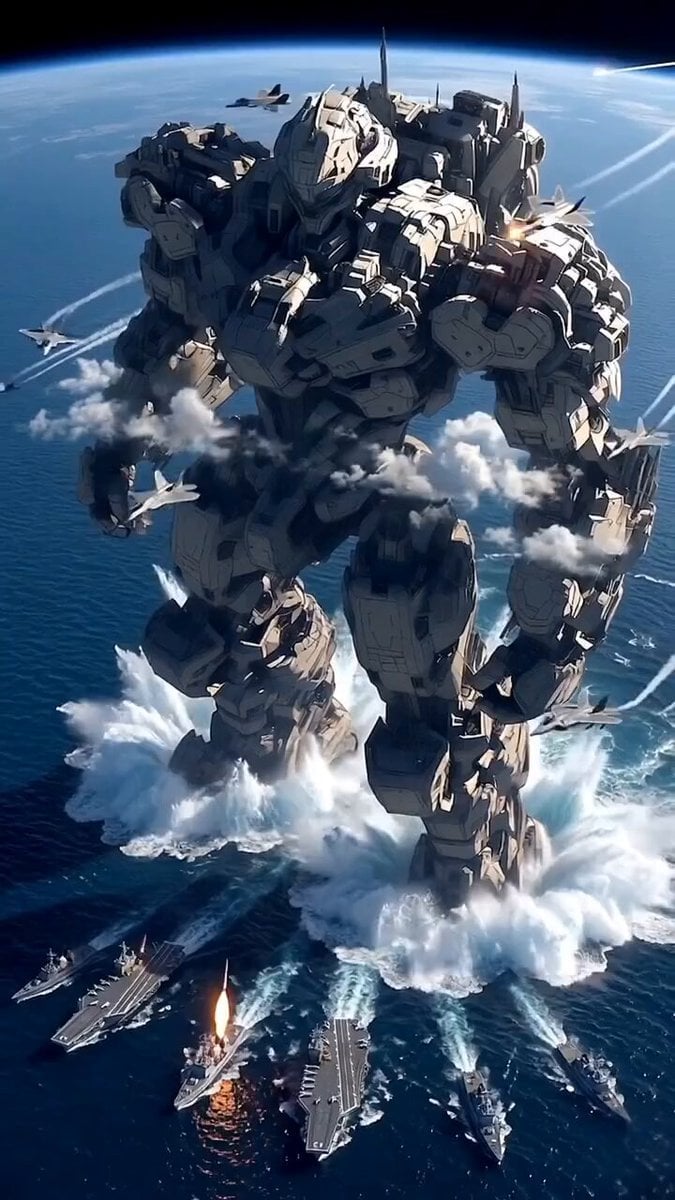
Giant Mecha Naval Battle
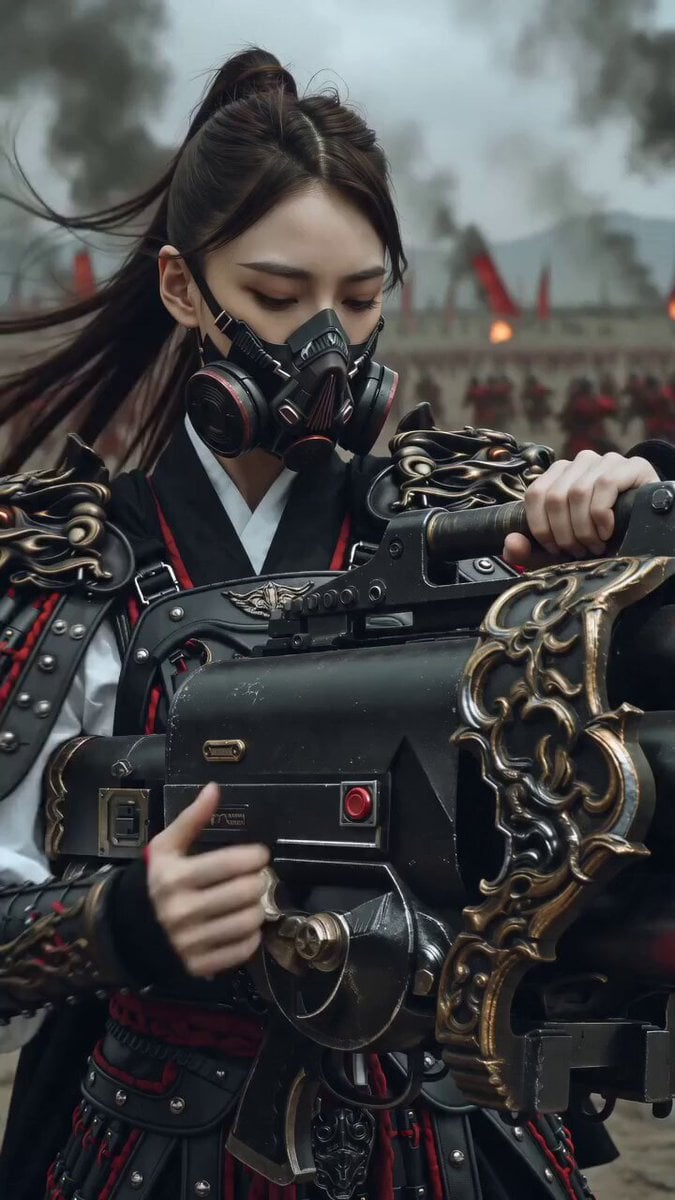
East Asian Female Warrior Mecha Transformation
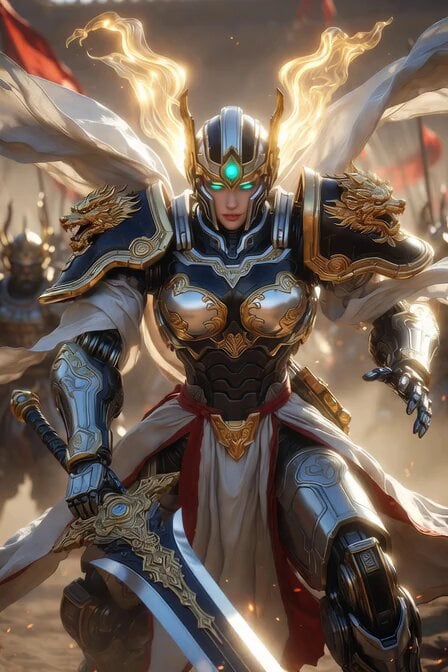
Imperial Dragon Mecha Warrior
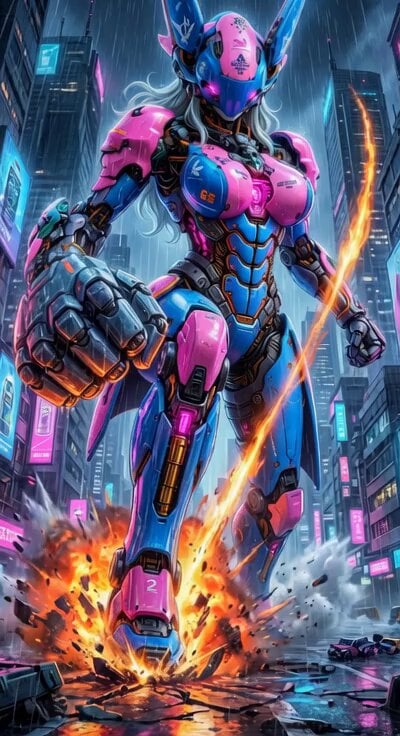
Cyberpunk Mecha Action Scene
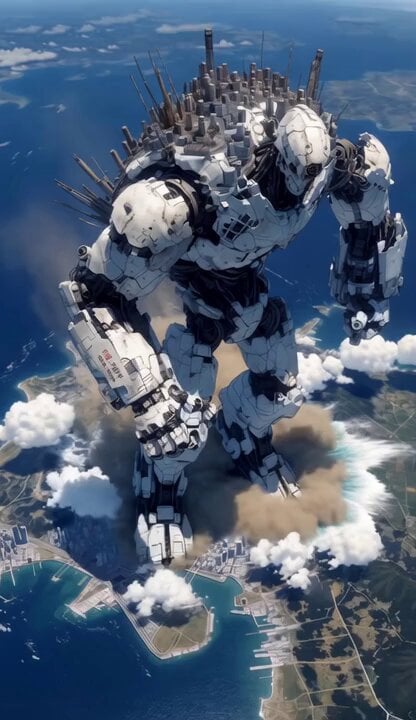
Mecha City Transformers Cinematic Video
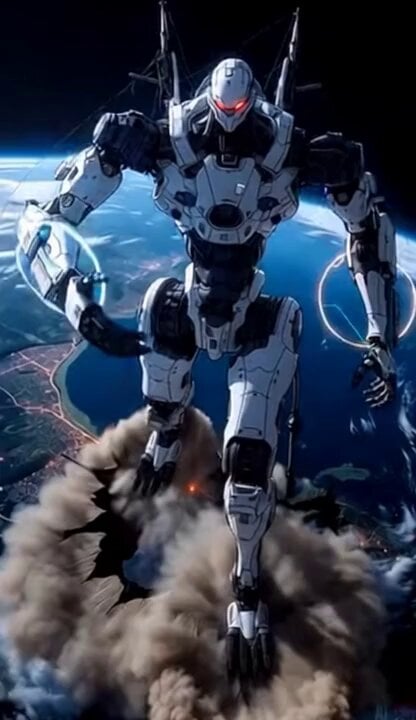
Giant Mecha Orbital Landing
Colossal Biomechanical Cyberpunk Mecha Video
Kaleidoscopic Cosmic Dolphin Video

Horror Daffy Duck Video Transition
America 250th Anniversary Celebration
Glowing Water Forest Night Prompt
Make it yours
Mecha Rockstar Cinematic works as-is. These are the safest ways to change it without losing the look.
Change one field
Copy a single group, rewrite it, and generate again so you can see what that field is doing.
Keep the frame, change the subject
Hold the composition and light of Mecha Rockstar Cinematic, then swap wardrobe, props or the person for a new take.
| If the result… | Why | Fix |
|---|---|---|
| The result drifts from the preview | Too many fields changed at once. | Reuse Mecha Rockstar Cinematic as-is first, then change one group — subject, light, or setting. |
| The model over-stylizes the scene | The prose prompt leaves finish and camera underspecified. | Add one camera or lighting sentence and stay on Grok Imagine. |
More Grok Imagine templates
Other prompts made for Grok Imagine.
Emotional Angry Couple Drama
Interior View Video Generation Prompt
GTA 6 never came out in 1 million years

Bitcoin liferaft video prompt

Woman floating down, opening eyes and looking deeply into the viewer's eyes
Utopian World of Harmony and Peace
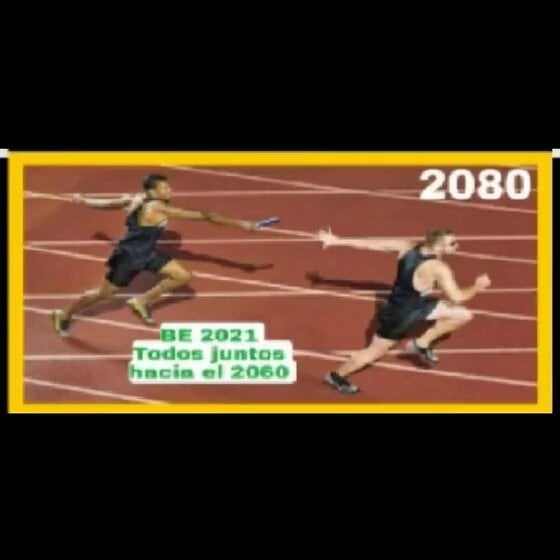
Runner with BE 2060 i inscription passing through sequential doors video prompt
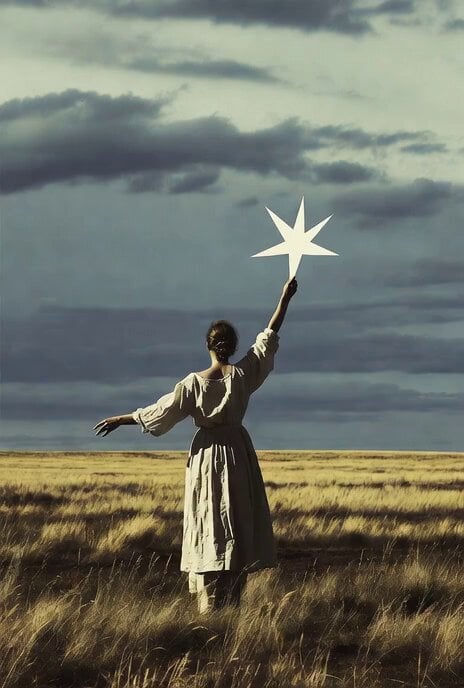
Wind Blows Paper, Camera Follows
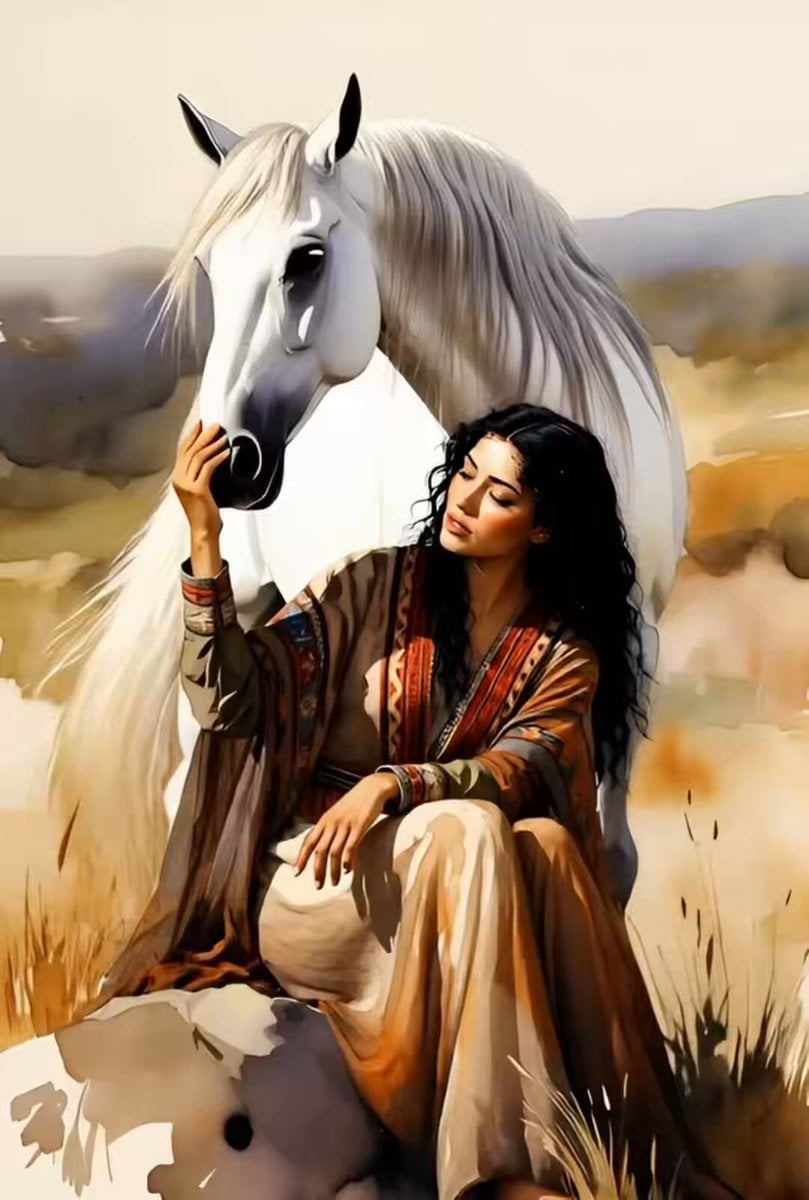
Watercolor Painting of Gypsy Woman and White Horse
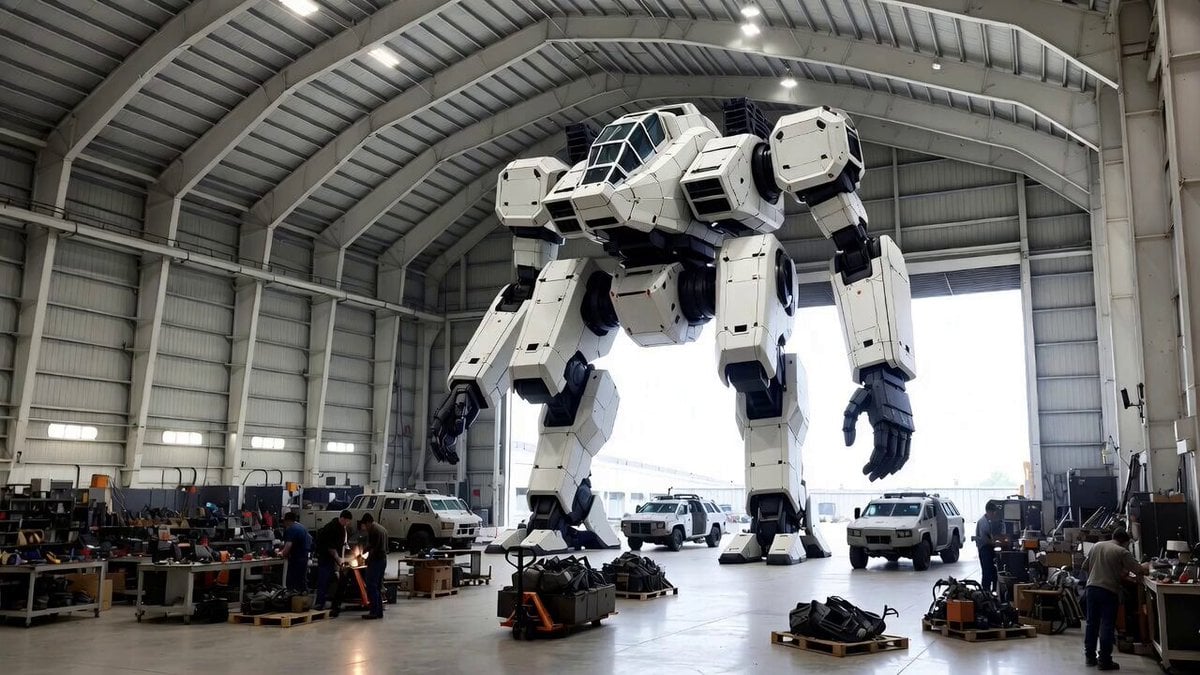
Video Generation Prompt: Mech in Aircraft Hangar
More video prompts
Fresh picks from across the catalog.
Mystical Dragons Playful Walk
Anime cyberpunk woman video
Woman on an endless staircase in baroque and deco architecture
Mysterious Japanese Warrior
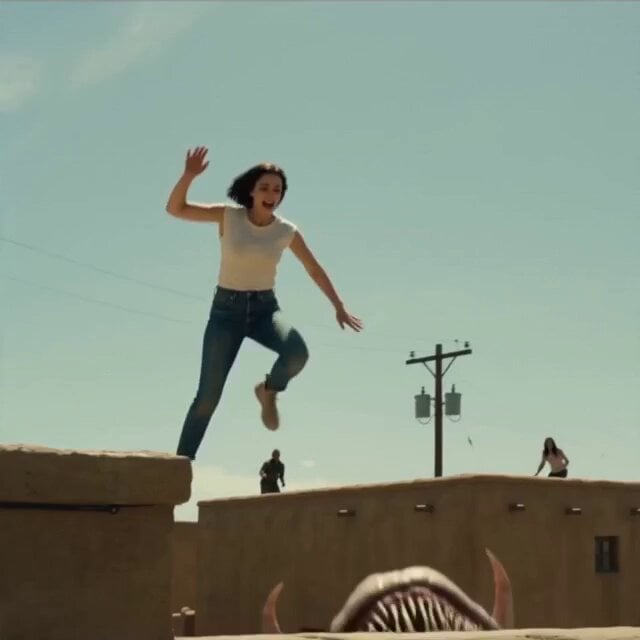
Rooftop Survival Zone Cinematic Video
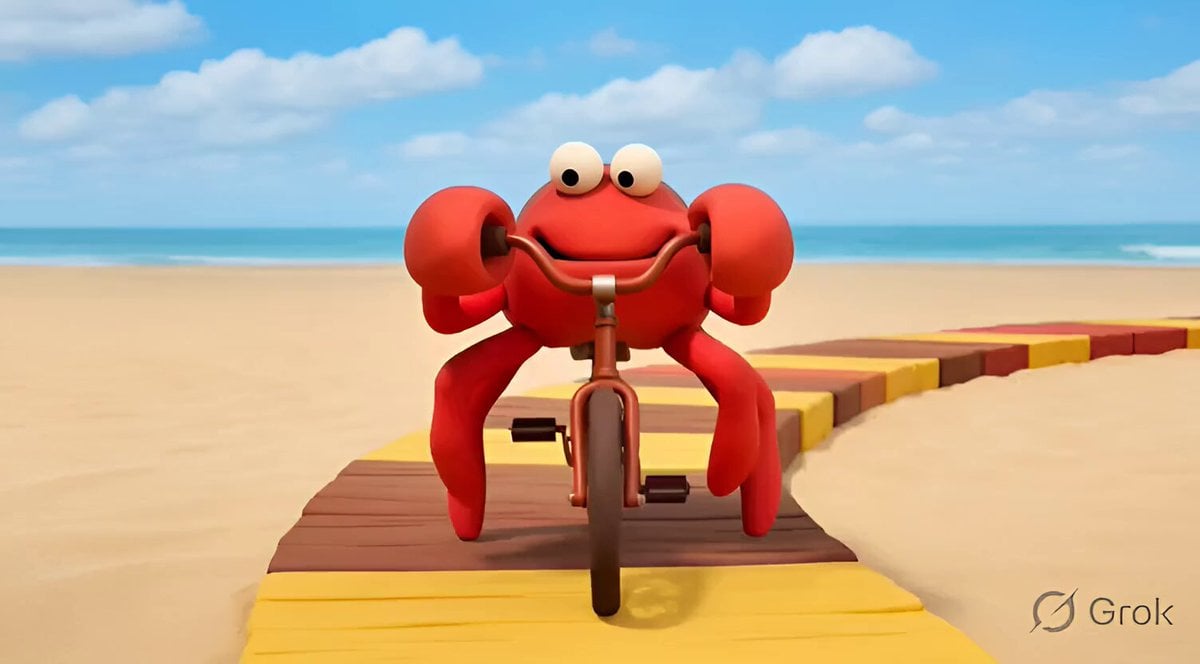
Clay Crab Riding Bicycle Beach

Photograph of a Fluffy Kitten Outdoors
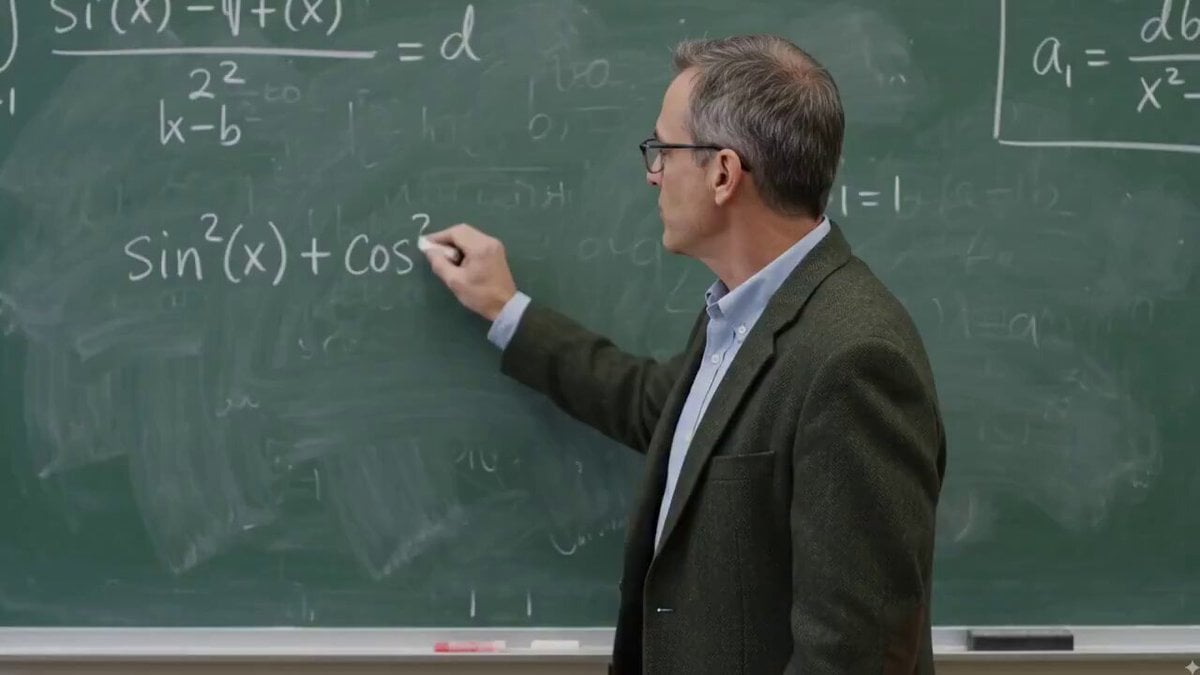
Math Professor Trigonometry Chalkboard Video
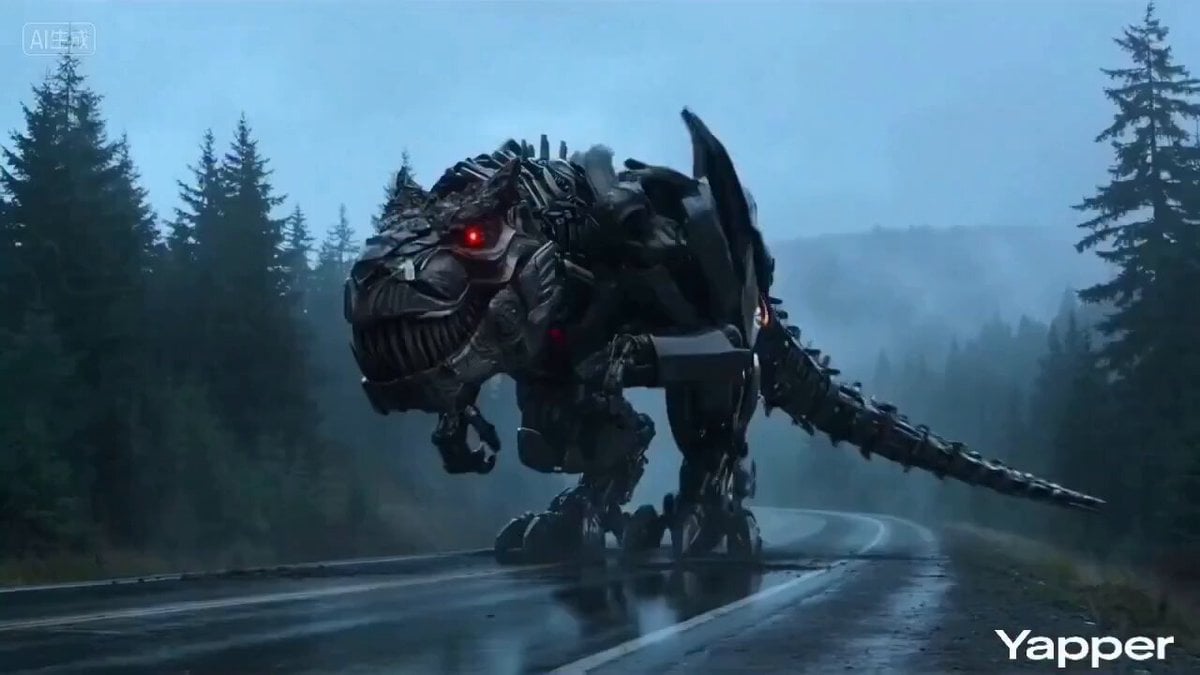
Transformation Blockbuster Video Prompt
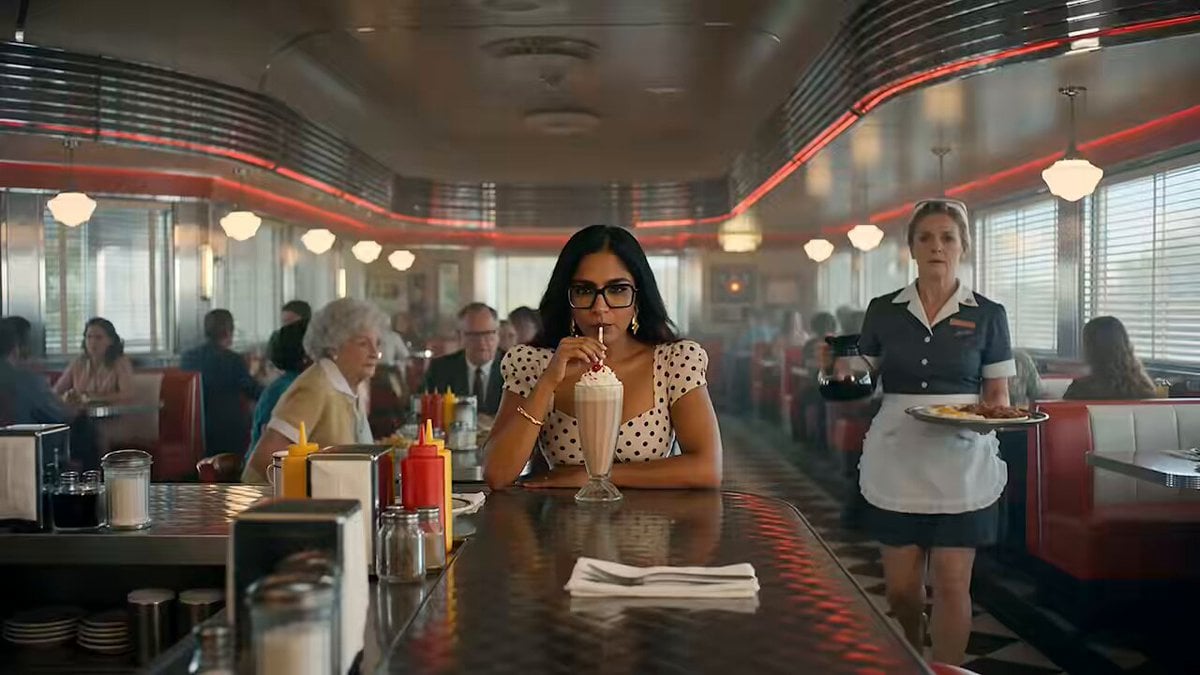
1950s American Diner Scene
Browse template categories
Mecha Rockstar Cinematic questions
How do I use the Mecha Rockstar Cinematic template?
Add your photo if the template asks for one, edit the prompt if you like — the template's model and format are already selected — and press Generate. Your version opens in PicX Studio.
Can I customize the Mecha Rockstar Cinematic template?
Yes. You can change the subject, setting, lighting, mood, format, and available model controls before creating your video.
Is the Mecha Rockstar Cinematic template free?
Opening and editing this template is free. Generating uses credits, shown on the Generate button when you are signed in.
Which AI model should I use?
Start with Grok Imagine, which is the model associated with this template. You can compare another compatible model for a different finish.
Looking for something else? Browse all templates.

Your photo, any look
Thousands of ready templates for every top image and video model, from one credit balance.