How do I use the Complex 30-Second Animated Video Prompt template?
Edit the prompt in the box under the preview — the template's model and format are already selected — and press Generate. Your version appears right on this page.
A detailed prompt intended for Grok to create a 30-second animated video in a specific whimsical cartoon style, including character design requirements and a scene breakdown with timing.
This template uses your photo — add one with the + button.
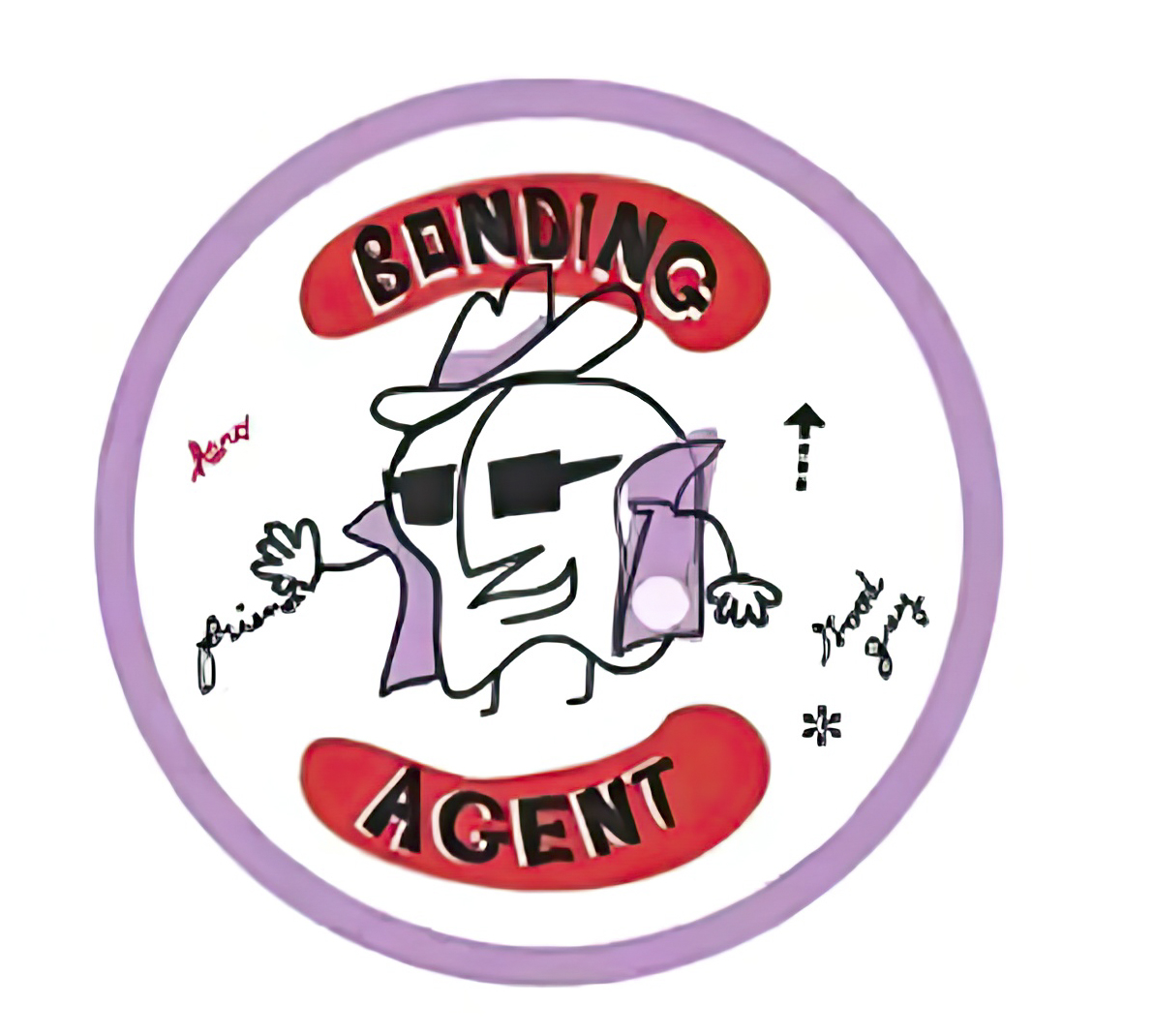
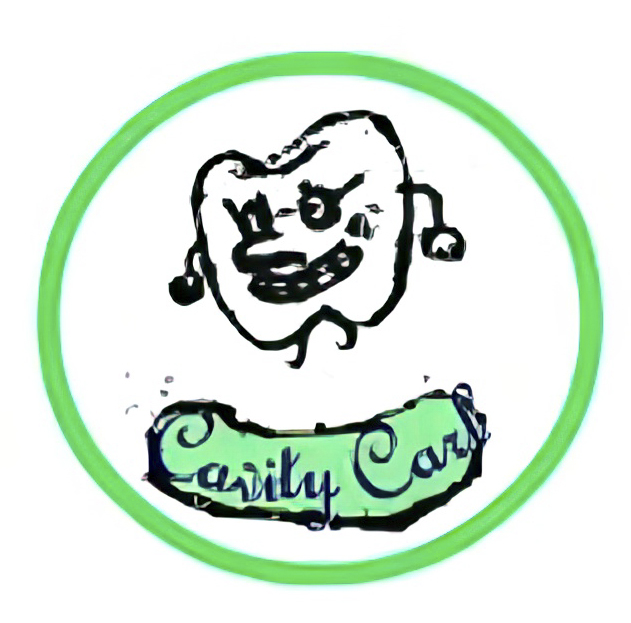
Create a fun, energetic 30-second animated video in a consistent whimsical cartoon style with thick outlines, vibrant flat colors, and hand-drawn quirky charm — matching the provided character designs exactly. Scene breakdown with timing: 0-3 seconds: Open with the gold Arbor Dental Group logo (the tree with kids under an arch) centered on a clean white background that fades to light blue. Upbeat, playful kids' adventure music starts (think bouncy ukulele + light synth). Text overlay in fun gold font: 'Protect Little Smiles from the Evil Cavity Carl!' 3-10 seconds: Introduce the villain — zoom in dramatically on Cavity Carl (the green circle with angry tooth face, jester hat bells, evil grin, dripping slime). He cackles menacingly, waving arms, then lunges toward cartoon baby teeth icons (simple white teeth with scared eyes) trying to drill holes / spread black decay spots. Voiceover (enthusiastic, heroic kid-friendly tone): 'Beware! Cavity Carl is sneaking in to ruin kids' teeth with sneaky cavities!' 10-20 seconds: Hero entrance! Dramatic whoosh sound — cut to Bonding Agent (purple circle character with sunglasses, cowboy hat, purple cape flowing, determined expression) sliding in from the right like a superhero. He strikes a cool pose, points forward. Cavity Carl looks shocked. Bonding Agent sprays / applies glowing purple 'shield' liquid (bonding agent) that forms a sparkling protective barrier over the teeth. The decay spots sizzle and disappear. Voiceover: 'But here comes Bonding Agent — the hero from Arbor Dental Group! He seals and protects those tiny teeth, stopping Cavity Carl in his tracks!' 20-27 seconds: Quick action montage: Bonding Agent high-fives happy teeth (now smiling with sparkles), chases Cavity Carl off-screen (Carl runs away comically with X eyes). Teeth characters cheer. Screen shows the three characters side-by-side: Bonding Agent in center triumphantly, Cavity Carl defeated in corner, Arbor logo prominent above. 27-30 seconds: Final screen — Arbor Dental Group logo full frame with website URL below in bold: Text overlay: 'Fight cavities the fun way! Book your child's visit today in Westminster, CO. #HealthySmiles #ArborDental #CavityFreeKids'. End with quick call-to-action: 'Schedule now!' and upbeat music sting. Style notes: Keep art 100% matching the uploaded images — no realism, stay 2D cartoon, playful and kid-appealing. Fast-paced edits, fun sound effects (zap for bonding, evil laugh for Carl, heroic whoosh for agent). Vertical 9:16 format for social media. Bright, cheerful color palette with purple and green pops."
Create a fun, energetic 30-second animated video in a consistent whimsical cartoon style with thick outlines, vibrant flat colors, and hand-drawn quirky charm — matching the provided character designs exactly. Scene breakdown with timing: 0-3 seconds: Open with the gold Arbor Dental Group logo (the tree with kids under an arch) centered on a clean white background that fades to light blue. Upbeat, playful kids' adventure music starts (think bouncy ukulele + light synth). Text overlay in fun gold font: 'Protect Little Smiles from the Evil Cavity Carl!' 3-10 seconds: Introduce the villain — zoom in dramatically on Cavity Carl (the green circle with angry tooth face, jester hat bells, evil grin, dripping slime). He cackles menacingly, waving arms, then lunges toward cartoon baby teeth icons (simple white teeth with scared eyes) trying to drill holes / spread black decay spots. Voiceover (enthusiastic, heroic kid-friendly tone): 'Beware! Cavity Carl is sneaking in to ruin kids' teeth with sneaky cavities!' 10-20 seconds: Hero entrance! Dramatic whoosh sound — cut to Bonding Agent (purple circle character with sunglasses, cowboy hat, purple cape flowing, determined expression) sliding in from the right like a superhero. He strikes a cool pose, points forward. Cavity Carl looks shocked. Bonding Agent sprays / applies glowing purple 'shield' liquid (bonding agent) that forms a sparkling protective barrier over the teeth. The decay spots sizzle and disappear. Voiceover: 'But here comes Bonding Agent — the hero from Arbor Dental Group! He seals and protects those tiny teeth, stopping Cavity Carl in his tracks!' 20-27 seconds: Quick action montage: Bonding Agent high-fives happy teeth (now smiling with sparkles), chases Cavity Carl off-screen (Carl runs away comically with X eyes). Teeth characters cheer. Screen shows the three characters side-by-side: Bonding Agent in center triumphantly, Cavity Carl defeated in corner, Arbor logo prominent above. 27-30 seconds: Final screen — Arbor Dental Group logo full frame with website URL below in bold: Text overlay: 'Fight cavities the fun way! Book your child's visit today in Westminster, CO. #HealthySmiles #ArborDental #CavityFreeKids'. End with quick call-to-action: 'Schedule now!' and upbeat music sting. Style notes: Keep art 100% matching the uploaded images — no realism, stay 2D cartoon, playful and kid-appealing. Fast-paced edits, fun sound effects (zap for bonding, evil laugh for Carl, heroic whoosh for agent). Vertical 9:16 format for social media. Bright, cheerful color palette with purple and green pops."
Complex 30-Second Animated Video Prompt needs input media to work. Open it in the studio and these load alongside the prompt — pick whichever ones your chosen model can take.

Edit the prompt in the box under the preview — the template's model and format are already selected — and press Generate. Your version appears right on this page.
Yes. You can change the subject, setting, lighting, mood, format, and available model controls before creating your video.
Opening and editing this template is free. Generating uses credits, shown on the Generate button when you are signed in.
Start with Grok Imagine, which is the model associated with this template. You can compare another compatible model for a different finish.
Follow a topic to a crawlable collection of related PicX Studio templates.