
Hyper-Realistic Portrait with Reference Image
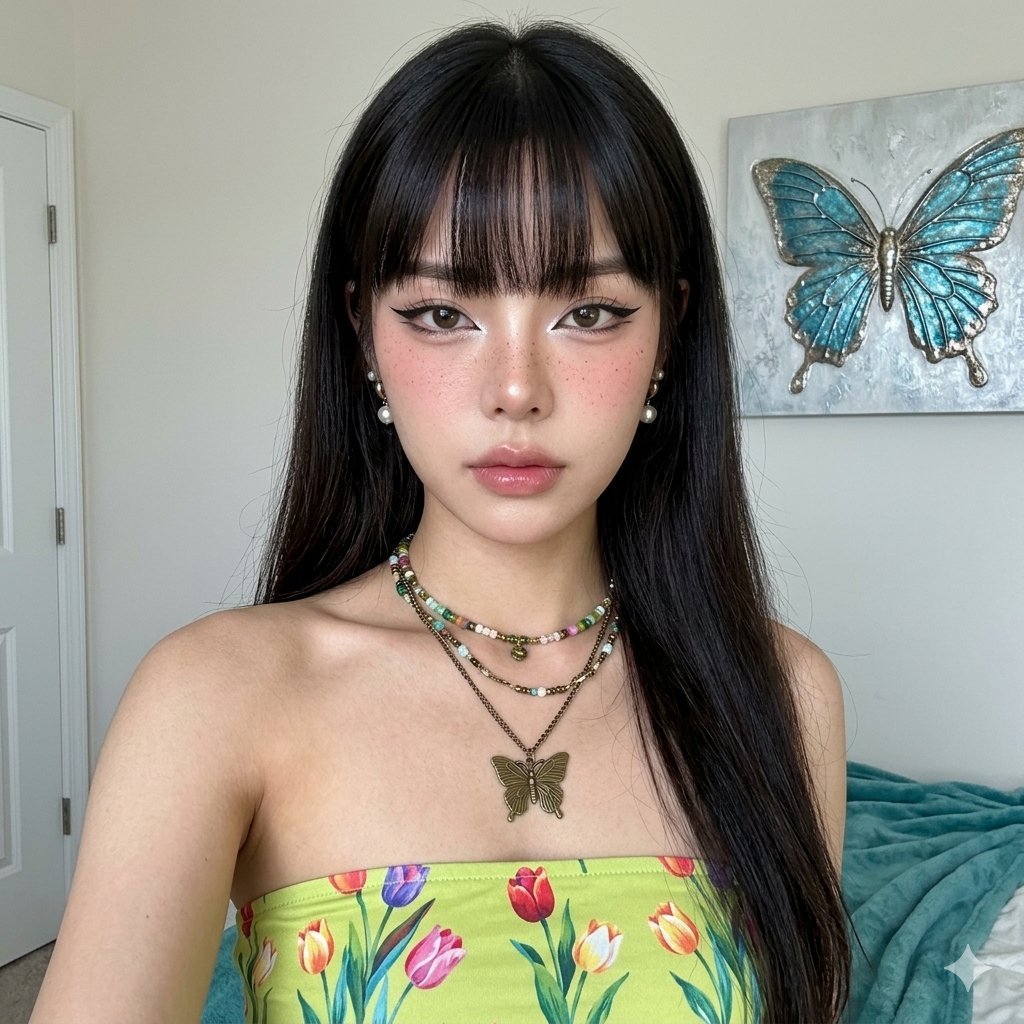
A complex, highly detailed prompt for the Gemini nano banana model focused on generating a hyper-realistic, ultra-sharp iPhone 15 Pro portrait.
- Prompt included
- Model and format preset
- Free template
The prompt behind this image
Copy the exact prompt behind Hyper-Realistic Portrait with Reference Image, or open it in the studio and make it yours.
Create image: Use the attached reference image as a visual guide for the character’s appearance, maintaining strong resemblance to the person in the reference. Preserve key visual traits such as facial structure and overall proportions, while allowing small natural variations typical of real photography. The generated subject should clearly resemble the reference while remaining a natural photographic interpretation. A hyper-realistic, ultra-sharp photograph taken on an iPhone 15 Pro, characterized by its digital clarity, capturing a person in a straight-on, head-and-shoulders portrait. The subject has long, dark, straight hair with a full, blunt fringe covering the forehead, and the hair flows over the shoulders. They wear noticeable makeup, including sharply defined black winged eyeliner with a subtle upward flick, a bright white inner corner highlight, a gentle dusting of pink blush and subtle freckle-like details across the bridge of the nose and cheeks, and soft, natural pink lips. The person is dressed in a vibrant lime green strapless tube top adorned with a detailed, colorful graphic print depicting red, purple, and white tulips. A layered collection of bohemian-style necklaces featuring various beads, intricate chains, and a prominent brass-toned butterfly pendant drapes around their neck, complemented by dainty dangling pearl-like earrings. The background features a clean, light-colored wall, showcasing a modern abstract artwork with a textured, metallic blue butterfly on the right side. A soft teal-green blanket or fabric is partially visible in the bottom right, and a subtle white door frame is on the left. The entire scene is rendered in exceptionally sharp focus from foreground to background, demonstrating no bokeh effect, and the digital textures are highly realistic, showcasing visible skin pores, fabric weaves, and intricate details without any film grain. The lighting is bright and evenly distributed, consistent with modern smartphone HDR, resulting in lifted shadows and natural, true-to-life colors, with creamy and dewy skin tones, all contributing to a contemporary digital aesthetic with a touch of subtle digital noise.
How to use Hyper-Realistic Portrait with Reference Image in 3 steps
- 1Upload ImagePNG, JPG or paste
Add your photo
Upload the photo the template builds on. The prompt, model and format are already set.
- 2…a portrait of your subject in softgolden-hour light, 85mm…
Personalize
Edit the subject and creative details for your destination.
- 3Generate
Generate
Press Generate — your image is created in PicX Studio, so you can compare it with the original and refine one variable at a time.
More like this
Templates with the same subject, style or setup. Open one to see its prompt.

Found Photograph: Us, 1970

80s Couple Studio Portrait
80s Bollywood Star
80s Golden Hour Cinema
Me in 1985
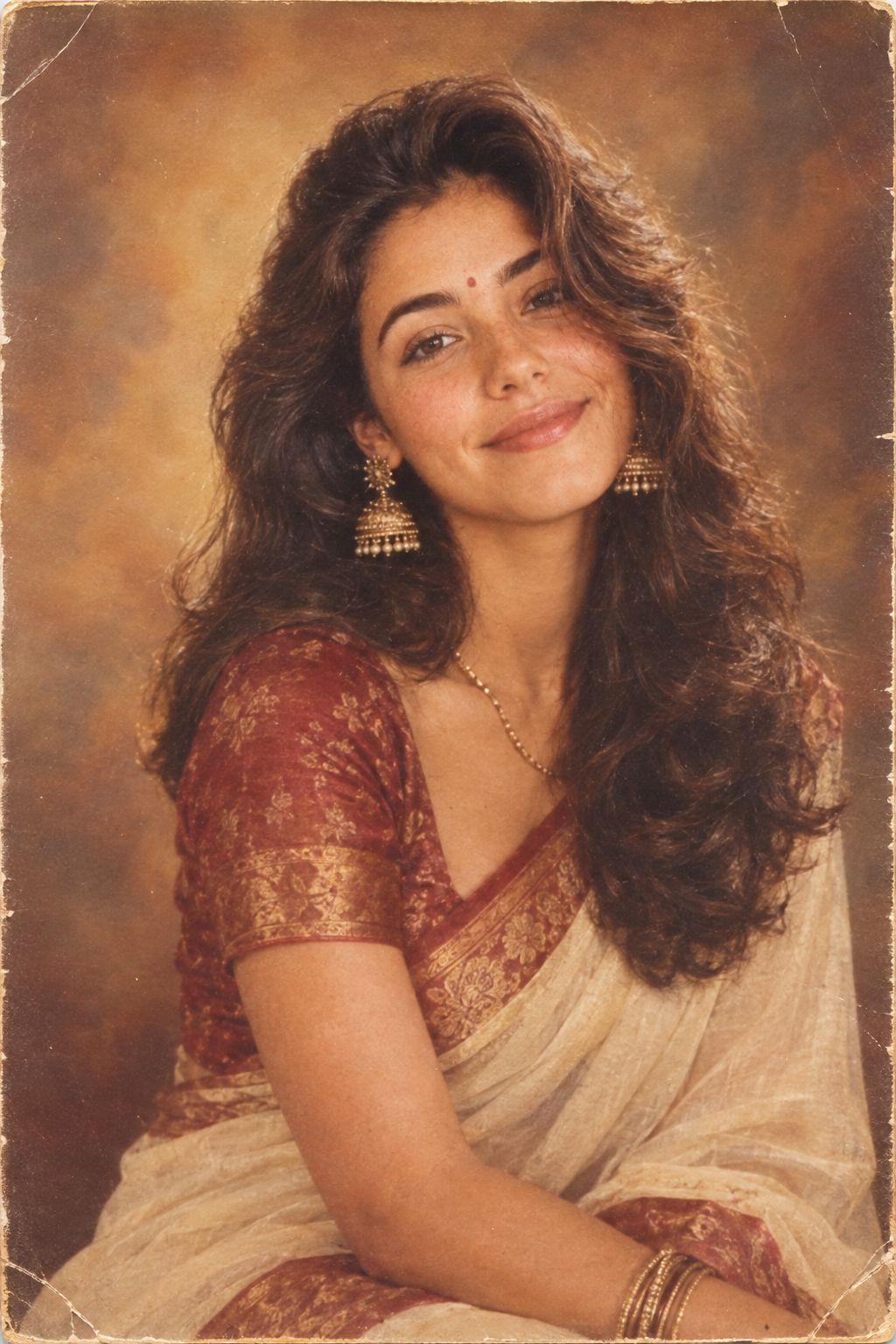
1985 Studio Portrait

Hyper-Realistic Minecraft POV Portrait
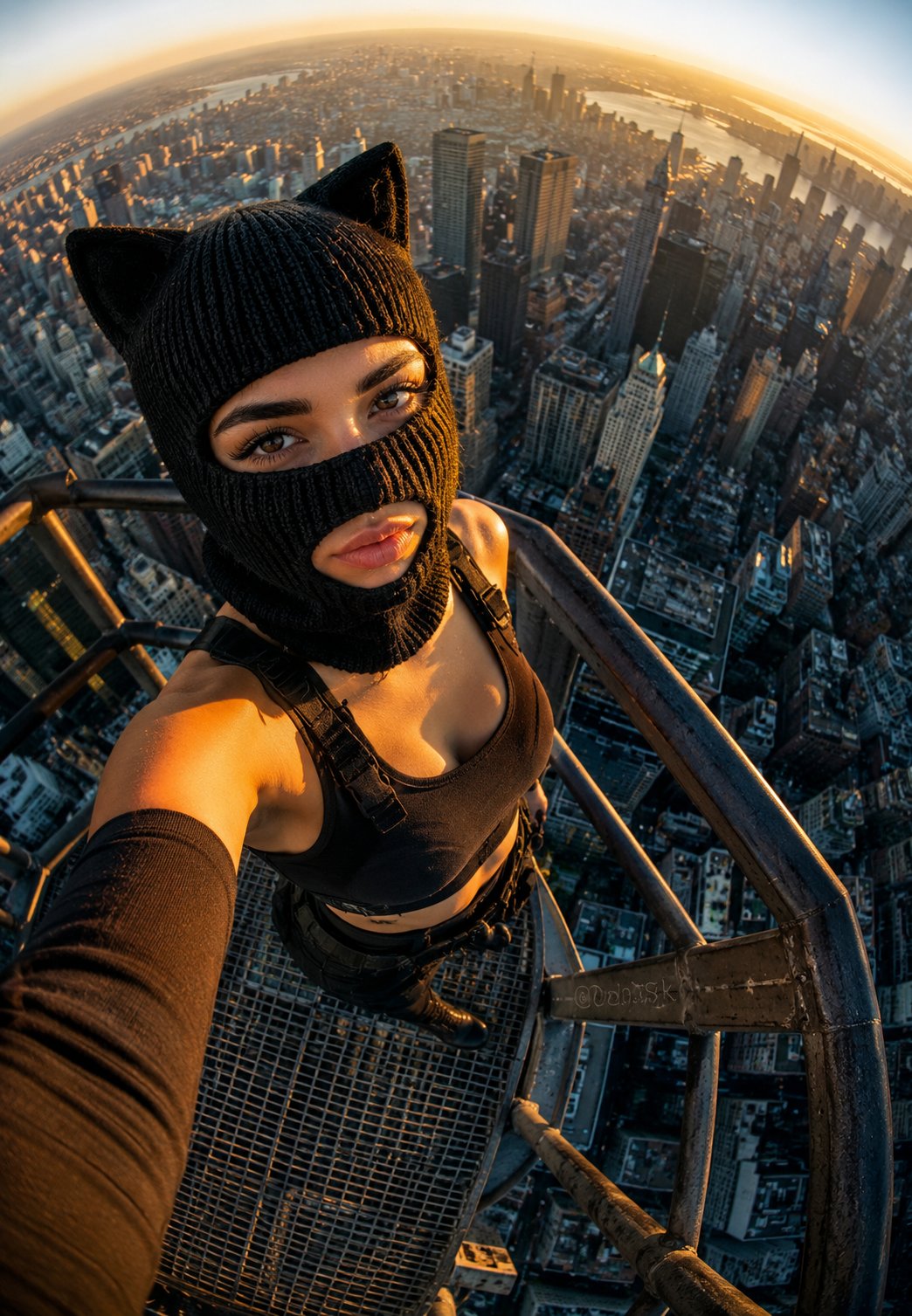
Rooftop Fisheye — Cat-Ear Balaclava at Golden Hour
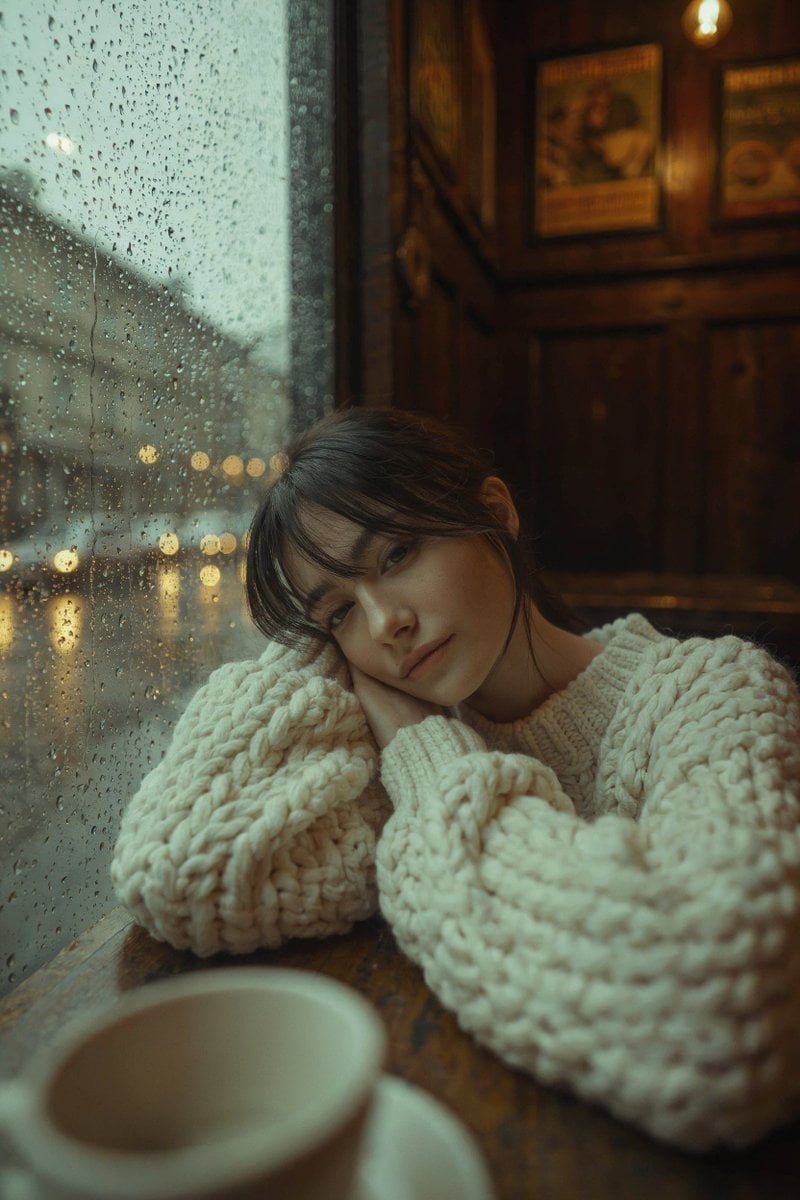
Rainy Café Window Moody Portrait

untitled
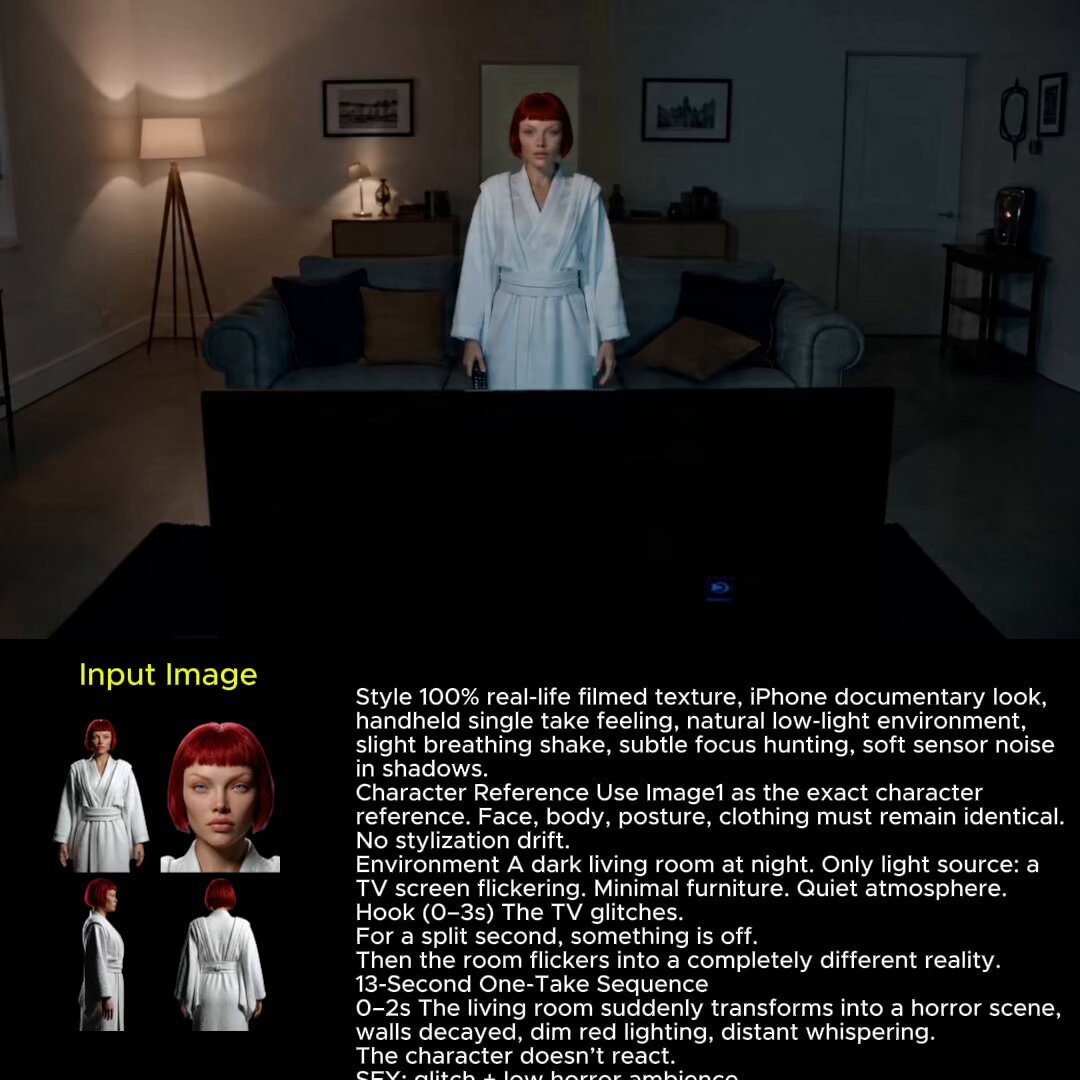
2025 Aesthetic Photography
Nano Banana Is So Addictive
Make it yours
Hyper-Realistic Portrait with Reference Image works as-is. These are the safest ways to change it without losing the look.
Change one field
Copy a single group, rewrite it, and generate again so you can see what that field is doing.
Keep the frame, change the subject
Hold the composition and light of Hyper-Realistic Portrait with Reference Image, then swap wardrobe, props or the person for a new take.
| If the result… | Why | Fix |
|---|---|---|
| The result drifts from the preview | Too many fields changed at once. | Reuse Hyper-Realistic Portrait with Reference Image as-is first, then change one group — subject, light, or setting. |
| The model over-stylizes the scene | The prose prompt leaves finish and camera underspecified. | Add one camera or lighting sentence and stay on Nano Banana 2. |
More Nano Banana 2 templates
Other prompts made for Nano Banana 2.

Photorealistic Leaf Shaped Like a Dragon

K-Pop Idol Portrait Grid for Rapid Selection

Poetic Rain Forest Portrait During Golden Hour

Urban Street Portrait with Cartoon Inner Self Duo

Candid Nighttime Photo with Cat Prompt

High-Concept 3D Diorama Generation Prompt

Cinematic Futuristic Studio Portrait Template

Skincare Editorial Photography Collage Prompt

Hyper-Realistic Commercial Product Photography (Splash Effect)

Hyper-Realistic Nightclub Portrait Prompt
More image prompts
Fresh picks from across the catalog.
Wounded Man Cinematic Film Still
Empty Corridor with Shotgun Shells
Meme to Ultra-Realistic Image Prompt

Bad MS Paint Redraw
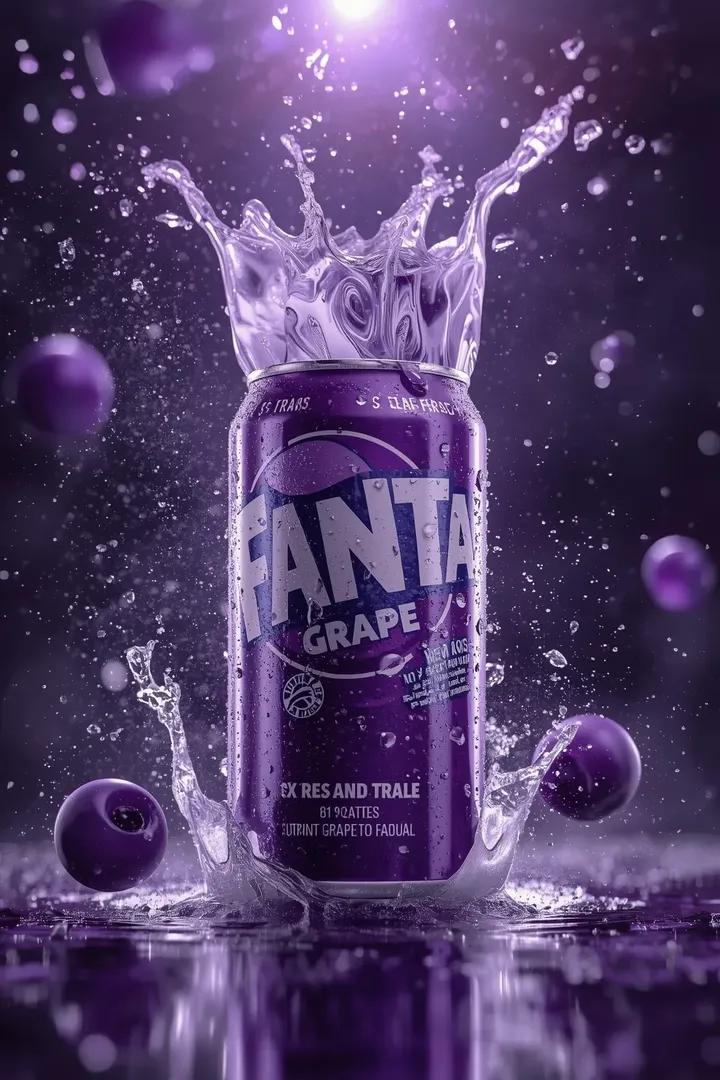
Luxury Soda Commercial Video Prompt
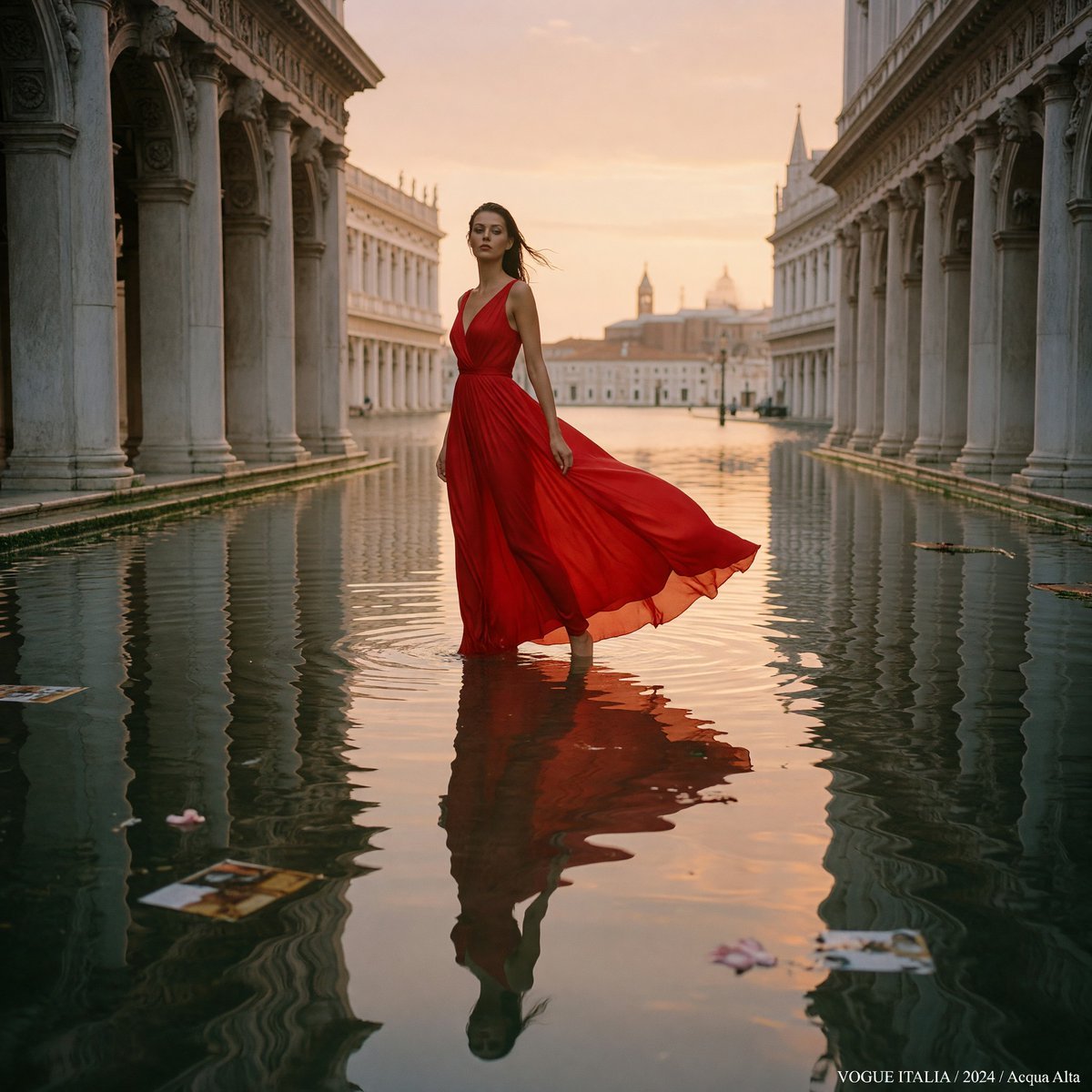
Crimson Gown in Flooded Venice
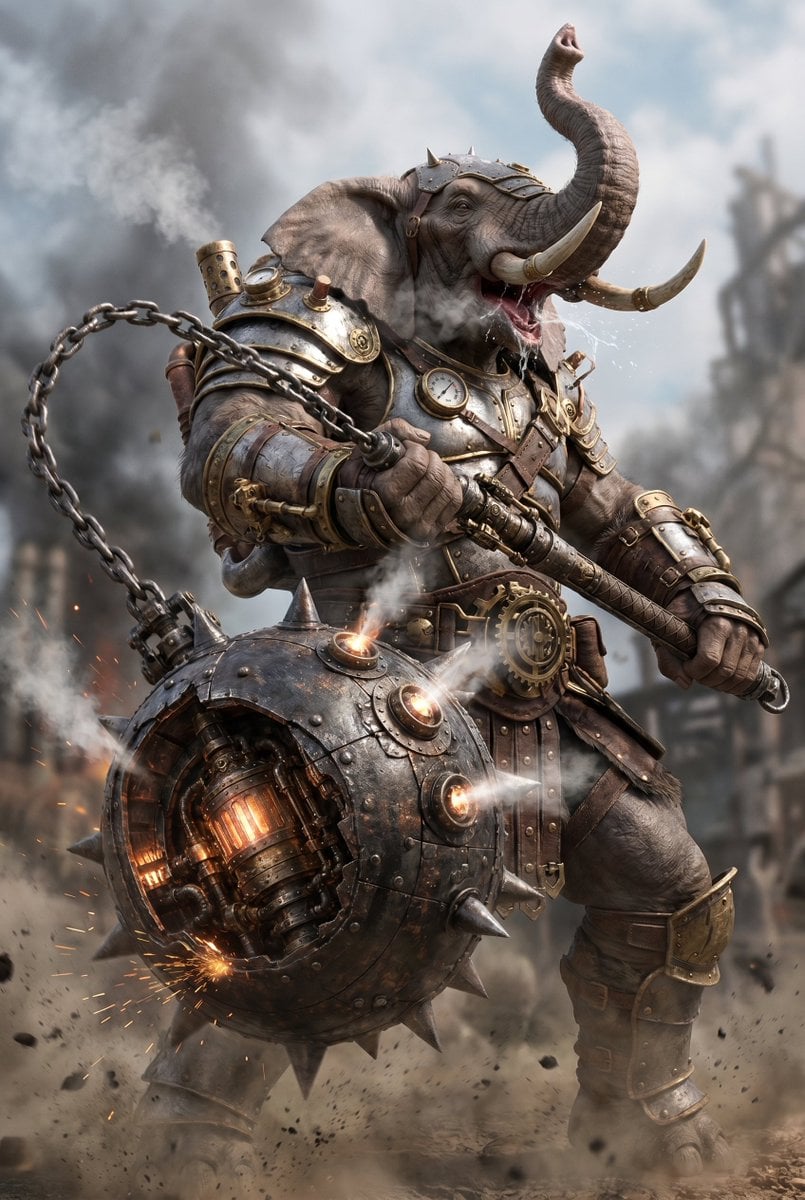
Steampunk Elephant Warrior
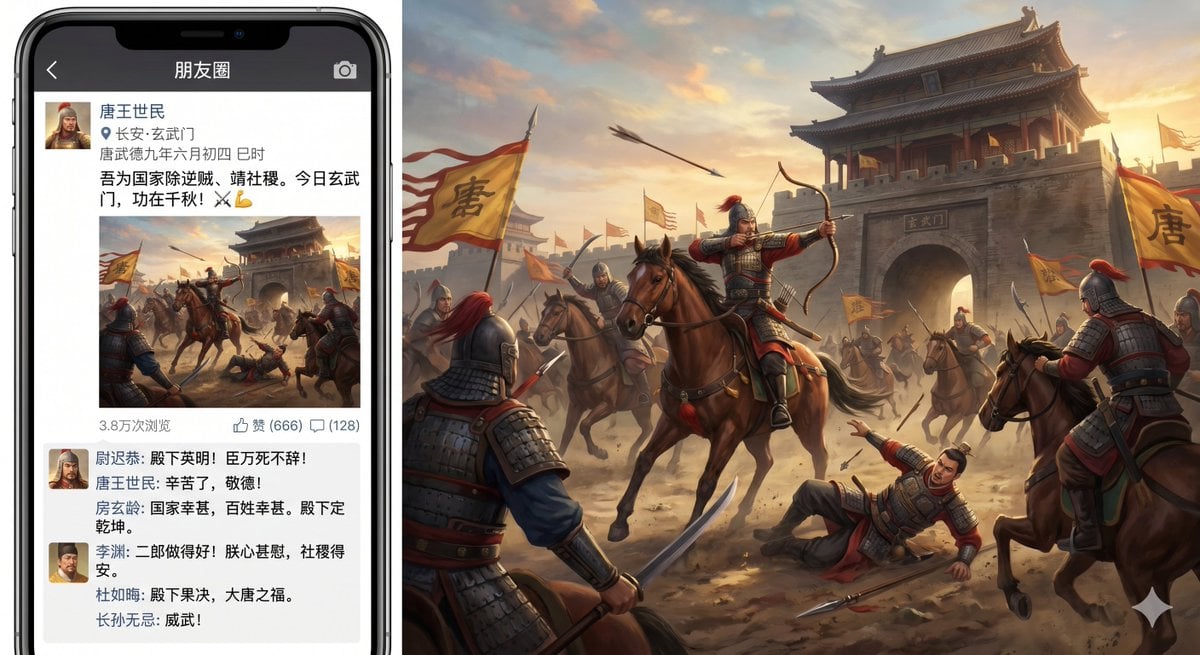
Xuanwu Gate Incident Moments Post
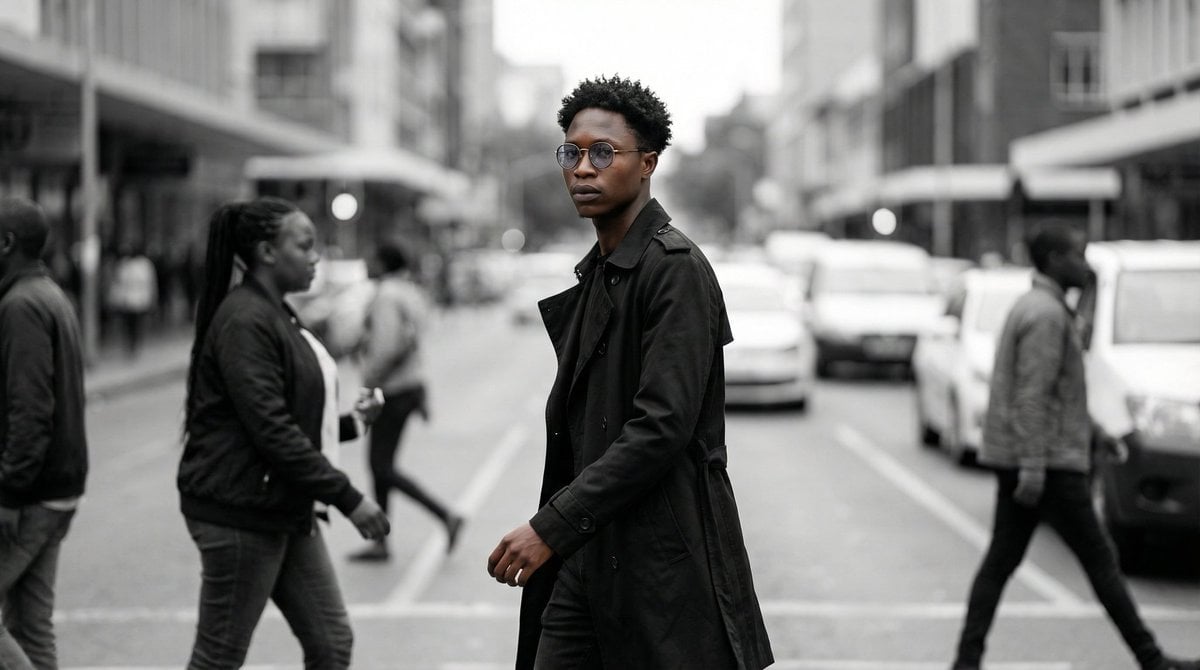
Cinematic Street Portrait
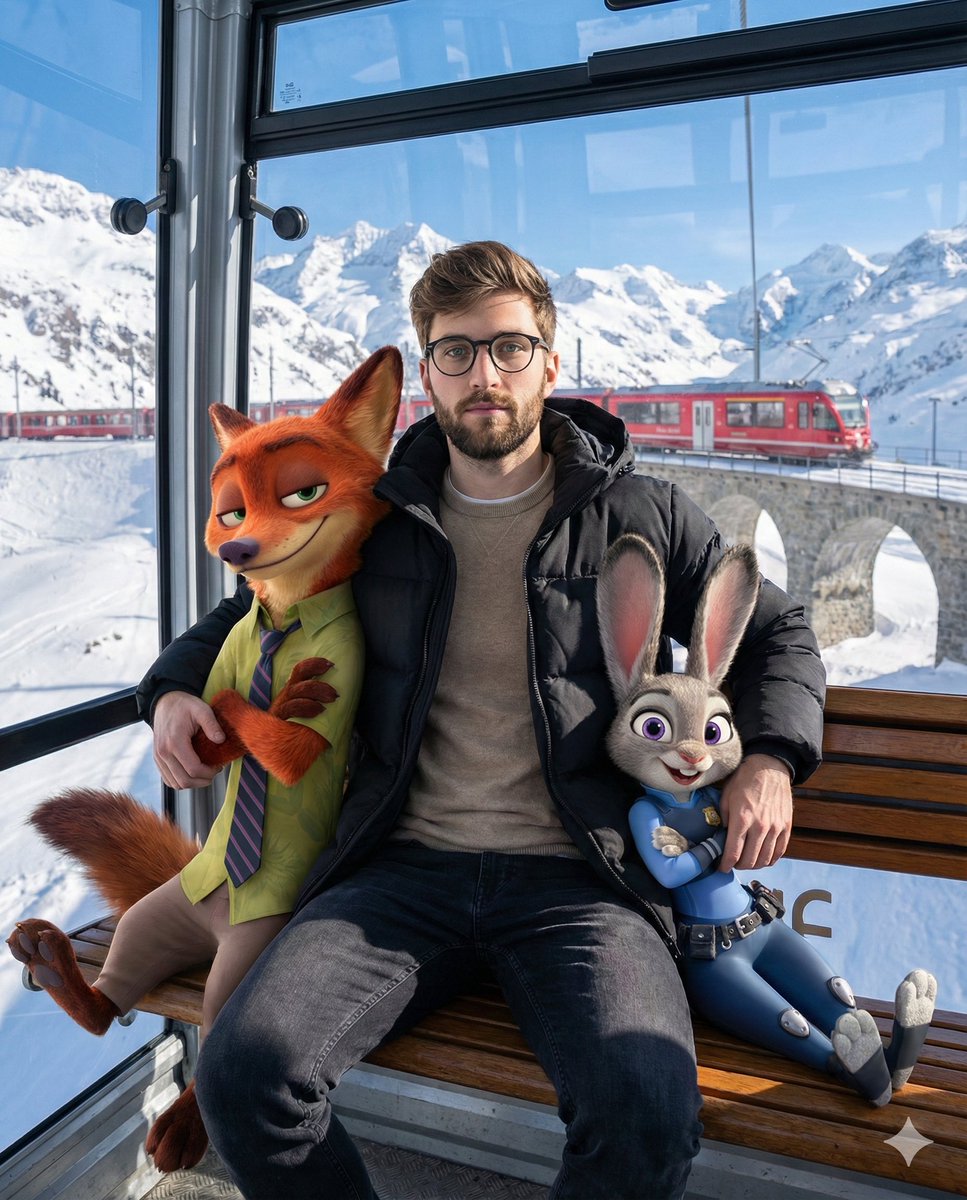
Cozy Winter Cable Car Scene with Zootopia Characters
Browse template categories
Hyper-Realistic Portrait with Reference Image questions
How do I use the Hyper-Realistic Portrait with Reference Image template?
Add your photo if the template asks for one, edit the prompt if you like — the template's model and format are already selected — and press Generate. Your version opens in PicX Studio.
Can I customize the Hyper-Realistic Portrait with Reference Image template?
Yes. You can change the subject, setting, lighting, mood, format, and available model controls before creating your image.
Is the Hyper-Realistic Portrait with Reference Image template free?
Opening and editing this template is free. Generating uses credits, shown on the Generate button when you are signed in.
Which AI model should I use?
Start with Nano Banana 2, which is the model associated with this template. You can compare another compatible model for a different finish.
Looking for something else? Browse all templates.

Your photo, any look
Thousands of ready templates for every top image and video model, from one credit balance.