
Idol Concert Performance MV
A complex video prompt for an anime idol performance, utilizing realistic concert backgrounds and lighting while maintaining anime character consistency.
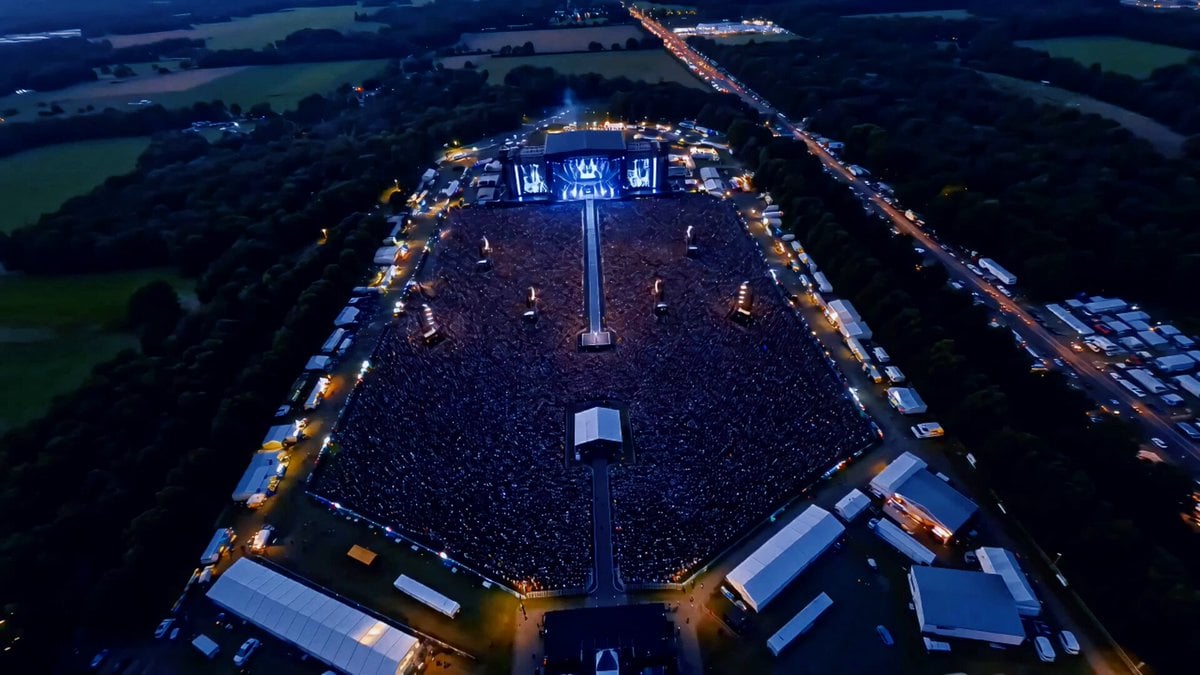
- Prompt included
- Model and format preset
- Premium template
The prompt behind this video
Copy the exact prompt behind Idol Concert Performance MV, or open it in the studio and make it yours.
Use 「アット」image1 as the live concert venue, stage, runway, crowd, lighting, and large-scale performance environment reference. Use 「アット」image2 only as Character A identity reference. Use 「アット」image2 for Character A’s face, hairstyle, outfit, accessories, colors, silhouette, and expression consistency. Only Character A is anime-style. The environment, stage, runway, crowd, LED screens, instruments, props, lighting, reflections, and camera optics must be photorealistic live-action. Do not convert the venue or background into anime style. There is exactly one main anime character only: Character A. Background audience members, musicians, staff, and distant stage-side figures are allowed, but they must be photorealistic live-action extras only and never become the main focus. No extra anime characters. No clones. No anime background. No text overlays. No logos. Create a multi-cut concert performance scene that takes place just after the song has started. Character A is already singing and now mixes singing with cute idol fan-service while moving across the stage toward the staircase at the far right edge of the stage from the audience/camera point of view. Character A sings actively into the microphone with clear lip sync. She smiles brightly, keeps strong stage presence, and combines the vocal performance with playful fan-service gestures. She waves sweetly, points playfully toward the audience or camera, makes brief eye contact, and gives a cute wink while continuing to sing. Her body moves rhythmically to the beat with light steps. She gradually travels from the center performance area toward the stage-right staircase. Her hair, skirt, hoodie, and accessories bounce naturally with her movement. Preserve the realistic concert atmosphere from 「アット」image1. Keep the blue-white concert lighting, LED glow, and the large-scale live festival feeling consistent throughout the scene. 0-2s: Start with a medium or medium-wide on-stage shot. Character A is singing brightly at center stage. She begins stepping toward the right side of the stage while making a small outward fan-service gesture with her free hand. 2-4s: Cut to a slightly wider front three-quarter shot. Character A continues singing and walking diagonally toward the staircase on the far right side of the stage from the audience/camera perspective. She gives a sweet wave toward the audience and keeps a cheerful idol smile. 4-6s: Cut to a medium shot tracking her movement. Character A keeps singing clearly while moving farther toward stage right. She points playfully toward the audience or camera, then gives a quick cute wink without breaking the performance flow. 6-8s: Cut to a wider stage-right oriented shot. The right-edge staircase becomes more visible. Character A continues singing and lightly stepping toward it, using a presenting gesture or a small re
How to use Idol Concert Performance MV in 3 steps
- 1
Open
The prompt is already in the box next to the preview, with the template's model and format selected.
- 2…a portrait of your subject in softgolden-hour light, 85mm…
Personalize
Edit the subject and creative details for your destination.
- 3Generate
Generate
Press Generate — your video is created in PicX Studio, so you can compare it with the original and refine one variable at a time.
More like this
Templates with the same subject, style or setup. Open one to see its prompt.
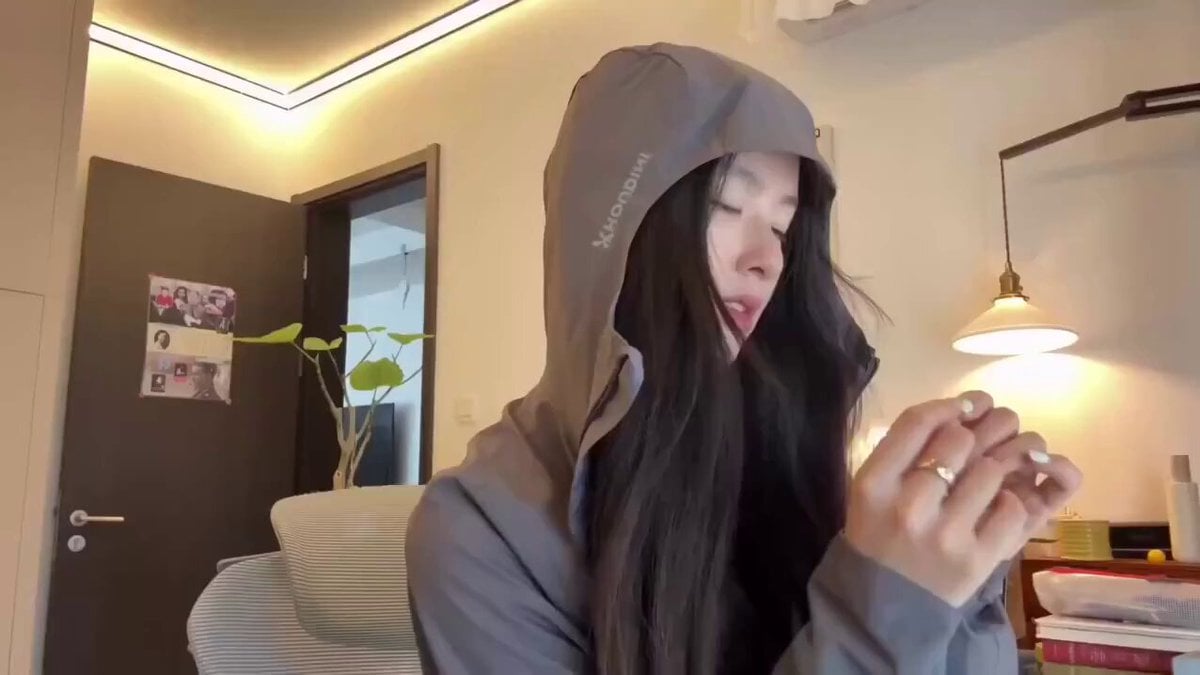
Cyberpunk Holographic Dance Performance - Seedance 2.5
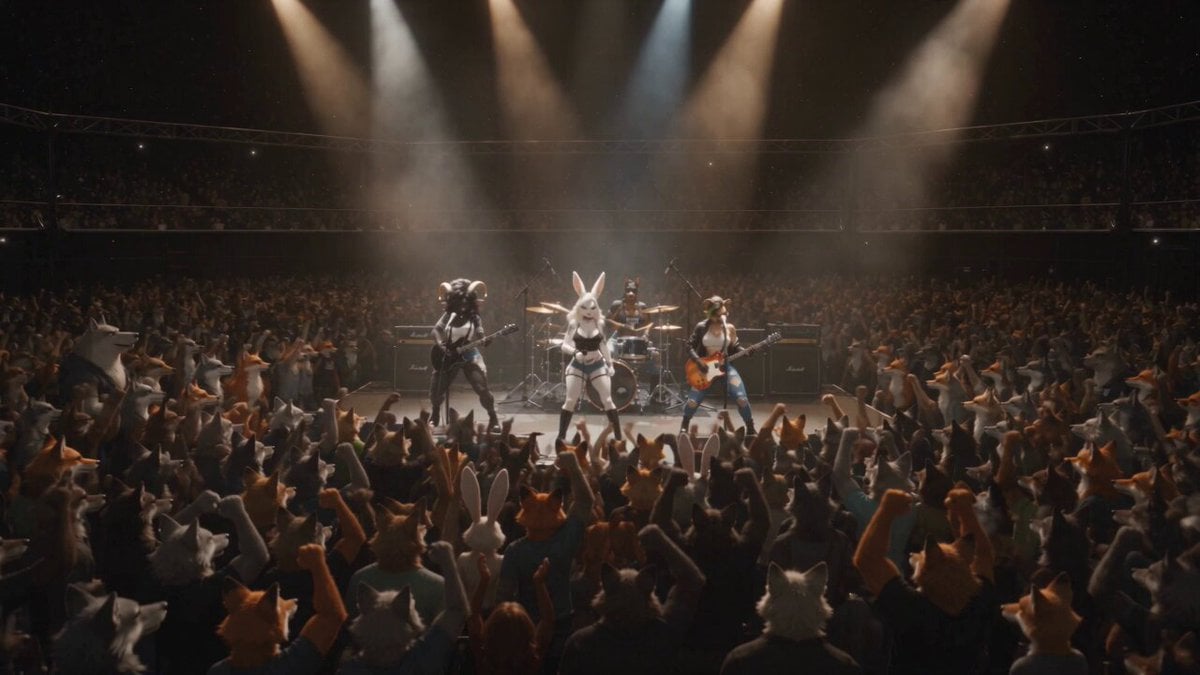
Anthropomorphic Rock Band Live Concert - Seedance 2.5
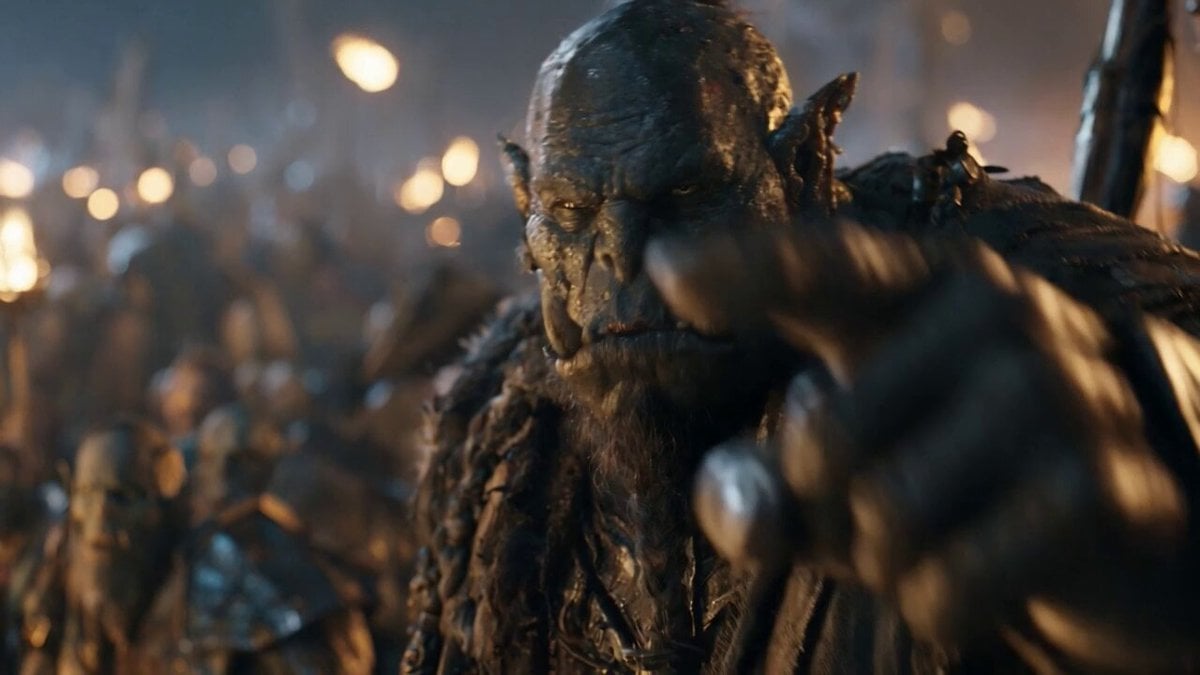
Orc Warlord Performance Transfer - Seedance 2.5
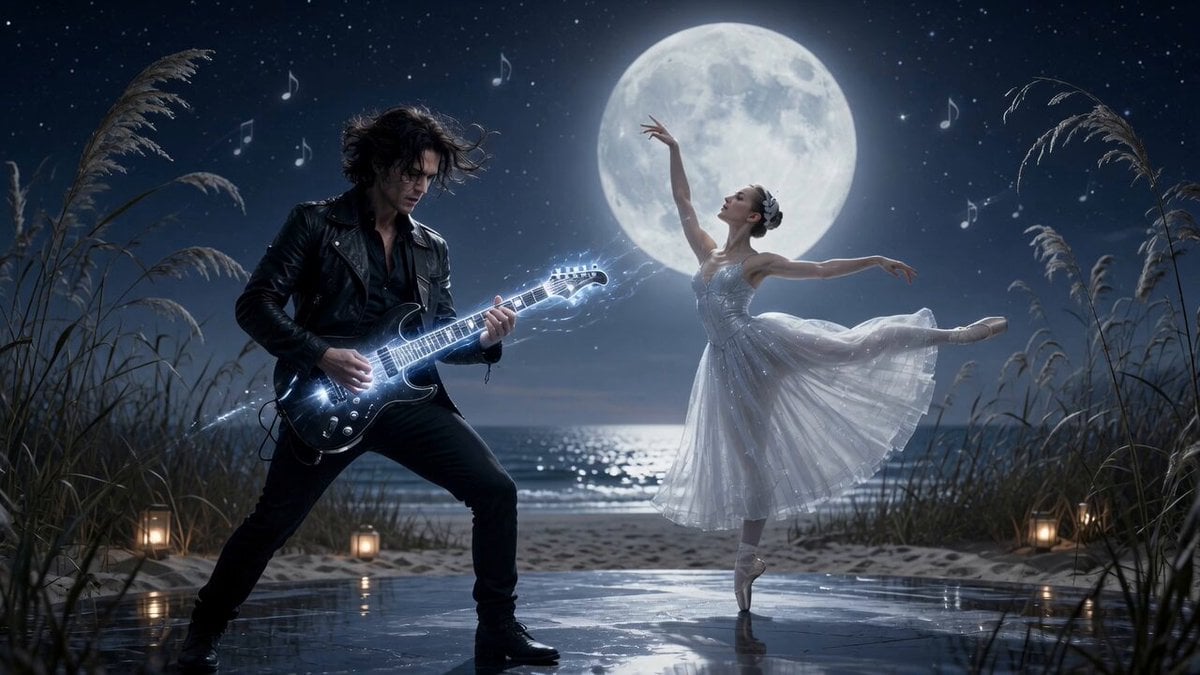
Moonlit Shoreline Rock Concert Performance
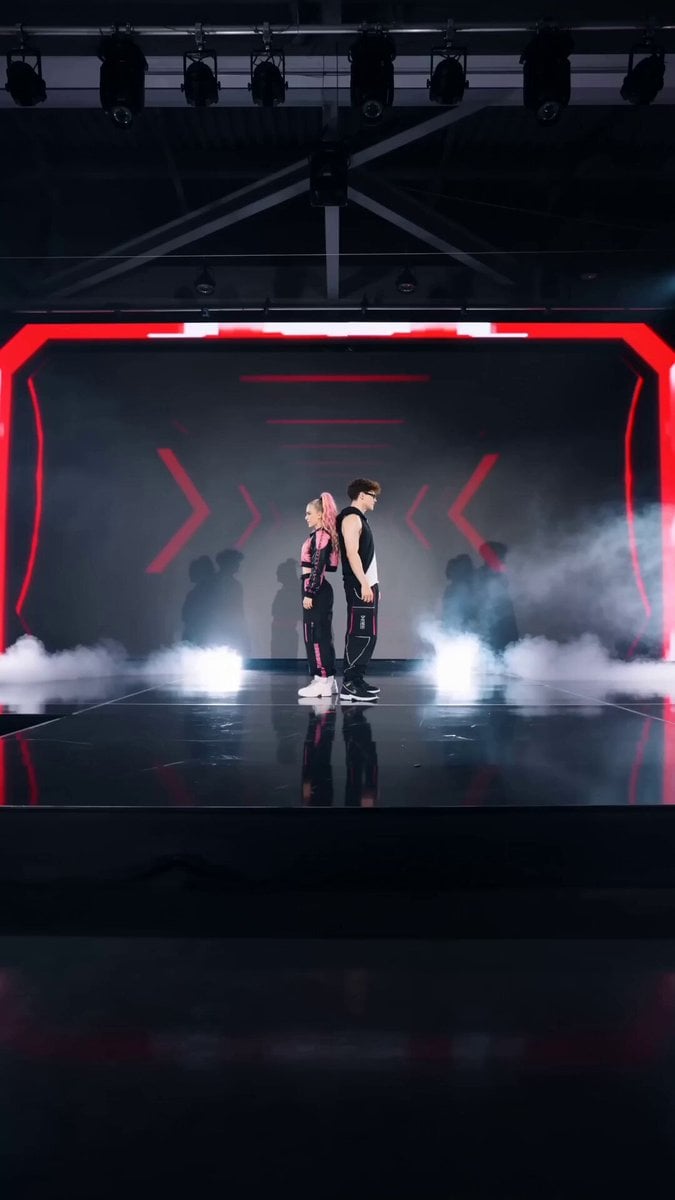
Pop Idol Concert Duo
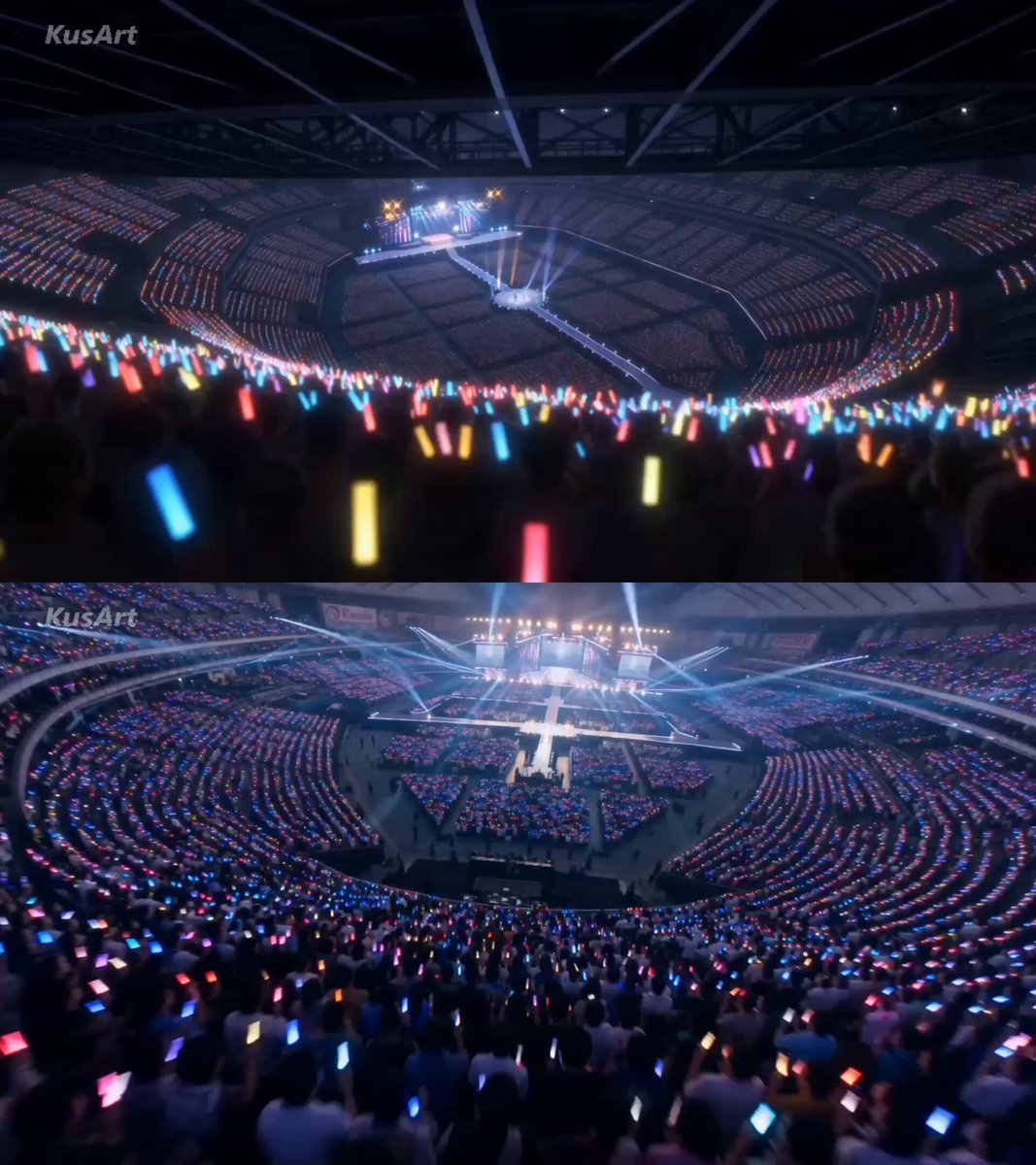
Twin Idol Anime Concert Drone Footage
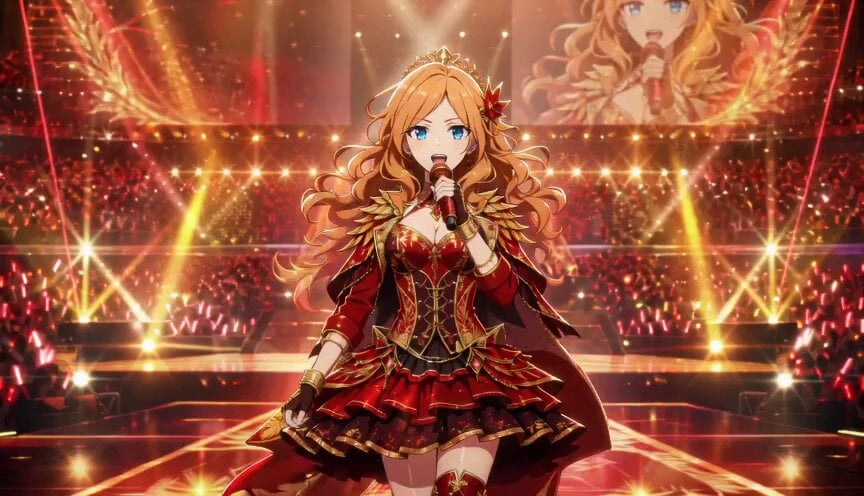
Anime Idol Frozen Time Performance

Cinematic Anime Kung Fu Performance
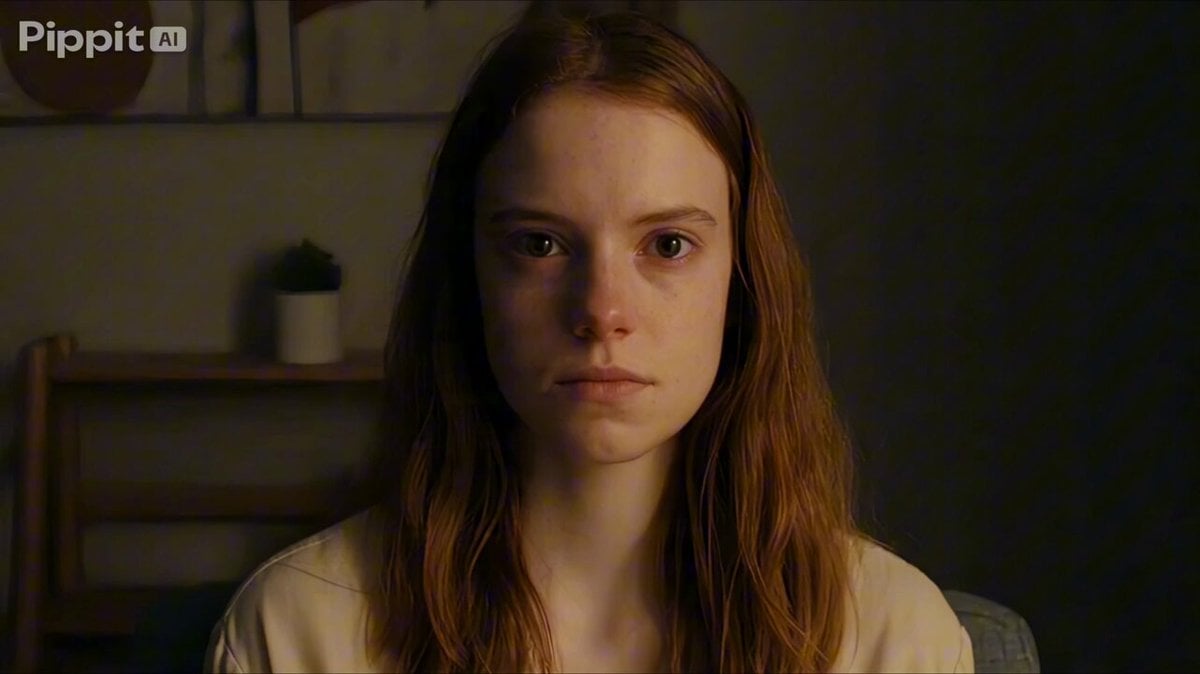
Psychological Thriller Performance Study
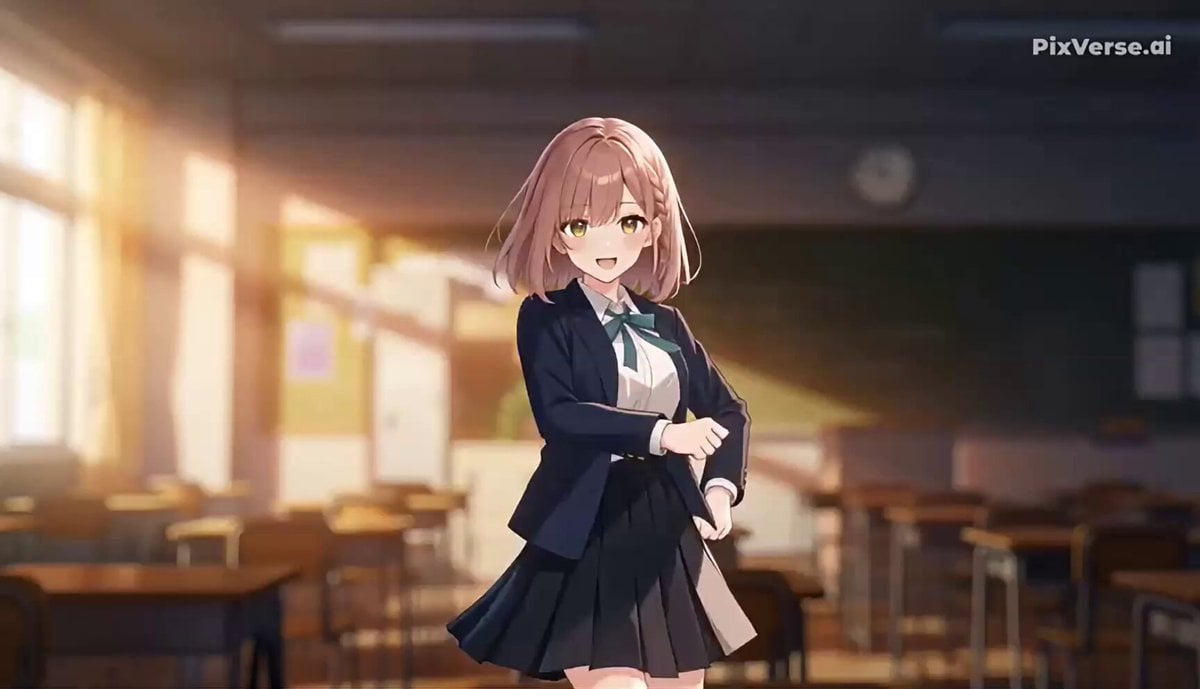
J-Pop Idol Classroom Dance Sequence
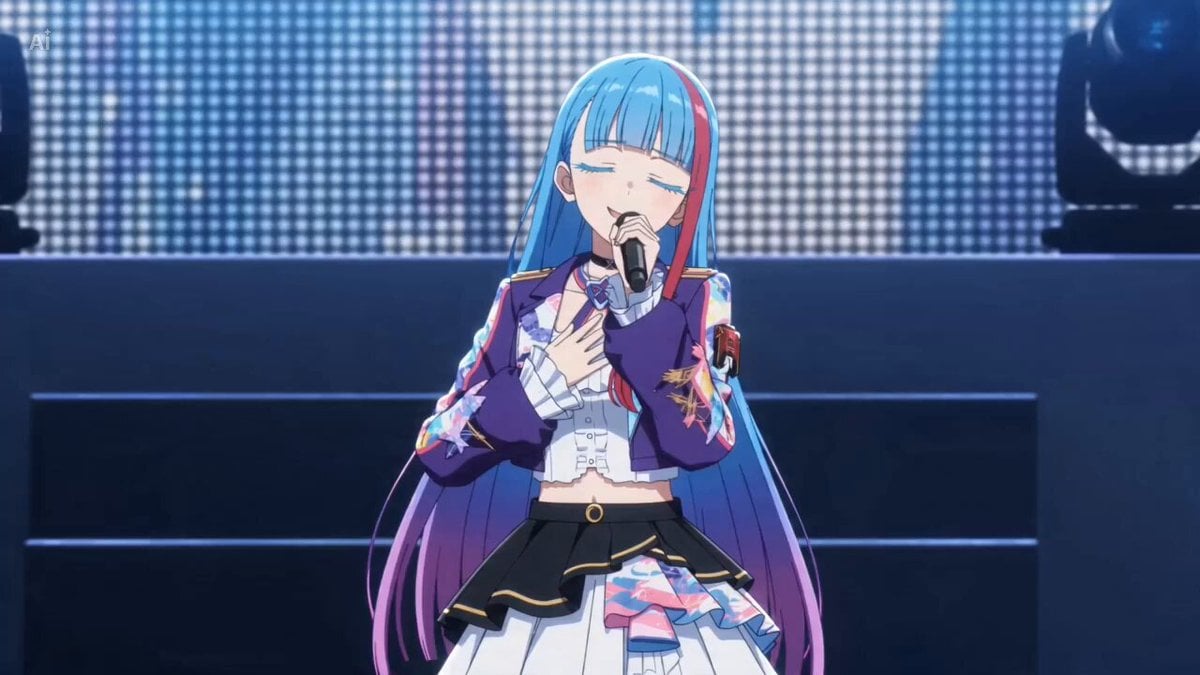
Live Concert Music Video Generator
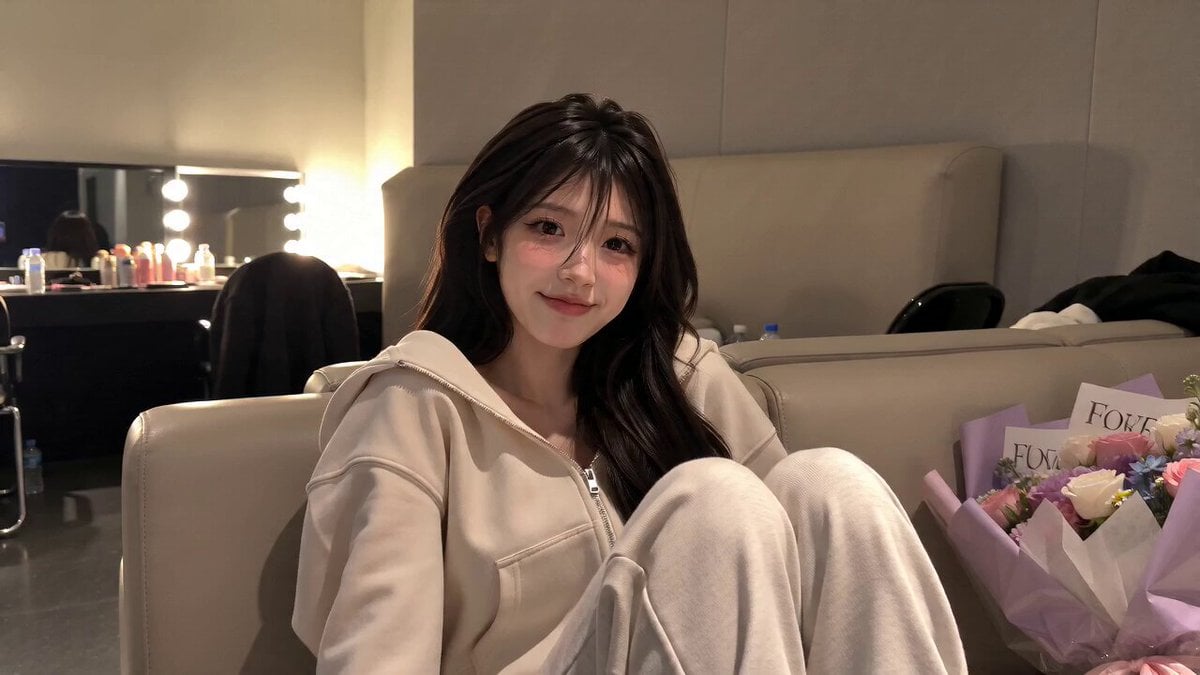
Korean Idol Backstage Vlog Scene
Make it yours
Idol Concert Performance MV works as-is. These are the safest ways to change it without losing the look.
Change one field
Copy a single group, rewrite it, and generate again so you can see what that field is doing.
Keep the frame, change the subject
Hold the composition and light of Idol Concert Performance MV, then swap wardrobe, props or the person for a new take.
| If the result… | Why | Fix |
|---|---|---|
| The result drifts from the preview | Too many fields changed at once. | Reuse Idol Concert Performance MV as-is first, then change one group — subject, light, or setting. |
| The model over-stylizes the scene | The prose prompt leaves finish and camera underspecified. | Add one camera or lighting sentence and stay on Seedance 2.0. |
More Seedance 2.0 templates
Other prompts made for Seedance 2.0.
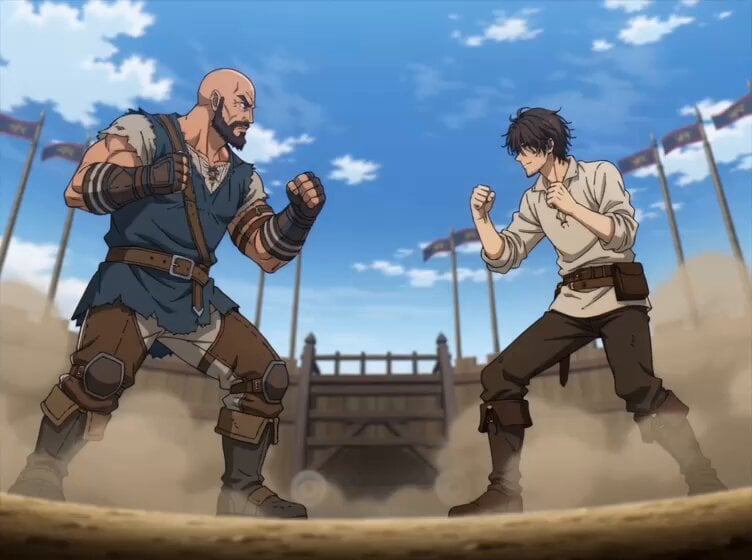
Comical Martial Arts Punch Scene
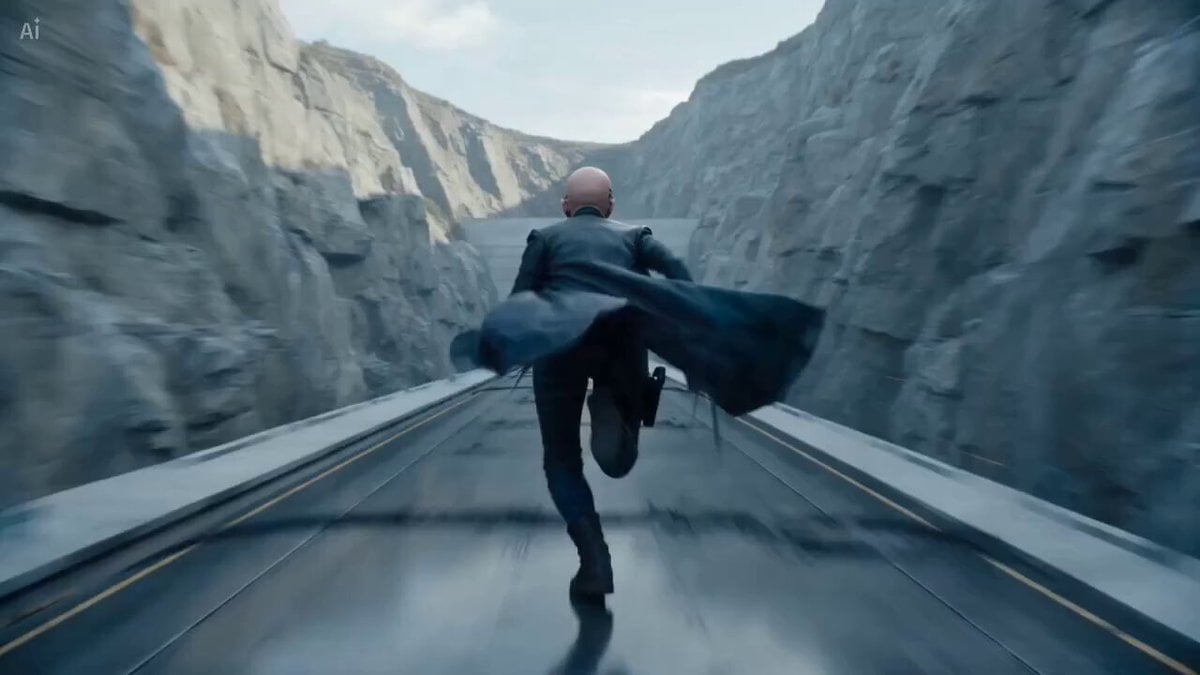
Maglev Train Action Sequence
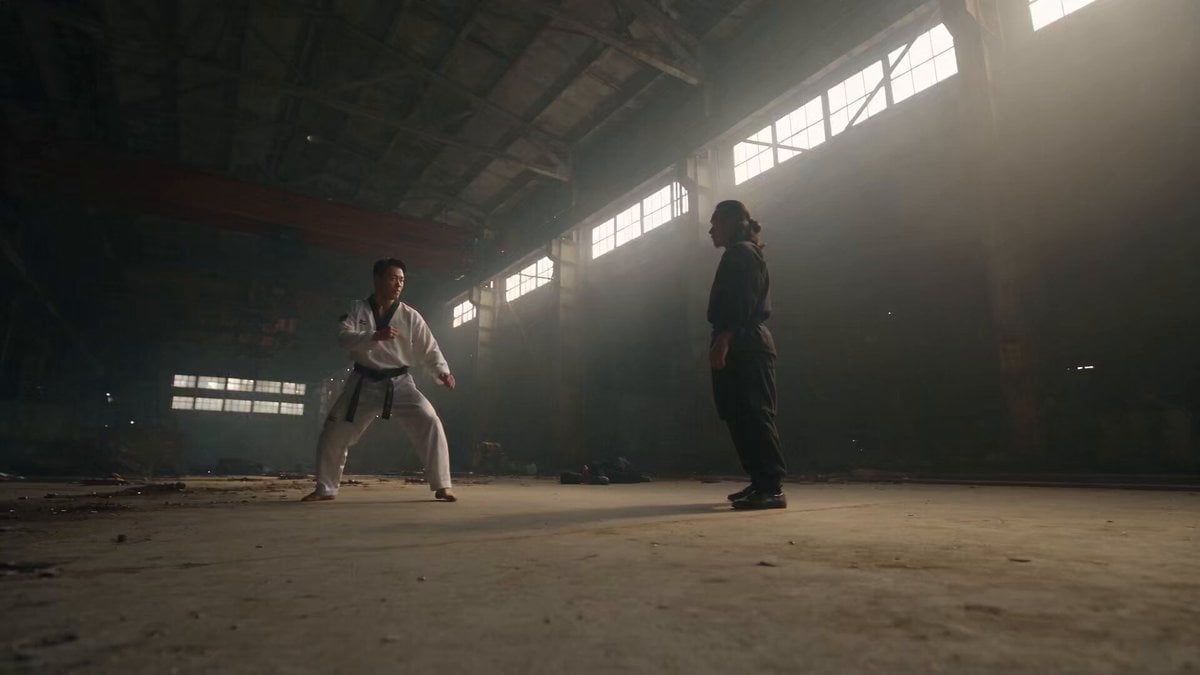
Martial Arts Fight Sequence
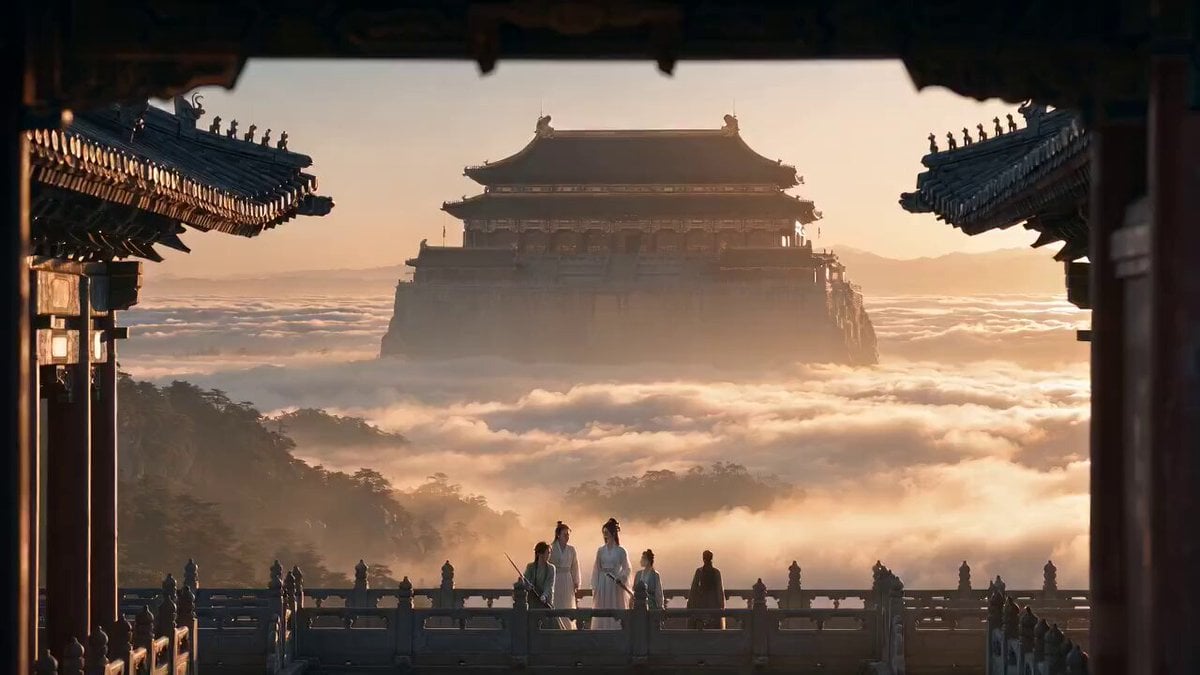
Wuxia Protection and Trust Script
Vintage Korean Arcade MiniDV Vlog
Mercedes 190 SL Luxury Ad
Rainy Night Supernatural Reverse Comedy Video Script
Amazon Civilization Discovery
Futuristic South Asian City Transformation
Cozy Luxury Cafe Commercial
More video prompts
Fresh picks from across the catalog.
Hardcore Xianxia Dual Spears vs Sword Combat

Soft Pink Peonies Dreamscape

Cinematic Slow Orbit Man Reading Prompt
Modern House Construction Time Lapse
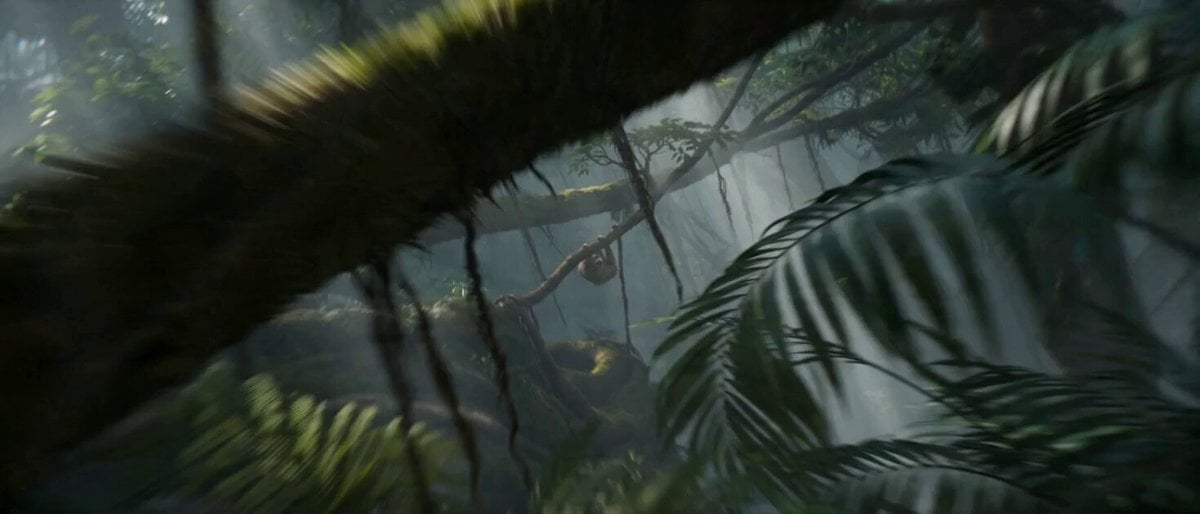
Impossible Camera Moves in Amazon Rainforest
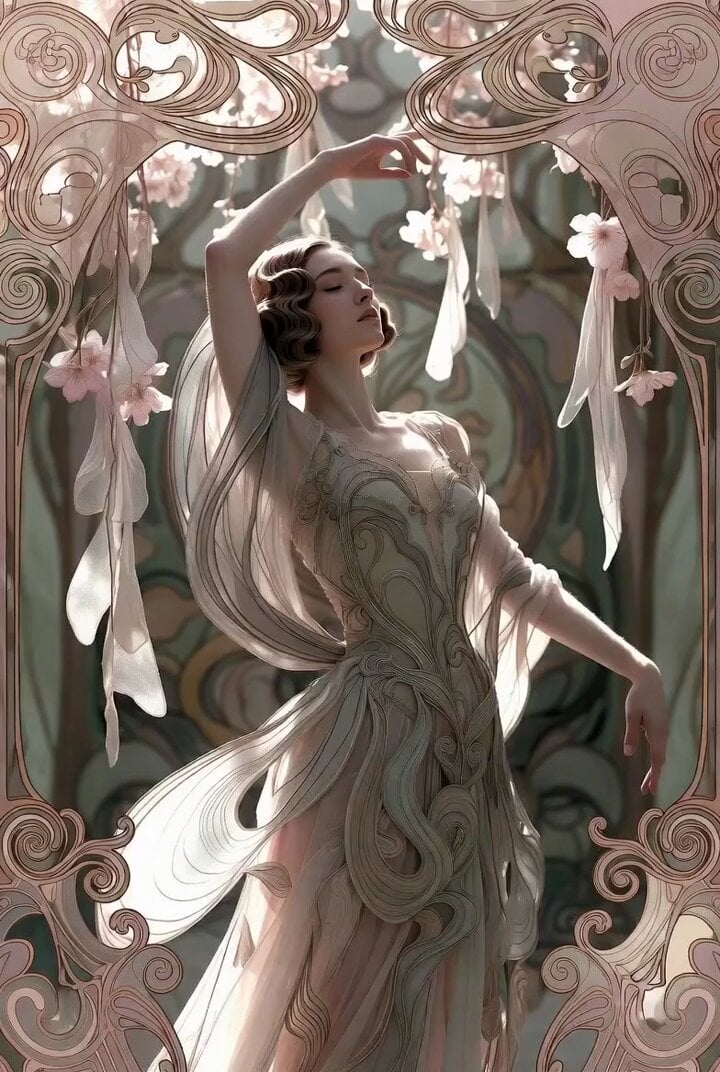
Art Nouveau Ballerina
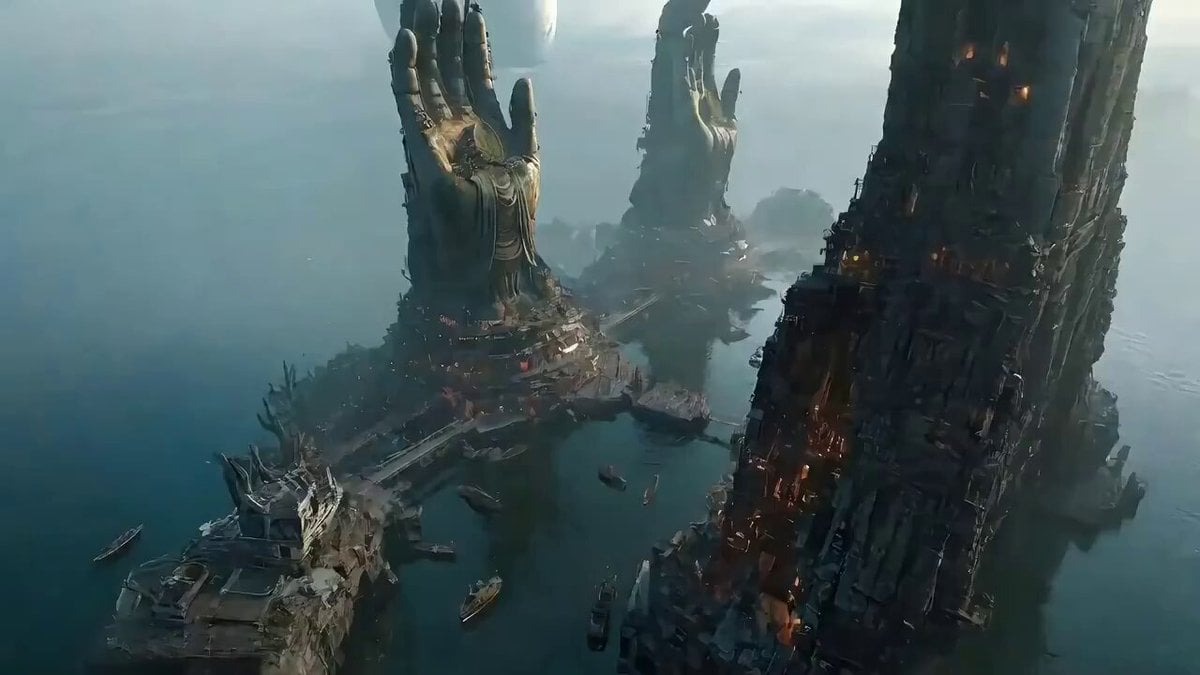
Epic One-Shot Oriental Fantasy Divine City
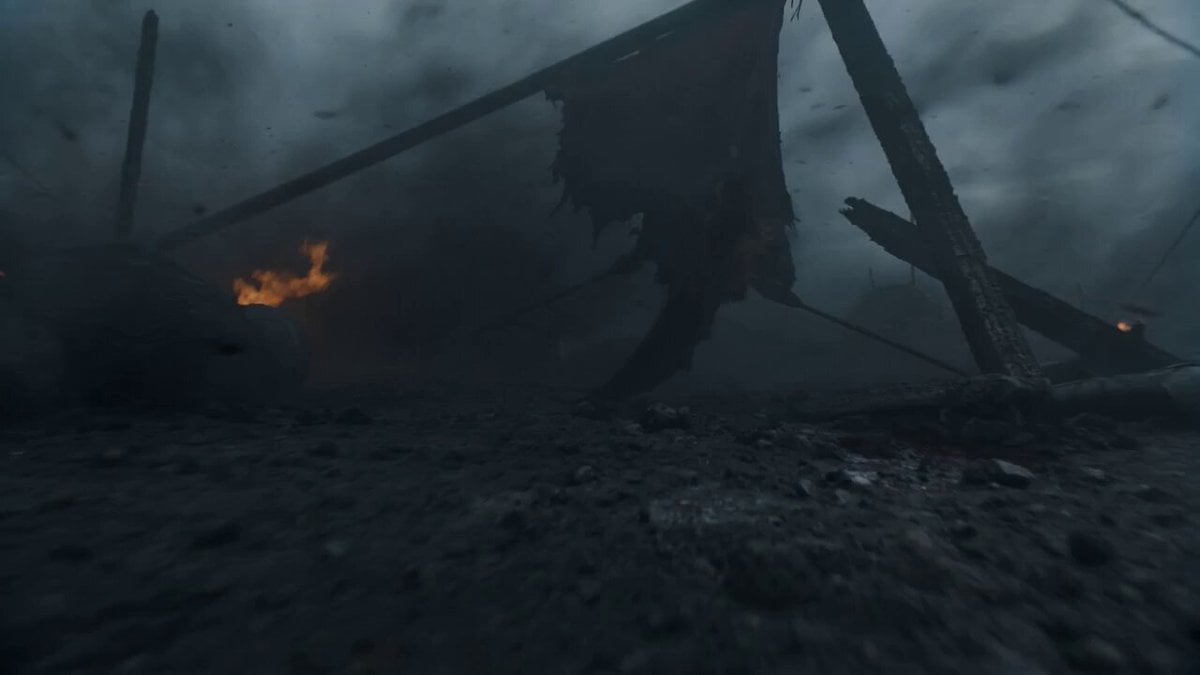
Seedance 2.0 Cinematic Suspense Prompt with Detailed Timeline

Cinematic Fight Scene Generation in Guoman Style (Seedance 2.0)
Dark Fantasy Horror Transformation
Browse template categories
Idol Concert Performance MV questions
How do I use the Idol Concert Performance MV template?
Add your photo if the template asks for one, edit the prompt if you like — the template's model and format are already selected — and press Generate. Your version opens in PicX Studio.
Can I customize the Idol Concert Performance MV template?
Yes. You can change the subject, setting, lighting, mood, format, and available model controls before creating your video.
Is the Idol Concert Performance MV template free?
Opening and editing this template is free. Generating uses credits, shown on the Generate button when you are signed in.
Which AI model should I use?
Start with Seedance 2.0, which is the model associated with this template. You can compare another compatible model for a different finish.
Looking for something else? Browse all templates.

Your photo, any look
Thousands of ready templates for every top image and video model, from one credit balance.