
Storyboard to Live Action Video Instruction
An instruction prompt for Seedance 2.0 to interpret an uploaded storyboard as a shot reference for creating a continuous live-action commercial.
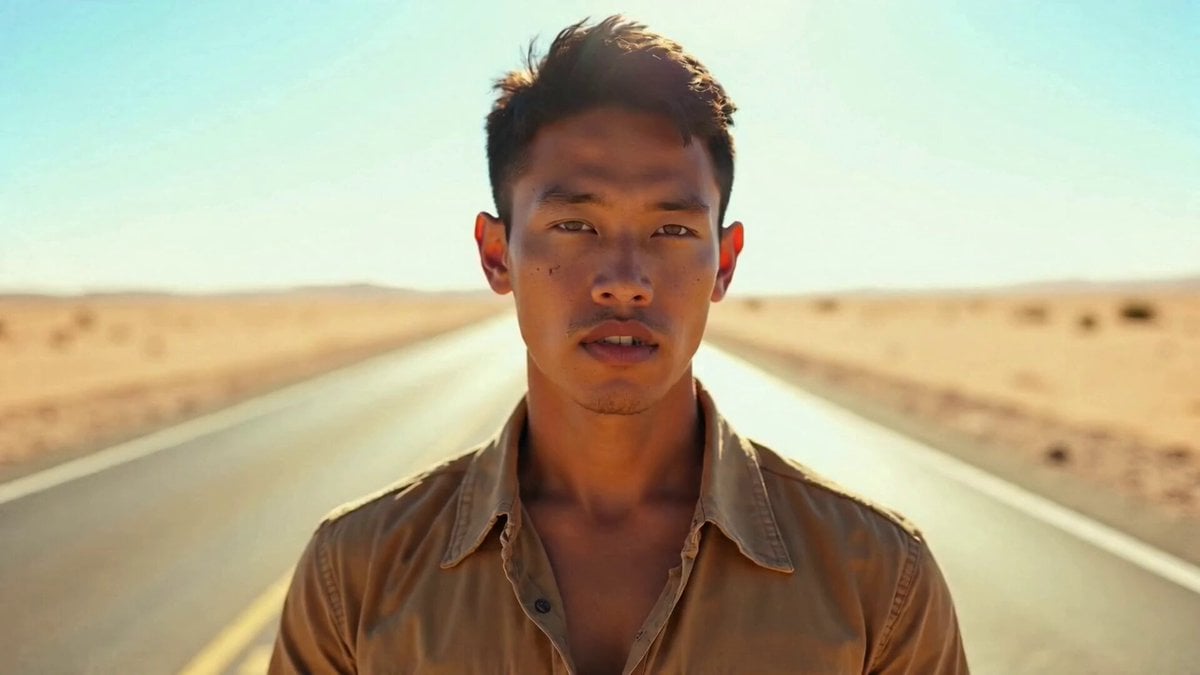
- Prompt included
- Model and format preset
- Free template
The prompt behind this video
Copy the exact prompt behind Storyboard to Live Action Video Instruction, or open it in the studio and make it yours.
Use the storyboard image only as a shot reference. Create a continuous live-action commercial film, not a storyboard page.
How to use Storyboard to Live Action Video Instruction in 3 steps
- 1
Open
The prompt is already in the box next to the preview, with the template's model and format selected.
- 2…a portrait of your subject in softgolden-hour light, 85mm…
Personalize
Edit the subject and creative details for your destination.
- 3Generate
Generate
Press Generate — your video is created in PicX Studio, so you can compare it with the original and refine one variable at a time.
More like this
Templates with the same subject, style or setup. Open one to see its prompt.
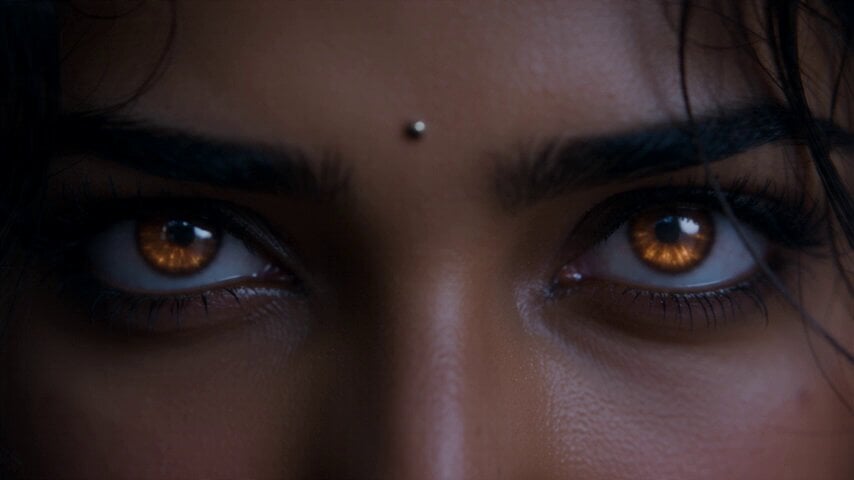
Fantasy Martial Arts Live Action
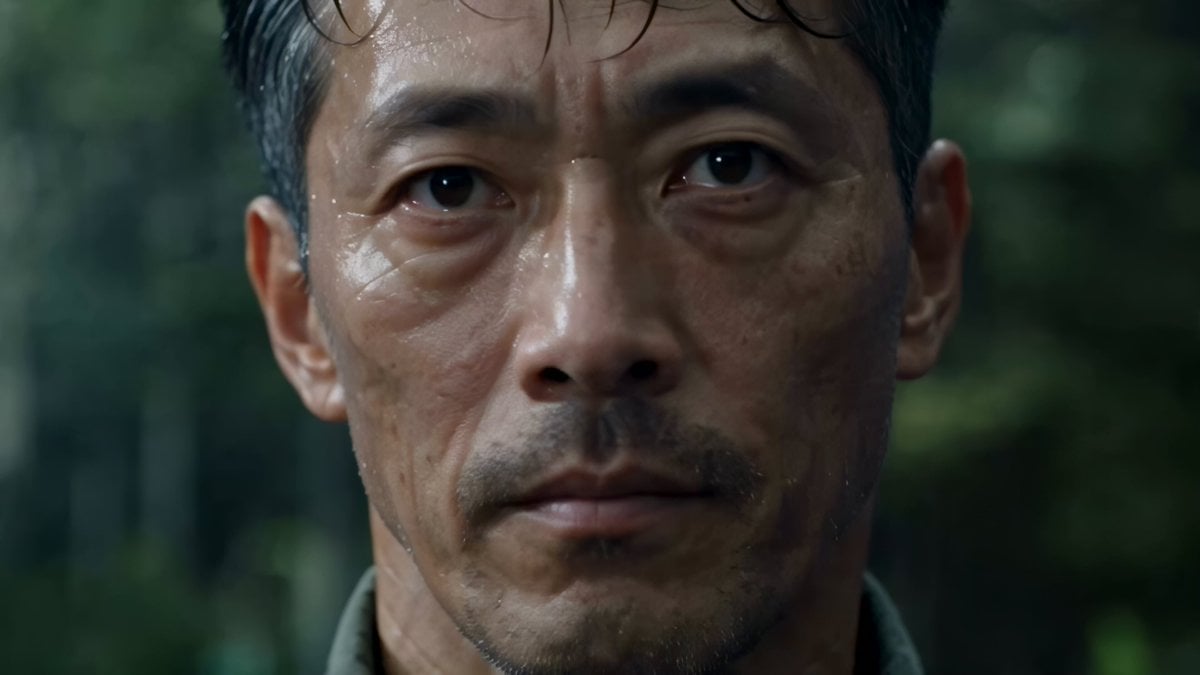
Cinematic Beer Commercial Live Action
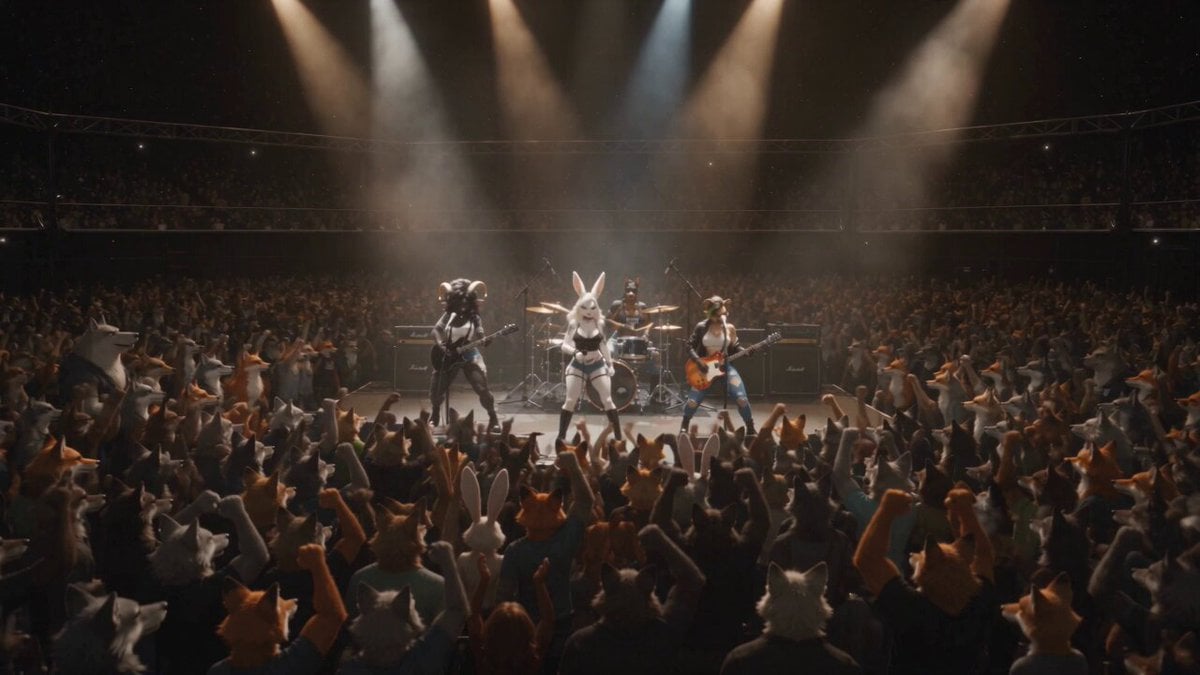
Anthropomorphic Rock Band Live Concert - Seedance 2.5
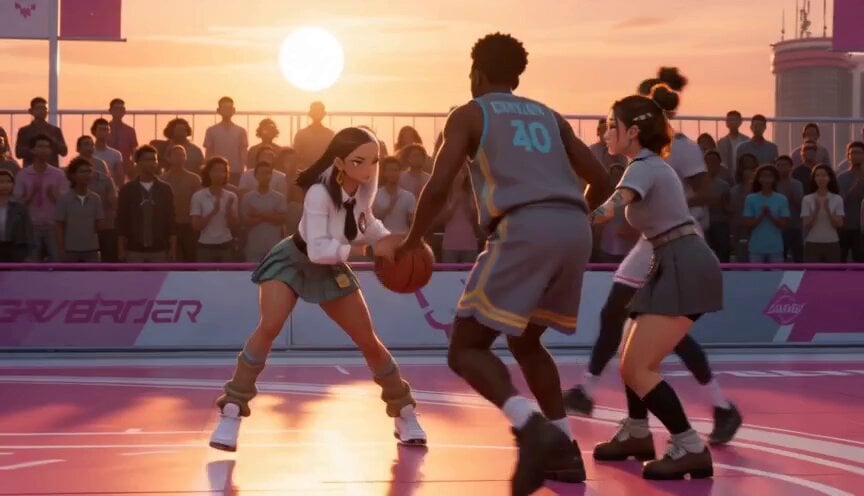
Anime and Live-Action Basketball Mix
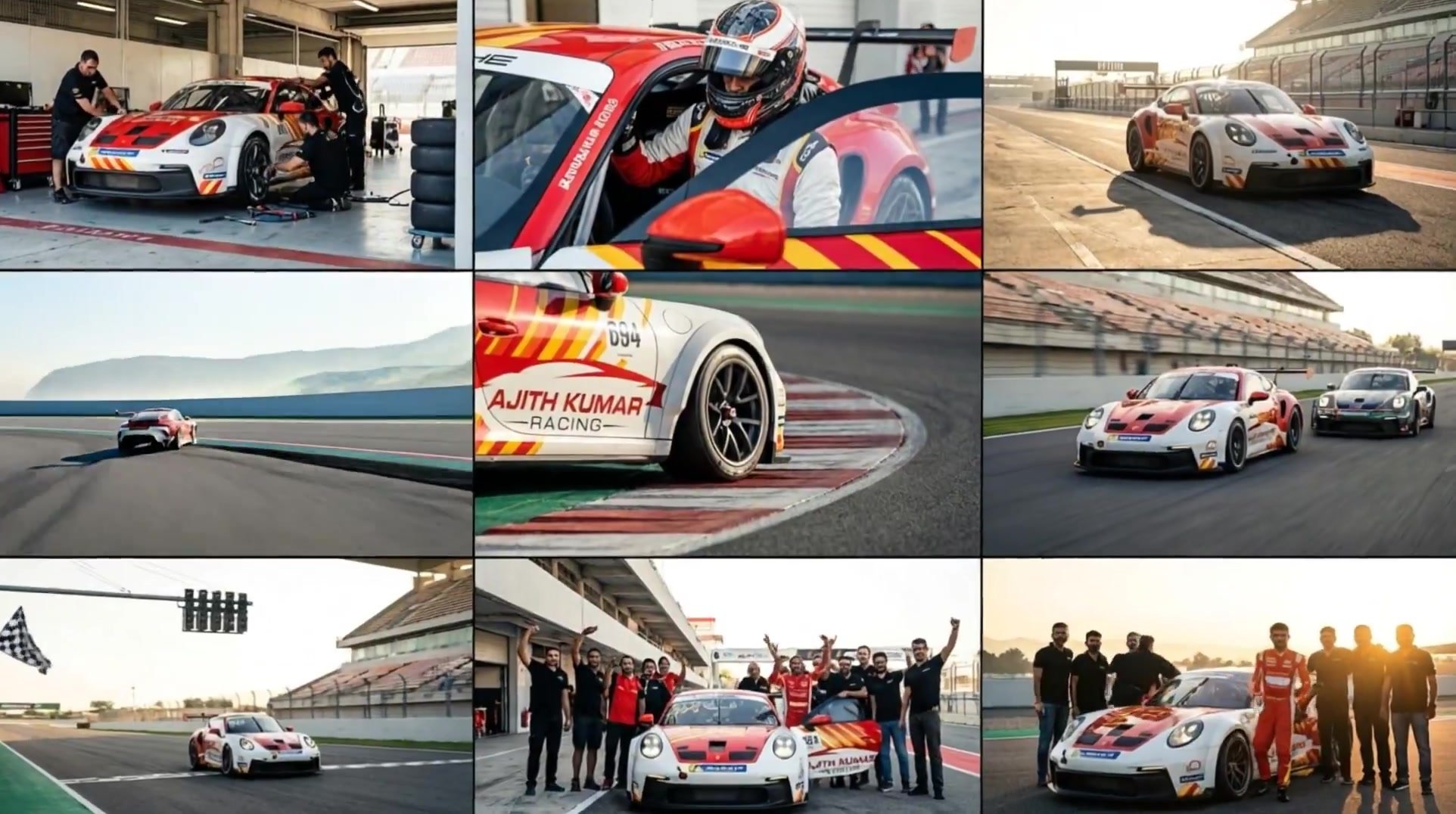
3x3 Grid Storyboard Racing — Kling 3.0 O3 Pro

Dragon Rider Cinematic Flight — Seedance 2.5
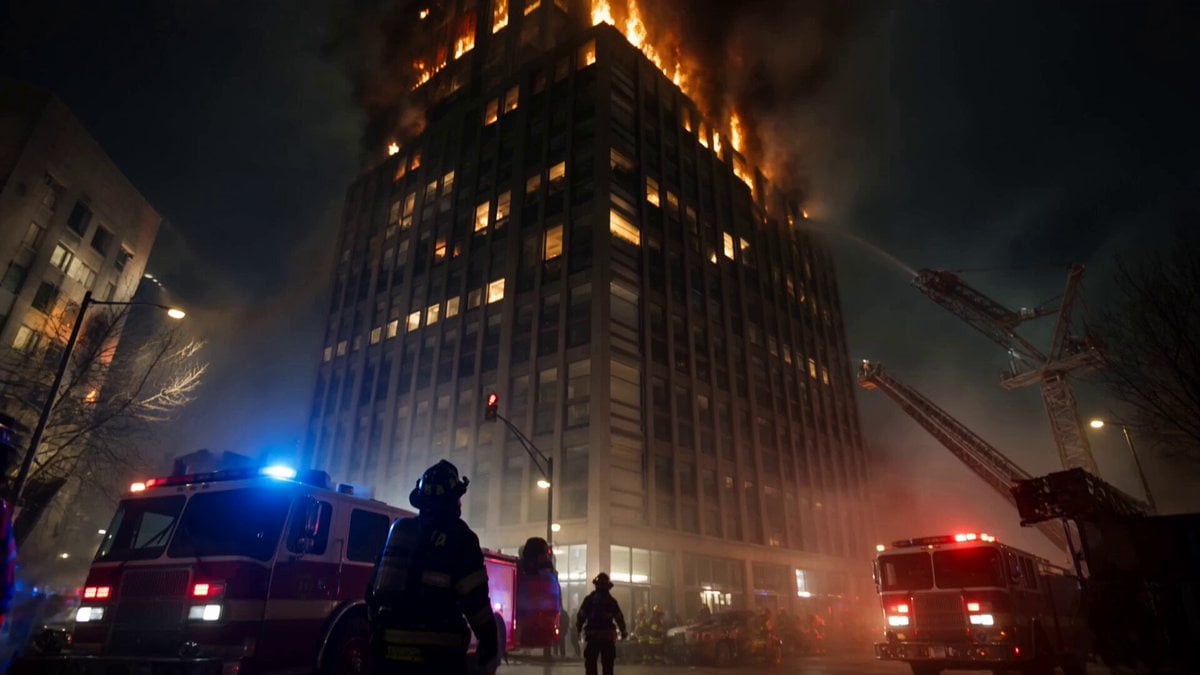
Live-Action Firefighter Rescue Night Scene
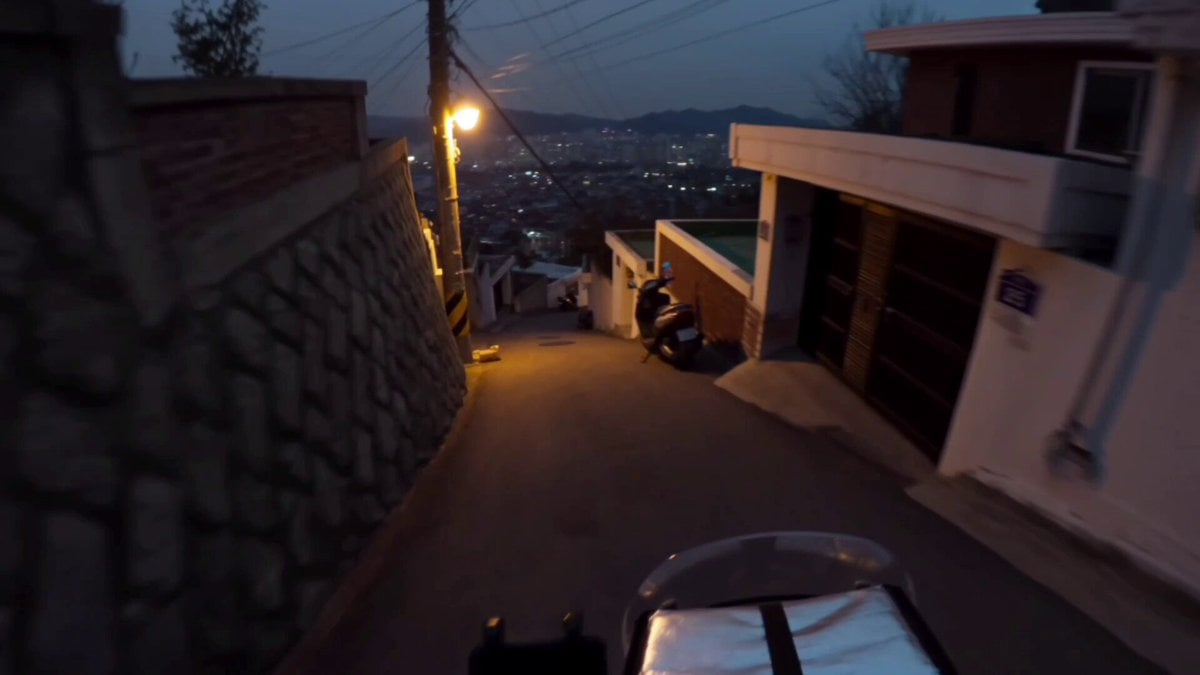
Korean Motorbike Delivery Action Video Prompt
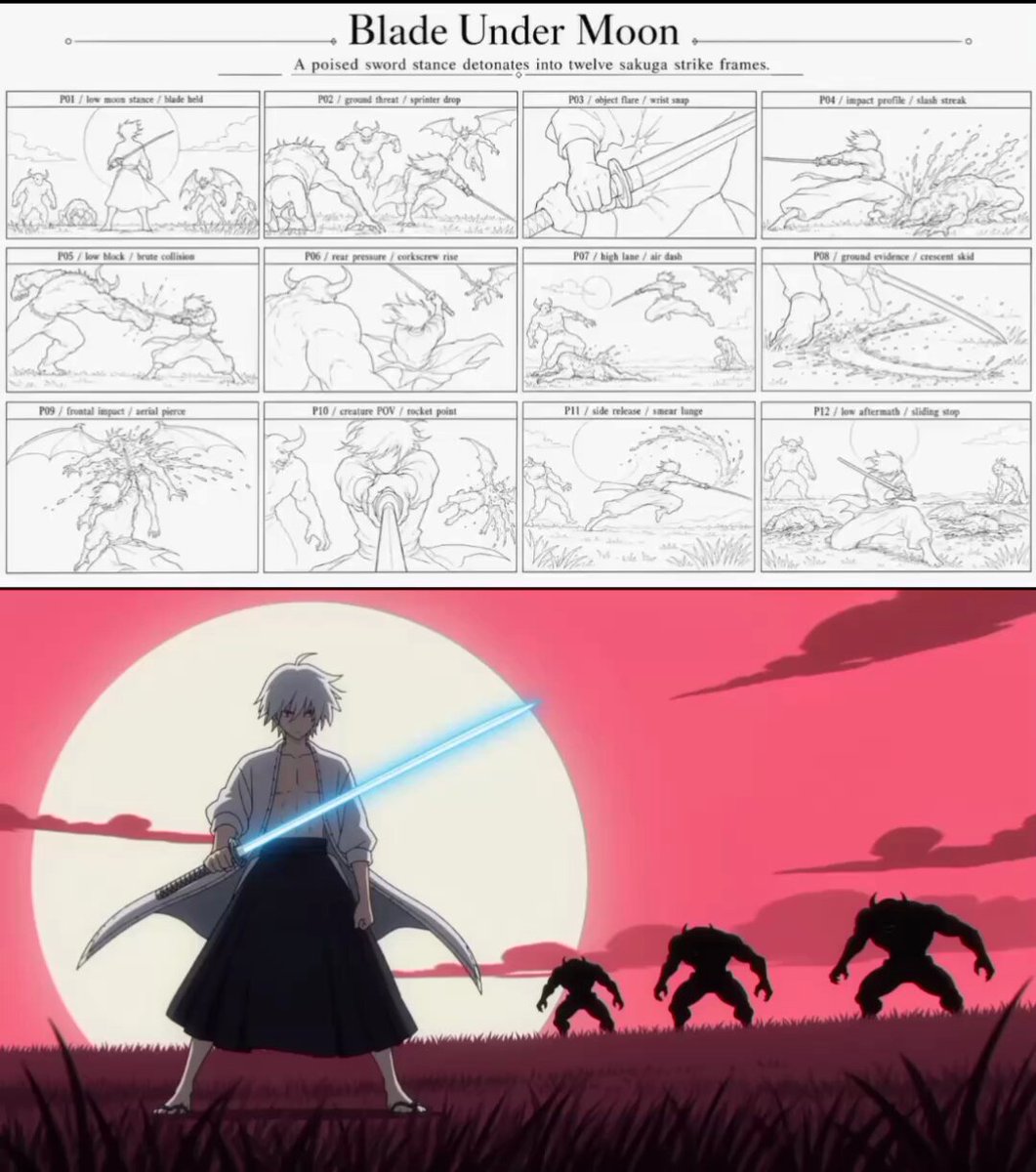
Sakuga Anime Action Storyboard
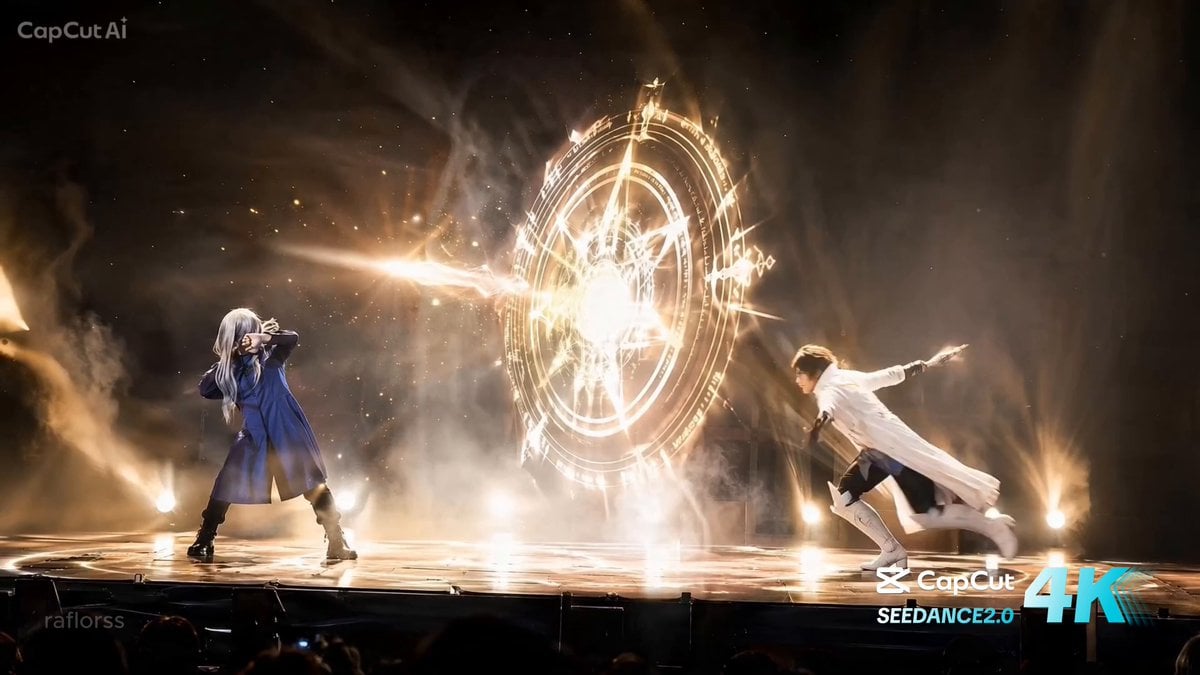
Live Action Anime Stage Play
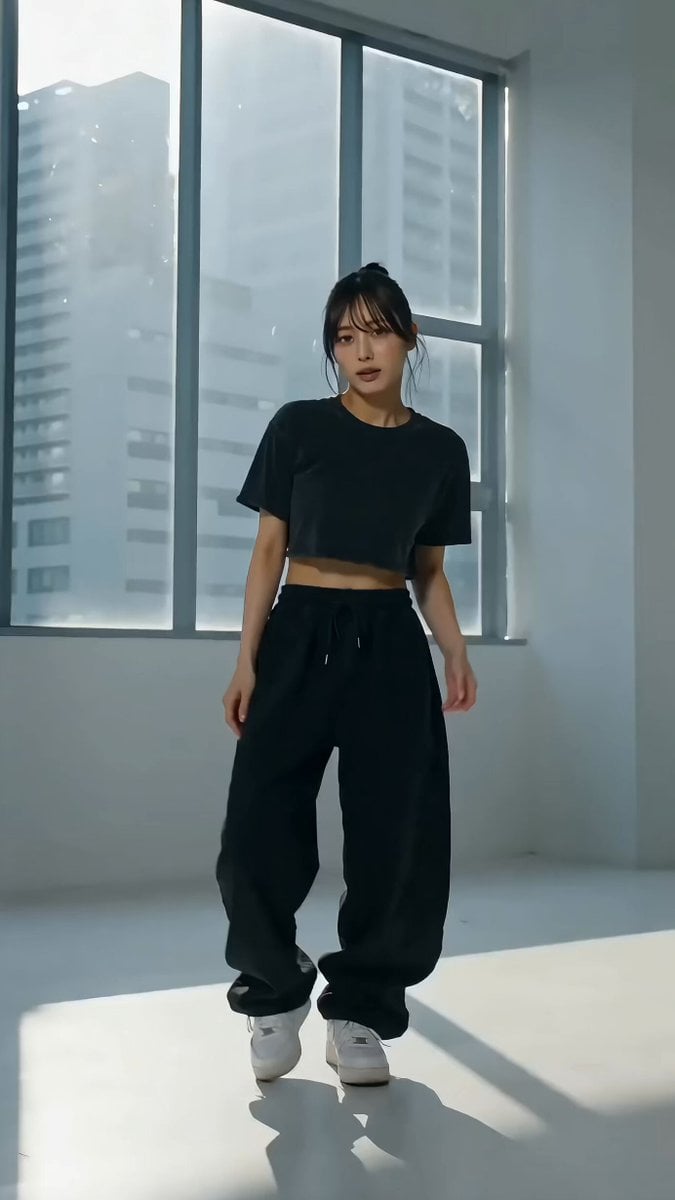
Cinematic Live-Action Dance MV Template
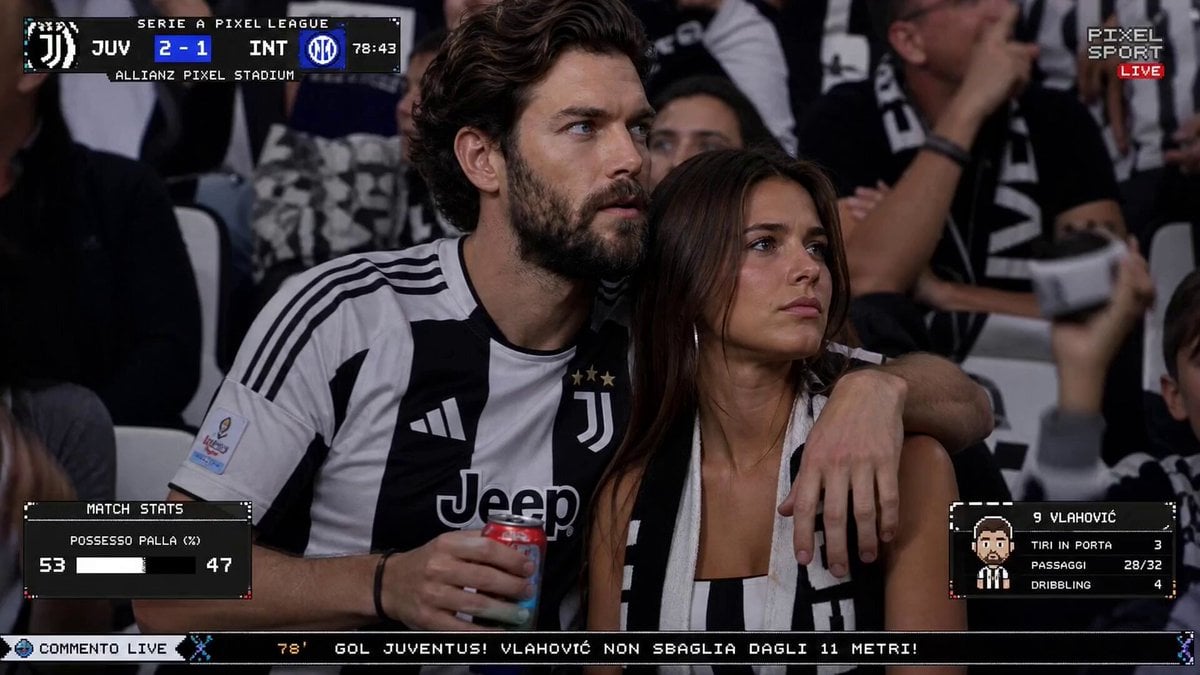
Live TV Football Broadcast Crowd Reaction
Make it yours
Storyboard to Live Action Video Instruction works as-is. These are the safest ways to change it without losing the look.
Change one field
Copy a single group, rewrite it, and generate again so you can see what that field is doing.
Keep the frame, change the subject
Hold the composition and light of Storyboard to Live Action Video Instruction, then swap wardrobe, props or the person for a new take.
| If the result… | Why | Fix |
|---|---|---|
| The result drifts from the preview | Too many fields changed at once. | Reuse Storyboard to Live Action Video Instruction as-is first, then change one group — subject, light, or setting. |
| The model over-stylizes the scene | The prose prompt leaves finish and camera underspecified. | Add one camera or lighting sentence and stay on Seedance 2.0. |
More Seedance 2.0 templates
Other prompts made for Seedance 2.0.

Comical Martial Arts Punch Scene
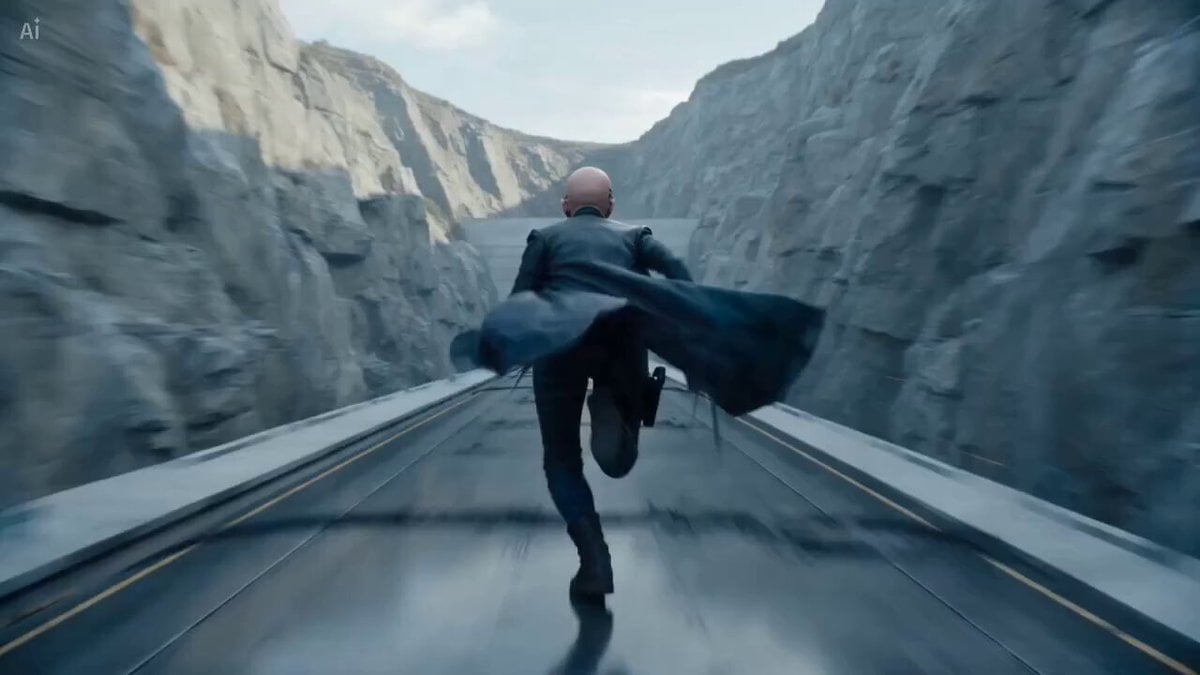
Maglev Train Action Sequence
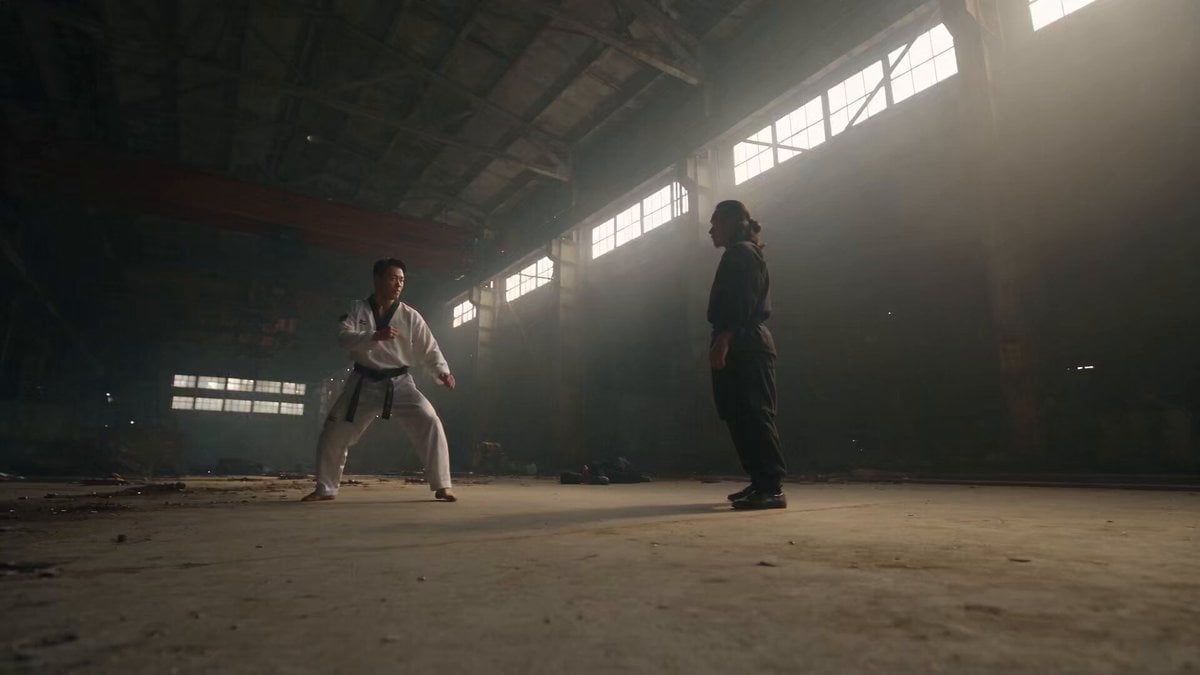
Martial Arts Fight Sequence
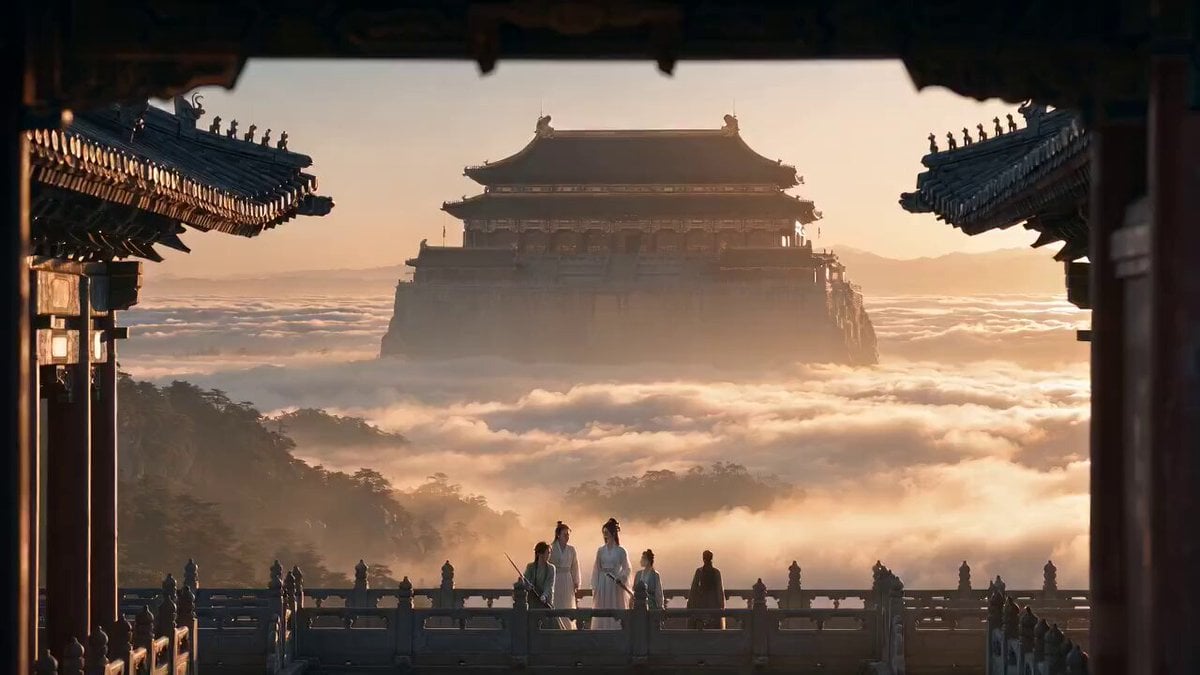
Wuxia Protection and Trust Script
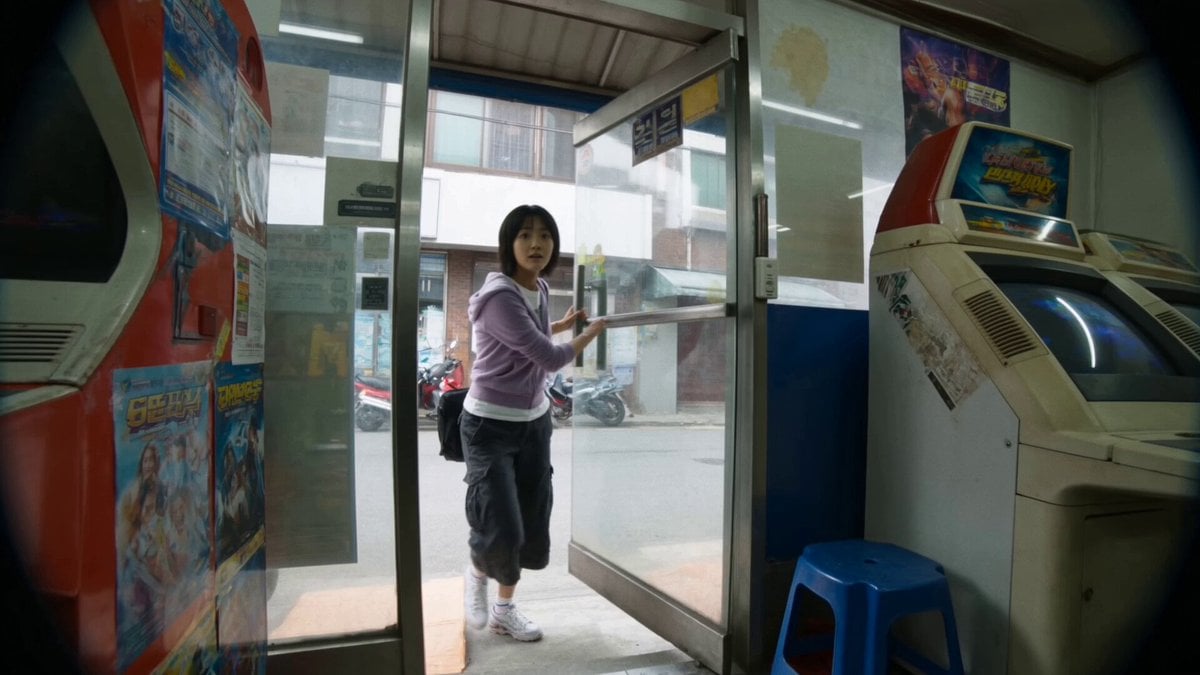
Vintage Korean Arcade MiniDV Vlog
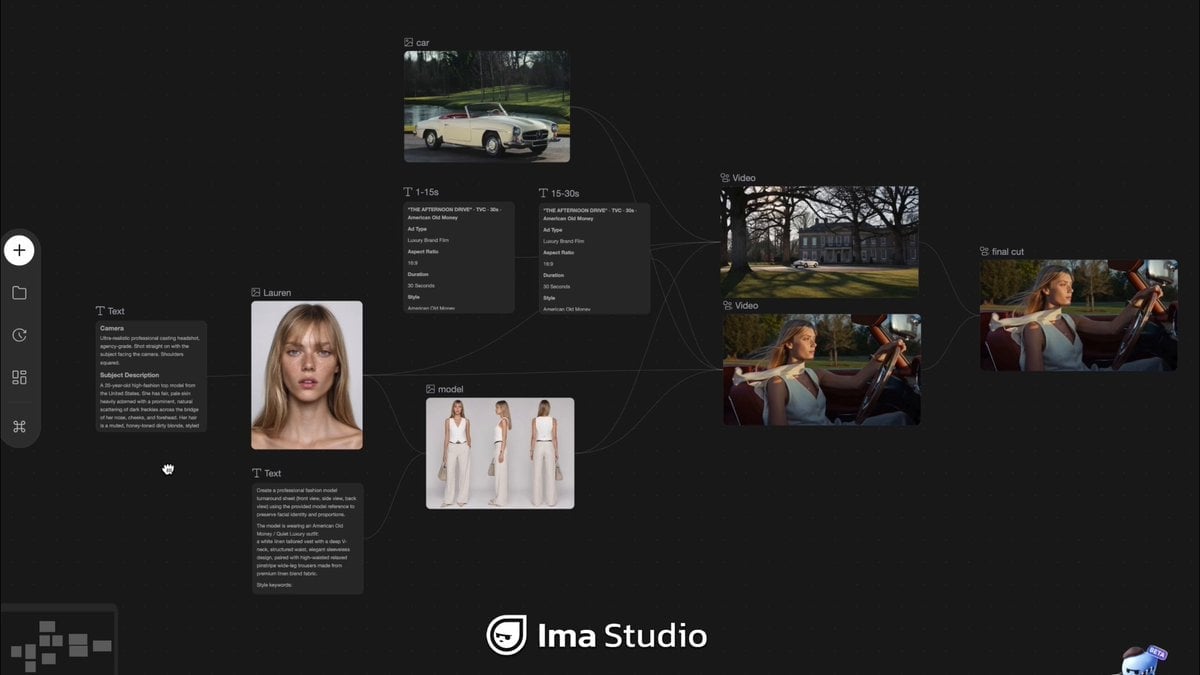
Mercedes 190 SL Luxury Ad
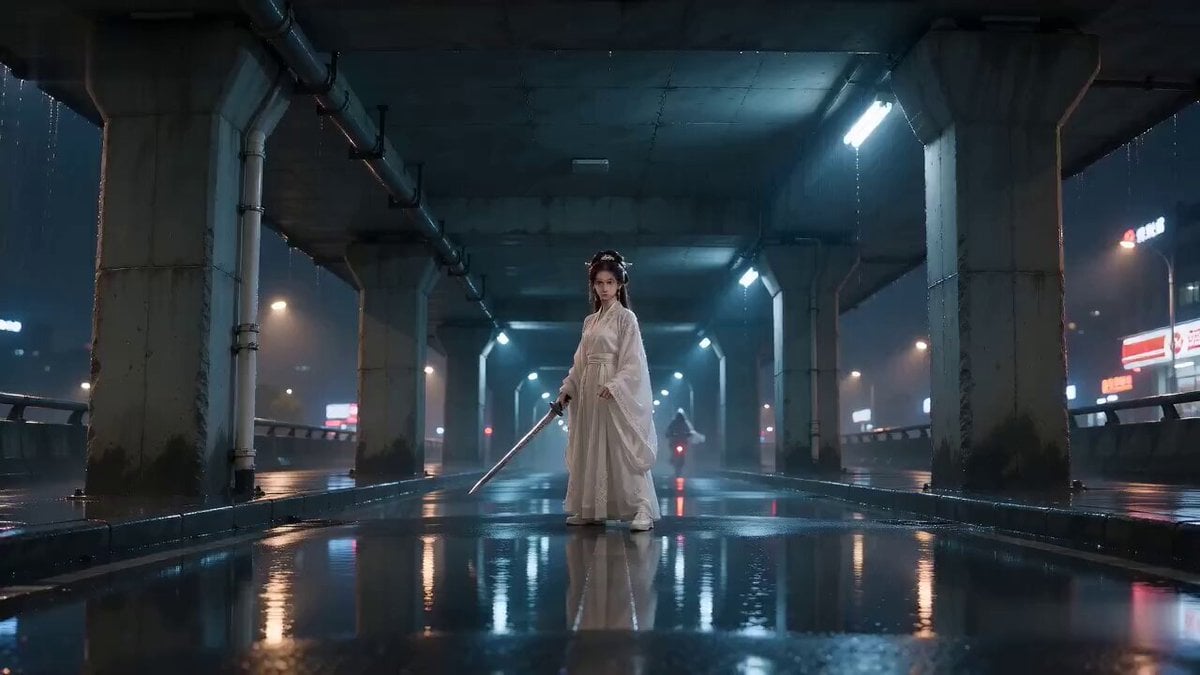
Rainy Night Supernatural Reverse Comedy Video Script

Amazon Civilization Discovery
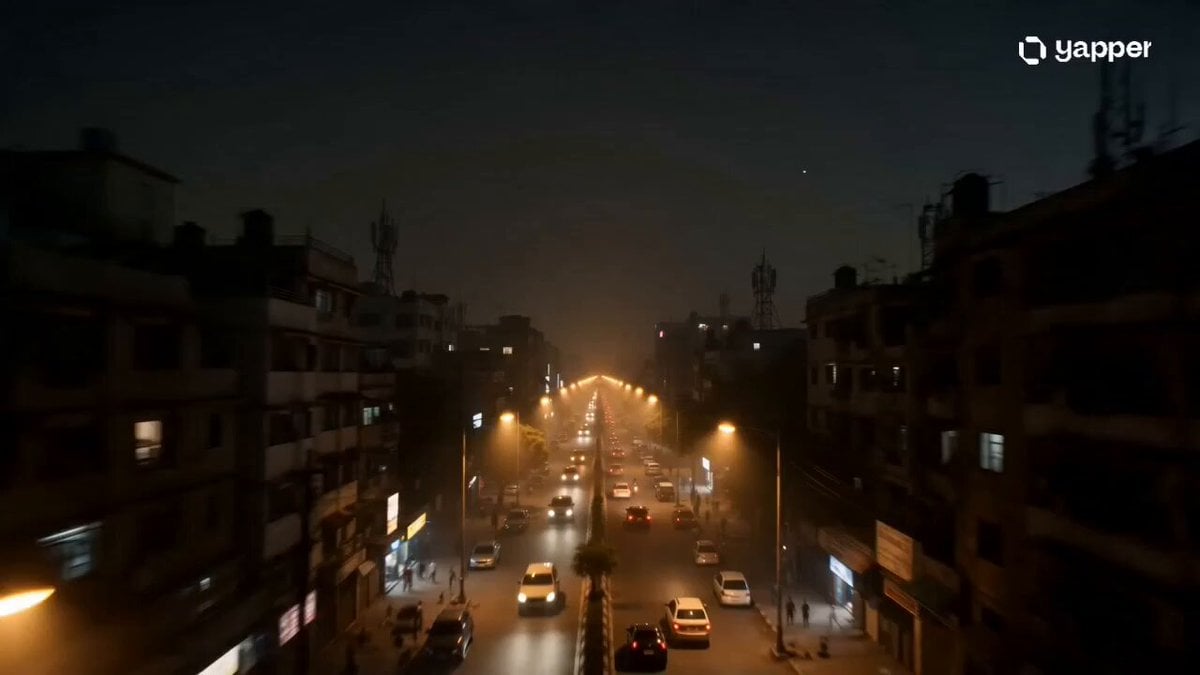
Futuristic South Asian City Transformation
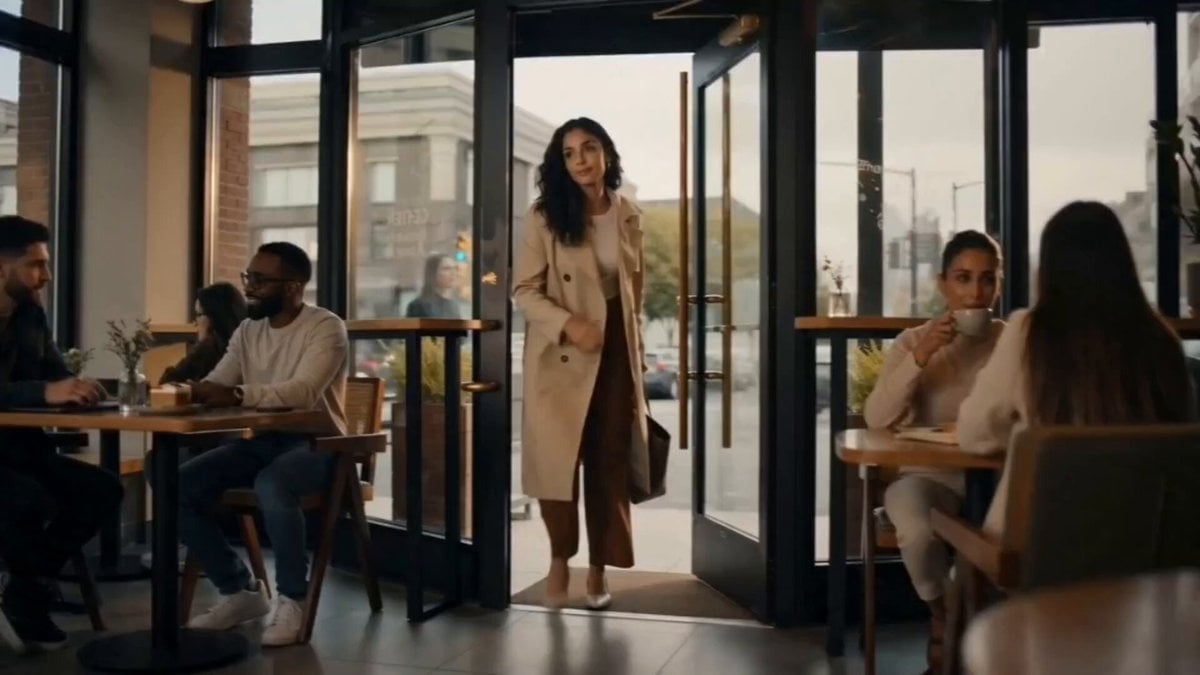
Cozy Luxury Cafe Commercial
More video prompts
Fresh picks from across the catalog.
Volcanic Lava Creatures Video
Seedance 2.0 K-pop Retro MV Prompt
Butterfly FPV Shot over Chaotic Picnic
City Timelapse Growth — Seedance 2.0
Luxury Electric SUV Commercial
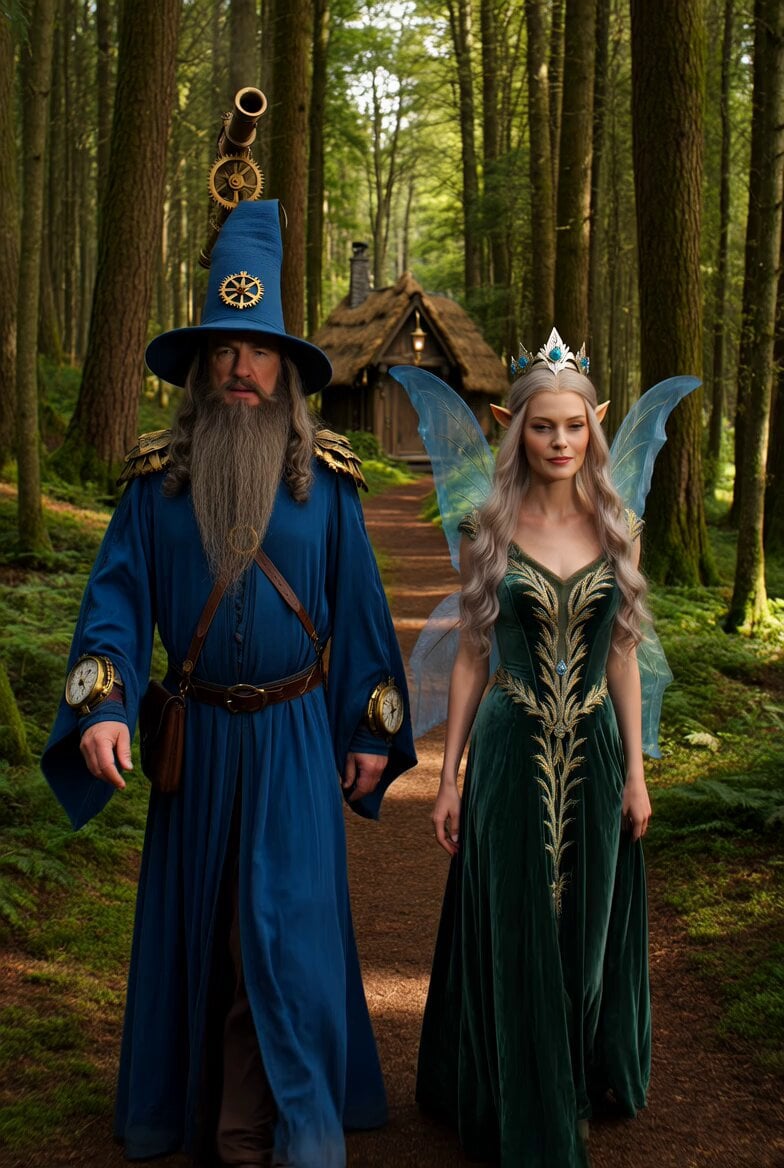
Steampunk Fantasy Forest Path Video

Surreal environment transition animation
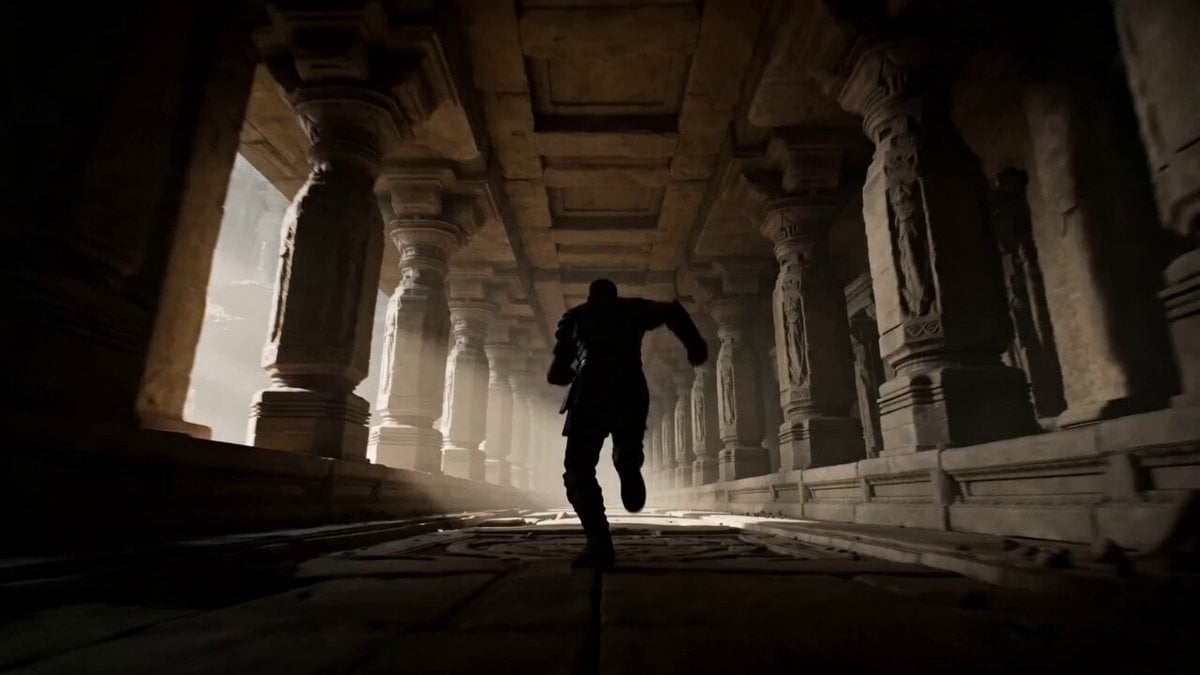
Epic Fantasy Escape Cutscene
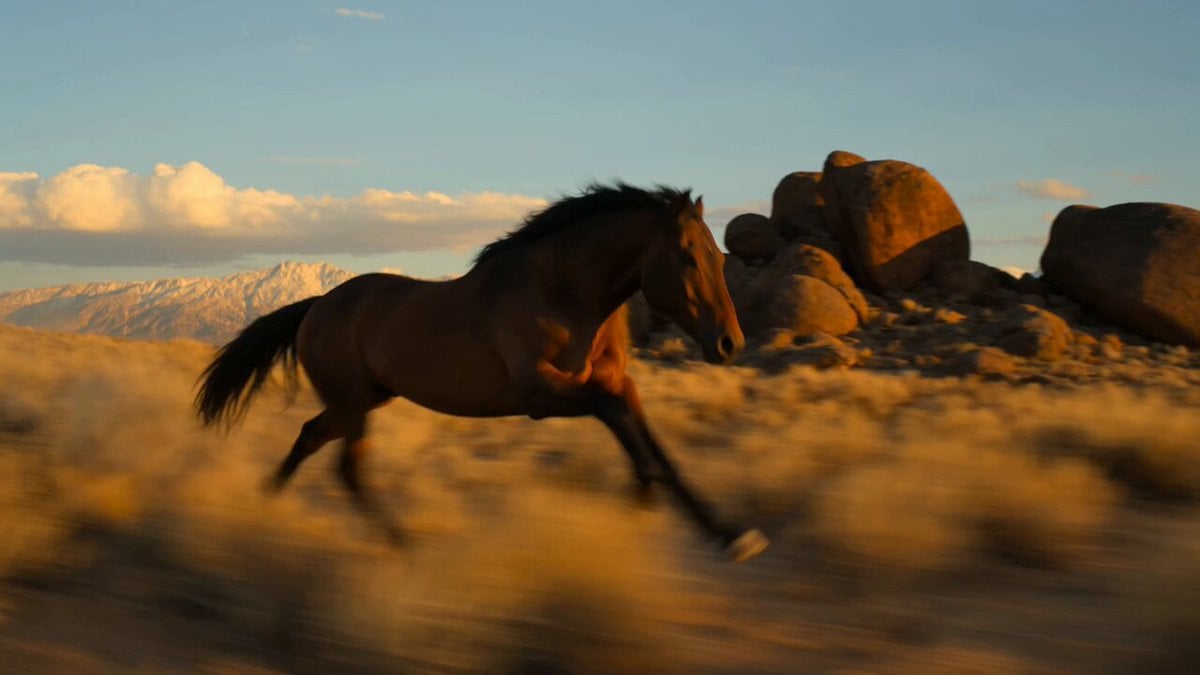
Mustang Desert Gallop Cinematic Shot
Corporate Office Soap Opera Drama
Browse template categories
Storyboard to Live Action Video Instruction questions
How do I use the Storyboard to Live Action Video Instruction template?
Add your photo if the template asks for one, edit the prompt if you like — the template's model and format are already selected — and press Generate. Your version opens in PicX Studio.
Can I customize the Storyboard to Live Action Video Instruction template?
Yes. You can change the subject, setting, lighting, mood, format, and available model controls before creating your video.
Is the Storyboard to Live Action Video Instruction template free?
Opening and editing this template is free. Generating uses credits, shown on the Generate button when you are signed in.
Which AI model should I use?
Start with Seedance 2.0, which is the model associated with this template. You can compare another compatible model for a different finish.
Looking for something else? Browse all templates.

Your photo, any look
Thousands of ready templates for every top image and video model, from one credit balance.