
Google Pixel 10 IMAX Simulation
A highly detailed technical prompt for a 7-second continuous shot of a Google Pixel 10 exploding and reassembling.
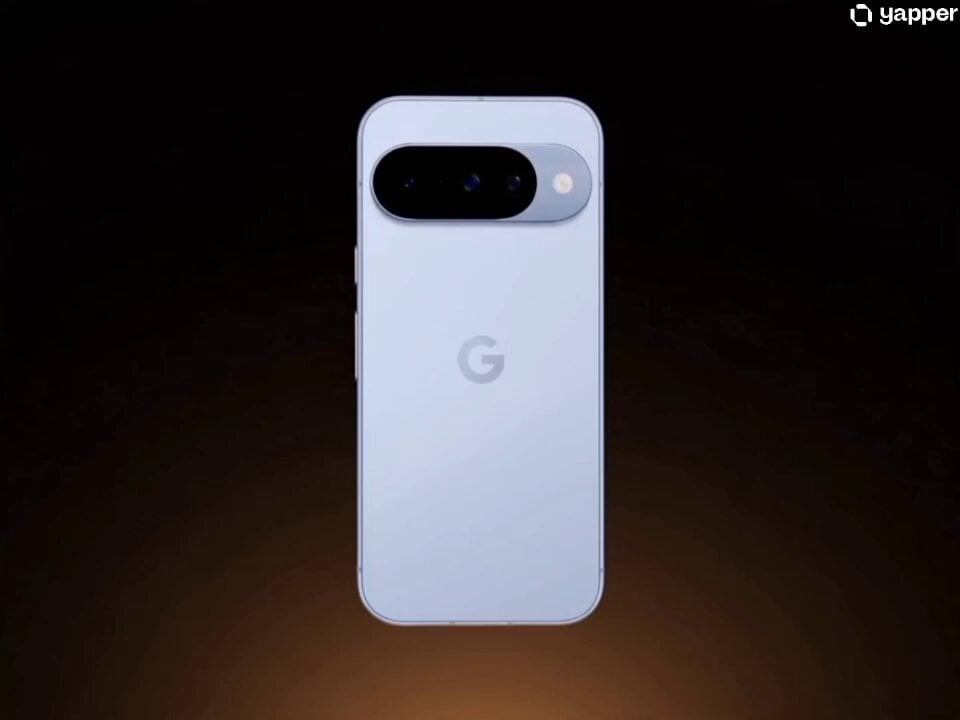
- Prompt included
- Model and format preset
- Free template
The prompt behind this video
Copy the exact prompt behind Google Pixel 10 IMAX Simulation, or open it in the studio and make it yours.
Camera Simulation: 65mm IMAX film, macro-capable Panavision anamorphic lens. Strong film grain throughout. Horizontal anamorphic lens flares triggered by reflections on glass, polished aluminium, and internal component surfaces. Warm-neutral key light from above camera-right — clean, approachable, matching Pixel’s brand tone. Deep black void. Subtle warm rim light lifts dark components from background. Single continuous 7-second shot. No cuts. The camera faces the Pixel, flies through the exploding internals, rotates 180°, and watches them reassemble from the front. 00:00–00:01 — The Break A Google Pixel 10 floats in the void, rotating slowly. Every seam illuminates with a thin white light — a beat of silence — then the phone erupts apart. Every component separates outward along its assembly axis in a controlled explosion. Speed ramps to 180%. 00:01–00:03 — The Fly-Through The camera accelerates into the expanding cloud. It threads between the aluminium frame, camera modules, processor, memory stacks, ribbon cables, haptic motor, fingerprint sensor, and USB-C housing — each piece flashing bright as the camera passes. It flies directly between two camera bar lens elements, close enough to catch the anti-reflective coating shimmering purple and green. 00:03–00:04 — The Turn Speed drops to 40%. The camera executes a smooth 180° whip turn — component highlights streaking into horizontal motion blur. It settles facing the entire field of suspended components simultaneously. A wide anamorphic flare streaks across from the brightest internal reflection. 00:04–00:06 — The Rebuild Speed ramps to 200%. Every component reverses and accelerates inward. Motherboard arrives first, battery slides flat, camera bar lens stack and seat with mechanical precision, frame rails connect at their corners. Speed drops to 30% for final moments — the back glass descends and presses flush with a micro burst of dust. The display floats in, seats, and illuminates on contact. 00:06–00:06.5 — Product Hold Speed drops to 20%. Camera settles into a classic three-quarter angle. The camera bar catches a clean horizontal line. Screen glows. Void falls to pure black. Hold. 00:06.5–00:07 — End Card Smash cut to black. Google “G” logo fades in centred, full colour. Below it: “Pixel 10 — built for every moment”. Film grain. Hold.
How to use Google Pixel 10 IMAX Simulation in 3 steps
- 1
Open
The prompt is already in the box next to the preview, with the template's model and format selected.
- 2…a portrait of your subject in softgolden-hour light, 85mm…
Personalize
Edit the subject and creative details for your destination.
- 3Generate
Generate
Press Generate — your video is created in PicX Studio, so you can compare it with the original and refine one variable at a time.
More like this
Templates with the same subject, style or setup. Open one to see its prompt.
Nano Banana Seedance Environment Render Walk
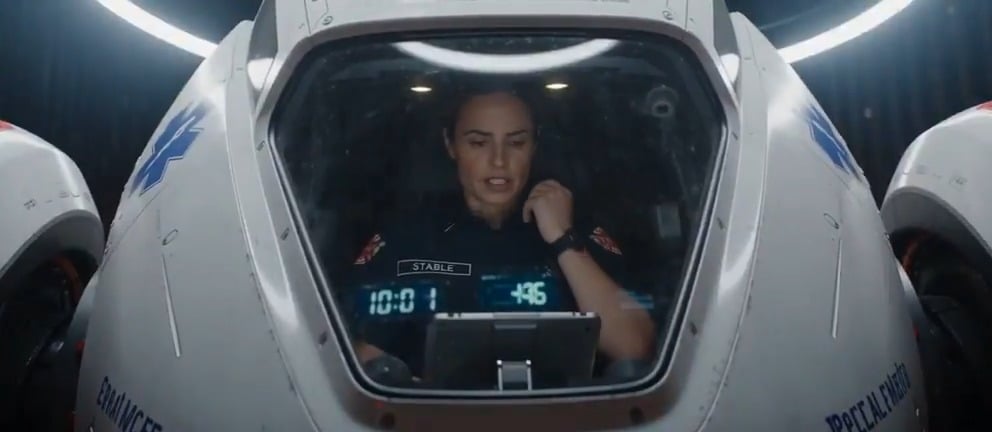
IMAX Paramedic Action Scene
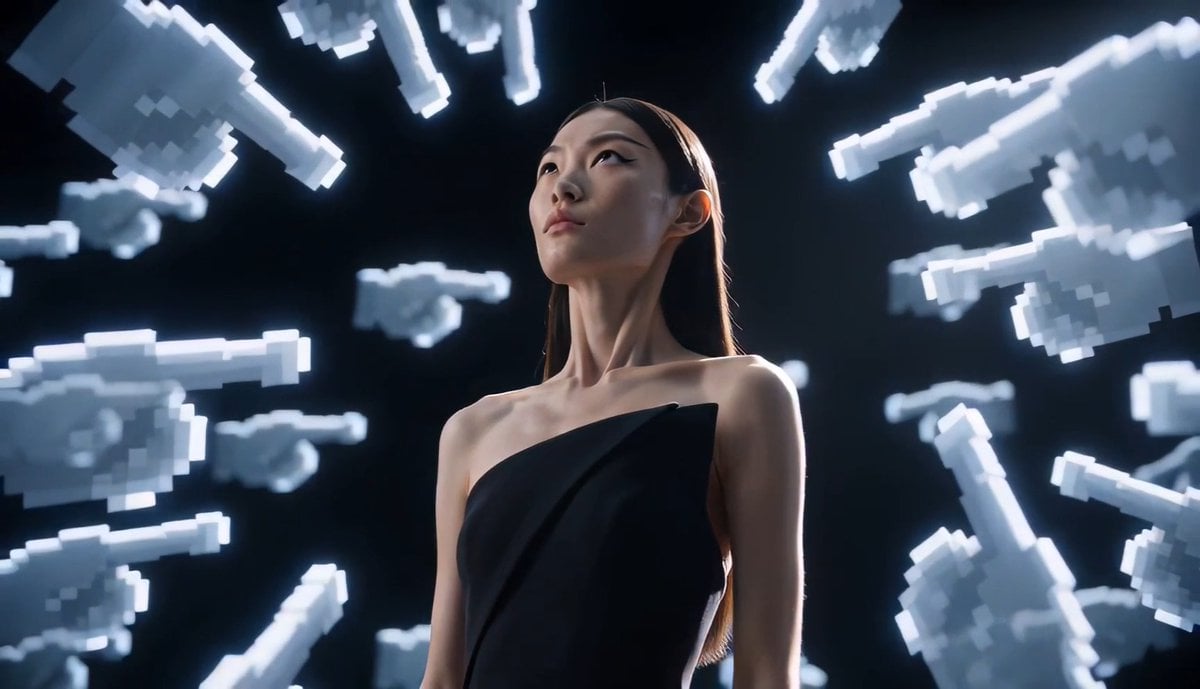
Avant-Garde Pixel Finger Portrait

Kyoto Smartphone Vlog Simulation

Cinematic IMAX Laboratory Fight Scene

Glitches in the Simulation Prompt

Bit Pixel Art Air Ship

bit Pixel Art Ethereal Fairy Animation

Relaxing 8-Bit Pixel Art Nordic Scene
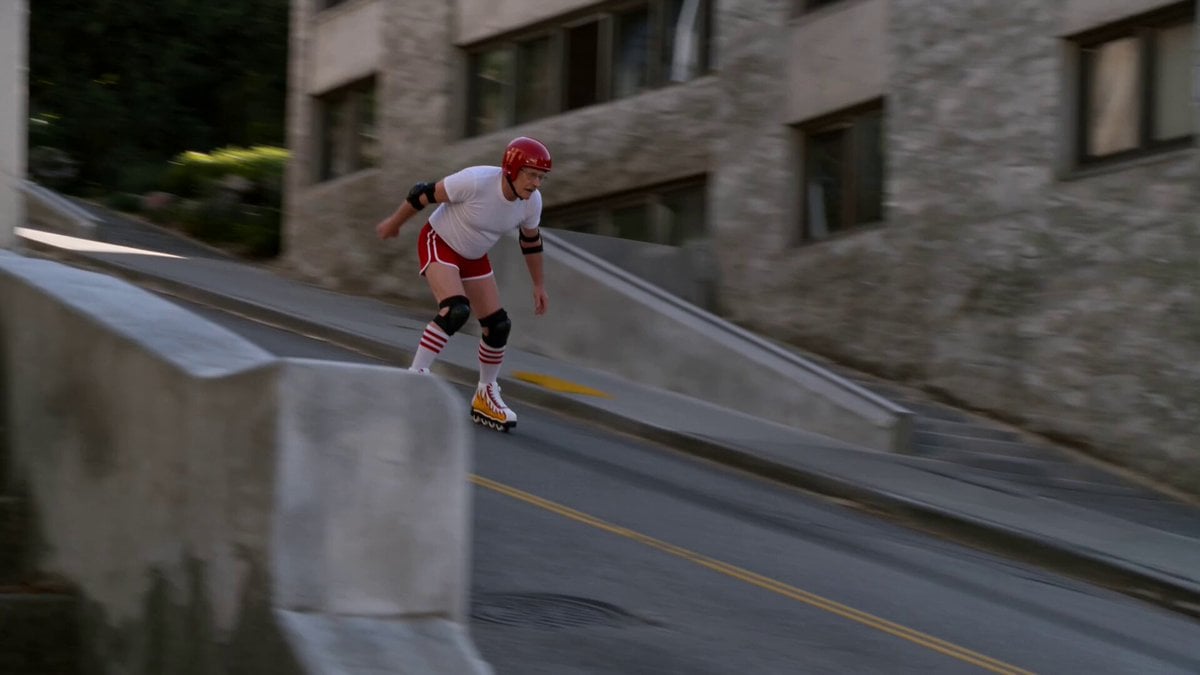
IMAX 8K Realistic Skater Fall

Western Bandit Raid IMAX Film

Vintage IMAX Film Cinematic Camera
Make it yours
Google Pixel 10 IMAX Simulation works as-is. These are the safest ways to change it without losing the look.
Change one field
Copy a single group, rewrite it, and generate again so you can see what that field is doing.
Keep the frame, change the subject
Hold the composition and light of Google Pixel 10 IMAX Simulation, then swap wardrobe, props or the person for a new take.
| If the result… | Why | Fix |
|---|---|---|
| The result drifts from the preview | Too many fields changed at once. | Reuse Google Pixel 10 IMAX Simulation as-is first, then change one group — subject, light, or setting. |
| The model over-stylizes the scene | The prose prompt leaves finish and camera underspecified. | Add one camera or lighting sentence and stay on Seedance 2.0. |
More Seedance 2.0 templates
Other prompts made for Seedance 2.0.

Comical Martial Arts Punch Scene
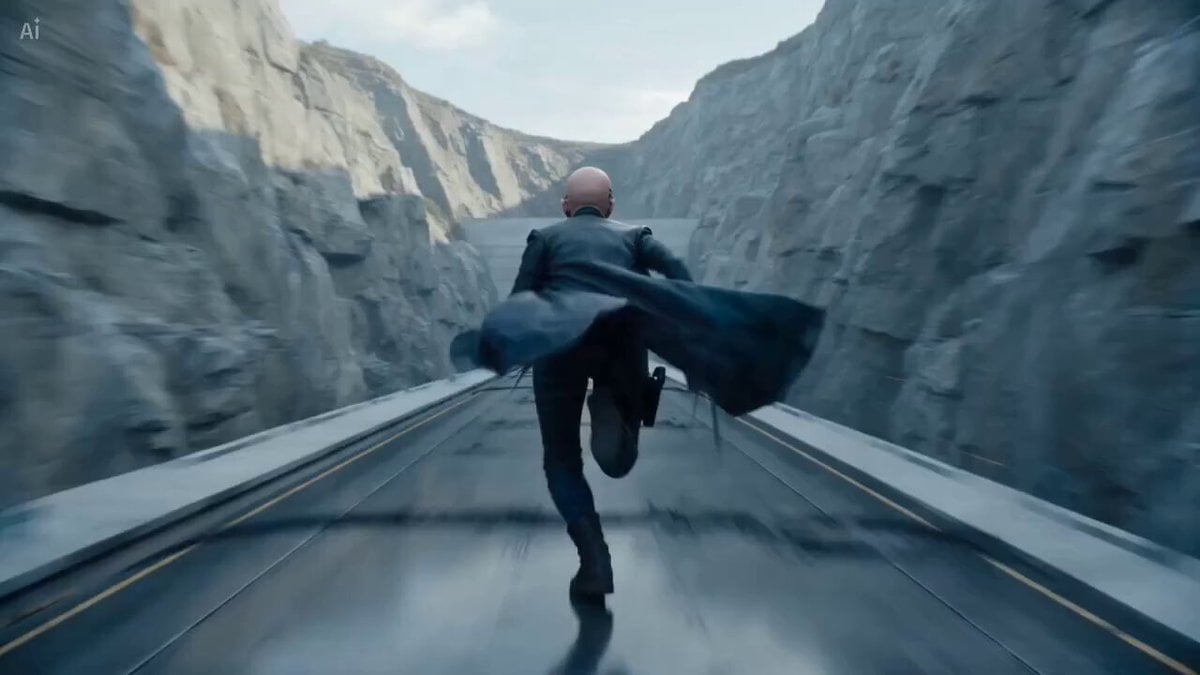
Maglev Train Action Sequence
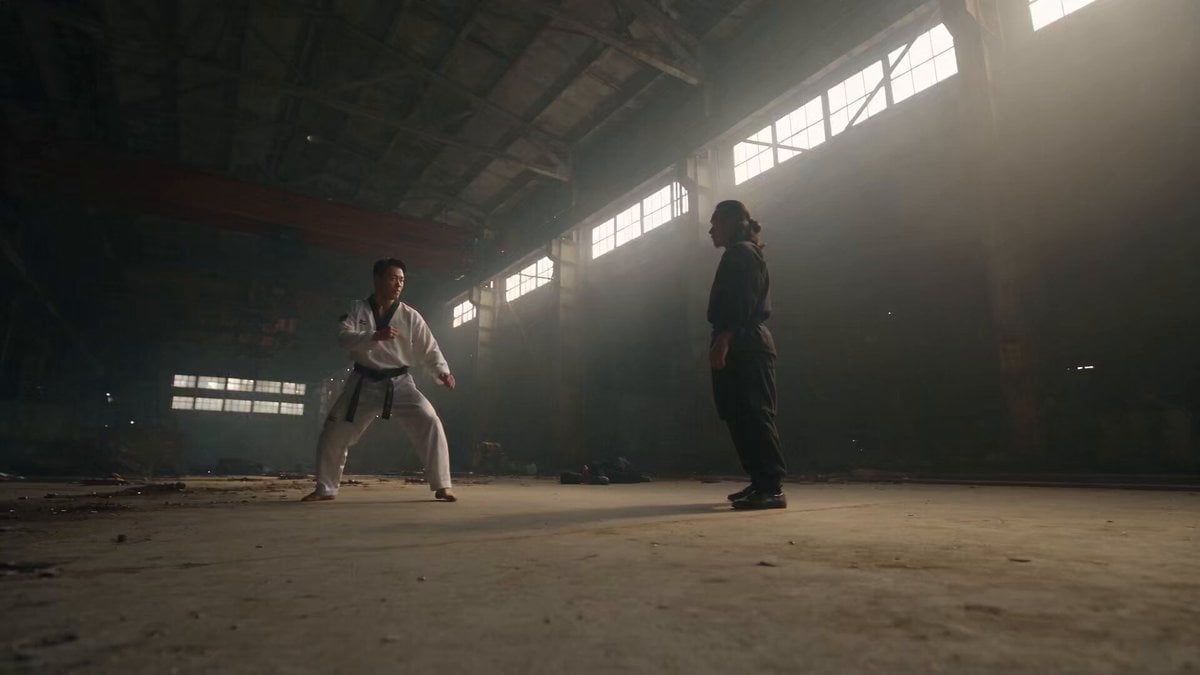
Martial Arts Fight Sequence

Wuxia Protection and Trust Script
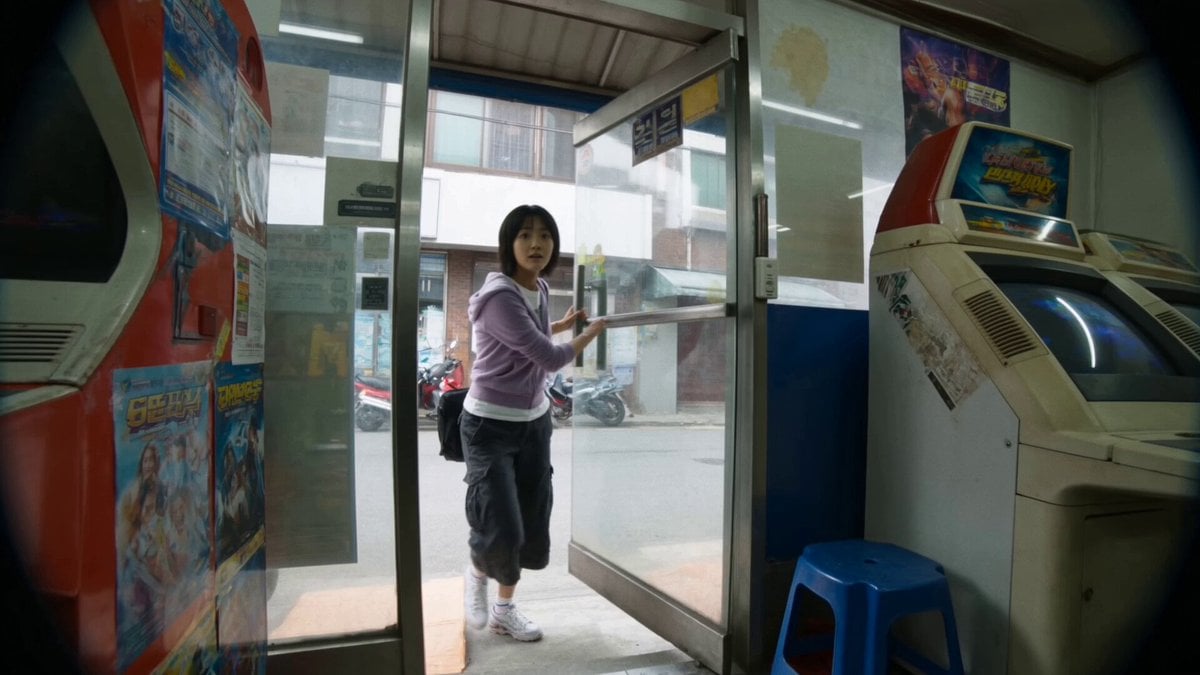
Vintage Korean Arcade MiniDV Vlog
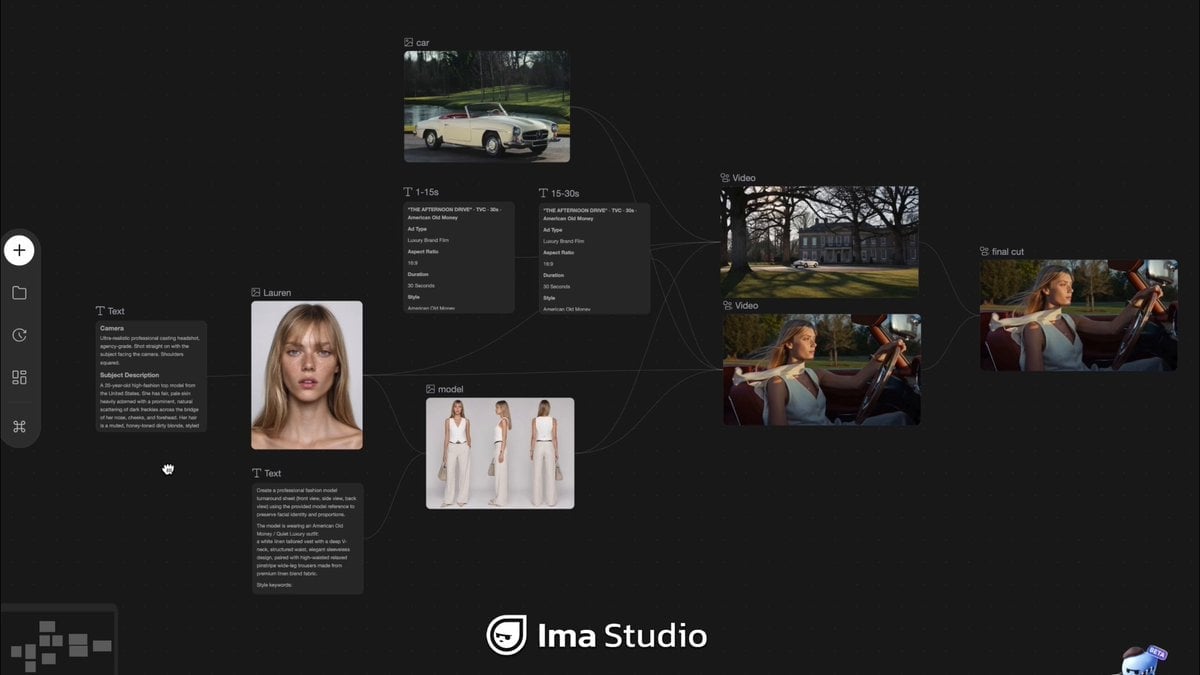
Mercedes 190 SL Luxury Ad

Rainy Night Supernatural Reverse Comedy Video Script

Amazon Civilization Discovery
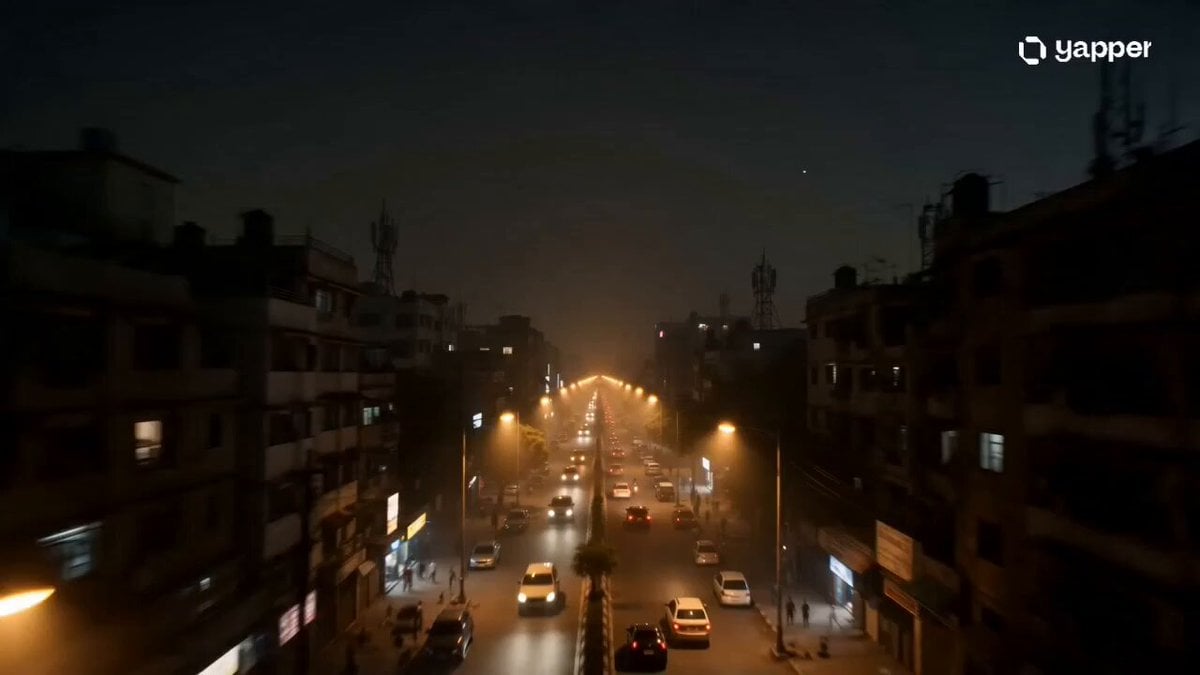
Futuristic South Asian City Transformation

Cozy Luxury Cafe Commercial
More video prompts
Fresh picks from across the catalog.
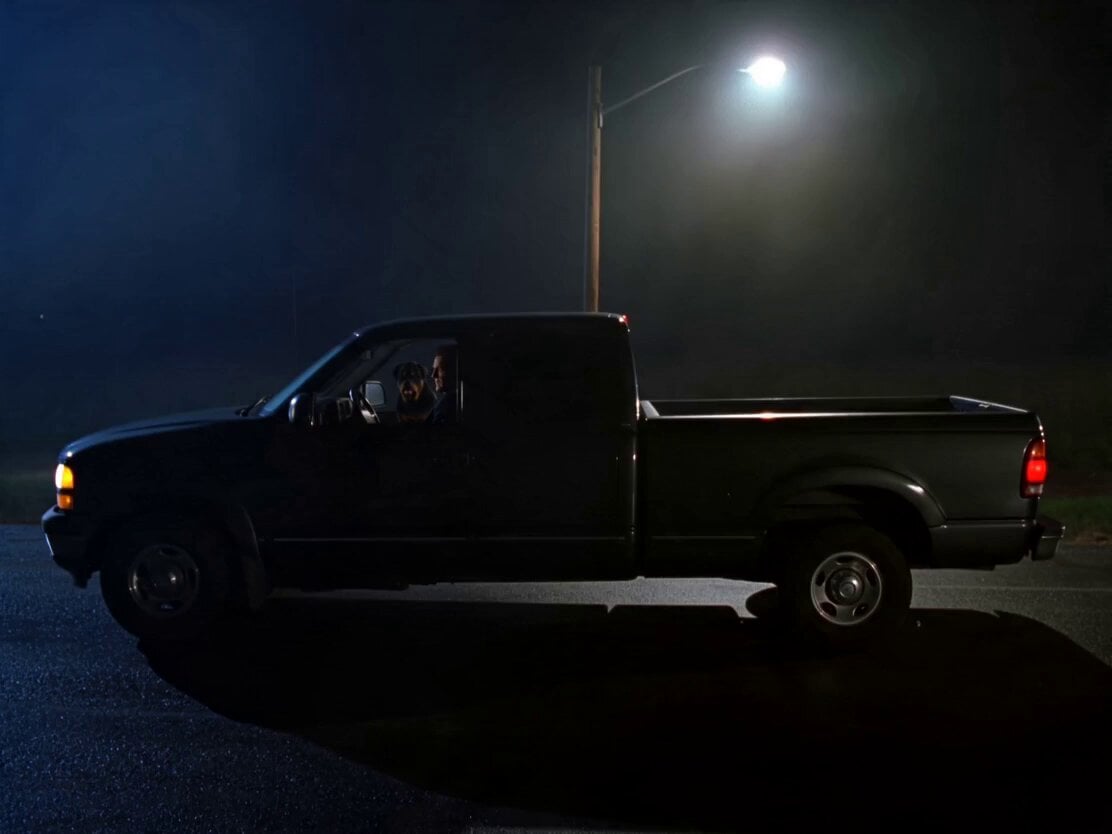
Rottweiler Dog Mutant Transformation Sequence

Executive Assistant Service Collage
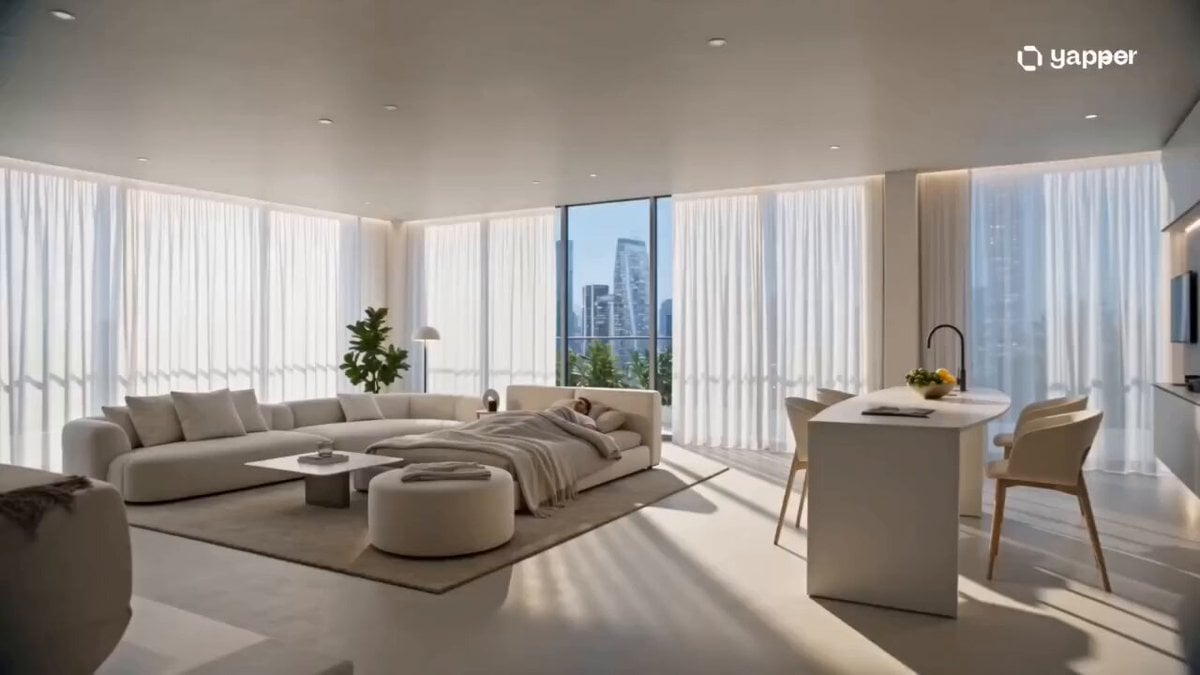
Futuristic AI Smart Home Morning
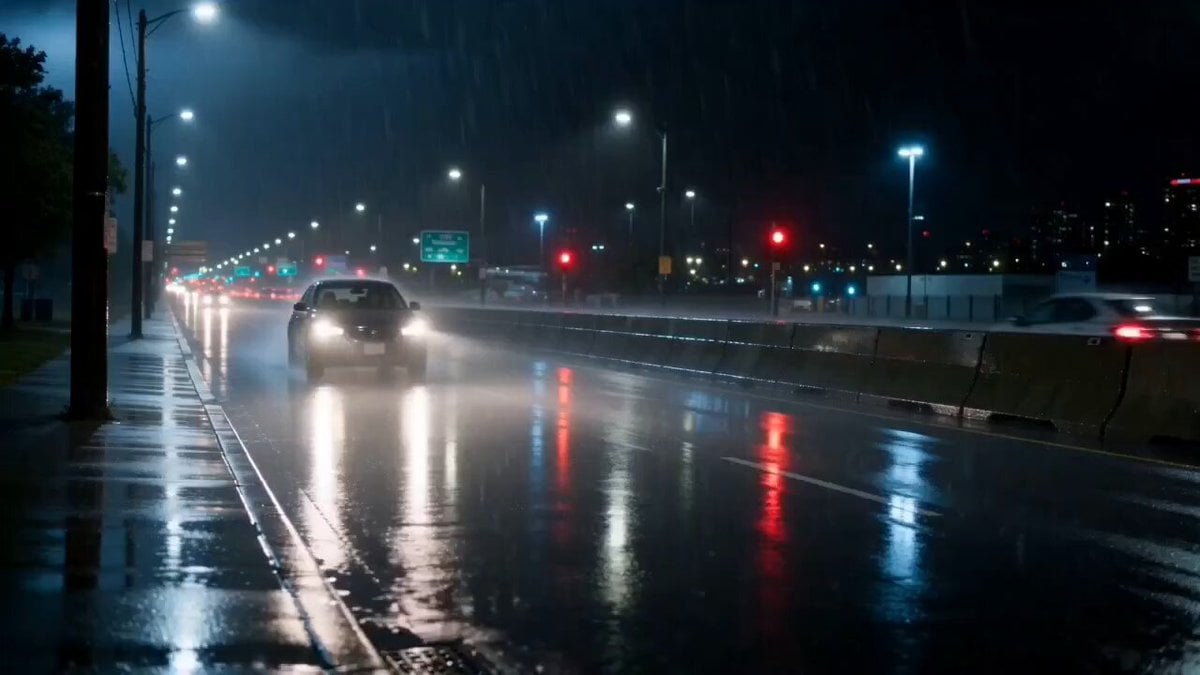
Cinematic Rainy Night Drive Home
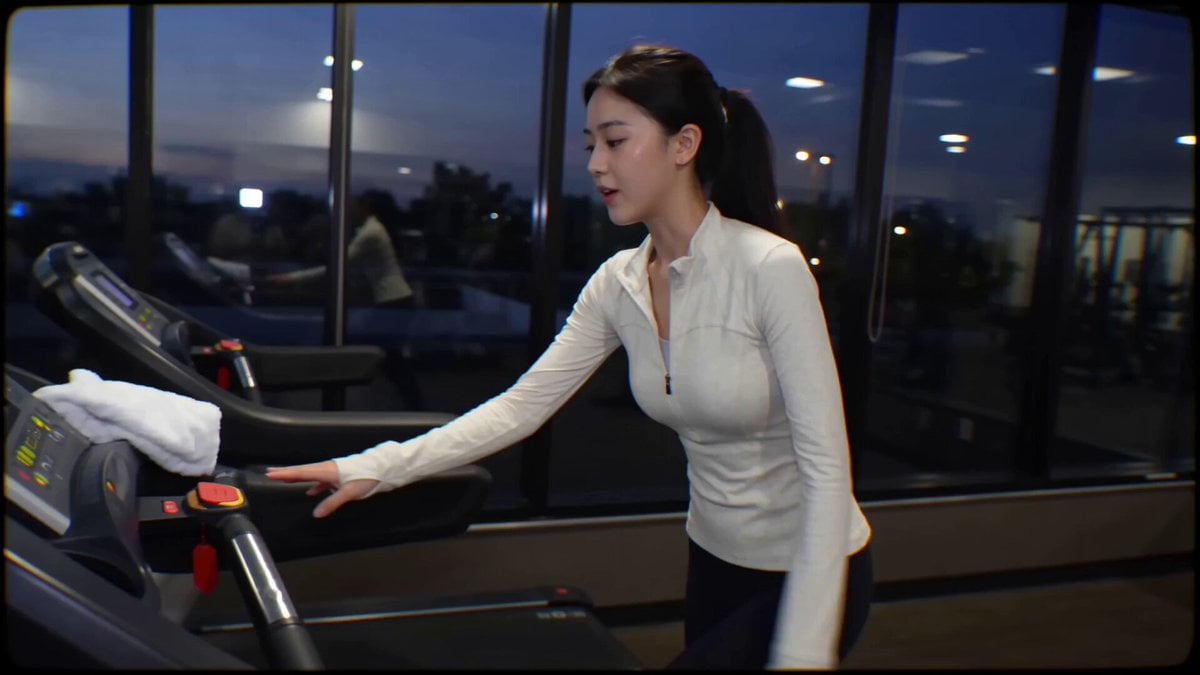
Handheld Gym Cardio Vlog
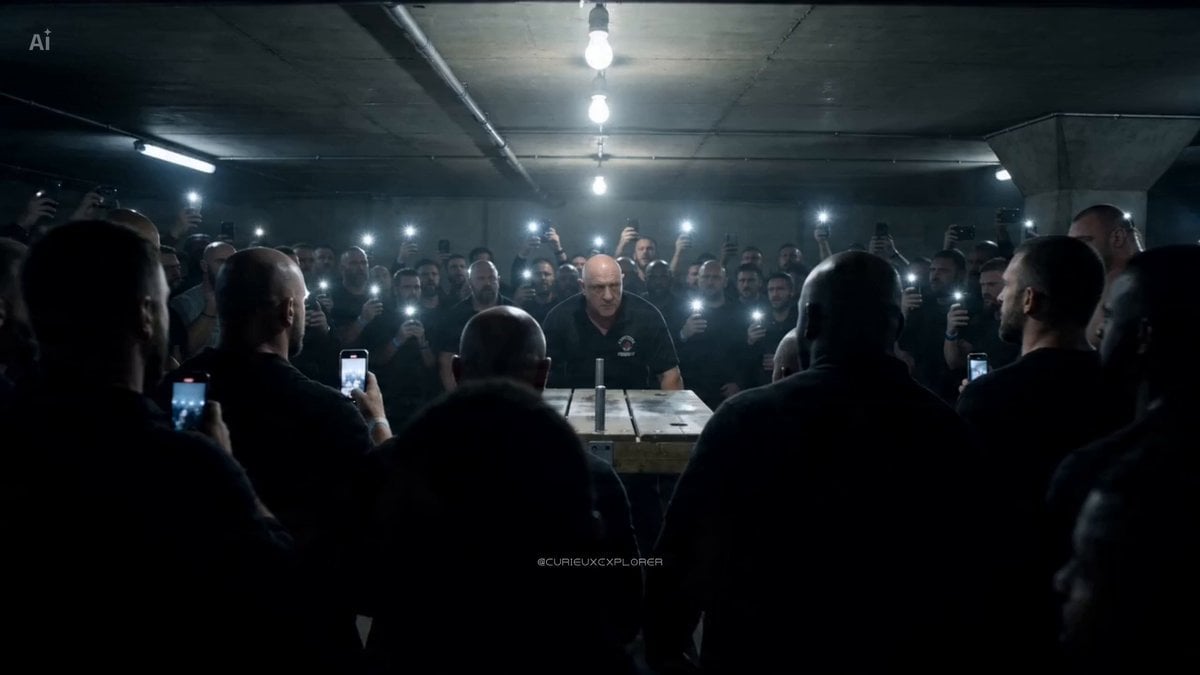
Scientific Storytelling Video on Honeybee Venom and Cancer

Jesus vs. Devil Arm Wrestling Video Prompt
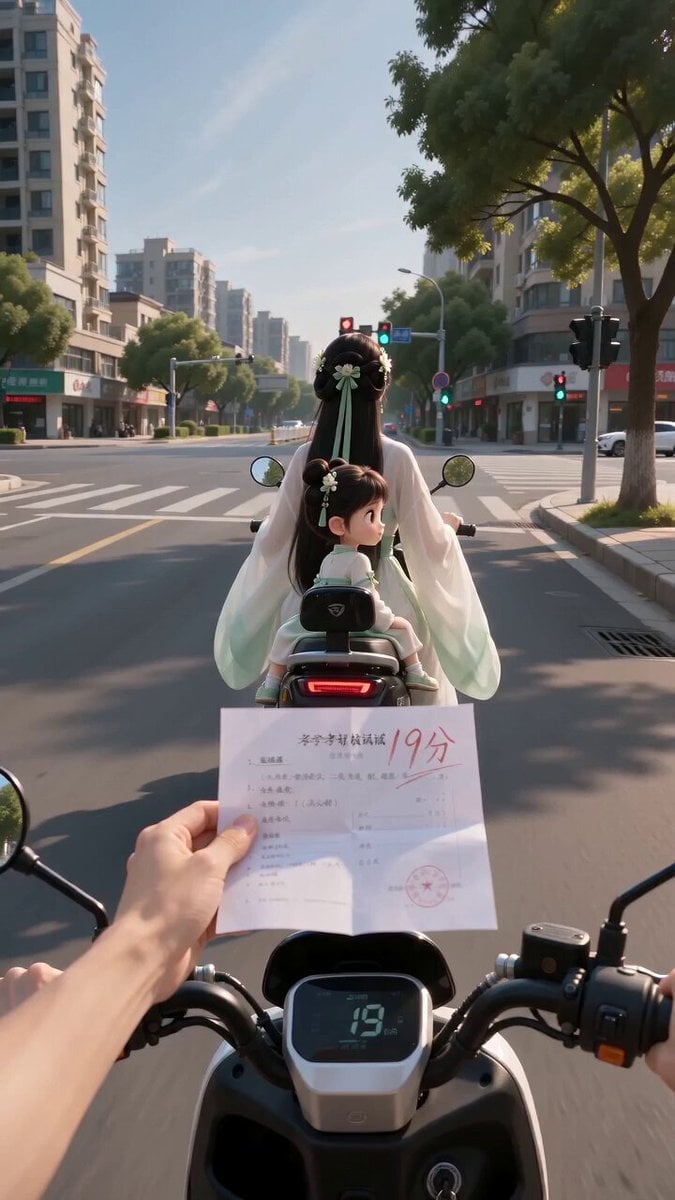
Ancient POV Child Report Card

Showgirl Escape Noir-Western Sequence

Matrix Phase 1 Complete Prompt
Browse template categories
Google Pixel 10 IMAX Simulation questions
How do I use the Google Pixel 10 IMAX Simulation template?
Add your photo if the template asks for one, edit the prompt if you like — the template's model and format are already selected — and press Generate. Your version opens in PicX Studio.
Can I customize the Google Pixel 10 IMAX Simulation template?
Yes. You can change the subject, setting, lighting, mood, format, and available model controls before creating your video.
Is the Google Pixel 10 IMAX Simulation template free?
Opening and editing this template is free. Generating uses credits, shown on the Generate button when you are signed in.
Which AI model should I use?
Start with Seedance 2.0, which is the model associated with this template. You can compare another compatible model for a different finish.
Looking for something else? Browse all templates.

Your photo, any look
Thousands of ready templates for every top image and video model, from one credit balance.