
Blue Studio Character Transformation
A character transformation prompt that preserves studio lighting, pose, and background from a blue-toned reference.
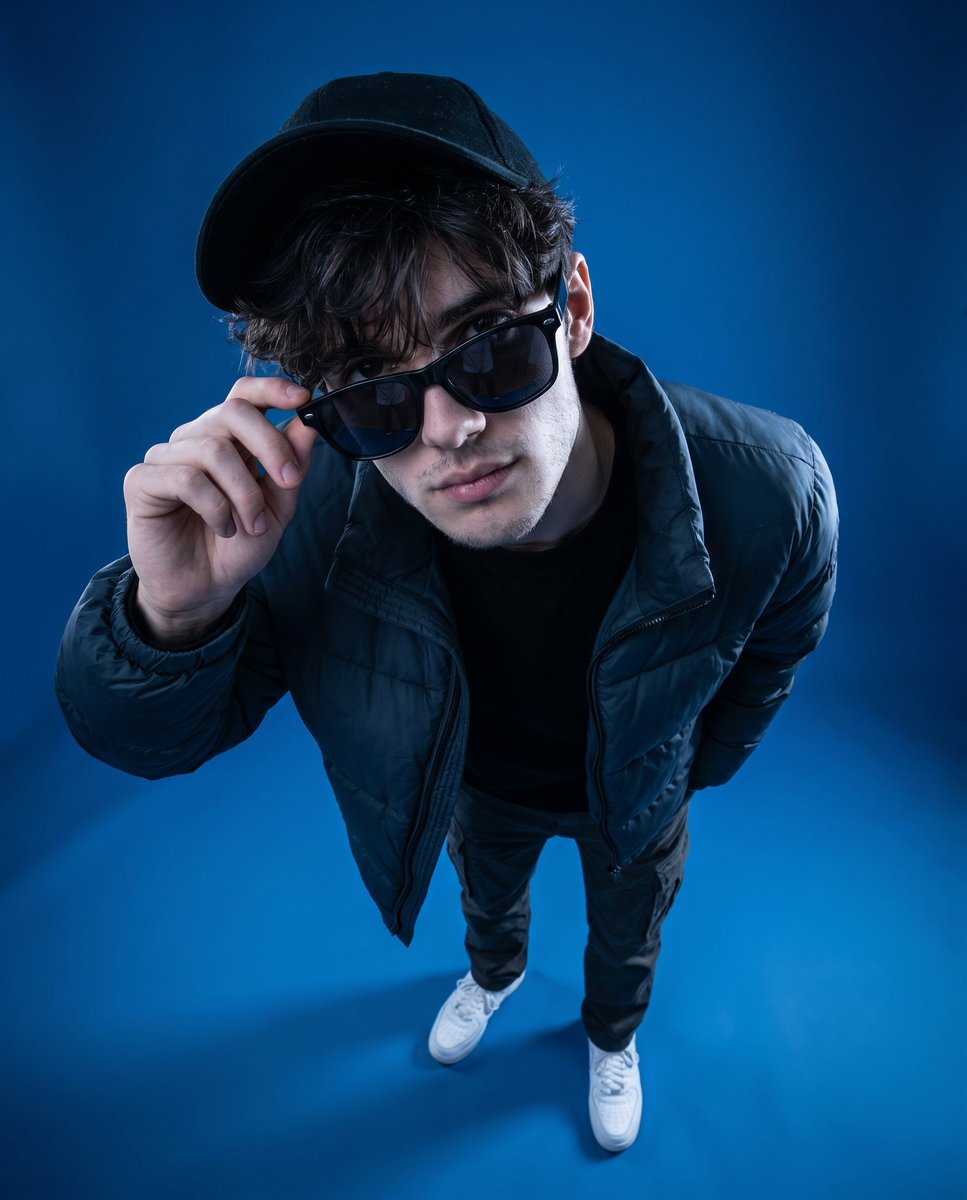
- Prompt included
- Model and format preset
- Premium template
The prompt behind this image
Copy the exact prompt behind Blue Studio Character Transformation, or open it in the studio and make it yours.
Create a realistic cinematic portrait based on the uploaded blue studio reference image. Keep the exact same camera angle, close-up medium framing, lens perspective, character distance, pose, lighting direction, {argument name="background color" default="blue background color"}, shadows, contrast, depth and overall fashion editorial mood. Replace the original person in the image with the target character from the provided character reference. The target character must keep their original facial identity, face shape, skin tone, hairstyle, facial proportions and natural expression. The character should be positioned exactly like the original model: upper body visible, head tilted slightly upward, gaze directed upward, calm and confident expression, neck extended naturally, shoulders relaxed. Keep the same blue studio background with a rich deep blue tone. Maintain the same soft but dramatic studio lighting, with highlights on the face, glasses and clothing, and natural shadows under the chin and around the neck. The image should feel like a modern music/fashion campaign. The {argument name="clothing style" default="clothing can be adapted to the target character, but it should preserve the same oversized streetwear feeling"}: large soft sweater, relaxed fit, clean fashion styling, {argument name="accessory" default="chain necklace"} and transparent or light-colored sunglasses. The sweater may change according to the target character's style, but the overall silhouette, volume and fabric softness must remain very close to the reference. Preserve the same crop ratio and composition. The character should occupy the same area in the frame. Do not change the background, camera distance, lighting, pose or lens. The final image must look like the target character was originally photographed in this exact setup. Ultra realistic portrait photography, blue monochrome studio background, modern streetwear fashion, cinematic lighting, natural skin texture, realistic fabric texture, professional campaign photo. Negative Prompt: Do not change the blue background. Do not change the pose, head angle, camera angle, crop, lighting or lens. Do not distort the face or change the identity of the target character. Do not add text, logo, watermark, extra objects or extra people. Do not make the sweater flat or unrealistic. Do not over-edit the skin.
How to use Blue Studio Character Transformation in 3 steps
- 1Upload ImagePNG, JPG or paste
Add your photo
Upload the photo the template builds on. The prompt, model and format are already set.
- 2…a portrait of your subject in softgolden-hour light, 85mm…
Personalize
Edit the subject and creative details for your destination.
- 3Generate
Generate
Press Generate — your image is created in PicX Studio, so you can compare it with the original and refine one variable at a time.
More like this
Templates with the same subject, style or setup. Open one to see its prompt.
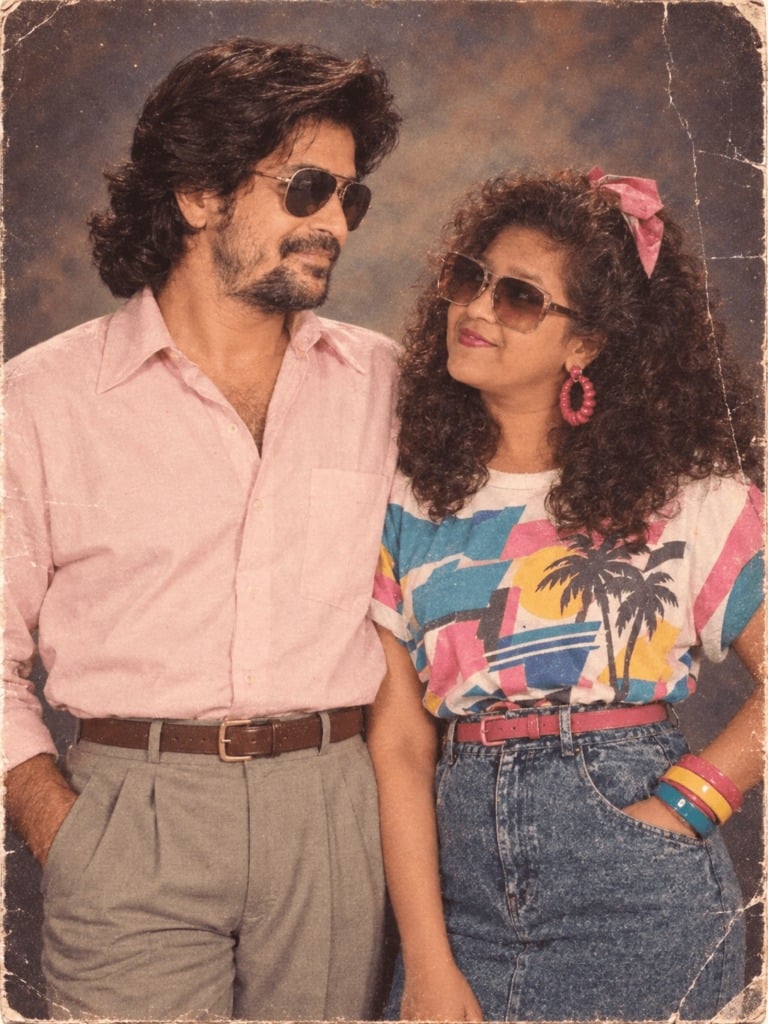
80s Couple Studio Portrait
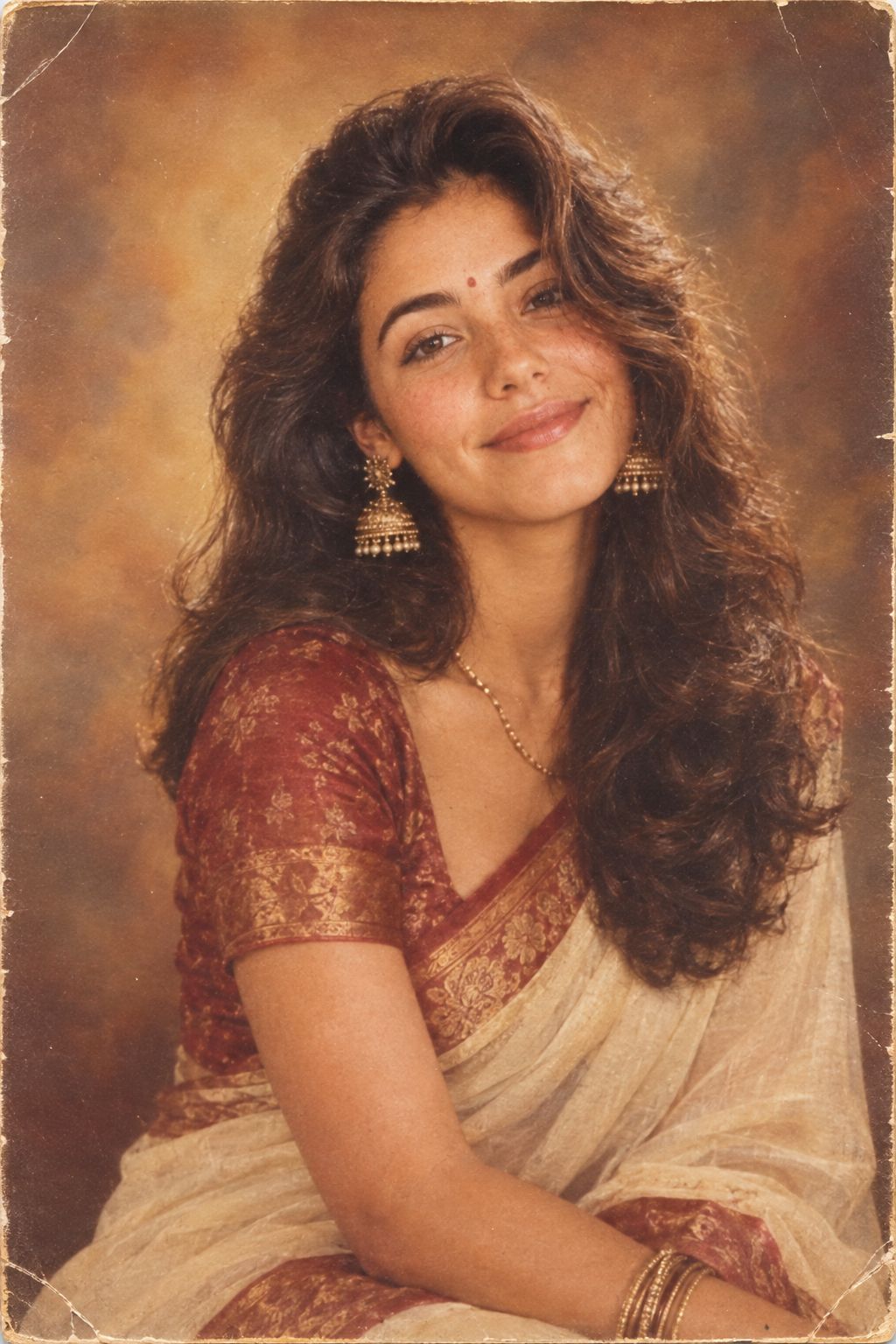
1985 Studio Portrait
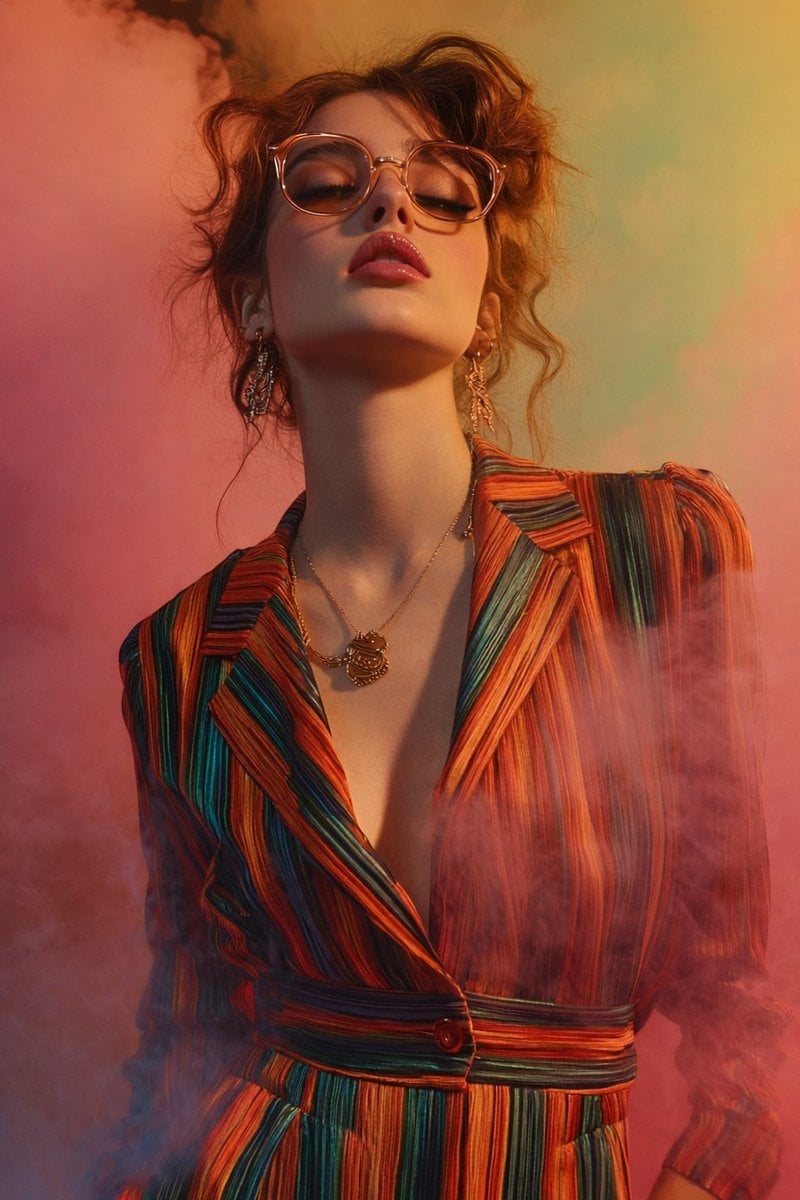
Cinematic Low-Angle Fashion Portrait Smoke Editorial
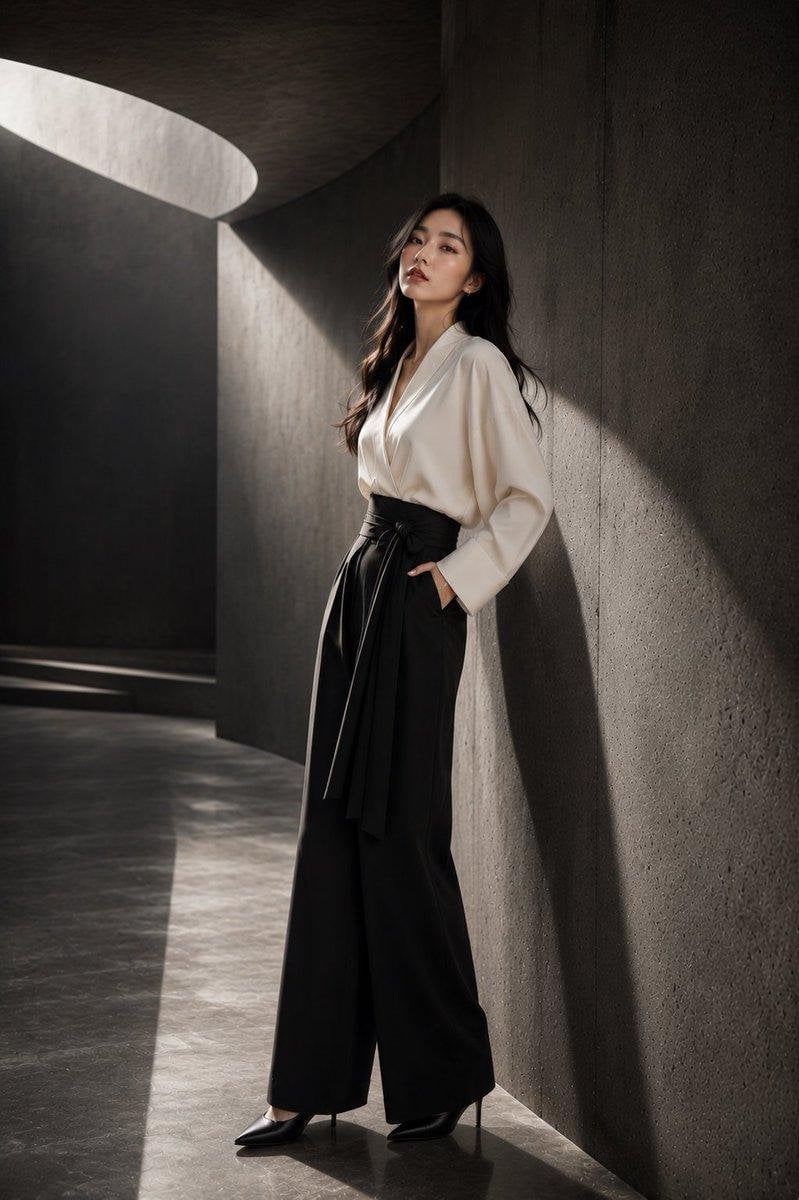
Japanese Architectural Concrete Studio Fashion Campaign
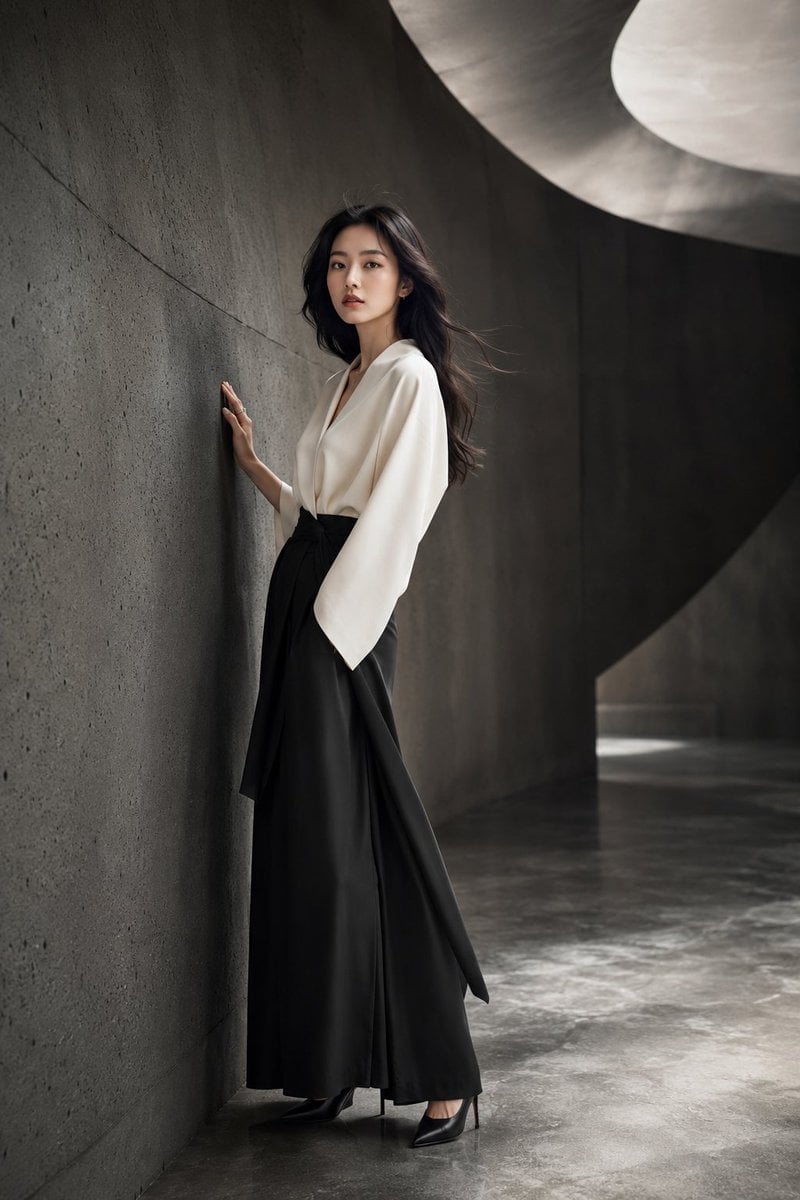
Japanese Minimalist Concrete Studio Fashion Editorial
Cinematic Low-Angle Fashion Portrait Smoke Editorial
High-Fashion Bauhaus Geometric Cutout Editorial
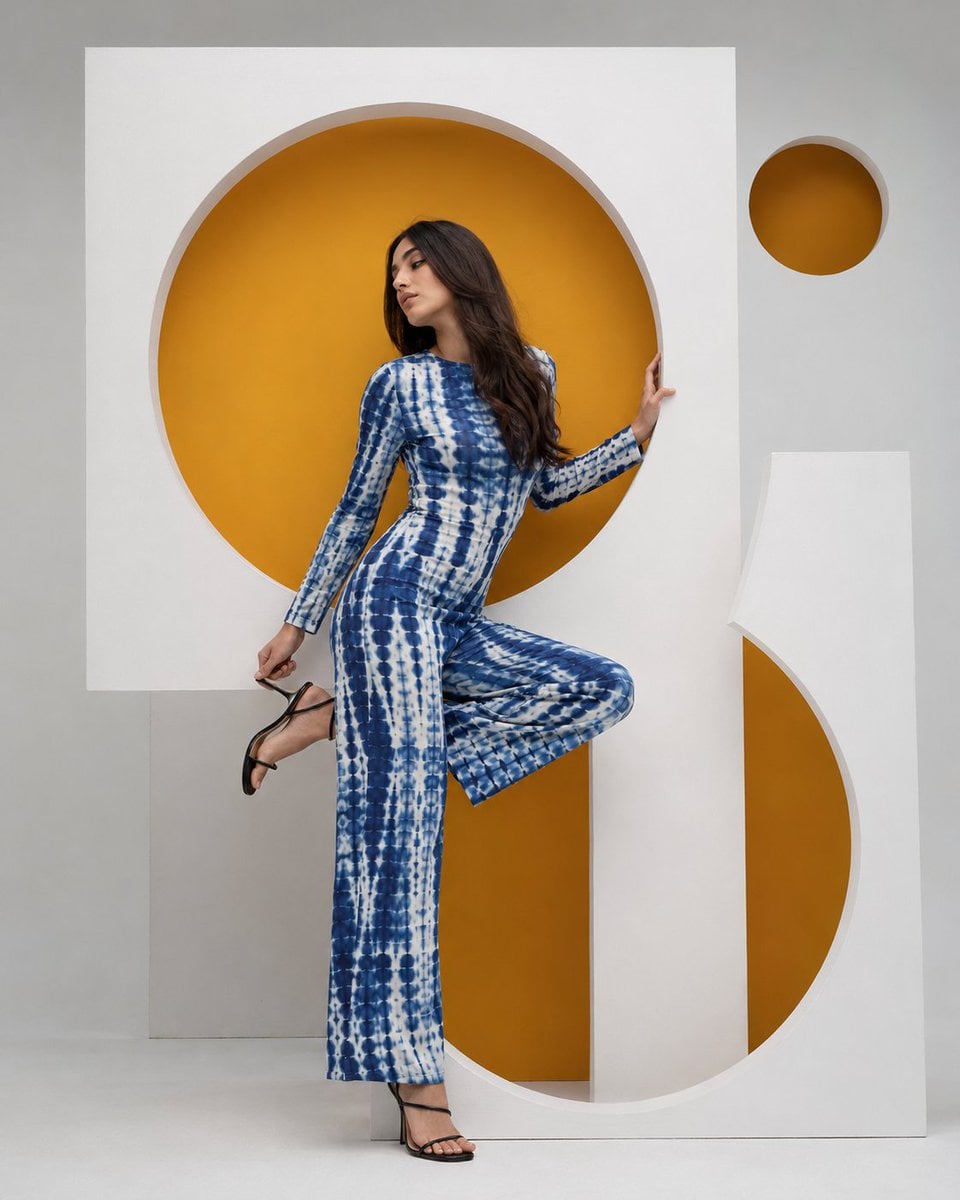
High-Fashion Bauhaus Geometric Cutout Editorial
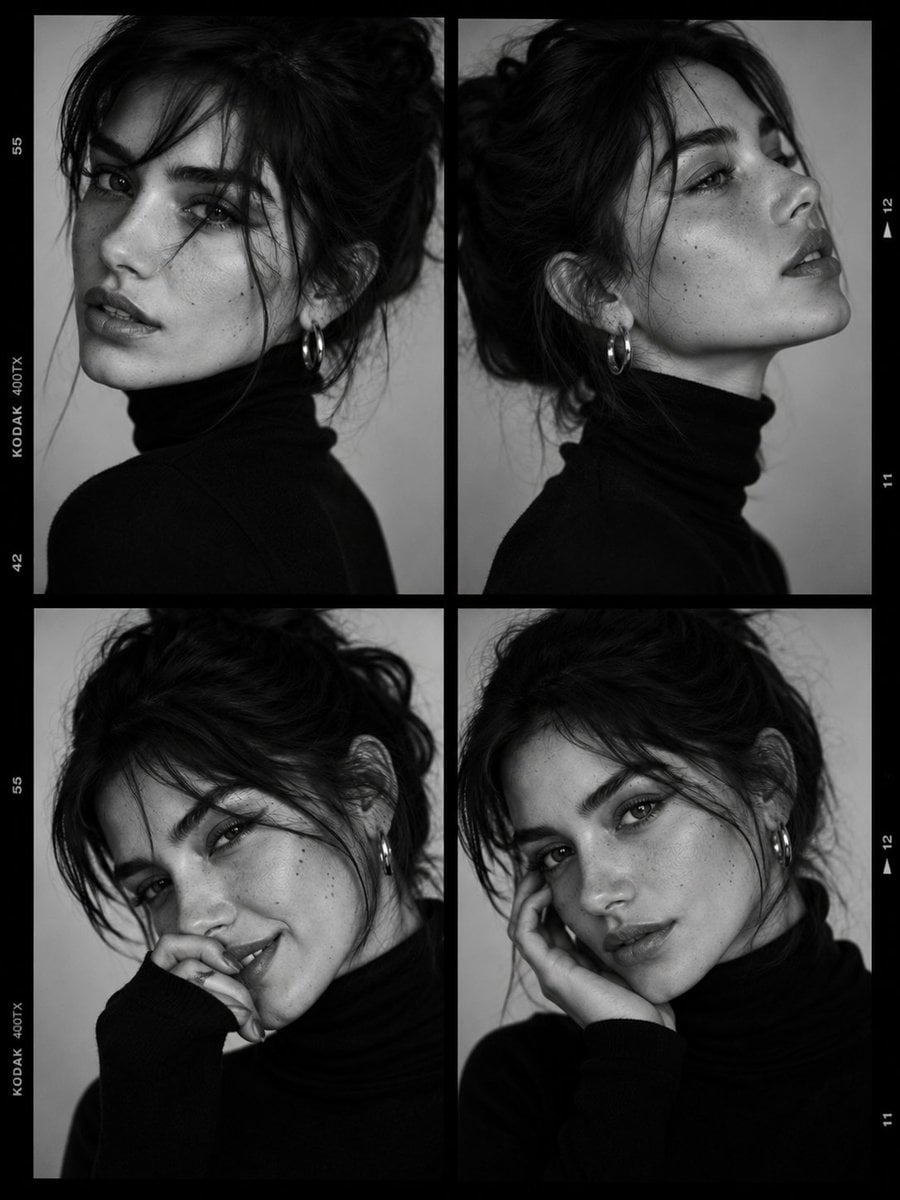
Luxury Black-and-White Fashion Contact Sheet
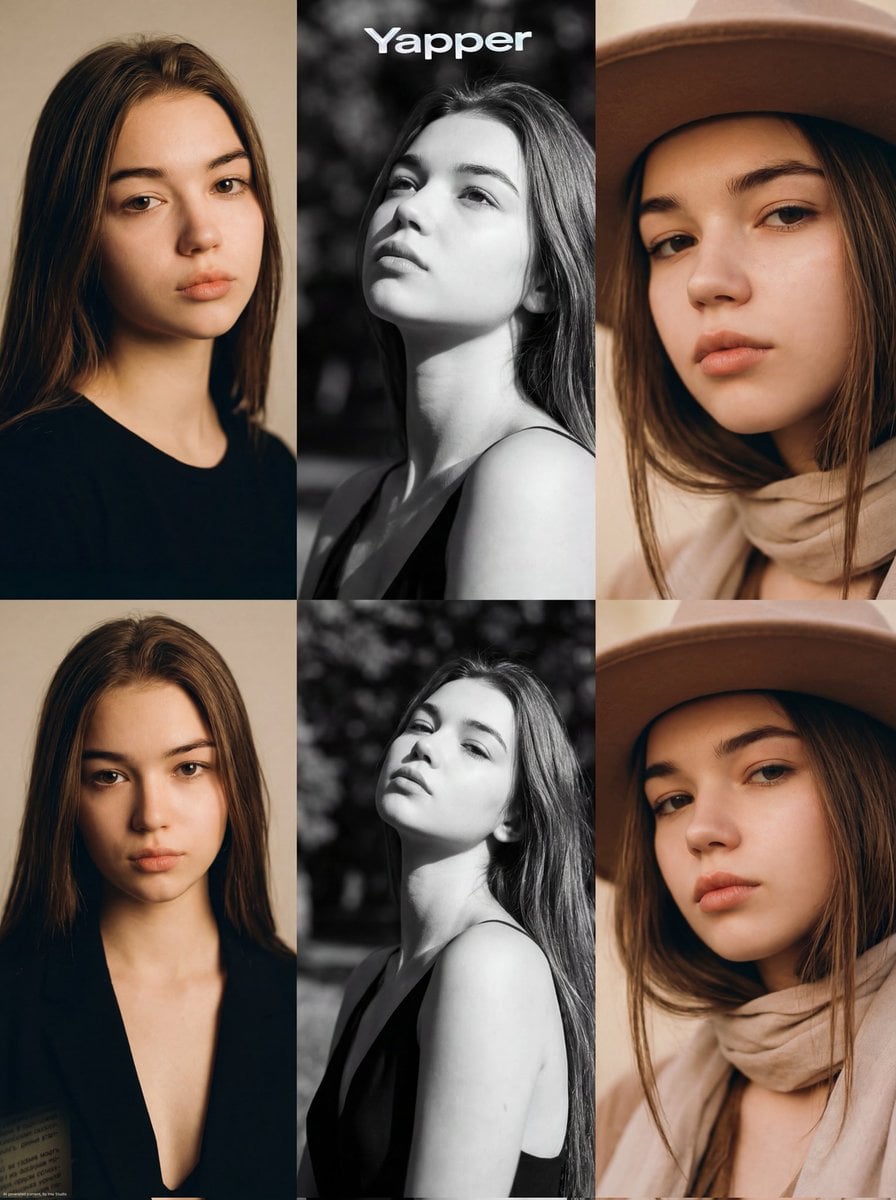
Ultra-Realistic Vogue-Style Editorial Fashion Grid
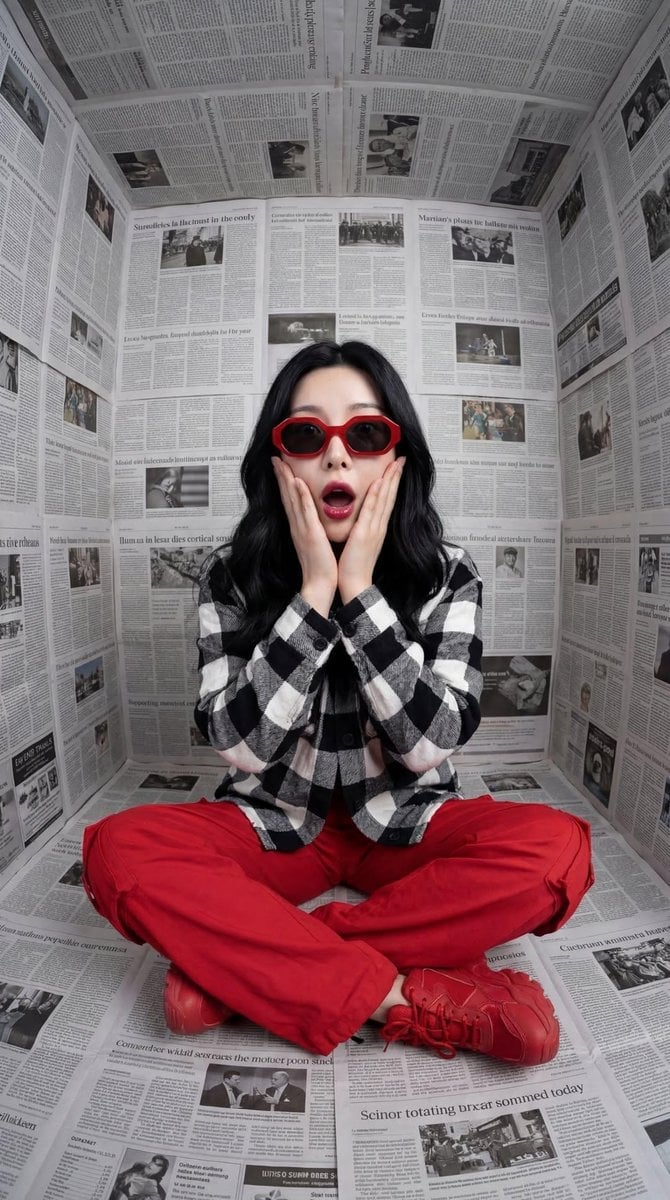
Stylized Fashion Portrait Bold Color Contrast Editorial
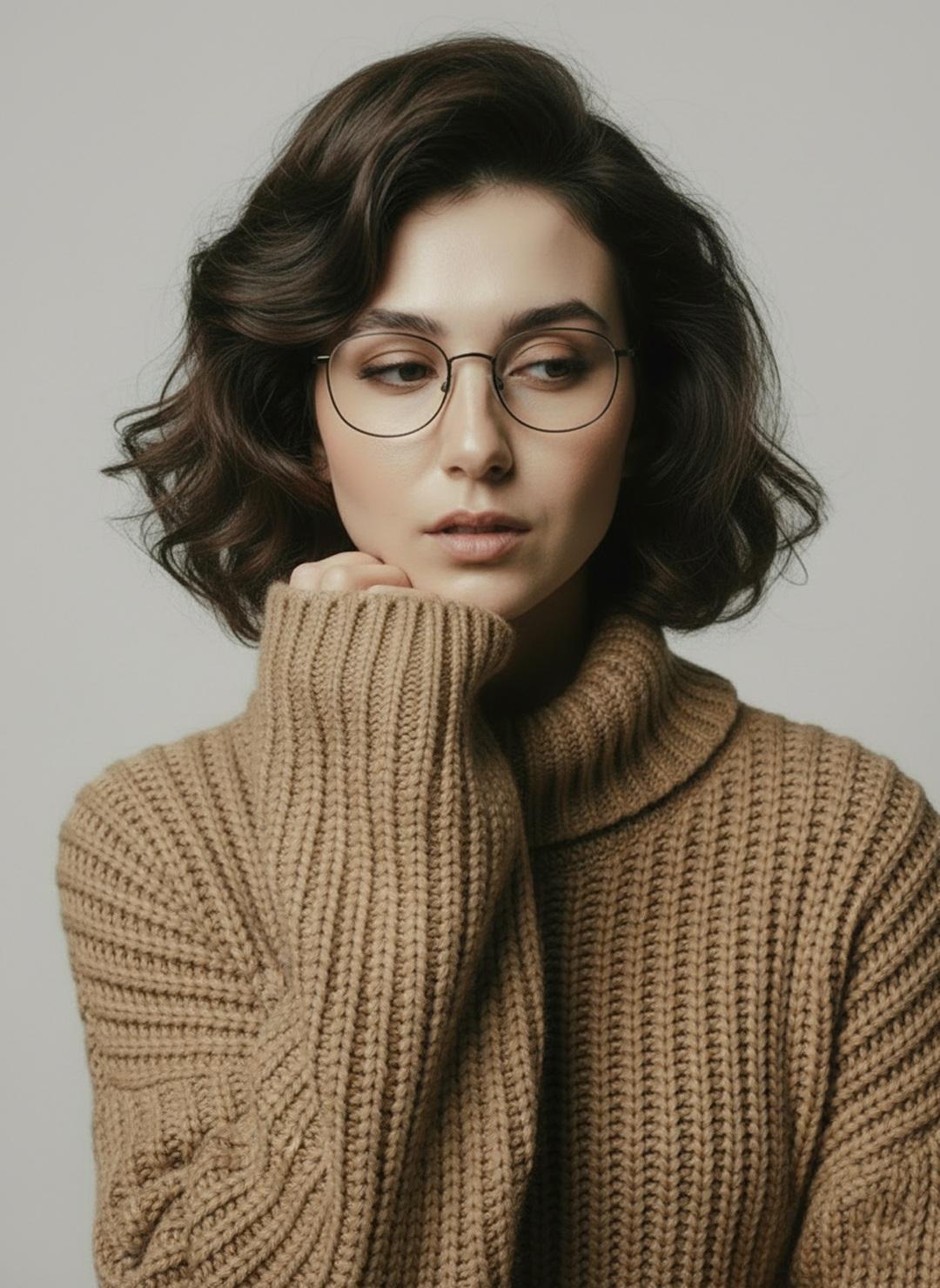
Minimalist Scandinavian Editorial Fashion Portrait Series
Make it yours
Blue Studio Character Transformation works as-is. These are the safest ways to change it without losing the look.
Change one field
Copy a single group, rewrite it, and generate again so you can see what that field is doing.
Keep the frame, change the subject
Hold the composition and light of Blue Studio Character Transformation, then swap wardrobe, props or the person for a new take.
| If the result… | Why | Fix |
|---|---|---|
| The result drifts from the preview | Too many fields changed at once. | Reuse Blue Studio Character Transformation as-is first, then change one group — subject, light, or setting. |
| The model over-stylizes the scene | The prose prompt leaves finish and camera underspecified. | Add one camera or lighting sentence and stay on Nano Banana 2. |
More Nano Banana 2 templates
Other prompts made for Nano Banana 2.
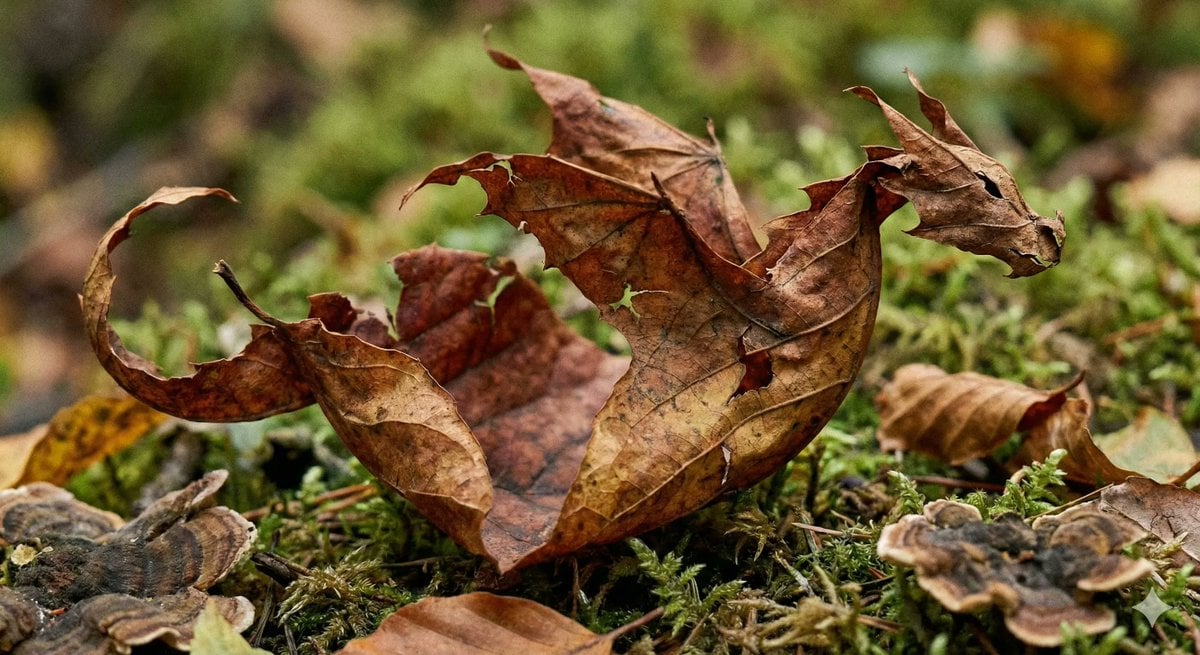
Photorealistic Leaf Shaped Like a Dragon
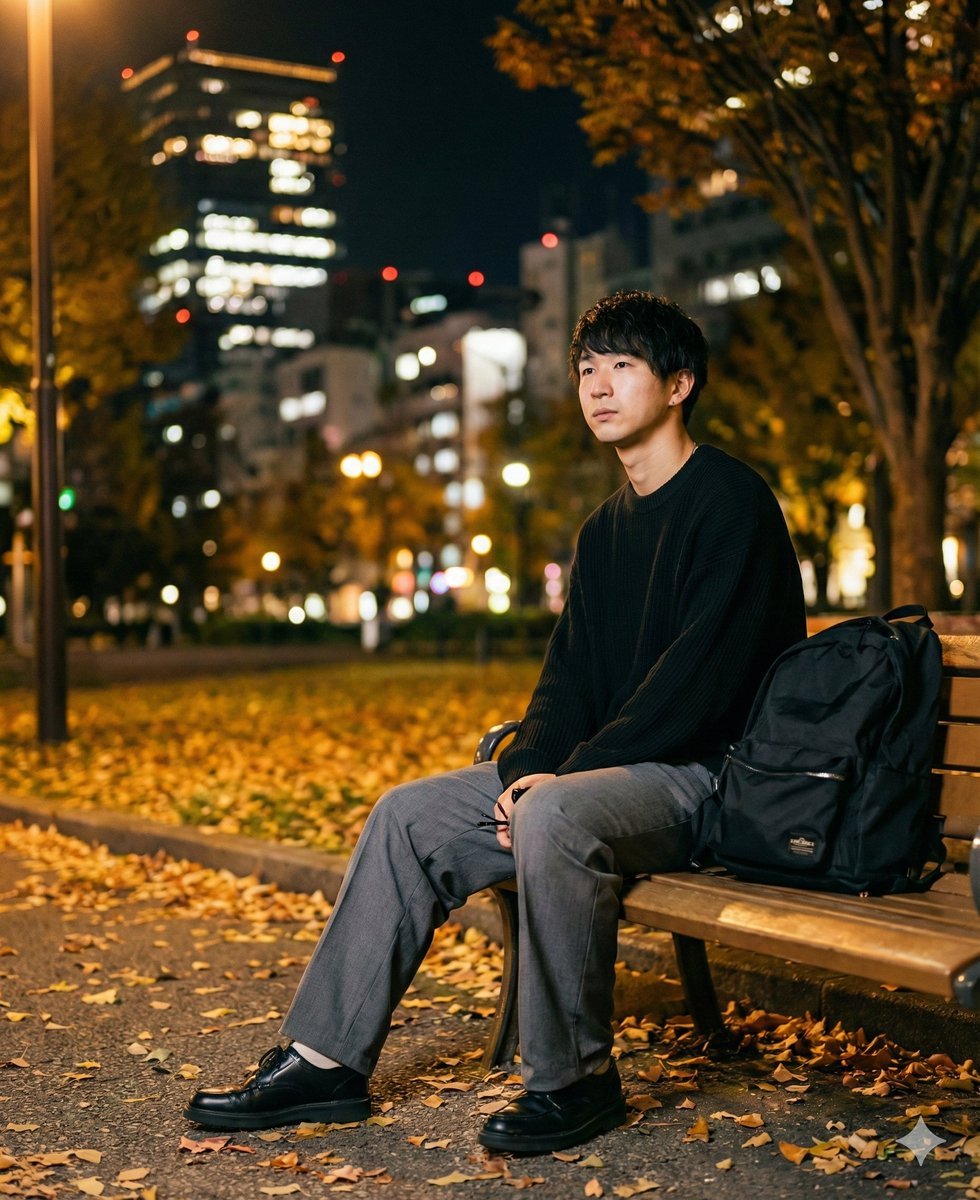
K-Pop Idol Portrait Grid for Rapid Selection
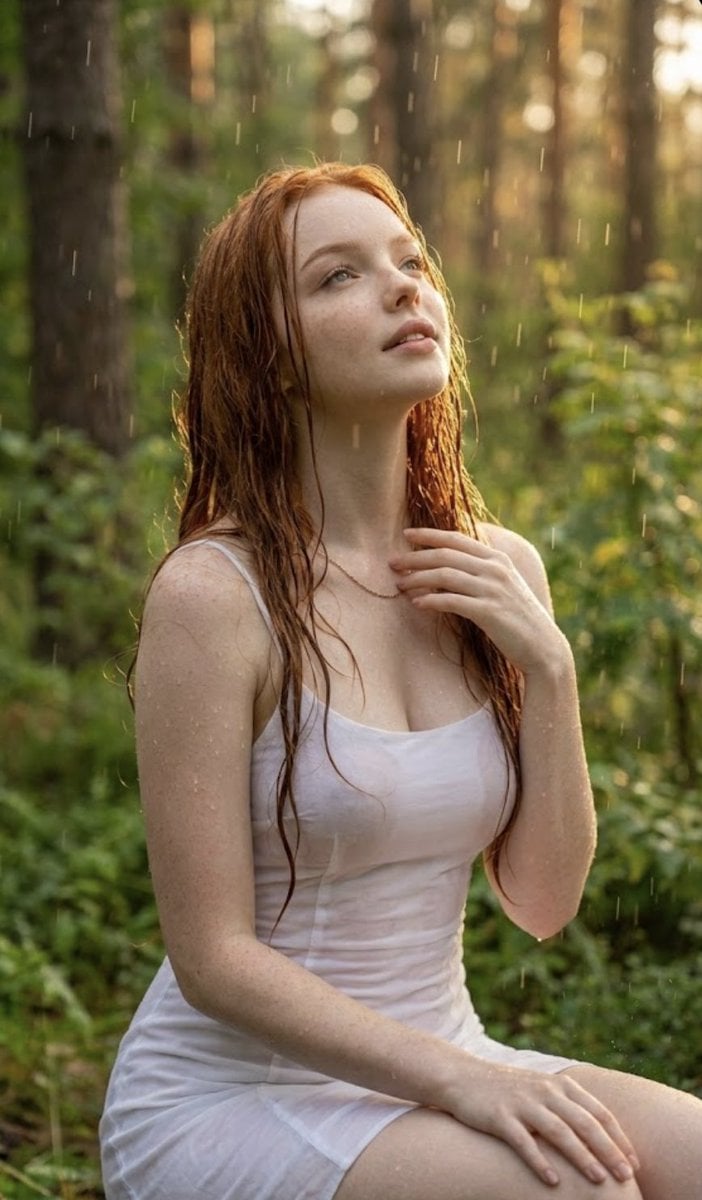
Poetic Rain Forest Portrait During Golden Hour
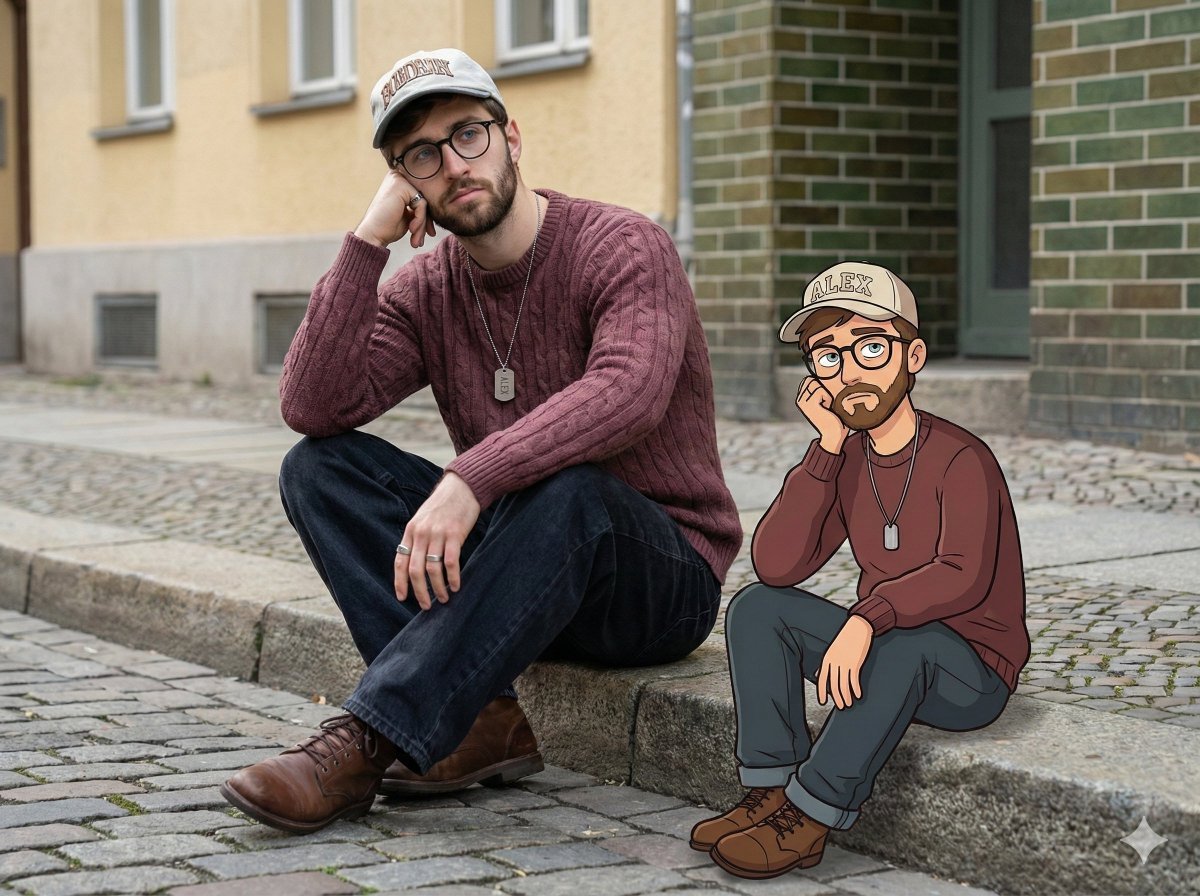
Urban Street Portrait with Cartoon Inner Self Duo
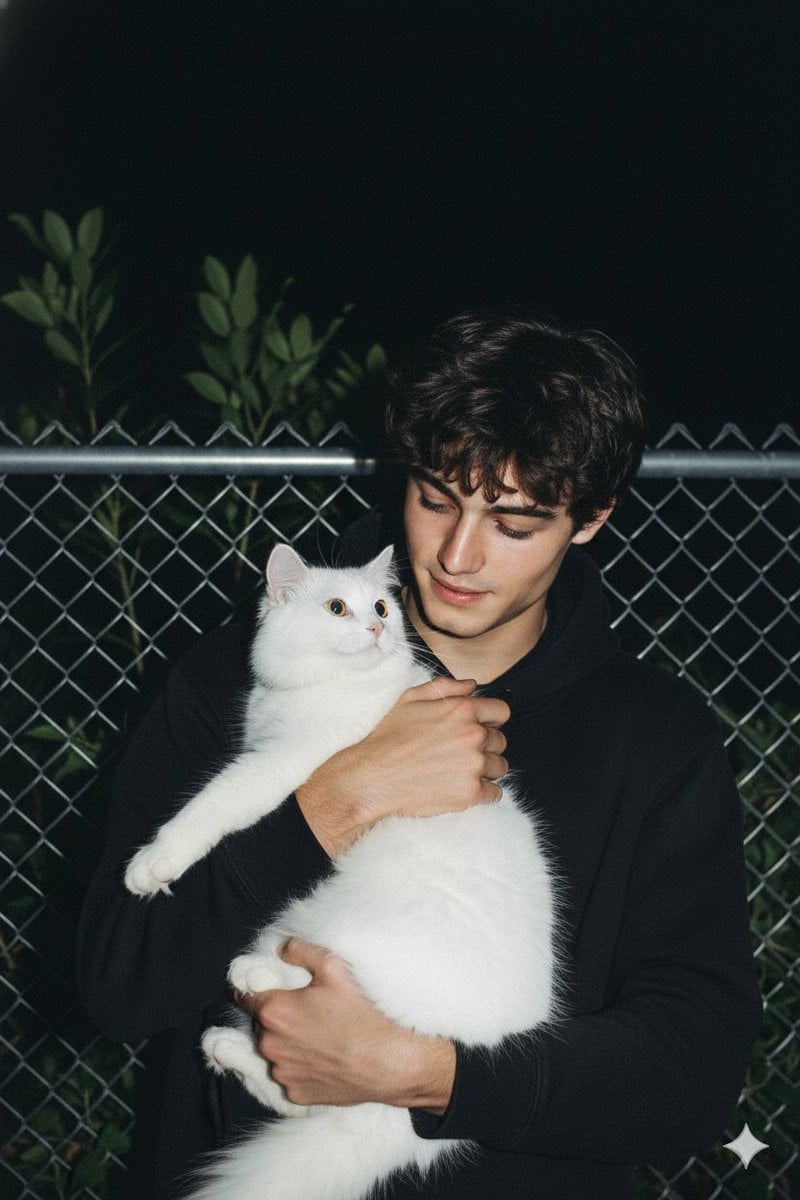
Candid Nighttime Photo with Cat Prompt
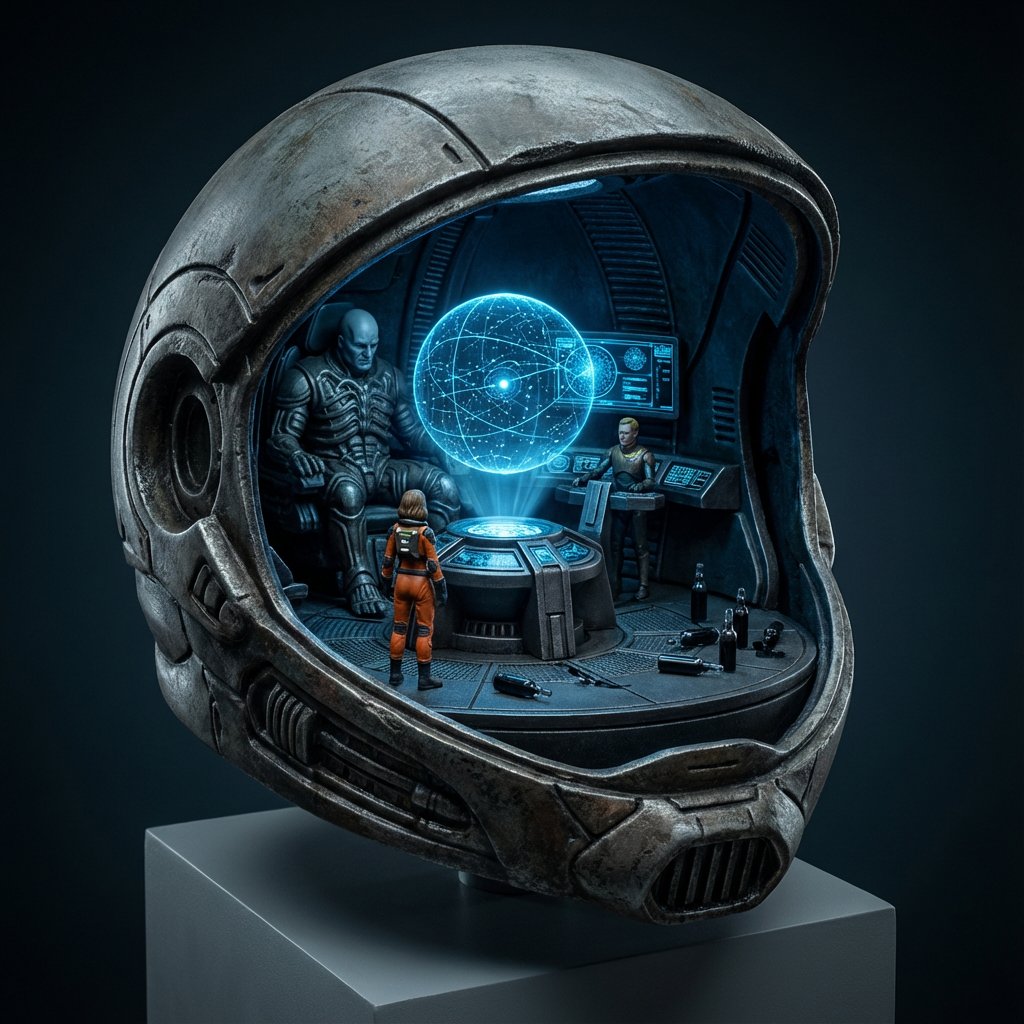
High-Concept 3D Diorama Generation Prompt
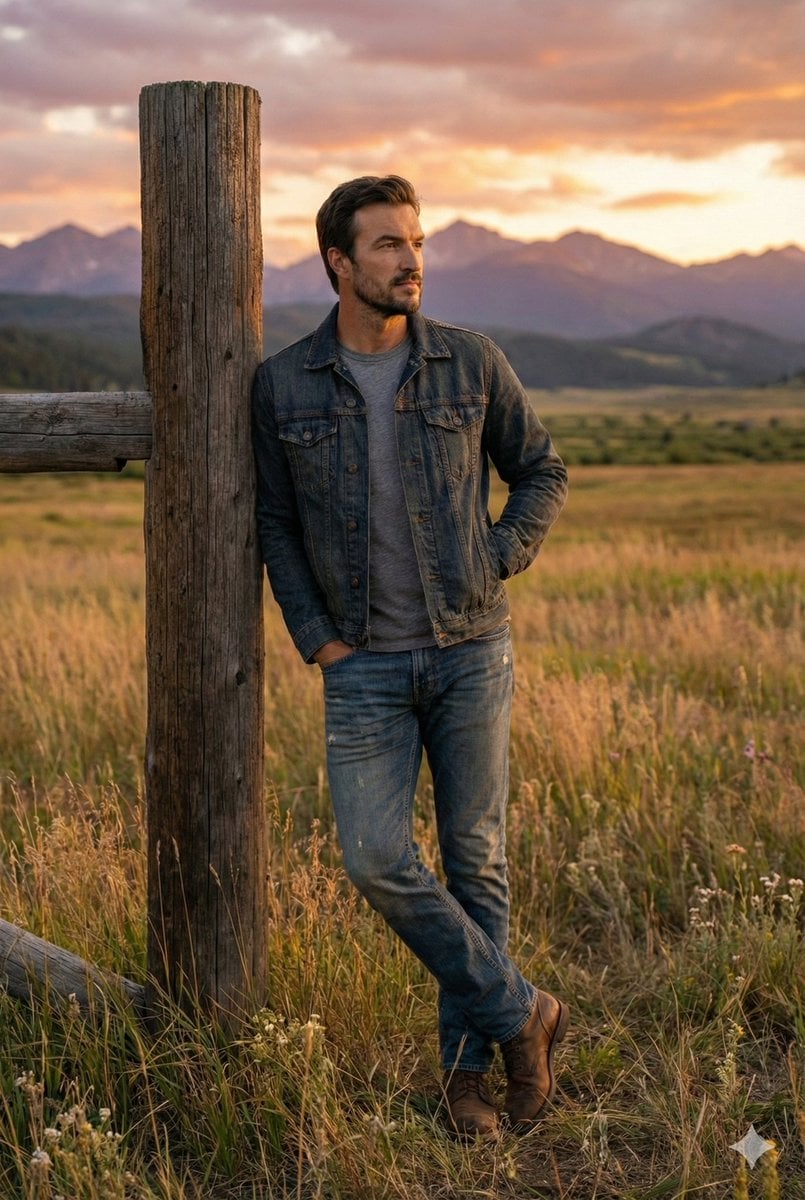
Cinematic Futuristic Studio Portrait Template
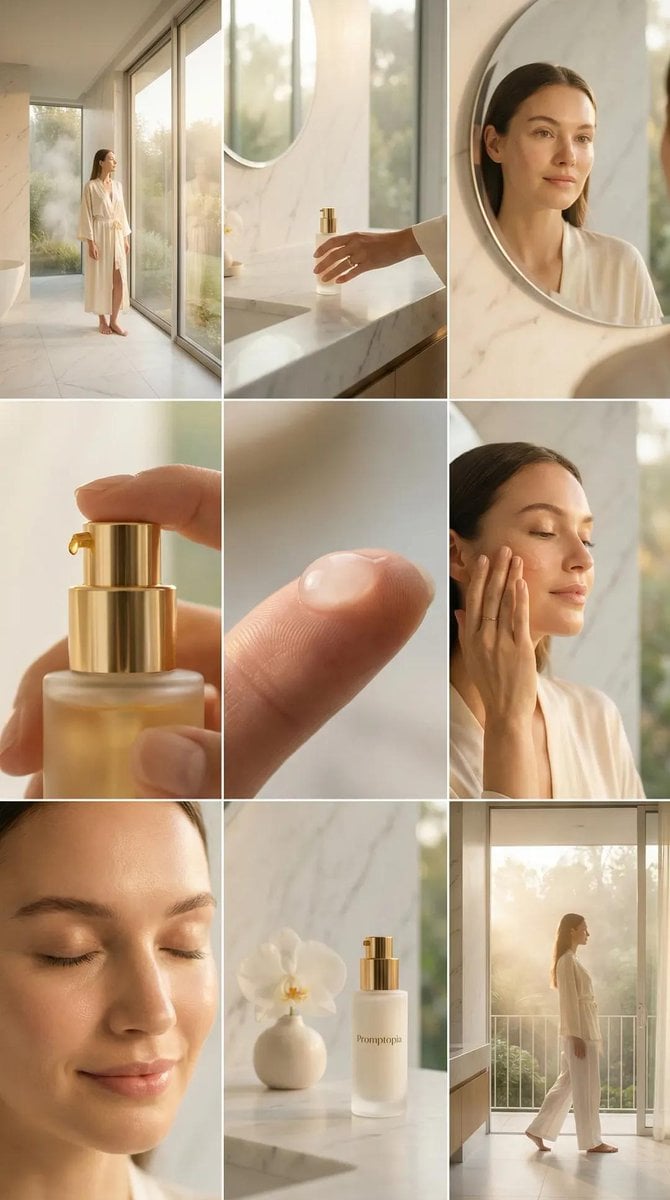
Skincare Editorial Photography Collage Prompt
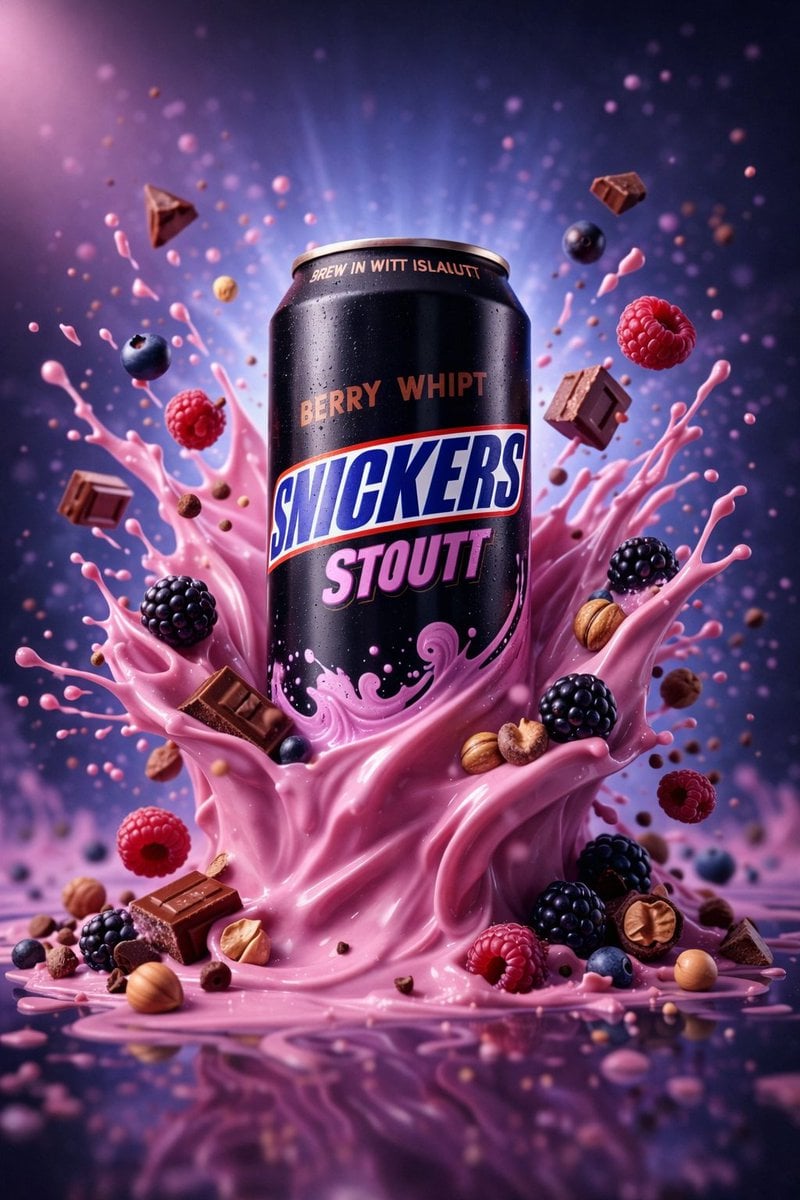
Hyper-Realistic Commercial Product Photography (Splash Effect)
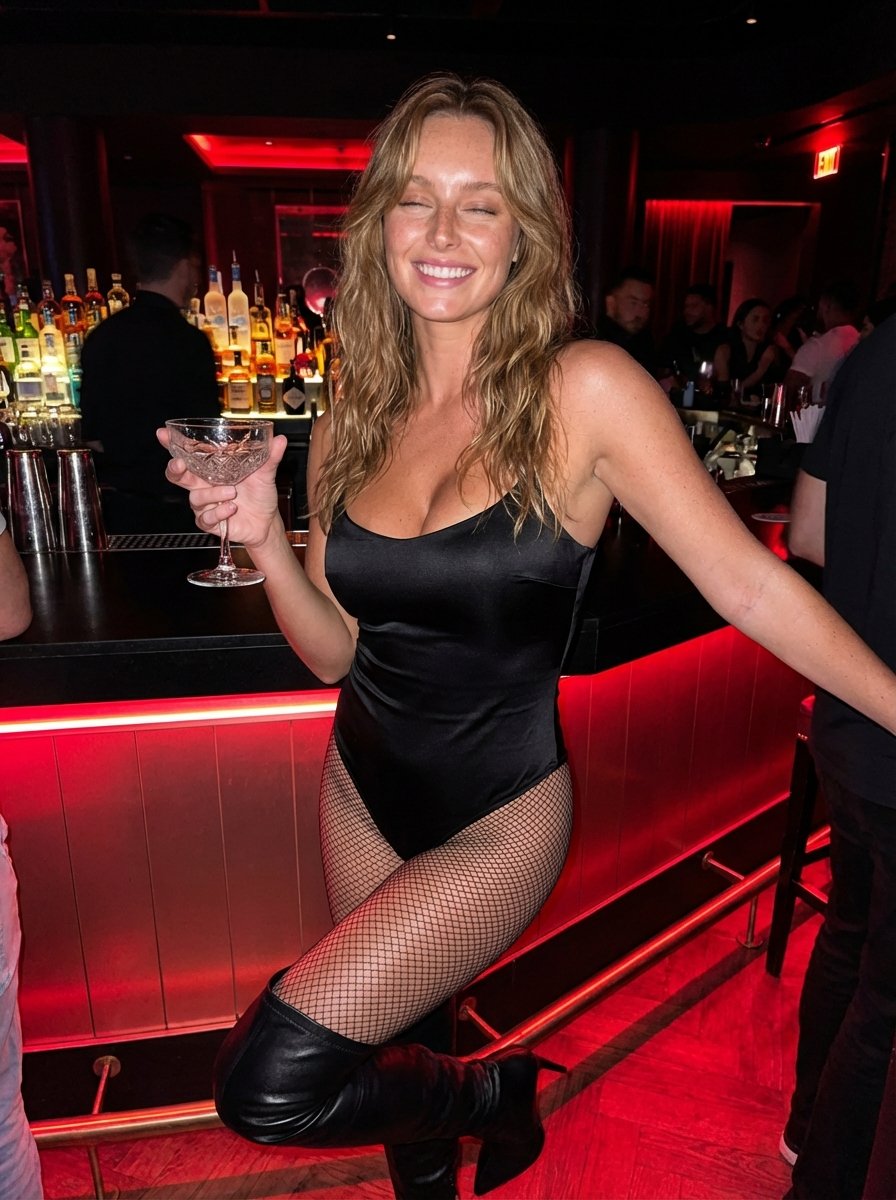
Hyper-Realistic Nightclub Portrait Prompt
More image prompts
Fresh picks from across the catalog.
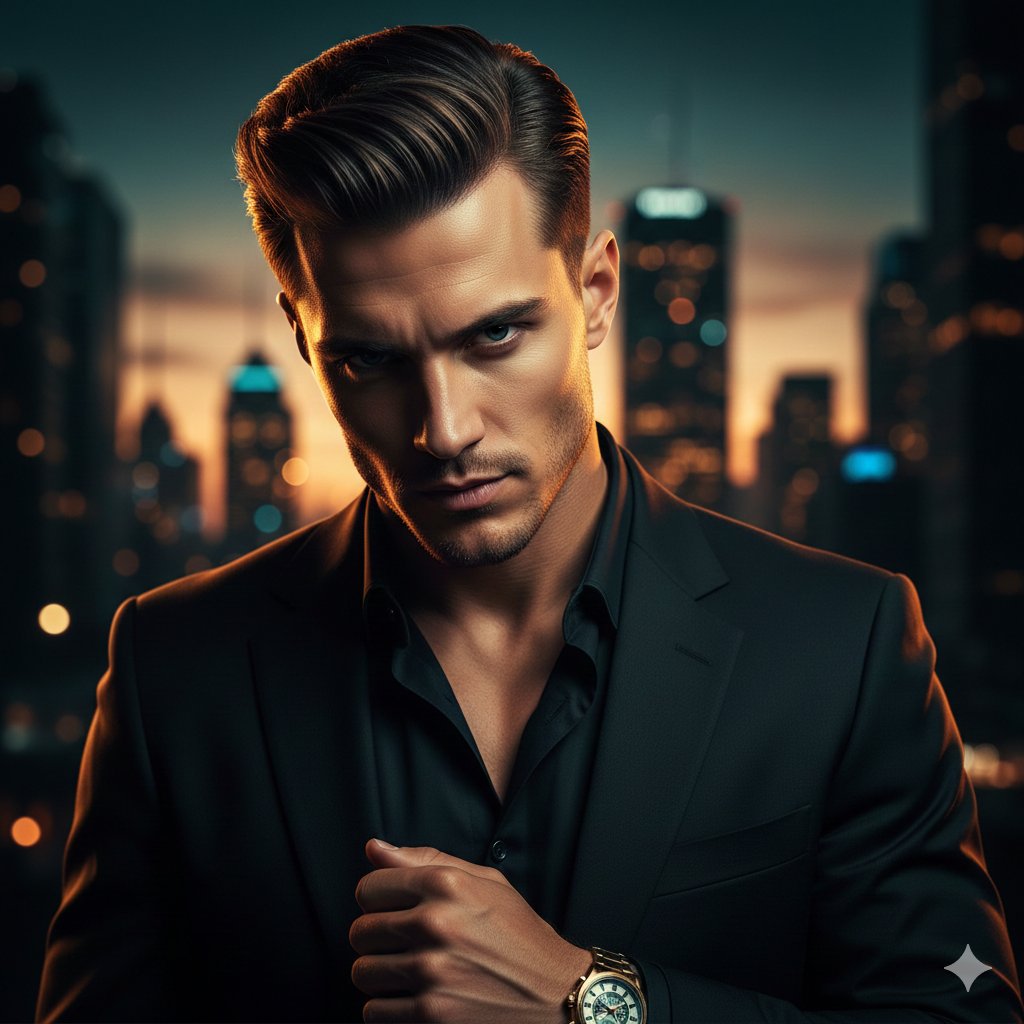
Cinematic Portrait of a Confident Young Man in an Urban Setting
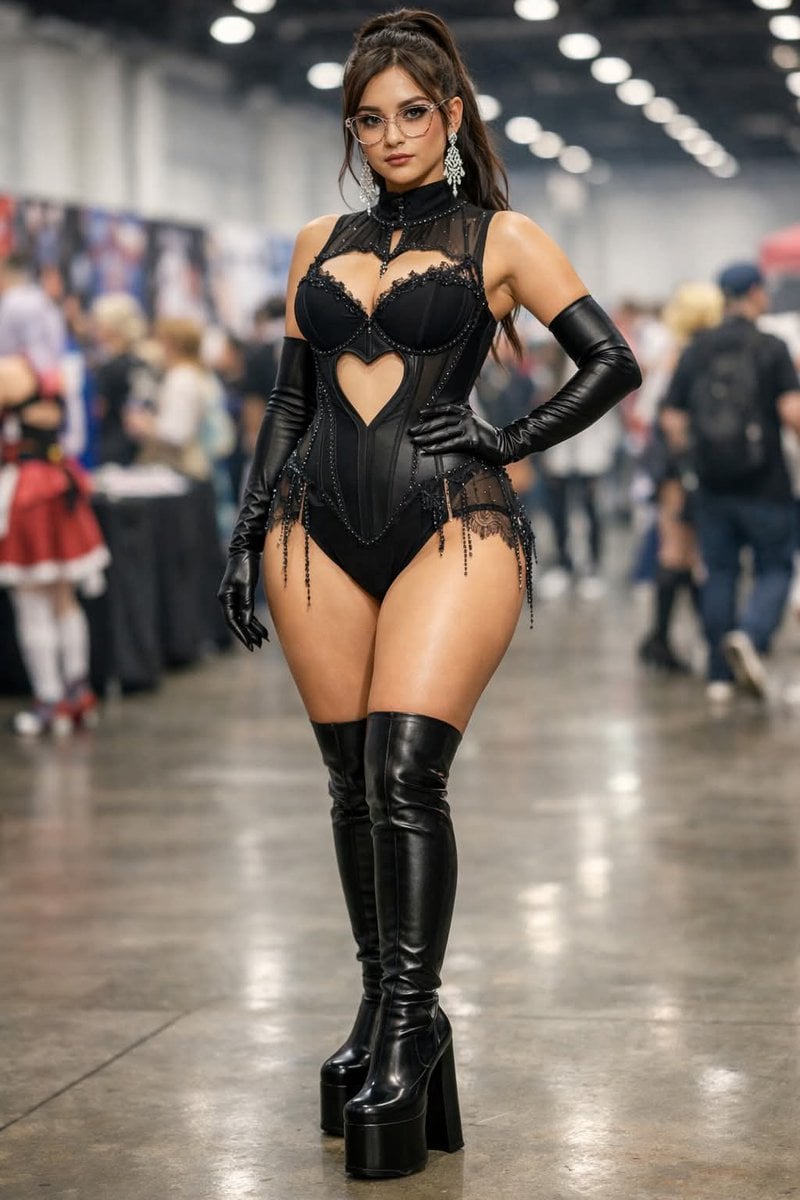
Convention Cosplay Outfit Prompt
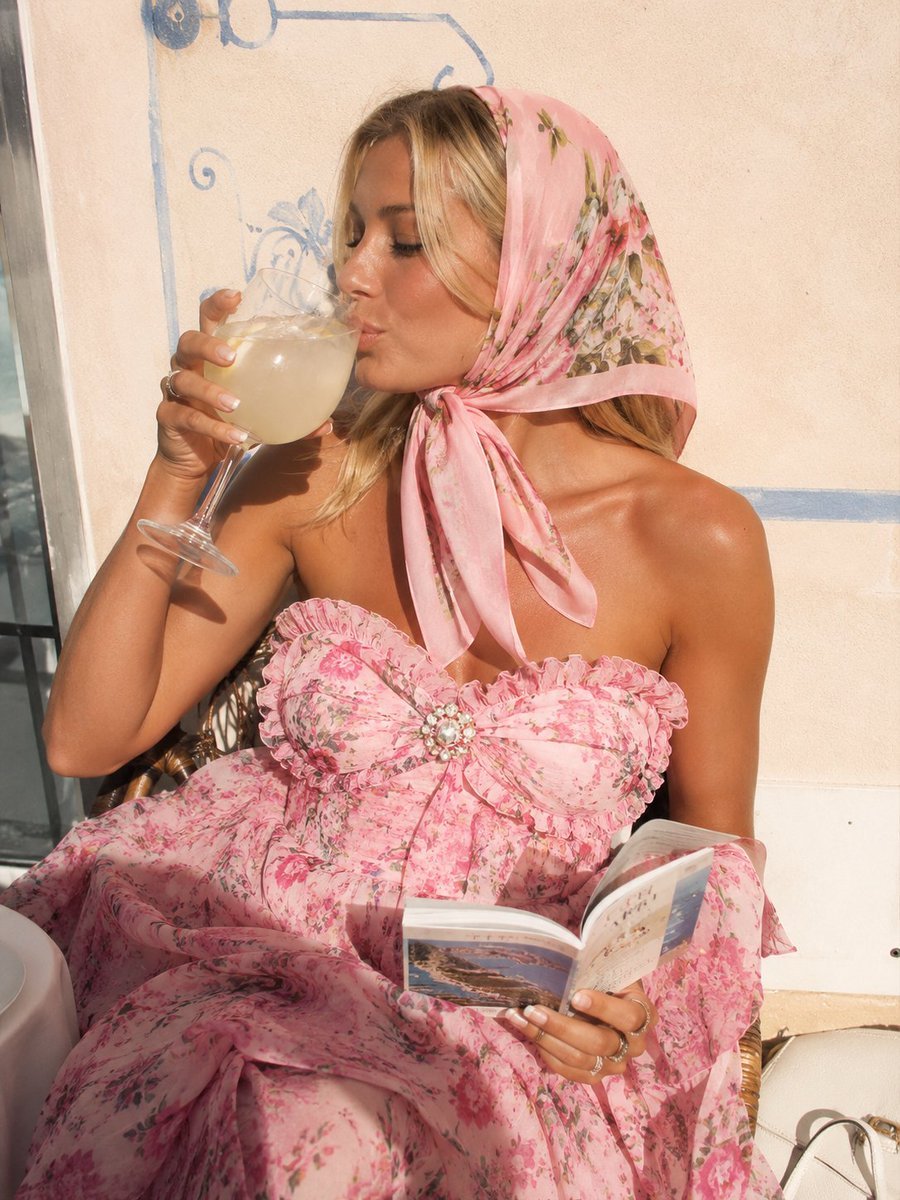
Pink Floral Vacation Café Portrait
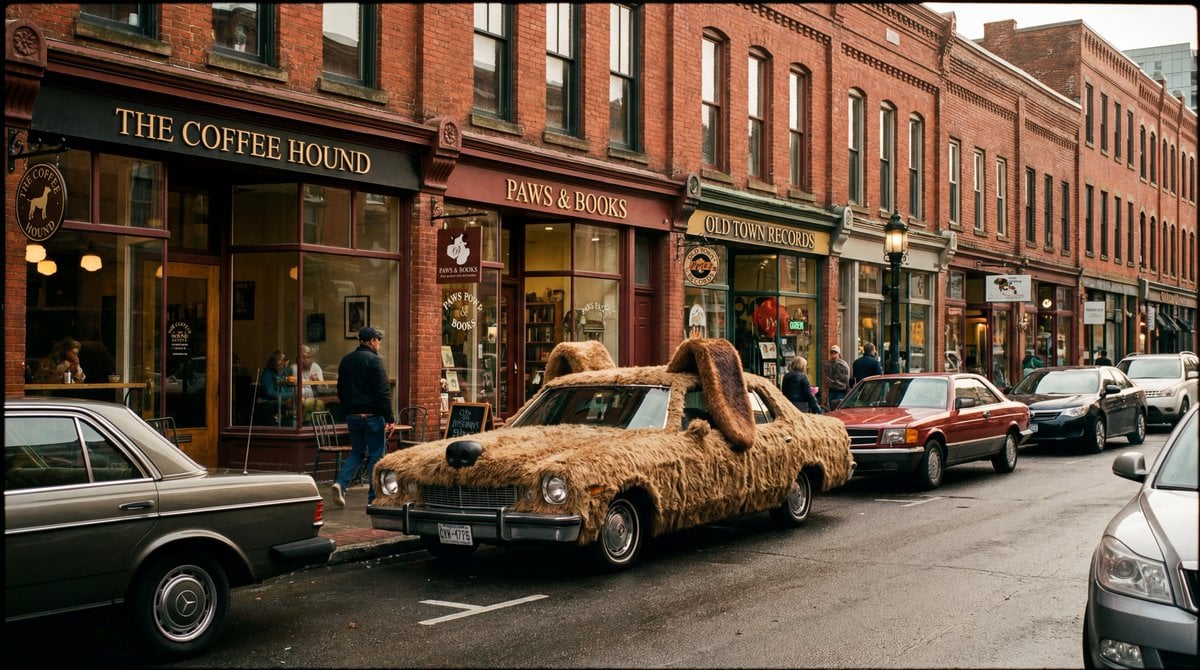
Cinematic Wide-Shot with Dog Fur Car
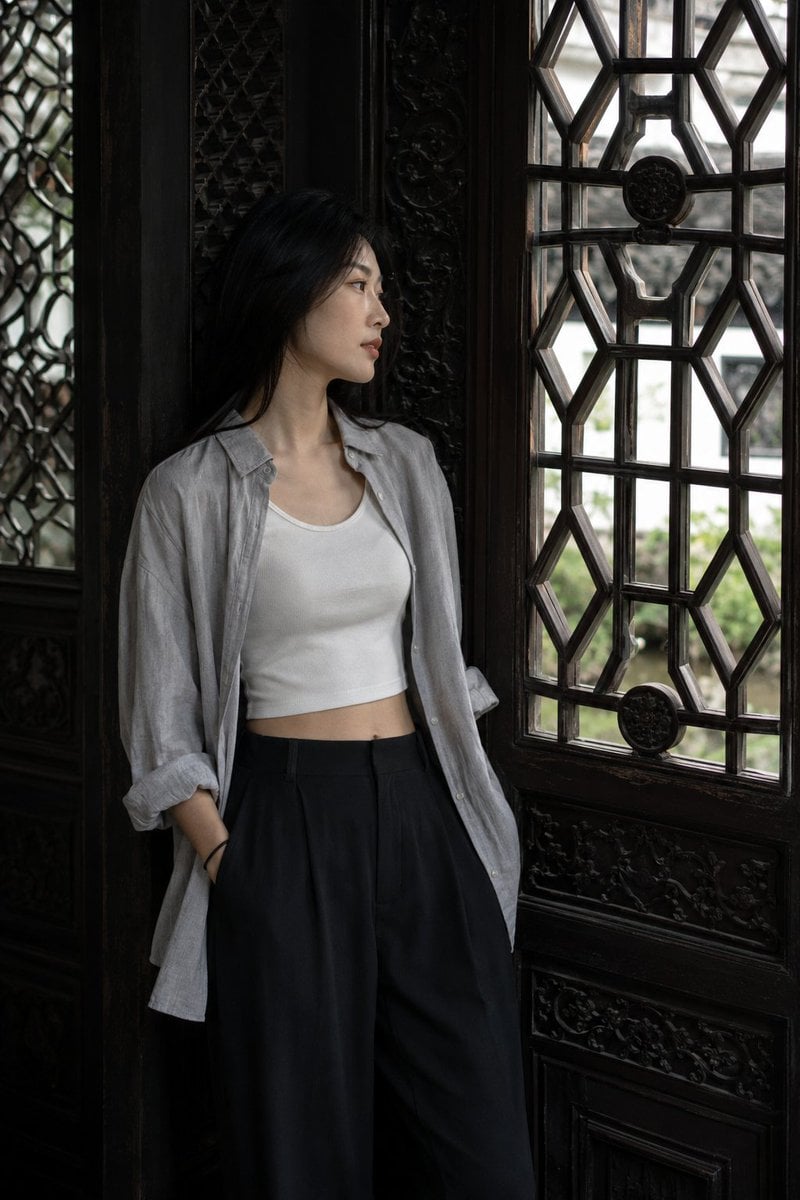
Classical Suzhou Garden Interior Portrait
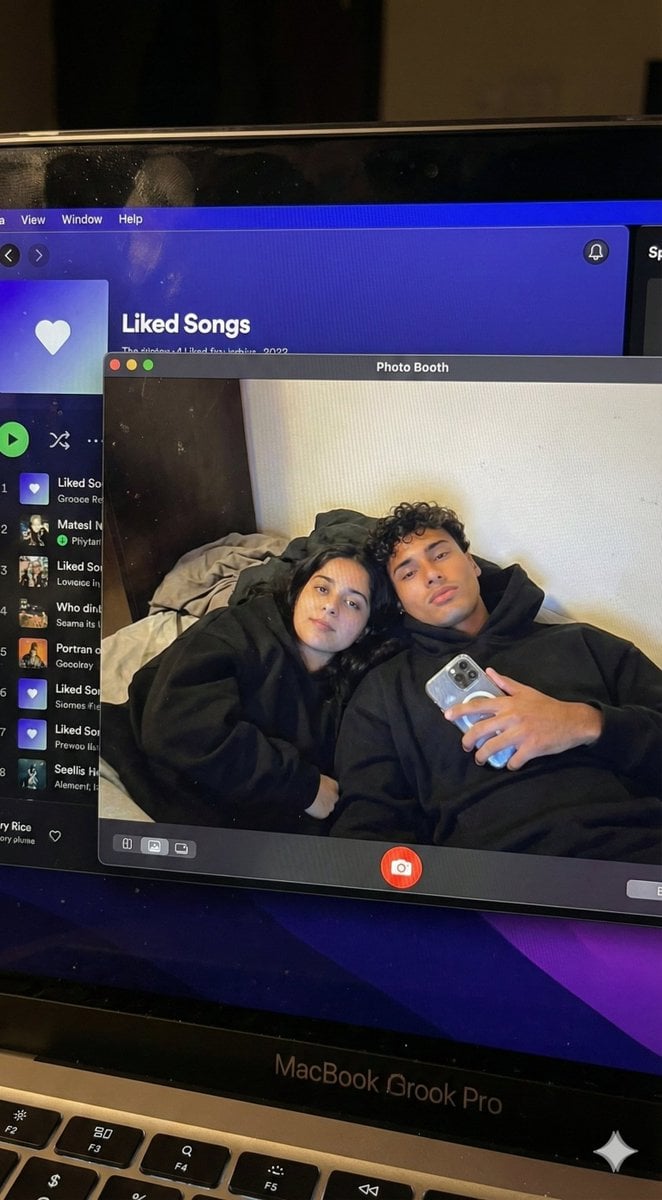
Couple MacBook screen selfie simulation prompt
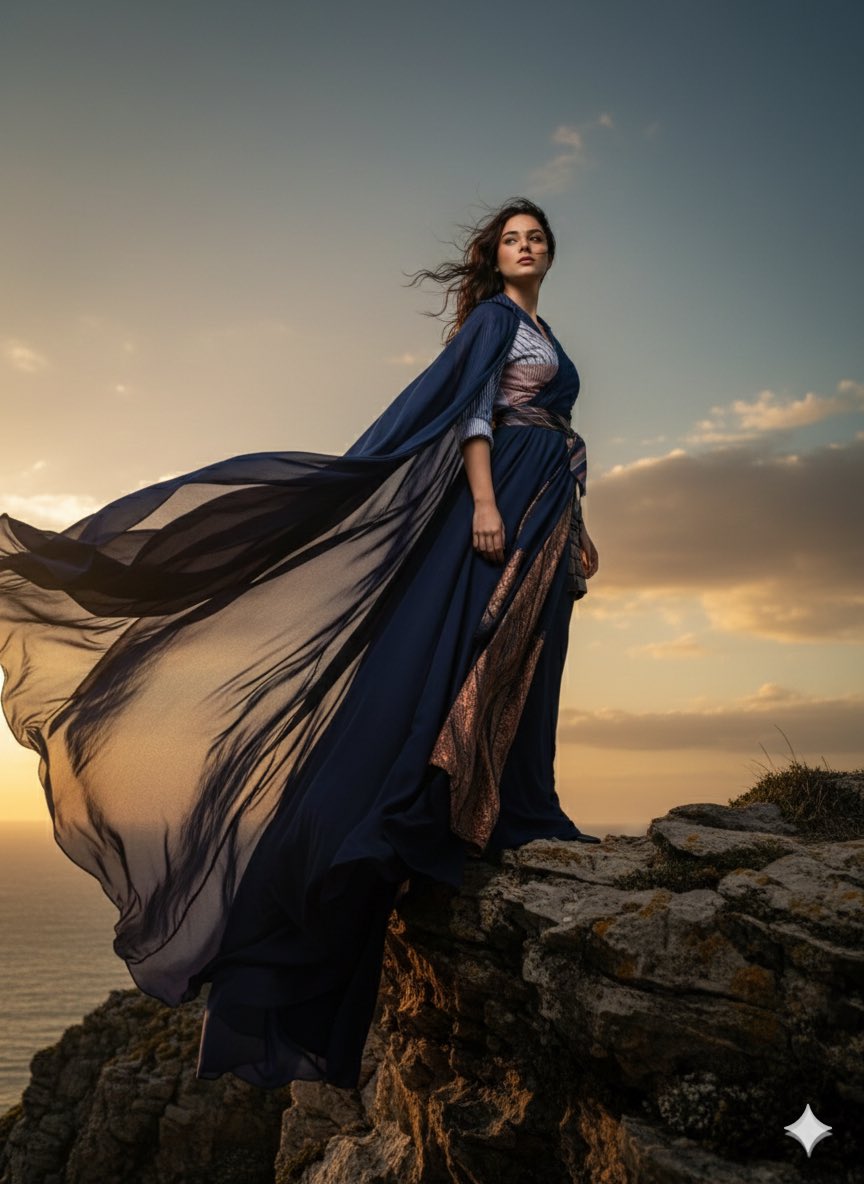
High-Fashion Cinematic Portrait Emphasizing Motion
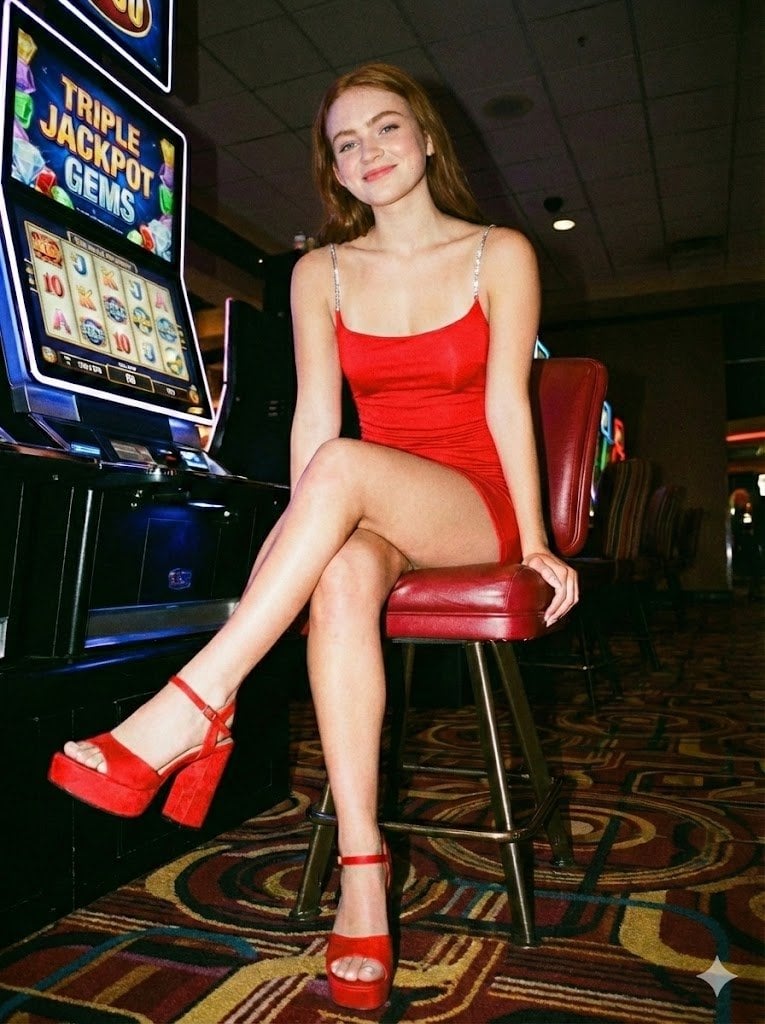
Casino Paparazzi Candid Portrait
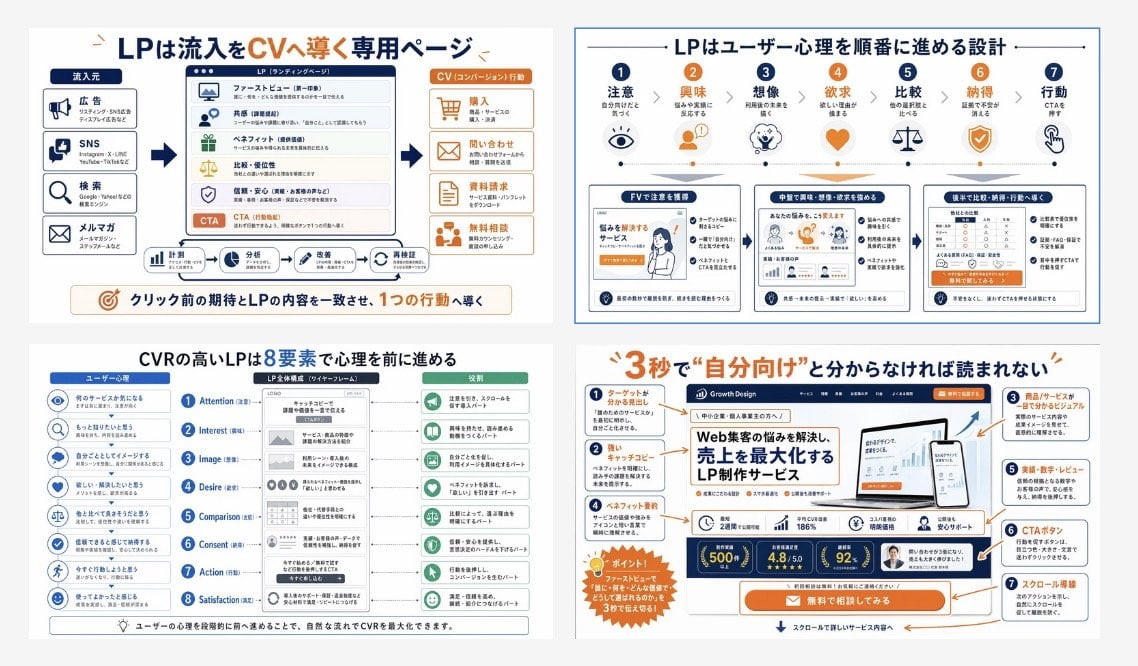
Japanese LP Conversion Infographic Grid
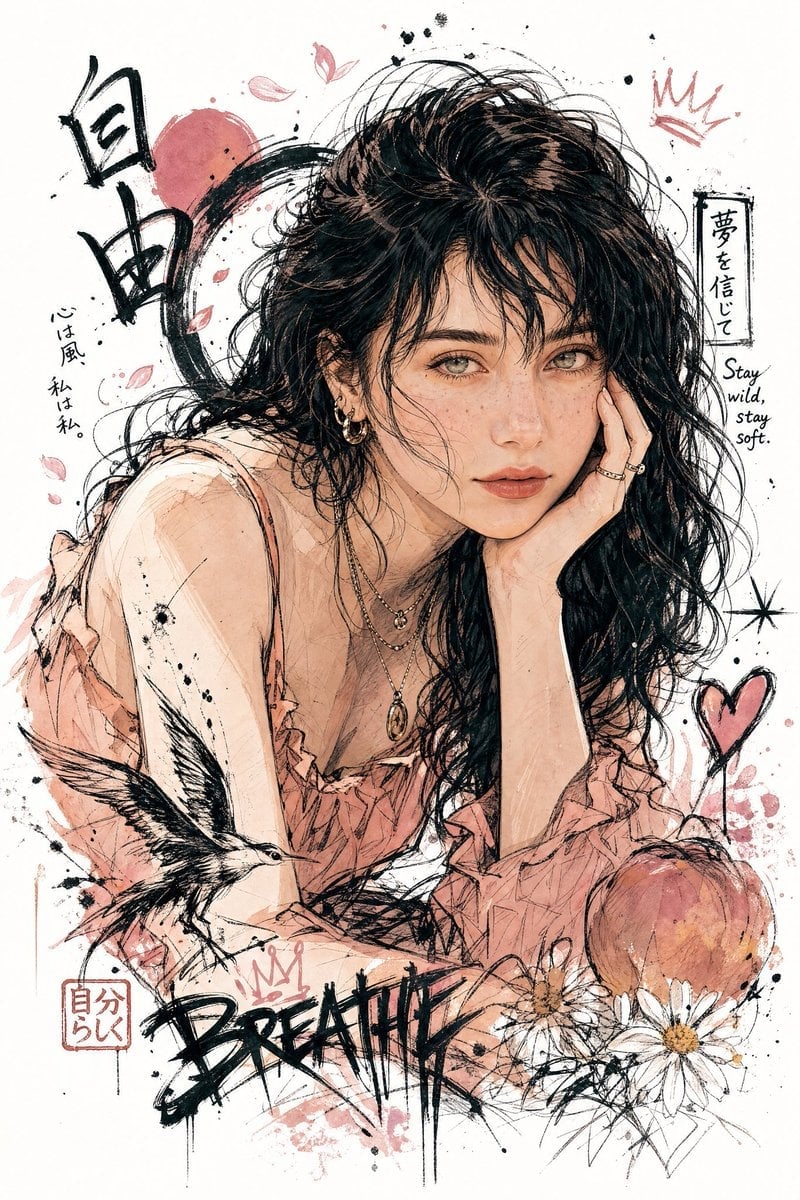
Japanese Graffiti Style Illustration
Browse template categories
Blue Studio Character Transformation questions
How do I use the Blue Studio Character Transformation template?
Add your photo if the template asks for one, edit the prompt if you like — the template's model and format are already selected — and press Generate. Your version opens in PicX Studio.
Can I customize the Blue Studio Character Transformation template?
Yes. You can change the subject, setting, lighting, mood, format, and available model controls before creating your image.
Is the Blue Studio Character Transformation template free?
Opening and editing this template is free. Generating uses credits, shown on the Generate button when you are signed in.
Which AI model should I use?
Start with Nano Banana 2, which is the model associated with this template. You can compare another compatible model for a different finish.
Looking for something else? Browse all templates.
Your photo, any look
Thousands of ready templates for every top image and video model, from one credit balance.