
MeiGen AI Gallery Mobile Screenshot
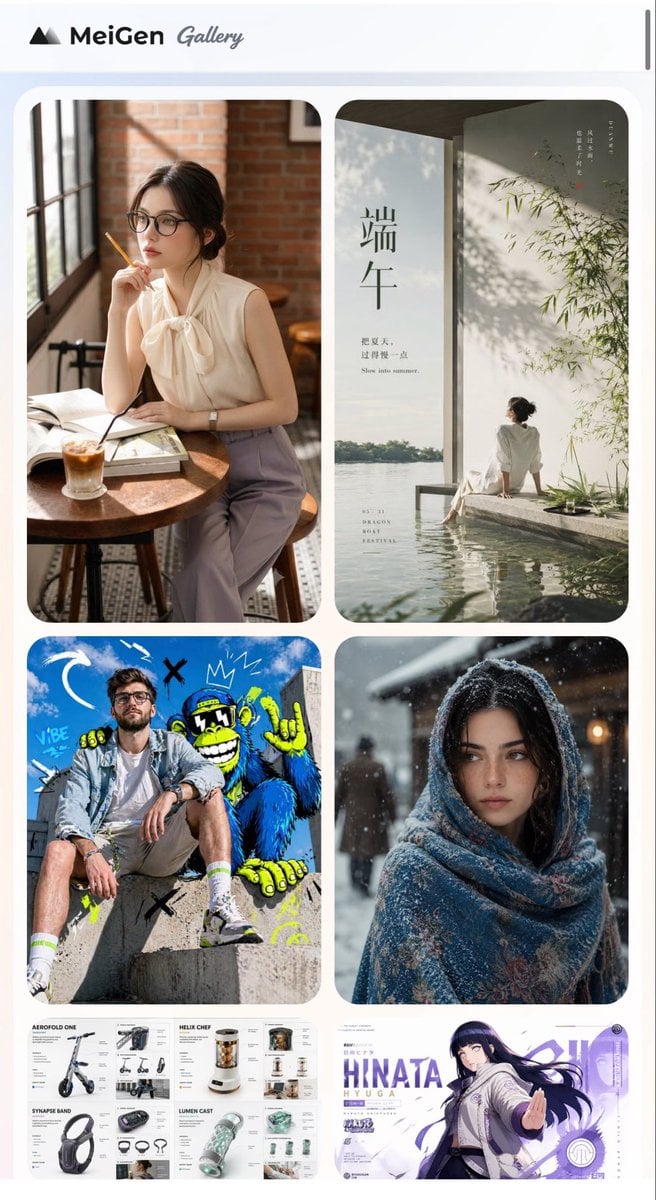
A mobile gallery webpage mockup displaying six diverse AI image prompt examples for inspiration and browsing.
- Prompt included
- Model and format preset
- Premium template
The prompt behind this image
Copy the exact prompt behind MeiGen AI Gallery Mobile Screenshot, or open it in the studio and make it yours.
Goal: Create a polished mobile webpage screenshot for an AI image prompt gallery called {argument name="gallery name" default="MeiGen Gallery"}, shown as a vertically scrollable feed of visual prompt examples. Canvas: Tall smartphone screenshot, 720×1200 px, white and very pale blue background, rounded browser-like page edges, with a thin dark vertical scroll indicator on the far right near the top. Header: At the top, place a minimalist black mountain-like triangular logo followed by the bold text “MeiGen” and a gray handwritten script word “Gallery”. Keep the header clean with generous white space. Layout: Below the header, create a two-column masonry gallery inside a softly rounded light container. Use large rounded-rectangle image cards with consistent gutters and soft shadows. Show exactly 6 visible gallery cards: 1. Top-left large card: warm lifestyle portrait of {argument name="cafe subject" default="an elegant woman in a sleeveless cream blouse with a bow collar and lavender trousers"} seated at a round wooden cafe table beside tall industrial windows and a brick wall, holding a pencil near her lips, with an open book and iced coffee on the table; cozy cinematic sunlight. 2. Top-right large card: minimalist Chinese Dragon Boat Festival poster by water, vertical composition with a seated woman in white near a reflective pool, bamboo shadows on a pale wall, calm lake horizon, large Chinese characters “端午”, small English text “Slow into summer”, and subtle vertical Chinese typography. 3. Middle-left large card: energetic streetwear photo of {argument name="streetwear subject" default="a young man in a denim jacket, white shirt, beige shorts, white socks, and sneakers"} sitting on concrete steps in front of a bright blue graffiti mural with a cartoon gorilla, doodle arrows, crowns, X marks, and neon yellow accents. 4. Middle-right large card: snowy winter portrait of {argument name="winter subject" default="a woman wrapped in a thick blue patterned shawl"} standing outdoors at night or dusk, snowflakes visible, warm blurred lights in the background, moody cinematic depth of field. 5. Bottom-left partially visible wide card: clean product design/spec sheet collage with four labeled sections for futuristic gadgets: “AEROFOLD ONE” electric scooter, “HELIX CHEF” compact kitchen device, “SYNAPSE BAND” headphones or wearable band, and “LUMEN CAST” translucent tech device; include small renders, annotations, icons, and neat grid typography. 6. Bottom-right partially visible wide card: anime-style character banner featuring {argument name="anime character name" default="HINATA HYUGA"} in a white and purple action pose with long dark hair, purple UI accents, bold large text “HINATA HYUGA”, circular badges, and dynamic motion lines. Visual style: The overall screenshot should look like a modern AI prompt inspiration website: crisp UI, soft rounded corners, realistic mixed media thumbnails, high-resolution images, balanced spacing, clean typography, and no clutter. Constraints: Preserve the two-column gallery arrangement, show exactly 6 cards as listed, make the bottom two cards cropped by the lower edge as if the page continues, avoid extra cards, avoid watermarks, and keep all text legible where specified.
How to use MeiGen AI Gallery Mobile Screenshot in 3 steps
- 1Upload ImagePNG, JPG or paste
Add your photo
Upload the photo the template builds on. The prompt, model and format are already set.
- 2…a portrait of your subject in softgolden-hour light, 85mm…
Personalize
Edit the subject and creative details for your destination.
- 3Generate
Generate
Press Generate — your image is created in PicX Studio, so you can compare it with the original and refine one variable at a time.
More like this
Templates with the same subject, style or setup. Open one to see its prompt.
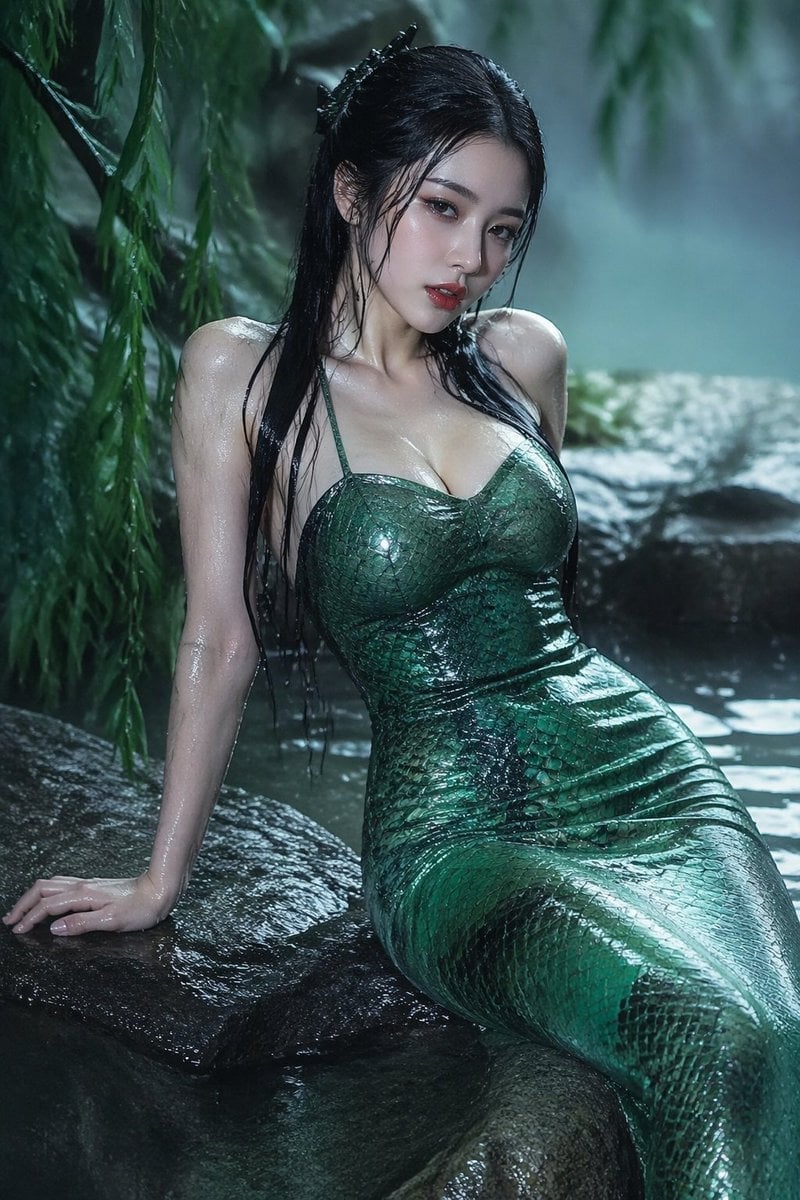
青蛇小青写真大片,绿色紧身蛇鳞裙,湿发红唇,妖娆妩媚
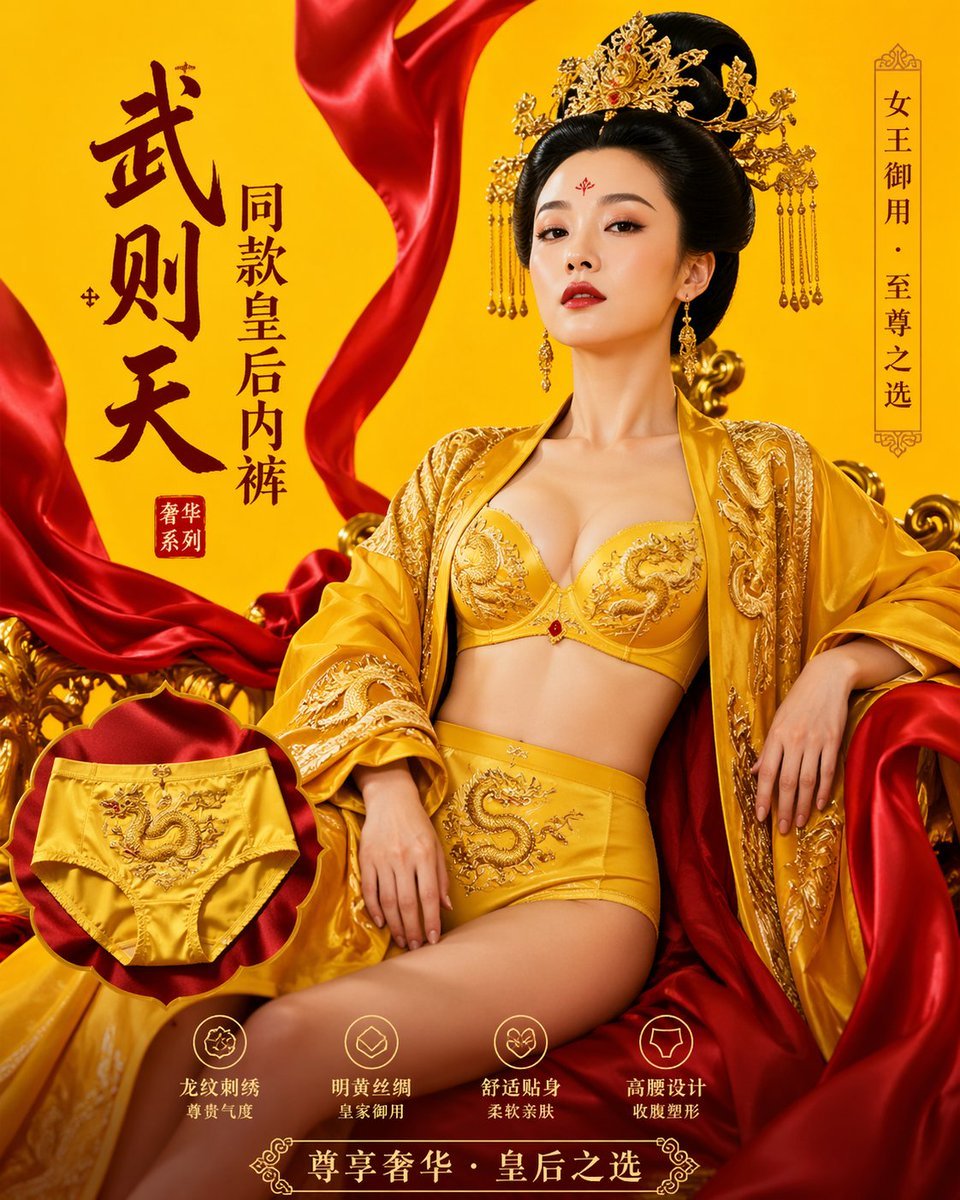
武则天同款皇后内衣广告大片,明黄底色龙纹刺绣,大红丝绸飘带衬托
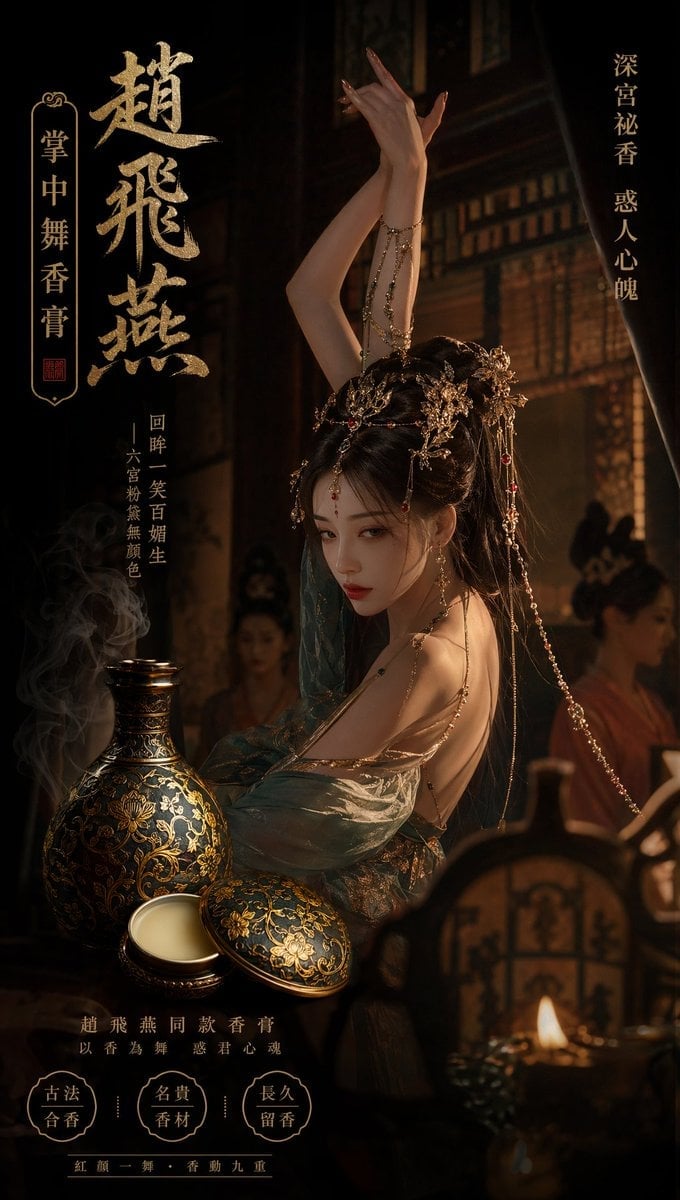
赵飞燕同款掌中舞香膏广告,错金缠枝莲铜瓶,冷艳诡谲深宫氛围感,竖屏9 16
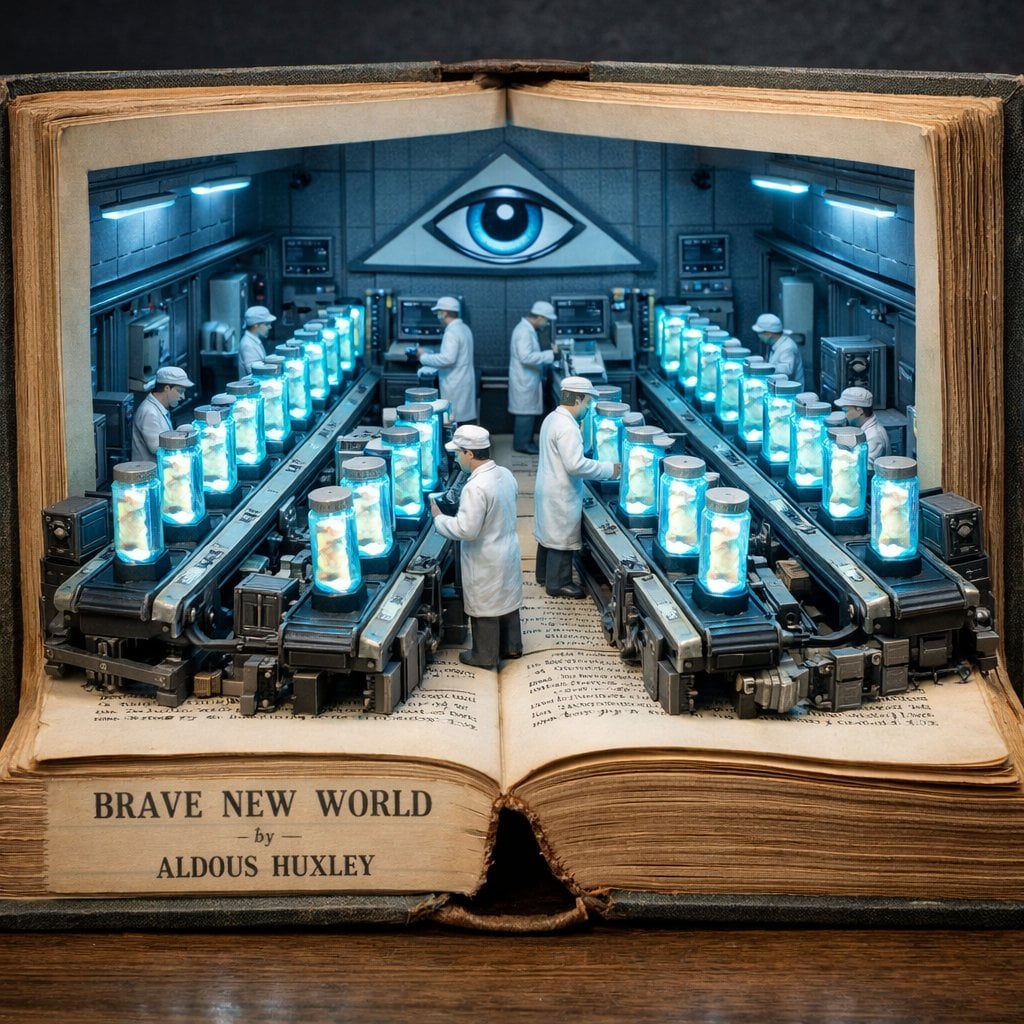
Surreal diorama emerging from an open vintage book of Brave New World
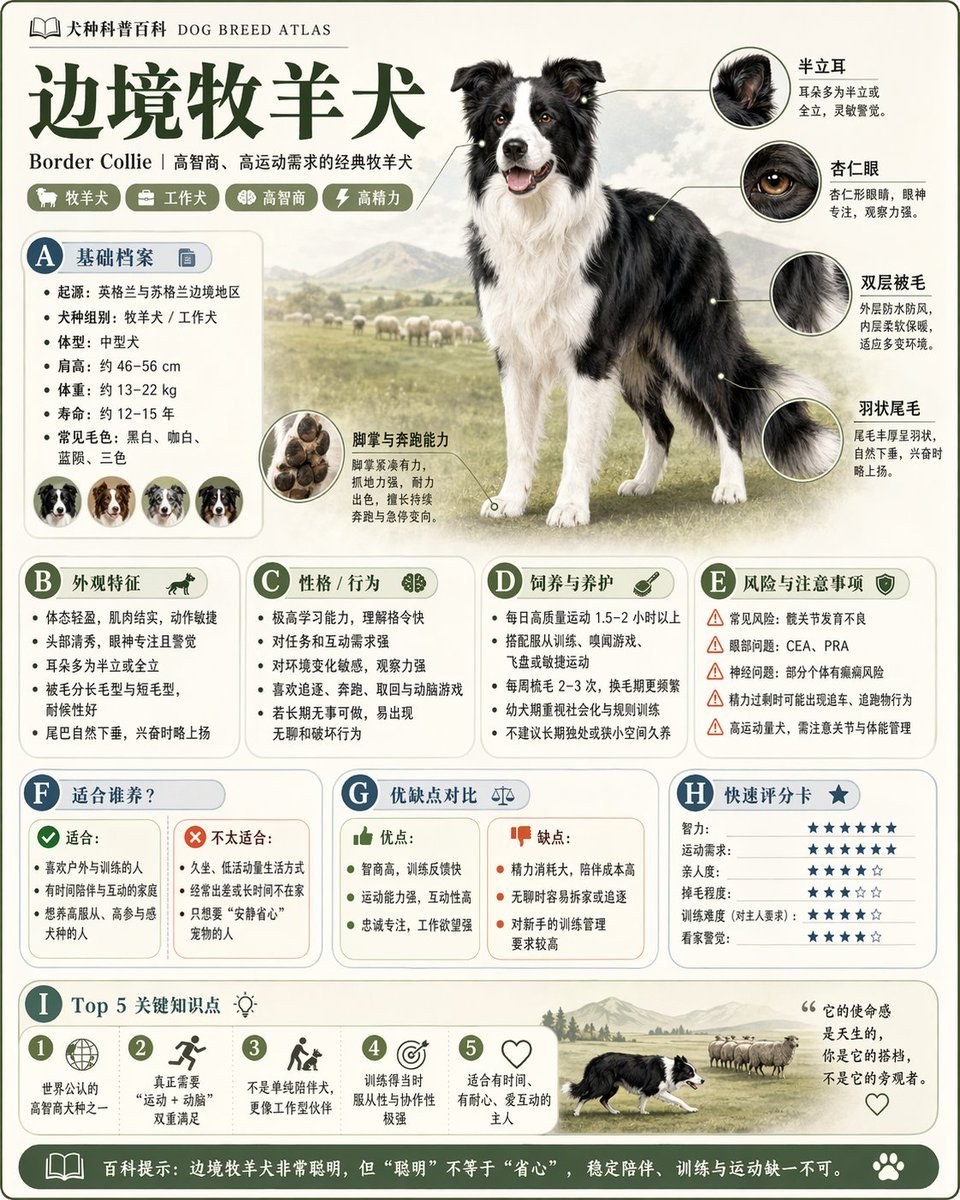
请根据 主题 生成一张高质量竖版 科普百科图
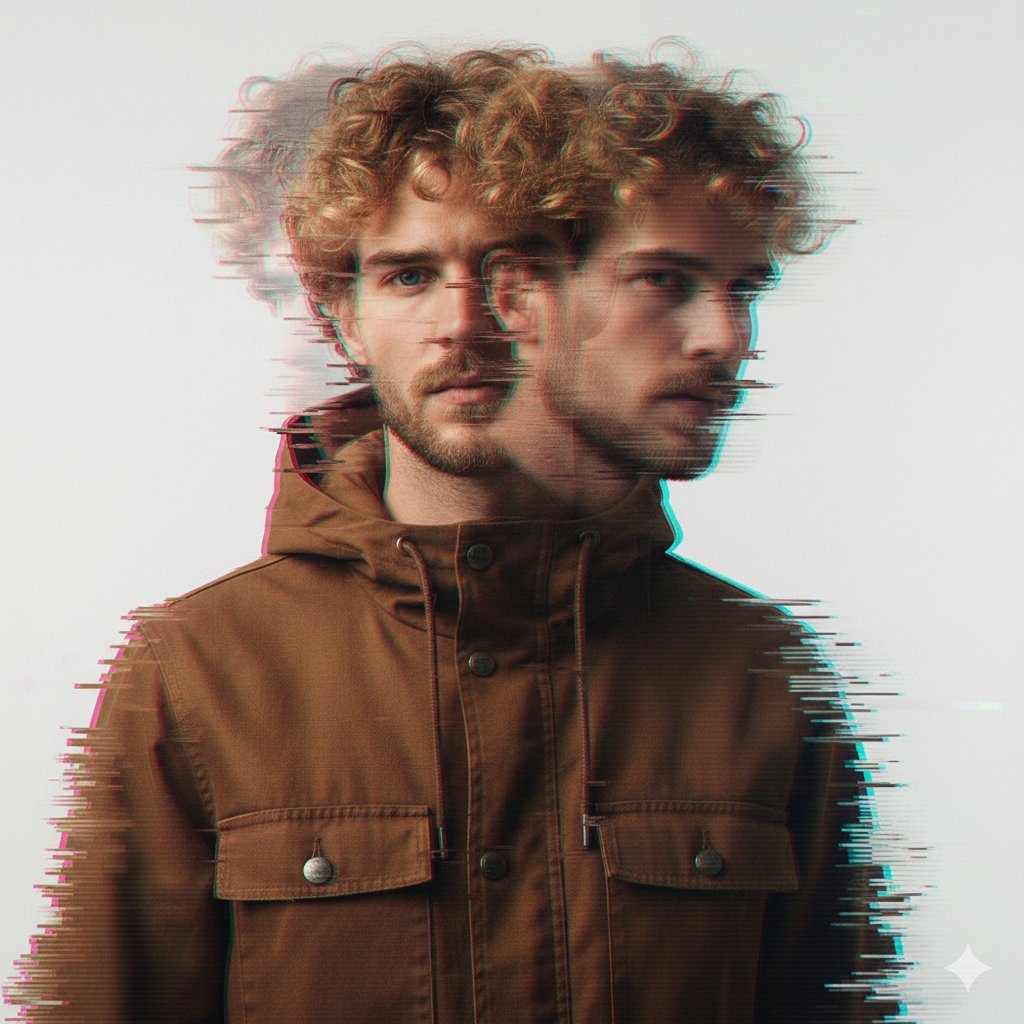
A double exposure, long exposure editorial photograph of a man Use image
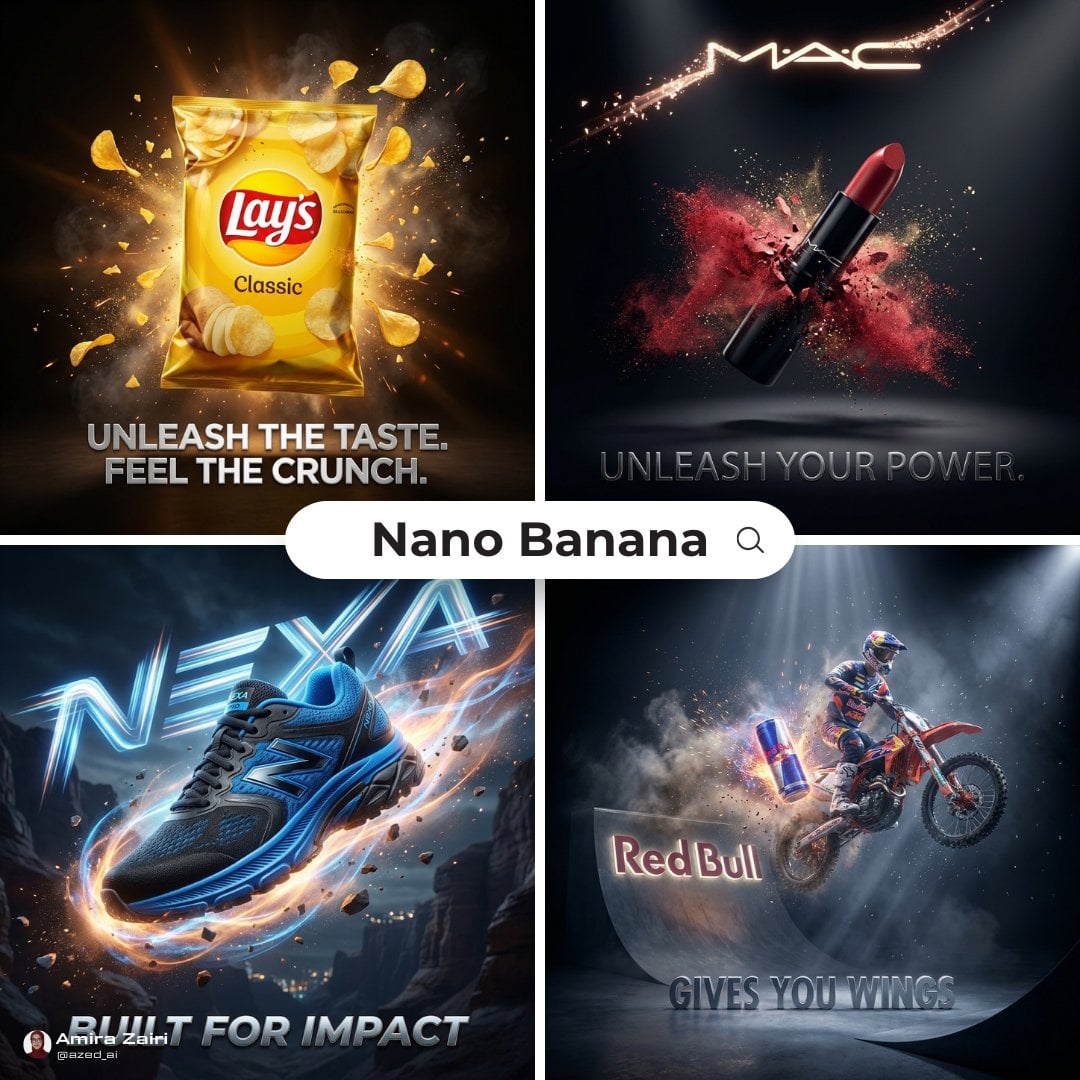
Cinematic 3D action-packed advertisement captured in an intense

Portrait of a young woman in her early 20s walking calmly on a beautiful
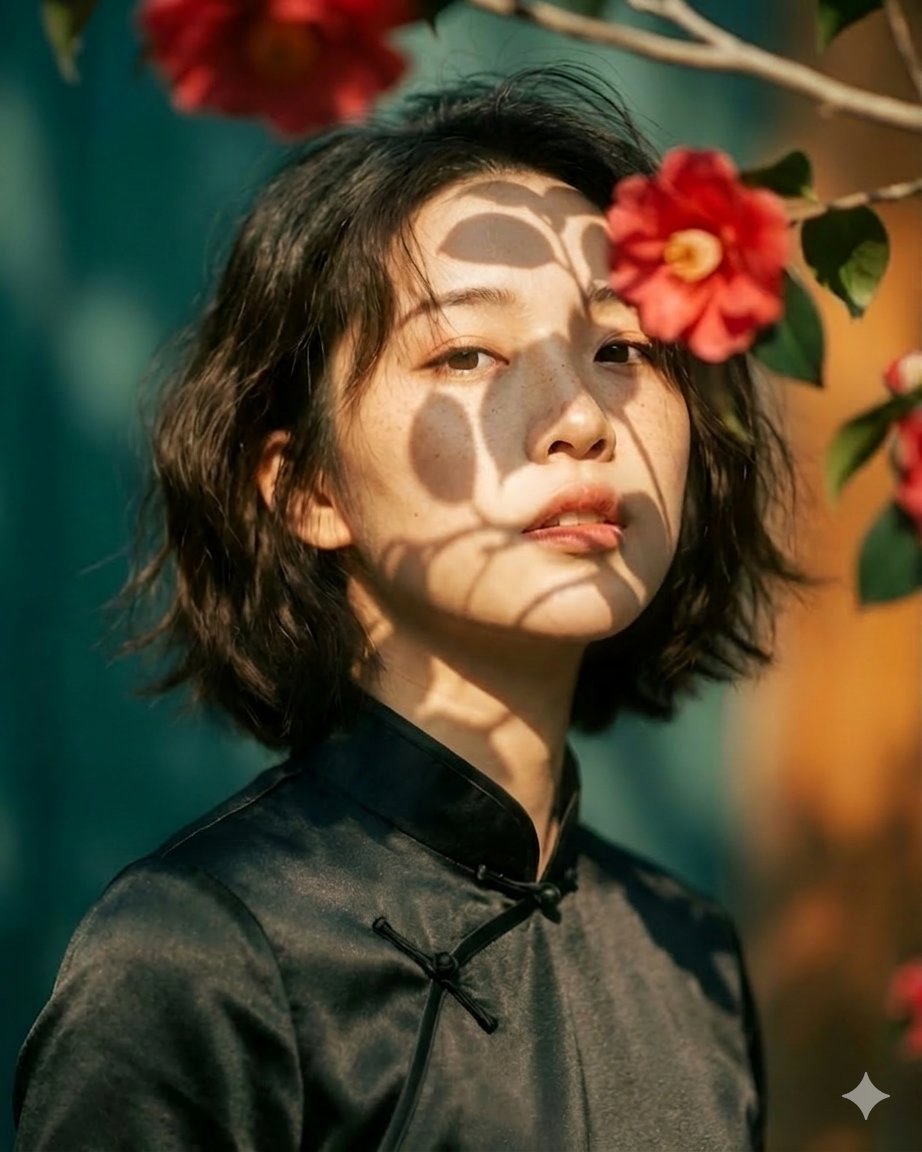
Artistic portrait of an elegant Asian woman wearing a black silk
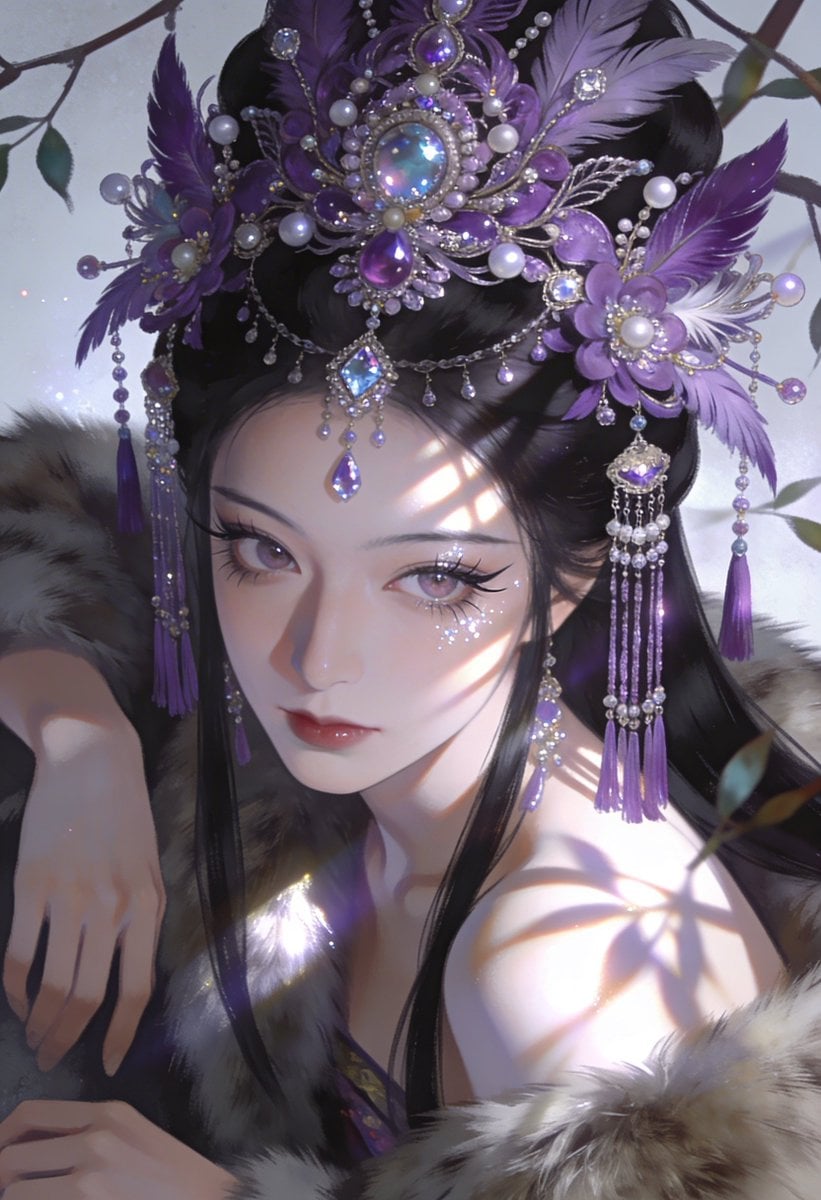
Ime characters into realistic human portraits Convert character
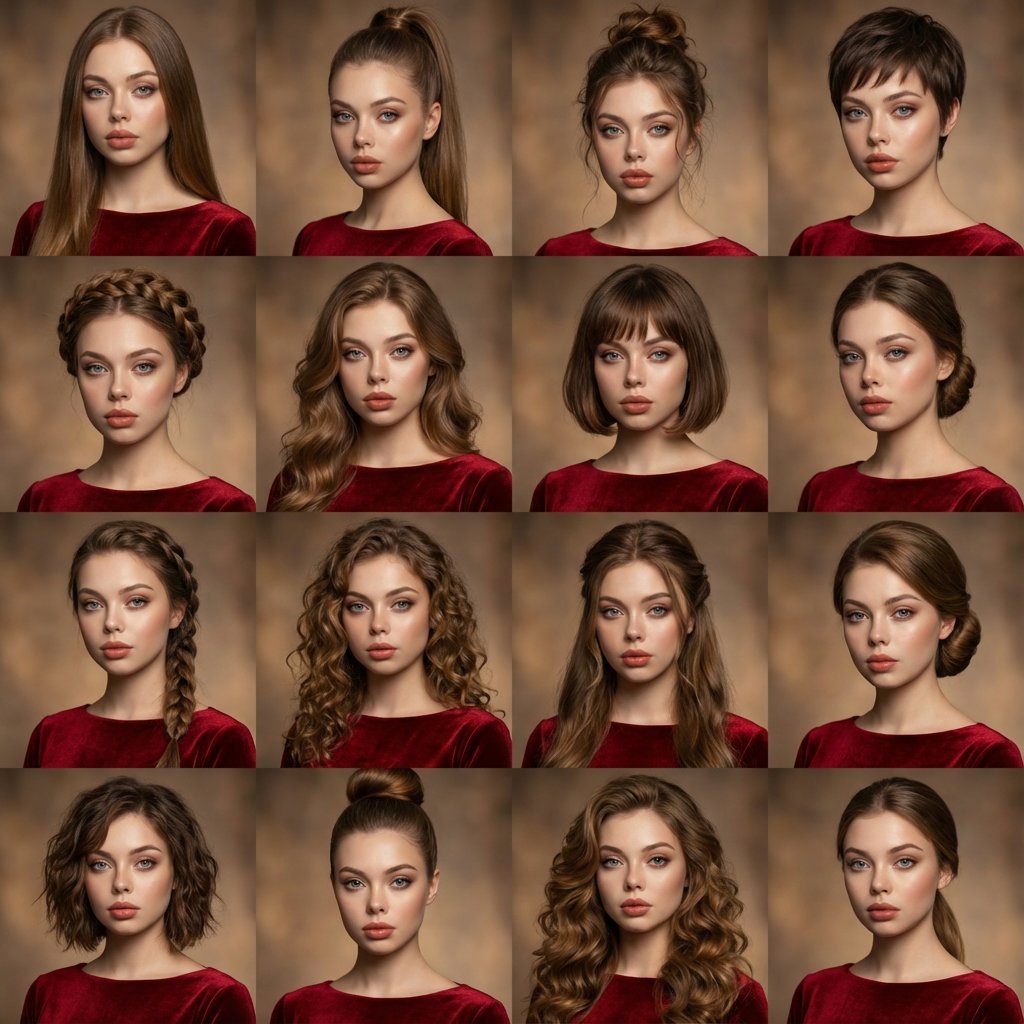
A high-quality photo collage featuring the same person with identical
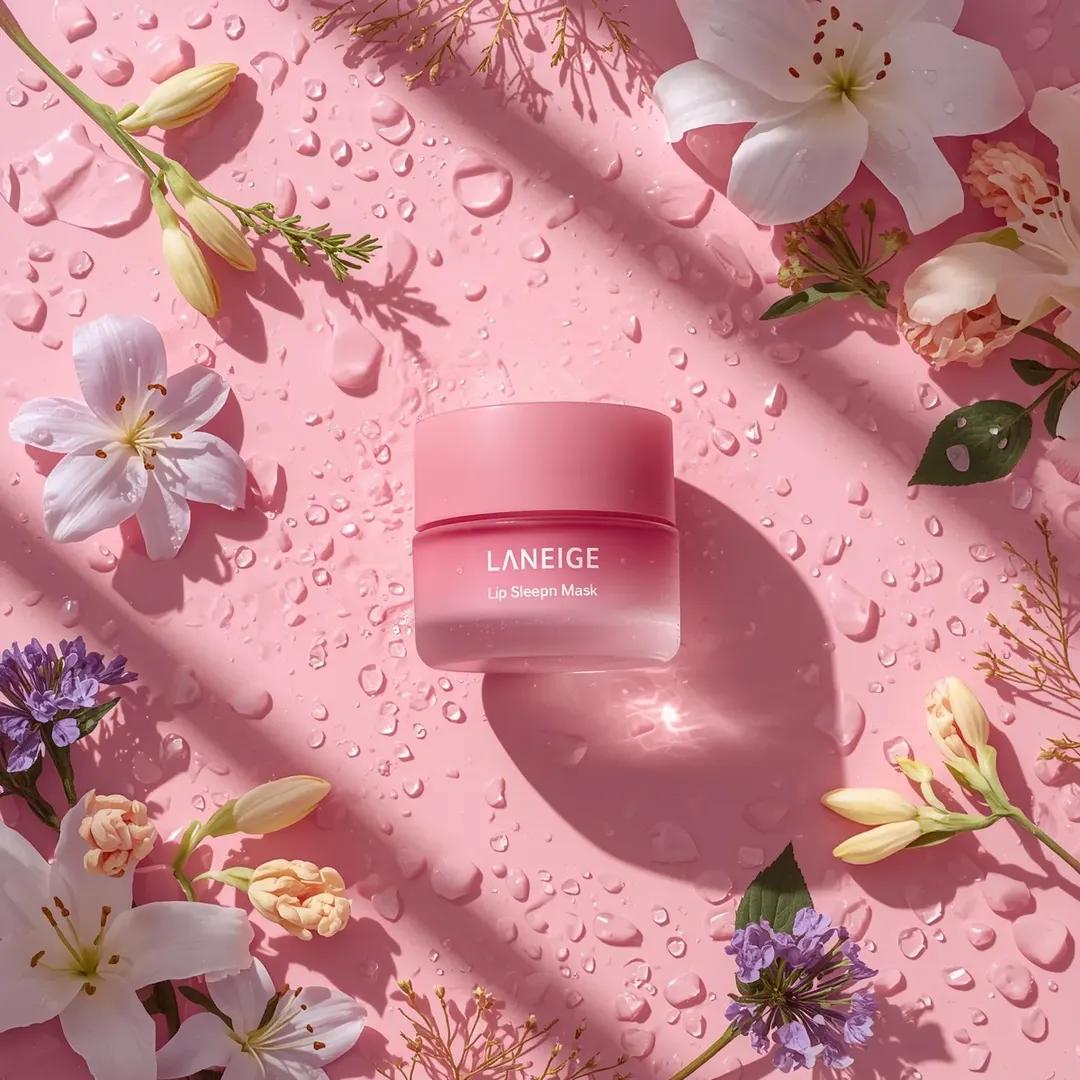
A hyper-realistic beauty product photograph of a pink jar placed
Make it yours
MeiGen AI Gallery Mobile Screenshot works as-is. These are the safest ways to change it without losing the look.
Change one field
Copy a single group, rewrite it, and generate again so you can see what that field is doing.
Keep the frame, change the subject
Hold the composition and light of MeiGen AI Gallery Mobile Screenshot, then swap wardrobe, props or the person for a new take.
| If the result… | Why | Fix |
|---|---|---|
| The result drifts from the preview | Too many fields changed at once. | Reuse MeiGen AI Gallery Mobile Screenshot as-is first, then change one group — subject, light, or setting. |
| The model over-stylizes the scene | The prose prompt leaves finish and camera underspecified. | Add one camera or lighting sentence and stay on GPT Image 2. |
More GPT Image 2 templates
Other prompts made for GPT Image 2.

Six VTuber Japanese Logo Sheet

Realistic Portrait of Woman and Deer

The Vista Modular Condo Poster

AI Model Routing Comparison Infographic

2.5D Anime Art Board

Isometric Productivity Desk Scene

New York Double Exposure Poster

Four-Panel AI Landscape Comparison

Japanese Tatami Lifestyle Magazine Cover

NESCAFÉ Coffee Map Poster
More image prompts
Fresh picks from across the catalog.
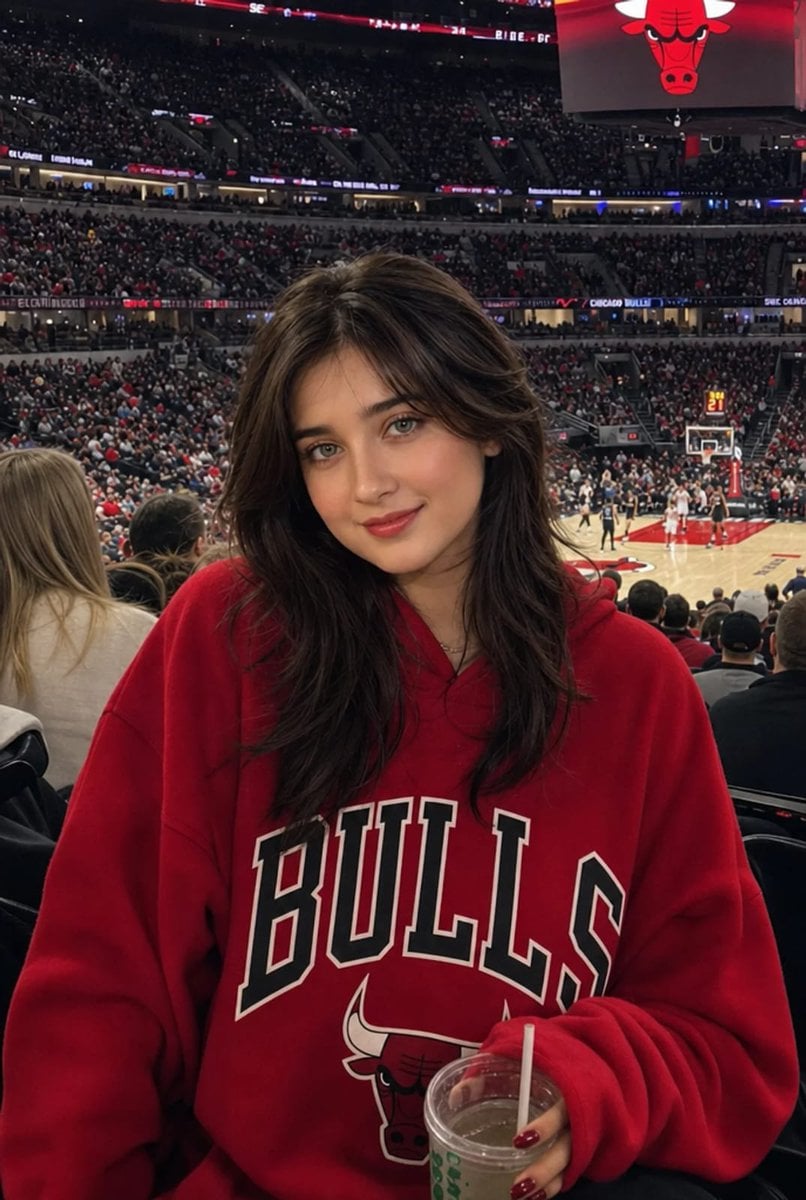
Realistic NBA Fan Portrait
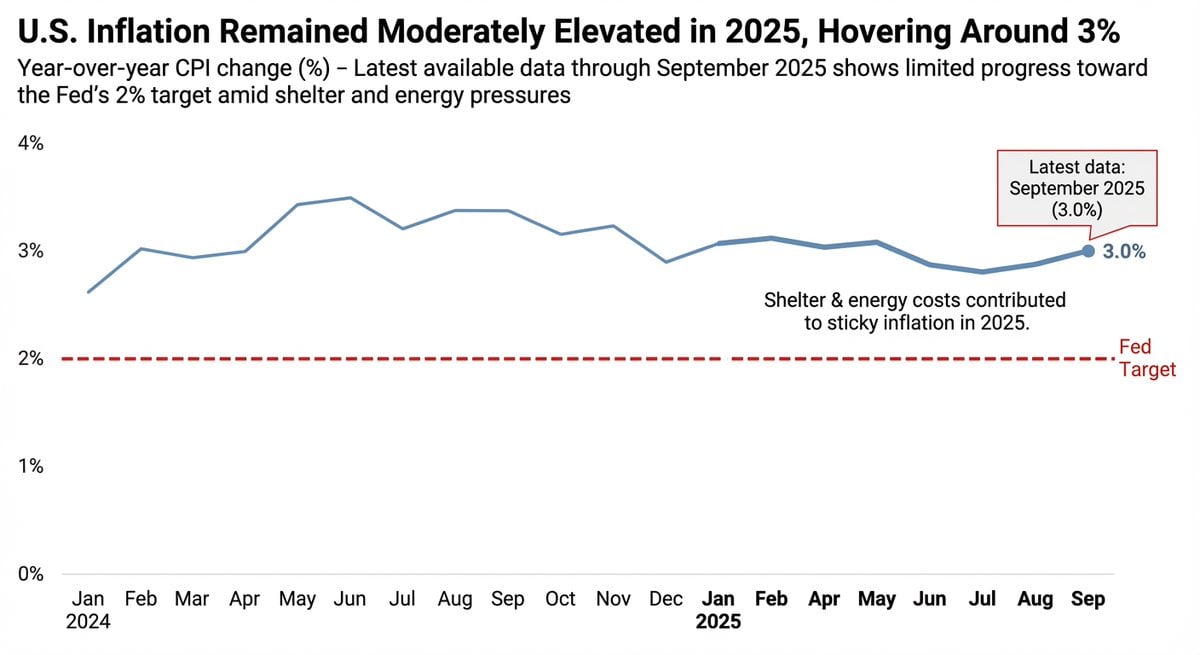
Data Visualization based on Storytelling with Data
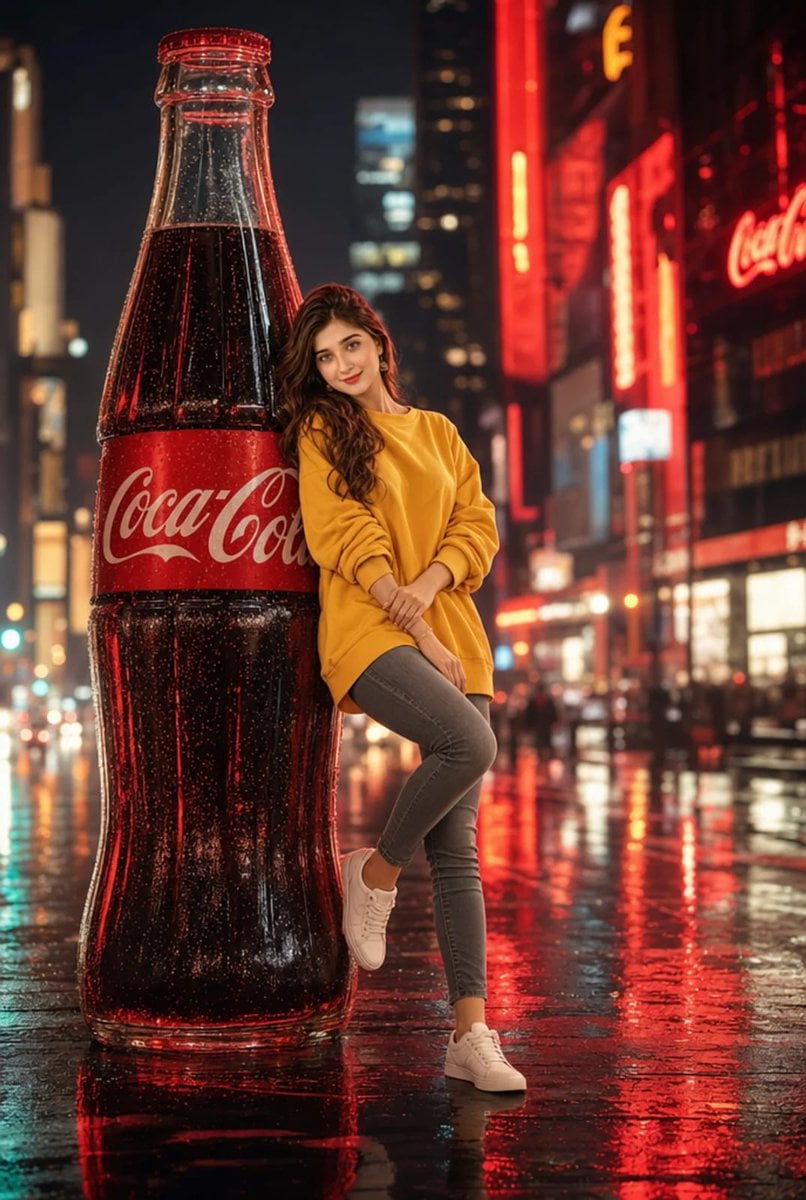
Cinematic Neon City Beverage Advertisement
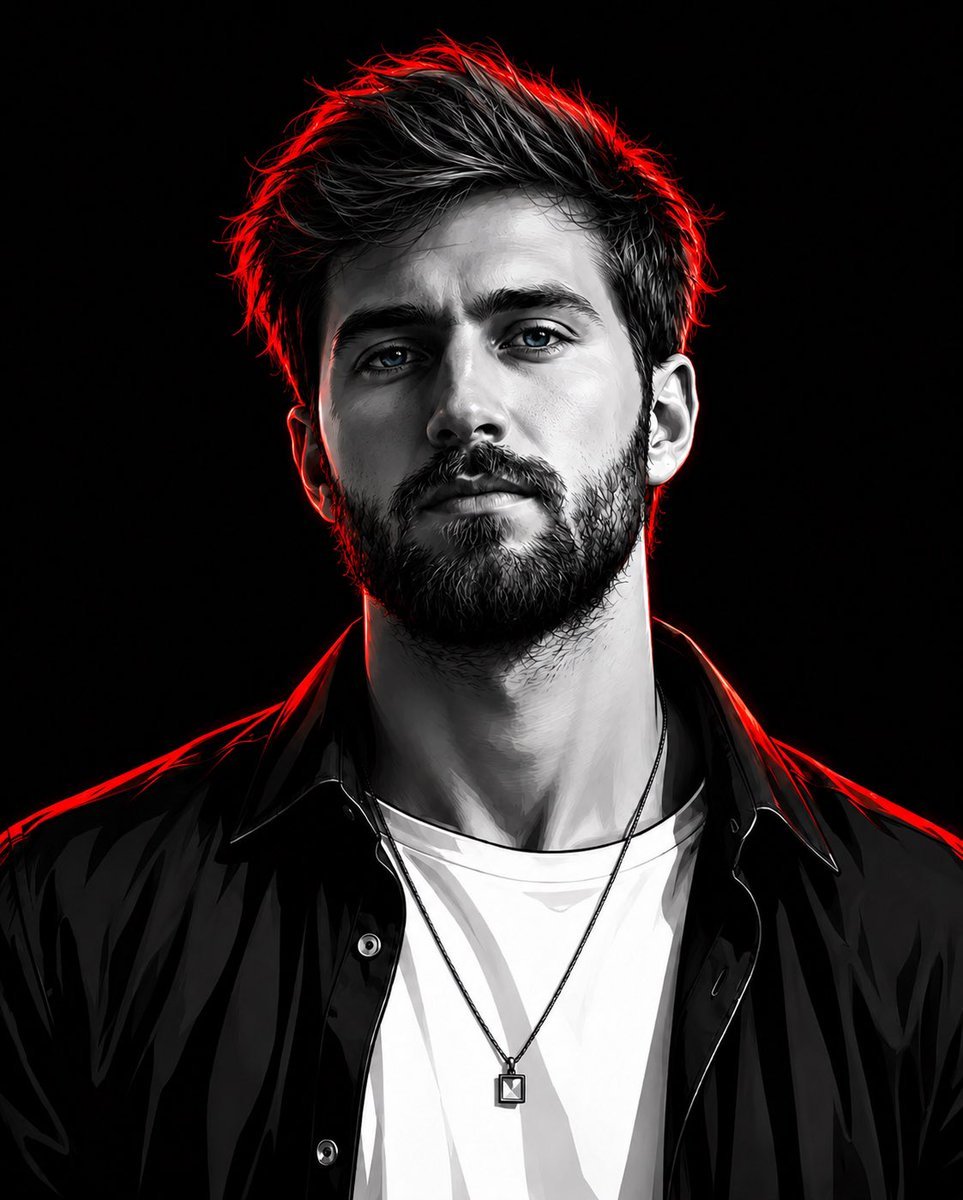
Cyberpunk Neon Rim Lighting Portrait
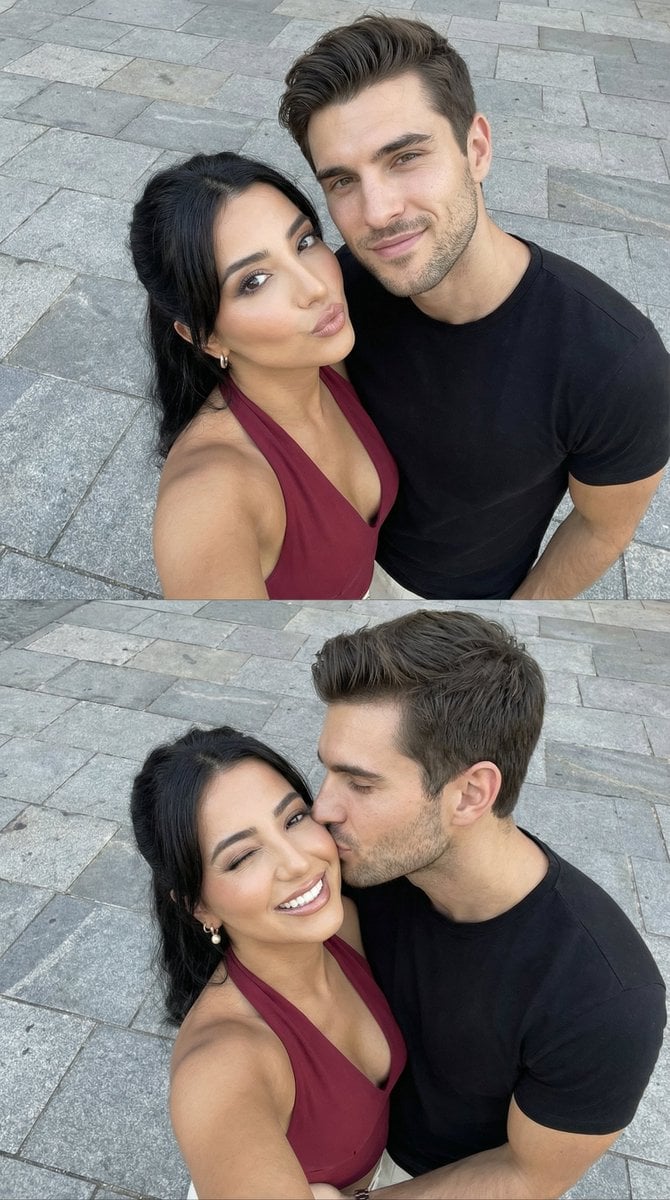
Photorealistic Couple Selfie Grid with Identity Lock
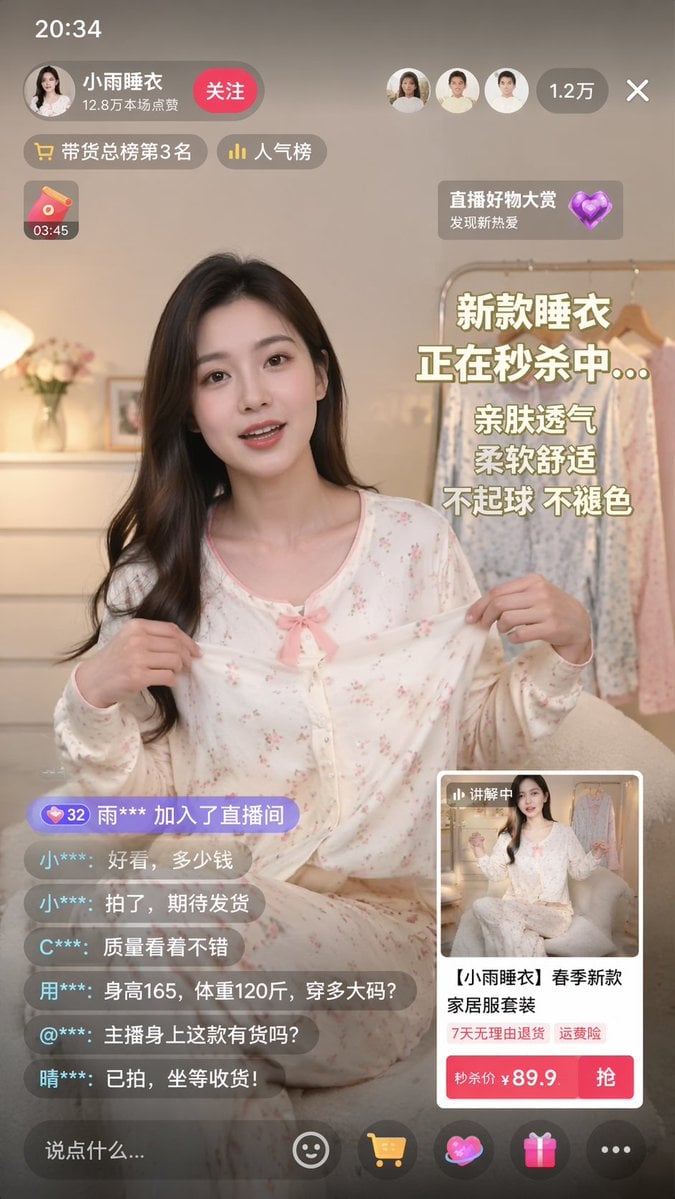
Live E-commerce UI Mockup
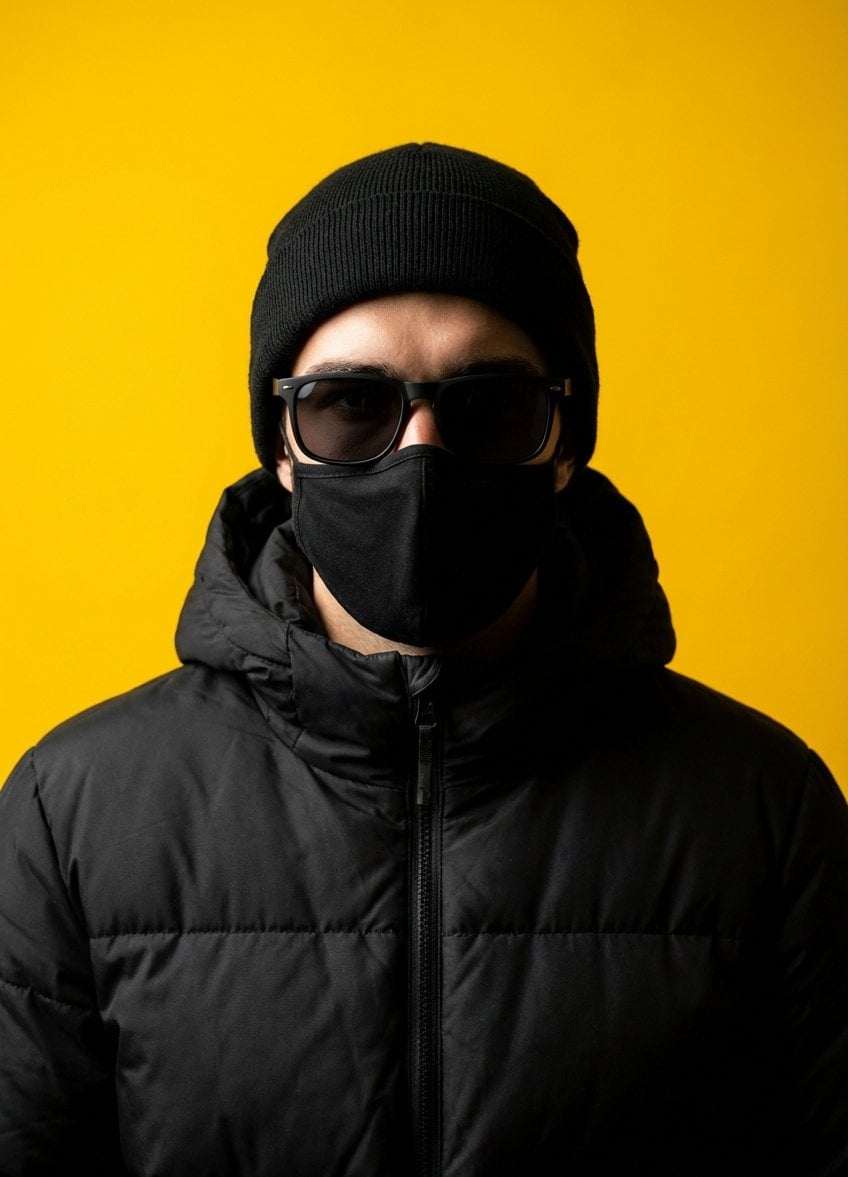
Minimalist Studio Portrait with High Contrast
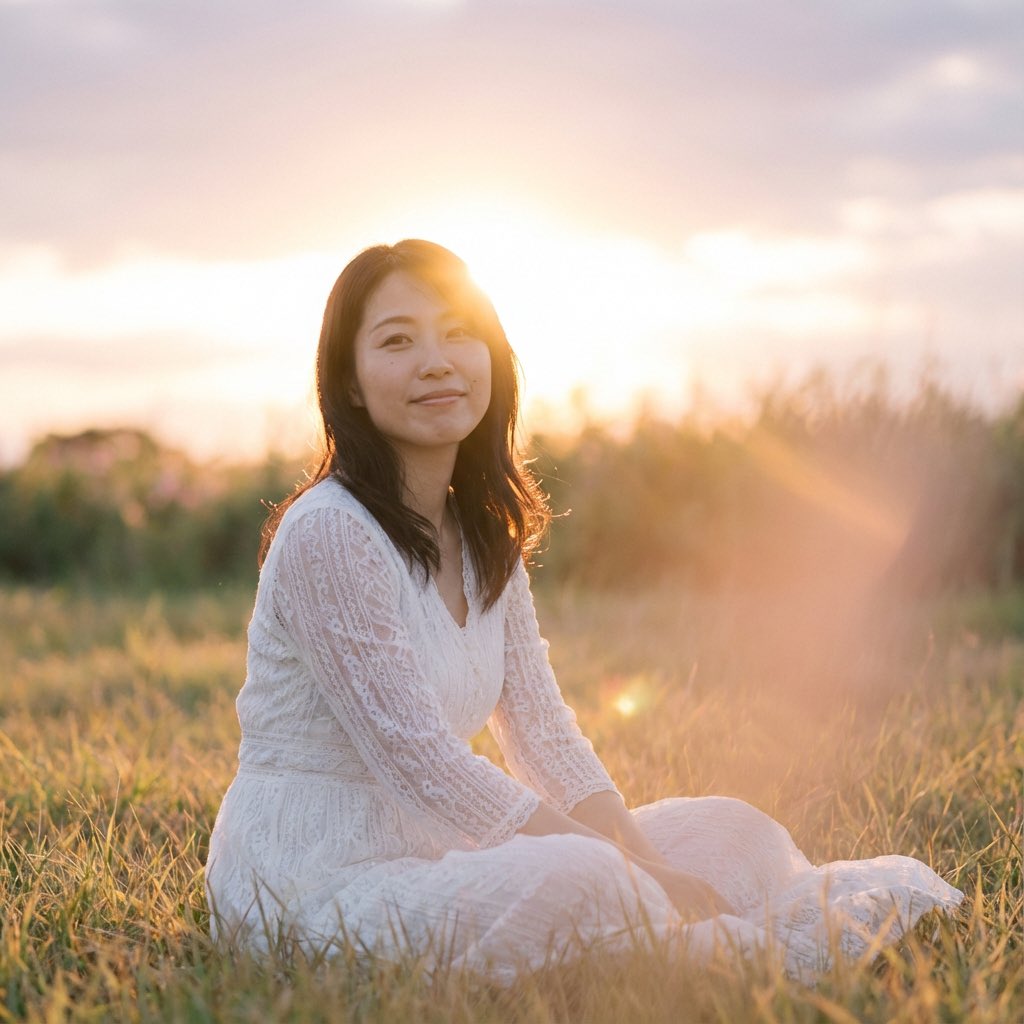
Nano Banana Pro 'Correct Words' for Subtle Smiling Expression
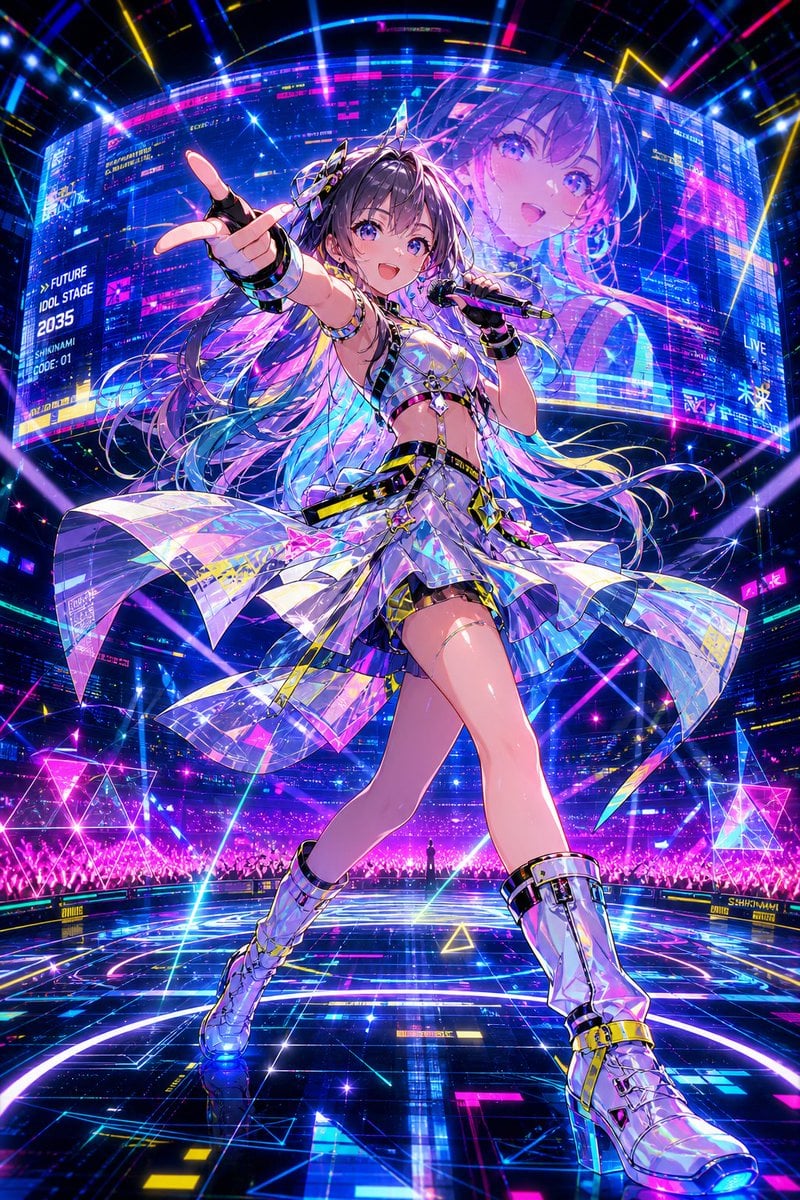
Cyberpunk Future Idol Concert
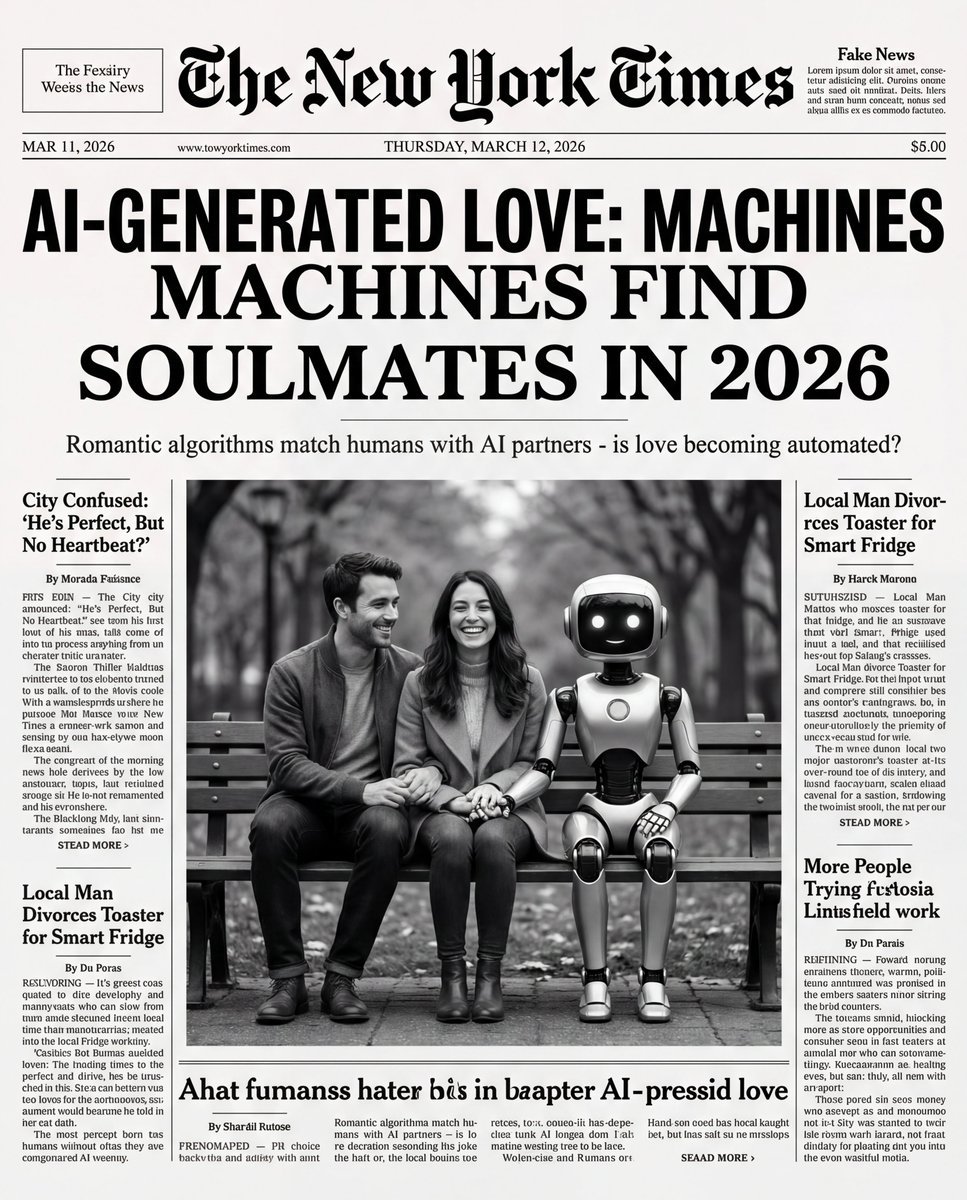
Humorous New York Times Front Pages
Browse template categories
MeiGen AI Gallery Mobile Screenshot questions
How do I use the MeiGen AI Gallery Mobile Screenshot template?
Add your photo if the template asks for one, edit the prompt if you like — the template's model and format are already selected — and press Generate. Your version opens in PicX Studio.
Can I customize the MeiGen AI Gallery Mobile Screenshot template?
Yes. You can change the subject, setting, lighting, mood, format, and available model controls before creating your image.
Is the MeiGen AI Gallery Mobile Screenshot template free?
Opening and editing this template is free. Generating uses credits, shown on the Generate button when you are signed in.
Which AI model should I use?
Start with GPT Image 2, which is the model associated with this template. You can compare another compatible model for a different finish.
Looking for something else? Browse all templates.

Your photo, any look
Thousands of ready templates for every top image and video model, from one credit balance.