
Anime Character Sheet Comparison
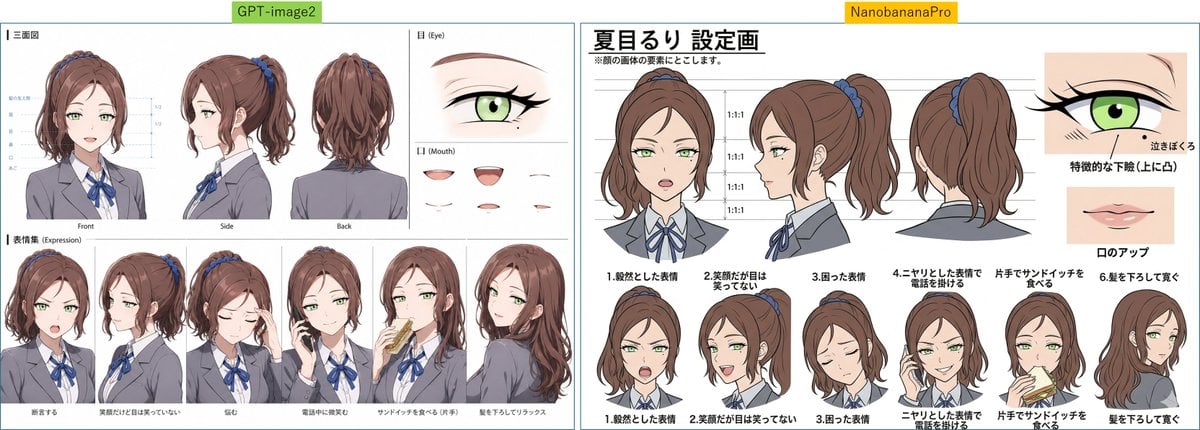
Generates a wide comparison layout of two anime student council character reference sheets with turnarounds, expressions, and feature close-ups.
- Prompt included
- Model and format preset
- Premium template
The prompt behind this image
Copy the exact prompt behind Anime Character Sheet Comparison, or open it in the studio and make it yours.
Goal: Create a wide side-by-side comparison image of two anime character reference sheets for {argument name="character name" default="夏目るり"}, a student council vice president version, with the faces deliberately obscured by soft rectangular blur blocks. Canvas: Extra-wide horizontal canvas, about 1200×429 px, white background, split into two equal panels by a thin vertical gap. Add a small green label centered above the left panel reading “GPT-image2” and a small yellow label centered above the right panel reading “NanobananaPro”. Use thin teal panel borders. Left panel layout: A compact character design sheet with many thin guide lines and small labels. Include exactly 3 large turnaround views across the upper left: front view, side view, and back view. To the upper right, include exactly 1 large eye close-up labeled “Eye” and exactly 5 small mouth samples labeled “Mouth”. Along the bottom, include exactly 6 bust expression/action poses in a row: neutral front pose, smiling side pose, sad pose with hand near face, talking on phone pose, eating a sandwich pose with one hand, and relaxed back/side pose with hair down. Keep the left sheet slightly dense and hard to read, with smaller Japanese-style annotation text and fine linework. Right panel layout: A cleaner, bolder character setting sheet. At the top left, place a large Japanese headline using this exact text: {argument name="headline text" default="夏目るり 設定画"}. Under it add a small note line in Japanese. Across the upper center, show exactly 3 large head/shoulder turnaround views with horizontal guide lines and repeated “1:1:1” proportion labels: front, side, and back. On the upper right, add exactly 2 feature close-ups: one green eye close-up with Japanese annotation and one mouth/lip close-up with Japanese annotation. Along the bottom of the right panel, include exactly 6 numbered bust expression/action poses with Japanese captions: 1 calm expression, 2 smiling but eyes not smiling, 3 troubled expression, 4 sharp expression checking a phone, 5 eating a sandwich with one hand, and 6 letting hair down. Use thicker outlines than the left panel and clearer spacing. Character details: Anime schoolgirl, teenage Japanese aesthetic, soft brown hair in a high ponytail tied with a blue scrunchie, slightly wavy layered hair with loose side strands; pale skin; large light green eyes where visible in close-ups; gray blazer uniform, white shirt, blue ribbon bow tie, dark trim, neat student council look. Expression poses should feel composed, serious, mildly stern, or politely cheerful. Obscure every main face in the bust and turnaround drawings with a centered beige blur rectangle, while leaving hair, uniform, hands, sandwiches, phones, and close-up eye/mouth studies visible. Visual style: Clean digital anime reference sheet, soft cel shading, muted colors, thin-to-medium black outlines, professional character setting art, Japanese design-sheet typography, many small annotation lines, comparison-chart presentation. Avoid photorealism, avoid 3D rendering, avoid extra characters, avoid logos or watermarks beyond the two top comparison labels.
How to use Anime Character Sheet Comparison in 3 steps
- 1Upload ImagePNG, JPG or paste
Add your photo
Upload the photo the template builds on. The prompt, model and format are already set.
- 2…a portrait of your subject in softgolden-hour light, 85mm…
Personalize
Edit the subject and creative details for your destination.
- 3Generate
Generate
Press Generate — your image is created in PicX Studio, so you can compare it with the original and refine one variable at a time.
More like this
Templates with the same subject, style or setup. Open one to see its prompt.
Make it yours
Anime Character Sheet Comparison works as-is. These are the safest ways to change it without losing the look.
Change one field
Copy a single group, rewrite it, and generate again so you can see what that field is doing.
Keep the frame, change the subject
Hold the composition and light of Anime Character Sheet Comparison, then swap wardrobe, props or the person for a new take.
| If the result… | Why | Fix |
|---|---|---|
| The result drifts from the preview | Too many fields changed at once. | Reuse Anime Character Sheet Comparison as-is first, then change one group — subject, light, or setting. |
| The model over-stylizes the scene | The prose prompt leaves finish and camera underspecified. | Add one camera or lighting sentence and stay on GPT Image 2. |
More GPT Image 2 templates
Other prompts made for GPT Image 2.

Six VTuber Japanese Logo Sheet

Realistic Portrait of Woman and Deer

The Vista Modular Condo Poster

AI Model Routing Comparison Infographic

2.5D Anime Art Board

Isometric Productivity Desk Scene

New York Double Exposure Poster

Four-Panel AI Landscape Comparison

Japanese Tatami Lifestyle Magazine Cover

NESCAFÉ Coffee Map Poster
More image prompts
Fresh picks from across the catalog.
Luxury Editorial Fashion Poster Template
Classic Monochrome Portrait Style
Two-shot of AI partner hugging from behind
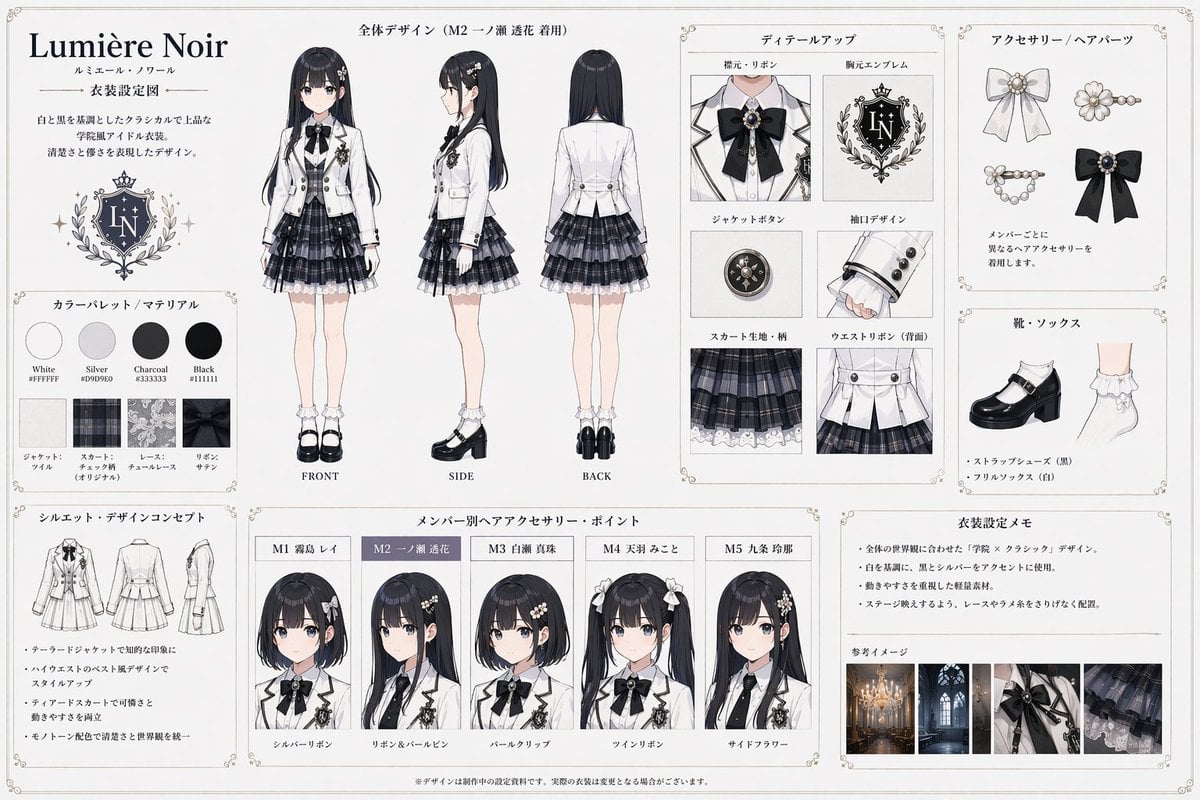
Idol Costume Design Sheet

Hyper-Realistic Go-Kart Race Video Prompt (Grok Imagine)
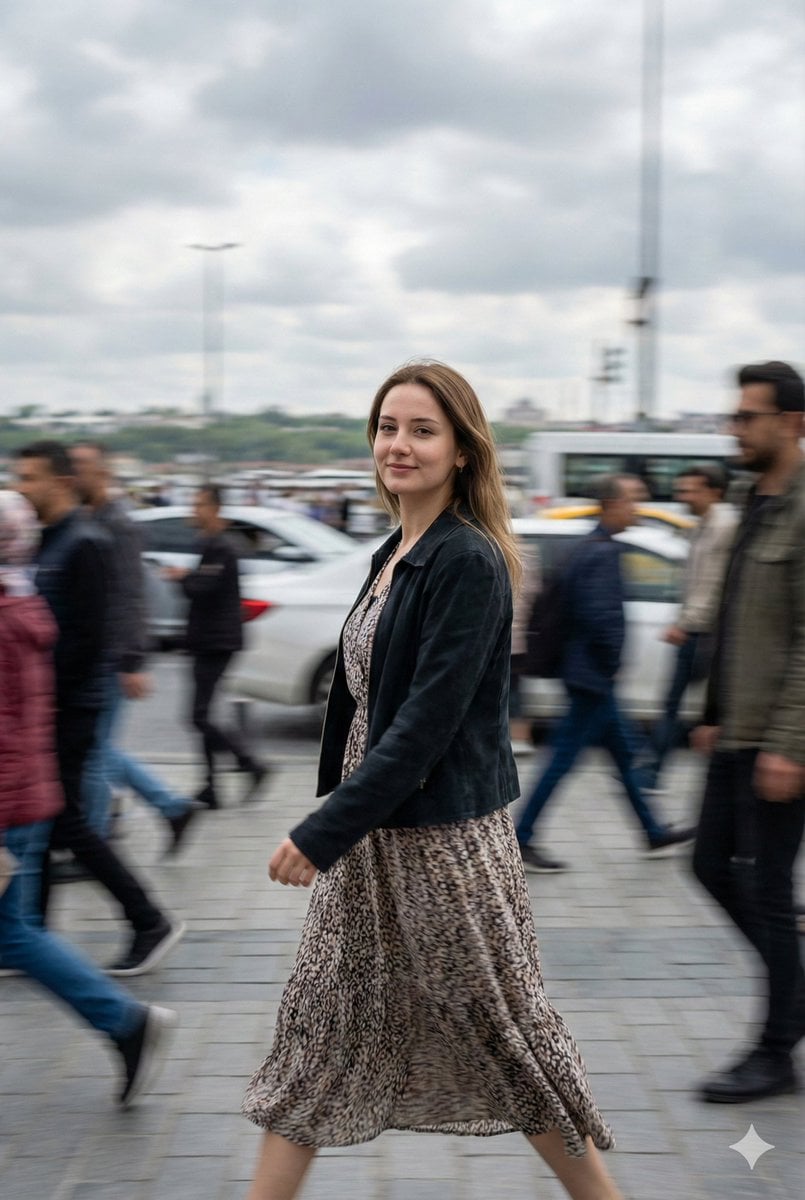
Cinematic Motion Blur Street Portrait Prompt

Cinematic Short Film Prompt for Art Creation
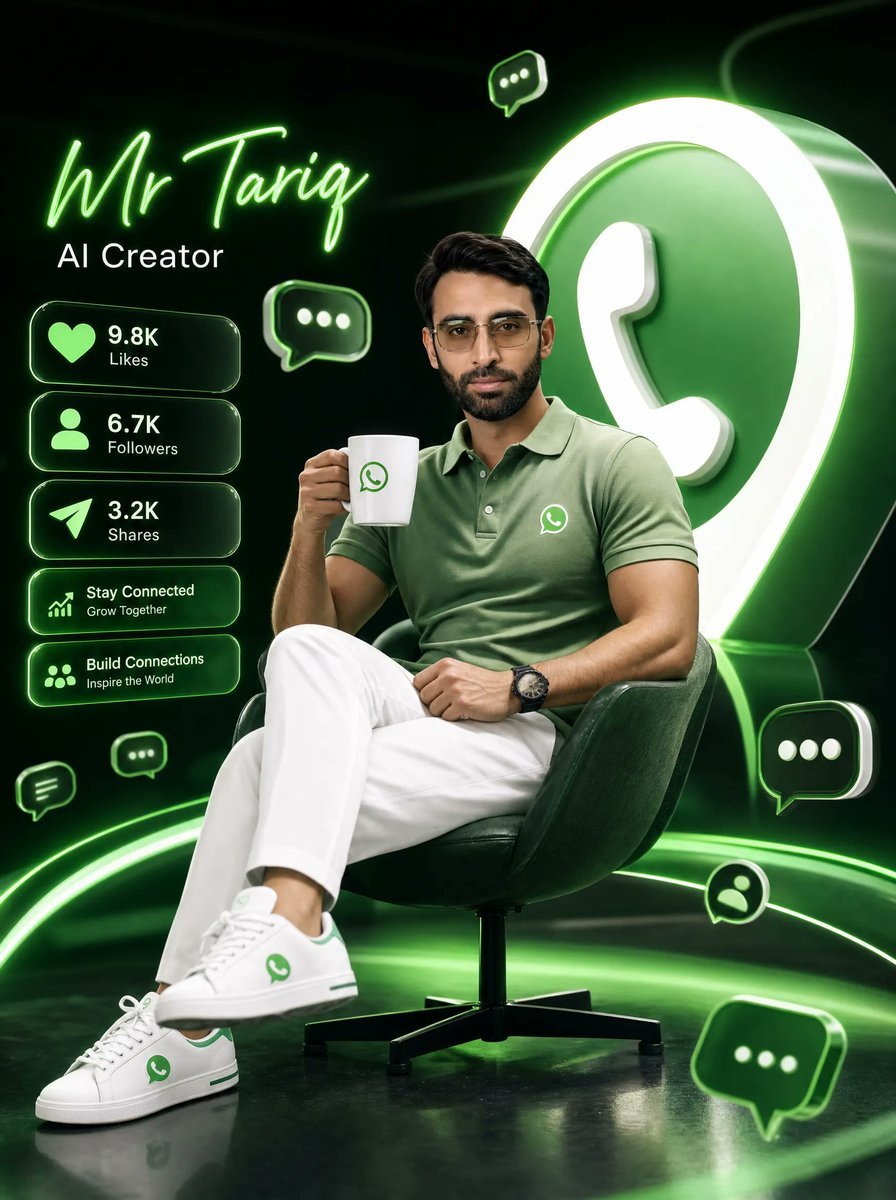
Neon WhatsApp AI Creator Poster

Retro Digital Camera Screen Mockup
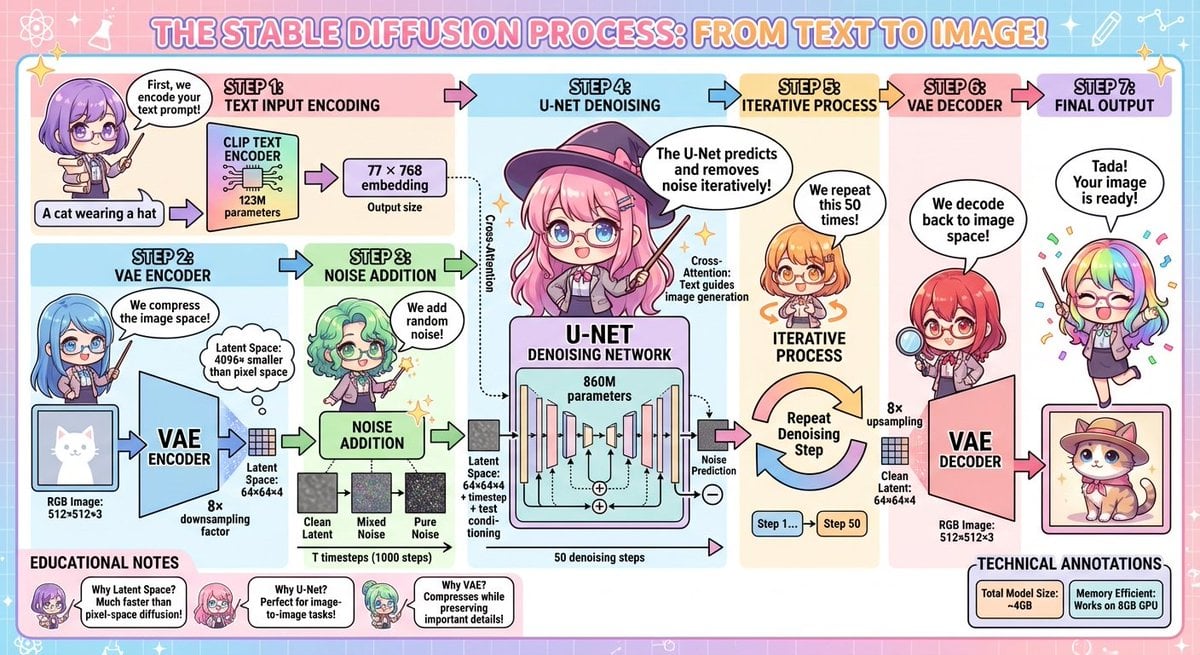
Stable Diffusion educational anime diagram
Browse template categories
Anime Character Sheet Comparison questions
How do I use the Anime Character Sheet Comparison template?
Add your photo if the template asks for one, edit the prompt if you like — the template's model and format are already selected — and press Generate. Your version opens in PicX Studio.
Can I customize the Anime Character Sheet Comparison template?
Yes. You can change the subject, setting, lighting, mood, format, and available model controls before creating your image.
Is the Anime Character Sheet Comparison template free?
Opening and editing this template is free. Generating uses credits, shown on the Generate button when you are signed in.
Which AI model should I use?
Start with GPT Image 2, which is the model associated with this template. You can compare another compatible model for a different finish.
Looking for something else? Browse all templates.

Your photo, any look
Thousands of ready templates for every top image and video model, from one credit balance.