
Felt Craft Apple Design UI Banner
Creates a cozy Japanese social banner showing handmade felt objects, a cat mascot, and a glowing mobile UI concept for an Apple-design article.
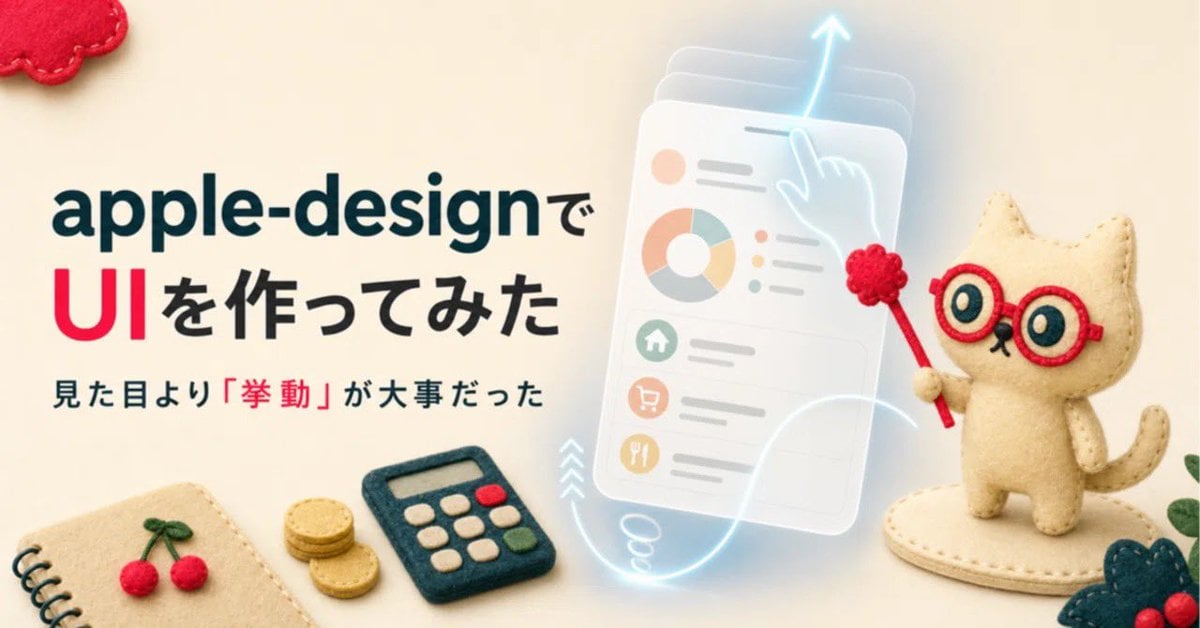
- Prompt included
- Model and format preset
- Premium template
The prompt behind this image
Copy the exact prompt behind Felt Craft Apple Design UI Banner, or open it in the studio and make it yours.
Goal: Create a wide social media banner in a warm handmade felt-craft style about building an Apple-design UI, combining cute needle-felt objects with a translucent futuristic interface mockup. Canvas: 1200 × 628 px horizontal banner, soft cream fabric background, shallow depth of field, cozy lighting, tactile wool-felt texture throughout. Layout: Left half contains large Japanese headline text aligned left. Right half contains a cute felt cat mascot beside a glowing translucent mobile UI card. Bottom edge is decorated with small felt stationery and craft props. Text content: Use exactly 3 visible text lines on the left: first line {argument name="headline first line" default="apple-designで"} in dark teal, very large bold rounded sans-serif; second line {argument name="headline second line" default="UIを作ってみた"} with “UI” in bright red and the remaining characters in black, same bold style; third line {argument name="subheadline text" default="見た目より「挙動」が大事だった"} in smaller dark teal/black text, with the quoted word 「挙動」 emphasized in red. Main subject details: On the right, place 1 cream-colored needle-felt cat mascot standing on an oval felt base. The cat has red round glasses, large teal-and-cream eyes, tiny black nose and mouth, a curved tail, stitched edges, and holds 1 red pointer wand topped with 1 red pom-pom flower. Behind and slightly left of the cat, show 1 semi-transparent floating smartphone-style UI panel tilted slightly, with frosted glass layers and a pale cyan glow. The UI panel contains exactly 1 donut chart, 3 small colored circular status dots, 3 stacked list rows, and 3 circular menu icons resembling home, shopping cart, and utensils. Add 1 glowing cyan gesture hand/finger touching the top of the panel, 1 upward arrow above it, and 1 looping glowing motion trail sweeping downward and across the bottom to suggest interaction behavior. Bottom and corner props: Include exactly 6 decorative felt props: 1 spiral notebook corner at bottom left with beige cover and black spiral binding, 1 pair of red felt cherries with green stems on the notebook, 1 small stack of gold felt coins near the center-left bottom, 1 dark teal felt calculator with cream buttons plus 1 red button and 1 green button, 1 red felt cloud shape cropped in the top-left corner, and 1 dark teal leafy felt decoration with red berries cropped at bottom-right. Visual style: Photorealistic miniature felt diorama mixed with clean editorial typography and glowing UI effects; soft shadows, rounded forms, visible stitches, wool fibers, pastel colors, Apple-like minimalism without using any official Apple logo. Constraints: Keep the composition airy and readable, no extra text beyond the 3 specified lines, no watermark, no photo-real human hands, no hard plastic texture, and avoid cluttering the UI card with unreadable microtext.
How to use Felt Craft Apple Design UI Banner in 3 steps
- 1Upload ImagePNG, JPG or paste
Add your photo
Upload the photo the template builds on. The prompt, model and format are already set.
- 2…a portrait of your subject in softgolden-hour light, 85mm…
Personalize
Edit the subject and creative details for your destination.
- 3Generate
Generate
Press Generate — your image is created in PicX Studio, so you can compare it with the original and refine one variable at a time.
More like this
Templates with the same subject, style or setup. Open one to see its prompt.
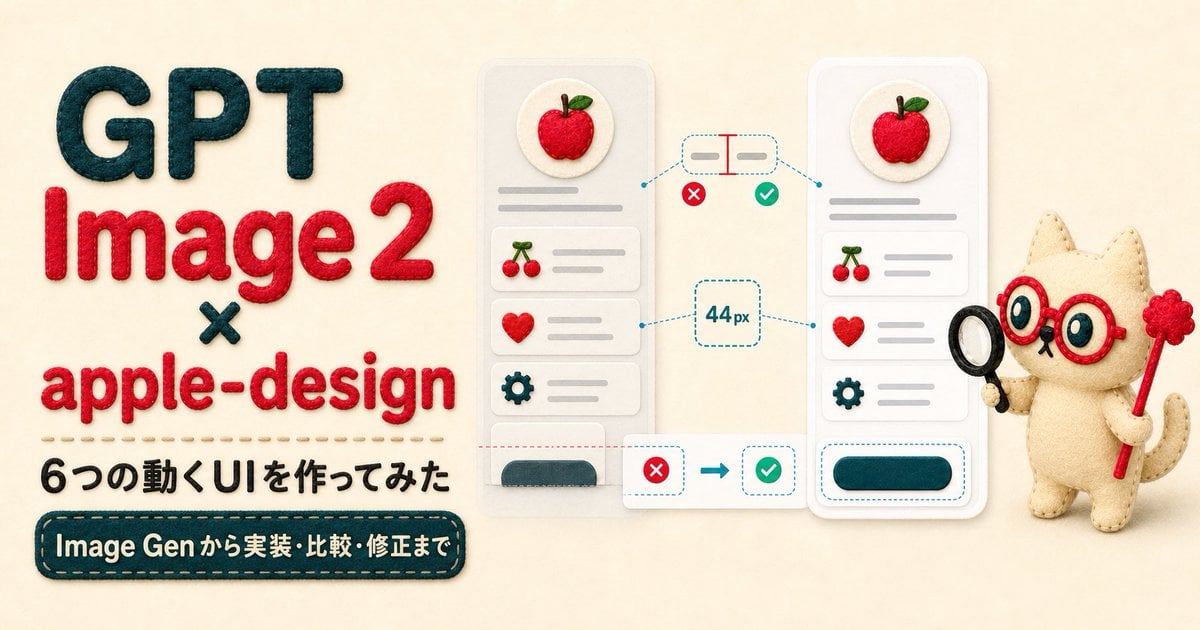
Felt GPT Image 2 Apple Design Banner
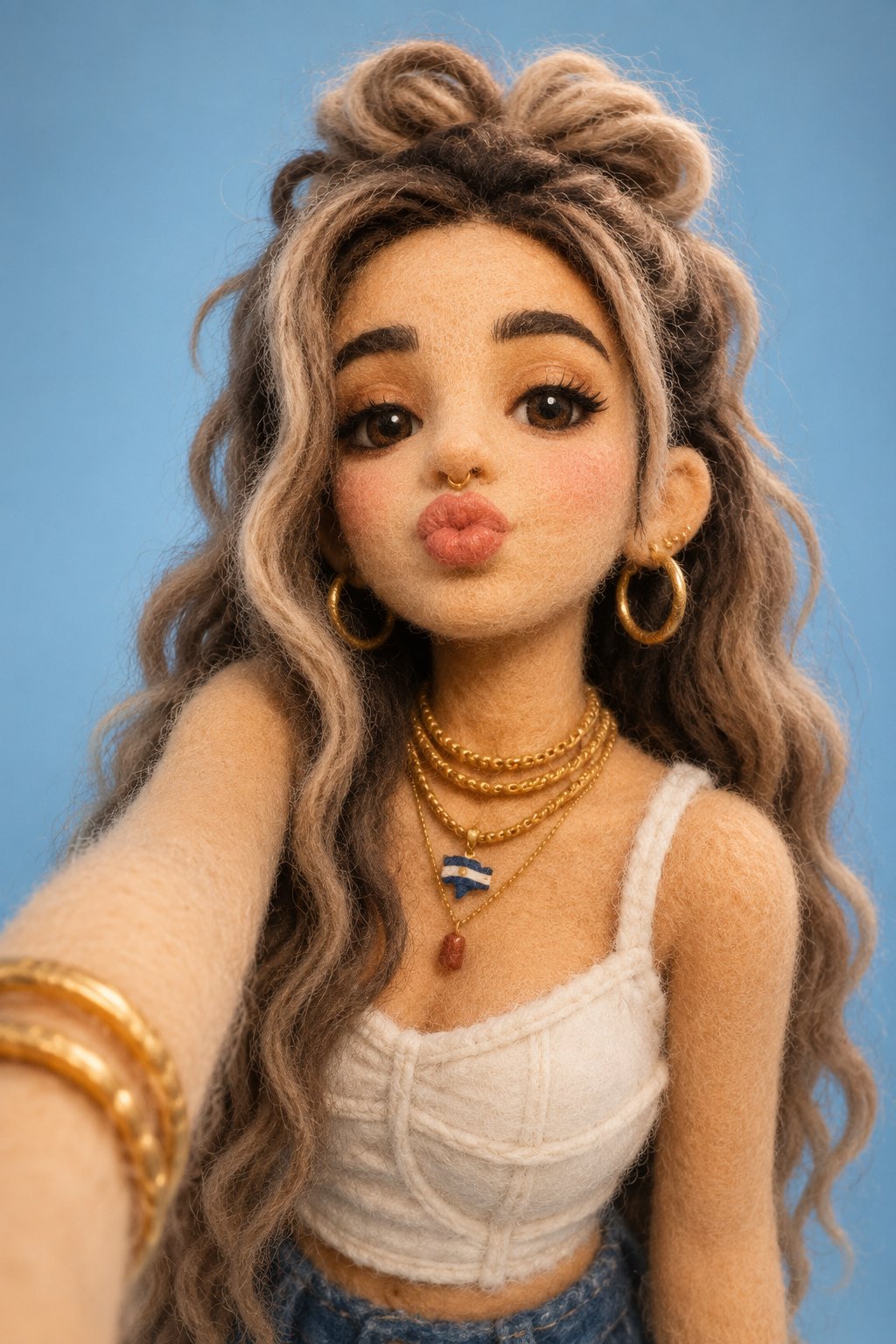
Felt & Knit 3D Character — Photo-Exact Face, Pixar-Quality Plush Figurine

Paper Cut Finale Fireworks
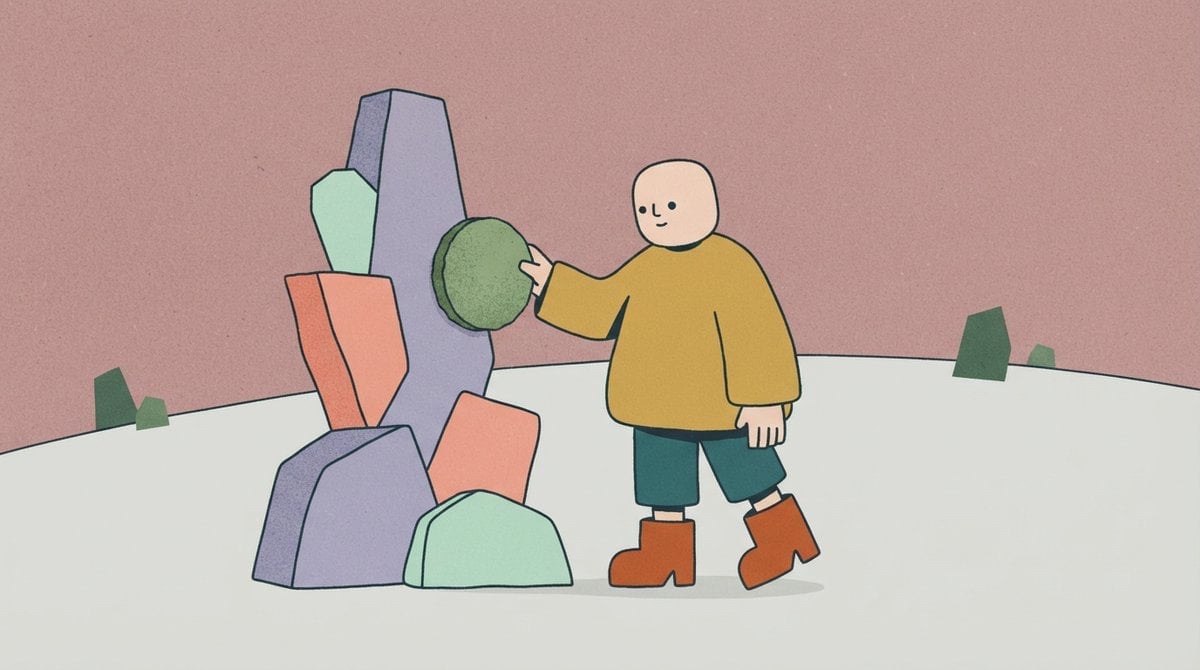
Paper Cut Garden Maze
Paper Cut Rooftop Concert

Paper Cut Bicycle Coast
Paper Cut Castle Gate
Paper Cut Kitchen Chaos
Paper Cut Carnival Ride
Paper Cut Rainy Bus Stop
Paper Cut Space Dock
Paper Cut Cafe Morning
Make it yours
Felt Craft Apple Design UI Banner works as-is. These are the safest ways to change it without losing the look.
Change one field
Copy a single group, rewrite it, and generate again so you can see what that field is doing.
Keep the frame, change the subject
Hold the composition and light of Felt Craft Apple Design UI Banner, then swap wardrobe, props or the person for a new take.
| If the result… | Why | Fix |
|---|---|---|
| The result drifts from the preview | Too many fields changed at once. | Reuse Felt Craft Apple Design UI Banner as-is first, then change one group — subject, light, or setting. |
| The model over-stylizes the scene | The prose prompt leaves finish and camera underspecified. | Add one camera or lighting sentence and stay on GPT Image 2. |
More GPT Image 2 templates
Other prompts made for GPT Image 2.

Six VTuber Japanese Logo Sheet

Realistic Portrait of Woman and Deer

The Vista Modular Condo Poster

AI Model Routing Comparison Infographic

2.5D Anime Art Board

Isometric Productivity Desk Scene

New York Double Exposure Poster

Four-Panel AI Landscape Comparison

Japanese Tatami Lifestyle Magazine Cover

NESCAFÉ Coffee Map Poster
More image prompts
Fresh picks from across the catalog.
Hyper-Realistic Gourmet Burger Infographic
Goddess of Opportunity Portrait

Cinematic Winter Travel Scene with Zootopia Characters
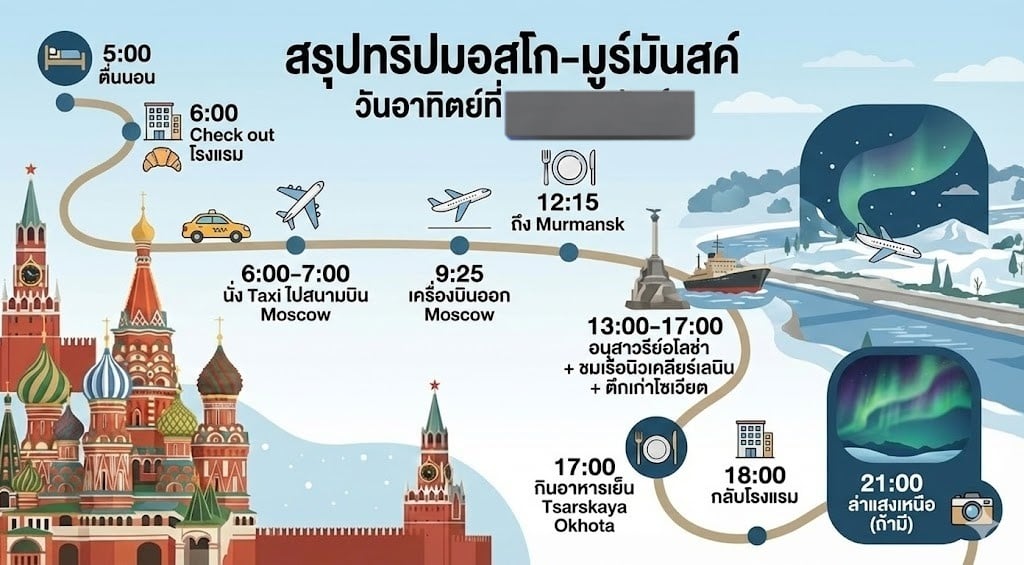
LLM Prompt for Summarizing and Reviewing Travel Plans
1980s US import anime (duplicate style)
Vintage Fashion with Cartoon Characters

Old Photo Restoration and Upscaling

Cinematic City Explosion Chase
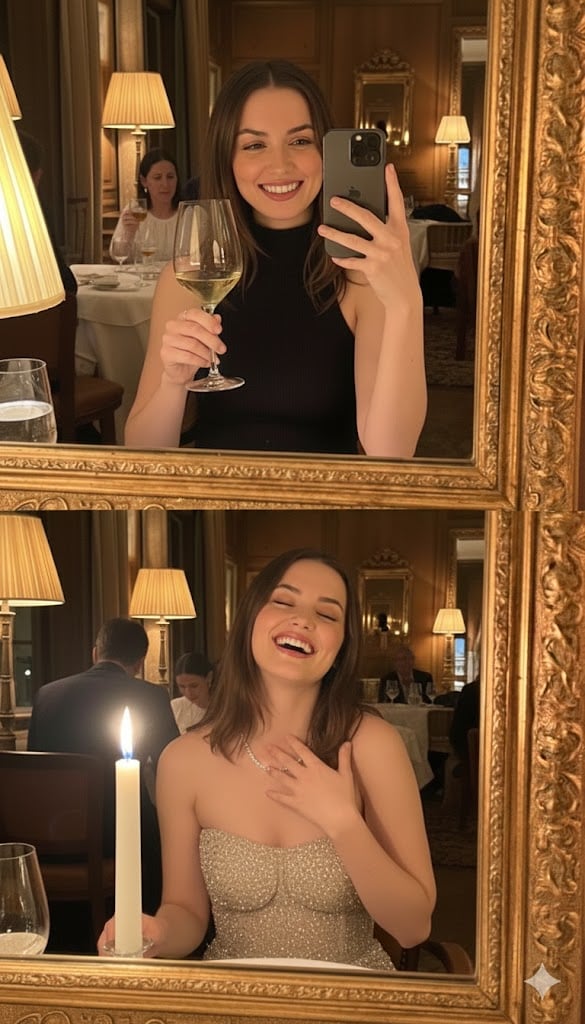
Ultra-Photorealistic Mirror Selfie POV in a Vintage Bistro
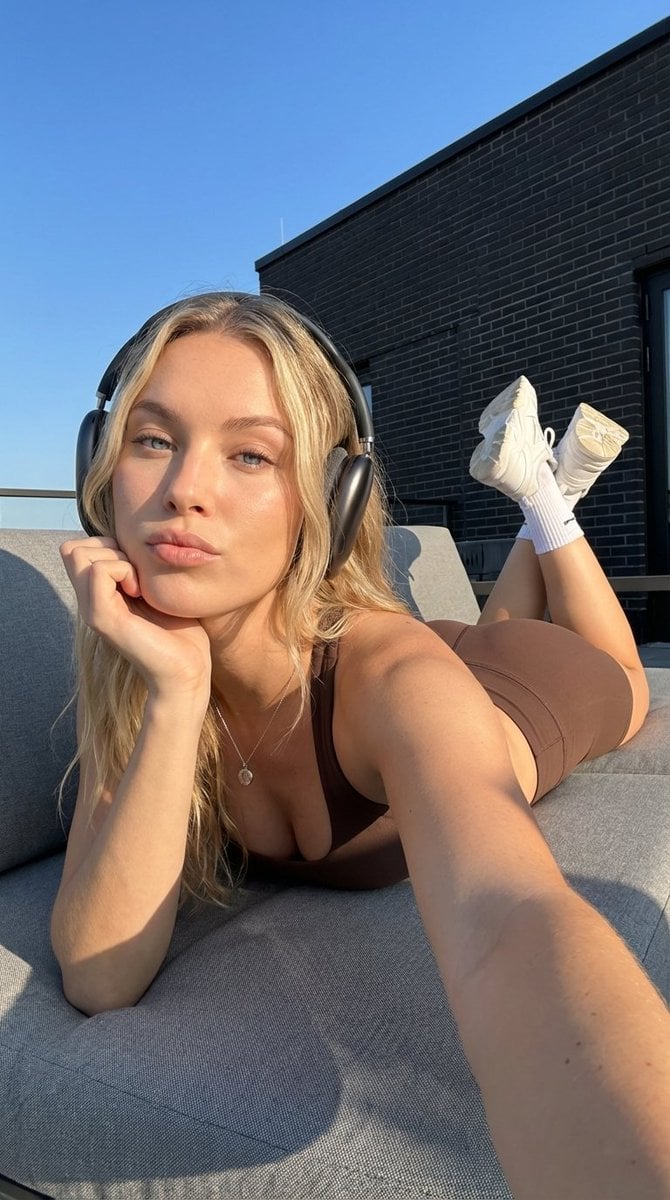
Rooftop Athletic Lifestyle Portrait Prompt
Browse template categories
Felt Craft Apple Design UI Banner questions
How do I use the Felt Craft Apple Design UI Banner template?
Add your photo if the template asks for one, edit the prompt if you like — the template's model and format are already selected — and press Generate. Your version opens in PicX Studio.
Can I customize the Felt Craft Apple Design UI Banner template?
Yes. You can change the subject, setting, lighting, mood, format, and available model controls before creating your image.
Is the Felt Craft Apple Design UI Banner template free?
Opening and editing this template is free. Generating uses credits, shown on the Generate button when you are signed in.
Which AI model should I use?
Start with GPT Image 2, which is the model associated with this template. You can compare another compatible model for a different finish.
Looking for something else? Browse all templates.

Your photo, any look
Thousands of ready templates for every top image and video model, from one credit balance.