
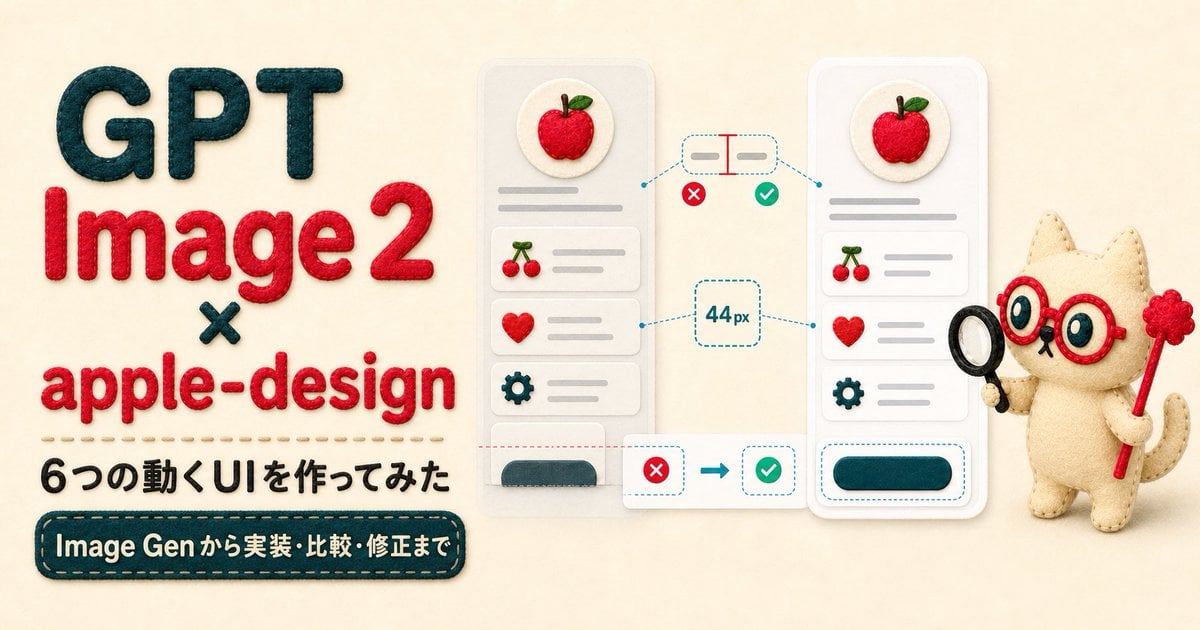
Felt GPT Image 2 Apple Design Banner
A handmade felt-style hero banner for an article about GPT Image 2 and apple-design UI animation experiments.
- Prompt included
- Model and format preset
- Premium template
The prompt behind this image
Copy the exact prompt behind Felt GPT Image 2 Apple Design Banner, or open it in the studio and make it yours.
Goal: Create a wide article hero banner in a soft handmade felt-and-fabric craft style, introducing {argument name="headline text" default="GPT Image 2 × apple-design"} and six moving UI examples. Canvas: Horizontal 2:1 banner, warm cream fabric background, soft studio lighting, subtle shadows, tactile stitched materials, felt appliqué letters and plush objects. Layout: Left half is bold text typography; center shows two smartphone UI mockups with animation/comparison annotations; right side has a cute plush cat assistant character holding design-review props. Text content: Large stacked headline on the left reads exactly “GPT” in dark teal felt, “Image 2” in red felt, a small dark teal “×”, then “apple-design” in red felt. Under it, add a stitched divider line, then Japanese subheading text: {argument name="subheading text" default="6つの動くUIを作ってみた"}. At the bottom left, add a dark teal rounded stitched label with cream text: {argument name="bottom label text" default="Image Gen から実装・比較・修正まで"}. Central UI mockups: Show exactly 2 tall rounded smartphone cards. Each phone has a circular apple icon at the top, three stacked list rows below, and one bottom rounded button area. The list rows use exactly 3 icons: cherries, heart, and gear, each with gray placeholder text lines. The left phone looks slightly less refined and washed out; the right phone looks polished, brighter, and cleaner. Annotation elements: Between and around the phones, show exactly 4 comparison/measurement callouts: 1 top dashed pill showing alignment/spacing with a red measurement line, 1 central dashed box reading “44 px”, 1 bottom transformation callout with a red X leading by arrow to a green check, and 1 dashed outline around the polished right phone’s bottom button. Include exactly 2 red X badges and exactly 2 green check badges. Use cyan dashed guide lines connecting the callouts to the UI areas. Right character: Add a small beige felt plush cat mascot with stitched seams, red round glasses, large blue eyes, tiny whiskers, and a curled tail. It holds exactly 2 props: a black magnifying glass in one paw and a red magic wand topped with a raspberry-like pom-pom in the other. Character mood is cheerful, clever, and instructional. Visual style: Apple-inspired clean UI composition translated into soft felt craft, embroidered edges, raised fabric letters, rounded corners, cozy handmade texture, shallow depth of field, cream/red/dark teal palette with cyan annotation lines and gray UI placeholders. Constraints: Keep the banner uncluttered, readable, and centered. Preserve all visible Japanese text exactly as specified. Use no watermark, no photo-realistic metal or glass, and no extra UI cards beyond the 2 phones.
How to use Felt GPT Image 2 Apple Design Banner in 3 steps
- 1Upload ImagePNG, JPG or paste
Add your photo
Upload the photo the template builds on. The prompt, model and format are already set.
- 2…a portrait of your subject in softgolden-hour light, 85mm…
Personalize
Edit the subject and creative details for your destination.
- 3Generate
Generate
Press Generate — your image is created in PicX Studio, so you can compare it with the original and refine one variable at a time.
More like this
Templates with the same subject, style or setup. Open one to see its prompt.
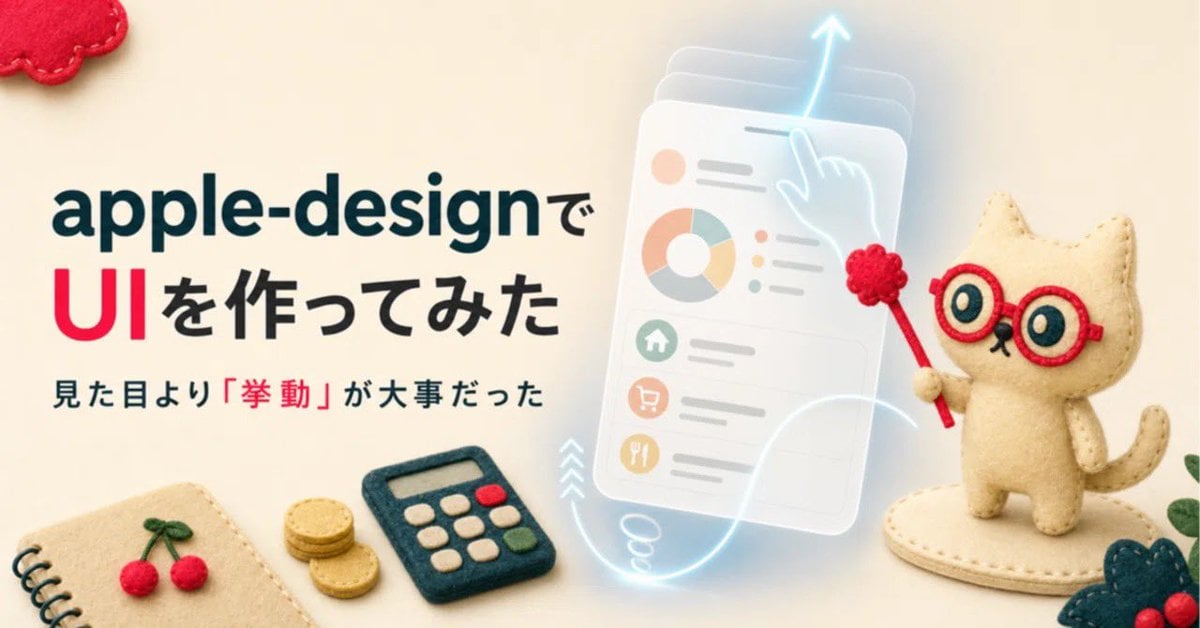
Felt Craft Apple Design UI Banner

ChatGPT Bonus Banner Screenshot
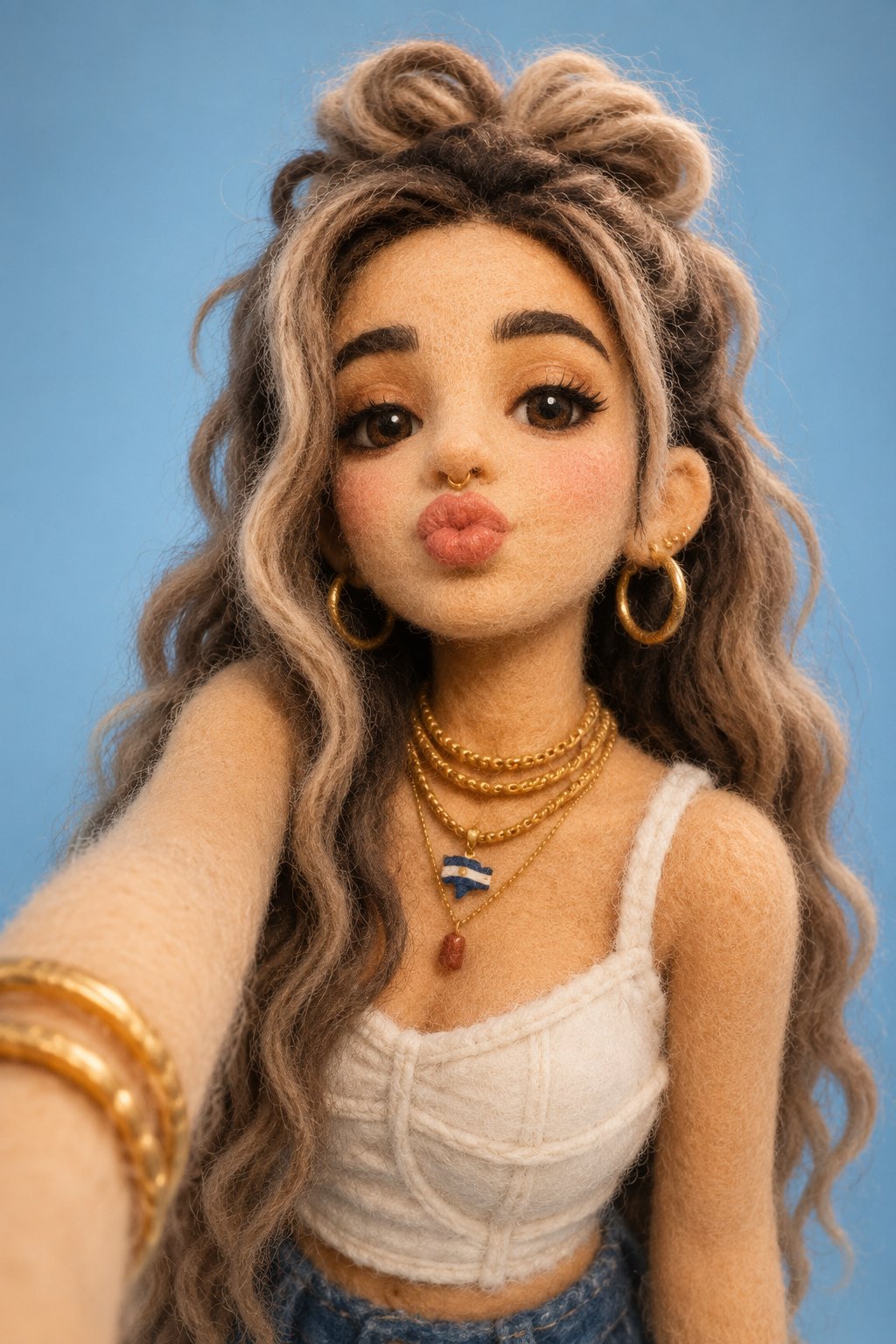
Felt & Knit 3D Character — Photo-Exact Face, Pixar-Quality Plush Figurine

GPT-Image2 E-Commerce Course Banner
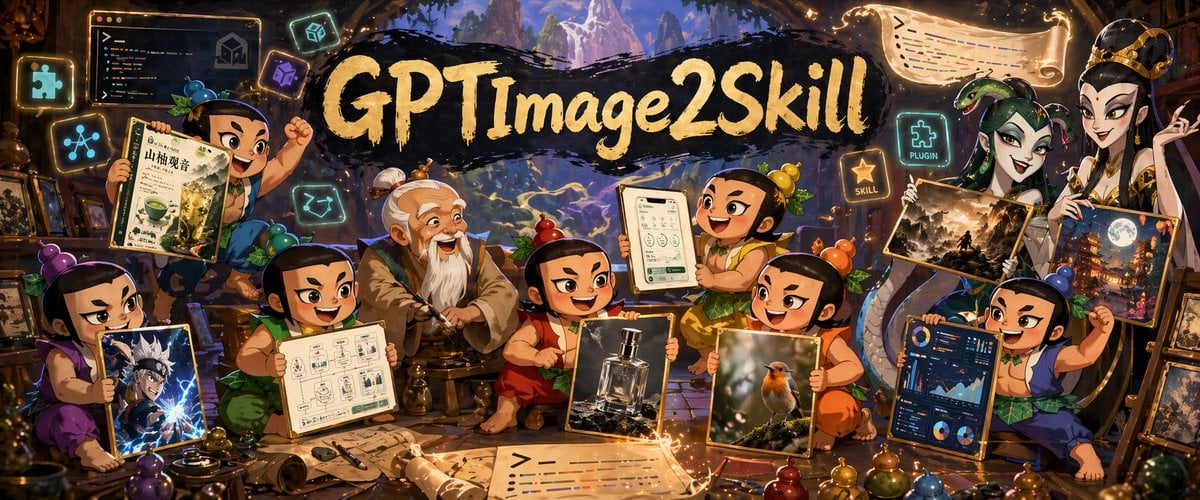
Fantasy GPTImage2 Skill Banner
Magic Edit GPT Image 2 Promo Banner
GPT Image 2 Cooking Prompt Banner
Fantasy GPT Image 2 Skill Banner
ChatGPT Apple Generation Screenshot

Gpt2 Social Media Post 4 Panel Japanese Digital Ad Banner Grid
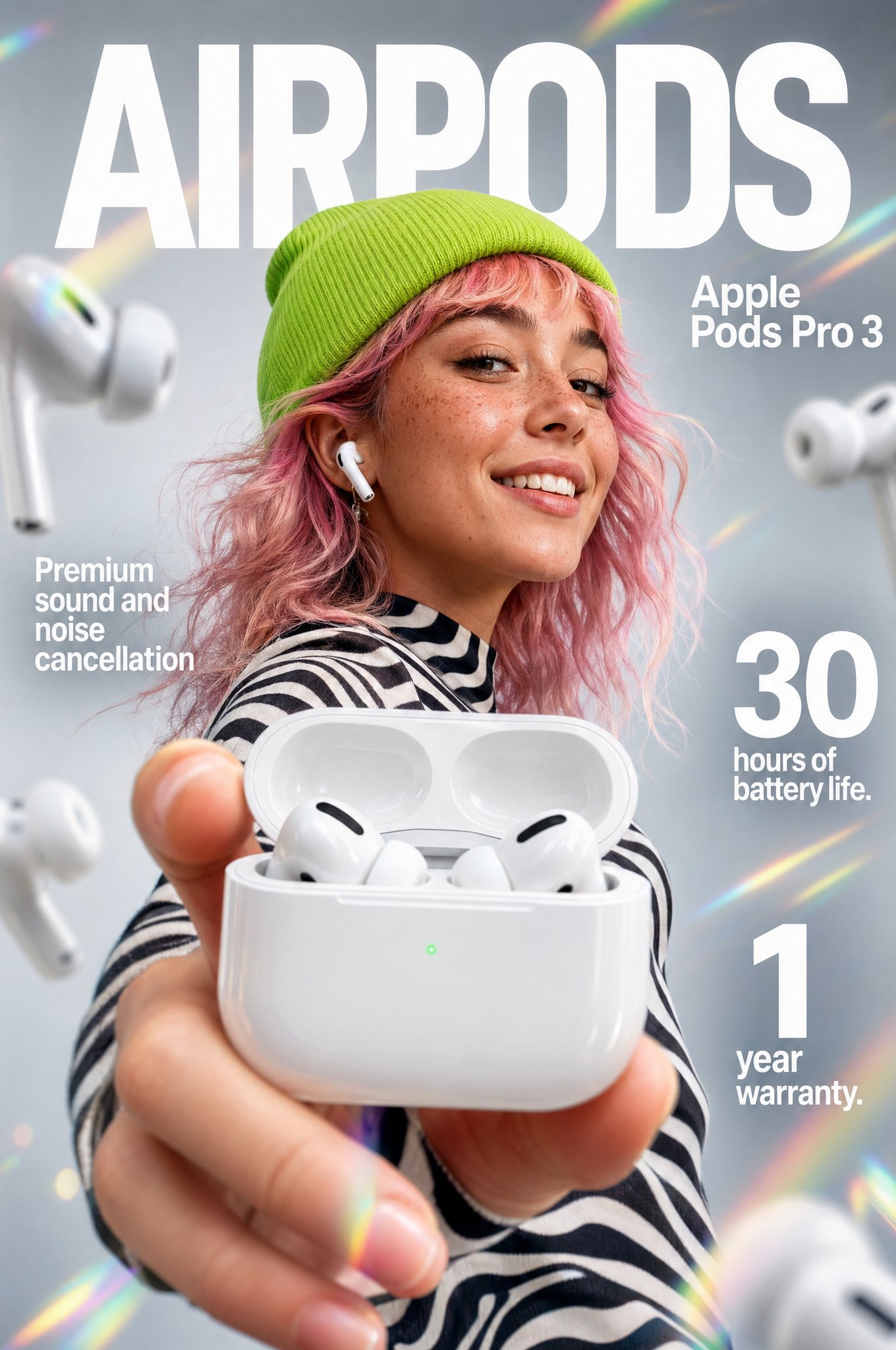
Gpt2 Apple Pods Pro 3 Infographic
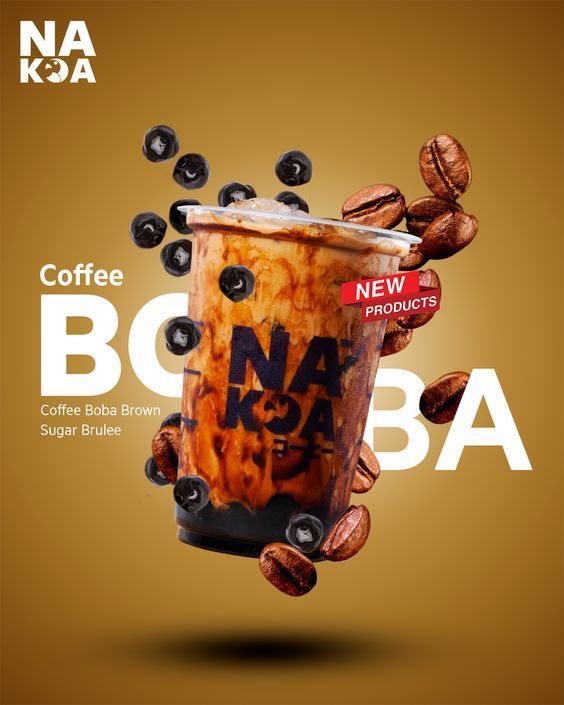
Coffee Boba Product Poster
Make it yours
Felt GPT Image 2 Apple Design Banner works as-is. These are the safest ways to change it without losing the look.
Change one field
Copy a single group, rewrite it, and generate again so you can see what that field is doing.
Keep the frame, change the subject
Hold the composition and light of Felt GPT Image 2 Apple Design Banner, then swap wardrobe, props or the person for a new take.
| If the result… | Why | Fix |
|---|---|---|
| The result drifts from the preview | Too many fields changed at once. | Reuse Felt GPT Image 2 Apple Design Banner as-is first, then change one group — subject, light, or setting. |
| The model over-stylizes the scene | The prose prompt leaves finish and camera underspecified. | Add one camera or lighting sentence and stay on GPT Image 2. |
More GPT Image 2 templates
Other prompts made for GPT Image 2.

Six VTuber Japanese Logo Sheet

Realistic Portrait of Woman and Deer

The Vista Modular Condo Poster

AI Model Routing Comparison Infographic

2.5D Anime Art Board

Isometric Productivity Desk Scene

New York Double Exposure Poster

Four-Panel AI Landscape Comparison

Japanese Tatami Lifestyle Magazine Cover

NESCAFÉ Coffee Map Poster
More image prompts
Fresh picks from across the catalog.
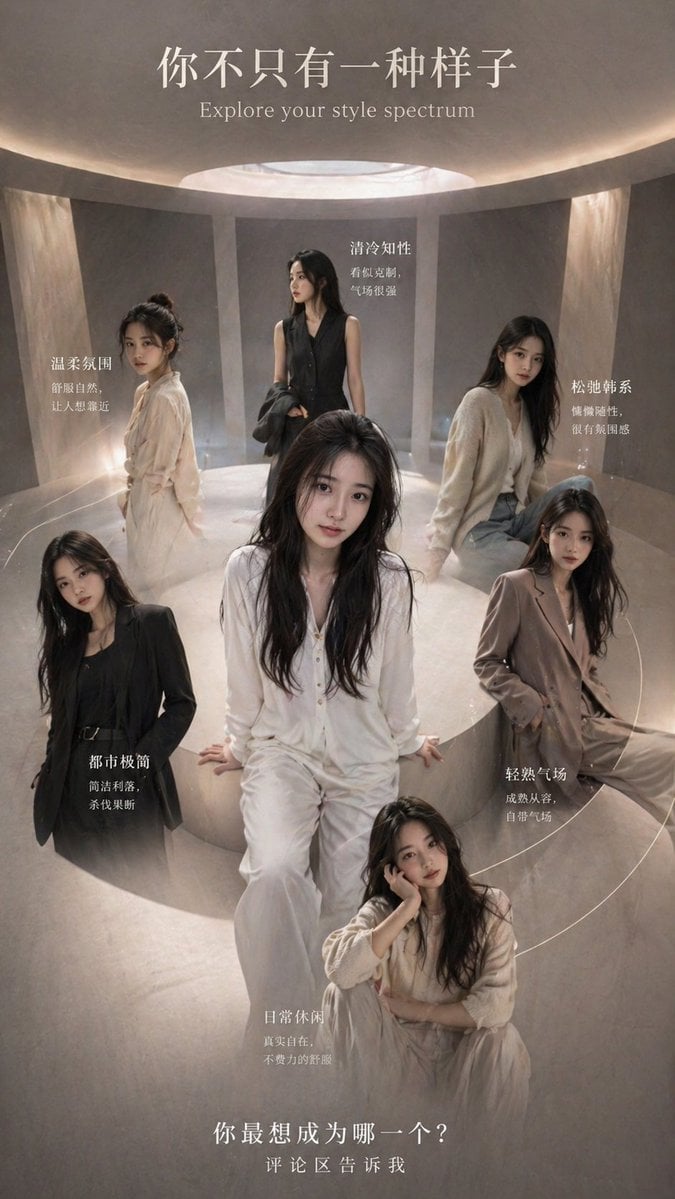
Style Spectrum Fashion Poster
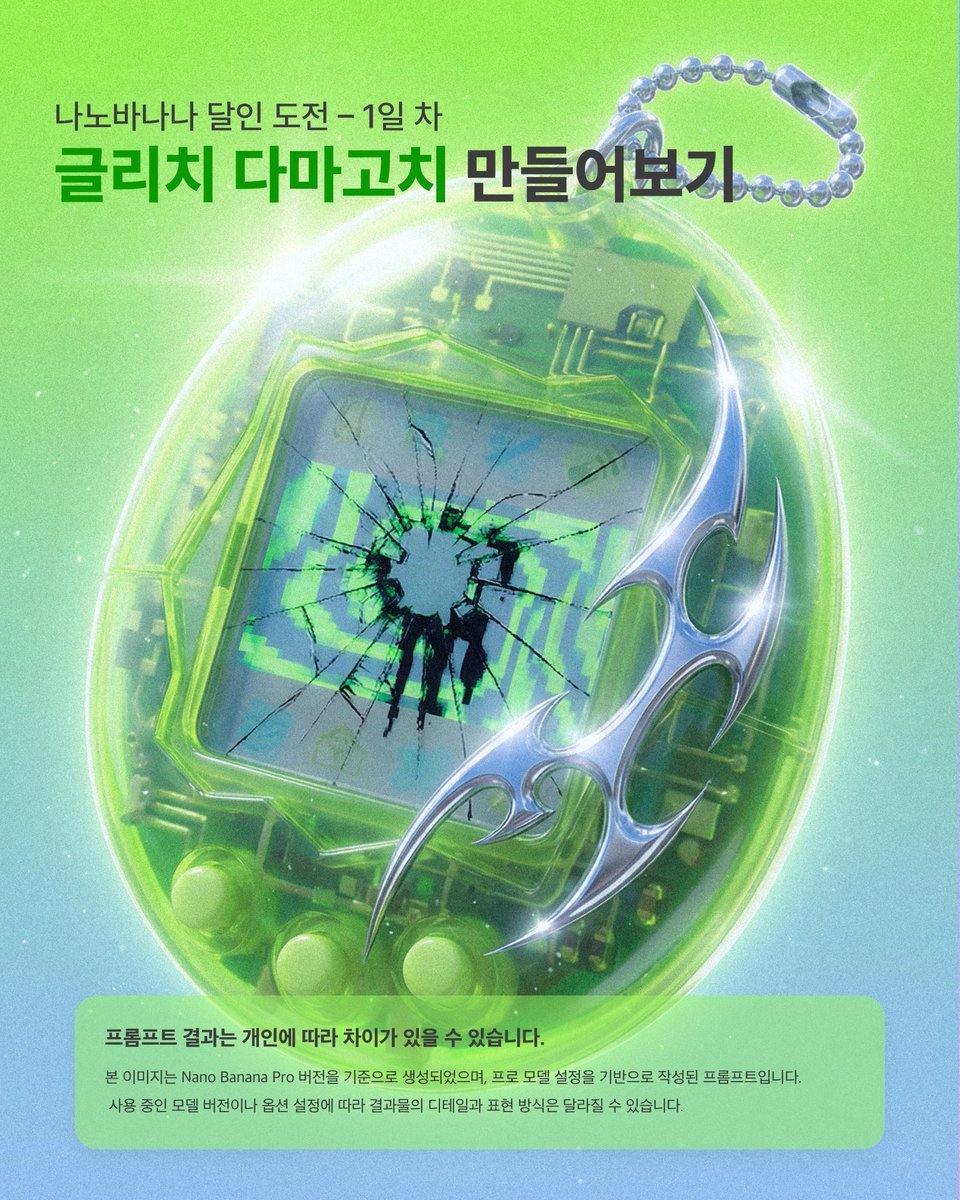
Glitch Tamagotchi Prompt for Nano Banana Application

Couture Cottagecore Fashion Editorial Prompt
Grok Video Prompt: High-Speed Skateboard Tricks
Cyberpunk Mechanic with Massive Exosuit Backpack
Surreal Optical Illusion Portrait

Dreamy Pastel Fantasy Pagoda
Instant Polaroid Portal Optical Illusion Prompt

Classic Car in Scenic Location
Circular Profile Picture Style Transfer
Browse template categories
Felt GPT Image 2 Apple Design Banner questions
How do I use the Felt GPT Image 2 Apple Design Banner template?
Add your photo if the template asks for one, edit the prompt if you like — the template's model and format are already selected — and press Generate. Your version opens in PicX Studio.
Can I customize the Felt GPT Image 2 Apple Design Banner template?
Yes. You can change the subject, setting, lighting, mood, format, and available model controls before creating your image.
Is the Felt GPT Image 2 Apple Design Banner template free?
Opening and editing this template is free. Generating uses credits, shown on the Generate button when you are signed in.
Which AI model should I use?
Start with GPT Image 2, which is the model associated with this template. You can compare another compatible model for a different finish.
Looking for something else? Browse all templates.

Your photo, any look
Thousands of ready templates for every top image and video model, from one credit balance.