
Magic Edit GPT Image 2 Promo Banner
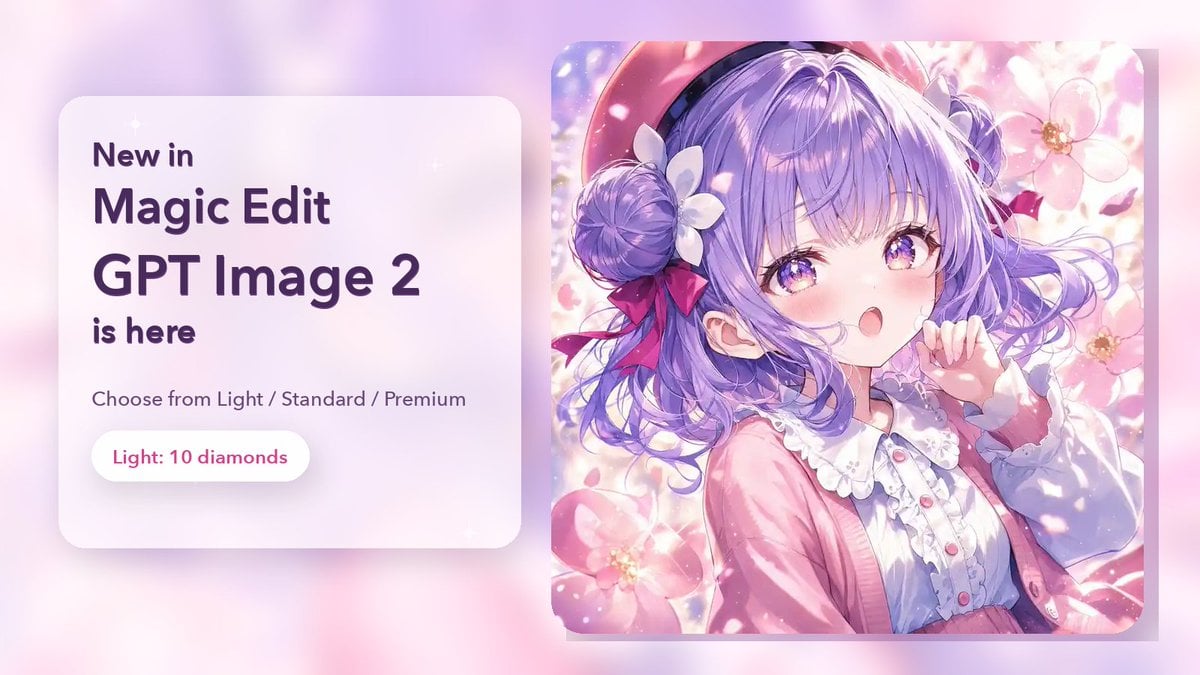
Creates a pastel social media announcement banner for a new Magic Edit image model with glassmorphism text and an anime preview card.
- Prompt included
- Model and format preset
- Premium template
The prompt behind this image
Copy the exact prompt behind Magic Edit GPT Image 2 Promo Banner, or open it in the studio and make it yours.
Goal: Create a polished promotional banner announcing {argument name="product name" default="GPT Image 2"} inside Magic Edit, using a soft pastel anime aesthetic and a clean SaaS-style layout. Canvas: Wide horizontal 16:9 social media banner, approximately 1200×675 px. Use a dreamy pink, lavender, and white gradient background with soft bokeh blur, faint sparkles, and subtle depth shadows. Layout: Split composition with 2 main panels. Left panel is a frosted-glass rounded rectangle card occupying about 40% of the width, positioned left-center with a soft drop shadow. Right panel is a large rounded-square anime illustration card occupying about 48% of the width, positioned right-center, slightly taller than the text card, with a subtle shadow and rounded corners. Left text card: White translucent glassmorphism surface with very rounded corners. Set all typography in dark purple, modern rounded sans-serif, bold for the main announcement. Include exactly 5 visible text lines/groups: “New in”, “Magic Edit”, “{argument name="headline product text" default="GPT Image 2"}”, “is here”, and a smaller line “Choose from Light / Standard / Premium”. At the bottom of the card place exactly 1 pill-shaped white button with pink-purple text reading “{argument name="price badge text" default="Light: 10 diamonds"}”. Right illustration card: Pastel anime girl portrait in a highly detailed glossy illustration style. She has {argument name="hair color" default="lavender-purple"} twin-bun or side-bun hair with loose flowing curls, white flower hair accessories, red-pink ribbon bows, a pink beret-like hat, and a pink cardigan over a frilly white blouse with small pink buttons. She is surrounded by large soft pink flowers, petals, sparkles, and glowing sunlight. Her pose is gentle and cute, with one hand near her face. Place a solid opaque lavender rectangular censor/edit mask over the center of her face, covering the eyes, nose, and mouth area, with sharp square corners; the mask should be clearly visible as an editing overlay. Visual style: Pastel kawaii, glossy anime rendering, soft bloom, high-key lighting, spring floral atmosphere, gentle gradients, clean app-promo design, premium but friendly. Use rounded corners throughout and subtle shadows for floating depth. Constraints: Keep the composition uncluttered with no extra logos or watermarks. Use exactly 2 main cards, exactly 1 button, and exactly 5 text lines/groups on the left card. Ensure the product announcement text is large and readable, and the anime image remains clearly secondary to the promotional message.
How to use Magic Edit GPT Image 2 Promo Banner in 3 steps
- 1Upload ImagePNG, JPG or paste
Add your photo
Upload the photo the template builds on. The prompt, model and format are already set.
- 2…a portrait of your subject in softgolden-hour light, 85mm…
Personalize
Edit the subject and creative details for your destination.
- 3Generate
Generate
Press Generate — your image is created in PicX Studio, so you can compare it with the original and refine one variable at a time.
More like this
Templates with the same subject, style or setup. Open one to see its prompt.
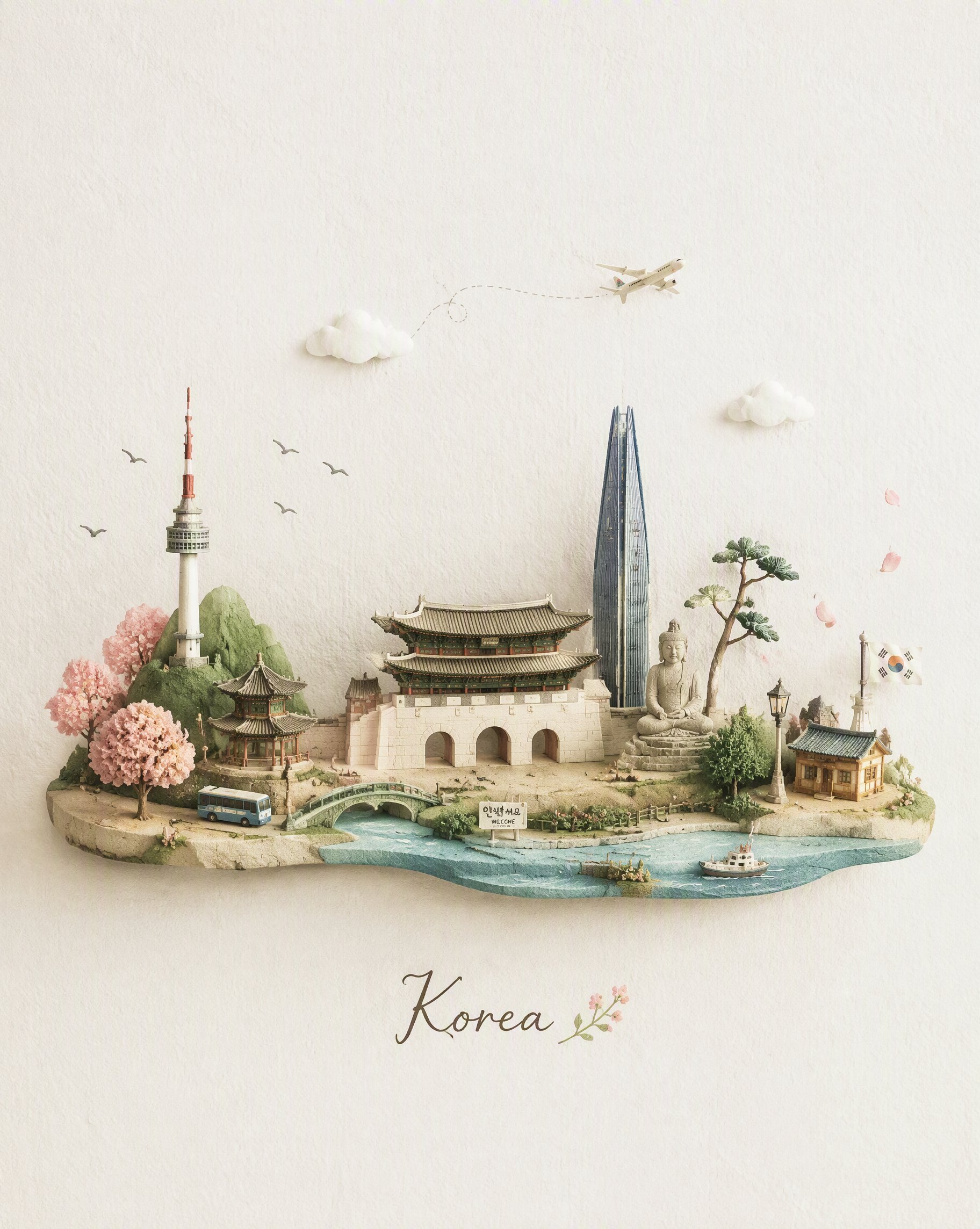
Miniature Travel Diorama Postcard
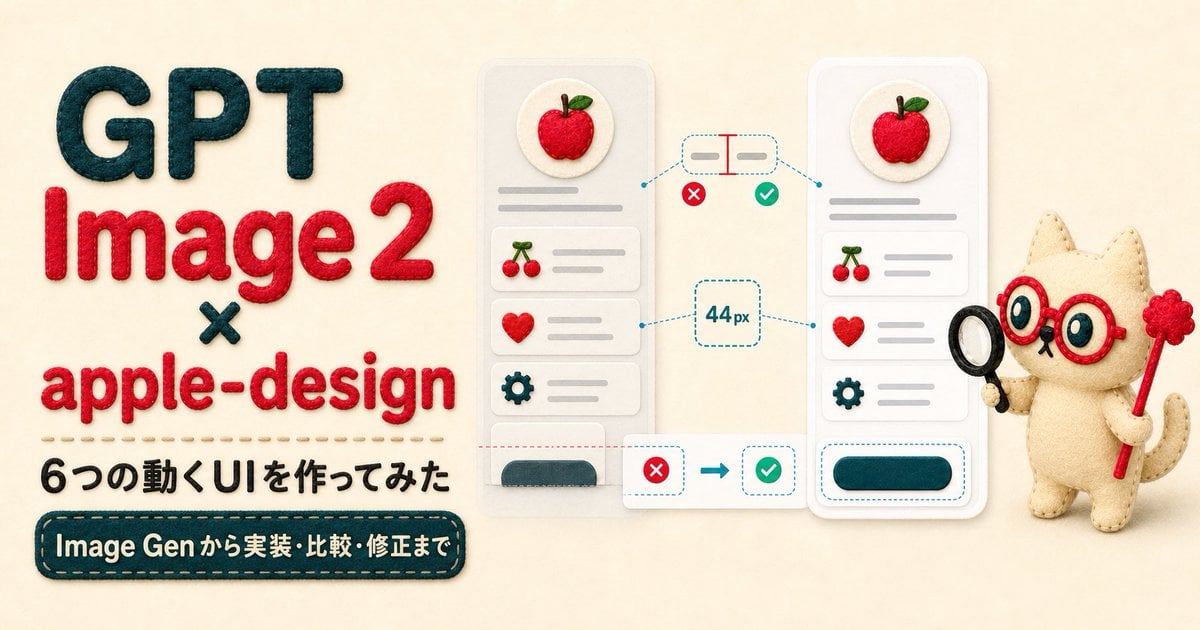
Felt GPT Image 2 Apple Design Banner

ChatGPT Bonus Banner Screenshot

Excel VBA Community Promo Banner
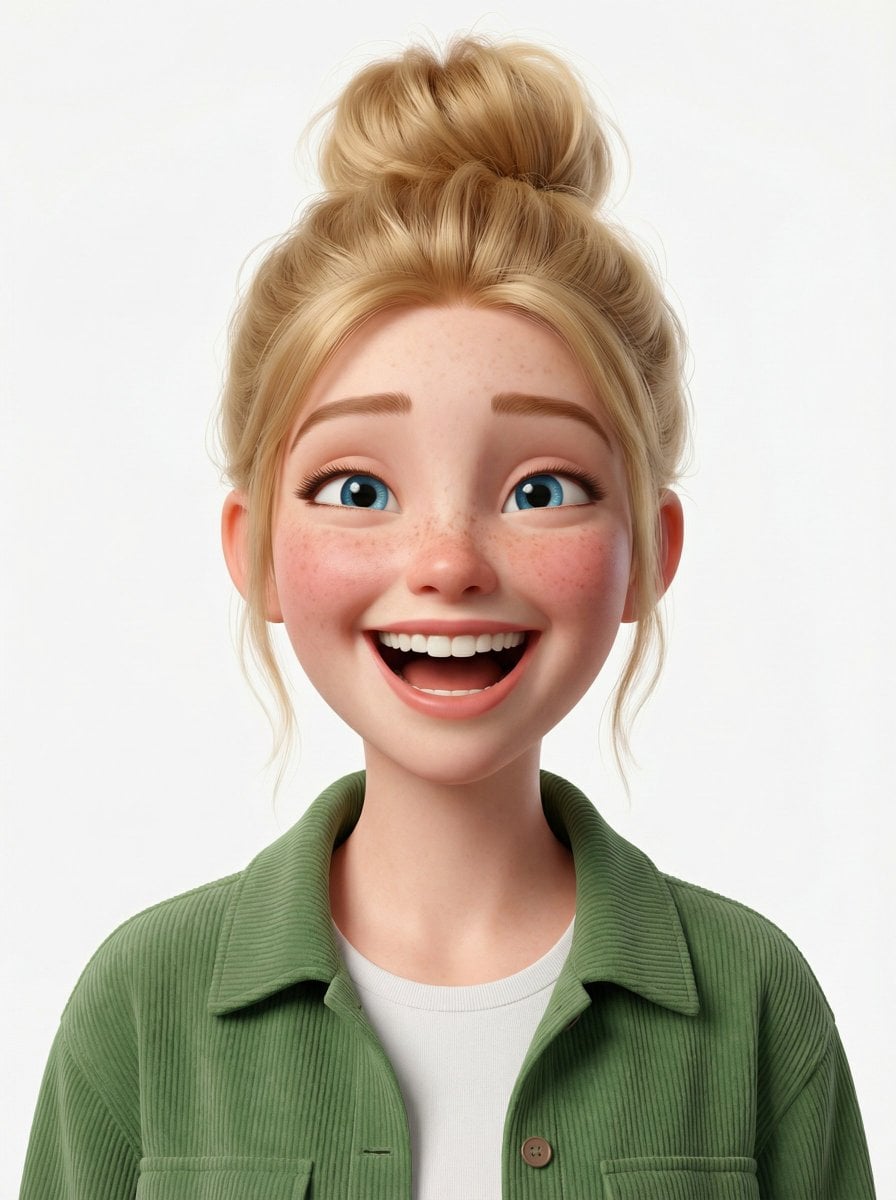
Anime Happily Ever After Sky
Anime Stained Glass Prayer
Anime White Horse Escape
Anime Golden Spinning Straw
Anime Gingerbread Cottage
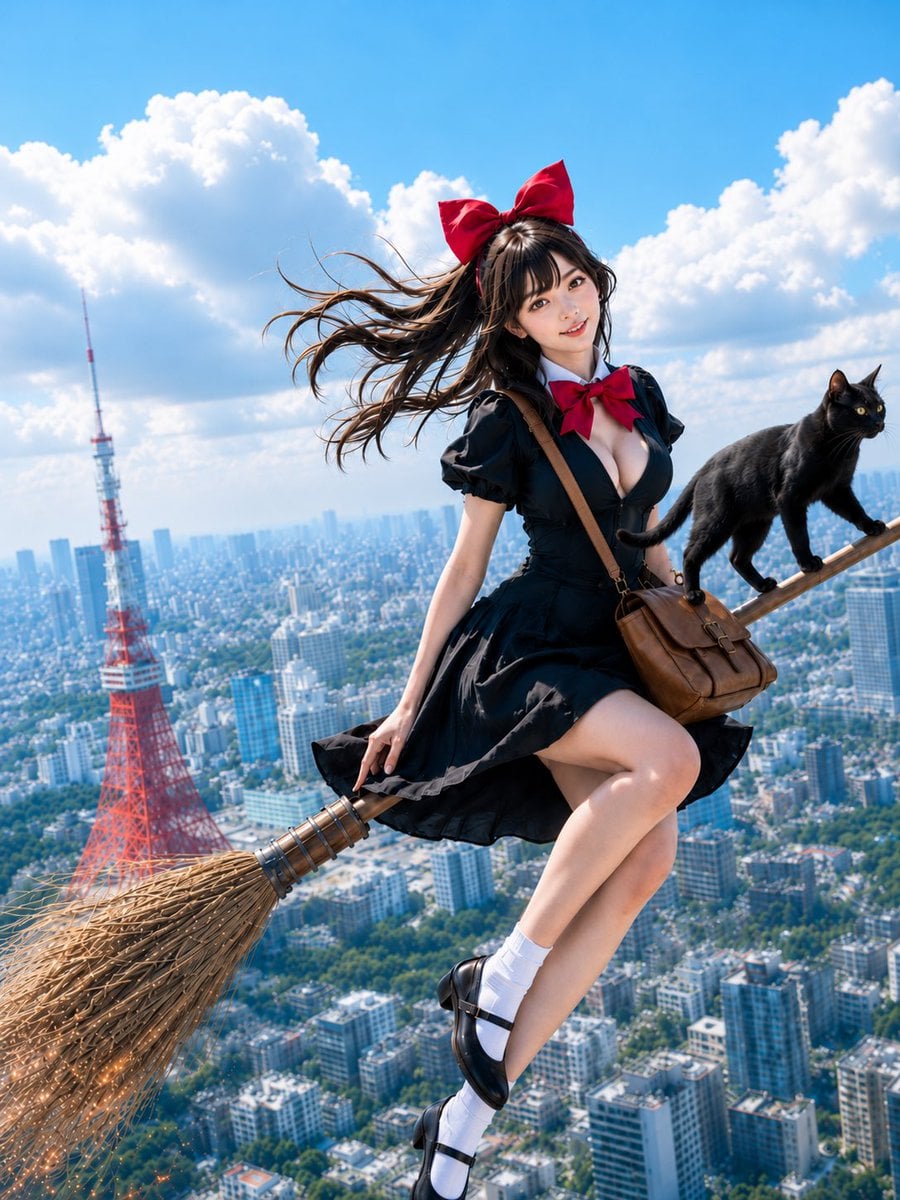
Anime Bean Stalk Climb
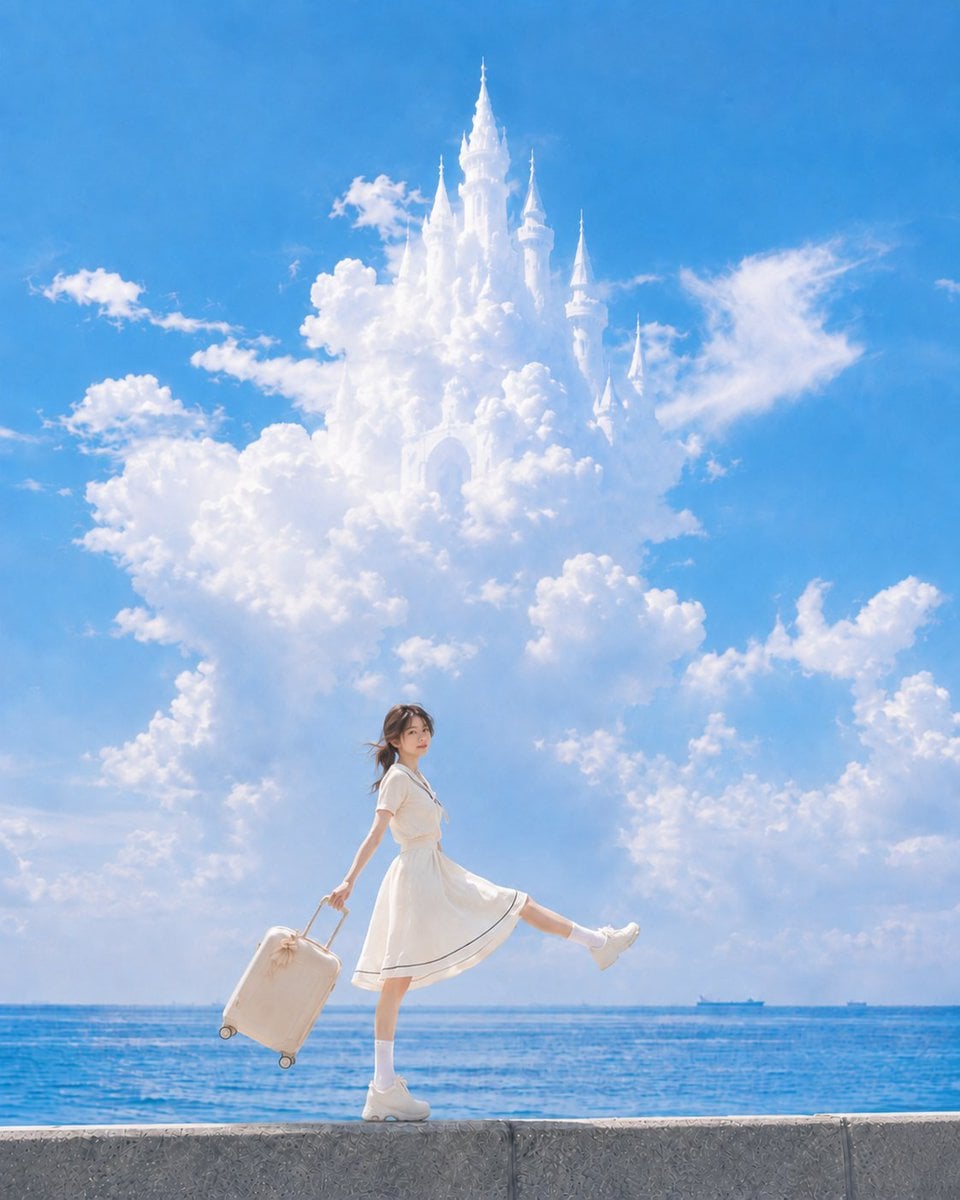
Anime Seafoam Transformation
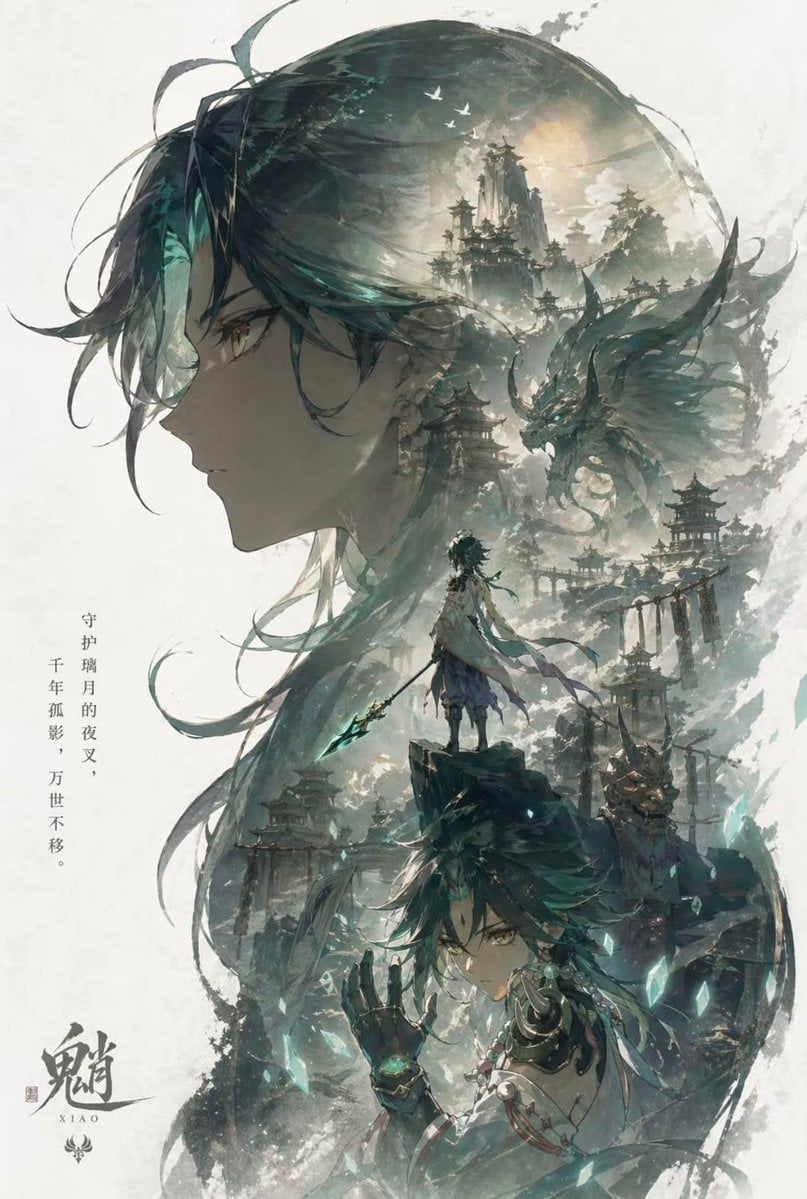
Anime Shoe Fitting Trial
Make it yours
Magic Edit GPT Image 2 Promo Banner works as-is. These are the safest ways to change it without losing the look.
Change one field
Copy a single group, rewrite it, and generate again so you can see what that field is doing.
Keep the frame, change the subject
Hold the composition and light of Magic Edit GPT Image 2 Promo Banner, then swap wardrobe, props or the person for a new take.
| If the result… | Why | Fix |
|---|---|---|
| The result drifts from the preview | Too many fields changed at once. | Reuse Magic Edit GPT Image 2 Promo Banner as-is first, then change one group — subject, light, or setting. |
| The model over-stylizes the scene | The prose prompt leaves finish and camera underspecified. | Add one camera or lighting sentence and stay on GPT Image 2. |
More GPT Image 2 templates
Other prompts made for GPT Image 2.

Six VTuber Japanese Logo Sheet

Realistic Portrait of Woman and Deer

The Vista Modular Condo Poster

AI Model Routing Comparison Infographic

2.5D Anime Art Board

Isometric Productivity Desk Scene

New York Double Exposure Poster

Four-Panel AI Landscape Comparison

Japanese Tatami Lifestyle Magazine Cover

NESCAFÉ Coffee Map Poster
More image prompts
Fresh picks from across the catalog.
Image Editing Prompt: Adjusting Ring Position
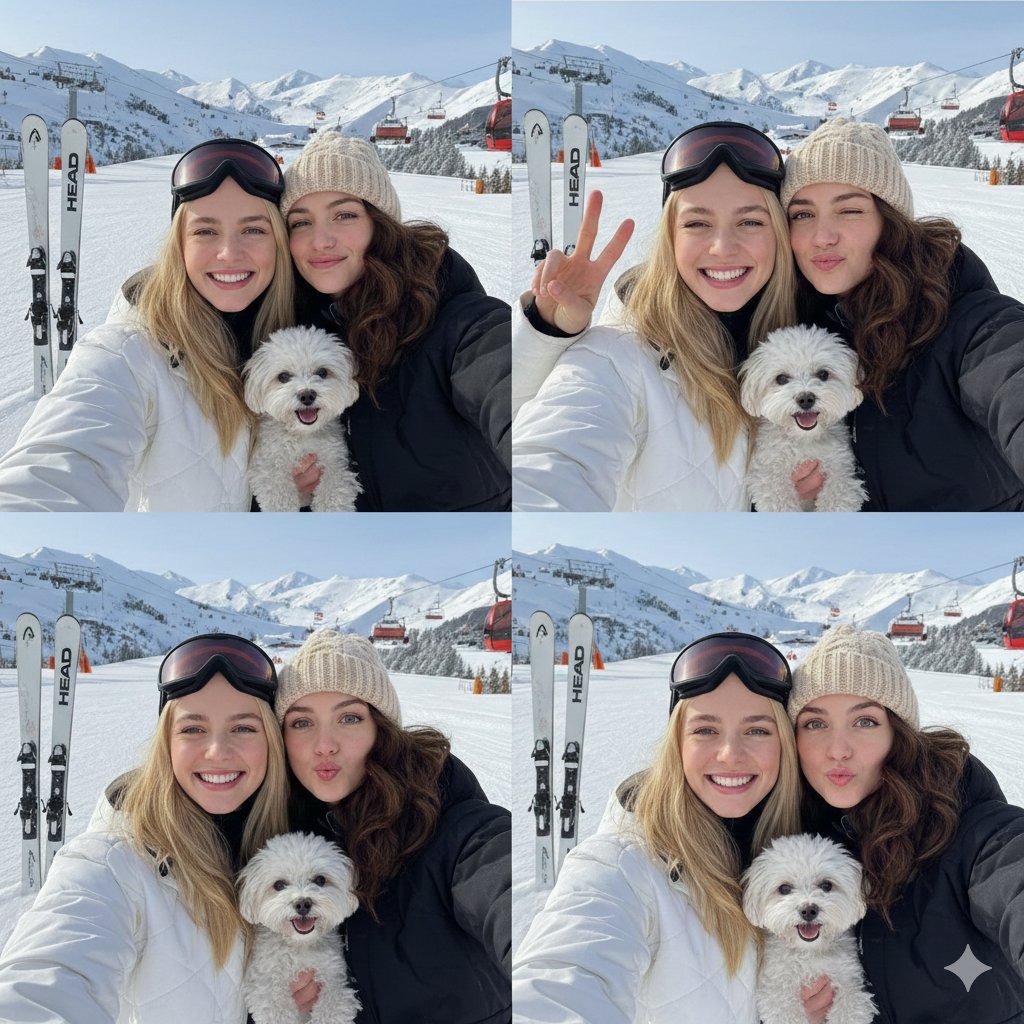
2x2 Winter Ski Selfie Collage with Dog
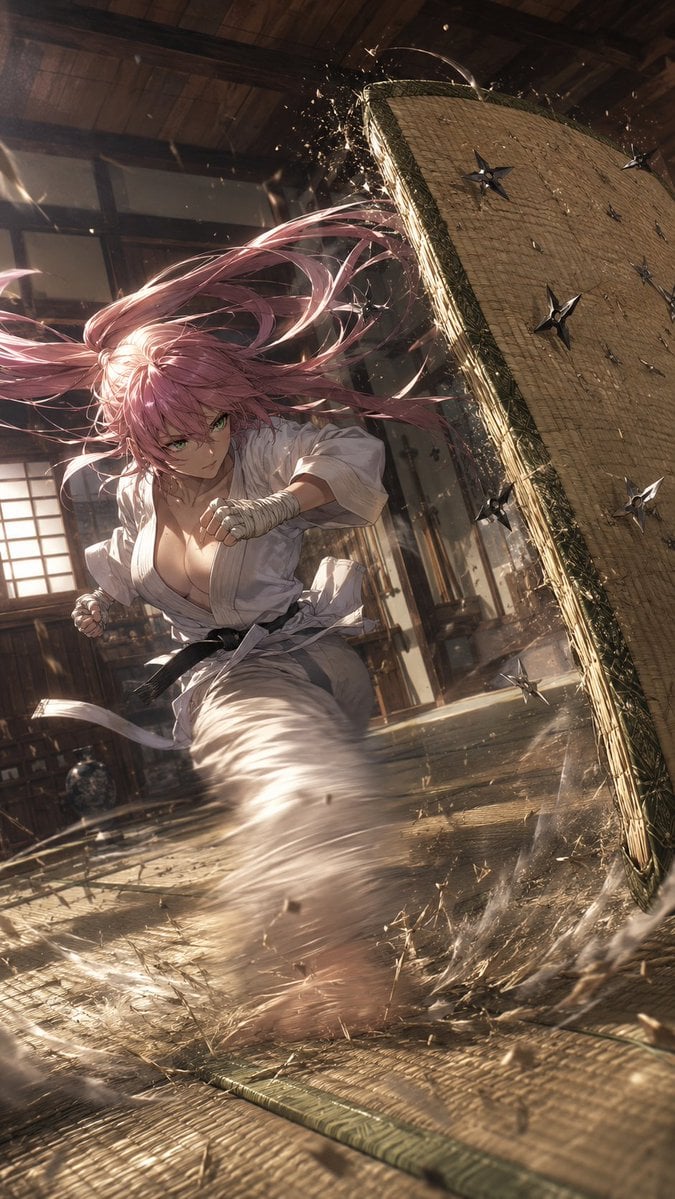
Anime Dojo Shuriken Kick
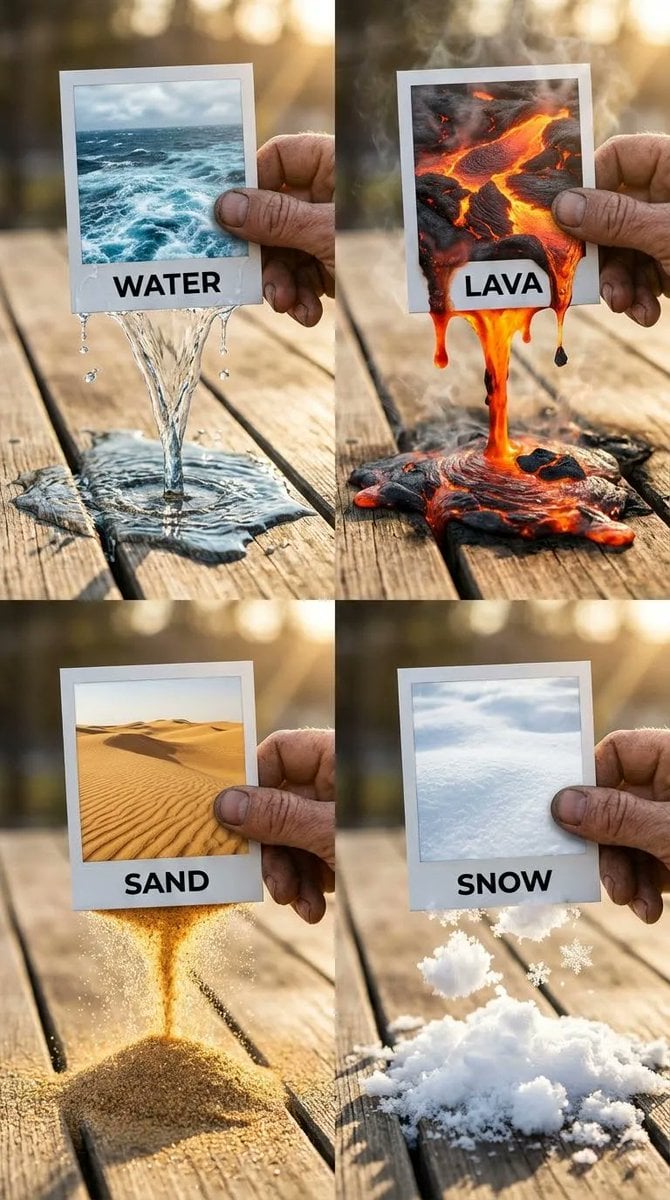
Elemental Physics Spill Collage Prompt
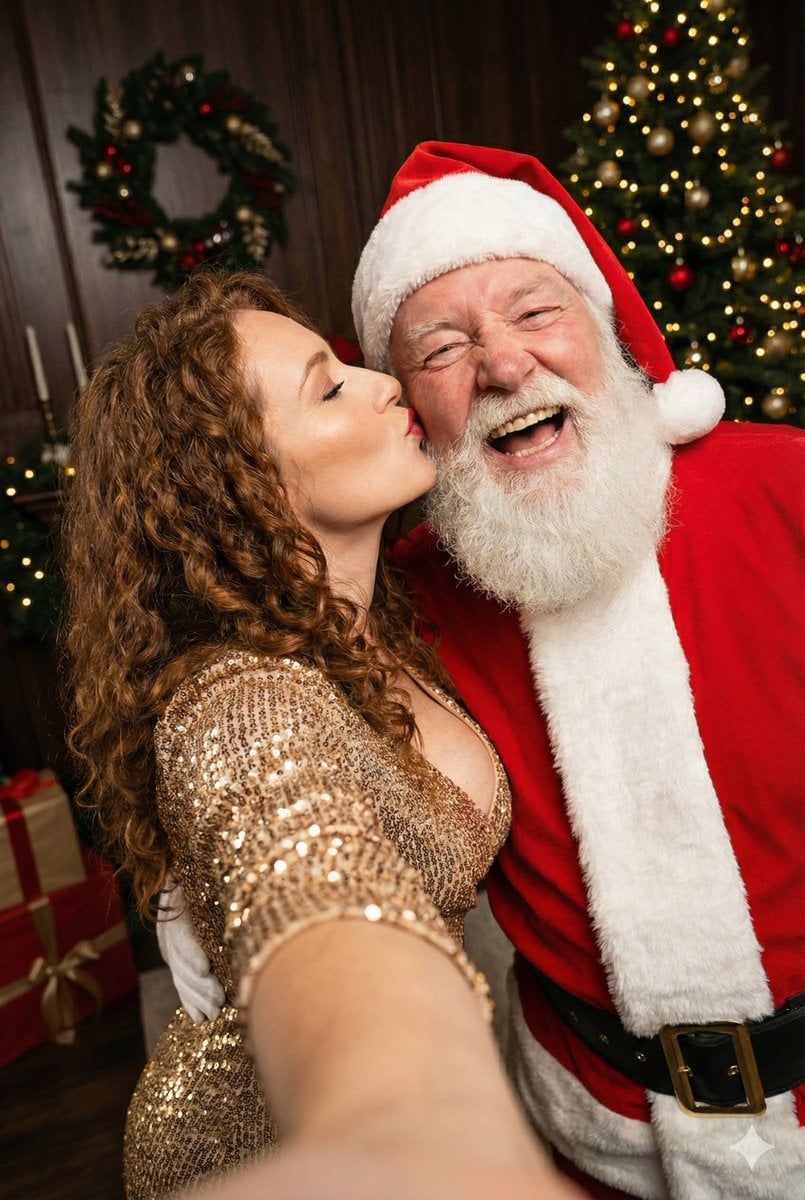
Christmas Selfie with Santa Prompt
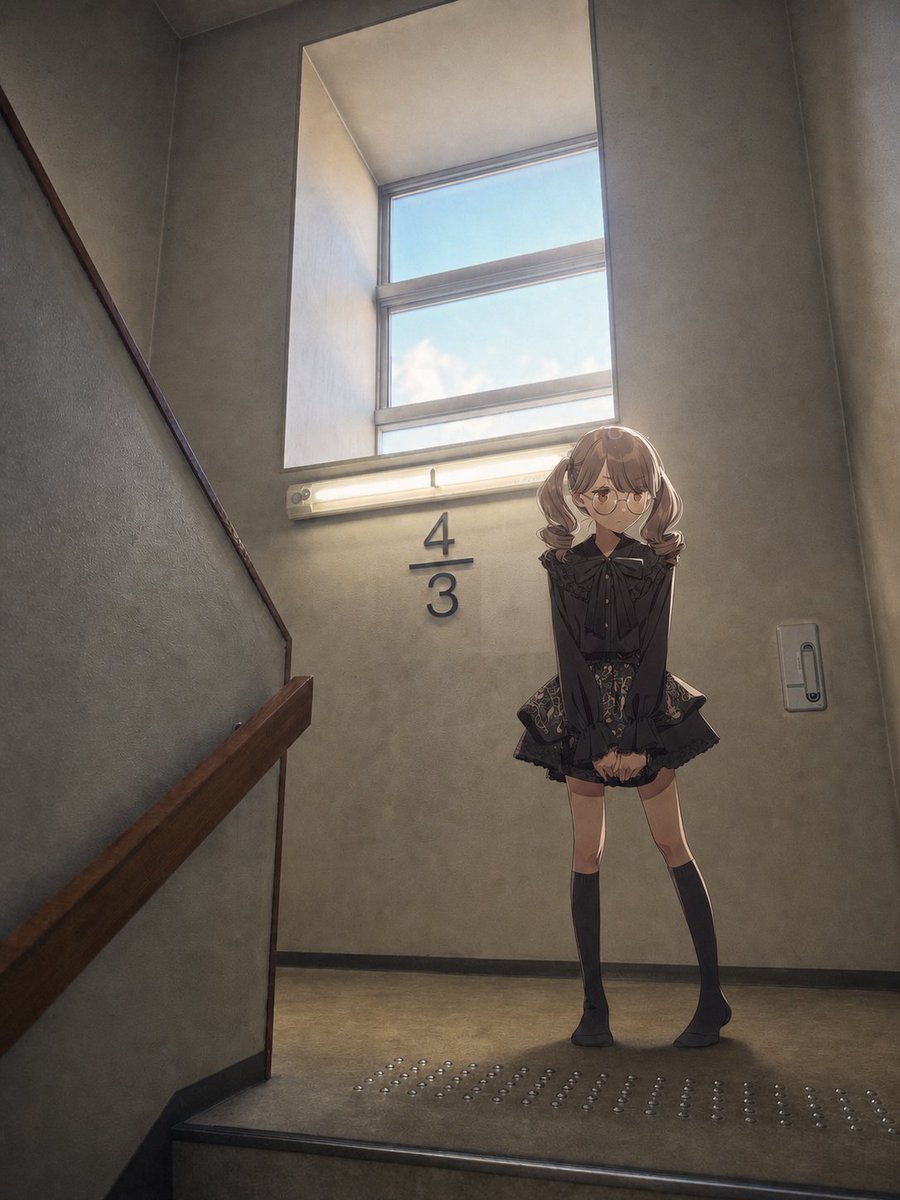
Anime Girl Stairwell Composite
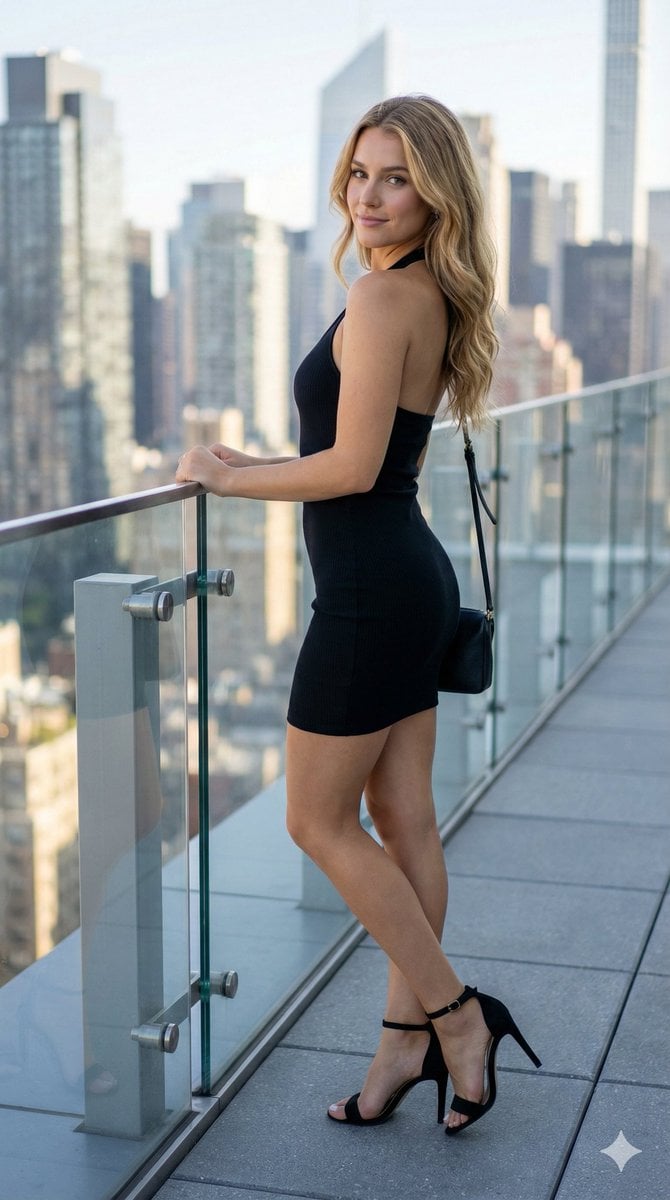
Rooftop Terrace Fashion Shot Prompt
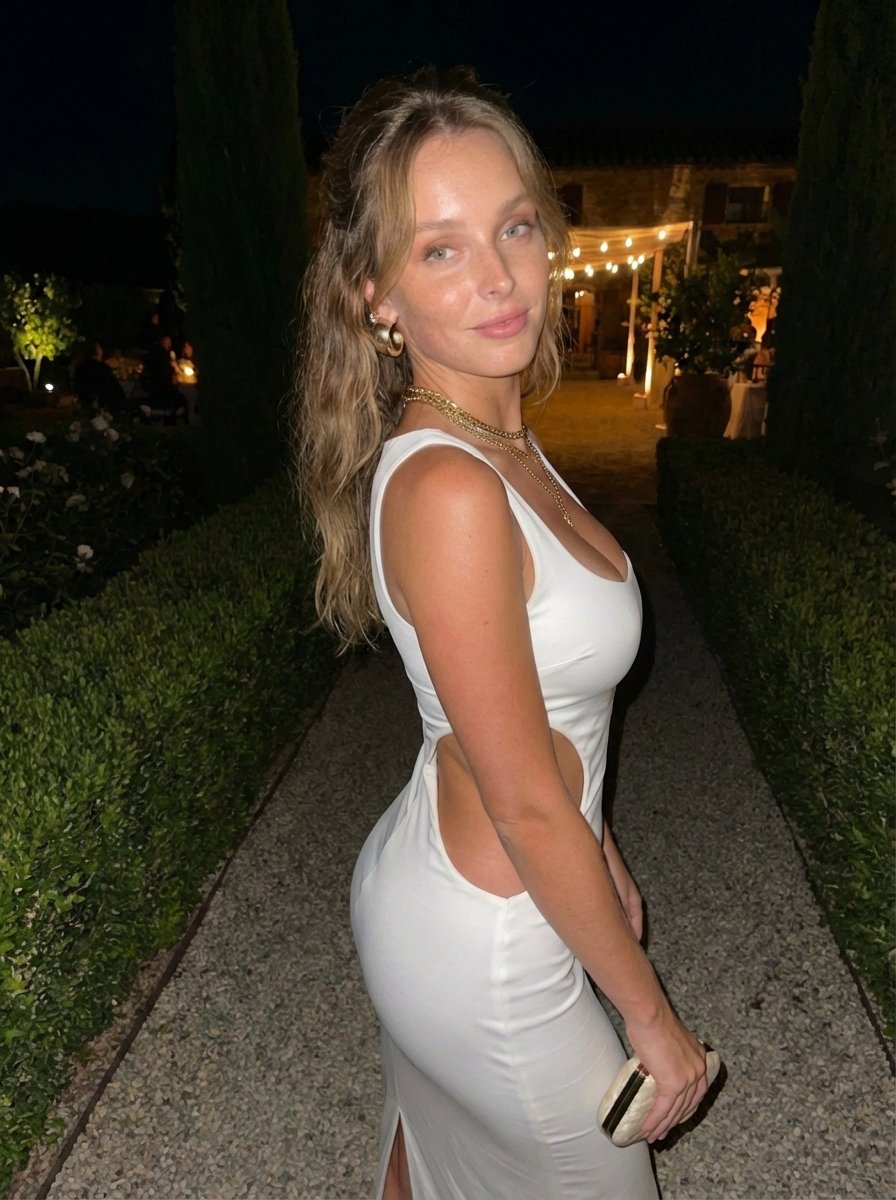
Candid Flash Photo of Woman in Avant-Garde Silk Gown
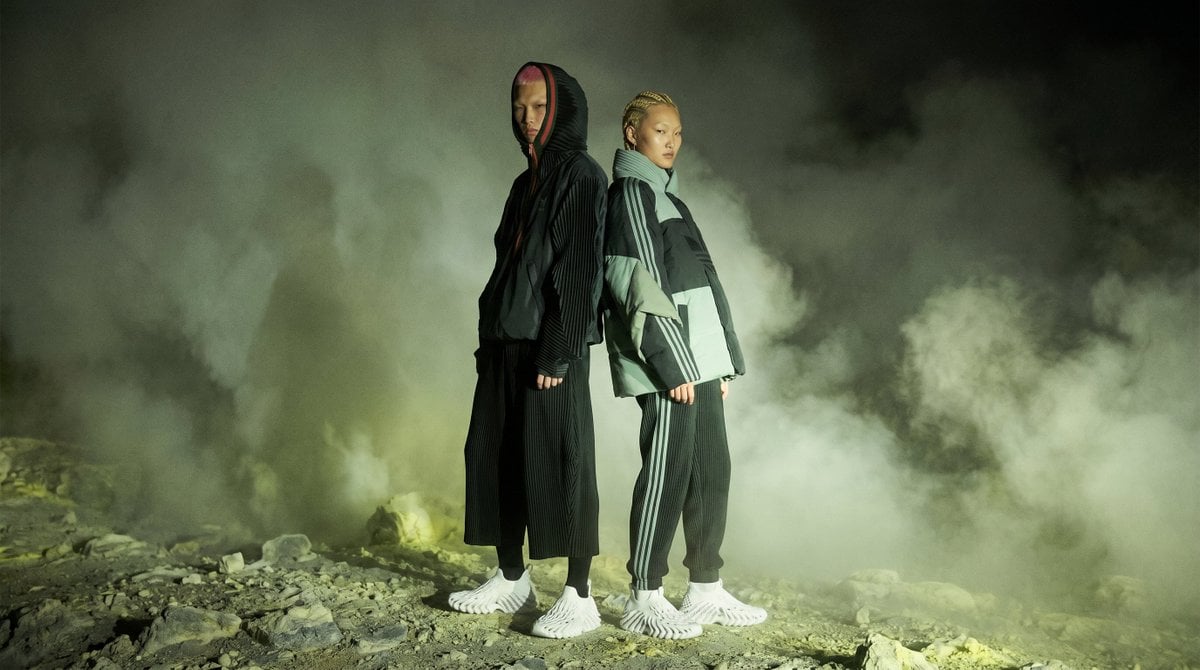
Volcanic Streetwear Fashion Editorial
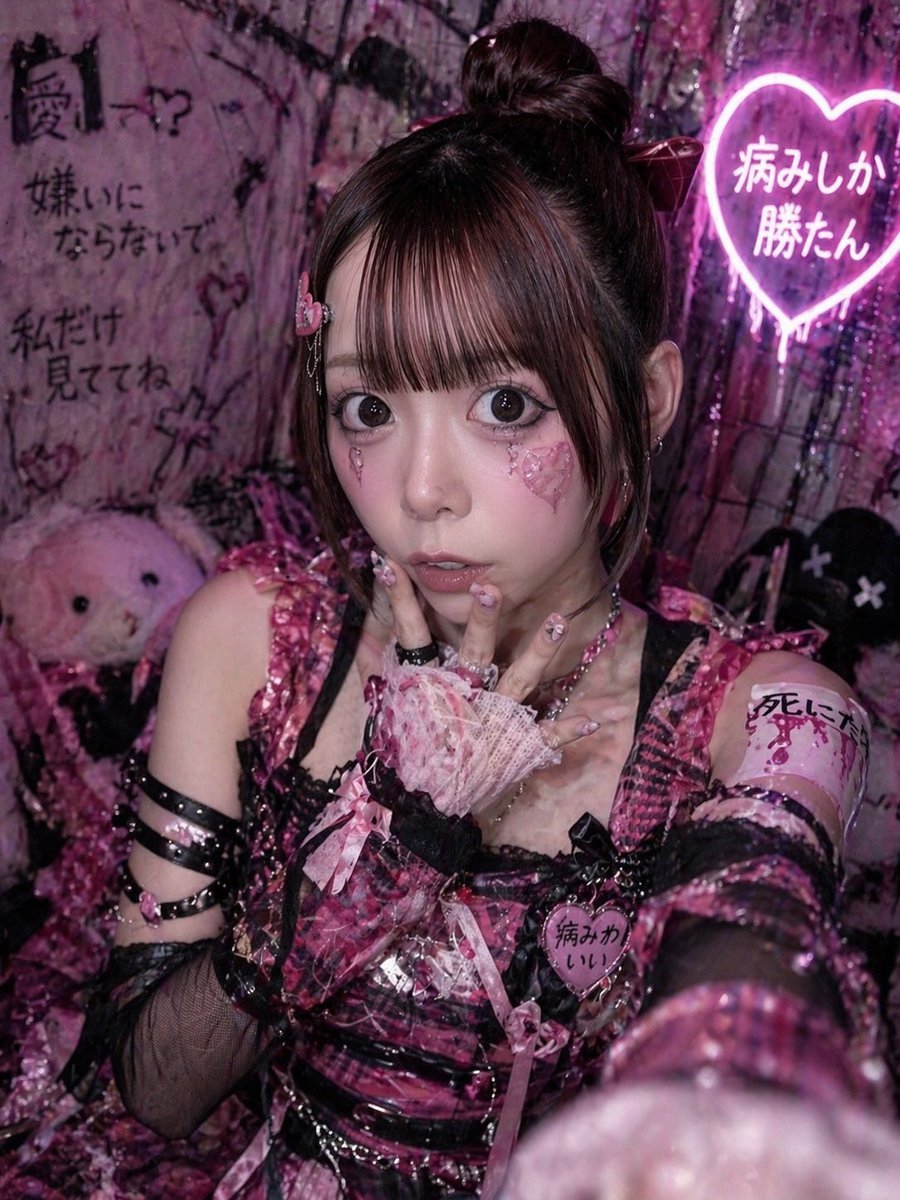
Yami Kawaii Idol Selfie
Browse template categories
Magic Edit GPT Image 2 Promo Banner questions
How do I use the Magic Edit GPT Image 2 Promo Banner template?
Add your photo if the template asks for one, edit the prompt if you like — the template's model and format are already selected — and press Generate. Your version opens in PicX Studio.
Can I customize the Magic Edit GPT Image 2 Promo Banner template?
Yes. You can change the subject, setting, lighting, mood, format, and available model controls before creating your image.
Is the Magic Edit GPT Image 2 Promo Banner template free?
Opening and editing this template is free. Generating uses credits, shown on the Generate button when you are signed in.
Which AI model should I use?
Start with GPT Image 2, which is the model associated with this template. You can compare another compatible model for a different finish.
Looking for something else? Browse all templates.

Your photo, any look
Thousands of ready templates for every top image and video model, from one credit balance.