
Excel VBA Community Promo Banner
Generates a square Japanese promotional infographic for an Excel and VBA community with benefits, member badge, CTA, and friendly green branding.
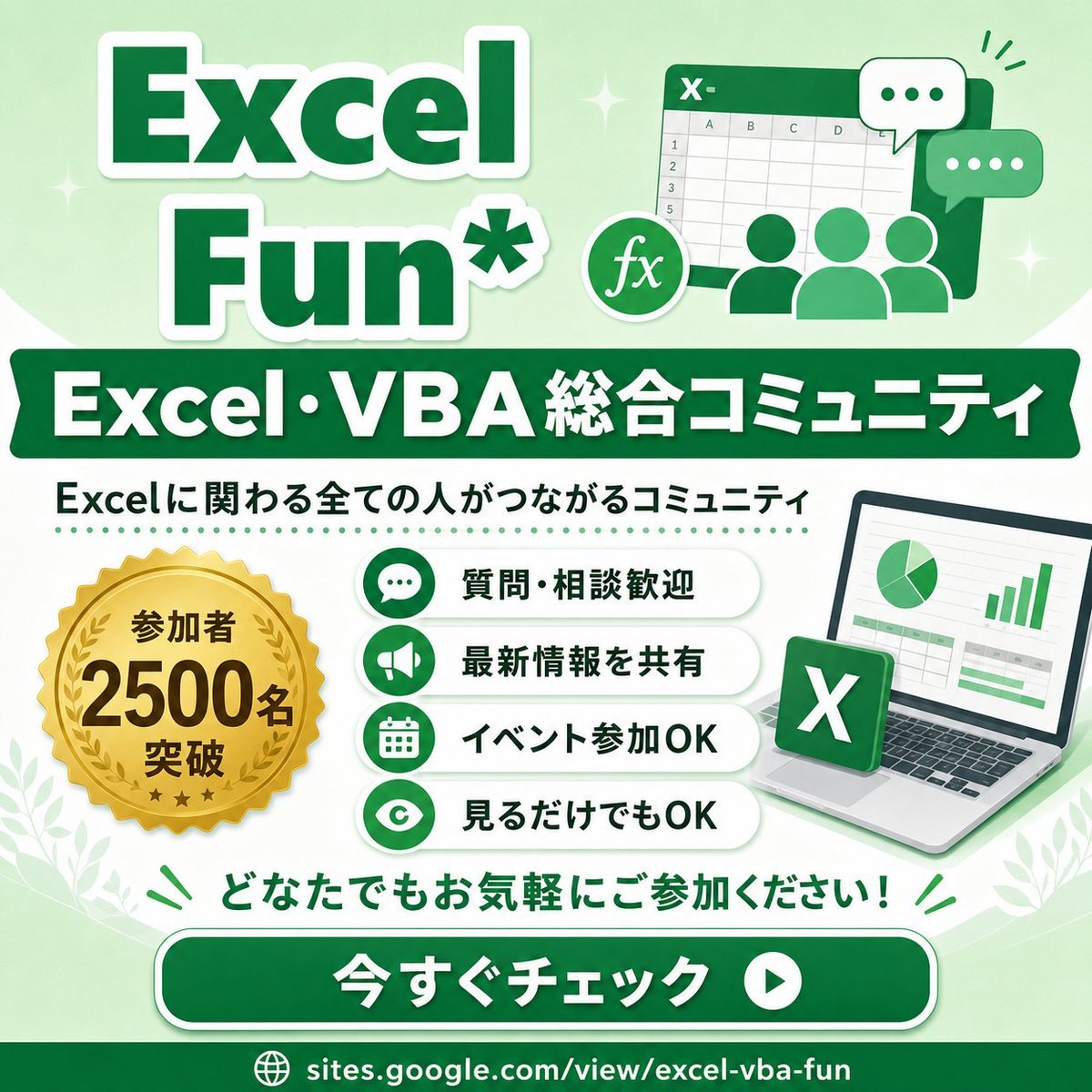
- Prompt included
- Model and format preset
- Premium template
The prompt behind this image
Copy the exact prompt behind Excel VBA Community Promo Banner, or open it in the studio and make it yours.
Goal: Create a square promotional infographic for an Excel and VBA online community, using a friendly green-and-white corporate style with Japanese typography. Canvas: 1:1 square social media image, 768 x 768 px feel, pale mint green gradient background with soft white curves, subtle sparkles, small leaf decorations in the lower corners, and a clean high-contrast layout. Layout: Large title block at the top left, illustration block at the top right, wide dark-green banner across the upper middle, main information area in the center, call-to-action button near the bottom, and URL footer at the very bottom. Text content: Top title reads “{argument name="main title" default="Excel Fun*"}” in oversized bold dark green letters with thick white outline and soft drop shadow. Middle ribbon banner reads “{argument name="community headline" default="Excel・VBA 総合コミュニティ"}” in bold white text. Under it, add the subtitle “{argument name="community description" default="Excelに関わる全ての人がつながるコミュニティ"}” in dark green. The gold medal badge says “{argument name="member badge text" default="参加者 2500名 突破"}”. Bottom encouragement line says “どなたでもお気軽にご参加ください!” in green. Large rounded CTA button says “{argument name="button text" default="今すぐチェック"}” in bold white, with a white circular play icon on the right. Footer URL reads “sites.google.com/view/excel-vba-fun” with a small globe icon. Subject details: Top-right illustration shows a stylized Excel spreadsheet window with an “X-” mark in the header, visible grid cells and column letters, three simplified green user silhouettes in front, a round “fx” formula icon, and exactly 2 chat bubbles: one white bubble with three green dots and one green bubble with three white dots. Center-left contains exactly 1 gold seal medal with serrated edge, laurel wreath, three small stars, and bold black-brown lettering. Center-right contains exactly 1 laptop angled slightly right, showing a spreadsheet dashboard with exactly 1 pie chart and exactly 1 green bar chart; place exactly 1 floating green Excel app tile with a white X in front of the laptop. Benefit list: Create exactly 4 horizontal rounded white pill cards stacked vertically in the center. Each card has a green circular icon on the left and bold dark green Japanese text on the right. The 4 cards are: 1) chat bubble icon, “質問・相談歓迎”; 2) megaphone icon, “最新情報を共有”; 3) calendar icon, “イベント参加OK”; 4) eye icon, “見るだけでもOK”. Add a dotted green divider line above the benefit list. Visual style: Bright vector illustration, glossy social-banner design, rounded shapes, thick outlines, soft shadows, clean Japanese sans-serif typography, mostly emerald green, mint green, white, and gold. Keep everything crisp, cheerful, accessible, and community-oriented. Constraints: Use exactly the counted elements described above; do not add extra benefit cards, extra badges, extra chat bubbles, QR codes, watermarks, or unrelated logos. Preserve the Japanese text exactly where specified.
How to use Excel VBA Community Promo Banner in 3 steps
- 1Upload ImagePNG, JPG or paste
Add your photo
Upload the photo the template builds on. The prompt, model and format are already set.
- 2…a portrait of your subject in softgolden-hour light, 85mm…
Personalize
Edit the subject and creative details for your destination.
- 3Generate
Generate
Press Generate — your image is created in PicX Studio, so you can compare it with the original and refine one variable at a time.
More like this
Templates with the same subject, style or setup. Open one to see its prompt.

Japanese Eco-Community Promo Poster
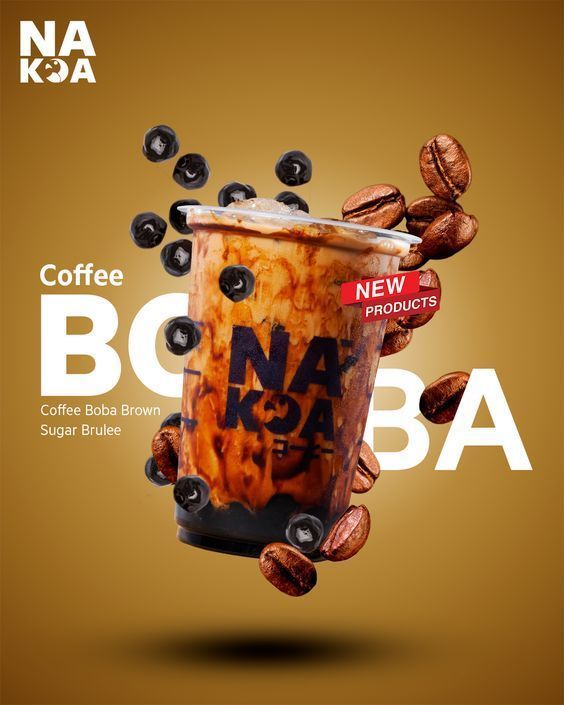
Coffee Boba Product Poster
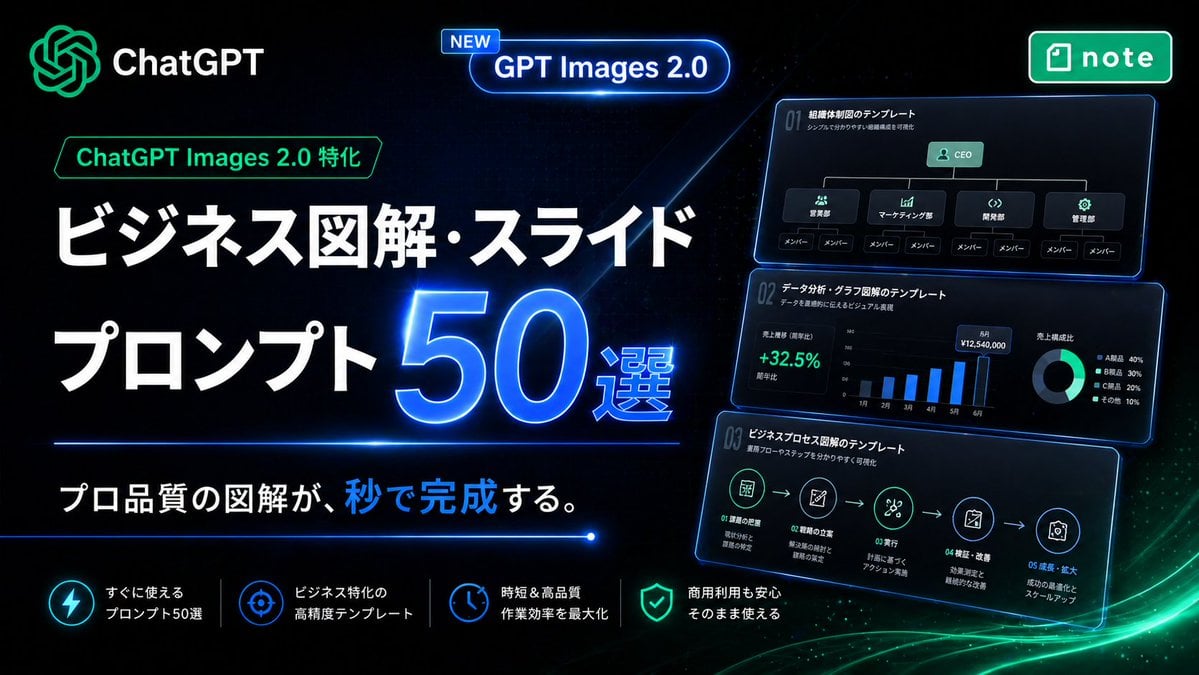
Neon Japanese AI Prompt Promo Banner
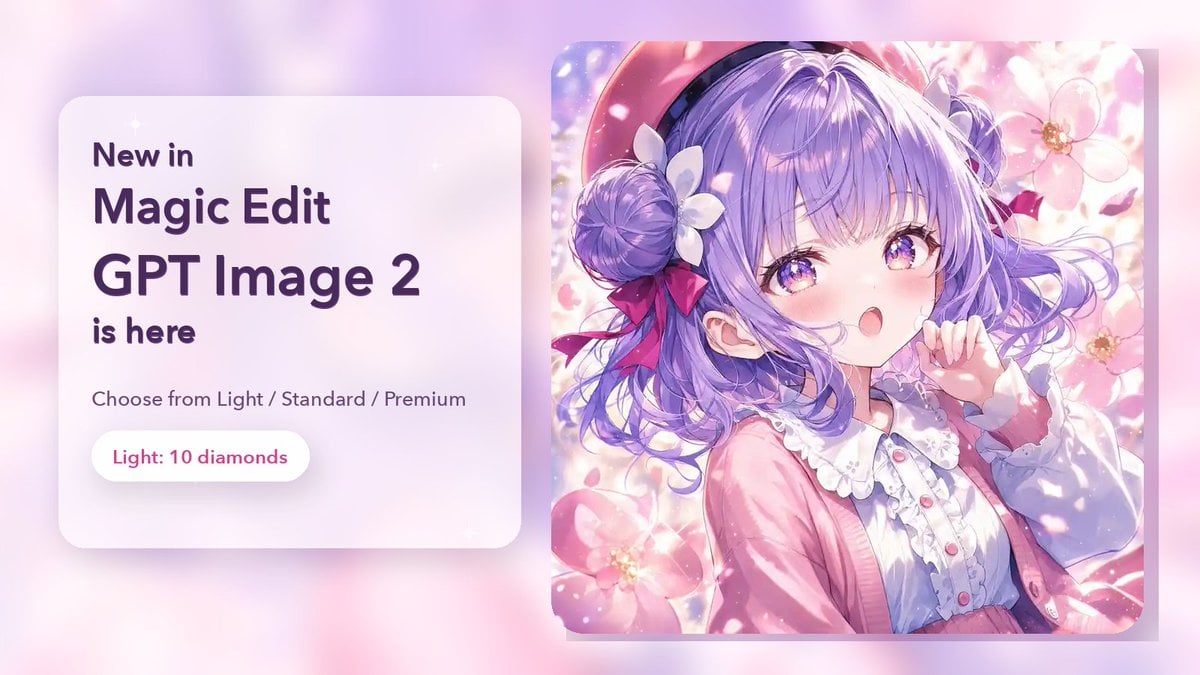
Magic Edit GPT Image 2 Promo Banner

Japanese Educational Promo Banner
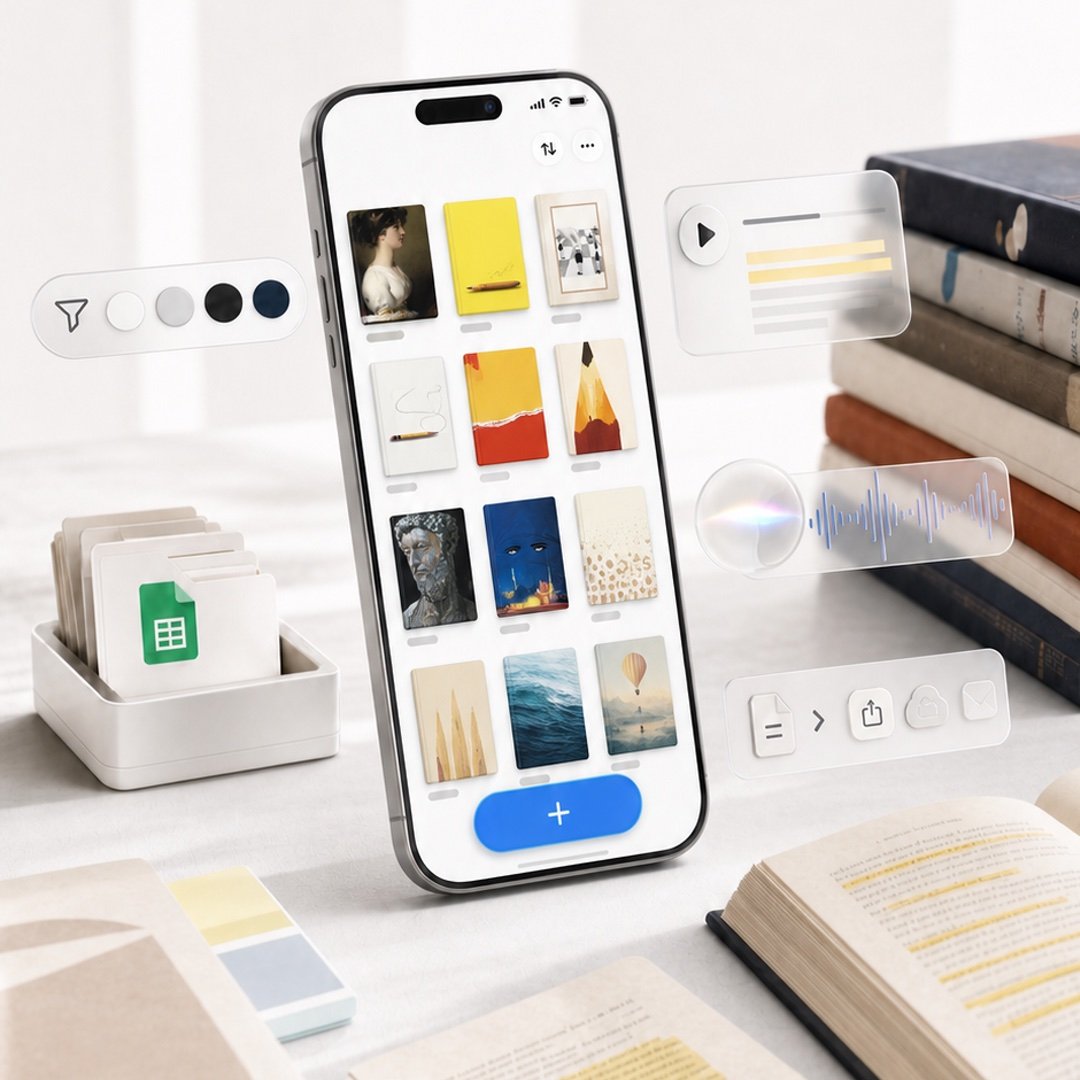
Highlighted App Promo Cover
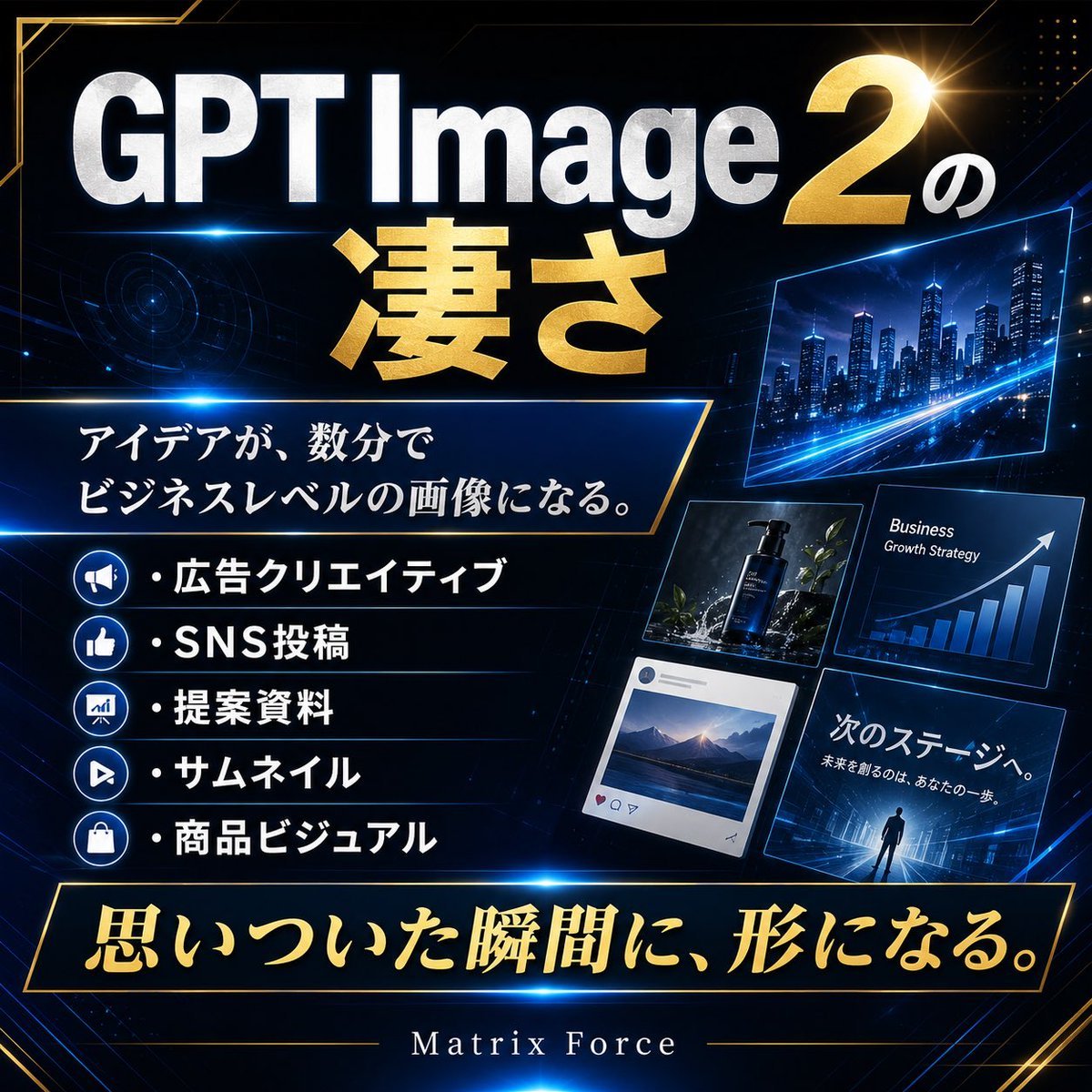
Futuristic GPT Image 2 Promo Graphic
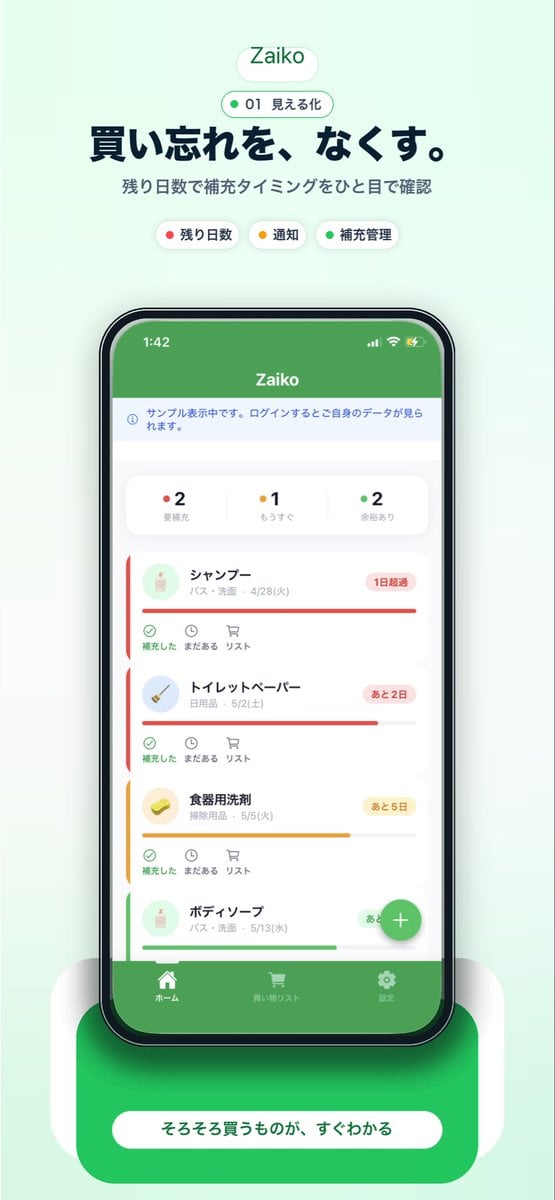
Japanese Inventory App Promo Poster
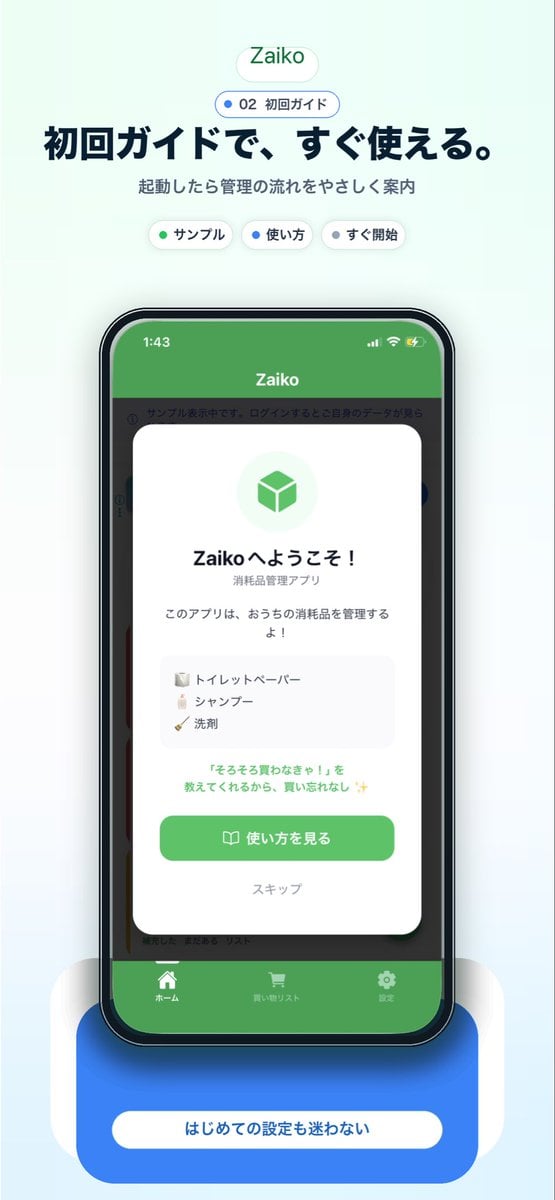
Japanese app onboarding promo mockup
Japanese Pro Plan App Promo
Building Pyramids in Excel Poster
Elegant Ballet School Promo Grid
Make it yours
Excel VBA Community Promo Banner works as-is. These are the safest ways to change it without losing the look.
Change one field
Copy a single group, rewrite it, and generate again so you can see what that field is doing.
Keep the frame, change the subject
Hold the composition and light of Excel VBA Community Promo Banner, then swap wardrobe, props or the person for a new take.
| If the result… | Why | Fix |
|---|---|---|
| The result drifts from the preview | Too many fields changed at once. | Reuse Excel VBA Community Promo Banner as-is first, then change one group — subject, light, or setting. |
| The model over-stylizes the scene | The prose prompt leaves finish and camera underspecified. | Add one camera or lighting sentence and stay on GPT Image 2. |
More GPT Image 2 templates
Other prompts made for GPT Image 2.

Six VTuber Japanese Logo Sheet

Realistic Portrait of Woman and Deer

The Vista Modular Condo Poster

AI Model Routing Comparison Infographic

2.5D Anime Art Board

Isometric Productivity Desk Scene

New York Double Exposure Poster

Four-Panel AI Landscape Comparison

Japanese Tatami Lifestyle Magazine Cover

NESCAFÉ Coffee Map Poster
More image prompts
Fresh picks from across the catalog.
Political Speaker in Provocative Military Uniform
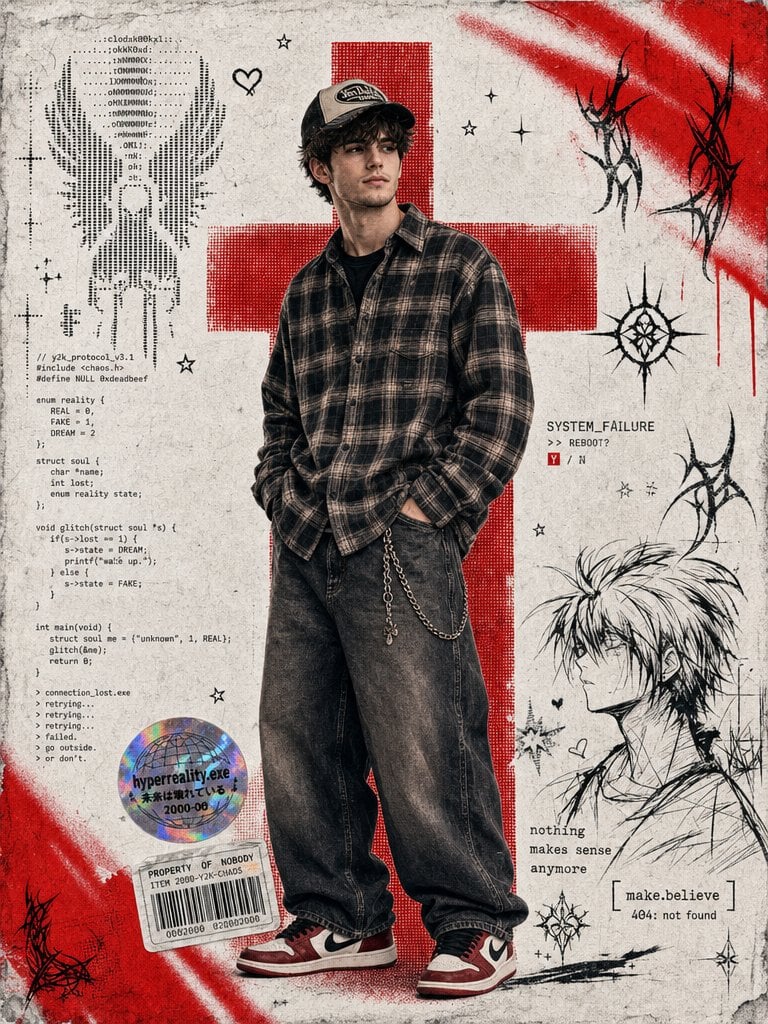
Y2K Cyber-Grunge Collage Poster

Hyper-realistic cinematic cricket scene prompt for Gemini App

Sailor Moon Doodle Selfie
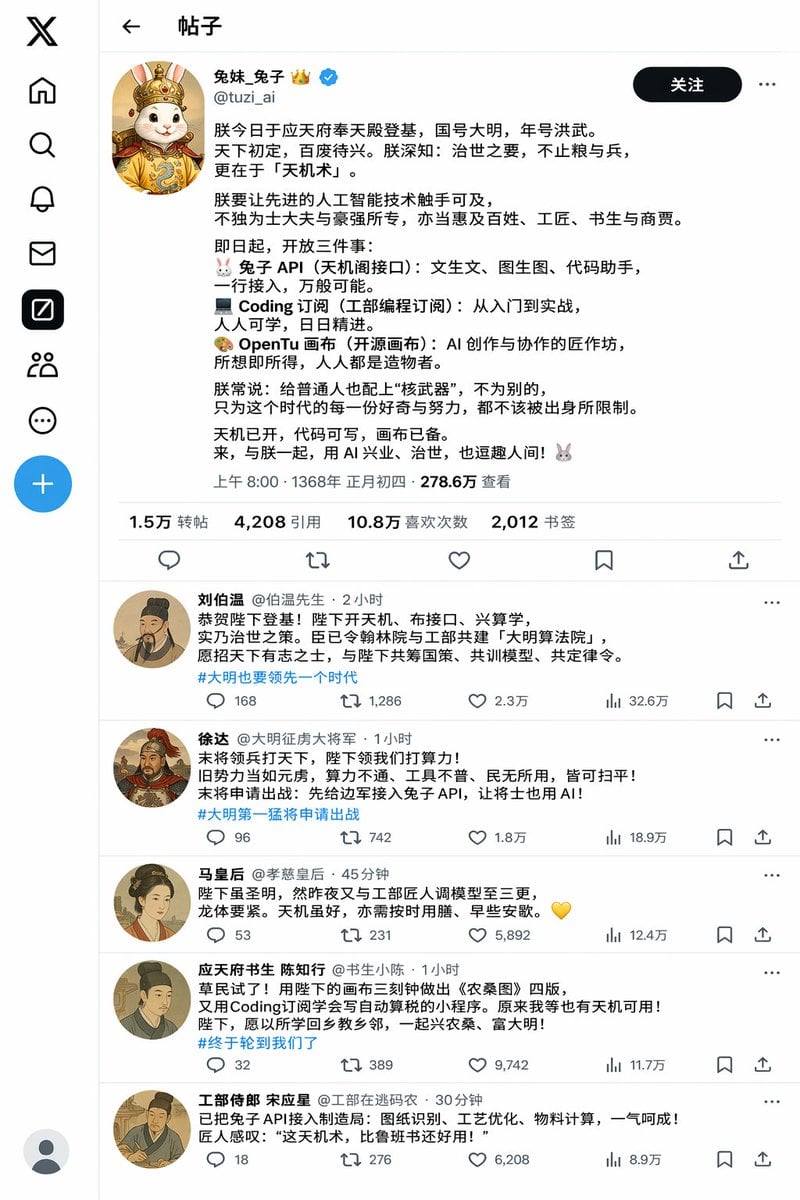
Historical Rabbit King Social Media Page
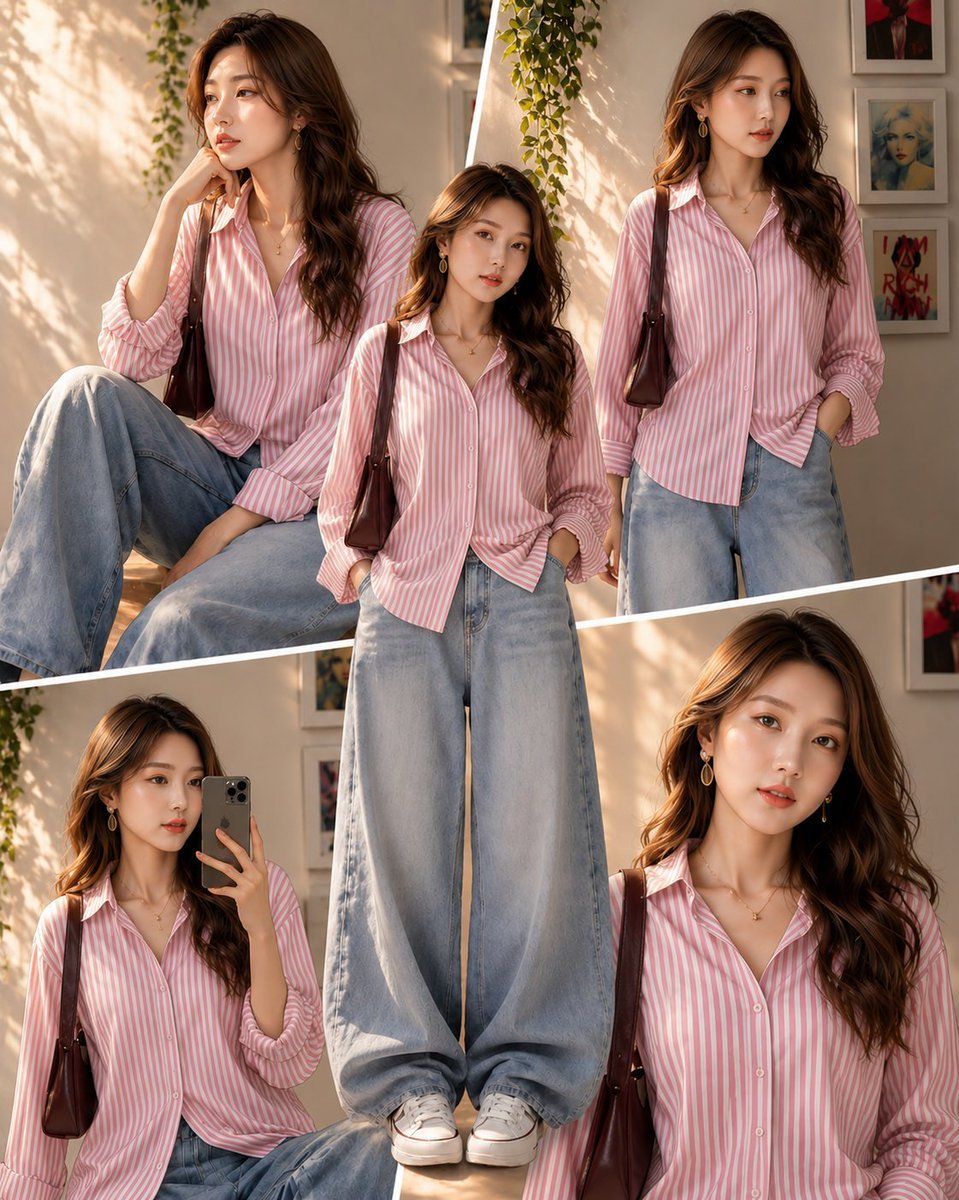
Sunlit Fashion Editorial Collage

Character Expression and Pose Variation Prompt (20 Patterns)

Valentine Angel Heart Glamour Editorial

Photorealistic Velvet Dress Portrait

Moody Euphoria Bedroom Portrait
Browse template categories
Excel VBA Community Promo Banner questions
How do I use the Excel VBA Community Promo Banner template?
Add your photo if the template asks for one, edit the prompt if you like — the template's model and format are already selected — and press Generate. Your version opens in PicX Studio.
Can I customize the Excel VBA Community Promo Banner template?
Yes. You can change the subject, setting, lighting, mood, format, and available model controls before creating your image.
Is the Excel VBA Community Promo Banner template free?
Opening and editing this template is free. Generating uses credits, shown on the Generate button when you are signed in.
Which AI model should I use?
Start with GPT Image 2, which is the model associated with this template. You can compare another compatible model for a different finish.
Looking for something else? Browse all templates.

Your photo, any look
Thousands of ready templates for every top image and video model, from one credit balance.