
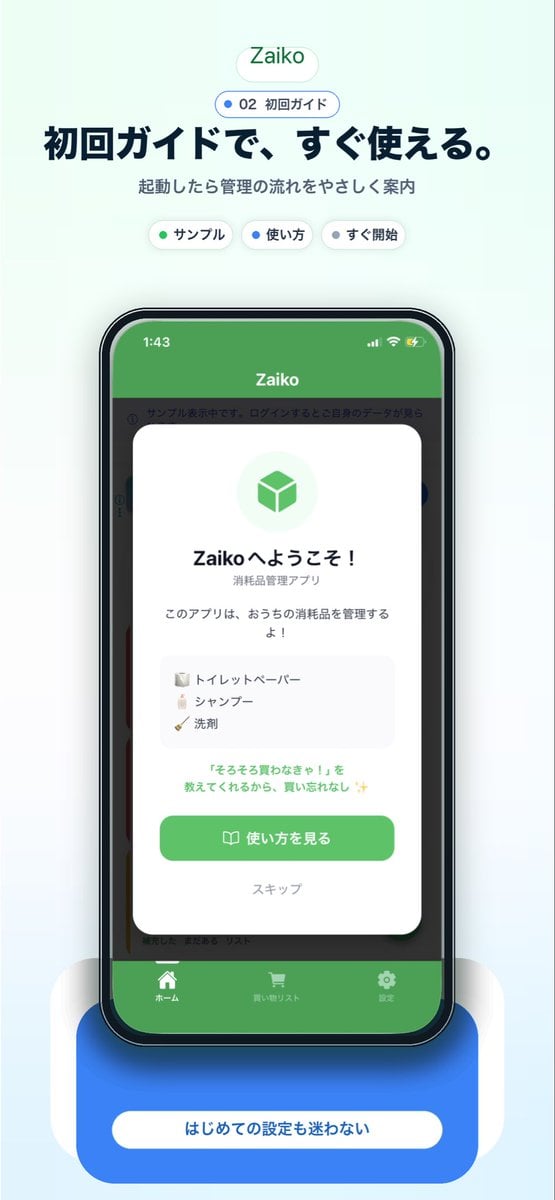
Japanese app onboarding promo mockup
This generates a polished Japanese mobile app marketing visual featuring a smartphone mockup and onboarding screen, ideal for landing pages, app store assets, or social media promotion.
- Prompt included
- Model and format preset
- Free template
The prompt behind this image
Copy the exact prompt behind Japanese app onboarding promo mockup, or open it in the studio and make it yours.
A clean modern app-promo poster on a very pale mint-blue background, centered and vertically composed like a landing page screenshot for a Japanese inventory app. At the top, place a small rounded white pill logo with soft shadow reading {argument name="app name" default="Zaiko"} in green. Beneath it, add a smaller rounded outlined badge with a blue dot and the text "02 初回ガイド". Below that, set a large bold Japanese headline in dark navy: {argument name="headline text" default="初回ガイドで、すぐ使える。"}, followed by a smaller gray subtitle: "起動したら管理の流れをやさしく案内". Under the subtitle, show exactly 3 small rounded white category chips with soft shadows, evenly spaced: "サンプル" with a green dot, "使い方" with a blue dot, and "すぐ開始" with a dark dot. In the center, show a realistic modern smartphone mockup front view with a black bezel, slightly rounded corners, subtle reflections, and a dramatic soft blue glow under it. The phone screen displays the app UI with a green top bar and the title "Zaiko" in white, iPhone-style status icons at top, and a dimmed app interface behind a centered onboarding modal card. The white modal has rounded corners and a soft drop shadow, with a pale green circular icon area containing a green cube symbol at top. Then a bold welcome title in Japanese, "Zaikoへようこそ!", a smaller subtitle "消耗品管理アプリ", and body text "このアプリは、おうちの消耗品を管理するよ!". Add a light gray rounded list box containing exactly 3 sample inventory items on separate lines with tiny icons: "トイレットペーパー", "シャンプー", and "洗剤". Below that, add a small green-highlighted sentence: "『そろそろ買わなきゃ!』を教えてくれるから、買い忘れなし ✨". At the bottom of the modal, include a large rounded green primary button labeled {argument name="button text" default="使い方を見る"} with a small book icon, and below it a muted text link "スキップ". Behind the modal, the app UI should be visible but subdued: a green header, side category strips, and a bottom tab bar with exactly 3 tabs labeled "ホーム", "買い物リスト", and "設定", each with simple white icons. Beneath the phone, place a large rounded blue callout card with soft shadow and a centered white pill label reading {argument name="footer text" default="はじめての設定も迷わない"}. Use a polished Apple-style SaaS marketing aesthetic, soft gradients, subtle shadows, rounded UI elements, crisp typography, and a friendly trustworthy feel.
How to use Japanese app onboarding promo mockup in 3 steps
- 1Upload ImagePNG, JPG or paste
Add your photo
Upload the photo the template builds on. The prompt, model and format are already set.
- 2…a portrait of your subject in softgolden-hour light, 85mm…
Personalize
Edit the subject and creative details for your destination.
- 3Generate
Generate
Press Generate — your image is created in PicX Studio, so you can compare it with the original and refine one variable at a time.
More like this
Templates with the same subject, style or setup. Open one to see its prompt.
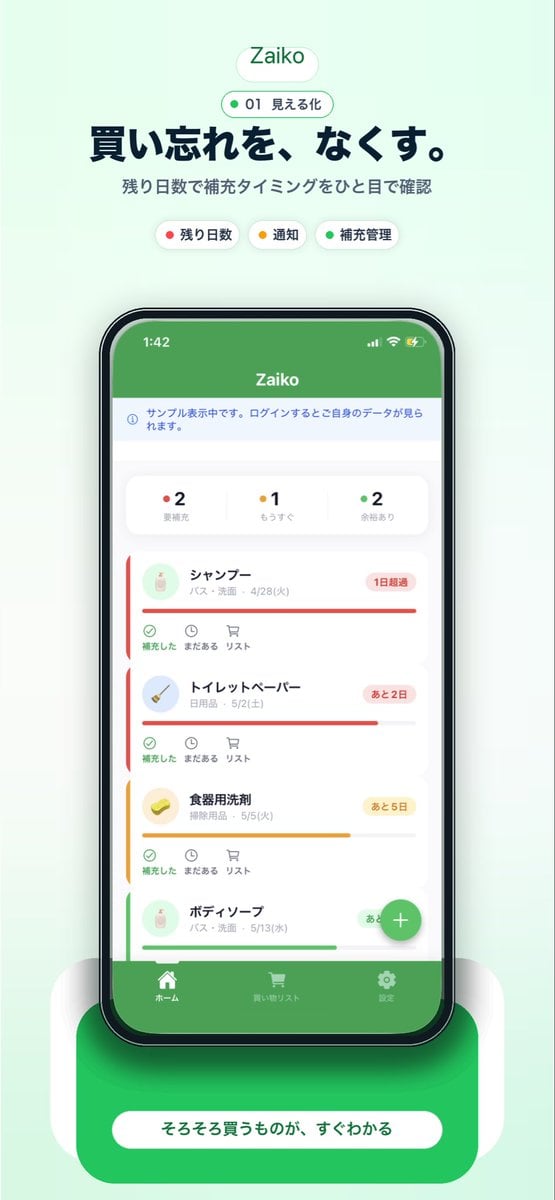
Japanese Inventory App Promo Poster
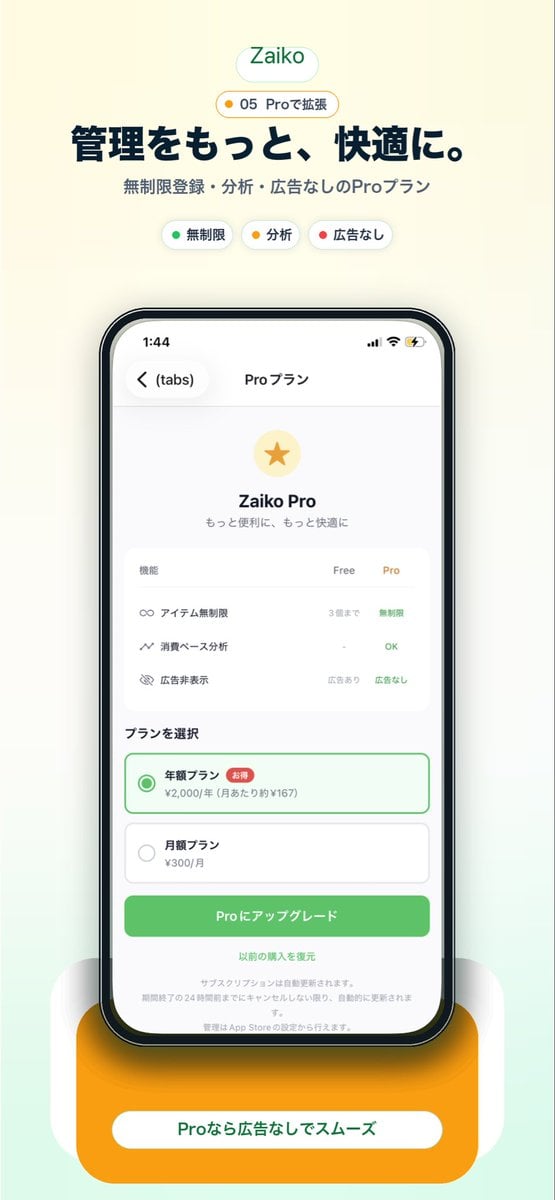
Japanese Pro Plan App Promo

Minecraft Japanese Research Lab Exploration
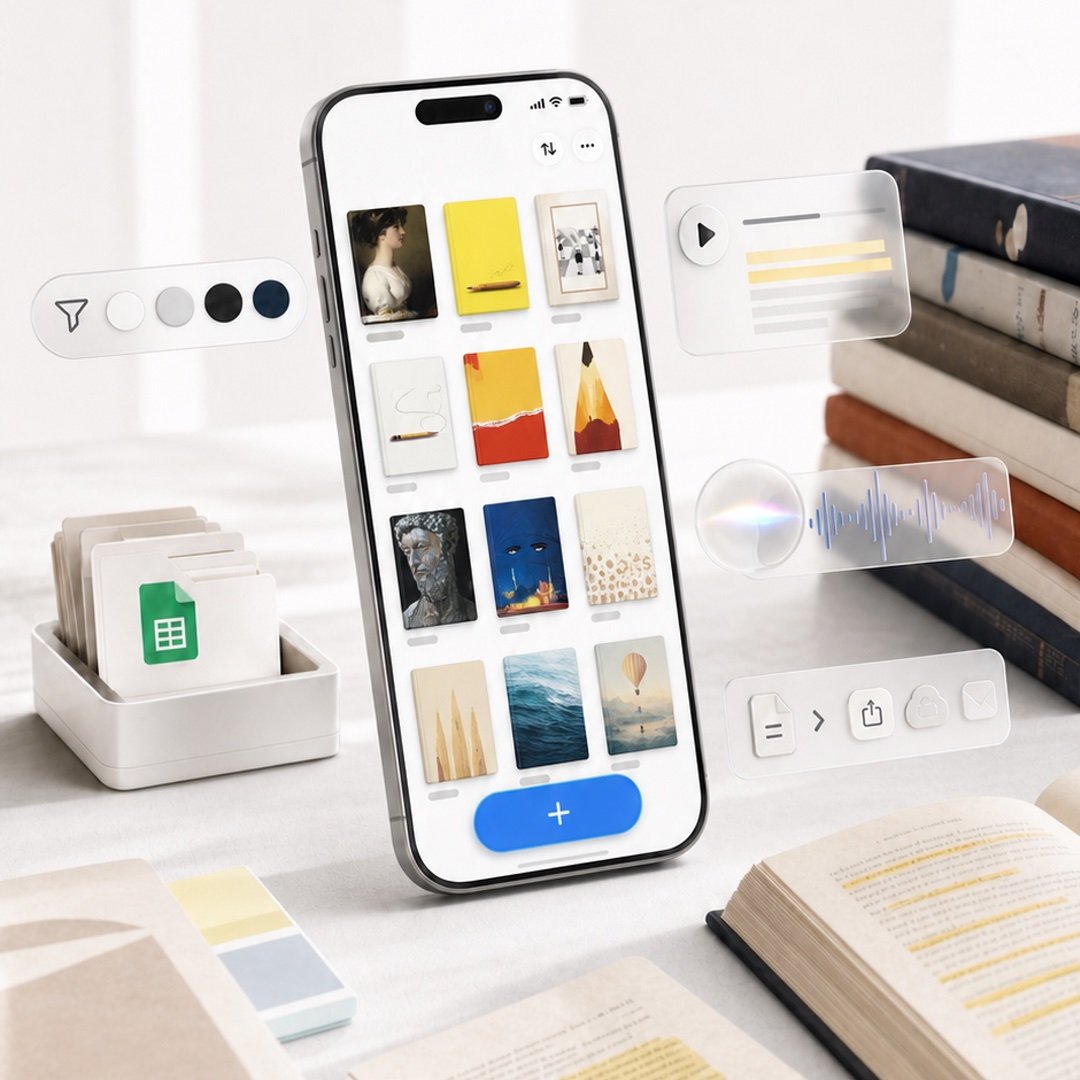
Highlighted App Promo Cover
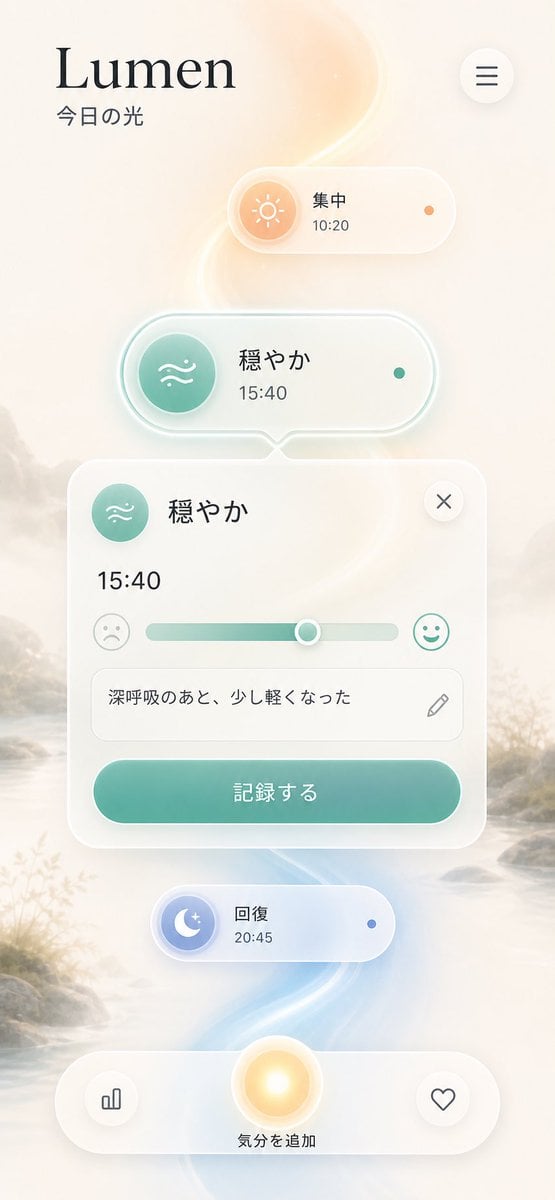
Lumen iOS Wellness App Mockup
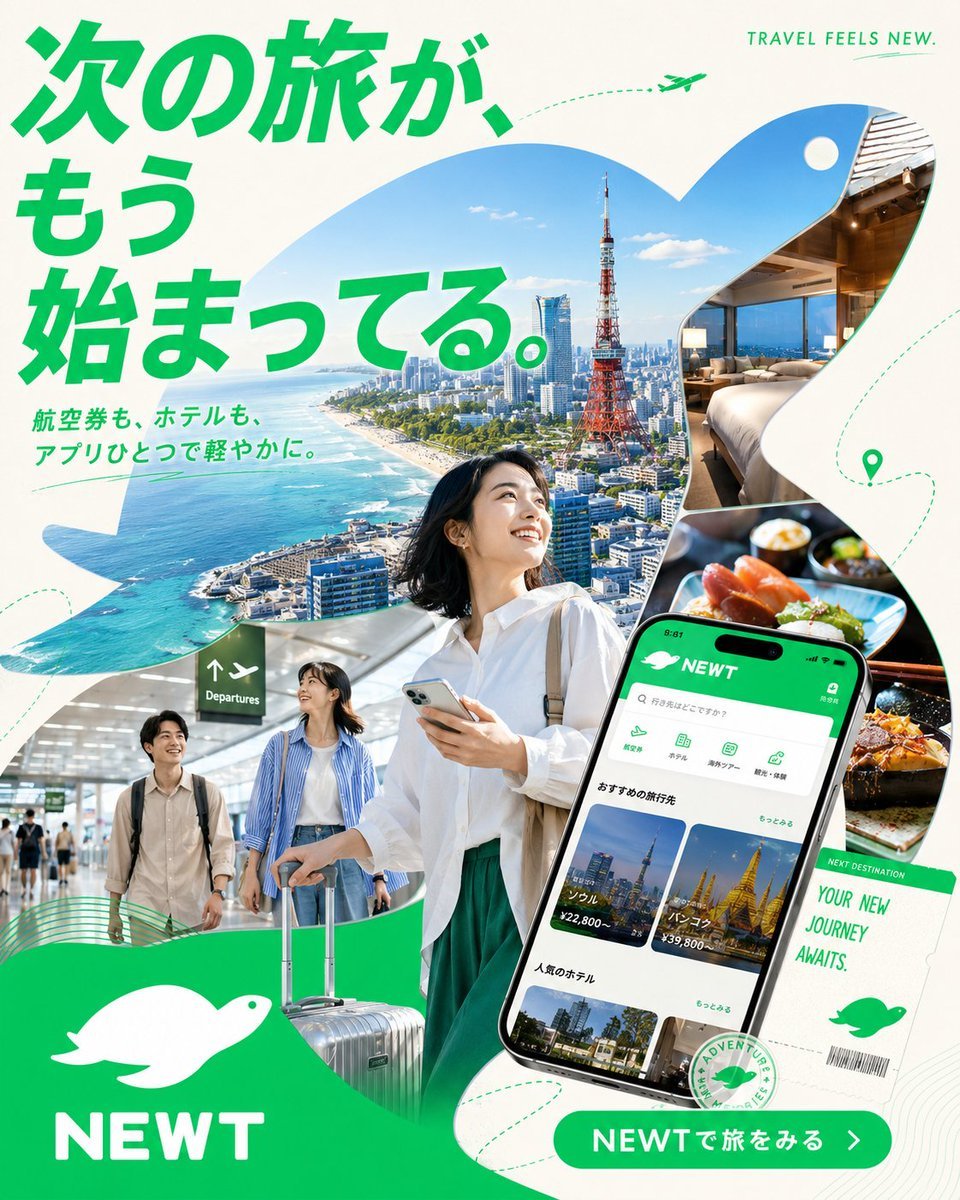
Japanese NEWT Travel App Poster
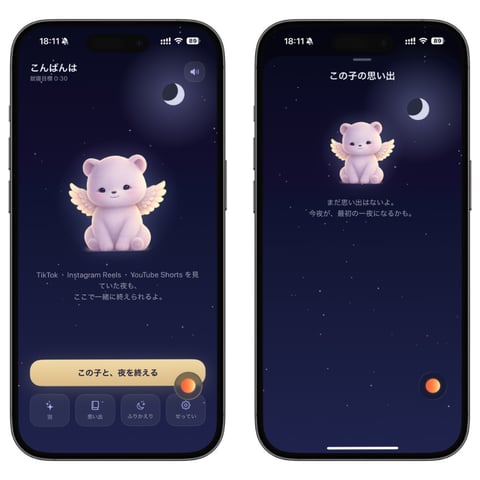
Bedtime Companion App Mockup
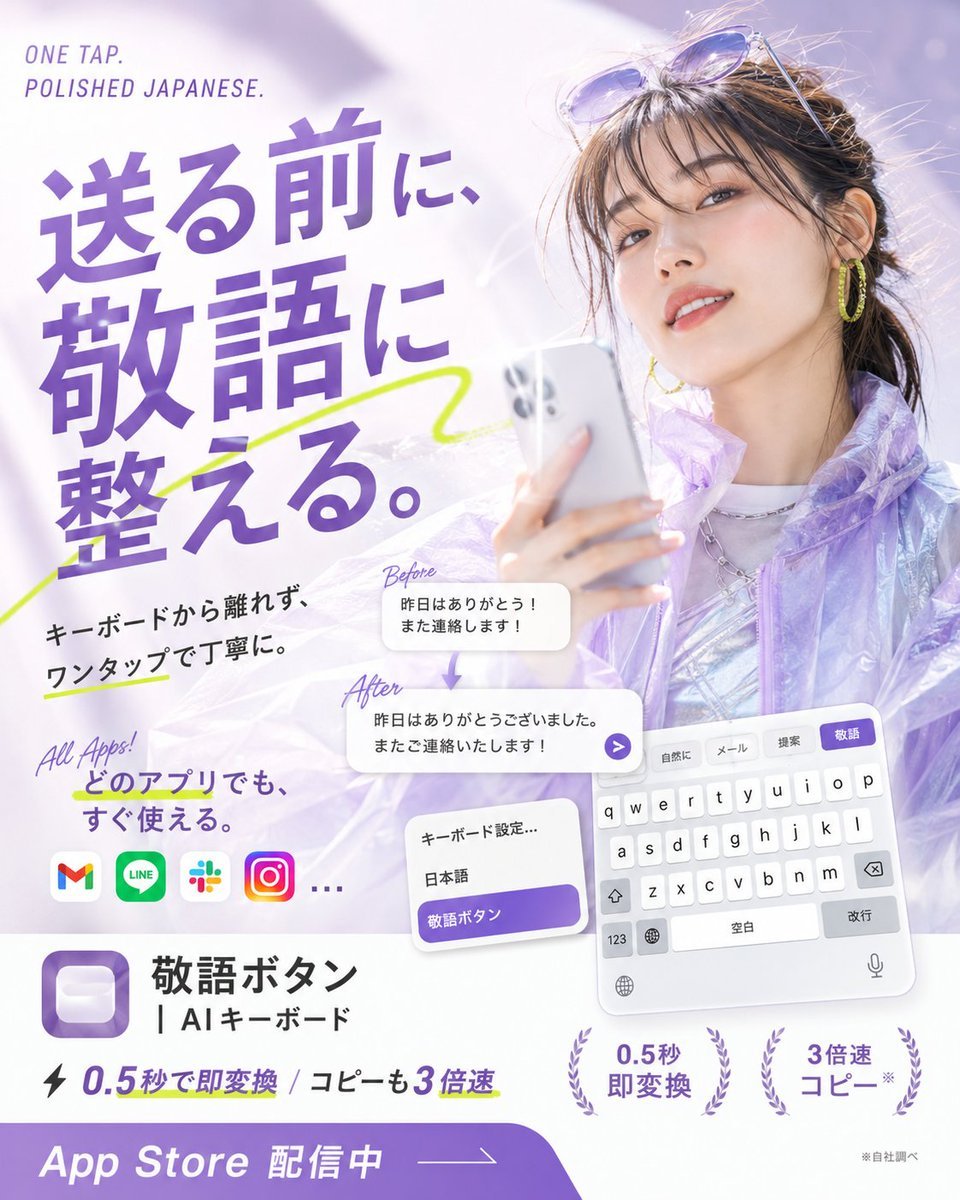
Japanese AI Keyboard App Poster

Japanese Mystery Website Mockup

Japanese Architectural Concrete Studio Fashion Campaign

Japanese Minimalist Concrete Studio Fashion Editorial

Blue Backdrop Luxury Fashion Portrait Campaign
Make it yours
Japanese app onboarding promo mockup works as-is. These are the safest ways to change it without losing the look.
Change one field
Copy a single group, rewrite it, and generate again so you can see what that field is doing.
Keep the frame, change the subject
Hold the composition and light of Japanese app onboarding promo mockup, then swap wardrobe, props or the person for a new take.
| If the result… | Why | Fix |
|---|---|---|
| The result drifts from the preview | Too many fields changed at once. | Reuse Japanese app onboarding promo mockup as-is first, then change one group — subject, light, or setting. |
| The model over-stylizes the scene | The prose prompt leaves finish and camera underspecified. | Add one camera or lighting sentence and stay on GPT Image 2. |
More GPT Image 2 templates
Other prompts made for GPT Image 2.

Six VTuber Japanese Logo Sheet

Realistic Portrait of Woman and Deer

The Vista Modular Condo Poster

AI Model Routing Comparison Infographic

2.5D Anime Art Board

Isometric Productivity Desk Scene

New York Double Exposure Poster

Four-Panel AI Landscape Comparison

Japanese Tatami Lifestyle Magazine Cover

NESCAFÉ Coffee Map Poster
More image prompts
Fresh picks from across the catalog.
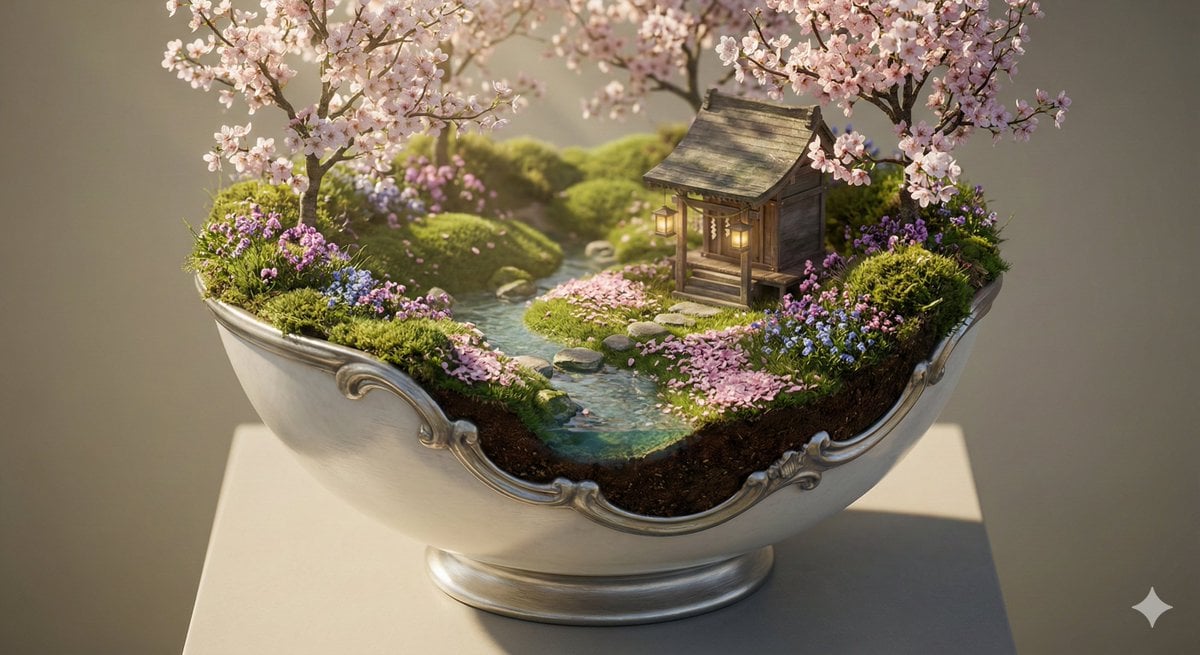
Ornate Diorama of a Spring Shrine Prompt
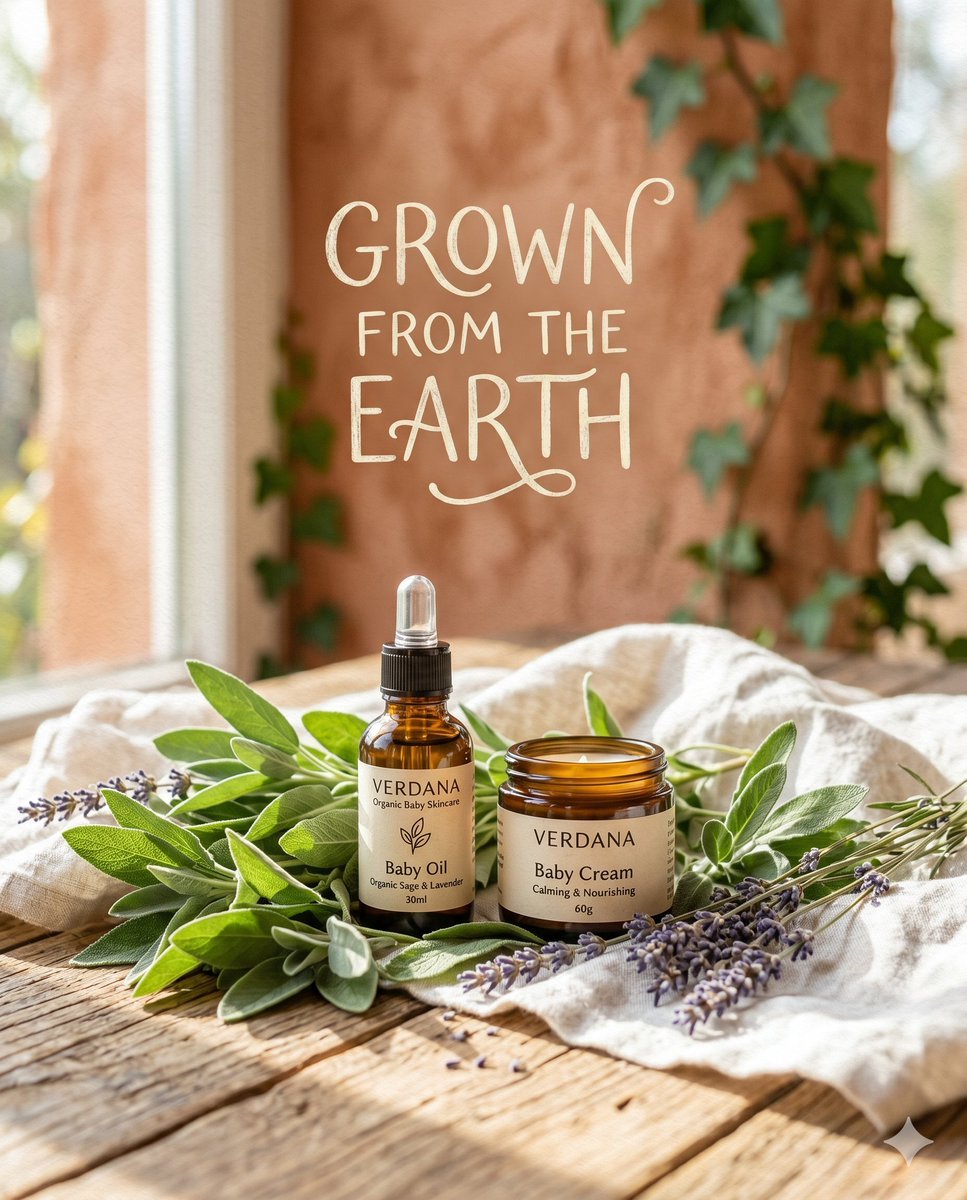
Organic Skincare Product Advertisement

Candid Upscale Lounge Portrait Prompt

Golden Hour Portrait on Coastal Cliff in South Africa
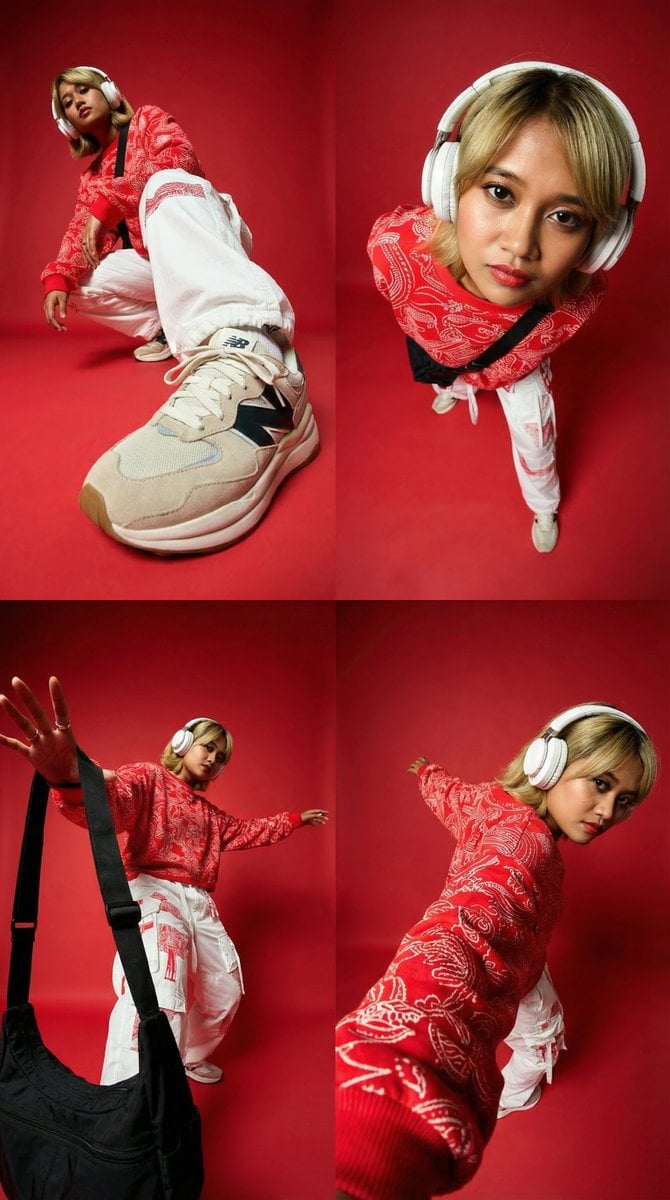
Dynamic Perspective Close-Up Transformation

Dreamy 16-Photo Couple Walk Collage

Surreal Rooftop Infinity Pool Portrait
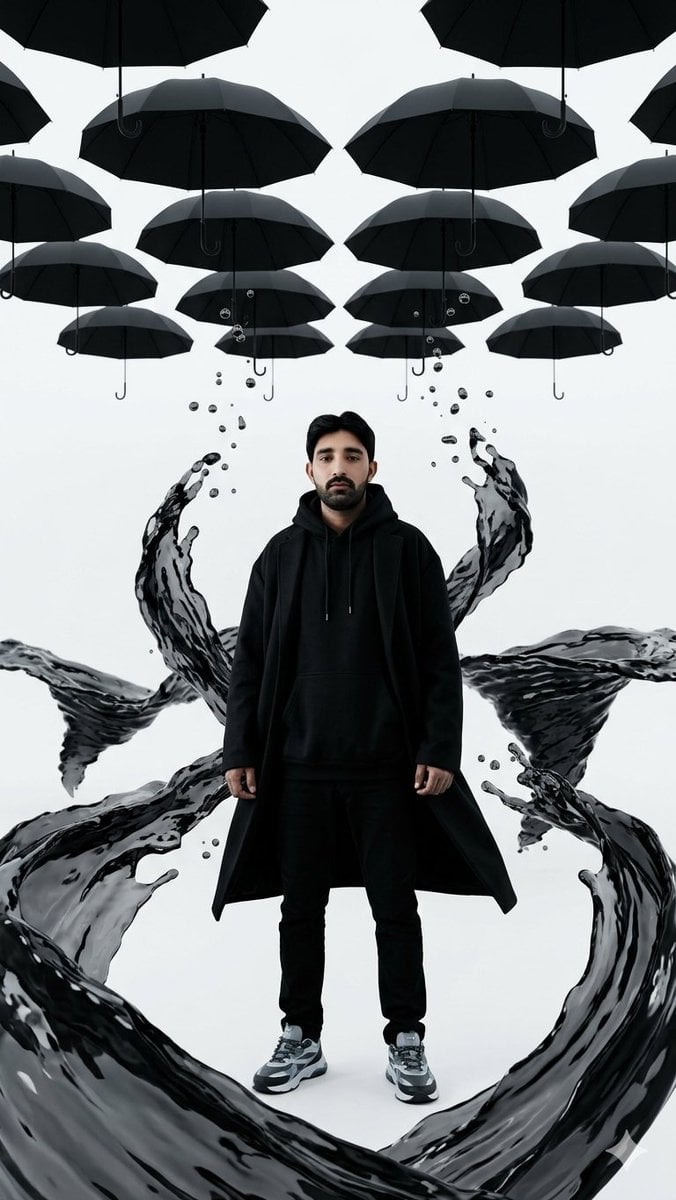
Surreal Man with Black Water and Umbrellas

Vibrant Fusion Street Food Scene

Ultra-Realistic Man Holding Cartoon Miniature of Self
Browse template categories
Japanese app onboarding promo mockup questions
How do I use the Japanese app onboarding promo mockup template?
Add your photo if the template asks for one, edit the prompt if you like — the template's model and format are already selected — and press Generate. Your version opens in PicX Studio.
Can I customize the Japanese app onboarding promo mockup template?
Yes. You can change the subject, setting, lighting, mood, format, and available model controls before creating your image.
Is the Japanese app onboarding promo mockup template free?
Opening and editing this template is free. Generating uses credits, shown on the Generate button when you are signed in.
Which AI model should I use?
Start with GPT Image 2, which is the model associated with this template. You can compare another compatible model for a different finish.
Looking for something else? Browse all templates.

Your photo, any look
Thousands of ready templates for every top image and video model, from one credit balance.