
Bedtime Companion App Mockup
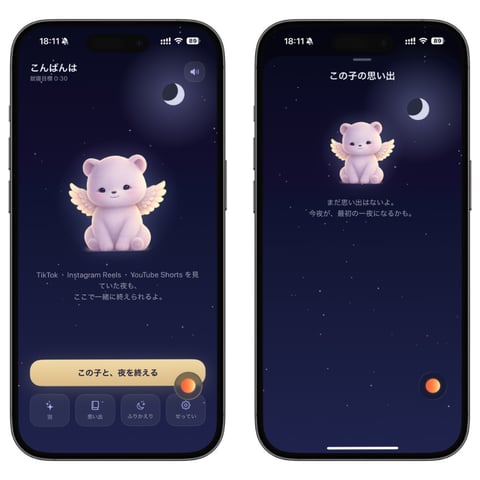
A two-screen iPhone app prototype for a calming Japanese bedtime companion experience with a winged plush mascot and night-sky UI.
- Prompt included
- Model and format preset
- Premium template
The prompt behind this image
Copy the exact prompt behind Bedtime Companion App Mockup, or open it in the studio and make it yours.
Goal: Create a polished mobile app prototype mockup showing two iPhone screens side by side for a gentle bedtime companion app centered on {argument name="character name" default="this child"}, with a dreamy night-sky theme and a cute plush guardian character. Canvas: Square 1:1 image on a plain white background. Place exactly 2 black iPhone mockups next to each other, left and right, both with rounded corners, Dynamic Island, status bar, and bottom home indicator. Use realistic device frames with subtle shadows. Visual style: Dark navy-to-indigo gradient backgrounds, tiny scattered stars, soft glowing moonlight, premium Japanese wellness-app design, calm and minimal. Use rounded UI elements, subtle glassmorphism, muted lavender panels, and warm orange accent buttons. The overall mood should feel sleepy, tender, safe, and magical. Shared character details: In both screens, show exactly 1 central mascot: a pastel lavender teddy-bear-like baby creature with small rounded ears, simple black eyes, tiny smile, soft plush texture, sitting pose, and small cream angel wings. Add a soft glow around the mascot. Include exactly 1 crescent moon icon per screen near the upper right area. Left screen layout: Status bar at top shows 18:11 with small signal, Wi-Fi, and battery icons. Near the top left, display the greeting {argument name="greeting text" default="こんばんは"} in white, with a smaller line beneath reading {argument name="sleep countdown text" default="睡眠時間 0:30"}. Near the upper right, include exactly 1 small circular speaker/audio button. Center the winged plush mascot in the upper-middle. Below it, add small Japanese explanatory text: “TikTok・Instagram Reels・YouTube Shorts を見ていた君が、ここで一緒に眠れるれるよ。” Near the bottom, place exactly 1 large rounded cream-colored primary button labeled {argument name="primary button text" default="この子と、夜を終える"}. Under it, place exactly 4 small rounded navigation buttons in a row, each with a simple line icon and Japanese labels: 1) sparkle icon, “森”; 2) phone/rectangle icon, “日々みる”; 3) crescent/sleep icon, “おやすみ”; 4) gear icon, “せってい”. Add exactly 1 floating orange circular action button overlapping the lower-right edge of the large cream button. Right screen layout: Status bar at top again shows 18:11 and phone icons. At the very top center, include a short thin lavender handle line. Centered below, show the title {argument name="memory title" default="この子の思い出"} in white. Place the winged plush mascot below the title, slightly smaller than on the left screen. Put the crescent moon to the upper right of the mascot. Under the mascot, add centered small Japanese text: “まだ思い出はないよ。今夜が、最初の一夜になるかも。” Leave the lower half mostly empty with sparse stars. Add exactly 1 small orange floating circular button near the lower-right side of the screen. Include the white home indicator at the bottom. Constraints: Use exactly 2 phone screens, exactly 2 mascots total, exactly 2 crescent moons total, exactly 4 bottom navigation buttons on the left screen, and exactly 2 orange floating action buttons total. Keep all typography crisp and legible, with Japanese text rendered cleanly. Do not add extra panels, logos, watermarks, or additional characters.
How to use Bedtime Companion App Mockup in 3 steps
- 1Upload ImagePNG, JPG or paste
Add your photo
Upload the photo the template builds on. The prompt, model and format are already set.
- 2…a portrait of your subject in softgolden-hour light, 85mm…
Personalize
Edit the subject and creative details for your destination.
- 3Generate
Generate
Press Generate — your image is created in PicX Studio, so you can compare it with the original and refine one variable at a time.
More like this
Templates with the same subject, style or setup. Open one to see its prompt.
Lumen iOS Wellness App Mockup
Pet Apparel Replacement Mockup
Productivity App UI Mockup
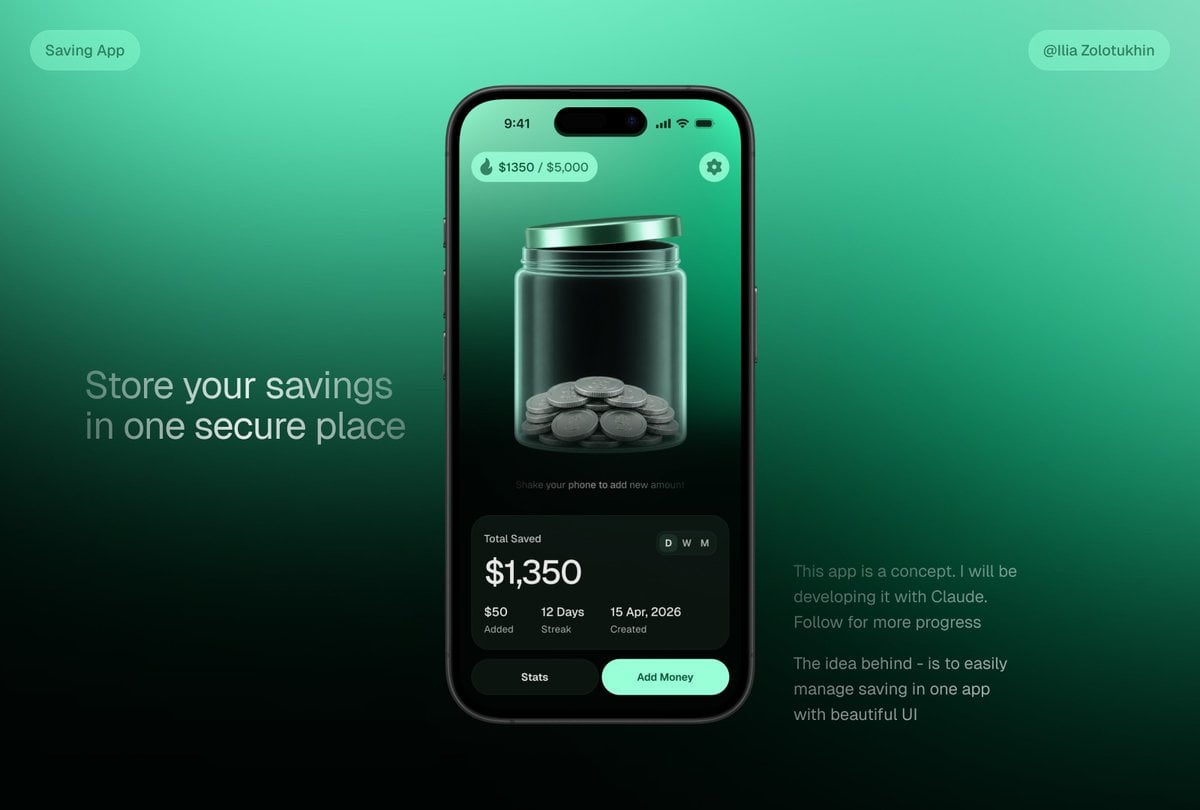
3D Savings App Jar UI Mockup
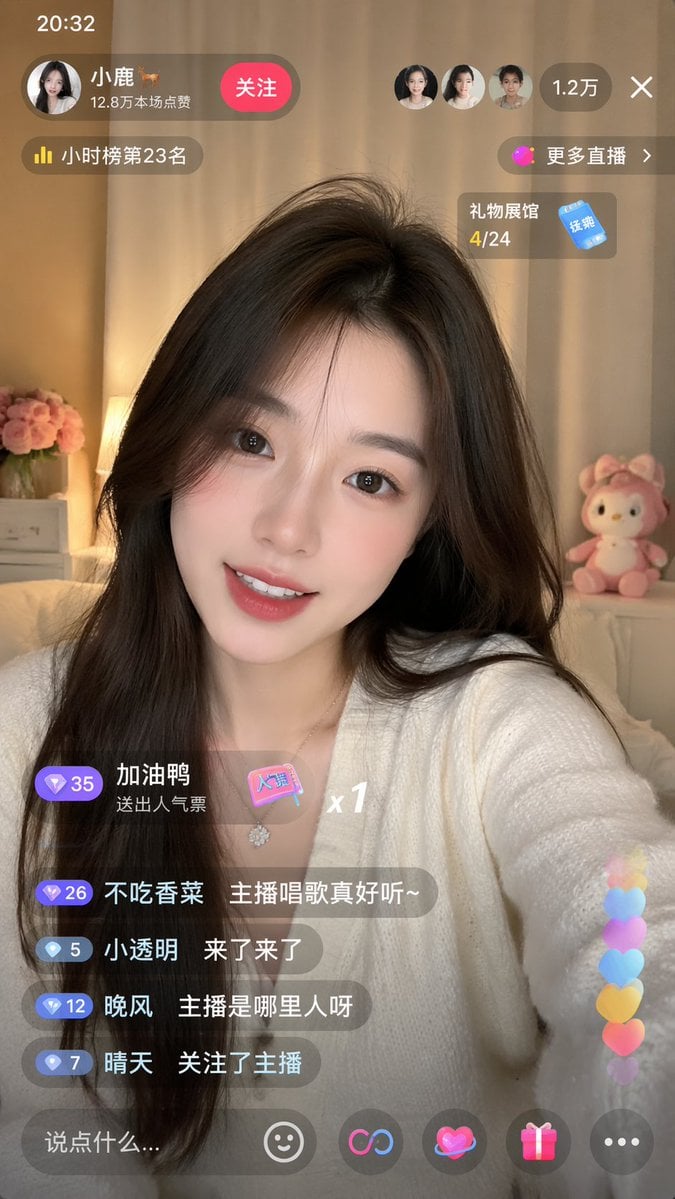
Live-Streaming App Interface Mockup
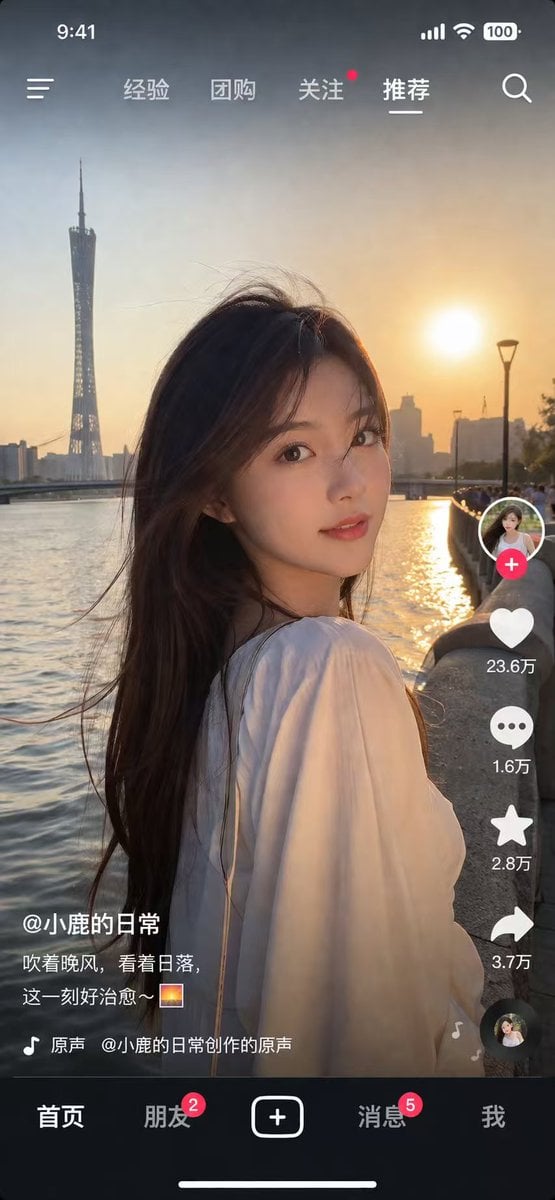
Social Media App Interface Mockup
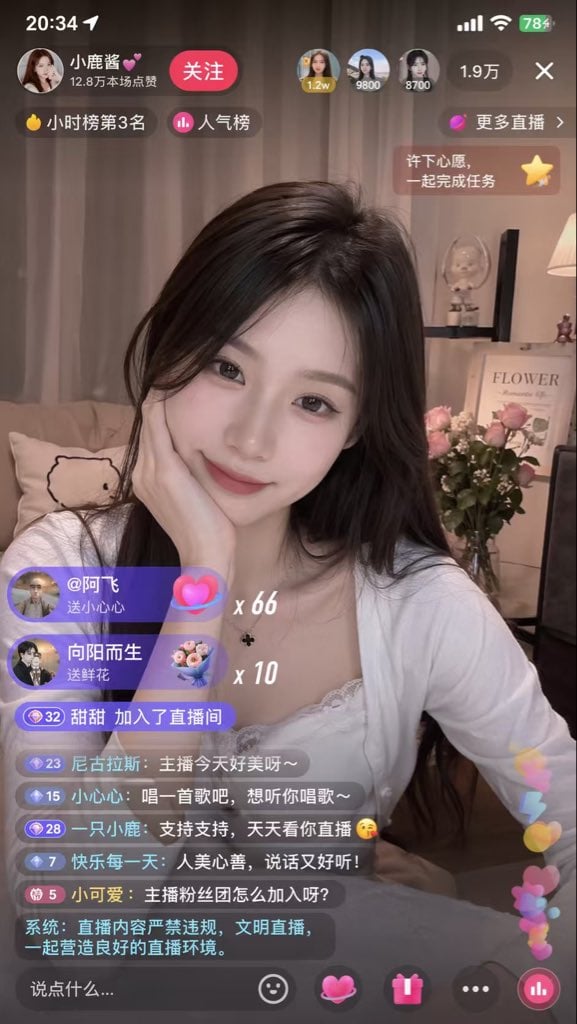
Live Streaming App UI Mockup
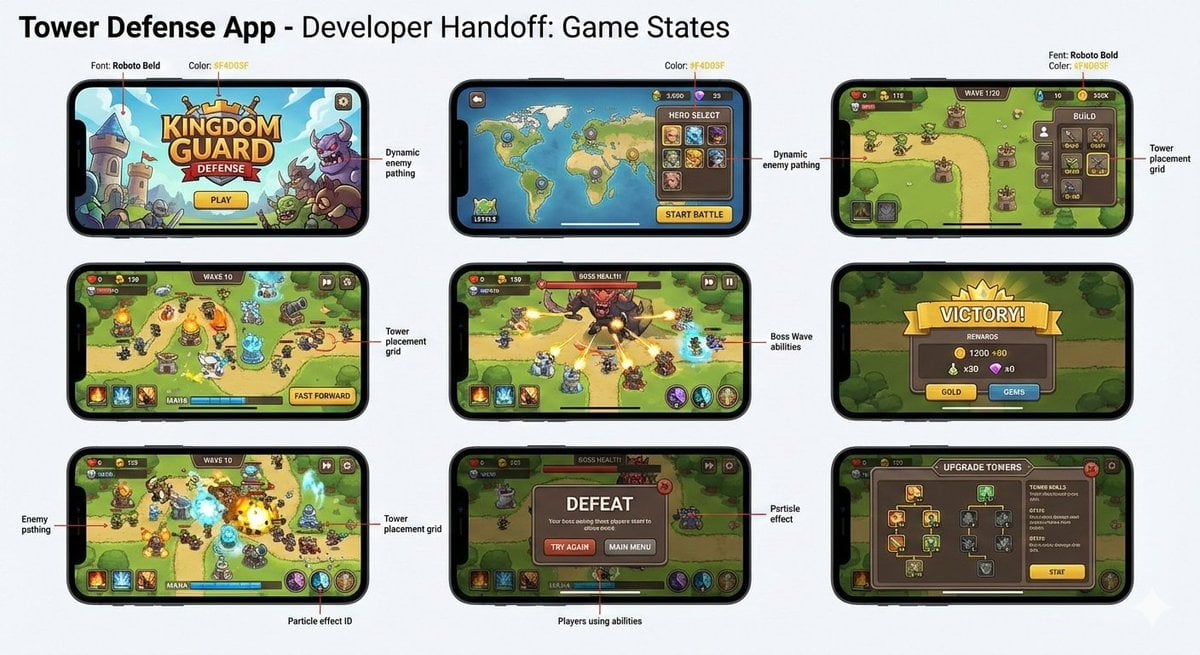
Tower defense mobile app design mockup grid
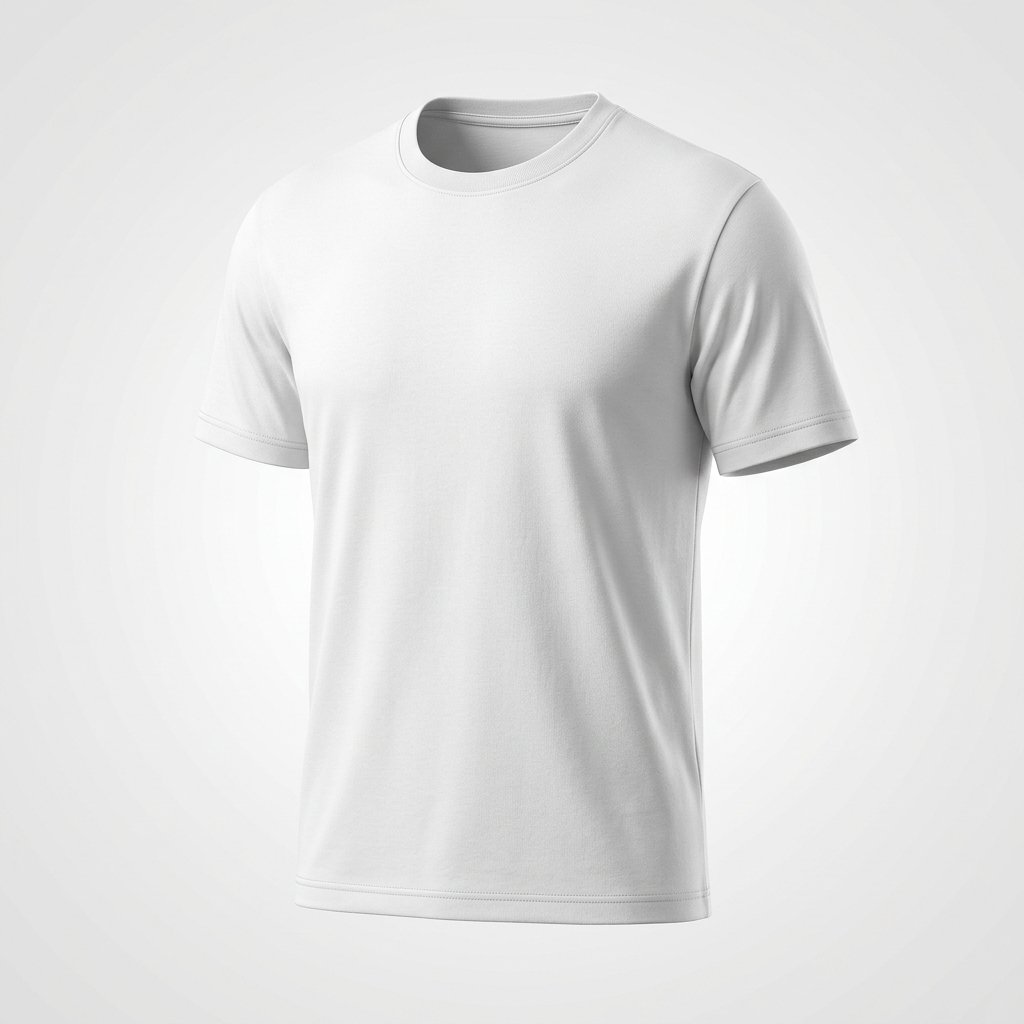
Product Shot - T-Shirt Mockup
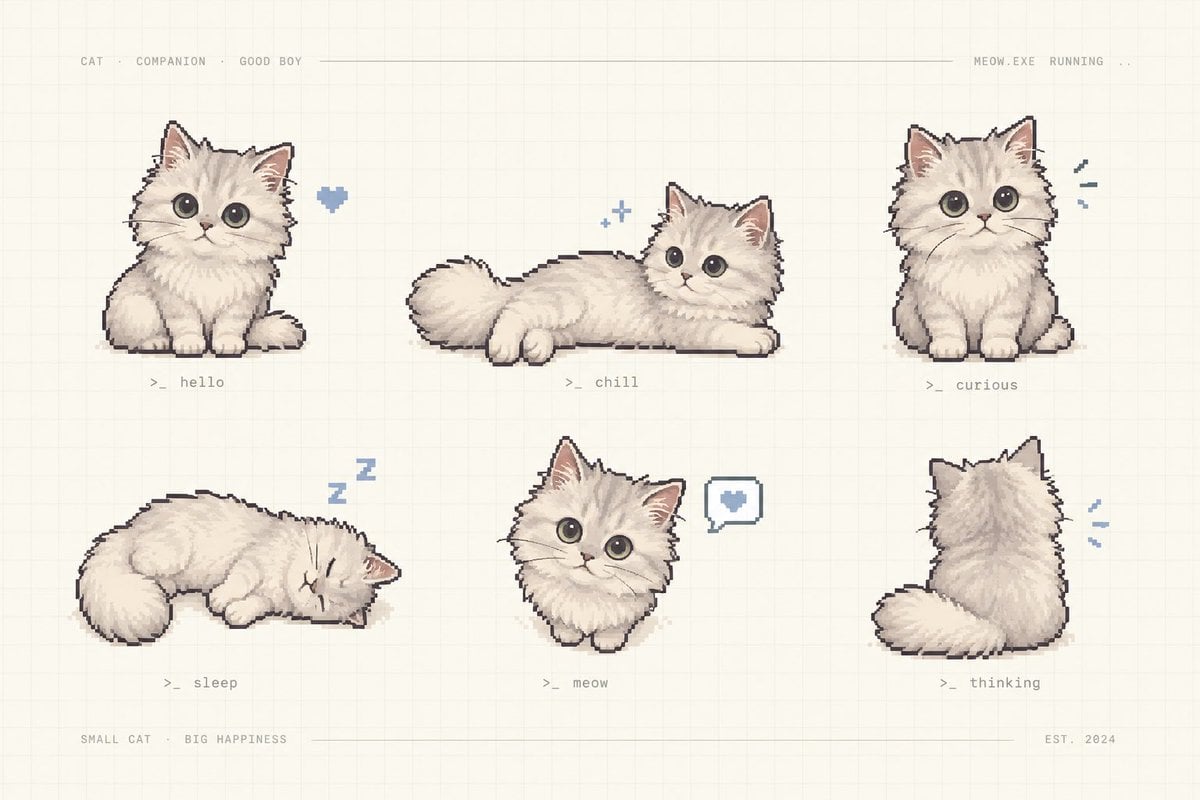
Pixel Art Kitten Companion Sheet

Anime Companion Portrait

Cinematic Anime Shinobi Poster Mockup
Make it yours
Bedtime Companion App Mockup works as-is. These are the safest ways to change it without losing the look.
Change one field
Copy a single group, rewrite it, and generate again so you can see what that field is doing.
Keep the frame, change the subject
Hold the composition and light of Bedtime Companion App Mockup, then swap wardrobe, props or the person for a new take.
| If the result… | Why | Fix |
|---|---|---|
| The result drifts from the preview | Too many fields changed at once. | Reuse Bedtime Companion App Mockup as-is first, then change one group — subject, light, or setting. |
| The model over-stylizes the scene | The prose prompt leaves finish and camera underspecified. | Add one camera or lighting sentence and stay on GPT Image 2. |
More GPT Image 2 templates
Other prompts made for GPT Image 2.

Six VTuber Japanese Logo Sheet

Realistic Portrait of Woman and Deer

The Vista Modular Condo Poster

AI Model Routing Comparison Infographic

2.5D Anime Art Board

Isometric Productivity Desk Scene

New York Double Exposure Poster

Four-Panel AI Landscape Comparison

Japanese Tatami Lifestyle Magazine Cover

NESCAFÉ Coffee Map Poster
More image prompts
Fresh picks from across the catalog.

Editorial Nightlife Portrait with Flash

Desert Wanderer Five-Panel Collage

Intense Elderly DJ Volcano Poster

Luxury Fukubukuro (Lucky Bag) Advertisement Key Visual Prompt
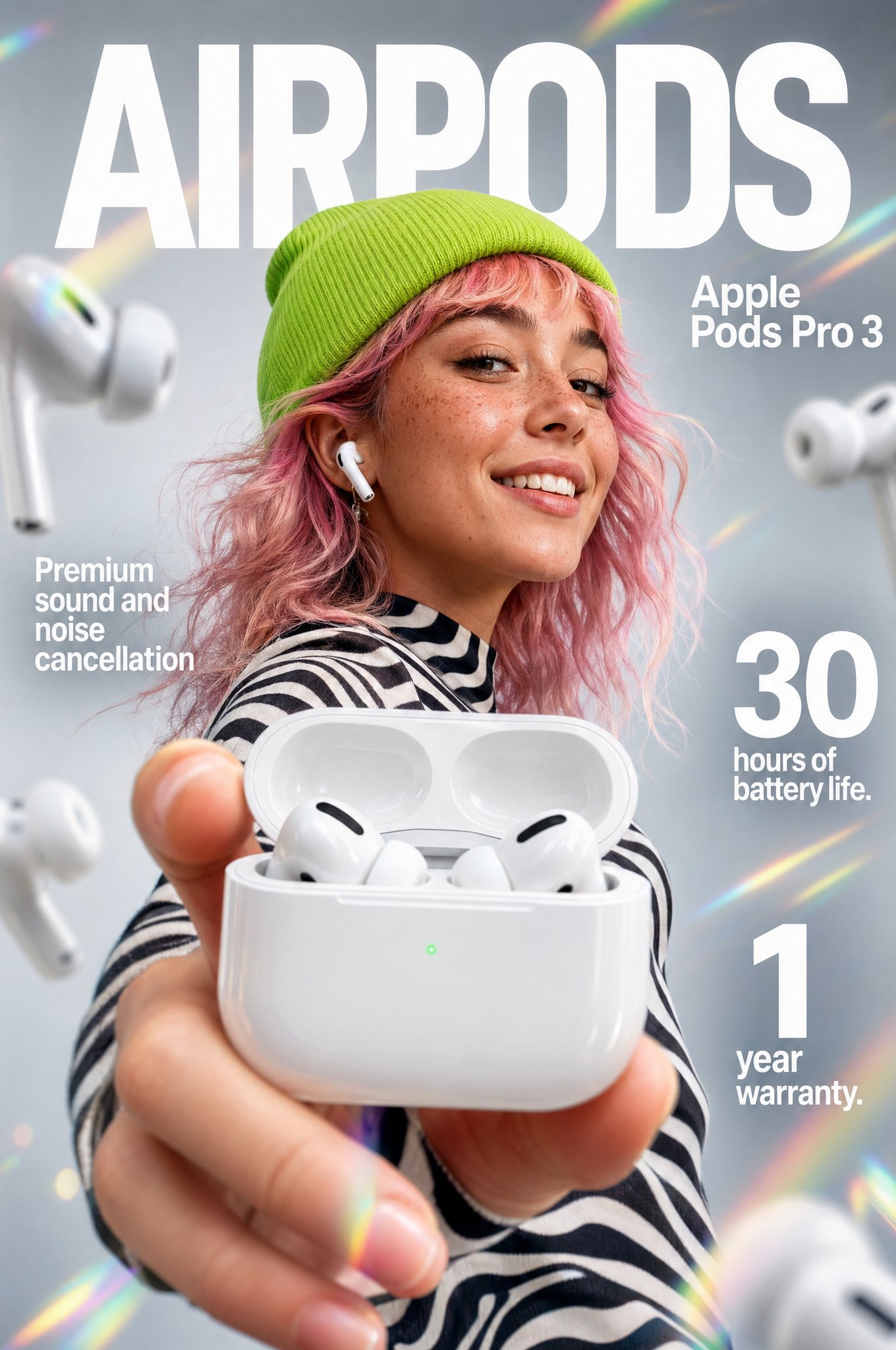
Gpt2 Apple Pods Pro 3 Infographic
E-commerce product listing photo prompt for lifestyle setting

Surreal Coffee Cup Artwork Prompt

Luxury GT3 Dealership Poster
Flash Mirror Selfie in Retro Bathroom

Lisbon Night Travel Poster
Browse template categories
Bedtime Companion App Mockup questions
How do I use the Bedtime Companion App Mockup template?
Add your photo if the template asks for one, edit the prompt if you like — the template's model and format are already selected — and press Generate. Your version opens in PicX Studio.
Can I customize the Bedtime Companion App Mockup template?
Yes. You can change the subject, setting, lighting, mood, format, and available model controls before creating your image.
Is the Bedtime Companion App Mockup template free?
Opening and editing this template is free. Generating uses credits, shown on the Generate button when you are signed in.
Which AI model should I use?
Start with GPT Image 2, which is the model associated with this template. You can compare another compatible model for a different finish.
Looking for something else? Browse all templates.

Your photo, any look
Thousands of ready templates for every top image and video model, from one credit balance.