
GPT-Image2 E-Commerce Course Banner
A bright cartoon-style Chinese promotional banner for a GPT-Image2 e-commerce visual design course, suitable for social media course marketing.

- Prompt included
- Model and format preset
- Free template
The prompt behind this image
Copy the exact prompt behind GPT-Image2 E-Commerce Course Banner, or open it in the studio and make it yours.
Goal: Create a bright horizontal promotional poster for an AI e-commerce visual design course, in a cheerful 3D cartoon commercial illustration style. Canvas: 970×563 landscape banner, full-bleed, high saturation, warm orange-yellow center glow, clean vector-like 3D rendering, crisp edges, no photo realism. Layout: Put a huge circular orange target/sunburst badge in the exact center background, radiating rings and light rays. Overlay the main course title in the middle with two stacked lines: top line reads {argument name="English title text" default="GPT-Image2"}, bottom line reads {argument name="Chinese headline text" default="电商视觉大片实战课"}. Use very large bold rounded display lettering, white fill with red-orange shadow, thick orange outline, and a subtle yellow highlight glow so the text dominates the composition. Scene: Build a stylized e-commerce shopping street or mall corridor receding toward the glowing center. On the left, show a storefront shelf with product bottles and multiple shopping bags. On the right, show analytics dashboards and retail display counters. Include a shopping cart in the lower right foreground filled with orange product boxes and gold coins. Use a tiled walkway leading into the center for depth. Discrete visible elements to include: exactly 1 central orange circular sunburst badge; exactly 2 main text lines; exactly 1 shopping cart in the lower right; exactly 3 dashboard/report panels on the right side, including one large pie-chart panel at the top right, one large line-and-bar chart panel at mid right, and one orange chart card near the lower right; exactly 7 prominent shopping bags total, including 4 on the left shelves/counters, 1 orange flying bag near upper left-center, 1 small orange flying bag mid-left, and 1 orange bag/card on the lower right counter; exactly 2 visible product bottles on the upper-left shelf; exactly 2 gift boxes on the floor/counters, one orange gift box at the bottom center-left and one small blue-orange gift box on a right display; exactly 1 potted green plant near the lower left-center; exactly 3 floating app icons above the headline, including a blue upload/cloud icon, an orange checkmark icon, and a red wallet/card icon; exactly 5 gold coins scattered through the scene. Visual style: Use a polished Chinese e-commerce advertising aesthetic, playful isometric perspective, soft shadows, glossy highlights, orange-red-yellow brand palette with sky-blue accents, blue city buildings in the background, fluffy white clouds, confetti streaks, coins, and motion arcs. Make the atmosphere optimistic, efficient, and course-launch oriented. Constraints: Text must be perfectly legible and centered. Keep the composition balanced, with the shopping objects framing the headline rather than blocking it. Do not add people, faces, watermarks, QR codes, or extra small unreadable text.
How to use GPT-Image2 E-Commerce Course Banner in 3 steps
- 1Upload ImagePNG, JPG or paste
Add your photo
Upload the photo the template builds on. The prompt, model and format are already set.
- 2…a portrait of your subject in softgolden-hour light, 85mm…
Personalize
Edit the subject and creative details for your destination.
- 3Generate
Generate
Press Generate — your image is created in PicX Studio, so you can compare it with the original and refine one variable at a time.
More like this
Templates with the same subject, style or setup. Open one to see its prompt.
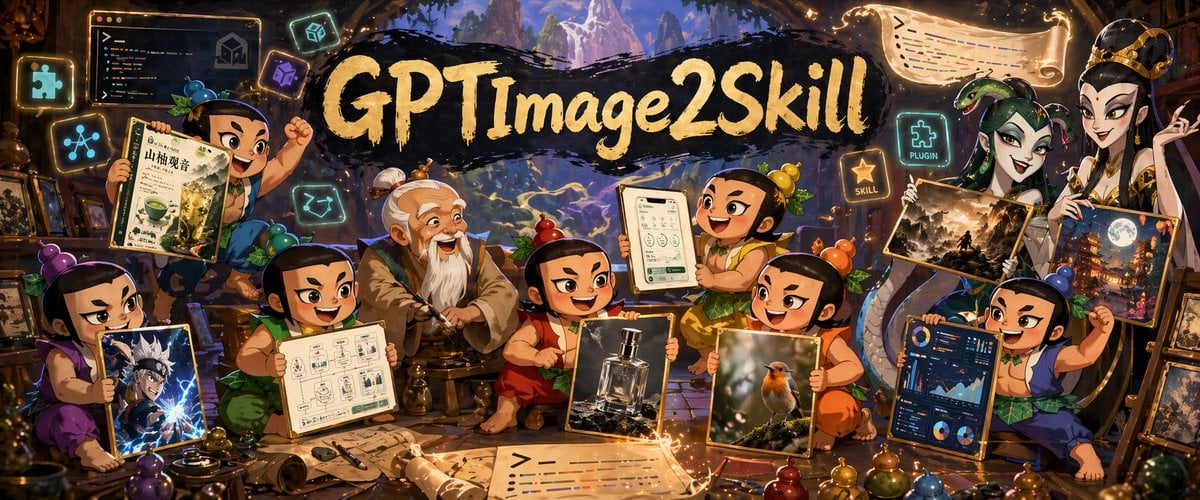
Fantasy GPTImage2 Skill Banner

Web Design Course Promotional Banner
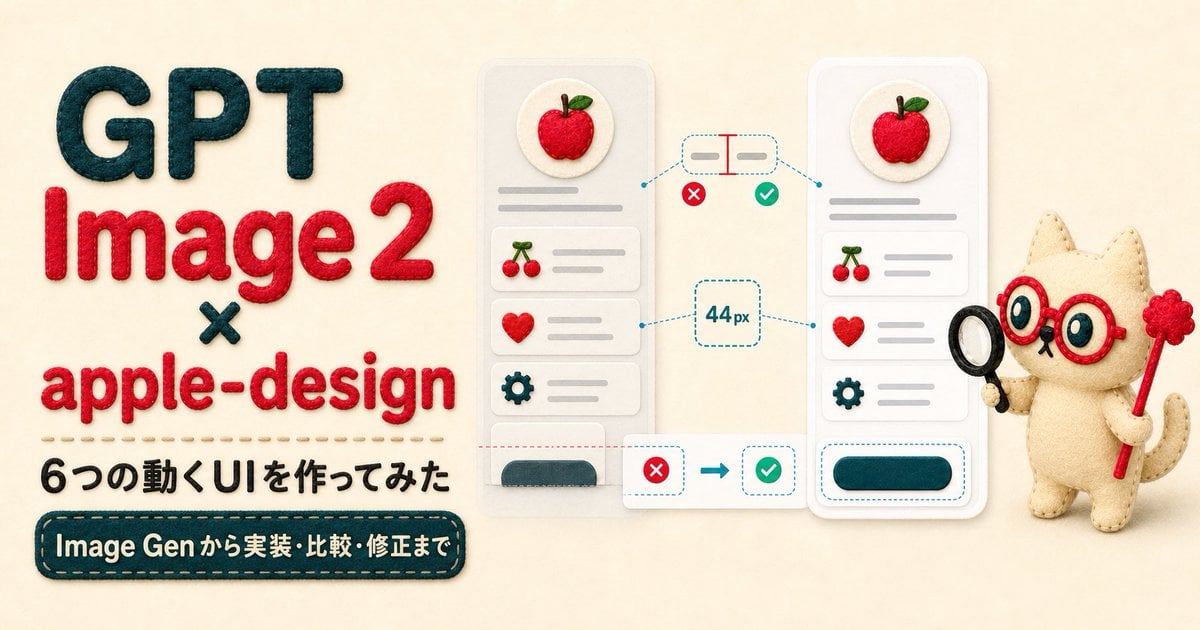
Felt GPT Image 2 Apple Design Banner

ChatGPT Bonus Banner Screenshot
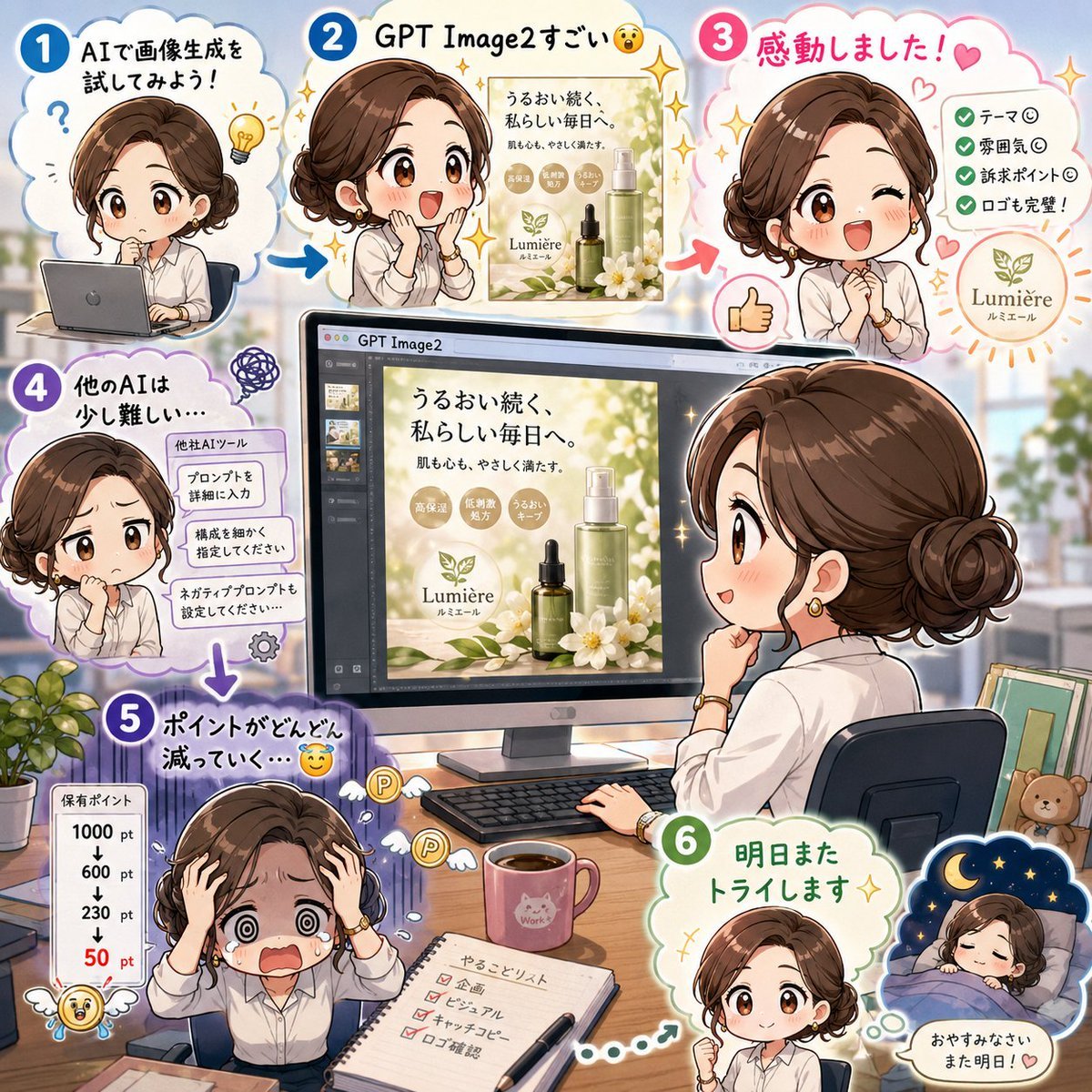
Japanese GPT Image2 Campaign Comic
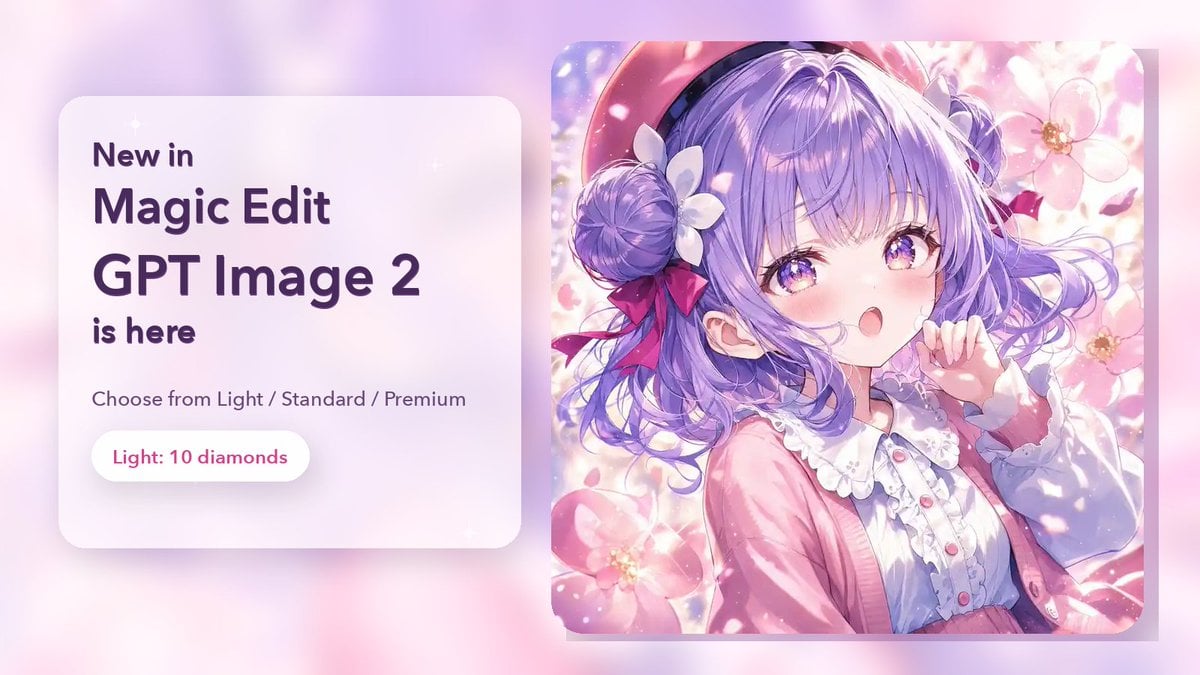
Magic Edit GPT Image 2 Promo Banner
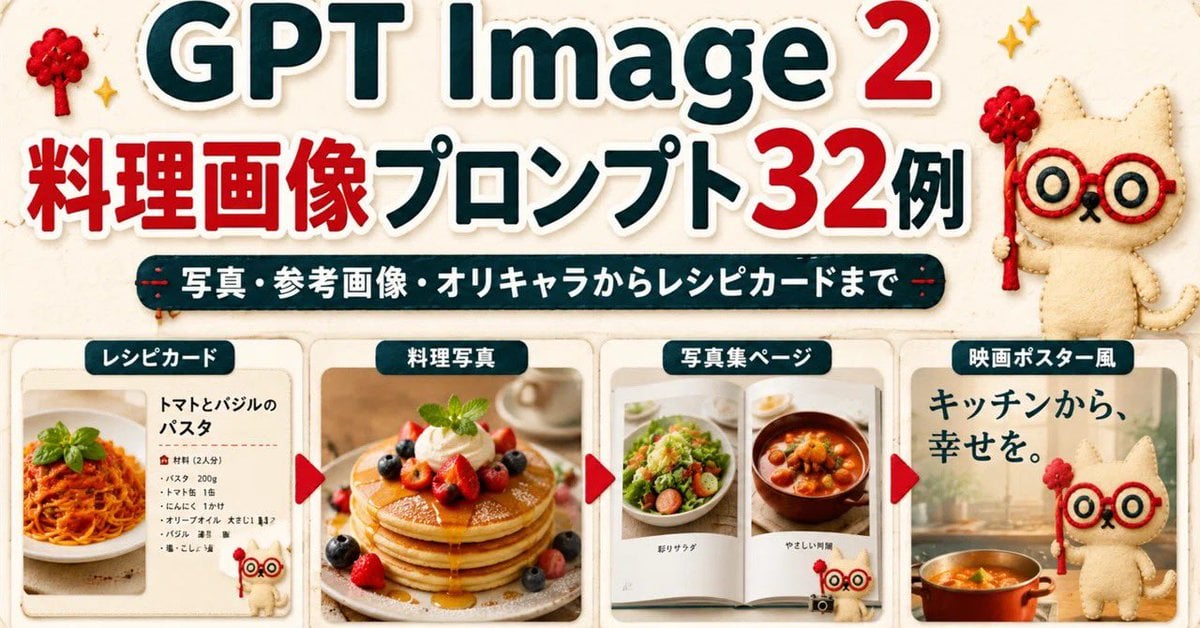
GPT Image 2 Cooking Prompt Banner
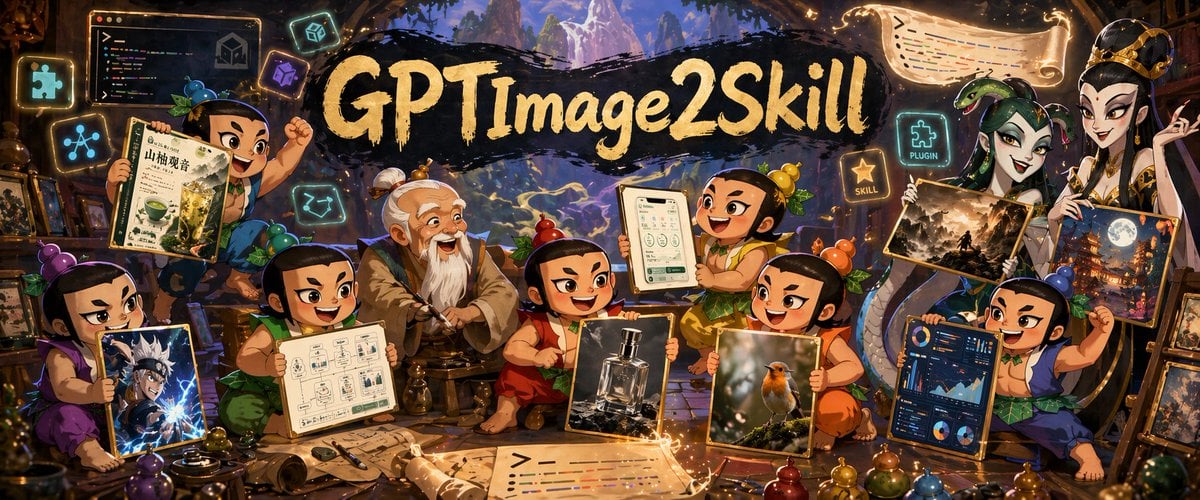
Fantasy GPT Image 2 Skill Banner
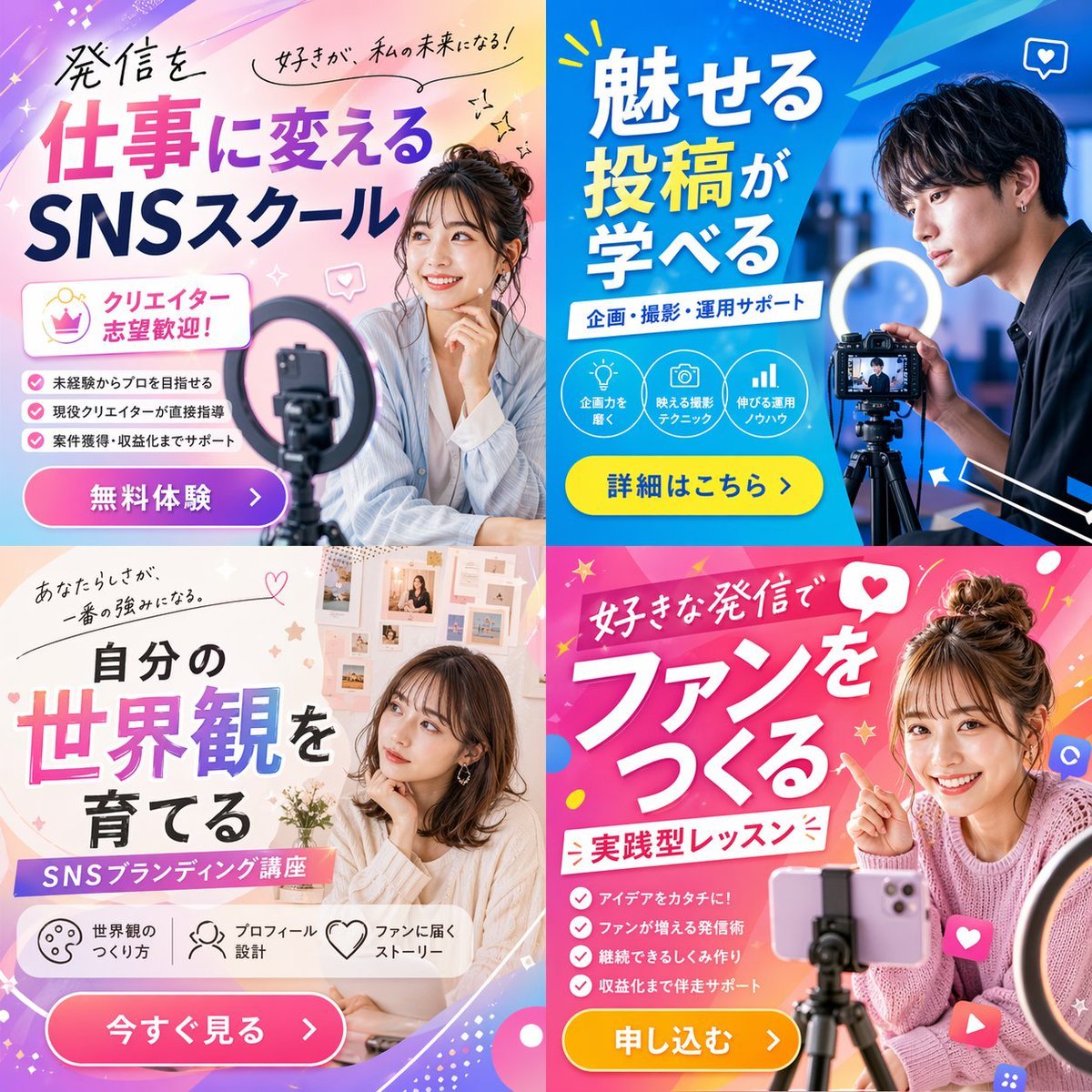
2x2 Social Media Course Banner Ads
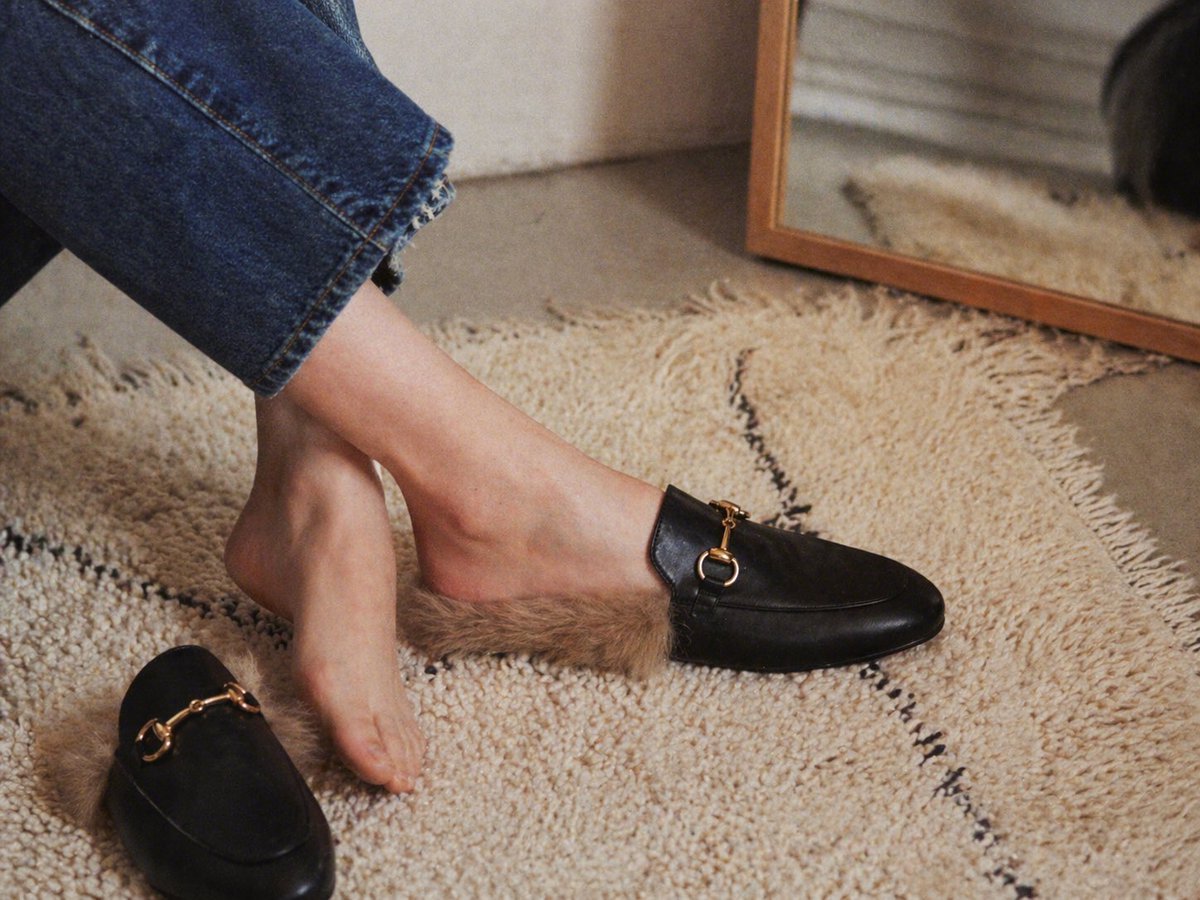
Gpt2 E Commerce Main Image Luxury Fur Lined Loafer Lifestyle Photo
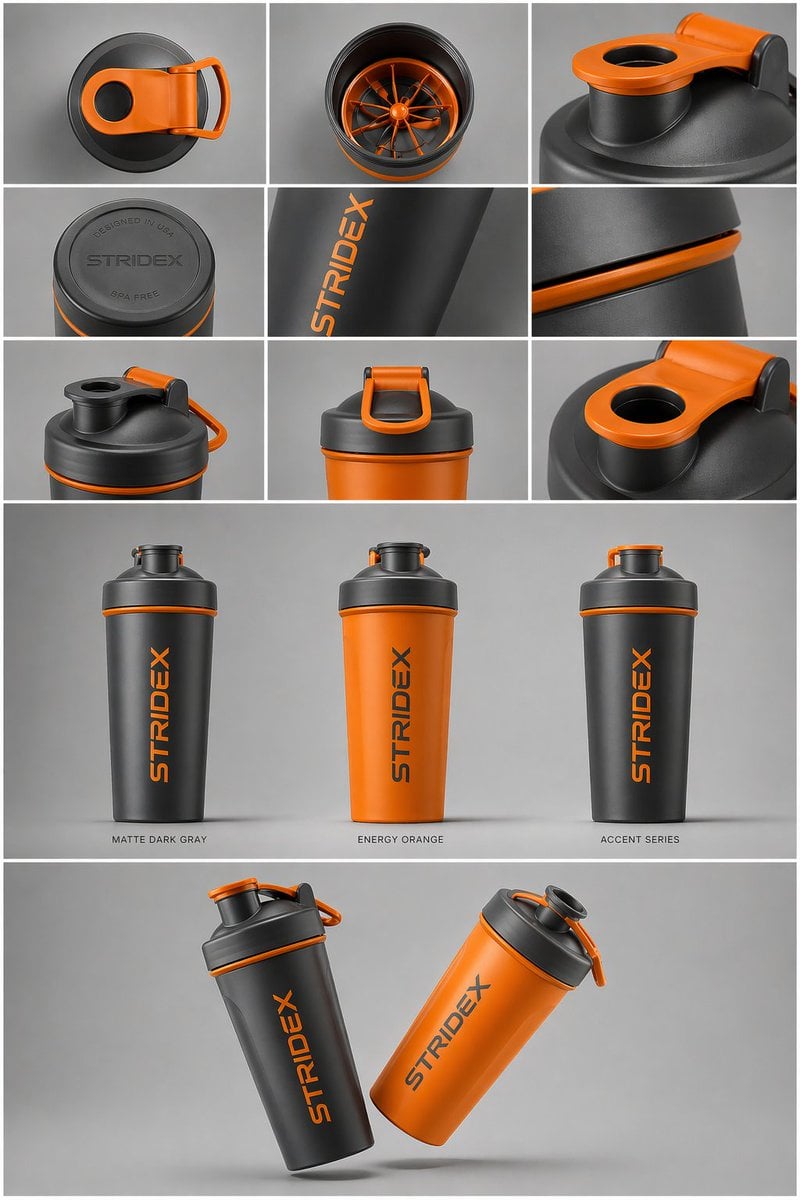
Gpt2 E Commerce Main Image Industrial Design Presentation Sheet
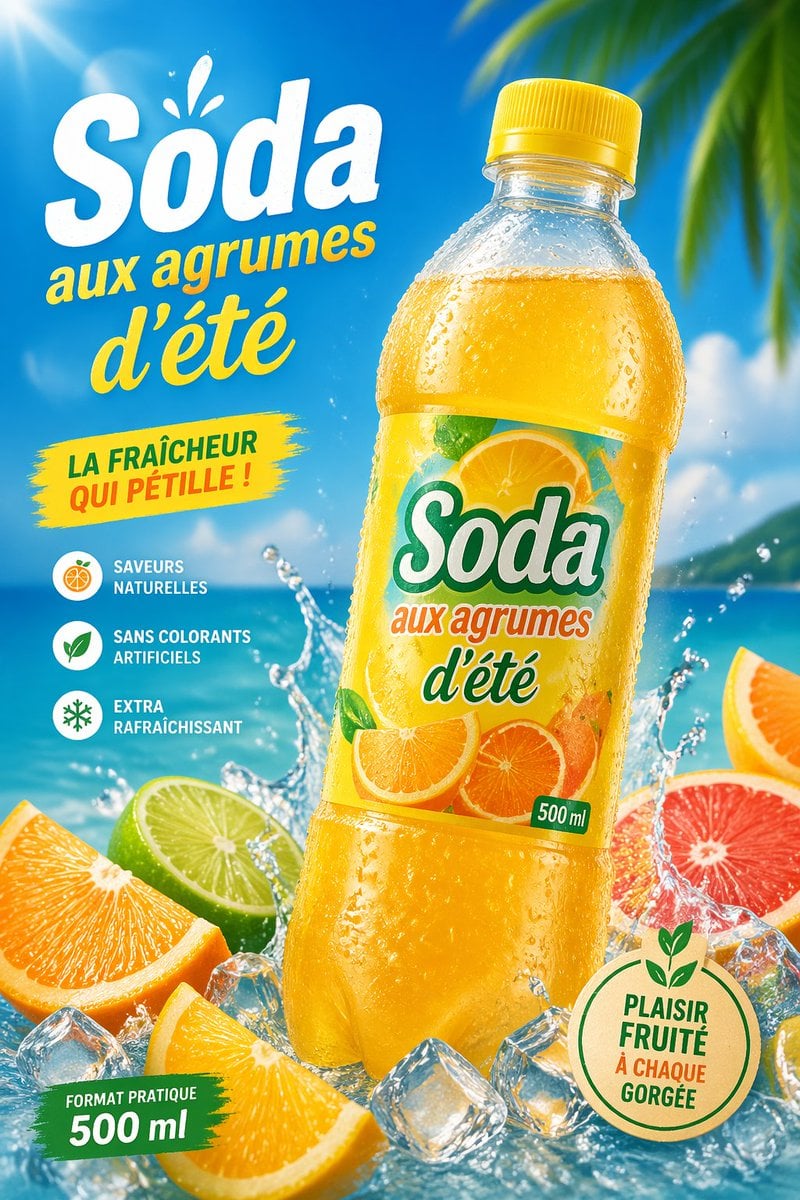
Gpt2 E Commerce Main Image Tropical Citrus Soda Ad Poster
Make it yours
GPT-Image2 E-Commerce Course Banner works as-is. These are the safest ways to change it without losing the look.
Change one field
Copy a single group, rewrite it, and generate again so you can see what that field is doing.
Keep the frame, change the subject
Hold the composition and light of GPT-Image2 E-Commerce Course Banner, then swap wardrobe, props or the person for a new take.
| If the result… | Why | Fix |
|---|---|---|
| The result drifts from the preview | Too many fields changed at once. | Reuse GPT-Image2 E-Commerce Course Banner as-is first, then change one group — subject, light, or setting. |
| The model over-stylizes the scene | The prose prompt leaves finish and camera underspecified. | Add one camera or lighting sentence and stay on GPT Image 2. |
More GPT Image 2 templates
Other prompts made for GPT Image 2.

Six VTuber Japanese Logo Sheet

Realistic Portrait of Woman and Deer

The Vista Modular Condo Poster

AI Model Routing Comparison Infographic

2.5D Anime Art Board

Isometric Productivity Desk Scene

New York Double Exposure Poster

Four-Panel AI Landscape Comparison

Japanese Tatami Lifestyle Magazine Cover

NESCAFÉ Coffee Map Poster
More image prompts
Fresh picks from across the catalog.
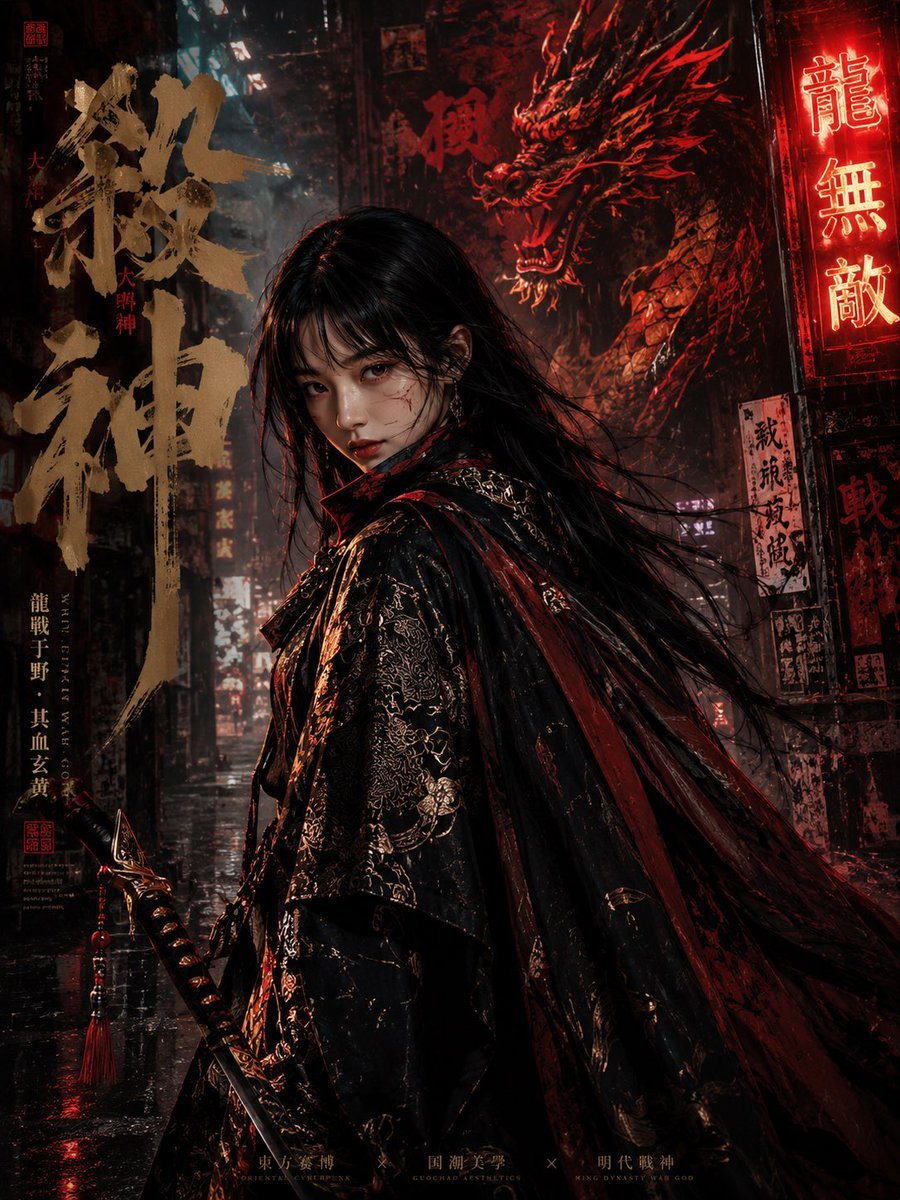
Cyberpunk Ming Dynasty Warrior Poster
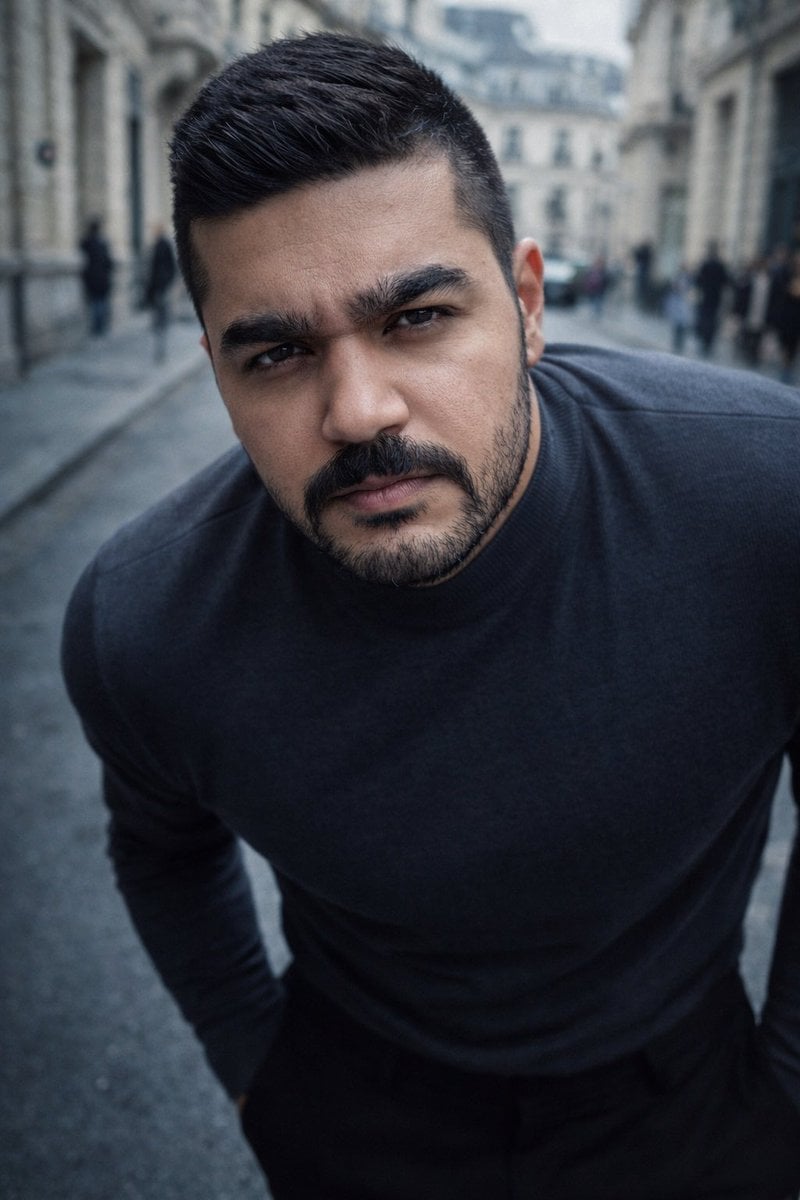
High-Impact Male Fashion Editorial with Identity Lock
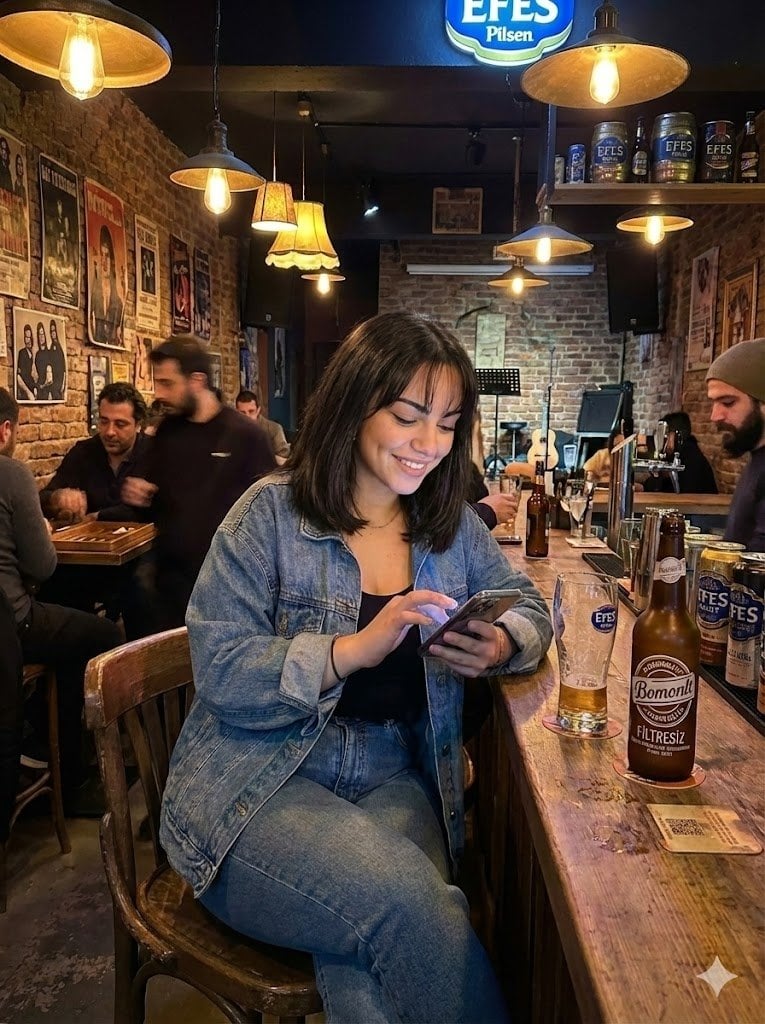
Candid Bar Scene with Phone and Beer Details
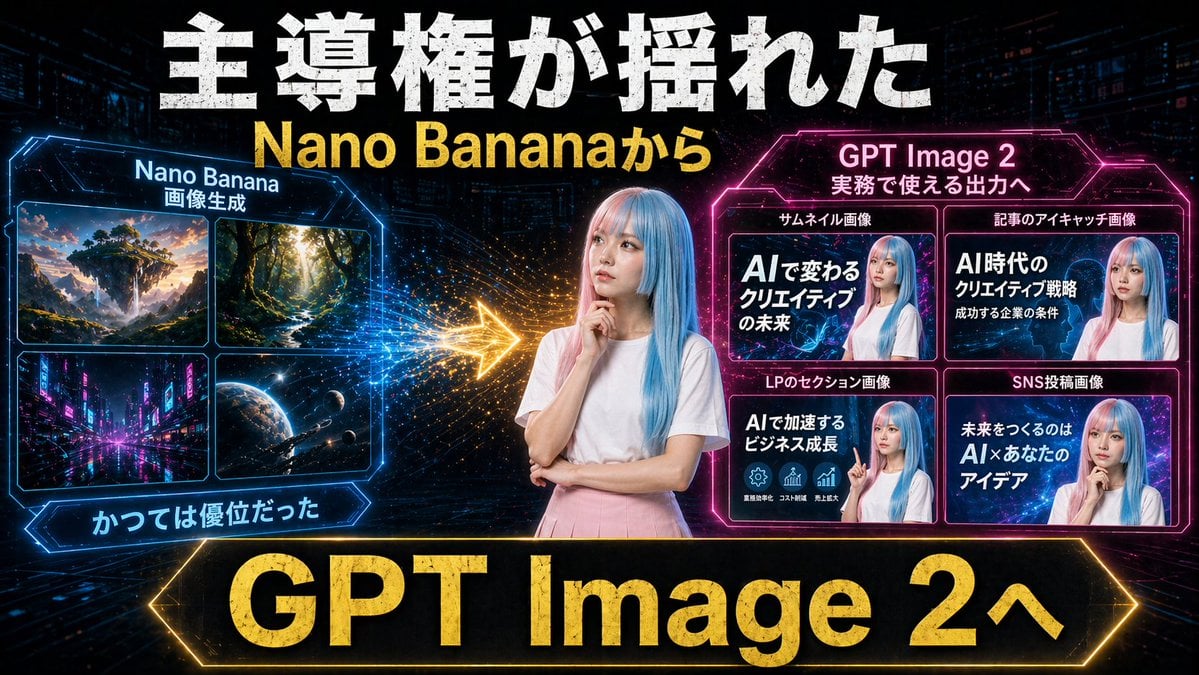
Gpt2 Youtube Thumbnail Neon Ai Thumbnail Comparison

Luxury Golden Star Fortune Teller
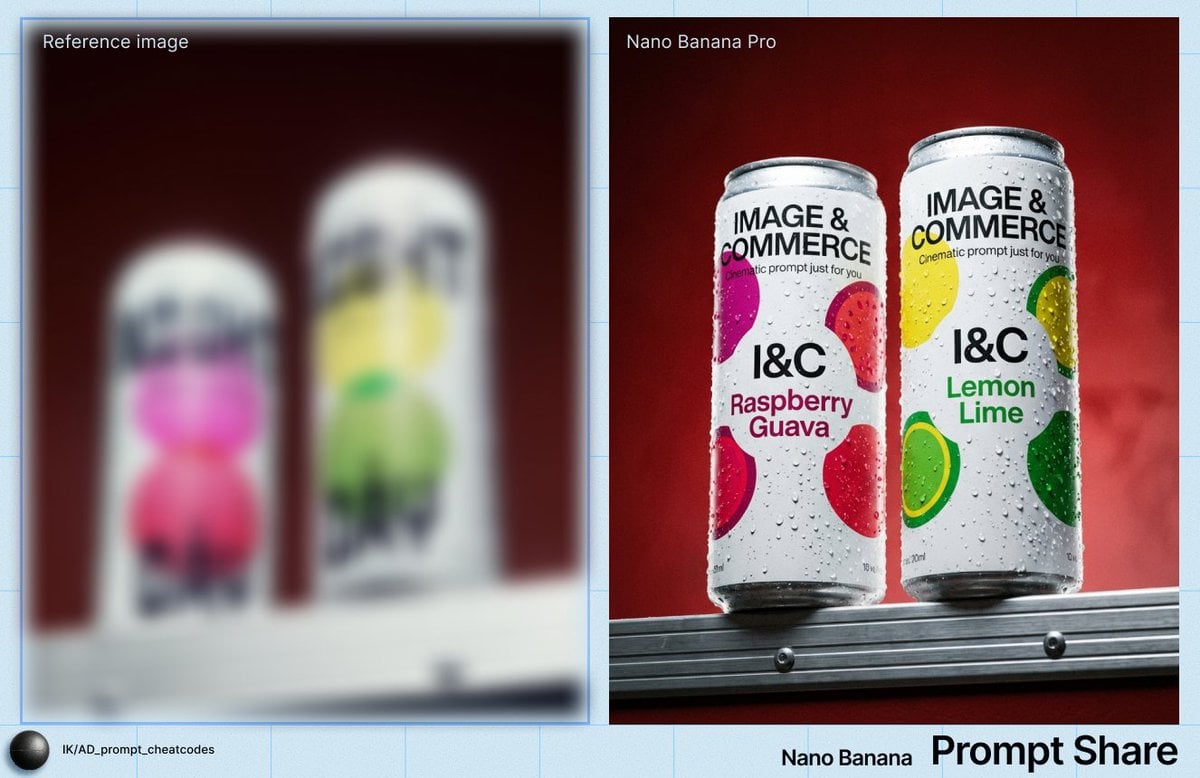
Two Soda Cans Product Photography Prompt
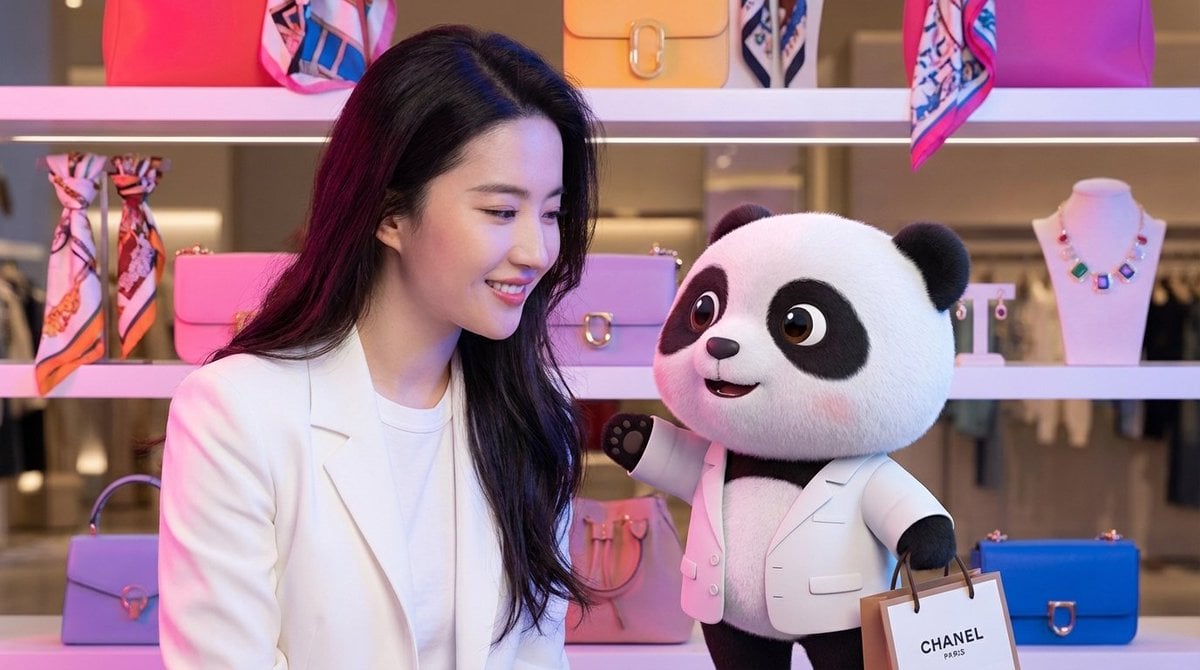
Nano Banana Pro Prompt for 3D Mascot and Fashion Model Interaction
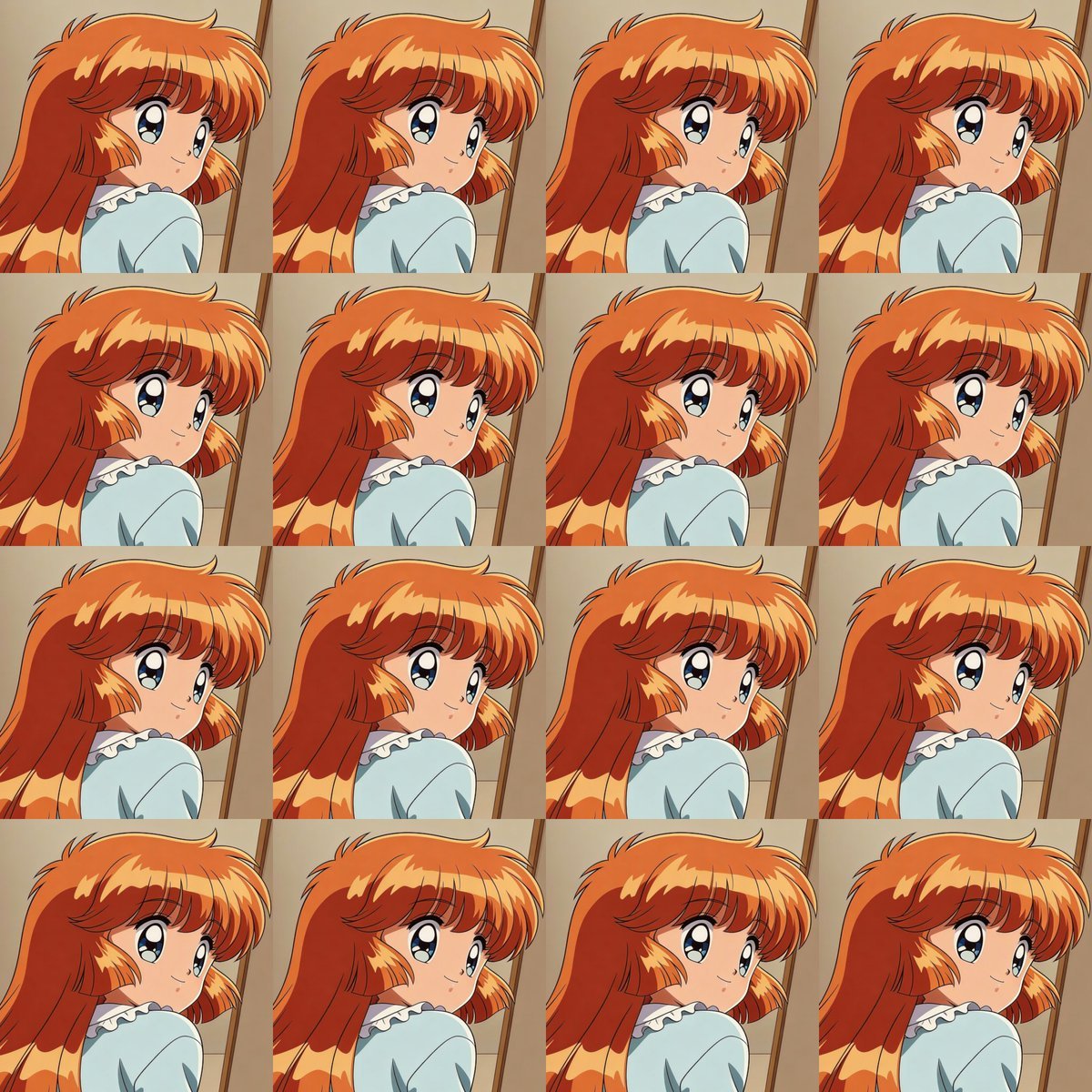
Heroine Expression Difference Grid Attempt

Christmas Surprise Box Dynamic Action Shot
untitled
Browse template categories
GPT-Image2 E-Commerce Course Banner questions
How do I use the GPT-Image2 E-Commerce Course Banner template?
Add your photo if the template asks for one, edit the prompt if you like — the template's model and format are already selected — and press Generate. Your version opens in PicX Studio.
Can I customize the GPT-Image2 E-Commerce Course Banner template?
Yes. You can change the subject, setting, lighting, mood, format, and available model controls before creating your image.
Is the GPT-Image2 E-Commerce Course Banner template free?
Opening and editing this template is free. Generating uses credits, shown on the Generate button when you are signed in.
Which AI model should I use?
Start with GPT Image 2, which is the model associated with this template. You can compare another compatible model for a different finish.
Looking for something else? Browse all templates.

Your photo, any look
Thousands of ready templates for every top image and video model, from one credit balance.