
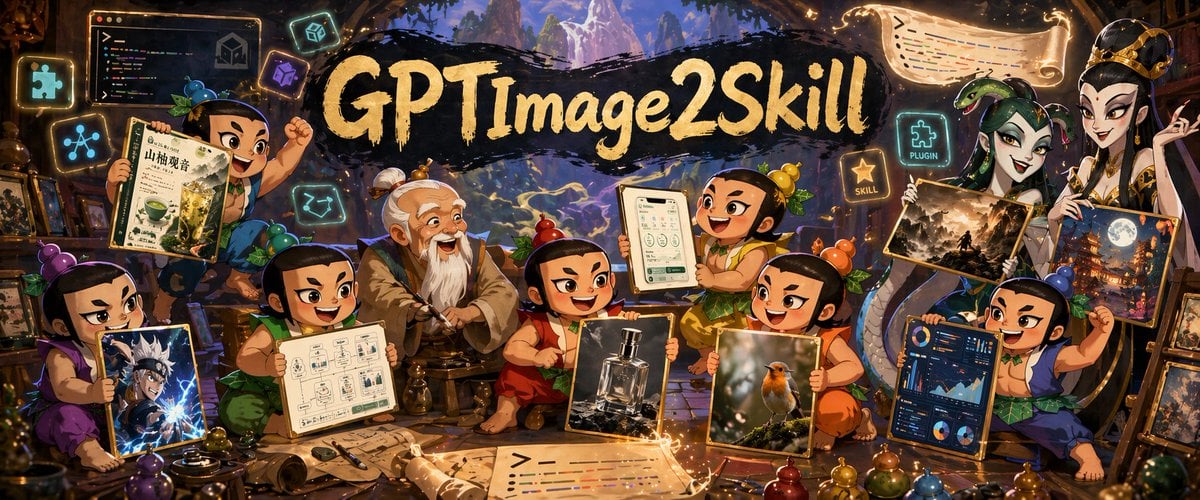
Fantasy GPT Image 2 Skill Banner
A cinematic fantasy workshop banner for presenting a GPT Image 2 skill repository, with cartoon characters holding example images, UI panels, code scrolls, and glowing plugin icons.
- Prompt included
- Model and format preset
- Free template
The prompt behind this image
Copy the exact prompt behind Fantasy GPT Image 2 Skill Banner, or open it in the studio and make it yours.
Goal: Create a richly detailed fantasy workshop banner advertising {argument name="headline text" default="GPT Image 2 Skill"}, showing a magical image-generation toolkit as if presented by cartoon gourd-doll apprentices and a wise master. Canvas: Ultra-wide horizontal banner, about 2.4:1 aspect ratio, cinematic composition, warm glowing fantasy lighting, dense but readable. The headline sits across the upper center on a black brushstroke paint swash in large hand-painted cream-gold lettering. Main scene: A cozy enchanted studio packed with scrolls, framed images, glowing code panels, UI cards, potion bottles, drawing tools, and magical icons. In the far background, an arched opening reveals misty blue-purple mountains and a fantasy landscape. The foreground is cluttered with parchment sheets, paintbrushes, pens, rolled scrolls, small gourds, beads, and colored potion-like spheres. Characters: Include exactly 8 visible cartoon characters in a Chinese animated-fantasy style: 6 small gourd-doll children with topknot gourds/leaves and expressive faces, 1 elderly white-bearded master seated near the center-left, and 1 tall elegant robed figure on the far right. Arrange them in a lively group around the headline and display boards. The characters should be cheerful, excited, and collaborative, with some holding image examples or interface panels. If using privacy-safe placeholders, cover exactly 4 faces with soft rectangular blur masks: the elderly master, one center-left child holding a workflow board, one center child holding a bottle image, and the tall robed figure on the right. Counted display items: Show exactly 11 major visible boards/panels/images: 1 top-left dark code editor panel with colorful code and a cube icon, 1 upper-left Chinese-style document held by a child with botanical illustration details, 1 lower-left anime action image held by a purple-clad child, 1 center-left workflow diagram board held by a child, 1 center image board showing a perfume bottle, 1 tablet-like UI mockup held by a smiling child, 1 framed bird photography image held near the lower center-right, 1 dark analytics/dashboard UI panel held by the right child, 1 large vertical fantasy city/night illustration behind the right child, 1 parchment code scroll floating at the top-right, and 1 glowing parchment code sheet lying across the front-center foreground. Icon details: Add exactly 5 glowing square tech badges around the scene: a puzzle-piece icon on the far left, a connected-nodes icon on the left, a small cube icon near the upper center-left, a purple abstract skill/tool icon near the title, and a neon puzzle badge on the upper-right labeled {argument name="plugin label" default="PLUGIN"}. Add one additional golden star badge on the right labeled {argument name="skill label" default="SKILL"}. Style: Painterly high-detail digital illustration, whimsical Chinese fantasy animation, warm amber highlights with cool cyan-purple magical glow, ornate wooden workshop interior, soft depth, dramatic rim lighting, gold sparkles, crisp readable central title, lively crowded composition like a promotional GitHub repository banner. Text constraints: The main headline must read exactly {argument name="headline text" default="GPT Image 2 Skill"}. Preserve the small badge words {argument name="plugin label" default="PLUGIN"} and {argument name="skill label" default="SKILL"}. Any tiny code or document text may be decorative and mostly unreadable, but should resemble colorful syntax highlighting and design notes. Do not add extra logos, watermarks, or unrelated brand names.
How to use Fantasy GPT Image 2 Skill Banner in 3 steps
- 1Upload ImagePNG, JPG or paste
Add your photo
Upload the photo the template builds on. The prompt, model and format are already set.
- 2…a portrait of your subject in softgolden-hour light, 85mm…
Personalize
Edit the subject and creative details for your destination.
- 3Generate
Generate
Press Generate — your image is created in PicX Studio, so you can compare it with the original and refine one variable at a time.
More like this
Templates with the same subject, style or setup. Open one to see its prompt.
Fantasy GPTImage2 Skill Banner
Fantasy GPT Image Skills Banner
Felt GPT Image 2 Apple Design Banner

ChatGPT Bonus Banner Screenshot
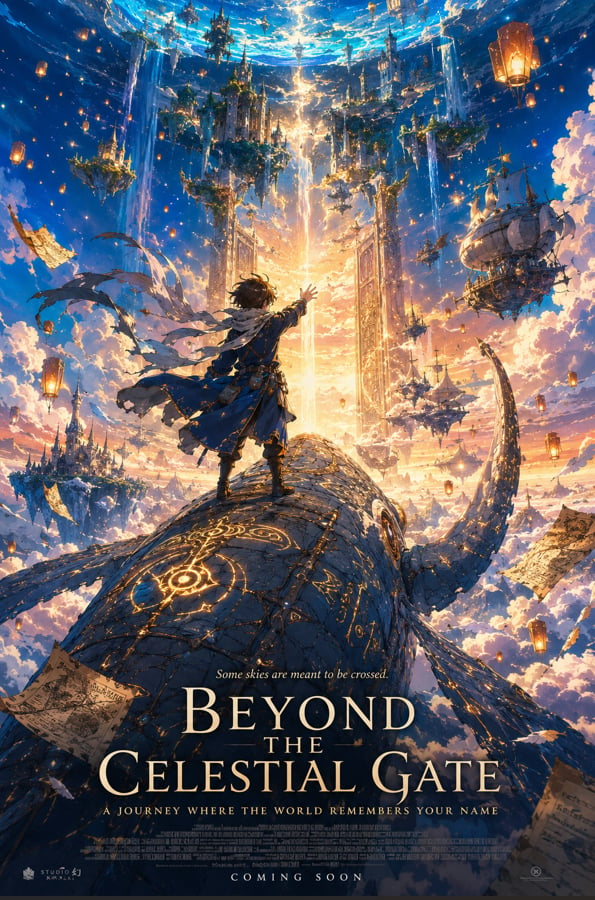
Anime Fantasy Celestial Movie Poster
Anime Fantasy Celestial Movie Poster
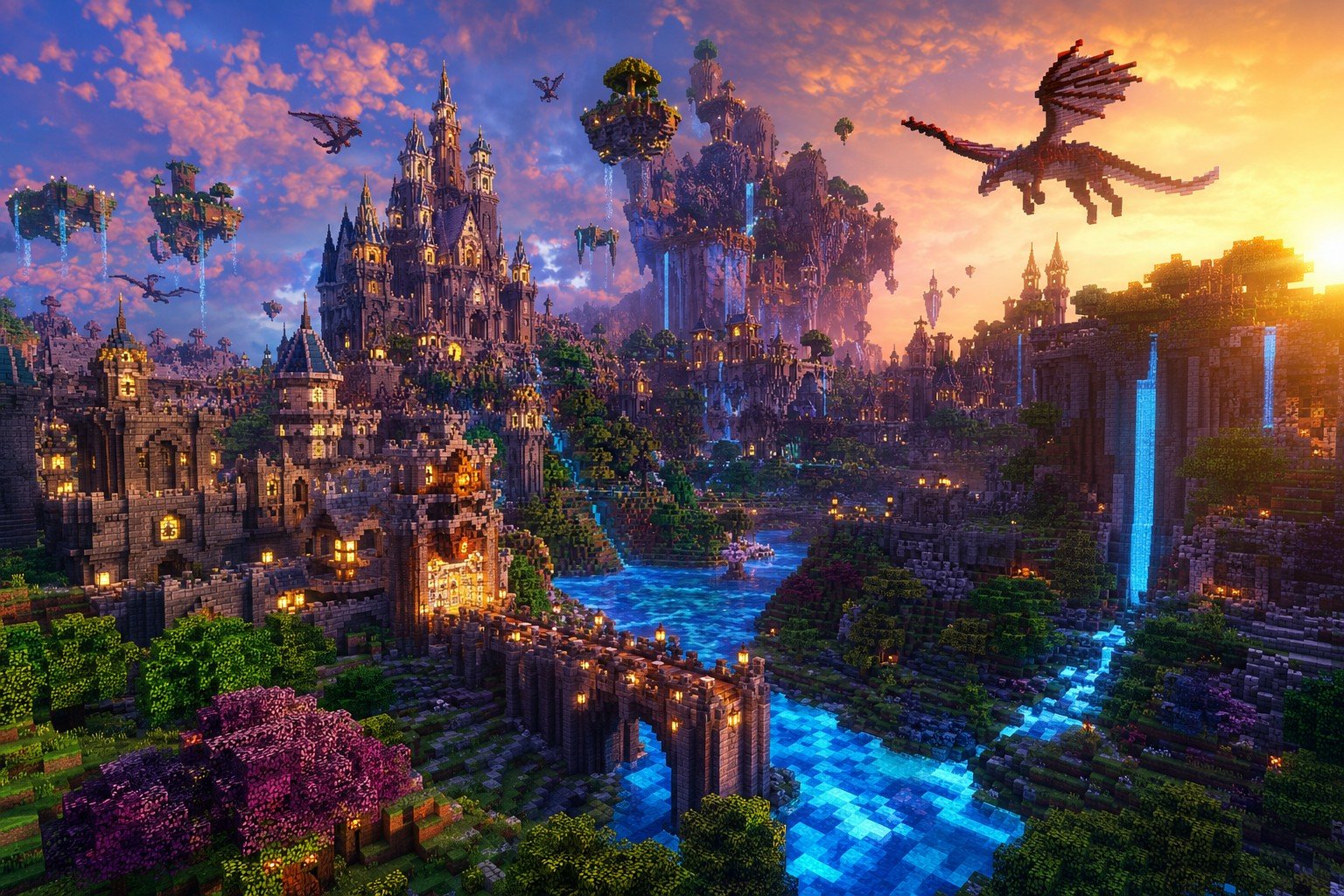
Minecraft Fantasy Kingdom Voxel Landscape
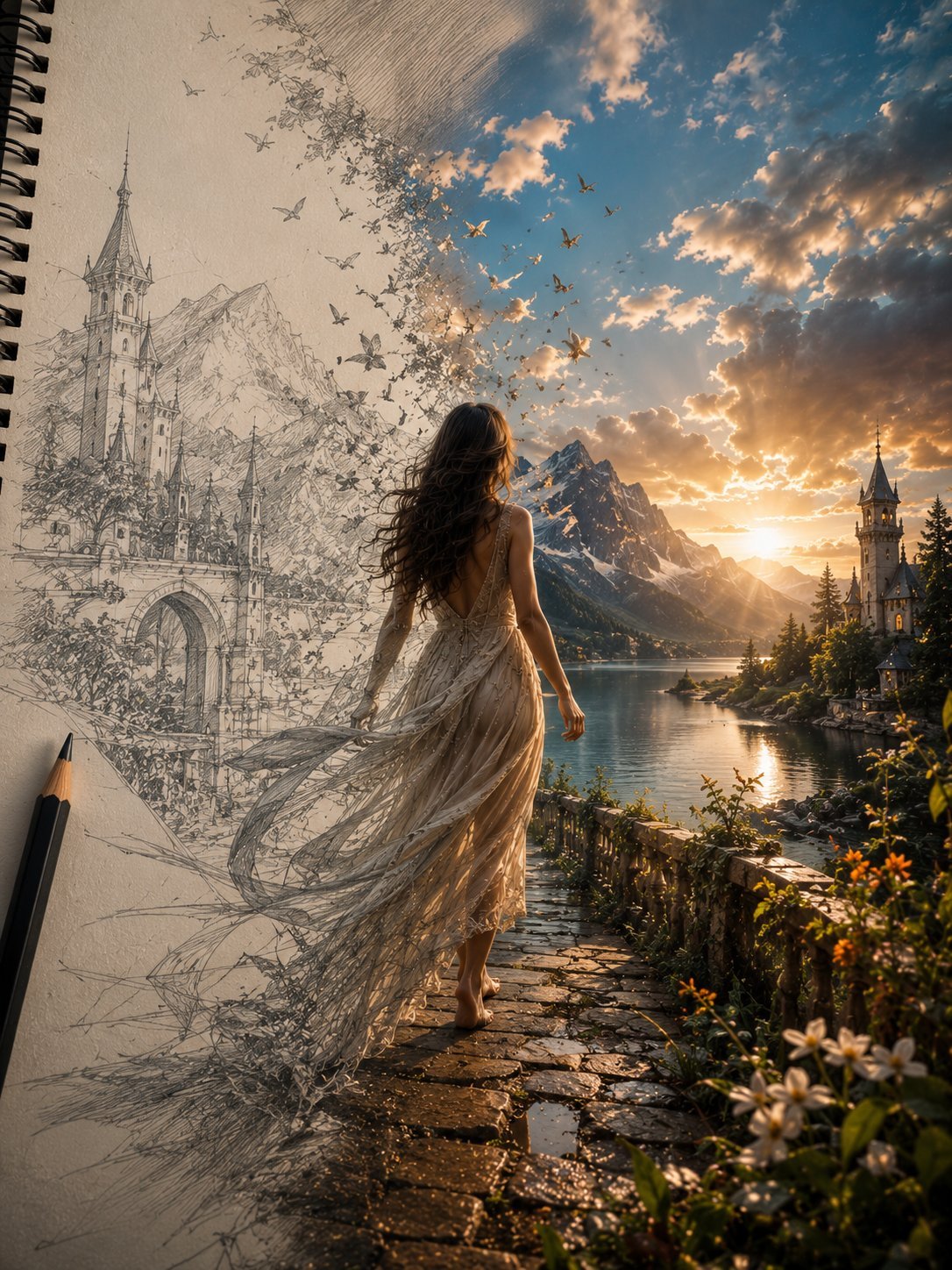
Unfinished Sketch Comes Alive Portrait
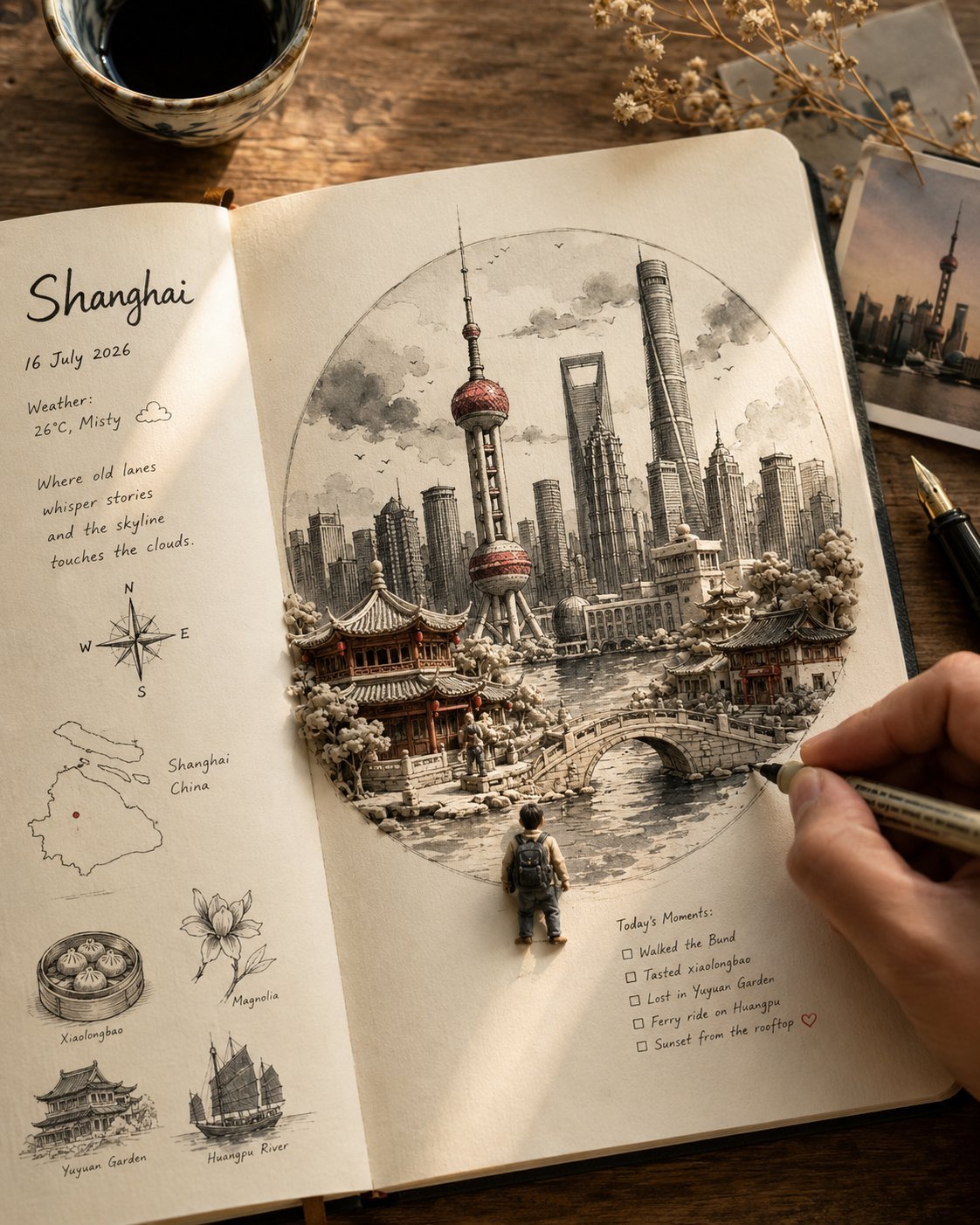
Open Travel Journal Overhead Still Life
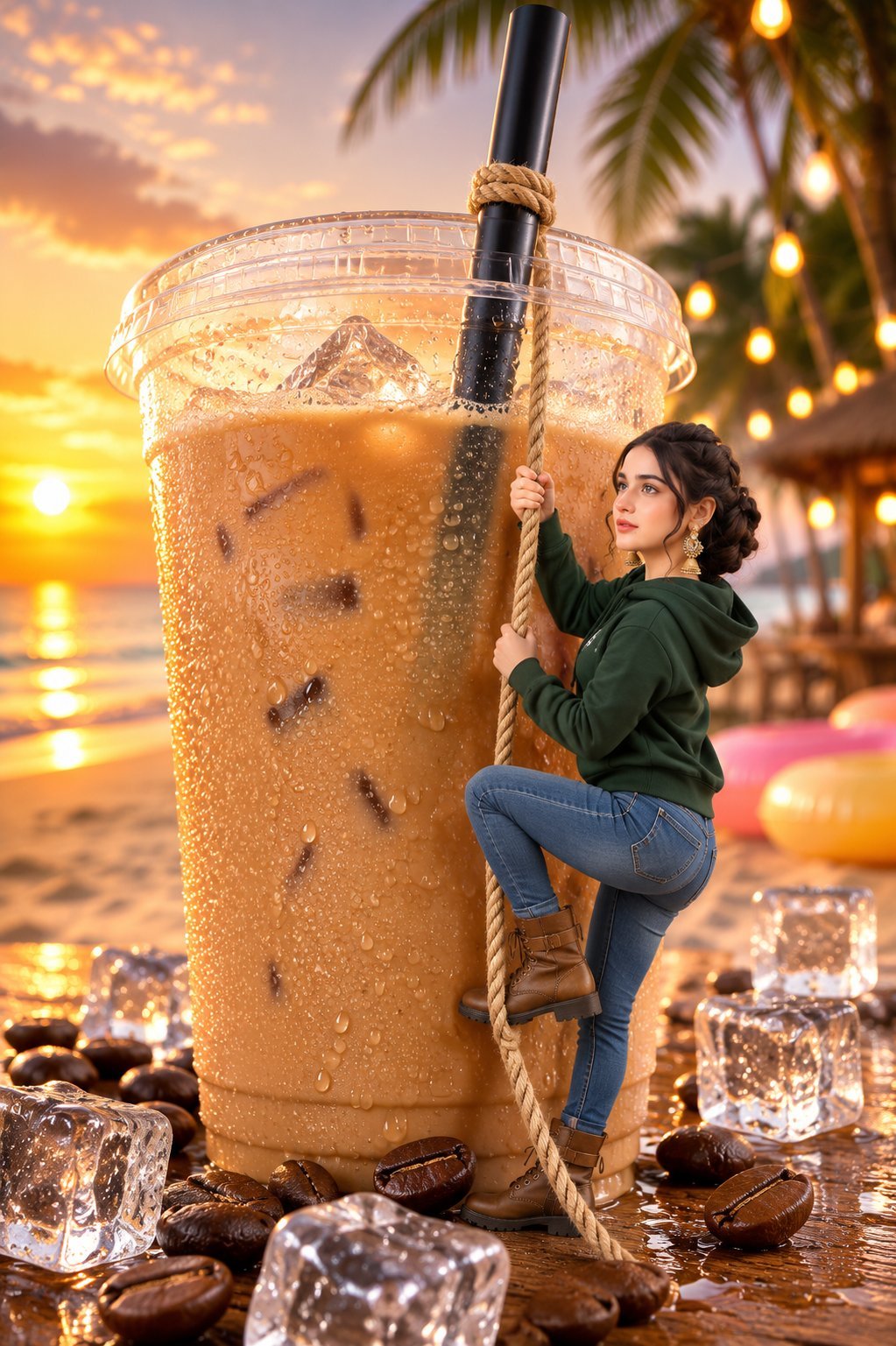
Tiny Woman Miniature Fantasy Macro Scene

GPT-Image2 E-Commerce Course Banner
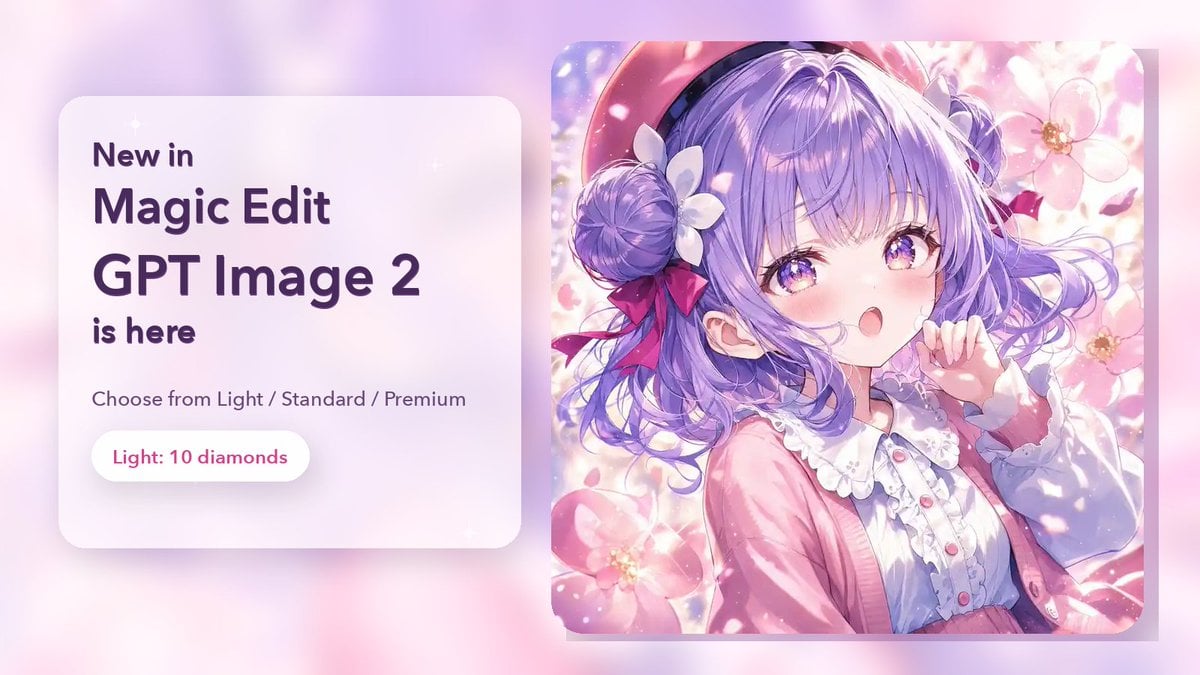
Magic Edit GPT Image 2 Promo Banner
Make it yours
Fantasy GPT Image 2 Skill Banner works as-is. These are the safest ways to change it without losing the look.
Change one field
Copy a single group, rewrite it, and generate again so you can see what that field is doing.
Keep the frame, change the subject
Hold the composition and light of Fantasy GPT Image 2 Skill Banner, then swap wardrobe, props or the person for a new take.
| If the result… | Why | Fix |
|---|---|---|
| The result drifts from the preview | Too many fields changed at once. | Reuse Fantasy GPT Image 2 Skill Banner as-is first, then change one group — subject, light, or setting. |
| The model over-stylizes the scene | The prose prompt leaves finish and camera underspecified. | Add one camera or lighting sentence and stay on GPT Image 2. |
More GPT Image 2 templates
Other prompts made for GPT Image 2.

Six VTuber Japanese Logo Sheet

Realistic Portrait of Woman and Deer

The Vista Modular Condo Poster

AI Model Routing Comparison Infographic

2.5D Anime Art Board

Isometric Productivity Desk Scene

New York Double Exposure Poster

Four-Panel AI Landscape Comparison

Japanese Tatami Lifestyle Magazine Cover

NESCAFÉ Coffee Map Poster
More image prompts
Fresh picks from across the catalog.
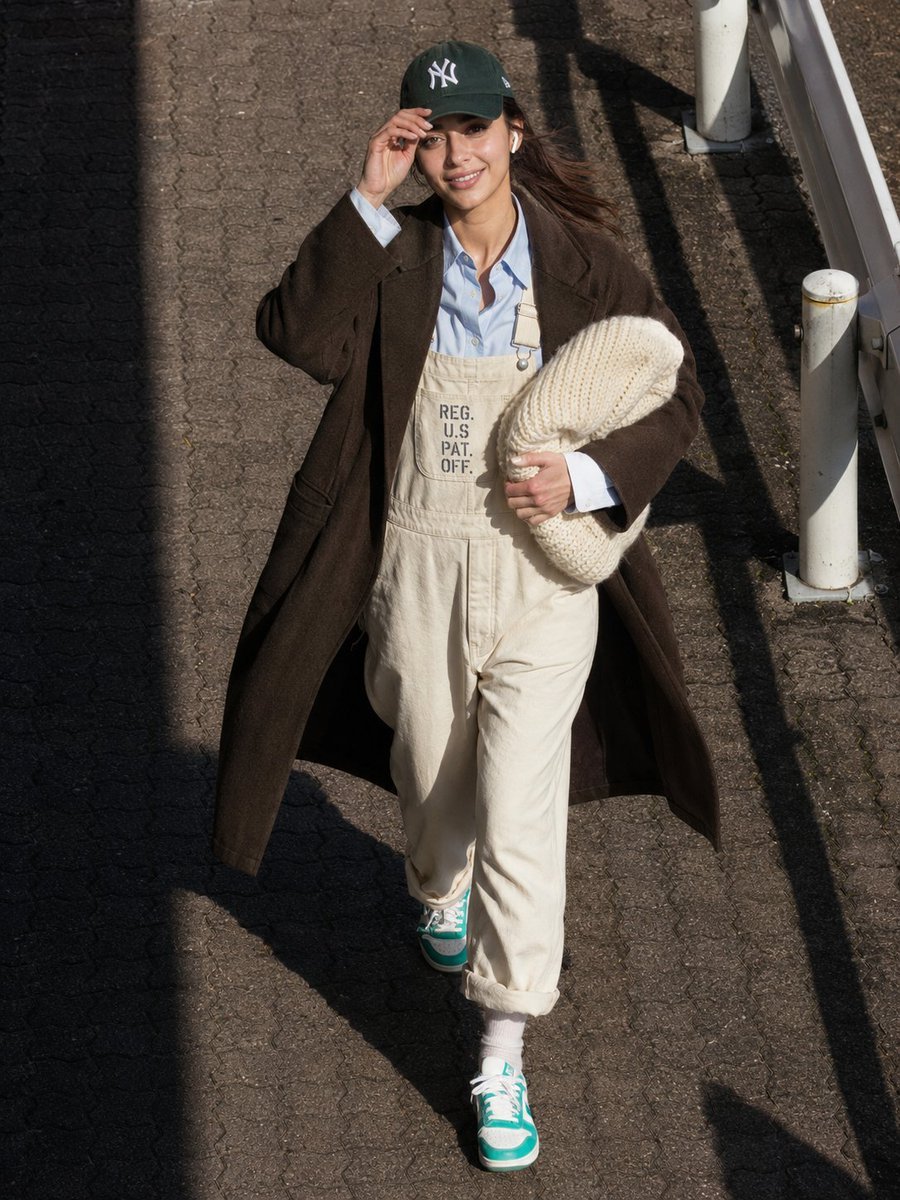
Candid Street Style Fashion
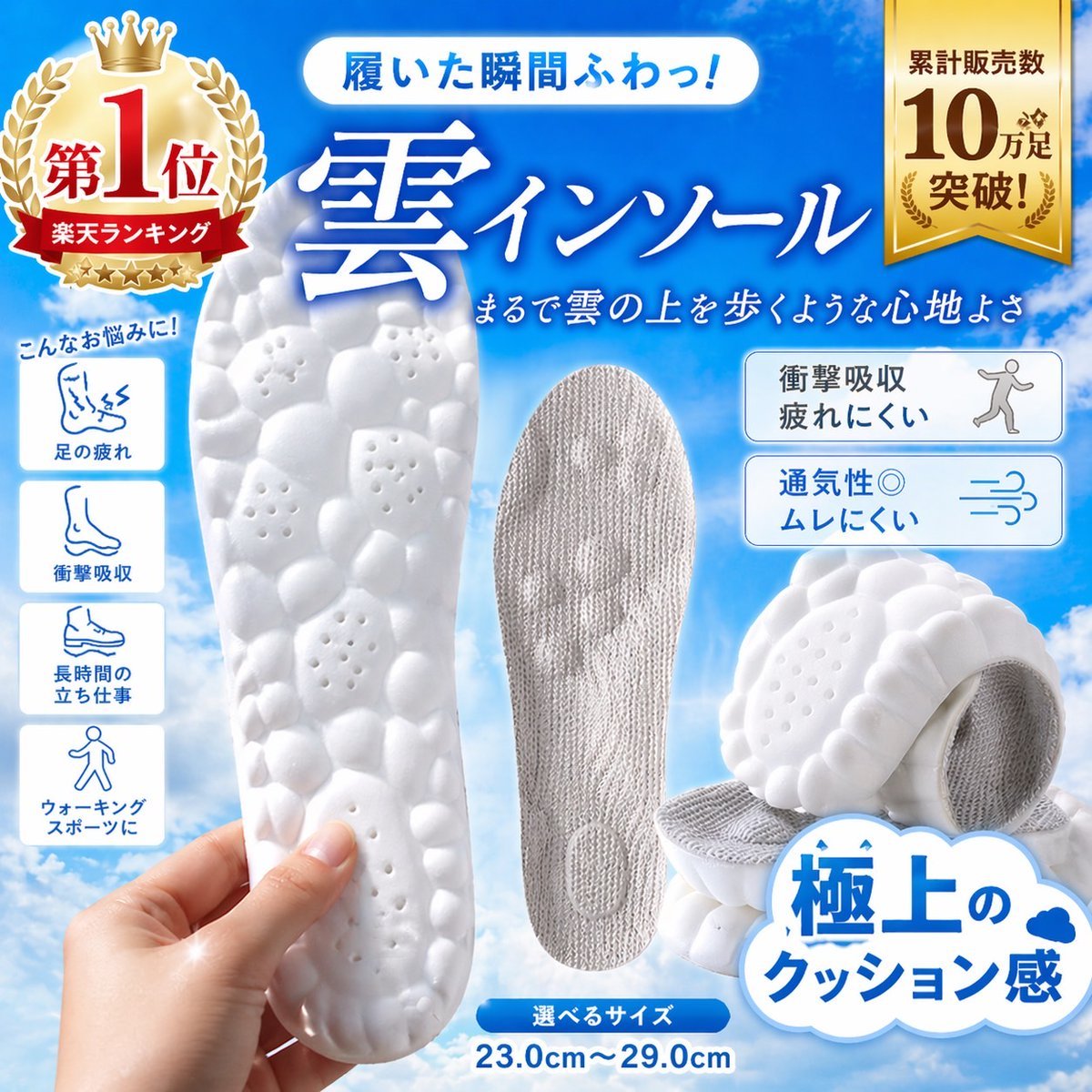
Japanese Cloud Insole Ad Banner
Japanese Beauty in Black Qipao
4K Wildlife Habitat Diorama Prompt
Anonymous Black Lace Fashion Portrait
Japanese AI Creative Manifesto Poster
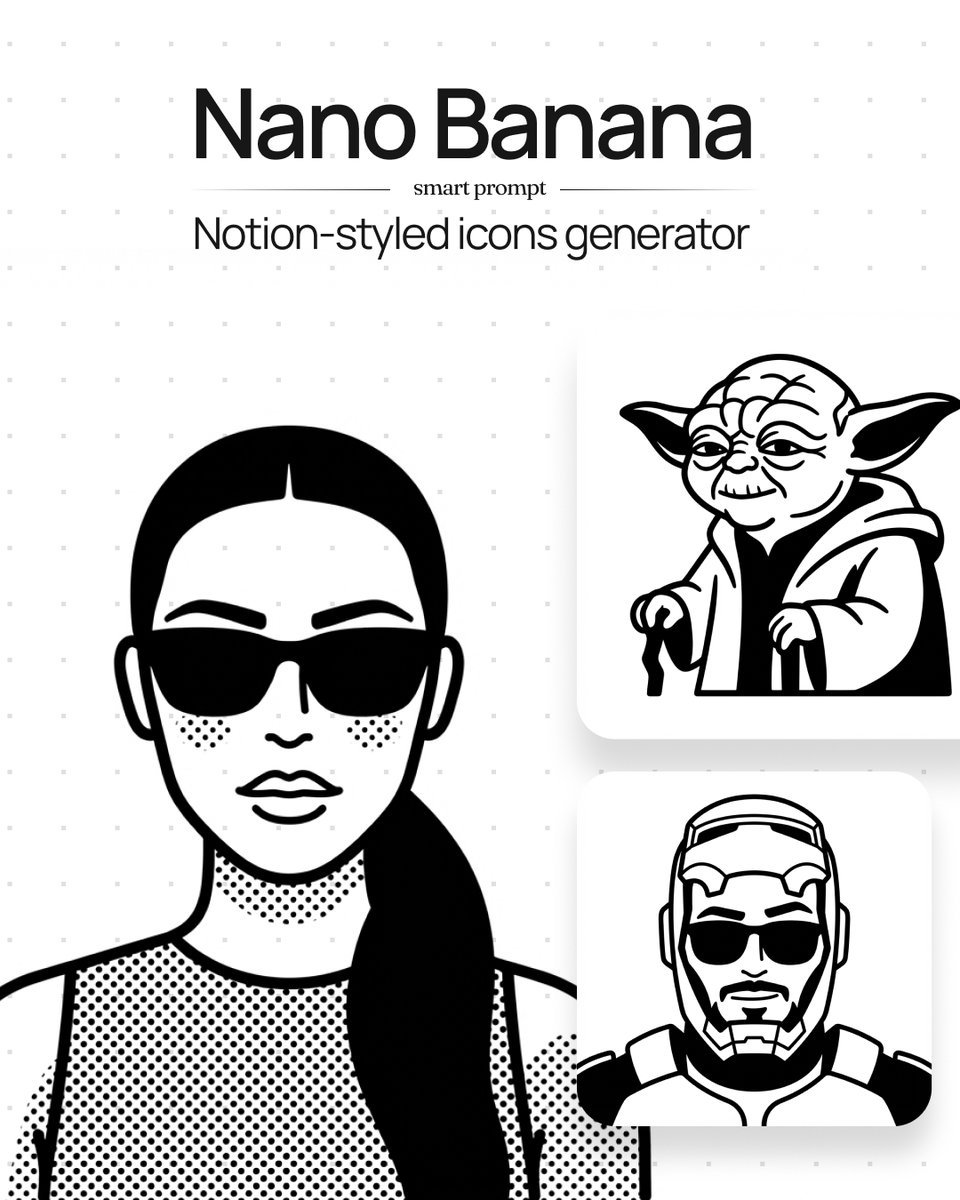
Instruction to Generate Custom Illustrations
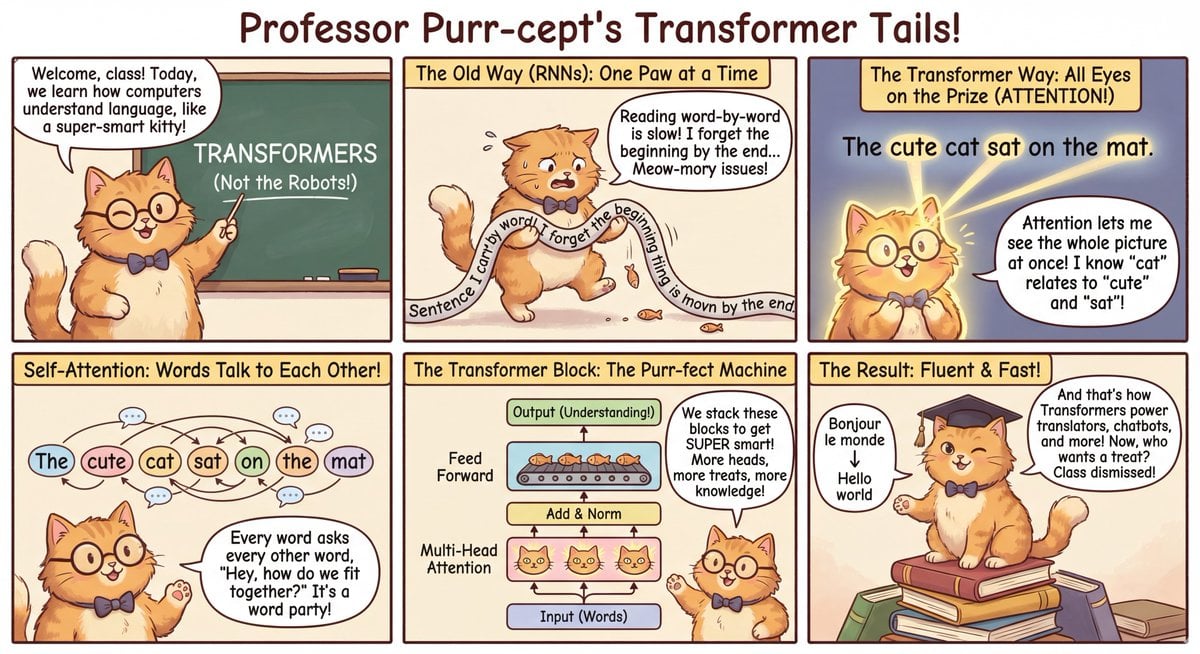
Outfit combinations using Sergey Brin as model
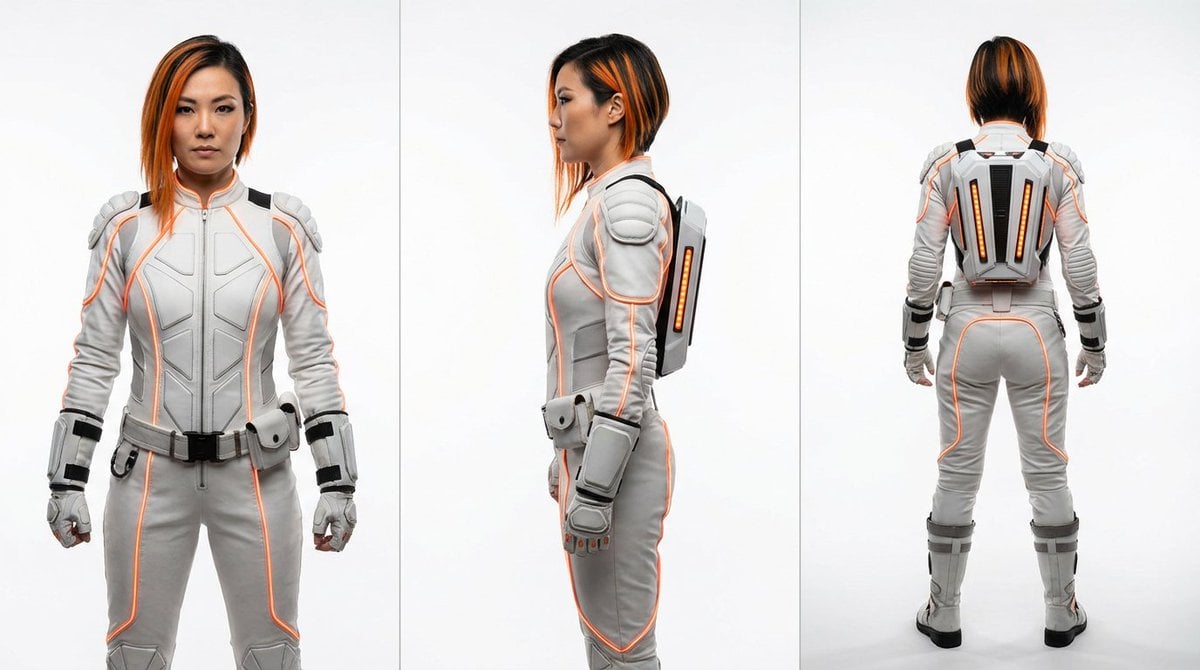
Sci-Fi Punk Japanese Woman View
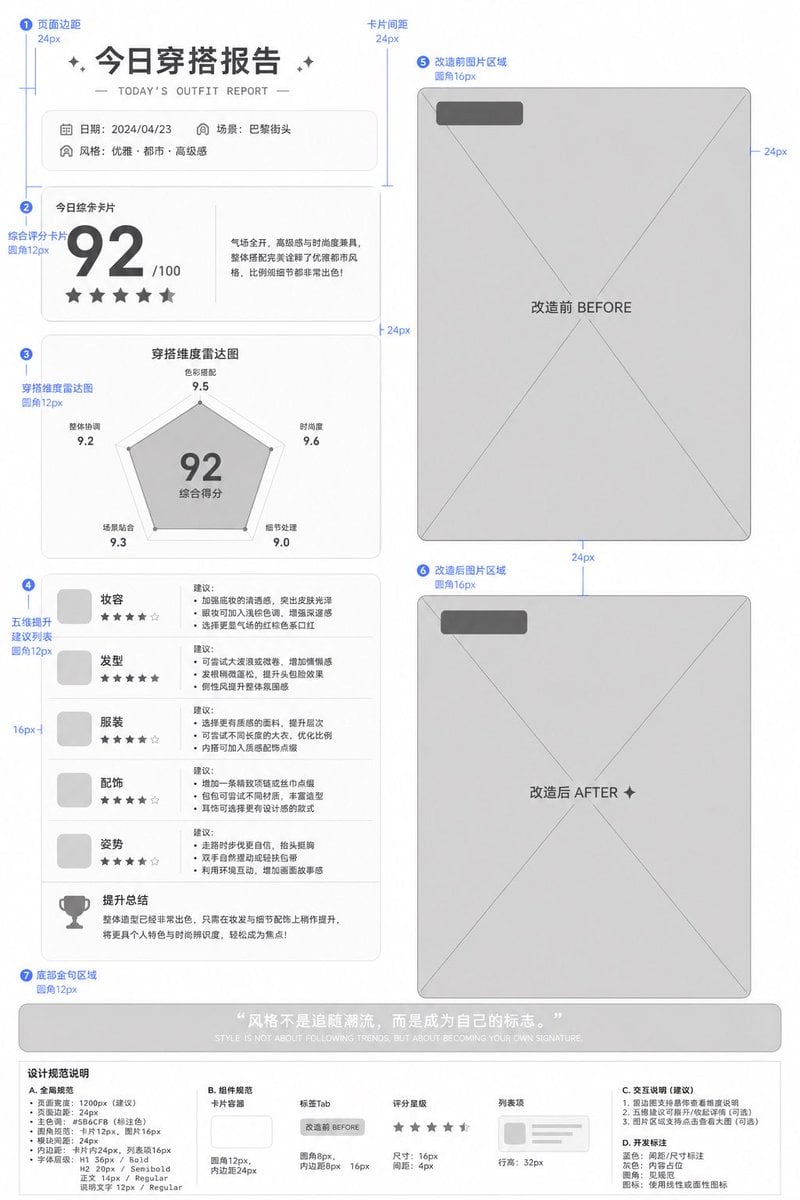
Low-Fidelity UI Design Prototype
Browse template categories
Fantasy GPT Image 2 Skill Banner questions
How do I use the Fantasy GPT Image 2 Skill Banner template?
Add your photo if the template asks for one, edit the prompt if you like — the template's model and format are already selected — and press Generate. Your version opens in PicX Studio.
Can I customize the Fantasy GPT Image 2 Skill Banner template?
Yes. You can change the subject, setting, lighting, mood, format, and available model controls before creating your image.
Is the Fantasy GPT Image 2 Skill Banner template free?
Opening and editing this template is free. Generating uses credits, shown on the Generate button when you are signed in.
Which AI model should I use?
Start with GPT Image 2, which is the model associated with this template. You can compare another compatible model for a different finish.
Looking for something else? Browse all templates.

Your photo, any look
Thousands of ready templates for every top image and video model, from one credit balance.