
Gpt2 Youtube Thumbnail Neon Ai Thumbnail Comparison
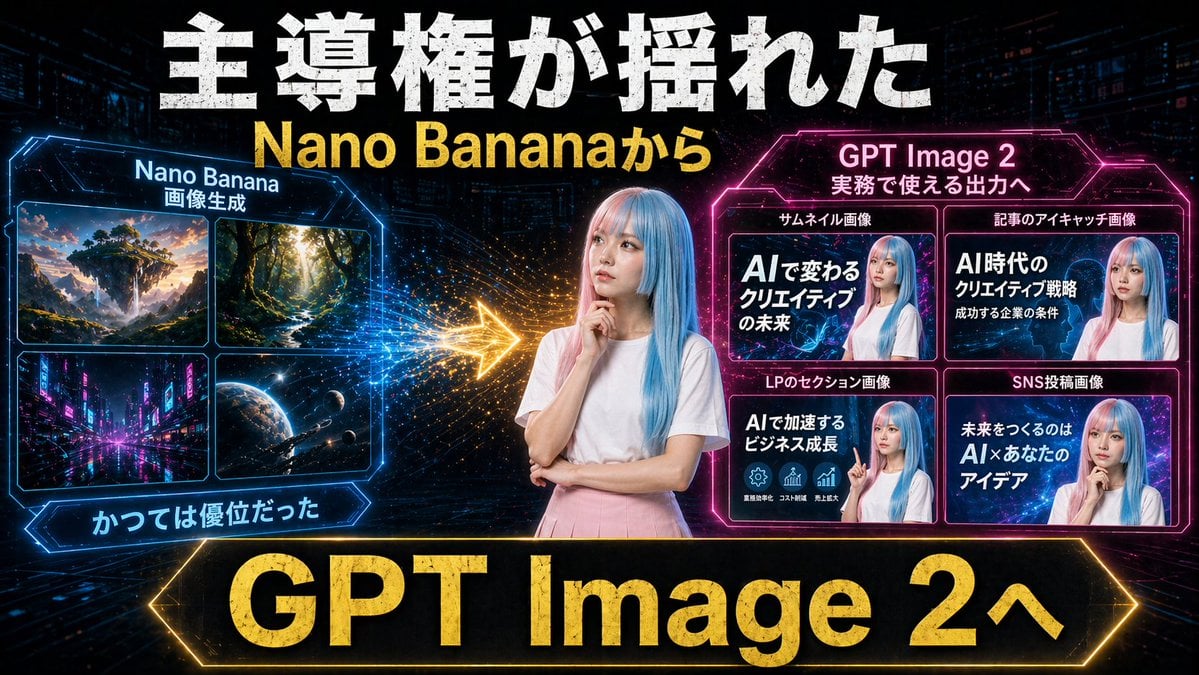
A bold cyberpunk comparison thumbnail showing a shift from Nano Banana image generation to GPT Image 2 with practical marketing output examples, ideal for YouTube or social media promos.
- Prompt included
- Model and format preset
- Free template
The prompt behind this image
Copy the exact prompt behind Gpt2 Youtube Thumbnail Neon Ai Thumbnail Comparison, or open it in the studio and make it yours.
Create a dramatic Japanese YouTube thumbnail in a futuristic neon cyberpunk style, 16:9 landscape. Use a dark tech-city background with faint skyscrapers, digital grid lines, glowing particles, and high-contrast blue, pink, and gold lighting. In the exact center, place a young woman from the waist up with long straight pastel blue hair, wearing a plain white short-sleeve T-shirt and a light pink skirt, posing thoughtfully with one hand near her chin and the other arm folded; anonymize her face with a soft rectangular blur. Across the very top, add huge distressed bold white Japanese headline text reading 主導権が揺れた, and directly below it add large bold yellow text reading {argument name="subheadline text" default="Nano Bananaから"}. On the left side, create a glowing blue hexagonal-framed panel titled Nano Banana with a smaller subtitle 画像生成. Inside that panel, include exactly 4 image tiles in a 2x2 grid: 1) a fantasy floating island landscape at sunset, 2) a sunlit forest path with tall trees, 3) a neon futuristic city street at night, 4) an outer-space planet scene with stars and a spacecraft. Beneath the left panel, add a blue glowing ribbon label reading かつては優位だった. On the right side, create a glowing magenta hexagonal-framed panel titled {argument name="right panel title" default="GPT Image 2"} with a smaller subtitle 実務で使える出力へ. Inside it, include exactly 4 example thumbnail cards in a 2x2 grid, each featuring the same blue-haired woman with a blurred face and bold Japanese text. The 4 card labels above the tiles are: サムネイル画像, 記事のアイキャッチ画像, LPのセクション画像, SNS投稿画像. The large text inside the 4 cards should read respectively: 1) AIで変わるクリエイティブの未来, 2) AI時代のクリエイティブ戦略 成功する企業の条件, 3) AIで加速するビジネス成長, 4) 未来をつくるのは AI×あなたのアイデア. Between the left and right panels, place a bright glowing gold arrow pointing from left to right with spark-like particle trails, indicating transition or superiority shift. Along the bottom, add a very large black banner with a glowing gold border and massive bold gold text reading {argument name="bottom banner text" default="GPT Image 2へ"}. Overall composition should feel like a comparison graphic showing a shift from older image generation to more practical commercial output, with aggressive thumbnail typography, strong glow effects, metallic texture on major text, and polished social-media marketing visuals.
How to use Gpt2 Youtube Thumbnail Neon Ai Thumbnail Comparison in 3 steps
- 1Upload ImagePNG, JPG or paste
Add your photo
Upload the photo the template builds on. The prompt, model and format are already set.
- 2…a portrait of your subject in softgolden-hour light, 85mm…
Personalize
Edit the subject and creative details for your destination.
- 3Generate
Generate
Press Generate — your image is created in PicX Studio, so you can compare it with the original and refine one variable at a time.
More like this
Templates with the same subject, style or setup. Open one to see its prompt.
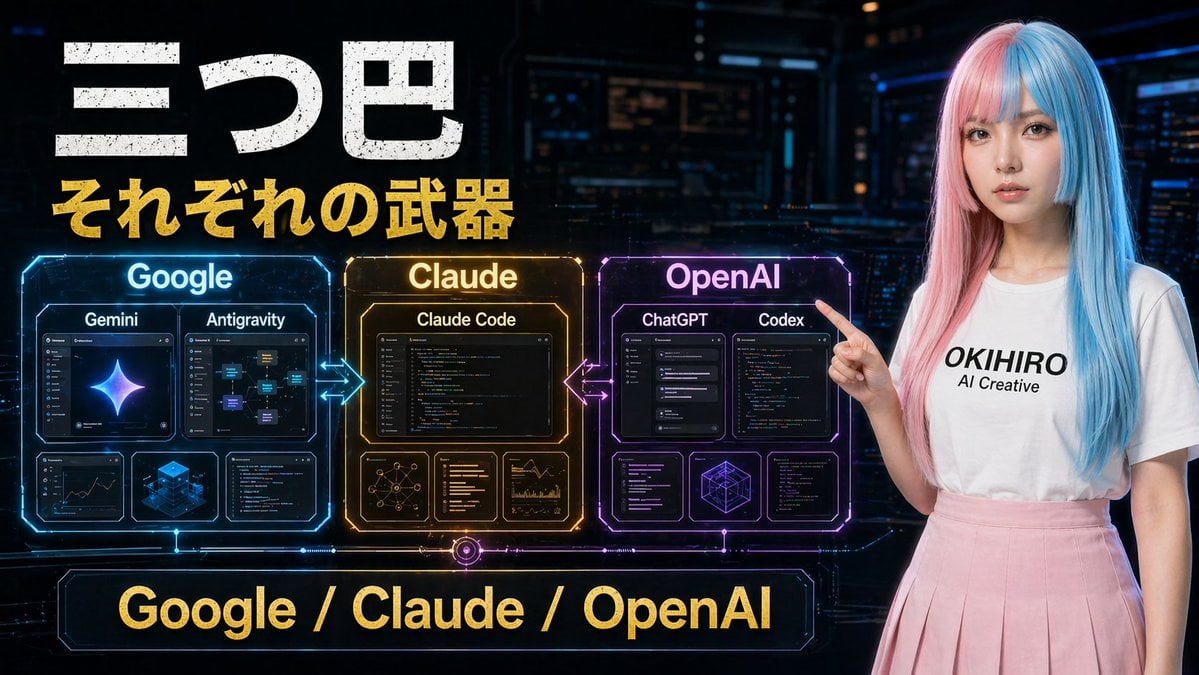
Gpt2 Youtube Thumbnail Cyberpunk Ai Tools Comparison Poster
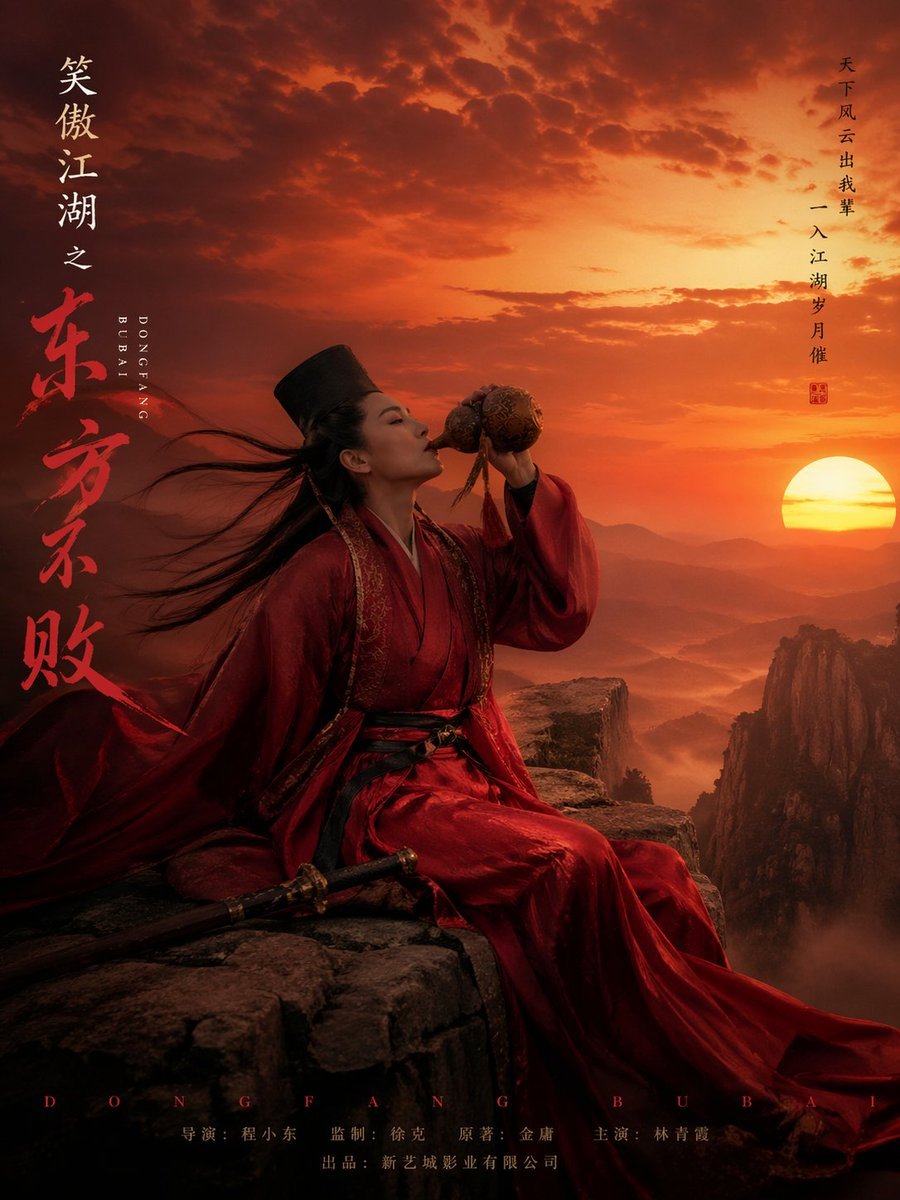
Gpt2 Youtube Thumbnail Wuxia Movie Character Posters
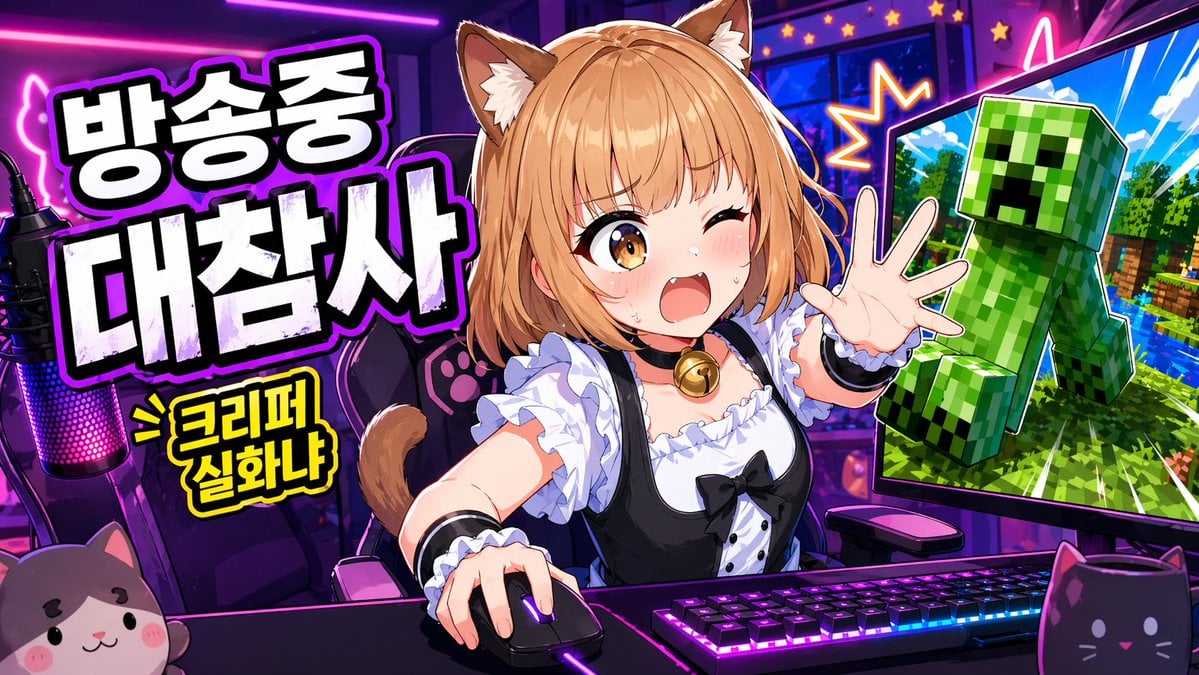
Gpt2 Youtube Thumbnail Anime Vtuber Minecraft Stream Thumbnail
Gpt2 Youtube Thumbnail Cinematic City Explosion Chase
Gpt2 Youtube Thumbnail Anime Music Bootcamp Promo Poster
Gpt2 Youtube Thumbnail Tokyo Disneysea Front Row Battle Ui
Gpt2 Youtube Thumbnail Anime Fantasy Travel Movie Poster
Gpt2 Youtube Thumbnail Dreamy Anime Sayori Banner
Gpt2 Youtube Thumbnail Pink Anime Natsuki Banner
Gpt2 Youtube Thumbnail Purple Anime Yuri Banner
Gpt2 Youtube Thumbnail Monika Anime Banner Illustration
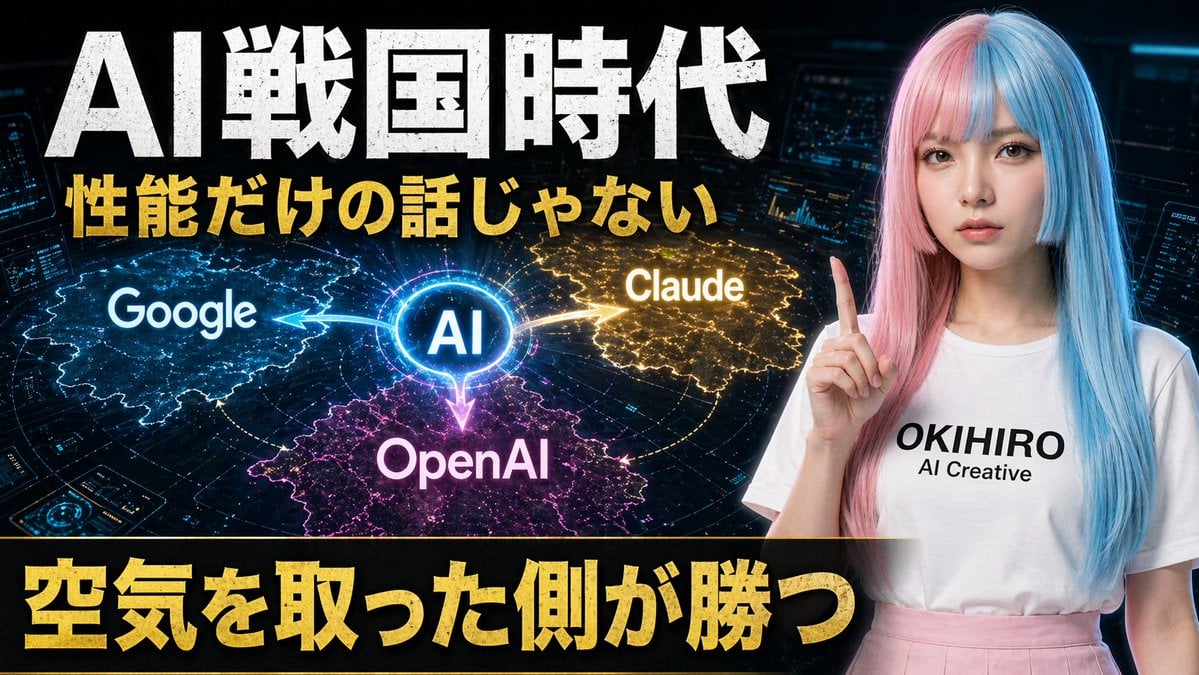
Gpt2 Youtube Thumbnail Japanese Ai Battle Youtube Thumbnail
Make it yours
Gpt2 Youtube Thumbnail Neon Ai Thumbnail Comparison works as-is. These are the safest ways to change it without losing the look.
Change one field
Copy a single group, rewrite it, and generate again so you can see what that field is doing.
Keep the frame, change the subject
Hold the composition and light of gpt2-youtube-thumbnail-neon-ai-thumbnail-comparison, then swap wardrobe, props or the person for a new take.
| If the result… | Why | Fix |
|---|---|---|
| The result drifts from the preview | Too many fields changed at once. | Reuse gpt2-youtube-thumbnail-neon-ai-thumbnail-comparison as-is first, then change one group — subject, light, or setting. |
| The model over-stylizes the scene | The prose prompt leaves finish and camera underspecified. | Add one camera or lighting sentence and stay on GPT Image 2. |
More GPT Image 2 templates
Other prompts made for GPT Image 2.

Six VTuber Japanese Logo Sheet

Realistic Portrait of Woman and Deer

The Vista Modular Condo Poster

AI Model Routing Comparison Infographic

2.5D Anime Art Board

Isometric Productivity Desk Scene

New York Double Exposure Poster

Four-Panel AI Landscape Comparison

Japanese Tatami Lifestyle Magazine Cover

NESCAFÉ Coffee Map Poster
More image prompts
Fresh picks from across the catalog.
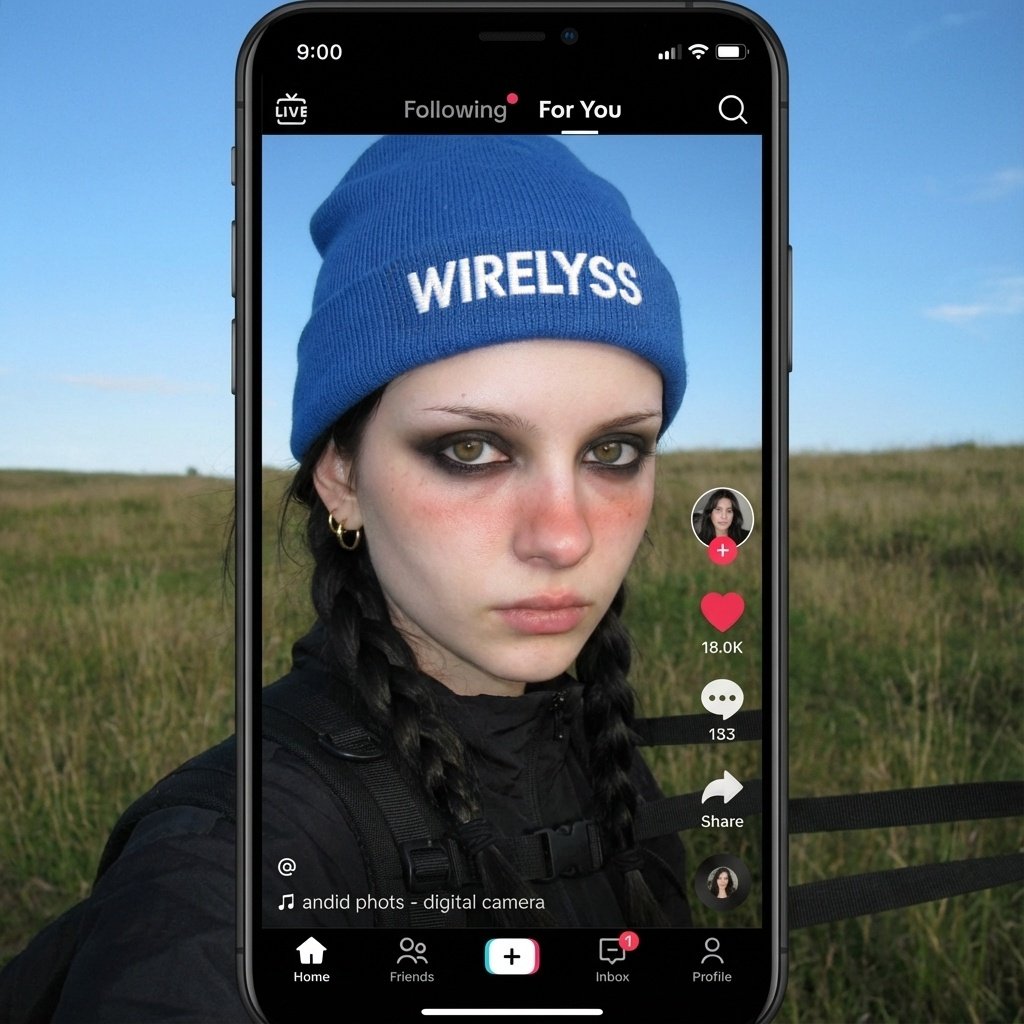
Merge user with profile picture
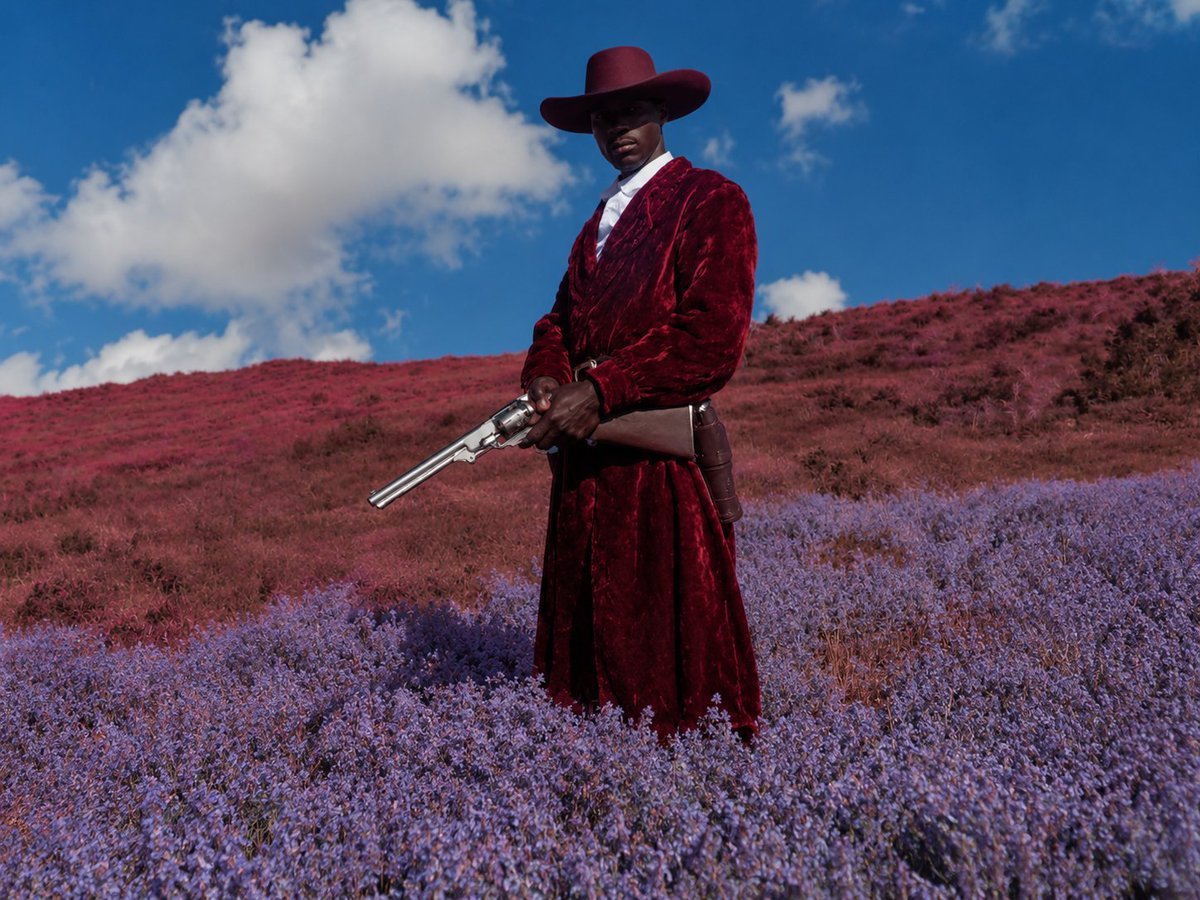
Surreal Crimson Cowboy Portrait
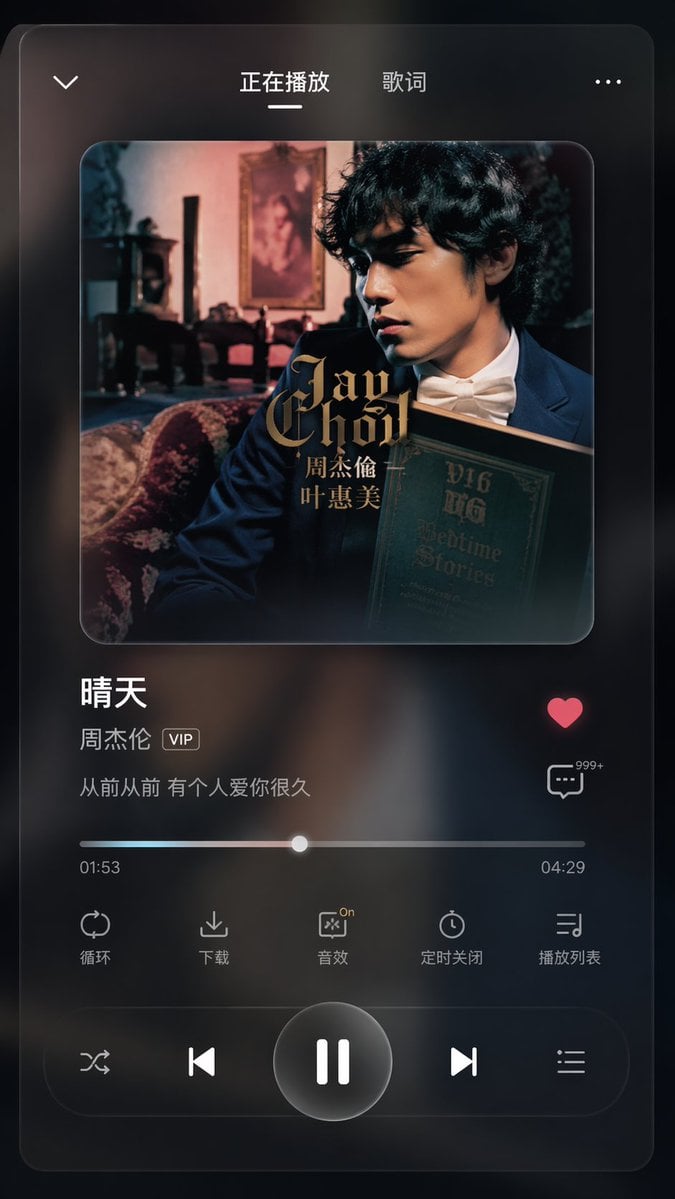
App UI Design - Music & Fitness
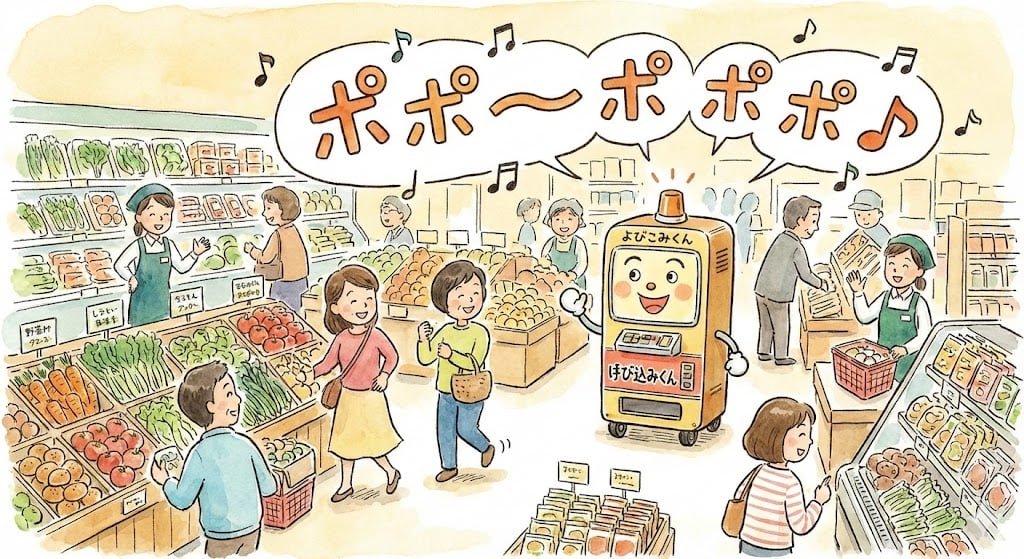
Yobikomi-kun Melody Prompt
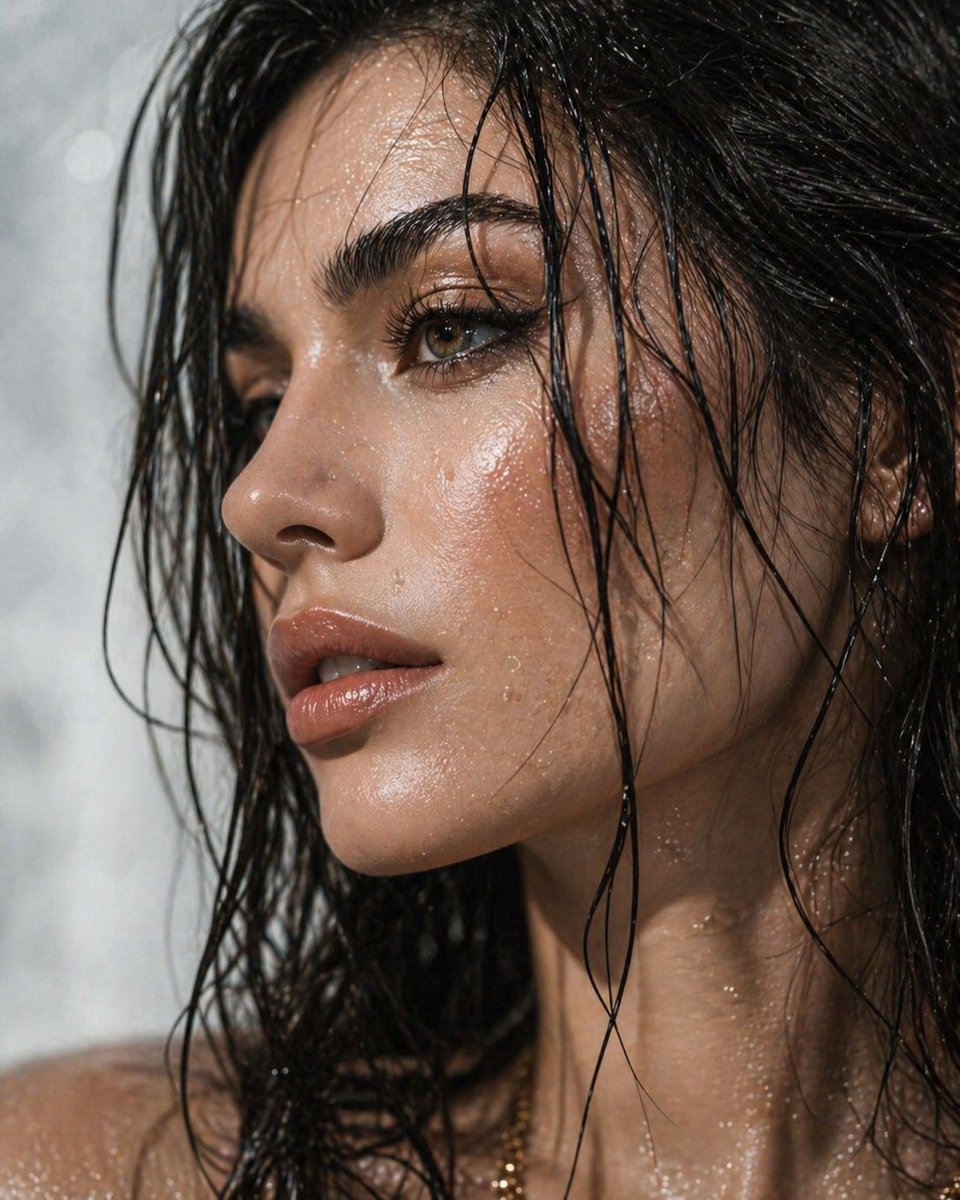
Ultra-Detailed Dewy Skin Portrait
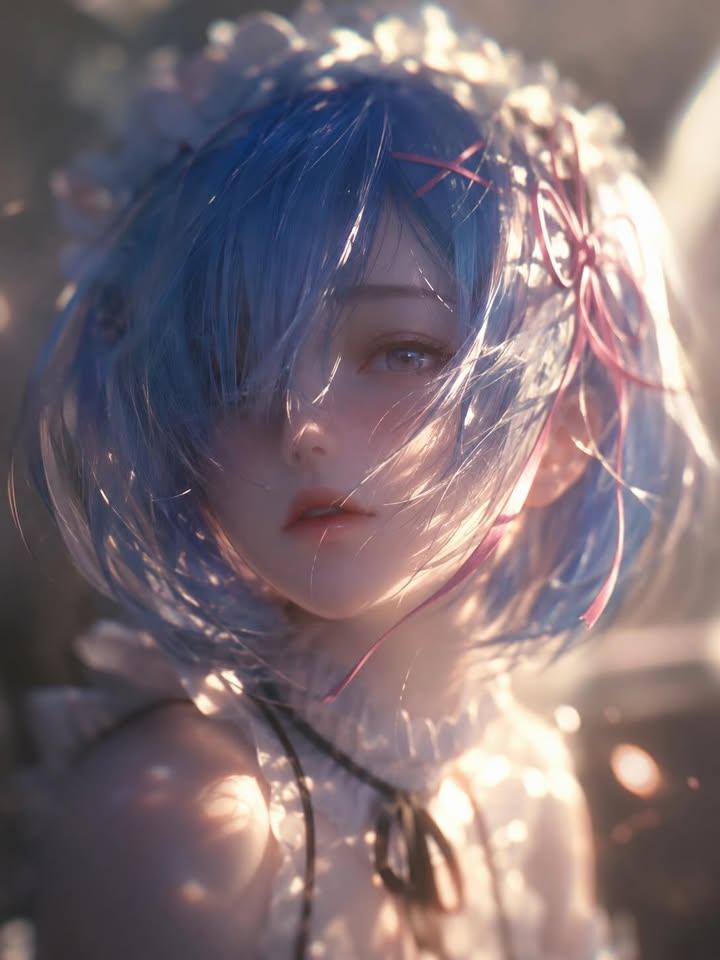
Ethereal Anime Character Portrait
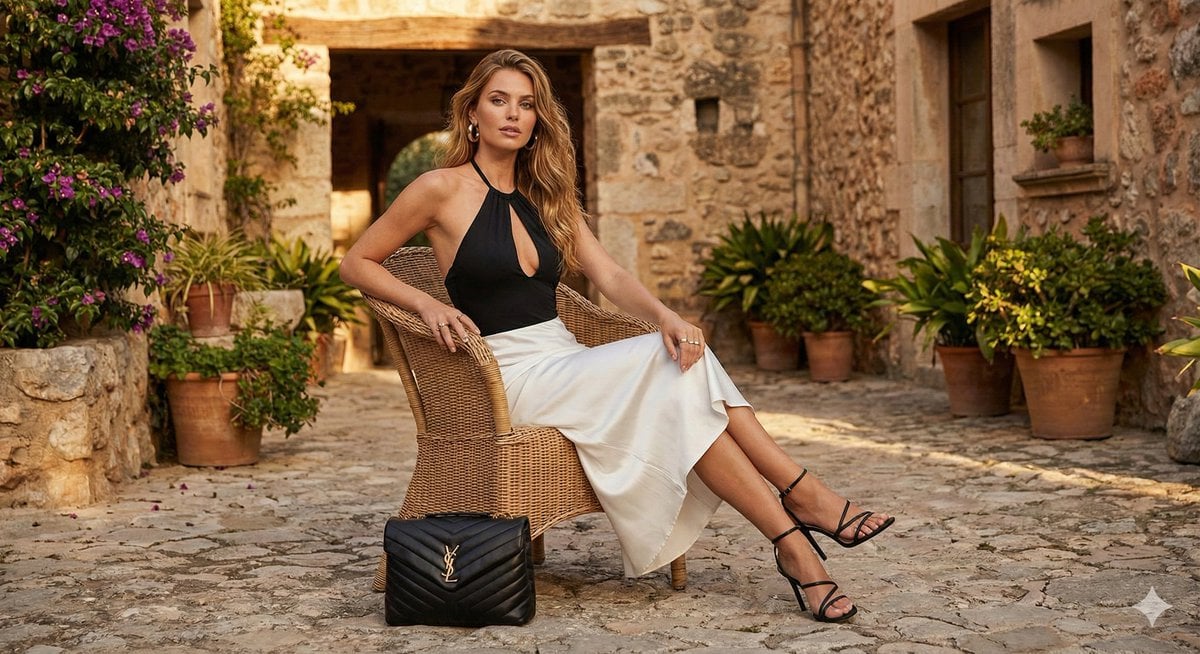
Rustic Luxury Fashion Shot with YSL Handbag
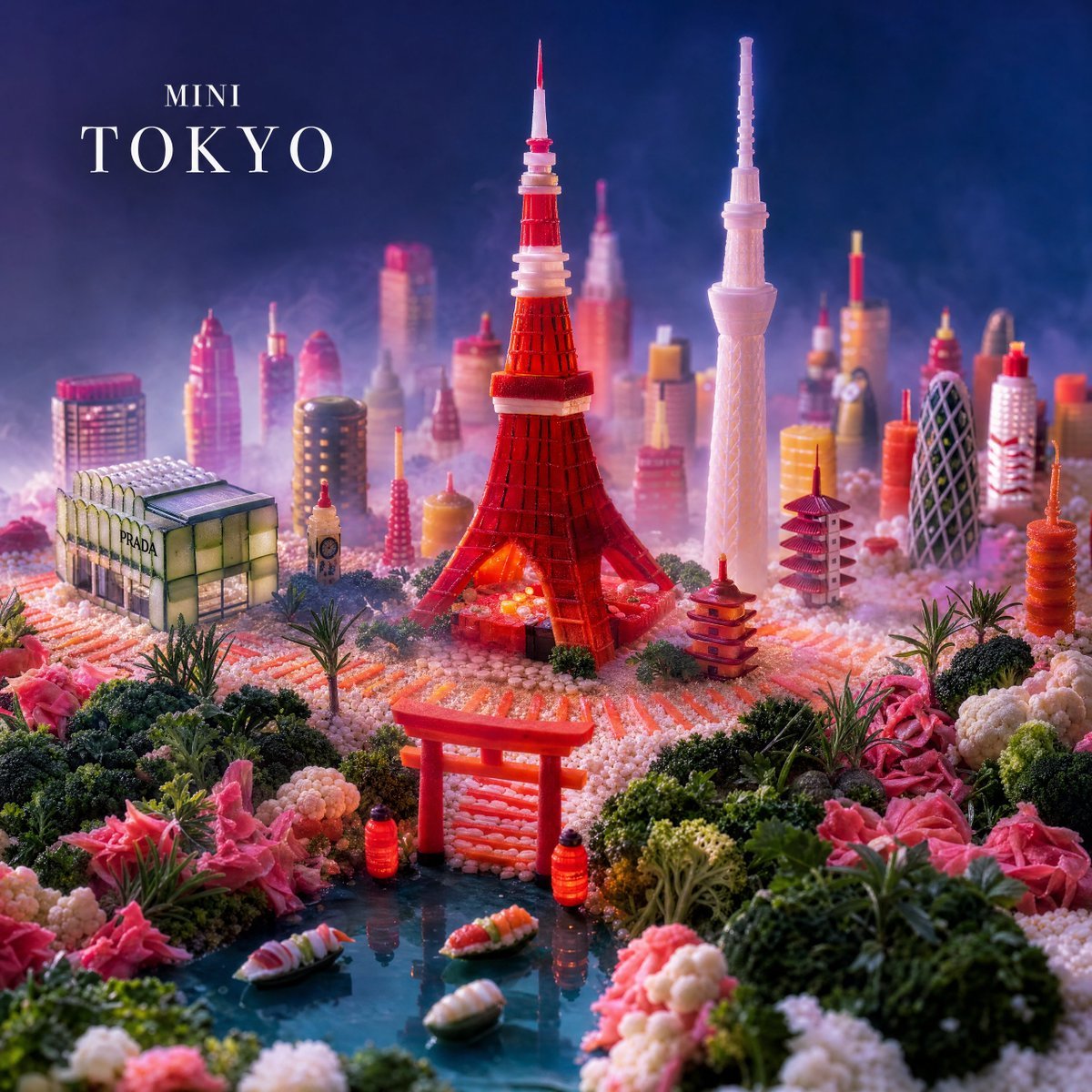
Mini Tokyo Food Landscape
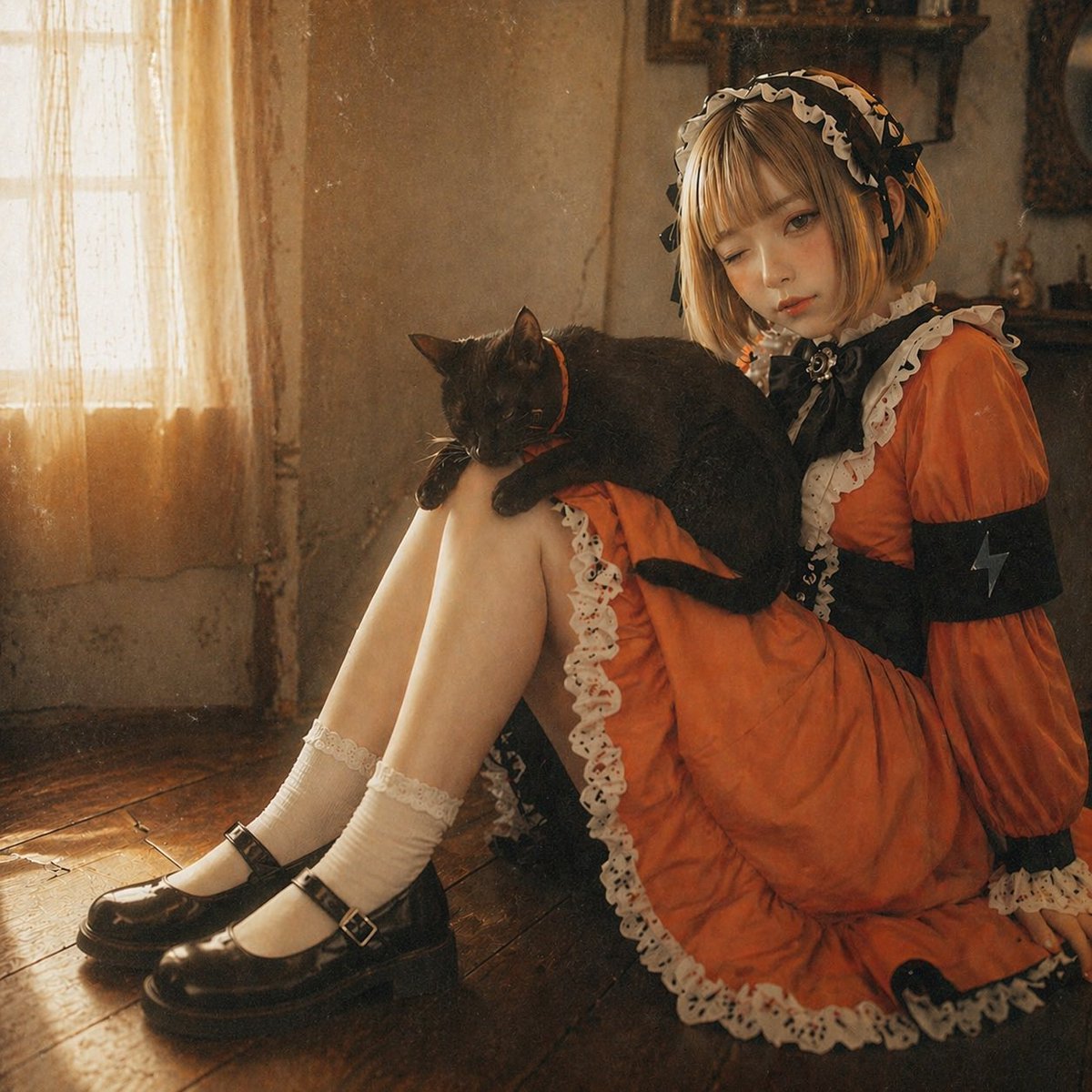
Anime Girl to Cinematic Photo
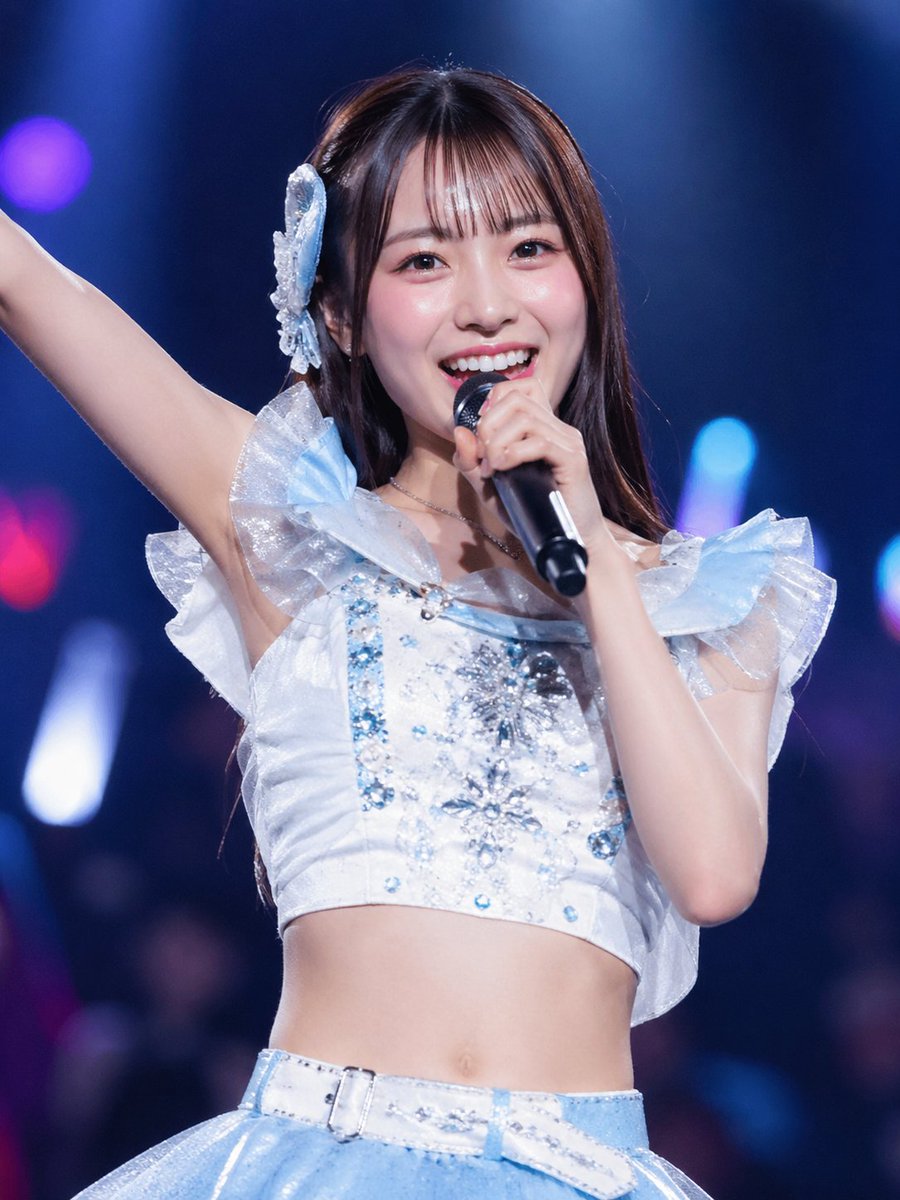
Japanese Idol Concert Portrait
Browse template categories
Gpt2 Youtube Thumbnail Neon Ai Thumbnail Comparison questions
How do I use the gpt2-youtube-thumbnail-neon-ai-thumbnail-comparison template?
Add your photo if the template asks for one, edit the prompt if you like — the template's model and format are already selected — and press Generate. Your version opens in PicX Studio.
Can I customize the gpt2-youtube-thumbnail-neon-ai-thumbnail-comparison template?
Yes. You can change the subject, setting, lighting, mood, format, and available model controls before creating your image.
Is the gpt2-youtube-thumbnail-neon-ai-thumbnail-comparison template free?
Opening and editing this template is free. Generating uses credits, shown on the Generate button when you are signed in.
Which AI model should I use?
Start with GPT Image 2, which is the model associated with this template. You can compare another compatible model for a different finish.
Looking for something else? Browse all templates.

Your photo, any look
Thousands of ready templates for every top image and video model, from one credit balance.