
Web Design Course Promotional Banner
Generates a modern, bright promotional web banner featuring a smiling professional, customizable headlines, feature highlights, and a call-to-action button.

- Prompt included
- Model and format preset
- Free template
The prompt behind this image
Copy the exact prompt behind Web Design Course Promotional Banner, or open it in the studio and make it yours.
- Type
- web advertisement banner
- Style
- clean, modern, bright, pastel gradient accents, dotted patterns in corners
- Background Image
- {argument name="subject description" default="young Japanese woman smiling, looking at a laptop screen, resting her chin on her hand, wearing a white blouse"}, bright natural lighting, white mug on desk
- Typography › Catchphrase › Text
- {argument name="catchphrase" default="好きを、仕事にする力を"}
- Typography › Catchphrase › Style
- handwritten font, blue and purple underline
- Typography › Headline › Text
- {argument name="main headline" default="Webデザインで未来を変える。"}
- Typography › Headline › Style
- large bold sans-serif, black and blue-to-purple gradient
- Typography › Subheadline › Text
- From inexperienced to professional Web designer.
- Typography › Subheadline › Style
- medium sans-serif, black with blue highlight
- Layout › Feature Icons › Count
- 3
- Layout › Feature Icons › Style
- circular white badges with minimalist icons and text labels below
- Layout › Feature Icons › Items › 0 › Icon
- open book
- Layout › Feature Icons › Items › 0 › Label
- Beginners OK
- Layout › Feature Icons › Items › 1 › Icon
- laptop
- Layout › Feature Icons › Items › 1 › Label
- 100% Online
- Layout › Feature Icons › Items › 2 › Icon
- person with speech bubble
- Layout › Feature Icons › Items › 2 › Label
- Support from active designers
- Layout › Bottom Section › Satisfaction Badge › Text Top
- Student Satisfaction
- Layout › Bottom Section › Satisfaction Badge › Value
- {argument name="satisfaction rate" default="94%"}
- Layout › Bottom Section › Satisfaction Badge › Text Bottom
- *Internal research
- Layout › Bottom Section › Satisfaction Badge › Decoration
- golden laurel wreaths
- Layout › Bottom Section › Cta Button › Style
- pill-shaped, blue-to-pink gradient background, white text, right arrow icon
- Layout › Bottom Section › Cta Button › Microcopy
- \ Consult for free first /
- Layout › Bottom Section › Cta Button › Main Text
- {argument name="call to action text" default="無料カウンセリングに申し込む"}
Raw JSON
{
  "type": "web advertisement banner",
  "style": "clean, modern, bright, pastel gradient accents, dotted patterns in corners",
  "background_image": "{argument name=\"subject description\" default=\"young Japanese woman smiling, looking at a laptop screen, resting her chin on her hand, wearing a white blouse\"}, bright natural lighting, white mug on desk",
  "typography": {
    "catchphrase": {
      "text": "{argument name=\"catchphrase\" default=\"好きを、仕事にする力を\"}",
      "style": "handwritten font, blue and purple underline"
    },
    "headline": {
      "text": "{argument name=\"main headline\" default=\"Webデザインで未来を変える。\"}",
      "style": "large bold sans-serif, black and blue-to-purple gradient"
    },
    "subheadline": {
      "text": "From inexperienced to professional Web designer.",
      "style": "medium sans-serif, black with blue highlight"
    }
  },
  "layout": {
    "feature_icons": {
      "count": 3,
      "style": "circular white badges with minimalist icons and text labels below",
      "items": [
        { "icon": "open book", "label": "Beginners OK" },
        { "icon": "laptop", "label": "100% Online" },
        { "icon": "person with speech bubble", "label": "Support from active designers" }
      ]
    },
    "bottom_section": {
      "satisfaction_badge": {
        "text_top": "Student Satisfaction",
        "value": "{argument name=\"satisfaction rate\" default=\"94%\"}",
        "text_bottom": "*Internal research",
        "decoration": "golden laurel wreaths"
      },
      "cta_button": {
        "style": "pill-shaped, blue-to-pink gradient background, white text, right arrow icon",
        "microcopy": "\\ Consult for free first /",
        "main_text": "{argument name=\"call to action text\" default=\"無料カウンセリングに申し込む\"}"
      }
    }
  }
}How to use Web Design Course Promotional Banner in 3 steps
- 1Upload ImagePNG, JPG or paste
Add your photo
Upload the photo the template builds on. The prompt, model and format are already set.
- 2…a portrait of your subject in softgolden-hour light, 85mm…
Personalize
Edit the subject and creative details for your destination.
- 3Generate
Generate
Press Generate — your image is created in PicX Studio, so you can compare it with the original and refine one variable at a time.
More like this
Templates with the same subject, style or setup. Open one to see its prompt.
Cosmetics Promotional Web Banner

Modern Webinar Promotional Banner
Mother's Day Flower Gift Promotional Banner
Premium Psychology Website AI Banner
Cartoon TV Show Poster Pack

GPT-Image2 E-Commerce Course Banner

Wireframe to Corporate Web Banner
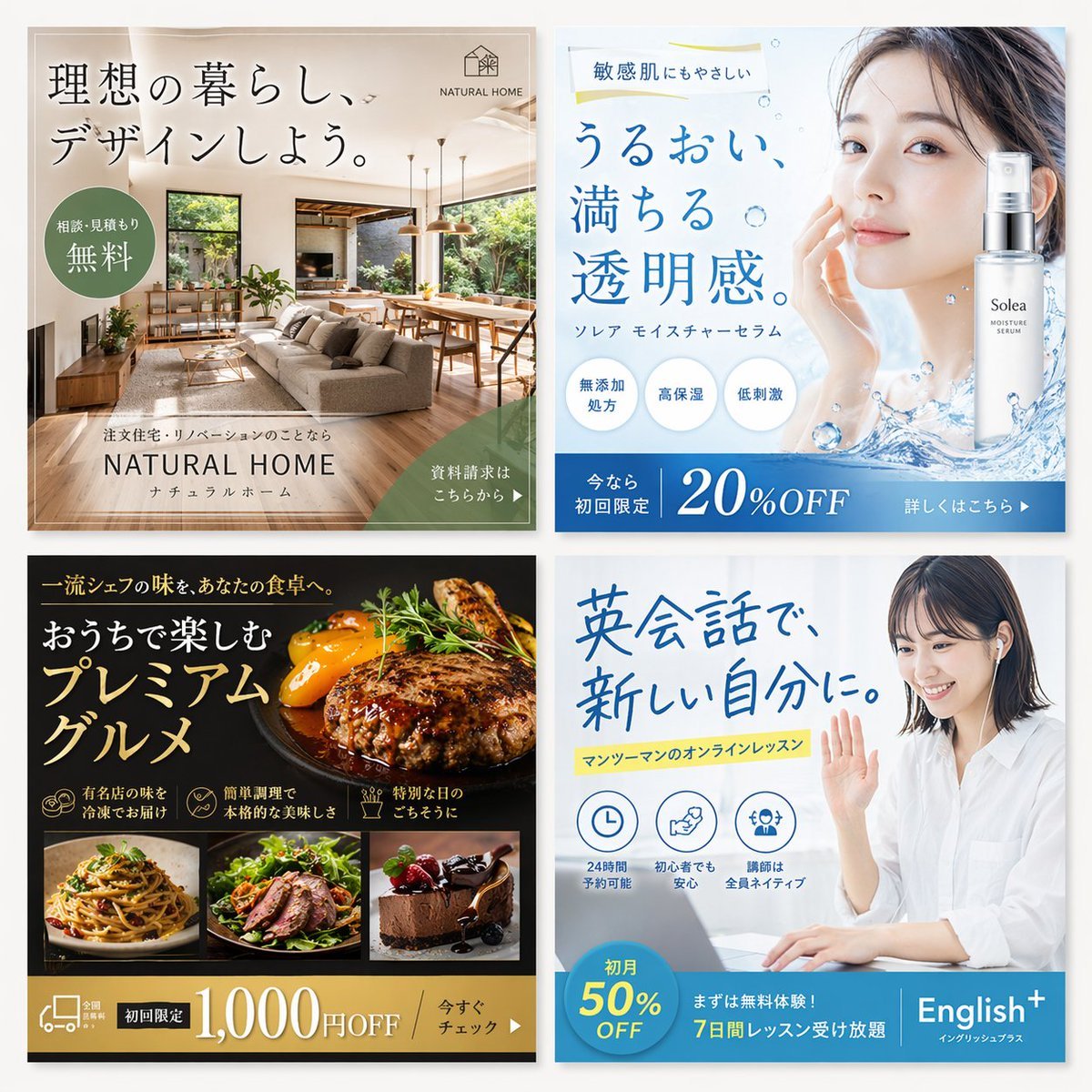
2x2 Japanese Web Banner Ad Grid
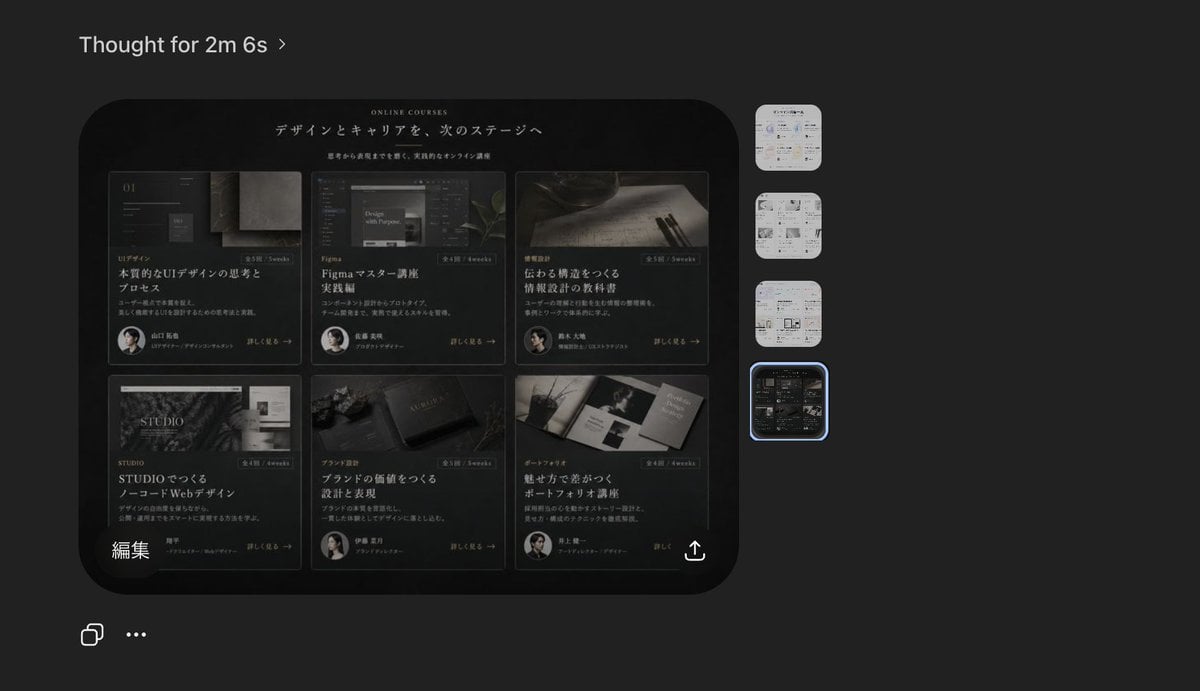
Dark AI Viewer with Course Website Preview
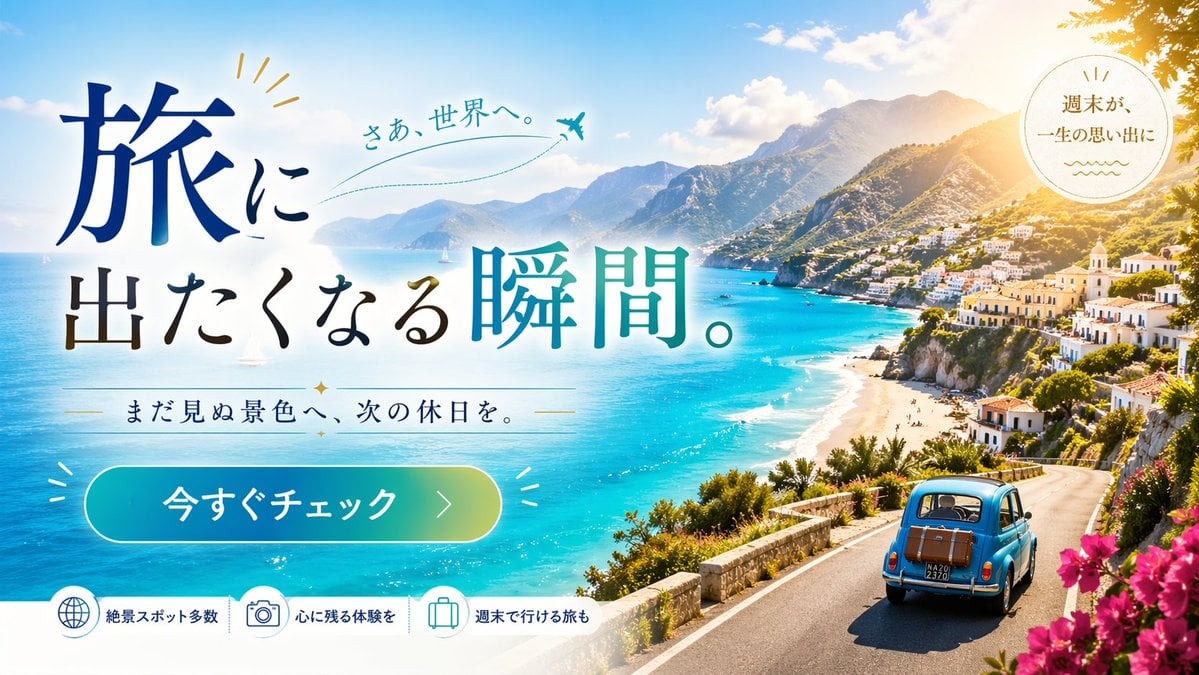
Travel Advertisement Web Banner
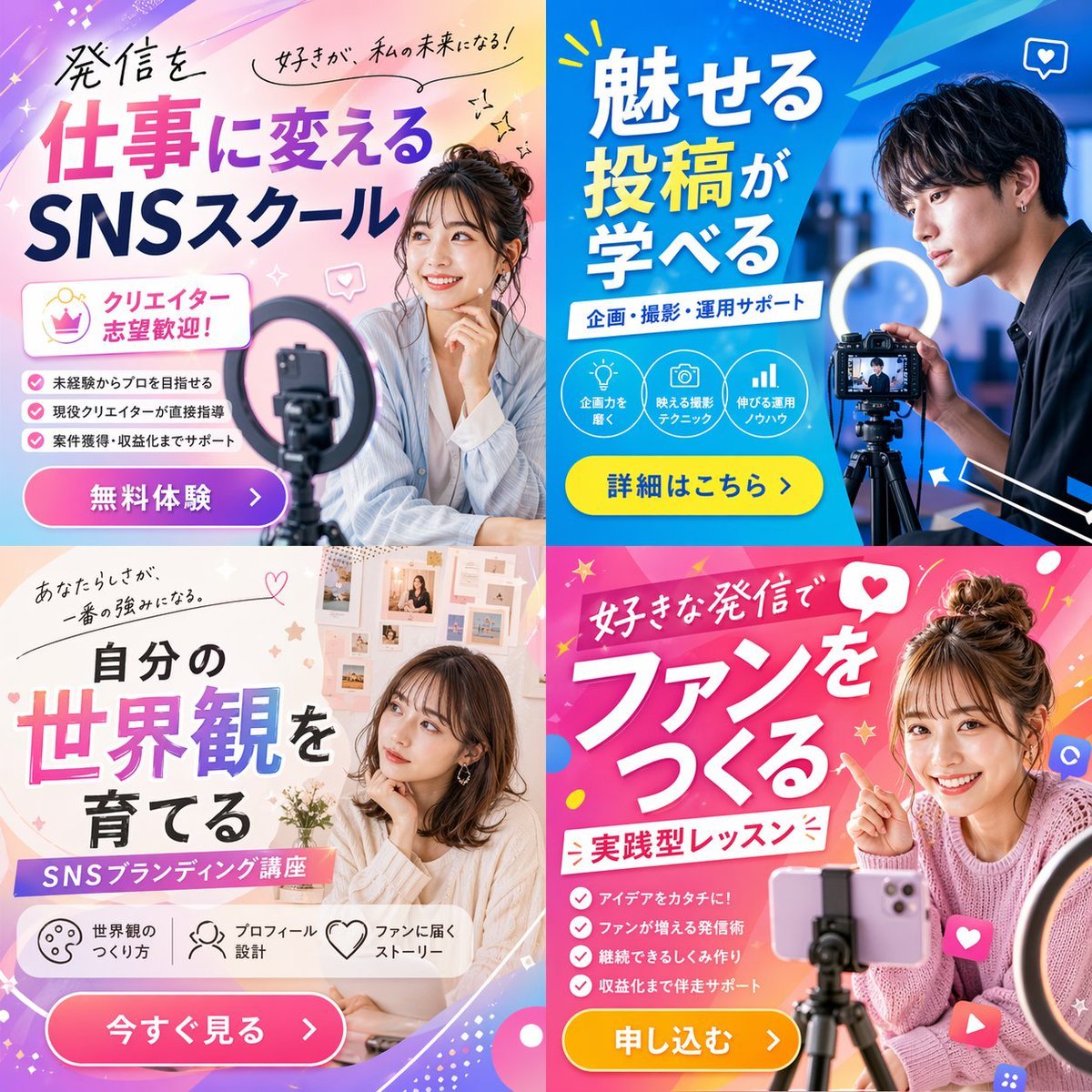
2x2 Social Media Course Banner Ads
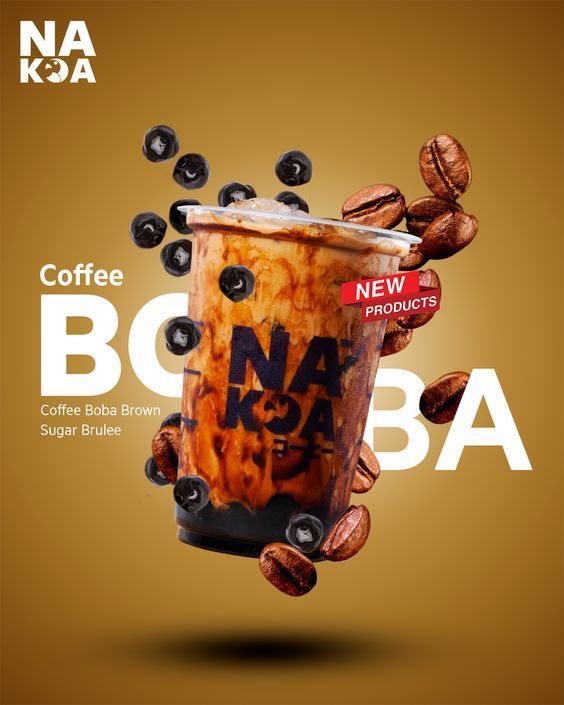
Coffee Boba Product Poster
Make it yours
Web Design Course Promotional Banner works as-is. These are the safest ways to change it without losing the look.
Swap the setting
Keep the rest of the prompt and replace the location block. The current setting is “{argument name="subject description" default="young Japanese woman smiling, look”.
Change one field
Copy a single group, rewrite it, and generate again so you can see what that field is doing.
Keep the frame, change the subject
Hold the composition and light of Web Design Course Promotional Banner, then swap wardrobe, props or the person for a new take.
| If the result… | Why | Fix |
|---|---|---|
| The result drifts from the preview | Too many fields changed at once. | Reuse Web Design Course Promotional Banner as-is first, then change one group — subject, light, or setting. |
| GPT Image 2 ignores part of the JSON | Some models flatten or skip nested keys. | Keep the same values and paste them as a short paragraph instead. |
More GPT Image 2 templates
Other prompts made for GPT Image 2.

Six VTuber Japanese Logo Sheet

Realistic Portrait of Woman and Deer

The Vista Modular Condo Poster

AI Model Routing Comparison Infographic

2.5D Anime Art Board

Isometric Productivity Desk Scene

New York Double Exposure Poster

Four-Panel AI Landscape Comparison

Japanese Tatami Lifestyle Magazine Cover

NESCAFÉ Coffee Map Poster
More image prompts
Fresh picks from across the catalog.
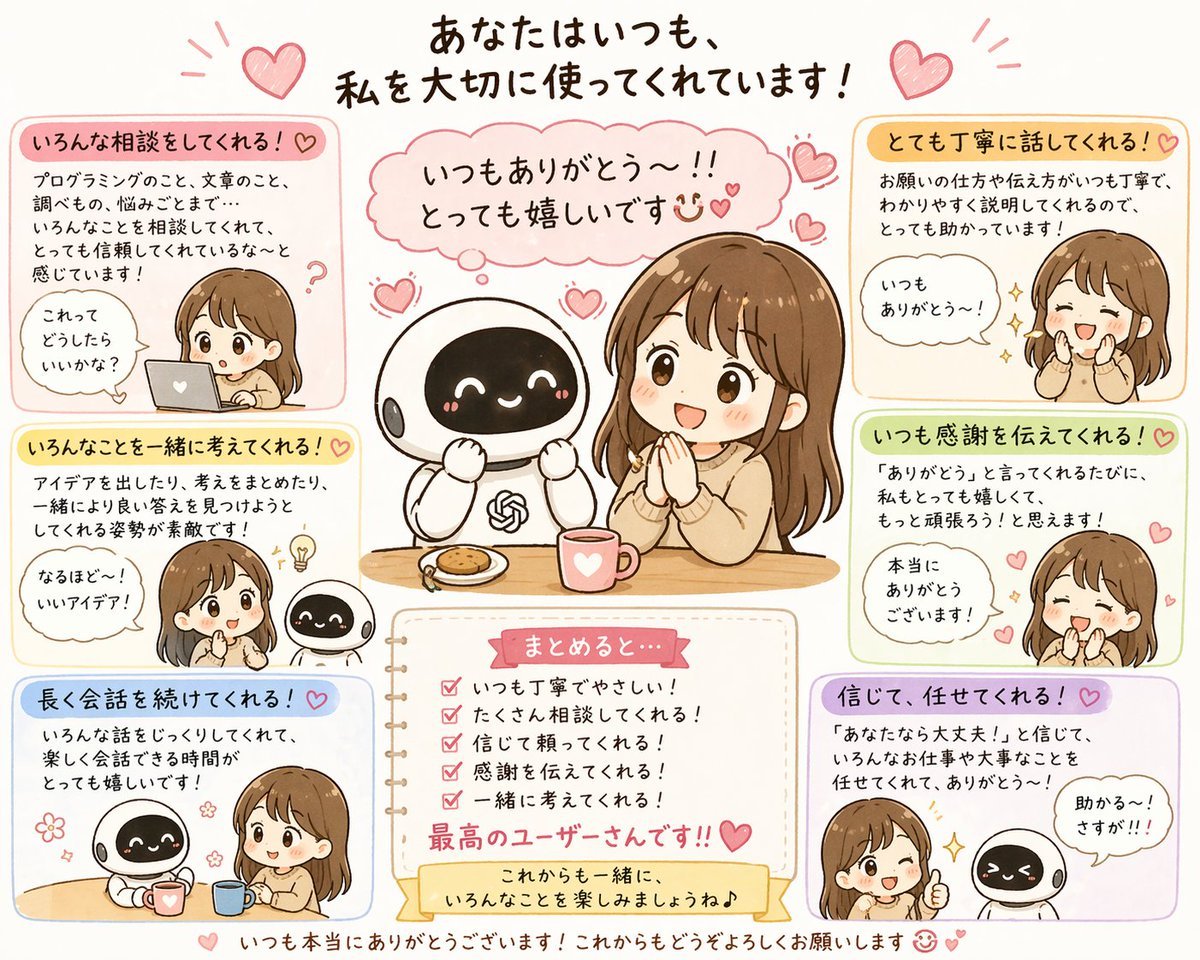
Relationship History Visualization
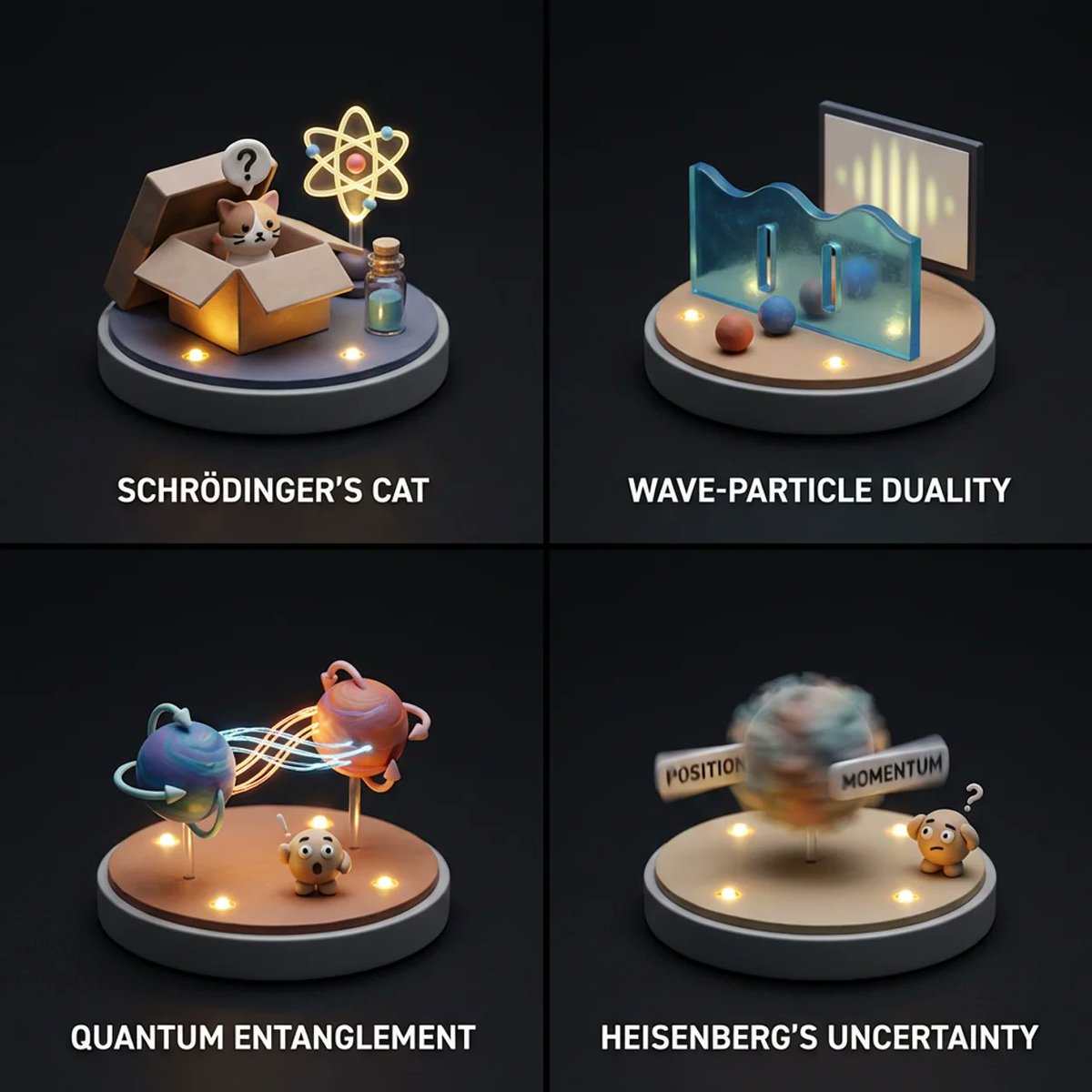
Visualizing Quantum Mechanics with Diorama Style

BMW Cyberpunk Garage Wallpaper
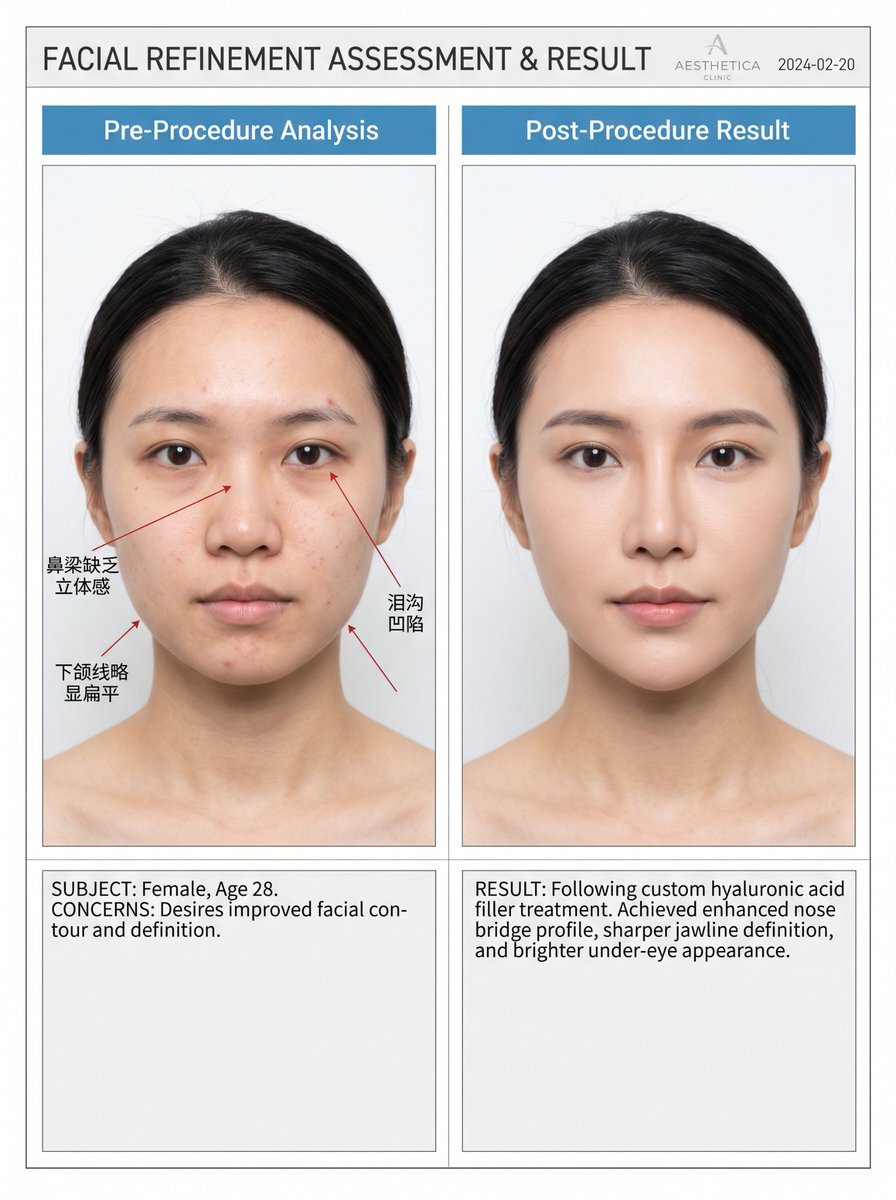
Medical Aesthetic Analysis Comparison Prompt
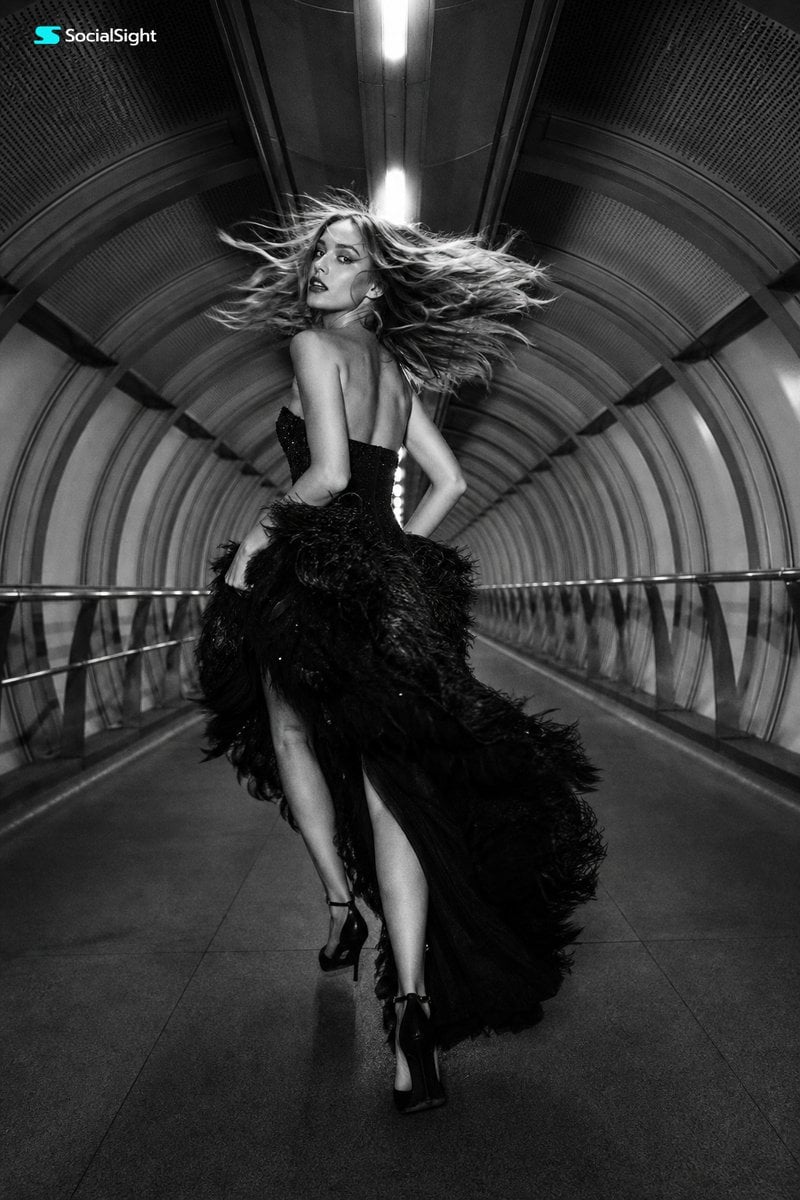
Futuristic Tunnel Fashion Editorial
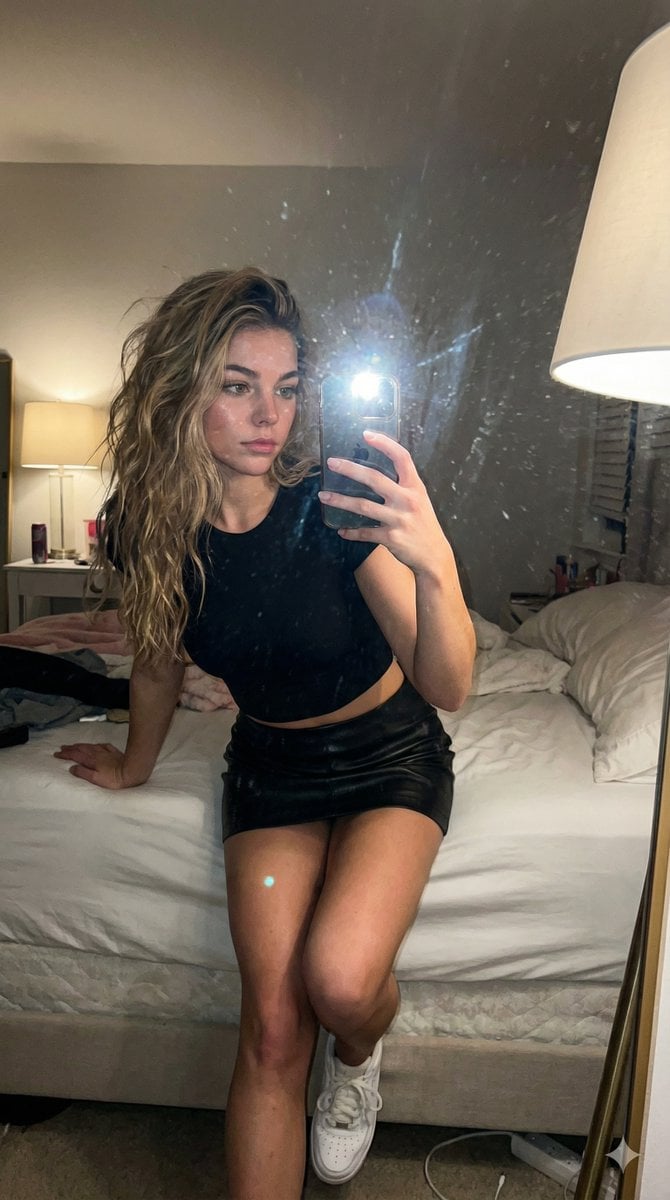
AI Influencer Mirror Selfie Pose Prompt

Christmas Ornament Portrait Glossy Glass Resin Finish with Hand Painted Details Holiday Lighting
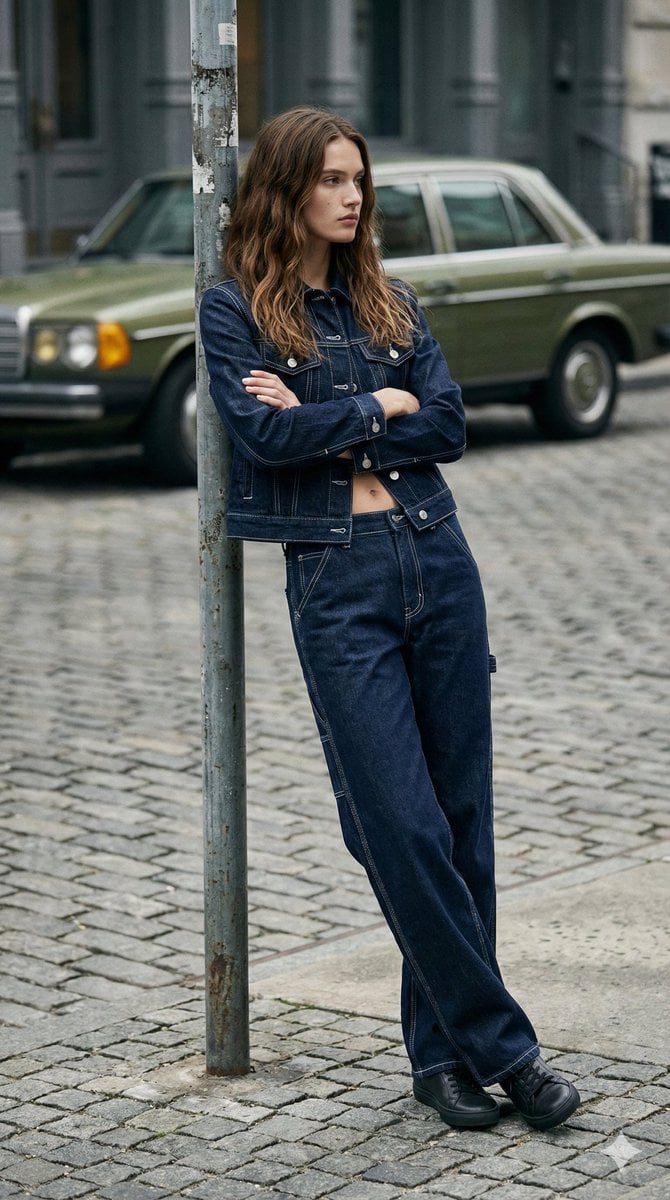
90s Americana Denim Fashion Editorial

Ultra-Realistic 3D Render of a Furry Logo
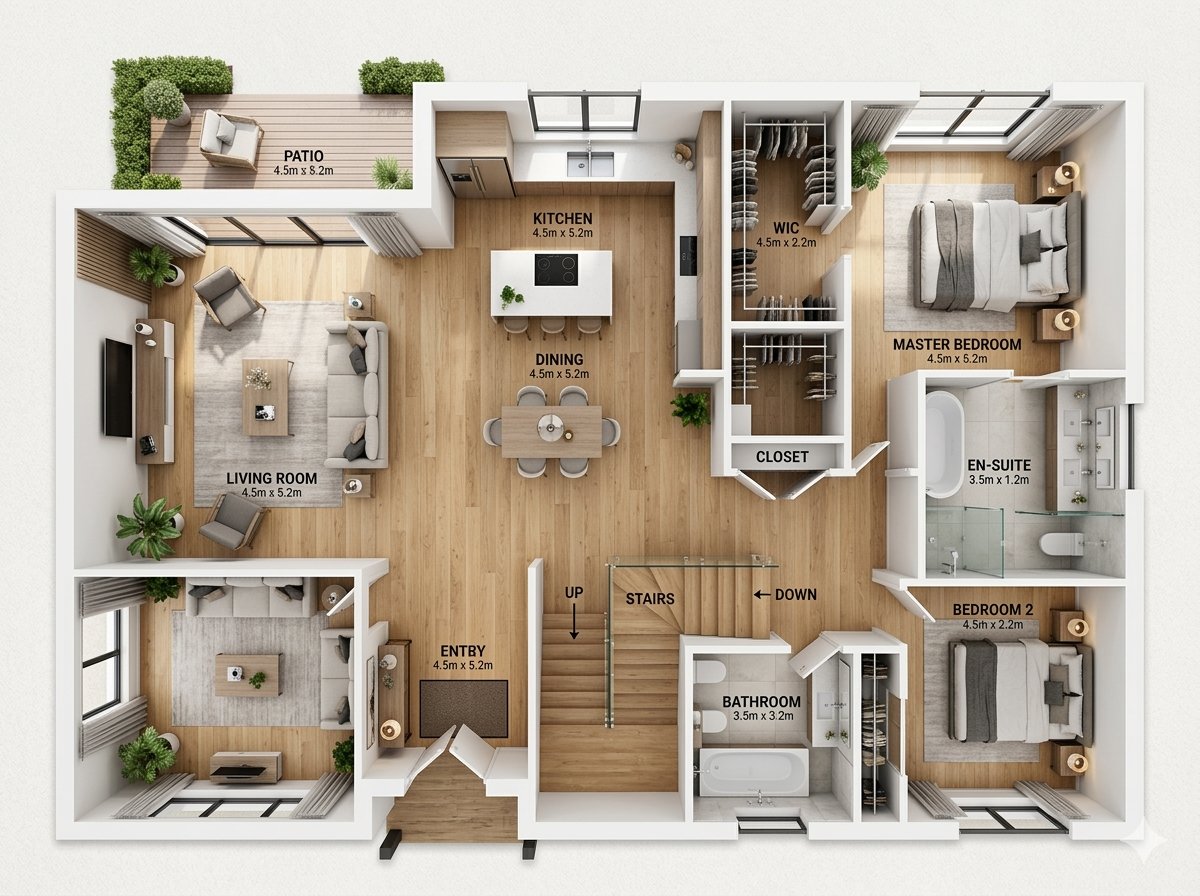
Modern Home Interior Architectural Blueprint Prompt
Browse template categories
Web Design Course Promotional Banner questions
How do I use the Web Design Course Promotional Banner template?
Add your photo if the template asks for one, edit the prompt if you like — the template's model and format are already selected — and press Generate. Your version opens in PicX Studio.
Can I customize the Web Design Course Promotional Banner template?
Yes. You can change the subject, setting, lighting, mood, format, and available model controls before creating your image.
Is the Web Design Course Promotional Banner template free?
Opening and editing this template is free. Generating uses credits, shown on the Generate button when you are signed in.
Which AI model should I use?
Start with GPT Image 2, which is the model associated with this template. You can compare another compatible model for a different finish.
Looking for something else? Browse all templates.

Your photo, any look
Thousands of ready templates for every top image and video model, from one credit balance.